
C# Write to Excel [Without Using Interop] Code Example Tutorial

Follow step-by-step examples of how to create, open, and save Excel files with C#, and apply basic operations like getting sum, average, count, and more. IronXL.Excel is a stand-alone .NET software library for reading a wide range of spreadsheet formats. It does not require Microsoft Excel to be installed, nor depends on Interop.
Ready to generate Excel files in under a minute? This example uses IronXL to create a workbook, write a value to a cell, and save the file - all with minimal fuss and zero reliance on Interop. It's the fastest way to get started with Excel file operations in C#.
-
1Install IronXL with NuGet Package Manager
-
2Copy and run this code snippet.
var workbook = IronXL.WorkBook.Create(IronXL.ExcelFileFormat.XLSX); workbook.CreateWorkSheet("Data")["A1"].Value = "Fast Start"; workbook.SaveAs("quick.xlsx");Dim workbook = IronXL.WorkBook.Create(IronXL.ExcelFileFormat.XLSX) workbook.CreateWorkSheet("Data")("A1").Value = "Fast Start" workbook.SaveAs("quick.xlsx") -
3Deploy to test on your live environment
Start using IronXL in your project today with a free trial
Minimal Workflow (5 steps)
- Download the Write Excel C# Library
- Create and open a new CSV or XML Excel file as an Excel workbook
- Save and export your Excel workbook
- Apply Advanced Operations in your multiple Excel worksheets
- Integrate with Excel Database
Overview
Use IronXL to Open and Write Excel Files
Open, write, save, and customize Excel files with the easy-to-use IronXL C# library.
Download a sample project from GitHub or use your own, and follow the tutorial.
- Install the
IronXL.ExcelLibrary from NuGet or the DLL download - Use the
WorkBook.Loadmethod to read any XLS, XLSX, or CSV document. - Get Cell values using intuitive syntax:
sheet["A11"].DecimalValue
In this tutorial, we will walk you through:
- Installing
IronXL.Excel: how to installIronXL.Excelto an existing project. - Basic Operations: basic operation steps with Excel to Create or Open workbook, select sheet, select cell, and save the workbook.
- Advanced Sheet Operations: how to utilize different manipulation capabilities like adding headers or footers, mathematical operations, and other features.
Open an Excel File: Quick Code
using IronXL;

WorkBook workBook = WorkBook.Load("test.xlsx");
WorkSheet workSheet = workBook.DefaultWorkSheet;
IronXL.Range range = workSheet["A2:A8"];
decimal total = 0;

// iterate over range of cells
foreach (var cell in range)
{
    Console.WriteLine("Cell {0} has value '{1}'", cell.RowIndex, cell.Value);
    if (cell.IsNumeric)
    {
        // Get decimal value to avoid floating numbers precision issue
        total += cell.DecimalValue;
    }
}

// Check formula evaluation
if (workSheet["A11"].DecimalValue == total)
{
    Console.WriteLine("Basic Test Passed");
}Imports IronXL
Private workBook As WorkBook = WorkBook.Load("test.xlsx")
Private workSheet As WorkSheet = workBook.DefaultWorkSheet
Private range As IronXL.Range = workSheet("A2:A8")
Private total As Decimal = 0
' iterate over range of cells
For Each cell In range
Console.WriteLine("Cell {0} has value '{1}'", cell.RowIndex, cell.Value)
If cell.IsNumeric Then
' Get decimal value to avoid floating numbers precision issue
total += cell.DecimalValue
End If
Next cell
' Check formula evaluation
If workSheet("A11").DecimalValue = total Then
Console.WriteLine("Basic Test Passed")
End IfWrite and Save Changes to the Excel File: Quick Code
workSheet["B1"].Value = 11.54;

// Save Changes
workBook.SaveAs("test.xlsx");workSheet("B1").Value = 11.54
' Save Changes
workBook.SaveAs("test.xlsx")Step 1
1. Install the IronXL.Excel Library FREE
IronXL.Excel provides a flexible and powerful library for opening, reading, editing, and saving Excel files in .NET. It can be installed and used on all of the .NET project types, like Windows applications, ASP.NET MVC, and .NET Core Application.
Install the Excel Library to your Visual Studio Project with NuGet
The first step will be to install IronXL.Excel. To add the IronXL.Excel library to the project, we have two ways: NuGet Package Manager or NuGet Package Manager Console.
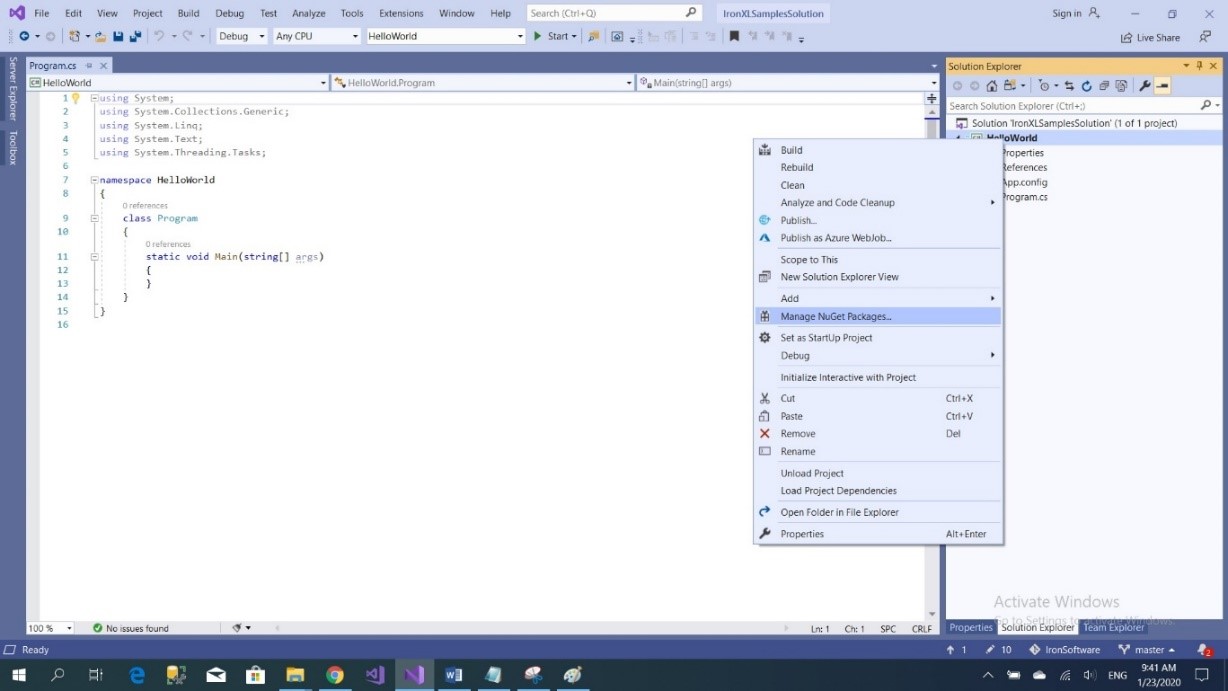
To add IronXL.Excel library to our project using NuGet, we can do it using a visualized interface, NuGet Package Manager:
- Using mouse -> right-click on project name -> Select manage NuGet Package
- From the browse tab -> search for
IronXL.Excel-> Install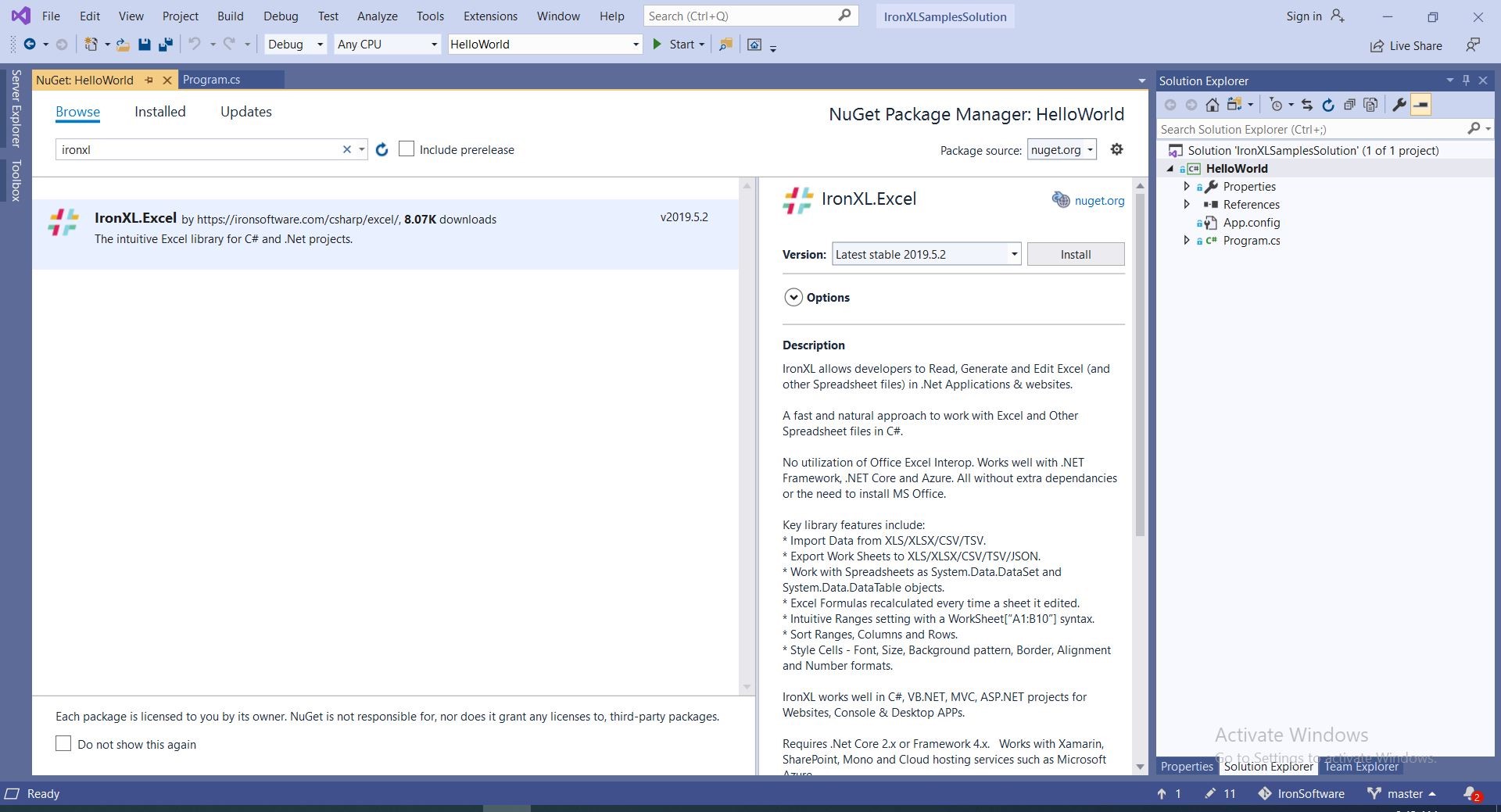
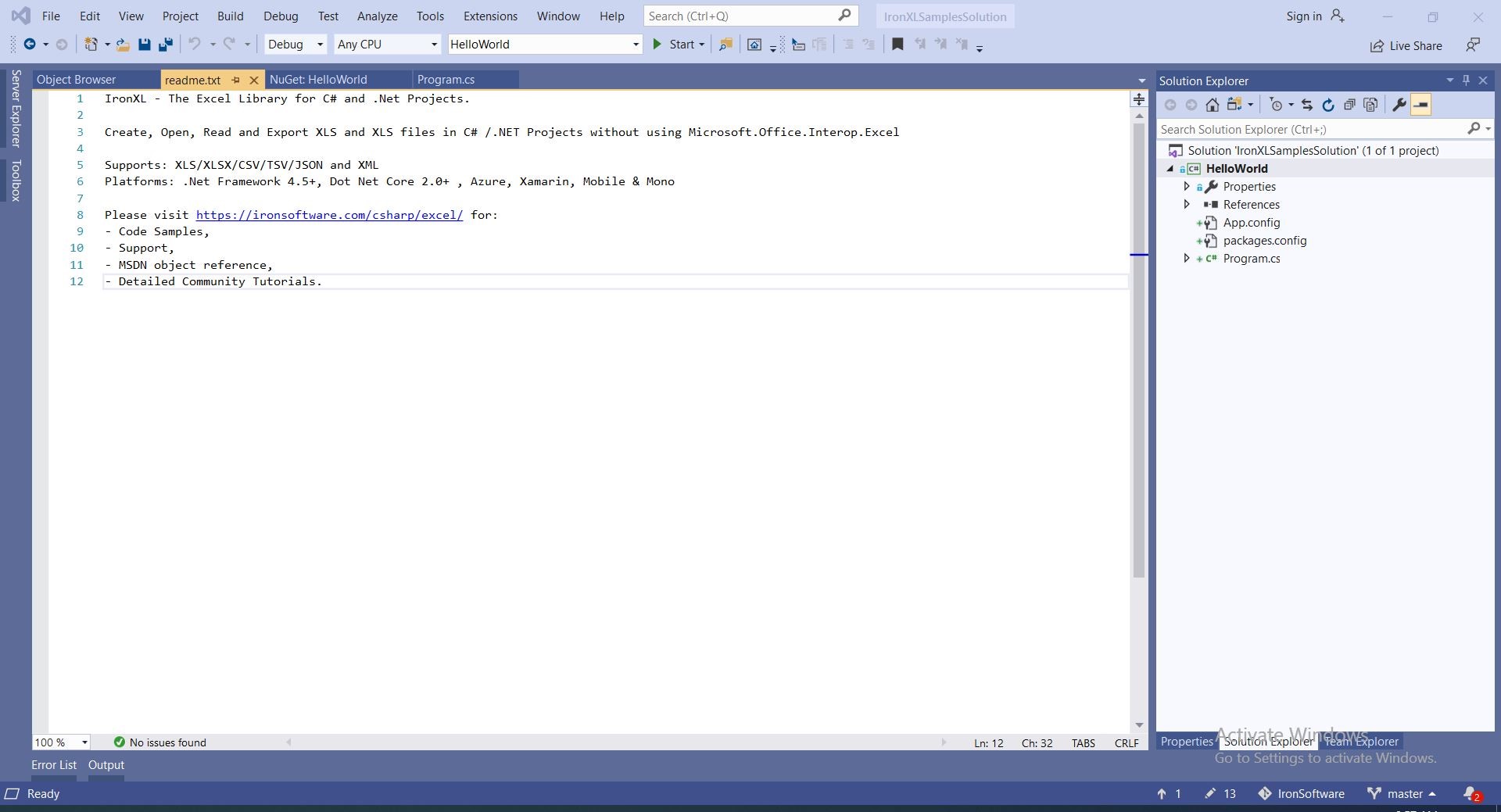
- And we are done
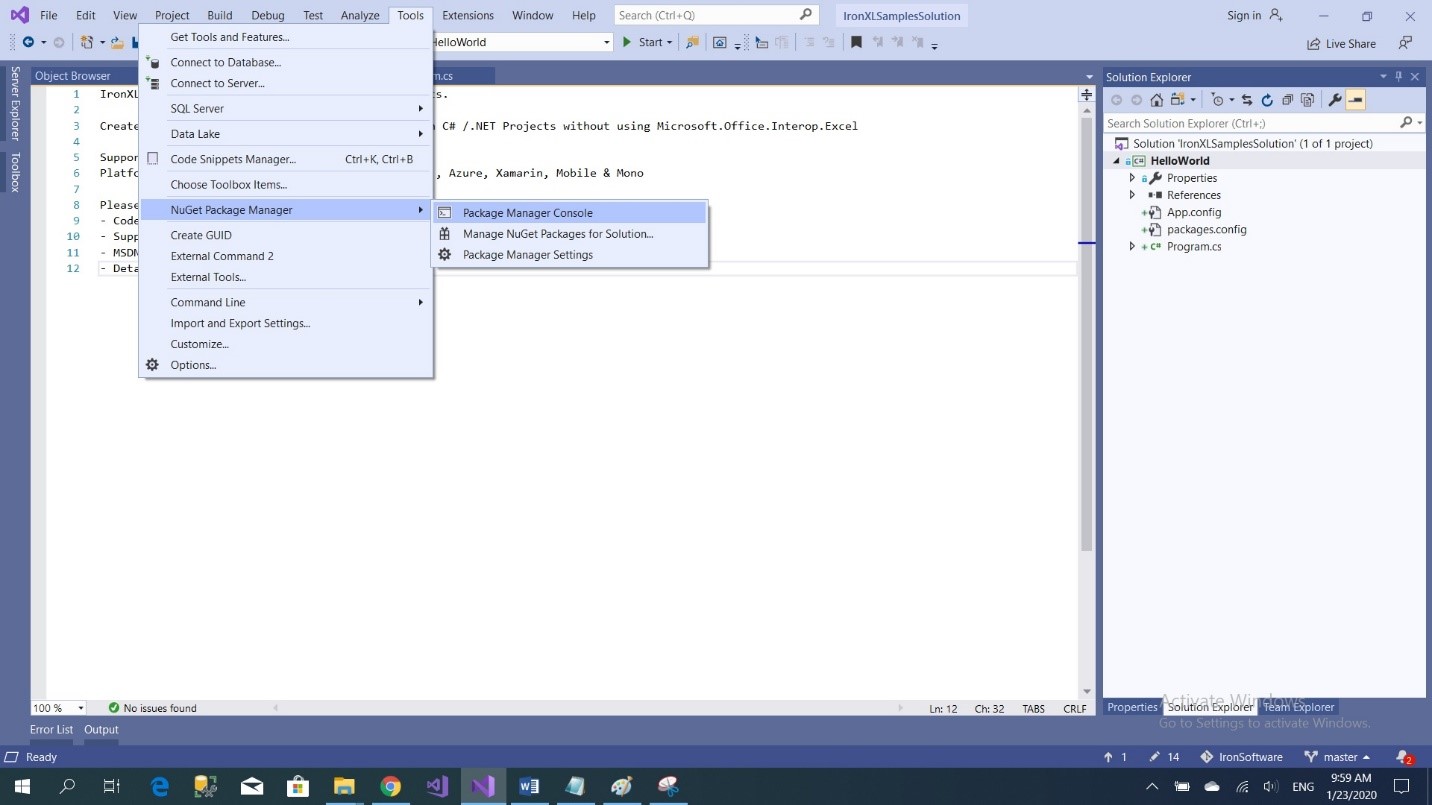
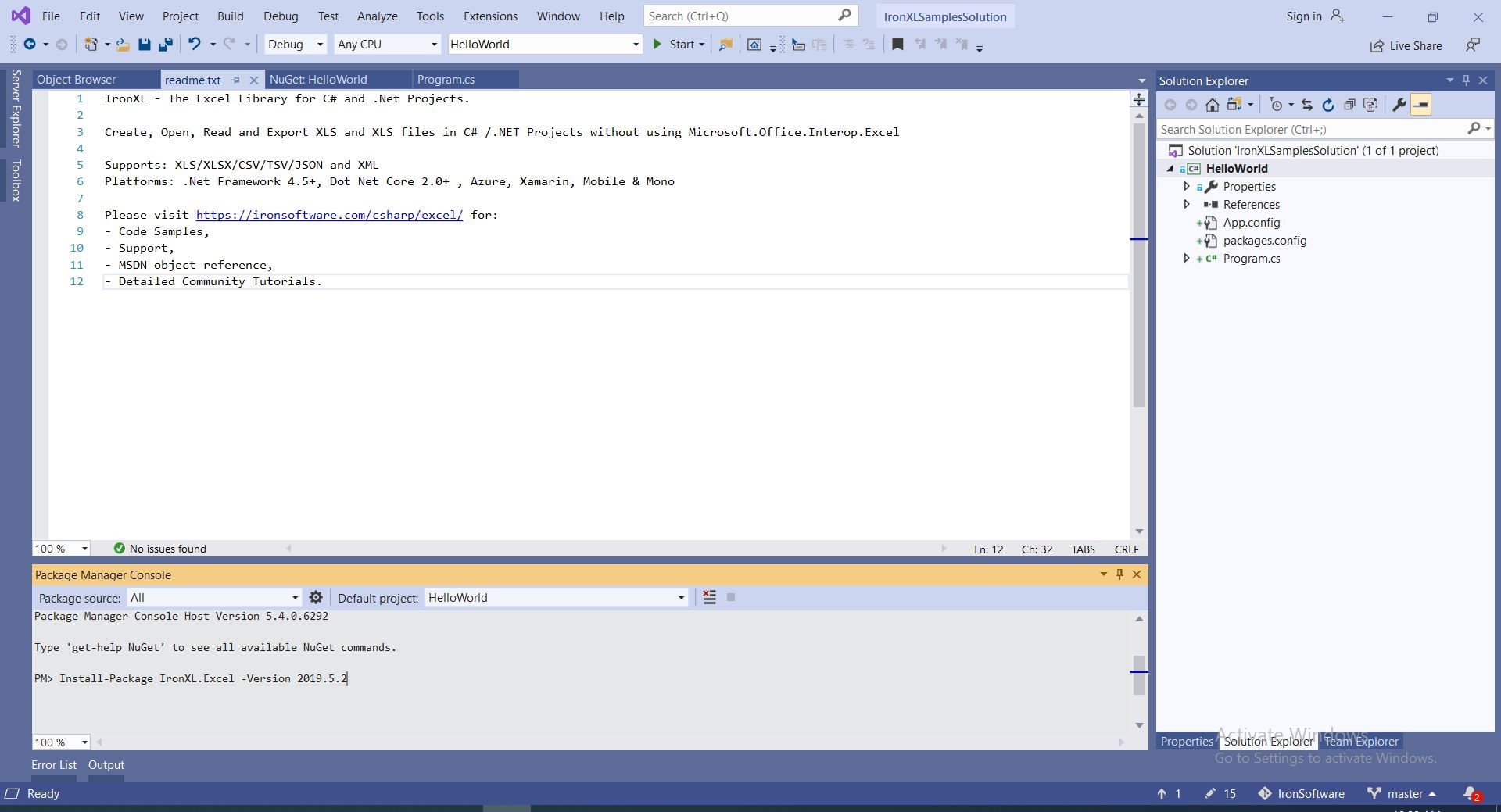
Install Using NuGet Package Manager Console
- From tools -> NuGet Package Manager -> Package Manager Console
- Run command
Manually Install with the DLL
You may also choose to manually install the DLL to your project or to your global assembly cache.How To Tutorials
2. Basic Operations: Create, Open, Save
2.1. Sample Project: HelloWorld Console Application
Create a HelloWorld Project in Visual Studio.
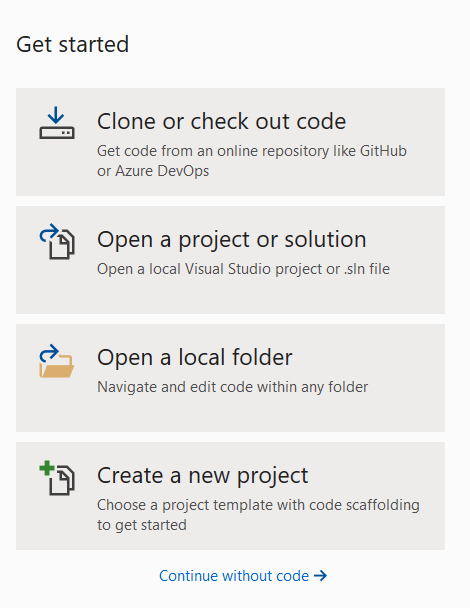
- Open Visual Studio

- Choose Create New Project
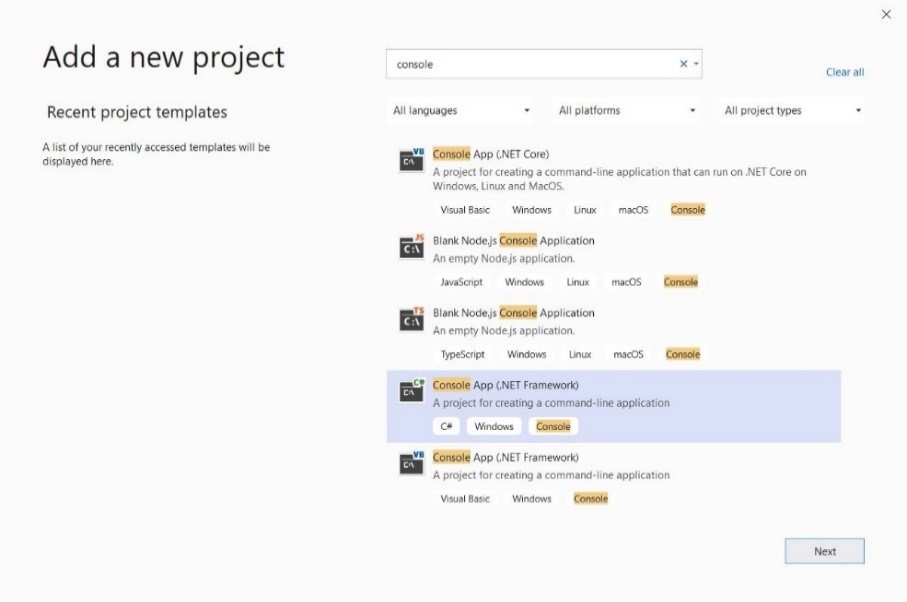
- Choose Console App (.NET framework)
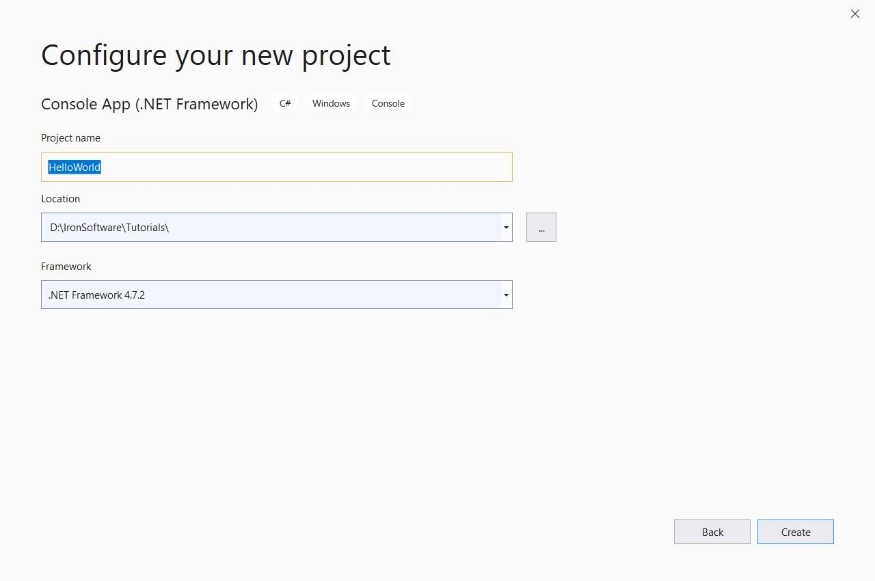
- Give the sample the name "HelloWorld" and click create
- Now the console application is created
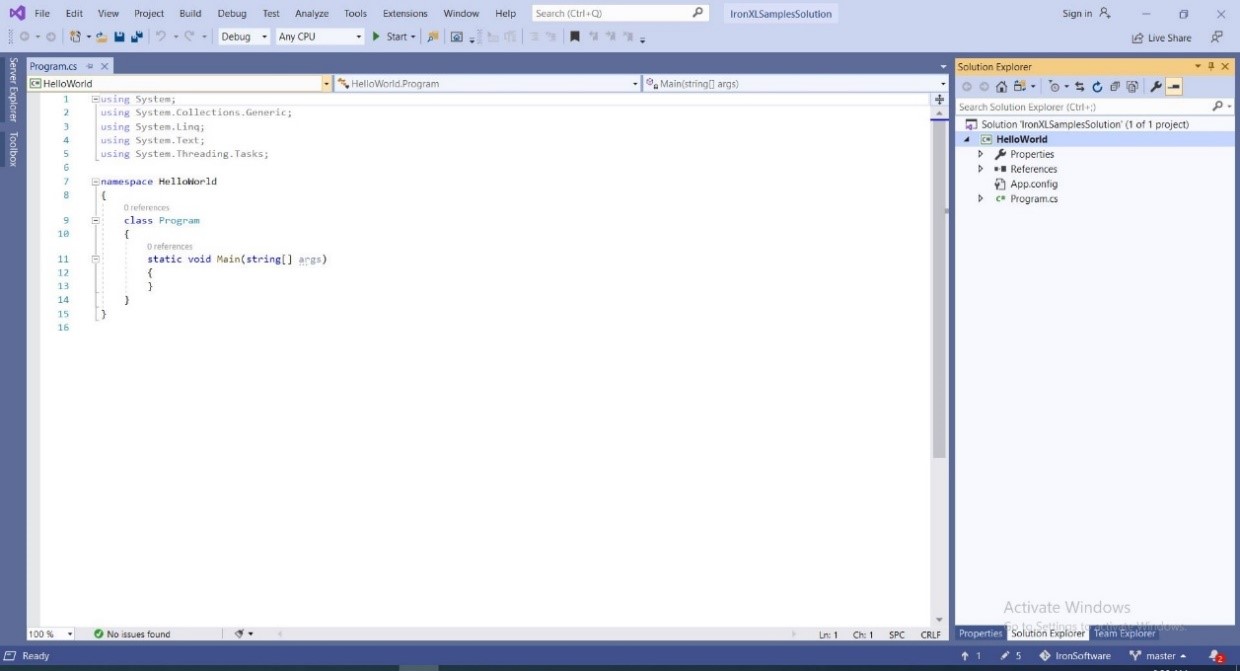
- Add
IronXL.Excelto your project -> click install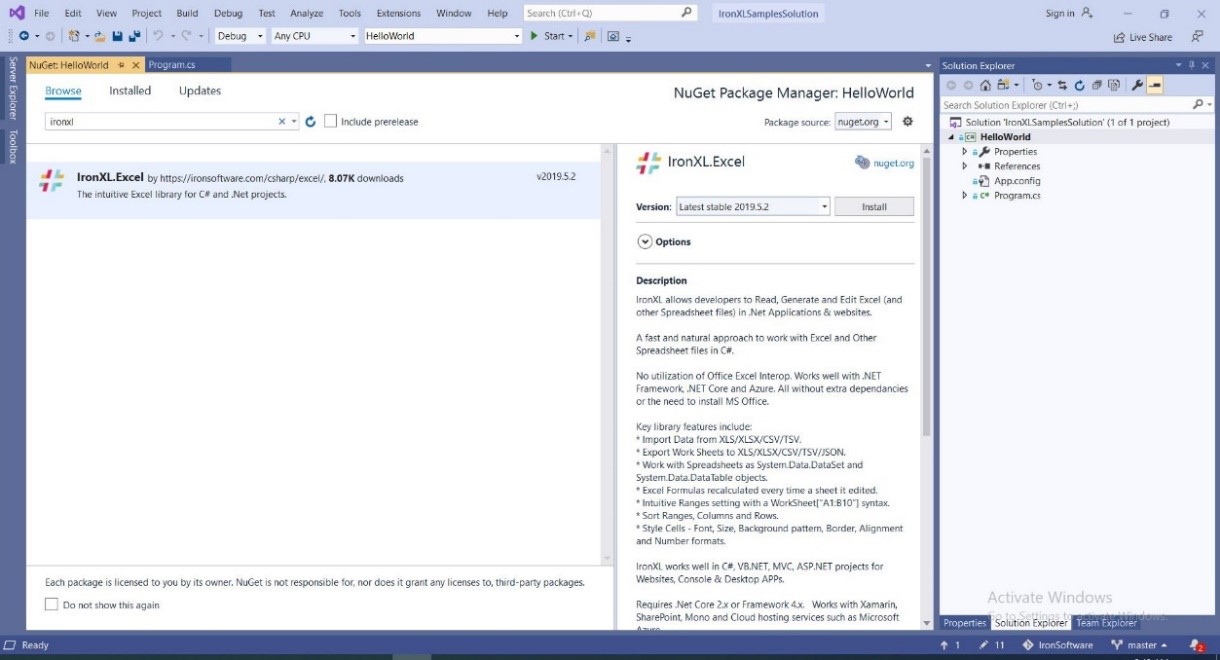
- Add code to read the first cell in the first sheet from an Excel file and print it
WorkBook workBook = IronXL.WorkBook.Load($@"{Directory.GetCurrentDirectory()}\Files\CSVList.csv");
WorkSheet workSheet = workBook.WorkSheets.First();
string cell = workSheet["A1"].StringValue;
Console.WriteLine(cell);Dim workBook As WorkBook = IronXL.WorkBook.Load($"{Directory.GetCurrentDirectory()}\Files\CSVList.csv")
Dim workSheet As WorkSheet = workBook.WorkSheets.First()
Dim cell As String = workSheet("A1").StringValue
Console.WriteLine(cell)...
Further Reading
To learn more about working with IronXL, you may wish to look at other tutorials within this section and also the examples on our homepage, which most developers find sufficient to get started.
Our API Reference contains specific references to the WorkBook class.
Frequently Asked Questions
How can I create and save an Excel file using C# without Interop?
You can use IronXL to create and save Excel files in C# without relying on Interop. Simply create a workbook using `IronXL.WorkBook.Create`, add data to a cell, and save with the `SaveAs` method. This is a fast and straightforward process.
What are the steps to quickly generate an Excel file using IronXL?
To quickly generate an Excel file using IronXL, follow these steps: Download the IronXL library, create and open a new Excel file, write data, and then save and export your Excel workbook.
Is it possible to perform advanced operations on Excel files using IronXL?
Yes, IronXL allows you to perform advanced operations on Excel files, such as adding headers, footers, and performing mathematical operations directly within worksheets.
Do I need Microsoft Excel installed to use IronXL?
No, IronXL does not require Microsoft Excel to be installed on your system. It is a standalone .NET library that handles Excel file operations independently.
How do I install the IronXL library to my project?
You can install IronXL to your project using the NuGet Package Manager or by downloading the DLL. For NuGet, search for `IronXL.Excel` in the NuGet Package Manager and install it.
Can I read and write different Excel file formats with IronXL?
Yes, IronXL supports reading and writing multiple Excel file formats including XLS, XLSX, and CSV, allowing for flexible data handling.
What is the benefit of using IronXL for Excel operations in C#?
IronXL offers an easy-to-use API for creating, reading, and writing Excel files without the need for Interop, making it efficient for handling Excel operations in C# applications.
How can I open an existing Excel file using IronXL?
You can open an existing Excel file using the `WorkBook.Load` method provided by IronXL. This supports loading files in various formats like XLS, XLSX, and CSV.
Can IronXL be used with .NET Core applications?
Yes, IronXL can be used with .NET Core applications along with other .NET project types like Windows applications and ASP.NET MVC.
What syntax does IronXL use for accessing cell values?
IronXL uses intuitive syntax for accessing cell values, such as `sheet["A1"].StringValue` to read the value of the first cell in a worksheet.

Curtis Chau holds a Bachelor’s degree in Computer Science (Carleton University) and specializes in front-end development with expertise in Node.js, TypeScript, JavaScript, and React. Passionate about crafting intuitive and aesthetically pleasing user interfaces, Curtis enjoys working with modern frameworks and creating well-structured, visually appealing manuals.



