
Write Excel .NET Functions in C# with IronXL

Write Excel data in C# using IronXL by accessing worksheets, setting cell values with simple bracket notation, and saving changes. The library supports writing to specific cells, ranges, and replacing values programmatically without complex code.
C# applications often need to update files and write new data in Excel spreadsheets programmatically. Excel .NET capabilities can sometimes be complicated, but using the IronXL library, this task is straightforward and allows working with Excel spreadsheets in any format. Access specific cells directly and assign custom values with minimal code. Whether you're creating new spreadsheets or editing existing Excel files, IronXL provides intuitive methods for all your Excel automation needs.
Quickstart: Write a Value to a Specific CellThis example shows how to write a value into a single cell using IronXL and save the Excel file in just a few lines.
-
1Install IronXL with NuGet Package Manager
-
2Copy and run this code snippet.
worksheet["A1"].Value = "Hello, IronXL!"; workbook.SaveAs("output.xlsx");worksheet("A1").Value = "Hello, IronXL!" workbook.SaveAs("output.xlsx")worksheet("A1").Value = "Hello, IronXL!" workbook.SaveAs("output.xlsx") -
3Deploy to test on your live environment
Start using IronXL in your project today with a free trial
Write Excel .NET Instructions
- Download the Library for Excel .NET
- Write values in specific cells
- Write static values in multiple cells
- Write dynamic values in cell range
- Replace cell values in specific row, column, range, and more
How Do I Access Excel Files?
Start by accessing the Excel file where you want to write data. Open the Excel file in your project, then open its specific worksheet using the following code.
// Load Excel file in the project
WorkBook workBook = WorkBook.Load("path");
// Load Excel file in the project
WorkBook workBook = WorkBook.Load("path");' Load Excel file in the project
Dim workBook As WorkBook = WorkBook.Load("path")' Load Excel file in the project
Dim workBook As WorkBook = WorkBook.Load("path")The above opens the specified Excel file. Next, access the worksheet.
// Open Excel WorkSheet
WorkSheet workSheet = workBook.GetWorkSheet("Sheet1");
// Open Excel WorkSheet
WorkSheet workSheet = workBook.GetWorkSheet("Sheet1");' Open Excel WorkSheet
Dim workSheet As WorkSheet = workBook.GetWorkSheet("Sheet1")' Open Excel WorkSheet
Dim workSheet As WorkSheet = workBook.GetWorkSheet("Sheet1")The Excel worksheet opens in workSheet using IronXL and you can use it to write any type of data in the Excel file. Learn more about how to load Excel files and access worksheets in different ways through the examples in the link. For working with multiple worksheets, check out our guide on managing worksheets which covers adding, renaming, and deleting sheets programmatically.
Note: Don't forget to add the reference to IronXL in your project and import the library by using using IronXL.
How Do I Write a Value in a Specific Cell?
You can write in an Excel file using many different methods, but the basic approach uses ExcelCell. For this purpose, any cell of the opened Excel worksheet can be accessed and a value written in it as follows:
workSheet["Cell Address"].Value="Assign the Value";workSheet["Cell Address"].Value="Assign the Value";workSheet("Cell Address").Value="Assign the Value"workSheet("Cell Address").Value="Assign the Value"Here's an example of how to use the above function to write in an Excel cell in your C# project.
using IronXL;

// Load Excel file
WorkBook workBook = WorkBook.Load("sample.xlsx");

// Open WorkSheet of sample.xlsx
WorkSheet workSheet = workBook.GetWorkSheet("Sheet1");

// Access A1 cell and write the value
workSheet["A1"].Value = "new value";

// Save changes
workBook.SaveAs("sample.xlsx");
using IronXL;
// Load Excel file
WorkBook workBook = WorkBook.Load("sample.xlsx");
// Open WorkSheet of sample.xlsx
WorkSheet workSheet = workBook.GetWorkSheet("Sheet1");
// Access A1 cell and write the value
workSheet["A1"].Value = "new value";
// Save changes
workBook.SaveAs("sample.xlsx");Imports IronXL
' Load Excel file
Private workBook As WorkBook = WorkBook.Load("sample.xlsx")
' Open WorkSheet of sample.xlsx
Private workSheet As WorkSheet = workBook.GetWorkSheet("Sheet1")
' Access A1 cell and write the value
Private workSheet("A1").Value = "new value"
' Save changes
workBook.SaveAs("sample.xlsx")Imports IronXL
' Load Excel file
Private workBook As WorkBook = WorkBook.Load("sample.xlsx")
' Open WorkSheet of sample.xlsx
Private workSheet As WorkSheet = workBook.GetWorkSheet("Sheet1")
' Access A1 cell and write the value
Private workSheet("A1").Value = "new value"
' Save changes
workBook.SaveAs("sample.xlsx")This code writes new value in cell A1 of the worksheet Sheet1 in the Excel file sample.xlsx. In the same way, you can insert values in any cell address of an Excel file. For more advanced formatting options, such as setting cell fonts and sizes or applying background colors and patterns, IronXL provides comprehensive styling capabilities.
Note: Don't forget to save the Excel file after writing new values in the worksheet, as shown in the example above.
Why Would I Force Assign Exact Values?
When setting the Value property, IronXL tries to convert it to its corresponding value type. Sometimes, this evaluation is undesirable since you want to force assign the exact value to the cell without conversion. To do this, assign the value as a string. In IronXL, simply use StringValue instead of Value to achieve the same effect.
// Assign value as string
workSheet["A1"].StringValue = "4402-12";
// Assign value as string
workSheet["A1"].StringValue = "4402-12";' Assign value as string
workSheet("A1").StringValue = "4402-12"' Assign value as string
workSheet("A1").StringValue = "4402-12"How Do I Write Static Values in a Range?
You can write new values in multiple cells, called a range, as follows:
// Assign a static value to a range of cells
worksheet["B2:C5"].Value = "static value";
// Assign a static value to a range of cells
worksheet["B2:C5"].Value = "static value";' Assign a static value to a range of cells
worksheet("B2:C5").Value = "static value"' Assign a static value to a range of cells
worksheet("B2:C5").Value = "static value"This way, you specify the range of cells From to To where the data will be written. The new value will be written in all cells within this range. To understand more about C# Excel Range, check out the examples here.
See how to write a range in action using the example below.
using IronXL;

// Load Excel file
WorkBook workBook = WorkBook.Load("sample.xlsx");

// Open WorkSheet of sample.xlsx
WorkSheet workSheet = workBook.GetWorkSheet("Sheet1");

// Specify range row wise and write new value
workSheet["B2:B9"].Value = "new value";

// Specify range column wise and write new value
workSheet["C3:C7"].Value = "new value";

// Save changes
workBook.SaveAs("sample.xlsx");
using IronXL;
// Load Excel file
WorkBook workBook = WorkBook.Load("sample.xlsx");
// Open WorkSheet of sample.xlsx
WorkSheet workSheet = workBook.GetWorkSheet("Sheet1");
// Specify range row wise and write new value
workSheet["B2:B9"].Value = "new value";
// Specify range column wise and write new value
workSheet["C3:C7"].Value = "new value";
// Save changes
workBook.SaveAs("sample.xlsx");Imports IronXL
' Load Excel file
Private workBook As WorkBook = WorkBook.Load("sample.xlsx")
' Open WorkSheet of sample.xlsx
Private workSheet As WorkSheet = workBook.GetWorkSheet("Sheet1")
' Specify range row wise and write new value
Private workSheet("B2:B9").Value = "new value"
' Specify range column wise and write new value
Private workSheet("C3:C7").Value = "new value"
' Save changes
workBook.SaveAs("sample.xlsx")Imports IronXL
' Load Excel file
Private workBook As WorkBook = WorkBook.Load("sample.xlsx")
' Open WorkSheet of sample.xlsx
Private workSheet As WorkSheet = workBook.GetWorkSheet("Sheet1")
' Specify range row wise and write new value
Private workSheet("B2:B9").Value = "new value"
' Specify range column wise and write new value
Private workSheet("C3:C7").Value = "new value"
' Save changes
workBook.SaveAs("sample.xlsx")This code writes new value from B2 to B9 in column B, and from C3 to C7 in column C of the worksheet Sheet1 in the Excel file sample.xlsx. It uses static values for the Excel cells.
How Do I Write Dynamic Values in a Range?
You can also add dynamic values to a range, as seen below. This is particularly useful when you need to populate data from a database or when generating reports. You might also want to explore importing and exporting as DataSet for more complex data operations.
using IronXL;

// Load Excel file
WorkBook workBook = WorkBook.Load("sample.xlsx");

// Open WorkSheet of sample.xlsx
WorkSheet workSheet = workBook.GetWorkSheet("Sheet1");

// Specify range in which we want to write the values
for (int i = 2; i <= 7; i++)
{
    // Write the Dynamic value in one row
    workSheet["B" + i].Value = "Value" + i;

    // Write the Dynamic value in another row
    workSheet["D" + i].Value = "Value" + i;
}

// Save changes
workBook.SaveAs("sample.xlsx");
using IronXL;
// Load Excel file
WorkBook workBook = WorkBook.Load("sample.xlsx");
// Open WorkSheet of sample.xlsx
WorkSheet workSheet = workBook.GetWorkSheet("Sheet1");
// Specify range in which we want to write the values
for (int i = 2; i <= 7; i++)
{
// Write the Dynamic value in one row
workSheet["B" + i].Value = "Value" + i;
// Write the Dynamic value in another row
workSheet["D" + i].Value = "Value" + i;
}
// Save changes
workBook.SaveAs("sample.xlsx");Imports IronXL
' Load Excel file
Private workBook As WorkBook = WorkBook.Load("sample.xlsx")
' Open WorkSheet of sample.xlsx
Private workSheet As WorkSheet = workBook.GetWorkSheet("Sheet1")
' Specify range in which we want to write the values
For i As Integer = 2 To 7
' Write the Dynamic value in one row
workSheet("B" & i).Value = "Value" & i
' Write the Dynamic value in another row
workSheet("D" & i).Value = "Value" & i
Next i
' Save changes
workBook.SaveAs("sample.xlsx")Imports IronXL
' Load Excel file
Private workBook As WorkBook = WorkBook.Load("sample.xlsx")
' Open WorkSheet of sample.xlsx
Private workSheet As WorkSheet = workBook.GetWorkSheet("Sheet1")
' Specify range in which we want to write the values
For i As Integer = 2 To 7
' Write the Dynamic value in one row
workSheet("B" & i).Value = "Value" & i
' Write the Dynamic value in another row
workSheet("D" & i).Value = "Value" & i
Next i
' Save changes
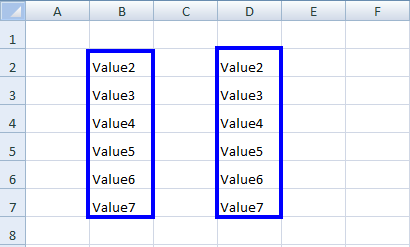
workBook.SaveAs("sample.xlsx")The above code writes dynamic values in columns B from 2 to 7 in the Excel file sample.xlsx. You can see the result of the code on sample.xlsx.
How Do I Replace Excel Cell Values?
Using IronXL, you can easily write a new value to replace the old value, using the Replace() function as follows:
workSheet.Replace("old value", "new value");workSheet.Replace("old value", "new value");workSheet.Replace("old value", "new value")workSheet.Replace("old value", "new value")The above function writes new value overwriting the old value in the complete Excel worksheet.
How Do I Replace Values in a Specific Row?
If you want to write a new value only in one specific row, do as follows:
workSheet.Rows[RowIndex].Replace("old value", "new value");workSheet.Rows[RowIndex].Replace("old value", "new value");workSheet.Rows(RowIndex).Replace("old value", "new value")workSheet.Rows(RowIndex).Replace("old value", "new value")This writes new value over the old value in only the specified row index.
How Do I Replace Values in a Specific Column?
Similarly, if you want to write new value over the old value within a specific column, do as follows:
workSheet.Columns[ColumnIndex].Replace("old value", "new value");workSheet.Columns[ColumnIndex].Replace("old value", "new value");workSheet.Columns(ColumnIndex).Replace("old value", "new value")workSheet.Columns(ColumnIndex).Replace("old value", "new value")The above code writes new value to replace the old value, but only in the specified column index. The rest of the worksheet remains the same.
How Do I Replace Values in a Specific Range?
IronXL also provides a way to write a new value replacing the old value, only in a specified range. This is helpful when working with specific data regions or when you need to update values in a particular section of your spreadsheet. For more advanced range operations, see our guide on sorting cell ranges.
workSheet["From Cell Address : To Cell Address"].Replace("old value", "new value");workSheet["From Cell Address : To Cell Address"].Replace("old value", "new value");workSheet("From Cell Address : To Cell Address").Replace("old value", "new value")workSheet("From Cell Address : To Cell Address").Replace("old value", "new value")This writes new value over old value, just in the cells within the specified range.
See the example of how to use all of the above functions to write new values to replace old values in an Excel worksheet.
What Does a Complete Replace Example Look Like?
using IronXL;

WorkBook workBook = WorkBook.Load("sample.xlsx");
WorkSheet workSheet = workBook.GetWorkSheet("Sheet1");

// Write new above old in complete WorkSheet
workSheet.Replace("old", "new");

// Write new above old just in row no 6 of WorkSheet
workSheet.Rows[5].Replace("old", "new");

// Write new above old just in column no 5 of WorkSheet
workSheet.Columns[4].Replace("old", "new");

// Write new above old just from A5 to H5 of WorkSheet
workSheet["A5:H5"].Replace("old", "new");

workBook.SaveAs("sample.xlsx");
using IronXL;
WorkBook workBook = WorkBook.Load("sample.xlsx");
WorkSheet workSheet = workBook.GetWorkSheet("Sheet1");
// Write new above old in complete WorkSheet
workSheet.Replace("old", "new");
// Write new above old just in row no 6 of WorkSheet
workSheet.Rows[5].Replace("old", "new");
// Write new above old just in column no 5 of WorkSheet
workSheet.Columns[4].Replace("old", "new");
// Write new above old just from A5 to H5 of WorkSheet
workSheet["A5:H5"].Replace("old", "new");
workBook.SaveAs("sample.xlsx");Imports IronXL
Private workBook As WorkBook = WorkBook.Load("sample.xlsx")
Private workSheet As WorkSheet = workBook.GetWorkSheet("Sheet1")
' Write new above old in complete WorkSheet
workSheet.Replace("old", "new")
' Write new above old just in row no 6 of WorkSheet
workSheet.Rows(5).Replace("old", "new")
' Write new above old just in column no 5 of WorkSheet
workSheet.Columns(4).Replace("old", "new")
' Write new above old just from A5 to H5 of WorkSheet
workSheet("A5:H5").Replace("old", "new")
workBook.SaveAs("sample.xlsx")Imports IronXL
Private workBook As WorkBook = WorkBook.Load("sample.xlsx")
Private workSheet As WorkSheet = workBook.GetWorkSheet("Sheet1")
' Write new above old in complete WorkSheet
workSheet.Replace("old", "new")
' Write new above old just in row no 6 of WorkSheet
workSheet.Rows(5).Replace("old", "new")
' Write new above old just in column no 5 of WorkSheet
workSheet.Columns(4).Replace("old", "new")
' Write new above old just from A5 to H5 of WorkSheet
workSheet("A5:H5").Replace("old", "new")
workBook.SaveAs("sample.xlsx")For more information about how to write Excel .NET applications and more, check out our full tutorial on how to Open and Write Excel Files C#. If you're working with different file formats, you might also find our guide on converting spreadsheet file types helpful.
Tutorial Quick Access
Read API Reference
Read the IronXL documentation including lists of all functions, features, namespaces, classes, and enums available to you in the library.
Read API Reference
Frequently Asked Questions
How can I write a value to a specific Excel cell using C#?
You can write a value to a specific Excel cell using IronXL by accessing the desired cell with bracket notation and setting its Value property. For example: worksheet["A1"].Value = "Hello, IronXL!";. Then, save the workbook using workbook.SaveAs("output.xlsx");.
What are the steps to access and edit an Excel worksheet with IronXL?
Start by loading your Excel file with WorkBook.Load("path"), then access the specific worksheet using workBook.GetWorkSheet("SheetName"). You can then edit cells in this worksheet by accessing them through bracket notation and setting their values with IronXL.
Can I replace cell values in an Excel sheet using IronXL?
Yes, IronXL allows you to replace cell values using the Replace function. You can replace values in a whole worksheet, a specific row, column, or even a specified range by using methods like workSheet.Replace("old value", "new value");.
How does IronXL handle dynamic data updates in Excel files?
IronXL supports writing dynamic values to Excel cells, which is useful for data from databases or generating reports. You can loop through rows or columns and assign values programmatically to each cell as needed.
What is the advantage of using IronXL for writing static values in Excel ranges?
Using IronXL, static values can be easily written across multiple cells or a defined range using syntax like worksheet["B2:C5"].Value = "static value";. This simplifies batch updates and data entry tasks across large spreadsheet sections.
How can I force assign an exact value to an Excel cell without conversion in IronXL?
To assign exact values without conversion in IronXL, use the StringValue property instead of Value. This ensures values are treated as strings. For example: workSheet["A1"].StringValue = "exact value";.
Is it possible to perform range operations like sorting with IronXL?
Yes, IronXL provides capabilities for advanced operations such as sorting within specified ranges. You can manage how data is arranged within a specific region of your Excel sheet for better organization and analysis.
What types of Excel automation tasks can be simplified using IronXL?
IronXL simplifies many Excel automation tasks such as updating cell values, replacing data in ranges, applying styling, and writing both static and dynamic values efficiently within a .NET environment.
How do I save changes made to an Excel file using IronXL?
After making edits to an Excel worksheet with IronXL, save your changes using the SaveAs method like this: workbook.SaveAs("filename.xlsx");. This writes all modifications to the specified file.
Can IronXL assist with importing or exporting data in complex formats?
Yes, IronXL can help with more complex data operations, including importing from and exporting to DataSet or DataTable formats, which is essential for integrating Excel operations with other data management systems.

Curtis Chau holds a Bachelor’s degree in Computer Science (Carleton University) and specializes in front-end development with expertise in Node.js, TypeScript, JavaScript, and React. Passionate about crafting intuitive and aesthetically pleasing user interfaces, Curtis enjoys working with modern frameworks and creating well-structured, visually appealing manuals.



