
How to Import Excel Files in C#

IronXL enables C# developers to import Excel data with just one line of code, supporting XLSX, CSV, and other formats without Interop dependencies, allowing immediate access to cells, ranges, and worksheets for data manipulation.
Quickstart: Instantly Load Your Excel FileWith just one method call using IronXL's timeout-free API, you can load any supported Excel sheet (XLSX, CSV, etc.) in seconds - no Interop, no fuss. Begin interacting with the workbook immediately by accessing cells, ranges, or sheets as needed.
-
1Install IronXL with NuGet Package Manager
-
2Copy and run this code snippet.
WorkBook wb = IronXL.WorkBook.Load("path/to/data.xlsx");Dim wb As WorkBook = WorkBook.Load("path/to/data.xlsx")Dim wb As WorkBook = WorkBook.Load("path/to/data.xlsx") -
3Deploy to test on your live environment
Start using IronXL in your project today with a free trial
Import Excel Data C#
- Import Data with the IronXL Library
- Import Excel data in C#
- Import data of specific cell range
- Import Excel data with aggregate functions SUM, AVG, MIN, MAX, and more

Minimal Workflow (5 steps)
- Download and install the C# library to import Excel files
- Prepare the Excel files to be imported
- Use the
Loadmethod to import spreadsheet - Edit the loaded Excel file using intuitive APIs
- Export the edited Excel file in various types
Step 1
Installing the IronXL Library
IronXL Makes Excel Import Easier
Import data using the functions provided by the IronXL Excel library, which we'll be using in this tutorial. The software is available free for development. IronXL provides a comprehensive C# Excel API that simplifies working with Excel files without requiring Microsoft Office or Interop dependencies. This makes it ideal for server environments and cloud deployments.
Installation Methods
Install into your C# Project via DLL Download or navigate using the NuGet package. For detailed installation guidance, check out our getting started overview.
How to Tutorial
Accessing a WorkSheet in Your Project
Basic WorkBook Loading Process
For our project needs today, we'll import Excel data into our C# application using the IronXL software installed in step 1. The library supports various Excel formats and provides intuitive methods for loading spreadsheets.
For step 2, we'll load our Excel WorkBook in our C# project by using the WorkBook.Load() function of IronXL. We pass the path of the Excel WorkBook as a string parameter in this function:
// Load Excel file
WorkBook wb = WorkBook.Load("Path");
// Load Excel file
WorkBook wb = WorkBook.Load("Path");' Load Excel file
Dim wb As WorkBook = WorkBook.Load("Path")' Load Excel file
Dim wb As WorkBook = WorkBook.Load("Path")The Excel file at the specified path will be loaded into wb. This method supports XLSX, XLS, CSV, TSV, and other common spreadsheet formats.
Accessing a Specific WorkSheet
Next, we need to access a specific WorkSheet of the Excel file whose data will be imported into the project. For this purpose, we can use the GetWorkSheet() function of IronXL, passing the sheet name as a string parameter to specify which sheet of the WorkBook to import. Learn more about managing worksheets in our guide.
// Specify sheet name of Excel WorkBook
WorkSheet ws = wb.GetWorkSheet("SheetName");
// Specify sheet name of Excel WorkBook
WorkSheet ws = wb.GetWorkSheet("SheetName");' Specify sheet name of Excel WorkBook
Dim ws As WorkSheet = wb.GetWorkSheet("SheetName")' Specify sheet name of Excel WorkBook
Dim ws As WorkSheet = wb.GetWorkSheet("SheetName")The WorkSheet will be imported as ws, and wb is the WorkBook which we defined in the above code sample.
Alternative Methods to Access WorkSheets
The following alternative ways exist to import an Excel WorkSheet into the project. Each method provides flexibility depending on your specific use case:
// Import WorkSheet by various methods

// by sheet indexing
WorkSheet mySheet = wb.WorkSheets[SheetIndex];

// get default WorkSheet
WorkSheet defaultSheet = wb.DefaultWorkSheet;

// get first WorkSheet
WorkSheet firstSheet = wb.WorkSheets.First();

// for the first or default sheet
WorkSheet firstOrDefaultSheet = wb.WorkSheets.FirstOrDefault();
// Import WorkSheet by various methods
// by sheet indexing
WorkSheet mySheet = wb.WorkSheets[SheetIndex];
// get default WorkSheet
WorkSheet defaultSheet = wb.DefaultWorkSheet;
// get first WorkSheet
WorkSheet firstSheet = wb.WorkSheets.First();
// for the first or default sheet
WorkSheet firstOrDefaultSheet = wb.WorkSheets.FirstOrDefault();' Import WorkSheet by various methods
' by sheet indexing
Dim mySheet As WorkSheet = wb.WorkSheets(SheetIndex)
' get default WorkSheet
Dim defaultSheet As WorkSheet = wb.DefaultWorkSheet
' get first WorkSheet
Dim firstSheet As WorkSheet = wb.WorkSheets.First()
' for the first or default sheet
Dim firstOrDefaultSheet As WorkSheet = wb.WorkSheets.FirstOrDefault()' Import WorkSheet by various methods
' by sheet indexing
Dim mySheet As WorkSheet = wb.WorkSheets(SheetIndex)
' get default WorkSheet
Dim defaultSheet As WorkSheet = wb.DefaultWorkSheet
' get first WorkSheet
Dim firstSheet As WorkSheet = wb.WorkSheets.First()
' for the first or default sheet
Dim firstOrDefaultSheet As WorkSheet = wb.WorkSheets.FirstOrDefault()Now, we can easily import any type of data from the specified Excel files. Let's explore all possible aspects for importing Excel file data in our project.
Importing Excel Data in C#
Basic Cell Import Method
This is the basic aspect of importing Excel file data into our project. IronXL provides multiple ways to access cell data, making it flexible for different scenarios.
For this purpose, we can use a cell addressing system to specify which cell data we need to import. It returns the value of a specific cell address from the Excel file:
var cellValue = ws["Cell Address"];var cellValue = ws["Cell Address"];Dim cellValue = ws("Cell Address")Dim cellValue = ws("Cell Address")Importing Data Using Row and Column Indexes
We can also import cell data from Excel files by using row and column indexes. This line of code returns the value of the specified row and column index. This approach is particularly useful when iterating through data programmatically:
var cellValueByIndex = ws.Rows[RowIndex].Columns[ColumnIndex];var cellValueByIndex = ws.Rows[RowIndex].Columns[ColumnIndex];Dim cellValueByIndex = ws.Rows(RowIndex).Columns(ColumnIndex)Dim cellValueByIndex = ws.Rows(RowIndex).Columns(ColumnIndex)Storing Imported Values in Variables
To assign imported cell values to variables, use this code. The ToString() method ensures compatibility with string variables, but you can also cast to other types as needed:
// Import Data by Cell Address
// by cell addressing
string val = ws["Cell Address"].ToString();

// by row and column indexing
string valWithIndexing = ws.Rows[RowIndex].Columns[ColumnIndex].Value.ToString();

// for numeric values
decimal numericValue = ws["B2"].DecimalValue;

// for date values
DateTime dateValue = ws["C2"].DateTimeValue;
// Import Data by Cell Address
// by cell addressing
string val = ws["Cell Address"].ToString();
// by row and column indexing
string valWithIndexing = ws.Rows[RowIndex].Columns[ColumnIndex].Value.ToString();
// for numeric values
decimal numericValue = ws["B2"].DecimalValue;
// for date values
DateTime dateValue = ws["C2"].DateTimeValue;' Import Data by Cell Address
' by cell addressing
Dim val As String = ws("Cell Address").ToString()
' by row and column indexing
Dim valWithIndexing As String = ws.Rows(RowIndex).Columns(ColumnIndex).Value.ToString()
' for numeric values
Dim numericValue As Decimal = ws("B2").DecimalValue
' for date values
Dim dateValue As DateTime = ws("C2").DateTimeValue' Import Data by Cell Address
' by cell addressing
Dim val As String = ws("Cell Address").ToString()
' by row and column indexing
Dim valWithIndexing As String = ws.Rows(RowIndex).Columns(ColumnIndex).Value.ToString()
' for numeric values
Dim numericValue As Decimal = ws("B2").DecimalValue
' for date values
Dim dateValue As DateTime = ws("C2").DateTimeValueIn the above examples, the row and column index starts at 0. For more advanced cell operations, explore our guide on clearing cells and copying cells.
Importing Data from a Specific Range
Range Function Syntax
To import data in a specific range from an Excel WorkBook, use the range function. Define the range by describing the starting and ending cell addresses. This returns all cell values within the specified range. For comprehensive range selection techniques, see our select range guide.
var rangeData = ws["Starting Cell Address:Ending Cell Address"];var rangeData = ws["Starting Cell Address:Ending Cell Address"];Dim rangeData = ws("Starting Cell Address:Ending Cell Address")Dim rangeData = ws("Starting Cell Address:Ending Cell Address")Complete Range Import Example
For more information about working with range in Excel files and learn more about pulling data in different methods. The following example demonstrates importing both individual cell values and ranges:
using IronXL;
using System;

// Import Excel WorkBook
WorkBook wb = WorkBook.Load("sample.xlsx");

// Specify WorkSheet
WorkSheet ws = wb.GetWorkSheet("Sheet1");

// Import data of specific cell
string val = ws["A4"].Value.ToString();
Console.WriteLine("Import Value of A4 Cell address: {0}", val);

Console.WriteLine("import Values in Range From B3 To B9 :\n");

// Import data in specific range
foreach (var item in ws["B3:B9"])
{
    Console.WriteLine(item.Value.ToString());
}

Console.ReadKey();
using IronXL;
using System;
// Import Excel WorkBook
WorkBook wb = WorkBook.Load("sample.xlsx");
// Specify WorkSheet
WorkSheet ws = wb.GetWorkSheet("Sheet1");
// Import data of specific cell
string val = ws["A4"].Value.ToString();
Console.WriteLine("Import Value of A4 Cell address: {0}", val);
Console.WriteLine("import Values in Range From B3 To B9 :\n");
// Import data in specific range
foreach (var item in ws["B3:B9"])
{
Console.WriteLine(item.Value.ToString());
}
Console.ReadKey();Imports IronXL
Imports System
' Import Excel WorkBook
Dim wb As WorkBook = WorkBook.Load("sample.xlsx")
' Specify WorkSheet
Dim ws As WorkSheet = wb.GetWorkSheet("Sheet1")
' Import data of specific cell
Dim val As String = ws("A4").Value.ToString()
Console.WriteLine("Import Value of A4 Cell address: {0}", val)
Console.WriteLine("import Values in Range From B3 To B9 :" & vbCrLf)
' Import data in specific range
For Each item In ws("B3:B9")
Console.WriteLine(item.Value.ToString())
Next
Console.ReadKey()Imports IronXL
Imports System
' Import Excel WorkBook
Dim wb As WorkBook = WorkBook.Load("sample.xlsx")
' Specify WorkSheet
Dim ws As WorkSheet = wb.GetWorkSheet("Sheet1")
' Import data of specific cell
Dim val As String = ws("A4").Value.ToString()
Console.WriteLine("Import Value of A4 Cell address: {0}", val)
Console.WriteLine("import Values in Range From B3 To B9 :" & vbCrLf)
' Import data in specific range
For Each item In ws("B3:B9")
Console.WriteLine(item.Value.ToString())
Next
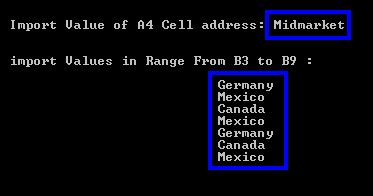
Console.ReadKey()The above code displays the following output:
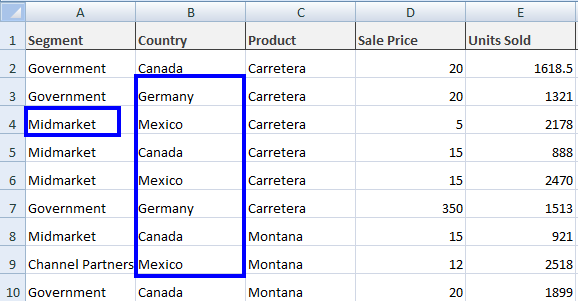
With the values of Excel file sample.xlsx as:
Importing Excel Data Using Aggregate Functions
Available Aggregate Functions
Apply aggregate functions to Excel files and import the resulting data from these functions. IronXL provides built-in math functions that make data analysis straightforward. Here are examples of different functions and their usage:
-
Sum()// To find the sum of a specific cell range var sum = ws["Starting Cell Address:Ending Cell Address"].Sum();// To find the sum of a specific cell range var sum = ws["Starting Cell Address:Ending Cell Address"].Sum();' To find the sum of a specific cell range Dim sum = ws("Starting Cell Address:Ending Cell Address").Sum()' To find the sum of a specific cell range Dim sum = ws("Starting Cell Address:Ending Cell Address").Sum() -
Average()// To find the average of a specific cell range var average = ws["Starting Cell Address:Ending Cell Address"].Avg();// To find the average of a specific cell range var average = ws["Starting Cell Address:Ending Cell Address"].Avg();' To find the average of a specific cell range Dim average = ws("Starting Cell Address:Ending Cell Address").Avg()' To find the average of a specific cell range Dim average = ws("Starting Cell Address:Ending Cell Address").Avg() -
Min()// To find the minimum in a specific cell range var minimum = ws["Starting Cell Address:Ending Cell Address"].Min();// To find the minimum in a specific cell range var minimum = ws["Starting Cell Address:Ending Cell Address"].Min();' To find the minimum in a specific cell range Dim minimum = ws("Starting Cell Address:Ending Cell Address").Min()' To find the minimum in a specific cell range Dim minimum = ws("Starting Cell Address:Ending Cell Address").Min() -
Max()// To find the maximum in a specific cell range var maximum = ws["Starting Cell Address:Ending Cell Address"].Max();// To find the maximum in a specific cell range var maximum = ws["Starting Cell Address:Ending Cell Address"].Max();' To find the maximum in a specific cell range Dim maximum = ws("Starting Cell Address:Ending Cell Address").Max()' To find the maximum in a specific cell range Dim maximum = ws("Starting Cell Address:Ending Cell Address").Max()
Using Multiple Aggregate Functions Together
Read more about working with aggregate functions in Excel for C# and learn more about pulling data in different methods. These functions are particularly useful for generating summary statistics or validating imported data.
See an example of importing Excel file data by applying these functions:
using IronXL;
using System;

// Import Excel file
WorkBook wb = WorkBook.Load("sample.xlsx");

// Specify WorkSheet
WorkSheet ws = wb.GetWorkSheet("Sheet1");

// Import Excel file data by applying aggregate functions
decimal sum = ws["D2:D9"].Sum();
decimal avg = ws["D2:D9"].Avg();
decimal min = ws["D2:D9"].Min();
decimal max = ws["D2:D9"].Max();

Console.WriteLine("Sum From D2 To D9: {0}", sum);
Console.WriteLine("Avg From D2 To D9: {0}", avg);
Console.WriteLine("Min From D2 To D9: {0}", min);
Console.WriteLine("Max From D2 To D9: {0}", max);

Console.ReadKey();
using IronXL;
using System;
// Import Excel file
WorkBook wb = WorkBook.Load("sample.xlsx");
// Specify WorkSheet
WorkSheet ws = wb.GetWorkSheet("Sheet1");
// Import Excel file data by applying aggregate functions
decimal sum = ws["D2:D9"].Sum();
decimal avg = ws["D2:D9"].Avg();
decimal min = ws["D2:D9"].Min();
decimal max = ws["D2:D9"].Max();
Console.WriteLine("Sum From D2 To D9: {0}", sum);
Console.WriteLine("Avg From D2 To D9: {0}", avg);
Console.WriteLine("Min From D2 To D9: {0}", min);
Console.WriteLine("Max From D2 To D9: {0}", max);
Console.ReadKey();Imports IronXL
Imports System
' Import Excel file
Dim wb As WorkBook = WorkBook.Load("sample.xlsx")
' Specify WorkSheet
Dim ws As WorkSheet = wb.GetWorkSheet("Sheet1")
' Import Excel file data by applying aggregate functions
Dim sum As Decimal = ws("D2:D9").Sum()
Dim avg As Decimal = ws("D2:D9").Avg()
Dim min As Decimal = ws("D2:D9").Min()
Dim max As Decimal = ws("D2:D9").Max()
Console.WriteLine("Sum From D2 To D9: {0}", sum)
Console.WriteLine("Avg From D2 To D9: {0}", avg)
Console.WriteLine("Min From D2 To D9: {0}", min)
Console.WriteLine("Max From D2 To D9: {0}", max)
Console.ReadKey()Imports IronXL
Imports System
' Import Excel file
Dim wb As WorkBook = WorkBook.Load("sample.xlsx")
' Specify WorkSheet
Dim ws As WorkSheet = wb.GetWorkSheet("Sheet1")
' Import Excel file data by applying aggregate functions
Dim sum As Decimal = ws("D2:D9").Sum()
Dim avg As Decimal = ws("D2:D9").Avg()
Dim min As Decimal = ws("D2:D9").Min()
Dim max As Decimal = ws("D2:D9").Max()
Console.WriteLine("Sum From D2 To D9: {0}", sum)
Console.WriteLine("Avg From D2 To D9: {0}", avg)
Console.WriteLine("Min From D2 To D9: {0}", min)
Console.WriteLine("Max From D2 To D9: {0}", max)
Console.ReadKey()The above code gives us this output:

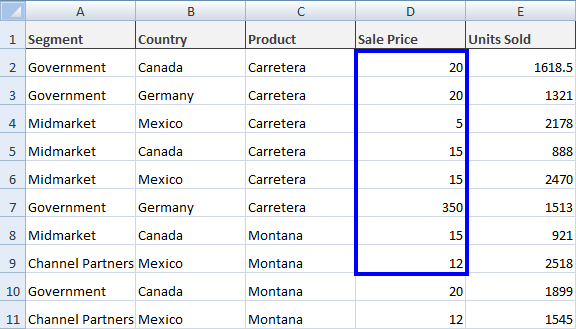
And our file sample.xlsx contains these values:
Importing Complete Excel File Data
The ToDataSet Method
To import complete Excel file data into a C# project, first parse the loaded WorkBook into a DataSet. This way, the complete Excel data imports into the DataSet, and WorkSheets in Excel files become DataTables within that DataSet. This approach is particularly useful for database operations or when working with data-bound controls. Learn more about importing and exporting as DataSet.
// Import WorkBook into DataSet
DataSet ds = wb.ToDataSet();
// Import WorkBook into DataSet
DataSet ds = wb.ToDataSet();' Import WorkBook into DataSet
Dim ds As DataSet = wb.ToDataSet()' Import WorkBook into DataSet
Dim ds As DataSet = wb.ToDataSet()This imports our specified WorkSheet into a DataSet for use according to requirements. This method is especially powerful when working with multiple sheets simultaneously or when integrating Excel data with ADO.NET operations.
Handling Column Headers
Often, the first row of an Excel file serves as column names. In this case, make the first row DataTable column names. Set the boolean parameter of the ToDataSet() function of IronXL as follows:
// Import WorkBook into DataSet with first row as ColumnNames
DataSet ds = wb.ToDataSet(true);
// Import WorkBook into DataSet with first row as ColumnNames
DataSet ds = wb.ToDataSet(true);netnetThis makes the first row of the Excel file DataTable column names, which is essential for maintaining data structure integrity when working with structured Excel data.
Complete DataSet Import Example
See a complete example of importing Excel data into a DataSet and using the first row of an Excel WorkSheet as DataTable column names:
using IronXL;
using System;
using System.Data;

WorkBook wb = WorkBook.Load("sample.xlsx");
WorkSheet ws = wb.GetWorkSheet("Sheet1");

// Import Excel data into a DataSet
DataSet ds = wb.ToDataSet(true);

Console.WriteLine("Excel file data imported to dataset successfully.");
Console.ReadKey();
using IronXL;
using System;
using System.Data;
WorkBook wb = WorkBook.Load("sample.xlsx");
WorkSheet ws = wb.GetWorkSheet("Sheet1");
// Import Excel data into a DataSet
DataSet ds = wb.ToDataSet(true);
Console.WriteLine("Excel file data imported to dataset successfully.");
Console.ReadKey();Imports IronXL
Imports System
Imports System.Data
Dim wb As WorkBook = WorkBook.Load("sample.xlsx")
Dim ws As WorkSheet = wb.GetWorkSheet("Sheet1")
' Import Excel data into a DataSet
Dim ds As DataSet = wb.ToDataSet(True)
Console.WriteLine("Excel file data imported to dataset successfully.")
Console.ReadKey()Imports IronXL
Imports System
Imports System.Data
Dim wb As WorkBook = WorkBook.Load("sample.xlsx")
Dim ws As WorkSheet = wb.GetWorkSheet("Sheet1")
' Import Excel data into a DataSet
Dim ds As DataSet = wb.ToDataSet(True)
Console.WriteLine("Excel file data imported to dataset successfully.")
Console.ReadKey()Working with Excel Dataset and DataTable functions can be complex, but we have more examples available for incorporating file data into your C# project. For advanced scenarios, consider exploring our guides on Excel to SQL via DataTable and loading Excel from SQL database.
ToDataSet holds every row in memory at once, which suits the file sizes most imports deal with. When the source file is large enough that the DataSet itself becomes the bottleneck, stream the rows and flush them to your destination in batches, so peak memory follows the batch size instead of the row count.
Library Quick Access
Explore the IronXL Reference
Learn more about pulling Excel data via cells, range, datasets and datatables in our full documentation API Reference for IronXL.
Explore the IronXL Reference
Frequently Asked Questions
How can I import Excel files into a C# project using IronXL?
You can import Excel files into a C# project using IronXL by using the WorkBook.Load() method. This method allows you to load XLSX, CSV, and other formats without requiring Interop dependencies.
What formats can I import using IronXL in C#?
IronXL supports importing various spreadsheet formats including XLSX, CSV, TSV, and others into your C# project without needing Interop.
Is it possible to access specific worksheets from an Excel file in C# using IronXL?
Yes, you can access specific worksheets from an Excel file using the GetWorkSheet() method in IronXL by passing the name of the worksheet as a string parameter.
Can IronXL perform aggregate functions on imported Excel data in C#?
Yes, IronXL allows you to perform aggregate functions such as Sum(), Avg(), Min(), and Max() on imported data from Excel files in a C# project.
How do I import data from a specific range of Excel cells in IronXL?
You can import data from a specific range using the range function syntax like ws["Starting Cell Address:Ending Cell Address"] to retrieve values from the specified Excel cell range in IronXL.
Is it possible to use Excel data as a DataSet in C# with IronXL?
Yes, you can import the complete Excel file data into a DataSet using the ToDataSet() method of IronXL. This method is particularly useful for database operations or data-bound controls.
Can the first row of an Excel file be used as column names in IronXL?
Yes, when importing Excel data into a DataSet, you can set the first row as column names by using the ToDataSet(true) method in IronXL.
How do I import numeric or date values from Excel cells using IronXL?
In IronXL, you can import numeric values using .DecimalValue and date values using .DateTimeValue from specific Excel cells to ensure they are in the correct data type.
What is the advantage of using IronXL for Excel import in C# over Interop?
IronXL requires no Interop dependencies, making it ideal for server environments and cloud deployments where Microsoft Office installation is not feasible.
Is IronXL available for free for development purposes?
Yes, IronXL is available for free for development purposes, providing a comprehensive C# Excel API to simplify working with Excel files.

Curtis Chau holds a Bachelor’s degree in Computer Science (Carleton University) and specializes in front-end development with expertise in Node.js, TypeScript, JavaScript, and React. Passionate about crafting intuitive and aesthetically pleasing user interfaces, Curtis enjoys working with modern frameworks and creating well-structured, visually appealing manuals.



