
C# Edit Excel File

Edit Excel files in C# using IronXL library which provides simple methods to modify cells, rows, columns, and worksheets programmatically without Excel Interop, reducing errors and complexity.
Developers need precision when modifying Excel files in C# because one error can corrupt entire documents. Simple, efficient code reduces error risk and simplifies programmatic editing or deletion of Excel files. IronXL provides a comprehensive solution for working with Excel files in C# that eliminates Microsoft Office dependencies. This guide covers the steps to edit Excel files in C# correctly and quickly using tested functions.
Quickstart: Edit a Specific Cell Value with IronXLThis example shows how to load an existing Excel file, update a single cell, and save changes using IronXL. Get started in under 5 lines, no Interop required. For complex operations, explore our comprehensive API Reference.
-
1Install IronXL with NuGet Package Manager
-
2Copy and run this code snippet.
WorkBook workBook = WorkBook.Load("file.xlsx"); workBook.GetWorkSheet("Sheet1")["C3"].Value = "Hello IronXL"; // then save your workbook workBook.SaveAs("file.xlsx");Dim workBook As WorkBook = WorkBook.Load("file.xlsx") workBook.GetWorkSheet("Sheet1")("C3").Value = "Hello IronXL" ' then save your workbook workBook.SaveAs("file.xlsx")Dim workBook As WorkBook = WorkBook.Load("file.xlsx") workBook.GetWorkSheet("Sheet1")("C3").Value = "Hello IronXL" ' then save your workbook workBook.SaveAs("file.xlsx") -
3Deploy to test on your live environment
Start using IronXL in your project today with a free trial
Minimal Workflow (8 steps)
- Download the C# Edit Excel Library
- Edit Specific Cell Values
- Edit full row values with a static value
- Edit full columns with a single value
- Edit Full Row with Dynamic Values
- Replace Spreadsheet Values
- Remove Row from Excel WorkSheet
- Remove WorkSheet from Excel File
Step 1
How Do I Set Up IronXL for C# Excel Editing?
This tutorial uses IronXL, a C# Excel library. Download and install it into your project (free for development) to use these functions. IronXL supports various platforms including Linux and macOS, making it versatile for cross-platform development.
You can either Download IronXL.zip or read more and install via the NuGet package page.
Once installed, let's get started. New to IronXL? Check our Get Started Overview for a comprehensive introduction.
Replace x.x.x with the appropriate version number as needed.
How to Tutorial
How Do I Edit Specific Cell Values in Excel?
First, learn how to edit specific cell values of an Excel SpreadSheet. This is one of the most common operations when editing Excel files in C#.
Import the Excel SpreadSheet to modify, then access its WorkSheet. Apply modifications as shown below. IronXL provides multiple ways to access cells, offering flexibility for different programming styles.
using IronXL;

// Load the Excel workbook
WorkBook wb = WorkBook.Load("sample.xlsx");
// Access a specific worksheet
WorkSheet ws = wb.GetWorkSheet("Sheet1");
// Access specific cell by identifying its row and column, then modify its value
ws.Rows[3].Columns[1].Value = "New Value";
// Save changes to the workbook
wb.SaveAs("sample.xlsx");
using IronXL;
// Load the Excel workbook
WorkBook wb = WorkBook.Load("sample.xlsx");
// Access a specific worksheet
WorkSheet ws = wb.GetWorkSheet("Sheet1");
// Access specific cell by identifying its row and column, then modify its value
ws.Rows[3].Columns[1].Value = "New Value";
// Save changes to the workbook
wb.SaveAs("sample.xlsx");Imports IronXL
' Load the Excel workbook
Dim wb As WorkBook = WorkBook.Load("sample.xlsx")
' Access a specific worksheet
Dim ws As WorkSheet = wb.GetWorkSheet("Sheet1")
' Access specific cell by identifying its row and column, then modify its value
ws.Rows(3).Columns(1).Value = "New Value"
' Save changes to the workbook
wb.SaveAs("sample.xlsx")Imports IronXL
' Load the Excel workbook
Dim wb As WorkBook = WorkBook.Load("sample.xlsx")
' Access a specific worksheet
Dim ws As WorkSheet = wb.GetWorkSheet("Sheet1")
' Access specific cell by identifying its row and column, then modify its value
ws.Rows(3).Columns(1).Value = "New Value"
' Save changes to the workbook
wb.SaveAs("sample.xlsx")Here are before and after screenshots of Excel SpreadSheet sample.xlsx:
| Before | After |
|---|---|
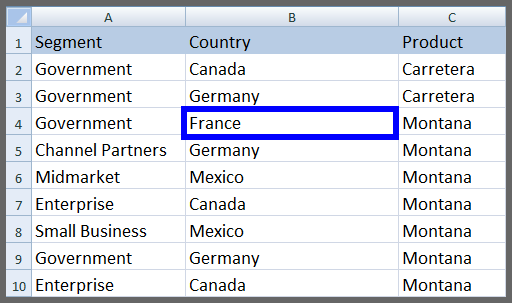 | 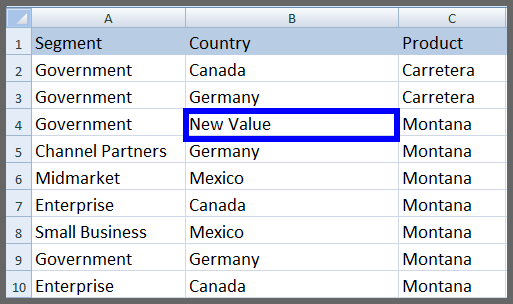 |
Notice how simple it is to modify the Excel SpreadSheet value. This approach works well when updating specific data points without affecting the rest of your spreadsheet.
An alternative way to edit specific cell values by cell address:
// Alternative way to access specific cell and apply changes
ws["B4"].Value = "New Value";
// Alternative way to access specific cell and apply changes
ws["B4"].Value = "New Value";' Alternative way to access specific cell and apply changes
ws("B4").Value = "New Value"' Alternative way to access specific cell and apply changes
ws("B4").Value = "New Value"How Do I Edit Full Row Values in Excel?
Edit full row values of an Excel SpreadSheet with a static value easily. This operation helps when updating entire records at once, such as resetting data or applying bulk updates. For complex row operations, explore adding rows and columns.
using IronXL;

WorkBook wb = WorkBook.Load("sample.xlsx");
WorkSheet ws = wb.GetWorkSheet("Sheet1");
// Setting a static value for the entire row
ws.Rows[3].Value = "New Value";
wb.SaveAs("sample.xlsx");
using IronXL;
WorkBook wb = WorkBook.Load("sample.xlsx");
WorkSheet ws = wb.GetWorkSheet("Sheet1");
// Setting a static value for the entire row
ws.Rows[3].Value = "New Value";
wb.SaveAs("sample.xlsx");Imports IronXL
Dim wb As WorkBook = WorkBook.Load("sample.xlsx")
Dim ws As WorkSheet = wb.GetWorkSheet("Sheet1")
' Setting a static value for the entire row
ws.Rows(3).Value = "New Value"
wb.SaveAs("sample.xlsx")Imports IronXL
Dim wb As WorkBook = WorkBook.Load("sample.xlsx")
Dim ws As WorkSheet = wb.GetWorkSheet("Sheet1")
' Setting a static value for the entire row
ws.Rows(3).Value = "New Value"
wb.SaveAs("sample.xlsx")See the screenshots of sample.xlsx below:
| Before | After |
|---|---|
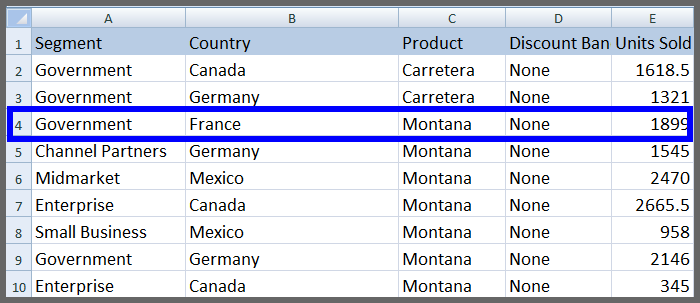 | 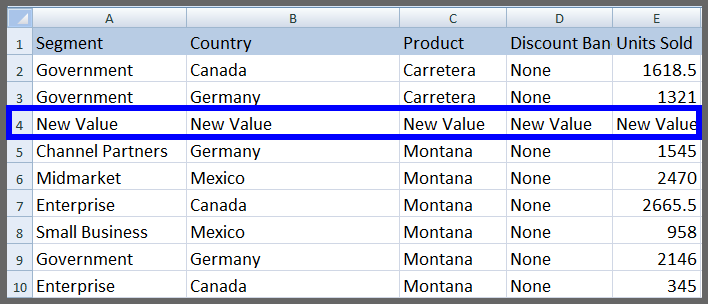 |
Edit values of a specific range within a row using the range function:
// Editing a specific range of a row
ws["A3:E3"].Value = "New Value";
// Editing a specific range of a row
ws["A3:E3"].Value = "New Value";' Editing a specific range of a row
ws("A3:E3").Value = "New Value"' Editing a specific range of a row
ws("A3:E3").Value = "New Value"When working with ranges, you might also need selecting ranges for advanced operations like sorting or applying formulas.
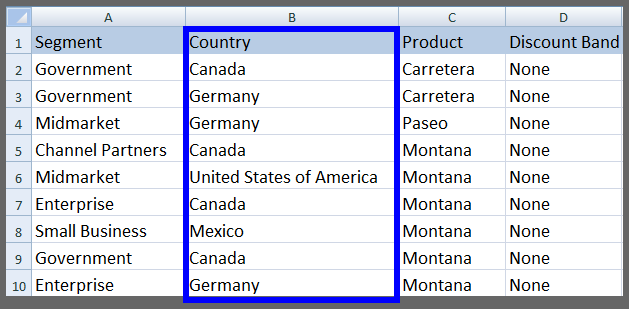
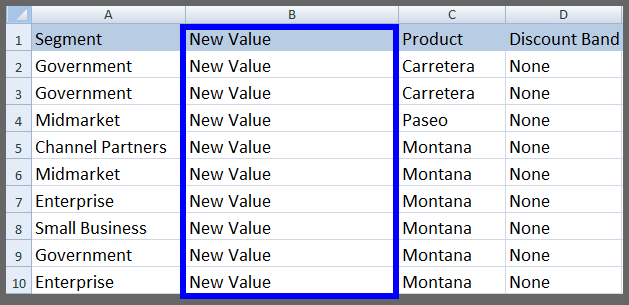
How Do I Edit Full Column Values in Excel?
Edit full columns of Excel SpreadSheet values with a single value easily. This works well for scenarios like updating currency columns, applying new tax rates, or standardizing data formats across an entire column.
using IronXL;

WorkBook wb = WorkBook.Load("sample.xlsx");
WorkSheet ws = wb.GetWorkSheet("Sheet1");
// Setting a static value for the entire column
ws.Columns[1].Value = "New Value";
wb.SaveAs("sample.xlsx");
using IronXL;
WorkBook wb = WorkBook.Load("sample.xlsx");
WorkSheet ws = wb.GetWorkSheet("Sheet1");
// Setting a static value for the entire column
ws.Columns[1].Value = "New Value";
wb.SaveAs("sample.xlsx");Imports IronXL
Dim wb As WorkBook = WorkBook.Load("sample.xlsx")
Dim ws As WorkSheet = wb.GetWorkSheet("Sheet1")
' Setting a static value for the entire column
ws.Columns(1).Value = "New Value"
wb.SaveAs("sample.xlsx")Imports IronXL
Dim wb As WorkBook = WorkBook.Load("sample.xlsx")
Dim ws As WorkSheet = wb.GetWorkSheet("Sheet1")
' Setting a static value for the entire column
ws.Columns(1).Value = "New Value"
wb.SaveAs("sample.xlsx")This produces our sample.xlsx spreadsheet as shown:
| Before | After |
|---|---|
 |  |
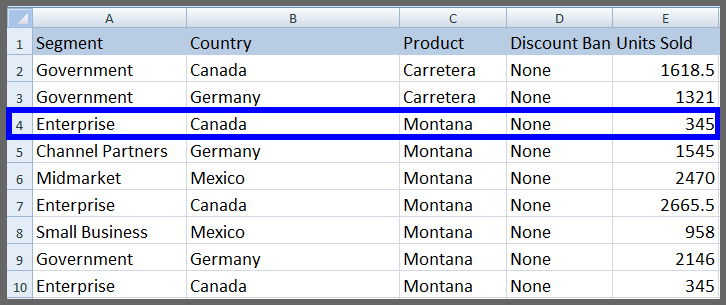
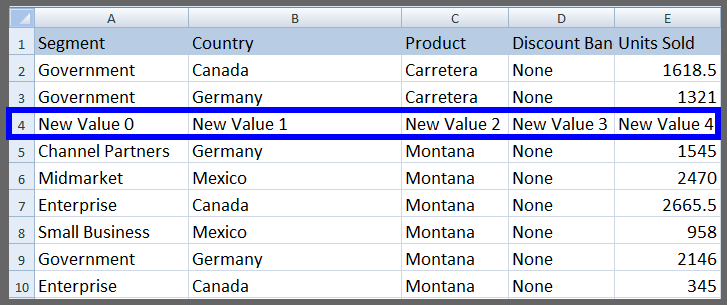
How Do I Edit a Full Row with Dynamic Values?
IronXL allows editing specific rows with dynamic values. Edit a full row by assigning dynamic values for each cell. This approach works well when importing data from databases or other sources requiring unique values per cell. See the example:
using IronXL;
using System.Linq;

WorkBook wb = WorkBook.Load("sample.xlsx");
WorkSheet ws = wb.GetWorkSheet("Sheet1");
for (int i = 0; i < ws.Columns.Count(); i++)
{
    // Assign dynamic values to each cell in the row
    ws.Rows[3].Columns[i].Value = "New Value " + i.ToString();
}
wb.SaveAs("sample.xlsx");
using IronXL;
using System.Linq;
WorkBook wb = WorkBook.Load("sample.xlsx");
WorkSheet ws = wb.GetWorkSheet("Sheet1");
for (int i = 0; i < ws.Columns.Count(); i++)
{
// Assign dynamic values to each cell in the row
ws.Rows[3].Columns[i].Value = "New Value " + i.ToString();
}
wb.SaveAs("sample.xlsx");Imports IronXL
Imports System.Linq
Dim wb As WorkBook = WorkBook.Load("sample.xlsx")
Dim ws As WorkSheet = wb.GetWorkSheet("Sheet1")
For i As Integer = 0 To ws.Columns.Count() - 1
' Assign dynamic values to each cell in the row
ws.Rows(3).Columns(i).Value = "New Value " & i.ToString()
Next
wb.SaveAs("sample.xlsx")Imports IronXL
Imports System.Linq
Dim wb As WorkBook = WorkBook.Load("sample.xlsx")
Dim ws As WorkSheet = wb.GetWorkSheet("Sheet1")
For i As Integer = 0 To ws.Columns.Count() - 1
' Assign dynamic values to each cell in the row
ws.Rows(3).Columns(i).Value = "New Value " & i.ToString()
Next
wb.SaveAs("sample.xlsx")The table below shows screenshots of Excel SpreadSheet sample.xlsx from this output:
| Before | After |
|---|---|
 |  |
How Do I Edit a Full Column with Dynamic Values?
Edit specific columns with dynamic values simply. This technique helps populate columns with sequential data like ID numbers, dates, or calculated values based on row position.
using IronXL;
using System.Linq;

WorkBook wb = WorkBook.Load("sample.xlsx");
WorkSheet ws = wb.GetWorkSheet("Sheet1");
for (int i = 0; i < ws.Rows.Count(); i++)
{
    // Skip the first row if it's used as a header
    if (i == 0)
        continue;
    // Assign dynamic values to each cell in the column
    ws.Rows[i].Columns[1].Value = "New Value " + i.ToString();
}
wb.SaveAs("sample.xlsx");
using IronXL;
using System.Linq;
WorkBook wb = WorkBook.Load("sample.xlsx");
WorkSheet ws = wb.GetWorkSheet("Sheet1");
for (int i = 0; i < ws.Rows.Count(); i++)
{
// Skip the first row if it's used as a header
if (i == 0)
continue;
// Assign dynamic values to each cell in the column
ws.Rows[i].Columns[1].Value = "New Value " + i.ToString();
}
wb.SaveAs("sample.xlsx");Imports IronXL
Imports System.Linq
Dim wb As WorkBook = WorkBook.Load("sample.xlsx")
Dim ws As WorkSheet = wb.GetWorkSheet("Sheet1")
For i As Integer = 0 To ws.Rows.Count() - 1
' Skip the first row if it's used as a header
If i = 0 Then
Continue For
End If
' Assign dynamic values to each cell in the column
ws.Rows(i).Columns(1).Value = "New Value " & i.ToString()
Next
wb.SaveAs("sample.xlsx")Imports IronXL
Imports System.Linq
Dim wb As WorkBook = WorkBook.Load("sample.xlsx")
Dim ws As WorkSheet = wb.GetWorkSheet("Sheet1")
For i As Integer = 0 To ws.Rows.Count() - 1
' Skip the first row if it's used as a header
If i = 0 Then
Continue For
End If
' Assign dynamic values to each cell in the column
ws.Rows(i).Columns(1).Value = "New Value " & i.ToString()
Next
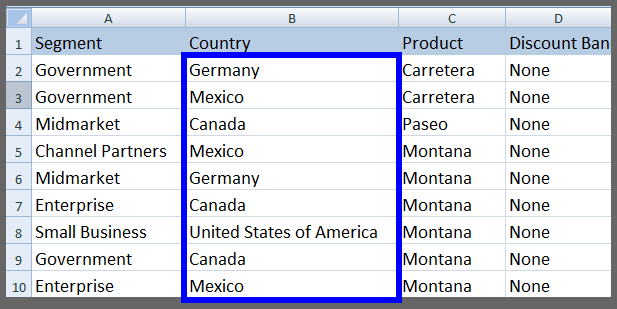
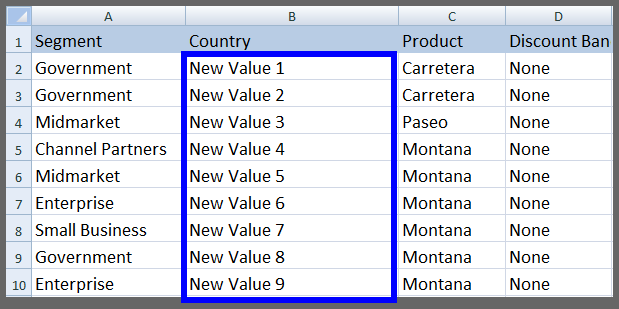
wb.SaveAs("sample.xlsx")With the table results of sample.xlsx below:
| Before | After |
|---|---|
 |  |
How Do I Replace Spreadsheet Values in Excel?
Replace any value type with an updated value in an Excel SpreadSheet using the Replace function. Use this function to replace Excel SpreadSheet data in any required situation. This works well for data cleaning, updating terminology, or correcting systematic errors across spreadsheets.
How Do I Replace Values in an Entire Worksheet?
To replace a specific value throughout a complete Excel SpreadSheet with an updated value, access the WorkSheet ws (same as above examples) and apply the Replace function:
// Replace a specific value in the entire worksheet
ws.Replace("old value", "new value");
// Replace a specific value in the entire worksheet
ws.Replace("old value", "new value");' Replace a specific value in the entire worksheet
ws.Replace("old value", "new value")' Replace a specific value in the entire worksheet
ws.Replace("old value", "new value")This function replaces old value with new value in a complete Excel SpreadSheet. It's a powerful feature for bulk updates that would otherwise require manual find-and-replace operations in Excel.
Remember to save the file after any change, as shown in the examples above. For more information on saving and exporting Excel files, see our guide on converting spreadsheet file types.
How Do I Replace Values in a Specific Row?
To make changes to a specific row instead of the whole worksheet, use this code:
// Replace a specific value in a specific row
ws.Rows[2].Replace("old value", "new value");
// Replace a specific value in a specific row
ws.Rows[2].Replace("old value", "new value");' Replace a specific value in a specific row
ws.Rows(2).Replace("old value", "new value")' Replace a specific value in a specific row
ws.Rows(2).Replace("old value", "new value")The above code replaces old value with new value only in row number 2. The rest of the WorkSheet remains unchanged.
How Do I Replace Values in a Row Range?
Replace values within a specific range as follows:
// Replace specific values in a row range
ws["From Cell Address : To Cell Address"].Replace("old value", "new value");
// Replace specific values in a row range
ws["From Cell Address : To Cell Address"].Replace("old value", "new value");' Replace specific values in a row range
ws("From Cell Address : To Cell Address").Replace("old value", "new value")' Replace specific values in a row range
ws("From Cell Address : To Cell Address").Replace("old value", "new value")To replace an old value with a new value in the range from B4 to E4 of row number 4, write:
ws["B4:E4"].Replace("old value", "new value");ws["B4:E4"].Replace("old value", "new value");ws("B4:E4").Replace("old value", "new value")ws("B4:E4").Replace("old value", "new value")How Do I Replace Values in a Specific Column?
Replace values of a specific column while keeping the rest of the worksheet unchanged:
// Replace specific values in a column
ws.Columns[1].Replace("old value", "new value");
// Replace specific values in a column
ws.Columns[1].Replace("old value", "new value");' Replace specific values in a column
ws.Columns(1).Replace("old value", "new value")' Replace specific values in a column
ws.Columns(1).Replace("old value", "new value")The above code replaces old value with new value only for column number 1.
How Do I Replace Values in a Column Range?
Use the range function to replace within a range of a specific column:
// Replace specific values in a column range
ws["B5:B10"].Replace("old value", "new value");
// Replace specific values in a column range
ws["B5:B10"].Replace("old value", "new value");' Replace specific values in a column range
ws("B5:B10").Replace("old value", "new value")' Replace specific values in a column range
ws("B5:B10").Replace("old value", "new value")The above code replaces old value with new value only within the range from B5 to B10 for column B.
How Do I Remove a Row from Excel Worksheet?
IronXL provides a simple function to remove a specific row of an Excel SpreadSheet. This functionality helps when cleaning data or removing outdated records from spreadsheets. See the example:
using IronXL;

WorkBook wb = WorkBook.Load("sample.xlsx");
WorkSheet ws = wb.GetWorkSheet("Sheet1");
// Remove a specific row
ws.Rows[3].RemoveRow();
wb.SaveAs("sample.xlsx");
using IronXL;
WorkBook wb = WorkBook.Load("sample.xlsx");
WorkSheet ws = wb.GetWorkSheet("Sheet1");
// Remove a specific row
ws.Rows[3].RemoveRow();
wb.SaveAs("sample.xlsx");Imports IronXL
Dim wb As WorkBook = WorkBook.Load("sample.xlsx")
Dim ws As WorkSheet = wb.GetWorkSheet("Sheet1")
' Remove a specific row
ws.Rows(3).RemoveRow()
wb.SaveAs("sample.xlsx")Imports IronXL
Dim wb As WorkBook = WorkBook.Load("sample.xlsx")
Dim ws As WorkSheet = wb.GetWorkSheet("Sheet1")
' Remove a specific row
ws.Rows(3).RemoveRow()
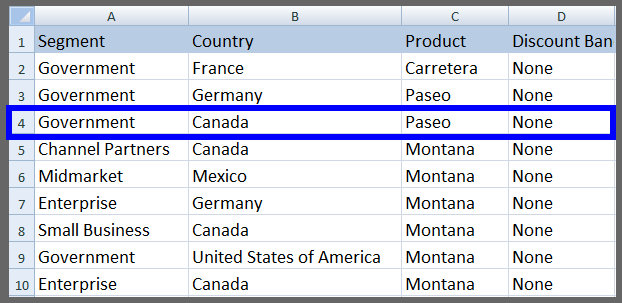
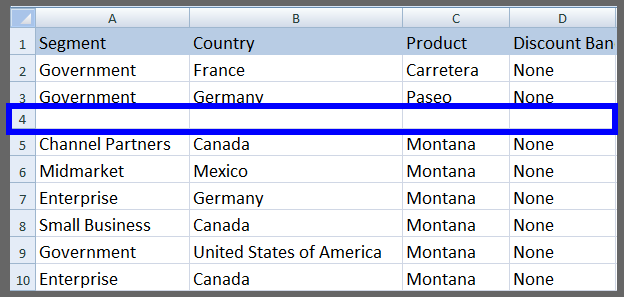
wb.SaveAs("sample.xlsx")The above code removes row number 3 of SpreadSheet sample.xlsx as shown in the following table:
| Before | After |
|---|---|
 |  |
How Do I Remove a Worksheet from Excel File?
To remove a complete WorkSheet of an Excel file, use the following method. This helps when consolidating data or removing temporary worksheets used for calculations. For more information on managing worksheets, see our guide on managing worksheets.
// Remove a worksheet by its index
wb.RemoveWorkSheet(1); // by sheet indexing
// Remove a worksheet by its index
wb.RemoveWorkSheet(1); // by sheet indexing' Remove a worksheet by its index
wb.RemoveWorkSheet(1) ' by sheet indexing' Remove a worksheet by its index
wb.RemoveWorkSheet(1) ' by sheet indexingWorkSheet WorkSheet is the WorkSheet, same as in the above examples. To remove a worksheet by name:
// Remove a worksheet by its name
wb.RemoveWorkSheet("Sheet1"); //by sheet name
// Remove a worksheet by its name
wb.RemoveWorkSheet("Sheet1"); //by sheet name' Remove a worksheet by its name
wb.RemoveWorkSheet("Sheet1") 'by sheet name' Remove a worksheet by its name
wb.RemoveWorkSheet("Sheet1") 'by sheet nameIronXL includes many more functions for easily performing any type of editing and deletion in Excel SpreadSheets. Explore additional features like creating Excel charts, applying conditional formatting, or working with formulas. Contact our dev team with any questions about using IronXL in your project.
Library Quick Access
IronXL Library Documentation
Explore the full capabilities of IronXL C# Library with various functions for editing, deleting, styling, and perfecting your Excel workbooks.
IronXL Library Documentation
Frequently Asked Questions
What is IronXL and how does it help in editing Excel files in C#?
IronXL is a C# Excel library that simplifies the process of editing Excel files programmatically without using Excel Interop. It provides simple methods to modify cells, rows, columns, and worksheets, reducing errors and complexity.
How can I edit a specific cell value using IronXL?
To edit a specific cell value using IronXL, load the Excel file into a WorkBook object, access the desired worksheet, modify the cell's value, and save the changes. This can be done in under 5 lines of code, without needing Excel Interop.
Can I edit entire row values in an Excel spreadsheet with IronXL?
Yes, with IronXL, you can easily edit entire row values in an Excel spreadsheet, either by setting a static value for all cells in the row or by using dynamic values for updated records.
How do I edit entire column values with IronXL?
IronXL allows editing entire column values with a static value efficiently, making it suitable for operations such as updating tax rates or standardizing data formats across columns.
Is it possible to replace values in an Excel worksheet using IronXL?
Yes, IronXL provides a Replace function that allows you to update specific values throughout an entire worksheet or in designated rows, columns, and ranges.
What are the steps to remove a row from an Excel worksheet using IronXL?
To remove a row from an Excel worksheet using IronXL, load the workbook, access the worksheet, and use the RemoveRow method on the desired row. Finally, save the workbook.
How can I remove a worksheet from an Excel file with IronXL?
You can remove a worksheet from an Excel file using IronXL either by its index or name with the RemoveWorkSheet method. This is useful for cleaning up unnecessary data.
Does IronXL support cross-platform development for Excel file manipulation?
Yes, IronXL supports various platforms including Windows, Linux, and macOS, making it versatile for cross-platform development.

Curtis Chau holds a Bachelor’s degree in Computer Science (Carleton University) and specializes in front-end development with expertise in Node.js, TypeScript, JavaScript, and React. Passionate about crafting intuitive and aesthetically pleasing user interfaces, Curtis enjoys working with modern frameworks and creating well-structured, visually appealing manuals.



