
How to Use C# to Convert Datatable to CSV

Convert a DataTable to CSV in C# using IronXL by creating a WorkBook, populating it with DataTable rows, and calling SaveAsCsv() method - no complex loops or Interop required.
DataTable to CSV
Use IronXL to convert a filled DataTable into a CSV file with one method call - no loops, no Interop, no complexity. You need only a WorkBook and its DefaultWorkSheet to export in seconds using SaveAsCsv.
-
1Install IronXL with NuGet Package Manager
-
2Copy and run this code snippet.
IronXL.WorkBook.Create().DefaultWorkSheet.SaveAsCsv("output.csv", ",");IronXL.WorkBook.Create().DefaultWorkSheet.SaveAsCsv("output.csv", ",") -
3Deploy to test on your live environment
Start using IronXL in your project today with a free trial
Minimal Workflow (5 steps)
- Download and install convert DataTable to CSV C# Library
- Utilize
DataTableclass to store new data - Create new or import existing spreadsheet
- Loop through table rows and populate cells in worksheet accordingly
- Export to CSV file with
SaveAsCsvC# function
Step 1
How Do I Install IronXL in My Project?
You must install IronXL before using it in your applications. IronXL provides multiple installation options for your projects. IronXL is a library that simplifies working with Excel files in C# without requiring Microsoft Excel or Interop installation.
Which Installation Method Should I Use?
Download from the official site using the following link: https://ironsoftware.com/csharp/excel/docs/
or
- In Visual Studio, select the Project menu
- Click Manage NuGet Packages
- Search for
IronXL.Excel - Click Install
What NuGet Command Should I Use?
Why Choose NuGet Package Manager?
NuGet is the preferred method for .NET developers because it automatically manages dependencies and keeps libraries current. The IronXL package includes all necessary components for converting spreadsheet file types and working with various Excel formats.
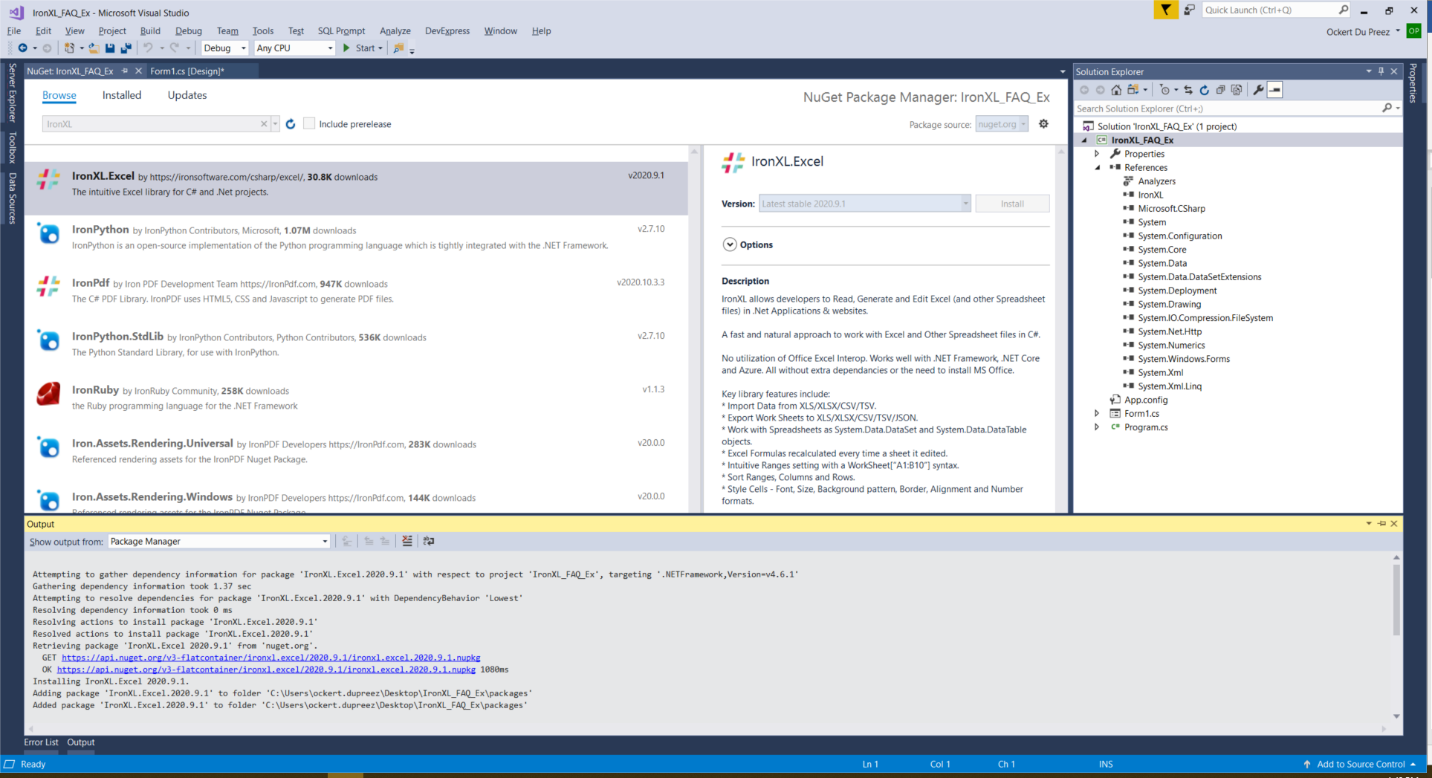
Figure 1
IronXL.Excel NuGet Package
How to Tutorial
How Do I Create and Export a DataTable to CSV?
The process of converting a DataTable to CSV involves creating a WorkBook, populating it with data, and using IronXL's built-in CSV writing functionality. This approach is more efficient than manually building CSV strings or using traditional file streaming methods.
What Namespace Do I Need to Import?
First, import the IronXL namespace. IronXL provides comprehensive support for importing and exporting DataSet and DataTable objects, making it ideal for database-driven applications.
using IronXL;Imports IronXLWhat's the Complete Code Example?
Add the following code:
using IronXL;
using System;
using System.Data;

// Create a new DataTable object
DataTable table = new DataTable();

// Add a single column named "Example_DataSet" of type string
table.Columns.Add("Example_DataSet", typeof(string));

// Add rows to the DataTable
table.Rows.Add("0");
table.Rows.Add("1");
table.Rows.Add("2");
table.Rows.Add("3");
table.Rows.Add("1");
table.Rows.Add("2");
table.Rows.Add("3");

// Create a new Excel workbook and set its author metadata
WorkBook wb = WorkBook.Create(ExcelFileFormat.XLS);
wb.Metadata.Author = "OJ";

// Get the default worksheet
WorkSheet ws = wb.DefaultWorkSheet;

// Initialize rowCounter for Excel sheet rows
int rowCount = 1;

// Loop through each row in the DataTable and add the data to the Excel worksheet
foreach (DataRow row in table.Rows)
{
    // Populate worksheet cells with data from DataTable
    ws["A" + (rowCount)].Value = row[0].ToString();
    rowCount++;
}

// Save the workbook as a CSV file
wb.SaveAsCsv("Save_DataTable_CSV.csv", ";"); // Will be saved as: Save_DataTable_CSV.Sheet1.csvImports IronXL
Imports System
Imports System.Data
' Create a new DataTable object
Dim table As New DataTable()
' Add a single column named "Example_DataSet" of type string
table.Columns.Add("Example_DataSet", GetType(String))
' Add rows to the DataTable
table.Rows.Add("0")
table.Rows.Add("1")
table.Rows.Add("2")
table.Rows.Add("3")
table.Rows.Add("1")
table.Rows.Add("2")
table.Rows.Add("3")
' Create a new Excel workbook and set its author metadata
Dim wb As WorkBook = WorkBook.Create(ExcelFileFormat.XLS)
wb.Metadata.Author = "OJ"
' Get the default worksheet
Dim ws As WorkSheet = wb.DefaultWorkSheet
' Initialize rowCounter for Excel sheet rows
Dim rowCount As Integer = 1
' Loop through each row in the DataTable and add the data to the Excel worksheet
For Each row As DataRow In table.Rows
' Populate worksheet cells with data from DataTable
ws("A" & rowCount).Value = row(0).ToString()
rowCount += 1
Next
' Save the workbook as a CSV file
wb.SaveAsCsv("Save_DataTable_CSV.csv", ";") ' Will be saved as: Save_DataTable_CSV.Sheet1.csvHow Does the Code Work Step by Step?
The above code creates a DataTable, creates a new workbook specifying 'OJ' as its owner, then uses a foreach loop to insert data from the DataTable into the Excel worksheet. Finally, the SaveAsCsv method exports the datatable to CSV.
The process breakdown:
- DataTable Creation: Initialize a new
DataTableand define its schema by adding columns. This resembles defining a database table structure. - Data Population: Add rows to the
DataTableusing theRows.Add()method. Each row represents a record for CSV export. - Workbook Generation: IronXL's
WorkBook.Create()method initializes a new Excel workbook. You can also create spreadsheets with multiple worksheets if needed. - Cell Population: The foreach loop iterates through
DataTablerows and maps each value to a specific worksheet cell using cell reference syntax (e.g., "A1", "A2"). - CSV Export: The
SaveAsCsv()method handles CSV formatting complexities, including proper escaping of special characters and delimiter handling.
What About Advanced DataTable Scenarios?
For complex DataTables with multiple columns, extend the code like this:
// Create a DataTable with multiple columns
DataTable advancedTable = new DataTable();
advancedTable.Columns.Add("ID", typeof(int));
advancedTable.Columns.Add("Name", typeof(string));
advancedTable.Columns.Add("Price", typeof(decimal));

--snip--
workbook.SaveAsCsv("products.csv", ",");' Create a DataTable with multiple columns
Dim advancedTable As New DataTable()
advancedTable.Columns.Add("ID", GetType(Integer))
advancedTable.Columns.Add("Name", GetType(String))
advancedTable.Columns.Add("Price", GetType(Decimal))
' --snip--
workbook.SaveAsCsv("products.csv", ",")What Does the Output Look Like?
The output Excel worksheet displays as follows:
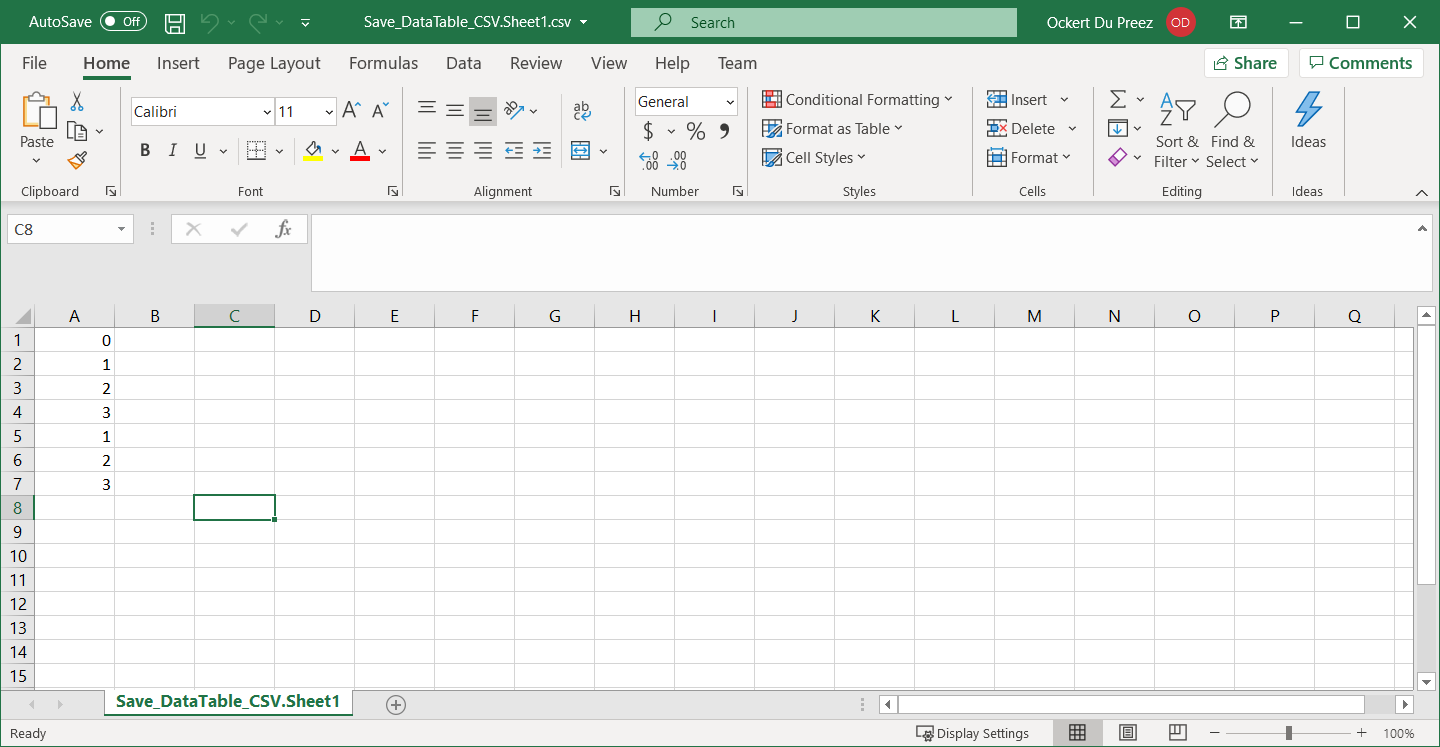
Figure 2
Datatable output to CSV
How Do I Handle Large DataTables?
When working with large DataTables containing thousands of rows, IronXL maintains excellent performance. The library handles substantial datasets efficiently. For production environments, apply your license key to remove watermarks and enable full functionality.
What About Error Handling?
Always implement proper error handling when working with file operations:
try
{
    // Your DataTable to CSV conversion code
    WorkBook wb = WorkBook.Create();
    // ... rest of the code
    wb.SaveAsCsv("output.csv", ",");
    Console.WriteLine("CSV file created successfully!");
}
catch (Exception ex)
{
    Console.WriteLine($"Error creating CSV: {ex.Message}");
}Try
' Your DataTable to CSV conversion code
Dim wb As WorkBook = WorkBook.Create()
' ... rest of the code
wb.SaveAsCsv("output.csv", ",")
Console.WriteLine("CSV file created successfully!")
Catch ex As Exception
Console.WriteLine($"Error creating CSV: {ex.Message}")
End TryLibrary Quick Access
IronXL API Reference Documentation
Learn more and share how to merge, unmerge, and work with cells in Excel spreadsheets using the handy IronXL API Reference Documentation.
IronXL API Reference Documentation
Frequently Asked Questions
How can I convert a DataTable to a CSV file using C#?
You can convert a DataTable to a CSV file in C# using IronXL by creating a WorkBook, populating it with DataTable rows, and using the SaveAsCsv() method. This process is straightforward and avoids the need for complex loops or Interop.
What is the advantage of using IronXL for CSV export?
IronXL simplifies the CSV export process with a single method call using SaveAsCsv(). It handles CSV formatting complexities and eliminates the need for manual file streaming or building CSV strings.
How do I install IronXL in my C# project?
You can install IronXL via the NuGet Package Manager in Visual Studio. Go to the Project menu, click on Manage NuGet Packages, search for IronXL.Excel, and click Install. Alternatively, you can download it from the official Iron Software site.
What namespace is required to use IronXL in C#?
To use IronXL in your C# application, you need to include the IronXL namespace by adding 'using IronXL;' at the beginning of your code file.
How can I create and export a complex DataTable to a CSV?
For advanced DataTable scenarios, extend the DataTable to include multiple columns and populate them with data. Then, use IronXL's WorkBook and the SaveAsCsv() method to export this data to a CSV file efficiently.
How does IronXL handle large DataTables?
IronXL is designed to efficiently manage large DataTables, ensuring excellent performance even with datasets containing thousands of rows. It's optimized for handling substantial data workloads in production environments.
What should I do if I encounter errors during CSV export?
Implement proper error handling using try-catch blocks in your code. This approach will help you catch exceptions and provide informative error messages, ensuring the stability of your CSV export process.
Why is NuGet the preferred installation method for IronXL?
NuGet is favored by .NET developers because it automatically manages dependencies, ensures library versions are current, and simplifies the integration process. IronXL installed via NuGet includes all necessary components for handling Excel files.
What is the output format when exporting a DataTable to CSV using IronXL?
The output is a well-structured CSV file where each row of the DataTable corresponds to a line in the CSV, and each column corresponds to a field. IronXL ensures the correct formatting, handling delimiters and special characters.
How do I apply my IronXL license key to avoid watermarks?
To remove watermarks and unlock full functionality, apply your IronXL license key in a production environment by setting it through the IronXL library's licensing method. This ensures your exports are unmarked and ready for distribution.

Curtis Chau holds a Bachelor’s degree in Computer Science (Carleton University) and specializes in front-end development with expertise in Node.js, TypeScript, JavaScript, and React. Passionate about crafting intuitive and aesthetically pleasing user interfaces, Curtis enjoys working with modern frameworks and creating well-structured, visually appealing manuals.



