
C# Open Excel Worksheets with IronXL

Open Excel worksheets in C# using IronXL's WorkBook.Load() and GetWorkSheet() methods to access any Excel file type (.xls, .csv, .tsv, .xlsx) and read or manipulate data with just two lines of code.
Learn how to use C# to open Excel worksheet functions for working with Excel spreadsheets and all file types including .xls, .csv, .tsv, and .xlsx. Opening an Excel worksheet, reading its data, and manipulating it programmatically are essential for many business applications. IronXL provides an efficient approach that eliminates the need for Excel Interop, offering a solution with fewer lines of code and faster response times.
Just two simple method calls let you load any supported Excel file and open a named worksheet - no complex setup or interop required. IronXL makes it simple to start reading or editing data immediately.
-
1Install IronXL with NuGet Package Manager
-
2Copy and run this code snippet.
WorkBook wb = WorkBook.Load("sample.xlsx"); WorkSheet ws = wb.GetWorkSheet("Sheet1");Dim wb As WorkBook = WorkBook.Load("sample.xlsx") Dim ws As WorkSheet = wb.GetWorkSheet("Sheet1")Dim wb As WorkBook = WorkBook.Load("sample.xlsx") Dim ws As WorkSheet = wb.GetWorkSheet("Sheet1") -
3Deploy to test on your live environment
Start using IronXL in your project today with a free trial
Minimal Workflow (5 Steps)
To open and work with an Excel worksheet, follow these steps:
- Install the C# library to open Excel files
- Load the Excel file into a
WorkBookobject usingWorkBook.Load() - Select a
WorkSheetusing multiple access methods - Access cell data via the selected
WorkSheetobject - Get data from rows and columns range
How Do I Access the Excel C# Library?
Access the Excel C# Library via DLL or install it using your preferred NuGet manager. Once you've accessed the IronXL library and added it to your project, you can use all the functions below to open Excel worksheets in C#. For detailed installation instructions and system requirements, consult the IronXL documentation.
IronXL supports deployment across multiple platforms including Linux, macOS, and Docker containers, making it versatile for various development environments.
How Do I Load an Excel File?
Use the WorkBook.Load() function from IronXL to load Excel files into the project. This function requires a string parameter, which is the path of the Excel file to be opened. IronXL supports loading various spreadsheet formats including XLS, XLSX, CSV, TSV, and more. For comprehensive guidance on loading different file types, see the load spreadsheet tutorial.
using IronXL;

// Get a worksheet by its name
WorkSheet workSheet = workBook.GetWorkSheet("SheetName");
using IronXL;
// Get a worksheet by its name
WorkSheet workSheet = workBook.GetWorkSheet("SheetName");Imports IronXL
' Get a worksheet by its name
Dim workSheet As WorkSheet = workBook.GetWorkSheet("SheetName")Imports IronXL
' Get a worksheet by its name
Dim workSheet As WorkSheet = workBook.GetWorkSheet("SheetName")The Excel file at the specified path will load into the workBook object. Now, specify the Excel worksheet to open. The LoadingOptions parameter allows you to handle password-protected workbooks via its Password property.
How Do I Open an Excel WorkSheet?
To open a specific WorkSheet of an Excel file, IronXL provides the WorkBook.GetWorkSheet() function. Use it to open the worksheet by its name:
// Get a worksheet by its name
WorkSheet workSheet = workBook.GetWorkSheet("SheetName");
// Get a worksheet by its name
WorkSheet workSheet = workBook.GetWorkSheet("SheetName");' Get a worksheet by its name
Dim workSheet As WorkSheet = workBook.GetWorkSheet("SheetName")' Get a worksheet by its name
Dim workSheet As WorkSheet = workBook.GetWorkSheet("SheetName")The specified WorkSheet will open in workSheet with all its data. There are several other ways to open a specific WorkSheet of an Excel file:
using IronXL;
using System.Linq;

// Open by sheet index
WorkSheet workSheet = workBook.WorkSheets[0];

// Open the default worksheet
WorkSheet workSheet2 = workBook.DefaultWorkSheet;

// Open the first sheet
WorkSheet workSheet3 = workBook.WorkSheets.First();

// Open the first or default sheet
WorkSheet workSheet4 = workBook.WorkSheets.FirstOrDefault();
using IronXL;
using System.Linq;
// Open by sheet index
WorkSheet workSheet = workBook.WorkSheets[0];
// Open the default worksheet
WorkSheet workSheet2 = workBook.DefaultWorkSheet;
// Open the first sheet
WorkSheet workSheet3 = workBook.WorkSheets.First();
// Open the first or default sheet
WorkSheet workSheet4 = workBook.WorkSheets.FirstOrDefault();Imports IronXL
Imports System.Linq
' Open by sheet index
Private workSheet As WorkSheet = workBook.WorkSheets(0)
' Open the default worksheet
Private workSheet2 As WorkSheet = workBook.DefaultWorkSheet
' Open the first sheet
Private workSheet3 As WorkSheet = workBook.WorkSheets.First()
' Open the first or default sheet
Private workSheet4 As WorkSheet = workBook.WorkSheets.FirstOrDefault()Imports IronXL
Imports System.Linq
' Open by sheet index
Private workSheet As WorkSheet = workBook.WorkSheets(0)
' Open the default worksheet
Private workSheet2 As WorkSheet = workBook.DefaultWorkSheet
' Open the first sheet
Private workSheet3 As WorkSheet = workBook.WorkSheets.First()
' Open the first or default sheet
Private workSheet4 As WorkSheet = workBook.WorkSheets.FirstOrDefault()For more advanced worksheet management tasks like adding, renaming, or deleting worksheets, refer to the manage worksheet guide.
Now, get data from the opened Excel WorkSheet.
How Do I Get Data from a WorkSheet?
Get data from an opened Excel WorkSheet in the following ways:
- Get a specific cell value of Excel
WorkSheet. - Get data in a specific
Range. - Get all the data from
WorkSheet. - Export data to other formats.
Let's examine how to get data in different ways with these examples:
How Do I Get Specific Cell Values?
The first approach to getting data from an Excel WorkSheet is to get specific cell values. Access them like this:
// Access a specific cell value by its address
string val = workSheet["Cell Address"].ToString();
// Access a specific cell value by its address
string val = workSheet["Cell Address"].ToString();' Access a specific cell value by its address
Dim val As String = workSheet("Cell Address").ToString()' Access a specific cell value by its address
Dim val As String = workSheet("Cell Address").ToString()workSheet is the WorkSheet of the Excel file, as shown in the following examples. Specific cell values can also be accessed by specifying row index and column index.
// Access a cell value by row index and column index
string val = workSheet.Rows[RowIndex].Columns[ColumnIndex].Value.ToString();
// Access a cell value by row index and column index
string val = workSheet.Rows[RowIndex].Columns[ColumnIndex].Value.ToString();' Access a cell value by row index and column index
Dim val As String = workSheet.Rows(RowIndex).Columns(ColumnIndex).Value.ToString()' Access a cell value by row index and column index
Dim val As String = workSheet.Rows(RowIndex).Columns(ColumnIndex).Value.ToString()Here's an example of how to open an Excel file in your C# project and get specific cell values using both methods:
using IronXL;
using System;

WorkBook workBook = WorkBook.Load("sample.xlsx");

// Open WorkSheet
WorkSheet workSheet = workBook.GetWorkSheet("Sheet1");

// Get value By Cell Address
int intValue = workSheet["C6"].Int32Value;

// Get value by Row and Column Address
string strValue = workSheet.Rows[3].Columns[1].Value.ToString();

Console.WriteLine("Getting Value by Cell Address: {0}", intValue);
Console.WriteLine("Getting Value by Row and Column Indexes: {0}", strValue);
using IronXL;
using System;
WorkBook workBook = WorkBook.Load("sample.xlsx");
// Open WorkSheet
WorkSheet workSheet = workBook.GetWorkSheet("Sheet1");
// Get value By Cell Address
int intValue = workSheet["C6"].Int32Value;
// Get value by Row and Column Address
string strValue = workSheet.Rows[3].Columns[1].Value.ToString();
Console.WriteLine("Getting Value by Cell Address: {0}", intValue);
Console.WriteLine("Getting Value by Row and Column Indexes: {0}", strValue);Imports IronXL
Imports System
Private workBook As WorkBook = WorkBook.Load("sample.xlsx")
' Open WorkSheet
Private workSheet As WorkSheet = workBook.GetWorkSheet("Sheet1")
' Get value By Cell Address
Private intValue As Integer = workSheet("C6").Int32Value
' Get value by Row and Column Address
Private strValue As String = workSheet.Rows(3).Columns(1).Value.ToString()
Console.WriteLine("Getting Value by Cell Address: {0}", intValue)
Console.WriteLine("Getting Value by Row and Column Indexes: {0}", strValue)Imports IronXL
Imports System
Private workBook As WorkBook = WorkBook.Load("sample.xlsx")
' Open WorkSheet
Private workSheet As WorkSheet = workBook.GetWorkSheet("Sheet1")
' Get value By Cell Address
Private intValue As Integer = workSheet("C6").Int32Value
' Get value by Row and Column Address
Private strValue As String = workSheet.Rows(3).Columns(1).Value.ToString()
Console.WriteLine("Getting Value by Cell Address: {0}", intValue)
Console.WriteLine("Getting Value by Row and Column Indexes: {0}", strValue)This code displays the following output:
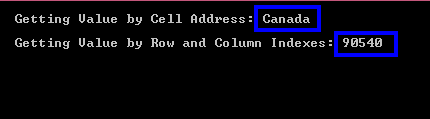
Value of Excel file sample.xlsx in row [3].Column [1] and C6 cell:
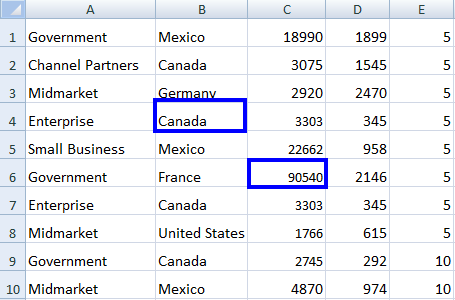
The rows and column indices start from 0.
Open Excel WorkSheets and get specific cell data, and you can read more about how to read Excel data in C# from already open Excel worksheets. For more examples on reading Excel files, check out the how to read Excel file tutorial.
How Do I Get Data from a Specific Range?
Now examine how to get data in a specific range from an opened Excel WorkSheet using IronXL. The select range functionality provides powerful options for data extraction.
IronXL provides an intelligent way to get data in a specific range. Specify from to to values:
// Access data from a specific range
var rangeData = workSheet["From Cell Address : To Cell Address"];
// Access data from a specific range
var rangeData = workSheet["From Cell Address : To Cell Address"];' Access data from a specific range
Dim rangeData = workSheet("From Cell Address : To Cell Address")' Access data from a specific range
Dim rangeData = workSheet("From Cell Address : To Cell Address")Here's an example of using range to get data from an open Excel WorkSheet:
using IronXL;
using System;

// Load Excel file
WorkBook workBook = WorkBook.Load("sample.xlsx");
WorkSheet workSheet = workBook.GetWorkSheet("Sheet1");

// Specify the range
foreach (var cell in workSheet["B2:B10"])
{
    Console.WriteLine("Value is: {0}", cell.Text);
}
using IronXL;
using System;
// Load Excel file
WorkBook workBook = WorkBook.Load("sample.xlsx");
WorkSheet workSheet = workBook.GetWorkSheet("Sheet1");
// Specify the range
foreach (var cell in workSheet["B2:B10"])
{
Console.WriteLine("Value is: {0}", cell.Text);
}Imports IronXL
Imports System
' Load Excel file
Dim workBook As WorkBook = WorkBook.Load("sample.xlsx")
Dim workSheet As WorkSheet = workBook.GetWorkSheet("Sheet1")
' Specify the range
For Each cell In workSheet("B2:B10")
Console.WriteLine("Value is: {0}", cell.Text)
NextImports IronXL
Imports System
' Load Excel file
Dim workBook As WorkBook = WorkBook.Load("sample.xlsx")
Dim workSheet As WorkSheet = workBook.GetWorkSheet("Sheet1")
' Specify the range
For Each cell In workSheet("B2:B10")
Console.WriteLine("Value is: {0}", cell.Text)
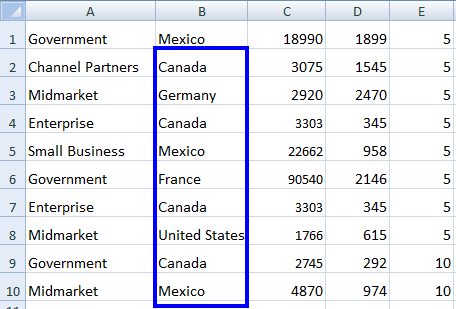
NextThe above code will pull data from B2 to B10 as follows:

The values of the Excel file sample.xlsx, from B2 to B10:
How Do I Get Data from a Row?
You can also describe a range for a specific row. For example:
var rowData = workSheet["A1:E1"];var rowData = workSheet["A1:E1"];Dim rowData = workSheet("A1:E1")Dim rowData = workSheet("A1:E1")This will display all values from A1 to E1. Read more about C# Excel Ranges and how to work with different row and column identifications.
How Do I Get All Data from a WorkSheet?
Getting all the cell data from the open Excel WorkSheet is easy using IronXL. For this task, access each cell value by row and column indexes. You can also export the entire worksheet to various formats like CSV, JSON, or XML for easier processing. See the following example, which traverses all WorkSheet cells and accesses their values.
In this example, two loops work together: one traverses each row of the Excel WorkSheet and the other traverses each column of a specific row. This way, each cell value is easily accessed.
using IronXL;
using System;
using System.Linq;

// Load Excel file
WorkBook workBook = WorkBook.Load("sample2.xlsx");
WorkSheet workSheet = workBook.GetWorkSheet("Sheet1");

// Access all rows of the open Excel WorkSheet
for (int i = 0; i < workSheet.Rows.Count(); i++)
{
    // Access all columns of a specific row
    for (int j = 0; j < workSheet.Columns.Count(); j++)
    {
        // Access each cell for the specified column
        Console.WriteLine(workSheet.Rows[i].Columns[j].Value.ToString());
    }
}
using IronXL;
using System;
using System.Linq;
// Load Excel file
WorkBook workBook = WorkBook.Load("sample2.xlsx");
WorkSheet workSheet = workBook.GetWorkSheet("Sheet1");
// Access all rows of the open Excel WorkSheet
for (int i = 0; i < workSheet.Rows.Count(); i++)
{
// Access all columns of a specific row
for (int j = 0; j < workSheet.Columns.Count(); j++)
{
// Access each cell for the specified column
Console.WriteLine(workSheet.Rows[i].Columns[j].Value.ToString());
}
}Imports IronXL
Imports System
Imports System.Linq
' Load Excel file
Private workBook As WorkBook = WorkBook.Load("sample2.xlsx")
Private workSheet As WorkSheet = workBook.GetWorkSheet("Sheet1")
' Access all rows of the open Excel WorkSheet
For i As Integer = 0 To workSheet.Rows.Count() - 1
' Access all columns of a specific row
For j As Integer = 0 To workSheet.Columns.Count() - 1
' Access each cell for the specified column
Console.WriteLine(workSheet.Rows(i).Columns(j).Value.ToString())
Next j
Next iImports IronXL
Imports System
Imports System.Linq
' Load Excel file
Private workBook As WorkBook = WorkBook.Load("sample2.xlsx")
Private workSheet As WorkSheet = workBook.GetWorkSheet("Sheet1")
' Access all rows of the open Excel WorkSheet
For i As Integer = 0 To workSheet.Rows.Count() - 1
' Access all columns of a specific row
For j As Integer = 0 To workSheet.Columns.Count() - 1
' Access each cell for the specified column
Console.WriteLine(workSheet.Rows(i).Columns(j).Value.ToString())
Next j
Next iThe output of the above code will display each cell value of the complete open Excel WorkSheet. For working with larger datasets, consider using IronXL's DataSet and DataTable export functionality for better performance and memory management.
Frequently Asked Questions
How can I open an Excel worksheet in C# using IronXL?
To open an Excel worksheet in C#, you can use IronXL's WorkBook.Load() method to load the file and the GetWorkSheet() method to open a specific sheet. This allows you to access and manipulate Excel data with minimal code.
What file formats are supported by IronXL for opening Excel worksheets?
IronXL supports a variety of file formats including .xls, .xlsx, .csv, and .tsv for opening Excel worksheets, making it versatile for handling different spreadsheet types.
Can I access specific cell values using IronXL?
Yes, IronXL allows you to access specific cell values by using the address of the cell or by specifying the row and column indices. This functionality makes it easy to retrieve and manipulate specific data points.
How can I extract data from a range of cells in an Excel worksheet using IronXL?
To extract data from a range of cells, IronXL provides functionality to specify a range using cell addresses. You can retrieve all data within that range efficiently.
Is it possible to work with entire rows or columns using IronXL?
Yes, IronXL provides the flexibility to work with entire rows or columns, allowing you to access data or perform operations on them as needed.
Can IronXL handle password-protected Excel workbooks?
IronXL supports loading password-protected workbooks through its LoadingOptions parameter, which allows you to specify the password when opening the workbook.
How do I install IronXL to start working with Excel worksheets in C#?
You can install IronXL via the NuGet package manager by searching for IronXL.Excel or by downloading the library directly from Iron Software's website.
What platforms are supported by IronXL for Excel operations?
IronXL supports a wide range of platforms including Windows, Linux, macOS, and even Docker containers, making it adaptable for various development environments.
How does IronXL compare to using Excel Interop for C# applications?
IronXL provides a more efficient approach compared to Excel Interop by requiring fewer lines of code, offering faster performance, and eliminating dependencies on Excel installations.
Can I export data from an Excel worksheet to other formats using IronXL?
Yes, IronXL allows you to export data from an Excel worksheet to formats like CSV, JSON, or XML, enabling easier data handling and integration with other systems.

Curtis Chau holds a Bachelor’s degree in Computer Science (Carleton University) and specializes in front-end development with expertise in Node.js, TypeScript, JavaScript, and React. Passionate about crafting intuitive and aesthetically pleasing user interfaces, Curtis enjoys working with modern frameworks and creating well-structured, visually appealing manuals.



