
How to Write CSV in C# .NET using IronXL

IronXL provides a simple way to write data to CSV files in .NET by loading Excel workbooks and saving them as CSV format using one line of code, eliminating manual parsing.
Quickstart: Save an Excel Workbook as CSV with IronXLThis example shows how to convert an existing Excel file to CSV using IronXL. Load the workbook and call SaveAsCsv - no manual parsing needed.
-
1Install IronXL with NuGet Package Manager
-
2Copy and run this code snippet.
IronXL.WorkBook.Load("MyExcel.xlsx").SaveAsCsv("MyExcel.csv");IronXL.WorkBook.Load("MyExcel.xlsx").SaveAsCsv("MyExcel.csv")IronXL.WorkBook.Load("MyExcel.xlsx").SaveAsCsv("MyExcel.csv") -
3Deploy to test on your live environment
Start using IronXL in your project today with a free trial
How to Write CSV in .NET
- Add the IronXL Library
- Create a Workbook in C#
- Save Excel Workbook to CSV file format
Step 1
How Do I Add IronXL to My Project?
Which Installation Method Should I Use?
If you haven't installed IronXL yet, follow these steps:
- Open Visual Studio and select the Project menu.
- Click Manage NuGet Packages.
- Search for
IronXL.Excel. - Click Install.
What If I Prefer the Command Line?
Use the following command in the Developer Command Prompt:
Where Can I Find More Resources?
For additional tutorials and guidance, visit: https://ironsoftware.com/csharp/excel/docs/. For CSV reading operations, see our guide on how to read CSV files in C#. Download the sample project here.
How to Tutorial
How Do I Create an Excel Workbook for CSV Export?
What Data Should My Workbook Contain?
CSV (Comma-Separated Values) files are widely used for data exchange between applications due to their simple format and universal compatibility. Whether exporting data for analysis, creating reports, or integrating with other systems, IronXL makes the process smooth.
First, create an Excel workbook containing sample data. If you need help creating Excel files programmatically, visit our tutorial on creating Excel files in .NET:
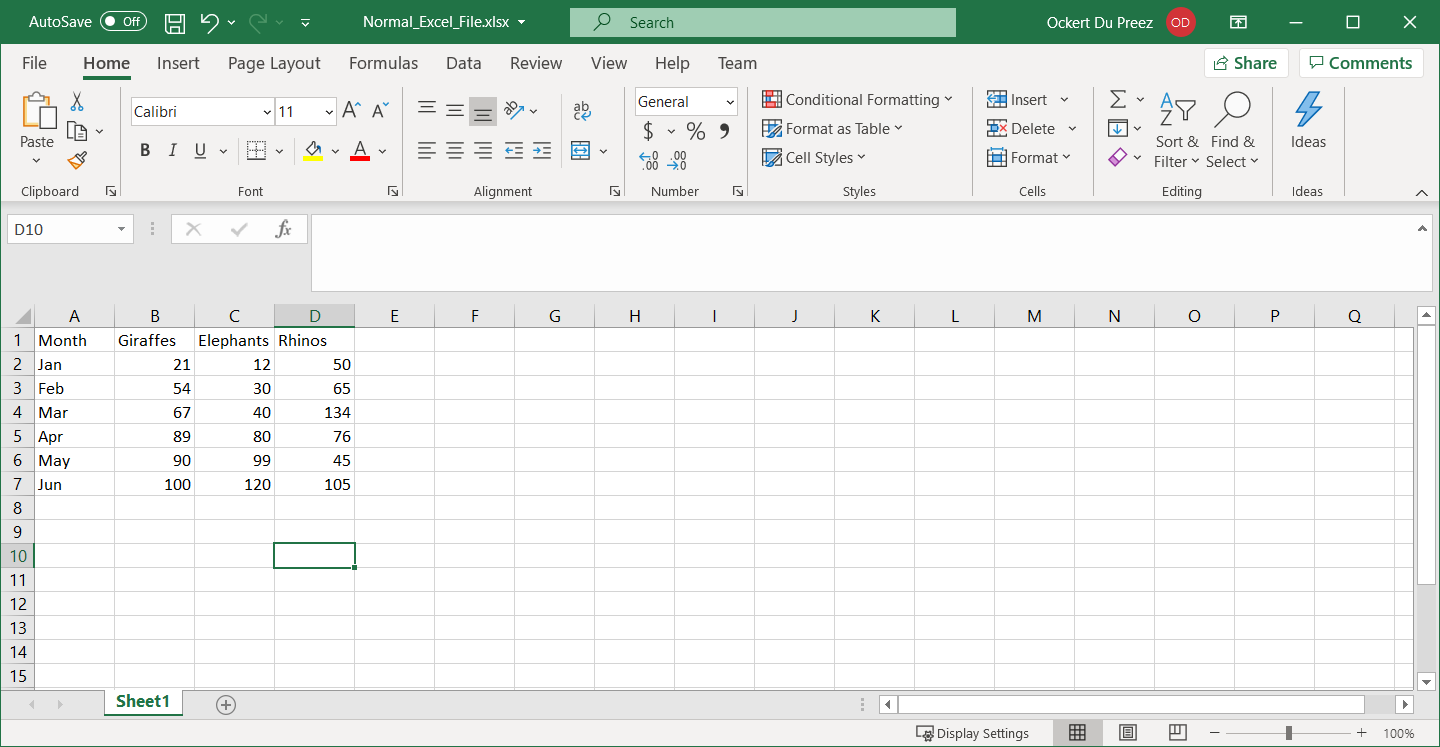
Figure 1
Normal Excel data to be exported to CSV
Which Namespace Do I Need to Import?
Add the IronXL namespace to write CSV files in C#:
using IronXL;using IronXL;Imports IronXLImports IronXLHow Do I Save My Workbook as CSV?
What Code Do I Need to Convert Excel to CSV?
The following C# code demonstrates using the WorkBook object's Load method to load an Excel file, then using the SaveAs method to save it as CSV. This approach handles data types, special characters, and formatting automatically:
using IronXL;

// Load the existing Excel workbook
WorkBook wb = WorkBook.Load("Normal_Excel_File.xlsx"); // Import .xls, .csv, or .tsv file

// Save the workbook as a CSV file with the worksheet name appended
wb.SaveAs("Excel_To_CSV.csv"); // Exported as: Excel_To_CSV.Sheet1.csv
using IronXL;
// Load the existing Excel workbook
WorkBook wb = WorkBook.Load("Normal_Excel_File.xlsx"); // Import .xls, .csv, or .tsv file
// Save the workbook as a CSV file with the worksheet name appended
wb.SaveAs("Excel_To_CSV.csv"); // Exported as: Excel_To_CSV.Sheet1.csvImports IronXL
' Load the existing Excel workbook
Dim wb As WorkBook = WorkBook.Load("Normal_Excel_File.xlsx") ' Import .xls, .csv, or .tsv file
' Save the workbook as a CSV file with the worksheet name appended
wb.SaveAs("Excel_To_CSV.csv") ' Exported as: Excel_To_CSV.Sheet1.csvImports IronXL
' Load the existing Excel workbook
Dim wb As WorkBook = WorkBook.Load("Normal_Excel_File.xlsx") ' Import .xls, .csv, or .tsv file
' Save the workbook as a CSV file with the worksheet name appended
wb.SaveAs("Excel_To_CSV.csv") ' Exported as: Excel_To_CSV.Sheet1.csvHow Can I Save a Specific Worksheet to CSV?
When working with multi-sheet workbooks, you can export specific worksheets. IronXL provides flexible options for this scenario. Learn more about managing worksheets in our documentation:
using IronXL;

// Load workbook and access specific worksheet
WorkBook workBook = WorkBook.Load("MultiSheet_Excel.xlsx");
WorkSheet sheet = workBook.GetWorkSheet("Sales_Data");

// Save only the specific worksheet as CSV
sheet.SaveAsCsv("Sales_Data_Export.csv");

// Alternatively, save with custom delimiter
sheet.SaveAsCsv("Sales_Data_Tab.tsv", delimiter: "\t");
using IronXL;
// Load workbook and access specific worksheet
WorkBook workBook = WorkBook.Load("MultiSheet_Excel.xlsx");
WorkSheet sheet = workBook.GetWorkSheet("Sales_Data");
// Save only the specific worksheet as CSV
sheet.SaveAsCsv("Sales_Data_Export.csv");
// Alternatively, save with custom delimiter
sheet.SaveAsCsv("Sales_Data_Tab.tsv", delimiter: "\t");Imports IronXL
' Load workbook and access specific worksheet
Dim workBook As WorkBook = WorkBook.Load("MultiSheet_Excel.xlsx")
Dim sheet As WorkSheet = workBook.GetWorkSheet("Sales_Data")
' Save only the specific worksheet as CSV
sheet.SaveAsCsv("Sales_Data_Export.csv")
' Alternatively, save with custom delimiter
sheet.SaveAsCsv("Sales_Data_Tab.tsv", delimiter:=vbTab)Imports IronXL
' Load workbook and access specific worksheet
Dim workBook As WorkBook = WorkBook.Load("MultiSheet_Excel.xlsx")
Dim sheet As WorkSheet = workBook.GetWorkSheet("Sales_Data")
' Save only the specific worksheet as CSV
sheet.SaveAsCsv("Sales_Data_Export.csv")
' Alternatively, save with custom delimiter
sheet.SaveAsCsv("Sales_Data_Tab.tsv", delimiter:=vbTab)What Does the CSV Output Look Like?
The output CSV file appears as follows when opened in a text editor. Notice how IronXL properly formats the data with commas as delimiters and handles text fields containing special characters:
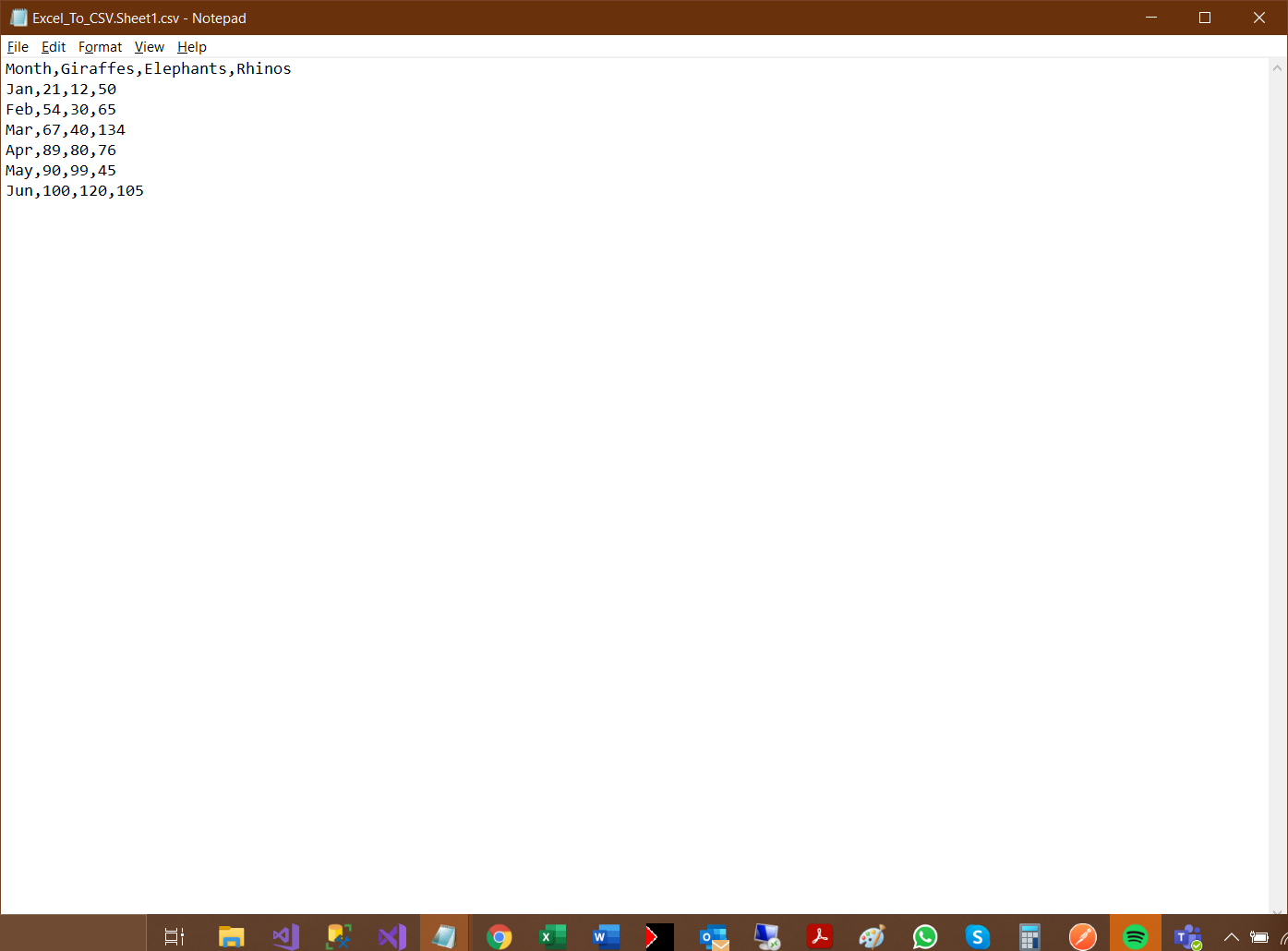
Figure 2
Output CSV file
How Do I Handle Multiple Worksheets?
When your Excel file contains multiple worksheets, IronXL offers several approaches for CSV export. Explore more about converting spreadsheet file types in our guide:
using IronXL;
using System;

// Load workbook with multiple sheets
WorkBook workBook = WorkBook.Load("MultipleSheets.xlsx");

// Method 1: Export all sheets to separate CSV files
foreach (WorkSheet sheet in workBook.WorkSheets)
{
    string fileName = $"{sheet.Name}_Export.csv";
    sheet.SaveAsCsv(fileName);
    Console.WriteLine($"Exported {sheet.Name} to {fileName}");
}

// Method 2: Combine all sheets into one CSV
var combinedData = workBook.WorkSheets[0];
for (int i = 1; i < workBook.WorkSheets.Count; i++)
{
    var currentSheet = workBook.WorkSheets[i];
    // Add logic to append data from currentSheet to combinedData
}
combinedData.SaveAsCsv("Combined_Output.csv");
using IronXL;
using System;
// Load workbook with multiple sheets
WorkBook workBook = WorkBook.Load("MultipleSheets.xlsx");
// Method 1: Export all sheets to separate CSV files
foreach (WorkSheet sheet in workBook.WorkSheets)
{
string fileName = $"{sheet.Name}_Export.csv";
sheet.SaveAsCsv(fileName);
Console.WriteLine($"Exported {sheet.Name} to {fileName}");
}
// Method 2: Combine all sheets into one CSV
var combinedData = workBook.WorkSheets[0];
for (int i = 1; i < workBook.WorkSheets.Count; i++)
{
var currentSheet = workBook.WorkSheets[i];
// Add logic to append data from currentSheet to combinedData
}
combinedData.SaveAsCsv("Combined_Output.csv");Imports IronXL
Imports System
' Load workbook with multiple sheets
Dim workBook As WorkBook = WorkBook.Load("MultipleSheets.xlsx")
' Method 1: Export all sheets to separate CSV files
For Each sheet As WorkSheet In workBook.WorkSheets
Dim fileName As String = $"{sheet.Name}_Export.csv"
sheet.SaveAsCsv(fileName)
Console.WriteLine($"Exported {sheet.Name} to {fileName}")
Next
' Method 2: Combine all sheets into one CSV
Dim combinedData = workBook.WorkSheets(0)
For i As Integer = 1 To workBook.WorkSheets.Count - 1
Dim currentSheet = workBook.WorkSheets(i)
' Add logic to append data from currentSheet to combinedData
Next
combinedData.SaveAsCsv("Combined_Output.csv")Imports IronXL
Imports System
' Load workbook with multiple sheets
Dim workBook As WorkBook = WorkBook.Load("MultipleSheets.xlsx")
' Method 1: Export all sheets to separate CSV files
For Each sheet As WorkSheet In workBook.WorkSheets
Dim fileName As String = $"{sheet.Name}_Export.csv"
sheet.SaveAsCsv(fileName)
Console.WriteLine($"Exported {sheet.Name} to {fileName}")
Next
' Method 2: Combine all sheets into one CSV
Dim combinedData = workBook.WorkSheets(0)
For i As Integer = 1 To workBook.WorkSheets.Count - 1
Dim currentSheet = workBook.WorkSheets(i)
' Add logic to append data from currentSheet to combinedData
Next
combinedData.SaveAsCsv("Combined_Output.csv")What About Performance Considerations?
For large Excel files, IronXL provides efficient streaming capabilities that minimize memory usage. When working with substantial datasets, use IronXL's optimized methods. See our guide on exporting data to various formats for advanced scenarios.
Can I Work with DataTables?
IronXL integrates with .NET's DataTable structure, making it easy to export data from databases or in-memory collections. See our tutorial on converting DataTable to CSV:
using IronXL;
using System.Data;

// Create a DataTable with sample data (the table name becomes the worksheet name)
DataTable dataTable = new DataTable("Products");
dataTable.Columns.Add("ID", typeof(int));
dataTable.Columns.Add("Name", typeof(string));
dataTable.Columns.Add("Price", typeof(decimal));

// Add sample rows
dataTable.Rows.Add(1, "Product A", 29.99m);
dataTable.Rows.Add(2, "Product B", 49.99m);

// Wrap the DataTable in a DataSet — each table is loaded as its own worksheet
DataSet dataSet = new DataSet();
dataSet.Tables.Add(dataTable);

// Load the DataSet into a new workbook
WorkBook workBook = WorkBook.Create();
WorkBook.LoadWorkSheetsFromDataSet(dataSet, workBook);

// Save as CSV
workBook.SaveAsCsv("Products.csv");
using IronXL;
using System.Data;
// Create a DataTable with sample data (the table name becomes the worksheet name)
DataTable dataTable = new DataTable("Products");
dataTable.Columns.Add("ID", typeof(int));
dataTable.Columns.Add("Name", typeof(string));
dataTable.Columns.Add("Price", typeof(decimal));
// Add sample rows
dataTable.Rows.Add(1, "Product A", 29.99m);
dataTable.Rows.Add(2, "Product B", 49.99m);
// Wrap the DataTable in a DataSet — each table is loaded as its own worksheet
DataSet dataSet = new DataSet();
dataSet.Tables.Add(dataTable);
// Load the DataSet into a new workbook
WorkBook workBook = WorkBook.Create();
WorkBook.LoadWorkSheetsFromDataSet(dataSet, workBook);
// Save as CSV
workBook.SaveAsCsv("Products.csv");Imports IronXL
Imports System.Data
' Create a DataTable with sample data (the table name becomes the worksheet name)
Dim dataTable As New DataTable("Products")
dataTable.Columns.Add("ID", GetType(Integer))
dataTable.Columns.Add("Name", GetType(String))
dataTable.Columns.Add("Price", GetType(Decimal))
' Add sample rows
dataTable.Rows.Add(1, "Product A", 29.99D)
dataTable.Rows.Add(2, "Product B", 49.99D)
' Wrap the DataTable in a DataSet — each table is loaded as its own worksheet
Dim dataSet As New DataSet()
dataSet.Tables.Add(dataTable)
' Load the DataSet into a new workbook
Dim workBook As WorkBook = WorkBook.Create()
WorkBook.LoadWorkSheetsFromDataSet(dataSet, workBook)
' Save as CSV
workBook.SaveAsCsv("Products.csv")Imports IronXL
Imports System.Data
' Create a DataTable with sample data (the table name becomes the worksheet name)
Dim dataTable As New DataTable("Products")
dataTable.Columns.Add("ID", GetType(Integer))
dataTable.Columns.Add("Name", GetType(String))
dataTable.Columns.Add("Price", GetType(Decimal))
' Add sample rows
dataTable.Rows.Add(1, "Product A", 29.99D)
dataTable.Rows.Add(2, "Product B", 49.99D)
' Wrap the DataTable in a DataSet — each table is loaded as its own worksheet
Dim dataSet As New DataSet()
dataSet.Tables.Add(dataTable)
' Load the DataSet into a new workbook
Dim workBook As WorkBook = WorkBook.Create()
WorkBook.LoadWorkSheetsFromDataSet(dataSet, workBook)
' Save as CSV
workBook.SaveAsCsv("Products.csv")How Do I Set Up Licensing?
Before deploying your CSV export solution, configure your IronXL license properly. Visit our guide on using license keys to learn about applying licenses in different environments.
Library Quick Access
IronXL API Reference Documentation
Learn more and share how to merge, unmerge, and work with cells in Excel spreadsheets using the IronXL API Reference Documentation. For detailed method signatures and additional CSV export options, consult our API Reference.
IronXL API Reference Documentation Also refer to our API Reference for full details.
Frequently Asked Questions
What is IronXL and how can it help me write CSV files in C#?
IronXL is a library that helps .NET developers write CSV files by converting Excel workbooks to CSV format with minimal code, avoiding manual parsing.
How do I convert an Excel file to CSV using IronXL?
You can convert an Excel file to CSV using IronXL by loading the Excel workbook and calling the SaveAsCsv method. For example: IronXL.WorkBook.Load("MyExcel.xlsx").SaveAsCsv("MyExcel.csv");.
What steps are needed to add IronXL to my C# project?
To add IronXL to your project, open Visual Studio, go to Project > Manage NuGet Packages, search for IronXL.Excel, and click Install.
Can IronXL handle Excel files with multiple worksheets?
Yes, IronXL can handle multiple worksheets. You can export each worksheet individually to a CSV file or combine them into a single CSV file.
What are the benefits of using IronXL for large Excel files?
IronXL provides efficient streaming capabilities that minimize memory usage, making it suitable for exporting large datasets to CSV without performance issues.
How do I save a specific worksheet from an Excel file to a CSV using IronXL?
To save a specific worksheet to a CSV, load the workbook, access the worksheet you want, and use SaveAsCsv on that worksheet, e.g., sheet.SaveAsCsv("SpecificWorksheet.csv");.
Can IronXL integrate with .NET's DataTable for CSV export?
Yes, IronXL integrates with .NET's DataTable, which allows you to export data from databases or in-memory collections easily to CSV format.
Is it necessary to configure a license for using IronXL?
Yes, before deploying your solution, you should properly configure your IronXL license by visiting the guide on using license keys provided by Iron Software.
What namespace is required to use IronXL for CSV writing?
You need to import the IronXL namespace in your C# project to write CSV files with IronXL.
Where can I find more resources and documentation for using IronXL?
Additional resources and detailed API documentation are available at Iron Software’s website, specifically at [IronXL API Reference](https://ironsoftware.com/csharp/excel/object-reference/api/).

Curtis Chau holds a Bachelor’s degree in Computer Science (Carleton University) and specializes in front-end development with expertise in Node.js, TypeScript, JavaScript, and React. Passionate about crafting intuitive and aesthetically pleasing user interfaces, Curtis enjoys working with modern frameworks and creating well-structured, visually appealing manuals.



