# C# Read XLSX File
To read XLSX files in C#, use IronXL's `WorkBook.Load` method to open Excel files and access worksheets to read cell data, perform calculations, and convert to `DataTable` or `DataSet` formats programmatically.
*as-heading:2(Quickstart: Load a workbook and access a worksheet effortlessly)*
With IronXL, you can load an XLSX file using the `WorkBook.Load` method in a single line. Then access its first or named worksheet instantly and begin reading cell values.
```cs
:title=Start Reading XLSX in One Line — IronXL
IronXL.WorkBook workbook = IronXL.WorkBook.Load("your-file.xlsx");
```
<div class="learnn-how-section">
<div class="row">
<div class="col-sm-6">
<h2>Read .XLSX Files C#</h2>
<ul class="list-unstyled">
<li>Get IronXL for your project</li>
<li>Load a <code>WorkBook</code></li>
<li>Access data from a <code>WorkSheet</code></li>
<li>Apply functions like Sum, Min, & Max</li>
<li>Read a <code>WorkSheet</code> as a DataTable, DataSet, and more</li>
</ul>
</div>
<div class="col-sm-6">
<div class="download-card">
<img style="box-shadow: none; width: 308px; height: 320px;" src="/img/faq/excel/how-to-work.svg" class="img-responsive learn-how-to-img replaceable-img" />
</div>
</div>
</div>
</div>
<hr class="separator" />
## How Do I Get IronXL for My Project?
Use IronXL in your project for a simple way to work with Excel file formats in C#. You can either [install IronXL via direct download](/csharp/excel/packages/IronXL.zip) or alternatively you can use [NuGet Install for Visual Studio](https://www.nuget.org/packages/IronXL.Excel). The software is free for development.
```shell
:ProductInstall
```
Before diving into reading XLSX files, explore the [comprehensive IronXL documentation](https://ironsoftware.com/csharp/excel/docs/) to understand all available features. IronXL supports both .xls and .xlsx formats, making it versatile for legacy and modern Excel files.
<hr class="separator" />
<h4 class="tutorial-segment-title">How to Tutorial</h4>
## How Do I Load a WorkBook?
`WorkBook` is the class of IronXL whose object provides full access to the Excel file and all its functions. For example, to access an Excel file, use the code:
```csharp
using IronXL;

// Load the workbook
WorkBook workBook = WorkBook.Load("sample.xlsx"); // Excel file path
```
### Why use the `WorkBook.Load()` method?
In the above code, the `Load()` function loads `WorkBook` into `WorkBook`. Any type of function can be performed on `WorkBook` by accessing the specific `WorkSheet` of an Excel file. The `Load()` method automatically detects the file format, whether it's XLS, XLSX, XLSM, XLTX, or CSV. For more advanced loading scenarios, check out the detailed guide on [loading spreadsheets](https://ironsoftware.com/csharp/excel/how-to/load-spreadsheet/).
Holding the whole workbook in memory is what gives you everything else in this guide: worksheet access, ranges, aggregation, and `DataTable` conversion. That has a ceiling. Once an XLSX runs to hundreds of thousands of rows and the job is only to pull values out of it, [stream the rows instead](https://ironsoftware.com/csharp/excel/how-to/stream-large-excel-files/).
<hr class="separator" />
## How Do I Access a Specific WorkSheet?
To access a specific `WorkSheet` of an Excel file, IronXL provides the `WorkBook` class. It can be used in several different ways:
### What are the different ways to access a worksheet?
```csharp
using IronXL;
// Access sheet by name
WorkSheet workSheet = workBook.GetWorkSheet("Sheet1");
```
`WorkBook["SheetName"]` is the `WorkSheet` that is declared in the above portion.
OR
`WorkBook`
OR
```csharp
using IronXL;
// Access sheet by index
WorkSheet workSheet = workBook.WorkSheets[0];
```
OR
`WorkBook.Load()`
OR
```csharp
using IronXL;
// Access the default worksheet
WorkSheet workSheet = workBook.DefaultWorkSheet;
```
OR
`sample.xlsx`
OR
```csharp
using IronXL;
using System.Linq;
// Access the first worksheet
WorkSheet workSheet = workBook.WorkSheets.First();
```
OR
`workBook`
OR
```csharp
using IronXL;
using System.Linq;
// Access the first or default worksheet
WorkSheet workSheet = workBook.WorkSheets.FirstOrDefault();
```
OR
`workBook`
OR
`WorkBook.Load`
OR
`WorkSheet`
OR
`WorkSheet`
OR
`workBook`
OR
`WorkBook`
### When should I use each worksheet access method?
Each method has its ideal use case:
- **`GetWorkSheet("name")`:** When you know the exact sheet name
- **`WorkSheets[index]`:** For iterating through sheets programmatically
- **`DefaultWorkSheet`:** Quick access when working with single-sheet files
- **`First()` or `FirstOrDefault()`:** Safe options when sheet names might change
After getting `ExcelSheet` `workSheet`, you can get any type of data from it and perform all Excel functions on it. For more complex worksheet operations, refer to the guide on [opening Excel worksheets in C#](https://ironsoftware.com/csharp/excel/how-to/c-sharp-open-excel-worksheet/).
<hr class="separator" />
## How Do I Access Data from a WorkSheet?
Data can be accessed from `ExcelSheet` `workSheet` with this process:
### What data types can I read from cells?
```csharp
using IronXL;
// Accessing data as a string
string dataString = workSheet["A1"].ToString();
// Accessing data as an integer
int dataInt = workSheet["B1"].Int32Value;
```
IronXL provides various value accessors for different data types:
- **`StringValue`:** For text data
- **`Int32Value`:** For integers
- **`DoubleValue`:** For decimals
- **`DateTimeValue`:** For dates
- **`BoolValue`:** For true/false values
### How do I read multiple cells at once?
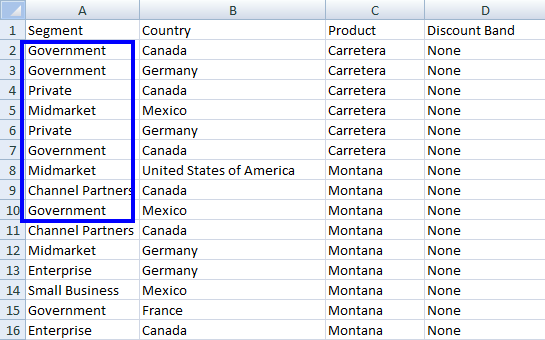
You can also get data from multiple cells of a specific column:
```csharp
foreach (var cell in workSheet["A2:A10"])
{
Console.WriteLine("Value is: {0}", cell.Text);
}
```
This displays the values from cell `A2` to `A10`. For more advanced range selection techniques, visit the [select range tutorial](https://ironsoftware.com/csharp/excel/how-to/select-range/).
### What does a complete implementation look like?
A complete code example of the specifics above is provided here:
```csharp
using IronXL;
using System;
// Load an Excel file
WorkBook workBook = WorkBook.Load("sample.xlsx");
WorkSheet workSheet = workBook.GetWorkSheet("Sheet1");
// Specify the range
foreach (var cell in workSheet["B2:B10"])
{
Console.WriteLine("Value is: {0}", cell.Text);
}
```
It displays the following result:
<center>
<div class="center-image-wrapper">
<a rel="nofollow" href="/img/faq/excel/c-sharp-read-xlsx-file/doc3-input1.png" target="_blank"><img src="/img/faq/excel/c-sharp-read-xlsx-file/doc3-input1.png" alt="Console output showing extracted worksheet data with Government, Private, Midmarket, and Channel Partners values" class="img-responsive add-shadow" /></a>
</div>
</center>
With the Excel file `Sample.xlsx`:
<center>
<div class="center-image-wrapper">
<a rel="nofollow" href="/img/faq/excel/c-sharp-read-xlsx-file/doc3-1.png" target="_blank"><img src="/img/faq/excel/c-sharp-read-xlsx-file/doc3-1.png" alt="Excel spreadsheet with business data showing Segment, Country, Product, and Discount Band columns across 16 rows" class="img-responsive add-shadow" /></a>
</div>
</center>
These methodologies show how effortless it is to use Excel file data in your project. For practical examples of reading Excel files without Interop, explore the [read Excel examples](https://ironsoftware.com/csharp/excel/examples/read-excel/).
<hr class="separator" />
## How Can I Perform Functions on Data?
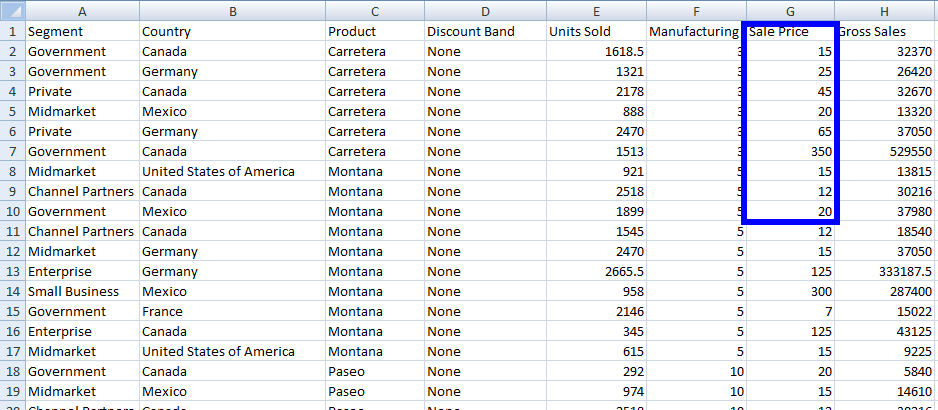
Access filtered data from an Excel `WorkSheet` by applying aggregate functions like `Sum`, `Min`, or `Max` using the following code:
### Which aggregate functions are available?
```csharp
using IronXL;
// Apply aggregate functions
decimal sum = workSheet["G2:G10"].Sum(); // Sum of cells from G2 to G10
decimal min = workSheet["G2:G10"].Min(); // Minimum value in cells from G2 to G10
decimal max = workSheet["G2:G10"].Max(); // Maximum value in cells from G2 to G10
```
IronXL supports several aggregate methods you can call directly on a range, including:
- **`Avg()`:** Calculate the mean value
- **`Count()`:** Count non-empty cells
- **`Sum()`:** Add all values
- **`Min()`:** Find the smallest value
- **`Max()`:** Find the largest value
For functions without a dedicated method - such as `MEDIAN`, `COUNTIF`, or `STDEV` - assign the corresponding Excel formula to a cell (for example, `cell.Formula = "=MEDIAN(G2:G10)"`) and let IronXL evaluate it.
### How do I implement multiple functions together?
For more details, check out our in-depth tutorial on How to [Write C# Excel Files](https://ironsoftware.com/csharp/excel/tutorials/csharp-open-write-excel-file/#advanced-operations-sum-avg-count-etc) with specifics on aggregate functions. You can also explore the complete list of [math functions available in IronXL](https://ironsoftware.com/csharp/excel/how-to/math-functions/).
```csharp
using IronXL;
using System;
// Load the Excel workbook
WorkBook workBook = WorkBook.Load("sample.xlsx");
// Get the specified WorkSheet
WorkSheet workSheet = workBook.GetWorkSheet("Sheet1");
// Calculate sum, minimum, and maximum for a range of cells
decimal sum = workSheet["G2:G10"].Sum();
decimal min = workSheet["G2:G10"].Min();
decimal max = workSheet["G2:G10"].Max();
// Output results
Console.WriteLine("Sum is: {0}", sum);
Console.WriteLine("Min is: {0}", min);
Console.WriteLine("Max is: {0}", max);
```
This code displays the following output:
<center>
<div class="center-image-wrapper">
<a rel="nofollow" href="/img/faq/excel/c-sharp-read-xlsx-file/doc3-output2.png" target="_blank"><img src="/img/faq/excel/c-sharp-read-xlsx-file/doc3-output2.png" alt="Terminal showing data analysis results: Sum=482, Min=12, Max=350 on black background" class="img-responsive add-shadow" /></a>
</div>
</center>
And this is how the Excel file `Sample.xlsx` looks:
<center>
<div class="center-image-wrapper">
<a rel="nofollow" href="/img/faq/excel/c-sharp-read-xlsx-file/doc3-2.png" target="_blank"><img src="/img/faq/excel/c-sharp-read-xlsx-file/doc3-2.png" alt="Excel spreadsheet with sales data showing segments, countries, products, units sold, and pricing across multiple rows" class="img-responsive add-shadow" /></a>
</div>
</center>
<hr class="separator" />
## How Do I Read Excel WorkSheet as DataTable?
Using IronXL, it is easy to work with an Excel `WorkSheet` as a `DataTable`. This feature is particularly useful when you need to integrate Excel data with existing data processing pipelines or bind data to UI controls.
### What is the basic conversion method?
```csharp
using IronXL;
using System.Data;
// Convert worksheet to DataTable
DataTable dt = workSheet.ToDataTable();
```
### How do I use the first row as column headers?
To use the first row of `ExcelSheet` as `DataTable` `ColumnName`:
```csharp
using IronXL;
using System.Data;
// Convert worksheet to DataTable with the first row as column names
DataTable dt = workSheet.ToDataTable(true);
```
The Boolean parameter of `ToDataTable()` sets the first row as the column names of your `DataTable`. By default, its value is `False`. This is especially useful when working with structured data that includes headers.
### How do I iterate through the DataTable?
```csharp
using IronXL;
using System;
using System.Data;
// Load the Excel workbook
WorkBook workBook = WorkBook.Load("sample.xlsx");
// Get the specified WorkSheet
WorkSheet workSheet = workBook.GetWorkSheet("Sheet1");
// Convert WorkSheet to DataTable
DataTable dt = workSheet.ToDataTable(true); // Use first row as column names
// Iterate through rows and columns and display data
foreach (DataRow row in dt.Rows) // Access rows
{
for (int i = 0; i < dt.Columns.Count; i++) // Access columns of corresponding row
{
Console.Write(row[i] + " ");
}
Console.WriteLine();
}
```
Using the above code, every cell value of the `WorkSheet` can be accessed and used as required. For more advanced `DataTable` operations, see the guide on [importing and exporting as DataSet](https://ironsoftware.com/csharp/excel/how-to/export-dataset-datatable/).
<hr class="separator" />
## How Do I Read Excel File as DataSet?
IronXL provides a simple function to use a complete Excel file (`WorkBook`) as a `DataSet`. Use the `ToDataSet` method to turn the whole workbook into `DataSet`.
In this example, we will see how to use the Excel file as a `DataSet`.
### How do I convert a workbook to DataSet?
```csharp
using IronXL;
using System;
using System.Data;
// Load the Excel workbook
WorkBook workBook = WorkBook.Load("sample.xlsx");
// Convert the WorkBook to a DataSet
DataSet ds = workBook.ToDataSet();
// Iterate through tables in the DataSet and display table names
foreach (DataTable dt in ds.Tables)
{
Console.WriteLine(dt.TableName);
}
```
The output of the above code looks like this:
<center>
<div class="center-image-wrapper">
<a rel="nofollow" href="/img/faq/excel/c-sharp-read-xlsx-file/doc10-output2.png" target="_blank"><img src="/img/faq/excel/c-sharp-read-xlsx-file/doc10-output2.png" alt="Corrupted or incomplete screenshot showing only Sheet1, Sheet2, Sheet3 labels" class="img-responsive add-shadow" /></a>
</div>
</center>
And the Excel file `Sample.xlsx` looks like this:
(center content omitted for brevity)
### How do I access each cell value across all worksheets?
In the above example, we can easily parse an Excel file into a `DataSet` and work with every `DataTable` of an Excel file as a `DataTable`. Dive deeper into how to [parse Excel as a DataSet](https://ironsoftware.com/csharp/excel/#excel-sql-dataset) here featuring code examples.
Let's see one more example of how to access each cell value of all `ExcelSheets`. Here, we can access each cell value of every `ExcelSheet` of an Excel file.
```csharp
using IronXL;
using System;
// Load the Excel workbook
WorkBook workBook = WorkBook.Load("sample.xlsx");
// Iterate through every WorkSheet in the WorkBook
foreach (WorkSheet workSheet in workBook.WorkSheets)
{
Console.WriteLine($"Worksheet: {workSheet.Name}");
// Access each filled cell value on the current WorkSheet
foreach (var cell in workSheet.FilledCells)
{
Console.WriteLine($"{cell.Address}: {cell.Text}");
}
}
```
Using the above example, it is convenient to access each cell value of every `ExcelSheet` of an Excel file. This approach is particularly useful when dealing with multi-sheet workbooks where data is distributed across different tabs.
For more on how to [Read Excel Files Without Interop](https://ironsoftware.com/csharp/excel/tutorials/how-to-read-excel-file-csharp/) check out the code here. The API reference documentation provides comprehensive details about all available methods and properties at the [IronXL API Reference](https://ironsoftware.com/csharp/excel/object-reference/api/).
<hr class="separator" />
<h4 class="tutorial-segment-title">Tutorial Quick Access</h4>
<div class="tutorial-section">
<div class="row">
<div class="col-sm-8">
<h3>API Reference for IronXL</h3>
<p>Read more about IronXL's features, classes, method fields, namespaces, and enums in the documentation.</p>
<a class="doc-link" href="/csharp/excel/object-reference/api/" target="_blank"> API Reference for IronXL <i class="fa fa-chevron-right"></i></a>
</div>
<div class="col-sm-4">
<div class="tutorial-image">
<img style="max-width: 110px; width: 100px; height: 140px;" alt="" class="img-responsive add-shadow" src="/img/svgs/documentation.svg" width="100" height="140" />
</div>
</div>
</div>
</div>
`WorkSheet`
`WorkSheet`
`WorkSheet`
To read XLSX files in C#, use IronXL's WorkBook.Load method to open Excel files and access worksheets to read cell data, perform calculations, and convert to DataTable or DataSet formats programmatically.
Quickstart: Load a workbook and access a worksheet effortlessly
With IronXL, you can load an XLSX file using the WorkBook.Load method in a single line. Then access its first or named worksheet instantly and begin reading cell values.
Before diving into reading XLSX files, explore the comprehensive IronXL documentation to understand all available features. IronXL supports both .xls and .xlsx formats, making it versatile for legacy and modern Excel files.
How to Tutorial
How Do I Load a WorkBook?
WorkBook is the class of IronXL whose object provides full access to the Excel file and all its functions. For example, to access an Excel file, use the code:
using IronXL;// Load the workbookWorkBook workBook = WorkBook.Load("sample.xlsx"); // Excel file path
using IronXL;

// Load the workbook
WorkBook workBook = WorkBook.Load("sample.xlsx"); // Excel file path
Imports IronXL

' Load the workbook
Dim workBook As WorkBook = WorkBook.Load("sample.xlsx") ' Excel file path
Why use the WorkBook.Load() method?
In the above code, the Load() function loads WorkBook into WorkBook. Any type of function can be performed on WorkBook by accessing the specific WorkSheet of an Excel file. The Load() method automatically detects the file format, whether it's XLS, XLSX, XLSM, XLTX, or CSV. For more advanced loading scenarios, check out the detailed guide on loading spreadsheets.
Holding the whole workbook in memory is what gives you everything else in this guide: worksheet access, ranges, aggregation, and DataTable conversion. That has a ceiling. Once an XLSX runs to hundreds of thousands of rows and the job is only to pull values out of it, stream the rows instead.
How Do I Access a Specific WorkSheet?
To access a specific WorkSheet of an Excel file, IronXL provides the WorkBook class. It can be used in several different ways:
What are the different ways to access a worksheet?
using IronXL;// Access sheet by nameWorkSheet workSheet = workBook.GetWorkSheet("Sheet1");
using IronXL;

// Access sheet by name
WorkSheet workSheet = workBook.GetWorkSheet("Sheet1");
ImportsIronXL' Access sheet by nameDim workSheet AsWorkSheet = workBook.GetWorkSheet("Sheet1")
Imports IronXL

' Access sheet by name
Dim workSheet As WorkSheet = workBook.GetWorkSheet("Sheet1")
WorkBook["SheetName"] is the WorkSheet that is declared in the above portion.
OR
WorkBook
OR
using IronXL;// Access sheet by indexWorkSheet workSheet = workBook.WorkSheets[0];
using IronXL;

// Access sheet by index
WorkSheet workSheet = workBook.WorkSheets[0];
ImportsIronXL' Access sheet by indexDim workSheet AsWorkSheet = workBook.WorkSheets(0)
Imports IronXL

' Access sheet by index
Dim workSheet As WorkSheet = workBook.WorkSheets(0)
OR
WorkBook.Load()
OR
using IronXL;// Access the default worksheetWorkSheet workSheet = workBook.DefaultWorkSheet;
using IronXL;

// Access the default worksheet
WorkSheet workSheet = workBook.DefaultWorkSheet;
ImportsIronXL' Access the default worksheetDim workSheet AsWorkSheet = workBook.DefaultWorkSheet
Imports IronXL

' Access the default worksheet
Dim workSheet As WorkSheet = workBook.DefaultWorkSheet
OR
sample.xlsx
OR
using IronXL;using System.Linq;// Access the first worksheetWorkSheet workSheet = workBook.WorkSheets.First();
using IronXL;
using System.Linq;

// Access the first worksheet
WorkSheet workSheet = workBook.WorkSheets.First();
ImportsIronXLImportsSystem.Linq' Access the first worksheetDim workSheet AsWorkSheet = workBook.WorkSheets.First()
Imports IronXL
Imports System.Linq

' Access the first worksheet
Dim workSheet As WorkSheet = workBook.WorkSheets.First()
OR
workBook
OR
using IronXL;using System.Linq;// Access the first or default worksheetWorkSheet workSheet = workBook.WorkSheets.FirstOrDefault();
using IronXL;
using System.Linq;

// Access the first or default worksheet
WorkSheet workSheet = workBook.WorkSheets.FirstOrDefault();
ImportsIronXLImportsSystem.Linq' Access the first or default worksheetDim workSheet AsWorkSheet = workBook.WorkSheets.FirstOrDefault()
Imports IronXL
Imports System.Linq

' Access the first or default worksheet
Dim workSheet As WorkSheet = workBook.WorkSheets.FirstOrDefault()
OR
workBook
OR
WorkBook.Load
OR
WorkSheet
OR
WorkSheet
OR
workBook
OR
WorkBook
When should I use each worksheet access method?
Each method has its ideal use case:
GetWorkSheet("name"): When you know the exact sheet name
WorkSheets[index]: For iterating through sheets programmatically
DefaultWorkSheet: Quick access when working with single-sheet files
First() or FirstOrDefault(): Safe options when sheet names might change
After getting ExcelSheetworkSheet, you can get any type of data from it and perform all Excel functions on it. For more complex worksheet operations, refer to the guide on opening Excel worksheets in C#.
How Do I Access Data from a WorkSheet?
Data can be accessed from ExcelSheetworkSheet with this process:
What data types can I read from cells?
using IronXL;// Accessing data as a stringstring dataString = workSheet["A1"].ToString();// Accessing data as an integerint dataInt = workSheet["B1"].Int32Value;
using IronXL;

// Accessing data as a string
string dataString = workSheet["A1"].ToString();

// Accessing data as an integer
int dataInt = workSheet["B1"].Int32Value;
ImportsIronXL' Accessing data as a stringDim dataString AsString = workSheet("A1").ToString()' Accessing data as an integerDim dataInt AsInteger = workSheet("B1").Int32Value
Imports IronXL

' Accessing data as a string
Dim dataString As String = workSheet("A1").ToString()

' Accessing data as an integer
Dim dataInt As Integer = workSheet("B1").Int32Value
IronXL provides various value accessors for different data types:
StringValue: For text data
Int32Value: For integers
DoubleValue: For decimals
DateTimeValue: For dates
BoolValue: For true/false values
How do I read multiple cells at once?
You can also get data from multiple cells of a specific column:
foreach (var cell in workSheet["A2:A10"]){Console.WriteLine("Value is: {0}", cell.Text);}
foreach (var cell in workSheet["A2:A10"])
{
    Console.WriteLine("Value is: {0}", cell.Text);
}
For Each cell In workSheet("A2:A10")Console.WriteLine("Value is: {0}", cell.Text)Next cell
For Each cell In workSheet("A2:A10")
	Console.WriteLine("Value is: {0}", cell.Text)
Next cell
This displays the values from cell A2 to A10. For more advanced range selection techniques, visit the select range tutorial.
What does a complete implementation look like?
A complete code example of the specifics above is provided here:
using IronXL;using System;// Load an Excel fileWorkBook workBook = WorkBook.Load("sample.xlsx");WorkSheet workSheet = workBook.GetWorkSheet("Sheet1");// Specify the rangeforeach (var cell in workSheet["B2:B10"]){Console.WriteLine("Value is: {0}", cell.Text);}
using IronXL;
using System;

// Load an Excel file
WorkBook workBook = WorkBook.Load("sample.xlsx");
WorkSheet workSheet = workBook.GetWorkSheet("Sheet1");

// Specify the range
foreach (var cell in workSheet["B2:B10"])
{
    Console.WriteLine("Value is: {0}", cell.Text);
}
ImportsIronXLImportsSystem' Load an Excel fileDim workBook AsWorkBook = WorkBook.Load("sample.xlsx")Dim workSheet AsWorkSheet = workBook.GetWorkSheet("Sheet1")' Specify the rangeFor Each cell In workSheet("B2:B10")Console.WriteLine("Value is: {0}", cell.Text)Next
Imports IronXL
Imports System

' Load an Excel file
Dim workBook As WorkBook = WorkBook.Load("sample.xlsx")
Dim workSheet As WorkSheet = workBook.GetWorkSheet("Sheet1")

' Specify the range
For Each cell In workSheet("B2:B10")
    Console.WriteLine("Value is: {0}", cell.Text)
Next
It displays the following result:
With the Excel file Sample.xlsx:
These methodologies show how effortless it is to use Excel file data in your project. For practical examples of reading Excel files without Interop, explore the read Excel examples.
How Can I Perform Functions on Data?
Access filtered data from an Excel WorkSheet by applying aggregate functions like Sum, Min, or Max using the following code:
Which aggregate functions are available?
using IronXL;// Apply aggregate functionsdecimal sum = workSheet["G2:G10"].Sum(); // Sum of cells from G2 to G10decimal min = workSheet["G2:G10"].Min(); // Minimum value in cells from G2 to G10decimal max = workSheet["G2:G10"].Max(); // Maximum value in cells from G2 to G10
using IronXL;

// Apply aggregate functions
decimal sum = workSheet["G2:G10"].Sum(); // Sum of cells from G2 to G10
decimal min = workSheet["G2:G10"].Min(); // Minimum value in cells from G2 to G10
decimal max = workSheet["G2:G10"].Max(); // Maximum value in cells from G2 to G10
ImportsIronXL' Apply aggregate functionsDim sum AsDecimal = workSheet("G2:G10").Sum() ' Sum of cells from G2 to G10Dim min AsDecimal = workSheet("G2:G10").Min() ' Minimum value in cells from G2 to G10Dim max AsDecimal = workSheet("G2:G10").Max() ' Maximum value in cells from G2 to G10
Imports IronXL

' Apply aggregate functions
Dim sum As Decimal = workSheet("G2:G10").Sum() ' Sum of cells from G2 to G10
Dim min As Decimal = workSheet("G2:G10").Min() ' Minimum value in cells from G2 to G10
Dim max As Decimal = workSheet("G2:G10").Max() ' Maximum value in cells from G2 to G10
IronXL supports several aggregate methods you can call directly on a range, including:
Avg(): Calculate the mean value
Count(): Count non-empty cells
Sum(): Add all values
Min(): Find the smallest value
Max(): Find the largest value
For functions without a dedicated method - such as MEDIAN, COUNTIF, or STDEV - assign the corresponding Excel formula to a cell (for example, cell.Formula = "=MEDIAN(G2:G10)") and let IronXL evaluate it.
using IronXL;using System;// Load the Excel workbookWorkBook workBook = WorkBook.Load("sample.xlsx");// Get the specified WorkSheetWorkSheet workSheet = workBook.GetWorkSheet("Sheet1");// Calculate sum, minimum, and maximum for a range of cellsdecimal sum = workSheet["G2:G10"].Sum();decimal min = workSheet["G2:G10"].Min();decimal max = workSheet["G2:G10"].Max();// Output resultsConsole.WriteLine("Sum is: {0}", sum);Console.WriteLine("Min is: {0}", min);Console.WriteLine("Max is: {0}", max);
using IronXL;
using System;

// Load the Excel workbook
WorkBook workBook = WorkBook.Load("sample.xlsx");

// Get the specified WorkSheet
WorkSheet workSheet = workBook.GetWorkSheet("Sheet1");

// Calculate sum, minimum, and maximum for a range of cells
decimal sum = workSheet["G2:G10"].Sum();
decimal min = workSheet["G2:G10"].Min();
decimal max = workSheet["G2:G10"].Max();

// Output results
Console.WriteLine("Sum is: {0}", sum);
Console.WriteLine("Min is: {0}", min);
Console.WriteLine("Max is: {0}", max);
ImportsIronXLImportsSystem' Load the Excel workbookDim workBook AsWorkBook = WorkBook.Load("sample.xlsx")' Get the specified WorkSheetDim workSheet AsWorkSheet = workBook.GetWorkSheet("Sheet1")' Calculate sum, minimum, and maximum for a range of cellsDim sum AsDecimal = workSheet("G2:G10").Sum()Dim min AsDecimal = workSheet("G2:G10").Min()Dim max AsDecimal = workSheet("G2:G10").Max()' Output resultsConsole.WriteLine("Sum is: {0}", sum)Console.WriteLine("Min is: {0}", min)Console.WriteLine("Max is: {0}", max)
Imports IronXL
Imports System

' Load the Excel workbook
Dim workBook As WorkBook = WorkBook.Load("sample.xlsx")

' Get the specified WorkSheet
Dim workSheet As WorkSheet = workBook.GetWorkSheet("Sheet1")

' Calculate sum, minimum, and maximum for a range of cells
Dim sum As Decimal = workSheet("G2:G10").Sum()
Dim min As Decimal = workSheet("G2:G10").Min()
Dim max As Decimal = workSheet("G2:G10").Max()

' Output results
Console.WriteLine("Sum is: {0}", sum)
Console.WriteLine("Min is: {0}", min)
Console.WriteLine("Max is: {0}", max)
This code displays the following output:
And this is how the Excel file Sample.xlsx looks:
How Do I Read Excel WorkSheet as DataTable?
Using IronXL, it is easy to work with an Excel WorkSheet as a DataTable. This feature is particularly useful when you need to integrate Excel data with existing data processing pipelines or bind data to UI controls.
What is the basic conversion method?
using IronXL;using System.Data;// Convert worksheet to DataTableDataTable dt = workSheet.ToDataTable();
using IronXL;
using System.Data;

// Convert worksheet to DataTable
DataTable dt = workSheet.ToDataTable();
ImportsIronXLImportsSystem.Data' Convert worksheet to DataTableDim dt AsDataTable = workSheet.ToDataTable()
Imports IronXL
Imports System.Data

' Convert worksheet to DataTable
Dim dt As DataTable = workSheet.ToDataTable()
How do I use the first row as column headers?
To use the first row of ExcelSheet as DataTableColumnName:
using IronXL;using System.Data;// Convert worksheet to DataTable with the first row as column namesDataTable dt = workSheet.ToDataTable(true);
using IronXL;
using System.Data;

// Convert worksheet to DataTable with the first row as column names
DataTable dt = workSheet.ToDataTable(true);
ImportsIronXLImportsSystem.Data' Convert worksheet to DataTable with the first row as column namesDim dt AsDataTable = workSheet.ToDataTable(True)
Imports IronXL
Imports System.Data

' Convert worksheet to DataTable with the first row as column names
Dim dt As DataTable = workSheet.ToDataTable(True)
The Boolean parameter of ToDataTable() sets the first row as the column names of your DataTable. By default, its value is False. This is especially useful when working with structured data that includes headers.
How do I iterate through the DataTable?
using IronXL;using System;using System.Data;// Load the Excel workbookWorkBook workBook = WorkBook.Load("sample.xlsx");// Get the specified WorkSheetWorkSheet workSheet = workBook.GetWorkSheet("Sheet1");// Convert WorkSheet to DataTableDataTable dt = workSheet.ToDataTable(true); // Use first row as column names// Iterate through rows and columns and display dataforeach (DataRow row in dt.Rows) // Access rows{ for (int i = 0; i < dt.Columns.Count; i++) // Access columns of corresponding row {Console.Write(row[i] + " "); }Console.WriteLine();}
using IronXL;
using System;
using System.Data;

// Load the Excel workbook
WorkBook workBook = WorkBook.Load("sample.xlsx");

// Get the specified WorkSheet
WorkSheet workSheet = workBook.GetWorkSheet("Sheet1");

// Convert WorkSheet to DataTable
DataTable dt = workSheet.ToDataTable(true); // Use first row as column names

// Iterate through rows and columns and display data
foreach (DataRow row in dt.Rows) // Access rows
{
    for (int i = 0; i < dt.Columns.Count; i++) // Access columns of corresponding row
    {
        Console.Write(row[i] + " ");
    }
    Console.WriteLine();
}
ImportsIronXLImportsSystemImportsSystem.Data' Load the Excel workbookDim workBook AsWorkBook = WorkBook.Load("sample.xlsx")' Get the specified WorkSheetDim workSheet AsWorkSheet = workBook.GetWorkSheet("Sheet1")' Convert WorkSheet to DataTableDim dt AsDataTable = workSheet.ToDataTable(True) ' Use first row as column names' Iterate through rows and columns and display dataFor Each row AsDataRowIn dt.Rows' Access rows For i AsInteger = 0 To dt.Columns.Count - 1 ' Access columns of corresponding rowConsole.Write(row(i) & " ") NextConsole.WriteLine()Next
Imports IronXL
Imports System
Imports System.Data

' Load the Excel workbook
Dim workBook As WorkBook = WorkBook.Load("sample.xlsx")

' Get the specified WorkSheet
Dim workSheet As WorkSheet = workBook.GetWorkSheet("Sheet1")

' Convert WorkSheet to DataTable
Dim dt As DataTable = workSheet.ToDataTable(True) ' Use first row as column names

' Iterate through rows and columns and display data
For Each row As DataRow In dt.Rows ' Access rows
    For i As Integer = 0 To dt.Columns.Count - 1 ' Access columns of corresponding row
        Console.Write(row(i) & " ")
    Next
    Console.WriteLine()
Next
Using the above code, every cell value of the WorkSheet can be accessed and used as required. For more advanced DataTable operations, see the guide on importing and exporting as DataSet.
How Do I Read Excel File as DataSet?
IronXL provides a simple function to use a complete Excel file (WorkBook) as a DataSet. Use the ToDataSet method to turn the whole workbook into DataSet.
In this example, we will see how to use the Excel file as a DataSet.
How do I convert a workbook to DataSet?
using IronXL;using System;using System.Data;// Load the Excel workbookWorkBook workBook = WorkBook.Load("sample.xlsx");// Convert the WorkBook to a DataSetDataSet ds = workBook.ToDataSet();// Iterate through tables in the DataSet and display table namesforeach (DataTable dt in ds.Tables){Console.WriteLine(dt.TableName);}
using IronXL;
using System;
using System.Data;

// Load the Excel workbook
WorkBook workBook = WorkBook.Load("sample.xlsx");

// Convert the WorkBook to a DataSet
DataSet ds = workBook.ToDataSet();

// Iterate through tables in the DataSet and display table names
foreach (DataTable dt in ds.Tables)
{
    Console.WriteLine(dt.TableName);
}
ImportsIronXLImportsSystemImportsSystem.Data' Load the Excel workbookDim workBook AsWorkBook = WorkBook.Load("sample.xlsx")' Convert the WorkBook to a DataSetDim ds AsDataSet = workBook.ToDataSet()' Iterate through tables in the DataSet and display table namesFor Each dt AsDataTableIn ds.TablesConsole.WriteLine(dt.TableName)Next
Imports IronXL
Imports System
Imports System.Data

' Load the Excel workbook
Dim workBook As WorkBook = WorkBook.Load("sample.xlsx")

' Convert the WorkBook to a DataSet
Dim ds As DataSet = workBook.ToDataSet()

' Iterate through tables in the DataSet and display table names
For Each dt As DataTable In ds.Tables
    Console.WriteLine(dt.TableName)
Next
The output of the above code looks like this:
And the Excel file Sample.xlsx looks like this:
(center content omitted for brevity)
How do I access each cell value across all worksheets?
In the above example, we can easily parse an Excel file into a DataSet and work with every DataTable of an Excel file as a DataTable. Dive deeper into how to parse Excel as a DataSet here featuring code examples.
Let's see one more example of how to access each cell value of all ExcelSheets. Here, we can access each cell value of every ExcelSheet of an Excel file.
using IronXL;using System;// Load the Excel workbookWorkBook workBook = WorkBook.Load("sample.xlsx");// Iterate through every WorkSheet in the WorkBookforeach (WorkSheet workSheet in workBook.WorkSheets){Console.WriteLine($"Worksheet: {workSheet.Name}"); // Access each filled cell value on the current WorkSheet foreach (var cell in workSheet.FilledCells) {Console.WriteLine($"{cell.Address}: {cell.Text}"); }}
using IronXL;
using System;

// Load the Excel workbook
WorkBook workBook = WorkBook.Load("sample.xlsx");

// Iterate through every WorkSheet in the WorkBook
foreach (WorkSheet workSheet in workBook.WorkSheets)
{
    Console.WriteLine($"Worksheet: {workSheet.Name}");

    // Access each filled cell value on the current WorkSheet
    foreach (var cell in workSheet.FilledCells)
    {
        Console.WriteLine($"{cell.Address}: {cell.Text}");
    }
}
ImportsIronXLImportsSystem' Load the Excel workbookDim workBook AsWorkBook = WorkBook.Load("sample.xlsx")' Iterate through every WorkSheet in the WorkBookFor Each workSheet AsWorkSheetIn workBook.WorkSheetsConsole.WriteLine($"Worksheet: {workSheet.Name}") ' Access each filled cell value on the current WorkSheet For Each cell In workSheet.FilledCellsConsole.WriteLine($"{cell.Address}: {cell.Text}") NextNext
Imports IronXL
Imports System

' Load the Excel workbook
Dim workBook As WorkBook = WorkBook.Load("sample.xlsx")

' Iterate through every WorkSheet in the WorkBook
For Each workSheet As WorkSheet In workBook.WorkSheets
    Console.WriteLine($"Worksheet: {workSheet.Name}")

    ' Access each filled cell value on the current WorkSheet
    For Each cell In workSheet.FilledCells
        Console.WriteLine($"{cell.Address}: {cell.Text}")
    Next
Next
Using the above example, it is convenient to access each cell value of every ExcelSheet of an Excel file. This approach is particularly useful when dealing with multi-sheet workbooks where data is distributed across different tabs.
For more on how to Read Excel Files Without Interop check out the code here. The API reference documentation provides comprehensive details about all available methods and properties at the IronXL API Reference.
Tutorial Quick Access
API Reference for IronXL
Read more about IronXL's features, classes, method fields, namespaces, and enums in the documentation.
You can read an XLSX file in C# using IronXL by utilizing the `WorkBook.Load` method, which allows you to open the Excel file and access its worksheets to perform various operations.
What method do I use to access data from a specific worksheet in IronXL?
You can access data from a specific worksheet using several methods like `GetWorkSheet("name")`, `WorkSheets[index]`, `DefaultWorkSheet`, or using LINQ methods such as `First()` or `FirstOrDefault()`.
How do I convert an Excel worksheet to a DataTable using IronXL?
You can convert an Excel worksheet to a DataTable using the `ToDataTable` method, which can use the first row of the worksheet as column headers if specified.
How can I perform aggregate functions like Sum, Min, and Max with IronXL?
IronXL allows you to perform aggregate functions such as `Sum()`, `Min()`, and `Max()` directly on a range of cells, facilitating easy data analysis.
What are the benefits of using IronXL to read XLSX files in C#?
IronXL provides a simple API for reading XLSX files in C#, supporting a wide range of Excel formats and allowing for data manipulation and conversion without needing Excel Interop.
How do I handle different data types when accessing cell values with IronXL?
IronXL offers specific value accessors for different data types, like `StringValue` for text, `Int32Value` for integers, `DoubleValue` for decimals, and `DateTimeValue` for dates.
Can I convert an entire workbook to a DataSet with IronXL?
Yes, you can convert an entire workbook to a DataSet using the `ToDataSet` method, which allows you to work with each worksheet as a separate DataTable.
What is the recommended way to read multiple cells at once in IronXL?
You can read multiple cells by iterating over a specified range, for example, using `foreach` on `workSheet["A2:A10"]` to read each cell's value.
How do I install IronXL in my C# project?
You can install IronXL via direct download or through NuGet Package Manager in Visual Studio. The library is free for development purposes.
How can I display Excel sheet data results in the console using IronXL?
To display Excel sheet data in the console, load the workbook using `WorkBook.Load`, access the desired worksheet, and iterate through cells to output their values using `Console.WriteLine`.
Curtis Chau holds a Bachelor’s degree in Computer Science (Carleton University) and specializes in front-end development with expertise in Node.js, TypeScript, JavaScript, and React. Passionate about crafting intuitive and aesthetically pleasing user interfaces, Curtis enjoys working with modern frameworks and creating well-structured, visually appealing manuals.