# C# XLSX Dosyası Okuma
C#'de XLSX dosyalarını okumak için, Excel dosyalarını açmak ve hücre verilerini okumak, hesaplamalar yapmak ve programatik olarak `DataTable` veya `DataSet` formatlarına dönüştürmek için IronXL'in `WorkBook.Load` yöntemini kullanın.
*as-heading:2(Hızlı Başlangıç: Bir çalışma kitabını yükleyin ve bir çalışma sayfasına zahmetsizce erişin)*
IronXL ile, tek bir satırda `WorkBook.Load` yöntemini kullanarak bir XLSX dosyasını yükleyebilirsiniz. Ardından, hemen ilk veya adlandırılmış çalışma sayfasına erişip hücre değerlerini okumaya başlayabilirsiniz.
```cs
:title=Start Reading XLSX in One Line — IronXL
IronXL.WorkBook workbook = IronXL.WorkBook.Load("your-file.xlsx");
```
<div class="learnn-how-section">
<div class="row">
<div class="col-sm-6">
<h2>.XLSX Dosyalarını C# ile Okuyun</h2>
<ul class="list-unstyled">
<li>Projeniz için IronXL edinin</li>
<li>Bir <code>WorkBook</code> yükleyin</li>
<li>Bir <code>WorkSheet</code>'ten veri alın</li>
<li>Toplam, Min ve Maks gibi işlevleri uygulayın</li>
<li>Bir <code>WorkSheet</code>'i DataTable, DataSet ve daha fazlası olarak okuyun</li>
</ul>
</div>
<div class="col-sm-6">
<div class="download-card">
<img style="box-shadow: none; width: 308px; height: 320px;" src="/img/faq/excel/how-to-work.svg" class="img-responsive learn-how-to-img replaceable-img" />
</div>
</div>
</div>
</div>
<hr class="separator" />
## Projem İçin IronXL Nasıl Edinirim?
IronXL'ı projenizde kullanarak C#'da Excel dosya formatlarıyla çalışmanın basit bir yolunu edinin. [IronXL'ı doğrudan indirerek yükleyin](/csharp/excel/packages/IronXL.zip) veya alternatif olarak [Visual Studio için NuGet Yüklenti](https://www.nuget.org/packages/IronXL.Excel) kullanın. Yazılım geliştirici için ücretsizdir.
```shell
:ProductInstall
```
XLSX dosyalarını okumaya dalmadan önce, mevcut tüm özellikleri anlamak için [kapsamlı IronXL dokümantasyonunu](https://ironsoftware.com/csharp/excel/docs/) keşfedin. IronXL, hem .xls hem de .xlsx formatlarını destekler, bu da onu eski ve modern Excel dosyaları için çok yönlü kılar.
<hr class="separator" />
#### Nasıl Rehberi
## Bir Çalışma Kitabı Nasıl Yüklenir?
`WorkBook`, IronXL'in bir sınıfıdır ve bu sınıfın nesnesi Excel dosyasına ve tüm işlevlerine tam erişim sağlar. Örneğin, bir Excel dosyasına erişmek için kodu kullanın:
```csharp
using IronXL;

// Load the workbook
WorkBook workBook = WorkBook.Load("sample.xlsx"); // Excel file path
```
### Neden `WorkBook.Load()` yöntemini kullanmalısınız?
Yukarıdaki kodda, `Load()` fonksiyonu `WorkBook`'u `WorkBook` içine yükler. Bir Excel dosyasının belirli bir `WorkSheet`'ına erişerek `WorkBook` üzerinde her türlü fonksiyon gerçekleştirilebilir. `Load()` yöntemi, dosya formatını otomatik olarak algılar; XLS, XLSX, XLSM, XLTX veya CSV olup olmadığını belirler. Daha gelişmiş yükleme senaryoları için [çalışma tablolarını yükleme](https://ironsoftware.com/csharp/excel/how-to/load-spreadsheet/) konusundaki detaylı kılavuza göz atın.
<hr class="separator" />
## Belirli Bir Çalışma Sayfasına Nasıl Erişirim?
Bir Excel dosyasının belirli bir `WorkSheet`'ına erişmek için, IronXL `WorkBook` sınıfını sağlar. Birkaç farklı şekilde kullanılabilir:
### Bir çalışma sayfasına erişmenin farklı yolları nelerdir?
```csharp
using IronXL;
// Access sheet by name
WorkSheet workSheet = workBook.GetWorkSheet("Sheet1");
```
`WorkBook["SheetName"]`, yukarıdaki kısımda beyan edilen `WorkSheet`'dur.
VEYA
`WorkBook`
VEYA
```csharp
using IronXL;
// Access sheet by index
WorkSheet workSheet = workBook.WorkSheets[0];
```
VEYA
`WorkBook.Load()`
VEYA
```csharp
using IronXL;
// Access the default worksheet
WorkSheet workSheet = workBook.DefaultWorkSheet;
```
VEYA
`sample.xlsx`
VEYA
```csharp
using IronXL;
using System.Linq;
// Access the first worksheet
WorkSheet workSheet = workBook.WorkSheets.First();
```
VEYA
`workBook`
VEYA
```csharp
using IronXL;
using System.Linq;
// Access the first or default worksheet
WorkSheet workSheet = workBook.WorkSheets.FirstOrDefault();
```
VEYA
`workBook`
VEYA
`WorkBook.Load`
VEYA
`WorkSheet`
VEYA
`WorkSheet`
VEYA
`workBook`
VEYA
`WorkBook`
### Her çalışma sayfası erişim yöntemini ne zaman kullanmalıyım?
Her yöntemin ideal kullanım durumu vardır:
- **`GetWorkSheet("name")`**: Sayfa adını tam olarak bildiğinizde
- **`WorkSheets[index]`**: Sayfaları programatik olarak geçmek için
- **`DefaultWorkSheet`**: Tek sayfalı dosyalarla çalışırken hızlı erişim
- **`First()` veya `FirstOrDefault()`**: Sayfa adlarının değişebileceği durumlarda güvenli seçenekler
`ExcelSheet` `workSheet` aldıktan sonra, ondan her türlü veri alabilir ve üzerinde tüm Excel fonksiyonlarını gerçekleştirebilirsiniz. Daha karmaşık çalışma sayfası işlemleri için, [C#'de Excel çalışma sayfaları açma kılavuzu](https://ironsoftware.com/csharp/excel/how-to/c-sharp-open-excel-worksheet/)'na göz atın.
<hr class="separator" />
## Bir Çalışma Sayfasından Verilere Nasıl Erişilir?
`ExcelSheet` `workSheet`'dan veri bu işlemle erişilebilir:
### Hücrelerden hangi veri türlerini okuyabilirim?
```csharp
using IronXL;
// Accessing data as a string
string dataString = workSheet["A1"].ToString();
// Accessing data as an integer
int dataInt = workSheet["B1"].Int32Value;
```
IronXL, farklı veri türleri için çeşitli değer erişicileri sağlar:
- **`StringValue`**: Metin verileri için
- **`Int32Value`**: Tam sayılar için
- **`DoubleValue`**: Ondalık sayılar için
- **`DateTimeValue`**: Tarihler için
- **`BoolValue`**: Doğru/yanlış değerler için
### Birden fazla hücreyi nasıl aynı anda okuyabilirim?
Belirli bir sütunun birden fazla hücresinden veri de alabilirsiniz:
```csharp
foreach (var cell in workSheet["A2:A10"])
{
Console.WriteLine("Value is: {0}", cell.Text);
}
```
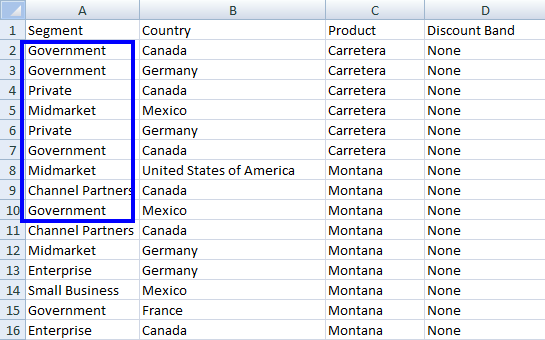
Bu, `A2` hücresinden `A10` hücresine kadar olan değerleri gösterir. Daha gelişmiş aralık seçimi teknikleri için, [aralık seçimi eğitimi](https://ironsoftware.com/csharp/excel/how-to/select-range/)'ne göz atın.
### Tam bir uygulama nasıl görünür?
Yukarıdaki belirli öğelerin tamamı için tam bir kod örneği burada sunulmaktadır:
```csharp
using IronXL;
using System;
// Load an Excel file
WorkBook workBook = WorkBook.Load("sample.xlsx");
WorkSheet workSheet = workBook.GetWorkSheet("Sheet1");
// Specify the range
foreach (var cell in workSheet["B2:B10"])
{
Console.WriteLine("Value is: {0}", cell.Text);
}
```
Aşağıdaki sonucu gösterir:
<center>
<div class="center-image-wrapper">
<a rel="nofollow" href="/img/faq/excel/c-sharp-read-xlsx-file/doc3-input1.png" target="_blank"><img src="/img/faq/excel/c-sharp-read-xlsx-file/doc3-input1.png" alt="Kamu, Özel, Orta Pazar ve Kanal Ortakları değerlerini içeren çıkartılmış çalışma sayfası verilerini gösteren konsol çıktısı" class="img-responsive add-shadow" /></a>
</div>
</center>
Excel dosyası `Sample.xlsx` ile:
<center>
<div class="center-image-wrapper">
<a rel="nofollow" href="/img/faq/excel/c-sharp-read-xlsx-file/doc3-1.png" target="_blank"><img src="/img/faq/excel/c-sharp-read-xlsx-file/doc3-1.png" alt="Segment, Ülke, Ürün ve İndirim Bandı sütunlarını gösteren ve 16 satırda iş verileri içeren Excel elektronik tablosu" class="img-responsive add-shadow" /></a>
</div>
</center>
Bu metodolojiler, Excel dosya verilerini projenizde kullanmanın ne kadar kolay olduğunu gösterir. Interop kullanmadan Excel dosyalarını okuma üzerine pratik örnekler için [Excel okuma örnekleri](https://ironsoftware.com/csharp/excel/examples/read-excel/)'ni keşfedin.
<hr class="separator" />
## Veriler Üzerinde Nasıl İşlevler Uygulayabilirim?
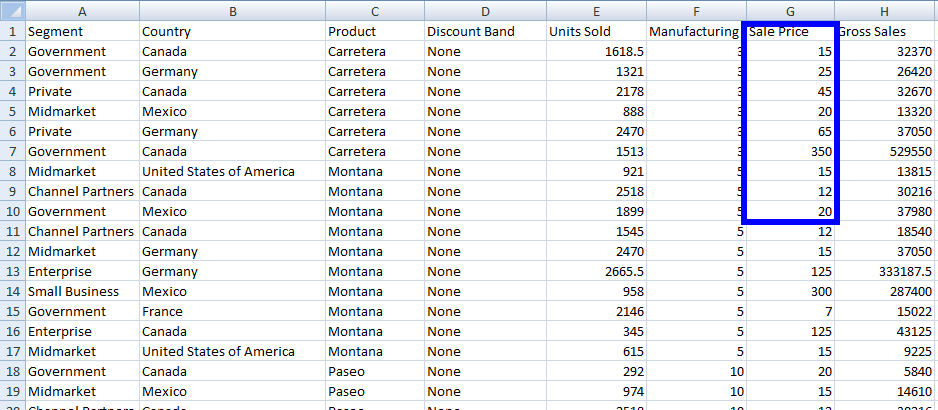
Filtrelenmiş veriye erişmek için, `WorkSheet` uygulayarak `Sum`, `Min` veya `Max` gibi toplu fonksiyonları kullanarak aşağıdaki kodu kullanın:
### Hangi toplu işlevler mevcut?
```csharp
using IronXL;
// Apply aggregate functions
decimal sum = workSheet["G2:G10"].Sum(); // Sum of cells from G2 to G10
decimal min = workSheet["G2:G10"].Min(); // Minimum value in cells from G2 to G10
decimal max = workSheet["G2:G10"].Max(); // Maximum value in cells from G2 to G10
```
IronXL, çok sayıda matematiksel işlevi destekler, bunlar arasında:
- **`Average()`**: Ortalama değeri hesaplayın
- **`Count()`**: Boş olmayan hücreleri sayın
- **`CountIf()`**: Kriterlere uyan hücreleri sayın
- **`Median()`**: Ortanca değeri bulun
- **`StdDev()`**: Standart sapmayı hesaplayın
### Birlikte birden fazla işlevi nasıl uygularım?
Daha fazla detay için, [Toplam, Ortalama, Say, vb. gelişmiş işlemler](https://ironsoftware.com/csharp/excel/tutorials/csharp-open-write-excel-file/#advanced-operations-sum-avg-count-etc) üzerinde ayrıntılı eğitimimize göz atın. [IronXL'daki mevcut matematik işlevlerinin tam listesini](https://ironsoftware.com/csharp/excel/how-to/math-functions/) de keşfedebilirsiniz.
```csharp
using IronXL;
using System;
// Load the Excel workbook
WorkBook workBook = WorkBook.Load("sample.xlsx");
// Get the specified WorkSheet
WorkSheet workSheet = workBook.GetWorkSheet("Sheet1");
// Calculate sum, minimum, and maximum for a range of cells
decimal sum = workSheet["G2:G10"].Sum();
decimal min = workSheet["G2:G10"].Min();
decimal max = workSheet["G2:G10"].Max();
// Output results
Console.WriteLine("Sum is: {0}", sum);
Console.WriteLine("Min is: {0}", min);
Console.WriteLine("Max is: {0}", max);
```
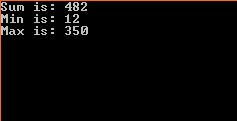
Bu kod aşağıdaki çıktıyı gösterir:
<center>
<div class="center-image-wrapper">
<a rel="nofollow" href="/img/faq/excel/c-sharp-read-xlsx-file/doc3-output2.png" target="_blank"><img src="/img/faq/excel/c-sharp-read-xlsx-file/doc3-output2.png" alt="Terminal, veri analizi sonuçlarını gösteriyor: Toplam=482, Min=12, Maks=350 siyah arka planda" class="img-responsive add-shadow" /></a>
</div>
</center>
Ve böylece Excel dosyası `Sample.xlsx` şu şekilde görünür:
<center>
<div class="center-image-wrapper">
<a rel="nofollow" href="/img/faq/excel/c-sharp-read-xlsx-file/doc3-2.png" target="_blank"><img src="/img/faq/excel/c-sharp-read-xlsx-file/doc3-2.png" alt="Satış verileri gösteren ve segmentler, ülkeler, ürünler, satılan birimler ve fiyatlandırma içeren Excel elektronik tablosu" class="img-responsive add-shadow" /></a>
</div>
</center>
<hr class="separator" />
## Excel Çalışma Sayfasını DataTable Olarak Nasıl Okurum?
IronXL kullanarak, bir Excel `WorkSheet` ile `DataTable` olarak çalışmak kolaydır. Bu özellik, Excel verilerini mevcut veri işleme hatlarıyla entegre etmeniz veya verileri UI kontrolüne bağlamanız gerektiğinde özellikle kullanışlıdır.
### Temel dönüşüm yöntemi nedir?
```csharp
using IronXL;
using System.Data;
// Convert worksheet to DataTable
DataTable dt = workSheet.ToDataTable();
```
### İlk satırı sütun başlıkları olarak nasıl kullanırım?
İlk satırı `ExcelSheet` `DataTable` `ColumnName` olarak kullanmak için:
```csharp
using IronXL;
using System.Data;
// Convert worksheet to DataTable with the first row as column names
DataTable dt = workSheet.ToDataTable(true);
```
`ToDataTable()` Boolean parametresi, ilk satırı `DataTable`'ınızın sütun adları olarak ayarlar. Varsayılan olarak, değeri `False`'dir. Başlıkları içeren yapılandırılmış verilerle çalışırken özellikle yararlıdır.
### Veri Tablosunda nasıl iterasyon yaparım?
```csharp
using IronXL;
using System;
using System.Data;
// Load the Excel workbook
WorkBook workBook = WorkBook.Load("sample.xlsx");
// Get the specified WorkSheet
WorkSheet workSheet = workBook.GetWorkSheet("Sheet1");
// Convert WorkSheet to DataTable
DataTable dt = workSheet.ToDataTable(true); // Use first row as column names
// Iterate through rows and columns and display data
foreach (DataRow row in dt.Rows) // Access rows
{
for (int i = 0; i < dt.Columns.Count; i++) // Access columns of corresponding row
{
Console.Write(row[i] + " ");
}
Console.WriteLine();
}
```
Yukarıdaki kodu kullanarak, `WorkSheet`'nin her hücre değeri erişilebilir ve gerektiği gibi kullanılabilir. Daha gelişmiş `DataTable` işlemleri için [DataSet ve DataTable olarak içe aktarma ve ihraç etme](https://ironsoftware.com/csharp/excel/how-to/export-dataset-datatable/) kılavuzuna bakın.
<hr class="separator" />
## Excel Dosyasını DataSet Olarak Nasıl Okurum?
IronXL, tamamen bir Excel dosyasını (`WorkBook`) bir `DataSet` olarak kullanmak için basit bir fonksiyon sağlar. Tüm çalışma kitabını `DataSet`'e dönüştürmek için `ToDataSet` yöntemini kullanın.
Bu örnekle, Excel dosyasını bir `DataSet` olarak nasıl kullanacağımızı göreceğiz.
### Bir çalışma kitabı DataSet'e nasıl dönüştürülür?
```csharp
using IronXL;
using System;
using System.Data;
// Load the Excel workbook
WorkBook workBook = WorkBook.Load("sample.xlsx");
// Convert the WorkBook to a DataSet
DataSet ds = workBook.ToDataSet();
// Iterate through tables in the DataSet and display table names
foreach (DataTable dt in ds.Tables)
{
Console.WriteLine(dt.TableName);
}
```
Yukarıdaki kodun çıktısı şu şekilde görünmektedir:
<center>
<div class="center-image-wrapper">
<a rel="nofollow" href="/img/faq/excel/c-sharp-read-xlsx-file/doc10-output2.png" target="_blank"><img src="/img/faq/excel/c-sharp-read-xlsx-file/doc10-output2.png" alt="Bozuk veya eksik ekran görüntüsü yalnızca Sheet1, Sheet2, Sheet3 etiketlerini gösteriyor" class="img-responsive add-shadow" /></a>
</div>
</center>
Ve Excel dosyası `Sample.xlsx` şu şekilde görünür:
(center content omitted for brevity)
### Tüm çalışma sayfalarındaki her hücre değerine nasıl erişirim?
Yukarıdaki örnekte, bir Excel dosyasını kolayca `DataSet` içinde ayrıştırabiliriz ve Excel dosyasının her `DataTable`'i ile bir `DataTable` olarak çalışabiliriz. [Excel'i DataSet olarak ayrıştırma](https://ironsoftware.com/csharp/excel/#excel-sql-dataset) hakkında daha fazla bilgi edinmek için kod örneklerini içeren burada derinlemesine inceleyin.
Bir Excel dosyasının tüm `ExcelSheets`'lerinin her hücre değerine nasıl erişeceğimizin başka bir örneğine bakalım. Burada, bir Excel dosyasının her `ExcelSheet`'nin her hücre değerine erişebiliriz.
```csharp
using IronXL;
using System;
// Load the Excel workbook
WorkBook workBook = WorkBook.Load("sample.xlsx");
// Iterate through every WorkSheet in the WorkBook
foreach (WorkSheet workSheet in workBook.WorkSheets)
{
Console.WriteLine($"Worksheet: {workSheet.Name}");
// Access each filled cell value on the current WorkSheet
foreach (var cell in workSheet.FilledCells)
{
Console.WriteLine($"{cell.Address}: {cell.Text}");
}
}
```
Yukarıdaki örneği kullanarak, bir Excel dosyasının her `ExcelSheet`'nin her hücre değerine erişmek uygundur. Bu yaklaşım, verilerin farklı sekmelerde dağıtıldığı çok sayfalı çalışma kitapları ile uğraşırken özellikle kullanışlıdır.
Interop olmadan Excel Dosyalarını [Okuma](https://ironsoftware.com/csharp/excel/tutorials/how-to-read-excel-file-csharp/) konusu hakkında daha fazla bilgi edinmek için buradaki koda göz atın. API referans dokümantasyonu, [IronXL API Referansı](https://ironsoftware.com/csharp/excel/object-reference/api/)'nda mevcut tüm yöntemler ve özelliklere ilişkin kapsamlı bilgiler sağlar.
<hr class="separator" />
#### Hızlı Öğretici Erişimi
<div class="tutorial-section">
<div class="row">
<div class="col-sm-8">
<h3>IronXL için API Referansı</h3>
<p>IronXL'ın özellikleri, sınıfları, yöntem alanları, ad alanları ve numaralandırmaları hakkında daha fazla bilgi edinmek için dokümanları okuyun.</p>
<a class="doc-link" href="/csharp/excel/object-reference/api/" target="_blank"> IronXL için API Referansı <i class="fa fa-chevron-right"></i></a>
</div>
<div class="col-sm-4">
<div class="tutorial-image">
<img style="max-width: 110px; width: 100px; height: 140px;" alt="" class="img-responsive add-shadow" src="/img/svgs/documentation.svg" width="100" height="140" />
</div>
</div>
</div>
</div>
`WorkSheet`
`WorkSheet`
`WorkSheet`
C#'de XLSX dosyalarını okumak için, Excel dosyalarını açmak ve hücre verilerini okumak, hesaplamalar yapmak ve programatik olarak DataTable veya DataSet formatlarına dönüştürmek için IronXL'in WorkBook.Load yöntemini kullanın.
Hızlı Başlangıç: Bir çalışma kitabını yükleyin ve bir çalışma sayfasına zahmetsizce erişin
IronXL ile, tek bir satırda WorkBook.Load yöntemini kullanarak bir XLSX dosyasını yükleyebilirsiniz. Ardından, hemen ilk veya adlandırılmış çalışma sayfasına erişip hücre değerlerini okumaya başlayabilirsiniz.
XLSX dosyalarını okumaya dalmadan önce, mevcut tüm özellikleri anlamak için kapsamlı IronXL dokümantasyonunu keşfedin. IronXL, hem .xls hem de .xlsx formatlarını destekler, bu da onu eski ve modern Excel dosyaları için çok yönlü kılar.
Nasıl Rehberi
Bir Çalışma Kitabı Nasıl Yüklenir?
WorkBook, IronXL'in bir sınıfıdır ve bu sınıfın nesnesi Excel dosyasına ve tüm işlevlerine tam erişim sağlar. Örneğin, bir Excel dosyasına erişmek için kodu kullanın:
using IronXL;// Load the workbookWorkBook workBook = WorkBook.Load("sample.xlsx"); // Excel file path
using IronXL;

// Load the workbook
WorkBook workBook = WorkBook.Load("sample.xlsx"); // Excel file path
Imports IronXL

' Load the workbook
Dim workBook As WorkBook = WorkBook.Load("sample.xlsx") ' Excel file path
Neden WorkBook.Load() yöntemini kullanmalısınız?
Yukarıdaki kodda, Load() fonksiyonu WorkBook'u WorkBook içine yükler. Bir Excel dosyasının belirli bir WorkSheet'ına erişerek WorkBook üzerinde her türlü fonksiyon gerçekleştirilebilir. Load() yöntemi, dosya formatını otomatik olarak algılar; XLS, XLSX, XLSM, XLTX veya CSV olup olmadığını belirler. Daha gelişmiş yükleme senaryoları için çalışma tablolarını yükleme konusundaki detaylı kılavuza göz atın.
Belirli Bir Çalışma Sayfasına Nasıl Erişirim?
Bir Excel dosyasının belirli bir WorkSheet'ına erişmek için, IronXL WorkBook sınıfını sağlar. Birkaç farklı şekilde kullanılabilir:
Bir çalışma sayfasına erişmenin farklı yolları nelerdir?
using IronXL;// Access sheet by nameWorkSheet workSheet = workBook.GetWorkSheet("Sheet1");
using IronXL;

// Access sheet by name
WorkSheet workSheet = workBook.GetWorkSheet("Sheet1");
ImportsIronXL' Access sheet by nameDim workSheet AsWorkSheet = workBook.GetWorkSheet("Sheet1")
Imports IronXL

' Access sheet by name
Dim workSheet As WorkSheet = workBook.GetWorkSheet("Sheet1")
WorkBook["SheetName"], yukarıdaki kısımda beyan edilen WorkSheet'dur.
VEYA
WorkBook
VEYA
using IronXL;// Access sheet by indexWorkSheet workSheet = workBook.WorkSheets[0];
using IronXL;

// Access sheet by index
WorkSheet workSheet = workBook.WorkSheets[0];
ImportsIronXL' Access sheet by indexDim workSheet AsWorkSheet = workBook.WorkSheets(0)
Imports IronXL

' Access sheet by index
Dim workSheet As WorkSheet = workBook.WorkSheets(0)
VEYA
WorkBook.Load()
VEYA
using IronXL;// Access the default worksheetWorkSheet workSheet = workBook.DefaultWorkSheet;
using IronXL;

// Access the default worksheet
WorkSheet workSheet = workBook.DefaultWorkSheet;
ImportsIronXL' Access the default worksheetDim workSheet AsWorkSheet = workBook.DefaultWorkSheet
Imports IronXL

' Access the default worksheet
Dim workSheet As WorkSheet = workBook.DefaultWorkSheet
VEYA
sample.xlsx
VEYA
using IronXL;using System.Linq;// Access the first worksheetWorkSheet workSheet = workBook.WorkSheets.First();
using IronXL;
using System.Linq;

// Access the first worksheet
WorkSheet workSheet = workBook.WorkSheets.First();
ImportsIronXLImportsSystem.Linq' Access the first worksheetDim workSheet AsWorkSheet = workBook.WorkSheets.First()
Imports IronXL
Imports System.Linq

' Access the first worksheet
Dim workSheet As WorkSheet = workBook.WorkSheets.First()
VEYA
workBook
VEYA
using IronXL;using System.Linq;// Access the first or default worksheetWorkSheet workSheet = workBook.WorkSheets.FirstOrDefault();
using IronXL;
using System.Linq;

// Access the first or default worksheet
WorkSheet workSheet = workBook.WorkSheets.FirstOrDefault();
ImportsIronXLImportsSystem.Linq' Access the first or default worksheetDim workSheet AsWorkSheet = workBook.WorkSheets.FirstOrDefault()
Imports IronXL
Imports System.Linq

' Access the first or default worksheet
Dim workSheet As WorkSheet = workBook.WorkSheets.FirstOrDefault()
VEYA
workBook
VEYA
WorkBook.Load
VEYA
WorkSheet
VEYA
WorkSheet
VEYA
workBook
VEYA
WorkBook
Her çalışma sayfası erişim yöntemini ne zaman kullanmalıyım?
Her yöntemin ideal kullanım durumu vardır:
GetWorkSheet("name"): Sayfa adını tam olarak bildiğinizde
WorkSheets[index]: Sayfaları programatik olarak geçmek için
DefaultWorkSheet: Tek sayfalı dosyalarla çalışırken hızlı erişim
First() veya FirstOrDefault(): Sayfa adlarının değişebileceği durumlarda güvenli seçenekler
ExcelSheetworkSheet aldıktan sonra, ondan her türlü veri alabilir ve üzerinde tüm Excel fonksiyonlarını gerçekleştirebilirsiniz. Daha karmaşık çalışma sayfası işlemleri için, C#'de Excel çalışma sayfaları açma kılavuzu'na göz atın.
Bir Çalışma Sayfasından Verilere Nasıl Erişilir?
ExcelSheetworkSheet'dan veri bu işlemle erişilebilir:
Hücrelerden hangi veri türlerini okuyabilirim?
using IronXL;// Accessing data as a stringstring dataString = workSheet["A1"].ToString();// Accessing data as an integerint dataInt = workSheet["B1"].Int32Value;
using IronXL;

// Accessing data as a string
string dataString = workSheet["A1"].ToString();

// Accessing data as an integer
int dataInt = workSheet["B1"].Int32Value;
ImportsIronXL' Accessing data as a stringDim dataString AsString = workSheet("A1").ToString()' Accessing data as an integerDim dataInt AsInteger = workSheet("B1").Int32Value
Imports IronXL

' Accessing data as a string
Dim dataString As String = workSheet("A1").ToString()

' Accessing data as an integer
Dim dataInt As Integer = workSheet("B1").Int32Value
IronXL, farklı veri türleri için çeşitli değer erişicileri sağlar:
StringValue: Metin verileri için
Int32Value: Tam sayılar için
DoubleValue: Ondalık sayılar için
DateTimeValue: Tarihler için
BoolValue: Doğru/yanlış değerler için
Birden fazla hücreyi nasıl aynı anda okuyabilirim?
Belirli bir sütunun birden fazla hücresinden veri de alabilirsiniz:
foreach (var cell in workSheet["A2:A10"]){Console.WriteLine("Value is: {0}", cell.Text);}
foreach (var cell in workSheet["A2:A10"])
{
    Console.WriteLine("Value is: {0}", cell.Text);
}
For Each cell In workSheet("A2:A10")Console.WriteLine("Value is: {0}", cell.Text)Next cell
For Each cell In workSheet("A2:A10")
	Console.WriteLine("Value is: {0}", cell.Text)
Next cell
Bu, A2 hücresinden A10 hücresine kadar olan değerleri gösterir. Daha gelişmiş aralık seçimi teknikleri için, aralık seçimi eğitimi'ne göz atın.
Tam bir uygulama nasıl görünür?
Yukarıdaki belirli öğelerin tamamı için tam bir kod örneği burada sunulmaktadır:
using IronXL;using System;// Load an Excel fileWorkBook workBook = WorkBook.Load("sample.xlsx");WorkSheet workSheet = workBook.GetWorkSheet("Sheet1");// Specify the rangeforeach (var cell in workSheet["B2:B10"]){Console.WriteLine("Value is: {0}", cell.Text);}
using IronXL;
using System;

// Load an Excel file
WorkBook workBook = WorkBook.Load("sample.xlsx");
WorkSheet workSheet = workBook.GetWorkSheet("Sheet1");

// Specify the range
foreach (var cell in workSheet["B2:B10"])
{
    Console.WriteLine("Value is: {0}", cell.Text);
}
ImportsIronXLImportsSystem' Load an Excel fileDim workBook AsWorkBook = WorkBook.Load("sample.xlsx")Dim workSheet AsWorkSheet = workBook.GetWorkSheet("Sheet1")' Specify the rangeFor Each cell In workSheet("B2:B10")Console.WriteLine("Value is: {0}", cell.Text)Next
Imports IronXL
Imports System

' Load an Excel file
Dim workBook As WorkBook = WorkBook.Load("sample.xlsx")
Dim workSheet As WorkSheet = workBook.GetWorkSheet("Sheet1")

' Specify the range
For Each cell In workSheet("B2:B10")
    Console.WriteLine("Value is: {0}", cell.Text)
Next
Aşağıdaki sonucu gösterir:
Excel dosyası Sample.xlsx ile:
Bu metodolojiler, Excel dosya verilerini projenizde kullanmanın ne kadar kolay olduğunu gösterir. Interop kullanmadan Excel dosyalarını okuma üzerine pratik örnekler için Excel okuma örnekleri'ni keşfedin.
Veriler Üzerinde Nasıl İşlevler Uygulayabilirim?
Filtrelenmiş veriye erişmek için, WorkSheet uygulayarak Sum, Min veya Max gibi toplu fonksiyonları kullanarak aşağıdaki kodu kullanın:
Hangi toplu işlevler mevcut?
using IronXL;// Apply aggregate functionsdecimal sum = workSheet["G2:G10"].Sum(); // Sum of cells from G2 to G10decimal min = workSheet["G2:G10"].Min(); // Minimum value in cells from G2 to G10decimal max = workSheet["G2:G10"].Max(); // Maximum value in cells from G2 to G10
using IronXL;

// Apply aggregate functions
decimal sum = workSheet["G2:G10"].Sum(); // Sum of cells from G2 to G10
decimal min = workSheet["G2:G10"].Min(); // Minimum value in cells from G2 to G10
decimal max = workSheet["G2:G10"].Max(); // Maximum value in cells from G2 to G10
ImportsIronXL' Apply aggregate functionsDim sum AsDecimal = workSheet("G2:G10").Sum() ' Sum of cells from G2 to G10Dim min AsDecimal = workSheet("G2:G10").Min() ' Minimum value in cells from G2 to G10Dim max AsDecimal = workSheet("G2:G10").Max() ' Maximum value in cells from G2 to G10
Imports IronXL

' Apply aggregate functions
Dim sum As Decimal = workSheet("G2:G10").Sum() ' Sum of cells from G2 to G10
Dim min As Decimal = workSheet("G2:G10").Min() ' Minimum value in cells from G2 to G10
Dim max As Decimal = workSheet("G2:G10").Max() ' Maximum value in cells from G2 to G10
IronXL, çok sayıda matematiksel işlevi destekler, bunlar arasında:
using IronXL;using System;// Load the Excel workbookWorkBook workBook = WorkBook.Load("sample.xlsx");// Get the specified WorkSheetWorkSheet workSheet = workBook.GetWorkSheet("Sheet1");// Calculate sum, minimum, and maximum for a range of cellsdecimal sum = workSheet["G2:G10"].Sum();decimal min = workSheet["G2:G10"].Min();decimal max = workSheet["G2:G10"].Max();// Output resultsConsole.WriteLine("Sum is: {0}", sum);Console.WriteLine("Min is: {0}", min);Console.WriteLine("Max is: {0}", max);
using IronXL;
using System;

// Load the Excel workbook
WorkBook workBook = WorkBook.Load("sample.xlsx");

// Get the specified WorkSheet
WorkSheet workSheet = workBook.GetWorkSheet("Sheet1");

// Calculate sum, minimum, and maximum for a range of cells
decimal sum = workSheet["G2:G10"].Sum();
decimal min = workSheet["G2:G10"].Min();
decimal max = workSheet["G2:G10"].Max();

// Output results
Console.WriteLine("Sum is: {0}", sum);
Console.WriteLine("Min is: {0}", min);
Console.WriteLine("Max is: {0}", max);
ImportsIronXLImportsSystem' Load the Excel workbookDim workBook AsWorkBook = WorkBook.Load("sample.xlsx")' Get the specified WorkSheetDim workSheet AsWorkSheet = workBook.GetWorkSheet("Sheet1")' Calculate sum, minimum, and maximum for a range of cellsDim sum AsDecimal = workSheet("G2:G10").Sum()Dim min AsDecimal = workSheet("G2:G10").Min()Dim max AsDecimal = workSheet("G2:G10").Max()' Output resultsConsole.WriteLine("Sum is: {0}", sum)Console.WriteLine("Min is: {0}", min)Console.WriteLine("Max is: {0}", max)
Imports IronXL
Imports System

' Load the Excel workbook
Dim workBook As WorkBook = WorkBook.Load("sample.xlsx")

' Get the specified WorkSheet
Dim workSheet As WorkSheet = workBook.GetWorkSheet("Sheet1")

' Calculate sum, minimum, and maximum for a range of cells
Dim sum As Decimal = workSheet("G2:G10").Sum()
Dim min As Decimal = workSheet("G2:G10").Min()
Dim max As Decimal = workSheet("G2:G10").Max()

' Output results
Console.WriteLine("Sum is: {0}", sum)
Console.WriteLine("Min is: {0}", min)
Console.WriteLine("Max is: {0}", max)
Bu kod aşağıdaki çıktıyı gösterir:
Ve böylece Excel dosyası Sample.xlsx şu şekilde görünür:
Excel Çalışma Sayfasını DataTable Olarak Nasıl Okurum?
IronXL kullanarak, bir Excel WorkSheet ile DataTable olarak çalışmak kolaydır. Bu özellik, Excel verilerini mevcut veri işleme hatlarıyla entegre etmeniz veya verileri UI kontrolüne bağlamanız gerektiğinde özellikle kullanışlıdır.
Temel dönüşüm yöntemi nedir?
using IronXL;using System.Data;// Convert worksheet to DataTableDataTable dt = workSheet.ToDataTable();
using IronXL;
using System.Data;

// Convert worksheet to DataTable
DataTable dt = workSheet.ToDataTable();
ImportsIronXLImportsSystem.Data' Convert worksheet to DataTableDim dt AsDataTable = workSheet.ToDataTable()
Imports IronXL
Imports System.Data

' Convert worksheet to DataTable
Dim dt As DataTable = workSheet.ToDataTable()
İlk satırı sütun başlıkları olarak nasıl kullanırım?
İlk satırı ExcelSheetDataTableColumnName olarak kullanmak için:
using IronXL;using System.Data;// Convert worksheet to DataTable with the first row as column namesDataTable dt = workSheet.ToDataTable(true);
using IronXL;
using System.Data;

// Convert worksheet to DataTable with the first row as column names
DataTable dt = workSheet.ToDataTable(true);
ImportsIronXLImportsSystem.Data' Convert worksheet to DataTable with the first row as column namesDim dt AsDataTable = workSheet.ToDataTable(True)
Imports IronXL
Imports System.Data

' Convert worksheet to DataTable with the first row as column names
Dim dt As DataTable = workSheet.ToDataTable(True)
ToDataTable() Boolean parametresi, ilk satırı DataTable'ınızın sütun adları olarak ayarlar. Varsayılan olarak, değeri False'dir. Başlıkları içeren yapılandırılmış verilerle çalışırken özellikle yararlıdır.
Veri Tablosunda nasıl iterasyon yaparım?
using IronXL;using System;using System.Data;// Load the Excel workbookWorkBook workBook = WorkBook.Load("sample.xlsx");// Get the specified WorkSheetWorkSheet workSheet = workBook.GetWorkSheet("Sheet1");// Convert WorkSheet to DataTableDataTable dt = workSheet.ToDataTable(true); // Use first row as column names// Iterate through rows and columns and display dataforeach (DataRow row in dt.Rows) // Access rows{ for (int i = 0; i < dt.Columns.Count; i++) // Access columns of corresponding row {Console.Write(row[i] + " "); }Console.WriteLine();}
using IronXL;
using System;
using System.Data;

// Load the Excel workbook
WorkBook workBook = WorkBook.Load("sample.xlsx");

// Get the specified WorkSheet
WorkSheet workSheet = workBook.GetWorkSheet("Sheet1");

// Convert WorkSheet to DataTable
DataTable dt = workSheet.ToDataTable(true); // Use first row as column names

// Iterate through rows and columns and display data
foreach (DataRow row in dt.Rows) // Access rows
{
    for (int i = 0; i < dt.Columns.Count; i++) // Access columns of corresponding row
    {
        Console.Write(row[i] + " ");
    }
    Console.WriteLine();
}
ImportsIronXLImportsSystemImportsSystem.Data' Load the Excel workbookDim workBook AsWorkBook = WorkBook.Load("sample.xlsx")' Get the specified WorkSheetDim workSheet AsWorkSheet = workBook.GetWorkSheet("Sheet1")' Convert WorkSheet to DataTableDim dt AsDataTable = workSheet.ToDataTable(True) ' Use first row as column names' Iterate through rows and columns and display dataFor Each row AsDataRowIn dt.Rows' Access rows For i AsInteger = 0 To dt.Columns.Count - 1 ' Access columns of corresponding rowConsole.Write(row(i) & " ") NextConsole.WriteLine()Next
Imports IronXL
Imports System
Imports System.Data

' Load the Excel workbook
Dim workBook As WorkBook = WorkBook.Load("sample.xlsx")

' Get the specified WorkSheet
Dim workSheet As WorkSheet = workBook.GetWorkSheet("Sheet1")

' Convert WorkSheet to DataTable
Dim dt As DataTable = workSheet.ToDataTable(True) ' Use first row as column names

' Iterate through rows and columns and display data
For Each row As DataRow In dt.Rows ' Access rows
    For i As Integer = 0 To dt.Columns.Count - 1 ' Access columns of corresponding row
        Console.Write(row(i) & " ")
    Next
    Console.WriteLine()
Next
Yukarıdaki kodu kullanarak, WorkSheet'nin her hücre değeri erişilebilir ve gerektiği gibi kullanılabilir. Daha gelişmiş DataTable işlemleri için DataSet ve DataTable olarak içe aktarma ve ihraç etme kılavuzuna bakın.
Excel Dosyasını DataSet Olarak Nasıl Okurum?
IronXL, tamamen bir Excel dosyasını (WorkBook) bir DataSet olarak kullanmak için basit bir fonksiyon sağlar. Tüm çalışma kitabını DataSet'e dönüştürmek için ToDataSet yöntemini kullanın.
Bu örnekle, Excel dosyasını bir DataSet olarak nasıl kullanacağımızı göreceğiz.
Bir çalışma kitabı DataSet'e nasıl dönüştürülür?
using IronXL;using System;using System.Data;// Load the Excel workbookWorkBook workBook = WorkBook.Load("sample.xlsx");// Convert the WorkBook to a DataSetDataSet ds = workBook.ToDataSet();// Iterate through tables in the DataSet and display table namesforeach (DataTable dt in ds.Tables){Console.WriteLine(dt.TableName);}
using IronXL;
using System;
using System.Data;

// Load the Excel workbook
WorkBook workBook = WorkBook.Load("sample.xlsx");

// Convert the WorkBook to a DataSet
DataSet ds = workBook.ToDataSet();

// Iterate through tables in the DataSet and display table names
foreach (DataTable dt in ds.Tables)
{
    Console.WriteLine(dt.TableName);
}
ImportsIronXLImportsSystemImportsSystem.Data' Load the Excel workbookDim workBook AsWorkBook = WorkBook.Load("sample.xlsx")' Convert the WorkBook to a DataSetDim ds AsDataSet = workBook.ToDataSet()' Iterate through tables in the DataSet and display table namesFor Each dt AsDataTableIn ds.TablesConsole.WriteLine(dt.TableName)Next
Imports IronXL
Imports System
Imports System.Data

' Load the Excel workbook
Dim workBook As WorkBook = WorkBook.Load("sample.xlsx")

' Convert the WorkBook to a DataSet
Dim ds As DataSet = workBook.ToDataSet()

' Iterate through tables in the DataSet and display table names
For Each dt As DataTable In ds.Tables
    Console.WriteLine(dt.TableName)
Next
Yukarıdaki kodun çıktısı şu şekilde görünmektedir:
Ve Excel dosyası Sample.xlsx şu şekilde görünür:
(center content omitted for brevity)
Tüm çalışma sayfalarındaki her hücre değerine nasıl erişirim?
Yukarıdaki örnekte, bir Excel dosyasını kolayca DataSet içinde ayrıştırabiliriz ve Excel dosyasının her DataTable'i ile bir DataTable olarak çalışabiliriz. Excel'i DataSet olarak ayrıştırma hakkında daha fazla bilgi edinmek için kod örneklerini içeren burada derinlemesine inceleyin.
Bir Excel dosyasının tüm ExcelSheets'lerinin her hücre değerine nasıl erişeceğimizin başka bir örneğine bakalım. Burada, bir Excel dosyasının her ExcelSheet'nin her hücre değerine erişebiliriz.
using IronXL;using System;// Load the Excel workbookWorkBook workBook = WorkBook.Load("sample.xlsx");// Iterate through every WorkSheet in the WorkBookforeach (WorkSheet workSheet in workBook.WorkSheets){Console.WriteLine($"Worksheet: {workSheet.Name}"); // Access each filled cell value on the current WorkSheet foreach (var cell in workSheet.FilledCells) {Console.WriteLine($"{cell.Address}: {cell.Text}"); }}
using IronXL;
using System;

// Load the Excel workbook
WorkBook workBook = WorkBook.Load("sample.xlsx");

// Iterate through every WorkSheet in the WorkBook
foreach (WorkSheet workSheet in workBook.WorkSheets)
{
    Console.WriteLine($"Worksheet: {workSheet.Name}");

    // Access each filled cell value on the current WorkSheet
    foreach (var cell in workSheet.FilledCells)
    {
        Console.WriteLine($"{cell.Address}: {cell.Text}");
    }
}
ImportsIronXLImportsSystem' Load the Excel workbookDim workBook AsWorkBook = WorkBook.Load("sample.xlsx")' Iterate through every WorkSheet in the WorkBookFor Each workSheet AsWorkSheetIn workBook.WorkSheetsConsole.WriteLine($"Worksheet: {workSheet.Name}") ' Access each filled cell value on the current WorkSheet For Each cell In workSheet.FilledCellsConsole.WriteLine($"{cell.Address}: {cell.Text}") NextNext
Imports IronXL
Imports System

' Load the Excel workbook
Dim workBook As WorkBook = WorkBook.Load("sample.xlsx")

' Iterate through every WorkSheet in the WorkBook
For Each workSheet As WorkSheet In workBook.WorkSheets
    Console.WriteLine($"Worksheet: {workSheet.Name}")

    ' Access each filled cell value on the current WorkSheet
    For Each cell In workSheet.FilledCells
        Console.WriteLine($"{cell.Address}: {cell.Text}")
    Next
Next
Yukarıdaki örneği kullanarak, bir Excel dosyasının her ExcelSheet'nin her hücre değerine erişmek uygundur. Bu yaklaşım, verilerin farklı sekmelerde dağıtıldığı çok sayfalı çalışma kitapları ile uğraşırken özellikle kullanışlıdır.
Interop olmadan Excel Dosyalarını Okuma konusu hakkında daha fazla bilgi edinmek için buradaki koda göz atın. API referans dokümantasyonu, IronXL API Referansı'nda mevcut tüm yöntemler ve özelliklere ilişkin kapsamlı bilgiler sağlar.
Hızlı Öğretici Erişimi
IronXL için API Referansı
IronXL'ın özellikleri, sınıfları, yöntem alanları, ad alanları ve numaralandırmaları hakkında daha fazla bilgi edinmek için dokümanları okuyun.
C#'de XLSX dosyalarını okumak için IronXL'nin WorkBook.Load yöntemini kullanın. Excel dosyanızı IronXL.WorkBook.Load("your-file.xlsx") ile yükledikten sonra, çalışma sayfalarına erişerek hücre verilerini okuyun, hesaplamalar yapın ve programlı olarak DataTable veya DataSet formatlarına dönüştürün.
Excel dosyalarını yüklerken hangi dosya formatları desteklenir?
IronXL, .xls, .xlsx, .xlsm, .xltx, ve .csv dosyaları dahil olmak üzere birçok Excel dosya formatını destekler. WorkBook.Load yöntemi dosya formatını otomatik olarak algılar, bu da hem eski hem de modern Excel dosyaları için çok yönlü olmasını sağlar.
C# projem için Excel okuma kütüphanesini nasıl kurabilirim?
IronXL'yi doğrudan indirerek veya Visual Studio için NuGet Install ile kurabilirsiniz. Yazılım, geliştirme amaçları için ücretsizdir ve C#'de Excel dosya formatlarıyla çalışma için basit bir yol sunar.
Belirli bir çalışma sayfasına erişmenin farklı yolları nelerdir?
IronXL, çalışma sayfalarına erişmek için çeşitli yollar sunar: workBook.GetWorkSheet("SheetName") ile ada göre erişebilir, workBook.WorkSheets[0] ile indekse göre erişebilir veya workBook.WorkSheets.First() ile ilk çalışma sayfasını alabilirsiniz.
Excel verilerini yükledikten sonra üzerinde hesaplamalar yapabilir miyim?
Evet, IronXL ile bir XLSX dosyasını yükledikten sonra, veriler üzerinde Sum, Min ve Max gibi çeşitli fonksiyonlar uygulayabilirsiniz. Kütüphane, WorkBook nesnesi aracılığıyla Excel dosya işlevselliğine tam erişim sağlar.
Excel çalışma sayfası verilerini diğer formatlara dönüştürmek mümkün mü?
Evet, IronXL, bir WorkSheet'i okuyup DataTable, DataSet ve daha fazlası gibi çeşitli formatlara dönüştürmenize olanak tanır. Bu, Excel verilerini C# uygulamalarınıza entegre etmeyi kolaylaştırır.
Can I convert an entire workbook to a DataSet with IronXL?
Yes, you can convert an entire workbook to a DataSet using the `ToDataSet` method, which allows you to work with each worksheet as a separate DataTable.
What is the recommended way to read multiple cells at once in IronXL?
You can read multiple cells by iterating over a specified range, for example, using `foreach` on `workSheet["A2:A10"]` to read each cell's value.
How do I install IronXL in my C# project?
You can install IronXL via direct download or through NuGet Package Manager in Visual Studio. The library is free for development purposes.
How can I display Excel sheet data results in the console using IronXL?
To display Excel sheet data in the console, load the workbook using `WorkBook.Load`, access the desired worksheet, and iterate through cells to output their values using `Console.WriteLine`.
Curtis Chau, Bilgisayar Bilimleri alanında Lisans Derecesine (Carleton Üniversitesi) sahip ve Node.js, TypeScript, JavaScript ve React konularında uzmanlaşmış ön uç geliştirmeyle ilgileniyor. Sezgisel ve estetik açıdan hoş kullanıcı arayüzleri oluşturma tutkunu, Curtis modern çerçevelerle çalışmayı ve iyi yapılandırılmış, görsel olarak çekici kılavuzlar oluşturmayı seviyor.