# How to Read Excel Files in C# Without Interop: Complete Developer Guide
The first time I had to read an Excel file from a .NET service, I reached for Microsoft Interop and regretted it almost immediately. It needed Office installed on the server, it leaked processes when an exception was thrown mid-method, and it fell over under any kind of load. We built IronXL because we kept running into those exact walls. This guide is how I actually read XLS and XLSX in production today, including the gotchas that bite people most.
Most of what follows is direct file-format reading, no Excel application involved: load a workbook, pull values out by cell address, validate ranges, push the data into a database or an API. The library handles XLS and XLSX without needing Microsoft Office on the machine.
*as-heading:2(Quickstart: Read a Cell with IronXL in One Line)*
A single line loads an Excel workbook and pulls a value out of a cell. No Interop, no setup, no Excel process running in the background.
```cs
:title=Quickly Read Excel in C# Today
var value = IronXL.WorkBook.Load("file.xlsx").WorkSheets[0]["A1"].StringValue;
```
## How Do I Set Up IronXL to Read Excel Files in C#?
The setup itself is a NuGet install and a `using IronXL;` directive. The library handles both `.XLS` and `.XLSX`, so the same code path works for legacy spreadsheets and the modern Open XML format.
Follow these steps to get started:
1. [Download the C# Library to read Excel files](https://nuget.org/packages/IronXL.Excel/)
2. Load and read Excel workbooks using `WorkBook.Load()`
3. Access worksheets with the `GetWorkSheet()` method
4. Read cell values using Excel-style addresses like `sheet["A1"].Value`
5. Validate and process spreadsheet data programmatically
6. Export data to databases using Entity Framework
IronXL reads and edits Microsoft Excel documents from C# without depending on the Office product. It does not require Microsoft Excel installed, and it does not need [Interop](https://learn.microsoft.com/en-us/dotnet/api/microsoft.office.interop.excel?view=excel-pia). See the [comparison with Microsoft.Office.Interop.Excel](/csharp/excel/blog/compare-to-other-components/microsoft-office-excel-interop-alternative/) for the differences in approach and API surface.
If you are coming from Interop, the mental model is different and worth getting straight before you write any code. Interop launches a real `Excel.exe` process behind the scenes and your code automates that application across COM. IronXL reads the file bytes directly into memory and presents them as objects. No Excel process, no message pump, no COM marshaling. The practical consequence I see trip people up most: Interop indexes cells from `[1, 1]` (1-based, just like Excel's UI), but IronXL row/column access is 0-based. The `["A1"]` string indexer matches the spreadsheet UI in both libraries, so when you can stay in the string form, the migration reads almost identically. The afternoon-long off-by-one bugs all come from the numeric indexer.
IronXL Includes:
- Dedicated product support from our .NET engineers
- Easy installation via Microsoft Visual Studio
- Free trial test for development. Licenses from `liteLicense`
Both C# and VB.NET projects can use IronXL the same way to read or create Excel files.
### Reading .XLS and .XLSX Excel Files Using IronXL
Here's the essential workflow for reading Excel files using IronXL:
1. Install the IronXL Excel Library via [NuGet package](https://www.nuget.org/packages/IronXL.Excel/) or download the [.NET Excel DLL](/csharp/excel/packages/IronXL.zip)
2. Use the `WorkBook.Load()` method to read any XLS, XLSX, or CSV document
3. Access cell values using Excel-style addresses: `sheet["A11"].DecimalValue`
```csharp
using IronXL;
using System;
using System.Linq;

// Load Excel workbook from file path
WorkBook workBook = WorkBook.Load("test.xlsx");

// Access the first worksheet using LINQ
WorkSheet workSheet = workBook.WorkSheets.First();

// Read integer value from cell A2
int cellValue = workSheet["A2"].IntValue;
Console.WriteLine($"Cell A2 value: {cellValue}");

// Iterate through a range of cells
foreach (var cell in workSheet["A2:A10"])
{
    Console.WriteLine("Cell {0} has value '{1}'", cell.AddressString, cell.Text);
}

// Advanced Operations with LINQ
// Calculate sum using built_in Sum() method
decimal sum = workSheet["A2:A10"].Sum();

// Find maximum value using LINQ
decimal max = workSheet["A2:A10"].Max(c => c.DecimalValue);

// Output calculated results
Console.WriteLine($"Sum of A2:A10: {sum}");
Console.WriteLine($"Maximum value: {max}");
```
The snippet walks through the four operations you will use constantly: loading a workbook, reading a cell by address, iterating a range, and running calculations against a range. `WorkBook.Load()` detects the file format from the extension, and the range syntax `["A2:A10"]` matches the cell selection you would type into Excel itself. Ranges are `IEnumerable<Cell>`, so LINQ works directly against them for sums, filters, and projections.
### How fast is this in practice?
To give you a feel for realistic performance, I wrote a small console project that loads the same kind of files used throughout this tutorial and times the operations. The harness lives in a [ReadExcelBenchmark sample project](#sample-project) you can run yourself, so you can measure these timings on your own hardware rather than trusting a number from mine. The relative pattern across multiple runs is consistent:
| Operation | First cold load (fresh process) | Warm average over 10 iterations |
|---|---|---|
| Load `GDP.xlsx` (213 rows) and sum column B | Slowest run, dominated by startup | Drops sharply, then holds steady |
| Load `People.xlsx` (100 rows) and regex-validate every cell | Fast even cold | Comparable to its cold run |
The first cold load is dominated by IronXL's assembly load and JIT warm-up; the second cold run is much lower because the assembly is already in memory by then. Warm runs settle into a tight band once the JIT has compiled the hot paths.
If you are seeing multi-second loads on files of this size, the culprit is almost always calling `WorkBook.Load()` inside a loop instead of once outside it. Load the workbook once, then iterate the cells or rows you actually need. I see that exact pattern in about half the "IronXL is slow" support tickets we get.
The other half are files where the loop was never the problem. `Load` builds the entire workbook before it returns, so on a few hundred thousand rows no amount of restructuring helps. If all you need from a file that size is its values, read it with [forward-only streaming](https://ironsoftware.com/csharp/excel/how-to/stream-large-excel-files/), which yields one row at a time and keeps memory flat.
The code examples in this tutorial work with three sample Excel spreadsheets that showcase different data scenarios:
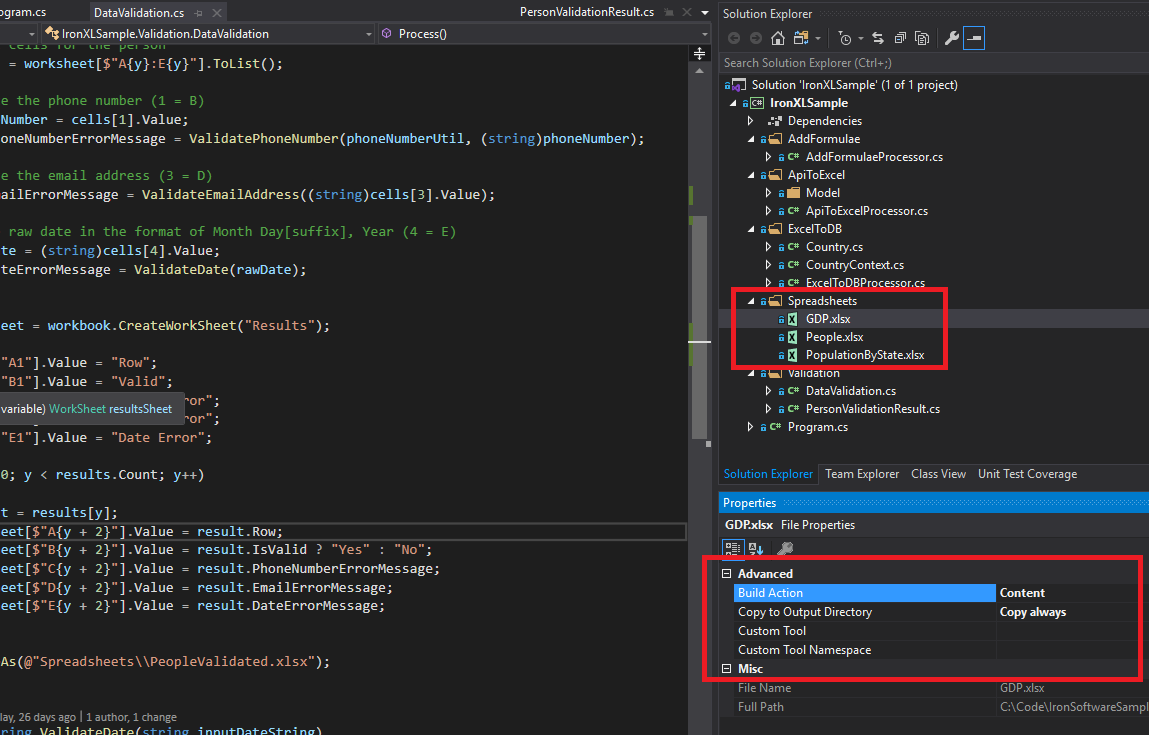
*Sample Excel files (GDP.xlsx, People.xlsx, and PopulationByState.xlsx) used throughout this tutorial for demonstrating various IronXL operations.*
---
## How Can I Install the IronXL C# Library?
---
Add the `IronXL.Excel` library to a .NET project through NuGet, or by referencing the DLL directly.
### Installing the IronXL NuGet Package
1. In Visual Studio, right-click on your project and select "Manage NuGet Packages..."
2. Search for `IronXL.Excel` in the Browse tab
3. Click the Install button to add IronXL to your project
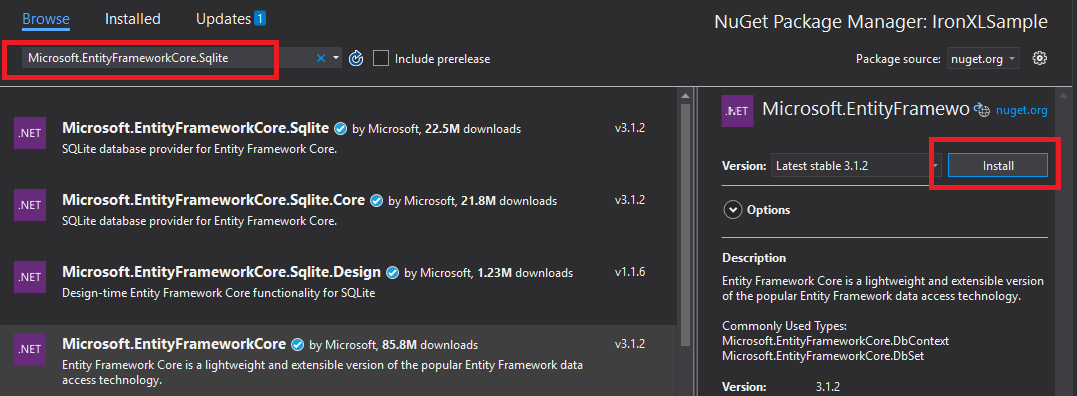
*Installing IronXL through Visual Studio's NuGet Package Manager provides automatic dependency management.*
Alternatively, install IronXL using the Package Manager Console:
1. Open the Package Manager Console (Tools → NuGet Package Manager → Package Manager Console)
2. Run the installation command:
```shell
:ProductInstall
```
You can also [view the package details on the NuGet website](https://www.nuget.org/packages/IronXL.Excel/).
### Manual Installation
For manual installation, download the IronXL [.NET Excel DLL](/csharp/excel/packages/IronXL.zip) and reference it directly in your Visual Studio project.
## How Do I Load and Read an Excel Workbook?
The [`WorkBook`](/csharp/excel/object-reference/api/IronXL.WorkBook.html) class represents an entire Excel file. Load Excel files using the `WorkBook.Load()` method, which accepts file paths for XLS, XLSX, CSV, and TSV formats.
```csharp
using IronXL;
using System;
using System.Linq;
// Load Excel file from specified path
WorkBook workBook = WorkBook.Load(@"Spreadsheets\GDP.xlsx");
Console.WriteLine("Workbook loaded successfully.");
// Access specific worksheet by name
WorkSheet sheet = workBook.GetWorkSheet("Sheet1");
// Read and display cell value
string cellValue = sheet["A1"].StringValue;
Console.WriteLine($"Cell A1 contains: {cellValue}");
// Perform additional operations
// Count non_empty cells in column A
int rowCount = sheet["A:A"].Count(cell => !cell.IsEmpty);
Console.WriteLine($"Column A has {rowCount} non_empty cells");
```
Each `WorkBook` contains multiple [`WorkSheet`](/csharp/excel/object-reference/api/IronXL.WorkSheet.html) objects representing individual Excel sheets. Access worksheets by name using [`GetWorkSheet()`](/csharp/excel/object-reference/api/IronXL.WorkBook.html#IronXL_WorkBook_GetWorkSheet_System_String_):
```csharp
using IronXL;
using System;
// Get worksheet by name
WorkSheet workSheet = workBook.GetWorkSheet("GDPByCountry");
Console.WriteLine("Worksheet 'GDPByCountry' not found");
// List available worksheets
foreach (var sheet in workBook.WorkSheets)
{
Console.WriteLine($"Available: {sheet.Name}");
}
```
## How Do I Create New Excel Documents in C#?
Create new Excel documents by constructing a `WorkBook` object with your desired file format. IronXL supports both modern XLSX and legacy XLS formats.
```csharp
using IronXL;
// Create new XLSX workbook (recommended format)
WorkBook workBook = WorkBook.Create(ExcelFileFormat.XLSX);
// Set workbook metadata
workBook.Metadata.Author = "Your Application";
workBook.Metadata.Comments = "Generated by IronXL";
// Create new XLS workbook for legacy support
WorkBook legacyWorkBook = WorkBook.Create(ExcelFileFormat.XLS);
// Save the workbook
workBook.SaveAs("NewDocument.xlsx");
```
Note: Use `ExcelFileFormat.XLS` only when compatibility with Excel 2003 and earlier is required.
## How Can I Add Worksheets to an Excel Document?
An IronXL `WorkBook` contains a collection of worksheets. Understanding this structure helps when building multi-sheet Excel files.

*Visual representation of the WorkBook structure containing multiple WorkSheet objects in IronXL.*
Create new worksheets using `CreateWorkSheet()`:
```csharp
using IronXL;
// Create multiple worksheets with descriptive names
WorkSheet summarySheet = workBook.CreateWorkSheet("Summary");
WorkSheet dataSheet = workBook.CreateWorkSheet("RawData");
WorkSheet chartSheet = workBook.CreateWorkSheet("Charts");
// Set the active worksheet
workBook.SetActiveTab(0); // Makes "Summary" the active sheet
// Access default worksheet (first sheet)
WorkSheet defaultSheet = workBook.DefaultWorkSheet;
```
## How Do I Read and Edit Cell Values?
### Read and Edit a Single Cell
Access individual cells through the worksheet's indexer property. IronXL's [`Cell`](/csharp/excel/object-reference/api/IronXL.Cell.html) class provides strongly-typed value properties.
```csharp
using IronXL;
using System;
using System.Linq;
// Load workbook and get worksheet
WorkBook workBook = WorkBook.Load("test.xlsx");
WorkSheet workSheet = workBook.DefaultWorkSheet;
// Access cell B1
IronXL.Cell cell = workSheet["B1"].First();
// Read cell value with type safety
string textValue = cell.StringValue;
int intValue = cell.IntValue;
decimal decimalValue = cell.DecimalValue;
DateTime? dateValue = cell.DateTimeValue;
// Check cell data type
if (cell.IsNumeric)
{
Console.WriteLine($"Numeric value: {cell.DecimalValue}");
}
else if (cell.IsText)
{
Console.WriteLine($"Text value: {cell.StringValue}");
}
```
The `Cell` class offers multiple properties for different data types, automatically converting values when possible. For more cell operations, see the [Cell formatting tutorial](/csharp/excel/how-to/set-cell-data-format/).
```csharp
// Write different data types to cells
workSheet["A1"].Value = "Product Name"; // String
workSheet["B1"].Value = 99.95m; // Decimal
workSheet["C1"].Value = DateTime.Today; // Date
workSheet["D1"].Formula = "=B1*1.2"; // Formula
// Format cells
workSheet["B1"].FormatString = "$#,##0.00"; // Currency format
workSheet["C1"].FormatString = "yyyy-MM-dd";// Date format
// Save changes
workBook.Save();
```
## How Can I Work with Cell Ranges?
The [`Range`](/csharp/excel/object-reference/api/IronXL.Range.html) class represents a collection of cells, enabling bulk operations on Excel data.
```csharp
using IronXL;
using Range = IronXL.Range;
// Select range using Excel notation
Range range = workSheet["D2:D101"];
// Alternative: Use Range class for dynamic selection
Range dynamicRange = workSheet.GetRange("D2:D101"); // Row 2_101, Column D
// Perform bulk operations
range.Value = 0; // Set all cells to 0
```
Process ranges efficiently using loops when cell count is known:
```cs
// Data validation example
public class ValidationResult
{
public int Row { get; set; }
public string PhoneError { get; set; }
public string EmailError { get; set; }
public string DateError { get; set; }
public bool IsValid => string.IsNullOrEmpty(PhoneError) &&
string.IsNullOrEmpty(EmailError) &&
string.IsNullOrEmpty(DateError);
}
// Validate data in rows 2-101
var results = new List<ValidationResult>();
for (int row = 2; row <= 101; row++)
{
var result = new ValidationResult { Row = row };
// Get row data efficiently
var phoneCell = workSheet[$"B{row}"];
var emailCell = workSheet[$"D{row}"];
var dateCell = workSheet[$"E{row}"];
// Validate phone number
if (!IsValidPhoneNumber(phoneCell.StringValue))
result.PhoneError = "Invalid phone format";
// Validate email
if (!IsValidEmail(emailCell.StringValue))
result.EmailError = "Invalid email format";
// Validate date
if (!dateCell.IsDateTime)
result.DateError = "Invalid date format";
results.Add(result);
}
// Helper methods
bool IsValidPhoneNumber(string phone) =>
System.Text.RegularExpressions.Regex.IsMatch(phone, @"^\d{3}-\d{3}-\d{4}$");
bool IsValidEmail(string email) =>
email.Contains("@") && email.Contains(".");
```
## How Do I Add Formulas to Excel Spreadsheets?
Apply Excel formulas using the [`Formula`](/csharp/excel/object-reference/api/IronXL.Cell.html#IronXL_Cell_Formula) property. IronXL supports standard Excel formula syntax.
```csharp
using IronXL;
// Add formulas to calculate percentages
int lastRow = 50;
for (int row = 2; row < lastRow; row++)
{
// Calculate percentage: current value / total
workSheet[$"C{row}"].Formula = $"=B{row}/B{lastRow}";
// Format as percentage
workSheet[$"C{row}"].FormatString = "0.00%";
}
// Add summary formulas
workSheet["B52"].Formula = "=SUM(B2:B50)"; // Sum
workSheet["B53"].Formula = "=AVERAGE(B2:B50)"; // Average
workSheet["B54"].Formula = "=MAX(B2:B50)"; // Maximum
workSheet["B55"].Formula = "=MIN(B2:B50)"; // Minimum
// Force formula evaluation
workBook.EvaluateAll();
```
To edit existing formulas, explore the [Excel formulas tutorial](/csharp/excel/how-to/edit-formulas/).
## How Can I Validate Spreadsheet Data?
A common use case I see is validating user-supplied spreadsheets before pulling the data into a database. The example below checks phone numbers, emails, and dates with regular expressions and IronXL's built-in type checks.
```cs
using System.Text.RegularExpressions;
using IronXL;
// Validation implementation
for (int i = 2; i <= 101; i++)
{
var result = new PersonValidationResult { Row = i };
results.Add(result);
// Get cells for current person
var cells = workSheet[$"A{i}:E{i}"].ToList();
// Validate phone (column B)
string phone = cells[1].StringValue;
if (!Regex.IsMatch(phone, @"^\+?1?\d{10,14}$"))
{
result.PhoneNumberErrorMessage = "Invalid phone format";
}
// Validate email (column D)
string email = cells[3].StringValue;
if (!Regex.IsMatch(email, @"^[^@\s]+@[^@\s]+\.[^@\s]+$"))
{
result.EmailErrorMessage = "Invalid email address";
}
// Validate date (column E)
if (!cells[4].IsDateTime)
{
result.DateErrorMessage = "Invalid date format";
}
}
```
Save validation results to a new worksheet:
```cs
// Create results worksheet
var resultsSheet = workBook.CreateWorkSheet("ValidationResults");
// Add headers
resultsSheet["A1"].Value = "Row";
resultsSheet["B1"].Value = "Valid";
resultsSheet["C1"].Value = "Phone Error";
resultsSheet["D1"].Value = "Email Error";
resultsSheet["E1"].Value = "Date Error";
// Style headers
resultsSheet["A1:E1"].Style.Font.Bold = true;
resultsSheet["A1:E1"].Style.SetBackgroundColor("#4472C4");
resultsSheet["A1:E1"].Style.Font.Color = "#FFFFFF";
// Output validation results
for (int i = 0; i < results.Count; i++)
{
var result = results[i];
int outputRow = i + 2;
resultsSheet[$"A{outputRow}"].Value = result.Row;
resultsSheet[$"B{outputRow}"].Value = result.IsValid ? "Yes" : "No";
resultsSheet[$"C{outputRow}"].Value = result.PhoneNumberErrorMessage ?? "";
resultsSheet[$"D{outputRow}"].Value = result.EmailErrorMessage ?? "";
resultsSheet[$"E{outputRow}"].Value = result.DateErrorMessage ?? "";
// Highlight invalid rows
if (!result.IsValid)
{
resultsSheet[$"A{outputRow}:E{outputRow}"].Style.SetBackgroundColor("#FFE6E6");
}
}
// Auto-fit columns
for (int col = 0; col < 5; col++)
{
resultsSheet.AutoSizeColumn(col);
}
// Save validated workbook
workBook.SaveAs(@"Spreadsheets\PeopleValidated.xlsx");
```
## How Do I Export Excel Data to a Database?
Use IronXL with Entity Framework to export spreadsheet data directly to databases. This example demonstrates exporting country GDP data to SQLite.
```cs
using System;
using System.ComponentModel.DataAnnotations;
using Microsoft.EntityFrameworkCore;
using IronXL;
// Define entity model
public class Country
{
[Key]
public Guid Id { get; set; } = Guid.NewGuid();
[Required]
[MaxLength(100)]
public string Name { get; set; }
[Range(0, double.MaxValue)]
public decimal GDP { get; set; }
public DateTime ImportedDate { get; set; } = DateTime.UtcNow;
}
```
Configure Entity Framework context for database operations:
```cs
public class CountryContext : DbContext
{
public DbSet<Country> Countries { get; set; }
protected override void OnConfiguring(DbContextOptionsBuilder optionsBuilder)
{
// Configure SQLite connection
optionsBuilder.UseSqlite("Data Source=CountryGDP.db");
// Enable sensitive data logging in development
#if DEBUG
optionsBuilder.EnableSensitiveDataLogging();
#endif
}
protected override void OnModelCreating(ModelBuilder modelBuilder)
{
// Configure decimal precision
modelBuilder.Entity<Country>()
.Property(c => c.GDP)
.HasPrecision(18, 2);
}
}
```
[[i:(Note: To use different databases, install the appropriate NuGet package (e.g., `Microsoft.EntityFrameworkCore.SqlServer` for SQL Server) and modify the connection configuration accordingly.)]]
Import Excel data to database:
```cs
using System.Threading.Tasks;
using IronXL;
using Microsoft.EntityFrameworkCore;
public async Task ImportGDPDataAsync()
{
try
{
// Load Excel file
var workBook = WorkBook.Load(@"Spreadsheets\GDP.xlsx");
var workSheet = workBook.GetWorkSheet("GDPByCountry");
using (var context = new CountryContext())
{
// Ensure database exists
await context.Database.EnsureCreatedAsync();
// Clear existing data (optional)
await context.Database.ExecuteSqlRawAsync("DELETE FROM Countries");
// Import data with progress tracking
int totalRows = 213;
for (int row = 2; row <= totalRows; row++)
{
// Read country data
var countryName = workSheet[$"A{row}"].StringValue;
var gdpValue = workSheet[$"B{row}"].DecimalValue;
// Skip empty rows
if (string.IsNullOrWhiteSpace(countryName))
continue;
// Create and add entity
var country = new Country
{
Name = countryName.Trim(),
GDP = gdpValue * 1_000_000 // Convert to actual value if in millions
};
await context.Countries.AddAsync(country);
// Save in batches for performance
if (row % 50 == 0)
{
await context.SaveChangesAsync();
Console.WriteLine($"Imported {row - 1} of {totalRows} countries");
}
}
// Save remaining records
await context.SaveChangesAsync();
Console.WriteLine($"Successfully imported {await context.Countries.CountAsync()} countries");
}
}
catch (Exception ex)
{
Console.WriteLine($"Import failed: {ex.Message}");
throw;
}
}
```
## How Can I Import API Data into Excel Spreadsheets?
Combine IronXL with HTTP clients to populate spreadsheets with live API data. This example uses [RestClient.Net](https://github.com/MelbourneDeveloper/RestClient.Net) to fetch country data.
```cs
using System;
using System.Collections.Generic;
using System.Net.Http;
using System.Threading.Tasks;
using Newtonsoft.Json;
using IronXL;
// Define data model matching API response
public class RestCountry
{
public string Name { get; set; }
public long Population { get; set; }
public string Region { get; set; }
public string NumericCode { get; set; }
public List<Language> Languages { get; set; }
}
public class Language
{
public string Name { get; set; }
public string NativeName { get; set; }
}
// Fetch and process API data
public async Task ImportCountryDataAsync()
{
using var httpClient = new HttpClient();
try
{
// Call REST API
var response = await httpClient.GetStringAsync("https://restcountries.com/v3.1/all");
var countries = JsonConvert.DeserializeObject<List<RestCountry>>(response);
// Create new workbook
var workBook = WorkBook.Create(ExcelFileFormat.XLSX);
var workSheet = workBook.CreateWorkSheet("Countries");
// Add headers with styling
string[] headers = { "Country", "Population", "Region", "Code", "Language 1", "Language 2", "Language 3" };
for (int col = 0; col < headers.Length; col++)
{
var headerCell = workSheet[0, col];
headerCell.Value = headers[col];
headerCell.Style.Font.Bold = true;
headerCell.Style.SetBackgroundColor("#366092");
headerCell.Style.Font.Color = "#FFFFFF";
}
// Import country data
await ProcessCountryData(countries, workSheet);
// Save workbook
workBook.SaveAs("CountriesFromAPI.xlsx");
}
catch (Exception ex)
{
Console.WriteLine($"API import failed: {ex.Message}");
}
}
```
The API returns JSON data in this format:
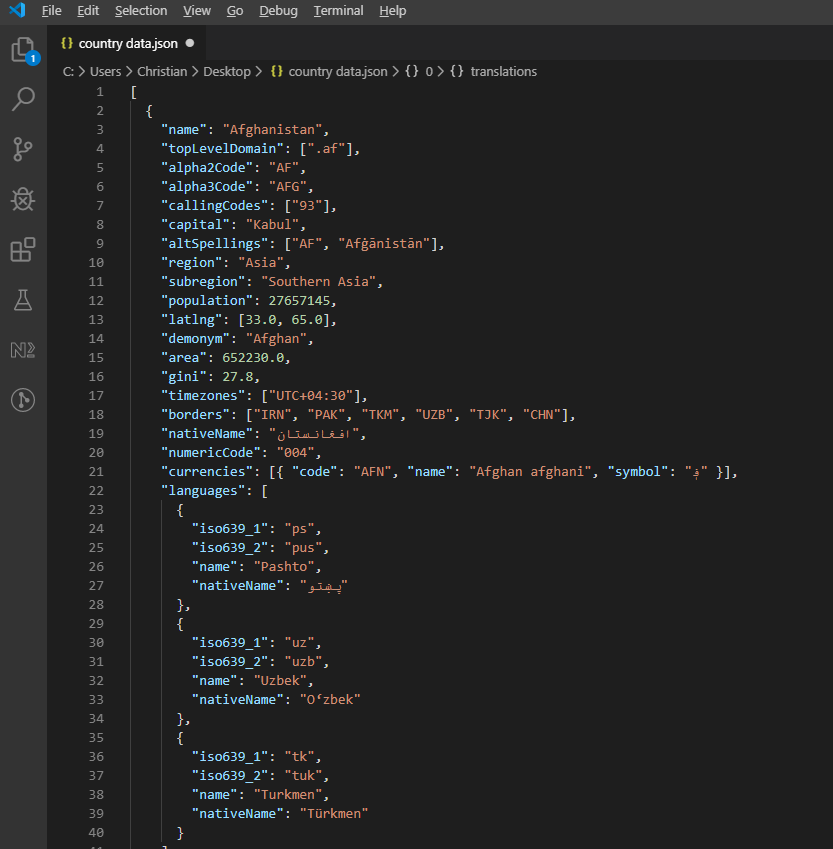
*Sample JSON response from the REST Countries API showing hierarchical country information.*
Process and write the API data to Excel:
```cs
private async Task ProcessCountryData(List<RestCountry> countries, WorkSheet workSheet)
{
for (int i = 0; i < countries.Count; i++)
{
var country = countries[i];
int row = i + 1; // Start from row 1 (after headers)
// Write basic country data
workSheet[$"A{row}"].Value = country.Name;
workSheet[$"B{row}"].Value = country.Population;
workSheet[$"C{row}"].Value = country.Region;
workSheet[$"D{row}"].Value = country.NumericCode;
// Format population with thousands separator
workSheet[$"B{row}"].FormatString = "#,##0";
// Add up to 3 languages
for (int langIndex = 0; langIndex < Math.Min(3, country.Languages?.Count ?? 0); langIndex++)
{
var language = country.Languages[langIndex];
string columnLetter = ((char)('E' + langIndex)).ToString();
workSheet[$"{columnLetter}{row}"].Value = language.Name;
}
// Add conditional formatting for regions
if (country.Region == "Europe")
{
workSheet[$"C{row}"].Style.SetBackgroundColor("#E6F3FF");
}
else if (country.Region == "Asia")
{
workSheet[$"C{row}"].Style.SetBackgroundColor("#FFF2E6");
}
// Show progress every 50 countries
if (i % 50 == 0)
{
Console.WriteLine($"Processed {i} of {countries.Count} countries");
}
}
// Auto-size all columns
for (int col = 0; col < 7; col++)
{
workSheet.AutoSizeColumn(col);
}
}
```
---
## Common Gotchas
A few things bite people often enough that they deserve their own section.
### Empty cells return 0, not null
This one bit me early on. Calling `sheet["A1"].IntValue` (or `DecimalValue`, or `DoubleValue`) on a blank cell returns `0`, not `null`. If you are summing or averaging a column with gaps in it, the blanks silently become zeros and skew the result. I now guard reads on any sheet where missing values are possible:
```cs
var cell = sheet["B5"];
if (!cell.IsEmpty)
{
total += cell.DecimalValue;
}
```
`Cell.IsEmpty` is cheap, so I default to using it whenever the spreadsheet is user-supplied rather than machine-generated.
### Dates come back as serial numbers if you ask for the wrong type
Excel stores dates as serial numbers under the hood (45292 means 2024-01-01, for example). The most common date-handling question in our support inbox is "why is my date showing up as 45292?" The answer is almost always that the cell was read as `StringValue` or `IntValue` instead of `DateTimeValue`:
```cs
// What you probably want:
DateTime birthday = sheet["E2"].DateTimeValue;
// What gives you "45292":
string birthday = sheet["E2"].StringValue;
```
`Cell.IsDateTime` will tell you whether the cell was authored as a date in the first place, which is useful for validation pipelines where the input format is not guaranteed.
### Cell index numerics are 0-based, but A1 strings are 1-based
Covered above in the Interop migration paragraph, but worth restating because it catches even people who have never been near COM. `sheet[0, 0]` is the same cell as `sheet["A1"]`. Mixing the two styles in the same loop is how off-by-one bugs creep in. I pick one shape per file and stick with it; the `["A1"]` string form is what I default to because it matches what you see in the spreadsheet itself.
<a id="sample-project"></a>
### Sample project for the benchmark numbers
If you want to reproduce the timing numbers from earlier, the harness is a small .NET 9 console app:
```cs
// ReadExcelBenchmark/Program.cs (excerpt)
IronXL.License.LicenseKey = Environment.GetEnvironmentVariable("IRONXL_LICENSE_KEY");
var sw = Stopwatch.StartNew();
var workbook = WorkBook.Load("GDP.xlsx");
decimal sum = workbook.WorkSheets.First()["B2:B214"].Sum();
sw.Stop();
Console.WriteLine($"cold: {sw.Elapsed.TotalMilliseconds:F1} ms");
```
Run it under `dotnet run -c Release`, generate the two sample workbooks on first launch, and you can substitute your own files to see how the numbers move with file size and complexity.
---
## Object Reference and Resources
The [IronXL API Reference](/csharp/excel/object-reference/api/) covers every class and method, including the ones this tutorial does not touch.
Additional tutorials for Excel operations:
- [Create Excel files programmatically](/csharp/excel/tutorials/create-excel-file-net/)
- [Excel formatting and styling guide](/csharp/excel/how-to/set-cell-data-format/)
- [Working with Excel formulas](/csharp/excel/how-to/edit-formulas/)
- [Excel chart creation tutorial](/csharp/excel/how-to/csharp-excel-chart-create-edit-tutorial/)
## Summary
`IronXL.Excel` reads and manipulates Excel files across XLS, XLSX, CSV, and TSV formats. It runs without [Microsoft Excel](https://products.office.com/en-us/excel) or Interop on the host machine.
For cloud-based spreadsheet manipulation, you might also explore the [Google Sheets API Client Library](https://developers.google.com/api-client-library/dotnet/apis/sheets/v4) for .NET, which complements IronXL's local file capabilities.
Ready to implement Excel automation in your C# projects? [Download IronXL](download-modal) or explore [licensing options](/csharp/excel/licensing/) for production use.
The first time I had to read an Excel file from a .NET service, I reached for Microsoft Interop and regretted it almost immediately. It needed Office installed on the server, it leaked processes when an exception was thrown mid-method, and it fell over under any kind of load. We built IronXL because we kept running into those exact walls. This guide is how I actually read XLS and XLSX in production today, including the gotchas that bite people most.
Most of what follows is direct file-format reading, no Excel application involved: load a workbook, pull values out by cell address, validate ranges, push the data into a database or an API. The library handles XLS and XLSX without needing Microsoft Office on the machine.
Quickstart: Read a Cell with IronXL in One Line
A single line loads an Excel workbook and pulls a value out of a cell. No Interop, no setup, no Excel process running in the background.
1Install IronXL with NuGet Package Manager
PM > Install-Package IronXL.Excel
Install-Package IronXL.Excel
2Copy and run this code snippet.
var value = IronXL.WorkBook.Load("file.xlsx").WorkSheets[0]["A1"].StringValue;
var value = IronXL.WorkBook.Load("file.xlsx").WorkSheets[0]["A1"].StringValue;
Dim value = IronXL.WorkBook.Load("file.xlsx").WorkSheets(0)("A1").StringValue
Dim value = IronXL.WorkBook.Load("file.xlsx").WorkSheets(0)("A1").StringValue
3Deploy to test on your live environment
Start using IronXL in your project today with a free trial
How Do I Set Up IronXL to Read Excel Files in C#?
The setup itself is a NuGet install and a using IronXL; directive. The library handles both .XLS and .XLSX, so the same code path works for legacy spreadsheets and the modern Open XML format.
Load and read Excel workbooks using WorkBook.Load()
Access worksheets with the GetWorkSheet() method
Read cell values using Excel-style addresses like sheet["A1"].Value
Validate and process spreadsheet data programmatically
Export data to databases using Entity Framework
IronXL reads and edits Microsoft Excel documents from C# without depending on the Office product. It does not require Microsoft Excel installed, and it does not need Interop. See the comparison with Microsoft.Office.Interop.Excel for the differences in approach and API surface.
If you are coming from Interop, the mental model is different and worth getting straight before you write any code. Interop launches a real Excel.exe process behind the scenes and your code automates that application across COM. IronXL reads the file bytes directly into memory and presents them as objects. No Excel process, no message pump, no COM marshaling. The practical consequence I see trip people up most: Interop indexes cells from [1, 1] (1-based, just like Excel's UI), but IronXL row/column access is 0-based. The ["A1"] string indexer matches the spreadsheet UI in both libraries, so when you can stay in the string form, the migration reads almost identically. The afternoon-long off-by-one bugs all come from the numeric indexer.
IronXL Includes:
Dedicated product support from our .NET engineers
Easy installation via Microsoft Visual Studio
Free trial test for development. Licenses from liteLicense
Both C# and VB.NET projects can use IronXL the same way to read or create Excel files.
Reading .XLS and .XLSX Excel Files Using IronXL
Here's the essential workflow for reading Excel files using IronXL:
Use the WorkBook.Load() method to read any XLS, XLSX, or CSV document
Access cell values using Excel-style addresses: sheet["A11"].DecimalValue
using IronXL;using System;using System.Linq;// Load Excel workbook from file pathWorkBook workBook = WorkBook.Load("test.xlsx");// Access the first worksheet using LINQWorkSheet workSheet = workBook.WorkSheets.First();// Read integer value from cell A2int cellValue = workSheet["A2"].IntValue;Console.WriteLine($"Cell A2 value: {cellValue}");// Iterate through a range of cellsforeach (var cell in workSheet["A2:A10"]){Console.WriteLine("Cell {0} has value '{1}'", cell.AddressString, cell.Text);}// Advanced Operations with LINQ// Calculate sum using built_in Sum() methoddecimal sum = workSheet["A2:A10"].Sum();// Find maximum value using LINQdecimal max = workSheet["A2:A10"].Max(c => c.DecimalValue);// Output calculated resultsConsole.WriteLine($"Sum of A2:A10: {sum}");Console.WriteLine($"Maximum value: {max}");
using IronXL;
using System;
using System.Linq;

// Load Excel workbook from file path
WorkBook workBook = WorkBook.Load("test.xlsx");

// Access the first worksheet using LINQ
WorkSheet workSheet = workBook.WorkSheets.First();

// Read integer value from cell A2
int cellValue = workSheet["A2"].IntValue;
Console.WriteLine($"Cell A2 value: {cellValue}");

// Iterate through a range of cells
foreach (var cell in workSheet["A2:A10"])
{
    Console.WriteLine("Cell {0} has value '{1}'", cell.AddressString, cell.Text);
}

// Advanced Operations with LINQ
// Calculate sum using built_in Sum() method
decimal sum = workSheet["A2:A10"].Sum();

// Find maximum value using LINQ
decimal max = workSheet["A2:A10"].Max(c => c.DecimalValue);

// Output calculated results
Console.WriteLine($"Sum of A2:A10: {sum}");
Console.WriteLine($"Maximum value: {max}");
ImportsIronXLImportsSystemImportsSystem.Linq' Load Excel workbook from file pathDim workBook AsWorkBook = WorkBook.Load("test.xlsx")' Access the first worksheet using LINQDim workSheet AsWorkSheet = workBook.WorkSheets.First()' Read integer value from cell A2Dim cellValue AsInteger = workSheet("A2").IntValueConsole.WriteLine($"Cell A2 value: {cellValue}")' Iterate through a range of cellsFor Each cell In workSheet("A2:A10")Console.WriteLine("Cell {0} has value '{1}'", cell.AddressString, cell.Text)Next' Advanced Operations with LINQ' Calculate sum using built_in Sum() methodDim sum AsDecimal = workSheet("A2:A10").Sum()' Find maximum value using LINQDim max AsDecimal = workSheet("A2:A10").Max(Function(c) c.DecimalValue)' Output calculated resultsConsole.WriteLine($"Sum of A2:A10: {sum}")Console.WriteLine($"Maximum value: {max}")
Imports IronXL
Imports System
Imports System.Linq

' Load Excel workbook from file path
Dim workBook As WorkBook = WorkBook.Load("test.xlsx")

' Access the first worksheet using LINQ
Dim workSheet As WorkSheet = workBook.WorkSheets.First()

' Read integer value from cell A2
Dim cellValue As Integer = workSheet("A2").IntValue
Console.WriteLine($"Cell A2 value: {cellValue}")

' Iterate through a range of cells
For Each cell In workSheet("A2:A10")
    Console.WriteLine("Cell {0} has value '{1}'", cell.AddressString, cell.Text)
Next

' Advanced Operations with LINQ
' Calculate sum using built_in Sum() method
Dim sum As Decimal = workSheet("A2:A10").Sum()

' Find maximum value using LINQ
Dim max As Decimal = workSheet("A2:A10").Max(Function(c) c.DecimalValue)

' Output calculated results
Console.WriteLine($"Sum of A2:A10: {sum}")
Console.WriteLine($"Maximum value: {max}")
The snippet walks through the four operations you will use constantly: loading a workbook, reading a cell by address, iterating a range, and running calculations against a range. WorkBook.Load() detects the file format from the extension, and the range syntax ["A2:A10"] matches the cell selection you would type into Excel itself. Ranges are IEnumerable<Cell>, so LINQ works directly against them for sums, filters, and projections.
How fast is this in practice?
To give you a feel for realistic performance, I wrote a small console project that loads the same kind of files used throughout this tutorial and times the operations. The harness lives in a ReadExcelBenchmark sample project you can run yourself, so you can measure these timings on your own hardware rather than trusting a number from mine. The relative pattern across multiple runs is consistent:
Operation
First cold load (fresh process)
Warm average over 10 iterations
Load GDP.xlsx (213 rows) and sum column B
Slowest run, dominated by startup
Drops sharply, then holds steady
Load People.xlsx (100 rows) and regex-validate every cell
Fast even cold
Comparable to its cold run
The first cold load is dominated by IronXL's assembly load and JIT warm-up; the second cold run is much lower because the assembly is already in memory by then. Warm runs settle into a tight band once the JIT has compiled the hot paths.
If you are seeing multi-second loads on files of this size, the culprit is almost always calling WorkBook.Load() inside a loop instead of once outside it. Load the workbook once, then iterate the cells or rows you actually need. I see that exact pattern in about half the "IronXL is slow" support tickets we get.
The other half are files where the loop was never the problem. Load builds the entire workbook before it returns, so on a few hundred thousand rows no amount of restructuring helps. If all you need from a file that size is its values, read it with forward-only streaming, which yields one row at a time and keeps memory flat.
The code examples in this tutorial work with three sample Excel spreadsheets that showcase different data scenarios:
Sample Excel files (GDP.xlsx, People.xlsx, and PopulationByState.xlsx) used throughout this tutorial for demonstrating various IronXL operations.
How Can I Install the IronXL C# Library?
Add the IronXL.Excel library to a .NET project through NuGet, or by referencing the DLL directly.
Installing the IronXL NuGet Package
In Visual Studio, right-click on your project and select "Manage NuGet Packages..."
Search for IronXL.Excel in the Browse tab
Click the Install button to add IronXL to your project
For manual installation, download the IronXL .NET Excel DLL and reference it directly in your Visual Studio project.
How Do I Load and Read an Excel Workbook?
The WorkBook class represents an entire Excel file. Load Excel files using the WorkBook.Load() method, which accepts file paths for XLS, XLSX, CSV, and TSV formats.
using IronXL;using System;using System.Linq;// Load Excel file from specified pathWorkBook workBook = WorkBook.Load(@"Spreadsheets\GDP.xlsx");Console.WriteLine("Workbook loaded successfully.");// Access specific worksheet by nameWorkSheet sheet = workBook.GetWorkSheet("Sheet1");// Read and display cell valuestring cellValue = sheet["A1"].StringValue;Console.WriteLine($"Cell A1 contains: {cellValue}");// Perform additional operations// Count non_empty cells in column Aint rowCount = sheet["A:A"].Count(cell => !cell.IsEmpty);Console.WriteLine($"Column A has {rowCount} non_empty cells");
using IronXL;
using System;
using System.Linq;

// Load Excel file from specified path
WorkBook workBook = WorkBook.Load(@"Spreadsheets\GDP.xlsx");

Console.WriteLine("Workbook loaded successfully.");

// Access specific worksheet by name
WorkSheet sheet = workBook.GetWorkSheet("Sheet1");

// Read and display cell value
string cellValue = sheet["A1"].StringValue;
Console.WriteLine($"Cell A1 contains: {cellValue}");

// Perform additional operations
// Count non_empty cells in column A
int rowCount = sheet["A:A"].Count(cell => !cell.IsEmpty);
Console.WriteLine($"Column A has {rowCount} non_empty cells");
ImportsIronXLImportsSystemImportsSystem.Linq' Load Excel file from specified pathDim workBook AsWorkBook = WorkBook.Load("Spreadsheets\GDP.xlsx")Console.WriteLine("Workbook loaded successfully.")' Access specific worksheet by nameDim sheet AsWorkSheet = workBook.GetWorkSheet("Sheet1")' Read and display cell valueDim cellValue AsString = sheet("A1").StringValueConsole.WriteLine($"Cell A1 contains: {cellValue}")' Perform additional operations' Count non_empty cells in column ADim rowCount AsInteger = sheet("A:A").Count(Function(cell) Not cell.IsEmpty)Console.WriteLine($"Column A has {rowCount} non_empty cells")
Imports IronXL
Imports System
Imports System.Linq

' Load Excel file from specified path
Dim workBook As WorkBook = WorkBook.Load("Spreadsheets\GDP.xlsx")

Console.WriteLine("Workbook loaded successfully.")

' Access specific worksheet by name
Dim sheet As WorkSheet = workBook.GetWorkSheet("Sheet1")

' Read and display cell value
Dim cellValue As String = sheet("A1").StringValue
Console.WriteLine($"Cell A1 contains: {cellValue}")

' Perform additional operations
' Count non_empty cells in column A
Dim rowCount As Integer = sheet("A:A").Count(Function(cell) Not cell.IsEmpty)
Console.WriteLine($"Column A has {rowCount} non_empty cells")
Each WorkBook contains multiple WorkSheet objects representing individual Excel sheets. Access worksheets by name using GetWorkSheet():
using IronXL;using System;// Get worksheet by nameWorkSheet workSheet = workBook.GetWorkSheet("GDPByCountry");Console.WriteLine("Worksheet 'GDPByCountry' not found");// List available worksheetsforeach (var sheet in workBook.WorkSheets){Console.WriteLine($"Available: {sheet.Name}");}
using IronXL;
using System;

// Get worksheet by name
WorkSheet workSheet = workBook.GetWorkSheet("GDPByCountry");

Console.WriteLine("Worksheet 'GDPByCountry' not found");
// List available worksheets
foreach (var sheet in workBook.WorkSheets)
{
    Console.WriteLine($"Available: {sheet.Name}");
}
ImportsIronXLImportsSystem' Get worksheet by nameDim workSheet AsWorkSheet = workBook.GetWorkSheet("GDPByCountry")Console.WriteLine("Worksheet 'GDPByCountry' not found")' List available worksheetsFor Each sheet In workBook.WorkSheetsConsole.WriteLine($"Available: {sheet.Name}")Next
Imports IronXL
Imports System

' Get worksheet by name
Dim workSheet As WorkSheet = workBook.GetWorkSheet("GDPByCountry")

Console.WriteLine("Worksheet 'GDPByCountry' not found")
' List available worksheets
For Each sheet In workBook.WorkSheets
    Console.WriteLine($"Available: {sheet.Name}")
Next
How Do I Create New Excel Documents in C#?
Create new Excel documents by constructing a WorkBook object with your desired file format. IronXL supports both modern XLSX and legacy XLS formats.
using IronXL;// Create new XLSX workbook (recommended format)WorkBook workBook = WorkBook.Create(ExcelFileFormat.XLSX);// Set workbook metadataworkBook.Metadata.Author = "Your Application";workBook.Metadata.Comments = "Generated by IronXL";// Create new XLS workbook for legacy supportWorkBook legacyWorkBook = WorkBook.Create(ExcelFileFormat.XLS);// Save the workbookworkBook.SaveAs("NewDocument.xlsx");
using IronXL;

// Create new XLSX workbook (recommended format)
WorkBook workBook = WorkBook.Create(ExcelFileFormat.XLSX);

// Set workbook metadata
workBook.Metadata.Author = "Your Application";
workBook.Metadata.Comments = "Generated by IronXL";

// Create new XLS workbook for legacy support
WorkBook legacyWorkBook = WorkBook.Create(ExcelFileFormat.XLS);

// Save the workbook
workBook.SaveAs("NewDocument.xlsx");
ImportsIronXL' Create new XLSX workbook (recommended format)Private workBook AsWorkBook = WorkBook.Create(ExcelFileFormat.XLSX)' Set workbook metadataworkBook.Metadata.Author = "Your Application"workBook.Metadata.Comments = "Generated by IronXL"' Create new XLS workbook for legacy supportDim legacyWorkBook AsWorkBook = WorkBook.Create(ExcelFileFormat.XLS)' Save the workbookworkBook.SaveAs("NewDocument.xlsx")
Imports IronXL

' Create new XLSX workbook (recommended format)
Private workBook As WorkBook = WorkBook.Create(ExcelFileFormat.XLSX)

' Set workbook metadata
workBook.Metadata.Author = "Your Application"
workBook.Metadata.Comments = "Generated by IronXL"

' Create new XLS workbook for legacy support
Dim legacyWorkBook As WorkBook = WorkBook.Create(ExcelFileFormat.XLS)

' Save the workbook
workBook.SaveAs("NewDocument.xlsx")
Note: Use ExcelFileFormat.XLS only when compatibility with Excel 2003 and earlier is required.
How Can I Add Worksheets to an Excel Document?
An IronXL WorkBook contains a collection of worksheets. Understanding this structure helps when building multi-sheet Excel files.
Visual representation of the WorkBook structure containing multiple WorkSheet objects in IronXL.
Create new worksheets using CreateWorkSheet():
using IronXL;// Create multiple worksheets with descriptive namesWorkSheet summarySheet = workBook.CreateWorkSheet("Summary");WorkSheet dataSheet = workBook.CreateWorkSheet("RawData");WorkSheet chartSheet = workBook.CreateWorkSheet("Charts");// Set the active worksheetworkBook.SetActiveTab(0); // Makes "Summary" the active sheet// Access default worksheet (first sheet)WorkSheet defaultSheet = workBook.DefaultWorkSheet;
using IronXL;

// Create multiple worksheets with descriptive names
WorkSheet summarySheet = workBook.CreateWorkSheet("Summary");
WorkSheet dataSheet = workBook.CreateWorkSheet("RawData");
WorkSheet chartSheet = workBook.CreateWorkSheet("Charts");

// Set the active worksheet
workBook.SetActiveTab(0); // Makes "Summary" the active sheet

// Access default worksheet (first sheet)
WorkSheet defaultSheet = workBook.DefaultWorkSheet;
ImportsIronXL' Create multiple worksheets with descriptive namesDim summarySheet AsWorkSheet = workBook.CreateWorkSheet("Summary")Dim dataSheet AsWorkSheet = workBook.CreateWorkSheet("RawData")Dim chartSheet AsWorkSheet = workBook.CreateWorkSheet("Charts")' Set the active worksheetworkBook.SetActiveTab(0) ' Makes "Summary" the active sheet' Access default worksheet (first sheet)Dim defaultSheet AsWorkSheet = workBook.DefaultWorkSheet
Imports IronXL

' Create multiple worksheets with descriptive names
Dim summarySheet As WorkSheet = workBook.CreateWorkSheet("Summary")
Dim dataSheet As WorkSheet = workBook.CreateWorkSheet("RawData")
Dim chartSheet As WorkSheet = workBook.CreateWorkSheet("Charts")

' Set the active worksheet
workBook.SetActiveTab(0) ' Makes "Summary" the active sheet

' Access default worksheet (first sheet)
Dim defaultSheet As WorkSheet = workBook.DefaultWorkSheet
How Do I Read and Edit Cell Values?
Read and Edit a Single Cell
Access individual cells through the worksheet's indexer property. IronXL's Cell class provides strongly-typed value properties.
using IronXL;using System;using System.Linq;// Load workbook and get worksheetWorkBook workBook = WorkBook.Load("test.xlsx");WorkSheet workSheet = workBook.DefaultWorkSheet;// Access cell B1IronXL.Cell cell = workSheet["B1"].First();// Read cell value with type safetystring textValue = cell.StringValue;int intValue = cell.IntValue;decimal decimalValue = cell.DecimalValue;DateTime? dateValue = cell.DateTimeValue;// Check cell data typeif (cell.IsNumeric){Console.WriteLine($"Numeric value: {cell.DecimalValue}");}else if (cell.IsText){Console.WriteLine($"Text value: {cell.StringValue}");}
using IronXL;
using System;
using System.Linq;

// Load workbook and get worksheet
WorkBook workBook = WorkBook.Load("test.xlsx");
WorkSheet workSheet = workBook.DefaultWorkSheet;

// Access cell B1
IronXL.Cell cell = workSheet["B1"].First();

// Read cell value with type safety
string textValue = cell.StringValue;
int intValue = cell.IntValue;
decimal decimalValue = cell.DecimalValue;
DateTime? dateValue = cell.DateTimeValue;

// Check cell data type
if (cell.IsNumeric)
{
    Console.WriteLine($"Numeric value: {cell.DecimalValue}");
}
else if (cell.IsText)
{
    Console.WriteLine($"Text value: {cell.StringValue}");
}
ImportsIronXLImportsSystemImportsSystem.Linq' Load workbook and get worksheetDim workBook AsWorkBook = WorkBook.Load("test.xlsx")Dim workSheet AsWorkSheet = workBook.DefaultWorkSheet' Access cell B1Dim cell AsIronXL.Cell = workSheet("B1").First()' Read cell value with type safetyDim textValue AsString = cell.StringValueDim intValue AsInteger = cell.IntValueDim decimalValue AsDecimal = cell.DecimalValueDim dateValue AsDateTime? = cell.DateTimeValue' Check cell data typeIf cell.IsNumericThenConsole.WriteLine($"Numeric value: {cell.DecimalValue}")ElseIf cell.IsTextThenConsole.WriteLine($"Text value: {cell.StringValue}")End If
Imports IronXL
Imports System
Imports System.Linq

' Load workbook and get worksheet
Dim workBook As WorkBook = WorkBook.Load("test.xlsx")
Dim workSheet As WorkSheet = workBook.DefaultWorkSheet

' Access cell B1
Dim cell As IronXL.Cell = workSheet("B1").First()

' Read cell value with type safety
Dim textValue As String = cell.StringValue
Dim intValue As Integer = cell.IntValue
Dim decimalValue As Decimal = cell.DecimalValue
Dim dateValue As DateTime? = cell.DateTimeValue

' Check cell data type
If cell.IsNumeric Then
    Console.WriteLine($"Numeric value: {cell.DecimalValue}")
ElseIf cell.IsText Then
    Console.WriteLine($"Text value: {cell.StringValue}")
End If
The Cell class offers multiple properties for different data types, automatically converting values when possible. For more cell operations, see the Cell formatting tutorial.
// Write different data types to cellsworkSheet["A1"].Value = "Product Name"; // StringworkSheet["B1"].Value = 99.95m; // DecimalworkSheet["C1"].Value = DateTime.Today; // DateworkSheet["D1"].Formula = "=B1*1.2"; // Formula // Format cellsworkSheet["B1"].FormatString = "$#,##0.00"; // Currency formatworkSheet["C1"].FormatString = "yyyy-MM-dd";// Date format // Save changesworkBook.Save();
// Write different data types to cells
workSheet["A1"].Value = "Product Name";     // String
workSheet["B1"].Value = 99.95m;             // Decimal
workSheet["C1"].Value = DateTime.Today;     // Date
workSheet["D1"].Formula = "=B1*1.2";        // Formula
                                            // Format cells
workSheet["B1"].FormatString = "$#,##0.00"; // Currency format
workSheet["C1"].FormatString = "yyyy-MM-dd";// Date format
                                            // Save changes
workBook.Save();
' Write different data types to cellsworkSheet("A1").Value = "Product Name" ' StringworkSheet("B1").Value = 99.95D ' DecimalworkSheet("C1").Value = DateTime.Today' DateworkSheet("D1").Formula = "=B1*1.2" ' Formula ' Format cellsworkSheet("B1").FormatString = "$#,##0.00" ' Currency formatworkSheet("C1").FormatString = "yyyy-MM-dd" ' Date format ' Save changesworkBook.Save()
' Write different data types to cells
workSheet("A1").Value = "Product Name" ' String
workSheet("B1").Value = 99.95D ' Decimal
workSheet("C1").Value = DateTime.Today ' Date
workSheet("D1").Formula = "=B1*1.2" ' Formula
											' Format cells
workSheet("B1").FormatString = "$#,##0.00" ' Currency format
workSheet("C1").FormatString = "yyyy-MM-dd" ' Date format
											' Save changes
workBook.Save()
How Can I Work with Cell Ranges?
The Range class represents a collection of cells, enabling bulk operations on Excel data.
using IronXL;using Range = IronXL.Range;// Select range using Excel notationRange range = workSheet["D2:D101"];// Alternative: Use Range class for dynamic selectionRange dynamicRange = workSheet.GetRange("D2:D101"); // Row 2_101, Column D// Perform bulk operationsrange.Value = 0; // Set all cells to 0
using IronXL;
using Range = IronXL.Range;

// Select range using Excel notation
Range range = workSheet["D2:D101"];

// Alternative: Use Range class for dynamic selection
Range dynamicRange = workSheet.GetRange("D2:D101"); // Row 2_101, Column D

// Perform bulk operations
range.Value = 0; // Set all cells to 0
ImportsIronXL' Select range using Excel notationDim range AsRange = workSheet("D2:D101")' Alternative: Use Range class for dynamic selectionDim dynamicRange AsRange = workSheet.GetRange("D2:D101") ' Row 2_101, Column D' Perform bulk operationsrange.Value = 0 ' Set all cells to 0
Imports IronXL

' Select range using Excel notation
Dim range As Range = workSheet("D2:D101")

' Alternative: Use Range class for dynamic selection
Dim dynamicRange As Range = workSheet.GetRange("D2:D101") ' Row 2_101, Column D

' Perform bulk operations
range.Value = 0 ' Set all cells to 0
Process ranges efficiently using loops when cell count is known:
// Data validation examplepublic class ValidationResult{ public intRow { get; set; } public stringPhoneError { get; set; } public stringEmailError { get; set; } public stringDateError { get; set; } public boolIsValid => string.IsNullOrEmpty(PhoneError) && string.IsNullOrEmpty(EmailError) && string.IsNullOrEmpty(DateError);}// Validate data in rows 2-101var results = new List<ValidationResult>();for (int row = 2; row <= 101; row++){ var result = new ValidationResult { Row = row }; // Get row data efficiently var phoneCell = workSheet[$"B{row}"]; var emailCell = workSheet[$"D{row}"]; var dateCell = workSheet[$"E{row}"]; // Validate phone number if (!IsValidPhoneNumber(phoneCell.StringValue)) result.PhoneError = "Invalid phone format"; // Validate email if (!IsValidEmail(emailCell.StringValue)) result.EmailError = "Invalid email format"; // Validate date if (!dateCell.IsDateTime) result.DateError = "Invalid date format"; results.Add(result);}// Helper methodsboolIsValidPhoneNumber(string phone) => System.Text.RegularExpressions.Regex.IsMatch(phone, @"^\d{3}-\d{3}-\d{4}$");boolIsValidEmail(string email) => email.Contains("@") && email.Contains(".");
// Data validation example
public class ValidationResult
{
    public int Row { get; set; }
    public string PhoneError { get; set; }
    public string EmailError { get; set; }
    public string DateError { get; set; }
    public bool IsValid => string.IsNullOrEmpty(PhoneError) &&
                           string.IsNullOrEmpty(EmailError) &&
                           string.IsNullOrEmpty(DateError);
}

// Validate data in rows 2-101
var results = new List<ValidationResult>();

for (int row = 2; row <= 101; row++)
{
    var result = new ValidationResult { Row = row };

    // Get row data efficiently
    var phoneCell = workSheet[$"B{row}"];
    var emailCell = workSheet[$"D{row}"];
    var dateCell = workSheet[$"E{row}"];

    // Validate phone number
    if (!IsValidPhoneNumber(phoneCell.StringValue))
        result.PhoneError = "Invalid phone format";

    // Validate email
    if (!IsValidEmail(emailCell.StringValue))
        result.EmailError = "Invalid email format";

    // Validate date
    if (!dateCell.IsDateTime)
        result.DateError = "Invalid date format";

    results.Add(result);
}

// Helper methods
bool IsValidPhoneNumber(string phone) =>
    System.Text.RegularExpressions.Regex.IsMatch(phone, @"^\d{3}-\d{3}-\d{4}$");

bool IsValidEmail(string email) =>
    email.Contains("@") && email.Contains(".");
' Data validation examplePublic Class ValidationResult Public Property RowAsInteger Public Property PhoneErrorAsString Public Property EmailErrorAsString Public Property DateErrorAsString PublicReadOnlyPropertyIsValidAsBoolean Get ReturnString.IsNullOrEmpty(PhoneError) AndAlsoString.IsNullOrEmpty(EmailError) AndAlsoString.IsNullOrEmpty(DateError)End Get End PropertyEnd Class' Validate data in rows 2-101Dim results As New List(OfValidationResult)()For row AsInteger = 2 To 101 Dim result As New ValidationResultWith {.Row = row} ' Get row data efficiently Dim phoneCell = workSheet($"B{row}") Dim emailCell = workSheet($"D{row}") Dim dateCell = workSheet($"E{row}") ' Validate phone number IfNotIsValidPhoneNumber(phoneCell.StringValue) Then result.PhoneError = "Invalid phone format" End If ' Validate email IfNotIsValidEmail(emailCell.StringValue) Then result.EmailError = "Invalid email format" End If ' Validate date IfNot dateCell.IsDateTimeThen result.DateError = "Invalid date format" End If results.Add(result)Next' Helper methodsPrivate Function IsValidPhoneNumber(phone AsString) AsBoolean ReturnSystem.Text.RegularExpressions.Regex.IsMatch(phone, "^\d{3}-\d{3}-\d{4}$")End FunctionPrivate Function IsValidEmail(email AsString) AsBoolean Return email.Contains("@") AndAlso email.Contains(".")End Function
' Data validation example
Public Class ValidationResult
    Public Property Row As Integer
    Public Property PhoneError As String
    Public Property EmailError As String
    Public Property DateError As String
    Public ReadOnly Property IsValid As Boolean
        Get
            Return String.IsNullOrEmpty(PhoneError) AndAlso
                   String.IsNullOrEmpty(EmailError) AndAlso
                   String.IsNullOrEmpty(DateError)
        End Get
    End Property
End Class

' Validate data in rows 2-101
Dim results As New List(Of ValidationResult)()

For row As Integer = 2 To 101
    Dim result As New ValidationResult With {.Row = row}

    ' Get row data efficiently
    Dim phoneCell = workSheet($"B{row}")
    Dim emailCell = workSheet($"D{row}")
    Dim dateCell = workSheet($"E{row}")

    ' Validate phone number
    If Not IsValidPhoneNumber(phoneCell.StringValue) Then
        result.PhoneError = "Invalid phone format"
    End If

    ' Validate email
    If Not IsValidEmail(emailCell.StringValue) Then
        result.EmailError = "Invalid email format"
    End If

    ' Validate date
    If Not dateCell.IsDateTime Then
        result.DateError = "Invalid date format"
    End If

    results.Add(result)
Next

' Helper methods
Private Function IsValidPhoneNumber(phone As String) As Boolean
    Return System.Text.RegularExpressions.Regex.IsMatch(phone, "^\d{3}-\d{3}-\d{4}$")
End Function

Private Function IsValidEmail(email As String) As Boolean
    Return email.Contains("@") AndAlso email.Contains(".")
End Function
How Do I Add Formulas to Excel Spreadsheets?
Apply Excel formulas using the Formula property. IronXL supports standard Excel formula syntax.
using IronXL;// Add formulas to calculate percentagesint lastRow = 50;for (int row = 2; row < lastRow; row++){ // Calculate percentage: current value / total workSheet[$"C{row}"].Formula = $"=B{row}/B{lastRow}"; // Format as percentage workSheet[$"C{row}"].FormatString = "0.00%";}// Add summary formulasworkSheet["B52"].Formula = "=SUM(B2:B50)"; // SumworkSheet["B53"].Formula = "=AVERAGE(B2:B50)"; // AverageworkSheet["B54"].Formula = "=MAX(B2:B50)"; // MaximumworkSheet["B55"].Formula = "=MIN(B2:B50)"; // Minimum // Force formula evaluationworkBook.EvaluateAll();
using IronXL;

// Add formulas to calculate percentages
int lastRow = 50;
for (int row = 2; row < lastRow; row++)
{
    // Calculate percentage: current value / total
    workSheet[$"C{row}"].Formula = $"=B{row}/B{lastRow}";
    // Format as percentage
    workSheet[$"C{row}"].FormatString = "0.00%";
}
// Add summary formulas
workSheet["B52"].Formula = "=SUM(B2:B50)";      // Sum
workSheet["B53"].Formula = "=AVERAGE(B2:B50)";   // Average
workSheet["B54"].Formula = "=MAX(B2:B50)";       // Maximum
workSheet["B55"].Formula = "=MIN(B2:B50)";       // Minimum
                                                 // Force formula evaluation
workBook.EvaluateAll();
ImportsIronXL' Add formulas to calculate percentagesDim lastRow AsInteger = 50For row AsInteger = 2 To lastRow - 1 ' Calculate percentage: current value / total workSheet($"C{row}").Formula = $"=B{row}/B{lastRow}" ' Format as percentage workSheet($"C{row}").FormatString = "0.00%"Next' Add summary formulasworkSheet("B52").Formula = "=SUM(B2:B50)" ' SumworkSheet("B53").Formula = "=AVERAGE(B2:B50)" ' AverageworkSheet("B54").Formula = "=MAX(B2:B50)" ' MaximumworkSheet("B55").Formula = "=MIN(B2:B50)" ' Minimum' Force formula evaluationworkBook.EvaluateAll()
Imports IronXL

' Add formulas to calculate percentages
Dim lastRow As Integer = 50
For row As Integer = 2 To lastRow - 1
    ' Calculate percentage: current value / total
    workSheet($"C{row}").Formula = $"=B{row}/B{lastRow}"
    ' Format as percentage
    workSheet($"C{row}").FormatString = "0.00%"
Next
' Add summary formulas
workSheet("B52").Formula = "=SUM(B2:B50)"      ' Sum
workSheet("B53").Formula = "=AVERAGE(B2:B50)"  ' Average
workSheet("B54").Formula = "=MAX(B2:B50)"      ' Maximum
workSheet("B55").Formula = "=MIN(B2:B50)"      ' Minimum
' Force formula evaluation
workBook.EvaluateAll()
A common use case I see is validating user-supplied spreadsheets before pulling the data into a database. The example below checks phone numbers, emails, and dates with regular expressions and IronXL's built-in type checks.
using System.Text.RegularExpressions;using IronXL;// Validation implementationfor (int i = 2; i <= 101; i++){ var result = new PersonValidationResult { Row = i }; results.Add(result); // Get cells for current person var cells = workSheet[$"A{i}:E{i}"].ToList(); // Validate phone (column B) string phone = cells[1].StringValue; if (!Regex.IsMatch(phone, @"^\+?1?\d{10,14}$")) { result.PhoneNumberErrorMessage = "Invalid phone format"; } // Validate email (column D) string email = cells[3].StringValue; if (!Regex.IsMatch(email, @"^[^@\s]+@[^@\s]+\.[^@\s]+$")) { result.EmailErrorMessage = "Invalid email address"; } // Validate date (column E) if (!cells[4].IsDateTime) { result.DateErrorMessage = "Invalid date format"; }}
using System.Text.RegularExpressions;
using IronXL;

// Validation implementation
for (int i = 2; i <= 101; i++)
{
    var result = new PersonValidationResult { Row = i };
    results.Add(result);

    // Get cells for current person
    var cells = workSheet[$"A{i}:E{i}"].ToList();

    // Validate phone (column B)
    string phone = cells[1].StringValue;
    if (!Regex.IsMatch(phone, @"^\+?1?\d{10,14}$"))
    {
        result.PhoneNumberErrorMessage = "Invalid phone format";
    }

    // Validate email (column D)
    string email = cells[3].StringValue;
    if (!Regex.IsMatch(email, @"^[^@\s]+@[^@\s]+\.[^@\s]+$"))
    {
        result.EmailErrorMessage = "Invalid email address";
    }

    // Validate date (column E)
    if (!cells[4].IsDateTime)
    {
        result.DateErrorMessage = "Invalid date format";
    }
}
ImportsSystem.Text.RegularExpressionsImportsIronXL' Validation implementationFor i AsInteger = 2 To 101 Dim result As New PersonValidationResultWith {.Row = i} results.Add(result) ' Get cells for current person Dim cells = workSheet($"A{i}:E{i}").ToList() ' Validate phone (column B) Dim phone AsString = cells(1).StringValue IfNotRegex.IsMatch(phone, "^\+?1?\d{10,14}$") Then result.PhoneNumberErrorMessage = "Invalid phone format" End If ' Validate email (column D) Dim email AsString = cells(3).StringValue IfNotRegex.IsMatch(email, "^[^@\s]+@[^@\s]+\.[^@\s]+$") Then result.EmailErrorMessage = "Invalid email address" End If ' Validate date (column E) IfNot cells(4).IsDateTimeThen result.DateErrorMessage = "Invalid date format" End IfNext i
Imports System.Text.RegularExpressions
Imports IronXL

' Validation implementation
For i As Integer = 2 To 101
    Dim result As New PersonValidationResult With {.Row = i}
    results.Add(result)

    ' Get cells for current person
    Dim cells = workSheet($"A{i}:E{i}").ToList()

    ' Validate phone (column B)
    Dim phone As String = cells(1).StringValue
    If Not Regex.IsMatch(phone, "^\+?1?\d{10,14}$") Then
        result.PhoneNumberErrorMessage = "Invalid phone format"
    End If

    ' Validate email (column D)
    Dim email As String = cells(3).StringValue
    If Not Regex.IsMatch(email, "^[^@\s]+@[^@\s]+\.[^@\s]+$") Then
        result.EmailErrorMessage = "Invalid email address"
    End If

    ' Validate date (column E)
    If Not cells(4).IsDateTime Then
        result.DateErrorMessage = "Invalid date format"
    End If
Next i
Save validation results to a new worksheet:
// Create results worksheetvar resultsSheet = workBook.CreateWorkSheet("ValidationResults");// Add headersresultsSheet["A1"].Value = "Row";resultsSheet["B1"].Value = "Valid";resultsSheet["C1"].Value = "Phone Error";resultsSheet["D1"].Value = "Email Error";resultsSheet["E1"].Value = "Date Error";// Style headersresultsSheet["A1:E1"].Style.Font.Bold = true;resultsSheet["A1:E1"].Style.SetBackgroundColor("#4472C4");resultsSheet["A1:E1"].Style.Font.Color = "#FFFFFF";// Output validation resultsfor (int i = 0; i < results.Count; i++){ var result = results[i]; int outputRow = i + 2; resultsSheet[$"A{outputRow}"].Value = result.Row; resultsSheet[$"B{outputRow}"].Value = result.IsValid ? "Yes" : "No"; resultsSheet[$"C{outputRow}"].Value = result.PhoneNumberErrorMessage ?? ""; resultsSheet[$"D{outputRow}"].Value = result.EmailErrorMessage ?? ""; resultsSheet[$"E{outputRow}"].Value = result.DateErrorMessage ?? ""; // Highlight invalid rows if (!result.IsValid) { resultsSheet[$"A{outputRow}:E{outputRow}"].Style.SetBackgroundColor("#FFE6E6"); }}// Auto-fit columnsfor (int col = 0; col < 5; col++){ resultsSheet.AutoSizeColumn(col);}// Save validated workbookworkBook.SaveAs(@"Spreadsheets\PeopleValidated.xlsx");
// Create results worksheet
var resultsSheet = workBook.CreateWorkSheet("ValidationResults");

// Add headers
resultsSheet["A1"].Value = "Row";
resultsSheet["B1"].Value = "Valid";
resultsSheet["C1"].Value = "Phone Error";
resultsSheet["D1"].Value = "Email Error";
resultsSheet["E1"].Value = "Date Error";

// Style headers
resultsSheet["A1:E1"].Style.Font.Bold = true;
resultsSheet["A1:E1"].Style.SetBackgroundColor("#4472C4");
resultsSheet["A1:E1"].Style.Font.Color = "#FFFFFF";

// Output validation results
for (int i = 0; i < results.Count; i++)
{
    var result = results[i];
    int outputRow = i + 2;

    resultsSheet[$"A{outputRow}"].Value = result.Row;
    resultsSheet[$"B{outputRow}"].Value = result.IsValid ? "Yes" : "No";
    resultsSheet[$"C{outputRow}"].Value = result.PhoneNumberErrorMessage ?? "";
    resultsSheet[$"D{outputRow}"].Value = result.EmailErrorMessage ?? "";
    resultsSheet[$"E{outputRow}"].Value = result.DateErrorMessage ?? "";

    // Highlight invalid rows
    if (!result.IsValid)
    {
        resultsSheet[$"A{outputRow}:E{outputRow}"].Style.SetBackgroundColor("#FFE6E6");
    }
}

// Auto-fit columns
for (int col = 0; col < 5; col++)
{
    resultsSheet.AutoSizeColumn(col);
}

// Save validated workbook
workBook.SaveAs(@"Spreadsheets\PeopleValidated.xlsx");
ImportsSystem' Create results worksheetDim resultsSheet = workBook.CreateWorkSheet("ValidationResults")' Add headersresultsSheet("A1").Value = "Row"resultsSheet("B1").Value = "Valid"resultsSheet("C1").Value = "Phone Error"resultsSheet("D1").Value = "Email Error"resultsSheet("E1").Value = "Date Error"' Style headersresultsSheet("A1:E1").Style.Font.Bold = TrueresultsSheet("A1:E1").Style.SetBackgroundColor("#4472C4")resultsSheet("A1:E1").Style.Font.Color = "#FFFFFF"' Output validation resultsFor i AsInteger = 0 To results.Count - 1 Dim result = results(i) Dim outputRow AsInteger = i + 2 resultsSheet($"A{outputRow}").Value = result.Row resultsSheet($"B{outputRow}").Value = If(result.IsValid, "Yes", "No") resultsSheet($"C{outputRow}").Value = If(result.PhoneNumberErrorMessage, "") resultsSheet($"D{outputRow}").Value = If(result.EmailErrorMessage, "") resultsSheet($"E{outputRow}").Value = If(result.DateErrorMessage, "") ' Highlight invalid rows IfNot result.IsValidThen resultsSheet($"A{outputRow}:E{outputRow}").Style.SetBackgroundColor("#FFE6E6") End IfNext' Auto-fit columnsFor col AsInteger = 0 To 4 resultsSheet.AutoSizeColumn(col)Next' Save validated workbookworkBook.SaveAs("Spreadsheets\PeopleValidated.xlsx")
Imports System

' Create results worksheet
Dim resultsSheet = workBook.CreateWorkSheet("ValidationResults")

' Add headers
resultsSheet("A1").Value = "Row"
resultsSheet("B1").Value = "Valid"
resultsSheet("C1").Value = "Phone Error"
resultsSheet("D1").Value = "Email Error"
resultsSheet("E1").Value = "Date Error"

' Style headers
resultsSheet("A1:E1").Style.Font.Bold = True
resultsSheet("A1:E1").Style.SetBackgroundColor("#4472C4")
resultsSheet("A1:E1").Style.Font.Color = "#FFFFFF"

' Output validation results
For i As Integer = 0 To results.Count - 1
    Dim result = results(i)
    Dim outputRow As Integer = i + 2

    resultsSheet($"A{outputRow}").Value = result.Row
    resultsSheet($"B{outputRow}").Value = If(result.IsValid, "Yes", "No")
    resultsSheet($"C{outputRow}").Value = If(result.PhoneNumberErrorMessage, "")
    resultsSheet($"D{outputRow}").Value = If(result.EmailErrorMessage, "")
    resultsSheet($"E{outputRow}").Value = If(result.DateErrorMessage, "")

    ' Highlight invalid rows
    If Not result.IsValid Then
        resultsSheet($"A{outputRow}:E{outputRow}").Style.SetBackgroundColor("#FFE6E6")
    End If
Next

' Auto-fit columns
For col As Integer = 0 To 4
    resultsSheet.AutoSizeColumn(col)
Next

' Save validated workbook
workBook.SaveAs("Spreadsheets\PeopleValidated.xlsx")
How Do I Export Excel Data to a Database?
Use IronXL with Entity Framework to export spreadsheet data directly to databases. This example demonstrates exporting country GDP data to SQLite.
using System;using System.ComponentModel.DataAnnotations;using Microsoft.EntityFrameworkCore;using IronXL;// Define entity modelpublic class Country{ [Key] public GuidId { get; set; } = Guid.NewGuid(); [Required] [MaxLength(100)] public stringName { get; set; } [Range(0, double.MaxValue)] public decimalGDP { get; set; } public DateTimeImportedDate { get; set; } = DateTime.UtcNow;}
using System;
using System.ComponentModel.DataAnnotations;
using Microsoft.EntityFrameworkCore;
using IronXL;

// Define entity model
public class Country
{
    [Key]
    public Guid Id { get; set; } = Guid.NewGuid();

    [Required]
    [MaxLength(100)]
    public string Name { get; set; }

    [Range(0, double.MaxValue)]
    public decimal GDP { get; set; }

    public DateTime ImportedDate { get; set; } = DateTime.UtcNow;
}
ImportsSystemImportsSystem.ComponentModel.DataAnnotationsImportsMicrosoft.EntityFrameworkCoreImportsIronXL' Define entity modelPublic Class Country <Key> Public Property IdAsGuid = Guid.NewGuid() <Required> <MaxLength(100)> Public Property NameAsString <Range(0, Double.MaxValue)> Public Property GDPAsDecimal Public Property ImportedDateAsDateTime = DateTime.UtcNowEnd Class
Imports System
Imports System.ComponentModel.DataAnnotations
Imports Microsoft.EntityFrameworkCore
Imports IronXL

' Define entity model
Public Class Country
    <Key>
    Public Property Id As Guid = Guid.NewGuid()

    <Required>
    <MaxLength(100)>
    Public Property Name As String

    <Range(0, Double.MaxValue)>
    Public Property GDP As Decimal

    Public Property ImportedDate As DateTime = DateTime.UtcNow
End Class
Configure Entity Framework context for database operations:
public class CountryContext : DbContext{ public DbSet<Country> Countries { get; set; } protected override voidOnConfiguring(DbContextOptionsBuilder optionsBuilder) { // Configure SQLite connection optionsBuilder.UseSqlite("Data Source=CountryGDP.db"); // Enable sensitive data logging in development #ifDEBUG optionsBuilder.EnableSensitiveDataLogging(); #endif } protected override voidOnModelCreating(ModelBuilder modelBuilder) { // Configure decimal precision modelBuilder.Entity<Country>() .Property(c => c.GDP) .HasPrecision(18, 2); }}
public class CountryContext : DbContext
{
    public DbSet<Country> Countries { get; set; }

    protected override void OnConfiguring(DbContextOptionsBuilder optionsBuilder)
    {
        // Configure SQLite connection
        optionsBuilder.UseSqlite("Data Source=CountryGDP.db");

        // Enable sensitive data logging in development
        #if DEBUG
        optionsBuilder.EnableSensitiveDataLogging();
        #endif
    }

    protected override void OnModelCreating(ModelBuilder modelBuilder)
    {
        // Configure decimal precision
        modelBuilder.Entity<Country>()
            .Property(c => c.GDP)
            .HasPrecision(18, 2);
    }
}
Public Class CountryContextInheritsDbContext Public Property CountriesAsDbSet(OfCountry)ProtectedOverrides Sub OnConfiguring(optionsBuilder AsDbContextOptionsBuilder) ' Configure SQLite connection optionsBuilder.UseSqlite("Data Source=CountryGDP.db") ' Enable sensitive data logging in development#IfDEBUGThen optionsBuilder.EnableSensitiveDataLogging()#End If End SubProtectedOverrides Sub OnModelCreating(modelBuilder AsModelBuilder) ' Configure decimal precision modelBuilder.Entity(OfCountry)() _ .Property(Function(c) c.GDP) _ .HasPrecision(18, 2) End SubEnd Class
Public Class CountryContext
    Inherits DbContext

    Public Property Countries As DbSet(Of Country)

    Protected Overrides Sub OnConfiguring(optionsBuilder As DbContextOptionsBuilder)
        ' Configure SQLite connection
        optionsBuilder.UseSqlite("Data Source=CountryGDP.db")

        ' Enable sensitive data logging in development
#If DEBUG Then
        optionsBuilder.EnableSensitiveDataLogging()
#End If
    End Sub

    Protected Overrides Sub OnModelCreating(modelBuilder As ModelBuilder)
        ' Configure decimal precision
        modelBuilder.Entity(Of Country)() _
            .Property(Function(c) c.GDP) _
            .HasPrecision(18, 2)
    End Sub
End Class
Please note: Note: To use different databases, install the appropriate NuGet package (e.g., Microsoft.EntityFrameworkCore.SqlServer for SQL Server) and modify the connection configuration accordingly.
Import Excel data to database:
using System.Threading.Tasks;using IronXL;using Microsoft.EntityFrameworkCore;public async TaskImportGDPDataAsync(){ try { // Load Excel file var workBook = WorkBook.Load(@"Spreadsheets\GDP.xlsx"); var workSheet = workBook.GetWorkSheet("GDPByCountry"); using (var context = new CountryContext()) { // Ensure database exists await context.Database.EnsureCreatedAsync(); // Clear existing data (optional) await context.Database.ExecuteSqlRawAsync("DELETE FROM Countries"); // Import data with progress tracking int totalRows = 213; for (int row = 2; row <= totalRows; row++) { // Read country data var countryName = workSheet[$"A{row}"].StringValue; var gdpValue = workSheet[$"B{row}"].DecimalValue; // Skip empty rows if (string.IsNullOrWhiteSpace(countryName)) continue; // Create and add entity var country = new Country {Name = countryName.Trim(),GDP = gdpValue * 1_000_000 // Convert to actual value if in millions }; await context.Countries.AddAsync(country); // Save in batches for performance if (row % 50 == 0) { await context.SaveChangesAsync();Console.WriteLine($"Imported {row - 1} of {totalRows} countries"); } } // Save remaining records await context.SaveChangesAsync();Console.WriteLine($"Successfully imported {await context.Countries.CountAsync()} countries"); } } catch (Exception ex) {Console.WriteLine($"Import failed: {ex.Message}"); throw; }}
using System.Threading.Tasks;
using IronXL;
using Microsoft.EntityFrameworkCore;

public async Task ImportGDPDataAsync()
{
    try
    {
        // Load Excel file
        var workBook = WorkBook.Load(@"Spreadsheets\GDP.xlsx");
        var workSheet = workBook.GetWorkSheet("GDPByCountry");

        using (var context = new CountryContext())
        {
            // Ensure database exists
            await context.Database.EnsureCreatedAsync();

            // Clear existing data (optional)
            await context.Database.ExecuteSqlRawAsync("DELETE FROM Countries");

            // Import data with progress tracking
            int totalRows = 213;
            for (int row = 2; row <= totalRows; row++)
            {
                // Read country data
                var countryName = workSheet[$"A{row}"].StringValue;
                var gdpValue = workSheet[$"B{row}"].DecimalValue;

                // Skip empty rows
                if (string.IsNullOrWhiteSpace(countryName))
                    continue;

                // Create and add entity
                var country = new Country
                {
                    Name = countryName.Trim(),
                    GDP = gdpValue * 1_000_000 // Convert to actual value if in millions
                };

                await context.Countries.AddAsync(country);

                // Save in batches for performance
                if (row % 50 == 0)
                {
                    await context.SaveChangesAsync();
                    Console.WriteLine($"Imported {row - 1} of {totalRows} countries");
                }
            }

            // Save remaining records
            await context.SaveChangesAsync();
            Console.WriteLine($"Successfully imported {await context.Countries.CountAsync()} countries");
        }
    }
    catch (Exception ex)
    {
        Console.WriteLine($"Import failed: {ex.Message}");
        throw;
    }
}
ImportsSystem.Threading.TasksImportsIronXLImportsMicrosoft.EntityFrameworkCorePublicAsync Function ImportGDPDataAsync() AsTaskTry ' Load Excel file Dim workBook = WorkBook.Load("Spreadsheets\GDP.xlsx") Dim workSheet = workBook.GetWorkSheet("GDPByCountry")Using context = New CountryContext() ' Ensure database existsAwait context.Database.EnsureCreatedAsync() ' Clear existing data (optional)Await context.Database.ExecuteSqlRawAsync("DELETE FROM Countries") ' Import data with progress tracking Dim totalRows AsInteger = 213 For row AsInteger = 2 To totalRows ' Read country data Dim countryName = workSheet($"A{row}").StringValue Dim gdpValue = workSheet($"B{row}").DecimalValue ' Skip empty rows IfString.IsNullOrWhiteSpace(countryName) Then Continue For End If ' Create and add entity Dim country = New CountryWith { .Name = countryName.Trim(), .GDP = gdpValue * 1_000_000 ' Convert to actual value if in millions }Await context.Countries.AddAsync(country) ' Save in batches for performance If row Mod50 = 0 ThenAwait context.SaveChangesAsync()Console.WriteLine($"Imported {row - 1} of {totalRows} countries") End If Next ' Save remaining recordsAwait context.SaveChangesAsync()Console.WriteLine($"Successfully imported {Await context.Countries.CountAsync()} countries")EndUsingCatch ex AsExceptionConsole.WriteLine($"Import failed: {ex.Message}")ThrowEndTryEnd Function
Imports System.Threading.Tasks
Imports IronXL
Imports Microsoft.EntityFrameworkCore

Public Async Function ImportGDPDataAsync() As Task
    Try
        ' Load Excel file
        Dim workBook = WorkBook.Load("Spreadsheets\GDP.xlsx")
        Dim workSheet = workBook.GetWorkSheet("GDPByCountry")

        Using context = New CountryContext()
            ' Ensure database exists
            Await context.Database.EnsureCreatedAsync()

            ' Clear existing data (optional)
            Await context.Database.ExecuteSqlRawAsync("DELETE FROM Countries")

            ' Import data with progress tracking
            Dim totalRows As Integer = 213
            For row As Integer = 2 To totalRows
                ' Read country data
                Dim countryName = workSheet($"A{row}").StringValue
                Dim gdpValue = workSheet($"B{row}").DecimalValue

                ' Skip empty rows
                If String.IsNullOrWhiteSpace(countryName) Then
                    Continue For
                End If

                ' Create and add entity
                Dim country = New Country With {
                    .Name = countryName.Trim(),
                    .GDP = gdpValue * 1_000_000 ' Convert to actual value if in millions
                }

                Await context.Countries.AddAsync(country)

                ' Save in batches for performance
                If row Mod 50 = 0 Then
                    Await context.SaveChangesAsync()
                    Console.WriteLine($"Imported {row - 1} of {totalRows} countries")
                End If
            Next

            ' Save remaining records
            Await context.SaveChangesAsync()
            Console.WriteLine($"Successfully imported {Await context.Countries.CountAsync()} countries")
        End Using
    Catch ex As Exception
        Console.WriteLine($"Import failed: {ex.Message}")
        Throw
    End Try
End Function
How Can I Import API Data into Excel Spreadsheets?
Combine IronXL with HTTP clients to populate spreadsheets with live API data. This example uses RestClient.Net to fetch country data.
using System;using System.Collections.Generic;using System.Net.Http;using System.Threading.Tasks;using Newtonsoft.Json;using IronXL;// Define data model matching API responsepublic class RestCountry{ public stringName { get; set; } public longPopulation { get; set; } public stringRegion { get; set; } public stringNumericCode { get; set; } public List<Language> Languages { get; set; }}public class Language{ public stringName { get; set; } public stringNativeName { get; set; }}// Fetch and process API datapublic async TaskImportCountryDataAsync(){ using var httpClient = new HttpClient(); try { // Call REST API var response = await httpClient.GetStringAsync("https://restcountries.com/v3.1/all"); var countries = JsonConvert.DeserializeObject<List<RestCountry>>(response); // Create new workbook var workBook = WorkBook.Create(ExcelFileFormat.XLSX); var workSheet = workBook.CreateWorkSheet("Countries"); // Add headers with styling string[] headers = { "Country", "Population", "Region", "Code", "Language 1", "Language 2", "Language 3" }; for (int col = 0; col < headers.Length; col++) { var headerCell = workSheet[0, col]; headerCell.Value = headers[col]; headerCell.Style.Font.Bold = true; headerCell.Style.SetBackgroundColor("#366092"); headerCell.Style.Font.Color = "#FFFFFF"; } // Import country data awaitProcessCountryData(countries, workSheet); // Save workbook workBook.SaveAs("CountriesFromAPI.xlsx"); } catch (Exception ex) {Console.WriteLine($"API import failed: {ex.Message}"); }}
using System;
using System.Collections.Generic;
using System.Net.Http;
using System.Threading.Tasks;
using Newtonsoft.Json;
using IronXL;

// Define data model matching API response
public class RestCountry
{
    public string Name { get; set; }
    public long Population { get; set; }
    public string Region { get; set; }
    public string NumericCode { get; set; }
    public List<Language> Languages { get; set; }
}

public class Language
{
    public string Name { get; set; }
    public string NativeName { get; set; }
}

// Fetch and process API data
public async Task ImportCountryDataAsync()
{
    using var httpClient = new HttpClient();

    try
    {
        // Call REST API
        var response = await httpClient.GetStringAsync("https://restcountries.com/v3.1/all");
        var countries = JsonConvert.DeserializeObject<List<RestCountry>>(response);

        // Create new workbook
        var workBook = WorkBook.Create(ExcelFileFormat.XLSX);
        var workSheet = workBook.CreateWorkSheet("Countries");

        // Add headers with styling
        string[] headers = { "Country", "Population", "Region", "Code", "Language 1", "Language 2", "Language 3" };
        for (int col = 0; col < headers.Length; col++)
        {
            var headerCell = workSheet[0, col];
            headerCell.Value = headers[col];
            headerCell.Style.Font.Bold = true;
            headerCell.Style.SetBackgroundColor("#366092");
            headerCell.Style.Font.Color = "#FFFFFF";
        }

        // Import country data
        await ProcessCountryData(countries, workSheet);

        // Save workbook
        workBook.SaveAs("CountriesFromAPI.xlsx");
    }
    catch (Exception ex)
    {
        Console.WriteLine($"API import failed: {ex.Message}");
    }
}
ImportsSystemImportsSystem.Collections.GenericImportsSystem.Net.HttpImportsSystem.Threading.TasksImportsNewtonsoft.JsonImportsIronXL' Define data model matching API responsePublic Class RestCountry Public Property NameAsString Public Property PopulationAsLong Public Property RegionAsString Public Property NumericCodeAsString Public Property LanguagesAsList(OfLanguage)End ClassPublic Class Language Public Property NameAsString Public Property NativeNameAsStringEnd Class' Fetch and process API dataPublicAsync Function ImportCountryDataAsync() AsTaskUsing httpClient As New HttpClient()Try ' Call REST API Dim response AsString = Await httpClient.GetStringAsync("https://restcountries.com/v3.1/all") Dim countries AsList(OfRestCountry) = JsonConvert.DeserializeObject(OfList(OfRestCountry))(response) ' Create new workbook Dim workBook AsWorkBook = WorkBook.Create(ExcelFileFormat.XLSX) Dim workSheet AsWorkSheet = workBook.CreateWorkSheet("Countries") ' Add headers with styling Dim headers AsString() = {"Country", "Population", "Region", "Code", "Language 1", "Language 2", "Language 3"} For col AsInteger = 0 To headers.Length - 1 Dim headerCell = workSheet(0, col) headerCell.Value = headers(col) headerCell.Style.Font.Bold = True headerCell.Style.SetBackgroundColor("#366092") headerCell.Style.Font.Color = "#FFFFFF" Next ' Import country dataAwaitProcessCountryData(countries, workSheet) ' Save workbook workBook.SaveAs("CountriesFromAPI.xlsx")Catch ex AsExceptionConsole.WriteLine($"API import failed: {ex.Message}")EndTryEndUsingEnd Function
Imports System
Imports System.Collections.Generic
Imports System.Net.Http
Imports System.Threading.Tasks
Imports Newtonsoft.Json
Imports IronXL

' Define data model matching API response
Public Class RestCountry
    Public Property Name As String
    Public Property Population As Long
    Public Property Region As String
    Public Property NumericCode As String
    Public Property Languages As List(Of Language)
End Class

Public Class Language
    Public Property Name As String
    Public Property NativeName As String
End Class

' Fetch and process API data
Public Async Function ImportCountryDataAsync() As Task
    Using httpClient As New HttpClient()

        Try
            ' Call REST API
            Dim response As String = Await httpClient.GetStringAsync("https://restcountries.com/v3.1/all")
            Dim countries As List(Of RestCountry) = JsonConvert.DeserializeObject(Of List(Of RestCountry))(response)

            ' Create new workbook
            Dim workBook As WorkBook = WorkBook.Create(ExcelFileFormat.XLSX)
            Dim workSheet As WorkSheet = workBook.CreateWorkSheet("Countries")

            ' Add headers with styling
            Dim headers As String() = {"Country", "Population", "Region", "Code", "Language 1", "Language 2", "Language 3"}
            For col As Integer = 0 To headers.Length - 1
                Dim headerCell = workSheet(0, col)
                headerCell.Value = headers(col)
                headerCell.Style.Font.Bold = True
                headerCell.Style.SetBackgroundColor("#366092")
                headerCell.Style.Font.Color = "#FFFFFF"
            Next

            ' Import country data
            Await ProcessCountryData(countries, workSheet)

            ' Save workbook
            workBook.SaveAs("CountriesFromAPI.xlsx")
        Catch ex As Exception
            Console.WriteLine($"API import failed: {ex.Message}")
        End Try

    End Using
End Function
The API returns JSON data in this format:
Sample JSON response from the REST Countries API showing hierarchical country information.
Process and write the API data to Excel:
private async TaskProcessCountryData(List<RestCountry> countries, WorkSheet workSheet){ for (int i = 0; i < countries.Count; i++) { var country = countries[i]; int row = i + 1; // Start from row 1 (after headers) // Write basic country data workSheet[$"A{row}"].Value = country.Name; workSheet[$"B{row}"].Value = country.Population; workSheet[$"C{row}"].Value = country.Region; workSheet[$"D{row}"].Value = country.NumericCode; // Format population with thousands separator workSheet[$"B{row}"].FormatString = "#,##0"; // Add up to 3 languages for (int langIndex = 0; langIndex < Math.Min(3, country.Languages?.Count ?? 0); langIndex++) { var language = country.Languages[langIndex]; string columnLetter = ((char)('E' + langIndex)).ToString(); workSheet[$"{columnLetter}{row}"].Value = language.Name; } // Add conditional formatting for regions if (country.Region == "Europe") { workSheet[$"C{row}"].Style.SetBackgroundColor("#E6F3FF"); } else if (country.Region == "Asia") { workSheet[$"C{row}"].Style.SetBackgroundColor("#FFF2E6"); } // Show progress every 50 countries if (i % 50 == 0) {Console.WriteLine($"Processed {i} of {countries.Count} countries"); } } // Auto-size all columns for (int col = 0; col < 7; col++) { workSheet.AutoSizeColumn(col); }}
private async Task ProcessCountryData(List<RestCountry> countries, WorkSheet workSheet)
{
    for (int i = 0; i < countries.Count; i++)
    {
        var country = countries[i];
        int row = i + 1; // Start from row 1 (after headers)

        // Write basic country data
        workSheet[$"A{row}"].Value = country.Name;
        workSheet[$"B{row}"].Value = country.Population;
        workSheet[$"C{row}"].Value = country.Region;
        workSheet[$"D{row}"].Value = country.NumericCode;

        // Format population with thousands separator
        workSheet[$"B{row}"].FormatString = "#,##0";

        // Add up to 3 languages
        for (int langIndex = 0; langIndex < Math.Min(3, country.Languages?.Count ?? 0); langIndex++)
        {
            var language = country.Languages[langIndex];
            string columnLetter = ((char)('E' + langIndex)).ToString();
            workSheet[$"{columnLetter}{row}"].Value = language.Name;
        }

        // Add conditional formatting for regions
        if (country.Region == "Europe")
        {
            workSheet[$"C{row}"].Style.SetBackgroundColor("#E6F3FF");
        }
        else if (country.Region == "Asia")
        {
            workSheet[$"C{row}"].Style.SetBackgroundColor("#FFF2E6");
        }

        // Show progress every 50 countries
        if (i % 50 == 0)
        {
            Console.WriteLine($"Processed {i} of {countries.Count} countries");
        }
    }

    // Auto-size all columns
    for (int col = 0; col < 7; col++)
    {
        workSheet.AutoSizeColumn(col);
    }
}
PrivateAsync Function ProcessCountryData(countries AsList(OfRestCountry), workSheet AsWorkSheet) AsTask For i AsInteger = 0 To countries.Count - 1 Dim country = countries(i) Dim row AsInteger = i + 1 ' Start from row 1 (after headers) ' Write basic country data workSheet($"A{row}").Value = country.Name workSheet($"B{row}").Value = country.Population workSheet($"C{row}").Value = country.Region workSheet($"D{row}").Value = country.NumericCode ' Format population with thousands separator workSheet($"B{row}").FormatString = "#,##0" ' Add up to 3 languages For langIndex AsInteger = 0 ToMath.Min(3, If(country.Languages?.Count, 0)) - 1 Dim language = country.Languages(langIndex) Dim columnLetter AsString = ChrW(AscW("E"c) + langIndex).ToString() workSheet($"{columnLetter}{row}").Value = language.Name Next ' Add conditional formatting for regions If country.Region = "Europe" Then workSheet($"C{row}").Style.SetBackgroundColor("#E6F3FF") ElseIf country.Region = "Asia" Then workSheet($"C{row}").Style.SetBackgroundColor("#FFF2E6") End If ' Show progress every 50 countries If i Mod50 = 0 ThenConsole.WriteLine($"Processed {i} of {countries.Count} countries") End If Next ' Auto-size all columns For col AsInteger = 0 To 6 workSheet.AutoSizeColumn(col) NextEnd Function
Private Async Function ProcessCountryData(countries As List(Of RestCountry), workSheet As WorkSheet) As Task
    For i As Integer = 0 To countries.Count - 1
        Dim country = countries(i)
        Dim row As Integer = i + 1 ' Start from row 1 (after headers)

        ' Write basic country data
        workSheet($"A{row}").Value = country.Name
        workSheet($"B{row}").Value = country.Population
        workSheet($"C{row}").Value = country.Region
        workSheet($"D{row}").Value = country.NumericCode

        ' Format population with thousands separator
        workSheet($"B{row}").FormatString = "#,##0"

        ' Add up to 3 languages
        For langIndex As Integer = 0 To Math.Min(3, If(country.Languages?.Count, 0)) - 1
            Dim language = country.Languages(langIndex)
            Dim columnLetter As String = ChrW(AscW("E"c) + langIndex).ToString()
            workSheet($"{columnLetter}{row}").Value = language.Name
        Next

        ' Add conditional formatting for regions
        If country.Region = "Europe" Then
            workSheet($"C{row}").Style.SetBackgroundColor("#E6F3FF")
        ElseIf country.Region = "Asia" Then
            workSheet($"C{row}").Style.SetBackgroundColor("#FFF2E6")
        End If

        ' Show progress every 50 countries
        If i Mod 50 = 0 Then
            Console.WriteLine($"Processed {i} of {countries.Count} countries")
        End If
    Next

    ' Auto-size all columns
    For col As Integer = 0 To 6
        workSheet.AutoSizeColumn(col)
    Next
End Function
Common Gotchas
A few things bite people often enough that they deserve their own section.
Empty cells return 0, not null
This one bit me early on. Calling sheet["A1"].IntValue (or DecimalValue, or DoubleValue) on a blank cell returns 0, not null. If you are summing or averaging a column with gaps in it, the blanks silently become zeros and skew the result. I now guard reads on any sheet where missing values are possible:
var cell = sheet["B5"];if (!cell.IsEmpty){ total += cell.DecimalValue;}
var cell = sheet["B5"];
if (!cell.IsEmpty)
{
    total += cell.DecimalValue;
}
Dim cell = sheet("B5")IfNot cell.IsEmptyThen total += cell.DecimalValueEnd If
Dim cell = sheet("B5")
If Not cell.IsEmpty Then
    total += cell.DecimalValue
End If
Cell.IsEmpty is cheap, so I default to using it whenever the spreadsheet is user-supplied rather than machine-generated.
Dates come back as serial numbers if you ask for the wrong type
Excel stores dates as serial numbers under the hood (45292 means 2024-01-01, for example). The most common date-handling question in our support inbox is "why is my date showing up as 45292?" The answer is almost always that the cell was read as StringValue or IntValue instead of DateTimeValue:
// What you probably want:DateTime birthday = sheet["E2"].DateTimeValue;// What gives you "45292":string birthday = sheet["E2"].StringValue;
// What you probably want:
DateTime birthday = sheet["E2"].DateTimeValue;

// What gives you "45292":
string birthday = sheet["E2"].StringValue;
' What you probably want:Dim birthday AsDateTime = sheet("E2").DateTimeValue' What gives you "45292":Dim birthday AsString = sheet("E2").StringValue
' What you probably want:
Dim birthday As DateTime = sheet("E2").DateTimeValue

' What gives you "45292":
Dim birthday As String = sheet("E2").StringValue
Cell.IsDateTime will tell you whether the cell was authored as a date in the first place, which is useful for validation pipelines where the input format is not guaranteed.
Cell index numerics are 0-based, but A1 strings are 1-based
Covered above in the Interop migration paragraph, but worth restating because it catches even people who have never been near COM. sheet[0, 0] is the same cell as sheet["A1"]. Mixing the two styles in the same loop is how off-by-one bugs creep in. I pick one shape per file and stick with it; the ["A1"] string form is what I default to because it matches what you see in the spreadsheet itself.
Sample project for the benchmark numbers
If you want to reproduce the timing numbers from earlier, the harness is a small .NET 9 console app:
Imports System
Imports System.Diagnostics
Imports IronXL

License.LicenseKey = Environment.GetEnvironmentVariable("IRONXL_LICENSE_KEY")

Dim sw As Stopwatch = Stopwatch.StartNew()
Dim workbook = WorkBook.Load("GDP.xlsx")
Dim sum As Decimal = workbook.WorkSheets.First()("B2:B214").Sum()
sw.Stop()
Console.WriteLine($"cold: {sw.Elapsed.TotalMilliseconds:F1} ms")
Run it under dotnet run -c Release, generate the two sample workbooks on first launch, and you can substitute your own files to see how the numbers move with file size and complexity.
Object Reference and Resources
The IronXL API Reference covers every class and method, including the ones this tutorial does not touch.
IronXL.Excel reads and manipulates Excel files across XLS, XLSX, CSV, and TSV formats. It runs without Microsoft Excel or Interop on the host machine.
For cloud-based spreadsheet manipulation, you might also explore the Google Sheets API Client Library for .NET, which complements IronXL's local file capabilities.
What is IronXL and why should I use it for reading Excel files in C#?
IronXL is a C# library designed to read and manipulate Excel files without needing Microsoft Office or Interop. It offers a simple API for accessing spreadsheet data directly, making it ideal for situations where server-side or automated Excel processing is required.
How do I install IronXL in my C# project?
You can install IronXL via NuGet by searching for 'IronXL.Excel' in the Visual Studio NuGet Package Manager and clicking install. Alternatively, you can download the DLL from the IronXL website and reference it directly in your project.
What are the benefits of using IronXL over Microsoft Interop for Excel file handling?
IronXL does not require Microsoft Office to be installed, avoids running background Excel processes, and is more stable under heavy load compared to Microsoft Interop. It also uses a direct file reading approach, which can be more efficient and less error-prone.
Can I use IronXL to edit as well as read Excel files?
Yes, IronXL allows both reading and writing of Excel files. You can read cell values, modify them, add new worksheets, and save changes to existing files or create new ones in XLSX or XLS formats.
How do I read a specific cell value from an Excel file using IronXL?
You can read a cell's value by loading the workbook with `WorkBook.Load()`, accessing the desired worksheet, and then retrieving the cell value using the cell address, like `sheet["A1"].StringValue`.
What types of Excel files can IronXL handle?
IronXL can read and write XLS, XLSX, CSV, and TSV files. It automatically detects the file format from the extension when loading the file.
Does IronXL support formula evaluation in Excel files?
Yes, IronXL supports Excel formulas. You can add formulas to cells, and use the `WorkBook.EvaluateAll()` method to ensure they are calculated correctly before saving the file.
How can I export data from an Excel file to a database using IronXL?
You can use IronXL in conjunction with Entity Framework to export Excel data directly into a database. Load the Excel file, iterate through the required cells, and save the data entities using Entity Framework's ORM capabilities.
Is it possible to validate Excel data with IronXL before importing it into a database?
Yes, you can validate spreadsheet data by using IronXL to iterate over the cell values, check for expected formats or values, and log any discrepancies before executing a database import.
Can IronXL be used in both C# and VB.NET projects?
Yes, IronXL can be utilized in both C# and VB.NET projects without any difference in functionality, allowing for smooth Excel file operations across these .NET languages.
Jacob Mellor is Chief Technology Officer at Iron Software and a visionary engineer pioneering C# PDF technology. As the original developer behind Iron Software's core codebase, he has shaped the company's product architecture since its inception, transforming it alongside CEO Cameron Rimington into a 50+ person company serving NASA, Tesla, and global government agencies.


 Sample Excel files (GDP.xlsx, People.xlsx, and PopulationByState.xlsx) used throughout this tutorial for demonstrating various IronXL operations.
 Installing IronXL through Visual Studio's NuGet Package Manager provides automatic dependency management.
 Visual representation of the WorkBook structure containing multiple WorkSheet objects in IronXL.
 Sample JSON response from the REST Countries API showing hierarchical country information.



