# How to Read Excel Files in C# Without Interop: Complete Developer Guide
La primera vez que tuve que leer un archivo Excel desde un servicio .NET, utilicé Microsoft Interop y lo lamenté casi de inmediato. Necesitaba Office instalado en el servidor, filtraba procesos cuando se lanzaba una excepción a medio método y fallaba bajo cualquier tipo de carga. Construimos IronXL porque seguíamos enfrentándonos a esos mismos obstáculos. Esta guía es cómo actualmente leo XLS y XLSX en producción, incluyendo las trampas que muerden a la gente más.
La mayoría de lo que sigue es lectura directa del formato de archivo, sin involucrar la aplicación de Excel: carga un libro de trabajo, extrae valores por dirección de celda, valida rangos, introduce los datos en una base de datos o una API. La biblioteca maneja XLS y XLSX sin necesitar Microsoft Office en la máquina.
*as-heading:2(Inicio rápido: Lea una celda con IronXL en una línea)*
Una sola línea carga un libro de trabajo de Excel y extrae un valor de una celda. Sin Interop, sin configuración, sin proceso de Excel corriendo en segundo plano.
```cs
:title=Quickly Read Excel in C# Today
var value = IronXL.WorkBook.Load("file.xlsx").GetWorkSheet(0)["A1"].StringValue;
```
## ¿Cómo configuro IronXL para leer archivos de Excel en C#?
La configuración en sí es una instalación de NuGet y una directiva `using IronXL;`. La biblioteca maneja tanto `.XLS` como `.XLSX`, por lo que la misma ruta de código funciona para hojas de cálculo heredadas y el formato moderno de XML abierto.
Sigue estos pasos para empezar:
1. [Descargar la Biblioteca de C# para leer archivos de Excel](https://nuget.org/packages/IronXL.Excel/)
2. Cargue y lea libros de trabajo de Excel usando `WorkBook.Load()`
3. Acceda a las hojas de trabajo con el método `GetWorkSheet()`
4. Lea los valores de las celdas usando direcciones al estilo de Excel como `sheet["A1"].Value`
5. Validar y procesar datos de hojas de cálculo programáticamente
6. Exportar datos a bases de datos usando Entity Framework
IronXL lee y edita documentos de Microsoft Excel desde C# sin depender del producto Office. It does not require Microsoft Excel installed, and it does not need [Interop](https://learn.microsoft.com/en-us/dotnet/api/microsoft.office.interop.excel?view=excel-pia). Vea la [comparación con Microsoft.Office.Interop.Excel](/csharp/excel/blog/compare-to-other-components/microsoft-office-excel-interop-alternative/) para las diferencias en enfoque y superficie de la API.
Si estás viniendo de Interop, el modelo mental es diferente y vale la pena entenderlo bien antes de escribir cualquier código. Interop lanza un proceso real de `Excel.exe` detrás de escena y su código automatiza esa aplicación a través de COM. IronXL lee los bytes de archivo directamente en memoria y los presenta como objetos. Sin proceso de Excel, sin bomba de mensajes, sin marshaling COM. La consecuencia práctica que veo que más confunde a la gente: Interop indexa las celdas desde `[1, 1]` (basado en 1, al igual que la interfaz de Excel), pero el acceso por fila/columna de IronXL se basa en 0. El indexador de cadenas `["A1"]` coincide con la interfaz del usuario de la hoja de cálculo en ambas bibliotecas, por lo que cuando puede permanecer en la forma de cadena, la migración se lee casi idénticamente. Los errores de desajuste de uno único que ocupan toda la tarde provienen todos del indexador numérico.
IronXL Incluye:
- Soporte dedicado de producto por parte de nuestros ingenieros .NET
- Instalación fácil via Microsoft Visual Studio
- Prueba gratuita para el desarrollo. Licencias de `liteLicense`
Tanto los proyectos en C# como en VB.NET pueden usar IronXL de la misma manera para leer o crear archivos Excel.
### Lectura de archivos Excel .XLS y .XLSX con IronXL
Aquí tienes el flujo de trabajo esencial para leer archivos Excel usando IronXL:
1. Instalar la Biblioteca de Excel IronXL via [paquete NuGet](https://www.nuget.org/packages/IronXL.Excel/) o descargar el [.NET Excel DLL](/csharp/excel/packages/IronXL.zip)
2. Utilice el método `WorkBook.Load()` para leer cualquier documento XLS, XLSX o CSV
3. Acceda a los valores de las celdas usando direcciones al estilo de Excel: `sheet["A11"].DecimalValue`
```csharp
using IronXL;
using System;
using System.Linq;

// Load Excel workbook from file path
WorkBook workBook = WorkBook.Load("test.xlsx");

// Access the first worksheet using LINQ
WorkSheet workSheet = workBook.WorkSheets.First();

// Read integer value from cell A2
int cellValue = workSheet["A2"].IntValue;
Console.WriteLine($"Cell A2 value: {cellValue}");

// Iterate through a range of cells
foreach (var cell in workSheet["A2:A10"])
{
    Console.WriteLine("Cell {0} has value '{1}'", cell.AddressString, cell.Text);
}

// Advanced Operations with LINQ
// Calculate sum using built_in Sum() method
decimal sum = workSheet["A2:A10"].Sum();

// Find maximum value using LINQ
decimal max = workSheet["A2:A10"].Max(c => c.DecimalValue);

// Output calculated results
Console.WriteLine($"Sum of A2:A10: {sum}");
Console.WriteLine($"Maximum value: {max}");
```
El fragmento recorre las cuatro operaciones que usarás constantemente: cargar un libro de trabajo, leer una celda por dirección, iterar un rango y ejecutar cálculos contra un rango. `WorkBook.Load()` detecta el formato del archivo a partir de la extensión, y la sintaxis de rango `["A2:A10"]` coincide con la selección de celdas que escribiría directamente en Excel. Los rangos son `IEnumerable<Cell>`, por lo que LINQ funciona directamente contra ellos para sumas, filtros y proyecciones.
### ¿Qué tan rápido es esto en la práctica?
Para darte una idea del rendimiento realista, escribí un pequeño proyecto de consola que carga el mismo tipo de archivos usados a lo largo de este tutorial y mide el tiempo de las operaciones. El arnés vive en un [proyecto de ejemplo ReadExcelBenchmark](#sample-project) que puedes ejecutar tú mismo. En una caja de Windows 11 ejecutando .NET 9.0.7, los números en múltiples ejecuciones terminan aproximadamente aquí:
| Operación | Primera carga en frío (proceso fresco) | Promedio cálido sobre 10 iteraciones |
|---|---|---|
| Cargue `GDP.xlsx` (213 filas) y sume la columna B | ~270 ms | ~40 ms (rango 25–70 ms) |
| Cargue `People.xlsx` (100 filas) y valide con regex cada celda | ~30 ms | ~28 ms |
El primer número en frío está dominado por la carga de ensamblado de IronXL y el calentamiento JIT; el segundo número en frío es mucho menor porque el ensamblado ya está en memoria para entonces. Las ejecuciones en caliente se estabilizan en una banda estrecha una vez que el JIT ha compilado las rutas críticas.
Si está viendo cargas de varios segundos en archivos de este tamaño, el culpable casi siempre es llamar a `WorkBook.Load()` dentro de un bucle en lugar de una vez fuera de él. Carga el libro de trabajo una vez, luego itera las celdas o filas que realmente necesitas. Veo ese patrón exacto en aproximadamente la mitad de los tickets de soporte "IronXL es lento" que recibimos.
Los ejemplos de código en este tutorial trabajan con tres hojas de cálculo de Excel de muestra que muestran diferentes escenarios de datos:
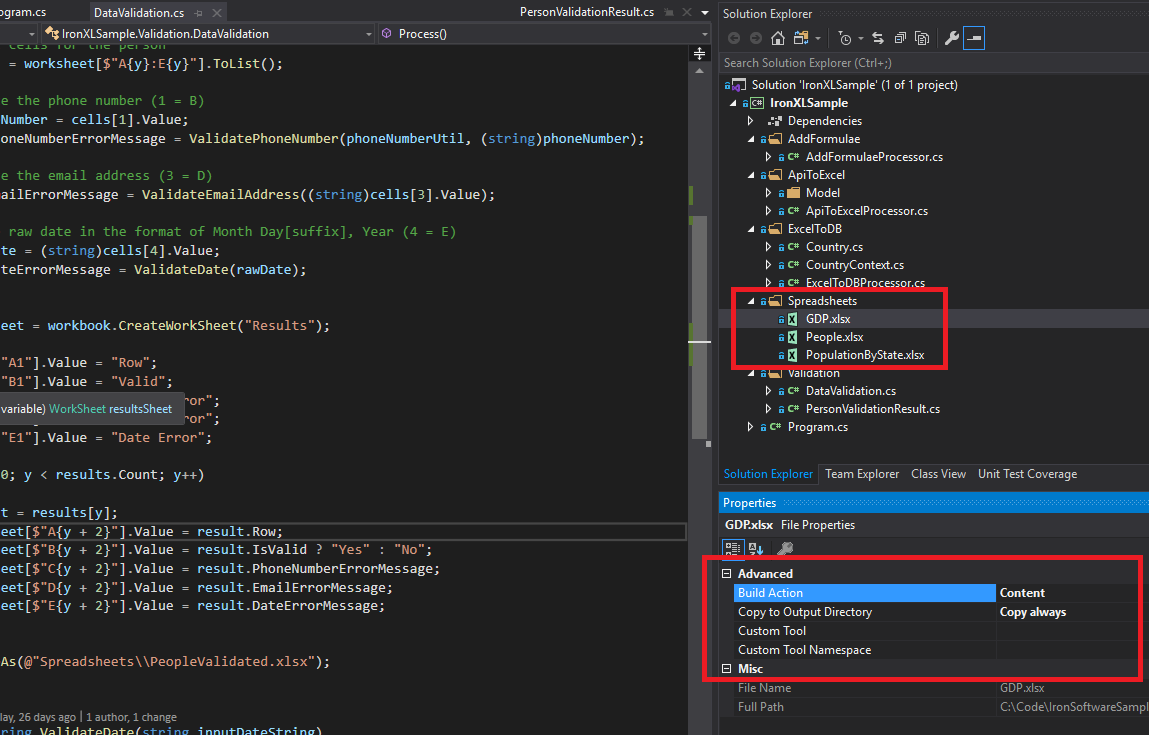
*Archivos de Excel de muestra (GDP.xlsx, People.xlsx, y PopulationByState.xlsx) usados a lo largo de este tutorial para demostrar varias operaciones de IronXL.*
---
## ¿Cómo puedo instalar la biblioteca IronXL C#?
---
Agregue la biblioteca `IronXL.Excel` a un proyecto .NET a través de NuGet o haciendo referencia al DLL directamente.
### Instalación del paquete NuGet IronXL
1. En Visual Studio, haz clic derecho en tu proyecto y selecciona "Administrar paquetes NuGet..."
2. Busque `IronXL.Excel` en la pestaña Explorar
3. Haz clic en el botón Instalar para añadir IronXL a tu proyecto
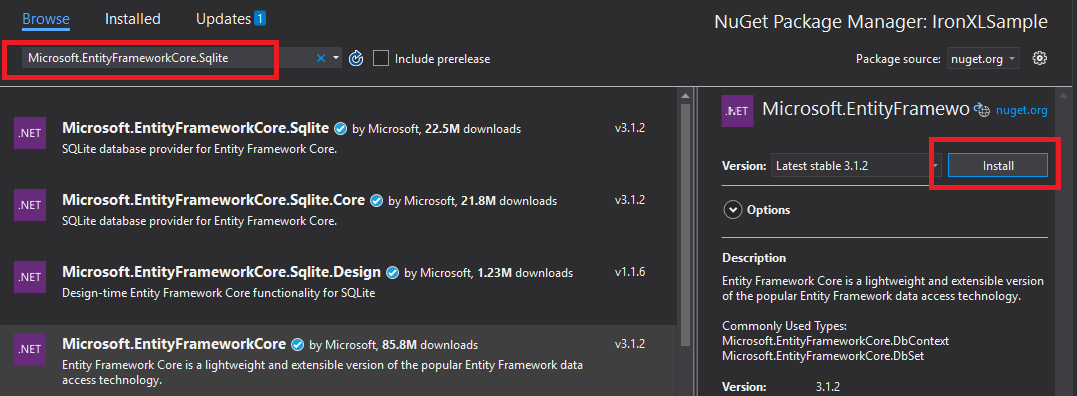
*Instalar IronXL a través del Administrador de Paquetes NuGet de Visual Studio proporciona gestión automática de dependencias.*
Alternativamente, instala IronXL usando la Consola del Administrador de Paquetes:
1. Abre la Consola del Administrador de Paquetes (Herramientas → Gestor de Paquetes NuGet → Consola del Administrador de Paquetes)
2. Ejecuta el comando de instalación:
```shell
:ProductInstall
```
También puedes [ver los detalles del paquete en el sitio web de NuGet](https://www.nuget.org/packages/IronXL.Excel/).
### Instalación manual
Para una instalación manual, descarga el [.NET Excel DLL](/csharp/excel/packages/IronXL.zip) de IronXL y referencia directamente en tu proyecto de Visual Studio.
## ¿Cómo cargo y leo un libro de Excel?
La clase [`WorkBook`](/csharp/excel/object-reference/api/IronXL.WorkBook.html) representa un archivo Excel completo. Cargue archivos de Excel usando el método `WorkBook.Load()`, que acepta rutas de archivos para los formatos XLS, XLSX, CSV y TSV.
```csharp
using IronXL;
using System;
using System.Linq;
// Load Excel file from specified path
WorkBook workBook = WorkBook.Load(@"Spreadsheets\GDP.xlsx");
Console.WriteLine("Workbook loaded successfully.");
// Access specific worksheet by name
WorkSheet sheet = workBook.GetWorkSheet("Sheet1");
// Read and display cell value
string cellValue = sheet["A1"].StringValue;
Console.WriteLine($"Cell A1 contains: {cellValue}");
// Perform additional operations
// Count non_empty cells in column A
int rowCount = sheet["A:A"].Count(cell => !cell.IsEmpty);
Console.WriteLine($"Column A has {rowCount} non_empty cells");
```
Cada `WorkBook` contiene múltiples objetos [`WorkSheet`](/csharp/excel/object-reference/api/IronXL.WorkSheet.html) que representan hojas de Excel individuales. Access worksheets by name using [`GetWorkSheet()`](/csharp/excel/object-reference/api/IronXL.WorkBook.html#IronXL_WorkBook_GetWorkSheet_System_String_):
```csharp
using IronXL;
using System;
// Get worksheet by name
WorkSheet workSheet = workBook.GetWorkSheet("GDPByCountry");
Console.WriteLine("Worksheet 'GDPByCountry' not found");
// List available worksheets
foreach (var sheet in workBook.WorkSheets)
{
Console.WriteLine($"Available: {sheet.Name}");
}
```
## ¿Cómo creo nuevos documentos de Excel en C#?
Cree nuevos documentos de Excel construyendo un objeto `WorkBook` con el formato de archivo deseado. IronXL soporta tanto formatos modernos XLSX como legados XLS.
```csharp
using IronXL;
// Create new XLSX workbook (recommended format)
WorkBook workBook = WorkBook.Create(ExcelFileFormat.XLSX);
// Set workbook metadata
workBook.Metadata.Author = "Your Application";
workBook.Metadata.Comments = "Generated by IronXL";
// Create new XLS workbook for legacy support
WorkBook legacyWorkBook = WorkBook.Create(ExcelFileFormat.XLS);
// Save the workbook
workBook.SaveAs("NewDocument.xlsx");
```
Nota: Use `ExcelFileFormat.XLS` solo cuando se requiera compatibilidad con Excel 2003 y versiones anteriores.
## ¿Cómo puedo agregar hojas de trabajo a un documento de Excel?
Un `WorkBook` de IronXL contiene una colección de hojas de trabajo. Entender esta estructura ayuda al crear archivos de Excel con múltiples hojas.

*Representación visual de la estructura del WorkBook que contiene múltiples objetos WorkSheet en IronXL.*
Cree nuevas hojas de trabajo usando `CreateWorkSheet()`:
```csharp
using IronXL;
// Create multiple worksheets with descriptive names
WorkSheet summarySheet = workBook.CreateWorkSheet("Summary");
WorkSheet dataSheet = workBook.CreateWorkSheet("RawData");
WorkSheet chartSheet = workBook.CreateWorkSheet("Charts");
// Set the active worksheet
workBook.SetActiveTab(0); // Makes "Summary" the active sheet
// Access default worksheet (first sheet)
WorkSheet defaultSheet = workBook.DefaultWorkSheet;
```
## ¿Cómo leo y edito valores de celda?
### Leer y editar una sola celda
Accede a las celdas individuales a través de la propiedad indexada de la hoja de trabajo. La clase [`Cell`](/csharp/excel/object-reference/api/IronXL.Cell.html) de IronXL proporciona propiedades de valor fuertemente tipadas.
```csharp
using IronXL;
using System;
using System.Linq;
// Load workbook and get worksheet
WorkBook workBook = WorkBook.Load("test.xlsx");
WorkSheet workSheet = workBook.DefaultWorkSheet;
// Access cell B1
IronXL.Cell cell = workSheet["B1"].First();
// Read cell value with type safety
string textValue = cell.StringValue;
int intValue = cell.IntValue;
decimal decimalValue = cell.DecimalValue;
DateTime? dateValue = cell.DateTimeValue;
// Check cell data type
if (cell.IsNumeric)
{
Console.WriteLine($"Numeric value: {cell.DecimalValue}");
}
else if (cell.IsText)
{
Console.WriteLine($"Text value: {cell.StringValue}");
}
```
La clase `Cell` ofrece múltiples propiedades para diferentes tipos de datos, convirtiendo automáticamente los valores cuando es posible. Para más operaciones de celda, ver el [tutorial de formateo de celda](/csharp/excel/how-to/set-cell-data-format/).
```csharp
// Write different data types to cells
workSheet["A1"].Value = "Product Name"; // String
workSheet["B1"].Value = 99.95m; // Decimal
workSheet["C1"].Value = DateTime.Today; // Date
workSheet["D1"].Formula = "=B1*1.2"; // Formula
// Format cells
workSheet["B1"].FormatString = "$#,##0.00"; // Currency format
workSheet["C1"].FormatString = "yyyy-MM-dd";// Date format
// Save changes
workBook.Save();
```
## ¿Cómo puedo trabajar con rangos de celdas?
La clase [`Range`](/csharp/excel/object-reference/api/IronXL.Range.html) representa una colección de celdas, permitiendo operaciones en bloque en los datos de Excel.
```csharp
using IronXL;
using Range = IronXL.Range;
// Select range using Excel notation
Range range = workSheet["D2:D101"];
// Alternative: Use Range class for dynamic selection
Range dynamicRange = workSheet.GetRange("D2:D101"); // Row 2_101, Column D
// Perform bulk operations
range.Value = 0; // Set all cells to 0
```
Procesa rangos eficientemente usando bucles cuando se conoce el conteo de celdas:
```cs
// Data validation example
public class ValidationResult
{
public int Row { get; set; }
public string PhoneError { get; set; }
public string EmailError { get; set; }
public string DateError { get; set; }
public bool IsValid => string.IsNullOrEmpty(PhoneError) &&
string.IsNullOrEmpty(EmailError) &&
string.IsNullOrEmpty(DateError);
}
// Validate data in rows 2-101
var results = new List<ValidationResult>();
for (int row = 2; row <= 101; row++)
{
var result = new ValidationResult { Row = row };
// Get row data efficiently
var phoneCell = workSheet[$"B{row}"];
var emailCell = workSheet[$"D{row}"];
var dateCell = workSheet[$"E{row}"];
// Validate phone number
if (!IsValidPhoneNumber(phoneCell.StringValue))
result.PhoneError = "Invalid phone format";
// Validate email
if (!IsValidEmail(emailCell.StringValue))
result.EmailError = "Invalid email format";
// Validate date
if (!dateCell.IsDateTime)
result.DateError = "Invalid date format";
results.Add(result);
}
// Helper methods
bool IsValidPhoneNumber(string phone) =>
System.Text.RegularExpressions.Regex.IsMatch(phone, @"^\d{3}-\d{3}-\d{4}$");
bool IsValidEmail(string email) =>
email.Contains("@") && email.Contains(".");
```
## ¿Cómo agrego fórmulas a hojas de cálculo de Excel?
Aplique fórmulas de Excel usando la propiedad [`Formula`](/csharp/excel/object-reference/api/IronXL.Cell.html#IronXL_Cell_Formula). IronXL soporta la sintaxis estándar de fórmulas de Excel.
```csharp
using IronXL;
// Add formulas to calculate percentages
int lastRow = 50;
for (int row = 2; row < lastRow; row++)
{
// Calculate percentage: current value / total
workSheet[$"C{row}"].Formula = $"=B{row}/B{lastRow}";
// Format as percentage
workSheet[$"C{row}"].FormatString = "0.00%";
}
// Add summary formulas
workSheet["B52"].Formula = "=SUM(B2:B50)"; // Sum
workSheet["B53"].Formula = "=AVERAGE(B2:B50)"; // Average
workSheet["B54"].Formula = "=MAX(B2:B50)"; // Maximum
workSheet["B55"].Formula = "=MIN(B2:B50)"; // Minimum
// Force formula evaluation
workBook.EvaluateAll();
```
Para editar fórmulas existentes, explora el [tutorial de fórmulas de Excel](/csharp/excel/how-to/edit-formulas/).
## ¿Cómo puedo validar los datos de una hoja de cálculo?
Un caso de uso común que veo es validar hojas de cálculo proporcionadas por el usuario antes de introducir los datos en una base de datos. El ejemplo a continuación verifica números de teléfono, correos electrónicos y fechas con expresiones regulares y comprobaciones de tipo integradas en IronXL.
```cs
using System.Text.RegularExpressions;
using IronXL;
// Validation implementation
for (int i = 2; i <= 101; i++)
{
var result = new PersonValidationResult { Row = i };
results.Add(result);
// Get cells for current person
var cells = workSheet[$"A{i}:E{i}"].ToList();
// Validate phone (column B)
string phone = cells[1].StringValue;
if (!Regex.IsMatch(phone, @"^\+?1?\d{10,14}$"))
{
result.PhoneNumberErrorMessage = "Invalid phone format";
}
// Validate email (column D)
string email = cells[3].StringValue;
if (!Regex.IsMatch(email, @"^[^@\s]+@[^@\s]+\.[^@\s]+$"))
{
result.EmailErrorMessage = "Invalid email address";
}
// Validate date (column E)
if (!cells[4].IsDateTime)
{
result.DateErrorMessage = "Invalid date format";
}
}
```
Guardar resultados de validación en una nueva hoja de trabajo:
```cs
// Create results worksheet
var resultsSheet = workBook.CreateWorkSheet("ValidationResults");
// Add headers
resultsSheet["A1"].Value = "Row";
resultsSheet["B1"].Value = "Valid";
resultsSheet["C1"].Value = "Phone Error";
resultsSheet["D1"].Value = "Email Error";
resultsSheet["E1"].Value = "Date Error";
// Style headers
resultsSheet["A1:E1"].Style.Font.Bold = true;
resultsSheet["A1:E1"].Style.SetBackgroundColor("#4472C4");
resultsSheet["A1:E1"].Style.Font.Color = "#FFFFFF";
// Output validation results
for (int i = 0; i < results.Count; i++)
{
var result = results[i];
int outputRow = i + 2;
resultsSheet[$"A{outputRow}"].Value = result.Row;
resultsSheet[$"B{outputRow}"].Value = result.IsValid ? "Yes" : "No";
resultsSheet[$"C{outputRow}"].Value = result.PhoneNumberErrorMessage ?? "";
resultsSheet[$"D{outputRow}"].Value = result.EmailErrorMessage ?? "";
resultsSheet[$"E{outputRow}"].Value = result.DateErrorMessage ?? "";
// Highlight invalid rows
if (!result.IsValid)
{
resultsSheet[$"A{outputRow}:E{outputRow}"].Style.SetBackgroundColor("#FFE6E6");
}
}
// Auto-fit columns
for (int col = 0; col < 5; col++)
{
resultsSheet.AutoSizeColumn(col);
}
// Save validated workbook
workBook.SaveAs(@"Spreadsheets\PeopleValidated.xlsx");
```
## ¿Cómo exportar datos de Excel a una base de datos?
Usa IronXL con Entity Framework para exportar datos de hojas de cálculo directamente a bases de datos. Este ejemplo demuestra la exportación de datos de PIB de países a SQLite.
```cs
using System;
using System.ComponentModel.DataAnnotations;
using Microsoft.EntityFrameworkCore;
using IronXL;
// Define entity model
public class Country
{
[Key]
public Guid Id { get; set; } = Guid.NewGuid();
[Required]
[MaxLength(100)]
public string Name { get; set; }
[Range(0, double.MaxValue)]
public decimal GDP { get; set; }
public DateTime ImportedDate { get; set; } = DateTime.UtcNow;
}
```
Configura el contexto de Entity Framework para operaciones de base de datos:
```cs
public class CountryContext : DbContext
{
public DbSet<Country> Countries { get; set; }
protected override void OnConfiguring(DbContextOptionsBuilder optionsBuilder)
{
// Configure SQLite connection
optionsBuilder.UseSqlite("Data Source=CountryGDP.db");
// Enable sensitive data logging in development
#if DEBUG
optionsBuilder.EnableSensitiveDataLogging();
#endif
}
protected override void OnModelCreating(ModelBuilder modelBuilder)
{
// Configure decimal precision
modelBuilder.Entity<Country>()
.Property(c => c.GDP)
.HasPrecision(18, 2);
}
}
```
[[i:(Nota: Para usar diferentes bases de datos, instale el paquete NuGet apropiado (por ejemplo, `Microsoft.EntityFrameworkCore.SqlServer` para SQL Server) y modifique la configuración de la conexión según corresponda.)]]
Importar datos de Excel a la base de datos:
```cs
using System.Threading.Tasks;
using IronXL;
using Microsoft.EntityFrameworkCore;
public async Task ImportGDPDataAsync()
{
try
{
// Load Excel file
var workBook = WorkBook.Load(@"Spreadsheets\GDP.xlsx");
var workSheet = workBook.GetWorkSheet("GDPByCountry");
using (var context = new CountryContext())
{
// Ensure database exists
await context.Database.EnsureCreatedAsync();
// Clear existing data (optional)
await context.Database.ExecuteSqlRawAsync("DELETE FROM Countries");
// Import data with progress tracking
int totalRows = 213;
for (int row = 2; row <= totalRows; row++)
{
// Read country data
var countryName = workSheet[$"A{row}"].StringValue;
var gdpValue = workSheet[$"B{row}"].DecimalValue;
// Skip empty rows
if (string.IsNullOrWhiteSpace(countryName))
continue;
// Create and add entity
var country = new Country
{
Name = countryName.Trim(),
GDP = gdpValue * 1_000_000 // Convert to actual value if in millions
};
await context.Countries.AddAsync(country);
// Save in batches for performance
if (row % 50 == 0)
{
await context.SaveChangesAsync();
Console.WriteLine($"Imported {row - 1} of {totalRows} countries");
}
}
// Save remaining records
await context.SaveChangesAsync();
Console.WriteLine($"Successfully imported {await context.Countries.CountAsync()} countries");
}
}
catch (Exception ex)
{
Console.WriteLine($"Import failed: {ex.Message}");
throw;
}
}
```
## ¿Cómo puedo importar datos de API en hojas de cálculo de Excel?
Combina IronXL con clientes HTTP para poblar hojas de cálculo con datos de API en vivo. Este ejemplo usa [RestClient.Net](https://github.com/MelbourneDeveloper/RestClient.Net) para obtener datos de países.
```cs
using System;
using System.Collections.Generic;
using System.Net.Http;
using System.Threading.Tasks;
using Newtonsoft.Json;
using IronXL;
// Define data model matching API response
public class RestCountry
{
public string Name { get; set; }
public long Population { get; set; }
public string Region { get; set; }
public string NumericCode { get; set; }
public List<Language> Languages { get; set; }
}
public class Language
{
public string Name { get; set; }
public string NativeName { get; set; }
}
// Fetch and process API data
public async Task ImportCountryDataAsync()
{
using var httpClient = new HttpClient();
try
{
// Call REST API
var response = await httpClient.GetStringAsync("https://restcountries.com/v3.1/all");
var countries = JsonConvert.DeserializeObject<List<RestCountry>>(response);
// Create new workbook
var workBook = WorkBook.Create(ExcelFileFormat.XLSX);
var workSheet = workBook.CreateWorkSheet("Countries");
// Add headers with styling
string[] headers = { "Country", "Population", "Region", "Code", "Language 1", "Language 2", "Language 3" };
for (int col = 0; col < headers.Length; col++)
{
var headerCell = workSheet[0, col];
headerCell.Value = headers[col];
headerCell.Style.Font.Bold = true;
headerCell.Style.SetBackgroundColor("#366092");
headerCell.Style.Font.Color = "#FFFFFF";
}
// Import country data
await ProcessCountryData(countries, workSheet);
// Save workbook
workBook.SaveAs("CountriesFromAPI.xlsx");
}
catch (Exception ex)
{
Console.WriteLine($"API import failed: {ex.Message}");
}
}
```
La API devuelve datos JSON en este formato:
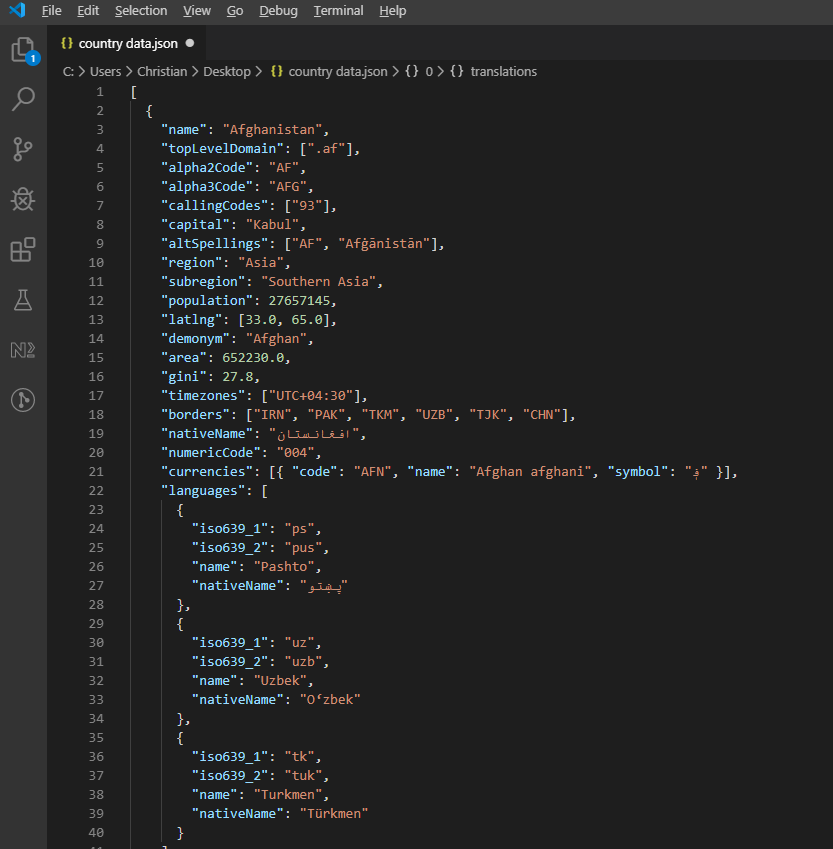
*Respuesta JSON de muestra de la REST Countries API mostrando información jerárquica de países.*
Procesa y escribe los datos de API a Excel:
```cs
private async Task ProcessCountryData(List<RestCountry> countries, WorkSheet workSheet)
{
for (int i = 0; i < countries.Count; i++)
{
var country = countries[i];
int row = i + 1; // Start from row 1 (after headers)
// Write basic country data
workSheet[$"A{row}"].Value = country.Name;
workSheet[$"B{row}"].Value = country.Population;
workSheet[$"C{row}"].Value = country.Region;
workSheet[$"D{row}"].Value = country.NumericCode;
// Format population with thousands separator
workSheet[$"B{row}"].FormatString = "#,##0";
// Add up to 3 languages
for (int langIndex = 0; langIndex < Math.Min(3, country.Languages?.Count ?? 0); langIndex++)
{
var language = country.Languages[langIndex];
string columnLetter = ((char)('E' + langIndex)).ToString();
workSheet[$"{columnLetter}{row}"].Value = language.Name;
}
// Add conditional formatting for regions
if (country.Region == "Europe")
{
workSheet[$"C{row}"].Style.SetBackgroundColor("#E6F3FF");
}
else if (country.Region == "Asia")
{
workSheet[$"C{row}"].Style.SetBackgroundColor("#FFF2E6");
}
// Show progress every 50 countries
if (i % 50 == 0)
{
Console.WriteLine($"Processed {i} of {countries.Count} countries");
}
}
// Auto-size all columns
for (int col = 0; col < 7; col++)
{
workSheet.AutoSizeColumn(col);
}
}
```
---
## Errores Comunes
Algunas cosas afectan a las personas con suficiente frecuencia como para merecer su propia sección.
### Las celdas vacías devuelven 0, no null
Esto me afectó temprano. Llamar a `sheet["A1"].IntValue` (o `DecimalValue`, o `DoubleValue`) en una celda en blanco devuelve `0`, no `null`. Si estás sumando o promediando una columna con huecos, los espacios en blanco se convierten silenciosamente en ceros y sesgan el resultado. Ahora protejo lecturas en cualquier hoja donde los valores faltantes son posibles:
```cs
var cell = sheet["B5"];
if (!cell.IsEmpty)
{
total += cell.DecimalValue;
}
```
`Cell.IsEmpty` es barato, por lo que lo uso por defecto siempre que la hoja de cálculo sea proporcionada por el usuario y no generada por máquina.
### Las fechas se devuelven como números de serie si solicitas el tipo incorrecto
Excel almacena fechas como números de serie bajo el capó (45292 significa 2024-01-01, por ejemplo). La pregunta más común sobre manejo de fechas en nuestra bandeja de soporte es "¿por qué mi fecha aparece como 45292?" La respuesta casi siempre es que la celda se leyó como `StringValue` o `IntValue` en lugar de `DateTimeValue`:
```cs
// What you probably want:
DateTime birthday = sheet["E2"].DateTimeValue;
// What gives you "45292":
string birthday = sheet["E2"].StringValue;
```
`Cell.IsDateTime` le dirá si la celda fue creada como fecha en primer lugar, lo cual es útil para las líneas de validación donde el formato de entrada no está garantizado.
### Los índices numéricos de celdas son basados en 0, pero las cadenas A1 son basadas en 1
Cubierto arriba en el párrafo de migración de Interop, pero vale la pena reiterarlo porque atrapa incluso a personas que nunca han estado cerca de COM. `sheet[0, 0]` es la misma celda que `sheet["A1"]`. Mezclar los dos estilos en el mismo bucle es como se introducen los errores de desajuste de uno único. Escojo una forma por archivo y me quedo con ella; la forma de cadena `["A1"]` es mi opción por defecto porque coincide con lo que se ve en la propia hoja de cálculo.
<a id="sample-project"></a>
### Proyecto de ejemplo para los números de referencia
Si deseas reproducir los números de tiempo de antes, el arnés es una pequeña aplicación de consola .NET 9:
```cs
// ReadExcelBenchmark/Program.cs (excerpt)
IronXL.License.LicenseKey = Environment.GetEnvironmentVariable("IRONXL_LICENSE_KEY");
var sw = Stopwatch.StartNew();
var workbook = WorkBook.Load("GDP.xlsx");
decimal sum = workbook.WorkSheets.First()["B2:B214"].Sum();
sw.Stop();
Console.WriteLine($"cold: {sw.Elapsed.TotalMilliseconds:F1} ms");
```
Ejecutelo bajo `dotnet run -c Release`, genere los dos libros de trabajo de muestra en el primer lanzamiento, y puede sustituir sus propios archivos para ver cómo se mueven los números con el tamaño y la complejidad del archivo.
---
## Referencia de objetos y recursos
La [Referencia de API de IronXL](/csharp/excel/object-reference/api/) cubre cada clase y método, incluidos los que este tutorial no toca.
Tutoriales adicionales para operaciones en Excel:
- [Crear archivos de Excel programáticamente](/csharp/excel/tutorials/create-excel-file-net/)
- [Guía de formateo y estilo de Excel](/csharp/excel/how-to/set-cell-data-format/)
- [Trabajando con fórmulas de Excel](/csharp/excel/how-to/edit-formulas/)
- [Tutorial de creación de gráficos de Excel](/csharp/excel/how-to/csharp-excel-chart-create-edit-tutorial/)
## Resumen
`IronXL.Excel` lee y manipula archivos de Excel en los formatos XLS, XLSX, CSV y TSV. Se ejecuta sin [Microsoft Excel](https://products.office.com/en-us/excel) o Interop en la máquina host.
Para manipulación de hojas de cálculo basada en la nube, también puedes explorar la [Biblioteca del Cliente API de Google Sheets](https://developers.google.com/api-client-library/dotnet/apis/sheets/v4) for .NET, que complementa las capacidades de archivos locales de IronXL.
¿Listo para implementar automatización de Excel en tus proyectos C#? [Descarga IronXL](download-modal) o explora [opciones de licencias](/csharp/excel/licensing/) para uso en producción.
La primera vez que tuve que leer un archivo Excel desde un servicio .NET, utilicé Microsoft Interop y lo lamenté casi de inmediato. Necesitaba Office instalado en el servidor, filtraba procesos cuando se lanzaba una excepción a medio método y fallaba bajo cualquier tipo de carga. Construimos IronXL porque seguíamos enfrentándonos a esos mismos obstáculos. Esta guía es cómo actualmente leo XLS y XLSX en producción, incluyendo las trampas que muerden a la gente más.
La mayoría de lo que sigue es lectura directa del formato de archivo, sin involucrar la aplicación de Excel: carga un libro de trabajo, extrae valores por dirección de celda, valida rangos, introduce los datos en una base de datos o una API. La biblioteca maneja XLS y XLSX sin necesitar Microsoft Office en la máquina.
Inicio rápido: Lea una celda con IronXL en una línea
Una sola línea carga un libro de trabajo de Excel y extrae un valor de una celda. Sin Interop, sin configuración, sin proceso de Excel corriendo en segundo plano.
1Install IronXL with NuGet Package Manager
PM > Install-Package IronXL.Excel
Install-Package IronXL.Excel
2Copie y ejecute este fragmento de código.
var value = IronXL.WorkBook.Load("file.xlsx").GetWorkSheet(0)["A1"].StringValue;
var value = IronXL.WorkBook.Load("file.xlsx").GetWorkSheet(0)["A1"].StringValue;
Dim value = WorkBook.Load("file.xlsx").GetWorkSheet(0)("A1").StringValue
Dim value = WorkBook.Load("file.xlsx").GetWorkSheet(0)("A1").StringValue
3Despliegue para probar en su entorno real
Comienza a usar IronXL en tu proyecto hoy mismo con una prueba gratuita
¿Cómo configuro IronXL para leer archivos de Excel en C#?
La configuración en sí es una instalación de NuGet y una directiva using IronXL;. La biblioteca maneja tanto .XLS como .XLSX, por lo que la misma ruta de código funciona para hojas de cálculo heredadas y el formato moderno de XML abierto.
Cargue y lea libros de trabajo de Excel usando WorkBook.Load()
Acceda a las hojas de trabajo con el método GetWorkSheet()
Lea los valores de las celdas usando direcciones al estilo de Excel como sheet["A1"].Value
Validar y procesar datos de hojas de cálculo programáticamente
Exportar datos a bases de datos usando Entity Framework
IronXL lee y edita documentos de Microsoft Excel desde C# sin depender del producto Office. It does not require Microsoft Excel installed, and it does not need Interop. Vea la comparación con Microsoft.Office.Interop.Excel para las diferencias en enfoque y superficie de la API.
Si estás viniendo de Interop, el modelo mental es diferente y vale la pena entenderlo bien antes de escribir cualquier código. Interop lanza un proceso real de Excel.exe detrás de escena y su código automatiza esa aplicación a través de COM. IronXL lee los bytes de archivo directamente en memoria y los presenta como objetos. Sin proceso de Excel, sin bomba de mensajes, sin marshaling COM. La consecuencia práctica que veo que más confunde a la gente: Interop indexa las celdas desde [1, 1] (basado en 1, al igual que la interfaz de Excel), pero el acceso por fila/columna de IronXL se basa en 0. El indexador de cadenas ["A1"] coincide con la interfaz del usuario de la hoja de cálculo en ambas bibliotecas, por lo que cuando puede permanecer en la forma de cadena, la migración se lee casi idénticamente. Los errores de desajuste de uno único que ocupan toda la tarde provienen todos del indexador numérico.
IronXL Incluye:
Soporte dedicado de producto por parte de nuestros ingenieros .NET
Instalación fácil via Microsoft Visual Studio
Prueba gratuita para el desarrollo. Licencias de liteLicense
Tanto los proyectos en C# como en VB.NET pueden usar IronXL de la misma manera para leer o crear archivos Excel.
Lectura de archivos Excel .XLS y .XLSX con IronXL
Aquí tienes el flujo de trabajo esencial para leer archivos Excel usando IronXL:
Utilice el método WorkBook.Load() para leer cualquier documento XLS, XLSX o CSV
Acceda a los valores de las celdas usando direcciones al estilo de Excel: sheet["A11"].DecimalValue
using IronXL;using System;using System.Linq;// Load Excel workbook from file pathWorkBook workBook = WorkBook.Load("test.xlsx");// Access the first worksheet using LINQWorkSheet workSheet = workBook.WorkSheets.First();// Read integer value from cell A2int cellValue = workSheet["A2"].IntValue;Console.WriteLine($"Cell A2 value: {cellValue}");// Iterate through a range of cellsforeach (var cell in workSheet["A2:A10"]){Console.WriteLine("Cell {0} has value '{1}'", cell.AddressString, cell.Text);}// Advanced Operations with LINQ// Calculate sum using built_in Sum() methoddecimal sum = workSheet["A2:A10"].Sum();// Find maximum value using LINQdecimal max = workSheet["A2:A10"].Max(c => c.DecimalValue);// Output calculated resultsConsole.WriteLine($"Sum of A2:A10: {sum}");Console.WriteLine($"Maximum value: {max}");
using IronXL;
using System;
using System.Linq;

// Load Excel workbook from file path
WorkBook workBook = WorkBook.Load("test.xlsx");

// Access the first worksheet using LINQ
WorkSheet workSheet = workBook.WorkSheets.First();

// Read integer value from cell A2
int cellValue = workSheet["A2"].IntValue;
Console.WriteLine($"Cell A2 value: {cellValue}");

// Iterate through a range of cells
foreach (var cell in workSheet["A2:A10"])
{
    Console.WriteLine("Cell {0} has value '{1}'", cell.AddressString, cell.Text);
}

// Advanced Operations with LINQ
// Calculate sum using built_in Sum() method
decimal sum = workSheet["A2:A10"].Sum();

// Find maximum value using LINQ
decimal max = workSheet["A2:A10"].Max(c => c.DecimalValue);

// Output calculated results
Console.WriteLine($"Sum of A2:A10: {sum}");
Console.WriteLine($"Maximum value: {max}");
ImportsIronXLImportsSystemImportsSystem.Linq' Load Excel workbook from file pathDim workBook AsWorkBook = WorkBook.Load("test.xlsx")' Access the first worksheet using LINQDim workSheet AsWorkSheet = workBook.WorkSheets.First()' Read integer value from cell A2Dim cellValue AsInteger = workSheet("A2").IntValueConsole.WriteLine($"Cell A2 value: {cellValue}")' Iterate through a range of cellsFor Each cell In workSheet("A2:A10")Console.WriteLine("Cell {0} has value '{1}'", cell.AddressString, cell.Text)Next' Advanced Operations with LINQ' Calculate sum using built_in Sum() methodDim sum AsDecimal = workSheet("A2:A10").Sum()' Find maximum value using LINQDim max AsDecimal = workSheet("A2:A10").Max(Function(c) c.DecimalValue)' Output calculated resultsConsole.WriteLine($"Sum of A2:A10: {sum}")Console.WriteLine($"Maximum value: {max}")
Imports IronXL
Imports System
Imports System.Linq

' Load Excel workbook from file path
Dim workBook As WorkBook = WorkBook.Load("test.xlsx")

' Access the first worksheet using LINQ
Dim workSheet As WorkSheet = workBook.WorkSheets.First()

' Read integer value from cell A2
Dim cellValue As Integer = workSheet("A2").IntValue
Console.WriteLine($"Cell A2 value: {cellValue}")

' Iterate through a range of cells
For Each cell In workSheet("A2:A10")
    Console.WriteLine("Cell {0} has value '{1}'", cell.AddressString, cell.Text)
Next

' Advanced Operations with LINQ
' Calculate sum using built_in Sum() method
Dim sum As Decimal = workSheet("A2:A10").Sum()

' Find maximum value using LINQ
Dim max As Decimal = workSheet("A2:A10").Max(Function(c) c.DecimalValue)

' Output calculated results
Console.WriteLine($"Sum of A2:A10: {sum}")
Console.WriteLine($"Maximum value: {max}")
El fragmento recorre las cuatro operaciones que usarás constantemente: cargar un libro de trabajo, leer una celda por dirección, iterar un rango y ejecutar cálculos contra un rango. WorkBook.Load() detecta el formato del archivo a partir de la extensión, y la sintaxis de rango ["A2:A10"] coincide con la selección de celdas que escribiría directamente en Excel. Los rangos son IEnumerable<Cell>, por lo que LINQ funciona directamente contra ellos para sumas, filtros y proyecciones.
¿Qué tan rápido es esto en la práctica?
Para darte una idea del rendimiento realista, escribí un pequeño proyecto de consola que carga el mismo tipo de archivos usados a lo largo de este tutorial y mide el tiempo de las operaciones. El arnés vive en un proyecto de ejemplo ReadExcelBenchmark que puedes ejecutar tú mismo. En una caja de Windows 11 ejecutando .NET 9.0.7, los números en múltiples ejecuciones terminan aproximadamente aquí:
Operación
Primera carga en frío (proceso fresco)
Promedio cálido sobre 10 iteraciones
Cargue GDP.xlsx (213 filas) y sume la columna B
~270 ms
~40 ms (rango 25–70 ms)
Cargue People.xlsx (100 filas) y valide con regex cada celda
~30 ms
~28 ms
El primer número en frío está dominado por la carga de ensamblado de IronXL y el calentamiento JIT; el segundo número en frío es mucho menor porque el ensamblado ya está en memoria para entonces. Las ejecuciones en caliente se estabilizan en una banda estrecha una vez que el JIT ha compilado las rutas críticas.
Si está viendo cargas de varios segundos en archivos de este tamaño, el culpable casi siempre es llamar a WorkBook.Load() dentro de un bucle en lugar de una vez fuera de él. Carga el libro de trabajo una vez, luego itera las celdas o filas que realmente necesitas. Veo ese patrón exacto en aproximadamente la mitad de los tickets de soporte "IronXL es lento" que recibimos.
Los ejemplos de código en este tutorial trabajan con tres hojas de cálculo de Excel de muestra que muestran diferentes escenarios de datos:
Archivos de Excel de muestra (GDP.xlsx, People.xlsx, y PopulationByState.xlsx) usados a lo largo de este tutorial para demostrar varias operaciones de IronXL.
¿Cómo puedo instalar la biblioteca IronXL C#?
Agregue la biblioteca IronXL.Excel a un proyecto .NET a través de NuGet o haciendo referencia al DLL directamente.
Instalación del paquete NuGet IronXL
En Visual Studio, haz clic derecho en tu proyecto y selecciona "Administrar paquetes NuGet..."
Busque IronXL.Excel en la pestaña Explorar
Haz clic en el botón Instalar para añadir IronXL a tu proyecto
Instalar IronXL a través del Administrador de Paquetes NuGet de Visual Studio proporciona gestión automática de dependencias.
Alternativamente, instala IronXL usando la Consola del Administrador de Paquetes:
Abre la Consola del Administrador de Paquetes (Herramientas → Gestor de Paquetes NuGet → Consola del Administrador de Paquetes)
Para una instalación manual, descarga el .NET Excel DLL de IronXL y referencia directamente en tu proyecto de Visual Studio.
¿Cómo cargo y leo un libro de Excel?
La clase WorkBook representa un archivo Excel completo. Cargue archivos de Excel usando el método WorkBook.Load(), que acepta rutas de archivos para los formatos XLS, XLSX, CSV y TSV.
using IronXL;using System;using System.Linq;// Load Excel file from specified pathWorkBook workBook = WorkBook.Load(@"Spreadsheets\GDP.xlsx");Console.WriteLine("Workbook loaded successfully.");// Access specific worksheet by nameWorkSheet sheet = workBook.GetWorkSheet("Sheet1");// Read and display cell valuestring cellValue = sheet["A1"].StringValue;Console.WriteLine($"Cell A1 contains: {cellValue}");// Perform additional operations// Count non_empty cells in column Aint rowCount = sheet["A:A"].Count(cell => !cell.IsEmpty);Console.WriteLine($"Column A has {rowCount} non_empty cells");
using IronXL;
using System;
using System.Linq;

// Load Excel file from specified path
WorkBook workBook = WorkBook.Load(@"Spreadsheets\GDP.xlsx");

Console.WriteLine("Workbook loaded successfully.");

// Access specific worksheet by name
WorkSheet sheet = workBook.GetWorkSheet("Sheet1");

// Read and display cell value
string cellValue = sheet["A1"].StringValue;
Console.WriteLine($"Cell A1 contains: {cellValue}");

// Perform additional operations
// Count non_empty cells in column A
int rowCount = sheet["A:A"].Count(cell => !cell.IsEmpty);
Console.WriteLine($"Column A has {rowCount} non_empty cells");
ImportsIronXLImportsSystemImportsSystem.Linq' Load Excel file from specified pathDim workBook AsWorkBook = WorkBook.Load("Spreadsheets\GDP.xlsx")Console.WriteLine("Workbook loaded successfully.")' Access specific worksheet by nameDim sheet AsWorkSheet = workBook.GetWorkSheet("Sheet1")' Read and display cell valueDim cellValue AsString = sheet("A1").StringValueConsole.WriteLine($"Cell A1 contains: {cellValue}")' Perform additional operations' Count non_empty cells in column ADim rowCount AsInteger = sheet("A:A").Count(Function(cell) Not cell.IsEmpty)Console.WriteLine($"Column A has {rowCount} non_empty cells")
Imports IronXL
Imports System
Imports System.Linq

' Load Excel file from specified path
Dim workBook As WorkBook = WorkBook.Load("Spreadsheets\GDP.xlsx")

Console.WriteLine("Workbook loaded successfully.")

' Access specific worksheet by name
Dim sheet As WorkSheet = workBook.GetWorkSheet("Sheet1")

' Read and display cell value
Dim cellValue As String = sheet("A1").StringValue
Console.WriteLine($"Cell A1 contains: {cellValue}")

' Perform additional operations
' Count non_empty cells in column A
Dim rowCount As Integer = sheet("A:A").Count(Function(cell) Not cell.IsEmpty)
Console.WriteLine($"Column A has {rowCount} non_empty cells")
Cada WorkBook contiene múltiples objetos WorkSheet que representan hojas de Excel individuales. Access worksheets by name using GetWorkSheet():
using IronXL;using System;// Get worksheet by nameWorkSheet workSheet = workBook.GetWorkSheet("GDPByCountry");Console.WriteLine("Worksheet 'GDPByCountry' not found");// List available worksheetsforeach (var sheet in workBook.WorkSheets){Console.WriteLine($"Available: {sheet.Name}");}
using IronXL;
using System;

// Get worksheet by name
WorkSheet workSheet = workBook.GetWorkSheet("GDPByCountry");

Console.WriteLine("Worksheet 'GDPByCountry' not found");
// List available worksheets
foreach (var sheet in workBook.WorkSheets)
{
    Console.WriteLine($"Available: {sheet.Name}");
}
ImportsIronXLImportsSystem' Get worksheet by nameDim workSheet AsWorkSheet = workBook.GetWorkSheet("GDPByCountry")Console.WriteLine("Worksheet 'GDPByCountry' not found")' List available worksheetsFor Each sheet In workBook.WorkSheetsConsole.WriteLine($"Available: {sheet.Name}")Next
Imports IronXL
Imports System

' Get worksheet by name
Dim workSheet As WorkSheet = workBook.GetWorkSheet("GDPByCountry")

Console.WriteLine("Worksheet 'GDPByCountry' not found")
' List available worksheets
For Each sheet In workBook.WorkSheets
    Console.WriteLine($"Available: {sheet.Name}")
Next
¿Cómo creo nuevos documentos de Excel en C#?
Cree nuevos documentos de Excel construyendo un objeto WorkBook con el formato de archivo deseado. IronXL soporta tanto formatos modernos XLSX como legados XLS.
using IronXL;// Create new XLSX workbook (recommended format)WorkBook workBook = WorkBook.Create(ExcelFileFormat.XLSX);// Set workbook metadataworkBook.Metadata.Author = "Your Application";workBook.Metadata.Comments = "Generated by IronXL";// Create new XLS workbook for legacy supportWorkBook legacyWorkBook = WorkBook.Create(ExcelFileFormat.XLS);// Save the workbookworkBook.SaveAs("NewDocument.xlsx");
using IronXL;

// Create new XLSX workbook (recommended format)
WorkBook workBook = WorkBook.Create(ExcelFileFormat.XLSX);

// Set workbook metadata
workBook.Metadata.Author = "Your Application";
workBook.Metadata.Comments = "Generated by IronXL";

// Create new XLS workbook for legacy support
WorkBook legacyWorkBook = WorkBook.Create(ExcelFileFormat.XLS);

// Save the workbook
workBook.SaveAs("NewDocument.xlsx");
ImportsIronXL' Create new XLSX workbook (recommended format)Private workBook AsWorkBook = WorkBook.Create(ExcelFileFormat.XLSX)' Set workbook metadataworkBook.Metadata.Author = "Your Application"workBook.Metadata.Comments = "Generated by IronXL"' Create new XLS workbook for legacy supportDim legacyWorkBook AsWorkBook = WorkBook.Create(ExcelFileFormat.XLS)' Save the workbookworkBook.SaveAs("NewDocument.xlsx")
Imports IronXL

' Create new XLSX workbook (recommended format)
Private workBook As WorkBook = WorkBook.Create(ExcelFileFormat.XLSX)

' Set workbook metadata
workBook.Metadata.Author = "Your Application"
workBook.Metadata.Comments = "Generated by IronXL"

' Create new XLS workbook for legacy support
Dim legacyWorkBook As WorkBook = WorkBook.Create(ExcelFileFormat.XLS)

' Save the workbook
workBook.SaveAs("NewDocument.xlsx")
Nota: Use ExcelFileFormat.XLS solo cuando se requiera compatibilidad con Excel 2003 y versiones anteriores.
¿Cómo puedo agregar hojas de trabajo a un documento de Excel?
Un WorkBook de IronXL contiene una colección de hojas de trabajo. Entender esta estructura ayuda al crear archivos de Excel con múltiples hojas.
Representación visual de la estructura del WorkBook que contiene múltiples objetos WorkSheet en IronXL.
Cree nuevas hojas de trabajo usando CreateWorkSheet():
using IronXL;// Create multiple worksheets with descriptive namesWorkSheet summarySheet = workBook.CreateWorkSheet("Summary");WorkSheet dataSheet = workBook.CreateWorkSheet("RawData");WorkSheet chartSheet = workBook.CreateWorkSheet("Charts");// Set the active worksheetworkBook.SetActiveTab(0); // Makes "Summary" the active sheet// Access default worksheet (first sheet)WorkSheet defaultSheet = workBook.DefaultWorkSheet;
using IronXL;

// Create multiple worksheets with descriptive names
WorkSheet summarySheet = workBook.CreateWorkSheet("Summary");
WorkSheet dataSheet = workBook.CreateWorkSheet("RawData");
WorkSheet chartSheet = workBook.CreateWorkSheet("Charts");

// Set the active worksheet
workBook.SetActiveTab(0); // Makes "Summary" the active sheet

// Access default worksheet (first sheet)
WorkSheet defaultSheet = workBook.DefaultWorkSheet;
ImportsIronXL' Create multiple worksheets with descriptive namesDim summarySheet AsWorkSheet = workBook.CreateWorkSheet("Summary")Dim dataSheet AsWorkSheet = workBook.CreateWorkSheet("RawData")Dim chartSheet AsWorkSheet = workBook.CreateWorkSheet("Charts")' Set the active worksheetworkBook.SetActiveTab(0) ' Makes "Summary" the active sheet' Access default worksheet (first sheet)Dim defaultSheet AsWorkSheet = workBook.DefaultWorkSheet
Imports IronXL

' Create multiple worksheets with descriptive names
Dim summarySheet As WorkSheet = workBook.CreateWorkSheet("Summary")
Dim dataSheet As WorkSheet = workBook.CreateWorkSheet("RawData")
Dim chartSheet As WorkSheet = workBook.CreateWorkSheet("Charts")

' Set the active worksheet
workBook.SetActiveTab(0) ' Makes "Summary" the active sheet

' Access default worksheet (first sheet)
Dim defaultSheet As WorkSheet = workBook.DefaultWorkSheet
¿Cómo leo y edito valores de celda?
Leer y editar una sola celda
Accede a las celdas individuales a través de la propiedad indexada de la hoja de trabajo. La clase Cell de IronXL proporciona propiedades de valor fuertemente tipadas.
using IronXL;using System;using System.Linq;// Load workbook and get worksheetWorkBook workBook = WorkBook.Load("test.xlsx");WorkSheet workSheet = workBook.DefaultWorkSheet;// Access cell B1IronXL.Cell cell = workSheet["B1"].First();// Read cell value with type safetystring textValue = cell.StringValue;int intValue = cell.IntValue;decimal decimalValue = cell.DecimalValue;DateTime? dateValue = cell.DateTimeValue;// Check cell data typeif (cell.IsNumeric){Console.WriteLine($"Numeric value: {cell.DecimalValue}");}else if (cell.IsText){Console.WriteLine($"Text value: {cell.StringValue}");}
using IronXL;
using System;
using System.Linq;

// Load workbook and get worksheet
WorkBook workBook = WorkBook.Load("test.xlsx");
WorkSheet workSheet = workBook.DefaultWorkSheet;

// Access cell B1
IronXL.Cell cell = workSheet["B1"].First();

// Read cell value with type safety
string textValue = cell.StringValue;
int intValue = cell.IntValue;
decimal decimalValue = cell.DecimalValue;
DateTime? dateValue = cell.DateTimeValue;

// Check cell data type
if (cell.IsNumeric)
{
    Console.WriteLine($"Numeric value: {cell.DecimalValue}");
}
else if (cell.IsText)
{
    Console.WriteLine($"Text value: {cell.StringValue}");
}
ImportsIronXLImportsSystemImportsSystem.Linq' Load workbook and get worksheetDim workBook AsWorkBook = WorkBook.Load("test.xlsx")Dim workSheet AsWorkSheet = workBook.DefaultWorkSheet' Access cell B1Dim cell AsIronXL.Cell = workSheet("B1").First()' Read cell value with type safetyDim textValue AsString = cell.StringValueDim intValue AsInteger = cell.IntValueDim decimalValue AsDecimal = cell.DecimalValueDim dateValue AsDateTime? = cell.DateTimeValue' Check cell data typeIf cell.IsNumericThenConsole.WriteLine($"Numeric value: {cell.DecimalValue}")ElseIf cell.IsTextThenConsole.WriteLine($"Text value: {cell.StringValue}")End If
Imports IronXL
Imports System
Imports System.Linq

' Load workbook and get worksheet
Dim workBook As WorkBook = WorkBook.Load("test.xlsx")
Dim workSheet As WorkSheet = workBook.DefaultWorkSheet

' Access cell B1
Dim cell As IronXL.Cell = workSheet("B1").First()

' Read cell value with type safety
Dim textValue As String = cell.StringValue
Dim intValue As Integer = cell.IntValue
Dim decimalValue As Decimal = cell.DecimalValue
Dim dateValue As DateTime? = cell.DateTimeValue

' Check cell data type
If cell.IsNumeric Then
    Console.WriteLine($"Numeric value: {cell.DecimalValue}")
ElseIf cell.IsText Then
    Console.WriteLine($"Text value: {cell.StringValue}")
End If
La clase Cell ofrece múltiples propiedades para diferentes tipos de datos, convirtiendo automáticamente los valores cuando es posible. Para más operaciones de celda, ver el tutorial de formateo de celda.
// Write different data types to cellsworkSheet["A1"].Value = "Product Name"; // StringworkSheet["B1"].Value = 99.95m; // DecimalworkSheet["C1"].Value = DateTime.Today; // DateworkSheet["D1"].Formula = "=B1*1.2"; // Formula // Format cellsworkSheet["B1"].FormatString = "$#,##0.00"; // Currency formatworkSheet["C1"].FormatString = "yyyy-MM-dd";// Date format // Save changesworkBook.Save();
// Write different data types to cells
workSheet["A1"].Value = "Product Name";     // String
workSheet["B1"].Value = 99.95m;             // Decimal
workSheet["C1"].Value = DateTime.Today;     // Date
workSheet["D1"].Formula = "=B1*1.2";        // Formula
                                            // Format cells
workSheet["B1"].FormatString = "$#,##0.00"; // Currency format
workSheet["C1"].FormatString = "yyyy-MM-dd";// Date format
                                            // Save changes
workBook.Save();
' Write different data types to cellsworkSheet("A1").Value = "Product Name" ' StringworkSheet("B1").Value = 99.95D ' DecimalworkSheet("C1").Value = DateTime.Today' DateworkSheet("D1").Formula = "=B1*1.2" ' Formula ' Format cellsworkSheet("B1").FormatString = "$#,##0.00" ' Currency formatworkSheet("C1").FormatString = "yyyy-MM-dd" ' Date format ' Save changesworkBook.Save()
' Write different data types to cells
workSheet("A1").Value = "Product Name" ' String
workSheet("B1").Value = 99.95D ' Decimal
workSheet("C1").Value = DateTime.Today ' Date
workSheet("D1").Formula = "=B1*1.2" ' Formula
											' Format cells
workSheet("B1").FormatString = "$#,##0.00" ' Currency format
workSheet("C1").FormatString = "yyyy-MM-dd" ' Date format
											' Save changes
workBook.Save()
¿Cómo puedo trabajar con rangos de celdas?
La clase Range representa una colección de celdas, permitiendo operaciones en bloque en los datos de Excel.
using IronXL;using Range = IronXL.Range;// Select range using Excel notationRange range = workSheet["D2:D101"];// Alternative: Use Range class for dynamic selectionRange dynamicRange = workSheet.GetRange("D2:D101"); // Row 2_101, Column D// Perform bulk operationsrange.Value = 0; // Set all cells to 0
using IronXL;
using Range = IronXL.Range;

// Select range using Excel notation
Range range = workSheet["D2:D101"];

// Alternative: Use Range class for dynamic selection
Range dynamicRange = workSheet.GetRange("D2:D101"); // Row 2_101, Column D

// Perform bulk operations
range.Value = 0; // Set all cells to 0
ImportsIronXL' Select range using Excel notationDim range AsRange = workSheet("D2:D101")' Alternative: Use Range class for dynamic selectionDim dynamicRange AsRange = workSheet.GetRange("D2:D101") ' Row 2_101, Column D' Perform bulk operationsrange.Value = 0 ' Set all cells to 0
Imports IronXL

' Select range using Excel notation
Dim range As Range = workSheet("D2:D101")

' Alternative: Use Range class for dynamic selection
Dim dynamicRange As Range = workSheet.GetRange("D2:D101") ' Row 2_101, Column D

' Perform bulk operations
range.Value = 0 ' Set all cells to 0
Procesa rangos eficientemente usando bucles cuando se conoce el conteo de celdas:
// Data validation examplepublic class ValidationResult{ public intRow { get; set; } public stringPhoneError { get; set; } public stringEmailError { get; set; } public stringDateError { get; set; } public boolIsValid => string.IsNullOrEmpty(PhoneError) && string.IsNullOrEmpty(EmailError) && string.IsNullOrEmpty(DateError);}// Validate data in rows 2-101var results = new List<ValidationResult>();for (int row = 2; row <= 101; row++){ var result = new ValidationResult { Row = row }; // Get row data efficiently var phoneCell = workSheet[$"B{row}"]; var emailCell = workSheet[$"D{row}"]; var dateCell = workSheet[$"E{row}"]; // Validate phone number if (!IsValidPhoneNumber(phoneCell.StringValue)) result.PhoneError = "Invalid phone format"; // Validate email if (!IsValidEmail(emailCell.StringValue)) result.EmailError = "Invalid email format"; // Validate date if (!dateCell.IsDateTime) result.DateError = "Invalid date format"; results.Add(result);}// Helper methodsboolIsValidPhoneNumber(string phone) => System.Text.RegularExpressions.Regex.IsMatch(phone, @"^\d{3}-\d{3}-\d{4}$");boolIsValidEmail(string email) => email.Contains("@") && email.Contains(".");
// Data validation example
public class ValidationResult
{
    public int Row { get; set; }
    public string PhoneError { get; set; }
    public string EmailError { get; set; }
    public string DateError { get; set; }
    public bool IsValid => string.IsNullOrEmpty(PhoneError) &&
                           string.IsNullOrEmpty(EmailError) &&
                           string.IsNullOrEmpty(DateError);
}

// Validate data in rows 2-101
var results = new List<ValidationResult>();

for (int row = 2; row <= 101; row++)
{
    var result = new ValidationResult { Row = row };

    // Get row data efficiently
    var phoneCell = workSheet[$"B{row}"];
    var emailCell = workSheet[$"D{row}"];
    var dateCell = workSheet[$"E{row}"];

    // Validate phone number
    if (!IsValidPhoneNumber(phoneCell.StringValue))
        result.PhoneError = "Invalid phone format";

    // Validate email
    if (!IsValidEmail(emailCell.StringValue))
        result.EmailError = "Invalid email format";

    // Validate date
    if (!dateCell.IsDateTime)
        result.DateError = "Invalid date format";

    results.Add(result);
}

// Helper methods
bool IsValidPhoneNumber(string phone) =>
    System.Text.RegularExpressions.Regex.IsMatch(phone, @"^\d{3}-\d{3}-\d{4}$");

bool IsValidEmail(string email) =>
    email.Contains("@") && email.Contains(".");
' Data validation examplePublic Class ValidationResult Public Property RowAsInteger Public Property PhoneErrorAsString Public Property EmailErrorAsString Public Property DateErrorAsString PublicReadOnlyPropertyIsValidAsBoolean Get ReturnString.IsNullOrEmpty(PhoneError) AndAlsoString.IsNullOrEmpty(EmailError) AndAlsoString.IsNullOrEmpty(DateError)End Get End PropertyEnd Class' Validate data in rows 2-101Dim results As New List(OfValidationResult)()For row AsInteger = 2 To 101 Dim result As New ValidationResultWith {.Row = row} ' Get row data efficiently Dim phoneCell = workSheet($"B{row}") Dim emailCell = workSheet($"D{row}") Dim dateCell = workSheet($"E{row}") ' Validate phone number IfNotIsValidPhoneNumber(phoneCell.StringValue) Then result.PhoneError = "Invalid phone format" End If ' Validate email IfNotIsValidEmail(emailCell.StringValue) Then result.EmailError = "Invalid email format" End If ' Validate date IfNot dateCell.IsDateTimeThen result.DateError = "Invalid date format" End If results.Add(result)Next' Helper methodsPrivate Function IsValidPhoneNumber(phone AsString) AsBoolean ReturnSystem.Text.RegularExpressions.Regex.IsMatch(phone, "^\d{3}-\d{3}-\d{4}$")End FunctionPrivate Function IsValidEmail(email AsString) AsBoolean Return email.Contains("@") AndAlso email.Contains(".")End Function
' Data validation example
Public Class ValidationResult
    Public Property Row As Integer
    Public Property PhoneError As String
    Public Property EmailError As String
    Public Property DateError As String
    Public ReadOnly Property IsValid As Boolean
        Get
            Return String.IsNullOrEmpty(PhoneError) AndAlso
                   String.IsNullOrEmpty(EmailError) AndAlso
                   String.IsNullOrEmpty(DateError)
        End Get
    End Property
End Class

' Validate data in rows 2-101
Dim results As New List(Of ValidationResult)()

For row As Integer = 2 To 101
    Dim result As New ValidationResult With {.Row = row}

    ' Get row data efficiently
    Dim phoneCell = workSheet($"B{row}")
    Dim emailCell = workSheet($"D{row}")
    Dim dateCell = workSheet($"E{row}")

    ' Validate phone number
    If Not IsValidPhoneNumber(phoneCell.StringValue) Then
        result.PhoneError = "Invalid phone format"
    End If

    ' Validate email
    If Not IsValidEmail(emailCell.StringValue) Then
        result.EmailError = "Invalid email format"
    End If

    ' Validate date
    If Not dateCell.IsDateTime Then
        result.DateError = "Invalid date format"
    End If

    results.Add(result)
Next

' Helper methods
Private Function IsValidPhoneNumber(phone As String) As Boolean
    Return System.Text.RegularExpressions.Regex.IsMatch(phone, "^\d{3}-\d{3}-\d{4}$")
End Function

Private Function IsValidEmail(email As String) As Boolean
    Return email.Contains("@") AndAlso email.Contains(".")
End Function
¿Cómo agrego fórmulas a hojas de cálculo de Excel?
Aplique fórmulas de Excel usando la propiedad Formula. IronXL soporta la sintaxis estándar de fórmulas de Excel.
using IronXL;// Add formulas to calculate percentagesint lastRow = 50;for (int row = 2; row < lastRow; row++){ // Calculate percentage: current value / total workSheet[$"C{row}"].Formula = $"=B{row}/B{lastRow}"; // Format as percentage workSheet[$"C{row}"].FormatString = "0.00%";}// Add summary formulasworkSheet["B52"].Formula = "=SUM(B2:B50)"; // SumworkSheet["B53"].Formula = "=AVERAGE(B2:B50)"; // AverageworkSheet["B54"].Formula = "=MAX(B2:B50)"; // MaximumworkSheet["B55"].Formula = "=MIN(B2:B50)"; // Minimum // Force formula evaluationworkBook.EvaluateAll();
using IronXL;

// Add formulas to calculate percentages
int lastRow = 50;
for (int row = 2; row < lastRow; row++)
{
    // Calculate percentage: current value / total
    workSheet[$"C{row}"].Formula = $"=B{row}/B{lastRow}";
    // Format as percentage
    workSheet[$"C{row}"].FormatString = "0.00%";
}
// Add summary formulas
workSheet["B52"].Formula = "=SUM(B2:B50)";      // Sum
workSheet["B53"].Formula = "=AVERAGE(B2:B50)";   // Average
workSheet["B54"].Formula = "=MAX(B2:B50)";       // Maximum
workSheet["B55"].Formula = "=MIN(B2:B50)";       // Minimum
                                                 // Force formula evaluation
workBook.EvaluateAll();
ImportsIronXL' Add formulas to calculate percentagesDim lastRow AsInteger = 50For row AsInteger = 2 To lastRow - 1 ' Calculate percentage: current value / total workSheet($"C{row}").Formula = $"=B{row}/B{lastRow}" ' Format as percentage workSheet($"C{row}").FormatString = "0.00%"Next' Add summary formulasworkSheet("B52").Formula = "=SUM(B2:B50)" ' SumworkSheet("B53").Formula = "=AVERAGE(B2:B50)" ' AverageworkSheet("B54").Formula = "=MAX(B2:B50)" ' MaximumworkSheet("B55").Formula = "=MIN(B2:B50)" ' Minimum' Force formula evaluationworkBook.EvaluateAll()
Imports IronXL

' Add formulas to calculate percentages
Dim lastRow As Integer = 50
For row As Integer = 2 To lastRow - 1
    ' Calculate percentage: current value / total
    workSheet($"C{row}").Formula = $"=B{row}/B{lastRow}"
    ' Format as percentage
    workSheet($"C{row}").FormatString = "0.00%"
Next
' Add summary formulas
workSheet("B52").Formula = "=SUM(B2:B50)"      ' Sum
workSheet("B53").Formula = "=AVERAGE(B2:B50)"  ' Average
workSheet("B54").Formula = "=MAX(B2:B50)"      ' Maximum
workSheet("B55").Formula = "=MIN(B2:B50)"      ' Minimum
' Force formula evaluation
workBook.EvaluateAll()
¿Cómo puedo validar los datos de una hoja de cálculo?
Un caso de uso común que veo es validar hojas de cálculo proporcionadas por el usuario antes de introducir los datos en una base de datos. El ejemplo a continuación verifica números de teléfono, correos electrónicos y fechas con expresiones regulares y comprobaciones de tipo integradas en IronXL.
using System.Text.RegularExpressions;using IronXL;// Validation implementationfor (int i = 2; i <= 101; i++){ var result = new PersonValidationResult { Row = i }; results.Add(result); // Get cells for current person var cells = workSheet[$"A{i}:E{i}"].ToList(); // Validate phone (column B) string phone = cells[1].StringValue; if (!Regex.IsMatch(phone, @"^\+?1?\d{10,14}$")) { result.PhoneNumberErrorMessage = "Invalid phone format"; } // Validate email (column D) string email = cells[3].StringValue; if (!Regex.IsMatch(email, @"^[^@\s]+@[^@\s]+\.[^@\s]+$")) { result.EmailErrorMessage = "Invalid email address"; } // Validate date (column E) if (!cells[4].IsDateTime) { result.DateErrorMessage = "Invalid date format"; }}
using System.Text.RegularExpressions;
using IronXL;

// Validation implementation
for (int i = 2; i <= 101; i++)
{
    var result = new PersonValidationResult { Row = i };
    results.Add(result);

    // Get cells for current person
    var cells = workSheet[$"A{i}:E{i}"].ToList();

    // Validate phone (column B)
    string phone = cells[1].StringValue;
    if (!Regex.IsMatch(phone, @"^\+?1?\d{10,14}$"))
    {
        result.PhoneNumberErrorMessage = "Invalid phone format";
    }

    // Validate email (column D)
    string email = cells[3].StringValue;
    if (!Regex.IsMatch(email, @"^[^@\s]+@[^@\s]+\.[^@\s]+$"))
    {
        result.EmailErrorMessage = "Invalid email address";
    }

    // Validate date (column E)
    if (!cells[4].IsDateTime)
    {
        result.DateErrorMessage = "Invalid date format";
    }
}
ImportsSystem.Text.RegularExpressionsImportsIronXL' Validation implementationFor i AsInteger = 2 To 101 Dim result As New PersonValidationResultWith {.Row = i} results.Add(result) ' Get cells for current person Dim cells = workSheet($"A{i}:E{i}").ToList() ' Validate phone (column B) Dim phone AsString = cells(1).StringValue IfNotRegex.IsMatch(phone, "^\+?1?\d{10,14}$") Then result.PhoneNumberErrorMessage = "Invalid phone format" End If ' Validate email (column D) Dim email AsString = cells(3).StringValue IfNotRegex.IsMatch(email, "^[^@\s]+@[^@\s]+\.[^@\s]+$") Then result.EmailErrorMessage = "Invalid email address" End If ' Validate date (column E) IfNot cells(4).IsDateTimeThen result.DateErrorMessage = "Invalid date format" End IfNext i
Imports System.Text.RegularExpressions
Imports IronXL

' Validation implementation
For i As Integer = 2 To 101
    Dim result As New PersonValidationResult With {.Row = i}
    results.Add(result)

    ' Get cells for current person
    Dim cells = workSheet($"A{i}:E{i}").ToList()

    ' Validate phone (column B)
    Dim phone As String = cells(1).StringValue
    If Not Regex.IsMatch(phone, "^\+?1?\d{10,14}$") Then
        result.PhoneNumberErrorMessage = "Invalid phone format"
    End If

    ' Validate email (column D)
    Dim email As String = cells(3).StringValue
    If Not Regex.IsMatch(email, "^[^@\s]+@[^@\s]+\.[^@\s]+$") Then
        result.EmailErrorMessage = "Invalid email address"
    End If

    ' Validate date (column E)
    If Not cells(4).IsDateTime Then
        result.DateErrorMessage = "Invalid date format"
    End If
Next i
Guardar resultados de validación en una nueva hoja de trabajo:
// Create results worksheetvar resultsSheet = workBook.CreateWorkSheet("ValidationResults");// Add headersresultsSheet["A1"].Value = "Row";resultsSheet["B1"].Value = "Valid";resultsSheet["C1"].Value = "Phone Error";resultsSheet["D1"].Value = "Email Error";resultsSheet["E1"].Value = "Date Error";// Style headersresultsSheet["A1:E1"].Style.Font.Bold = true;resultsSheet["A1:E1"].Style.SetBackgroundColor("#4472C4");resultsSheet["A1:E1"].Style.Font.Color = "#FFFFFF";// Output validation resultsfor (int i = 0; i < results.Count; i++){ var result = results[i]; int outputRow = i + 2; resultsSheet[$"A{outputRow}"].Value = result.Row; resultsSheet[$"B{outputRow}"].Value = result.IsValid ? "Yes" : "No"; resultsSheet[$"C{outputRow}"].Value = result.PhoneNumberErrorMessage ?? ""; resultsSheet[$"D{outputRow}"].Value = result.EmailErrorMessage ?? ""; resultsSheet[$"E{outputRow}"].Value = result.DateErrorMessage ?? ""; // Highlight invalid rows if (!result.IsValid) { resultsSheet[$"A{outputRow}:E{outputRow}"].Style.SetBackgroundColor("#FFE6E6"); }}// Auto-fit columnsfor (int col = 0; col < 5; col++){ resultsSheet.AutoSizeColumn(col);}// Save validated workbookworkBook.SaveAs(@"Spreadsheets\PeopleValidated.xlsx");
// Create results worksheet
var resultsSheet = workBook.CreateWorkSheet("ValidationResults");

// Add headers
resultsSheet["A1"].Value = "Row";
resultsSheet["B1"].Value = "Valid";
resultsSheet["C1"].Value = "Phone Error";
resultsSheet["D1"].Value = "Email Error";
resultsSheet["E1"].Value = "Date Error";

// Style headers
resultsSheet["A1:E1"].Style.Font.Bold = true;
resultsSheet["A1:E1"].Style.SetBackgroundColor("#4472C4");
resultsSheet["A1:E1"].Style.Font.Color = "#FFFFFF";

// Output validation results
for (int i = 0; i < results.Count; i++)
{
    var result = results[i];
    int outputRow = i + 2;

    resultsSheet[$"A{outputRow}"].Value = result.Row;
    resultsSheet[$"B{outputRow}"].Value = result.IsValid ? "Yes" : "No";
    resultsSheet[$"C{outputRow}"].Value = result.PhoneNumberErrorMessage ?? "";
    resultsSheet[$"D{outputRow}"].Value = result.EmailErrorMessage ?? "";
    resultsSheet[$"E{outputRow}"].Value = result.DateErrorMessage ?? "";

    // Highlight invalid rows
    if (!result.IsValid)
    {
        resultsSheet[$"A{outputRow}:E{outputRow}"].Style.SetBackgroundColor("#FFE6E6");
    }
}

// Auto-fit columns
for (int col = 0; col < 5; col++)
{
    resultsSheet.AutoSizeColumn(col);
}

// Save validated workbook
workBook.SaveAs(@"Spreadsheets\PeopleValidated.xlsx");
ImportsSystem' Create results worksheetDim resultsSheet = workBook.CreateWorkSheet("ValidationResults")' Add headersresultsSheet("A1").Value = "Row"resultsSheet("B1").Value = "Valid"resultsSheet("C1").Value = "Phone Error"resultsSheet("D1").Value = "Email Error"resultsSheet("E1").Value = "Date Error"' Style headersresultsSheet("A1:E1").Style.Font.Bold = TrueresultsSheet("A1:E1").Style.SetBackgroundColor("#4472C4")resultsSheet("A1:E1").Style.Font.Color = "#FFFFFF"' Output validation resultsFor i AsInteger = 0 To results.Count - 1 Dim result = results(i) Dim outputRow AsInteger = i + 2 resultsSheet($"A{outputRow}").Value = result.Row resultsSheet($"B{outputRow}").Value = If(result.IsValid, "Yes", "No") resultsSheet($"C{outputRow}").Value = If(result.PhoneNumberErrorMessage, "") resultsSheet($"D{outputRow}").Value = If(result.EmailErrorMessage, "") resultsSheet($"E{outputRow}").Value = If(result.DateErrorMessage, "") ' Highlight invalid rows IfNot result.IsValidThen resultsSheet($"A{outputRow}:E{outputRow}").Style.SetBackgroundColor("#FFE6E6") End IfNext' Auto-fit columnsFor col AsInteger = 0 To 4 resultsSheet.AutoSizeColumn(col)Next' Save validated workbookworkBook.SaveAs("Spreadsheets\PeopleValidated.xlsx")
Imports System

' Create results worksheet
Dim resultsSheet = workBook.CreateWorkSheet("ValidationResults")

' Add headers
resultsSheet("A1").Value = "Row"
resultsSheet("B1").Value = "Valid"
resultsSheet("C1").Value = "Phone Error"
resultsSheet("D1").Value = "Email Error"
resultsSheet("E1").Value = "Date Error"

' Style headers
resultsSheet("A1:E1").Style.Font.Bold = True
resultsSheet("A1:E1").Style.SetBackgroundColor("#4472C4")
resultsSheet("A1:E1").Style.Font.Color = "#FFFFFF"

' Output validation results
For i As Integer = 0 To results.Count - 1
    Dim result = results(i)
    Dim outputRow As Integer = i + 2

    resultsSheet($"A{outputRow}").Value = result.Row
    resultsSheet($"B{outputRow}").Value = If(result.IsValid, "Yes", "No")
    resultsSheet($"C{outputRow}").Value = If(result.PhoneNumberErrorMessage, "")
    resultsSheet($"D{outputRow}").Value = If(result.EmailErrorMessage, "")
    resultsSheet($"E{outputRow}").Value = If(result.DateErrorMessage, "")

    ' Highlight invalid rows
    If Not result.IsValid Then
        resultsSheet($"A{outputRow}:E{outputRow}").Style.SetBackgroundColor("#FFE6E6")
    End If
Next

' Auto-fit columns
For col As Integer = 0 To 4
    resultsSheet.AutoSizeColumn(col)
Next

' Save validated workbook
workBook.SaveAs("Spreadsheets\PeopleValidated.xlsx")
¿Cómo exportar datos de Excel a una base de datos?
Usa IronXL con Entity Framework para exportar datos de hojas de cálculo directamente a bases de datos. Este ejemplo demuestra la exportación de datos de PIB de países a SQLite.
using System;using System.ComponentModel.DataAnnotations;using Microsoft.EntityFrameworkCore;using IronXL;// Define entity modelpublic class Country{ [Key] public GuidId { get; set; } = Guid.NewGuid(); [Required] [MaxLength(100)] public stringName { get; set; } [Range(0, double.MaxValue)] public decimalGDP { get; set; } public DateTimeImportedDate { get; set; } = DateTime.UtcNow;}
using System;
using System.ComponentModel.DataAnnotations;
using Microsoft.EntityFrameworkCore;
using IronXL;

// Define entity model
public class Country
{
    [Key]
    public Guid Id { get; set; } = Guid.NewGuid();

    [Required]
    [MaxLength(100)]
    public string Name { get; set; }

    [Range(0, double.MaxValue)]
    public decimal GDP { get; set; }

    public DateTime ImportedDate { get; set; } = DateTime.UtcNow;
}
ImportsSystemImportsSystem.ComponentModel.DataAnnotationsImportsMicrosoft.EntityFrameworkCoreImportsIronXL' Define entity modelPublic Class Country <Key> Public Property IdAsGuid = Guid.NewGuid() <Required> <MaxLength(100)> Public Property NameAsString <Range(0, Double.MaxValue)> Public Property GDPAsDecimal Public Property ImportedDateAsDateTime = DateTime.UtcNowEnd Class
Imports System
Imports System.ComponentModel.DataAnnotations
Imports Microsoft.EntityFrameworkCore
Imports IronXL

' Define entity model
Public Class Country
    <Key>
    Public Property Id As Guid = Guid.NewGuid()

    <Required>
    <MaxLength(100)>
    Public Property Name As String

    <Range(0, Double.MaxValue)>
    Public Property GDP As Decimal

    Public Property ImportedDate As DateTime = DateTime.UtcNow
End Class
Configura el contexto de Entity Framework para operaciones de base de datos:
public class CountryContext : DbContext{ public DbSet<Country> Countries { get; set; } protected override voidOnConfiguring(DbContextOptionsBuilder optionsBuilder) { // Configure SQLite connection optionsBuilder.UseSqlite("Data Source=CountryGDP.db"); // Enable sensitive data logging in development #ifDEBUG optionsBuilder.EnableSensitiveDataLogging(); #endif } protected override voidOnModelCreating(ModelBuilder modelBuilder) { // Configure decimal precision modelBuilder.Entity<Country>() .Property(c => c.GDP) .HasPrecision(18, 2); }}
public class CountryContext : DbContext
{
    public DbSet<Country> Countries { get; set; }

    protected override void OnConfiguring(DbContextOptionsBuilder optionsBuilder)
    {
        // Configure SQLite connection
        optionsBuilder.UseSqlite("Data Source=CountryGDP.db");

        // Enable sensitive data logging in development
        #if DEBUG
        optionsBuilder.EnableSensitiveDataLogging();
        #endif
    }

    protected override void OnModelCreating(ModelBuilder modelBuilder)
    {
        // Configure decimal precision
        modelBuilder.Entity<Country>()
            .Property(c => c.GDP)
            .HasPrecision(18, 2);
    }
}
Public Class CountryContextInheritsDbContext Public Property CountriesAsDbSet(OfCountry)ProtectedOverrides Sub OnConfiguring(optionsBuilder AsDbContextOptionsBuilder) ' Configure SQLite connection optionsBuilder.UseSqlite("Data Source=CountryGDP.db") ' Enable sensitive data logging in development#IfDEBUGThen optionsBuilder.EnableSensitiveDataLogging()#End If End SubProtectedOverrides Sub OnModelCreating(modelBuilder AsModelBuilder) ' Configure decimal precision modelBuilder.Entity(OfCountry)() _ .Property(Function(c) c.GDP) _ .HasPrecision(18, 2) End SubEnd Class
Public Class CountryContext
    Inherits DbContext

    Public Property Countries As DbSet(Of Country)

    Protected Overrides Sub OnConfiguring(optionsBuilder As DbContextOptionsBuilder)
        ' Configure SQLite connection
        optionsBuilder.UseSqlite("Data Source=CountryGDP.db")

        ' Enable sensitive data logging in development
#If DEBUG Then
        optionsBuilder.EnableSensitiveDataLogging()
#End If
    End Sub

    Protected Overrides Sub OnModelCreating(modelBuilder As ModelBuilder)
        ' Configure decimal precision
        modelBuilder.Entity(Of Country)() _
            .Property(Function(c) c.GDP) _
            .HasPrecision(18, 2)
    End Sub
End Class
Por favor nota: Nota: Para usar diferentes bases de datos, instale el paquete NuGet apropiado (por ejemplo, Microsoft.EntityFrameworkCore.SqlServer para SQL Server) y modifique la configuración de la conexión según corresponda.
Importar datos de Excel a la base de datos:
using System.Threading.Tasks;using IronXL;using Microsoft.EntityFrameworkCore;public async TaskImportGDPDataAsync(){ try { // Load Excel file var workBook = WorkBook.Load(@"Spreadsheets\GDP.xlsx"); var workSheet = workBook.GetWorkSheet("GDPByCountry"); using (var context = new CountryContext()) { // Ensure database exists await context.Database.EnsureCreatedAsync(); // Clear existing data (optional) await context.Database.ExecuteSqlRawAsync("DELETE FROM Countries"); // Import data with progress tracking int totalRows = 213; for (int row = 2; row <= totalRows; row++) { // Read country data var countryName = workSheet[$"A{row}"].StringValue; var gdpValue = workSheet[$"B{row}"].DecimalValue; // Skip empty rows if (string.IsNullOrWhiteSpace(countryName)) continue; // Create and add entity var country = new Country {Name = countryName.Trim(),GDP = gdpValue * 1_000_000 // Convert to actual value if in millions }; await context.Countries.AddAsync(country); // Save in batches for performance if (row % 50 == 0) { await context.SaveChangesAsync();Console.WriteLine($"Imported {row - 1} of {totalRows} countries"); } } // Save remaining records await context.SaveChangesAsync();Console.WriteLine($"Successfully imported {await context.Countries.CountAsync()} countries"); } } catch (Exception ex) {Console.WriteLine($"Import failed: {ex.Message}"); throw; }}
using System.Threading.Tasks;
using IronXL;
using Microsoft.EntityFrameworkCore;

public async Task ImportGDPDataAsync()
{
    try
    {
        // Load Excel file
        var workBook = WorkBook.Load(@"Spreadsheets\GDP.xlsx");
        var workSheet = workBook.GetWorkSheet("GDPByCountry");

        using (var context = new CountryContext())
        {
            // Ensure database exists
            await context.Database.EnsureCreatedAsync();

            // Clear existing data (optional)
            await context.Database.ExecuteSqlRawAsync("DELETE FROM Countries");

            // Import data with progress tracking
            int totalRows = 213;
            for (int row = 2; row <= totalRows; row++)
            {
                // Read country data
                var countryName = workSheet[$"A{row}"].StringValue;
                var gdpValue = workSheet[$"B{row}"].DecimalValue;

                // Skip empty rows
                if (string.IsNullOrWhiteSpace(countryName))
                    continue;

                // Create and add entity
                var country = new Country
                {
                    Name = countryName.Trim(),
                    GDP = gdpValue * 1_000_000 // Convert to actual value if in millions
                };

                await context.Countries.AddAsync(country);

                // Save in batches for performance
                if (row % 50 == 0)
                {
                    await context.SaveChangesAsync();
                    Console.WriteLine($"Imported {row - 1} of {totalRows} countries");
                }
            }

            // Save remaining records
            await context.SaveChangesAsync();
            Console.WriteLine($"Successfully imported {await context.Countries.CountAsync()} countries");
        }
    }
    catch (Exception ex)
    {
        Console.WriteLine($"Import failed: {ex.Message}");
        throw;
    }
}
ImportsSystem.Threading.TasksImportsIronXLImportsMicrosoft.EntityFrameworkCorePublicAsync Function ImportGDPDataAsync() AsTaskTry ' Load Excel file Dim workBook = WorkBook.Load("Spreadsheets\GDP.xlsx") Dim workSheet = workBook.GetWorkSheet("GDPByCountry")Using context = New CountryContext() ' Ensure database existsAwait context.Database.EnsureCreatedAsync() ' Clear existing data (optional)Await context.Database.ExecuteSqlRawAsync("DELETE FROM Countries") ' Import data with progress tracking Dim totalRows AsInteger = 213 For row AsInteger = 2 To totalRows ' Read country data Dim countryName = workSheet($"A{row}").StringValue Dim gdpValue = workSheet($"B{row}").DecimalValue ' Skip empty rows IfString.IsNullOrWhiteSpace(countryName) Then Continue For End If ' Create and add entity Dim country = New CountryWith { .Name = countryName.Trim(), .GDP = gdpValue * 1_000_000 ' Convert to actual value if in millions }Await context.Countries.AddAsync(country) ' Save in batches for performance If row Mod50 = 0 ThenAwait context.SaveChangesAsync()Console.WriteLine($"Imported {row - 1} of {totalRows} countries") End If Next ' Save remaining recordsAwait context.SaveChangesAsync()Console.WriteLine($"Successfully imported {Await context.Countries.CountAsync()} countries")EndUsingCatch ex AsExceptionConsole.WriteLine($"Import failed: {ex.Message}")ThrowEndTryEnd Function
Imports System.Threading.Tasks
Imports IronXL
Imports Microsoft.EntityFrameworkCore

Public Async Function ImportGDPDataAsync() As Task
    Try
        ' Load Excel file
        Dim workBook = WorkBook.Load("Spreadsheets\GDP.xlsx")
        Dim workSheet = workBook.GetWorkSheet("GDPByCountry")

        Using context = New CountryContext()
            ' Ensure database exists
            Await context.Database.EnsureCreatedAsync()

            ' Clear existing data (optional)
            Await context.Database.ExecuteSqlRawAsync("DELETE FROM Countries")

            ' Import data with progress tracking
            Dim totalRows As Integer = 213
            For row As Integer = 2 To totalRows
                ' Read country data
                Dim countryName = workSheet($"A{row}").StringValue
                Dim gdpValue = workSheet($"B{row}").DecimalValue

                ' Skip empty rows
                If String.IsNullOrWhiteSpace(countryName) Then
                    Continue For
                End If

                ' Create and add entity
                Dim country = New Country With {
                    .Name = countryName.Trim(),
                    .GDP = gdpValue * 1_000_000 ' Convert to actual value if in millions
                }

                Await context.Countries.AddAsync(country)

                ' Save in batches for performance
                If row Mod 50 = 0 Then
                    Await context.SaveChangesAsync()
                    Console.WriteLine($"Imported {row - 1} of {totalRows} countries")
                End If
            Next

            ' Save remaining records
            Await context.SaveChangesAsync()
            Console.WriteLine($"Successfully imported {Await context.Countries.CountAsync()} countries")
        End Using
    Catch ex As Exception
        Console.WriteLine($"Import failed: {ex.Message}")
        Throw
    End Try
End Function
¿Cómo puedo importar datos de API en hojas de cálculo de Excel?
Combina IronXL con clientes HTTP para poblar hojas de cálculo con datos de API en vivo. Este ejemplo usa RestClient.Net para obtener datos de países.
using System;using System.Collections.Generic;using System.Net.Http;using System.Threading.Tasks;using Newtonsoft.Json;using IronXL;// Define data model matching API responsepublic class RestCountry{ public stringName { get; set; } public longPopulation { get; set; } public stringRegion { get; set; } public stringNumericCode { get; set; } public List<Language> Languages { get; set; }}public class Language{ public stringName { get; set; } public stringNativeName { get; set; }}// Fetch and process API datapublic async TaskImportCountryDataAsync(){ using var httpClient = new HttpClient(); try { // Call REST API var response = await httpClient.GetStringAsync("https://restcountries.com/v3.1/all"); var countries = JsonConvert.DeserializeObject<List<RestCountry>>(response); // Create new workbook var workBook = WorkBook.Create(ExcelFileFormat.XLSX); var workSheet = workBook.CreateWorkSheet("Countries"); // Add headers with styling string[] headers = { "Country", "Population", "Region", "Code", "Language 1", "Language 2", "Language 3" }; for (int col = 0; col < headers.Length; col++) { var headerCell = workSheet[0, col]; headerCell.Value = headers[col]; headerCell.Style.Font.Bold = true; headerCell.Style.SetBackgroundColor("#366092"); headerCell.Style.Font.Color = "#FFFFFF"; } // Import country data awaitProcessCountryData(countries, workSheet); // Save workbook workBook.SaveAs("CountriesFromAPI.xlsx"); } catch (Exception ex) {Console.WriteLine($"API import failed: {ex.Message}"); }}
using System;
using System.Collections.Generic;
using System.Net.Http;
using System.Threading.Tasks;
using Newtonsoft.Json;
using IronXL;

// Define data model matching API response
public class RestCountry
{
    public string Name { get; set; }
    public long Population { get; set; }
    public string Region { get; set; }
    public string NumericCode { get; set; }
    public List<Language> Languages { get; set; }
}

public class Language
{
    public string Name { get; set; }
    public string NativeName { get; set; }
}

// Fetch and process API data
public async Task ImportCountryDataAsync()
{
    using var httpClient = new HttpClient();

    try
    {
        // Call REST API
        var response = await httpClient.GetStringAsync("https://restcountries.com/v3.1/all");
        var countries = JsonConvert.DeserializeObject<List<RestCountry>>(response);

        // Create new workbook
        var workBook = WorkBook.Create(ExcelFileFormat.XLSX);
        var workSheet = workBook.CreateWorkSheet("Countries");

        // Add headers with styling
        string[] headers = { "Country", "Population", "Region", "Code", "Language 1", "Language 2", "Language 3" };
        for (int col = 0; col < headers.Length; col++)
        {
            var headerCell = workSheet[0, col];
            headerCell.Value = headers[col];
            headerCell.Style.Font.Bold = true;
            headerCell.Style.SetBackgroundColor("#366092");
            headerCell.Style.Font.Color = "#FFFFFF";
        }

        // Import country data
        await ProcessCountryData(countries, workSheet);

        // Save workbook
        workBook.SaveAs("CountriesFromAPI.xlsx");
    }
    catch (Exception ex)
    {
        Console.WriteLine($"API import failed: {ex.Message}");
    }
}
ImportsSystemImportsSystem.Collections.GenericImportsSystem.Net.HttpImportsSystem.Threading.TasksImportsNewtonsoft.JsonImportsIronXL' Define data model matching API responsePublic Class RestCountry Public Property NameAsString Public Property PopulationAsLong Public Property RegionAsString Public Property NumericCodeAsString Public Property LanguagesAsList(OfLanguage)End ClassPublic Class Language Public Property NameAsString Public Property NativeNameAsStringEnd Class' Fetch and process API dataPublicAsync Function ImportCountryDataAsync() AsTaskUsing httpClient As New HttpClient()Try ' Call REST API Dim response AsString = Await httpClient.GetStringAsync("https://restcountries.com/v3.1/all") Dim countries AsList(OfRestCountry) = JsonConvert.DeserializeObject(OfList(OfRestCountry))(response) ' Create new workbook Dim workBook AsWorkBook = WorkBook.Create(ExcelFileFormat.XLSX) Dim workSheet AsWorkSheet = workBook.CreateWorkSheet("Countries") ' Add headers with styling Dim headers AsString() = {"Country", "Population", "Region", "Code", "Language 1", "Language 2", "Language 3"} For col AsInteger = 0 To headers.Length - 1 Dim headerCell = workSheet(0, col) headerCell.Value = headers(col) headerCell.Style.Font.Bold = True headerCell.Style.SetBackgroundColor("#366092") headerCell.Style.Font.Color = "#FFFFFF" Next ' Import country dataAwaitProcessCountryData(countries, workSheet) ' Save workbook workBook.SaveAs("CountriesFromAPI.xlsx")Catch ex AsExceptionConsole.WriteLine($"API import failed: {ex.Message}")EndTryEndUsingEnd Function
Imports System
Imports System.Collections.Generic
Imports System.Net.Http
Imports System.Threading.Tasks
Imports Newtonsoft.Json
Imports IronXL

' Define data model matching API response
Public Class RestCountry
    Public Property Name As String
    Public Property Population As Long
    Public Property Region As String
    Public Property NumericCode As String
    Public Property Languages As List(Of Language)
End Class

Public Class Language
    Public Property Name As String
    Public Property NativeName As String
End Class

' Fetch and process API data
Public Async Function ImportCountryDataAsync() As Task
    Using httpClient As New HttpClient()

        Try
            ' Call REST API
            Dim response As String = Await httpClient.GetStringAsync("https://restcountries.com/v3.1/all")
            Dim countries As List(Of RestCountry) = JsonConvert.DeserializeObject(Of List(Of RestCountry))(response)

            ' Create new workbook
            Dim workBook As WorkBook = WorkBook.Create(ExcelFileFormat.XLSX)
            Dim workSheet As WorkSheet = workBook.CreateWorkSheet("Countries")

            ' Add headers with styling
            Dim headers As String() = {"Country", "Population", "Region", "Code", "Language 1", "Language 2", "Language 3"}
            For col As Integer = 0 To headers.Length - 1
                Dim headerCell = workSheet(0, col)
                headerCell.Value = headers(col)
                headerCell.Style.Font.Bold = True
                headerCell.Style.SetBackgroundColor("#366092")
                headerCell.Style.Font.Color = "#FFFFFF"
            Next

            ' Import country data
            Await ProcessCountryData(countries, workSheet)

            ' Save workbook
            workBook.SaveAs("CountriesFromAPI.xlsx")
        Catch ex As Exception
            Console.WriteLine($"API import failed: {ex.Message}")
        End Try

    End Using
End Function
La API devuelve datos JSON en este formato:
Respuesta JSON de muestra de la REST Countries API mostrando información jerárquica de países.
Procesa y escribe los datos de API a Excel:
private async TaskProcessCountryData(List<RestCountry> countries, WorkSheet workSheet){ for (int i = 0; i < countries.Count; i++) { var country = countries[i]; int row = i + 1; // Start from row 1 (after headers) // Write basic country data workSheet[$"A{row}"].Value = country.Name; workSheet[$"B{row}"].Value = country.Population; workSheet[$"C{row}"].Value = country.Region; workSheet[$"D{row}"].Value = country.NumericCode; // Format population with thousands separator workSheet[$"B{row}"].FormatString = "#,##0"; // Add up to 3 languages for (int langIndex = 0; langIndex < Math.Min(3, country.Languages?.Count ?? 0); langIndex++) { var language = country.Languages[langIndex]; string columnLetter = ((char)('E' + langIndex)).ToString(); workSheet[$"{columnLetter}{row}"].Value = language.Name; } // Add conditional formatting for regions if (country.Region == "Europe") { workSheet[$"C{row}"].Style.SetBackgroundColor("#E6F3FF"); } else if (country.Region == "Asia") { workSheet[$"C{row}"].Style.SetBackgroundColor("#FFF2E6"); } // Show progress every 50 countries if (i % 50 == 0) {Console.WriteLine($"Processed {i} of {countries.Count} countries"); } } // Auto-size all columns for (int col = 0; col < 7; col++) { workSheet.AutoSizeColumn(col); }}
private async Task ProcessCountryData(List<RestCountry> countries, WorkSheet workSheet)
{
    for (int i = 0; i < countries.Count; i++)
    {
        var country = countries[i];
        int row = i + 1; // Start from row 1 (after headers)

        // Write basic country data
        workSheet[$"A{row}"].Value = country.Name;
        workSheet[$"B{row}"].Value = country.Population;
        workSheet[$"C{row}"].Value = country.Region;
        workSheet[$"D{row}"].Value = country.NumericCode;

        // Format population with thousands separator
        workSheet[$"B{row}"].FormatString = "#,##0";

        // Add up to 3 languages
        for (int langIndex = 0; langIndex < Math.Min(3, country.Languages?.Count ?? 0); langIndex++)
        {
            var language = country.Languages[langIndex];
            string columnLetter = ((char)('E' + langIndex)).ToString();
            workSheet[$"{columnLetter}{row}"].Value = language.Name;
        }

        // Add conditional formatting for regions
        if (country.Region == "Europe")
        {
            workSheet[$"C{row}"].Style.SetBackgroundColor("#E6F3FF");
        }
        else if (country.Region == "Asia")
        {
            workSheet[$"C{row}"].Style.SetBackgroundColor("#FFF2E6");
        }

        // Show progress every 50 countries
        if (i % 50 == 0)
        {
            Console.WriteLine($"Processed {i} of {countries.Count} countries");
        }
    }

    // Auto-size all columns
    for (int col = 0; col < 7; col++)
    {
        workSheet.AutoSizeColumn(col);
    }
}
PrivateAsync Function ProcessCountryData(countries AsList(OfRestCountry), workSheet AsWorkSheet) AsTask For i AsInteger = 0 To countries.Count - 1 Dim country = countries(i) Dim row AsInteger = i + 1 ' Start from row 1 (after headers) ' Write basic country data workSheet($"A{row}").Value = country.Name workSheet($"B{row}").Value = country.Population workSheet($"C{row}").Value = country.Region workSheet($"D{row}").Value = country.NumericCode ' Format population with thousands separator workSheet($"B{row}").FormatString = "#,##0" ' Add up to 3 languages For langIndex AsInteger = 0 ToMath.Min(3, If(country.Languages?.Count, 0)) - 1 Dim language = country.Languages(langIndex) Dim columnLetter AsString = ChrW(AscW("E"c) + langIndex).ToString() workSheet($"{columnLetter}{row}").Value = language.Name Next ' Add conditional formatting for regions If country.Region = "Europe" Then workSheet($"C{row}").Style.SetBackgroundColor("#E6F3FF") ElseIf country.Region = "Asia" Then workSheet($"C{row}").Style.SetBackgroundColor("#FFF2E6") End If ' Show progress every 50 countries If i Mod50 = 0 ThenConsole.WriteLine($"Processed {i} of {countries.Count} countries") End If Next ' Auto-size all columns For col AsInteger = 0 To 6 workSheet.AutoSizeColumn(col) NextEnd Function
Private Async Function ProcessCountryData(countries As List(Of RestCountry), workSheet As WorkSheet) As Task
    For i As Integer = 0 To countries.Count - 1
        Dim country = countries(i)
        Dim row As Integer = i + 1 ' Start from row 1 (after headers)

        ' Write basic country data
        workSheet($"A{row}").Value = country.Name
        workSheet($"B{row}").Value = country.Population
        workSheet($"C{row}").Value = country.Region
        workSheet($"D{row}").Value = country.NumericCode

        ' Format population with thousands separator
        workSheet($"B{row}").FormatString = "#,##0"

        ' Add up to 3 languages
        For langIndex As Integer = 0 To Math.Min(3, If(country.Languages?.Count, 0)) - 1
            Dim language = country.Languages(langIndex)
            Dim columnLetter As String = ChrW(AscW("E"c) + langIndex).ToString()
            workSheet($"{columnLetter}{row}").Value = language.Name
        Next

        ' Add conditional formatting for regions
        If country.Region = "Europe" Then
            workSheet($"C{row}").Style.SetBackgroundColor("#E6F3FF")
        ElseIf country.Region = "Asia" Then
            workSheet($"C{row}").Style.SetBackgroundColor("#FFF2E6")
        End If

        ' Show progress every 50 countries
        If i Mod 50 = 0 Then
            Console.WriteLine($"Processed {i} of {countries.Count} countries")
        End If
    Next

    ' Auto-size all columns
    For col As Integer = 0 To 6
        workSheet.AutoSizeColumn(col)
    Next
End Function
Errores Comunes
Algunas cosas afectan a las personas con suficiente frecuencia como para merecer su propia sección.
Las celdas vacías devuelven 0, no null
Esto me afectó temprano. Llamar a sheet["A1"].IntValue (o DecimalValue, o DoubleValue) en una celda en blanco devuelve 0, no null. Si estás sumando o promediando una columna con huecos, los espacios en blanco se convierten silenciosamente en ceros y sesgan el resultado. Ahora protejo lecturas en cualquier hoja donde los valores faltantes son posibles:
var cell = sheet["B5"];if (!cell.IsEmpty){ total += cell.DecimalValue;}
var cell = sheet["B5"];
if (!cell.IsEmpty)
{
    total += cell.DecimalValue;
}
Dim cell = sheet("B5")IfNot cell.IsEmptyThen total += cell.DecimalValueEnd If
Dim cell = sheet("B5")
If Not cell.IsEmpty Then
    total += cell.DecimalValue
End If
Cell.IsEmpty es barato, por lo que lo uso por defecto siempre que la hoja de cálculo sea proporcionada por el usuario y no generada por máquina.
Las fechas se devuelven como números de serie si solicitas el tipo incorrecto
Excel almacena fechas como números de serie bajo el capó (45292 significa 2024-01-01, por ejemplo). La pregunta más común sobre manejo de fechas en nuestra bandeja de soporte es "¿por qué mi fecha aparece como 45292?" La respuesta casi siempre es que la celda se leyó como StringValue o IntValue en lugar de DateTimeValue:
// What you probably want:DateTime birthday = sheet["E2"].DateTimeValue;// What gives you "45292":string birthday = sheet["E2"].StringValue;
// What you probably want:
DateTime birthday = sheet["E2"].DateTimeValue;

// What gives you "45292":
string birthday = sheet["E2"].StringValue;
' What you probably want:Dim birthday AsDateTime = sheet("E2").DateTimeValue' What gives you "45292":Dim birthday AsString = sheet("E2").StringValue
' What you probably want:
Dim birthday As DateTime = sheet("E2").DateTimeValue

' What gives you "45292":
Dim birthday As String = sheet("E2").StringValue
Cell.IsDateTime le dirá si la celda fue creada como fecha en primer lugar, lo cual es útil para las líneas de validación donde el formato de entrada no está garantizado.
Los índices numéricos de celdas son basados en 0, pero las cadenas A1 son basadas en 1
Cubierto arriba en el párrafo de migración de Interop, pero vale la pena reiterarlo porque atrapa incluso a personas que nunca han estado cerca de COM. sheet[0, 0] es la misma celda que sheet["A1"]. Mezclar los dos estilos en el mismo bucle es como se introducen los errores de desajuste de uno único. Escojo una forma por archivo y me quedo con ella; la forma de cadena ["A1"] es mi opción por defecto porque coincide con lo que se ve en la propia hoja de cálculo.
Proyecto de ejemplo para los números de referencia
Si deseas reproducir los números de tiempo de antes, el arnés es una pequeña aplicación de consola .NET 9:
Imports System
Imports System.Diagnostics
Imports IronXL

License.LicenseKey = Environment.GetEnvironmentVariable("IRONXL_LICENSE_KEY")

Dim sw As Stopwatch = Stopwatch.StartNew()
Dim workbook = WorkBook.Load("GDP.xlsx")
Dim sum As Decimal = workbook.WorkSheets.First()("B2:B214").Sum()
sw.Stop()
Console.WriteLine($"cold: {sw.Elapsed.TotalMilliseconds:F1} ms")
Ejecutelo bajo dotnet run -c Release, genere los dos libros de trabajo de muestra en el primer lanzamiento, y puede sustituir sus propios archivos para ver cómo se mueven los números con el tamaño y la complejidad del archivo.
IronXL.Excel lee y manipula archivos de Excel en los formatos XLS, XLSX, CSV y TSV. Se ejecuta sin Microsoft Excel o Interop en la máquina host.
Para manipulación de hojas de cálculo basada en la nube, también puedes explorar la Biblioteca del Cliente API de Google Sheets for .NET, que complementa las capacidades de archivos locales de IronXL.
¿Cómo puedo leer archivos de Excel en C# sin usar Microsoft Office?
Puede usar IronXL para leer archivos de Excel en C# sin necesidad de Microsoft Office. IronXL proporciona métodos como WorkBook.Load() para abrir archivos de Excel y le permite acceder y manipular datos usando una sintaxis intuitiva.
¿Qué formatos de archivos de Excel se pueden leer usando C#?
Con IronXL, puede leer archivos en formatos XLS y XLSX en C#. La biblioteca detecta automáticamente el formato del archivo y lo procesa en consecuencia usando el método WorkBook.Load().
¿Cómo valido datos de Excel en C#?
IronXL le permite validar datos de Excel programáticamente en C# iterando a través de las celdas y aplicando lógica como expresiones regulares para correos electrónicos o funciones de validación personalizadas. Puede generar informes usando CreateWorkSheet().
¿Cómo puedo exportar datos de Excel a una base de datos SQL usando C#?
Para exportar datos de Excel a una base de datos SQL, use IronXL para leer datos de Excel con los métodos WorkBook.Load() y GetWorkSheet(), luego itere a través de las celdas para transferir datos a su base de datos usando Entity Framework.
¿Puedo integrar la funcionalidad de Excel con aplicaciones ASP.NET Core?
Sí, IronXL admite la integración con aplicaciones ASP.NET Core. Puede usar las clases WorkBook y WorkSheet en sus controladores para manejar cargas de archivos de Excel, generar informes y más.
¿Es posible agregar fórmulas a hojas de cálculo de Excel usando C#?
IronXL le permite agregar fórmulas a hojas de cálculo de Excel programáticamente. Puede establecer una fórmula usando la propiedad Formula, como cell.Formula = "=SUM(A1:A10)" y calcular resultados con workBook.EvaluateAll().
¿Cómo puedo llenar archivos de Excel con datos de una API REST?
Para llenar archivos de Excel con datos de una API REST, use IronXL junto con un cliente HTTP para obtener datos de la API, luego escríbalos en Excel usando métodos como sheet["A1"].Value. IronXL gestiona el formato y la estructura de Excel.
¿Cuáles son las opciones de licencia para usar bibliotecas de Excel en entornos de producción?
IronXL ofrece una prueba gratuita para fines de desarrollo, mientras que las licencias de producción comienzan desde $999. Estas licencias incluyen soporte técnico dedicado y permiten la implementación en varios entornos sin necesitar licencias adicionales de Office.
Is it possible to validate Excel data with IronXL before importing it into a database?
Yes, you can validate spreadsheet data by using IronXL to iterate over the cell values, check for expected formats or values, and log any discrepancies before executing a database import.
Can IronXL be used in both C# and VB.NET projects?
Yes, IronXL can be utilized in both C# and VB.NET projects without any difference in functionality, allowing for smooth Excel file operations across these .NET languages.
Jacob Mellor es Director de Tecnología de Iron Software y un ingeniero visionario pionero en la tecnología C# PDF. Como desarrollador original de la base de código principal de Iron Software, ha dado forma a la arquitectura de productos de la empresa desde su creación, transformándola, junto con el director ejecutivo Cameron Rimington, en una empresa de más de 50 personas que presta servicios a la NASA, Tesla y organismos gubernamentales de todo el mundo.


 Archivos de Excel de muestra (GDP.xlsx, People.xlsx, y PopulationByState.xlsx) usados a lo largo de este tutorial para demostrar varias operaciones de IronXL.
 Instalar IronXL a través del Administrador de Paquetes NuGet de Visual Studio proporciona gestión automática de dependencias.
 Representación visual de la estructura del WorkBook que contiene múltiples objetos WorkSheet en IronXL.
 Respuesta JSON de muestra de la REST Countries API mostrando información jerárquica de países.



