# How to Create an Excel File in C# (.NET Tutorial)
Most teams I work with need to generate Excel files at least as often as they read them: invoices, exports, monthly reports the finance team can open and filter. I've built this flow dozens of times across console apps, ASP.NET services, and background workers. IronXL's API is close enough to the way Excel itself thinks that the code reads almost like a spec, but there are a few formatting and save decisions that matter more than the API surface lets on. This guide is how I actually generate XLSX files in production, including the gotchas that cost me time the first few times around.
The library runs on .NET 8, .NET 9, .NET Core, and .NET Framework, on Windows, Linux, macOS, Azure, and AWS, without Microsoft Office on the host. The code paths below are the same across all of those targets.
*as-heading:2(Quick Start: Create an Excel File)*
Three lines stand up a new workbook, write a value into A1, and save the file to disk. No Excel process involved, no COM marshaling.
```cs
:title=Create Excel File in One Line!
WorkBook book = IronXL.WorkBook.Create(IronXL.ExcelFileFormat.XLSX); book.CreateWorkSheet("Sheet1")["A1"].Value = "Hello World"; book.SaveAs("MyFile.xlsx");
```
---
<div class="hsg-featured-snippet">
<h3>Minimal Workflow (5 steps)</h3>
<ol>
<li><a class="js-modal-open" data-modal-id="trial-license-after-download" href="https://nuget.org/packages/IronXL.Excel/">Download and install the IronXL C# library</a></li>
<li>Set up your .NET project</li>
<li>Create a <code>Workbook</code> and <code>Worksheet</code></li>
<li>Set cell values, formatting, and formulas</li>
<li>Save your Excel file</li>
</ol>
</div>
## What is IronXL and Why Use It for Excel File Creation?
[IronXL](/csharp/excel/) is a C# and VB.NET Excel API for reading, editing, and creating spreadsheet files. It does not require Microsoft Office or Excel Interop, which keeps deployment to a NuGet reference and a `using` directive.
IronXL fully supports .NET 9, .NET 8, .NET Core, .NET Framework, Xamarin, Mobile, Linux, macOS, and Azure environments.
### IronXL Features
- Human support directly from our .NET development team
- Rapid installation with Microsoft Visual Studio
- FREE for development. Licenses from `$liteLicense`
### How Can I Quickly Create and Save an Excel File?
[Install IronXL via NuGet](https://www.nuget.org/packages/IronXL.Excel/) or [download the DLL directly](/csharp/excel/packages/IronXL.zip). The `WorkBook` class is the entry point for all Excel operations, and the `WorkSheet` class exposes methods for manipulating individual sheets. The full step-by-step walkthrough begins in Step 1 below.
---
## How Do I Install the IronXL C# Library?
Install IronXL via NuGet Package Manager in Visual Studio or use the Package Manager Console:
```shell
:ProductInstall
```
Access the NuGet Package Manager through the Project menu or by right-clicking your project in Solution Explorer.
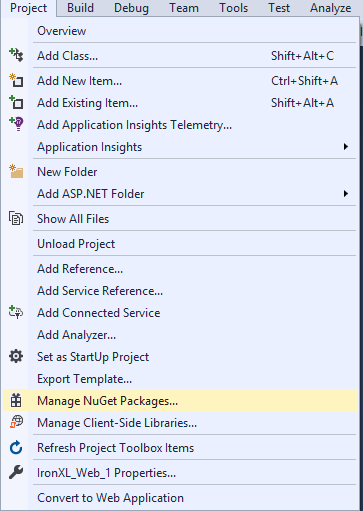
**Figure 3** - *Access NuGet Package Manager through Project menu*
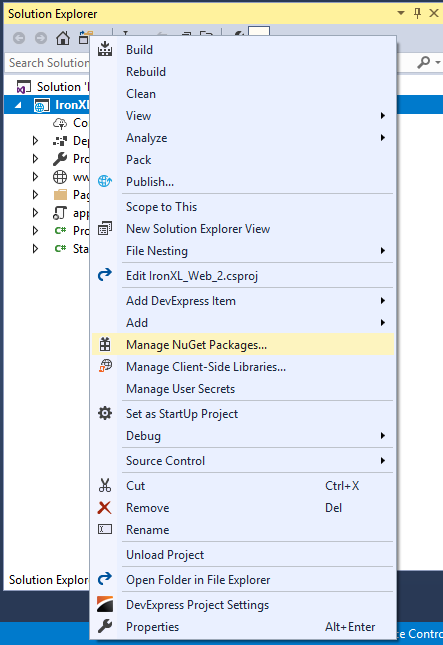
**Figure 4** - *Right-click context menu in Solution Explorer*
Browse for `IronXL.Excel` in the package list and click Install.
<br />

**Figure 5** - *Installing IronXL.Excel through NuGet Package Manager*
Alternatively, [download the IronXL DLL directly](/csharp/excel/packages/IronXL.zip) and add it as a reference to your project via Solution Explorer > References > Browse for `IronXL.dll`.
**Figure 6** - *Download IronXL library from official website*
[[i:(IronXL requires no Microsoft Office or Excel Interop installation. It runs on any .NET-supported platform including Windows, Linux, macOS, and cloud environments.)]]
---
## How Do I Set Up My .NET Project?
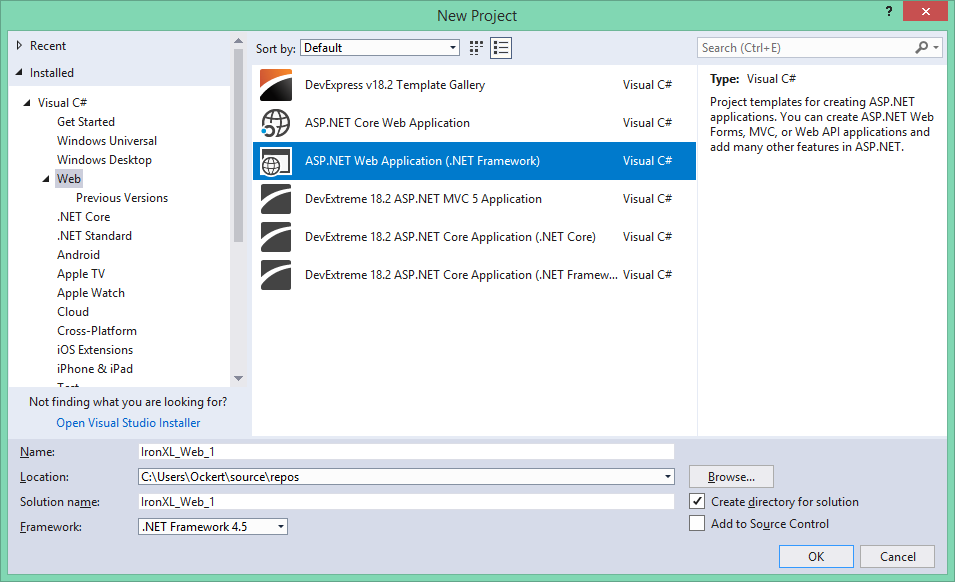
IronXL works with any **.NET project type:** console apps, ASP.NET web apps, APIs, or desktop tools. The example below uses an ASP.NET Web Application, but the same code paths work across all project templates.
Follow these steps to create an ASP.NET website:
1. Open Visual Studio
2. Click File > New Project
3. Select Web under Visual C# in the Project type list
4. Select ASP.NET Web Application
<br />
<center>
<a rel="nofollow" href="/img/tutorials/create-excel-file-net/new-project-asp-net.png" target="_blank"><p><img src="/img/tutorials/create-excel-file-net/new-project-asp-net.png" alt="Visual Studio New Project dialog with ASP.NET Web Application selected" class="img-responsive add-shadow img-margin" style="max-width:100%; margin: 0;" /></p></a>
</center>
<strong style="margin-left: 40px;">Figure 1</strong> - *Create new ASP.NET project*
5. Click OK
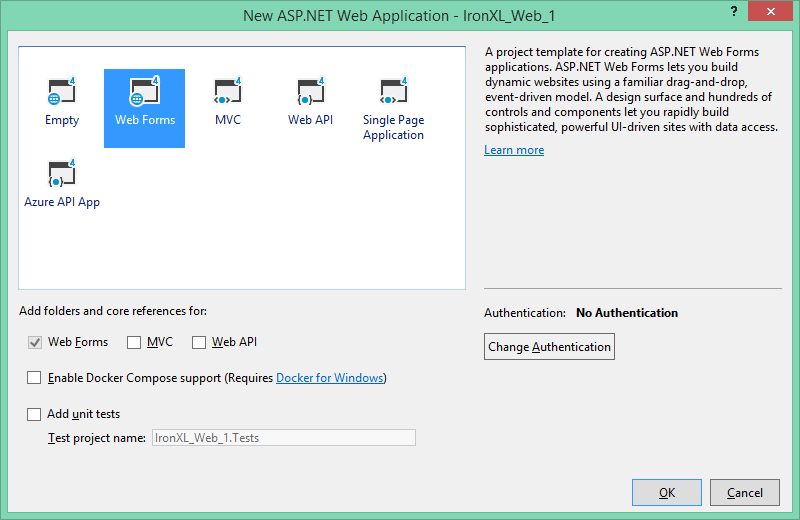
6. Select Web Forms template
<center>
<a rel="nofollow" href="/img/tutorials/create-excel-file-net/web-form.png" target="_blank"><p><img src="/img/tutorials/create-excel-file-net/web-form.png" alt="ASP.NET project template selection showing Web Forms option" class="img-responsive add-shadow img-margin" style="max-width:100%; margin: 0;" /></p></a>
</center>
<strong style="margin-left: 40px;">Figure 2</strong> - *Select Web Forms template*
<br />
7. Click OK
With your project ready, install IronXL to start creating Excel files programmatically.
---
## How Do I Create an Excel Workbook in C#?
A new workbook is a single call to `WorkBook.Create`, with the file format passed in as an enum:
```csharp
WorkSheet workSheet = workBook.CreateWorkSheet("2020 Budget");
```
The `Create` method supports both XLS (Excel 97-2003) and XLSX (Excel 2007+) formats. XLSX is recommended for better performance and smaller file sizes.
- **XLSX:** Recommended for all modern Excel versions (2007+) - smaller files, better performance
- **XLS:** Legacy format for compatibility with Excel 97-2003
### How Do I Add a Worksheet to My Workbook?
Add worksheets through `CreateWorkSheet`:
```csharp
workSheet["A1"].Value = "January";
workSheet["B1"].Value = "February";
workSheet["C1"].Value = "March";
workSheet["D1"].Value = "April";
workSheet["E1"].Value = "May";
workSheet["F1"].Value = "June";
workSheet["G1"].Value = "July";
workSheet["H1"].Value = "August";
workSheet["I1"].Value = "September";
workSheet["J1"].Value = "October";
workSheet["K1"].Value = "November";
workSheet["L1"].Value = "December";
```
A workbook contains one or more worksheets. Each worksheet consists of rows and columns, with cells at their intersections. Use the `CreateWorkSheet` method to add new sheets to your workbook.
- `WorkBook.CreateWorkSheet(String)`: Adds a new sheet with the given tab name
- `WorkSheet`: Retrieves an existing sheet by name
- Sheet names must be unique within a workbook
---
## How Do I Set Cell Values in Excel?
### How Can I Set Cell Values Manually?
Cell access uses the same A1-style address strings you see in Excel:
```csharp
Random r = new Random();
for (int i = 2 ; i <= 11 ; i++)
{
workSheet["A" + i].Value = r.Next(1, 1000);
workSheet["B" + i].Value = r.Next(1000, 2000);
workSheet["C" + i].Value = r.Next(2000, 3000);
workSheet["D" + i].Value = r.Next(3000, 4000);
workSheet["E" + i].Value = r.Next(4000, 5000);
workSheet["F" + i].Value = r.Next(5000, 6000);
workSheet["G" + i].Value = r.Next(6000, 7000);
workSheet["H" + i].Value = r.Next(7000, 8000);
workSheet["I" + i].Value = r.Next(8000, 9000);
workSheet["J" + i].Value = r.Next(9000, 10000);
workSheet["K" + i].Value = r.Next(10000, 11000);
workSheet["L" + i].Value = r.Next(11000, 12000);
}
```
The `Value` property accepts various data types including strings, numbers, dates, and booleans. IronXL automatically formats cells based on the data type.
### How Do I Set Cell Values Dynamically?
When the row count is known at runtime, string interpolation makes the loop body easy to read:
```csharp
// Initialize random number generator for sample data
Random r = new Random();
// Populate cells with random budget data for each month
for (int i = 2; i <= 11; i++)
{
// Set different budget categories with increasing ranges
workSheet[$"A{i}"].Value = r.Next(1, 1000); // Office Supplies
workSheet[$"B{i}"].Value = r.Next(1000, 2000); // Utilities
workSheet[$"C{i}"].Value = r.Next(2000, 3000); // Rent
workSheet[$"D{i}"].Value = r.Next(3000, 4000); // Salaries
workSheet[$"E{i}"].Value = r.Next(4000, 5000); // Marketing
workSheet[$"F{i}"].Value = r.Next(5000, 6000); // IT Services
workSheet[$"G{i}"].Value = r.Next(6000, 7000); // Travel
workSheet[$"H{i}"].Value = r.Next(7000, 8000); // Training
workSheet[$"I{i}"].Value = r.Next(8000, 9000); // Insurance
workSheet[$"J{i}"].Value = r.Next(9000, 10000); // Equipment
workSheet[$"K{i}"].Value = r.Next(10000, 11000); // Research
workSheet[$"L{i}"].Value = r.Next(11000, 12000); // Misc
}
// Alternative: Set range of cells with same value
workSheet["A13:L13"].Value = 0; // Initialize totals row
```
String interpolation (`$"..."`) makes it easy to reference cells dynamically. The `Item` indexer supports both individual cells and ranges.
### How Do I Populate Excel from a Database?
Loading data from databases into Excel is a common requirement:
```csharp
workSheet["A1:L1"].Style.SetBackgroundColor("#d3d3d3");
```
This example demonstrates reading Excel data from databases, applying formatting, and using formulas for calculations. The `FormatString` property enables custom number formatting just like in Excel.
---
## How Do I Apply Formatting to Excel Cells?
### How Can I Set Background Colors in Excel?
Backgrounds, alternating row colors, and font color overrides all go through the `Style` object on a cell or range:
```csharp
// Set header row background to light gray using hex color
workSheet["A1:L1"].Style.SetBackgroundColor("#d3d3d3");
// Apply different colors for data categorization
workSheet["A2:A11"].Style.SetBackgroundColor("#E7F3FF"); // Light blue for January
workSheet["B2:B11"].Style.SetBackgroundColor("#FFF2CC"); // Light yellow for February
// Highlight important cells with bold colors
workSheet["L12"].Style.SetBackgroundColor("#FF0000"); // Red for totals
workSheet["L12"].Style.Font.SetColor("#FFFFFF"); // White text
// Create alternating row colors for better readability
for (int row = 2; row <= 11; row++)
{
if (row % 2 == 0)
{
workSheet[$"A{row}:L{row}"].Style.SetBackgroundColor("#F2F2F2");
}
}
```
The `SetBackgroundColor` method accepts hex color codes. Pair background colors with `Font.SetColor` to keep contrast readable on darker fills.
### How Do I Create Borders in Excel?
Borders help define data regions and improve structure:
```csharp
// Use IronXL built-in aggregations
decimal sum = workSheet["A2:A11"].Sum();
decimal avg = workSheet["B2:B11"].Avg();
decimal max = workSheet["C2:C11"].Max();
decimal min = workSheet["D2:D11"].Min();
// Assign value to cells
workSheet["A12"].Value = sum;
workSheet["B12"].Value = avg;
workSheet["C12"].Value = max;
workSheet["D12"].Value = min;
```
IronXL supports various [border types](/csharp/excel/object-reference/api/IronXL.Styles.BorderType.html) including Thin, Medium, Thick, Double, Dotted, and Dashed. Each border side can be styled independently.
---
## How Do I Use Excel Formulas in C#?
IronXL evaluates Excel formulas at write time, so the values are correct as soon as the workbook is saved:
```csharp
// Use built-in aggregation functions for ranges
decimal sum = workSheet["A2:A11"].Sum();
decimal avg = workSheet["B2:B11"].Avg();
decimal max = workSheet["C2:C11"].Max();
decimal min = workSheet["D2:D11"].Min();
// Assign calculated values to cells
workSheet["A12"].Value = sum;
workSheet["B12"].Value = avg;
workSheet["C12"].Value = max;
workSheet["D12"].Value = min;
// Or use Excel formulas directly
workSheet["A12"].Formula = "=SUM(A2:A11)";
workSheet["B12"].Formula = "=AVERAGE(B2:B11)";
workSheet["C12"].Formula = "=MAX(C2:C11)";
workSheet["D12"].Formula = "=MIN(D2:D11)";
// Complex formulas with multiple functions
workSheet["E12"].Formula = "=IF(SUM(E2:E11)>50000,\"Over Budget\",\"On Track\")";
workSheet["F12"].Formula = "=SUMIF(F2:F11,\">5000\")";
// Percentage calculations
workSheet["G12"].Formula = "=G11/SUM(G2:G11)*100";
workSheet["G12"].FormatString = "0.00%";
// Ensure all formulas calculate
workBook.EvaluateAll();
```
The `Range` class provides methods like `Sum`, `Average`, `Max`, and `Min` for quick calculations. For more complex scenarios, use the `Formula` property to set Excel formulas directly.
[[t:(Prefer IronXL's built-in `.Sum()`, `.Avg()`, `.Max()`, and `.Min()` methods over raw formula strings when working with ranges. They are type-safe and avoid formula syntax errors at compile time.)]]
---
## How Do I Set Worksheet and Print Properties?
Use IronXL to protect individual worksheets, freeze rows and columns, and set printing format options.
### How Can I Configure Worksheet Properties?
Protect worksheets and control viewing options:
```csharp
workSheet.SetPrintArea("A1:L12");
workSheet.PrintSetup.PrintOrientation = IronXL.Printing.PrintOrientation.Landscape;
workSheet.PrintSetup.PaperSize = IronXL.Printing.PaperSize.A4;
```
Worksheet protection prevents accidental modifications while [freeze panes](/csharp/excel/how-to/add-freeze-panes/) keep important rows or columns visible during scrolling.
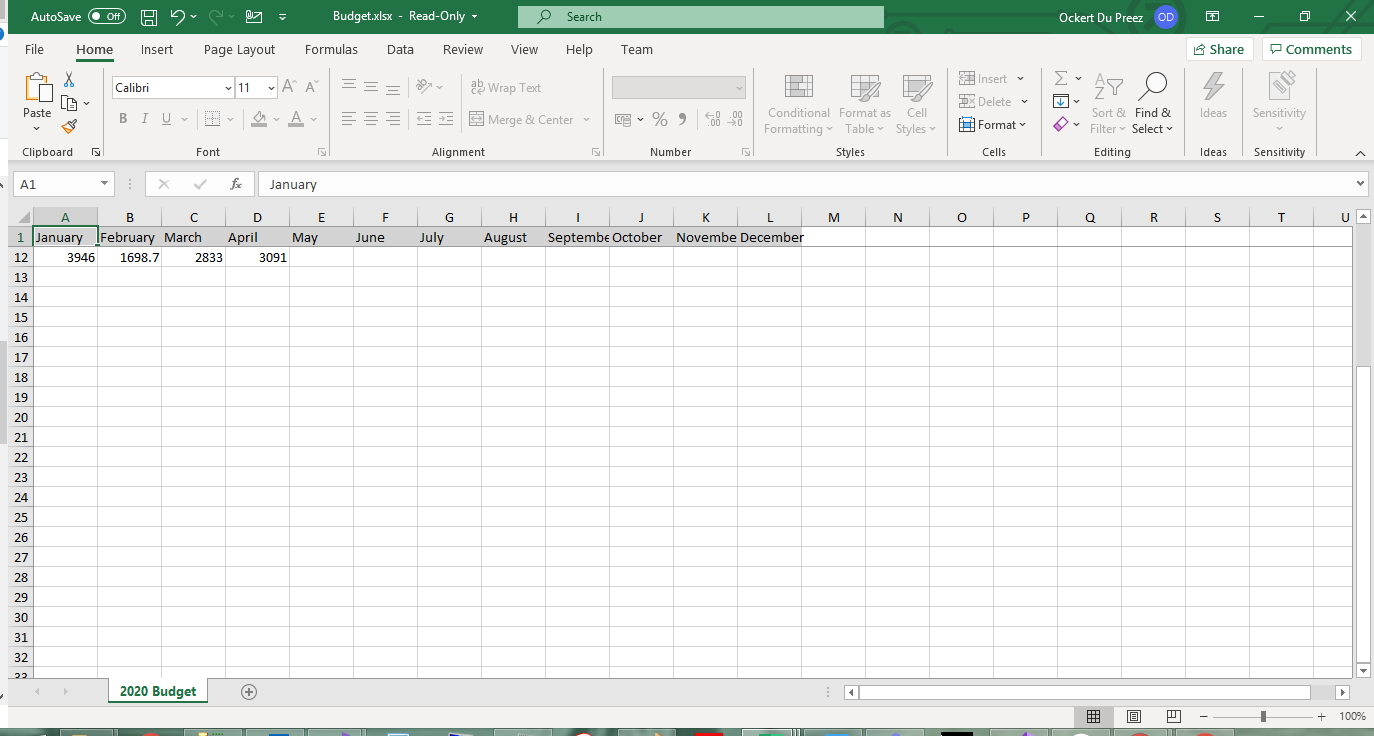
**Figure 7** - *Frozen header row remains visible while scrolling*

**Figure 8** - *Password protection prevents unauthorized edits*
### How Do I Configure Page and Print Settings?
Print layout options (orientation, paper size, margins, scaling, headers, footers) are all exposed through `WorkSheet.PrintSetup`:
```csharp
workBook.SaveAs("Budget.xlsx");
```
The `IPrintSetup` class provides comprehensive print configuration options matching Excel's print settings.
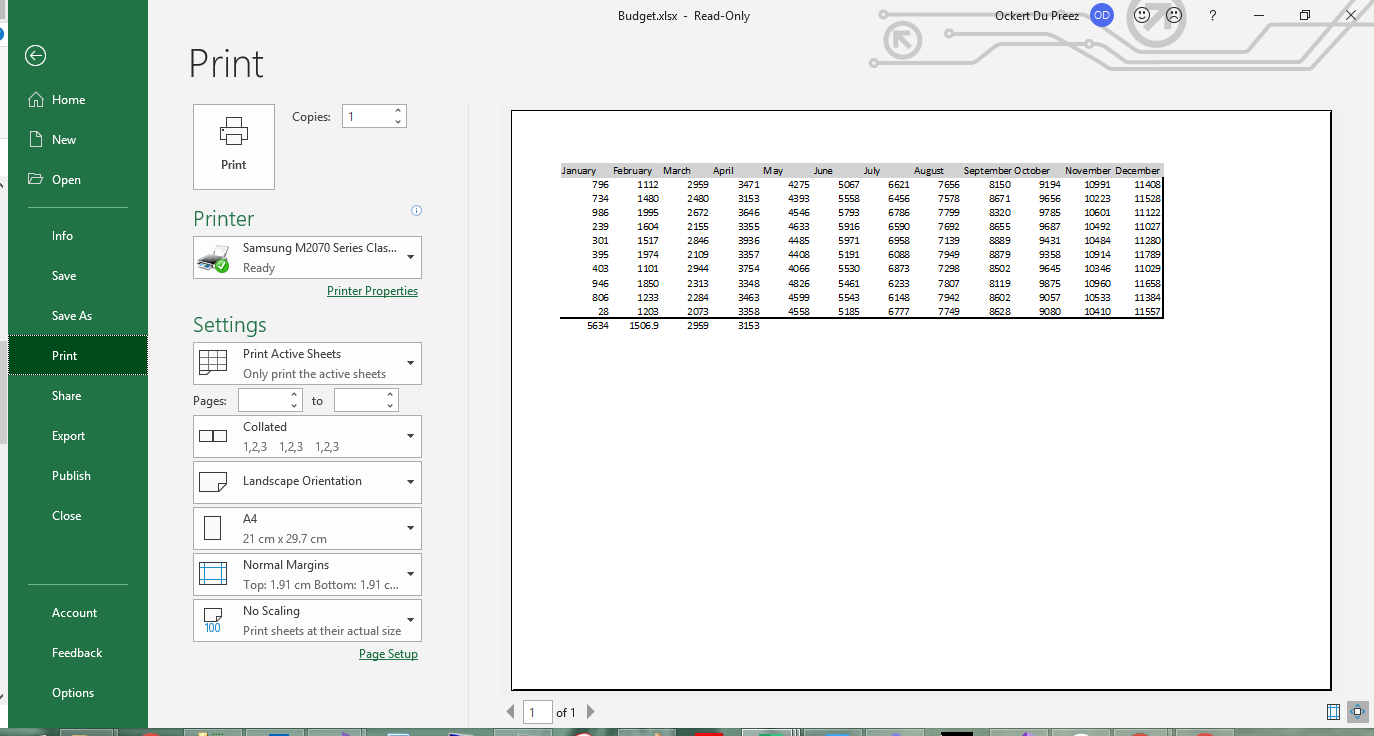
**Figure 9** - *Print preview with landscape orientation and custom margins*
---
## How Do I Save My Excel Workbook?
Save your workbook in various formats:
```csharp
// Save as XLSX (recommended for modern Excel)
workBook.SaveAs("Budget.xlsx");
// Save as XLS for legacy compatibility
workBook.SaveAs("Budget.xls");
// Save as CSV for data exchange
workBook.SaveAsCsv("Budget.csv");
// Save as JSON for web applications
workBook.SaveAsJson("Budget.json");
// Save to stream for web downloads or cloud storage
using (var stream = new MemoryStream())
{
workBook.SaveAs(stream);
byte[] excelData = stream.ToArray();
// Send to client or save to cloud
}
// Save as CSV — IronXL writes UTF-8 by default
workBook.SaveAsCsv("Budget_UTF8.csv");
```
IronXL supports multiple [export formats](/csharp/excel/how-to/convert-spreadsheet-file-types/) including XLSX, XLS, CSV, TSV, and JSON. The `Save` method picks the format from the file extension.
- **XLSX / XLS:** Full Excel format with formatting, formulas, and multiple sheets
- **CSV:** Plain text for data interchange, one sheet per file
- **JSON:** Structured output for web APIs and data pipelines
- **Stream:** In-memory output, useful for web downloads or cloud storage
### How long does generation actually take?
For a workbook around the size most production exports end up at - on the order of 10,000 rows and a few columns - generation and a single `SaveAs` to disk is typically sub-second once the process is warm. The first run in a fresh process is slower because it is dominated by IronXL's assembly load and JIT warm-up; subsequent runs settle into a faster, fairly steady range with some run-to-run variance from background activity. Exact timings are environment-specific, so measure on your own target hardware rather than relying on a single published figure - the reproducible harness in the [CreateExcelBenchmark sample](#sample-project) below lets you do exactly that.
For substantially larger workbooks (hundreds of thousands of rows, multiple sheets, heavy styling), write the whole workbook in memory and call `SaveAs` exactly once at the end. The single most common cause of "why is my export so slow?" tickets we see is calling `SaveAs` repeatedly inside a loop while the workbook is growing: every save serializes the entire current state, so the cost climbs with each iteration.
---
## Common Gotchas
A few things bite people often enough that they deserve their own section.
### Forgetting `FormatString` on dates and currency
The formatting trap I see most: setting `.Value` to a `DateTime` but forgetting `FormatString`. The date is stored correctly, but Excel displays it as a raw serial number (45292 means 2024-01-01) until you apply a format string like `"yyyy-MM-dd"`. Currency has the identical problem: the number is right, but without `"$#,##0.00"` it renders as a bare decimal. I now write the value and the format on adjacent lines, so the two cannot drift apart:
```cs
var dateCell = sheet["A2"];
dateCell.Value = DateTime.Today;
dateCell.FormatString = "yyyy-MM-dd";
var moneyCell = sheet["B2"];
moneyCell.Value = 1499.95m;
moneyCell.FormatString = "$#,##0.00";
```
### XLS will silently truncate at 65,536 rows
This one is mentioned in the format choice section near the top of the article, but it earns its place here because the failure mode is silent: `ExcelFileFormat.XLS` caps at 65,536 rows per sheet, and rows past that limit are dropped without an exception or warning. The export "succeeds" and your data is gone. Pick XLSX for anything data-heavy unless a downstream system literally cannot read it.
### "Excel says the file is corrupt"
If a generated file refuses to open or Excel claims it is corrupt, the cause is almost always one of two things. Either the file stream was not disposed properly, so the bytes on disk are truncated; or you wrote to a path that was still locked by a previous run, and only some of the data made it through. Make sure `SaveAs` (or the stream wrapping it) has fully completed before anything else touches the file, and prefer a `using` block around any `MemoryStream` or `FileStream` you wrap a workbook into.
<a id="sample-project"></a>
### Sample project for the benchmark numbers
If you want to reproduce the timing numbers from earlier, the harness is a small .NET 9 console app:
```cs
// CreateExcelBenchmark/Program.cs (excerpt)
IronXL.License.LicenseKey = Environment.GetEnvironmentVariable("IRONXL_LICENSE_KEY");
var sw = Stopwatch.StartNew();
var workbook = WorkBook.Create(ExcelFileFormat.XLSX);
var sheet = workbook.CreateWorkSheet("Data");
sheet["A1"].Value = "Id";
sheet["B1"].Value = "Name";
sheet["C1"].Value = "Amount";
for (int i = 0; i < 10_000; i++)
{
int row = i + 2;
sheet[$"A{row}"].Value = i + 1;
sheet[$"B{row}"].Value = $"Item {i + 1}";
sheet[$"C{row}"].Value = (i + 1) * 1.25m;
}
workbook.SaveAs("Generated.xlsx");
sw.Stop();
Console.WriteLine($"cold: {sw.Elapsed.TotalMilliseconds:F1} ms");
```
Run it under `dotnet run -c Release` and swap in your own row counts, column counts, or styling to see how the numbers shift with workbook complexity.
---
## Object Reference and Resources
The [IronXL API Reference](/csharp/excel/object-reference/api/) covers every class and method this tutorial touches and the ones it does not.
Additional tutorials for related Excel operations:
- [Read and Edit Existing Excel Files](/csharp/excel/tutorials/how-to-read-excel-file-csharp/)
- [Merge Cells in Excel](/csharp/excel/how-to/csharp-excel-merge-cells/)
- [Create Excel Charts in C#](/csharp/excel/how-to/csharp-excel-chart-create-edit-tutorial/)
- [Cell formatting and styling guide](/csharp/excel/how-to/set-cell-data-format/)
- [Convert Between Spreadsheet Formats](/csharp/excel/how-to/convert-spreadsheet-file-types/)
## Summary
`IronXL.Excel` generates Excel workbooks in XLSX, XLS, CSV, and JSON without depending on Microsoft Office or Interop. The recipe I follow on every project is the same: create the workbook, add a worksheet, write values and formulas, set format strings where the display matters, and save once at the end.
Ready to use IronXL in production? [Start your free trial](trial-license) or [view licensing options](/csharp/excel/licensing/).
Most teams I work with need to generate Excel files at least as often as they read them: invoices, exports, monthly reports the finance team can open and filter. I've built this flow dozens of times across console apps, ASP.NET services, and background workers. IronXL's API is close enough to the way Excel itself thinks that the code reads almost like a spec, but there are a few formatting and save decisions that matter more than the API surface lets on. This guide is how I actually generate XLSX files in production, including the gotchas that cost me time the first few times around.
The library runs on .NET 8, .NET 9, .NET Core, and .NET Framework, on Windows, Linux, macOS, Azure, and AWS, without Microsoft Office on the host. The code paths below are the same across all of those targets.
Quick Start: Create an Excel File
Three lines stand up a new workbook, write a value into A1, and save the file to disk. No Excel process involved, no COM marshaling.
1Install IronXL with NuGet Package Manager
PM > Install-Package IronXL.Excel
Install-Package IronXL.Excel
2Copy and run this code snippet.
WorkBook book = IronXL.WorkBook.Create(IronXL.ExcelFileFormat.XLSX); book.CreateWorkSheet("Sheet1")["A1"].Value = "Hello World"; book.SaveAs("MyFile.xlsx");
WorkBook book = IronXL.WorkBook.Create(IronXL.ExcelFileFormat.XLSX); book.CreateWorkSheet("Sheet1")["A1"].Value = "Hello World"; book.SaveAs("MyFile.xlsx");
Dim book AsWorkBook = IronXL.WorkBook.Create(IronXL.ExcelFileFormat.XLSX)book.CreateWorkSheet("Sheet1")("A1").Value = "Hello World"book.SaveAs("MyFile.xlsx")
Dim book As WorkBook = IronXL.WorkBook.Create(IronXL.ExcelFileFormat.XLSX)
book.CreateWorkSheet("Sheet1")("A1").Value = "Hello World"
book.SaveAs("MyFile.xlsx")
3Deploy to test on your live environment
Start using IronXL in your project today with a free trial
What is IronXL and Why Use It for Excel File Creation?
IronXL is a C# and VB.NET Excel API for reading, editing, and creating spreadsheet files. It does not require Microsoft Office or Excel Interop, which keeps deployment to a NuGet reference and a using directive.
Human support directly from our .NET development team
Rapid installation with Microsoft Visual Studio
FREE for development. Licenses from $999
How Can I Quickly Create and Save an Excel File?
Install IronXL via NuGet or download the DLL directly. The WorkBook class is the entry point for all Excel operations, and the WorkSheet class exposes methods for manipulating individual sheets. The full step-by-step walkthrough begins in Step 1 below.
How Do I Install the IronXL C# Library?
Install IronXL via NuGet Package Manager in Visual Studio or use the Package Manager Console:
PM > Install-Package IronXL.Excel
Install-Package IronXL.Excel
Access the NuGet Package Manager through the Project menu or by right-clicking your project in Solution Explorer.
Figure 3 - Access NuGet Package Manager through Project menu
Figure 4 - Right-click context menu in Solution Explorer
Browse for IronXL.Excel in the package list and click Install.
Figure 5 - Installing IronXL.Excel through NuGet Package Manager
Alternatively, download the IronXL DLL directly and add it as a reference to your project via Solution Explorer > References > Browse for IronXL.dll.
Figure 6 - Download IronXL library from official website
Please note: IronXL requires no Microsoft Office or Excel Interop installation. It runs on any .NET-supported platform including Windows, Linux, macOS, and cloud environments.
How Do I Set Up My .NET Project?
IronXL works with any .NET project type: console apps, ASP.NET web apps, APIs, or desktop tools. The example below uses an ASP.NET Web Application, but the same code paths work across all project templates.
Follow these steps to create an ASP.NET website:
Open Visual Studio
Click File > New Project
Select Web under Visual C# in the Project type list
Select ASP.NET Web Application
Figure 1 - Create new ASP.NET project
Click OK
Select Web Forms template
Figure 2 - Select Web Forms template
Click OK
With your project ready, install IronXL to start creating Excel files programmatically.
How Do I Create an Excel Workbook in C#?
A new workbook is a single call to WorkBook.Create, with the file format passed in as an enum:
A workbook contains one or more worksheets. Each worksheet consists of rows and columns, with cells at their intersections. Use the CreateWorkSheet method to add new sheets to your workbook.
WorkBook.CreateWorkSheet(String): Adds a new sheet with the given tab name
WorkSheet: Retrieves an existing sheet by name
Sheet names must be unique within a workbook
How Do I Set Cell Values in Excel?
How Can I Set Cell Values Manually?
Cell access uses the same A1-style address strings you see in Excel:
Dim r As New Random()
For i As Integer = 2 To 11
	workSheet("A" & i).Value = r.Next(1, 1000)
	workSheet("B" & i).Value = r.Next(1000, 2000)
	workSheet("C" & i).Value = r.Next(2000, 3000)
	workSheet("D" & i).Value = r.Next(3000, 4000)
	workSheet("E" & i).Value = r.Next(4000, 5000)
	workSheet("F" & i).Value = r.Next(5000, 6000)
	workSheet("G" & i).Value = r.Next(6000, 7000)
	workSheet("H" & i).Value = r.Next(7000, 8000)
	workSheet("I" & i).Value = r.Next(8000, 9000)
	workSheet("J" & i).Value = r.Next(9000, 10000)
	workSheet("K" & i).Value = r.Next(10000, 11000)
	workSheet("L" & i).Value = r.Next(11000, 12000)
Next i
The Value property accepts various data types including strings, numbers, dates, and booleans. IronXL automatically formats cells based on the data type.
How Do I Set Cell Values Dynamically?
When the row count is known at runtime, string interpolation makes the loop body easy to read:
// Initialize random number generator for sample dataRandom r = new Random();// Populate cells with random budget data for each monthfor (int i = 2; i <= 11; i++){ // Set different budget categories with increasing ranges workSheet[$"A{i}"].Value = r.Next(1, 1000); // Office Supplies workSheet[$"B{i}"].Value = r.Next(1000, 2000); // Utilities workSheet[$"C{i}"].Value = r.Next(2000, 3000); // Rent workSheet[$"D{i}"].Value = r.Next(3000, 4000); // Salaries workSheet[$"E{i}"].Value = r.Next(4000, 5000); // Marketing workSheet[$"F{i}"].Value = r.Next(5000, 6000); // IT Services workSheet[$"G{i}"].Value = r.Next(6000, 7000); // Travel workSheet[$"H{i}"].Value = r.Next(7000, 8000); // Training workSheet[$"I{i}"].Value = r.Next(8000, 9000); // Insurance workSheet[$"J{i}"].Value = r.Next(9000, 10000); // Equipment workSheet[$"K{i}"].Value = r.Next(10000, 11000); // Research workSheet[$"L{i}"].Value = r.Next(11000, 12000); // Misc}// Alternative: Set range of cells with same valueworkSheet["A13:L13"].Value = 0; // Initialize totals row
// Initialize random number generator for sample data
Random r = new Random();

// Populate cells with random budget data for each month
for (int i = 2; i <= 11; i++)
{
    // Set different budget categories with increasing ranges
    workSheet[$"A{i}"].Value = r.Next(1, 1000);     // Office Supplies
    workSheet[$"B{i}"].Value = r.Next(1000, 2000);  // Utilities
    workSheet[$"C{i}"].Value = r.Next(2000, 3000);  // Rent
    workSheet[$"D{i}"].Value = r.Next(3000, 4000);  // Salaries
    workSheet[$"E{i}"].Value = r.Next(4000, 5000);  // Marketing
    workSheet[$"F{i}"].Value = r.Next(5000, 6000);  // IT Services
    workSheet[$"G{i}"].Value = r.Next(6000, 7000);  // Travel
    workSheet[$"H{i}"].Value = r.Next(7000, 8000);  // Training
    workSheet[$"I{i}"].Value = r.Next(8000, 9000);  // Insurance
    workSheet[$"J{i}"].Value = r.Next(9000, 10000); // Equipment
    workSheet[$"K{i}"].Value = r.Next(10000, 11000); // Research
    workSheet[$"L{i}"].Value = r.Next(11000, 12000); // Misc
}

// Alternative: Set range of cells with same value
workSheet["A13:L13"].Value = 0; // Initialize totals row
' Initialize random number generator for sample dataDim r As New Random()' Populate cells with random budget data for each monthFor i AsInteger = 2 To 11 ' Set different budget categories with increasing ranges workSheet($"A{i}").Value = r.Next(1, 1000) ' Office Supplies workSheet($"B{i}").Value = r.Next(1000, 2000) ' Utilities workSheet($"C{i}").Value = r.Next(2000, 3000) ' Rent workSheet($"D{i}").Value = r.Next(3000, 4000) ' Salaries workSheet($"E{i}").Value = r.Next(4000, 5000) ' Marketing workSheet($"F{i}").Value = r.Next(5000, 6000) ' IT Services workSheet($"G{i}").Value = r.Next(6000, 7000) ' Travel workSheet($"H{i}").Value = r.Next(7000, 8000) ' Training workSheet($"I{i}").Value = r.Next(8000, 9000) ' Insurance workSheet($"J{i}").Value = r.Next(9000, 10000) ' Equipment workSheet($"K{i}").Value = r.Next(10000, 11000) ' Research workSheet($"L{i}").Value = r.Next(11000, 12000) ' MiscNext i' Alternative: Set range of cells with same valueworkSheet("A13:L13").Value = 0 ' Initialize totals row
' Initialize random number generator for sample data
Dim r As New Random()

' Populate cells with random budget data for each month
For i As Integer = 2 To 11
	' Set different budget categories with increasing ranges
	workSheet($"A{i}").Value = r.Next(1, 1000) ' Office Supplies
	workSheet($"B{i}").Value = r.Next(1000, 2000) ' Utilities
	workSheet($"C{i}").Value = r.Next(2000, 3000) ' Rent
	workSheet($"D{i}").Value = r.Next(3000, 4000) ' Salaries
	workSheet($"E{i}").Value = r.Next(4000, 5000) ' Marketing
	workSheet($"F{i}").Value = r.Next(5000, 6000) ' IT Services
	workSheet($"G{i}").Value = r.Next(6000, 7000) ' Travel
	workSheet($"H{i}").Value = r.Next(7000, 8000) ' Training
	workSheet($"I{i}").Value = r.Next(8000, 9000) ' Insurance
	workSheet($"J{i}").Value = r.Next(9000, 10000) ' Equipment
	workSheet($"K{i}").Value = r.Next(10000, 11000) ' Research
	workSheet($"L{i}").Value = r.Next(11000, 12000) ' Misc
Next i

' Alternative: Set range of cells with same value
workSheet("A13:L13").Value = 0 ' Initialize totals row
String interpolation ($"...") makes it easy to reference cells dynamically. The Item indexer supports both individual cells and ranges.
How Do I Populate Excel from a Database?
Loading data from databases into Excel is a common requirement:
This example demonstrates reading Excel data from databases, applying formatting, and using formulas for calculations. The FormatString property enables custom number formatting just like in Excel.
How Do I Apply Formatting to Excel Cells?
How Can I Set Background Colors in Excel?
Backgrounds, alternating row colors, and font color overrides all go through the Style object on a cell or range:
// Set header row background to light gray using hex colorworkSheet["A1:L1"].Style.SetBackgroundColor("#d3d3d3");// Apply different colors for data categorizationworkSheet["A2:A11"].Style.SetBackgroundColor("#E7F3FF"); // Light blue for JanuaryworkSheet["B2:B11"].Style.SetBackgroundColor("#FFF2CC"); // Light yellow for February// Highlight important cells with bold colorsworkSheet["L12"].Style.SetBackgroundColor("#FF0000"); // Red for totalsworkSheet["L12"].Style.Font.SetColor("#FFFFFF"); // White text// Create alternating row colors for better readabilityfor (int row = 2; row <= 11; row++){ if (row % 2 == 0) { workSheet[$"A{row}:L{row}"].Style.SetBackgroundColor("#F2F2F2"); }}
// Set header row background to light gray using hex color
workSheet["A1:L1"].Style.SetBackgroundColor("#d3d3d3");

// Apply different colors for data categorization
workSheet["A2:A11"].Style.SetBackgroundColor("#E7F3FF"); // Light blue for January
workSheet["B2:B11"].Style.SetBackgroundColor("#FFF2CC"); // Light yellow for February

// Highlight important cells with bold colors
workSheet["L12"].Style.SetBackgroundColor("#FF0000"); // Red for totals
workSheet["L12"].Style.Font.SetColor("#FFFFFF"); // White text

// Create alternating row colors for better readability
for (int row = 2; row <= 11; row++)
{
    if (row % 2 == 0)
    {
        workSheet[$"A{row}:L{row}"].Style.SetBackgroundColor("#F2F2F2");
    }
}
' Set header row background to light gray using hex colorworkSheet("A1:L1").Style.SetBackgroundColor("#d3d3d3")' Apply different colors for data categorizationworkSheet("A2:A11").Style.SetBackgroundColor("#E7F3FF") ' Light blue for JanuaryworkSheet("B2:B11").Style.SetBackgroundColor("#FFF2CC") ' Light yellow for February' Highlight important cells with bold colorsworkSheet("L12").Style.SetBackgroundColor("#FF0000") ' Red for totalsworkSheet("L12").Style.Font.SetColor("#FFFFFF") ' White text' Create alternating row colors for better readabilityFor row AsInteger = 2 To 11 If row Mod2 = 0 Then workSheet($"A{row}:L{row}").Style.SetBackgroundColor("#F2F2F2") End IfNext row
' Set header row background to light gray using hex color
workSheet("A1:L1").Style.SetBackgroundColor("#d3d3d3")

' Apply different colors for data categorization
workSheet("A2:A11").Style.SetBackgroundColor("#E7F3FF") ' Light blue for January
workSheet("B2:B11").Style.SetBackgroundColor("#FFF2CC") ' Light yellow for February

' Highlight important cells with bold colors
workSheet("L12").Style.SetBackgroundColor("#FF0000") ' Red for totals
workSheet("L12").Style.Font.SetColor("#FFFFFF") ' White text

' Create alternating row colors for better readability
For row As Integer = 2 To 11
    If row Mod 2 = 0 Then
        workSheet($"A{row}:L{row}").Style.SetBackgroundColor("#F2F2F2")
    End If
Next row
The SetBackgroundColor method accepts hex color codes. Pair background colors with Font.SetColor to keep contrast readable on darker fills.
How Do I Create Borders in Excel?
Borders help define data regions and improve structure:
// Use IronXL built-in aggregationsdecimal sum = workSheet["A2:A11"].Sum();decimal avg = workSheet["B2:B11"].Avg();decimal max = workSheet["C2:C11"].Max();decimal min = workSheet["D2:D11"].Min();// Assign value to cellsworkSheet["A12"].Value = sum;workSheet["B12"].Value = avg;workSheet["C12"].Value = max;workSheet["D12"].Value = min;
// Use IronXL built-in aggregations
decimal sum = workSheet["A2:A11"].Sum();
decimal avg = workSheet["B2:B11"].Avg();
decimal max = workSheet["C2:C11"].Max();
decimal min = workSheet["D2:D11"].Min();

// Assign value to cells
workSheet["A12"].Value = sum;
workSheet["B12"].Value = avg;
workSheet["C12"].Value = max;
workSheet["D12"].Value = min;
' Use IronXL built-in aggregationsDim sum AsDecimal = workSheet("A2:A11").Sum()Dim avg AsDecimal = workSheet("B2:B11").Avg()Dim max AsDecimal = workSheet("C2:C11").Max()Dim min AsDecimal = workSheet("D2:D11").Min()' Assign value to cellsworkSheet("A12").Value = sumworkSheet("B12").Value = avgworkSheet("C12").Value = maxworkSheet("D12").Value = min
' Use IronXL built-in aggregations
Dim sum As Decimal = workSheet("A2:A11").Sum()
Dim avg As Decimal = workSheet("B2:B11").Avg()
Dim max As Decimal = workSheet("C2:C11").Max()
Dim min As Decimal = workSheet("D2:D11").Min()

' Assign value to cells
workSheet("A12").Value = sum
workSheet("B12").Value = avg
workSheet("C12").Value = max
workSheet("D12").Value = min
IronXL supports various border types including Thin, Medium, Thick, Double, Dotted, and Dashed. Each border side can be styled independently.
How Do I Use Excel Formulas in C#?
IronXL evaluates Excel formulas at write time, so the values are correct as soon as the workbook is saved:
// Use built-in aggregation functions for rangesdecimal sum = workSheet["A2:A11"].Sum();decimal avg = workSheet["B2:B11"].Avg();decimal max = workSheet["C2:C11"].Max();decimal min = workSheet["D2:D11"].Min();// Assign calculated values to cellsworkSheet["A12"].Value = sum;workSheet["B12"].Value = avg;workSheet["C12"].Value = max;workSheet["D12"].Value = min;// Or use Excel formulas directlyworkSheet["A12"].Formula = "=SUM(A2:A11)";workSheet["B12"].Formula = "=AVERAGE(B2:B11)";workSheet["C12"].Formula = "=MAX(C2:C11)";workSheet["D12"].Formula = "=MIN(D2:D11)";// Complex formulas with multiple functionsworkSheet["E12"].Formula = "=IF(SUM(E2:E11)>50000,\"Over Budget\",\"On Track\")";workSheet["F12"].Formula = "=SUMIF(F2:F11,\">5000\")";// Percentage calculationsworkSheet["G12"].Formula = "=G11/SUM(G2:G11)*100";workSheet["G12"].FormatString = "0.00%";// Ensure all formulas calculateworkBook.EvaluateAll();
// Use built-in aggregation functions for ranges
decimal sum = workSheet["A2:A11"].Sum();
decimal avg = workSheet["B2:B11"].Avg();
decimal max = workSheet["C2:C11"].Max();
decimal min = workSheet["D2:D11"].Min();

// Assign calculated values to cells
workSheet["A12"].Value = sum;
workSheet["B12"].Value = avg;
workSheet["C12"].Value = max;
workSheet["D12"].Value = min;

// Or use Excel formulas directly
workSheet["A12"].Formula = "=SUM(A2:A11)";
workSheet["B12"].Formula = "=AVERAGE(B2:B11)";
workSheet["C12"].Formula = "=MAX(C2:C11)";
workSheet["D12"].Formula = "=MIN(D2:D11)";

// Complex formulas with multiple functions
workSheet["E12"].Formula = "=IF(SUM(E2:E11)>50000,\"Over Budget\",\"On Track\")";
workSheet["F12"].Formula = "=SUMIF(F2:F11,\">5000\")";

// Percentage calculations
workSheet["G12"].Formula = "=G11/SUM(G2:G11)*100";
workSheet["G12"].FormatString = "0.00%";

// Ensure all formulas calculate
workBook.EvaluateAll();
' Use built-in aggregation functions for rangesDim sum AsDecimal = workSheet("A2:A11").Sum()Dim avg AsDecimal = workSheet("B2:B11").Avg()Dim max AsDecimal = workSheet("C2:C11").Max()Dim min AsDecimal = workSheet("D2:D11").Min()' Assign calculated values to cellsworkSheet("A12").Value = sumworkSheet("B12").Value = avgworkSheet("C12").Value = maxworkSheet("D12").Value = min' Or use Excel formulas directlyworkSheet("A12").Formula = "=SUM(A2:A11)"workSheet("B12").Formula = "=AVERAGE(B2:B11)"workSheet("C12").Formula = "=MAX(C2:C11)"workSheet("D12").Formula = "=MIN(D2:D11)"' Complex formulas with multiple functionsworkSheet("E12").Formula = "=IF(SUM(E2:E11)>50000,""Over Budget"",""On Track"")"workSheet("F12").Formula = "=SUMIF(F2:F11,"">5000"")"' Percentage calculationsworkSheet("G12").Formula = "=G11/SUM(G2:G11)*100"workSheet("G12").FormatString = "0.00%"' Ensure all formulas calculateworkBook.EvaluateAll()
' Use built-in aggregation functions for ranges
Dim sum As Decimal = workSheet("A2:A11").Sum()
Dim avg As Decimal = workSheet("B2:B11").Avg()
Dim max As Decimal = workSheet("C2:C11").Max()
Dim min As Decimal = workSheet("D2:D11").Min()

' Assign calculated values to cells
workSheet("A12").Value = sum
workSheet("B12").Value = avg
workSheet("C12").Value = max
workSheet("D12").Value = min

' Or use Excel formulas directly
workSheet("A12").Formula = "=SUM(A2:A11)"
workSheet("B12").Formula = "=AVERAGE(B2:B11)"
workSheet("C12").Formula = "=MAX(C2:C11)"
workSheet("D12").Formula = "=MIN(D2:D11)"

' Complex formulas with multiple functions
workSheet("E12").Formula = "=IF(SUM(E2:E11)>50000,""Over Budget"",""On Track"")"
workSheet("F12").Formula = "=SUMIF(F2:F11,"">5000"")"

' Percentage calculations
workSheet("G12").Formula = "=G11/SUM(G2:G11)*100"
workSheet("G12").FormatString = "0.00%"

' Ensure all formulas calculate
workBook.EvaluateAll()
The Range class provides methods like Sum, Average, Max, and Min for quick calculations. For more complex scenarios, use the Formula property to set Excel formulas directly.
Tips: Prefer IronXL's built-in .Sum(), .Avg(), .Max(), and .Min() methods over raw formula strings when working with ranges. They are type-safe and avoid formula syntax errors at compile time.
How Do I Set Worksheet and Print Properties?
Use IronXL to protect individual worksheets, freeze rows and columns, and set printing format options.
Print layout options (orientation, paper size, margins, scaling, headers, footers) are all exposed through WorkSheet.PrintSetup:
workBook.SaveAs("Budget.xlsx");
workBook.SaveAs("Budget.xlsx");
workBook.SaveAs("Budget.xlsx")
workBook.SaveAs("Budget.xlsx")
The IPrintSetup class provides comprehensive print configuration options matching Excel's print settings.
Figure 9 - Print preview with landscape orientation and custom margins
How Do I Save My Excel Workbook?
Save your workbook in various formats:
// Save as XLSX (recommended for modern Excel)workBook.SaveAs("Budget.xlsx");// Save as XLS for legacy compatibilityworkBook.SaveAs("Budget.xls");// Save as CSV for data exchangeworkBook.SaveAsCsv("Budget.csv");// Save as JSON for web applicationsworkBook.SaveAsJson("Budget.json");// Save to stream for web downloads or cloud storageusing (var stream = new MemoryStream()){ workBook.SaveAs(stream); byte[] excelData = stream.ToArray(); // Send to client or save to cloud}// Save as CSV — IronXL writes UTF-8 by defaultworkBook.SaveAsCsv("Budget_UTF8.csv");
// Save as XLSX (recommended for modern Excel)
workBook.SaveAs("Budget.xlsx");

// Save as XLS for legacy compatibility
workBook.SaveAs("Budget.xls");

// Save as CSV for data exchange
workBook.SaveAsCsv("Budget.csv");

// Save as JSON for web applications
workBook.SaveAsJson("Budget.json");

// Save to stream for web downloads or cloud storage
using (var stream = new MemoryStream())
{
    workBook.SaveAs(stream);
    byte[] excelData = stream.ToArray();
    // Send to client or save to cloud
}

// Save as CSV — IronXL writes UTF-8 by default
workBook.SaveAsCsv("Budget_UTF8.csv");
' Save as XLSX (recommended for modern Excel)workBook.SaveAs("Budget.xlsx")' Save as XLS for legacy compatibilityworkBook.SaveAs("Budget.xls")' Save as CSV for data exchangeworkBook.SaveAsCsv("Budget.csv")' Save as JSON for web applicationsworkBook.SaveAsJson("Budget.json")' Save to stream for web downloads or cloud storageUsing stream As New MemoryStream() workBook.SaveAs(stream) Dim excelData AsByte() = stream.ToArray() ' Send to client or save to cloudEndUsing' Save as CSV — IronXL writes UTF-8 by defaultworkBook.SaveAsCsv("Budget_UTF8.csv")
' Save as XLSX (recommended for modern Excel)
workBook.SaveAs("Budget.xlsx")

' Save as XLS for legacy compatibility
workBook.SaveAs("Budget.xls")

' Save as CSV for data exchange
workBook.SaveAsCsv("Budget.csv")

' Save as JSON for web applications
workBook.SaveAsJson("Budget.json")

' Save to stream for web downloads or cloud storage
Using stream As New MemoryStream()
    workBook.SaveAs(stream)
    Dim excelData As Byte() = stream.ToArray()
    ' Send to client or save to cloud
End Using

' Save as CSV — IronXL writes UTF-8 by default
workBook.SaveAsCsv("Budget_UTF8.csv")
IronXL supports multiple export formats including XLSX, XLS, CSV, TSV, and JSON. The Save method picks the format from the file extension.
XLSX / XLS: Full Excel format with formatting, formulas, and multiple sheets
CSV: Plain text for data interchange, one sheet per file
JSON: Structured output for web APIs and data pipelines
Stream: In-memory output, useful for web downloads or cloud storage
How long does generation actually take?
For a workbook around the size most production exports end up at - on the order of 10,000 rows and a few columns - generation and a single SaveAs to disk is typically sub-second once the process is warm. The first run in a fresh process is slower because it is dominated by IronXL's assembly load and JIT warm-up; subsequent runs settle into a faster, fairly steady range with some run-to-run variance from background activity. Exact timings are environment-specific, so measure on your own target hardware rather than relying on a single published figure - the reproducible harness in the CreateExcelBenchmark sample below lets you do exactly that.
For substantially larger workbooks (hundreds of thousands of rows, multiple sheets, heavy styling), write the whole workbook in memory and call SaveAs exactly once at the end. The single most common cause of "why is my export so slow?" tickets we see is calling SaveAs repeatedly inside a loop while the workbook is growing: every save serializes the entire current state, so the cost climbs with each iteration.
Common Gotchas
A few things bite people often enough that they deserve their own section.
Forgetting FormatString on dates and currency
The formatting trap I see most: setting .Value to a DateTime but forgetting FormatString. The date is stored correctly, but Excel displays it as a raw serial number (45292 means 2024-01-01) until you apply a format string like "yyyy-MM-dd". Currency has the identical problem: the number is right, but without "$#,##0.00" it renders as a bare decimal. I now write the value and the format on adjacent lines, so the two cannot drift apart:
Dim dateCell = sheet("A2")
dateCell.Value = DateTime.Today
dateCell.FormatString = "yyyy-MM-dd"

Dim moneyCell = sheet("B2")
moneyCell.Value = 1499.95D
moneyCell.FormatString = "$#,##0.00"
XLS will silently truncate at 65,536 rows
This one is mentioned in the format choice section near the top of the article, but it earns its place here because the failure mode is silent: ExcelFileFormat.XLS caps at 65,536 rows per sheet, and rows past that limit are dropped without an exception or warning. The export "succeeds" and your data is gone. Pick XLSX for anything data-heavy unless a downstream system literally cannot read it.
"Excel says the file is corrupt"
If a generated file refuses to open or Excel claims it is corrupt, the cause is almost always one of two things. Either the file stream was not disposed properly, so the bytes on disk are truncated; or you wrote to a path that was still locked by a previous run, and only some of the data made it through. Make sure SaveAs (or the stream wrapping it) has fully completed before anything else touches the file, and prefer a using block around any MemoryStream or FileStream you wrap a workbook into.
Sample project for the benchmark numbers
If you want to reproduce the timing numbers from earlier, the harness is a small .NET 9 console app:
// CreateExcelBenchmark/Program.cs (excerpt)IronXL.License.LicenseKey = Environment.GetEnvironmentVariable("IRONXL_LICENSE_KEY");var sw = Stopwatch.StartNew();var workbook = WorkBook.Create(ExcelFileFormat.XLSX);var sheet = workbook.CreateWorkSheet("Data");sheet["A1"].Value = "Id";sheet["B1"].Value = "Name";sheet["C1"].Value = "Amount";for (int i = 0; i < 10_000; i++){ int row = i + 2; sheet[$"A{row}"].Value = i + 1; sheet[$"B{row}"].Value = $"Item {i + 1}"; sheet[$"C{row}"].Value = (i + 1) * 1.25m;}workbook.SaveAs("Generated.xlsx");sw.Stop();Console.WriteLine($"cold: {sw.Elapsed.TotalMilliseconds:F1} ms");
// CreateExcelBenchmark/Program.cs (excerpt)
IronXL.License.LicenseKey = Environment.GetEnvironmentVariable("IRONXL_LICENSE_KEY");

var sw = Stopwatch.StartNew();
var workbook = WorkBook.Create(ExcelFileFormat.XLSX);
var sheet = workbook.CreateWorkSheet("Data");
sheet["A1"].Value = "Id";
sheet["B1"].Value = "Name";
sheet["C1"].Value = "Amount";
for (int i = 0; i < 10_000; i++)
{
    int row = i + 2;
    sheet[$"A{row}"].Value = i + 1;
    sheet[$"B{row}"].Value = $"Item {i + 1}";
    sheet[$"C{row}"].Value = (i + 1) * 1.25m;
}
workbook.SaveAs("Generated.xlsx");
sw.Stop();
Console.WriteLine($"cold: {sw.Elapsed.TotalMilliseconds:F1} ms");
ImportsSystemImportsSystem.DiagnosticsImportsIronXLModuleProgram Sub Main()License.LicenseKey = Environment.GetEnvironmentVariable("IRONXL_LICENSE_KEY") Dim sw AsStopwatch = Stopwatch.StartNew() Dim workbook AsWorkBook = WorkBook.Create(ExcelFileFormat.XLSX) Dim sheet AsWorkSheet = workbook.CreateWorkSheet("Data") sheet("A1").Value = "Id" sheet("B1").Value = "Name" sheet("C1").Value = "Amount" For i AsInteger = 0 To 9999 Dim row AsInteger = i + 2 sheet($"A{row}").Value = i + 1 sheet($"B{row}").Value = $"Item {i + 1}" sheet($"C{row}").Value = (i + 1) * 1.25D Next workbook.SaveAs("Generated.xlsx") sw.Stop()Console.WriteLine($"cold: {sw.Elapsed.TotalMilliseconds:F1} ms") End SubEndModule
Imports System
Imports System.Diagnostics
Imports IronXL

Module Program
    Sub Main()
        License.LicenseKey = Environment.GetEnvironmentVariable("IRONXL_LICENSE_KEY")

        Dim sw As Stopwatch = Stopwatch.StartNew()
        Dim workbook As WorkBook = WorkBook.Create(ExcelFileFormat.XLSX)
        Dim sheet As WorkSheet = workbook.CreateWorkSheet("Data")
        sheet("A1").Value = "Id"
        sheet("B1").Value = "Name"
        sheet("C1").Value = "Amount"
        For i As Integer = 0 To 9999
            Dim row As Integer = i + 2
            sheet($"A{row}").Value = i + 1
            sheet($"B{row}").Value = $"Item {i + 1}"
            sheet($"C{row}").Value = (i + 1) * 1.25D
        Next
        workbook.SaveAs("Generated.xlsx")
        sw.Stop()
        Console.WriteLine($"cold: {sw.Elapsed.TotalMilliseconds:F1} ms")
    End Sub
End Module
Run it under dotnet run -c Release and swap in your own row counts, column counts, or styling to see how the numbers shift with workbook complexity.
Object Reference and Resources
The IronXL API Reference covers every class and method this tutorial touches and the ones it does not.
Additional tutorials for related Excel operations:
IronXL.Excel generates Excel workbooks in XLSX, XLS, CSV, and JSON without depending on Microsoft Office or Interop. The recipe I follow on every project is the same: create the workbook, add a worksheet, write values and formulas, set format strings where the display matters, and save once at the end.
What is IronXL and why is it useful for creating Excel files in C#?
IronXL is a C# and VB.NET Excel API that allows developers to read, edit, and create spreadsheet files without the need for Microsoft Office or Excel Interop. It is especially useful for generating Excel files in applications where you want to keep deployment simple with just a NuGet package reference.
How can I quickly create and save an Excel file using IronXL?
To quickly create and save an Excel file using IronXL, first install the library via NuGet or download the DLL directly, then use the `WorkBook` and `WorkSheet` classes to manipulate your Excel workbook and finally save the document using the `SaveAs` method.
Which platforms and frameworks are supported by IronXL?
IronXL supports .NET 9, .NET 8, .NET Core, .NET Framework, Xamarin, Mobile, Linux, macOS, Azure, and AWS environments, providing a lot of flexibility across different development and deployment scenarios.
Can I format cells in Excel files created with IronXL?
Yes, with IronXL, you can apply various formats to cells such as setting background colors, borders, and custom number formats. You can also define complex conditions for formatting, making your data both functional and visually appealing.
Is it possible to use Excel formulas when creating workbooks with IronXL?
Yes, IronXL allows you to use and evaluate Excel formulas directly. This ensures that when the workbook is saved, all formulas are computed and the results reflect immediately within the Excel file.
How can I manage large Excel files efficiently with IronXL?
For large files, it is recommended to create the workbook entirely in memory and call `SaveAs` only once at the end. This approach avoids the overhead of multiple file IO operations and ensures a faster and more efficient workbook creation process.
What are the export formats supported by IronXL?
IronXL supports exporting Excel files in multiple formats such as XLSX, XLS, CSV, and JSON, giving you a wide range of options for integrating your created data with other systems or applications.
Does IronXL support handling data dynamically within worksheets?
Yes, IronXL allows you to dynamically set cell values using string interpolation and loop constructs, facilitating the creation of dynamic and data-driven spreadsheets.
How do I apply page and print settings using IronXL?
IronXL's `PrintSetup` class provides options to define print settings such as orientation, paper size, and margins, making it straightforward to prepare documents for printing directly from your code.
What are common mistakes to avoid when using IronXL?
Common mistakes include forgetting to set `FormatString` on cells, especially for dates and currency, and using the older XLS format which truncates rows at 65,536. Properly configuring file streams and choosing the right file format can prevent these issues.
Jacob Mellor is Chief Technology Officer at Iron Software and a visionary engineer pioneering C# PDF technology. As the original developer behind Iron Software's core codebase, he has shaped the company's product architecture since its inception, transforming it alongside CEO Cameron Rimington into a 50+ person company serving NASA, Tesla, and global government agencies.