# How to Convert XLSX to CSV, JSON, XML and more in C#
`IronXL` converts Excel files to multiple formats including JSON, CSV, XML, and older Excel formats like XLS, using simple one-line commands that eliminate manual parsing.
`IronXL` converts any Excel file into various formats, providing developers with tools to [work with Excel in C# without Interop](https://ironsoftware.com/csharp/excel/get-started/c-sharp-excel-interop/). Whether migrating data between systems, creating data exports for web applications, or integrating with legacy systems, `IronXL` simplifies the conversion process.
These formats include: JSON for modern web APIs, CSV for data interchange, XML for structured data storage, and older Excel formats such as XLS for backward compatibility. Each format serves specific use cases - CSV works well for database imports, JSON integrates with REST APIs, and XML maintains hierarchical data relationships.
This article demonstrates how to use `IronXL` to convert to XML, CSV, JSON, and export Excel worksheets as datasets for direct integration with .NET data controls.
*as-heading:2(Quickstart: Convert an XLSX file to CSV with one line)*
This example shows how `IronXL` converts an existing Excel workbook into a CSV file in one line. Load your workbook and save it directly as CSV to get started immediately.
```cs
:title=Quick & Easy XLSX to CSV Conversion
IronXL.WorkBook.Load("input.xlsx").SaveAsCsv("output.csv");
```
<div class="hsg-featured-snippet">
<h3>Minimal Workflow (5 steps)</h3>
<ol>
<li><a class="js-modal-open" data-modal-id="trial-license-after-download" href="https://nuget.org/packages/IronXL.Excel/">Download C# library to convert XLSX to CSV</a></li>
<li>Load existing XLSX Excel spreadsheet</li>
<li>Access or modify the workbook</li>
<li>Export to CSV file or several other formats including JSON, TSV, and XML</li>
<li>Check the output files and apply further processing</li>
</ol>
</div>
<hr class="separator" />
<p class="main-content__segment-title">Step 1</p>
## How Do I Install the IronXL Library?
First, install `IronXL` before using it in your applications. `IronXL` supports [.NET MAUI](https://ironsoftware.com/csharp/excel/get-started/read-create-excel-net-maui/), [Blazor](https://ironsoftware.com/csharp/excel/get-started/blazor-read-excel-file-tutorial/), and traditional .NET applications. Use either of these installation methods:
Download: [https://ironsoftware.com/csharp/excel/docs/](https://ironsoftware.com/csharp/excel/docs/)
Or use the NuGet Package Manager:
* Right-click the Solution name in Solution Explorer
* Click Manage NuGet Packages
* Browse for `IronXL.Excel`
* Install
```shell
:ProductInstall
```
<hr class="separator" />
<p class="main-content__segment-title">How to Tutorial</p>
## How Can I Convert Excel Files to Different Formats?
`IronXL` provides [conversion capabilities](https://ironsoftware.com/csharp/excel/how-to/convert-spreadsheet-file-types/) that handle complex parsing and formatting automatically.
Add the following code:
```csharp
using IronXL;

// Load an existing Excel workbook
WorkBook workbook = WorkBook.Load("Normal_Excel_File.xlsx");

// Set metadata title for the workbook
workbook.Metadata.Title = "Normal_Excel_File.xlsx";

// Save the workbook in different formats
workbook.SaveAs("XLS_Export.xls");
workbook.SaveAs("XLSX_Export.xlsx");
workbook.SaveAsCsv("CSV_Export.csv");
workbook.SaveAsJson("JSON_Export.json");
workbook.SaveAsXml("XML_Export.xml");

// Convert the workbook to a DataSet, allowing integration with other data tools like DataGridView
System.Data.DataSet dataSet = workbook.ToDataSet();
```
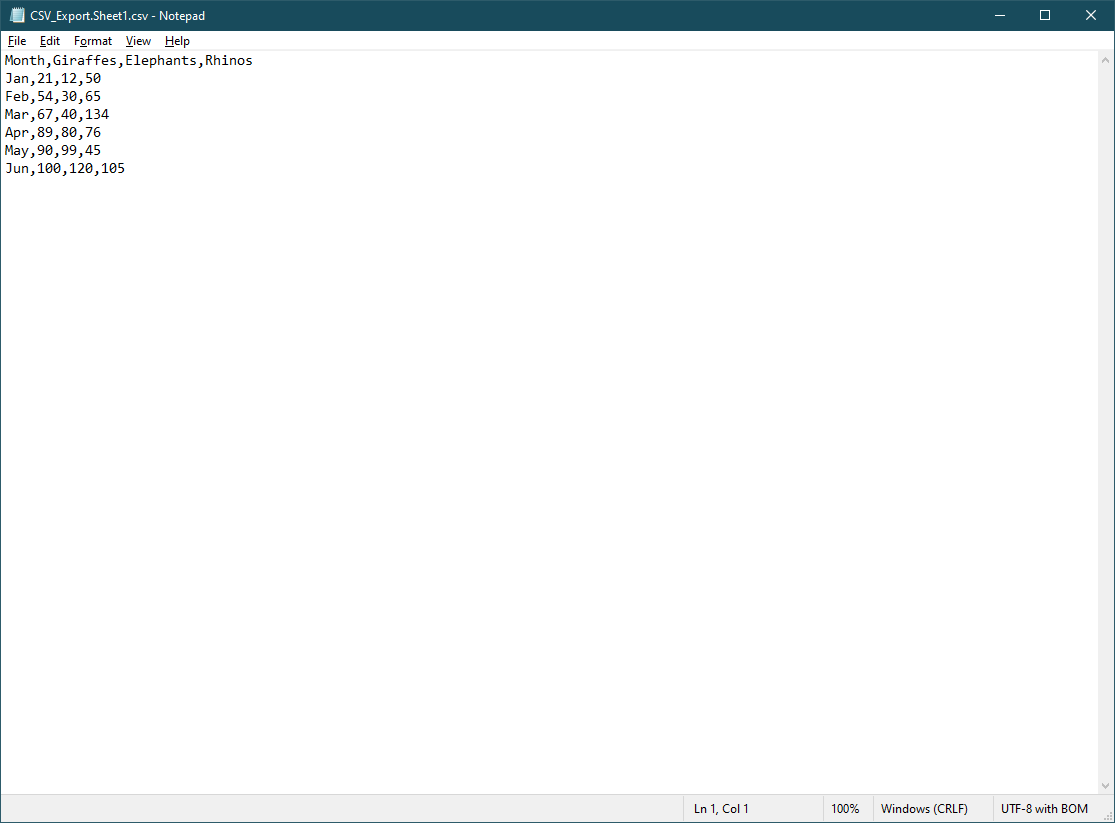
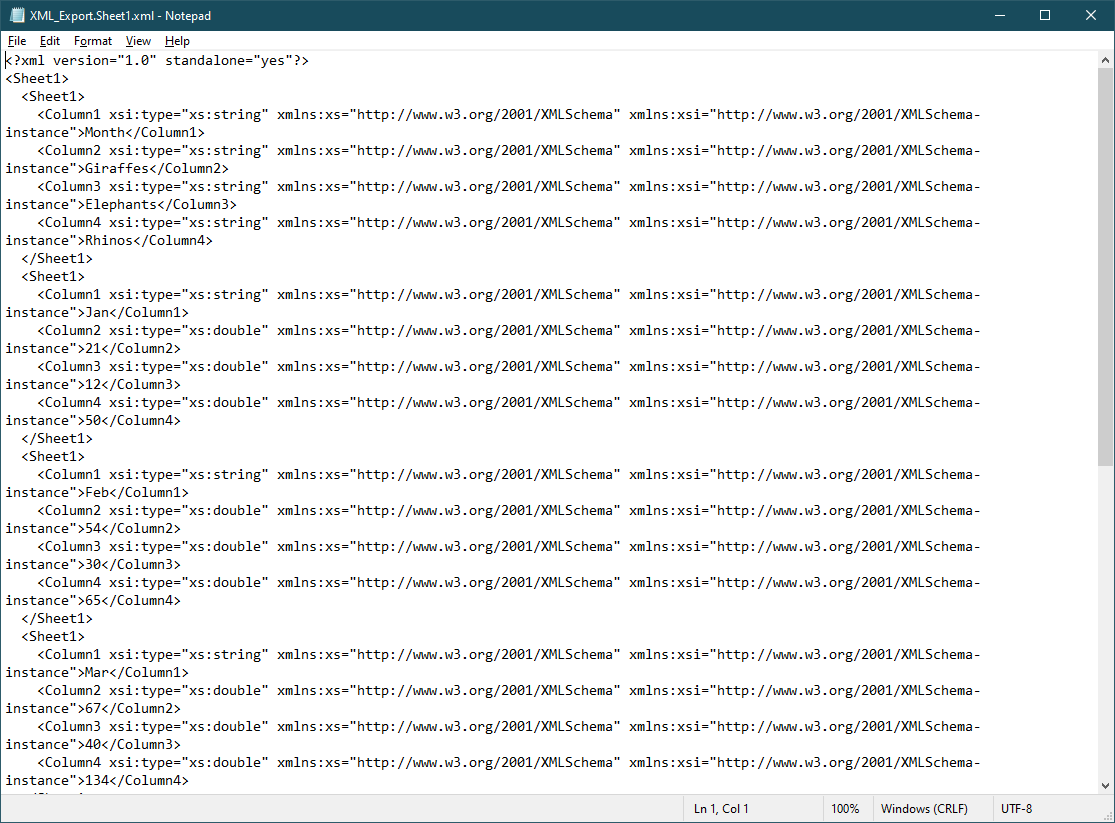
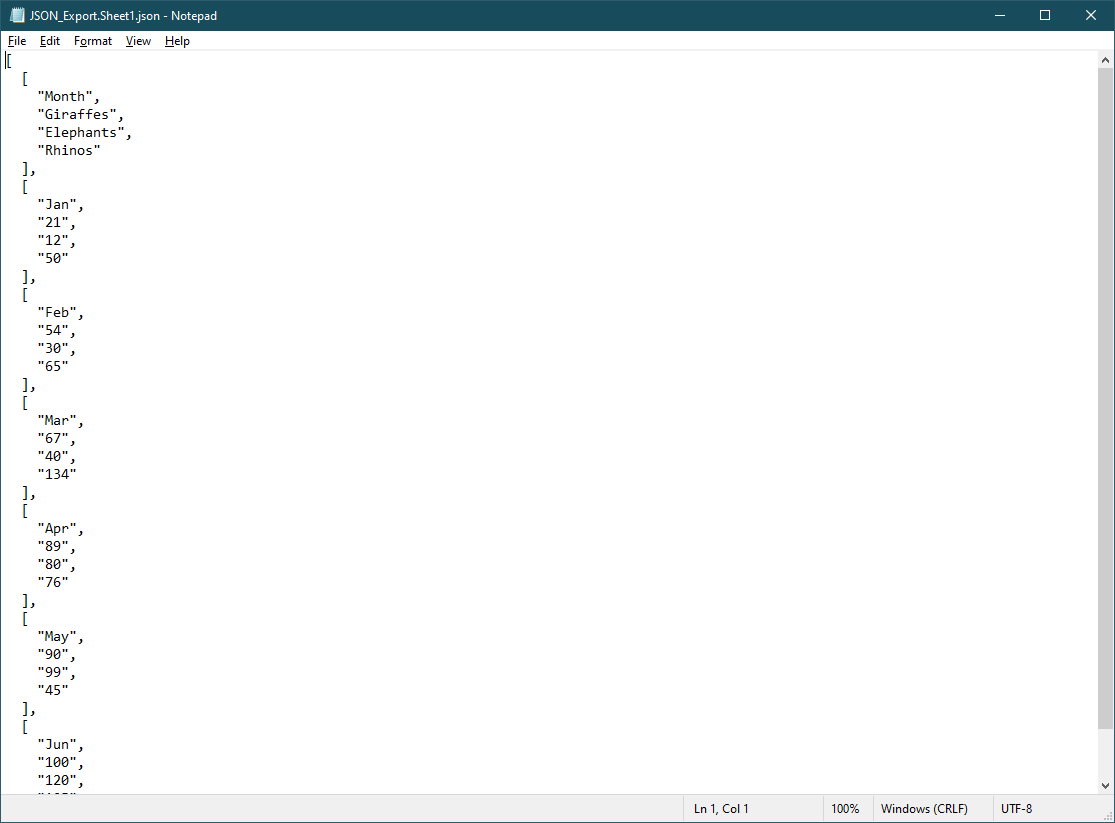
The code above loads an XLSX file, adds a Title, then converts it to several formats. When converting to CSV, `IronXL` handles special characters, multi-line cells, and proper escaping. For JSON exports, it creates a structured object representation of your spreadsheet data. XML conversion preserves cell formatting and data types. Finally, it exports the `Worksheet` as a `DataSet` for use with `DataGridView` objects, which works well when [working with `DataTables`](https://ironsoftware.com/csharp/excel/how-to/csharp-datatable-to-csv/).
Here's another example showing how to convert specific worksheets with custom options:
```csharp
using IronXL;
// Load workbook and select specific worksheet
WorkBook workbook = WorkBook.Load("MultiSheet.xlsx");
WorkSheet sheet = workbook.GetWorkSheet("SalesData");
// Convert just one worksheet to CSV with custom delimiter
sheet.SaveAsCsv("SalesData.csv", delimiter: ";");
// Export to JSON
sheet.SaveAsJson("SalesData.json");
// Convert to XML
sheet.SaveAsXml("SalesData.xml");
```
For advanced scenarios, you can [export to multiple formats simultaneously](https://ironsoftware.com/csharp/excel/examples/export-excel-spreadsheet/) or handle large files efficiently:
```csharp
using IronXL;
using System.Threading.Tasks;
// Async conversion for large files
public async Task ConvertLargeFileAsync(string inputPath)
{
WorkBook workbook = WorkBook.Load(inputPath);
// Parallel export to multiple formats
var tasks = new[]
{
Task.Run(() => workbook.SaveAsCsv("output.csv")),
Task.Run(() => workbook.SaveAsJson("output.json")),
Task.Run(() => workbook.SaveAsXml("output.xml"))
};
await Task.WhenAll(tasks);
}
```
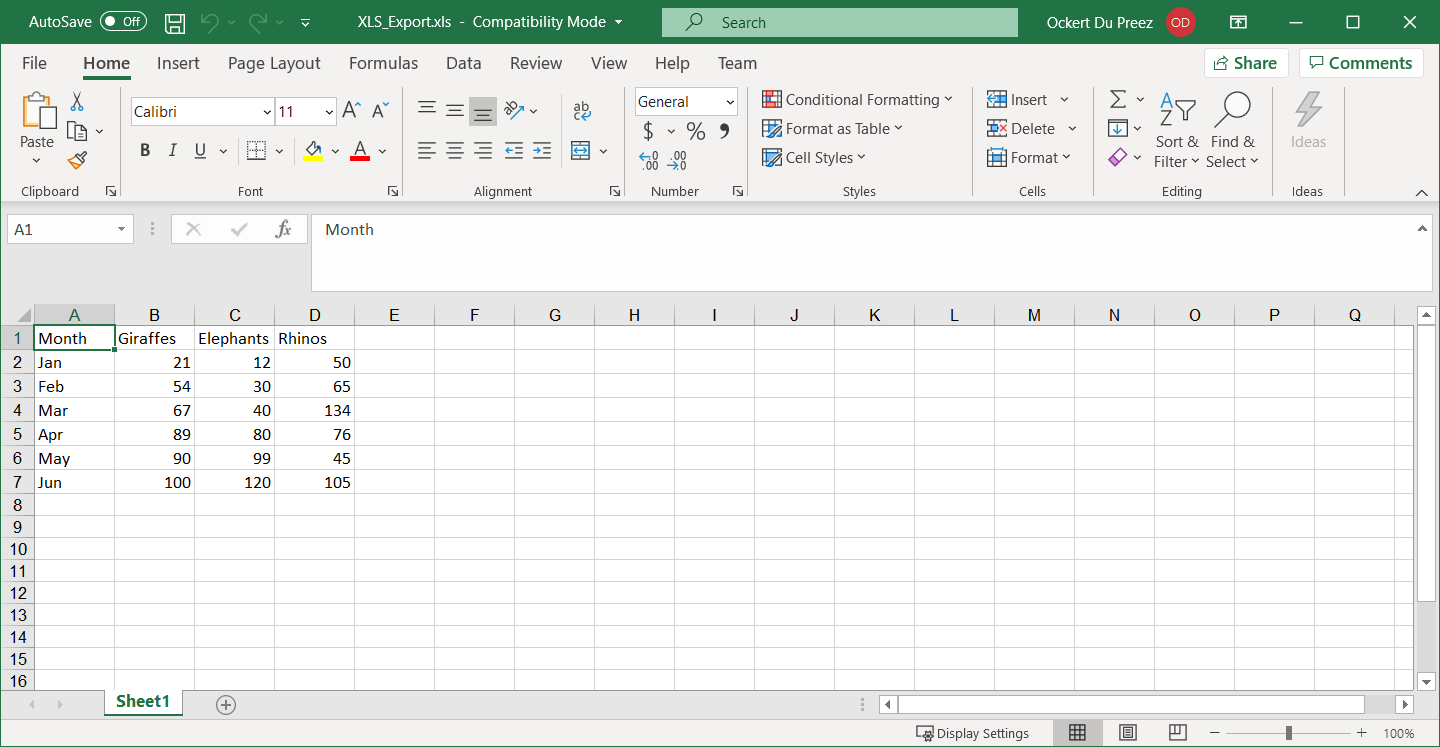
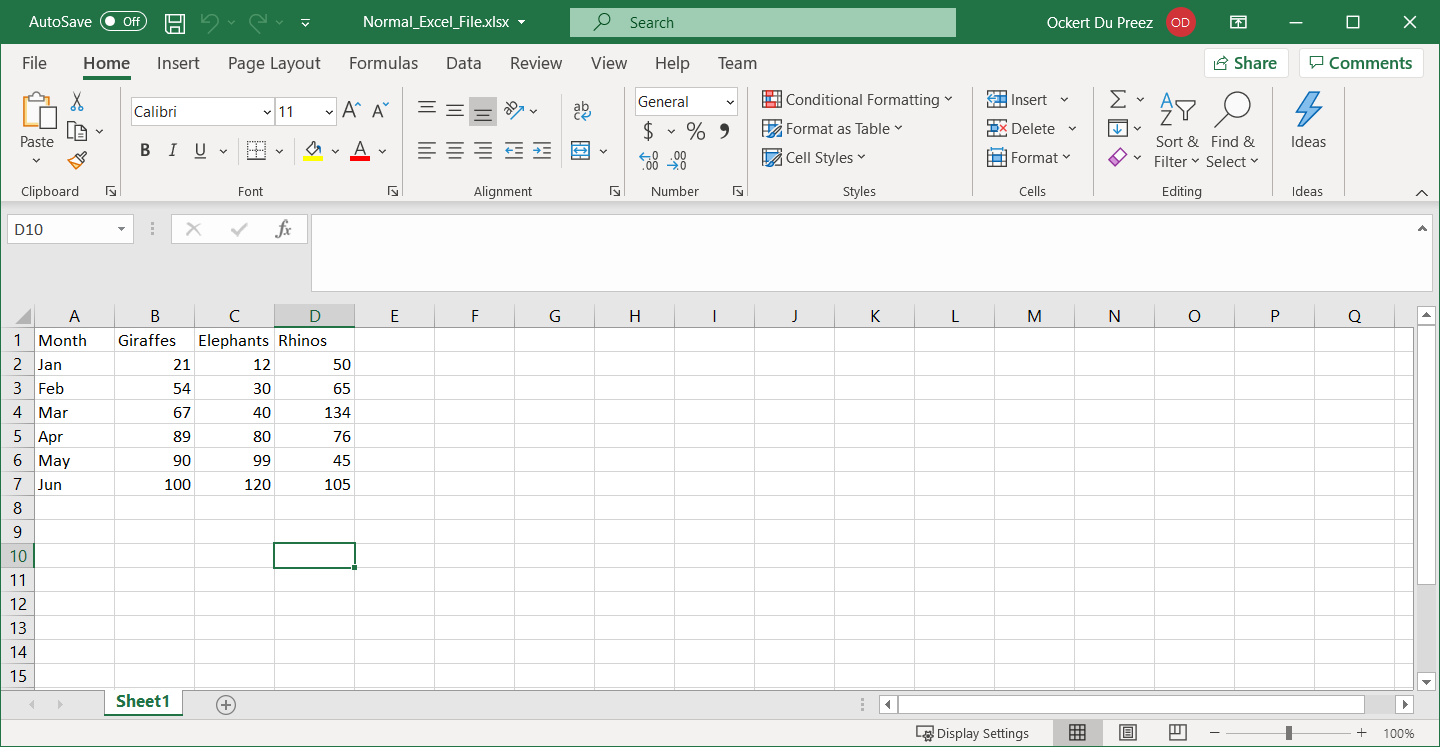
The various exported files are shown below.
<div class="content-img-align-center">
<div class="center-image-wrapper">
<a
href="/img/faq/excel/csharp-convert-xlsx-to-csv/csv-file-export.png"
target="_blank"
>
<img
class="img-responsive"
src="/img/faq/excel/csharp-convert-xlsx-to-csv/csv-file-export.png"
alt="CSV file export showing comma-separated values in a text editor with properly escaped data" />
</a>
<div class="image-description">
<span class="image-description-text_strong">
Figure 1
</span>
<span class="image-description-text_regular">
-
</span>
<span class="image-description-text_italic">
CSV File Export
</span>
</div>
</div>
</div>
<div class="content-img-align-center">
<div class="center-image-wrapper">
<a
href="/img/faq/excel/csharp-convert-xlsx-to-csv/xml-export.png"
target="_blank"
>
<img
class="img-responsive"
src="/img/faq/excel/csharp-convert-xlsx-to-csv/xml-export.png"
alt="XML export displaying hierarchical structure with properly formatted elements and attributes representing Excel data" />
</a>
<div class="image-description">
<span class="image-description-text_strong">
Figure 2
</span>
<span class="image-description-text_regular">
-
</span>
<span class="image-description-text_italic">
XML Export
</span>
</div>
</div>
</div>
<div class="content-img-align-center">
<div class="center-image-wrapper">
<a
href="/img/faq/excel/csharp-convert-xlsx-to-csv/json-export.png"
target="_blank"
>
<img
class="img-responsive"
src="/img/faq/excel/csharp-convert-xlsx-to-csv/json-export.png"
alt="JSON export showing structured data in JavaScript object notation format with proper nesting and data types" />
</a>
<div class="image-description">
<span class="image-description-text_strong">
Figure 3
</span>
<span class="image-description-text_regular">
-
</span>
<span class="image-description-text_italic">
JSON Export
</span>
</div>
</div>
</div>
<div class="content-img-align-center">
<div class="center-image-wrapper">
<a
href="/img/faq/excel/csharp-convert-xlsx-to-csv/xls-export.png"
target="_blank"
>
<img
class="img-responsive"
src="/img/faq/excel/csharp-convert-xlsx-to-csv/xls-export.png"
alt="XLS export opened in Microsoft Excel showing compatibility with older Excel format while preserving formatting" />
</a>
<div class="image-description">
<span class="image-description-text_strong">
Figure 4
</span>
<span class="image-description-text_regular">
-
</span>
<span class="image-description-text_italic">
XLS Export
</span>
</div>
</div>
</div>
<div class="content-img-align-center">
<div class="center-image-wrapper">
<a
href="/img/faq/excel/csharp-convert-xlsx-to-csv/excel-input-for-all-exports.png"
target="_blank"
>
<img
class="img-responsive"
src="/img/faq/excel/csharp-convert-xlsx-to-csv/excel-input-for-all-exports.png"
alt="Original Excel XLSX file showing source data with multiple columns and formatting before conversion to various formats" />
</a>
<div class="image-description">
<span class="image-description-text_strong">
Figure 5
</span>
<span class="image-description-text_regular">
-
</span>
<span class="image-description-text_italic">
Excel Input for all exports
</span>
</div>
</div>
</div>
Each conversion format serves different purposes in modern applications. CSV files work well for [importing data into databases](https://ironsoftware.com/csharp/excel/examples/load-excel-from-sql-database/) or data analysis tools. JSON format suits web APIs and JavaScript applications. XML maintains data structure and is commonly used in enterprise systems. The legacy XLS format ensures compatibility with older Excel versions and systems that require backward compatibility.
When working with these conversions, `IronXL` handles many complexities automatically:
- **Character Encoding:** Proper UTF-8 encoding for international characters
- **Data Type Preservation:** Maintains numeric, date, and text formatting
- **Formula Evaluation:** [Calculates formula results](https://ironsoftware.com/csharp/excel/how-to/edit-formulas/) before export
- **Large File Handling:** Efficient memory usage for big spreadsheets
- **Error Handling:** Graceful handling of corrupted or protected files
For applications requiring high performance or dealing with [file size limits](https://ironsoftware.com/csharp/excel/troubleshooting/file-size-limits/), `IronXL` provides optimization options. You can integrate these conversions into automated workflows, web services, or desktop applications.
<hr class="separator" />
<p class="main-content__segment-title">Library Quick Access</p>
<div class="tutorial-section">
<div class="row">
<div class="col-sm-8">
<h3>IronXL API Reference Documentation</h3>
<p>Learn more and share how to merge, unmerge, and work with cells in Excel spreadsheets using the handy <code>IronXL</code> API Reference Documentation.</p>
<a class="doc-link" href="/csharp/excel/object-reference/api/" target="_blank"> IronXL API Reference Documentation <i class="fa fa-chevron-right"></i></a>
</div>
<div class="col-sm-4">
<div class="tutorial-image">
<img style="max-width: 110px; width: 100px; height: 140px;" alt="" class="img-responsive add-shadow" src="/img/svgs/documentation.svg" width="100" height="140" />
</div>
</div>
</div>
</div>
IronXL converts Excel files to multiple formats including JSON, CSV, XML, and older Excel formats like XLS, using simple one-line commands that eliminate manual parsing.
IronXL converts any Excel file into various formats, providing developers with tools to work with Excel in C# without Interop. Whether migrating data between systems, creating data exports for web applications, or integrating with legacy systems, IronXL simplifies the conversion process.
These formats include: JSON for modern web APIs, CSV for data interchange, XML for structured data storage, and older Excel formats such as XLS for backward compatibility. Each format serves specific use cases - CSV works well for database imports, JSON integrates with REST APIs, and XML maintains hierarchical data relationships.
This article demonstrates how to use IronXL to convert to XML, CSV, JSON, and export Excel worksheets as datasets for direct integration with .NET data controls.
Quickstart: Convert an XLSX file to CSV with one line
This example shows how IronXL converts an existing Excel workbook into a CSV file in one line. Load your workbook and save it directly as CSV to get started immediately.
Export to CSV file or several other formats including JSON, TSV, and XML
Check the output files and apply further processing
Step 1
How Do I Install the IronXL Library?
First, install IronXL before using it in your applications. IronXL supports .NET MAUI, Blazor, and traditional .NET applications. Use either of these installation methods:
Right-click the Solution name in Solution Explorer
Click Manage NuGet Packages
Browse for IronXL.Excel
Install
PM > Install-Package IronXL.Excel
Install-Package IronXL.Excel
How to Tutorial
How Can I Convert Excel Files to Different Formats?
IronXL provides conversion capabilities that handle complex parsing and formatting automatically.
Add the following code:
using IronXL;// Load an existing Excel workbookWorkBook workbook = WorkBook.Load("Normal_Excel_File.xlsx");// Set metadata title for the workbookworkbook.Metadata.Title = "Normal_Excel_File.xlsx";// Save the workbook in different formatsworkbook.SaveAs("XLS_Export.xls");workbook.SaveAs("XLSX_Export.xlsx");workbook.SaveAsCsv("CSV_Export.csv");workbook.SaveAsJson("JSON_Export.json");workbook.SaveAsXml("XML_Export.xml");// Convert the workbook to a DataSet, allowing integration with other data tools like DataGridViewSystem.Data.DataSet dataSet = workbook.ToDataSet();
using IronXL;

// Load an existing Excel workbook
WorkBook workbook = WorkBook.Load("Normal_Excel_File.xlsx");

// Set metadata title for the workbook
workbook.Metadata.Title = "Normal_Excel_File.xlsx";

// Save the workbook in different formats
workbook.SaveAs("XLS_Export.xls");
workbook.SaveAs("XLSX_Export.xlsx");
workbook.SaveAsCsv("CSV_Export.csv");
workbook.SaveAsJson("JSON_Export.json");
workbook.SaveAsXml("XML_Export.xml");

// Convert the workbook to a DataSet, allowing integration with other data tools like DataGridView
System.Data.DataSet dataSet = workbook.ToDataSet();
ImportsIronXL' Load an existing Excel workbookDim workbook AsWorkBook = WorkBook.Load("Normal_Excel_File.xlsx")' Set metadata title for the workbookworkbook.Metadata.Title = "Normal_Excel_File.xlsx"' Save the workbook in different formatsworkbook.SaveAs("XLS_Export.xls")workbook.SaveAs("XLSX_Export.xlsx")workbook.SaveAsCsv("CSV_Export.csv")workbook.SaveAsJson("JSON_Export.json")workbook.SaveAsXml("XML_Export.xml")' Convert the workbook to a DataSet, allowing integration with other data tools like DataGridViewDim dataSet AsSystem.Data.DataSet = workbook.ToDataSet()
Imports IronXL

' Load an existing Excel workbook
Dim workbook As WorkBook = WorkBook.Load("Normal_Excel_File.xlsx")

' Set metadata title for the workbook
workbook.Metadata.Title = "Normal_Excel_File.xlsx"

' Save the workbook in different formats
workbook.SaveAs("XLS_Export.xls")
workbook.SaveAs("XLSX_Export.xlsx")
workbook.SaveAsCsv("CSV_Export.csv")
workbook.SaveAsJson("JSON_Export.json")
workbook.SaveAsXml("XML_Export.xml")

' Convert the workbook to a DataSet, allowing integration with other data tools like DataGridView
Dim dataSet As System.Data.DataSet = workbook.ToDataSet()
The code above loads an XLSX file, adds a Title, then converts it to several formats. When converting to CSV, IronXL handles special characters, multi-line cells, and proper escaping. For JSON exports, it creates a structured object representation of your spreadsheet data. XML conversion preserves cell formatting and data types. Finally, it exports the Worksheet as a DataSet for use with DataGridView objects, which works well when working with DataTables.
Here's another example showing how to convert specific worksheets with custom options:
using IronXL;// Load workbook and select specific worksheetWorkBook workbook = WorkBook.Load("MultiSheet.xlsx");WorkSheet sheet = workbook.GetWorkSheet("SalesData");// Convert just one worksheet to CSV with custom delimitersheet.SaveAsCsv("SalesData.csv", delimiter: ";");// Export to JSONsheet.SaveAsJson("SalesData.json");// Convert to XMLsheet.SaveAsXml("SalesData.xml");
using IronXL;

// Load workbook and select specific worksheet
WorkBook workbook = WorkBook.Load("MultiSheet.xlsx");
WorkSheet sheet = workbook.GetWorkSheet("SalesData");

// Convert just one worksheet to CSV with custom delimiter
sheet.SaveAsCsv("SalesData.csv", delimiter: ";");

// Export to JSON
sheet.SaveAsJson("SalesData.json");

// Convert to XML
sheet.SaveAsXml("SalesData.xml");
ImportsIronXL' Load workbook and select specific worksheetDim workbook AsWorkBook = WorkBook.Load("MultiSheet.xlsx")Dim sheet AsWorkSheet = workbook.GetWorkSheet("SalesData")' Convert just one worksheet to CSV with custom delimitersheet.SaveAsCsv("SalesData.csv", delimiter:=";")' Export to JSONsheet.SaveAsJson("SalesData.json")' Convert to XMLsheet.SaveAsXml("SalesData.xml")
Imports IronXL

' Load workbook and select specific worksheet
Dim workbook As WorkBook = WorkBook.Load("MultiSheet.xlsx")
Dim sheet As WorkSheet = workbook.GetWorkSheet("SalesData")

' Convert just one worksheet to CSV with custom delimiter
sheet.SaveAsCsv("SalesData.csv", delimiter:=";")

' Export to JSON
sheet.SaveAsJson("SalesData.json")

' Convert to XML
sheet.SaveAsXml("SalesData.xml")
using IronXL;using System.Threading.Tasks;// Async conversion for large filespublic async TaskConvertLargeFileAsync(string inputPath){ WorkBook workbook = WorkBook.Load(inputPath); // Parallel export to multiple formats var tasks = new[] {Task.Run(() => workbook.SaveAsCsv("output.csv")),Task.Run(() => workbook.SaveAsJson("output.json")),Task.Run(() => workbook.SaveAsXml("output.xml")) }; awaitTask.WhenAll(tasks);}
using IronXL;
using System.Threading.Tasks;

// Async conversion for large files
public async Task ConvertLargeFileAsync(string inputPath)
{
    WorkBook workbook = WorkBook.Load(inputPath);

    // Parallel export to multiple formats
    var tasks = new[]
    {
        Task.Run(() => workbook.SaveAsCsv("output.csv")),
        Task.Run(() => workbook.SaveAsJson("output.json")),
        Task.Run(() => workbook.SaveAsXml("output.xml"))
    };

    await Task.WhenAll(tasks);
}
ImportsIronXLImportsSystem.Threading.Tasks' Async conversion for large filesPublicAsync Function ConvertLargeFileAsync(inputPath AsString) AsTask Dim workbook AsWorkBook = WorkBook.Load(inputPath) ' Parallel export to multiple formats Dim tasks = New Task() {Task.Run(Sub() workbook.SaveAsCsv("output.csv")),Task.Run(Sub() workbook.SaveAsJson("output.json")),Task.Run(Sub() workbook.SaveAsXml("output.xml")) }AwaitTask.WhenAll(tasks)End Function
Imports IronXL
Imports System.Threading.Tasks

' Async conversion for large files
Public Async Function ConvertLargeFileAsync(inputPath As String) As Task
    Dim workbook As WorkBook = WorkBook.Load(inputPath)

    ' Parallel export to multiple formats
    Dim tasks = New Task() {
        Task.Run(Sub() workbook.SaveAsCsv("output.csv")),
        Task.Run(Sub() workbook.SaveAsJson("output.json")),
        Task.Run(Sub() workbook.SaveAsXml("output.xml"))
    }

    Await Task.WhenAll(tasks)
End Function
The various exported files are shown below.
Figure 1
CSV File Export
Figure 2
XML Export
Figure 3
JSON Export
Figure 4
XLS Export
Figure 5
Excel Input for all exports
Each conversion format serves different purposes in modern applications. CSV files work well for importing data into databases or data analysis tools. JSON format suits web APIs and JavaScript applications. XML maintains data structure and is commonly used in enterprise systems. The legacy XLS format ensures compatibility with older Excel versions and systems that require backward compatibility.
When working with these conversions, IronXL handles many complexities automatically:
Character Encoding: Proper UTF-8 encoding for international characters
Data Type Preservation: Maintains numeric, date, and text formatting
Large File Handling: Efficient memory usage for big spreadsheets
Error Handling: Graceful handling of corrupted or protected files
For applications requiring high performance or dealing with file size limits, IronXL provides optimization options. You can integrate these conversions into automated workflows, web services, or desktop applications.
Library Quick Access
IronXL API Reference Documentation
Learn more and share how to merge, unmerge, and work with cells in Excel spreadsheets using the handy IronXL API Reference Documentation.
How can I convert an XLSX file to CSV using IronXL?
With IronXL, you can convert an XLSX file to CSV using a single line of code. Load your workbook with IronXL and save it directly as a CSV file using `WorkBook.Load("input.xlsx").SaveAsCsv("output.csv");`.
What formats can IronXL convert Excel files into?
IronXL can convert Excel files into multiple formats such as CSV, JSON, XML, and XLS. These formats are useful for various applications, including data interchange and legacy system integration.
Does IronXL support Excel conversion in .NET applications?
Yes, IronXL supports conversion in various .NET application frameworks, including .NET MAUI, Blazor, and traditional .NET applications.
Can IronXL handle special characters and multi-line cells during CSV conversion?
Yes, IronXL handles special characters, multi-line cells, and proper data escaping when converting Excel files to CSV format.
Is it possible to convert only specific worksheets using IronXL?
Yes, you can select specific worksheets for conversion in IronXL. Load the workbook, select a worksheet, and save it using methods like `sheet.SaveAsCsv("SalesData.csv")`.
How does IronXL handle formula evaluation in Excel files?
IronXL can evaluate formulas in Excel files before export, ensuring that the final output includes computed values rather than the formula text.
What are the advantages of using JSON format with IronXL?
The JSON format is advantageous for its integration with web APIs and JavaScript applications. IronXL enables conversion of Excel data to JSON, preserving the structured data representation.
How does IronXL ensure compatibility with older Excel versions?
IronXL can export Excel files to the legacy XLS format, maintaining backward compatibility for applications and systems that require older Excel file support.
Can IronXL be used for automated workflows involving Excel file conversions?
Yes, IronXL supports integration into automated workflows and web services, providing efficient and comprehensive conversion solutions for diverse applications.
Does IronXL support large file handling during Excel conversions?
IronXL is optimized for large files, using efficient memory management to process big spreadsheets during conversions while maintaining performance.
Curtis Chau holds a Bachelor’s degree in Computer Science (Carleton University) and specializes in front-end development with expertise in Node.js, TypeScript, JavaScript, and React. Passionate about crafting intuitive and aesthetically pleasing user interfaces, Curtis enjoys working with modern frameworks and creating well-structured, visually appealing manuals.