
C# Excel Interop Workaround

Many projects use Excel to communicate clearly, but if you are using Microsoft.Office.Interop.Excel, then you have likely had to face many complicated lines of code. In this tutorial, we will use IronXL as a C# Excel Interop workaround, so you don't have to use Interop in order to finish your project. You can use Excel file data, create Excel files, edit, and manipulate all using C# programming.
C# Excel No Interop
- Download Excel No Interop Library
- Access Excel file in C#
- Create a new Excel file and insert data programmatically
- Modify existing files, update and replace cell values, remove rows, and more
How to Use Excel Interop Alternatively
- Install an Excel library to process Excel files.
- Open the
Workbookand add the current Excel file. - Set the default Worksheet.
- Read the value from the Excel Workbook.
- Process and show the value.
Step 1
1. Download IronXL Library
Download IronXL Library or install with NuGet to access the free library and then follow step by step to work through this tutorial on using Excel without Interop. Licenses available if you want to go live with your project.
How to Tutorial
2. Access Excel File Data
To develop business applications, we need easy and perfect access to data from Excel files and the ability to manipulate them programmatically according to a variety of requirements. With IronXL, use the WorkBook.Load() function, which grants access to reading a specific Excel file.
After accessing the WorkBook, you can then choose a specific WorkSheet using the WorkBook.GetWorkSheet() function. Now you have all Excel file data available. See the following example for how we used these functions to get Excel file data in a C# project.
// Import the IronXL library to access its functionality
using IronXL;

static void Main(string[] args)
{
    // Access Excel file
    WorkBook wb = WorkBook.Load("sample.xlsx");
    // Access WorkSheet of Excel file
    WorkSheet ws = wb.GetWorkSheet("Sheet1");

    // Get a specific cell value, convert it to a string, and print it
    string a = ws["A5"].Value.ToString();
    Console.WriteLine("Getting Single Value:\n\n   Value of Cell A5: {0}", a);

    Console.WriteLine("\nGetting Many Cells Value using Loop:\n");
    // Get multiple cell values using range function and iterate through them
    foreach (var cell in ws["B2:B10"])
    {
        Console.WriteLine("   Value is: {0}", cell.Text);
    }

    Console.ReadKey(); // Pause the console to view output
}' Import the IronXL library to access its functionality
Imports Microsoft.VisualBasic
Imports IronXL
Shared Sub Main(ByVal args() As String)
' Access Excel file
Dim wb As WorkBook = WorkBook.Load("sample.xlsx")
' Access WorkSheet of Excel file
Dim ws As WorkSheet = wb.GetWorkSheet("Sheet1")
' Get a specific cell value, convert it to a string, and print it
Dim a As String = ws("A5").Value.ToString()
Console.WriteLine("Getting Single Value:" & vbLf & vbLf & " Value of Cell A5: {0}", a)
Console.WriteLine(vbLf & "Getting Many Cells Value using Loop:" & vbLf)
' Get multiple cell values using range function and iterate through them
For Each cell In ws("B2:B10")
Console.WriteLine(" Value is: {0}", cell.Text)
Next cell
Console.ReadKey() ' Pause the console to view output
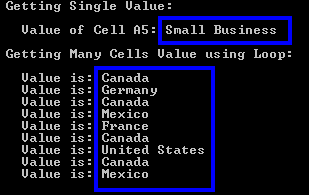
End SubThis code will produce the following outcome:
With the Excel file looking like this:
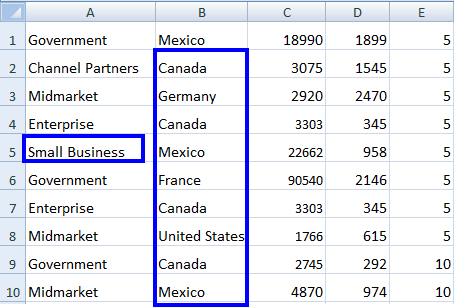
We can see that our Excel file, sample.xlsx, has small business in the A5 cell. The other values from B2 to B10 are the same and displayed in the output.
DataSet and DataTables
We can also work with Excel files as a dataset and datatables using these directions.
// Access WorkBook and WorkSheet
WorkBook wb = WorkBook.Load("sample.xlsx");
WorkSheet ws = wb.GetWorkSheet("Sheet1");

// Convert workbook to DataSet
DataSet ds = wb.ToDataSet();

// Convert worksheet to DataTable
DataTable dt = ws.ToDataTable(true);' Access WorkBook and WorkSheet
Dim wb As WorkBook = WorkBook.Load("sample.xlsx")
Dim ws As WorkSheet = wb.GetWorkSheet("Sheet1")
' Convert workbook to DataSet
Dim ds As DataSet = wb.ToDataSet()
' Convert worksheet to DataTable
Dim dt As DataTable = ws.ToDataTable(True)You can read more about how to work with Excel DataSet and DataTables, which provides more code examples and explanations on the process.
Now, we will see another aspect, which is about creating a new Excel file in our C# project.
3. Create New Excel File
We can easily create a new Excel spreadsheet and insert data in it programmatically in our C# project. To accomplish this, IronXL provides the WorkBook.Create() function, which creates a new Excel file.
We can then create as many WorkSheets as needed using the WorkBook.CreateWorkSheet() function.
After that, we can also insert data, as shown in the example below:
// Import the IronXL library
using IronXL;

static void Main(string[] args)
{
    // Create a new WorkBook
    WorkBook wb = WorkBook.Create();

    // Create a new WorkSheet in the workbook
    WorkSheet ws = wb.CreateWorkSheet("sheet1");

    // Insert data into cells
    ws["A1"].Value = "New Value A1";
    ws["B2"].Value = "New Value B2";

    // Save the newly created Excel file
    wb.SaveAs("NewExcelFile.xlsx");
}' Import the IronXL library
Imports IronXL
Shared Sub Main(ByVal args() As String)
' Create a new WorkBook
Dim wb As WorkBook = WorkBook.Create()
' Create a new WorkSheet in the workbook
Dim ws As WorkSheet = wb.CreateWorkSheet("sheet1")
' Insert data into cells
ws("A1").Value = "New Value A1"
ws("B2").Value = "New Value B2"
' Save the newly created Excel file
wb.SaveAs("NewExcelFile.xlsx")
End SubThe above code will create a new Excel file with the name NewExcelFile.xlsx, and insert new data in cell addresses A1 and B2 with values New Value A1 and New Value B2 respectively. With this setup, you can insert data in the same way, as much as you need.
Note: If you are creating a new Excel file or modifying an existing one, don't forget to save the file as shown in the example above.
Dig deeper into how to Create new Excel SpreadSheets using C# and try the code in your project.
4. Modify Existing Excel File
We can modify existing Excel files and insert updated data in them programmatically. In Excel file modifications, we will see the following aspects:
- Update the cell value
- Replace old values with new ones
- Remove rows or columns
Let's see how to implement the above topics in our C# project.
Update Cell Value
It is very simple to update the cell value of an existing Excel spreadsheet. Just access the Excel file in the project and specify its WorkSheet, and then update its data as shown in the example below:
// Import the IronXL library
using IronXL;

static void Main(string[] args)
{
    // Access the WorkBook and WorkSheet
    WorkBook wb = WorkBook.Load("sample.xlsx");
    WorkSheet ws = wb.GetWorkSheet("Sheet1");

    // Update A3 cell value
    ws["A3"].Value = "New Value of A3";

    // Save the updated Excel file
    wb.SaveAs("sample.xlsx");
}' Import the IronXL library
Imports IronXL
Shared Sub Main(ByVal args() As String)
' Access the WorkBook and WorkSheet
Dim wb As WorkBook = WorkBook.Load("sample.xlsx")
Dim ws As WorkSheet = wb.GetWorkSheet("Sheet1")
' Update A3 cell value
ws("A3").Value = "New Value of A3"
' Save the updated Excel file
wb.SaveAs("sample.xlsx")
End SubThe above code will update the value of cell A3 with New Value of A3.
We can also update multiple cells with a static value, using the range function:
ws["A3:C3"].Value = "New Value";ws("A3:C3").Value = "New Value"This will update row number 3 from A3 to C3 cells with the New Value in the Excel file.
Learn more about using the Range Function in C# with these examples.
Replace Cell Values
One of the strengths of IronXL is its ability to easily replace old values with new values in existing Excel files, covering all the following aspects:
-
Replace values of a complete WorkSheet:
ws.Replace("old value", "new value");ws.Replace("old value", "new value") -
Replace values of a specific row:
ws.Rows[RowIndex].Replace("old value", "new value");ws.Rows(RowIndex).Replace("old value", "new value") -
Replace values of a specific column:
ws.Columns[ColumnIndex].Replace("old value", "new Value");ws.Columns(ColumnIndex).Replace("old value", "new Value") -
Replace values in a specific range:
ws["From:To"].Replace("old value", "new value");ws("From:To").Replace("old value", "new value")
Let's view an example to clearly see how to use the above functions in our C# Project to replace the values. In this example, we'll use the replace function to replace a value in a specific range.
// Import the IronXL library
using IronXL;

static void Main(string[] args)
{
    // Access the WorkBook and WorkSheet
    WorkBook wb = WorkBook.Load("sample.xlsx");
    WorkSheet ws = wb.GetWorkSheet("Sheet1");

    // Specify a range from B5 to G5 and replace "Normal" value with "Good"
    ws["B5:G5"].Replace("Normal", "Good");

    // Save the updated Excel file
    wb.SaveAs("sample.xlsx");
}' Import the IronXL library
Imports IronXL
Shared Sub Main(ByVal args() As String)
' Access the WorkBook and WorkSheet
Dim wb As WorkBook = WorkBook.Load("sample.xlsx")
Dim ws As WorkSheet = wb.GetWorkSheet("Sheet1")
' Specify a range from B5 to G5 and replace "Normal" value with "Good"
ws("B5:G5").Replace("Normal", "Good")
' Save the updated Excel file
wb.SaveAs("sample.xlsx")
End SubThe above code will replace the Normal value with Good from B5 to G5, and the rest of the WorkSheet remains the same. See more about how to Edit Excel Cell Values in a Range using this function of IronXL.
Remove Rows of Excel File
In application development, we sometimes need to remove whole rows of existing Excel files programmatically. For this task, we use the RemoveRow() function of IronXL. Here's an example:
// Import the IronXL library
using IronXL;

static void Main(string[] args)
{
    // Access the WorkBook and WorkSheet
    WorkBook wb = WorkBook.Load("sample.xlsx");
    WorkSheet ws = wb.GetWorkSheet("Sheet1");

    // Remove the row number 2
    ws.Rows[2].RemoveRow();

    // Save the updated Excel file
    wb.SaveAs("sample.xlsx");
}' Import the IronXL library
Imports IronXL
Sub Main(args As String())
' Access the WorkBook and WorkSheet
Dim wb As WorkBook = WorkBook.Load("sample.xlsx")
Dim ws As WorkSheet = wb.GetWorkSheet("Sheet1")
' Remove the row number 2
ws.Rows(2).RemoveRow()
' Save the updated Excel file
wb.SaveAs("sample.xlsx")
End SubThe above code will remove row number 2 of sample.xlsx.
Tutorial Quick Access
IronXL Reference
Read the API Reference for IronXL to read more about all the functions, features, classes, and namespaces.
IronXL Reference
Frequently Asked Questions
What is the main advantage of using IronXL as an alternative to C# Excel Interop?
The main advantage of using IronXL over C# Excel Interop is the simplicity it offers by eliminating the need for complicated code, allowing easy reading, creating, and modifying of Excel files programmatically without relying on Microsoft.Office.Interop.Excel.
How can I download the IronXL library for use in my C# project?
You can download the IronXL library directly from the IronSoftware website or install it via NuGet with the package `IronXL.Excel`. This allows you to start working with Excel files in your C# projects without using Interop.
How do I access Excel file data using IronXL?
To access Excel file data using IronXL, you can use the `WorkBook.Load()` function to open the Excel file and `WorkBook.GetWorkSheet()` to select a specific worksheet. This gives you access to read and manipulate the data programmatically.
Can I create a new Excel file using IronXL? If so, how?
Yes, you can create a new Excel file using IronXL. Use the `WorkBook.Create()` function to create a new workbook and `WorkBook.CreateWorkSheet()` to add worksheets. You can insert data into cells and save the file using `wb.SaveAs("filename.xlsx")`.
How can I modify existing Excel files with IronXL?
With IronXL, you can modify existing Excel files by loading the file into a `WorkBook` object, accessing the desired `WorkSheet`, and changing cell values or removing rows. Use the `SaveAs` method to save your changes.
What functionality does IronXL offer for updating Excel cell values?
IronXL allows you to update Excel cell values by accessing the `WorkSheet` and setting new values for specific cells. You can also update a range of cells using the `range` function to apply a new value across multiple cells.
How does IronXL support replacing existing values in Excel files?
IronXL supports replacing existing values in Excel files using the `Replace()` method. You can replace values across an entire worksheet, specific rows, columns, or a defined range.
Is it possible to remove rows from an Excel file using IronXL?
Yes, IronXL allows you to remove rows from an Excel file programmatically. Use the `RemoveRow()` method on the specific row you wish to delete, and then save the modified file.
What types of applications can benefit from integrating IronXL?
Business applications that require easy and flexible access to Excel data for reporting, data analysis, or manipulation can benefit significantly from integrating IronXL, enabling developers to efficiently manage Excel files within C# applications.
Where can I find more documentation on IronXL functions and usage?
You can find more detailed documentation on IronXL functions, features, classes, and namespaces in the IronXL API Reference available on the Iron Software website.

Curtis Chau holds a Bachelor’s degree in Computer Science (Carleton University) and specializes in front-end development with expertise in Node.js, TypeScript, JavaScript, and React. Passionate about crafting intuitive and aesthetically pleasing user interfaces, Curtis enjoys working with modern frameworks and creating well-structured, visually appealing manuals.



