
VB .NET Read & Create Excel Files (Code Example Tutorial)

Developers need a smooth and simple approach to accessing VB .NET Excel files. In this walkthrough, we'll use IronXL to read VB .NET Excel files and access all data for our project use. We'll learn about creating spreadsheets in all formats (.xls, .xlsx, .csv, and .tsv), as well as setting cell styles and inserting data using VB.NET Excel programming.
How to Read Excel File in VB.NET
- Download VB.NET Read Excel C# Library
- Create Excel Files in VB.NET
- Insert Data into Worksheet
- Read Excel File in VB.NET
- Access Data From Worksheet
- Perform Functions on Data
Step 1
1. Excel for VB.NET Library
Get the IronXL Excel for VB.NET Library using DLL Download or NuGet. IronXL is our Step 1 to quickly accessing Excel data in our VB.NET projects, and what we'll be using for this tutorial (free for development).
How To Tutorial
2. Create Excel Files in VB.NET
IronXL provides the simplest approach to create an Excel (.xlsx format) file in a VB.NET project. After this, we can insert data and also set cell properties like font styles or borders.
2.1. Create Excel File
Let's first create a WorkBook:
' Create a new Excel workbook with the default format (.xlsx)
Dim wb As WorkBook = WorkBook.Create()The above code is for creating a new Excel file. By default, its extension is .xlsx.
2.2. Create XLS File
In the case that you want to create an .xls extension file, you can use this code:
' Create a new Excel workbook with .xls format
Dim wb As New WorkBook(ExcelFileFormat.XLS)2.3. Create Worksheet
After creating the WorkBook, an Excel WorkSheet can be created as follows:
' Create a new worksheet named "Sheet1" in the workbook
Dim ws1 As WorkSheet = wb.CreateWorkSheet("Sheet1")The above code will create a new WorkSheet ws1 with the name Sheet1 in WorkBook wb.
2.4. Create Multiple Worksheets
Any number of WorkSheets can be created in the same way:
' Create additional worksheets
Dim ws2 As WorkSheet = wb.CreateWorkSheet("Sheet2")
Dim ws3 As WorkSheet = wb.CreateWorkSheet("Sheet3")3. Insert Data into Worksheet
3.1. Insert Data into Cells
Now we can easily insert data into WorkSheet cells as follows:
' Insert a value into a specific cell
worksheet("CellAddress").Value = "MyValue"For example, data in worksheet ws1 can be inserted as:
' Insert "Hello World" into cell A1 of the worksheet
ws1("A1").Value = "Hello World"The above code will write Hello World in cell A1 of WorkSheet ws1.
3.2. Insert Data into Range
It is also possible to write data into many cells using the range function as follows:
' Insert "NewValue" into the range from cell A3 to A8
ws1("A3:A8").Value = "NewValue"3.3. Create and Edit Worksheets Example
We will create a new Excel file Sample.xlsx and insert some data in it to showcase the code we learned above.
' Import IronXL namespace for Excel operations
Imports IronXL

' Main subroutine to create and edit Excel
Sub Main()
    ' Create a new workbook in XLSX format
    Dim wb As New WorkBook(ExcelFileFormat.XLSX)
    ' Create a worksheet named "Sheet1"
    Dim ws1 As WorkSheet = wb.CreateWorkSheet("Sheet1")
    ' Insert data into cells
    ws1("A1").Value = "Hello"
    ws1("A2").Value = "World"
    ' Insert a range of values
    ws1("B1:B8").Value = "RangeValue"
    ' Save the workbook as "Sample.xlsx"
    wb.SaveAs("Sample.xlsx")
End SubNote: By default, the new Excel file will be created in the bin\Debug folder of the project. If we want to create a new file in a custom path, use:
wb.SaveAs(@"E:\IronXL\Sample.xlsx")Here is the screenshot of our newly created Excel file Sample.xlsx:
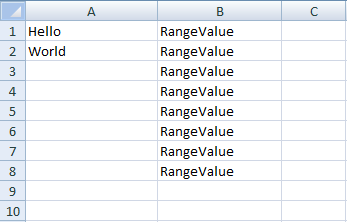
It is clear how simple it can be to create Excel files using IronXL in a VB.NET Application.
4. Read Excel File in VB.NET
IronXL also provides a simple approach to read Excel (.xlsx) files in your VB .NET project. For this purpose, simply get the Excel document, load it in your project, read its data, and use it as per your requirements.
Follow these steps:
4.1. Access Excel File in Project
WorkBook is the class of IronXL whose object provides full access to the Excel file and its functions. For example, if we want to access the Excel file, we simply use:
' Load the Excel file "sample.xlsx" into a workbook
Dim wb As WorkBook = WorkBook.Load("sample.xlsx") 'Excel file pathIn the code above, the WorkBook.Load() function loads sample.xlsx into wb. Any type of function can be performed on wb by accessing specific WorkSheets of the Excel file.
4.2. Access Specific WorkSheet
To access a specific sheet in Excel, take the WorkSheet class, which can be used in the following different ways:
By Sheet Name
' Access worksheet by name
Dim ws As WorkSheet = wb.GetWorkSheet("Sheet1") 'by sheet nameBy Sheet Index
' Access worksheet by index
Dim ws As WorkSheet = wb.WorkSheets(0) 'by sheet indexDefault Sheet
' Access the default worksheet
Dim ws As WorkSheet = wb.DefaultWorkSheet() 'for the default sheetFirst Sheet
' Access the first worksheet in the workbook
Dim sheet As WorkSheet = wb.WorkSheets.FirstOrDefault() 'for the first sheetAfter getting the Excel sheet ws, you can get any type of data from the corresponding WorkSheet of the Excel file and perform all Excel functions.
5. Access Data From WorkSheet
Data can be accessed from the ExcelSheet ws in this way:
' Retrieve values from specific cells
Dim int_Value As Integer = ws("A2").IntValue 'for integer
Dim str_value As String = ws("A2").ToString() 'for string5.1. Data from Specific Column
It is also possible to get data from many cells of a specific column in the following way:
' Loop through cells in a specific range and print their values
For Each cell In ws("A2:A10")
    Console.WriteLine("value is: {0}", cell.Text)
Next cellIt will display values from cells A2 to A10. A code example of the above discussion is given below.
' Example: Load and display values from a column
Imports IronXL

Sub Main()
    ' Load the workbook from file
    Dim wb As WorkBook = WorkBook.Load("sample.xlsx")
    ' Get the first worksheet
    Dim ws As WorkSheet = wb.WorkSheets.FirstOrDefault()
    ' Loop through cells in range A2:A10
    For Each cell In ws("A2:A10")
        Console.WriteLine("value is: {0}", cell.Text)
    Next
    Console.ReadKey()
End SubThis will display the following output:
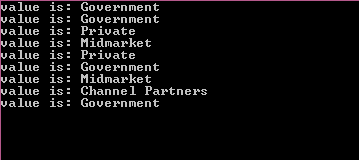
And we can see a Screenshot of Excel file Sample.xlsx:

6. Perform Functions on Data
It is simple to access filtered data from an Excel WorkSheet by applying aggregate functions like Sum, Min, or Max in the following way:
' Aggregate functions on a range of data
Dim sum As Decimal = ws("From:To").Sum()
Dim min As Decimal = ws("From:To").Min()
Dim max As Decimal = ws("From:To").Max()You can read more about Excel Aggregate Functions here.
' Example: Apply functions to data
Imports IronXL

Sub Main()
    ' Load the workbook
    Dim wb As WorkBook = WorkBook.Load("sample.xlsx")
    ' Get the first worksheet
    Dim ws As WorkSheet = wb.WorkSheets.FirstOrDefault()

    ' Perform aggregate calculations
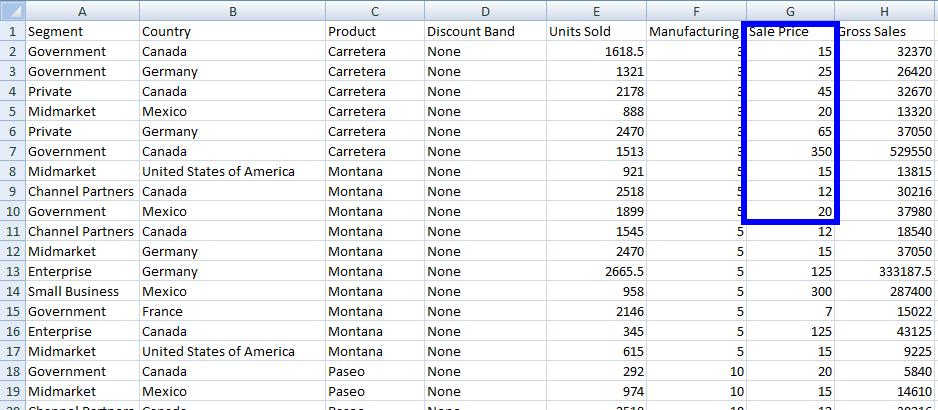
    Dim sum As Decimal = ws("G2:G10").Sum()
    Dim min As Decimal = ws("G2:G10").Min()
    Dim max As Decimal = ws("G2:G10").Max()

    ' Print the results
    Console.WriteLine("Sum is: {0}", sum)
    Console.WriteLine("Min is: {0}", min)
    Console.WriteLine("Max is: {0}", max)
    Console.ReadKey()
End SubThis code will give us this display:
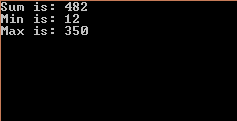
And this Excel file Sample.xlsx:
You can learn more about how to read Excel in the linked article.
Tutorial Quick Access
Documentation API Reference
Access the documentation API reference of IronXL and the simple ways to work with Excel in your VB.NET project. Find lists of features, functions, classes, and more.
Documentation API Reference
Frequently Asked Questions
How do I read an Excel file using VB.NET without Interop?
To read an Excel file in VB.NET without Interop, use the IronXL library. You can load the Excel document using the WorkBook.Load() method and access the data directly from the workbook.
What formats can be created with IronXL in a VB.NET project?
IronXL allows you to create Excel files in various formats including .xlsx, .xls, .csv, and .tsv using VB.NET.
How can I insert data into an Excel worksheet using IronXL?
You can insert data into an Excel worksheet by setting the cell's value property. For example, use ws("A1").Value = "Hello World" to write 'Hello World' in cell A1.
Can I perform aggregate functions on Excel data with IronXL?
Yes, IronXL allows you to perform aggregate functions such as Sum, Min, and Max on a range of cells in the Excel worksheet.
Is it possible to access a specific worksheet by its name with IronXL?
Yes, you can access a specific worksheet by its name using IronXL's WorkBook.GetWorkSheet() method, passing the sheet name as an argument.
How do I create multiple worksheets in an Excel file using IronXL?
To create multiple worksheets in IronXL, use the WorkBook.CreateWorkSheet() method for each worksheet you want to add, providing unique names for each sheet.
What is the default format for new Excel files created with IronXL?
The default format for new Excel files created with IronXL is .xlsx, but you can specify .xls or other formats if needed.
How can I access the first worksheet in a workbook using IronXL?
You can access the first worksheet in a workbook by using the WorkBook.WorkSheets.FirstOrDefault() method in IronXL.
How do I download the IronXL library for VB.NET?
You can download the IronXL library for VB.NET from NuGet or directly as a DLL from the Iron Software website to integrate it into your project.
Can IronXL handle Excel files located in a custom file path?
Yes, IronXL can handle Excel files from any file path. Use the WorkBook.Load() method with the full file path to load the Excel document.

Curtis Chau holds a Bachelor’s degree in Computer Science (Carleton University) and specializes in front-end development with expertise in Node.js, TypeScript, JavaScript, and React. Passionate about crafting intuitive and aesthetically pleasing user interfaces, Curtis enjoys working with modern frameworks and creating well-structured, visually appealing manuals.



