


C# OCR Image to Text Tutorial: Convert Images to Text Without Tesseract

Looking to convert images to text in C# without the hassle of complex Tesseract configurations? This comprehensive IronOCR C# tutorial shows you how to implement powerful optical character recognition in your .NET applications with just a few lines of code.
Quickstart: Extract Text from an Image in One Line
This example shows how easy it is to grasp IronOCR—just one line of C# turns your image into text. It demonstrates initializing the OCR engine and immediately reading and retrieving text without complex setup.
-
Install IronOCR with NuGet Package Manager
-
Copy and run this code snippet.
string text = new IronTesseract().Read("image.png").Text; -
Deploy to test on your live environment
Start using IronOCR in your project today with a free trial

Minimal Workflow (5 steps)
- Download IronOCR - the C# OCR library for image to text conversion
- Use
IronTesseractclass to read text from images instantly - Apply image filters to enhance OCR accuracy on low-quality scans
- Process multiple languages with downloadable language packs
- Export results as searchable PDFs or extract text strings
How Do I Read Text from Images in .NET Applications?
To achieve C# OCR image to text functionality in your .NET applications, you'll need a reliable OCR library. IronOCR provides a managed solution using the IronOcr.IronTesseract class that maximizes both accuracy and speed without requiring external dependencies.
First, install IronOCR into your Visual Studio project. You can download the IronOCR DLL directly or use NuGet Package Manager.
Install-Package IronOcr
Why Choose IronOCR for C# OCR Without Tesseract?
When you need to convert images to text in C#, IronOCR offers significant advantages over traditional Tesseract implementations:
- Works immediately in pure .NET environments
- No Tesseract installation or configuration required
- Runs the latest engines: Tesseract 5 (plus Tesseract 4 & 3)
- Compatible with .NET Framework 4.6.2+, .NET Standard 2+, and .NET Core 2, 3, 5, 6, 7, 8, 9, and 10
- Improves accuracy and speed compared to vanilla Tesseract
- Supports Xamarin, Mono, Azure, and Docker deployments
- Manages complex Tesseract dictionaries through NuGet packages
- Handles PDFs, MultiFrame TIFFs, and all major image formats automatically
- Corrects low-quality and skewed scans for optimal results
How to Use IronOCR C# Tutorial for Basic OCR?
This Iron Tesseract C# example demonstrates the simplest way to read text from image using IronOCR. The IronOcr.IronTesseract class extracts text and returns it as a string.
:path=/static-assets/ocr/content-code-examples/tutorials/how-to-read-text-from-an-image-in-csharp-net-1.cs// PM> Install-Package IronOcr
using IronOcr;
OcrResult result = new IronTesseract().Read(@"img\Screenshot.png");
Console.WriteLine(result.Text);' PM> Install-Package IronOcr
Imports IronOcr
Private result As OcrResult = (New IronTesseract()).Read("img\Screenshot.png")
Console.WriteLine(result.Text)This code extracts clean text from high-quality images, exactly as it appears:
IronOCR Simple Example

In this simple example we test the accuracy of our C# OCR library to read text from a PNG Image. This is a very basic test, but things will get more complicated as the tutorial continues.

The quick brown fox jumps over the lazy dog
The IronTesseract class handles complex OCR operations internally. It automatically scans for alignment, optimizes resolution, and uses AI to read text from image using IronOCR.
Despite the sophisticated processing happening behind the scenes - including image analysis, engine optimization, and intelligent text recognition - the OCR process remains efficient.
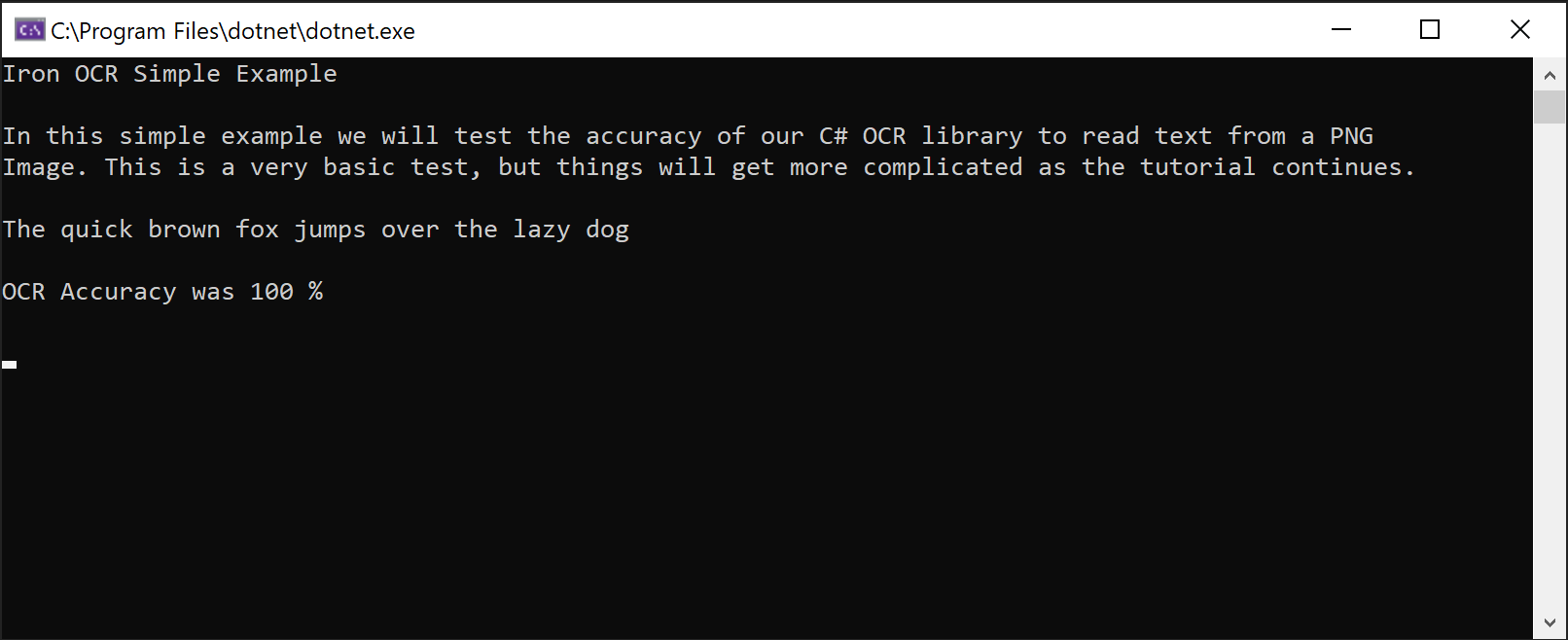 Screenshot demonstrating IronOCR's ability to extract text from a PNG image
How to Implement Advanced C# OCR Without Tesseract Configuration?
For production applications requiring optimal performance when you convert images to text in C#, use the OcrInput and IronTesseract classes together. This approach provides fine-grained control over the OCR process.
OcrInput Class Features
- Processes multiple image formats: JPEG, TIFF, GIF, BMP, PNG
- Imports complete PDFs or specific pages
- Enhances contrast, resolution, and image quality automatically
- Corrects rotation, scan noise, skew, and negative images
IronTesseract Class Features
- Access to 127+ prepackaged languages
- Tesseract 5, 4, and 3 engines included
- Document type specification (screenshot, snippet, or full document)
- Integrated barcode reading capabilities
- Multiple output formats: Searchable PDFs, HOCR HTML, DOM objects, and strings
How to Get Started with OcrInput and IronTesseract?
Here's a recommended configuration for this IronOCR C# tutorial that works well with most document types:
:path=/static-assets/ocr/content-code-examples/tutorials/how-to-read-text-from-an-image-in-csharp-net-2.csusing IronOcr;
IronTesseract ocr = new IronTesseract();
using OcrInput input = new OcrInput();
var pageindices = new int[] { 1, 2 };
input.LoadImageFrames(@"img\Potter.tiff", pageindices);
OcrResult result = ocr.Read(input);
Console.WriteLine(result.Text);Imports IronOcr
Private ocr As New IronTesseract()
Private OcrInput As using
Private pageindices = New Integer() { 1, 2 }
input.LoadImageFrames("img\Potter.tiff", pageindices)
Dim result As OcrResult = ocr.Read(input)
Console.WriteLine(result.Text)This configuration consistently achieves near-perfect accuracy on medium-quality scans. The LoadImageFrames method efficiently handles multi-page documents, making it ideal for batch processing scenarios.
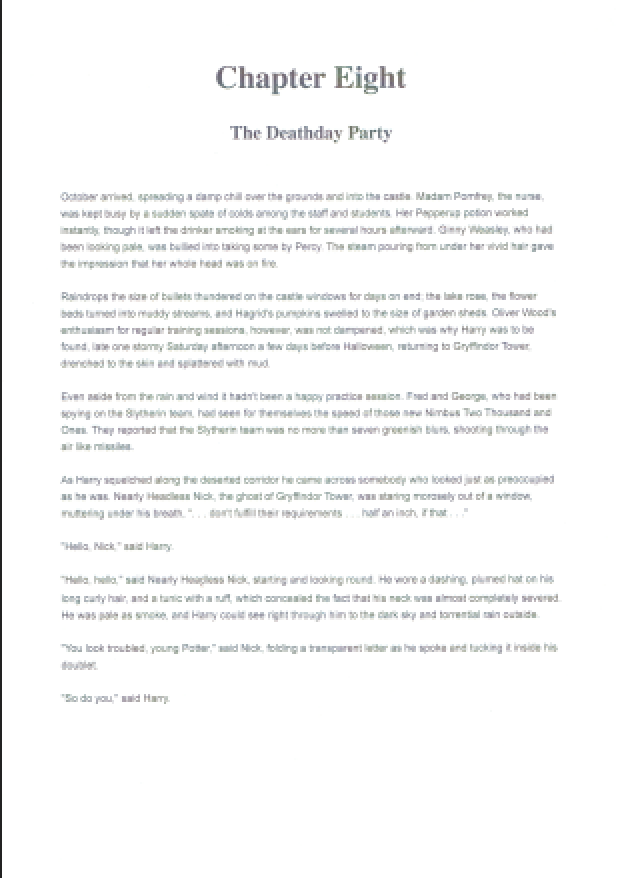
Sample TIFF document demonstrating IronOCR's multi-page text extraction capabilities
The ability to read text from images and barcodes in scanned documents like TIFFs showcases how IronOCR simplifies complex OCR tasks. The library excels with real-world documents, seamlessly handling multi-page TIFFs and PDF text extraction.
How Does IronOCR Handle Low-Quality Scans?
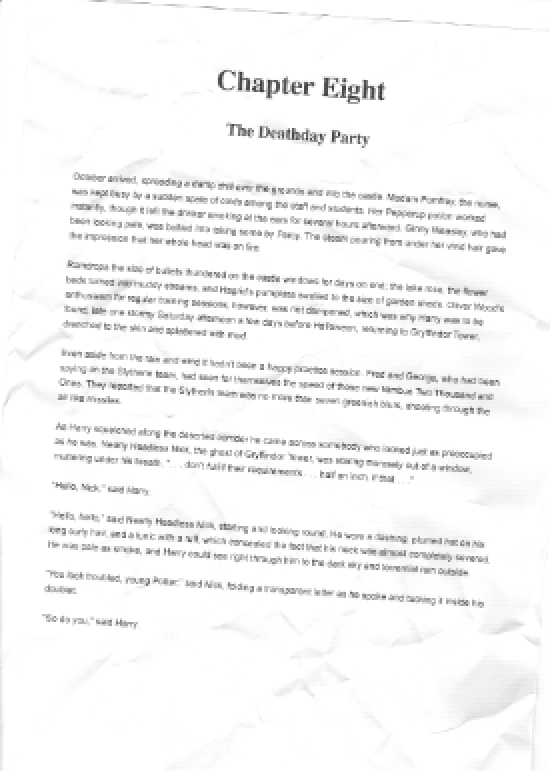
Low-resolution document with noise that IronOCR can process accurately using image filters
When working with imperfect scans containing distortion and digital noise, IronOCR outperforms other C# OCR libraries. It's specifically designed for real-world scenarios rather than pristine test images.
:path=/static-assets/ocr/content-code-examples/tutorials/how-to-read-text-from-an-image-in-csharp-net-3.csusing IronOcr;
IronTesseract ocr = new IronTesseract();
using OcrInput input = new OcrInput();
var pageindices = new int[] { 1, 2 };
input.LoadImageFrames(@"img\Potter.LowQuality.tiff", pageindices);
input.Deskew(); // removes rotation and perspective
OcrResult result = ocr.Read(input);
Console.WriteLine(result.Text);Imports IronOcr
Private ocr As New IronTesseract()
Private OcrInput As using
Private pageindices = New Integer() { 1, 2 }
input.LoadImageFrames("img\Potter.LowQuality.tiff", pageindices)
input.Deskew() ' removes rotation and perspective
Dim result As OcrResult = ocr.Read(input)
Console.WriteLine(result.Text)Using Input.Deskew(), accuracy improves significantly on low-quality scans, nearly matching high-quality results. This demonstrates why IronOCR is the preferred choice for C# OCR without Tesseract complications.
Image filters may slightly increase processing time but significantly reduce overall OCR duration. Finding the right balance depends on your document quality.
For most scenarios, Input.Deskew() and Input.DeNoise() provide reliable improvements to OCR performance. Learn more about image preprocessing techniques.
How to Optimize OCR Performance and Speed?
The most significant factor affecting OCR speed when you convert images to text in C# is input quality. Higher DPI (~200 dpi) with minimal noise produces the fastest and most accurate results.
While IronOCR excels at correcting imperfect documents, this enhancement requires additional processing time.
Choose image formats with minimal compression artifacts. TIFF and PNG typically yield faster results than JPEG due to lower digital noise.
Which Image Filters Improve OCR Speed?
The following filters can dramatically enhance performance in your C# OCR image to text workflow:
OcrInput.Rotate(double degrees): Rotates images clockwise (negative for counterclockwise)OcrInput.Binarize(): Converts to black/white, improving performance in low-contrast scenariosOcrInput.ToGrayScale(): Converts to grayscale for potential speed improvementsOcrInput.Contrast(): Auto-adjusts contrast for better accuracyOcrInput.DeNoise(): Removes digital artifacts when noise is expectedOcrInput.Invert(): Inverts colors for white-on-black textOcrInput.Dilate(): Expands text boundariesOcrInput.Erode(): Reduces text boundariesOcrInput.Deskew(): Corrects alignment - essential for skewed documentsOcrInput.Despeckle(): Aggressive noise removalOcrInput.EnhanceResolution: Improves low-resolution image qualityOcrInput.DetectPageOrientation(): Detects and corrects page rotation. Pass anOrientationDetectionModeto control the accuracy/speed trade-off:Fast,Balanced,Detailed, orExtremeDetailed(added v2025.8.6)
Scale() and EnhanceResolution() are incompatible with SaveAsSearchablePdf() due to a known issue in v2025.12.3. All other filters work correctly with searchable PDF output.How to Configure IronOCR for Maximum Speed?
Use these settings to optimize speed when processing high-quality scans:
:path=/static-assets/ocr/content-code-examples/tutorials/how-to-read-text-from-an-image-in-csharp-net-4.csusing IronOcr;
IronTesseract ocr = new IronTesseract();
// Configure for speed
ocr.Configuration.BlackListCharacters = "~`$#^*_}{][|\\";
ocr.Configuration.PageSegmentationMode = TesseractPageSegmentationMode.Auto;
ocr.Language = OcrLanguage.EnglishFast;
using OcrInput input = new OcrInput();
var pageindices = new int[] { 1, 2 };
input.LoadImageFrames(@"img\Potter.tiff", pageindices);
OcrResult result = ocr.Read(input);
Console.WriteLine(result.Text);Imports IronOcr
Private ocr As New IronTesseract()
' Configure for speed
ocr.Configuration.BlackListCharacters = "~`$#^*_}{][|\"
ocr.Configuration.PageSegmentationMode = TesseractPageSegmentationMode.Auto
ocr.Language = OcrLanguage.EnglishFast
Using input As New OcrInput()
Dim pageindices = New Integer() { 1, 2 }
input.LoadImageFrames("img\Potter.tiff", pageindices)
Dim result As OcrResult = ocr.Read(input)
Console.WriteLine(result.Text)
End UsingThis optimized setup maintains high accuracy while improving processing speed compared to default settings.
How to Read Specific Areas of Images Using C# OCR?
The Iron Tesseract C# example below shows how to target specific regions using System.Drawing.Rectangle. This technique is invaluable for processing standardized forms where text appears in predictable locations.
Can IronOCR Process Cropped Regions for Faster Results?
Using pixel-based coordinates, you can limit OCR to specific areas, dramatically improving speed and preventing unwanted text extraction:
:path=/static-assets/ocr/content-code-examples/tutorials/how-to-read-text-from-an-image-in-csharp-net-5.csusing IronOcr;
using IronSoftware.Drawing;
IronTesseract ocr = new IronTesseract();
using OcrInput input = new OcrInput();
// restrict OCR to a content area for faster processing
Rectangle contentArea = new Rectangle(x: 215, y: 1250, height: 280, width: 1335);
input.LoadImage("img/ComSci.png", contentArea);
OcrResult result = ocr.Read(input);
Console.WriteLine(result.Text);Imports IronOcr
Imports IronSoftware.Drawing
Dim ocr As New IronTesseract()
Using input As New OcrInput()
' restrict OCR to a content area for faster processing
Dim contentArea As New Rectangle(x:=215, y:=1250, height:=280, width:=1335)
input.LoadImage("img/ComSci.png", contentArea)
Dim result As OcrResult = ocr.Read(input)
Console.WriteLine(result.Text)
End UsingThis targeted approach improves processing speed while extracting only relevant text. It's ideal for structured documents like invoices, checks, and forms. The same cropping technique works seamlessly with PDF OCR operations.
 Document demonstrating precise region-based text extraction using IronOCR's rectangle selection
How Many Languages Does IronOCR Support?
IronOCR provides 127 international languages through convenient language packs. Download them as DLLs from our website or via NuGet Package Manager.
Install language packs through the NuGet interface (search "IronOcr.Languages") or visit the complete language pack listing.
Supported languages include Arabic, Chinese (Simplified/Traditional), Japanese, Korean, Hindi, Russian, German, French, Spanish, and 115+ others, each optimized for accurate text recognition.
How to Implement OCR in Multiple Languages?
This IronOCR C# tutorial example demonstrates Arabic text recognition:
Install-Package IronOcr.Languages.Arabic
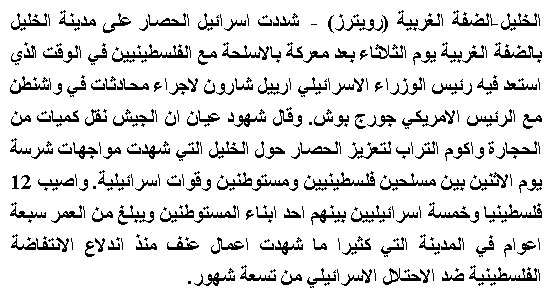
IronOCR accurately extracting Arabic text from a GIF image
:path=/static-assets/ocr/content-code-examples/tutorials/how-to-read-text-from-an-image-in-csharp-net-6.cs// PM> Install IronOcr.Languages.Arabic
using IronOcr;
IronTesseract ocr = new IronTesseract();
ocr.Language = OcrLanguage.Arabic;
using OcrInput input = new OcrInput();
input.LoadImageFrame("img/arabic.gif", 1);
// add image filters if needed
// In this case, even thought input is very low quality
// IronTesseract can read what conventional Tesseract cannot.
OcrResult result = ocr.Read(input);
// Console can't print Arabic on Windows easily.
// Let's save to disk instead.
result.SaveAsTextFile("arabic.txt");' PM> Install IronOcr.Languages.Arabic
Imports IronOcr
Private ocr As New IronTesseract()
ocr.Language = OcrLanguage.Arabic
Using input As New OcrInput()
input.LoadImageFrame("img/arabic.gif", 1)
' add image filters if needed
' In this case, even thought input is very low quality
' IronTesseract can read what conventional Tesseract cannot.
Dim result As OcrResult = ocr.Read(input)
' Console can't print Arabic on Windows easily.
' Let's save to disk instead.
result.SaveAsTextFile("arabic.txt")
End UsingCan IronOCR Handle Documents with Multiple Languages?
When documents contain mixed languages, configure IronOCR for multi-language support:
Install-Package IronOcr.Languages.ChineseSimplified
:path=/static-assets/ocr/content-code-examples/tutorials/how-to-read-text-from-an-image-in-csharp-net-7.csusing IronOcr;
IronTesseract ocr = new IronTesseract();
ocr.Language = OcrLanguage.ChineseSimplified;
// We can add any number of languages.
ocr.AddSecondaryLanguage(OcrLanguage.English);
// Optionally add custom tesseract .traineddata files by specifying a file path
using OcrInput input = new OcrInput();
input.LoadImage("img/MultiLanguage.jpeg");
OcrResult result = ocr.Read(input);
result.SaveAsTextFile("MultiLanguage.txt");Imports IronOcr
Private ocr As New IronTesseract()
ocr.Language = OcrLanguage.ChineseSimplified
' We can add any number of languages.
ocr.AddSecondaryLanguage(OcrLanguage.English)
' Optionally add custom tesseract .traineddata files by specifying a file path
Using input As New OcrInput()
input.LoadImage("img/MultiLanguage.jpeg")
Dim result As OcrResult = ocr.Read(input)
result.SaveAsTextFile("MultiLanguage.txt")
End UsingHow to Process Multi-Page Documents with C# OCR?
IronOCR seamlessly combines multiple pages or images into a single OcrResult. This feature enables powerful capabilities like creating searchable PDFs and extracting text from entire document sets.
Mix and match various sources - images, TIFF frames, and PDF pages - in a single OCR operation:
:path=/static-assets/ocr/content-code-examples/tutorials/how-to-read-text-from-an-image-in-csharp-net-8.csusing IronOcr;
IronTesseract ocr = new IronTesseract();
using OcrInput input = new OcrInput();
input.LoadImage("image1.jpeg");
input.LoadImage("image2.png");
var pageindices = new int[] { 1, 2 };
input.LoadImageFrames("image3.gif", pageindices);
OcrResult result = ocr.Read(input);
Console.WriteLine($"{result.Pages.Length} Pages"); // 3 PagesImports IronOcr
Private ocr As New IronTesseract()
Private OcrInput As using
input.LoadImage("image1.jpeg")
input.LoadImage("image2.png")
Dim pageindices = New Integer() { 1, 2 }
input.LoadImageFrames("image3.gif", pageindices)
Dim result As OcrResult = ocr.Read(input)
Console.WriteLine($"{result.Pages.Length} Pages") ' 3 PagesProcess all pages of a TIFF file efficiently:
:path=/static-assets/ocr/content-code-examples/tutorials/how-to-read-text-from-an-image-in-csharp-net-9.csusing IronOcr;
IronTesseract ocr = new IronTesseract();
using OcrInput input = new OcrInput();
var pageindices = new int[] { 1, 2 };
input.LoadImageFrames("MultiFrame.Tiff", pageindices);
OcrResult result = ocr.Read(input);
Console.WriteLine(result.Text);
Console.WriteLine($"{result.Pages.Length} Pages");
// 1 page for every frame (page) in the TIFFImports IronOcr
Private ocr As New IronTesseract()
Private OcrInput As using
Private pageindices = New Integer() { 1, 2 }
input.LoadImageFrames("MultiFrame.Tiff", pageindices)
Dim result As OcrResult = ocr.Read(input)
Console.WriteLine(result.Text)
Console.WriteLine($"{result.Pages.Length} Pages")
' 1 page for every frame (page) in the TIFFConvert TIFFs or PDFs to searchable formats:
:path=/static-assets/ocr/content-code-examples/tutorials/how-to-read-text-from-an-image-in-csharp-net-11.csusing IronOcr;
IronTesseract ocr = new IronTesseract();
using OcrInput input = new OcrInput();
input.Title = "Quarterly Report";
input.LoadImage("image1.jpeg");
input.LoadImage("image2.png");
var pageindices = new int[] { 1, 2 };
input.LoadImageFrames("image3.gif", pageindices);
OcrResult result = ocr.Read(input);
result.SaveAsSearchablePdf("searchable.pdf");Imports IronOcr
Private ocr As New IronTesseract()
Private OcrInput As using
input.Title = "Quarterly Report"
input.LoadImage("image1.jpeg")
input.LoadImage("image2.png")
Dim pageindices = New Integer() { 1, 2 }
input.LoadImageFrames("image3.gif", pageindices)
Dim result As OcrResult = ocr.Read(input)
result.SaveAsSearchablePdf("searchable.pdf")Convert existing PDFs to searchable versions:
:path=/static-assets/ocr/content-code-examples/tutorials/how-to-read-text-from-an-image-in-csharp-net-12.csusing IronOcr;
IronTesseract ocr = new IronTesseract();
using OcrInput input = new OcrInput();
input.Title = "Pdf Metadata Name";
input.LoadPdf("example.pdf", Password: "password");
OcrResult result = ocr.Read(input);
result.SaveAsSearchablePdf("searchable.pdf");Imports IronOcr
Private ocr As New IronTesseract()
Private OcrInput As using
input.Title = "Pdf Metadata Name"
input.LoadPdf("example.pdf", Password:= "password")
Dim result As OcrResult = ocr.Read(input)
result.SaveAsSearchablePdf("searchable.pdf")Apply the same technique to TIFF conversions:
:path=/static-assets/ocr/content-code-examples/tutorials/how-to-read-text-from-an-image-in-csharp-net-17.csusing IronOcr;
var ocr = new IronTesseract();
using (var input = new OcrInput())
{
// Configure document properties
input.Title = "Scanned Archive Document";
// Select pages to process
var pageIndices = new int[] { 1, 2 };
input.LoadImageFrames("example.tiff", pageIndices);
// Create searchable PDF from TIFF
OcrResult result = ocr.Read(input);
result.SaveAsSearchablePdf("searchable.pdf");
}
Imports IronOcr

Dim ocr As New IronTesseract()

Using input As New OcrInput()
    ' Configure document properties
    input.Title = "Scanned Archive Document"

    ' Select pages to process
    Dim pageIndices As Integer() = {1, 2}
    input.LoadImageFrames("example.tiff", pageIndices)

    ' Create searchable PDF from TIFF
    Dim result As OcrResult = ocr.Read(input)
    result.SaveAsSearchablePdf("searchable.pdf")
End UsingHow to Export OCR Results as HOCR HTML?
IronOCR supports HOCR HTML export, enabling structured PDF to HTML and TIFF to HTML conversions while preserving layout information:
:path=/static-assets/ocr/content-code-examples/tutorials/how-to-read-text-from-an-image-in-csharp-net-18.csusing IronOcr;
var ocr = new IronTesseract();
using (var input = new OcrInput())
{
// Set HTML title
input.Title = "Document Archive";
// Process multiple document types
input.LoadImage("image2.jpeg");
input.LoadPdf("example.pdf", "password");
// Add TIFF pages
var pageIndices = new int[] { 1, 2 };
input.LoadImageFrames("example.tiff", pageIndices);
// Export as HOCR with position data
OcrResult result = ocr.Read(input);
result.SaveAsHocrFile("hocr.html");
}
Imports IronOcr

Dim ocr As New IronTesseract()

Using input As New OcrInput()
    ' Set HTML title
    input.Title = "Document Archive"

    ' Process multiple document types
    input.LoadImage("image2.jpeg")
    input.LoadPdf("example.pdf", "password")

    ' Add TIFF pages
    Dim pageIndices As Integer() = {1, 2}
    input.LoadImageFrames("example.tiff", pageIndices)

    ' Export as HOCR with position data
    Dim result As OcrResult = ocr.Read(input)
    result.SaveAsHocrFile("hocr.html")
End UsingCan IronOCR Read Barcodes Along with Text?
IronOCR uniquely combines text recognition with barcode reading capabilities, eliminating the need for separate libraries:
:path=/static-assets/ocr/content-code-examples/tutorials/how-to-read-text-from-an-image-in-csharp-net-19.cs// Enable combined text and barcode recognition
using IronOcr;
var ocr = new IronTesseract();
// Enable barcode detection
ocr.Configuration.ReadBarCodes = true;
using (var input = new OcrInput())
{
// Load image containing both text and barcodes
input.LoadImage("img/Barcode.png");
// Process both text and barcodes
var result = ocr.Read(input);
// Extract barcode data
foreach (var barcode in result.Barcodes)
{
Console.WriteLine($"Barcode Value: {barcode.Value}");
Console.WriteLine($"Format: {barcode.Format}");
}
}
Imports IronOcr

Dim ocr As New IronTesseract()

' Enable barcode detection
ocr.Configuration.ReadBarCodes = True

Using input As New OcrInput()
    ' Load image containing both text and barcodes
    input.LoadImage("img/Barcode.png")

    ' Process both text and barcodes
    Dim result = ocr.Read(input)

    ' Extract barcode data
    For Each barcode In result.Barcodes
        Console.WriteLine($"Barcode Value: {barcode.Value}")
        Console.WriteLine($"Format: {barcode.Format}")
    Next
End UsingHow to Access Detailed OCR Results and Metadata?
The IronOCR results object provides comprehensive data that advanced developers can leverage for sophisticated applications.
Each OcrResult contains hierarchical collections: pages, paragraphs, lines, words, and characters. All elements include detailed metadata like location, font information, and confidence scores.
Individual elements (paragraphs, words, barcodes) can be exported as images or bitmaps for further processing:
:path=/static-assets/ocr/content-code-examples/tutorials/how-to-read-text-from-an-image-in-csharp-net-20.csusing System;
using IronOcr;
using IronSoftware.Drawing;
// Configure with barcode support
IronTesseract ocr = new IronTesseract
{
Configuration = { ReadBarCodes = true }
};
using OcrInput input = new OcrInput();
// Process multi-page document
int[] pageIndices = { 1, 2 };
input.LoadImageFrames(@"img\Potter.tiff", pageIndices);
OcrResult result = ocr.Read(input);
// Navigate the complete results hierarchy
foreach (var page in result.Pages)
{
// Page-level data
int pageNumber = page.PageNumber;
string pageText = page.Text;
int pageWordCount = page.WordCount;
// Extract page elements
OcrResult.Barcode[] barcodes = page.Barcodes;
AnyBitmap pageImage = page.ToBitmap();
double pageWidth = page.Width;
double pageHeight = page.Height;
foreach (var paragraph in page.Paragraphs)
{
// Paragraph properties
int paragraphNumber = paragraph.ParagraphNumber;
string paragraphText = paragraph.Text;
double paragraphConfidence = paragraph.Confidence;
var textDirection = paragraph.TextDirection;
foreach (var line in paragraph.Lines)
{
// Line details including baseline information
string lineText = line.Text;
double lineConfidence = line.Confidence;
double baselineAngle = line.BaselineAngle;
double baselineOffset = line.BaselineOffset;
foreach (var word in line.Words)
{
// Word-level data
string wordText = word.Text;
double wordConfidence = word.Confidence;
// Font information (when available)
if (word.Font != null)
{
string fontName = word.Font.FontName;
double fontSize = word.Font.FontSize;
bool isBold = word.Font.IsBold;
bool isItalic = word.Font.IsItalic;
}
foreach (var character in word.Characters)
{
// Character-level analysis
string charText = character.Text;
double charConfidence = character.Confidence;
// Alternative character choices for spell-checking
OcrResult.Choice[] alternatives = character.Choices;
}
}
}
}
}
Imports System
Imports IronOcr
Imports IronSoftware.Drawing

' Configure with barcode support
Dim ocr As New IronTesseract With {
    .Configuration = New TesseractConfiguration With {
        .ReadBarCodes = True
    }
}

Using input As New OcrInput()

    ' Process multi-page document
    Dim pageIndices As Integer() = {1, 2}
    input.LoadImageFrames("img\Potter.tiff", pageIndices)

    Dim result As OcrResult = ocr.Read(input)

    ' Navigate the complete results hierarchy
    For Each page In result.Pages
        ' Page-level data
        Dim pageNumber As Integer = page.PageNumber
        Dim pageText As String = page.Text
        Dim pageWordCount As Integer = page.WordCount

        ' Extract page elements
        Dim barcodes As OcrResult.Barcode() = page.Barcodes
        Dim pageImage As AnyBitmap = page.ToBitmap()
        Dim pageWidth As Double = page.Width
        Dim pageHeight As Double = page.Height

        For Each paragraph In page.Paragraphs
            ' Paragraph properties
            Dim paragraphNumber As Integer = paragraph.ParagraphNumber
            Dim paragraphText As String = paragraph.Text
            Dim paragraphConfidence As Double = paragraph.Confidence
            Dim textDirection = paragraph.TextDirection

            For Each line In paragraph.Lines
                ' Line details including baseline information
                Dim lineText As String = line.Text
                Dim lineConfidence As Double = line.Confidence
                Dim baselineAngle As Double = line.BaselineAngle
                Dim baselineOffset As Double = line.BaselineOffset

                For Each word In line.Words
                    ' Word-level data
                    Dim wordText As String = word.Text
                    Dim wordConfidence As Double = word.Confidence

                    ' Font information (when available)
                    If word.Font IsNot Nothing Then
                        Dim fontName As String = word.Font.FontName
                        Dim fontSize As Double = word.Font.FontSize
                        Dim isBold As Boolean = word.Font.IsBold
                        Dim isItalic As Boolean = word.Font.IsItalic
                    End If

                    For Each character In word.Characters
                        ' Character-level analysis
                        Dim charText As String = character.Text
                        Dim charConfidence As Double = character.Confidence

                        ' Alternative character choices for spell-checking
                        Dim alternatives As OcrResult.Choice() = character.Choices
                    Next
                Next
            Next
        Next
    Next
End UsingSummary
IronOCR provides C# developers with the most advanced Tesseract API implementation, running seamlessly across Windows, Linux, and Mac platforms. Its ability to accurately read text from image using IronOCR - even from imperfect documents - sets it apart from basic OCR solutions.
The library's unique features include integrated barcode reading and the ability to export results as searchable PDFs or HOCR HTML, capabilities unavailable in standard Tesseract implementations.
Moving Forward
To continue mastering IronOCR:
- Explore our comprehensive getting started guide
- Browse practical C# code examples
- Reference the detailed API documentation
Source Code Download
Ready to implement C# OCR image to text conversion in your applications? Download IronOCR and start your free trial today.
Frequently Asked Questions
How can I convert images to text in C# without using Tesseract?
You can use IronOCR to convert images to text in C# without the need for Tesseract. IronOCR simplifies the process with built-in methods that handle image-to-text conversion directly.
How do I improve OCR accuracy on low-quality images?
IronOCR provides image filters such as Input.Deskew() and Input.DeNoise() that can be used to enhance low-quality images by correcting skew and reducing noise, thus improving OCR accuracy significantly.
What are the steps to extract text from a multi-page document using OCR in C#?
To extract text from multi-page documents, IronOCR allows you to load and process each page using methods like LoadPdf() for PDFs or handling TIFF files, effectively converting each page to text.
Is it possible to read barcodes and text simultaneously from an image?
Yes, IronOCR can read both text and barcodes from a single image. You can enable barcode reading with ocr.Configuration.ReadBarCodes = true, which allows the extraction of both text and barcode data.
How can I set up OCR for processing documents in multiple languages?
IronOCR supports over 125 languages and allows you to set a primary language using ocr.Language and add additional languages with ocr.AddSecondaryLanguage() for multilingual document processing.
What methods are available to export OCR results in different formats?
IronOCR offers several methods to export OCR results, such as SaveAsSearchablePdf() for PDFs, SaveAsTextFile() for plain text, and SaveAsHocrFile() for HOCR HTML format.
How can I optimize OCR processing speed for large image files?
To optimize OCR processing speed, use IronOCR's OcrLanguage.EnglishFast for faster language recognition and define specific regions for OCR using System.Drawing.Rectangle to reduce processing time.
How do I handle OCR processing for protected PDF files?
When dealing with protected PDFs, use the LoadPdf() method along with the correct password. IronOCR handles image-based PDFs by converting pages to images automatically for OCR processing.
What should I do if the OCR results are not accurate?
If OCR results are inaccurate, consider using IronOCR's image enhancement features like Input.Deskew() and Input.DeNoise(), and ensure that the correct language packs are installed.
Can I customize the OCR process to exclude certain characters?
Yes, IronOCR allows customization of the OCR process by using the BlackListCharacters property to exclude specific characters, improving accuracy and processing speed by focusing only on relevant text.



Still Scrolling?
Want proof fast? PM > Install-Package IronOcr
run a sample watch your image become searchable text.








 Get started for FREE
 Get started for FREE
 Book Free Live Demo
















