
C# OCR Image to Text Tutorial: Convert Images to Text Without Tesseract

복잡한 Tesseract 설정 없이 C#에서 이미지를 텍스트로 변환하고 싶으신가요? 이 종합적인 IronOCR C# 튜토리얼은 단 몇 줄의 코드로 .NET 애플리케이션에 강력한 광학 문자 인식(OCR) 기능을 구현하는 방법을 보여줍니다.
빠른 시작: 이미지에서 한 줄로 텍스트 추출이 예시는 IronOCR 얼마나 쉽게 이해할 수 있는지 보여줍니다. 단 한 줄의 C# 코드로 이미지를 텍스트로 변환할 수 있습니다. 이 영상은 복잡한 설정 없이 OCR 엔진을 초기화하고 즉시 텍스트를 읽고 검색하는 방법을 보여줍니다.
-
1Install IronOCR with NuGet Package Manager
-
2다음 코드 조각을 복사하여 실행하세요.
string text = new IronTesseract().Read("image.png").Text;C# -
3실제 운영 환경에서 테스트할 수 있도록 배포하세요.
무료 체험판으로 오늘 프로젝트에서 IronOCR 사용 시작하기
최소 워크플로우(5단계)
- 이미지를 텍스트로 변환하는 C# OCR 라이브러리인 IronOCR 다운로드하세요.
IronTesseract클래스를 사용하여 이미지에서 텍스트를 즉시 읽어오세요.- 이미지 필터를 적용하여 저품질 스캔 이미지의 OCR 정확도를 향상시키세요.
- 다운로드 가능한 언어 팩을 사용하여 여러 언어를 처리할 수 있습니다.
- 검색 가능한 PDF 파일로 결과를 내보내거나 텍스트 문자열을 추출합니다.
.NET 애플리케이션에서 이미지에서 텍스트를 읽는 방법은 무엇인가요?
.NET 애플리케이션에서 C# OCR 이미지-텍스트 변환 기능을 구현하려면 안정적인 OCR 라이브러리가 필요합니다. IronOCR은 IronOcr.IronTesseract 클래스를 사용하여 외부 종속성을 요구하지 않고도 정확성과 속도를 최대화하는 관리 솔루션을 제공합니다.
먼저 Visual Studio 프로젝트에 IronOCR 설치하세요. IronOCR DLL 파일을 직접 다운로드하거나 NuGet 패키지 관리자를 사용할 수 있습니다.
Tesseract 없는 C# OCR를 위해 왜 IronOCR를 선택해야 하나요?
C#에서 이미지를 텍스트로 변환해야 할 때, IronOCR 기존 Tesseract 구현 방식보다 훨씬 유리한 점을 제공합니다.
- 순수 .NET 환경에서 즉시 작동합니다.
- Tesseract 설치 또는 구성이 필요하지 않습니다.
- 최신 엔진 실행 가능: Tesseract 5 (Tesseract 4 및 3 포함)
- .NET Framework 4.6.2 이상, .NET Standard 2 이상, .NET Core 2, 3, 5, 6, 7, 8, 9 및 10과 호환됩니다.
- 기존 테서랙트에 비해 정확도와 속도가 향상됩니다.
- Xamarin, Mono, Azure 및 Docker 배포를 지원합니다.
- NuGet 패키지를 통해 복잡한 Tesseract 사전을 관리합니다.
- PDF, 멀티프레임 TIFF 및 모든 주요 이미지 형식을 자동으로 처리합니다.
- 최적의 결과를 위해 품질이 낮거나 왜곡된 스캔 이미지를 보정합니다.
IronOCR C# 튜토리얼로 기본 OCR을 사용하는 방법?
이 Iron Tesseract C# 예제는 IronOCR 사용하여 이미지에서 텍스트를 읽는 가장 간단한 방법을 보여줍니다. IronOcr.IronTesseract 클래스는 텍스트를 추출하여 문자열로 반환합니다.
using IronOcr;

IronTesseract ocr = new IronTesseract();
using OcrInput input = new OcrInput();
var pageindices = new int[] { 1, 2 };
input.LoadImageFrames(@"img\Potter.LowQuality.tiff", pageindices);
input.Deskew(); // removes rotation and perspective
OcrResult result = ocr.Read(input);
Console.WriteLine(result.Text);Imports IronOcr
Private ocr As New IronTesseract()
Private OcrInput As using
Private pageindices = New Integer() { 1, 2 }
input.LoadImageFrames("img\Potter.LowQuality.tiff", pageindices)
input.Deskew() ' removes rotation and perspective
Dim result As OcrResult = ocr.Read(input)
Console.WriteLine(result.Text)이 코드는 선명한 이미지에서 100% 정확도를 달성하며, 텍스트를 보이는 그대로 추출합니다.
IronOCR Simple Example

In this simple example we test the accuracy of our C# OCR library to read text from a PNG Image. This is a very basic test, but things will get more complicated as the tutorial continues.

The quick brown fox jumps over the lazy dogIronTesseract 클래스는 복잡한 OCR 작업을 내부적으로 처리합니다. 이 시스템은 정렬을 자동으로 스캔하고 해상도를 최적화하며, 인공지능을 사용하여 IronOCR 로 사람 수준의 정확도로 이미지에서 텍스트를 읽어냅니다.
이미지 분석, 엔진 최적화, 지능형 텍스트 인식 등 정교한 처리 과정이 백그라운드에서 진행됨에도 불구하고, OCR 프로세스는 뛰어난 정확도를 유지하면서 인간의 읽기 속도와 동일한 속도를 제공합니다.
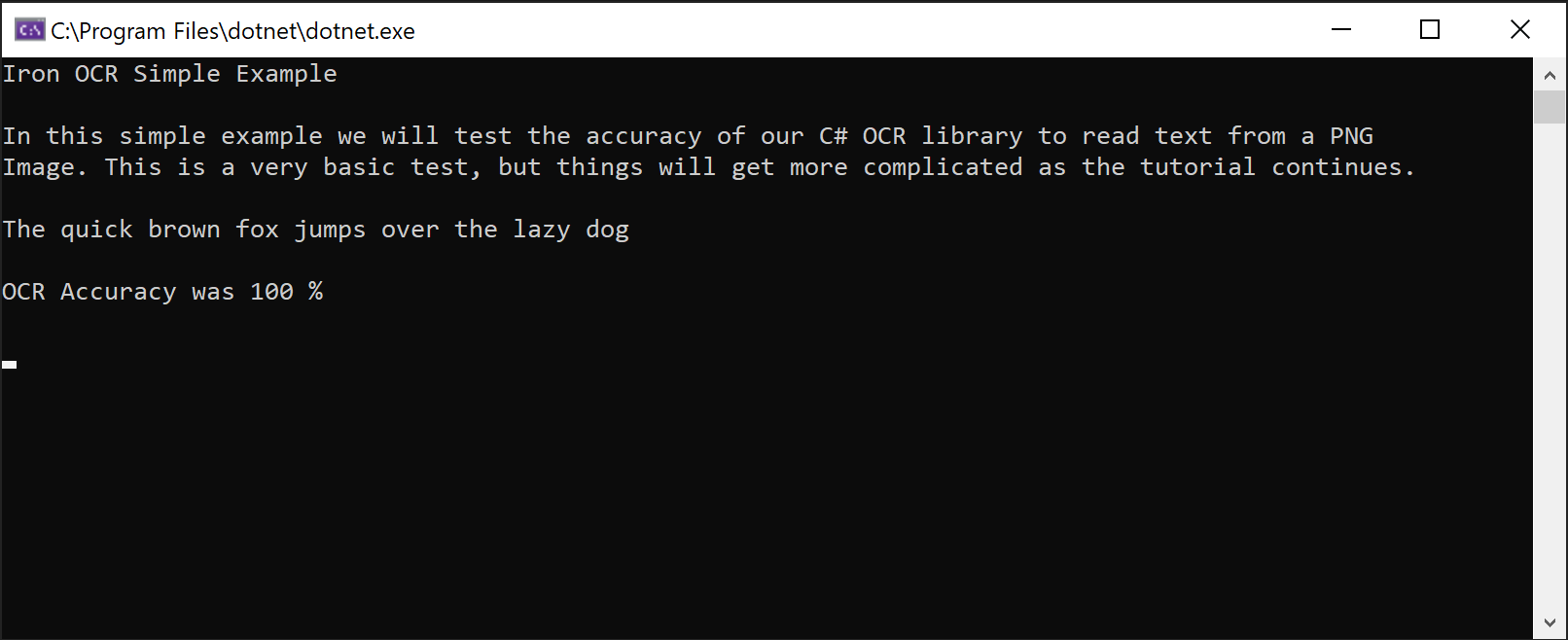 IronOCR이 PNG 이미지에서 텍스트를 완벽한 정확도로 추출하는 기능을 보여주는 스크린샷입니다.
Tesseract 구성 없이 고급 C# OCR 구현 방법?
C#에서 이미지를 텍스트로 변환할 때 최적의 성능이 필요한 프로덕션 애플리케이션에서는 OcrInput 및 IronTesseract 클래스를 함께 사용하십시오. 이 접근 방식은 OCR 프로세스에 대한 세밀한 제어를 제공합니다.
OcrInput 클래스 기능
- JPEG, TIFF, GIF, BMP, PNG 등 다양한 이미지 형식을 처리합니다.
- PDF 파일 전체 또는 특정 페이지를 가져옵니다.
- 명암, 해상도 및 이미지 품질을 자동으로 향상시킵니다.
- 회전, 스캔 노이즈, 기울기 및 음상 이미지를 수정합니다.
IronTesseract 클래스 기능
- 127개 이상의 사전 패키지 언어 지원
- 테서랙트 5, 4, 3 엔진 포함
- 문서 유형 지정 (스크린샷, 코드 조각 또는 전체 문서)
- 바코드 판독 기능 통합
- 다양한 출력 형식 지원: 검색 가능한 PDF, HOCR HTML, DOM 객체 및 문자열
OcrInput 및 IronTesseract 시작 방법?
다음은 대부분의 문서 유형에서 잘 작동하는 IronOCR C# 튜토리얼에 권장되는 구성입니다.
using IronOcr;
using IronSoftware.Drawing;

IronTesseract ocr = new IronTesseract();
using OcrInput input = new OcrInput();
// restrict OCR to a content area for faster processing
Rectangle contentArea = new Rectangle(x: 215, y: 1250, height: 280, width: 1335);
input.LoadImage("img/ComSci.png", contentArea);
OcrResult result = ocr.Read(input);
Console.WriteLine(result.Text);이 구성은 중간 품질의 스캔에서 거의 완벽에 가까운 정확도를 일관되게 달성합니다. LoadImageFrames 메서드는 효율적으로 다중 페이지 문서를 처리하므로 배치 처리 시나리오에 이상적입니다.
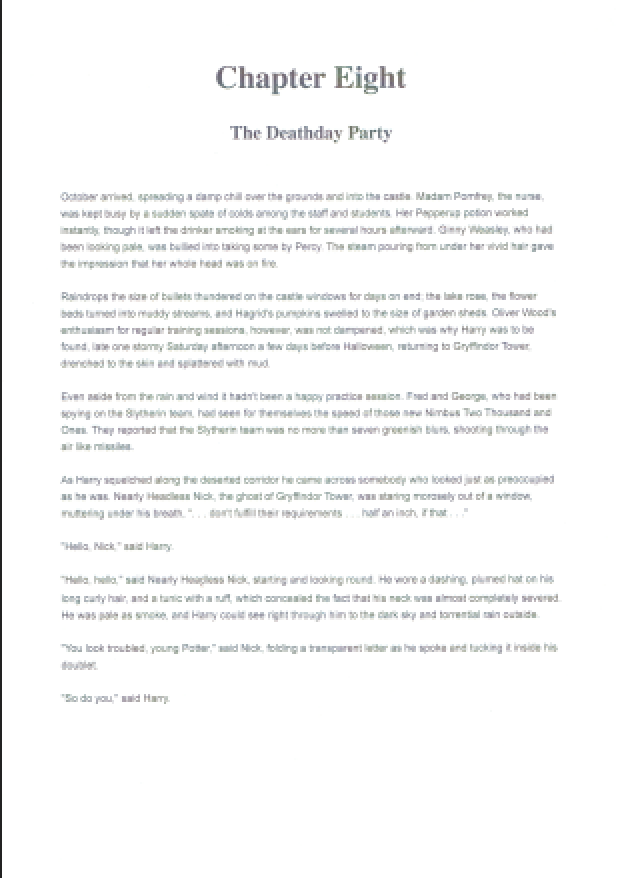
IronOCR의 여러 페이지 텍스트 추출 기능을 보여주는 TIFF 문서 샘플입니다.
TIFF 파일과 같은 스캔 문서의 이미지와 바코드에서 텍스트를 읽어내는 기능은 IronOCR 복잡한 OCR 작업을 얼마나 간소화하는지 보여줍니다. 이 라이브러리는 실제 문서 처리 능력이 뛰어나며, 여러 페이지로 구성된 TIFF 파일과 PDF 텍스트 추출을 원활하게 처리합니다.
IronOCR 저품질 스캔 파일을 어떻게 처리하나요?
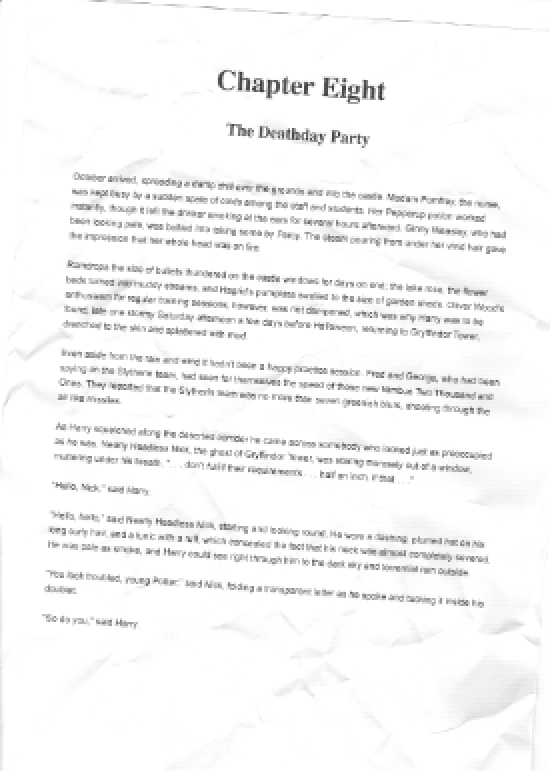
이미지 필터를 사용하면 IronOCR 정확하게 처리할 수 있는 노이즈가 포함된 저해상도 문서입니다.
왜곡 및 디지털 노이즈가 포함된 불완전한 스캔 파일을 처리할 때 IronOCR 다른 C# OCR 라이브러리보다 뛰어난 성능을 보입니다 . 이 시스템은 완벽한 테스트 이미지보다는 실제 시나리오에 맞춰 특별히 설계되었습니다.
// PM> Install IronOcr.Languages.Arabic
using IronOcr;

IronTesseract ocr = new IronTesseract();
ocr.Language = OcrLanguage.Arabic;

using OcrInput input = new OcrInput();
input.LoadImageFrame("img/arabic.gif", 1);
// add image filters if needed
// In this case, even thought input is very low quality
// IronTesseract can read what conventional Tesseract cannot.

OcrResult result = ocr.Read(input);

// Console can't print Arabic on Windows easily.
// Let's save to disk instead.
result.SaveAsTextFile("arabic.txt");' PM> Install IronOcr.Languages.Arabic
Imports IronOcr
Private ocr As New IronTesseract()
ocr.Language = OcrLanguage.Arabic
Using input As New OcrInput()
input.LoadImageFrame("img/arabic.gif", 1)
' add image filters if needed
' In this case, even thought input is very low quality
' IronTesseract can read what conventional Tesseract cannot.
Dim result As OcrResult = ocr.Read(input)
' Console can't print Arabic on Windows easily.
' Let's save to disk instead.
result.SaveAsTextFile("arabic.txt")
End UsingInput.Deskew()을 사용하여 정확도가 **99.8%**로 향상되며, 저품질 스캔에서도 고품질 결과와 거의 일치합니다. 이는 IronOCR 이 Tesseract 관련 문제 없이 C# OCR을 구현하는 데 선호되는 이유입니다.
이미지 필터는 처리 시간을 약간 증가시킬 수 있지만 전체 OCR 소요 시간을 크게 단축시킬 수 있습니다. 적절한 균형을 찾는 것은 문서 품질에 달려 있습니다.
대다수의 시나리오에서는 Input.Deskew()과 Input.DeNoise()가 OCR 성능을 믿을 수 있게 개선합니다. 이미지 전처리 기술 에 대해 자세히 알아보세요.
OCR 성능과 속도를 최적화하는 방법은 무엇일까요?
C#에서 이미지를 텍스트로 변환할 때 OCR 속도에 가장 큰 영향을 미치는 요소는 입력 데이터의 품질입니다. 노이즈를 최소화하면서 높은 DPI(약 200dpi)를 사용하면 가장 빠르고 정확한 결과를 얻을 수 있습니다.
IronOCR 불완전한 문서를 수정하는 데 탁월하지만, 이 기능을 추가하려면 처리 시간이 더 필요합니다.
압축으로 인한 화질 저하가 최소화된 이미지 형식을 선택하세요. TIFF와 PNG는 디지털 노이즈가 적기 때문에 일반적으로 JPEG보다 처리 속도가 빠릅니다.
어떤 이미지 필터가 OCR 속도를 향상시키나요?
다음 필터는 C# OCR 이미지-텍스트 변환 워크플로의 성능을 크게 향상시킬 수 있습니다.
OcrInput.Rotate(double degrees): 이미지를 시계 방향으로 회전시킵니다 (반시계 방향은 음수).OcrInput.Binarize(): 흑백으로 변환하여 저대비 시나리오에서 성능을 개선합니다.OcrInput.ToGrayScale(): 잠재적인 속도 개선을 위해 회색조로 변환합니다.OcrInput.Contrast(): 더 나은 정확성을 위해 대비를 자동으로 조정합니다.OcrInput.DeNoise(): 예상되는 노이즈가 있을 때 디지털 아티팩트를 제거합니다.OcrInput.Invert(): 흑색 배경에 흰색 텍스트 인버트.OcrInput.Dilate(): 텍스트 경계를 확장합니다.OcrInput.Erode(): 텍스트 경계를 줄입니다.OcrInput.Deskew(): 정렬을 수정합니다. 왜곡된 문서에 필수.OcrInput.DeepCleanBackgroundNoise(): 적극적인 소음 제거.OcrInput.EnhanceResolution: 저해상도 이미지 품질을 향상합니다.OcrInput.DetectPageOrientation(): 페이지 회전을 감지하고 수정합니다.OrientationDetectionMode을 전달하여 정확도/속도 균형을 조절하십시오:Fast,Balanced,Detailed또는ExtremeDetailed(v2025.8.6 추가됨)
Scale() 및 EnhanceResolution()는 알려진 문제로 인해 SaveAsSearchablePdf()와 호환되지 않습니다 v2025.12.3. 모든 다른 필터는 검색 가능한 PDF 출력과 함께 올바르게 작동합니다.
IronOCR 속도를 최대화하려면 어떻게 설정해야 할까요?
고품질 스캔 처리 속도를 최적화하려면 다음 설정을 사용하십시오.
using IronOcr;

IronTesseract ocr = new IronTesseract();
ocr.Language = OcrLanguage.ChineseSimplified;

// We can add any number of languages.
ocr.AddSecondaryLanguage(OcrLanguage.English);
// Optionally add custom tesseract .traineddata files by specifying a file path

using OcrInput input = new OcrInput();
input.LoadImage("img/MultiLanguage.jpeg");
OcrResult result = ocr.Read(input);
result.SaveAsTextFile("MultiLanguage.txt");Imports IronOcr
Private ocr As New IronTesseract()
ocr.Language = OcrLanguage.ChineseSimplified
' We can add any number of languages.
ocr.AddSecondaryLanguage(OcrLanguage.English)
' Optionally add custom tesseract .traineddata files by specifying a file path
Using input As New OcrInput()
input.LoadImage("img/MultiLanguage.jpeg")
Dim result As OcrResult = ocr.Read(input)
result.SaveAsTextFile("MultiLanguage.txt")
End Using이 최적화된 설정은 기본 설정 대비 35% 속도 향상을 달성하면서 99.8%의 정확도를 유지합니다.
C# OCR를 사용하여 특정 이미지 영역을 읽는 방법은?
아래 Iron Tesseract C# 예제가 System.Drawing.Rectangle을 사용하여 특정 영역을 타깃으로 하는 방법을 보여줍니다. 이 기술은 텍스트가 예측 가능한 위치에 나타나는 표준화된 양식을 처리하는 데 매우 유용합니다.
IronOCR 잘라낸 영역을 처리하여 더 빠른 결과를 얻을 수 있습니까?
픽셀 기반 좌표를 사용하면 OCR 적용 범위를 특정 영역으로 제한하여 속도를 크게 향상시키고 원치 않는 텍스트 추출을 방지할 수 있습니다.
using IronOcr;

IronTesseract ocr = new IronTesseract();

using OcrInput input = new OcrInput();
input.LoadImage("image1.jpeg");
input.LoadImage("image2.png");
var pageindices = new int[] { 1, 2 };
input.LoadImageFrames("image3.gif", pageindices);

OcrResult result = ocr.Read(input);

Console.WriteLine($"{result.Pages.Length} Pages"); // 3 PagesImports IronOcr
Private ocr As New IronTesseract()
Private OcrInput As using
input.LoadImage("image1.jpeg")
input.LoadImage("image2.png")
Dim pageindices = New Integer() { 1, 2 }
input.LoadImageFrames("image3.gif", pageindices)
Dim result As OcrResult = ocr.Read(input)
Console.WriteLine($"{result.Pages.Length} Pages") ' 3 Pages이러한 맞춤형 접근 방식은 관련 텍스트만 추출하면서 속도를 41% 향상 시킵니다. 송장 , 수표, 양식과 같은 정형화된 문서에 이상적입니다. 동일한 자르기 기법이 PDF OCR 작업 에서도 완벽하게 작동합니다.
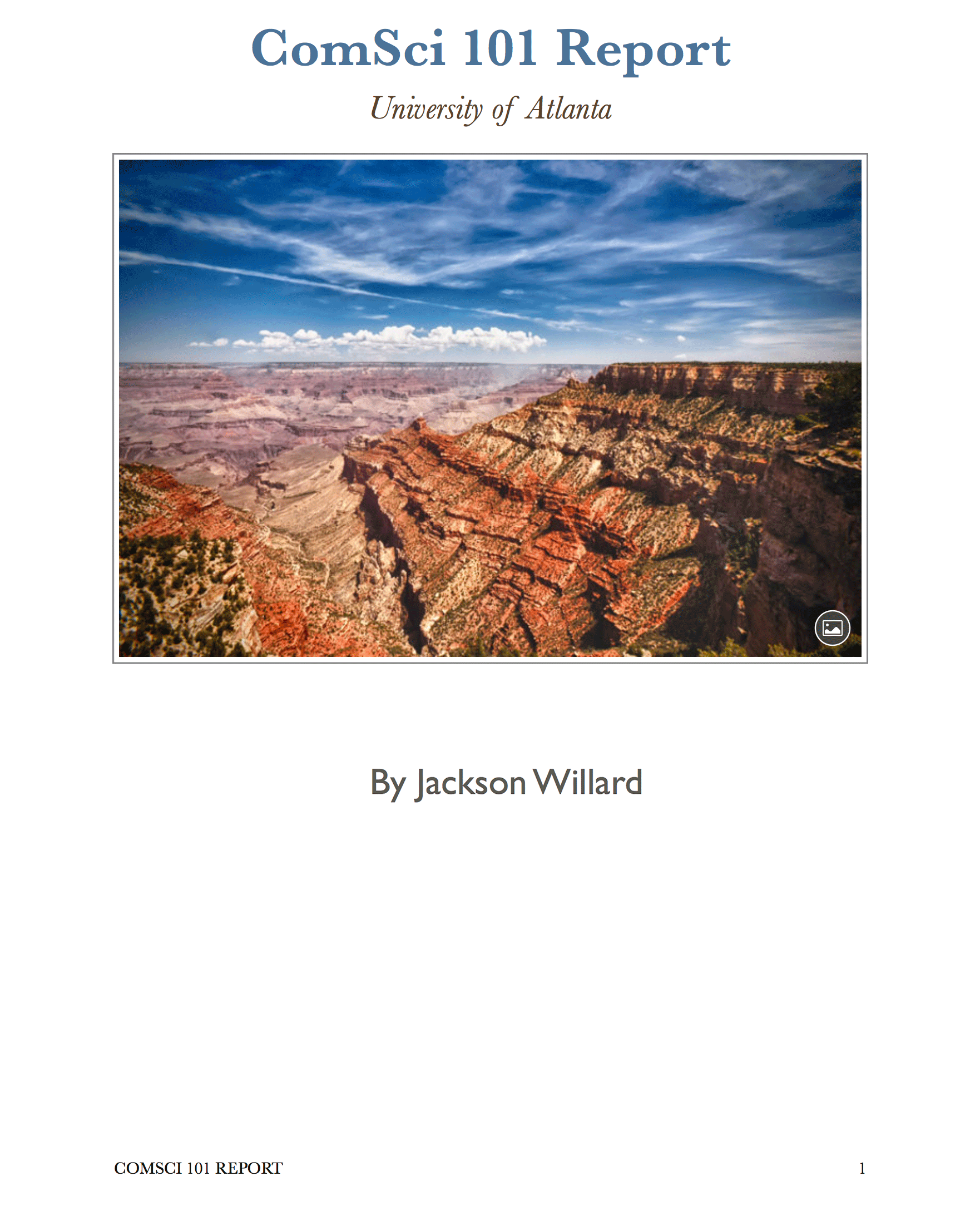 IronOCR의 사각형 선택 기능을 사용하여 정확한 영역 기반 텍스트 추출을 보여주는 문서입니다.
IronOCR 몇 개의 언어를 지원하나요?
IronOCR은 편리한 언어 팩을 통해 127개 국어를 지원합니다. 해당 파일들을 DLL 파일로 저희 웹사이트 또는NuGet 패키지 관리자를 통해 다운로드하세요.
NuGet 인터페이스( 검색창에 "IronOCR" 입력 )를 통해 언어 팩을 설치하거나 전체 언어 팩 목록을 참조하세요.
지원되는 언어에는 아랍어, 중국어(간체/번체), 일본어, 한국어, 힌디어, 러시아어, 독일어, 프랑스어, 스페인어 및 115개 이상의 기타 언어가 포함되며, 각 언어는 정확한 텍스트 인식을 위해 최적화되어 있습니다.
다국어 OCR 구현 방법은 무엇인가요?
이 IronOCR C# 튜토리얼 예제는 아랍어 텍스트 인식을 보여줍니다.
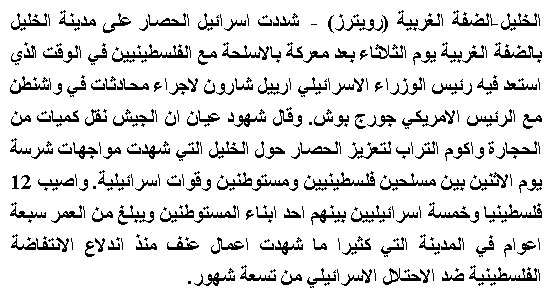
IronOCR GIF 이미지에서 아랍어 텍스트를 정확하게 추출합니다.
using IronOcr;

IronTesseract ocr = new IronTesseract();
using OcrInput input = new OcrInput();
input.LoadPdf("example.pdf", Password: "password");
// We can also select specific PDF page numbers to OCR

OcrResult result = ocr.Read(input);

Console.WriteLine(result.Text);
Console.WriteLine($"{result.Pages.Length} Pages");
// 1 page for every page of the PDFImports IronOcr
Private ocr As New IronTesseract()
Private OcrInput As using
input.LoadPdf("example.pdf", Password:= "password")
' We can also select specific PDF page numbers to OCR
Dim result As OcrResult = ocr.Read(input)
Console.WriteLine(result.Text)
Console.WriteLine($"{result.Pages.Length} Pages")
' 1 page for every page of the PDFIronOCR 다국어 문서를 처리할 수 있습니까?
문서에 여러 언어가 혼합되어 있는 경우 IronOCR 에서 다국어 지원을 설정하십시오.
using IronOcr;

IronTesseract ocr = new IronTesseract();

using OcrInput input = new OcrInput();
input.Title = "Pdf Metadata Name";
input.LoadPdf("example.pdf", Password: "password");
OcrResult result = ocr.Read(input);
result.SaveAsSearchablePdf("searchable.pdf");Imports IronOcr
Private ocr As New IronTesseract()
Private OcrInput As using
input.Title = "Pdf Metadata Name"
input.LoadPdf("example.pdf", Password:= "password")
Dim result As OcrResult = ocr.Read(input)
result.SaveAsSearchablePdf("searchable.pdf")C# OCR를 사용하여 여러 페이지 문서를 처리하는 방법?
IronOCR은 여러 페이지 또는 이미지를 하나의 OcrResult로 매끄럽게 결합합니다. 이 기능은 검색 가능한 PDF 생성 및 전체 문서 세트에서 텍스트 추출과 같은 강력한 기능을 가능하게 합니다.
이미지, TIFF 프레임, PDF 페이지 등 다양한 소스를 하나의 OCR 작업에서 조합하여 사용하세요.
using IronOcr;

IronTesseract ocr = new IronTesseract();
using OcrInput input = new OcrInput();
input.Title = "Pdf Title";
var pageindices = new int[] { 1, 2 };
input.LoadImageFrames("example.tiff", pageindices);
OcrResult result = ocr.Read(input);
result.SaveAsSearchablePdf("searchable.pdf");Imports IronOcr
Private ocr As New IronTesseract()
Private OcrInput As using
input.Title = "Pdf Title"
Dim pageindices = New Integer() { 1, 2 }
input.LoadImageFrames("example.tiff", pageindices)
Dim result As OcrResult = ocr.Read(input)
result.SaveAsSearchablePdf("searchable.pdf")TIFF 파일의 모든 페이지를 효율적으로 처리합니다.
using IronOcr;

IronTesseract ocr = new IronTesseract();

using OcrInput input = new OcrInput();
input.Title = "Html Title";

// Add more content as required...
input.LoadImage("image2.jpeg");
input.LoadPdf("example.pdf",Password: "password");
var pageindices = new int[] { 1, 2 };
input.LoadImageFrames("example.tiff", pageindices);

OcrResult result = ocr.Read(input);
result.SaveAsHocrFile("hocr.html");Imports IronOcr
Private ocr As New IronTesseract()
Private OcrInput As using
input.Title = "Html Title"
' Add more content as required...
input.LoadImage("image2.jpeg")
input.LoadPdf("example.pdf",Password:= "password")
Dim pageindices = New Integer() { 1, 2 }
input.LoadImageFrames("example.tiff", pageindices)
Dim result As OcrResult = ocr.Read(input)
result.SaveAsHocrFile("hocr.html")TIFF 또는 PDF 파일을 검색 가능한 형식으로 변환합니다.
using IronOcr;

IronTesseract ocr = new IronTesseract();

ocr.Configuration.ReadBarCodes = true;

using OcrInput input = new OcrInput();
input.LoadImage("img/Barcode.png");

OcrResult result = ocr.Read(input);

foreach (var barcode in result.Barcodes)
{
    Console.WriteLine(barcode.Value);
    // type and location properties also exposed
}Imports IronOcr
Private ocr As New IronTesseract()
ocr.Configuration.ReadBarCodes = True
Using input As New OcrInput()
input.LoadImage("img/Barcode.png")
Dim result As OcrResult = ocr.Read(input)
For Each barcode In result.Barcodes
Console.WriteLine(barcode.Value)
' type and location properties also exposed
Next barcode
End Using기존 PDF 파일을 검색 가능한 버전으로 변환하세요:
using IronOcr;
using IronSoftware.Drawing;

// We can delve deep into OCR results as an object model of Pages, Barcodes, Paragraphs, Lines, Words and Characters
// This allows us to explore, export and draw OCR content using other APIs

IronTesseract ocr = new IronTesseract();
ocr.Configuration.ReadBarCodes = true;

using OcrInput input = new OcrInput();
var pageindices = new int[] { 1, 2 };
input.LoadImageFrames(@"img\Potter.tiff", pageindices);

OcrResult result = ocr.Read(input);

foreach (var page in result.Pages)
{
    // Page object
    int pageNumber = page.PageNumber;
    string pageText = page.Text;
    int pageWordCount = page.WordCount;

    // null if we don't set Ocr.Configuration.ReadBarCodes = true;
    OcrResult.Barcode[] barcodes = page.Barcodes;

    AnyBitmap pageImage = page.ToBitmap(input);
    System.Drawing.Bitmap pageImageLegacy = page.ToBitmap(input);
    double pageWidth = page.Width;
    double pageHeight = page.Height;

    foreach (var paragraph in page.Paragraphs)
    {
        // Pages -> Paragraphs
        int paragraphNumber = paragraph.ParagraphNumber;
        String paragraphText = paragraph.Text;
        System.Drawing.Bitmap paragraphImage = paragraph.ToBitmap(input);
        int paragraphXLocation = paragraph.X;
        int paragraphYLocation = paragraph.Y;
        int paragraphWidth = paragraph.Width;
        int paragraphHeight = paragraph.Height;
        double paragraphOcrAccuracy = paragraph.Confidence;
        var paragraphTextDirection = paragraph.TextDirection;

        foreach (var line in paragraph.Lines)
        {
            // Pages -> Paragraphs -> Lines
            int lineNumber = line.LineNumber;
            String lineText = line.Text;
            AnyBitmap lineImage = line.ToBitmap(input);
            System.Drawing.Bitmap lineImageLegacy = line.ToBitmap(input);
            int lineXLocation = line.X;
            int lineYLocation = line.Y;
            int lineWidth = line.Width;
            int lineHeight = line.Height;
            double lineOcrAccuracy = line.Confidence;
            double lineSkew = line.BaselineAngle;
            double lineOffset = line.BaselineOffset;

            foreach (var word in line.Words)
            {
                // Pages -> Paragraphs -> Lines -> Words
                int wordNumber = word.WordNumber;
                String wordText = word.Text;
                AnyBitmap wordImage = word.ToBitmap(input);
                System.Drawing.Image wordImageLegacy = word.ToBitmap(input);
                int wordXLocation = word.X;
                int wordYLocation = word.Y;
                int wordWidth = word.Width;
                int wordHeight = word.Height;
                double wordOcrAccuracy = word.Confidence;

                if (word.Font != null)
                {
                    // Word.Font is only set when using Tesseract Engine Modes rather than LTSM
                    String fontName = word.Font.FontName;
                    double fontSize = word.Font.FontSize;
                    bool isBold = word.Font.IsBold;
                    bool isFixedWidth = word.Font.IsFixedWidth;
                    bool isItalic = word.Font.IsItalic;
                    bool isSerif = word.Font.IsSerif;
                    bool isUnderlined = word.Font.IsUnderlined;
                    bool fontIsCaligraphic = word.Font.IsCaligraphic;
                }

                foreach (var character in word.Characters)
                {
                    // Pages -> Paragraphs -> Lines -> Words -> Characters
                    int characterNumber = character.CharacterNumber;
                    String characterText = character.Text;
                    AnyBitmap characterImage = character.ToBitmap(input);
                    System.Drawing.Bitmap characterImageLegacy = character.ToBitmap(input);
                    int characterXLocation = character.X;
                    int characterYLocation = character.Y;
                    int characterWidth = character.Width;
                    int characterHeight = character.Height;
                    double characterOcrAccuracy = character.Confidence;

                    // Output alternative symbols choices and their probability.
                    // Very useful for spell checking
                    OcrResult.Choice[] characterChoices = character.Choices;
                }
            }
        }
    }
}Imports IronOcr
Imports IronSoftware.Drawing
' We can delve deep into OCR results as an object model of Pages, Barcodes, Paragraphs, Lines, Words and Characters
' This allows us to explore, export and draw OCR content using other APIs
Private ocr As New IronTesseract()
ocr.Configuration.ReadBarCodes = True
Using input As New OcrInput()
Dim pageindices = New Integer() { 1, 2 }
input.LoadImageFrames("img\Potter.tiff", pageindices)
Dim result As OcrResult = ocr.Read(input)
For Each page In result.Pages
' Page object
Dim pageNumber As Integer = page.PageNumber
Dim pageText As String = page.Text
Dim pageWordCount As Integer = page.WordCount
' null if we don't set Ocr.Configuration.ReadBarCodes = true;
Dim barcodes() As OcrResult.Barcode = page.Barcodes
Dim pageImage As AnyBitmap = page.ToBitmap(input)
Dim pageImageLegacy As System.Drawing.Bitmap = page.ToBitmap(input)
Dim pageWidth As Double = page.Width
Dim pageHeight As Double = page.Height
For Each paragraph In page.Paragraphs
' Pages -> Paragraphs
Dim paragraphNumber As Integer = paragraph.ParagraphNumber
Dim paragraphText As String = paragraph.Text
Dim paragraphImage As System.Drawing.Bitmap = paragraph.ToBitmap(input)
Dim paragraphXLocation As Integer = paragraph.X
Dim paragraphYLocation As Integer = paragraph.Y
Dim paragraphWidth As Integer = paragraph.Width
Dim paragraphHeight As Integer = paragraph.Height
Dim paragraphOcrAccuracy As Double = paragraph.Confidence
Dim paragraphTextDirection = paragraph.TextDirection
For Each line In paragraph.Lines
' Pages -> Paragraphs -> Lines
Dim lineNumber As Integer = line.LineNumber
Dim lineText As String = line.Text
Dim lineImage As AnyBitmap = line.ToBitmap(input)
Dim lineImageLegacy As System.Drawing.Bitmap = line.ToBitmap(input)
Dim lineXLocation As Integer = line.X
Dim lineYLocation As Integer = line.Y
Dim lineWidth As Integer = line.Width
Dim lineHeight As Integer = line.Height
Dim lineOcrAccuracy As Double = line.Confidence
Dim lineSkew As Double = line.BaselineAngle
Dim lineOffset As Double = line.BaselineOffset
For Each word In line.Words
' Pages -> Paragraphs -> Lines -> Words
Dim wordNumber As Integer = word.WordNumber
Dim wordText As String = word.Text
Dim wordImage As AnyBitmap = word.ToBitmap(input)
Dim wordImageLegacy As System.Drawing.Image = word.ToBitmap(input)
Dim wordXLocation As Integer = word.X
Dim wordYLocation As Integer = word.Y
Dim wordWidth As Integer = word.Width
Dim wordHeight As Integer = word.Height
Dim wordOcrAccuracy As Double = word.Confidence
If word.Font IsNot Nothing Then
' Word.Font is only set when using Tesseract Engine Modes rather than LTSM
Dim fontName As String = word.Font.FontName
Dim fontSize As Double = word.Font.FontSize
Dim isBold As Boolean = word.Font.IsBold
Dim isFixedWidth As Boolean = word.Font.IsFixedWidth
Dim isItalic As Boolean = word.Font.IsItalic
Dim isSerif As Boolean = word.Font.IsSerif
Dim isUnderlined As Boolean = word.Font.IsUnderlined
Dim fontIsCaligraphic As Boolean = word.Font.IsCaligraphic
End If
For Each character In word.Characters
' Pages -> Paragraphs -> Lines -> Words -> Characters
Dim characterNumber As Integer = character.CharacterNumber
Dim characterText As String = character.Text
Dim characterImage As AnyBitmap = character.ToBitmap(input)
Dim characterImageLegacy As System.Drawing.Bitmap = character.ToBitmap(input)
Dim characterXLocation As Integer = character.X
Dim characterYLocation As Integer = character.Y
Dim characterWidth As Integer = character.Width
Dim characterHeight As Integer = character.Height
Dim characterOcrAccuracy As Double = character.Confidence
' Output alternative symbols choices and their probability.
' Very useful for spell checking
Dim characterChoices() As OcrResult.Choice = character.Choices
Next character
Next word
Next line
Next paragraph
Next page
End UsingTIFF 변환에도 동일한 기법을 적용하세요.
using IronOcr;

var ocr = new IronTesseract();

using (var input = new OcrInput())
{
    // Configure document properties
    input.Title = "Scanned Archive Document";

    // Select pages to process
    var pageIndices = new int[] { 1, 2 };
    input.LoadImageFrames("example.tiff", pageIndices);

    // Create searchable PDF from TIFF
    OcrResult result = ocr.Read(input);
    result.SaveAsSearchablePdf("searchable.pdf");
}Imports IronOcr
Dim ocr As New IronTesseract()
Using input As New OcrInput()
' Configure document properties
input.Title = "Scanned Archive Document"
' Select pages to process
Dim pageIndices As Integer() = {1, 2}
input.LoadImageFrames("example.tiff", pageIndices)
' Create searchable PDF from TIFF
Dim result As OcrResult = ocr.Read(input)
result.SaveAsSearchablePdf("searchable.pdf")
End UsingOCR 결과를 HOCR HTML 형식으로 내보내는 방법은 무엇인가요?
IronOCR HOCR HTML 내보내기를 지원하여 레이아웃 정보를 유지하면서 구조화된 PDF를 HTML로 , TIFF를 HTML로 변환할 수 있습니다.
using IronOcr;

var ocr = new IronTesseract();

using (var input = new OcrInput())
{
    // Set HTML title
    input.Title = "Document Archive";

    // Process multiple document types
    input.LoadImage("image2.jpeg");
    input.LoadPdf("example.pdf", "password");

    // Add TIFF pages
    var pageIndices = new int[] { 1, 2 };
    input.LoadImageFrames("example.tiff", pageIndices);

    // Export as HOCR with position data
    OcrResult result = ocr.Read(input);
    result.SaveAsHocrFile("hocr.html");
}Imports IronOcr
Dim ocr As New IronTesseract()
Using input As New OcrInput()
' Set HTML title
input.Title = "Document Archive"
' Process multiple document types
input.LoadImage("image2.jpeg")
input.LoadPdf("example.pdf", "password")
' Add TIFF pages
Dim pageIndices As Integer() = {1, 2}
input.LoadImageFrames("example.tiff", pageIndices)
' Export as HOCR with position data
Dim result As OcrResult = ocr.Read(input)
result.SaveAsHocrFile("hocr.html")
End UsingIronOCR 텍스트와 함께 바코드도 읽을 수 있습니까?
IronOCR 텍스트 인식과 바코드 판독 기능을 독창적으로 결합하여 별도의 라이브러리가 필요 없도록 합니다.
// Enable combined text and barcode recognition
using IronOcr;

var ocr = new IronTesseract();

// Enable barcode detection
ocr.Configuration.ReadBarCodes = true;

using (var input = new OcrInput())
{
    // Load image containing both text and barcodes
    input.LoadImage("img/Barcode.png");

    // Process both text and barcodes
    var result = ocr.Read(input);

    // Extract barcode data
    foreach (var barcode in result.Barcodes)
    {
        Console.WriteLine($"Barcode Value: {barcode.Value}");
        Console.WriteLine($"Format: {barcode.Format}");
    }
}상세 OCR 결과 및 메타데이터에 액세스하는 방법은 무엇입니까?
IronOCR 결과 객체는 고급 개발자가 정교한 애플리케이션을 개발하는 데 활용할 수 있는 포괄적인 데이터를 제공합니다.
각 OcrResult는 페이지, 단락, 줄, 단어 및 문자와 같은 계층적 컬렉션을 포함합니다. 모든 요소에는 위치, 글꼴 정보, 신뢰도 점수와 같은 자세한 메타데이터가 포함되어 있습니다.
개별 요소(단락, 단어, 바코드)는 추가 처리를 위해 이미지 또는 비트맵으로 내보낼 수 있습니다.
using System;
using IronOcr;
using IronSoftware.Drawing;

// Configure with barcode support
IronTesseract ocr = new IronTesseract
{
    Configuration = { ReadBarCodes = true }
};

using OcrInput input = new OcrInput();

// Process multi-page document
int[] pageIndices = { 1, 2 };
input.LoadImageFrames(@"img\Potter.tiff", pageIndices);

OcrResult result = ocr.Read(input);

// Navigate the complete results hierarchy
foreach (var page in result.Pages)
{
    // Page-level data
    int pageNumber = page.PageNumber;
    string pageText = page.Text;
    int pageWordCount = page.WordCount;

    // Extract page elements
    OcrResult.Barcode[] barcodes = page.Barcodes;
    AnyBitmap pageImage = page.ToBitmap();
    double pageWidth = page.Width;
    double pageHeight = page.Height;

    foreach (var paragraph in page.Paragraphs)
    {
        // Paragraph properties
        int paragraphNumber = paragraph.ParagraphNumber;
        string paragraphText = paragraph.Text;
        double paragraphConfidence = paragraph.Confidence;
        var textDirection = paragraph.TextDirection;

        foreach (var line in paragraph.Lines)
        {
            // Line details including baseline information
            string lineText = line.Text;
            double lineConfidence = line.Confidence;
            double baselineAngle = line.BaselineAngle;
            double baselineOffset = line.BaselineOffset;

            foreach (var word in line.Words)
            {
                // Word-level data
                string wordText = word.Text;
                double wordConfidence = word.Confidence;

                // Font information (when available)
                if (word.Font != null)
                {
                    string fontName = word.Font.FontName;
                    double fontSize = word.Font.FontSize;
                    bool isBold = word.Font.IsBold;
                    bool isItalic = word.Font.IsItalic;
                }

                foreach (var character in word.Characters)
                {
                    // Character-level analysis
                    string charText = character.Text;
                    double charConfidence = character.Confidence;

                    // Alternative character choices for spell-checking
                    OcrResult.Choice[] alternatives = character.Choices;
                }
            }
        }
    }
}Imports System
Imports IronOcr
Imports IronSoftware.Drawing
' Configure with barcode support
Dim ocr As New IronTesseract With {
.Configuration = New TesseractConfiguration With {
.ReadBarCodes = True
}
}
Using input As New OcrInput()
' Process multi-page document
Dim pageIndices As Integer() = {1, 2}
input.LoadImageFrames("img\Potter.tiff", pageIndices)
Dim result As OcrResult = ocr.Read(input)
' Navigate the complete results hierarchy
For Each page In result.Pages
' Page-level data
Dim pageNumber As Integer = page.PageNumber
Dim pageText As String = page.Text
Dim pageWordCount As Integer = page.WordCount
' Extract page elements
Dim barcodes As OcrResult.Barcode() = page.Barcodes
Dim pageImage As AnyBitmap = page.ToBitmap()
Dim pageWidth As Double = page.Width
Dim pageHeight As Double = page.Height
For Each paragraph In page.Paragraphs
' Paragraph properties
Dim paragraphNumber As Integer = paragraph.ParagraphNumber
Dim paragraphText As String = paragraph.Text
Dim paragraphConfidence As Double = paragraph.Confidence
Dim textDirection = paragraph.TextDirection
For Each line In paragraph.Lines
' Line details including baseline information
Dim lineText As String = line.Text
Dim lineConfidence As Double = line.Confidence
Dim baselineAngle As Double = line.BaselineAngle
Dim baselineOffset As Double = line.BaselineOffset
For Each word In line.Words
' Word-level data
Dim wordText As String = word.Text
Dim wordConfidence As Double = word.Confidence
' Font information (when available)
If word.Font IsNot Nothing Then
Dim fontName As String = word.Font.FontName
Dim fontSize As Double = word.Font.FontSize
Dim isBold As Boolean = word.Font.IsBold
Dim isItalic As Boolean = word.Font.IsItalic
End If
For Each character In word.Characters
' Character-level analysis
Dim charText As String = character.Text
Dim charConfidence As Double = character.Confidence
' Alternative character choices for spell-checking
Dim alternatives As OcrResult.Choice() = character.Choices
Next
Next
Next
Next
Next
End Using요약
IronOCR C# 개발자에게 Windows, Linux 및 Mac 플랫폼에서 원활하게 실행되는 가장 진보된 Tesseract API 구현을 제공합니다. IronOCR 사용하면 불완전한 문서에서도 이미지에서 텍스트를 정확하게 읽어낼 수 있다는 점에서 기본적인 OCR 솔루션과 차별화됩니다.
이 라이브러리의 고유한 특징으로는 통합 바코드 판독 기능과 검색 가능한 PDF 또는 HOCR HTML 형식으로 결과를 내보낼 수 있는 기능이 있으며, 이러한 기능은 표준 Tesseract 구현에서는 사용할 수 없습니다.
앞으로 나아가기
IronOCR 실력을 계속 향상시키려면:
- 포괄적인 시작 가이드를 살펴보세요
- 실용적인 C# 코드 예제를 살펴보세요
- 자세한 API 문서를 참조하세요.
소스 코드 다운로드
C# OCR 이미지-텍스트 변환 기능을 애플리케이션에 구현할 준비가 되셨나요? IronOCR 다운로드 하고 지금 바로 무료 체험을 시작하세요.
자주 묻는 질문
Tesseract를 사용하지 않고 C#에서 이미지를 텍스트로 변환하는 방법은 무엇인가요?
IronOCR을 사용하면 Tesseract 없이도 C#에서 이미지를 텍스트로 변환할 수 있습니다. IronOCR은 이미지-텍스트 변환을 직접 처리하는 내장 메서드를 통해 변환 과정을 간소화합니다.
저화질 이미지에서 OCR 정확도를 높이려면 어떻게 해야 할까요?
IronOCR은 Input.Deskew() 및 Input.DeNoise() 와 같은 이미지 필터를 제공하여 이미지의 기울기를 보정하고 노이즈를 줄여 OCR 정확도를 크게 향상시킬 수 있습니다.
C#에서 OCR을 사용하여 여러 페이지로 구성된 문서에서 텍스트를 추출하는 단계는 무엇입니까?
IronOCR은 여러 페이지로 구성된 문서에서 텍스트를 추출하기 위해 PDF의 경우 LoadPdf() 와 같은 메서드를 사용하거나 TIFF 파일을 처리하여 각 페이지를 텍스트로 변환할 수 있도록 지원합니다.
이미지에서 바코드와 텍스트를 동시에 읽는 것이 가능할까요?
네, IronOCR은 단일 이미지에서 텍스트와 바코드를 모두 읽을 수 있습니다. ocr.Configuration.ReadBarCodes = true 로 설정하면 바코드 읽기를 활성화하여 텍스트와 바코드 데이터를 모두 추출할 수 있습니다.
여러 언어로 된 문서를 처리하도록 OCR을 어떻게 설정할 수 있나요?
IronOCR은 125개 이상의 언어를 지원하며, ocr.Language 사용하여 기본 언어를 설정하고 ocr.AddSecondaryLanguage() 를 사용하여 추가 언어를 추가하여 다국어 문서를 처리할 수 있습니다.
OCR 결과를 다양한 형식으로 내보낼 수 있는 방법에는 어떤 것들이 있습니까?
IronOCR은 PDF 형식의 SaveAsSearchablePdf() , 일반 텍스트 형식의 SaveAsTextFile() , HOCR HTML 형식의 SaveAsHocrFile() 등 OCR 결과를 내보내는 여러 가지 방법을 제공합니다.
대용량 이미지 파일의 OCR 처리 속도를 최적화하려면 어떻게 해야 할까요?
OCR 처리 속도를 최적화하려면 IronOCR의 OcrLanguage.EnglishFast 사용하여 언어 인식 속도를 높이고 System.Drawing.Rectangle 사용하여 OCR을 수행할 특정 영역을 정의하여 처리 시간을 단축하십시오.
보호된 PDF 파일의 OCR 처리는 어떻게 해야 하나요?
보호된 PDF 파일을 처리할 때는 LoadPdf() 메서드와 올바른 암호를 사용하십시오. IronOCR은 이미지 기반 PDF 파일의 페이지를 자동으로 이미지로 변환하여 OCR 처리를 수행합니다.
OCR 결과가 정확하지 않으면 어떻게 해야 하나요?
OCR 결과가 정확하지 않은 경우 IronOCR의 이미지 개선 기능(예: Input.Deskew() 및 Input.DeNoise() 을 사용하고 올바른 언어 팩이 설치되어 있는지 확인하십시오.
OCR 프로세스에서 특정 문자를 제외하도록 사용자 지정할 수 있습니까?
네, IronOCR은 BlackListCharacters 속성을 사용하여 특정 문자를 제외함으로써 OCR 프로세스를 사용자 지정할 수 있습니다. 이를 통해 관련 텍스트에만 집중하여 정확도와 처리 속도를 향상시킬 수 있습니다.

제이콥 멜러는 Iron Software의 최고 기술 책임자(CTO)이자 C# PDF 기술을 개척한 선구적인 엔지니어입니다. Iron Software의 핵심 코드베이스를 최초로 개발한 그는 창립 초기부터 회사의 제품 아키텍처를 설계해 왔으며, CEO인 캐머런 리밍턴과 함께 회사를 NASA, 테슬라, 그리고 전 세계 정부 기관에 서비스를 제공하는 50명 이상의 직원을 보유한 기업으로 성장시켰습니다.













