
C# Guide: Using IronOCR Image Filters for Better OCR

IronOCR 필터 형태의 전처리가 필요할 수 있는 이미지를 읽는 데 필요한 도구를 제공합니다. 이미지를 편집 가능한 형태로 변환하기 위해 다양한 필터 중에서 선택할 수 있습니다.
빠른 시작: OCR 이미지 정리를 위한 필터 적용단순한 호출 체인 하나로 DeNoise, Binarize 및 Deskew 필터를 적용하여 OCR 전에 스캔 명료성을 향상시킬 수 있습니다. 이 예시는 IronOCR의 내장 필터를 사용하여 이미지를 얼마나 쉽게 향상시킬 수 있는지, 그리고 바로 시작할 수 있는 방법을 보여줍니다.
-
1Install IronOCR with NuGet Package Manager
-
2다음 코드 조각을 복사하여 실행하세요.
using var input = new IronOcr.OcrInput("scan.jpg"); input.DeNoise(true).Binarize().Deskew(45); var result = new IronOcr.IronTesseract().Read(input);C# -
3실제 운영 환경에서 테스트할 수 있도록 배포하세요.
무료 체험판으로 오늘 프로젝트에서 IronOCR 사용 시작하기
OCR 이미지 필터 목록
다음 이미지 필터는 성능을 크게 향상시킬 수 있습니다.
Filters to change the Image OrientationRotate- 이미지를 오른쪽 방향으로 회전시킵니다. 반시계 방향으로 회전하려면 음수를 사용하십시오.Deskew- 이미지를 올바른 방향으로 정렬하고 수직으로 만듭니다. 이는 OCR에 매우 유용한데, Tesseract는 기울어진 스캔에 대해 5도 정도의 허용 오차를 가질 수 있기 때문입니다.Scale- OCR 입력 페이지를 비율에 맞게 스케일링합니다.
Filters to manipulate Image ColorsBinarize- 이 필터는 모든 픽셀을 검정 또는 흰색으로 변환합니다. 이는 텍스트와 배경의 대비가 매우 낮은 경우 OCR 성능을 향상시킬 수 있습니다.ToGrayScale- 이 필터는 모든 픽셀을 회색으로 변환합니다. OCR 정확도는 향상되지 않을 가능성이 높지만 속도는 향상될 수 있습니다.Invert- 모든 색상을 반전시킵니다. 예를 들어 흰색이 검은색이 되고 검은색이 흰색이 됩니다.ReplaceColor- 이미지에서 특정 임계값 내의 색상을 다른 색으로 교체합니다.
Filters to improve Contrast in an ImageContrast- 자동으로 대비를 증가시킵니다. 이 필터는 종종 대비가 낮은 스캔 이미지에서 OCR 속도와 정확도를 향상시킵니다.Dilate- 고급 형태 변환. _팽창_은 이미지에서 객체의 경계에 픽셀을 추가합니다. 에로드의 정반대.Erode- 고급 형태 변환. _침식_은 객체 경계에서 픽셀을 제거합니다. 확장하다의 반대말.
Filters to reduce Image NoiseSharpen- 흐릿한 OCR 문서를 선명하게 하고 알파 채널을 흰색으로 평면화합니다.DeNoise- 디지털 소음을 제거합니다. 이 필터는 소음이 예상되는 시나리오에서만 사용해야 합니다.EnhanceResolution- 저품질 이미지의 해상도를 향상시킵니다. 이 필터는 자주 필요하지 않습니다.OcrInput.MinimumDPI과OcrInput.TargetDPI이 저해상도 입력을 자동으로 감지하고 해결하기 때문입니다.
필터 예시 및 사용법
다음 예제에서는 코드 내에 필터를 적용하는 방법을 보여줍니다.
using IronOcr;
using System;

var ocr = new IronTesseract();
using var input = new OcrInput();
input.LoadImage("my_image.png");
input.Deskew();

var result = ocr.Read(input);
Console.WriteLine(result.Text);Imports IronOcr
Imports System
Private ocr = New IronTesseract()
Private input = New OcrInput()
input.LoadImage("my_image.png")
input.Deskew()
Dim result = ocr.Read(input)
Console.WriteLine(result.Text)디버그 필터 / 필터는 어떤 역할을 하나요?
프로그램에서 이미지나 바코드를 읽는 데 어려움이 있는 경우, 필터링된 결과를 이미지로 저장하는 방법이 있습니다. 이렇게 하면 디버깅을 통해 각 필터가 정확히 어떤 역할을 하고 이미지를 어떻게 조작하는지 확인할 수 있습니다.
using IronOcr;
using System;

var file = "skewed_image.tiff";
var ocr = new IronTesseract();
using var input = new OcrInput();
var pageindices = new int[] { 1, 2 };
input.LoadImageFrames(file, pageindices);
// Here we apply the filter: Deskew
input.Deskew();

// Save the input with filter(s) applied
input.SaveAsImages("my_deskewed");

// We read, then print the text to the console
var result = ocr.Read(input);
Console.WriteLine(result.Text);Imports IronOcr
Imports System
Private file = "skewed_image.tiff"
Private ocr = New IronTesseract()
Private input = New OcrInput()
Private pageindices = New Integer() { 1, 2 }
input.LoadImageFrames(file, pageindices)
' Here we apply the filter: Deskew
input.Deskew()
' Save the input with filter(s) applied
input.SaveAsImages("my_deskewed")
' We read, then print the text to the console
Dim result = ocr.Read(input)
Console.WriteLine(result.Text)필터 사용 사례
회전
필터 설명
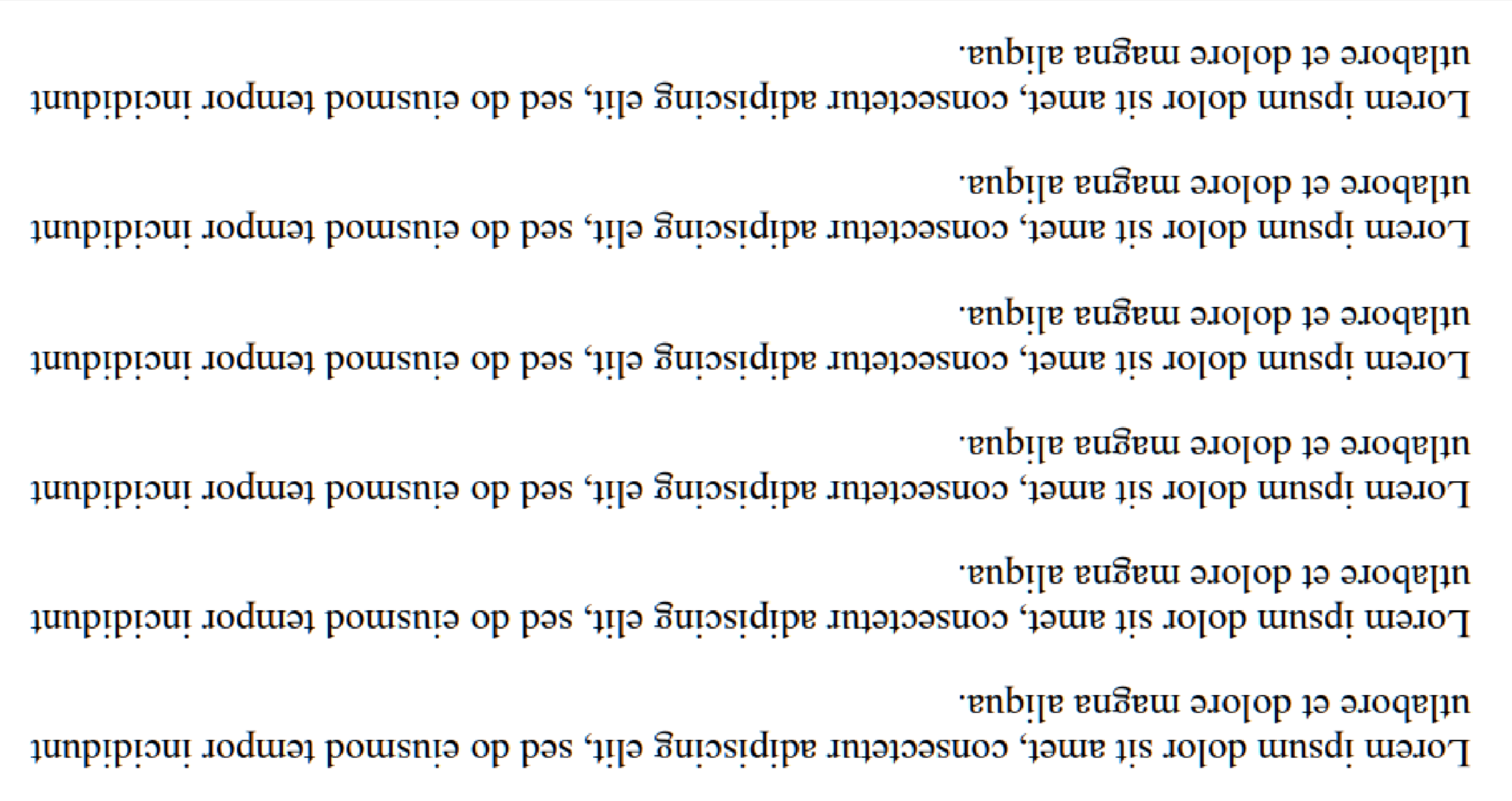
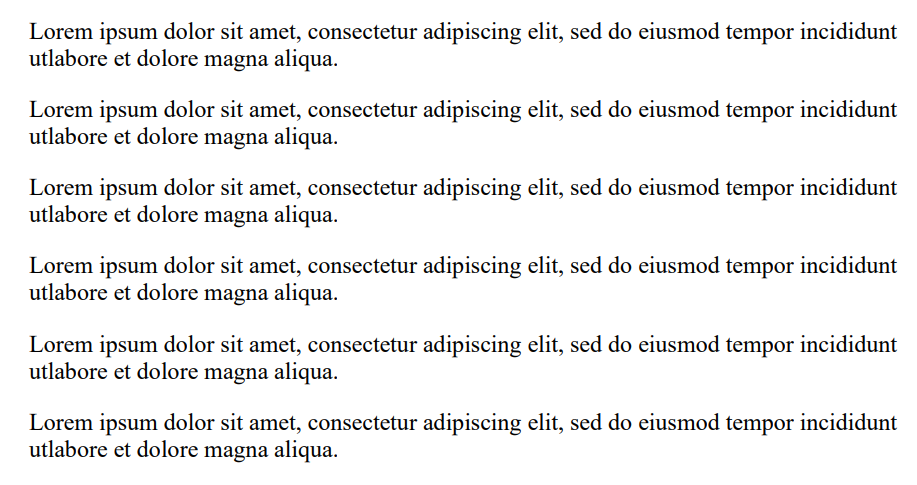
회전 필터는 이미지를 수동으로 회전시켜 거의 직선에 가깝게 만드는 데 사용됩니다. IronOCR은 Deskew()을 실행할 수 있는 기능을 가지고 있으며, 이는 특정 시점에서 회전을 수정하는 것이 가장 효과적입니다 (약 15도 이하로). 입력 이미지가 90도로 잘못 정렬되었거나 뒤집어졌을 경우, Rotate()을 호출해야 합니다.
사용 사례 코드 예제
여기 Rotate()을 호출하여 뒤집힌 이미지를 수정하는 예제가 있습니다:
using IronOcr;
using System;

var image = "screenshot.png";
var ocr = new IronTesseract();
using var input = new OcrInput();
// Load at least one image
input.LoadImage(image);

// Rotate 180 degrees because image is upside-down
input.Rotate(180);

// Read image into variable: result
var result = ocr.Read(input);

// Example print to console
Console.WriteLine(result.Text);Imports IronOcr
Imports System
Private image = "screenshot.png"
Private ocr = New IronTesseract()
Private input = New OcrInput()
' Load at least one image
input.LoadImage(image)
' Rotate 180 degrees because image is upside-down
input.Rotate(180)
' Read image into variable: result
Dim result = ocr.Read(input)
' Example print to console
Console.WriteLine(result.Text)이전 Input.Rotate(180) | 이후 Input.Rotate(180) |
|---|---|
 |  |
디스큐
필터 설명
허프 변환을 사용하여 특정 허용 오차 범위 내에서 이미지를 똑바로 맞추려고 시도합니다. 이는 이미지가 완전히 똑바로 정렬되어 있지 않은 경우에 중요합니다. 문서가 기울어지면 잘못 읽힐 수 있기 때문입니다.
사용 사례 코드 예제
여기 Deskew()을 호출하여 왜곡된 이미지를 수정하는 예제가 있습니다:
using IronOcr;
using System;

var image = @"paragraph_skewed.png";
var ocr = new IronTesseract();
using var input = new OcrInput();
// Load at least one image
input.LoadImage(image);

// Apply deskew with 15 degree snap
bool didDeskew = input.Deskew(15);
if (didDeskew)
{
    // Read image into variable: result
    var result = ocr.Read(input);
    Console.WriteLine(result.Text);
}
else
{
    Console.WriteLine("Deskew not applied because Image Orientation could not be determined.");
}Imports IronOcr
Imports System
Private image = "paragraph_skewed.png"
Private ocr = New IronTesseract()
Private input = New OcrInput()
' Load at least one image
input.LoadImage(image)
' Apply deskew with 15 degree snap
Dim didDeskew As Boolean = input.Deskew(15)
If didDeskew Then
' Read image into variable: result
Dim result = ocr.Read(input)
Console.WriteLine(result.Text)
Else
Console.WriteLine("Deskew not applied because Image Orientation could not be determined.")
End If규모
필터 설명
크기 조절은 이미지에 이미 있는 픽셀을 사용하여 이미지 크기를 조정하는 데 도움이 되는 유용한 이미지 조작 필터입니다. 이 기능은 이미지가 수십 픽셀 너비에 불과하여 각 막대가 한 픽셀을 차지하는 경우처럼 바코드를 스캔할 수 없거나, 텍스트가 너무 작아서 앤티앨리어싱이 적용되지 않은 경우에 사용할 수 있습니다.
1000px x 1000px이며, 바코드가 발견되지 않을 경우 고려해야 합니다.사용 사례 코드 예제
여기 Scale()을 호출하여 바코드의 막대 사이 간격을 확장하여 스캔하는 예제가 있습니다:
using IronOcr;
using System;

var image = @"small_barcode.png";
var ocr = new IronTesseract();

// Optional: This example uses a barcode
ocr.Configuration.ReadBarCodes = true;

using var input = new OcrInput();
// Load at least one image
input.LoadImage(image);

// Apply scale
input.Scale(400); // 400% is 4 times larger

// Read image into variable: result
var result = ocr.Read(input);

// Example print to console
Console.WriteLine(result.Text);Imports IronOcr
Imports System
Private image = "small_barcode.png"
Private ocr = New IronTesseract()
' Optional: This example uses a barcode
ocr.Configuration.ReadBarCodes = True
Dim input = New OcrInput()
' Load at least one image
input.LoadImage(image)
' Apply scale
input.Scale(400) ' 400% is 4 times larger
' Read image into variable: result
Dim result = ocr.Read(input)
' Example print to console
Console.WriteLine(result.Text)이진화
필터 설명
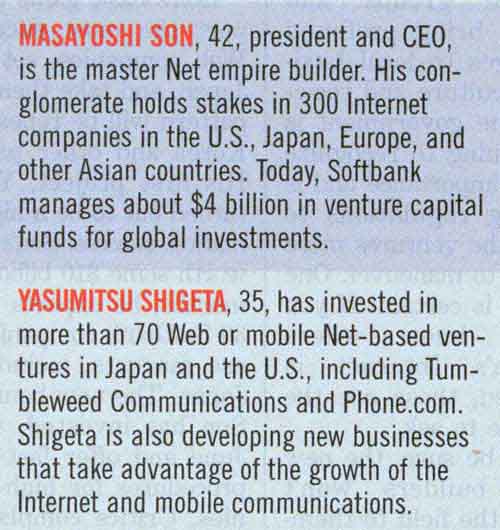
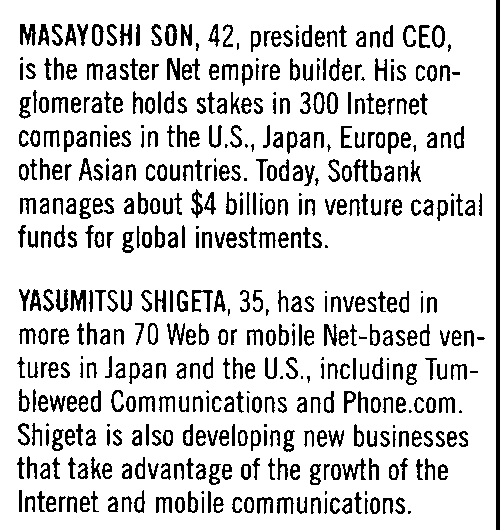
이진화 필터는 적응형 알고리즘에 따라 이미지의 모든 픽셀을 검정색 또는 흰색으로 분류합니다. 이 기능은 모든 색상을 제거하고 배경을 흰색으로 분리하며, 텍스트로 인식된 부분은 읽기 쉽도록 완전히 검은색으로 표시합니다.
사용 사례 코드 예제
여기 Binarize()을 호출하여 색상 텍스트를 정렬하고 배경색 및 소음을 제거하는 예제가 있습니다:
using IronOcr;
using System;

var image = @"no-binarize.jpg";
var ocr = new IronTesseract();

using var input = new OcrInput();
// Load at least one image
input.LoadImage(image);

// Apply Binarize
input.Binarize();

// Read image into variable: result
var result = ocr.Read(input);

// Example print to console
Console.WriteLine(result.Text);Imports IronOcr
Imports System
Private image = "no-binarize.jpg"
Private ocr = New IronTesseract()
Private input = New OcrInput()
' Load at least one image
input.LoadImage(image)
' Apply Binarize
input.Binarize()
' Read image into variable: result
Dim result = ocr.Read(input)
' Example print to console
Console.WriteLine(result.Text)이전 Binarize() | 이후 Binarize() |
|---|---|
 |  |
거꾸로 하다
필터 설명
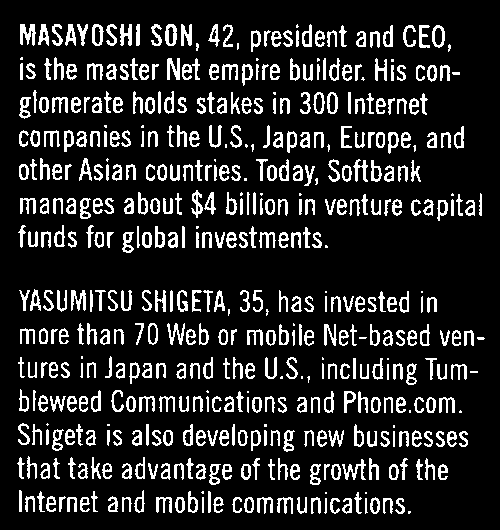
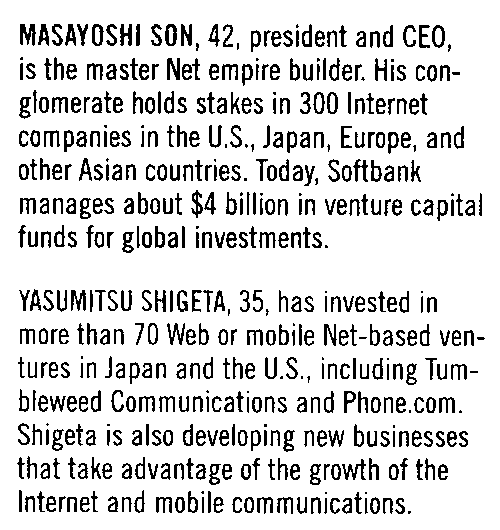
IronOCR은 이미지가 black text on a white background일 때 최적으로 읽습니다. Invert 필터는 이미지의 모든 색상을 반전시켜 이를 달성합니다.
사용 사례 코드 예제
여기 흑백 이미지를 반전하여 백색 배경을 반전시키는 Invert() 호출 예제가 있습니다:
using IronOcr;
using System;

var image = @"before-invert.png";
var ocr = new IronTesseract();

using var input = new OcrInput();
// Load at least one image
input.LoadImage(image);

// Apply Invert
input.Invert(true);

// Read image into variable: result
var result = ocr.Read(input);

// Example print to console
Console.WriteLine(result.Text);Imports IronOcr
Imports System
Private image = "before-invert.png"
Private ocr = New IronTesseract()
Private input = New OcrInput()
' Load at least one image
input.LoadImage(image)
' Apply Invert
input.Invert(True)
' Read image into variable: result
Dim result = ocr.Read(input)
' Example print to console
Console.WriteLine(result.Text)Before | After |
|---|---|
 |  |
자주 묻는 질문
C#에서 이미지 필터를 사용하면 OCR 정확도를 어떻게 향상시킬 수 있을까요?
IronOCR의 이미지 필터는 이미지 품질을 향상시켜 OCR 정확도를 높이는 전처리 기능을 제공합니다. 이진화 및 대비 조정 필터는 색상과 대비를 조정하여 가독성을 향상시키고, 회전 및 기울기 보정 필터는 이미지 방향을 교정합니다.
이미지 방향을 보정하는 데 사용할 수 있는 필터는 무엇입니까?
IronOCR은 이미지 방향 문제를 수정하기 위한 회전 및 기울기 보정 필터를 제공합니다. 회전 필터를 사용하면 이미지 각도를 수동으로 조정할 수 있으며, 기울기 보정 필터는 약간 기울어진 이미지를 자동으로 바로잡습니다.
이진화 필터는 이미지 전처리 과정에 어떤 영향을 미치나요?
IronOCR의 이진화 필터는 이미지 픽셀을 흑백으로 변환하여 배경색을 제거하고 텍스트 가시성을 향상시켜, 특히 대비가 낮은 환경에서 OCR 정확도를 높입니다.
노이즈 감소 필터는 언제 사용하는 것이 적절할까요?
선명도 향상 및 노이즈 제거와 같은 노이즈 감소 필터는 이미지에 디지털 노이즈가 있을 때 사용해야 합니다. 이러한 필터는 이미지를 깨끗하게 하여 텍스트를 더욱 선명하게 만들어 IronOCR에서 더 나은 OCR 결과를 얻을 수 있도록 합니다.
이미지 해상도 향상이 OCR 성능에 영향을 미칠 수 있을까요?
네, EnhanceResolution 필터를 사용하면 저품질 이미지의 해상도를 높여 OCR 성능을 향상시킬 수 있습니다. IronOCR의 기본 MinimumDPI 및 TargetDPI 설정으로도 충분한 경우가 많지만, 필요한 경우 이 필터를 통해 해상도를 추가로 향상시킬 수 있습니다.
색상 조작 필터는 OCR에서 어떤 역할을 하나요?
IronOCR의 색상 조작 필터(예: 반전, 회색조 변환, 이진화)는 이미지 색상을 조정하여 텍스트 가독성을 높입니다. 반전은 색 구성표를 변경하고, 회색조 변환은 이미지를 회색조로 변환하며, 이진화는 이미지를 흑백으로 변환합니다.
콘트라스트 필터와 샤프닝 필터의 차이점은 무엇인가요?
IronOCR의 대비 필터는 밝은 영역과 어두운 영역의 차이를 증가시켜 텍스트 선명도를 향상시키고, 선명도 필터는 가장자리를 강조하여 텍스트를 더욱 뚜렷하게 만들어 OCR 인식률을 높이는 데 도움을 줍니다.
IronOCR에서 필터링된 이미지를 저장하고 디버깅하는 방법은 무엇인가요?
IronOCR에서 필터링된 이미지를 저장하고 디버깅하려면 필터를 적용한 후 SaveAsImages 기능을 사용하십시오. 이렇게 하면 필터 효과를 시각화하고 전처리 단계가 OCR을 위한 이미지 품질을 향상시켰는지 확인할 수 있습니다.
IronOCR에서 사용할 수 있는 고급 형태학 필터에는 어떤 것들이 있습니까?
IronOCR은 팽창(Dilate) 및 침식(Erode)과 같은 고급 형태학 필터를 제공합니다. 팽창 필터는 객체 경계에 픽셀을 추가하여 특징을 강조하고, 침식 필터는 경계를 제거하여 이미지 세부 정보를 명확하게 함으로써 OCR 정확도를 향상시킵니다.
How do the Dilate and Erode filters function in IronOCR?
Dilate and Erode are advanced morphology filters. Dilate adds pixels to object boundaries, while Erode removes them. These filters can be used to refine image details and enhance OCR results depending on specific image characteristics.

커티스 차우는 칼턴 대학교에서 컴퓨터 과학 학사 학위를 취득했으며, Node.js, TypeScript, JavaScript, React를 전문으로 하는 프론트엔드 개발자입니다. 직관적이고 미적으로 뛰어난 사용자 인터페이스를 만드는 데 열정을 가진 그는 최신 프레임워크를 활용하고, 잘 구성되고 시각적으로 매력적인 매뉴얼을 제작하는 것을 즐깁니다.













