# C# Guide: Using IronOCR Image Filters for Better OCR
IronOCR は、フィルターの形で前処理が必要な可能性のある画像を読み取るために必要なツールを提供します。 画像を処理可能な状態にするための、さまざまなフィルターから選択できます。
*as-heading:2(クイックスタート: OCR画像をクリーンアップするためにフィルターを適用)*
簡単な呼び出しチェーン一つで、OCRの前にスキャンの明瞭さを向上させるために `Deskew` フィルターを適用できます。 この例では、IronOCR の組み込みフィルターを使用して画像を簡単に強化し、すぐに開始できる方法を示します。
```cs
:title=Enhance OCR Quality Instantly
using var input = new IronOcr.OcrInput(); input.LoadImage("scan.jpg"); input.DeNoise(true).Binarize().Deskew(45); var result = new IronOcr.IronTesseract().Read(input);
```
## OCR画像フィルターのリスト
次の画像フィルターを使用すると、パフォーマンスを大幅に向上できます。
- `Filters to change the Image Orientation`
- `Rotate` - イメージを時計回りに何度か回転させます。反時計回りには負の数を使用します。
- `Deskew` - イメージを上下正しく直交させます。 Tesseract の斜めスキャンの許容度は 5 度まで低いため、これは OCR に非常に役立ちます。
- `Scale` - OCR入力ページを比例して拡大縮小します。
- `Filters to manipulate Image Colors`
- `Binarize` - この画像フィルターは全てのピクセルを黒か白にし、中間色を取りません。 これにより、テキストと背景のコントラストが非常に低い場合に OCR のパフォーマンスが向上する可能性があります。
- `ToGrayScale` - この画像フィルターは全てのピクセルを灰色の階調にします。 OCR の精度が向上する可能性は低いですが、速度は向上する可能性があります。
- `Invert` - 全ての色を反転します。 たとえば、白は黒になり、黒は白になります。
- `ReplaceColor` - ある色を別の色に、一定の閾値内で置き換えます。
- `Filters to improve Contrast in an Image`
- `Contrast` - コントラストを自動的に増やします。 このフィルターにより、低コントラストのスキャンでの OCR 速度と精度が向上することがよくあります。
- `Dilate` - 高度な形態学処理。 _膨張_ は、画像内のオブジェクトの境界にピクセルを追加します。 Erode の反対。
- `Erode` - 高度な形態学処理。 _Erosion_ はオブジェクトの境界からピクセルを削除します。 Dilate の反対。
- `Filters to reduce Image Noise`
- `Sharpen` - ぼやけたOCRドキュメントのシャープ化しアルファチャンネルを白で平坦化します。
- `DeNoise` - デジタルノイズを除去します。このフィルターはノイズが予測される状況でのみ使用してください。
- `EnhanceResolution` - 低品質のイメージの解像度を向上させます。 このフィルターは `OcrInput.MinimumDPI`_ と _`OcrInput.TargetDPI`_ が低解像度の入力を自動的に検出して解決するため、頻繁に必要ありません。
## フィルターの例と使用方法
次の例では、コード内でフィルターを適用する方法を示します。
```csharp
using IronOcr;
using System;
var ocr = new IronTesseract();
using var input = new OcrInput();
input.LoadImage("my_image.png");
input.Deskew();
var result = ocr.Read(input);
Console.WriteLine(result.Text);
```
### デバッグ フィルター / フィルターは何をしているのですか?
プログラム内で画像やバーコードを読み取るのが難しい場合は、フィルタリングされた結果の画像を保存する方法があります。 この方法により、各フィルターが何を実行し、どのように画像を操作しているかを正確にデバッグして確認できます。
```csharp
using IronOcr;
using System;
var file = "skewed_image.tiff";
var ocr = new IronTesseract();
using var input = new OcrInput();
var pageindices = new int[] { 1, 2 };
input.LoadImageFrames(file, pageindices);
// Here we apply the filter: Deskew
input.Deskew();
// Save the input with filter(s) applied
input.SaveAsImages("my_deskewed");
// We read, then print the text to the console
var result = ocr.Read(input);
Console.WriteLine(result.Text);
```
## フィルターの使用例
### 回転
[APIリファレンス](https://ironsoftware.com/csharp/ocr/object-reference/api/IronOcr.OcrInput.html#IronOcr_OcrInput_Rotate_System_Double_)
#### フィルターの説明
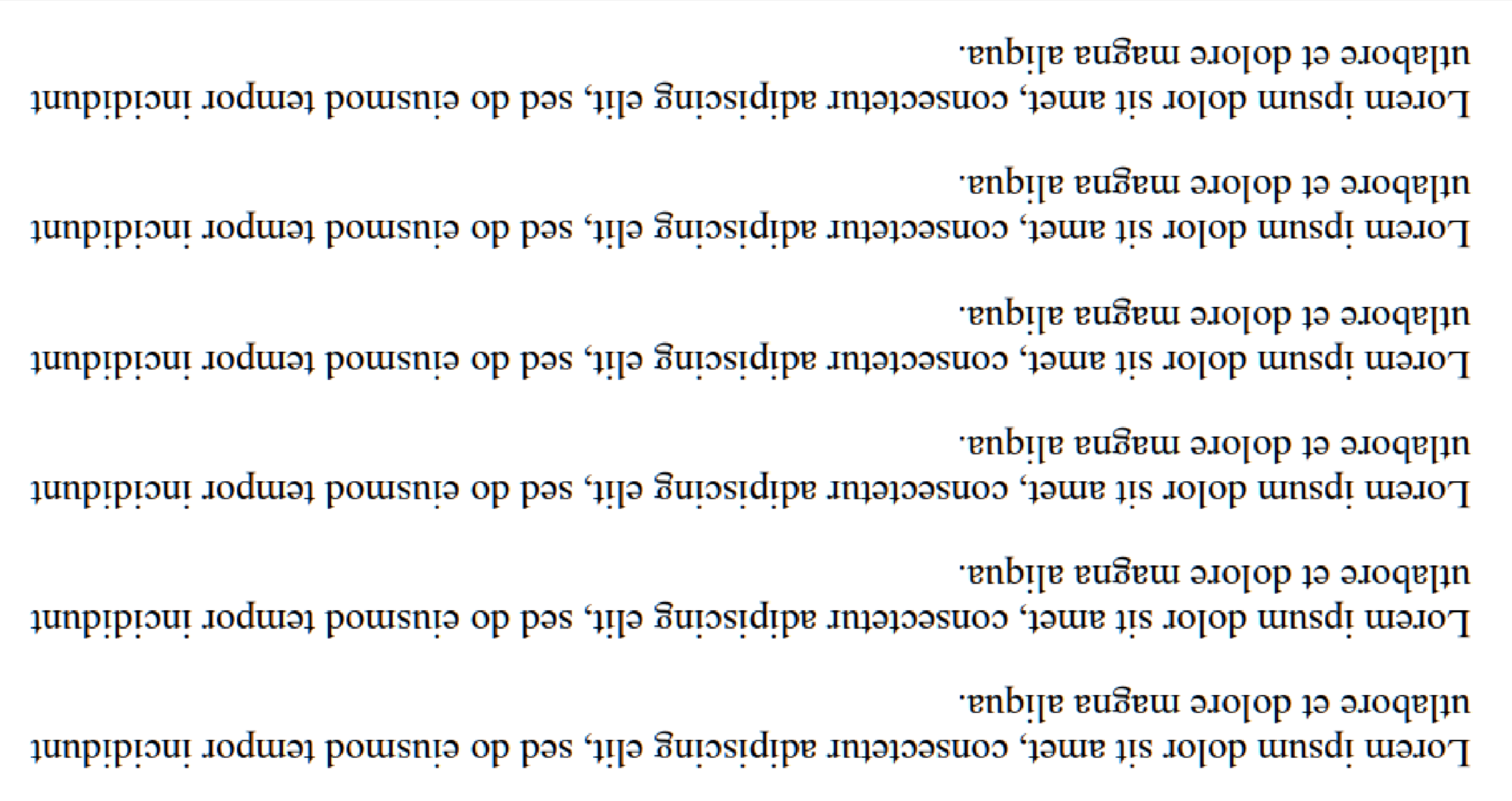
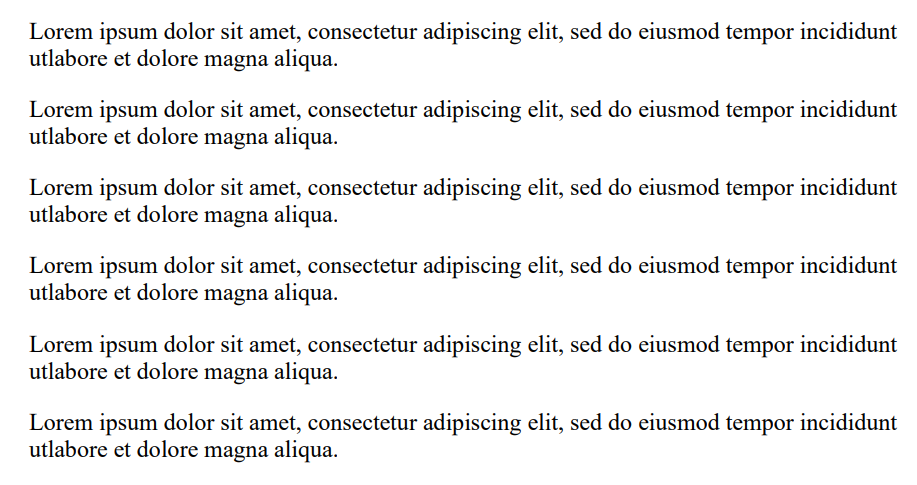
回転は、画像に既知の回転を手動で設定して、画像を真っ直ぐに近づけるために使用されるフィルターです。 IronOCR は `Deskew()` を実行する機能がありますが、許容の度合いはかなり狭く、ほぼ完璧に真っ直ぐ(約15度以内)な画像に最適です。 入力画像が90度傾いているか逆さまの場合は、`Rotate()` を呼び出すべきです。
#### ユースケースコード例
これは上下逆さまの画像を修正するために `Rotate()` を呼び出す例です。
```csharp
using IronOcr;
using System;
var image = "screenshot.png";
var ocr = new IronTesseract();
using var input = new OcrInput();
// Load at least one image
input.LoadImage(image);
// Rotate 180 degrees because image is upside-down
input.Rotate(180);
// Read image into variable: result
var result = ocr.Read(input);
// Example print to console
Console.WriteLine(result.Text);
```
| 前 `Input.Rotate(180)` | 後 `Input.Rotate(180)` |
|--|--|
| <img src="https://raw.githubusercontent.com/iron-software/iron-nuget-assets/main/IronOCR-Tutorial/screenshot.png" width="500" /> | <img src="https://raw.githubusercontent.com/iron-software/iron-nuget-assets/main/IronOCR-Tutorial/screenshot_rotated.png" width="500" /> |
### デスキュー
[APIリファレンス](https://ironsoftware.com/csharp/ocr/object-reference/api/IronOcr.OcrInput.html#IronOcr_OcrInput_Deskew_IronOcr_IronTesseract_System_Int32_IronOcr_OrientationConfidence_)
#### フィルターの説明
ハフ変換を使用して、一定の許容範囲内で画像をまっすぐにしようとします。 傾いた文書は読み間違える可能性があるため、画像が完全にまっすぐでない場合はこれが重要です。
[[i:(このメソッドはブール値を返します。フィルターが適用された場合は true、画像の向きを検出できないために適用に失敗した場合は false を返します。 This will fail if the page has no contents to define orientation.)]]
#### ユースケースコード例
これは傾いた画像を修正するために `Deskew()` を呼び出す例です。
```csharp
using IronOcr;
using System;
var image = @"paragraph_skewed.png";
var ocr = new IronTesseract();
using var input = new OcrInput();
// Load at least one image
input.LoadImage(image);
// Apply deskew with 15 degree snap
bool didDeskew = input.Deskew(15);
if (didDeskew)
{
// Read image into variable: result
var result = ocr.Read(input);
Console.WriteLine(result.Text);
}
else
{
Console.WriteLine("Deskew not applied because Image Orientation could not be determined.");
}
```
### Scale
[APIリファレンス](https://ironsoftware.com/csharp/ocr/object-reference/api/IronOcr.OcrInput.html#IronOcr_OcrInput_Scale_System_Int32_System_Boolean_)
#### フィルターの説明
スケールは、既存のピクセルを使用して画像のサイズを変更するのに役立つ便利な画像操作フィルターです。 これは、画像の幅が数十ピクセルしかなく、各バーが 1 ピクセルであるためバーコードがスキャンされない場合、またはテキストが小さすぎてアンチエイリアシングがない場合に使用できます。
バーコードのサイズには `1000px x 1000px` のようなスイートスポットがあります。
#### ユースケースコード例
これは、スキャンのためにバーコードのバー間の間隔を広げるために `Scale()` を呼び出す例です。
```csharp
using IronOcr;
using System;
var image = @"small_barcode.png";
var ocr = new IronTesseract();
// Optional: This example uses a barcode
ocr.Configuration.ReadBarCodes = true;
using var input = new OcrInput();
// Load at least one image
input.LoadImage(image);
// Apply scale
input.Scale(400); // 400% is 4 times larger
// Read image into variable: result
var result = ocr.Read(input);
// Example print to console
Console.WriteLine(result.Text);
```
### ビナライズ
[APIリファレンス](https://ironsoftware.com/csharp/ocr/object-reference/api/IronOcr.OcrInput.html#IronOcr_OcrInput_Binarize)
#### フィルターの説明
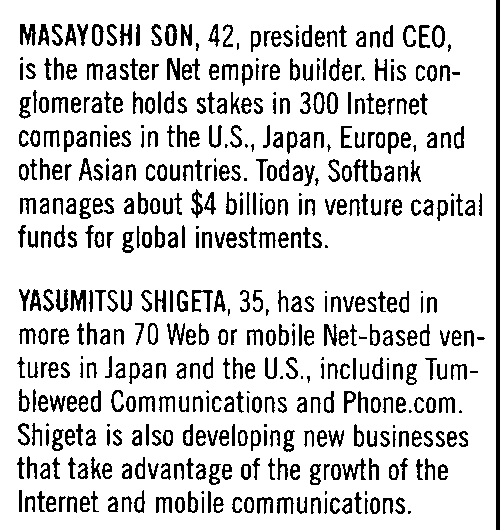
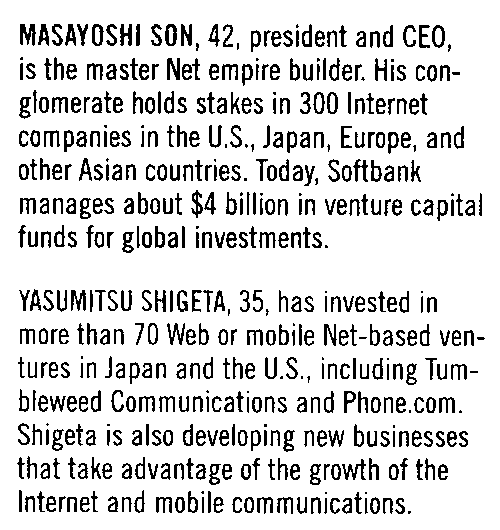
2 値化フィルターは、適応アルゴリズムに応じて、画像内のすべてのピクセルを黒または白に分類します。 これにより、すべての色が削除され、背景がフラットな白に分離され、テキストとして認識されたものはすべて読みやすいように完全な黒になります。
#### ユースケースコード例
これは、カラーテキストを整列し、背景色とノイズを除去するために `Binarize()` を呼び出す例です。
```csharp
using IronOcr;
using System;
var image = @"no-binarize.jpg";
var ocr = new IronTesseract();
using var input = new OcrInput();
// Load at least one image
input.LoadImage(image);
// Apply Binarize
input.Binarize();
// Read image into variable: result
var result = ocr.Read(input);
// Example print to console
Console.WriteLine(result.Text);
```
| 前 `Binarize()` | 後 `Binarize()` |
|--|--|
| <img src="https://raw.githubusercontent.com/iron-software/iron-nuget-assets/main/IronOCR-Tutorial/no-binarize.jpg" width="500" /> | <img src="https://raw.githubusercontent.com/iron-software/iron-nuget-assets/main/IronOCR-Tutorial/after-binarize.png" width="500" /> |
### 反転
[APIリファレンス](https://ironsoftware.com/csharp/ocr/object-reference/api/IronOcr.OcrInput.html#IronOcr_OcrInput_Invert_System_Boolean_)
#### フィルターの説明
IronOCR は画像が `black text on a white background` のときに最善の結果を示します。 `Invert` フィルターは画像上のすべての色を反転させることでこれを達成します。
#### ユースケースコード例
白を黒に、黒を白に変えるために `Invert()` を呼び出す例です。
```csharp
using IronOcr;
using System;
var image = @"before-invert.png";
var ocr = new IronTesseract();
using var input = new OcrInput();
// Load at least one image
input.LoadImage(image);
// Apply Invert
input.Invert(true);
// Read image into variable: result
var result = ocr.Read(input);
// Example print to console
Console.WriteLine(result.Text);
```
|`Before` |`After` |
|--|--|
| <img src="https://raw.githubusercontent.com/iron-software/iron-nuget-assets/main/IronOCR-Tutorial/before-invert.png" width="500" /> | <img src="https://raw.githubusercontent.com/iron-software/iron-nuget-assets/main/IronOCR-Tutorial/after-invert.png" width="500" /> |
using var input = new IronOcr.OcrInput(); input.LoadImage("scan.jpg"); input.DeNoise(true).Binarize().Deskew(45); var result = new IronOcr.IronTesseract().Read(input);
using var input = new IronOcr.OcrInput(); input.LoadImage("scan.jpg"); input.DeNoise(true).Binarize().Deskew(45); var result = new IronOcr.IronTesseract().Read(input);
Using input As New IronOcr.OcrInput() input.LoadImage("scan.jpg") input.DeNoise(True).Binarize().Deskew(45) Dim result = New IronOcr.IronTesseract().Read(input)EndUsing
Using input As New IronOcr.OcrInput()
    input.LoadImage("scan.jpg")
    input.DeNoise(True).Binarize().Deskew(45)
    Dim result = New IronOcr.IronTesseract().Read(input)
End Using
using IronOcr;using System;var ocr = new IronTesseract();using var input = new OcrInput();input.LoadImage("my_image.png");input.Deskew();var result = ocr.Read(input);Console.WriteLine(result.Text);
using IronOcr;
using System;

var ocr = new IronTesseract();
using var input = new OcrInput();
input.LoadImage("my_image.png");
input.Deskew();

var result = ocr.Read(input);
Console.WriteLine(result.Text);
ImportsIronOcrImportsSystemPrivate ocr = New IronTesseract()Private input = New OcrInput()input.LoadImage("my_image.png")input.Deskew()Dim result = ocr.Read(input)Console.WriteLine(result.Text)
Imports IronOcr
Imports System

Private ocr = New IronTesseract()
Private input = New OcrInput()
input.LoadImage("my_image.png")
input.Deskew()

Dim result = ocr.Read(input)
Console.WriteLine(result.Text)
using IronOcr;using System;var file = "skewed_image.tiff";var ocr = new IronTesseract();using var input = new OcrInput();var pageindices = new int[] { 1, 2 };input.LoadImageFrames(file, pageindices);// Here we apply the filter: Deskewinput.Deskew();// Save the input with filter(s) appliedinput.SaveAsImages("my_deskewed");// We read, then print the text to the consolevar result = ocr.Read(input);Console.WriteLine(result.Text);
using IronOcr;
using System;

var file = "skewed_image.tiff";
var ocr = new IronTesseract();
using var input = new OcrInput();
var pageindices = new int[] { 1, 2 };
input.LoadImageFrames(file, pageindices);
// Here we apply the filter: Deskew
input.Deskew();

// Save the input with filter(s) applied
input.SaveAsImages("my_deskewed");

// We read, then print the text to the console
var result = ocr.Read(input);
Console.WriteLine(result.Text);
ImportsIronOcrImportsSystemPrivate file = "skewed_image.tiff"Private ocr = New IronTesseract()Private input = New OcrInput()Private pageindices = New Integer() { 1, 2 }input.LoadImageFrames(file, pageindices)' Here we apply the filter: Deskewinput.Deskew()' Save the input with filter(s) appliedinput.SaveAsImages("my_deskewed")' We read, then print the text to the consoleDim result = ocr.Read(input)Console.WriteLine(result.Text)
Imports IronOcr
Imports System

Private file = "skewed_image.tiff"
Private ocr = New IronTesseract()
Private input = New OcrInput()
Private pageindices = New Integer() { 1, 2 }
input.LoadImageFrames(file, pageindices)
' Here we apply the filter: Deskew
input.Deskew()

' Save the input with filter(s) applied
input.SaveAsImages("my_deskewed")

' We read, then print the text to the console
Dim result = ocr.Read(input)
Console.WriteLine(result.Text)
using IronOcr;using System;var image = "screenshot.png";var ocr = new IronTesseract();using var input = new OcrInput();// Load at least one imageinput.LoadImage(image);// Rotate 180 degrees because image is upside-downinput.Rotate(180);// Read image into variable: resultvar result = ocr.Read(input);// Example print to consoleConsole.WriteLine(result.Text);
using IronOcr;
using System;

var image = "screenshot.png";
var ocr = new IronTesseract();
using var input = new OcrInput();
// Load at least one image
input.LoadImage(image);

// Rotate 180 degrees because image is upside-down
input.Rotate(180);

// Read image into variable: result
var result = ocr.Read(input);

// Example print to console
Console.WriteLine(result.Text);
ImportsIronOcrImportsSystemPrivate image = "screenshot.png"Private ocr = New IronTesseract()Private input = New OcrInput()' Load at least one imageinput.LoadImage(image)' Rotate 180 degrees because image is upside-downinput.Rotate(180)' Read image into variable: resultDim result = ocr.Read(input)' Example print to consoleConsole.WriteLine(result.Text)
Imports IronOcr
Imports System

Private image = "screenshot.png"
Private ocr = New IronTesseract()
Private input = New OcrInput()
' Load at least one image
input.LoadImage(image)

' Rotate 180 degrees because image is upside-down
input.Rotate(180)

' Read image into variable: result
Dim result = ocr.Read(input)

' Example print to console
Console.WriteLine(result.Text)
ご注意: このメソッドはブール値を返します。フィルターが適用された場合は true、画像の向きを検出できないために適用に失敗した場合は false を返します。 This will fail if the page has no contents to define orientation.
ユースケースコード例
これは傾いた画像を修正するために Deskew() を呼び出す例です。
using IronOcr;using System;var image = @"paragraph_skewed.png";var ocr = new IronTesseract();using var input = new OcrInput();// Load at least one imageinput.LoadImage(image);// Apply deskew with 15 degree snapbool didDeskew = input.Deskew(15);if (didDeskew){ // Read image into variable: result var result = ocr.Read(input);Console.WriteLine(result.Text);}else{Console.WriteLine("Deskew not applied because Image Orientation could not be determined.");}
using IronOcr;
using System;

var image = @"paragraph_skewed.png";
var ocr = new IronTesseract();
using var input = new OcrInput();
// Load at least one image
input.LoadImage(image);

// Apply deskew with 15 degree snap
bool didDeskew = input.Deskew(15);
if (didDeskew)
{
    // Read image into variable: result
    var result = ocr.Read(input);
    Console.WriteLine(result.Text);
}
else
{
    Console.WriteLine("Deskew not applied because Image Orientation could not be determined.");
}
ImportsIronOcrImportsSystemPrivate image = "paragraph_skewed.png"Private ocr = New IronTesseract()Private input = New OcrInput()' Load at least one imageinput.LoadImage(image)' Apply deskew with 15 degree snapDim didDeskew AsBoolean = input.Deskew(15)If didDeskew Then ' Read image into variable: result Dim result = ocr.Read(input)Console.WriteLine(result.Text)ElseConsole.WriteLine("Deskew not applied because Image Orientation could not be determined.")End If
Imports IronOcr
Imports System

Private image = "paragraph_skewed.png"
Private ocr = New IronTesseract()
Private input = New OcrInput()
' Load at least one image
input.LoadImage(image)

' Apply deskew with 15 degree snap
Dim didDeskew As Boolean = input.Deskew(15)
If didDeskew Then
	' Read image into variable: result
	Dim result = ocr.Read(input)
	Console.WriteLine(result.Text)
Else
	Console.WriteLine("Deskew not applied because Image Orientation could not be determined.")
End If
using IronOcr;using System;var image = @"small_barcode.png";var ocr = new IronTesseract();// Optional: This example uses a barcodeocr.Configuration.ReadBarCodes = true;using var input = new OcrInput();// Load at least one imageinput.LoadImage(image);// Apply scaleinput.Scale(400); // 400% is 4 times larger// Read image into variable: resultvar result = ocr.Read(input);// Example print to consoleConsole.WriteLine(result.Text);
using IronOcr;
using System;

var image = @"small_barcode.png";
var ocr = new IronTesseract();

// Optional: This example uses a barcode
ocr.Configuration.ReadBarCodes = true;

using var input = new OcrInput();
// Load at least one image
input.LoadImage(image);

// Apply scale
input.Scale(400); // 400% is 4 times larger

// Read image into variable: result
var result = ocr.Read(input);

// Example print to console
Console.WriteLine(result.Text);
ImportsIronOcrImportsSystemPrivate image = "small_barcode.png"Private ocr = New IronTesseract()' Optional: This example uses a barcodeocr.Configuration.ReadBarCodes = TrueDim input = New OcrInput()' Load at least one imageinput.LoadImage(image)' Apply scaleinput.Scale(400) ' 400% is 4 times larger' Read image into variable: resultDim result = ocr.Read(input)' Example print to consoleConsole.WriteLine(result.Text)
Imports IronOcr
Imports System

Private image = "small_barcode.png"
Private ocr = New IronTesseract()

' Optional: This example uses a barcode
ocr.Configuration.ReadBarCodes = True

Dim input = New OcrInput()
' Load at least one image
input.LoadImage(image)

' Apply scale
input.Scale(400) ' 400% is 4 times larger

' Read image into variable: result
Dim result = ocr.Read(input)

' Example print to console
Console.WriteLine(result.Text)
using IronOcr;using System;var image = @"no-binarize.jpg";var ocr = new IronTesseract();using var input = new OcrInput();// Load at least one imageinput.LoadImage(image);// Apply Binarizeinput.Binarize();// Read image into variable: resultvar result = ocr.Read(input);// Example print to consoleConsole.WriteLine(result.Text);
using IronOcr;
using System;

var image = @"no-binarize.jpg";
var ocr = new IronTesseract();

using var input = new OcrInput();
// Load at least one image
input.LoadImage(image);

// Apply Binarize
input.Binarize();

// Read image into variable: result
var result = ocr.Read(input);

// Example print to console
Console.WriteLine(result.Text);
ImportsIronOcrImportsSystemPrivate image = "no-binarize.jpg"Private ocr = New IronTesseract()Private input = New OcrInput()' Load at least one imageinput.LoadImage(image)' Apply Binarizeinput.Binarize()' Read image into variable: resultDim result = ocr.Read(input)' Example print to consoleConsole.WriteLine(result.Text)
Imports IronOcr
Imports System

Private image = "no-binarize.jpg"
Private ocr = New IronTesseract()

Private input = New OcrInput()
' Load at least one image
input.LoadImage(image)

' Apply Binarize
input.Binarize()

' Read image into variable: result
Dim result = ocr.Read(input)

' Example print to console
Console.WriteLine(result.Text)
IronOCR は画像が black text on a white background のときに最善の結果を示します。 Invert フィルターは画像上のすべての色を反転させることでこれを達成します。
ユースケースコード例
白を黒に、黒を白に変えるために Invert() を呼び出す例です。
using IronOcr;using System;var image = @"before-invert.png";var ocr = new IronTesseract();using var input = new OcrInput();// Load at least one imageinput.LoadImage(image);// Apply Invertinput.Invert(true);// Read image into variable: resultvar result = ocr.Read(input);// Example print to consoleConsole.WriteLine(result.Text);
using IronOcr;
using System;

var image = @"before-invert.png";
var ocr = new IronTesseract();

using var input = new OcrInput();
// Load at least one image
input.LoadImage(image);

// Apply Invert
input.Invert(true);

// Read image into variable: result
var result = ocr.Read(input);

// Example print to console
Console.WriteLine(result.Text);
ImportsIronOcrImportsSystemPrivate image = "before-invert.png"Private ocr = New IronTesseract()Private input = New OcrInput()' Load at least one imageinput.LoadImage(image)' Apply Invertinput.Invert(True)' Read image into variable: resultDim result = ocr.Read(input)' Example print to consoleConsole.WriteLine(result.Text)
Imports IronOcr
Imports System

Private image = "before-invert.png"
Private ocr = New IronTesseract()

Private input = New OcrInput()
' Load at least one image
input.LoadImage(image)

' Apply Invert
input.Invert(True)

' Read image into variable: result
Dim result = ocr.Read(input)

' Example print to console
Console.WriteLine(result.Text)
How do the Dilate and Erode filters function in IronOCR?
Dilate and Erode are advanced morphology filters. Dilate adds pixels to object boundaries, while Erode removes them. These filters can be used to refine image details and enhance OCR results depending on specific image characteristics.