
C# Guide: Using IronOCR Image Filters for Better OCR

IronOCR provides the tools you need to read images that may need preprocessing in the form of filters. You can choose from a wide array of filters that can manipulate your images to become processable.
Quickstart: Apply Filters to Clean Up OCR ImagesIn just one simple chain of calls, you can apply DeNoise, Binarize, and Deskew filters to improve scan clarity before OCR. This example shows how easy it is to enhance images using IronOCR's built-in filters and get started right away.
-
1Install IronOCR with NuGet Package Manager
-
2Copy and run this code snippet.
using var input = new IronOcr.OcrInput(); input.LoadImage("scan.jpg"); input.DeNoise(true).Binarize().Deskew(45); var result = new IronOcr.IronTesseract().Read(input);Using input As New IronOcr.OcrInput() input.LoadImage("scan.jpg") input.DeNoise(True).Binarize().Deskew(45) Dim result = New IronOcr.IronTesseract().Read(input) End UsingUsing input As New IronOcr.OcrInput() input.LoadImage("scan.jpg") input.DeNoise(True).Binarize().Deskew(45) Dim result = New IronOcr.IronTesseract().Read(input) End Using -
3Deploy to test on your live environment
Start using IronOCR in your project today with a free trial
List of OCR Image Filters
The following Image filters can really improve performance:
Filters to change the Image OrientationRotate- Rotates images by a number of degrees clockwise. For anti-clockwise, use negative numbers.Deskew- Rotates an image so it is the right way up and orthogonal. This is very useful for OCR because Tesseract's tolerance for skewed scans can be as low as 5 degrees.Scale- Scales OCR input pages proportionally.
Filters to manipulate Image ColorsBinarize- This image filter turns every pixel black or white with no middle ground. This may improve OCR performance in cases of very low text-to-background contrast.ToGrayScale- This image filter turns every pixel into shades of gray. Unlikely to improve OCR accuracy but may improve speed.Invert- Inverts every color. E.g. White becomes black and vice versa.ReplaceColor- Replaces a color in an image with another color, within a certain threshold.
Filters to improve Contrast in an ImageContrast- Increases contrast automatically. This filter often improves OCR speed and accuracy in low-contrast scans.Dilate- Advanced Morphology. Dilation adds pixels to the boundaries of objects in an image. Opposite of Erode.Erode- Advanced Morphology. Erosion removes pixels from object boundaries. Opposite of Dilate.
Filters to reduce Image NoiseSharpen- Sharpens blurred OCR Documents and flattens alpha channels to white.DeNoise- Removes digital noise. This filter should only be used in scenarios where noise is expected.EnhanceResolution- Enhances the resolution of low-quality images. This filter is not often needed becauseOcrInput.TargetDPIwill automatically catch and resolve low-resolution inputs.
Filter Example and Usage
In the following example, we demonstrate how to apply filters within your code.
using IronOcr;
using System;

var ocr = new IronTesseract();
using var input = new OcrInput();
input.LoadImage("my_image.png");
input.Deskew();

var result = ocr.Read(input);
Console.WriteLine(result.Text);
using IronOcr;
using System;
var ocr = new IronTesseract();
using var input = new OcrInput();
input.LoadImage("my_image.png");
input.Deskew();
var result = ocr.Read(input);
Console.WriteLine(result.Text);Imports IronOcr
Imports System
Private ocr = New IronTesseract()
Private input = New OcrInput()
input.LoadImage("my_image.png")
input.Deskew()
Dim result = ocr.Read(input)
Console.WriteLine(result.Text)Imports IronOcr
Imports System
Private ocr = New IronTesseract()
Private input = New OcrInput()
input.LoadImage("my_image.png")
input.Deskew()
Dim result = ocr.Read(input)
Console.WriteLine(result.Text)Debug Filter / What is the filter doing?
If you are having difficulty with reading images or barcodes within your program, there is a way to save an image of a filtered result. This way, you can debug and see exactly what each filter does and how it is manipulating your image.
using IronOcr;
using System;

var file = "skewed_image.tiff";
var ocr = new IronTesseract();
using var input = new OcrInput();
var pageindices = new int[] { 1, 2 };
input.LoadImageFrames(file, pageindices);
// Here we apply the filter: Deskew
input.Deskew();

// Save the input with filter(s) applied
input.SaveAsImages("my_deskewed");

// We read, then print the text to the console
var result = ocr.Read(input);
Console.WriteLine(result.Text);
using IronOcr;
using System;
var file = "skewed_image.tiff";
var ocr = new IronTesseract();
using var input = new OcrInput();
var pageindices = new int[] { 1, 2 };
input.LoadImageFrames(file, pageindices);
// Here we apply the filter: Deskew
input.Deskew();
// Save the input with filter(s) applied
input.SaveAsImages("my_deskewed");
// We read, then print the text to the console
var result = ocr.Read(input);
Console.WriteLine(result.Text);Imports IronOcr
Imports System
Private file = "skewed_image.tiff"
Private ocr = New IronTesseract()
Private input = New OcrInput()
Private pageindices = New Integer() { 1, 2 }
input.LoadImageFrames(file, pageindices)
' Here we apply the filter: Deskew
input.Deskew()
' Save the input with filter(s) applied
input.SaveAsImages("my_deskewed")
' We read, then print the text to the console
Dim result = ocr.Read(input)
Console.WriteLine(result.Text)Imports IronOcr
Imports System
Private file = "skewed_image.tiff"
Private ocr = New IronTesseract()
Private input = New OcrInput()
Private pageindices = New Integer() { 1, 2 }
input.LoadImageFrames(file, pageindices)
' Here we apply the filter: Deskew
input.Deskew()
' Save the input with filter(s) applied
input.SaveAsImages("my_deskewed")
' We read, then print the text to the console
Dim result = ocr.Read(input)
Console.WriteLine(result.Text)Filter Use Cases
Rotate
Filter Explanation
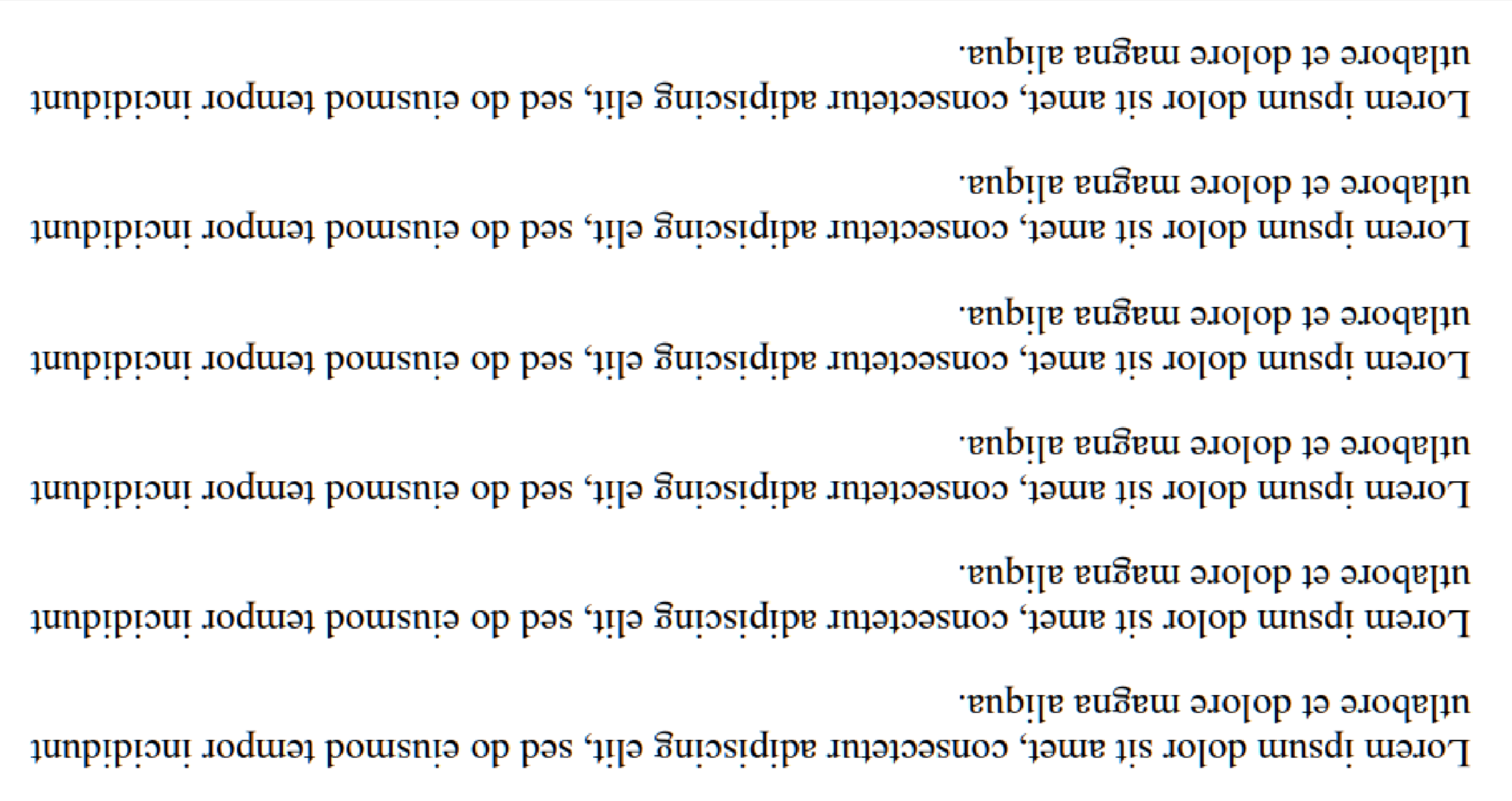
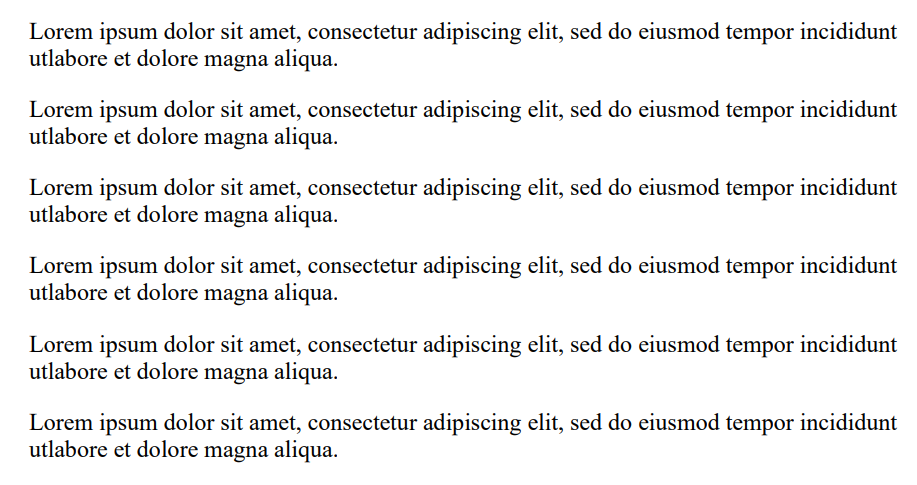
Rotate is a filter used to manually set a known rotation to an image to get it closest to being straight. IronOCR has functionality to run Deskew(), however, the degree of tolerance for this is rather narrow and is best used for images that are almost perfectly straight (within 15 degrees or so). For input images that are 90 degrees off, or upside down, we should call Rotate().
Use-Case Code Example
This is an example of calling Rotate() to correct an upside-down image:
using IronOcr;
using System;

var image = "screenshot.png";
var ocr = new IronTesseract();
using var input = new OcrInput();
// Load at least one image
input.LoadImage(image);

// Rotate 180 degrees because image is upside-down
input.Rotate(180);

// Read image into variable: result
var result = ocr.Read(input);

// Example print to console
Console.WriteLine(result.Text);
using IronOcr;
using System;
var image = "screenshot.png";
var ocr = new IronTesseract();
using var input = new OcrInput();
// Load at least one image
input.LoadImage(image);
// Rotate 180 degrees because image is upside-down
input.Rotate(180);
// Read image into variable: result
var result = ocr.Read(input);
// Example print to console
Console.WriteLine(result.Text);Imports IronOcr
Imports System
Private image = "screenshot.png"
Private ocr = New IronTesseract()
Private input = New OcrInput()
' Load at least one image
input.LoadImage(image)
' Rotate 180 degrees because image is upside-down
input.Rotate(180)
' Read image into variable: result
Dim result = ocr.Read(input)
' Example print to console
Console.WriteLine(result.Text)Imports IronOcr
Imports System
Private image = "screenshot.png"
Private ocr = New IronTesseract()
Private input = New OcrInput()
' Load at least one image
input.LoadImage(image)
' Rotate 180 degrees because image is upside-down
input.Rotate(180)
' Read image into variable: result
Dim result = ocr.Read(input)
' Example print to console
Console.WriteLine(result.Text)Before Input.Rotate(180) | After Input.Rotate(180) |
|---|---|
 |  |
Deskew
Filter Explanation
Uses a Hough Transform to attempt to straighten an image within certain degrees of tolerance. This is important for images that are not completely straight because a tilted document may result in a misread.
Use-Case Code Example
This is an example of calling Deskew() to correct a skewed image:
using IronOcr;
using System;

var image = @"paragraph_skewed.png";
var ocr = new IronTesseract();
using var input = new OcrInput();
// Load at least one image
input.LoadImage(image);

// Apply deskew with 15 degree snap
bool didDeskew = input.Deskew(15);
if (didDeskew)
{
    // Read image into variable: result
    var result = ocr.Read(input);
    Console.WriteLine(result.Text);
}
else
{
    Console.WriteLine("Deskew not applied because Image Orientation could not be determined.");
}
using IronOcr;
using System;
var image = @"paragraph_skewed.png";
var ocr = new IronTesseract();
using var input = new OcrInput();
// Load at least one image
input.LoadImage(image);
// Apply deskew with 15 degree snap
bool didDeskew = input.Deskew(15);
if (didDeskew)
{
// Read image into variable: result
var result = ocr.Read(input);
Console.WriteLine(result.Text);
}
else
{
Console.WriteLine("Deskew not applied because Image Orientation could not be determined.");
}Imports IronOcr
Imports System
Private image = "paragraph_skewed.png"
Private ocr = New IronTesseract()
Private input = New OcrInput()
' Load at least one image
input.LoadImage(image)
' Apply deskew with 15 degree snap
Dim didDeskew As Boolean = input.Deskew(15)
If didDeskew Then
' Read image into variable: result
Dim result = ocr.Read(input)
Console.WriteLine(result.Text)
Else
Console.WriteLine("Deskew not applied because Image Orientation could not be determined.")
End IfImports IronOcr
Imports System
Private image = "paragraph_skewed.png"
Private ocr = New IronTesseract()
Private input = New OcrInput()
' Load at least one image
input.LoadImage(image)
' Apply deskew with 15 degree snap
Dim didDeskew As Boolean = input.Deskew(15)
If didDeskew Then
' Read image into variable: result
Dim result = ocr.Read(input)
Console.WriteLine(result.Text)
Else
Console.WriteLine("Deskew not applied because Image Orientation could not be determined.")
End IfScale
Filter Explanation
Scale is a useful image manipulation filter that helps to resize an image using the pixels it already has. This can be used when a barcode is not being scanned because the image is only tens of pixels wide, with each bar as one pixel, or if text is too small with no anti-aliasing.
1000px x 1000px where barcodes can be read well, which should be considered if your barcode is not being found.Use-Case Code Example
This is an example of calling Scale() to enlarge the gaps between bars in a barcode for scanning:
using IronOcr;
using System;

var image = @"small_barcode.png";
var ocr = new IronTesseract();

// Optional: This example uses a barcode
ocr.Configuration.ReadBarCodes = true;

using var input = new OcrInput();
// Load at least one image
input.LoadImage(image);

// Apply scale
input.Scale(400); // 400% is 4 times larger

// Read image into variable: result
var result = ocr.Read(input);

// Example print to console
Console.WriteLine(result.Text);
using IronOcr;
using System;
var image = @"small_barcode.png";
var ocr = new IronTesseract();
// Optional: This example uses a barcode
ocr.Configuration.ReadBarCodes = true;
using var input = new OcrInput();
// Load at least one image
input.LoadImage(image);
// Apply scale
input.Scale(400); // 400% is 4 times larger
// Read image into variable: result
var result = ocr.Read(input);
// Example print to console
Console.WriteLine(result.Text);Imports IronOcr
Imports System
Private image = "small_barcode.png"
Private ocr = New IronTesseract()
' Optional: This example uses a barcode
ocr.Configuration.ReadBarCodes = True
Dim input = New OcrInput()
' Load at least one image
input.LoadImage(image)
' Apply scale
input.Scale(400) ' 400% is 4 times larger
' Read image into variable: result
Dim result = ocr.Read(input)
' Example print to console
Console.WriteLine(result.Text)Imports IronOcr
Imports System
Private image = "small_barcode.png"
Private ocr = New IronTesseract()
' Optional: This example uses a barcode
ocr.Configuration.ReadBarCodes = True
Dim input = New OcrInput()
' Load at least one image
input.LoadImage(image)
' Apply scale
input.Scale(400) ' 400% is 4 times larger
' Read image into variable: result
Dim result = ocr.Read(input)
' Example print to console
Console.WriteLine(result.Text)Binarize
Filter Explanation
The Binarize filter classifies all pixels in an image as either black or white, depending on an adaptive algorithm. This removes all colors and separates the background into a flat white, with anything recognized as text colored a full black for easy reading.
Use-Case Code Example
This is an example of calling Binarize() to align colored text and remove background colors and noise:
using IronOcr;
using System;

var image = @"no-binarize.jpg";
var ocr = new IronTesseract();

using var input = new OcrInput();
// Load at least one image
input.LoadImage(image);

// Apply Binarize
input.Binarize();

// Read image into variable: result
var result = ocr.Read(input);

// Example print to console
Console.WriteLine(result.Text);
using IronOcr;
using System;
var image = @"no-binarize.jpg";
var ocr = new IronTesseract();
using var input = new OcrInput();
// Load at least one image
input.LoadImage(image);
// Apply Binarize
input.Binarize();
// Read image into variable: result
var result = ocr.Read(input);
// Example print to console
Console.WriteLine(result.Text);Imports IronOcr
Imports System
Private image = "no-binarize.jpg"
Private ocr = New IronTesseract()
Private input = New OcrInput()
' Load at least one image
input.LoadImage(image)
' Apply Binarize
input.Binarize()
' Read image into variable: result
Dim result = ocr.Read(input)
' Example print to console
Console.WriteLine(result.Text)Imports IronOcr
Imports System
Private image = "no-binarize.jpg"
Private ocr = New IronTesseract()
Private input = New OcrInput()
' Load at least one image
input.LoadImage(image)
' Apply Binarize
input.Binarize()
' Read image into variable: result
Dim result = ocr.Read(input)
' Example print to console
Console.WriteLine(result.Text)Before Binarize() | After Binarize() |
|---|---|
 |  |
Invert
Filter Explanation
IronOCR reads best when the image is black text on a white background. The Invert filter is used to achieve this by inverting all colors on an image.
Use-Case Code Example
This is an example of calling Invert() to turn white on black into black on white:
using IronOcr;
using System;

var image = @"before-invert.png";
var ocr = new IronTesseract();

using var input = new OcrInput();
// Load at least one image
input.LoadImage(image);

// Apply Invert
input.Invert(true);

// Read image into variable: result
var result = ocr.Read(input);

// Example print to console
Console.WriteLine(result.Text);
using IronOcr;
using System;
var image = @"before-invert.png";
var ocr = new IronTesseract();
using var input = new OcrInput();
// Load at least one image
input.LoadImage(image);
// Apply Invert
input.Invert(true);
// Read image into variable: result
var result = ocr.Read(input);
// Example print to console
Console.WriteLine(result.Text);Imports IronOcr
Imports System
Private image = "before-invert.png"
Private ocr = New IronTesseract()
Private input = New OcrInput()
' Load at least one image
input.LoadImage(image)
' Apply Invert
input.Invert(True)
' Read image into variable: result
Dim result = ocr.Read(input)
' Example print to console
Console.WriteLine(result.Text)Imports IronOcr
Imports System
Private image = "before-invert.png"
Private ocr = New IronTesseract()
Private input = New OcrInput()
' Load at least one image
input.LoadImage(image)
' Apply Invert
input.Invert(True)
' Read image into variable: result
Dim result = ocr.Read(input)
' Example print to console
Console.WriteLine(result.Text)Before | After |
|---|---|
 |  |
Frequently Asked Questions
What is the purpose of using image filters in IronOCR for C#?
Image filters in IronOCR are used to preprocess images to enhance readability and improve OCR accuracy. Filters like DeNoise, Binarize, and Deskew can significantly improve the quality of the image, making it easier for OCR to extract text.
How does the Binarize filter improve OCR performance?
The Binarize filter improves OCR performance by converting all pixels in an image to either black or white, thus eliminating any color variations. This enhances the contrast between text and background, making text more discernible for OCR processing.
Can the Deskew filter handle all orientations of skewed images?
The Deskew filter in IronOCR uses a Hough Transform to correct skew, but it works best for images that are only slightly tilted. For images with significant rotations, the Rotate filter might be necessary to adjust orientation before applying Deskew.
What is the advantage of applying the Invert filter in IronOCR?
The Invert filter is used to switch colors so that images with white text on a black background can be converted to the preferred black text on a white background. This format enhances OCR processing efficiency.
Why would you use the Scale filter in IronOCR?
The Scale filter is used to resize images, which can be particularly helpful for small text or barcode images where details might be lost due to low pixel density. Enlarging these images may improve OCR or barcode scanning accuracy.
How does the DeNoise filter contribute to improved OCR results?
The DeNoise filter removes visual noise or artifacts from an image, making the text clearer and improving OCR accuracy. This is particularly useful in scenarios where images have a low signal-to-noise ratio.
What happens if the Deskew filter cannot determine the image orientation?
If the Deskew filter cannot determine the image orientation, it will not apply the filter. This typically occurs when the document has no clear boundaries or distinguishable content for orientation detection.
Is the ToGrayScale filter effective in improving OCR accuracy?
The ToGrayScale filter converts images to shades of gray, simplifying the color palette. While it may not significantly improve OCR accuracy, it can enhance processing speed by reducing color complexity.
What is the role of the Contrast filter in OCR image preprocessing?
The Contrast filter automatically enhances the contrast of an image, which can improve OCR speed and accuracy, especially for images with low contrast between text and background.
How do the Dilate and Erode filters function in IronOCR?
Dilate and Erode are advanced morphology filters. Dilate adds pixels to object boundaries, while Erode removes them. These filters can be used to refine image details and enhance OCR results depending on specific image characteristics.

Curtis Chau holds a Bachelor’s degree in Computer Science (Carleton University) and specializes in front-end development with expertise in Node.js, TypeScript, JavaScript, and React. Passionate about crafting intuitive and aesthetically pleasing user interfaces, Curtis enjoys working with modern frameworks and creating well-structured, visually appealing manuals.



