
How to Build an Azure OCR Service using IronOCR

Iron Software has created an OCR (Optical Character Recognition) library that takes the interoperability issues out of Azure OCR integration. Working with OCR libraries on Azure has always been a bit of a pain for developers. The solution for this and many other OCR headaches is IronOCR.
IronOCR features for Microsoft Azure
IronOCR includes the following features for building an OCR Service on Microsoft Azure:
- Turns PDFs into searchable documents so that it is easy to extract text
- Turns images into searchable documents by extracting text from images
- Reads barcodes as well as QR codes
- Exceptional accuracy
- Runs locally and requires no SaaS (Software as a Service), which is a software distribution model where a cloud provider, such as Microsoft Azure, hosts various applications and makes these applications available to end-users.
- Lightning-fast speed
Let's have a look at how the best OCR engine, Iron Software's IronOCR, makes it easier for developers to extract text from any input document.
Let's get started with our Azure OCR Service
In order to get started with the sample, we need to install IronOCR first.
-
Create a new Console application with C#.
-
Install IronOCR via NuGet either by entering:
Install-Package IronOcror by selecting Manage NuGet packages and searching for IronOCR. This is shown below. -
Edit your
Program.csfile to look like the following:- We import the IronOCR namespace to make use of its OCR capabilities to read and extract the contents of the PDF file.
- We create a new IronTesseract object so that we can extract text from an image.
using IronOcr;
using System;

namespace IronOCR_Ex
{
    class Program
    {
        static void Main(string[] args)
        {
            var ocr = new IronTesseract();
            using (var Input = new OcrInput())
            {
                Input.LoadImage("..\\Images\\Purgatory.PNG");
                var result = ocr.Read(Input); // Read PNG image File
                Console.WriteLine(result.Text); // Output extracted text to console
                Console.ReadLine();
            }
        }
    }
}Imports IronOcr
Imports System
Namespace IronOCR_Ex
Class Program
Shared Sub Main(args As String())
Dim ocr = New IronTesseract()
Using Input = New OcrInput()
Input.LoadImage("..\Images\Purgatory.PNG")
Dim result = ocr.Read(Input) ' Read PNG image File
Console.WriteLine(result.Text) ' Output extracted text to console
Console.ReadLine()
End Using
End Sub
End Class
End NamespaceImports IronOcr
Imports System
Namespace IronOCR_Ex
Class Program
Shared Sub Main(args As String())
Dim ocr = New IronTesseract()
Using Input = New OcrInput()
Input.LoadImage("..\Images\Purgatory.PNG")
Dim result = ocr.Read(Input) ' Read PNG image File
Console.WriteLine(result.Text) ' Output extracted text to console
Console.ReadLine()
End Using
End Sub
End Class
End Namespace- Next, we open an image named Purgatory.PNG. This image forms part of the Divine Comedy by Dante - one of my favorite books. The picture looks like the next image.
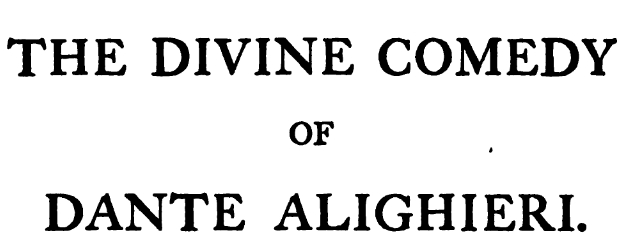
Figure 2 - The text to be extracted with the optical character reading capabilities of IronOCR
- The output after the above text has been extracted from the above input image text.
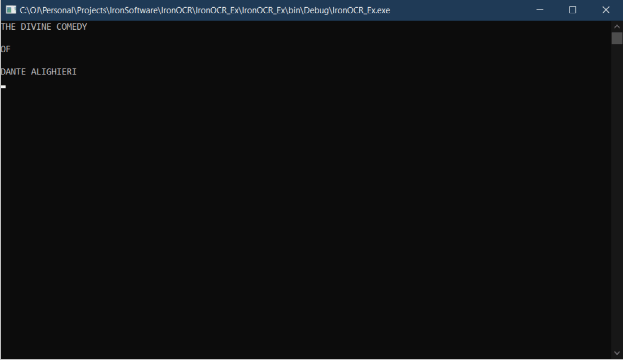
Figure 3 - Extracted text
- Let's do the same with a PDF document. The PDF document contains the same text to extract as Figure 2.
The only difference is that we will use a PDF document instead of an image. Enter the following code:
var OCR = new IronTesseract();
using (var input = new OcrInput())
{
    input.Title = "Divine Comedy - Purgatory"; // Give title to input document
    // Supply optional password and name of document
    input.LoadPdf("..\\Documents\\Purgatorio.pdf", Password: "dante");
    var result = OCR.Read(input); // Read the input file

    result.SaveAsSearchablePdf("SearchablePDFDocument.pdf");
}
var OCR = new IronTesseract();
using (var input = new OcrInput())
{
input.Title = "Divine Comedy - Purgatory"; // Give title to input document
// Supply optional password and name of document
input.LoadPdf("..\\Documents\\Purgatorio.pdf", Password: "dante");
var result = OCR.Read(input); // Read the input file
result.SaveAsSearchablePdf("SearchablePDFDocument.pdf");
}Dim OCR = New IronTesseract()
Using input = New OcrInput()
input.Title = "Divine Comedy - Purgatory" ' Give title to input document
' Supply optional password and name of document
input.LoadPdf("..\Documents\Purgatorio.pdf", Password:="dante")
Dim result = OCR.Read(input) ' Read the input file
result.SaveAsSearchablePdf("SearchablePDFDocument.pdf")
End UsingDim OCR = New IronTesseract()
Using input = New OcrInput()
input.Title = "Divine Comedy - Purgatory" ' Give title to input document
' Supply optional password and name of document
input.LoadPdf("..\Documents\Purgatorio.pdf", Password:="dante")
Dim result = OCR.Read(input) ' Read the input file
result.SaveAsSearchablePdf("SearchablePDFDocument.pdf")
End UsingThis code is almost the same as the previous code that extracts text from an image.
Here we make use of the OcrInput method to read the current PDF document, in this case: Purgatorio.pdf. If there is metadata in the PDF file, such as a title or a password, we can also feed it in.
The result gets saved as a searchable PDF document in which we can search for the text.
Note, if the PDF file is too big, an exception may be thrown.
- Enough on Windows applications; let's have a look at how we can use OCR with Microsoft Azure.
The beauty of IronOCR is that it works very well with Microsoft Azure as an Azure Function in a microservice architecture. Here is a very quick example of what a Microsoft Azure Function that works with IronOCR would look like. This Microsoft Azure function extracts text from images.
public static class OCRFunction
{
    public static HttpClient hcClient = new HttpClient();

    [FunctionName("IronOCRFunction_EX")]
    public static async Task<IActionResult> Run([HttpTrigger] HttpRequest hrRequest, ExecutionContext ecContext)
    {
        var URI = hrRequest.Query["image"];
        var saStream = await hcClient.GetStreamAsync(URI);

        var ocr = new IronTesseract();
        using (var inputOCR = new OcrInput())
        {
            inputOCR.LoadImage(saStream);
            var outputOCR = ocr.Read(inputOCR);
            return new OkObjectResult(outputOCR.Text);
        }
    }
}
public static class OCRFunction
{
public static HttpClient hcClient = new HttpClient();
[FunctionName("IronOCRFunction_EX")]
public static async Task<IActionResult> Run([HttpTrigger] HttpRequest hrRequest, ExecutionContext ecContext)
{
var URI = hrRequest.Query["image"];
var saStream = await hcClient.GetStreamAsync(URI);
var ocr = new IronTesseract();
using (var inputOCR = new OcrInput())
{
inputOCR.LoadImage(saStream);
var outputOCR = ocr.Read(inputOCR);
return new OkObjectResult(outputOCR.Text);
}
}
} Public Module OCRFunction
Public hcClient As New HttpClient()
<FunctionName("IronOCRFunction_EX")>
Public Async Function Run(<HttpTrigger> hrRequest As HttpRequest, ecContext As ExecutionContext) As Task(Of IActionResult)
Dim URI = hrRequest.Query("image")
Dim saStream = Await hcClient.GetStreamAsync(URI)
Dim ocr = New IronTesseract()
Using inputOCR = New OcrInput()
inputOCR.LoadImage(saStream)
Dim outputOCR = ocr.Read(inputOCR)
Return New OkObjectResult(outputOCR.Text)
End Using
End Function
End ModulePublic Module OCRFunction
Public hcClient As New HttpClient()
<FunctionName("IronOCRFunction_EX")>
Public Async Function Run(<HttpTrigger> hrRequest As HttpRequest, ecContext As ExecutionContext) As Task(Of IActionResult)
Dim URI = hrRequest.Query("image")
Dim saStream = Await hcClient.GetStreamAsync(URI)
Dim ocr = New IronTesseract()
Using inputOCR = New OcrInput()
inputOCR.LoadImage(saStream)
Dim outputOCR = ocr.Read(inputOCR)
Return New OkObjectResult(outputOCR.Text)
End Using
End Function
End ModuleThis feeds the image received by the function directly to the OCR engine to output the extracted text.
A quick recap on Microsoft Azure according to Microsoft:
Microsoft Azure Microservices are an architectural approach to building applications where each core function, or service, is built and deployed independently. Microservice architecture is distributed and loosely coupled, so one component's failure won't break the whole app. Independent components work together and communicate with well-defined API contracts. Build microservice applications to meet rapidly changing business needs and bring new functionalities to market faster.
A few more features of IronOCR with .NET or Microsoft Azure include the following:
- The ability to perform OCR on almost any file, image, or PDF.
- Lightning-fast speed in processing OCR input
- Exceptional accuracy
- Reads barcodes and QR codes
- Runs locally, with no SaaS required
- Can turn PDFs and images into searchable documents
- Excellent Alternative to Azure OCR from Microsoft Cognitive Services
Image Filters to improve OCR performance
OcrInput.Rotate- Rotates images by several degrees clockwise. For anti-clockwise, use negative numbers.OcrInput.Binarize()- This image filter turns every pixel black or white with no middle ground. This improves OCR performance.OcrInput.ToGrayScale()- This image filter turns every pixel into a shade of grayscale. This improves OCR speed.OcrInput.Contrast()- Increases contrast automatically. This filter improves OCR speed and accuracy in low contrast scans.OcrInput.DeNoise()- Removes digital noise. This filter should only be used where noise is expected in input documents.OcrInput.Invert()- Inverts every color.OcrInput.Dilate()- Dilation adds pixels to the boundaries of any object in an image.OcrInput.Erode()- Erosion removes pixels on object boundaries.OcrInput.Deskew()- Rotates an image so it is the right way up and orthogonal. This is very useful for OCR because Tesseract tolerance for skewed scans can be as low as 5 degrees.OcrInput.Despeckle()- Heavy background noise removal.OcrInput.EnhanceResolution- Enhances the resolution of a low-quality image.
Speed performance
An example follows:
var OCR = new IronTesseract();
OCR.Configuration.BlackListCharacters = "~`$#^*_}{][|\\";
OCR.Configuration.PageSegmentationMode = TesseractPageSegmentationMode.Auto;
OCR.Configuration.TesseractVersion = TesseractVersion.Tesseract5;
OCR.Configuration.EngineMode = TesseractEngineMode.LstmOnly;
OCR.Language = OcrLanguage.EnglishFast;
using (var Input = new OcrInput())
{
    Input.LoadImage("..\\Images\\Purgatory.PNG");
    var Result = OCR.Read(Input);
    Console.WriteLine(Result.Text);
}
var OCR = new IronTesseract();
OCR.Configuration.BlackListCharacters = "~`$#^*_}{][|\\";
OCR.Configuration.PageSegmentationMode = TesseractPageSegmentationMode.Auto;
OCR.Configuration.TesseractVersion = TesseractVersion.Tesseract5;
OCR.Configuration.EngineMode = TesseractEngineMode.LstmOnly;
OCR.Language = OcrLanguage.EnglishFast;
using (var Input = new OcrInput())
{
Input.LoadImage("..\\Images\\Purgatory.PNG");
var Result = OCR.Read(Input);
Console.WriteLine(Result.Text);
}Dim OCR = New IronTesseract()
OCR.Configuration.BlackListCharacters = "~`$#^*_}{][|\\"
OCR.Configuration.PageSegmentationMode = TesseractPageSegmentationMode.Auto
OCR.Configuration.TesseractVersion = TesseractVersion.Tesseract5
OCR.Configuration.EngineMode = TesseractEngineMode.LstmOnly
OCR.Language = OcrLanguage.EnglishFast
Using Input = New OcrInput()
Input.LoadImage("..\Images\Purgatory.PNG")
Dim Result = OCR.Read(Input)
Console.WriteLine(Result.Text)
End UsingDim OCR = New IronTesseract()
OCR.Configuration.BlackListCharacters = "~`$#^*_}{][|\\"
OCR.Configuration.PageSegmentationMode = TesseractPageSegmentationMode.Auto
OCR.Configuration.TesseractVersion = TesseractVersion.Tesseract5
OCR.Configuration.EngineMode = TesseractEngineMode.LstmOnly
OCR.Language = OcrLanguage.EnglishFast
Using Input = New OcrInput()
Input.LoadImage("..\Images\Purgatory.PNG")
Dim Result = OCR.Read(Input)
Console.WriteLine(Result.Text)
End UsingPricing and licensing options
There are essentially three paid licensing tiers that all work on a one-time purchase, lifetime license principle.
And yes, these are free for development purposes.
Further information
- Additional resources can be found at the next link: Resources
- API References can be found here: API References
- Support for IronOCR products can be found here: Support
- Contact Iron Software: Contact Information
IronOCR features for .NET applications running OCR on Azure and other Systems
- IronOCR supports 125 international languages. Each language is available in Fast, Standard and Best quality. Some of the language packs available include:
- Bulgarian
- Armenian
- Croatian
- Afrikaans
- Danish
- Czech
- Filipino
- Finnish
- French
- German
- There are many more language packs available, to have a look at them, please follow the next link. IronOCR language packs
- It works out of the box in .NET
- Support for Xamarin
- Support for Mono
- Support for Microsoft Azure
- Support for Docker on Microsoft Azure
- Supports PDF documents
- Supports Multiframe Tiffs
- Support for all major image formats
- The following .NET Frameworks are supported:
- .NET Framework 4.5 and higher
- .NET Standard 2
- .NET Core 2
- .NET Core 3
- .NET Core 5
- You don't have to have Tesseract (an open-source OCR engine which supports Unicode and more than 100 languages) installed for IronOCR to work.
- Has improved accuracy over Tesseract.
- Has improved speed over Tesseract.
- Corrects low-quality scans of documents or files.
- Corrects low-quality skewed scans of documents or files.
What is Optical Character Recognition (OCR)?
According to Wikipedia: Optical character recognition is the electronic or mechanical conversion of images of typed, printed text into machine-encoded text, whether from a scanned document, a photo of a document, a scene-photo or from subtitle text superimposed on an image. OCR stands for Optical Character Recognition. There are essentially four types of optical character recognition:
- OCR - Optical Character Recognition, targets typewritten text from an input document, one character, or glyph (elemental symbol within an agreed set of symbols, for example, 'a' in different fonts) at a time.
- OWR - Optical Word Recognition, targets typewritten text from an input document, one word at a time.
- ICR - Intelligent Character Recognition, targets printed text such as print script (characters with no joining to other letters) and cursive text, one character or glyph at a time.
- IWR - Intelligent Word Recognition, targets cursive text.
Frequently Asked Questions
How do I integrate IronOCR with Azure for OCR capabilities?
To integrate IronOCR with Azure, start by creating a new Console application using C#. Install IronOCR via NuGet, then modify your Program.cs to utilize IronTesseract to perform OCR tasks, allowing Azure to handle image or PDF input for text extraction.
What are the key features of IronOCR for building an OCR service on Microsoft Azure?
IronOCR provides several features for Azure OCR services, including converting images and PDFs into searchable documents, reading barcodes and QR codes, exceptional accuracy, and the ability to run locally without needing SaaS, all of which are ideal for deployment on Microsoft Azure.
How does IronOCR handle image input for OCR on Azure?
IronOCR allows the use of the IronTesseract object to load and process image files or streams directly using its OCR capabilities on Azure, making it simple to extract and return text data from various image formats.
Can IronOCR work with PDF documents for OCR in an Azure environment?
Yes, IronOCR can read PDF documents in Azure by utilizing its OcrInput method to open and process PDF files, optionally handling metadata like titles or passwords, and produce searchable output PDFs.
What OCR performance features does IronOCR offer?
IronOCR enhances performance with features like configurable image filters (e.g., Rotate, Binarize, and EnhanceResolution) that improve OCR speed and accuracy, making it efficient for use in Azure functions.
How can IronOCR be used within Microsoft Azure Functions?
IronOCR can be embedded in Azure Functions by setting up HTTP triggers to receive images, processing them using the IronTesseract library, and returning the extracted text, leveraging Azure's microservice architecture.
What licensing options are available for IronOCR?
IronOCR offers three paid licensing tiers based on a one-time purchase and lifetime license model, all of which are free for development purposes, making it cost-effective for deployment on Azure.
Can IronOCR work with different languages in Azure-hosted applications?
IronOCR supports 125 international languages available in Fast, Standard, and Best quality, making it versatile for global applications hosted on Azure, without needing Tesseract.
Is IronOCR suitable for low-quality or skewed document scans on Azure?
Yes, IronOCR corrects low-quality and skewed scans, ensuring accurate OCR results even under suboptimal conditions, which is beneficial for document processing on Azure.
How does IronOCR compare to Microsoft Cognitive Services' Azure OCR?
IronOCR is a robust alternative to Azure OCR from Microsoft Cognitive Services, offering local operation, comprehensive image and PDF support, and no dependency on continuous service availability.

Curtis Chau holds a Bachelor’s degree in Computer Science (Carleton University) and specializes in front-end development with expertise in Node.js, TypeScript, JavaScript, and React. Passionate about crafting intuitive and aesthetically pleasing user interfaces, Curtis enjoys working with modern frameworks and creating well-structured, visually appealing manuals.



