# C# OCR Image to Text Tutorial: Convert Images to Text Without Tesseract
Looking to convert images to text in C# without the hassle of complex Tesseract configurations? This comprehensive IronOCR C# tutorial shows you how to implement powerful optical character recognition in your .NET applications with just a few lines of code.
*as-heading:2(Quickstart: Extract Text from an Image in One Line)*
This example shows how easy it is to grasp IronOCR - just one line of C# turns your image into text. It demonstrates initializing the OCR engine and immediately reading and retrieving text without complex setup.
```cs
:title=Start OCR in Seconds with IronOCR!
string text = new IronTesseract().Read("image.png").Text;
```
<div class="hsg-featured-snippet">
<h3>Minimal Workflow (5 steps)</h3>
<ol>
<li><a class="js-modal-open" data-modal-id="trial-license-after-download" href="https://nuget.org/packages/IronOcr/">Download IronOCR - the C# OCR library for image to text conversion</a></li>
<li>Use <code>IronTesseract</code> class to read text from images instantly</li>
<li>Apply image filters to enhance OCR accuracy on low-quality scans</li>
<li>Process multiple languages with downloadable language packs</li>
<li>Export results as searchable PDFs or extract text strings</li>
</ol>
</div>
## How Do I Read Text from Images in .NET Applications?
To achieve C# OCR image to text functionality in your .NET applications, you'll need a reliable OCR library. IronOCR provides a managed solution using the `IronOcr.IronTesseract` class that maximizes both accuracy and speed without requiring external dependencies.
First, install IronOCR into your Visual Studio project. You can download the [IronOCR DLL directly](https://www.nuget.org/packages/IronOcr/) or use [NuGet Package Manager](https://www.nuget.org/packages/IronOcr/).
```shell
:ProductInstall
```
## Why Choose IronOCR for C# OCR Without Tesseract?
When you need to convert images to text in C#, IronOCR offers significant advantages over traditional Tesseract implementations:
- Works immediately in pure .NET environments
- No Tesseract installation or configuration required
- Runs the latest engines: **Tesseract 5** (plus Tesseract 4 & 3)
- Compatible with .NET Framework 4.6.2+, .NET Standard 2+, and .NET Core 2, 3, 5, 6, 7, 8, 9, and 10
- Improves accuracy and speed compared to vanilla Tesseract
- Supports Xamarin, Mono, Azure, and Docker deployments
- Manages complex Tesseract dictionaries through NuGet packages
- Handles PDFs, MultiFrame TIFFs, and all major image formats automatically
- Corrects low-quality and skewed scans for optimal results
## How to Use IronOCR C# Tutorial for Basic OCR?
This Iron Tesseract C# example demonstrates the simplest way to read text from image using IronOCR. The `IronOcr.IronTesseract` class extracts text and returns it as a string.
```csharp
// PM> Install-Package IronOcr
using IronOcr;

OcrResult result = new IronTesseract().Read(@"img\Screenshot.png");
Console.WriteLine(result.Text);
```
This code extracts clean text from high-quality images, exactly as it appears:
```txt
IronOCR Simple Example
In this simple example we test the accuracy of our C# OCR library to read text from a PNG Image. This is a very basic test, but things will get more complicated as the tutorial continues.
The quick brown fox jumps over the lazy dog
```
The `IronTesseract` class handles complex OCR operations internally. It automatically scans for alignment, optimizes resolution, and uses AI to read text from image using IronOCR.
Despite the sophisticated processing happening behind the scenes - including image analysis, engine optimization, and intelligent text recognition - the OCR process remains efficient.
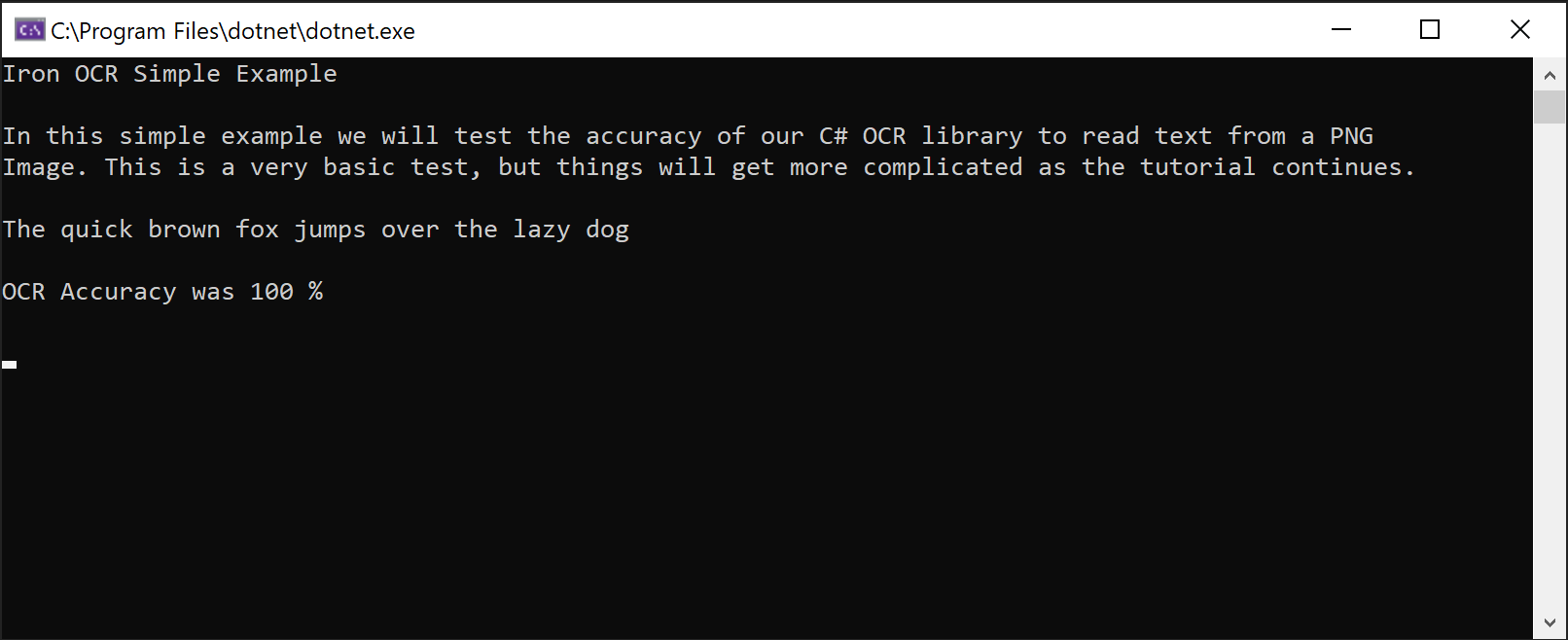
*Screenshot demonstrating IronOCR's ability to extract text from a PNG image*
## How to Implement Advanced C# OCR Without Tesseract Configuration?
For production applications requiring optimal performance when you convert images to text in C#, use the `OcrInput` and `IronTesseract` classes together. This approach provides fine-grained control over the OCR process.
### `OcrInput` Class Features
- Processes multiple image formats: JPEG, TIFF, GIF, BMP, PNG
- Imports complete PDFs or specific pages
- Enhances contrast, resolution, and image quality automatically
- Corrects rotation, scan noise, skew, and negative images
### `IronTesseract` Class Features
- Access to 127+ prepackaged languages
- Tesseract 5, 4, and 3 engines included
- Document type specification (screenshot, snippet, or full document)
- Integrated barcode reading capabilities
- Multiple output formats: Searchable PDFs, HOCR HTML, DOM objects, and strings
### How to Get Started with `OcrInput` and `IronTesseract`?
Here's a recommended configuration for this IronOCR C# tutorial that works well with most document types:
```csharp
using IronOcr;
IronTesseract ocr = new IronTesseract();
using OcrInput input = new OcrInput();
var pageindices = new int[] { 1, 2 };
input.LoadImageFrames(@"img\Potter.tiff", pageindices);
OcrResult result = ocr.Read(input);
Console.WriteLine(result.Text);
```
This configuration consistently achieves near-perfect accuracy on medium-quality scans. The `LoadImageFrames` method efficiently handles multi-page documents, making it ideal for batch processing scenarios.
<br />
<center>
<a href="/img/tutorials/how-to-read-text-from-an-image-in-csharp-net/Potter.tiff" target="_blank">
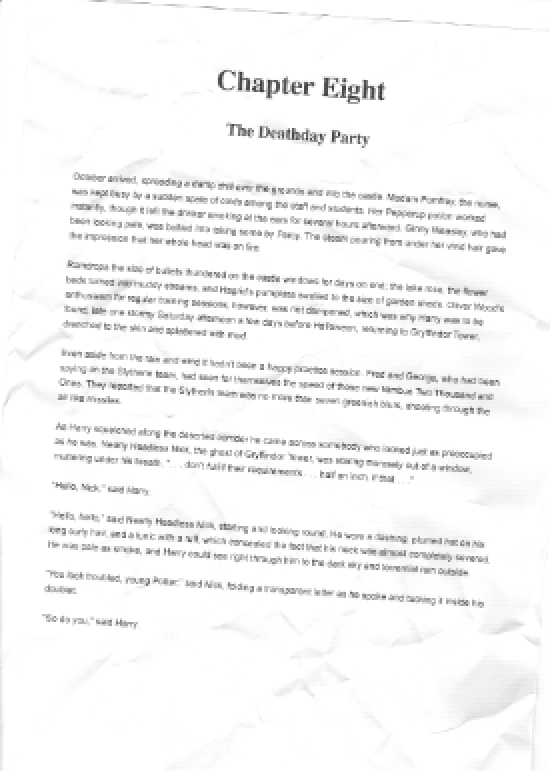
<img src="/img/tutorials/how-to-read-text-from-an-image-in-csharp-net/Potter.thumb.png" alt="Multi-page TIFF document showing Harry Potter text ready for C# OCR processing" class="img-responsive add-shadow img-margin" style="max-height:250px; border:1px solid gray" />
</a>
</center>
*Sample TIFF document demonstrating IronOCR's multi-page text extraction capabilities*
The ability to read text from images and barcodes in scanned documents like TIFFs showcases how IronOCR simplifies complex OCR tasks. The library excels with real-world documents, handling multi-page TIFFs and [PDF text extraction](/csharp/ocr/how-to/input-pdfs/).
### How Does IronOCR Handle Low-Quality Scans?
<br />
<center>
<a href="/img/tutorials/how-to-read-text-from-an-image-in-csharp-net/Potter.LowQuality.tiff" target="_blank">
<img src="/img/tutorials/how-to-read-text-from-an-image-in-csharp-net/Potter.LowQualitythumb.png" alt="Low-quality scan with digital noise demonstrating IronOCR's image enhancement capabilities" class="img-responsive add-shadow img-margin" style="max-height:250px; border:1px solid gray" />
</a>
</center>
*Low-resolution document with noise that IronOCR can process accurately using image filters*
When working with imperfect scans containing distortion and digital noise, **IronOCR outperforms other C# OCR libraries**. It's specifically designed for real-world scenarios rather than pristine test images.
```csharp
using IronOcr;
IronTesseract ocr = new IronTesseract();
using OcrInput input = new OcrInput();
var pageindices = new int[] { 1, 2 };
input.LoadImageFrames(@"img\Potter.LowQuality.tiff", pageindices);
input.Deskew(); // removes rotation and perspective
OcrResult result = ocr.Read(input);
Console.WriteLine(result.Text);
```
Using `Input.Deskew()`, accuracy improves significantly on low-quality scans, nearly matching high-quality results. This demonstrates why IronOCR is the preferred choice for C# OCR without Tesseract complications.
Image filters may slightly increase processing time but significantly reduce overall OCR duration. Finding the right balance depends on your document quality.
For most scenarios, `Input.Deskew()` and `Input.DeNoise()` provide reliable improvements to OCR performance. Learn more about [image preprocessing techniques](/csharp/ocr/tutorials/c-sharp-ocr-image-filters/).
## How to Optimize OCR Performance and Speed?
The most significant factor affecting OCR speed when you convert images to text in C# is input quality. Higher DPI (~200 dpi) with minimal noise produces the fastest and most accurate results.
While IronOCR excels at correcting imperfect documents, this enhancement requires additional processing time.
Choose image formats with minimal compression artifacts. TIFF and PNG typically yield faster results than JPEG due to lower digital noise.
### Which Image Filters Improve OCR Speed?
The following filters can dramatically enhance performance in your C# OCR image to text workflow:
- **`OcrInput.Rotate(double degrees)`:** Rotates images clockwise (negative for counterclockwise)
- **`OcrInput.Binarize()`:** Converts to black/white, improving performance in low-contrast scenarios
- **`OcrInput.ToGrayScale()`:** Converts to grayscale for potential speed improvements
- **`OcrInput.Contrast()`:** Auto-adjusts contrast for better accuracy
- **`OcrInput.DeNoise()`:** Removes digital artifacts when noise is expected
- **`OcrInput.Invert()`:** Inverts colors for white-on-black text
- **`OcrInput.Dilate()`:** Expands text boundaries
- **`OcrInput.Erode()`:** Reduces text boundaries
- **`OcrInput.Deskew()`:** Corrects alignment - essential for skewed documents
- **`OcrInput.Despeckle()`:** Aggressive noise removal
- **`OcrInput.EnhanceResolution`:** Improves low-resolution image quality
- **`OcrInput.DetectPageOrientation()`:** Detects and corrects page rotation. Pass an `OrientationDetectionMode` to control the accuracy/speed trade-off: `Fast`, `Balanced`, `Detailed`, or `ExtremeDetailed` (added v2025.8.6)
[[w:(`Scale()` and `EnhanceResolution()` are incompatible with `SaveAsSearchablePdf()` due to a known issue in v2025.12.3. All other filters work correctly with searchable PDF output.)]]
### How to Configure IronOCR for Maximum Speed?
Use these settings to optimize speed when processing high-quality scans:
```csharp
using IronOcr;
IronTesseract ocr = new IronTesseract();
// Configure for speed
ocr.Configuration.BlackListCharacters = "~`$#^*_}{][|\\";
ocr.Configuration.PageSegmentationMode = TesseractPageSegmentationMode.Auto;
ocr.Language = OcrLanguage.EnglishFast;
using OcrInput input = new OcrInput();
var pageindices = new int[] { 1, 2 };
input.LoadImageFrames(@"img\Potter.tiff", pageindices);
OcrResult result = ocr.Read(input);
Console.WriteLine(result.Text);
```
This optimized setup maintains high accuracy while improving processing speed compared to default settings.
## How to Read Specific Areas of Images Using C# OCR?
The Iron Tesseract C# example below shows how to target specific regions using `System.Drawing.Rectangle`. This technique is invaluable for processing standardized forms where text appears in predictable locations.
### Can IronOCR Process Cropped Regions for Faster Results?
Using pixel-based coordinates, you can limit OCR to specific areas, dramatically improving speed and preventing unwanted text extraction:
```csharp
using IronOcr;
using IronSoftware.Drawing;
IronTesseract ocr = new IronTesseract();
using OcrInput input = new OcrInput();
// restrict OCR to a content area for faster processing
Rectangle contentArea = new Rectangle(x: 215, y: 1250, height: 280, width: 1335);
input.LoadImage("img/ComSci.png", contentArea);
OcrResult result = ocr.Read(input);
Console.WriteLine(result.Text);
```
This targeted approach improves processing speed while extracting only relevant text. It's ideal for structured documents like [invoices](/csharp/ocr/blog/using-ironocr/invoice-ocr-csharp-tutorial/), checks, and forms. The same cropping technique works with [PDF OCR operations](/csharp/ocr/how-to/input-pdfs/).
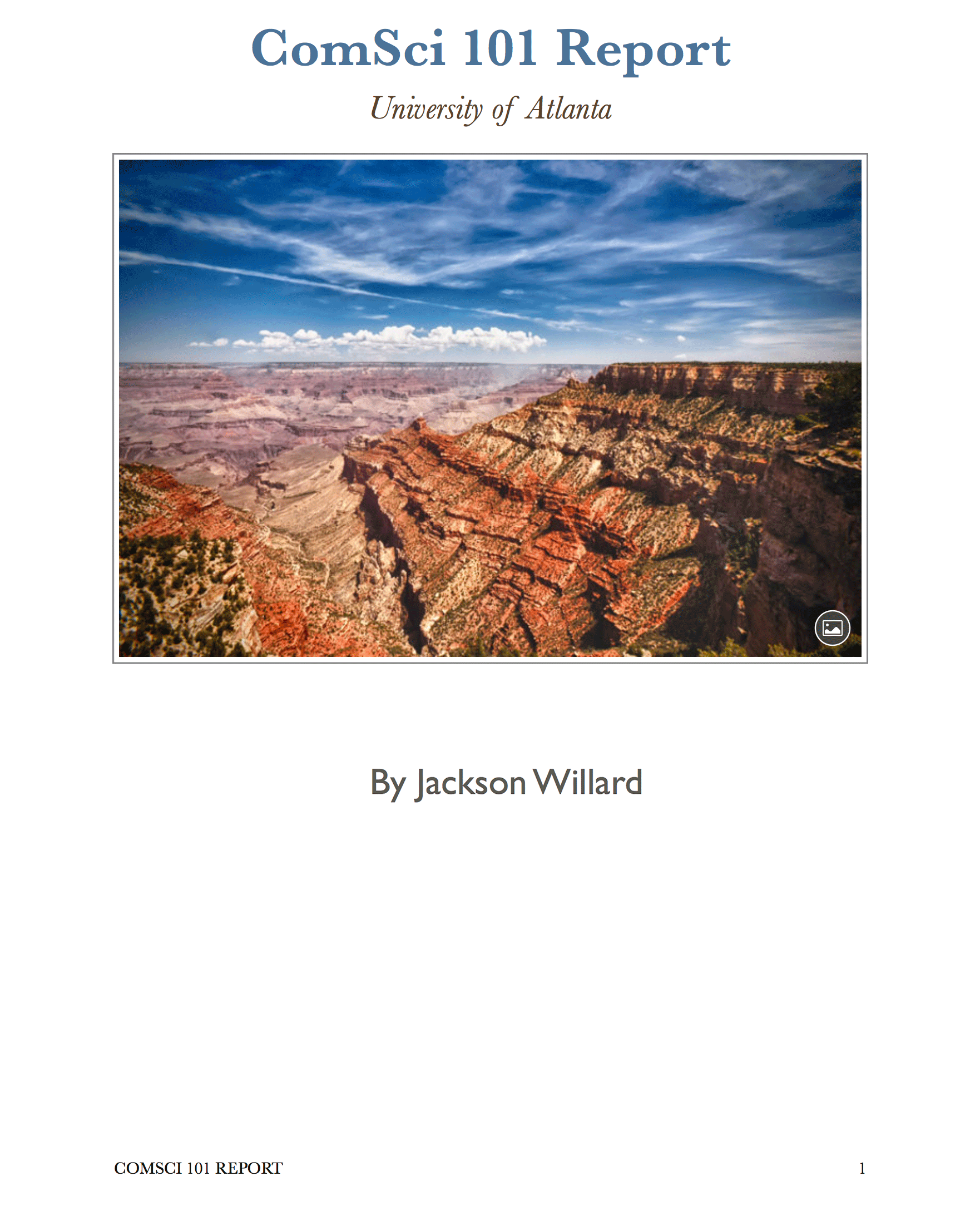
*Document demonstrating precise region-based text extraction using IronOCR's rectangle selection*
## How Many Languages Does IronOCR Support?
IronOCR provides **127 international languages** through convenient language packs. Download them as DLLs from our website or via [NuGet Package Manager](https://www.nuget.org/packages?q=IronOcr.Languages).
Install language packs through the NuGet interface ([search "IronOcr.Languages"](https://www.nuget.org/packages?q=IronOcr.Languages)) or visit the [complete language pack listing](/csharp/ocr/languages/).
Supported languages include Arabic, Chinese (Simplified/Traditional), Japanese, Korean, Hindi, Russian, German, French, Spanish, and 115+ others, each optimized for accurate text recognition.
### How to Implement OCR in Multiple Languages?
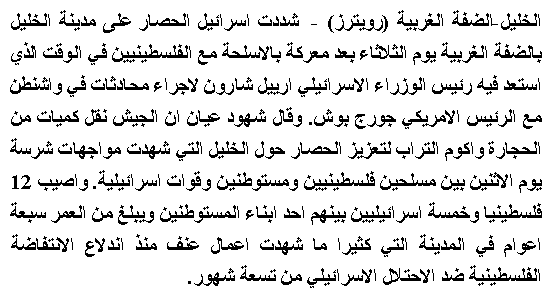
This IronOCR C# tutorial example demonstrates Arabic text recognition:
```shell
:InstallCmd Install-Package IronOcr.Languages.Arabic
```
<center>
<img src="/img/tutorials/how-to-read-text-from-an-image-in-csharp-net/arabic.gif" alt="Arabic text being processed by IronOCR demonstrating multi-language OCR support" class="img-responsive add-shadow img-margin" style="max-height:250px; border:1px solid gray;" />
</center>
*IronOCR accurately extracting Arabic text from a GIF image*
```csharp
// PM> Install IronOcr.Languages.Arabic
using IronOcr;
IronTesseract ocr = new IronTesseract();
ocr.Language = OcrLanguage.Arabic;
using OcrInput input = new OcrInput();
input.LoadImageFrame("img/arabic.gif", 1);
// add image filters if needed
// In this case, even thought input is very low quality
// IronTesseract can read what conventional Tesseract cannot.
OcrResult result = ocr.Read(input);
// Console can't print Arabic on Windows easily.
// Let's save to disk instead.
result.SaveAsTextFile("arabic.txt");
```
### Can IronOCR Handle Documents with Multiple Languages?
When documents contain mixed languages, configure IronOCR for multi-language support:
```shell
:InstallCmd Install-Package IronOcr.Languages.ChineseSimplified
```
```csharp
using IronOcr;
IronTesseract ocr = new IronTesseract();
ocr.Language = OcrLanguage.ChineseSimplified;
// We can add any number of languages.
ocr.AddSecondaryLanguage(OcrLanguage.English);
// Optionally add custom tesseract .traineddata files by specifying a file path
using OcrInput input = new OcrInput();
input.LoadImage("img/MultiLanguage.jpeg");
OcrResult result = ocr.Read(input);
result.SaveAsTextFile("MultiLanguage.txt");
```
## How to Process Multi-Page Documents with C# OCR?
IronOCR combines multiple pages or images into a single `OcrResult`. This feature enables powerful capabilities like [creating searchable PDFs](/csharp/ocr/how-to/searchable-pdf/) and extracting text from entire document sets.
Mix and match various sources - images, TIFF frames, and PDF pages - in a single OCR operation:
```csharp
using IronOcr;
IronTesseract ocr = new IronTesseract();
using OcrInput input = new OcrInput();
input.LoadImage("image1.jpeg");
input.LoadImage("image2.png");
var pageindices = new int[] { 1, 2 };
input.LoadImageFrames("image3.gif", pageindices);
OcrResult result = ocr.Read(input);
Console.WriteLine($"{result.Pages.Length} Pages"); // 3 Pages
```
Process all pages of a TIFF file efficiently:
```csharp
using IronOcr;
IronTesseract ocr = new IronTesseract();
using OcrInput input = new OcrInput();
var pageindices = new int[] { 1, 2 };
input.LoadImageFrames("MultiFrame.Tiff", pageindices);
OcrResult result = ocr.Read(input);
Console.WriteLine(result.Text);
Console.WriteLine($"{result.Pages.Length} Pages");
// 1 page for every frame (page) in the TIFF
```
Convert TIFFs or PDFs to searchable formats:
```csharp
using IronOcr;
IronTesseract ocr = new IronTesseract();
using OcrInput input = new OcrInput();
input.Title = "Quarterly Report";
input.LoadImage("image1.jpeg");
input.LoadImage("image2.png");
var pageindices = new int[] { 1, 2 };
input.LoadImageFrames("image3.gif", pageindices);
OcrResult result = ocr.Read(input);
result.SaveAsSearchablePdf("searchable.pdf");
```
Convert existing PDFs to searchable versions:
```csharp
using IronOcr;
IronTesseract ocr = new IronTesseract();
using OcrInput input = new OcrInput();
input.Title = "Pdf Metadata Name";
input.LoadPdf("example.pdf", Password: "password");
OcrResult result = ocr.Read(input);
result.SaveAsSearchablePdf("searchable.pdf");
```
Apply the same technique to TIFF conversions:
```csharp
using IronOcr;
var ocr = new IronTesseract();
using (var input = new OcrInput())
{
// Configure document properties
input.Title = "Scanned Archive Document";
// Select pages to process
var pageIndices = new int[] { 1, 2 };
input.LoadImageFrames("example.tiff", pageIndices);
// Create searchable PDF from TIFF
OcrResult result = ocr.Read(input);
result.SaveAsSearchablePdf("searchable.pdf");
}
```
## How to Export OCR Results as HOCR HTML?
IronOCR supports HOCR HTML export, enabling structured **PDF to HTML** and **TIFF to HTML** conversions while preserving layout information:
```csharp
using IronOcr;
var ocr = new IronTesseract();
using (var input = new OcrInput())
{
// Set HTML title
input.Title = "Document Archive";
// Process multiple document types
input.LoadImage("image2.jpeg");
input.LoadPdf("example.pdf", Password: "password");
// Add TIFF pages
var pageIndices = new int[] { 1, 2 };
input.LoadImageFrames("example.tiff", pageIndices);
// Export as HOCR with position data
OcrResult result = ocr.Read(input);
result.SaveAsHocrFile("hocr.html");
}
```
## Can IronOCR Read Barcodes Along with Text?
IronOCR uniquely combines text recognition with [barcode reading capabilities](/csharp/ocr/how-to/barcodes/), eliminating the need for separate libraries:
```csharp
// Enable combined text and barcode recognition
using IronOcr;
var ocr = new IronTesseract();
// Enable barcode detection
ocr.Configuration.ReadBarCodes = true;
using (var input = new OcrInput())
{
// Load image containing both text and barcodes
input.LoadImage("img/Barcode.png");
// Process both text and barcodes
var result = ocr.Read(input);
// Extract barcode data
foreach (var barcode in result.Barcodes)
{
Console.WriteLine($"Barcode Value: {barcode.Value}");
Console.WriteLine($"Format: {barcode.Format}");
}
}
```
## How to Access Detailed OCR Results and Metadata?
The IronOCR results object provides comprehensive data that advanced developers can leverage for sophisticated applications.
Each `OcrResult` contains hierarchical collections: pages, paragraphs, lines, words, and characters. All elements include detailed metadata like location, font information, and confidence scores.
Individual elements (paragraphs, words, barcodes) can be exported as images or bitmaps for further processing:
```csharp
using System;
using IronOcr;
using IronSoftware.Drawing;
// Configure with barcode support
IronTesseract ocr = new IronTesseract
{
Configuration = { ReadBarCodes = true }
};
using OcrInput input = new OcrInput();
// Process multi-page document
int[] pageIndices = { 1, 2 };
input.LoadImageFrames(@"img\Potter.tiff", pageIndices);
OcrResult result = ocr.Read(input);
// Navigate the complete results hierarchy
foreach (var page in result.Pages)
{
// Page-level data
int pageNumber = page.PageNumber;
string pageText = page.Text;
int pageWordCount = page.WordCount;
// Extract page elements
OcrResult.Barcode[] barcodes = page.Barcodes;
AnyBitmap pageImage = page.ToBitmap(input);
double pageWidth = page.Width;
double pageHeight = page.Height;
foreach (var paragraph in page.Paragraphs)
{
// Paragraph properties
int paragraphNumber = paragraph.ParagraphNumber;
string paragraphText = paragraph.Text;
double paragraphConfidence = paragraph.Confidence;
var textDirection = paragraph.TextDirection;
foreach (var line in paragraph.Lines)
{
// Line details including baseline information
string lineText = line.Text;
double lineConfidence = line.Confidence;
double baselineAngle = line.BaselineAngle;
double baselineOffset = line.BaselineOffset;
foreach (var word in line.Words)
{
// Word-level data
string wordText = word.Text;
double wordConfidence = word.Confidence;
// Font information (when available)
if (word.Font != null)
{
string fontName = word.Font.FontName;
double fontSize = word.Font.FontSize;
bool isBold = word.Font.IsBold;
bool isItalic = word.Font.IsItalic;
}
foreach (var character in word.Characters)
{
// Character-level analysis
string charText = character.Text;
double charConfidence = character.Confidence;
// Alternative character choices for spell-checking
OcrResult.Choice[] alternatives = character.Choices;
}
}
}
}
}
```
## Summary
IronOCR provides C# developers with the most advanced [Tesseract API implementation](/csharp/ocr/), running across Windows, Linux, and Mac platforms. Its ability to accurately read text from image using IronOCR - even from imperfect documents - sets it apart from basic OCR solutions.
The library's unique features include integrated barcode reading and the ability to export results as searchable PDFs or HOCR HTML, capabilities unavailable in standard Tesseract implementations.
### Moving Forward
To continue mastering IronOCR:
- Explore our [comprehensive getting started guide](/csharp/ocr/docs/)
- Browse [practical C# code examples](/csharp/ocr/examples/simple-csharp-ocr-tesseract/)
- Reference the [detailed API documentation](/csharp/ocr/object-reference/)
### Source Code Download
- [GitHub Repository](https://github.com/iron-software/IronOcr.Examples/tree/main/src/IronSoftware.IronOCR.Examples/IronSoftware.IronOCR.Examples)
- [Download Complete Source](/downloads/assets/tutorials/how-to-read-text-from-an-image-in-csharp-net/CSharp-Image-to-Text.zip)
Ready to implement C# OCR image to text conversion in your applications? [Download IronOCR](download-modal) and start your [free trial](trial-license) today.
Looking to convert images to text in C# without the hassle of complex Tesseract configurations? This comprehensive IronOCR C# tutorial shows you how to implement powerful optical character recognition in your .NET applications with just a few lines of code.
Quickstart: Extract Text from an Image in One Line
This example shows how easy it is to grasp IronOCR - just one line of C# turns your image into text. It demonstrates initializing the OCR engine and immediately reading and retrieving text without complex setup.
1Install IronOCR with NuGet Package Manager
PM > Install-Package IronOcr
Install-Package IronOcr
2Copy and run this code snippet.
string text = new IronTesseract().Read("image.png").Text;
string text = new IronTesseract().Read("image.png").Text;
Dim text AsString = New IronTesseract().Read("image.png").Text
Dim text As String = New IronTesseract().Read("image.png").Text
3Deploy to test on your live environment
Start using IronOCR in your project today with a free trial
Use IronTesseract class to read text from images instantly
Apply image filters to enhance OCR accuracy on low-quality scans
Process multiple languages with downloadable language packs
Export results as searchable PDFs or extract text strings
How Do I Read Text from Images in .NET Applications?
To achieve C# OCR image to text functionality in your .NET applications, you'll need a reliable OCR library. IronOCR provides a managed solution using the IronOcr.IronTesseract class that maximizes both accuracy and speed without requiring external dependencies.
Compatible with .NET Framework 4.6.2+, .NET Standard 2+, and .NET Core 2, 3, 5, 6, 7, 8, 9, and 10
Improves accuracy and speed compared to vanilla Tesseract
Supports Xamarin, Mono, Azure, and Docker deployments
Manages complex Tesseract dictionaries through NuGet packages
Handles PDFs, MultiFrame TIFFs, and all major image formats automatically
Corrects low-quality and skewed scans for optimal results
How to Use IronOCR C# Tutorial for Basic OCR?
This Iron Tesseract C# example demonstrates the simplest way to read text from image using IronOCR. The IronOcr.IronTesseract class extracts text and returns it as a string.
// PM> Install-Package IronOcrusing IronOcr;OcrResult result = new IronTesseract().Read(@"img\Screenshot.png");Console.WriteLine(result.Text);
// PM> Install-Package IronOcr
using IronOcr;

OcrResult result = new IronTesseract().Read(@"img\Screenshot.png");
Console.WriteLine(result.Text);
' PM> Install-Package IronOcrImportsIronOcrPrivate result AsOcrResult = (New IronTesseract()).Read("img\Screenshot.png")Console.WriteLine(result.Text)
' PM> Install-Package IronOcr
Imports IronOcr

Private result As OcrResult = (New IronTesseract()).Read("img\Screenshot.png")
Console.WriteLine(result.Text)
This code extracts clean text from high-quality images, exactly as it appears:
IronOCR Simple ExampleIn this simple example we test the accuracy of our C# OCR library to read text from a PNG Image. This is a very basic test, but things will get more complicated as the tutorial continues.The quick brown fox jumps over the lazy dog
IronOCR Simple Example

In this simple example we test the accuracy of our C# OCR library to read text from a PNG Image. This is a very basic test, but things will get more complicated as the tutorial continues.

The quick brown fox jumps over the lazy dog
Text
The IronTesseract class handles complex OCR operations internally. It automatically scans for alignment, optimizes resolution, and uses AI to read text from image using IronOCR.
Despite the sophisticated processing happening behind the scenes - including image analysis, engine optimization, and intelligent text recognition - the OCR process remains efficient.
Screenshot demonstrating IronOCR's ability to extract text from a PNG image
How to Implement Advanced C# OCR Without Tesseract Configuration?
For production applications requiring optimal performance when you convert images to text in C#, use the OcrInput and IronTesseract classes together. This approach provides fine-grained control over the OCR process.
Enhances contrast, resolution, and image quality automatically
Corrects rotation, scan noise, skew, and negative images
IronTesseract Class Features
Access to 127+ prepackaged languages
Tesseract 5, 4, and 3 engines included
Document type specification (screenshot, snippet, or full document)
Integrated barcode reading capabilities
Multiple output formats: Searchable PDFs, HOCR HTML, DOM objects, and strings
How to Get Started with OcrInput and IronTesseract?
Here's a recommended configuration for this IronOCR C# tutorial that works well with most document types:
using IronOcr;IronTesseract ocr = new IronTesseract();using OcrInput input = new OcrInput();var pageindices = new int[] { 1, 2 };input.LoadImageFrames(@"img\Potter.tiff", pageindices);OcrResult result = ocr.Read(input);Console.WriteLine(result.Text);
using IronOcr;

IronTesseract ocr = new IronTesseract();
using OcrInput input = new OcrInput();
var pageindices = new int[] { 1, 2 };
input.LoadImageFrames(@"img\Potter.tiff", pageindices);
OcrResult result = ocr.Read(input);
Console.WriteLine(result.Text);
ImportsIronOcrPrivate ocr As New IronTesseract()PrivateOcrInputAsusingPrivate pageindices = New Integer() { 1, 2 }input.LoadImageFrames("img\Potter.tiff", pageindices)Dim result AsOcrResult = ocr.Read(input)Console.WriteLine(result.Text)
Imports IronOcr

Private ocr As New IronTesseract()
Private OcrInput As using
Private pageindices = New Integer() { 1, 2 }
input.LoadImageFrames("img\Potter.tiff", pageindices)
Dim result As OcrResult = ocr.Read(input)
Console.WriteLine(result.Text)
This configuration consistently achieves near-perfect accuracy on medium-quality scans. The LoadImageFrames method efficiently handles multi-page documents, making it ideal for batch processing scenarios.
Sample TIFF document demonstrating IronOCR's multi-page text extraction capabilities
The ability to read text from images and barcodes in scanned documents like TIFFs showcases how IronOCR simplifies complex OCR tasks. The library excels with real-world documents, handling multi-page TIFFs and PDF text extraction.
How Does IronOCR Handle Low-Quality Scans?
Low-resolution document with noise that IronOCR can process accurately using image filters
When working with imperfect scans containing distortion and digital noise, IronOCR outperforms other C# OCR libraries. It's specifically designed for real-world scenarios rather than pristine test images.
using IronOcr;IronTesseract ocr = new IronTesseract();using OcrInput input = new OcrInput();var pageindices = new int[] { 1, 2 };input.LoadImageFrames(@"img\Potter.LowQuality.tiff", pageindices);input.Deskew(); // removes rotation and perspectiveOcrResult result = ocr.Read(input);Console.WriteLine(result.Text);
using IronOcr;

IronTesseract ocr = new IronTesseract();
using OcrInput input = new OcrInput();
var pageindices = new int[] { 1, 2 };
input.LoadImageFrames(@"img\Potter.LowQuality.tiff", pageindices);
input.Deskew(); // removes rotation and perspective
OcrResult result = ocr.Read(input);
Console.WriteLine(result.Text);
ImportsIronOcrPrivate ocr As New IronTesseract()PrivateOcrInputAsusingPrivate pageindices = New Integer() { 1, 2 }input.LoadImageFrames("img\Potter.LowQuality.tiff", pageindices)input.Deskew() ' removes rotation and perspectiveDim result AsOcrResult = ocr.Read(input)Console.WriteLine(result.Text)
Imports IronOcr

Private ocr As New IronTesseract()
Private OcrInput As using
Private pageindices = New Integer() { 1, 2 }
input.LoadImageFrames("img\Potter.LowQuality.tiff", pageindices)
input.Deskew() ' removes rotation and perspective
Dim result As OcrResult = ocr.Read(input)
Console.WriteLine(result.Text)
Using Input.Deskew(), accuracy improves significantly on low-quality scans, nearly matching high-quality results. This demonstrates why IronOCR is the preferred choice for C# OCR without Tesseract complications.
Image filters may slightly increase processing time but significantly reduce overall OCR duration. Finding the right balance depends on your document quality.
For most scenarios, Input.Deskew() and Input.DeNoise() provide reliable improvements to OCR performance. Learn more about image preprocessing techniques.
How to Optimize OCR Performance and Speed?
The most significant factor affecting OCR speed when you convert images to text in C# is input quality. Higher DPI (~200 dpi) with minimal noise produces the fastest and most accurate results.
While IronOCR excels at correcting imperfect documents, this enhancement requires additional processing time.
Choose image formats with minimal compression artifacts. TIFF and PNG typically yield faster results than JPEG due to lower digital noise.
Which Image Filters Improve OCR Speed?
The following filters can dramatically enhance performance in your C# OCR image to text workflow:
OcrInput.Rotate(double degrees): Rotates images clockwise (negative for counterclockwise)
OcrInput.Binarize(): Converts to black/white, improving performance in low-contrast scenarios
OcrInput.ToGrayScale(): Converts to grayscale for potential speed improvements
OcrInput.Contrast(): Auto-adjusts contrast for better accuracy
OcrInput.DeNoise(): Removes digital artifacts when noise is expected
OcrInput.Invert(): Inverts colors for white-on-black text
OcrInput.Dilate(): Expands text boundaries
OcrInput.Erode(): Reduces text boundaries
OcrInput.Deskew(): Corrects alignment - essential for skewed documents
OcrInput.DetectPageOrientation(): Detects and corrects page rotation. Pass an OrientationDetectionMode to control the accuracy/speed trade-off: Fast, Balanced, Detailed, or ExtremeDetailed (added v2025.8.6)
Warning: Scale() and EnhanceResolution() are incompatible with SaveAsSearchablePdf() due to a known issue in v2025.12.3. All other filters work correctly with searchable PDF output.
How to Configure IronOCR for Maximum Speed?
Use these settings to optimize speed when processing high-quality scans:
using IronOcr;IronTesseract ocr = new IronTesseract();// Configure for speedocr.Configuration.BlackListCharacters = "~`$#^*_}{][|\\";ocr.Configuration.PageSegmentationMode = TesseractPageSegmentationMode.Auto;ocr.Language = OcrLanguage.EnglishFast;using OcrInput input = new OcrInput();var pageindices = new int[] { 1, 2 };input.LoadImageFrames(@"img\Potter.tiff", pageindices);OcrResult result = ocr.Read(input);Console.WriteLine(result.Text);
using IronOcr;

IronTesseract ocr = new IronTesseract();

// Configure for speed
ocr.Configuration.BlackListCharacters = "~`$#^*_}{][|\\";
ocr.Configuration.PageSegmentationMode = TesseractPageSegmentationMode.Auto;
ocr.Language = OcrLanguage.EnglishFast;

using OcrInput input = new OcrInput();
var pageindices = new int[] { 1, 2 };
input.LoadImageFrames(@"img\Potter.tiff", pageindices);

OcrResult result = ocr.Read(input);
Console.WriteLine(result.Text);
ImportsIronOcrPrivate ocr As New IronTesseract()' Configure for speedocr.Configuration.BlackListCharacters = "~`$#^*_}{][|\"ocr.Configuration.PageSegmentationMode = TesseractPageSegmentationMode.Autoocr.Language = OcrLanguage.EnglishFastUsing input As New OcrInput() Dim pageindices = New Integer() { 1, 2 } input.LoadImageFrames("img\Potter.tiff", pageindices) Dim result AsOcrResult = ocr.Read(input)Console.WriteLine(result.Text)EndUsing
Imports IronOcr

Private ocr As New IronTesseract()

' Configure for speed
ocr.Configuration.BlackListCharacters = "~`$#^*_}{][|\"
ocr.Configuration.PageSegmentationMode = TesseractPageSegmentationMode.Auto
ocr.Language = OcrLanguage.EnglishFast

Using input As New OcrInput()
	Dim pageindices = New Integer() { 1, 2 }
	input.LoadImageFrames("img\Potter.tiff", pageindices)

	Dim result As OcrResult = ocr.Read(input)
	Console.WriteLine(result.Text)
End Using
This optimized setup maintains high accuracy while improving processing speed compared to default settings.
How to Read Specific Areas of Images Using C# OCR?
The Iron Tesseract C# example below shows how to target specific regions using System.Drawing.Rectangle. This technique is invaluable for processing standardized forms where text appears in predictable locations.
Can IronOCR Process Cropped Regions for Faster Results?
Using pixel-based coordinates, you can limit OCR to specific areas, dramatically improving speed and preventing unwanted text extraction:
using IronOcr;using IronSoftware.Drawing;IronTesseract ocr = new IronTesseract();using OcrInput input = new OcrInput();// restrict OCR to a content area for faster processingRectangle contentArea = new Rectangle(x: 215, y: 1250, height: 280, width: 1335);input.LoadImage("img/ComSci.png", contentArea);OcrResult result = ocr.Read(input);Console.WriteLine(result.Text);
using IronOcr;
using IronSoftware.Drawing;

IronTesseract ocr = new IronTesseract();
using OcrInput input = new OcrInput();
// restrict OCR to a content area for faster processing
Rectangle contentArea = new Rectangle(x: 215, y: 1250, height: 280, width: 1335);
input.LoadImage("img/ComSci.png", contentArea);
OcrResult result = ocr.Read(input);
Console.WriteLine(result.Text);
ImportsIronOcrImportsIronSoftware.DrawingDim ocr As New IronTesseract()Using input As New OcrInput() ' restrict OCR to a content area for faster processing Dim contentArea As New Rectangle(x:=215, y:=1250, height:=280, width:=1335) input.LoadImage("img/ComSci.png", contentArea) Dim result AsOcrResult = ocr.Read(input)Console.WriteLine(result.Text)EndUsing
Imports IronOcr
Imports IronSoftware.Drawing

Dim ocr As New IronTesseract()
Using input As New OcrInput()
    ' restrict OCR to a content area for faster processing
    Dim contentArea As New Rectangle(x:=215, y:=1250, height:=280, width:=1335)
    input.LoadImage("img/ComSci.png", contentArea)
    Dim result As OcrResult = ocr.Read(input)
    Console.WriteLine(result.Text)
End Using
This targeted approach improves processing speed while extracting only relevant text. It's ideal for structured documents like invoices, checks, and forms. The same cropping technique works with PDF OCR operations.
Document demonstrating precise region-based text extraction using IronOCR's rectangle selection
How Many Languages Does IronOCR Support?
IronOCR provides 127 international languages through convenient language packs. Download them as DLLs from our website or via NuGet Package Manager.
Supported languages include Arabic, Chinese (Simplified/Traditional), Japanese, Korean, Hindi, Russian, German, French, Spanish, and 115+ others, each optimized for accurate text recognition.
How to Implement OCR in Multiple Languages?
This IronOCR C# tutorial example demonstrates Arabic text recognition:
PM > Install-Package IronOcr.Languages.Arabic
Install-Package IronOcr.Languages.Arabic
IronOCR accurately extracting Arabic text from a GIF image
// PM> Install IronOcr.Languages.Arabicusing IronOcr;IronTesseract ocr = new IronTesseract();ocr.Language = OcrLanguage.Arabic;using OcrInput input = new OcrInput();input.LoadImageFrame("img/arabic.gif", 1);// add image filters if needed// In this case, even thought input is very low quality// IronTesseract can read what conventional Tesseract cannot.OcrResult result = ocr.Read(input);// Console can't print Arabic on Windows easily.// Let's save to disk instead.result.SaveAsTextFile("arabic.txt");
// PM> Install IronOcr.Languages.Arabic
using IronOcr;

IronTesseract ocr = new IronTesseract();
ocr.Language = OcrLanguage.Arabic;

using OcrInput input = new OcrInput();
input.LoadImageFrame("img/arabic.gif", 1);
// add image filters if needed
// In this case, even thought input is very low quality
// IronTesseract can read what conventional Tesseract cannot.

OcrResult result = ocr.Read(input);

// Console can't print Arabic on Windows easily.
// Let's save to disk instead.
result.SaveAsTextFile("arabic.txt");
' PM> Install IronOcr.Languages.ArabicImportsIronOcrPrivate ocr As New IronTesseract()ocr.Language = OcrLanguage.ArabicUsing input As New OcrInput() input.LoadImageFrame("img/arabic.gif", 1) ' add image filters if needed ' In this case, even thought input is very low quality ' IronTesseract can read what conventional Tesseract cannot. Dim result AsOcrResult = ocr.Read(input) ' Console can't print Arabic on Windows easily. ' Let's save to disk instead. result.SaveAsTextFile("arabic.txt")EndUsing
' PM> Install IronOcr.Languages.Arabic
Imports IronOcr

Private ocr As New IronTesseract()
ocr.Language = OcrLanguage.Arabic

Using input As New OcrInput()
	input.LoadImageFrame("img/arabic.gif", 1)
	' add image filters if needed
	' In this case, even thought input is very low quality
	' IronTesseract can read what conventional Tesseract cannot.

	Dim result As OcrResult = ocr.Read(input)

	' Console can't print Arabic on Windows easily.
	' Let's save to disk instead.
	result.SaveAsTextFile("arabic.txt")
End Using
Can IronOCR Handle Documents with Multiple Languages?
When documents contain mixed languages, configure IronOCR for multi-language support:
using IronOcr;IronTesseract ocr = new IronTesseract();ocr.Language = OcrLanguage.ChineseSimplified;// We can add any number of languages.ocr.AddSecondaryLanguage(OcrLanguage.English);// Optionally add custom tesseract .traineddata files by specifying a file pathusing OcrInput input = new OcrInput();input.LoadImage("img/MultiLanguage.jpeg");OcrResult result = ocr.Read(input);result.SaveAsTextFile("MultiLanguage.txt");
using IronOcr;

IronTesseract ocr = new IronTesseract();
ocr.Language = OcrLanguage.ChineseSimplified;

// We can add any number of languages.
ocr.AddSecondaryLanguage(OcrLanguage.English);
// Optionally add custom tesseract .traineddata files by specifying a file path

using OcrInput input = new OcrInput();
input.LoadImage("img/MultiLanguage.jpeg");
OcrResult result = ocr.Read(input);
result.SaveAsTextFile("MultiLanguage.txt");
ImportsIronOcrPrivate ocr As New IronTesseract()ocr.Language = OcrLanguage.ChineseSimplified' We can add any number of languages.ocr.AddSecondaryLanguage(OcrLanguage.English)' Optionally add custom tesseract .traineddata files by specifying a file pathUsing input As New OcrInput() input.LoadImage("img/MultiLanguage.jpeg") Dim result AsOcrResult = ocr.Read(input) result.SaveAsTextFile("MultiLanguage.txt")EndUsing
Imports IronOcr

Private ocr As New IronTesseract()
ocr.Language = OcrLanguage.ChineseSimplified

' We can add any number of languages.
ocr.AddSecondaryLanguage(OcrLanguage.English)
' Optionally add custom tesseract .traineddata files by specifying a file path

Using input As New OcrInput()
	input.LoadImage("img/MultiLanguage.jpeg")
	Dim result As OcrResult = ocr.Read(input)
	result.SaveAsTextFile("MultiLanguage.txt")
End Using
How to Process Multi-Page Documents with C# OCR?
IronOCR combines multiple pages or images into a single OcrResult. This feature enables powerful capabilities like creating searchable PDFs and extracting text from entire document sets.
Mix and match various sources - images, TIFF frames, and PDF pages - in a single OCR operation:
using IronOcr;IronTesseract ocr = new IronTesseract();using OcrInput input = new OcrInput();input.LoadImage("image1.jpeg");input.LoadImage("image2.png");var pageindices = new int[] { 1, 2 };input.LoadImageFrames("image3.gif", pageindices);OcrResult result = ocr.Read(input);Console.WriteLine($"{result.Pages.Length} Pages"); // 3 Pages
using IronOcr;

IronTesseract ocr = new IronTesseract();

using OcrInput input = new OcrInput();
input.LoadImage("image1.jpeg");
input.LoadImage("image2.png");
var pageindices = new int[] { 1, 2 };
input.LoadImageFrames("image3.gif", pageindices);

OcrResult result = ocr.Read(input);

Console.WriteLine($"{result.Pages.Length} Pages"); // 3 Pages
ImportsIronOcrPrivate ocr As New IronTesseract()PrivateOcrInputAsusinginput.LoadImage("image1.jpeg")input.LoadImage("image2.png")Dim pageindices = New Integer() { 1, 2 }input.LoadImageFrames("image3.gif", pageindices)Dim result AsOcrResult = ocr.Read(input)Console.WriteLine($"{result.Pages.Length} Pages") ' 3 Pages
Imports IronOcr

Private ocr As New IronTesseract()

Private OcrInput As using
input.LoadImage("image1.jpeg")
input.LoadImage("image2.png")
Dim pageindices = New Integer() { 1, 2 }
input.LoadImageFrames("image3.gif", pageindices)

Dim result As OcrResult = ocr.Read(input)

Console.WriteLine($"{result.Pages.Length} Pages") ' 3 Pages
Process all pages of a TIFF file efficiently:
using IronOcr;IronTesseract ocr = new IronTesseract();using OcrInput input = new OcrInput();var pageindices = new int[] { 1, 2 };input.LoadImageFrames("MultiFrame.Tiff", pageindices);OcrResult result = ocr.Read(input);Console.WriteLine(result.Text);Console.WriteLine($"{result.Pages.Length} Pages");// 1 page for every frame (page) in the TIFF
using IronOcr;

IronTesseract ocr = new IronTesseract();

using OcrInput input = new OcrInput();
var pageindices = new int[] { 1, 2 };
input.LoadImageFrames("MultiFrame.Tiff", pageindices);
OcrResult result = ocr.Read(input);

Console.WriteLine(result.Text);
Console.WriteLine($"{result.Pages.Length} Pages");
// 1 page for every frame (page) in the TIFF
ImportsIronOcrPrivate ocr As New IronTesseract()PrivateOcrInputAsusingPrivate pageindices = New Integer() { 1, 2 }input.LoadImageFrames("MultiFrame.Tiff", pageindices)Dim result AsOcrResult = ocr.Read(input)Console.WriteLine(result.Text)Console.WriteLine($"{result.Pages.Length} Pages")' 1 page for every frame (page) in the TIFF
Imports IronOcr

Private ocr As New IronTesseract()

Private OcrInput As using
Private pageindices = New Integer() { 1, 2 }
input.LoadImageFrames("MultiFrame.Tiff", pageindices)
Dim result As OcrResult = ocr.Read(input)

Console.WriteLine(result.Text)
Console.WriteLine($"{result.Pages.Length} Pages")
' 1 page for every frame (page) in the TIFF
Convert TIFFs or PDFs to searchable formats:
using IronOcr;IronTesseract ocr = new IronTesseract();using OcrInput input = new OcrInput();input.Title = "Quarterly Report";input.LoadImage("image1.jpeg");input.LoadImage("image2.png");var pageindices = new int[] { 1, 2 };input.LoadImageFrames("image3.gif", pageindices);OcrResult result = ocr.Read(input);result.SaveAsSearchablePdf("searchable.pdf");
using IronOcr;

IronTesseract ocr = new IronTesseract();

using OcrInput input = new OcrInput();
input.Title = "Quarterly Report";
input.LoadImage("image1.jpeg");
input.LoadImage("image2.png");
var pageindices = new int[] { 1, 2 };
input.LoadImageFrames("image3.gif", pageindices);

OcrResult result = ocr.Read(input);
result.SaveAsSearchablePdf("searchable.pdf");
ImportsIronOcrPrivate ocr As New IronTesseract()PrivateOcrInputAsusinginput.Title = "Quarterly Report"input.LoadImage("image1.jpeg")input.LoadImage("image2.png")Dim pageindices = New Integer() { 1, 2 }input.LoadImageFrames("image3.gif", pageindices)Dim result AsOcrResult = ocr.Read(input)result.SaveAsSearchablePdf("searchable.pdf")
Imports IronOcr

Private ocr As New IronTesseract()

Private OcrInput As using
input.Title = "Quarterly Report"
input.LoadImage("image1.jpeg")
input.LoadImage("image2.png")
Dim pageindices = New Integer() { 1, 2 }
input.LoadImageFrames("image3.gif", pageindices)

Dim result As OcrResult = ocr.Read(input)
result.SaveAsSearchablePdf("searchable.pdf")
Convert existing PDFs to searchable versions:
using IronOcr;IronTesseract ocr = new IronTesseract();using OcrInput input = new OcrInput();input.Title = "Pdf Metadata Name";input.LoadPdf("example.pdf", Password: "password");OcrResult result = ocr.Read(input);result.SaveAsSearchablePdf("searchable.pdf");
using IronOcr;

IronTesseract ocr = new IronTesseract();

using OcrInput input = new OcrInput();
input.Title = "Pdf Metadata Name";
input.LoadPdf("example.pdf", Password: "password");
OcrResult result = ocr.Read(input);
result.SaveAsSearchablePdf("searchable.pdf");
ImportsIronOcrPrivate ocr As New IronTesseract()PrivateOcrInputAsusinginput.Title = "Pdf Metadata Name"input.LoadPdf("example.pdf", Password:= "password")Dim result AsOcrResult = ocr.Read(input)result.SaveAsSearchablePdf("searchable.pdf")
Imports IronOcr

Private ocr As New IronTesseract()

Private OcrInput As using
input.Title = "Pdf Metadata Name"
input.LoadPdf("example.pdf", Password:= "password")
Dim result As OcrResult = ocr.Read(input)
result.SaveAsSearchablePdf("searchable.pdf")
Apply the same technique to TIFF conversions:
using IronOcr;var ocr = new IronTesseract();using (var input = new OcrInput()){ // Configure document properties input.Title = "Scanned Archive Document"; // Select pages to process var pageIndices = new int[] { 1, 2 }; input.LoadImageFrames("example.tiff", pageIndices); // Create searchable PDF from TIFF OcrResult result = ocr.Read(input); result.SaveAsSearchablePdf("searchable.pdf");}
using IronOcr;

var ocr = new IronTesseract();

using (var input = new OcrInput())
{
    // Configure document properties
    input.Title = "Scanned Archive Document";

    // Select pages to process
    var pageIndices = new int[] { 1, 2 };
    input.LoadImageFrames("example.tiff", pageIndices);

    // Create searchable PDF from TIFF
    OcrResult result = ocr.Read(input);
    result.SaveAsSearchablePdf("searchable.pdf");
}
ImportsIronOcrDim ocr As New IronTesseract()Using input As New OcrInput() ' Configure document properties input.Title = "Scanned Archive Document" ' Select pages to process Dim pageIndices AsInteger() = {1, 2} input.LoadImageFrames("example.tiff", pageIndices) ' Create searchable PDF from TIFF Dim result AsOcrResult = ocr.Read(input) result.SaveAsSearchablePdf("searchable.pdf")EndUsing
Imports IronOcr

Dim ocr As New IronTesseract()

Using input As New OcrInput()
    ' Configure document properties
    input.Title = "Scanned Archive Document"

    ' Select pages to process
    Dim pageIndices As Integer() = {1, 2}
    input.LoadImageFrames("example.tiff", pageIndices)

    ' Create searchable PDF from TIFF
    Dim result As OcrResult = ocr.Read(input)
    result.SaveAsSearchablePdf("searchable.pdf")
End Using
How to Export OCR Results as HOCR HTML?
IronOCR supports HOCR HTML export, enabling structured PDF to HTML and TIFF to HTML conversions while preserving layout information:
using IronOcr;var ocr = new IronTesseract();using (var input = new OcrInput()){ // Set HTML title input.Title = "Document Archive"; // Process multiple document types input.LoadImage("image2.jpeg"); input.LoadPdf("example.pdf", Password: "password"); // Add TIFF pages var pageIndices = new int[] { 1, 2 }; input.LoadImageFrames("example.tiff", pageIndices); // Export as HOCR with position data OcrResult result = ocr.Read(input); result.SaveAsHocrFile("hocr.html");}
using IronOcr;

var ocr = new IronTesseract();

using (var input = new OcrInput())
{
    // Set HTML title
    input.Title = "Document Archive";

    // Process multiple document types
    input.LoadImage("image2.jpeg");
    input.LoadPdf("example.pdf", Password: "password");

    // Add TIFF pages
    var pageIndices = new int[] { 1, 2 };
    input.LoadImageFrames("example.tiff", pageIndices);

    // Export as HOCR with position data
    OcrResult result = ocr.Read(input);
    result.SaveAsHocrFile("hocr.html");
}
ImportsIronOcrDim ocr = New IronTesseract()Using input = New OcrInput() ' Set HTML title input.Title = "Document Archive" ' Process multiple document types input.LoadImage("image2.jpeg") input.LoadPdf("example.pdf", Password:="password") ' Add TIFF pages Dim pageIndices = New Integer() {1, 2} input.LoadImageFrames("example.tiff", pageIndices) ' Export as HOCR with position data Dim result AsOcrResult = ocr.Read(input) result.SaveAsHocrFile("hocr.html")EndUsing
Imports IronOcr

Dim ocr = New IronTesseract()

Using input = New OcrInput()
    ' Set HTML title
    input.Title = "Document Archive"

    ' Process multiple document types
    input.LoadImage("image2.jpeg")
    input.LoadPdf("example.pdf", Password:="password")

    ' Add TIFF pages
    Dim pageIndices = New Integer() {1, 2}
    input.LoadImageFrames("example.tiff", pageIndices)

    ' Export as HOCR with position data
    Dim result As OcrResult = ocr.Read(input)
    result.SaveAsHocrFile("hocr.html")
End Using
Can IronOCR Read Barcodes Along with Text?
IronOCR uniquely combines text recognition with barcode reading capabilities, eliminating the need for separate libraries:
// Enable combined text and barcode recognitionusing IronOcr;var ocr = new IronTesseract();// Enable barcode detectionocr.Configuration.ReadBarCodes = true;using (var input = new OcrInput()){ // Load image containing both text and barcodes input.LoadImage("img/Barcode.png"); // Process both text and barcodes var result = ocr.Read(input); // Extract barcode data foreach (var barcode in result.Barcodes) {Console.WriteLine($"Barcode Value: {barcode.Value}");Console.WriteLine($"Format: {barcode.Format}"); }}
// Enable combined text and barcode recognition
using IronOcr;

var ocr = new IronTesseract();

// Enable barcode detection
ocr.Configuration.ReadBarCodes = true;

using (var input = new OcrInput())
{
    // Load image containing both text and barcodes
    input.LoadImage("img/Barcode.png");

    // Process both text and barcodes
    var result = ocr.Read(input);

    // Extract barcode data
    foreach (var barcode in result.Barcodes)
    {
        Console.WriteLine($"Barcode Value: {barcode.Value}");
        Console.WriteLine($"Format: {barcode.Format}");
    }
}
' Enable combined text and barcode recognitionImportsIronOcrDim ocr = New IronTesseract()' Enable barcode detectionocr.Configuration.ReadBarCodes = TrueUsing input = New OcrInput() ' Load image containing both text and barcodes input.LoadImage("img/Barcode.png") ' Process both text and barcodes Dim result = ocr.Read(input) ' Extract barcode data For Each barcode In result.BarcodesConsole.WriteLine($"Barcode Value: {barcode.Value}")Console.WriteLine($"Format: {barcode.Format}") NextEndUsing
' Enable combined text and barcode recognition
Imports IronOcr

Dim ocr = New IronTesseract()

' Enable barcode detection
ocr.Configuration.ReadBarCodes = True

Using input = New OcrInput()
    ' Load image containing both text and barcodes
    input.LoadImage("img/Barcode.png")

    ' Process both text and barcodes
    Dim result = ocr.Read(input)

    ' Extract barcode data
    For Each barcode In result.Barcodes
        Console.WriteLine($"Barcode Value: {barcode.Value}")
        Console.WriteLine($"Format: {barcode.Format}")
    Next
End Using
How to Access Detailed OCR Results and Metadata?
The IronOCR results object provides comprehensive data that advanced developers can leverage for sophisticated applications.
Each OcrResult contains hierarchical collections: pages, paragraphs, lines, words, and characters. All elements include detailed metadata like location, font information, and confidence scores.
Individual elements (paragraphs, words, barcodes) can be exported as images or bitmaps for further processing:
using System;using IronOcr;using IronSoftware.Drawing;// Configure with barcode supportIronTesseract ocr = new IronTesseract{Configuration = { ReadBarCodes = true }};using OcrInput input = new OcrInput();// Process multi-page documentint[] pageIndices = { 1, 2 };input.LoadImageFrames(@"img\Potter.tiff", pageIndices);OcrResult result = ocr.Read(input);// Navigate the complete results hierarchyforeach (var page in result.Pages){ // Page-level data int pageNumber = page.PageNumber; string pageText = page.Text; int pageWordCount = page.WordCount; // Extract page elements OcrResult.Barcode[] barcodes = page.Barcodes; AnyBitmap pageImage = page.ToBitmap(input); double pageWidth = page.Width; double pageHeight = page.Height; foreach (var paragraph in page.Paragraphs) { // Paragraph properties int paragraphNumber = paragraph.ParagraphNumber; string paragraphText = paragraph.Text; double paragraphConfidence = paragraph.Confidence; var textDirection = paragraph.TextDirection; foreach (var line in paragraph.Lines) { // Line details including baseline information string lineText = line.Text; double lineConfidence = line.Confidence; double baselineAngle = line.BaselineAngle; double baselineOffset = line.BaselineOffset; foreach (var word in line.Words) { // Word-level data string wordText = word.Text; double wordConfidence = word.Confidence; // Font information (when available) if (word.Font != null) { string fontName = word.Font.FontName; double fontSize = word.Font.FontSize; bool isBold = word.Font.IsBold; bool isItalic = word.Font.IsItalic; } foreach (var character in word.Characters) { // Character-level analysis string charText = character.Text; double charConfidence = character.Confidence; // Alternative character choices for spell-checking OcrResult.Choice[] alternatives = character.Choices; } } } }}
using System;
using IronOcr;
using IronSoftware.Drawing;

// Configure with barcode support
IronTesseract ocr = new IronTesseract
{
    Configuration = { ReadBarCodes = true }
};

using OcrInput input = new OcrInput();

// Process multi-page document
int[] pageIndices = { 1, 2 };
input.LoadImageFrames(@"img\Potter.tiff", pageIndices);

OcrResult result = ocr.Read(input);

// Navigate the complete results hierarchy
foreach (var page in result.Pages)
{
    // Page-level data
    int pageNumber = page.PageNumber;
    string pageText = page.Text;
    int pageWordCount = page.WordCount;

    // Extract page elements
    OcrResult.Barcode[] barcodes = page.Barcodes;
    AnyBitmap pageImage = page.ToBitmap(input);
    double pageWidth = page.Width;
    double pageHeight = page.Height;

    foreach (var paragraph in page.Paragraphs)
    {
        // Paragraph properties
        int paragraphNumber = paragraph.ParagraphNumber;
        string paragraphText = paragraph.Text;
        double paragraphConfidence = paragraph.Confidence;
        var textDirection = paragraph.TextDirection;

        foreach (var line in paragraph.Lines)
        {
            // Line details including baseline information
            string lineText = line.Text;
            double lineConfidence = line.Confidence;
            double baselineAngle = line.BaselineAngle;
            double baselineOffset = line.BaselineOffset;

            foreach (var word in line.Words)
            {
                // Word-level data
                string wordText = word.Text;
                double wordConfidence = word.Confidence;

                // Font information (when available)
                if (word.Font != null)
                {
                    string fontName = word.Font.FontName;
                    double fontSize = word.Font.FontSize;
                    bool isBold = word.Font.IsBold;
                    bool isItalic = word.Font.IsItalic;
                }

                foreach (var character in word.Characters)
                {
                    // Character-level analysis
                    string charText = character.Text;
                    double charConfidence = character.Confidence;

                    // Alternative character choices for spell-checking
                    OcrResult.Choice[] alternatives = character.Choices;
                }
            }
        }
    }
}
ImportsSystemImportsIronOcrImportsIronSoftware.Drawing' Configure with barcode supportDim ocr As New IronTesseractWith { .Configuration = New OcrConfigurationWith { .ReadBarCodes = True }}Using input As New OcrInput() ' Process multi-page document Dim pageIndices() AsInteger = {1, 2} input.LoadImageFrames("img\Potter.tiff", pageIndices) Dim result AsOcrResult = ocr.Read(input) ' Navigate the complete results hierarchy For Each page In result.Pages ' Page-level data Dim pageNumber AsInteger = page.PageNumber Dim pageText AsString = page.Text Dim pageWordCount AsInteger = page.WordCount ' Extract page elements Dim barcodes() AsOcrResult.Barcode = page.Barcodes Dim pageImage AsAnyBitmap = page.ToBitmap(input) Dim pageWidth AsDouble = page.Width Dim pageHeight AsDouble = page.Height For Each paragraph In page.Paragraphs ' Paragraph properties Dim paragraphNumber AsInteger = paragraph.ParagraphNumber Dim paragraphText AsString = paragraph.Text Dim paragraphConfidence AsDouble = paragraph.Confidence Dim textDirection = paragraph.TextDirection For Each line In paragraph.Lines ' Line details including baseline information Dim lineText AsString = line.Text Dim lineConfidence AsDouble = line.Confidence Dim baselineAngle AsDouble = line.BaselineAngle Dim baselineOffset AsDouble = line.BaselineOffset For Each word In line.Words ' Word-level data Dim wordText AsString = word.Text Dim wordConfidence AsDouble = word.Confidence ' Font information (when available) If word.FontIsNot Nothing Then Dim fontName AsString = word.Font.FontName Dim fontSize AsDouble = word.Font.FontSize Dim isBold AsBoolean = word.Font.IsBold Dim isItalic AsBoolean = word.Font.IsItalic End If For Each character In word.Characters ' Character-level analysis Dim charText AsString = character.Text Dim charConfidence AsDouble = character.Confidence ' Alternative character choices for spell-checking Dim alternatives() AsOcrResult.Choice = character.Choices Next Next Next Next NextEndUsing
Imports System
Imports IronOcr
Imports IronSoftware.Drawing

' Configure with barcode support
Dim ocr As New IronTesseract With {
    .Configuration = New OcrConfiguration With {
        .ReadBarCodes = True
    }
}

Using input As New OcrInput()

    ' Process multi-page document
    Dim pageIndices() As Integer = {1, 2}
    input.LoadImageFrames("img\Potter.tiff", pageIndices)

    Dim result As OcrResult = ocr.Read(input)

    ' Navigate the complete results hierarchy
    For Each page In result.Pages
        ' Page-level data
        Dim pageNumber As Integer = page.PageNumber
        Dim pageText As String = page.Text
        Dim pageWordCount As Integer = page.WordCount

        ' Extract page elements
        Dim barcodes() As OcrResult.Barcode = page.Barcodes
        Dim pageImage As AnyBitmap = page.ToBitmap(input)
        Dim pageWidth As Double = page.Width
        Dim pageHeight As Double = page.Height

        For Each paragraph In page.Paragraphs
            ' Paragraph properties
            Dim paragraphNumber As Integer = paragraph.ParagraphNumber
            Dim paragraphText As String = paragraph.Text
            Dim paragraphConfidence As Double = paragraph.Confidence
            Dim textDirection = paragraph.TextDirection

            For Each line In paragraph.Lines
                ' Line details including baseline information
                Dim lineText As String = line.Text
                Dim lineConfidence As Double = line.Confidence
                Dim baselineAngle As Double = line.BaselineAngle
                Dim baselineOffset As Double = line.BaselineOffset

                For Each word In line.Words
                    ' Word-level data
                    Dim wordText As String = word.Text
                    Dim wordConfidence As Double = word.Confidence

                    ' Font information (when available)
                    If word.Font IsNot Nothing Then
                        Dim fontName As String = word.Font.FontName
                        Dim fontSize As Double = word.Font.FontSize
                        Dim isBold As Boolean = word.Font.IsBold
                        Dim isItalic As Boolean = word.Font.IsItalic
                    End If

                    For Each character In word.Characters
                        ' Character-level analysis
                        Dim charText As String = character.Text
                        Dim charConfidence As Double = character.Confidence

                        ' Alternative character choices for spell-checking
                        Dim alternatives() As OcrResult.Choice = character.Choices
                    Next
                Next
            Next
        Next
    Next
End Using
Summary
IronOCR provides C# developers with the most advanced Tesseract API implementation, running across Windows, Linux, and Mac platforms. Its ability to accurately read text from image using IronOCR - even from imperfect documents - sets it apart from basic OCR solutions.
The library's unique features include integrated barcode reading and the ability to export results as searchable PDFs or HOCR HTML, capabilities unavailable in standard Tesseract implementations.
Ready to implement C# OCR image to text conversion in your applications? Download IronOCR and start your free trial today.
Frequently Asked Questions
What is IronOCR and how does it differ from Tesseract?
IronOCR is a C# OCR library that provides image to text conversion without requiring the complex installation and configuration needed with Tesseract. It incorporates Tesseract engines but optimizes them for .NET applications.
How can I extract text from an image using C# IronOCR?
To extract text from an image using IronOCR, you can use the `IronTesseract` class. For a simple use case, initialize a new instance and call the `Read` method with the image file path, which will return recognized text.
What image file formats does IronOCR support?
IronOCR supports a variety of image formats including JPEG, TIFF, GIF, BMP, and PNG. It can also process entire PDFs or specific pages within them.
How do image filters enhance OCR accuracy in IronOCR?
Image filters in IronOCR enhance OCR accuracy by correcting image imperfections such as skew, noise, and poor contrast. Filters like `Deskew`, `DeNoise`, and `EnhanceResolution` are commonly used to improve input quality.
Can IronOCR handle multiple languages?
Yes, IronOCR supports 127 international languages. You can easily configure it to recognize text in different languages by downloading language packs from NuGet or Iron Software's website.
How can IronOCR be used for specific region text extraction?
IronOCR can target specific regions for text extraction using `System.Drawing.Rectangle`, which limits OCR operations to defined areas, thus improving speed and preventing unwanted text extraction.
What are the benefits of using IronOCR for multi-page document processing?
IronOCR can process multiple pages or images in a single OCR operation, producing comprehensive results that can be combined into searchable PDFs or extracted as complete text documents.
Does IronOCR support exporting OCR results to HTML?
Yes, IronOCR allows you to export OCR results as HOCR HTML, preserving layout information and enabling structured conversions of PDFs and TIFFs to HTML.
Can IronOCR read barcodes along with text?
IronOCR can read barcodes in addition to performing text recognition, combining both functionalities in a single library, which eliminates the need for separate barcode reading software.
How can IronOCR be optimized for faster OCR processing?
To optimize IronOCR for speed, use high-quality images with minimal noise, utilize the appropriate image filters, and configure settings like `BlackListCharacters` and `PageSegmentationMode` for optimized processing.
Jacob Mellor is Chief Technology Officer at Iron Software and a visionary engineer pioneering C# PDF technology. As the original developer behind Iron Software's core codebase, he has shaped the company's product architecture since its inception, transforming it alongside CEO Cameron Rimington into a 50+ person company serving NASA, Tesla, and global government agencies.


 Screenshot demonstrating IronOCR's ability to extract text from a PNG image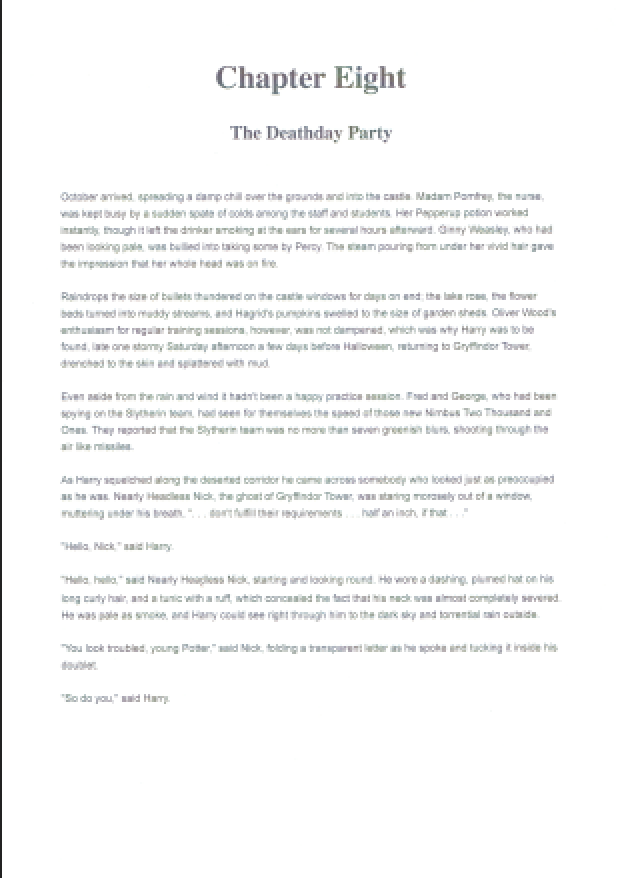
 Document demonstrating precise region-based text extraction using IronOCR's rectangle selection