



How to Read Excel Files in C# Without Interop: Complete Developer Guide

C# ile IronXL kullanarak Excel dosyalarını ustalıkla işleyin — Microsoft Office kurulumu gerektirmeden elektronik tablo verilerini okuyan, doğrulayan ve dışa aktaran güçlü .NET kütüphanesi. Bu kapsamlı öğretici, veri doğrulama, veritabanına dönüştürme ve REST API entegrasyonu dahil olmak üzere pratik Excel işlemlerini gösterir.
Hızlı Başlangıç: IronXL ile Bir Çizgiden Hücre Okuma
Sadece bir satırda, IronXL kullanarak bir Excel çalışma kitabını yükleyebilir ve bir hücrenin değerini alabilirsiniz. Kullanımı kolay olacak şekilde tasarlanmıştır — Interop yok, karmaşık yapılandırma yok — sadece verilerinize hızlı erişim.
-
NuGet Paket Yöneticisi ile https://www.nuget.org/packages/IronXL.Excel yükleyin
PM > Install-Package IronXL.Excel -
Bu kod parçasını kopyalayıp çalıştırın.
var value = IronXL.WorkBook.Load("file.xlsx").GetWorkSheet(0)["A1"].StringValue; -
Canlı ortamınızda test etmek için dağıtın
Bugün projenizde IronXL kullanmaya başlayın ücretsiz deneme ile

IronXL'yi C#'ta Excel Dosyalarını Okuma İçin Nasıl Kurarım?
C# projenizde Excel dosyalarını okumak için IronXL kurmak sadece birkaç dakika sürer. Kutuphanesi, hem .XLS hem de .XLSX formatlarini destekler, bu da onu Excel ile ilgili her turlu gorev icin çok yonlu hale getirir.
Başlamak için bu adımları izleyin:
- C# Kütüphanesini Excel dosyalarını okumak için indirin
WorkBook.Load()kullanarak Excel calisma kitaplarini yukleyin ve okuyunGetWorkSheet()yöntemiyle calisma sayfalarina erisinsheet["A1"].Valuegibi sezgisel bir dil kullanarak hucre degerlerini okuyun- Elektronik tablo verilerini programatik olarak doğrulayın ve işleyin
- Veritabanlarına verileri Entity Framework kullanarak ihraç edin
IronXL, C# ile Microsoft Excel belgelerini okuma ve düzenlemede üstündür. Kütüphane bağımsız çalışır — Microsoft Excel veya Interop'ı çalıştırmak için gerekmez. Aslında, IronXL, Microsoft.Office.Interop.Excel'den daha hızlı ve daha sezgisel bir API sağlar.
IronXL Şunları İçerir:
- .NET mühendislerimizden adanmış ürün desteği
- Microsoft Visual Studio aracılığıyla kolay kurulum
- Geliştirme için ücretsiz deneme testi.
liteLicenselisanslari
C# ve VB.NET'te Excel dosyalarını okumak ve oluşturmak, IronXL yazılım kutuphanesini kullanarak kolaylaşır.
IronXL Kullanarak .XLS ve .XLSX Excel Dosyalarını Okuma
IronXL kullanarak Excel dosyalarını okuma için temel iş akışı şu şekildedir:
- IronXL Excel Kutuphanesi'ni NuGet paketi aracılığıyla yükleyin veya .NET Excel DLL'ini indirin.
- Herhangi bir XLS, XLSX veya CSV belgesini okumak icin
WorkBook.Load()yöntemini kullanin - Sezgisel bir dil kullanarak hucre degerlerine erisin:
sheet["A11"].DecimalValue
:path=/static-assets/excel/content-code-examples/tutorials/how-to-read-excel-file-csharp-1.csusing IronXL;
using System;
using System.Linq;
// Load Excel workbook from file path
WorkBook workBook = WorkBook.Load("test.xlsx");
// Access the first worksheet using LINQ
WorkSheet workSheet = workBook.WorkSheets.First();
// Read integer value from cell A2
int cellValue = workSheet["A2"].IntValue;
Console.WriteLine($"Cell A2 value: {cellValue}");
// Iterate through a range of cells
foreach (var cell in workSheet["A2:A10"])
{
Console.WriteLine("Cell {0} has value '{1}'", cell.AddressString, cell.Text);
}
// Advanced Operations with LINQ
// Calculate sum using built_in Sum() method
decimal sum = workSheet["A2:A10"].Sum();
// Find maximum value using LINQ
decimal max = workSheet["A2:A10"].Max(c => c.DecimalValue);
// Output calculated results
Console.WriteLine($"Sum of A2:A10: {sum}");
Console.WriteLine($"Maximum value: {max}");Imports IronXL
Imports System
Imports System.Linq
' Load Excel workbook from file path
Dim workBook As WorkBook = WorkBook.Load("test.xlsx")
' Access the first worksheet using LINQ
Dim workSheet As WorkSheet = workBook.WorkSheets.First()
' Read integer value from cell A2
Dim cellValue As Integer = workSheet("A2").IntValue
Console.WriteLine($"Cell A2 value: {cellValue}")
' Iterate through a range of cells
For Each cell In workSheet("A2:A10")
Console.WriteLine("Cell {0} has value '{1}'", cell.AddressString, cell.Text)
Next
' Advanced Operations with LINQ
' Calculate sum using built_in Sum() method
Dim sum As Decimal = workSheet("A2:A10").Sum()
' Find maximum value using LINQ
Dim max As Decimal = workSheet("A2:A10").Max(Function(c) c.DecimalValue)
' Output calculated results
Console.WriteLine($"Sum of A2:A10: {sum}")
Console.WriteLine($"Maximum value: {max}")Bu kod, birkaç önemli IronXL özelliğini gösterir: çalışma kitaplarının yüklenmesi, adresle hücrelere erişim, aralıklar üzerinden yineleme ve hesaplamalar yapma. WorkBook.Load() yöntemi dosya formatlarini akilli bir sekilde algilar, ["A2:A10"] menzil sintaksi ise Excel-benzeri hucre secimi saglar. LINQ entegrasyonu, hücre koleksiyonları üzerinde güçlü veri sorguları ve birleştirmeleri sağlar.
Bu eğitimdeki kod örnekleri, farklı veri senaryolarını sergileyen üç örnek Excel elektronik tablosu ile çalışır:
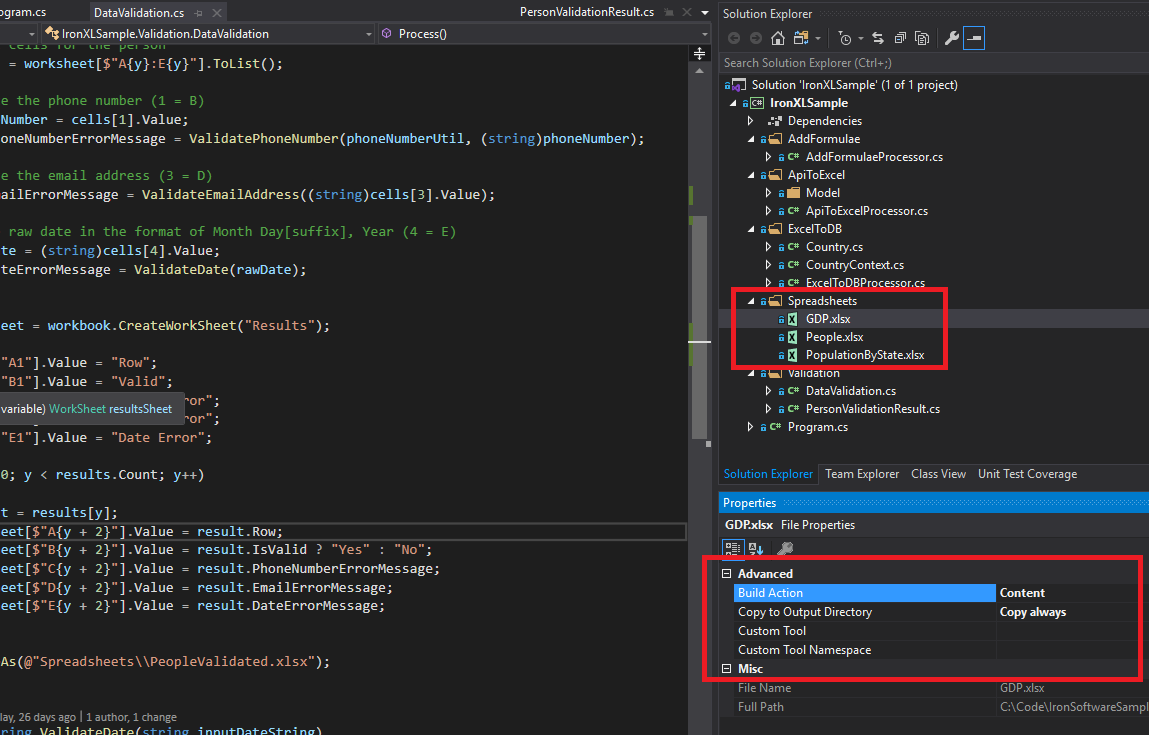 Bu eğitimde kullanılan örnek Excel dosyaları (GDP.xlsx, People.xlsx ve PopulationByState.xlsx), çeşitli IronXL işlemlerini sergilemek için kullanılır.
IronXL C# Kutuphanesini Nasıl Kurabilirim?
IronXL.Excel kutuphanesini yuklemek, .NET framework projelerinize kapsamli Excel islevselligi ekler. NuGet kurulumu veya manuel DLL entegrasyonu arasında seçim yapın.
IronXL NuGet Paketinin Kurulumu
- Visual Studio'da, projenize sağ tıklayın ve "NuGet Paketlerini Yönet..." seçeneğini seçin
- Göz atma sekmesinde "IronXL.Excel" arayın
- Projenize IronXL eklemek için Kur butonuna tıklayın
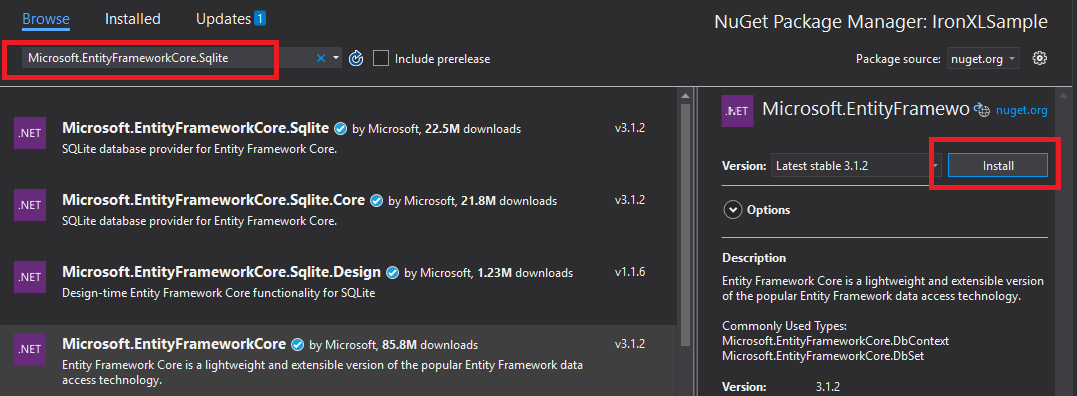 IronXL'i Visual Studio'nun NuGet Paket Yöneticisi aracılığıyla kurmak, otomatik bağımlılık yönetimi sağlar.
Alternatif olarak, Paket Yöneticisi Konsolunu kullanarak IronXL kurun:
- Paket Yöneticisi Konsolunu Açın (Araçlar → NuGet Paket Yöneticisi → Paket Yöneticisi Konsolu)
- Kurulum komutunu çalıştırın:
Install-Package IronXL.Excel
Manuel Kurulum
Manuel kurulum için, IronXL'ın .NET Excel DLL'ini indirin ve doğrudan Visual Studio projenize referans olarak ekleyin.
Excel Çalışma Kitabını Nasıl Yükler ve Okurum?
WorkBook sinifi tüm bir Excel dosyasini temsil eder. Excel dosyalarini yolunu belirterek yukleyen WorkBook.Load() yöntemini kullanarak yukleyin, bu yöntem XLS, XLSX, CSV, ve TSV formatlarini kabul eder.
:path=/static-assets/excel/content-code-examples/tutorials/how-to-read-excel-file-csharp-2.csusing IronXL;
using System;
using System.Linq;
// Load Excel file from specified path
WorkBook workBook = WorkBook.Load(@"Spreadsheets\GDP.xlsx");
Console.WriteLine("Workbook loaded successfully.");
// Access specific worksheet by name
WorkSheet sheet = workBook.GetWorkSheet("Sheet1");
// Read and display cell value
string cellValue = sheet["A1"].StringValue;
Console.WriteLine($"Cell A1 contains: {cellValue}");
// Perform additional operations
// Count non_empty cells in column A
int rowCount = sheet["A:A"].Count(cell => !cell.IsEmpty);
Console.WriteLine($"Column A has {rowCount} non_empty cells");Imports IronXL
Imports System
Imports System.Linq
' Load Excel file from specified path
Dim workBook As WorkBook = WorkBook.Load("Spreadsheets\GDP.xlsx")
Console.WriteLine("Workbook loaded successfully.")
' Access specific worksheet by name
Dim sheet As WorkSheet = workBook.GetWorkSheet("Sheet1")
' Read and display cell value
Dim cellValue As String = sheet("A1").StringValue
Console.WriteLine($"Cell A1 contains: {cellValue}")
' Perform additional operations
' Count non_empty cells in column A
Dim rowCount As Integer = sheet("A:A").Count(Function(cell) Not cell.IsEmpty)
Console.WriteLine($"Column A has {rowCount} non_empty cells")Her WorkBook birden fazla WorkSheet objesi icerir ve bunlar bireysel Excel sayfalarini temsil eder. Calisma sayfalarina isimle erisin GetWorkSheet():
:path=/static-assets/excel/content-code-examples/tutorials/how-to-read-excel-file-csharp-3.csusing IronXL;
using System;
// Get worksheet by name
WorkSheet workSheet = workBook.GetWorkSheet("GDPByCountry");
Console.WriteLine("Worksheet 'GDPByCountry' not found");
// List available worksheets
foreach (var sheet in workBook.WorkSheets)
{
Console.WriteLine($"Available: {sheet.Name}");
}Imports IronXL
Imports System
' Get worksheet by name
Dim workSheet As WorkSheet = workBook.GetWorkSheet("GDPByCountry")
Console.WriteLine("Worksheet 'GDPByCountry' not found")
' List available worksheets
For Each sheet In workBook.WorkSheets
Console.WriteLine($"Available: {sheet.Name}")
NextC# ile Yeni Excel Belgeleri Nasıl Oluşturulur?
Istediğiniz dosya formatı ile yeni Excel belgeleri oluşturmak icin bir WorkBook objesi oluşturun. IronXL hem modern XLSX hem de eski XLS formatlarını destekler.
:path=/static-assets/excel/content-code-examples/tutorials/how-to-read-excel-file-csharp-4.csusing IronXL;
// Create new XLSX workbook (recommended format)
WorkBook workBook = WorkBook.Create(ExcelFileFormat.XLSX);
// Set workbook metadata
workBook.Metadata.Author = "Your Application";
workBook.Metadata.Comments = "Generated by IronXL";
// Create new XLS workbook for legacy support
WorkBook legacyWorkBook = WorkBook.Create(ExcelFileFormat.XLS);
// Save the workbook
workBook.SaveAs("NewDocument.xlsx");Imports IronXL
' Create new XLSX workbook (recommended format)
Private workBook As WorkBook = WorkBook.Create(ExcelFileFormat.XLSX)
' Set workbook metadata
workBook.Metadata.Author = "Your Application"
workBook.Metadata.Comments = "Generated by IronXL"
' Create new XLS workbook for legacy support
Dim legacyWorkBook As WorkBook = WorkBook.Create(ExcelFileFormat.XLS)
' Save the workbook
workBook.SaveAs("NewDocument.xlsx")Not: Sadece Excel 2003 ve daha onceki surumlerle uyumluluk gerekli oldugunda ExcelFileFormat.XLS kullanin.
Excel Dokümanına Nasıl Sayfa Eklenir?
Bir IronXL WorkBook bir dizi calisma sayfasi toplulugu icerir. Bu yapıyı anlamak, çok sayfalı Excel dosyaları oluştururken önemlidir.
 IronXL'deki birden fazla Çalışma Sayfası nesnesi içeren Çalışma Kitabı yapısının görsel temsili.
CreateWorkSheet() kullanarak yeni calisma sayfalari oluşturun:
:path=/static-assets/excel/content-code-examples/tutorials/how-to-read-excel-file-csharp-5.csusing IronXL;
// Create multiple worksheets with descriptive names
WorkSheet summarySheet = workBook.CreateWorkSheet("Summary");
WorkSheet dataSheet = workBook.CreateWorkSheet("RawData");
WorkSheet chartSheet = workBook.CreateWorkSheet("Charts");
// Set the active worksheet
workBook.SetActiveTab(0); // Makes "Summary" the active sheet
// Access default worksheet (first sheet)
WorkSheet defaultSheet = workBook.DefaultWorkSheet;Imports IronXL
' Create multiple worksheets with descriptive names
Dim summarySheet As WorkSheet = workBook.CreateWorkSheet("Summary")
Dim dataSheet As WorkSheet = workBook.CreateWorkSheet("RawData")
Dim chartSheet As WorkSheet = workBook.CreateWorkSheet("Charts")
' Set the active worksheet
workBook.SetActiveTab(0) ' Makes "Summary" the active sheet
' Access default worksheet (first sheet)
Dim defaultSheet As WorkSheet = workBook.DefaultWorkSheetHücre Değerlerini Nasıl Okur ve Düzenlerim?
Tek Bir Hücreyi Oku ve Düzenle
Individual hücrelere, sayfanın indeksleyici özelliği üzerinden erişim sağlayın. IronXL'nin Cell sinifi guclu tiplenmis değer özellikleri sunar.
:path=/static-assets/excel/content-code-examples/tutorials/how-to-read-excel-file-csharp-6.csusing IronXL;
using System;
using System.Linq;
// Load workbook and get worksheet
WorkBook workBook = WorkBook.Load("test.xlsx");
WorkSheet workSheet = workBook.DefaultWorkSheet;
// Access cell B1
IronXL.Cell cell = workSheet["B1"].First();
// Read cell value with type safety
string textValue = cell.StringValue;
int intValue = cell.IntValue;
decimal decimalValue = cell.DecimalValue;
DateTime? dateValue = cell.DateTimeValue;
// Check cell data type
if (cell.IsNumeric)
{
Console.WriteLine($"Numeric value: {cell.DecimalValue}");
}
else if (cell.IsText)
{
Console.WriteLine($"Text value: {cell.StringValue}");
}Imports IronXL
Imports System
Imports System.Linq
' Load workbook and get worksheet
Dim workBook As WorkBook = WorkBook.Load("test.xlsx")
Dim workSheet As WorkSheet = workBook.DefaultWorkSheet
' Access cell B1
Dim cell As IronXL.Cell = workSheet("B1").First()
' Read cell value with type safety
Dim textValue As String = cell.StringValue
Dim intValue As Integer = cell.IntValue
Dim decimalValue As Decimal = cell.DecimalValue
Dim dateValue As DateTime? = cell.DateTimeValue
' Check cell data type
If cell.IsNumeric Then
Console.WriteLine($"Numeric value: {cell.DecimalValue}")
ElseIf cell.IsText Then
Console.WriteLine($"Text value: {cell.StringValue}")
End IfCell sinifi farkli veri tipleri icin cikartilmis bircok özellik sunar ve mumkun oldugunda degerleri otomatik olarak dönüştürur. Daha fazla hücre işlemi için Hücre biçimlendirme eğitimine bakın.
:path=/static-assets/excel/content-code-examples/tutorials/how-to-read-excel-file-csharp-7.cs// Write different data types to cells
workSheet["A1"].Value = "Product Name"; // String
workSheet["B1"].Value = 99.95m; // Decimal
workSheet["C1"].Value = DateTime.Today; // Date
workSheet["D1"].Formula = "=B1*1.2"; // Formula
// Format cells
workSheet["B1"].FormatString = "$#,##0.00"; // Currency format
workSheet["C1"].FormatString = "yyyy-MM-dd";// Date format
// Save changes
workBook.Save();' Write different data types to cells
workSheet("A1").Value = "Product Name" ' String
workSheet("B1").Value = 99.95D ' Decimal
workSheet("C1").Value = DateTime.Today ' Date
workSheet("D1").Formula = "=B1*1.2" ' Formula
' Format cells
workSheet("B1").FormatString = "$#,##0.00" ' Currency format
workSheet("C1").FormatString = "yyyy-MM-dd" ' Date format
' Save changes
workBook.Save()Hücre Aralıklarını Nasıl Kullanabilirim?
Range sinifi bir hucre koleksiyonunu temsil eder ve Excel verilerinde toplu işlem yapma imkan sağlar.
:path=/static-assets/excel/content-code-examples/tutorials/how-to-read-excel-file-csharp-8.csusing IronXL;
using Range = IronXL.Range;
// Select range using Excel notation
Range range = workSheet["D2:D101"];
// Alternative: Use Range class for dynamic selection
Range dynamicRange = workSheet.GetRange("D2:D101"); // Row 2_101, Column D
// Perform bulk operations
range.Value = 0; // Set all cells to 0Imports IronXL
' Select range using Excel notation
Dim range As Range = workSheet("D2:D101")
' Alternative: Use Range class for dynamic selection
Dim dynamicRange As Range = workSheet.GetRange("D2:D101") ' Row 2_101, Column D
' Perform bulk operations
range.Value = 0 ' Set all cells to 0Hücre sayısı bilindiğinde aralıkları döngüler kullanarak verimli bir şekilde işleyin:
// Data validation example
public class ValidationResult
{
    public int Row { get; set; }
    public string PhoneError { get; set; }
    public string EmailError { get; set; }
    public string DateError { get; set; }
    public bool IsValid => string.IsNullOrEmpty(PhoneError) &&
                           string.IsNullOrEmpty(EmailError) &&
                           string.IsNullOrEmpty(DateError);
}

// Validate data in rows 2-101
var results = new List<ValidationResult>();

for (int row = 2; row <= 101; row++)
{
    var result = new ValidationResult { Row = row };

    // Get row data efficiently
    var phoneCell = workSheet[$"B{row}"];
    var emailCell = workSheet[$"D{row}"];
    var dateCell = workSheet[$"E{row}"];

    // Validate phone number
    if (!IsValidPhoneNumber(phoneCell.StringValue))
        result.PhoneError = "Invalid phone format";

    // Validate email
    if (!IsValidEmail(emailCell.StringValue))
        result.EmailError = "Invalid email format";

    // Validate date
    if (!dateCell.IsDateTime)
        result.DateError = "Invalid date format";

    results.Add(result);
}

// Helper methods
bool IsValidPhoneNumber(string phone) =>
    System.Text.RegularExpressions.Regex.IsMatch(phone, @"^\d{3}-\d{3}-\d{4}$");

bool IsValidEmail(string email) =>
    email.Contains("@") && email.Contains(".");
// Data validation example
public class ValidationResult
{
public int Row { get; set; }
public string PhoneError { get; set; }
public string EmailError { get; set; }
public string DateError { get; set; }
public bool IsValid => string.IsNullOrEmpty(PhoneError) &&
string.IsNullOrEmpty(EmailError) &&
string.IsNullOrEmpty(DateError);
}
// Validate data in rows 2-101
var results = new List<ValidationResult>();
for (int row = 2; row <= 101; row++)
{
var result = new ValidationResult { Row = row };
// Get row data efficiently
var phoneCell = workSheet[$"B{row}"];
var emailCell = workSheet[$"D{row}"];
var dateCell = workSheet[$"E{row}"];
// Validate phone number
if (!IsValidPhoneNumber(phoneCell.StringValue))
result.PhoneError = "Invalid phone format";
// Validate email
if (!IsValidEmail(emailCell.StringValue))
result.EmailError = "Invalid email format";
// Validate date
if (!dateCell.IsDateTime)
result.DateError = "Invalid date format";
results.Add(result);
}
// Helper methods
bool IsValidPhoneNumber(string phone) =>
System.Text.RegularExpressions.Regex.IsMatch(phone, @"^\d{3}-\d{3}-\d{4}$");
bool IsValidEmail(string email) =>
email.Contains("@") && email.Contains(".");' Data validation example
Public Class ValidationResult
Public Property Row() As Integer
Public Property PhoneError() As String
Public Property EmailError() As String
Public Property DateError() As String
Public ReadOnly Property IsValid() As Boolean
Get
Return String.IsNullOrEmpty(PhoneError) AndAlso String.IsNullOrEmpty(EmailError) AndAlso String.IsNullOrEmpty(DateError)
End Get
End Property
End Class
' Validate data in rows 2-101
Private results = New List(Of ValidationResult)()
For row As Integer = 2 To 101
Dim result = New ValidationResult With {.Row = row}
' Get row data efficiently
Dim phoneCell = workSheet($"B{row}")
Dim emailCell = workSheet($"D{row}")
Dim dateCell = workSheet($"E{row}")
' Validate phone number
If Not IsValidPhoneNumber(phoneCell.StringValue) Then
result.PhoneError = "Invalid phone format"
End If
' Validate email
If Not IsValidEmail(emailCell.StringValue) Then
result.EmailError = "Invalid email format"
End If
' Validate date
If Not dateCell.IsDateTime Then
result.DateError = "Invalid date format"
End If
results.Add(result)
Next row
' Helper methods
'INSTANT VB TODO TASK: Local functions are not converted by Instant VB:
'bool IsValidPhoneNumber(string phone)
'{
' Return System.Text.RegularExpressions.Regex.IsMatch(phone, "^\d{3}-\d{3}-\d{4}$");
'}
'INSTANT VB TODO TASK: Local functions are not converted by Instant VB:
'bool IsValidEmail(string email)
'{
' Return email.Contains("@") && email.Contains(".");
'}Excel Elektronik Tablolarına Nasıl Formül Eklenir?
Excel formulleri uygulamak icin Formula ozelligini kullanın. IronXL standart Excel formül sözdizimini destekler.
:path=/static-assets/excel/content-code-examples/tutorials/how-to-read-excel-file-csharp-9.csusing IronXL;
// Add formulas to calculate percentages
int lastRow = 50;
for (int row = 2; row < lastRow; row++)
{
// Calculate percentage: current value / total
workSheet[$"C{row}"].Formula = $"=B{row}/B{lastRow}";
// Format as percentage
workSheet[$"C{row}"].FormatString = "0.00%";
}
// Add summary formulas
workSheet["B52"].Formula = "=SUM(B2:B50)"; // Sum
workSheet["B53"].Formula = "=AVERAGE(B2:B50)"; // Average
workSheet["B54"].Formula = "=MAX(B2:B50)"; // Maximum
workSheet["B55"].Formula = "=MIN(B2:B50)"; // Minimum
// Force formula evaluation
workBook.EvaluateAll();Imports IronXL
' Add formulas to calculate percentages
Dim lastRow As Integer = 50
For row As Integer = 2 To lastRow - 1
' Calculate percentage: current value / total
workSheet($"C{row}").Formula = $"=B{row}/B{lastRow}"
' Format as percentage
workSheet($"C{row}").FormatString = "0.00%"
Next
' Add summary formulas
workSheet("B52").Formula = "=SUM(B2:B50)" ' Sum
workSheet("B53").Formula = "=AVERAGE(B2:B50)" ' Average
workSheet("B54").Formula = "=MAX(B2:B50)" ' Maximum
workSheet("B55").Formula = "=MIN(B2:B50)" ' Minimum
' Force formula evaluation
workBook.EvaluateAll()Mevcut formülleri düzenlemek için Excel formülleri eğitimini keşfedin.
Elektronik Tablo Verilerini Nasıl Doğrularım?
IronXL, elektronik tablolar için kapsamlı veri doğrulama sağlar. Bu örnek, telefon numaralarını, e-postaları ve tarihleri harici kutuphaneler ve yerleşik C# işlevselliği kullanarak doğrular.
using System.Text.RegularExpressions;
using IronXL;

// Validation implementation
for (int i = 2; i <= 101; i++)
{
    var result = new PersonValidationResult { Row = i };
    results.Add(result);

    // Get cells for current person
    var cells = workSheet[$"A{i}:E{i}"].ToList();

    // Validate phone (column B)
    string phone = cells[1].StringValue;
    if (!Regex.IsMatch(phone, @"^\+?1?\d{10,14}$"))
    {
        result.PhoneNumberErrorMessage = "Invalid phone format";
    }

    // Validate email (column D)
    string email = cells[3].StringValue;
    if (!Regex.IsMatch(email, @"^[^@\s]+@[^@\s]+\.[^@\s]+$"))
    {
        result.EmailErrorMessage = "Invalid email address";
    }

    // Validate date (column E)
    if (!cells[4].IsDateTime)
    {
        result.DateErrorMessage = "Invalid date format";
    }
}
using System.Text.RegularExpressions;
using IronXL;
// Validation implementation
for (int i = 2; i <= 101; i++)
{
var result = new PersonValidationResult { Row = i };
results.Add(result);
// Get cells for current person
var cells = workSheet[$"A{i}:E{i}"].ToList();
// Validate phone (column B)
string phone = cells[1].StringValue;
if (!Regex.IsMatch(phone, @"^\+?1?\d{10,14}$"))
{
result.PhoneNumberErrorMessage = "Invalid phone format";
}
// Validate email (column D)
string email = cells[3].StringValue;
if (!Regex.IsMatch(email, @"^[^@\s]+@[^@\s]+\.[^@\s]+$"))
{
result.EmailErrorMessage = "Invalid email address";
}
// Validate date (column E)
if (!cells[4].IsDateTime)
{
result.DateErrorMessage = "Invalid date format";
}
}Imports System.Text.RegularExpressions
Imports IronXL
' Validation implementation
For i As Integer = 2 To 101
Dim result = New PersonValidationResult With {.Row = i}
results.Add(result)
' Get cells for current person
Dim cells = workSheet($"A{i}:E{i}").ToList()
' Validate phone (column B)
Dim phone As String = cells(1).StringValue
If Not Regex.IsMatch(phone, "^\+?1?\d{10,14}$") Then
result.PhoneNumberErrorMessage = "Invalid phone format"
End If
' Validate email (column D)
Dim email As String = cells(3).StringValue
If Not Regex.IsMatch(email, "^[^@\s]+@[^@\s]+\.[^@\s]+$") Then
result.EmailErrorMessage = "Invalid email address"
End If
' Validate date (column E)
If Not cells(4).IsDateTime Then
result.DateErrorMessage = "Invalid date format"
End If
Next iDoğrulama sonuçlarını yeni bir sayfaya kaydedin:
// Create results worksheet
var resultsSheet = workBook.CreateWorkSheet("ValidationResults");

// Add headers
resultsSheet["A1"].Value = "Row";
resultsSheet["B1"].Value = "Valid";
resultsSheet["C1"].Value = "Phone Error";
resultsSheet["D1"].Value = "Email Error";
resultsSheet["E1"].Value = "Date Error";

// Style headers
resultsSheet["A1:E1"].Style.Font.Bold = true;
resultsSheet["A1:E1"].Style.SetBackgroundColor("#4472C4");
resultsSheet["A1:E1"].Style.Font.Color = "#FFFFFF";

// Output validation results
for (int i = 0; i < results.Count; i++)
{
    var result = results[i];
    int outputRow = i + 2;

    resultsSheet[$"A{outputRow}"].Value = result.Row;
    resultsSheet[$"B{outputRow}"].Value = result.IsValid ? "Yes" : "No";
    resultsSheet[$"C{outputRow}"].Value = result.PhoneNumberErrorMessage ?? "";
    resultsSheet[$"D{outputRow}"].Value = result.EmailErrorMessage ?? "";
    resultsSheet[$"E{outputRow}"].Value = result.DateErrorMessage ?? "";

    // Highlight invalid rows
    if (!result.IsValid)
    {
        resultsSheet[$"A{outputRow}:E{outputRow}"].Style.SetBackgroundColor("#FFE6E6");
    }
}

// Auto-fit columns
for (int col = 0; col < 5; col++)
{
    resultsSheet.AutoSizeColumn(col);
}

// Save validated workbook
workBook.SaveAs(@"Spreadsheets\PeopleValidated.xlsx");
// Create results worksheet
var resultsSheet = workBook.CreateWorkSheet("ValidationResults");
// Add headers
resultsSheet["A1"].Value = "Row";
resultsSheet["B1"].Value = "Valid";
resultsSheet["C1"].Value = "Phone Error";
resultsSheet["D1"].Value = "Email Error";
resultsSheet["E1"].Value = "Date Error";
// Style headers
resultsSheet["A1:E1"].Style.Font.Bold = true;
resultsSheet["A1:E1"].Style.SetBackgroundColor("#4472C4");
resultsSheet["A1:E1"].Style.Font.Color = "#FFFFFF";
// Output validation results
for (int i = 0; i < results.Count; i++)
{
var result = results[i];
int outputRow = i + 2;
resultsSheet[$"A{outputRow}"].Value = result.Row;
resultsSheet[$"B{outputRow}"].Value = result.IsValid ? "Yes" : "No";
resultsSheet[$"C{outputRow}"].Value = result.PhoneNumberErrorMessage ?? "";
resultsSheet[$"D{outputRow}"].Value = result.EmailErrorMessage ?? "";
resultsSheet[$"E{outputRow}"].Value = result.DateErrorMessage ?? "";
// Highlight invalid rows
if (!result.IsValid)
{
resultsSheet[$"A{outputRow}:E{outputRow}"].Style.SetBackgroundColor("#FFE6E6");
}
}
// Auto-fit columns
for (int col = 0; col < 5; col++)
{
resultsSheet.AutoSizeColumn(col);
}
// Save validated workbook
workBook.SaveAs(@"Spreadsheets\PeopleValidated.xlsx");' Create results worksheet
Dim resultsSheet = workBook.CreateWorkSheet("ValidationResults")
' Add headers
resultsSheet("A1").Value = "Row"
resultsSheet("B1").Value = "Valid"
resultsSheet("C1").Value = "Phone Error"
resultsSheet("D1").Value = "Email Error"
resultsSheet("E1").Value = "Date Error"
' Style headers
resultsSheet("A1:E1").Style.Font.Bold = True
resultsSheet("A1:E1").Style.SetBackgroundColor("#4472C4")
resultsSheet("A1:E1").Style.Font.Color = "#FFFFFF"
' Output validation results
For i As Integer = 0 To results.Count - 1
Dim result = results(i)
Dim outputRow As Integer = i + 2
resultsSheet($"A{outputRow}").Value = result.Row
resultsSheet($"B{outputRow}").Value = If(result.IsValid, "Yes", "No")
resultsSheet($"C{outputRow}").Value = If(result.PhoneNumberErrorMessage, "")
resultsSheet($"D{outputRow}").Value = If(result.EmailErrorMessage, "")
resultsSheet($"E{outputRow}").Value = If(result.DateErrorMessage, "")
' Highlight invalid rows
If Not result.IsValid Then
resultsSheet($"A{outputRow}:E{outputRow}").Style.SetBackgroundColor("#FFE6E6")
End If
Next i
' Auto-fit columns
For col As Integer = 0 To 4
resultsSheet.AutoSizeColumn(col)
Next col
' Save validated workbook
workBook.SaveAs("Spreadsheets\PeopleValidated.xlsx")Excel Verilerini Nasıl Bir Veritabanına Aktarırım?
IronXL'yi Entity Framework ile kullanarak elektronik tablo verilerini doğrudan veritabanlarına aktarın. Bu örnek, ülke GSYİH verilerini SQLite'a aktarmayı gösterir.
using System;
using System.ComponentModel.DataAnnotations;
using Microsoft.EntityFrameworkCore;
using IronXL;

// Define entity model
public class Country
{
    [Key]
    public Guid Id { get; set; } = Guid.NewGuid();

    [Required]
    [MaxLength(100)]
    public string Name { get; set; }

    [Range(0, double.MaxValue)]
    public decimal GDP { get; set; }

    public DateTime ImportedDate { get; set; } = DateTime.UtcNow;
}
using System;
using System.ComponentModel.DataAnnotations;
using Microsoft.EntityFrameworkCore;
using IronXL;
// Define entity model
public class Country
{
[Key]
public Guid Id { get; set; } = Guid.NewGuid();
[Required]
[MaxLength(100)]
public string Name { get; set; }
[Range(0, double.MaxValue)]
public decimal GDP { get; set; }
public DateTime ImportedDate { get; set; } = DateTime.UtcNow;
}Imports System
Imports System.ComponentModel.DataAnnotations
Imports Microsoft.EntityFrameworkCore
Imports IronXL
' Define entity model
Public Class Country
<Key>
Public Property Id() As Guid = Guid.NewGuid()
<Required>
<MaxLength(100)>
Public Property Name() As String
<Range(0, Double.MaxValue)>
Public Property GDP() As Decimal
Public Property ImportedDate() As DateTime = DateTime.UtcNow
End ClassVeritabanı işlemleri için Entity Framework bağlamını yapılandırın:
public class CountryContext : DbContext
{
    public DbSet<Country> Countries { get; set; }

    protected override void OnConfiguring(DbContextOptionsBuilder optionsBuilder)
    {
        // Configure SQLite connection
        optionsBuilder.UseSqlite("Data Source=CountryGDP.db");

        // Enable sensitive data logging in development
        #if DEBUG
        optionsBuilder.EnableSensitiveDataLogging();
        #endif
    }

    protected override void OnModelCreating(ModelBuilder modelBuilder)
    {
        // Configure decimal precision
        modelBuilder.Entity<Country>()
            .Property(c => c.GDP)
            .HasPrecision(18, 2);
    }
}
public class CountryContext : DbContext
{
public DbSet<Country> Countries { get; set; }
protected override void OnConfiguring(DbContextOptionsBuilder optionsBuilder)
{
// Configure SQLite connection
optionsBuilder.UseSqlite("Data Source=CountryGDP.db");
// Enable sensitive data logging in development
#if DEBUG
optionsBuilder.EnableSensitiveDataLogging();
#endif
}
protected override void OnModelCreating(ModelBuilder modelBuilder)
{
// Configure decimal precision
modelBuilder.Entity<Country>()
.Property(c => c.GDP)
.HasPrecision(18, 2);
}
}Public Class CountryContext
Inherits DbContext
Public Property Countries() As DbSet(Of Country)
Protected Overrides Sub OnConfiguring(ByVal optionsBuilder As DbContextOptionsBuilder)
' Configure SQLite connection
optionsBuilder.UseSqlite("Data Source=CountryGDP.db")
' Enable sensitive data logging in development
#If DEBUG Then
optionsBuilder.EnableSensitiveDataLogging()
#End If
End Sub
Protected Overrides Sub OnModelCreating(ByVal modelBuilder As ModelBuilder)
' Configure decimal precision
modelBuilder.Entity(Of Country)().Property(Function(c) c.GDP).HasPrecision(18, 2)
End Sub
End ClassMicrosoft.EntityFrameworkCore.SqlServer) yükleyin ve bağlantı yapılandırmasıni buna göre değiştirin.Excel verilerini veritabanına aktarın:
using System.Threading.Tasks;
using IronXL;
using Microsoft.EntityFrameworkCore;

public async Task ImportGDPDataAsync()
{
    try
    {
        // Load Excel file
        var workBook = WorkBook.Load(@"Spreadsheets\GDP.xlsx");
        var workSheet = workBook.GetWorkSheet("GDPByCountry");

        using (var context = new CountryContext())
        {
            // Ensure database exists
            await context.Database.EnsureCreatedAsync();

            // Clear existing data (optional)
            await context.Database.ExecuteSqlRawAsync("DELETE FROM Countries");

            // Import data with progress tracking
            int totalRows = 213;
            for (int row = 2; row <= totalRows; row++)
            {
                // Read country data
                var countryName = workSheet[$"A{row}"].StringValue;
                var gdpValue = workSheet[$"B{row}"].DecimalValue;

                // Skip empty rows
                if (string.IsNullOrWhiteSpace(countryName))
                    continue;

                // Create and add entity
                var country = new Country
                {
                    Name = countryName.Trim(),
                    GDP = gdpValue * 1_000_000 // Convert to actual value if in millions
                };

                await context.Countries.AddAsync(country);

                // Save in batches for performance
                if (row % 50 == 0)
                {
                    await context.SaveChangesAsync();
                    Console.WriteLine($"Imported {row - 1} of {totalRows} countries");
                }
            }

            // Save remaining records
            await context.SaveChangesAsync();
            Console.WriteLine($"Successfully imported {await context.Countries.CountAsync()} countries");
        }
    }
    catch (Exception ex)
    {
        Console.WriteLine($"Import failed: {ex.Message}");
        throw;
    }
}
using System.Threading.Tasks;
using IronXL;
using Microsoft.EntityFrameworkCore;
public async Task ImportGDPDataAsync()
{
try
{
// Load Excel file
var workBook = WorkBook.Load(@"Spreadsheets\GDP.xlsx");
var workSheet = workBook.GetWorkSheet("GDPByCountry");
using (var context = new CountryContext())
{
// Ensure database exists
await context.Database.EnsureCreatedAsync();
// Clear existing data (optional)
await context.Database.ExecuteSqlRawAsync("DELETE FROM Countries");
// Import data with progress tracking
int totalRows = 213;
for (int row = 2; row <= totalRows; row++)
{
// Read country data
var countryName = workSheet[$"A{row}"].StringValue;
var gdpValue = workSheet[$"B{row}"].DecimalValue;
// Skip empty rows
if (string.IsNullOrWhiteSpace(countryName))
continue;
// Create and add entity
var country = new Country
{
Name = countryName.Trim(),
GDP = gdpValue * 1_000_000 // Convert to actual value if in millions
};
await context.Countries.AddAsync(country);
// Save in batches for performance
if (row % 50 == 0)
{
await context.SaveChangesAsync();
Console.WriteLine($"Imported {row - 1} of {totalRows} countries");
}
}
// Save remaining records
await context.SaveChangesAsync();
Console.WriteLine($"Successfully imported {await context.Countries.CountAsync()} countries");
}
}
catch (Exception ex)
{
Console.WriteLine($"Import failed: {ex.Message}");
throw;
}
}Imports System.Threading.Tasks
Imports IronXL
Imports Microsoft.EntityFrameworkCore
Public Async Function ImportGDPDataAsync() As Task
Try
' Load Excel file
Dim workBook = WorkBook.Load("Spreadsheets\GDP.xlsx")
Dim workSheet = workBook.GetWorkSheet("GDPByCountry")
Using context = New CountryContext()
' Ensure database exists
Await context.Database.EnsureCreatedAsync()
' Clear existing data (optional)
Await context.Database.ExecuteSqlRawAsync("DELETE FROM Countries")
' Import data with progress tracking
Dim totalRows As Integer = 213
Dim row As Integer = 2
Do While row <= totalRows
' Read country data
Dim countryName = workSheet($"A{row}").StringValue
Dim gdpValue = workSheet($"B{row}").DecimalValue
' Skip empty rows
If String.IsNullOrWhiteSpace(countryName) Then
row += 1
Continue Do
End If
' Create and add entity
Dim country As New Country With {
.Name = countryName.Trim(),
.GDP = gdpValue * 1_000_000
}
Await context.Countries.AddAsync(country)
' Save in batches for performance
If row Mod 50 = 0 Then
Await context.SaveChangesAsync()
Console.WriteLine($"Imported {row - 1} of {totalRows} countries")
End If
row += 1
Loop
' Save remaining records
Await context.SaveChangesAsync()
Console.WriteLine($"Successfully imported {Await context.Countries.CountAsync()} countries")
End Using
Catch ex As Exception
Console.WriteLine($"Import failed: {ex.Message}")
Throw
End Try
End FunctionAPI Verilerini Excel Elektronik Tablolarına Nasıl İçe Aktarırım?
IronXL'yi HTTP istemcileri ile birleştirin ve canlı API verileri ile elektronik tabloları doldurun. Bu örnek, RestClient.Net kullanarak ülke verilerini getirir.
using System;
using System.Collections.Generic;
using System.Net.Http;
using System.Threading.Tasks;
using Newtonsoft.Json;
using IronXL;

// Define data model matching API response
public class RestCountry
{
    public string Name { get; set; }
    public long Population { get; set; }
    public string Region { get; set; }
    public string NumericCode { get; set; }
    public List<Language> Languages { get; set; }
}

public class Language
{
    public string Name { get; set; }
    public string NativeName { get; set; }
}

// Fetch and process API data
public async Task ImportCountryDataAsync()
{
    using var httpClient = new HttpClient();

    try
    {
        // Call REST API
        var response = await httpClient.GetStringAsync("https://restcountries.com/v3.1/all");
        var countries = JsonConvert.DeserializeObject<List<RestCountry>>(response);

        // Create new workbook
        var workBook = WorkBook.Create(ExcelFileFormat.XLSX);
        var workSheet = workBook.CreateWorkSheet("Countries");

        // Add headers with styling
        string[] headers = { "Country", "Population", "Region", "Code", "Language 1", "Language 2", "Language 3" };
        for (int col = 0; col < headers.Length; col++)
        {
            var headerCell = workSheet[0, col];
            headerCell.Value = headers[col];
            headerCell.Style.Font.Bold = true;
            headerCell.Style.SetBackgroundColor("#366092");
            headerCell.Style.Font.Color = "#FFFFFF";
        }

        // Import country data
        await ProcessCountryData(countries, workSheet);

        // Save workbook
        workBook.SaveAs("CountriesFromAPI.xlsx");
    }
    catch (Exception ex)
    {
        Console.WriteLine($"API import failed: {ex.Message}");
    }
}
using System;
using System.Collections.Generic;
using System.Net.Http;
using System.Threading.Tasks;
using Newtonsoft.Json;
using IronXL;
// Define data model matching API response
public class RestCountry
{
public string Name { get; set; }
public long Population { get; set; }
public string Region { get; set; }
public string NumericCode { get; set; }
public List<Language> Languages { get; set; }
}
public class Language
{
public string Name { get; set; }
public string NativeName { get; set; }
}
// Fetch and process API data
public async Task ImportCountryDataAsync()
{
using var httpClient = new HttpClient();
try
{
// Call REST API
var response = await httpClient.GetStringAsync("https://restcountries.com/v3.1/all");
var countries = JsonConvert.DeserializeObject<List<RestCountry>>(response);
// Create new workbook
var workBook = WorkBook.Create(ExcelFileFormat.XLSX);
var workSheet = workBook.CreateWorkSheet("Countries");
// Add headers with styling
string[] headers = { "Country", "Population", "Region", "Code", "Language 1", "Language 2", "Language 3" };
for (int col = 0; col < headers.Length; col++)
{
var headerCell = workSheet[0, col];
headerCell.Value = headers[col];
headerCell.Style.Font.Bold = true;
headerCell.Style.SetBackgroundColor("#366092");
headerCell.Style.Font.Color = "#FFFFFF";
}
// Import country data
await ProcessCountryData(countries, workSheet);
// Save workbook
workBook.SaveAs("CountriesFromAPI.xlsx");
}
catch (Exception ex)
{
Console.WriteLine($"API import failed: {ex.Message}");
}
}Imports System
Imports System.Collections.Generic
Imports System.Net.Http
Imports System.Threading.Tasks
Imports Newtonsoft.Json
Imports IronXL
' Define data model matching API response
Public Class RestCountry
Public Property Name() As String
Public Property Population() As Long
Public Property Region() As String
Public Property NumericCode() As String
Public Property Languages() As List(Of Language)
End Class
Public Class Language
Public Property Name() As String
Public Property NativeName() As String
End Class
' Fetch and process API data
Public Async Function ImportCountryDataAsync() As Task
Dim httpClient As New HttpClient()
Try
' Call REST API
Dim response = Await httpClient.GetStringAsync("https://restcountries.com/v3.1/all")
Dim countries = JsonConvert.DeserializeObject(Of List(Of RestCountry))(response)
' Create new workbook
Dim workBook = WorkBook.Create(ExcelFileFormat.XLSX)
Dim workSheet = workBook.CreateWorkSheet("Countries")
' Add headers with styling
Dim headers() As String = { "Country", "Population", "Region", "Code", "Language 1", "Language 2", "Language 3" }
For col As Integer = 0 To headers.Length - 1
Dim headerCell = workSheet(0, col)
headerCell.Value = headers(col)
headerCell.Style.Font.Bold = True
headerCell.Style.SetBackgroundColor("#366092")
headerCell.Style.Font.Color = "#FFFFFF"
Next col
' Import country data
Await ProcessCountryData(countries, workSheet)
' Save workbook
workBook.SaveAs("CountriesFromAPI.xlsx")
Catch ex As Exception
Console.WriteLine($"API import failed: {ex.Message}")
End Try
End FunctionAPI, JSON verilerini bu formatta döner:
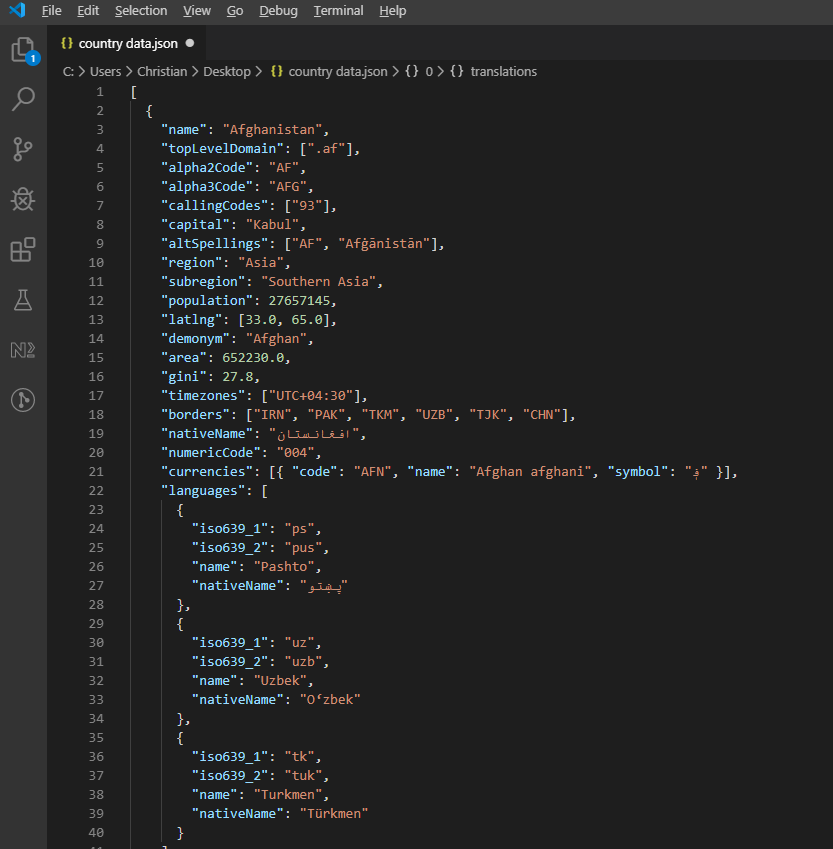 REST Countries API'sinden gelen ve ülke bilgilerini hiyerarşik olarak gösteren örnek JSON yanıtı.
API verilerini işleyin ve Excel'e yazın:
private async Task ProcessCountryData(List<RestCountry> countries, WorkSheet workSheet)
{
    for (int i = 0; i < countries.Count; i++)
    {
        var country = countries[i];
        int row = i + 1; // Start from row 1 (after headers)

        // Write basic country data
        workSheet[$"A{row}"].Value = country.Name;
        workSheet[$"B{row}"].Value = country.Population;
        workSheet[$"C{row}"].Value = country.Region;
        workSheet[$"D{row}"].Value = country.NumericCode;

        // Format population with thousands separator
        workSheet[$"B{row}"].FormatString = "#,##0";

        // Add up to 3 languages
        for (int langIndex = 0; langIndex < Math.Min(3, country.Languages?.Count ?? 0); langIndex++)
        {
            var language = country.Languages[langIndex];
            string columnLetter = ((char)('E' + langIndex)).ToString();
            workSheet[$"{columnLetter}{row}"].Value = language.Name;
        }

        // Add conditional formatting for regions
        if (country.Region == "Europe")
        {
            workSheet[$"C{row}"].Style.SetBackgroundColor("#E6F3FF");
        }
        else if (country.Region == "Asia")
        {
            workSheet[$"C{row}"].Style.SetBackgroundColor("#FFF2E6");
        }

        // Show progress every 50 countries
        if (i % 50 == 0)
        {
            Console.WriteLine($"Processed {i} of {countries.Count} countries");
        }
    }

    // Auto-size all columns
    for (int col = 0; col < 7; col++)
    {
        workSheet.AutoSizeColumn(col);
    }
}
private async Task ProcessCountryData(List<RestCountry> countries, WorkSheet workSheet)
{
for (int i = 0; i < countries.Count; i++)
{
var country = countries[i];
int row = i + 1; // Start from row 1 (after headers)
// Write basic country data
workSheet[$"A{row}"].Value = country.Name;
workSheet[$"B{row}"].Value = country.Population;
workSheet[$"C{row}"].Value = country.Region;
workSheet[$"D{row}"].Value = country.NumericCode;
// Format population with thousands separator
workSheet[$"B{row}"].FormatString = "#,##0";
// Add up to 3 languages
for (int langIndex = 0; langIndex < Math.Min(3, country.Languages?.Count ?? 0); langIndex++)
{
var language = country.Languages[langIndex];
string columnLetter = ((char)('E' + langIndex)).ToString();
workSheet[$"{columnLetter}{row}"].Value = language.Name;
}
// Add conditional formatting for regions
if (country.Region == "Europe")
{
workSheet[$"C{row}"].Style.SetBackgroundColor("#E6F3FF");
}
else if (country.Region == "Asia")
{
workSheet[$"C{row}"].Style.SetBackgroundColor("#FFF2E6");
}
// Show progress every 50 countries
if (i % 50 == 0)
{
Console.WriteLine($"Processed {i} of {countries.Count} countries");
}
}
// Auto-size all columns
for (int col = 0; col < 7; col++)
{
workSheet.AutoSizeColumn(col);
}
}Private Async Function ProcessCountryData(ByVal countries As List(Of RestCountry), ByVal workSheet As WorkSheet) As Task
For i As Integer = 0 To countries.Count - 1
Dim country = countries(i)
Dim row As Integer = i + 1 ' Start from row 1 (after headers)
' Write basic country data
workSheet($"A{row}").Value = country.Name
workSheet($"B{row}").Value = country.Population
workSheet($"C{row}").Value = country.Region
workSheet($"D{row}").Value = country.NumericCode
' Format population with thousands separator
workSheet($"B{row}").FormatString = "#,##0"
' Add up to 3 languages
For langIndex As Integer = 0 To Math.Min(3, If(country.Languages?.Count, 0)) - 1
Dim language = country.Languages(langIndex)
Dim columnLetter As String = (ChrW(AscW("E"c) + langIndex)).ToString()
workSheet($"{columnLetter}{row}").Value = language.Name
Next langIndex
' Add conditional formatting for regions
If country.Region = "Europe" Then
workSheet($"C{row}").Style.SetBackgroundColor("#E6F3FF")
ElseIf country.Region = "Asia" Then
workSheet($"C{row}").Style.SetBackgroundColor("#FFF2E6")
End If
' Show progress every 50 countries
If i Mod 50 = 0 Then
Console.WriteLine($"Processed {i} of {countries.Count} countries")
End If
Next i
' Auto-size all columns
For col As Integer = 0 To 6
workSheet.AutoSizeColumn(col)
Next col
End FunctionNesne Başvurusu ve Kaynaklar
Detaylı sınıf belgeleri ve gelişmiş özellikler için kapsamlı IronXL API Referansını inceleyin.
Excel işlemleri için ek eğitimler:
Özet
IronXL.Excel, çeşitli formatlarda Excel dosyalarını okuma ve işleme için kapsamlı bir .NET kutuphanesidir. Bu kutuphane, Microsoft Excel veya Interop kurulumu gerektirmeden bağımsız çalışır.
Bulut tabanlı elektronik tablo işleme için, IronXL'ın yerel dosya yeteneklerini tamamlayan Google Sheets API İstemci Kutuphanesi'ni de keşfedebilirsiniz.
C# projelerinizde Excel otomasyonunu uygulamaya hazır mısınız? IronXL'i indirin veya üretim için lisanslama seçeneklerini gözden geçirin.
Sıkça Sorulan Sorular
Microsoft Office kullanmadan C# içinde Excel dosyalarını nasıl okuyabilirim?
IronXL'yi, C# içinde Microsoft Office ihtiyaçı olmadan Excel dosyalarını okumak için kullanabilirsiniz. IronXL, Excel dosyalarını açmak için WorkBook.Load() gibi yöntemler sağlar ve sezgisel söz dizimi kullanarak verileri erişmenizi ve manipüle etmenizi sağlar.
Hangi Excel dosya formatları C# kullanarak okunabilir?
IronXL kullanarak C# içinde hem XLS hem de XLSX dosya formatlarını okuyabilirsiniz. Kütüphane, dosya formatını otomatik olarak algılar ve WorkBook.Load() yöntemini kullanarak gerektiği gibi işler.
C# içinde Excel verilerini nasıl doğruluyorum?
IronXL, C# içerisinde hücreler arasında döngü yaparak ve e-posta için düzenli ifadeler veya özel doğrulama işlevleri gibi mantık uygulayarak Excel verilerini programlı olarak doğrulamanızı sağlar. CreateWorkSheet() kullanarak raporlar oluşturabilirsiniz.
Excel'den bir SQL veritabanına verileri nasıl dışa aktarabilirim?
Excel'den bir SQL veritabanına verileri dışa aktarmak için IronXL kullanarak WorkBook.Load() ve GetWorkSheet() yöntemleri ile Excel verilerini okuyun, ardından tablolara verileri aktarmak için hücreler arasında döngü yapın ve Entity Framework kullanın.
ASP.NET Core uygulamaları ile Excel işlevselliğini entegre edebilir miyim?
Evet, IronXL, ASP.NET Core uygulamaları ile entegrasyonu destekler. WorkBook ve WorkSheet sınıflarını kontrolörlerinizde kullanarak Excel dosyası yüklemelerini, rapor oluşturmayı ve daha fazlasını yönetebilirsiniz.
C# kullanarak Excel sayfalarına formüller eklemek mümkün mü?
IronXL, Excel sayfalarına programlı olarak formüller eklemenizi sağlar. cell.Formula = "=SUM(A1:A10)" gibi bir formül ayarlayabilir ve workBook.EvaluateAll() ile sonuçları hesaplayabilirsiniz.
C# kullanarak bir REST API'den veri ile Excel dosyalarını nasıl doldururum?
Bir REST API'den veri ile Excel dosyalarını doldurmak için, IronXL ile birlikte bir HTTP istemcisi kullanarak API verilerini alır, ardından sheet["A1"].Value gibi yöntemlerle Excel'e yazarak kullanabilirsiniz. IronXL, Excel biçimlendirmesini ve yapısını yönetir.
Üretim ortamlarında Excel kütüphanelerini kullanma lisanslama seçenekleri nelerdir?
IronXL, geliştirme amaçları için ücretsiz deneme sunar, üretim lisansları ise $749'den başlar. Bu lisanslar, özel teknik destek içerir ve çeşitli ortamlara ek Ofis lisanslarına ihtiyaç duymadan dağıtıma izin verir.


Hala Kaydiriyor musunuz?
Hızlı bir kanit mi istiyorsunuz? PM > Install-Package IronXL.Excel
bir örnek çalıştırın verilerinizin bir elektronik tabloya dönüştüğünü izleyin.

















 Ücretsiz başlamak için
 Ücretsiz başlamak için
 Ücretsiz Canlı Demo Rezervasyonu Yapın





 Kredi kartı veya hesap oluşturma gerekli değil










