
.NET MAUI'de Excel Dosyaları Oluşturun, Okuyun ve Düzenleyin

Giriş
Bu Nasıl Yapılır Kılavuzu, IronXL kullanarak Windows için .NET MAUI uygulamalarında Excel dosyalarını nasıl oluşturup okuyacağınızı açıklar. Haydi başlayalım.
IronXL: C# Excel Kütüphanesi
IronXL, Excel dosyalarını okumak, yazmak ve değiştirmek için bir C# .NET kütüphanesidir. Kullanıcıların sıfırdan Excel belgeleri oluşturmalarına, bunların içeriğini, görünümünü ve başlık ile yazar gibi meta verilerini belirlemelerine olanak tanır. Kütüphane ayrıca marj ayarlama, yönlendirme, sayfa boyutu, görüntüler gibi kullanıcı arayüzü özelleştirme özelliklerini de destekler. Excel dosyalarını oluşturmak için herhangi bir harici çerçeveye, platform entegrasyonuna veya üçüncü taraf kütüphanelere ihtiyaç yoktur. Kendi başına yeterli ve bağımsızdır.
.NET MAUI'de Excel Dosyalarını Nasıl Okuyabilirsiniz
- Excel dosyasını okumak için C# kütüphanesini yükleyin
- MAUI uygulamalarını çalıştırmak için gerekli tüm paketlerin yüklendiğinden emin olun.
- Maui'de sezgisel API'lerle Excel dosyaları oluşturun
- Tarayıcıda Excel dosyalarını yükleyin ve görüntüleyin
- Excel dosyalarını kaydedin ve dışa aktarın
IronXL Yükle
IronXL'i yüklemek için Visual Studio'daki NuGet Paket Yöneticisi Konsolunu kullanabilirsiniz. Konsolu açın ve IronXL kütüphanesini yüklemek için aşağıdaki komutu girin.
C# kullanarak IronXL ile Excel Dosyaları Oluşturma
Uygulama Ön Yüzünü Tasarlayın
MainPage.xaml adlı XAML sayfasını açın ve içindeki kodu aşağıdaki kod parçacığı ile değiştirin.
<?xml version="1.0" encoding="utf-8" ?>
<ContentPage xmlns="http://schemas.microsoft.com/dotnet/2021/maui"
             xmlns:x="http://schemas.microsoft.com/winfx/2009/xaml"
             x:Class="MAUI_IronXl.MainPage">

    <ScrollView>
        <VerticalStackLayout
            Spacing="25"
            Padding="30,0"
            VerticalOptions="Center">

            <Label
                Text="Welcome to .NET Multi-platform App UI"
                SemanticProperties.HeadingLevel="Level2"
                SemanticProperties.Description="Welcome Multi-platform App UI"
                FontSize="18"
                HorizontalOptions="Center" />

            <Button
                x:Name="createBtn"
                Text="Create Excel File"
                SemanticProperties.Hint="Click on the button to create Excel file"
                Clicked="CreateExcel"
                HorizontalOptions="Center" />

            <Button
                x:Name="readExcel"
                Text="Read and Modify Excel file"
                SemanticProperties.Hint="Click on the button to read Excel file"
                Clicked="ReadExcel"
                HorizontalOptions="Center" />

        </VerticalStackLayout>
    </ScrollView>

</ContentPage>Yukarıdaki kod, temel .NET MAUI uygulamamızın tasarımını oluşturur. Bir etiket ve iki düğme oluşturur. Bir düğme bir Excel dosyası oluşturmak içindir ve ikinci düğme Excel dosyasını okumak ve değiştirmek için destek sağlar. Her iki eleman da VerticalStackLayout adlı bir üst elemanın içinde yuvalandığından tüm desteklenen cihazlarda dikey olarak hizalanmış şekilde görüneceklerdir.
Excel Dosyaları Oluşturun
IronXL kullanarak Excel dosyasını oluşturmanın zamanı geldi. MainPage.xaml.cs dosyasını açın ve dosyanın içine aşağıdaki metodu yazın.
private void CreateExcel(object sender, EventArgs e)
{
    // Create a new Workbook
    WorkBook workbook = WorkBook.Create(ExcelFileFormat.XLSX);

    // Create a Worksheet
    var sheet = workbook.CreateWorkSheet("2022 Budget");

    // Set cell headers
    sheet["A1"].Value = "January";
    sheet["B1"].Value = "February";
    sheet["C1"].Value = "March";
    sheet["D1"].Value = "April";
    sheet["E1"].Value = "May";
    sheet["F1"].Value = "June";
    sheet["G1"].Value = "July";
    sheet["H1"].Value = "August";

    // Fill worksheet cells with random values
    Random r = new Random();
    for (int i = 2; i <= 11; i++)
    {
        sheet["A" + i].Value = r.Next(1, 1000);
        sheet["B" + i].Value = r.Next(1000, 2000);
        sheet["C" + i].Value = r.Next(2000, 3000);
        sheet["D" + i].Value = r.Next(3000, 4000);
        sheet["E" + i].Value = r.Next(4000, 5000);
        sheet["F" + i].Value = r.Next(5000, 6000);
        sheet["G" + i].Value = r.Next(6000, 7000);
        sheet["H" + i].Value = r.Next(7000, 8000);
    }

    // Apply formatting (background and border)
    sheet["A1:H1"].Style.SetBackgroundColor("#d3d3d3");
    sheet["A1:H1"].Style.TopBorder.SetColor("#000000");
    sheet["A1:H1"].Style.BottomBorder.SetColor("#000000");
    sheet["H2:H11"].Style.RightBorder.SetColor("#000000");
    sheet["H2:H11"].Style.RightBorder.Type = IronXL.Styles.BorderType.Medium;
    sheet["A11:H11"].Style.BottomBorder.SetColor("#000000");
    sheet["A11:H11"].Style.BottomBorder.Type = IronXL.Styles.BorderType.Medium;

    // Apply formulas
    decimal sum = sheet["A2:A11"].Sum();
    decimal avg = sheet["B2:B11"].Avg();
    decimal max = sheet["C2:C11"].Max();
    decimal min = sheet["D2:D11"].Min();

    sheet["A12"].Value = "Sum";
    sheet["B12"].Value = sum;

    sheet["C12"].Value = "Avg";
    sheet["D12"].Value = avg;

    sheet["E12"].Value = "Max";
    sheet["F12"].Value = max;

    sheet["G12"].Value = "Min";
    sheet["H12"].Value = min;

    // Save and open the Excel file
    SaveService saveService = new SaveService();
    saveService.SaveAndView("Budget.xlsx", "application/octet-stream", workbook.ToStream());
}Private Sub CreateExcel(ByVal sender As Object, ByVal e As EventArgs)
' Create a new Workbook
Dim workbook As WorkBook = WorkBook.Create(ExcelFileFormat.XLSX)
' Create a Worksheet
Dim sheet = workbook.CreateWorkSheet("2022 Budget")
' Set cell headers
sheet("A1").Value = "January"
sheet("B1").Value = "February"
sheet("C1").Value = "March"
sheet("D1").Value = "April"
sheet("E1").Value = "May"
sheet("F1").Value = "June"
sheet("G1").Value = "July"
sheet("H1").Value = "August"
' Fill worksheet cells with random values
Dim r As New Random()
For i As Integer = 2 To 11
sheet("A" & i).Value = r.Next(1, 1000)
sheet("B" & i).Value = r.Next(1000, 2000)
sheet("C" & i).Value = r.Next(2000, 3000)
sheet("D" & i).Value = r.Next(3000, 4000)
sheet("E" & i).Value = r.Next(4000, 5000)
sheet("F" & i).Value = r.Next(5000, 6000)
sheet("G" & i).Value = r.Next(6000, 7000)
sheet("H" & i).Value = r.Next(7000, 8000)
Next i
' Apply formatting (background and border)
sheet("A1:H1").Style.SetBackgroundColor("#d3d3d3")
sheet("A1:H1").Style.TopBorder.SetColor("#000000")
sheet("A1:H1").Style.BottomBorder.SetColor("#000000")
sheet("H2:H11").Style.RightBorder.SetColor("#000000")
sheet("H2:H11").Style.RightBorder.Type = IronXL.Styles.BorderType.Medium
sheet("A11:H11").Style.BottomBorder.SetColor("#000000")
sheet("A11:H11").Style.BottomBorder.Type = IronXL.Styles.BorderType.Medium
' Apply formulas
Dim sum As Decimal = sheet("A2:A11").Sum()
Dim avg As Decimal = sheet("B2:B11").Avg()
Dim max As Decimal = sheet("C2:C11").Max()
Dim min As Decimal = sheet("D2:D11").Min()
sheet("A12").Value = "Sum"
sheet("B12").Value = sum
sheet("C12").Value = "Avg"
sheet("D12").Value = avg
sheet("E12").Value = "Max"
sheet("F12").Value = max
sheet("G12").Value = "Min"
sheet("H12").Value = min
' Save and open the Excel file
Dim saveService As New SaveService()
saveService.SaveAndView("Budget.xlsx", "application/octet-stream", workbook.ToStream())
End SubBu kaynak kodu, IronXL kullanarak bir çalışma kitabı ve çalışma sayfası oluşturur, hücre değerlerini ayarlar ve hücreleri biçimlendirir. Ayrıca IronXL ile Excel formüllerini nasıl kullanabileceğinizi de gösterir.
Tarayıcıda Excel Dosyalarını Görüntüleyin
MainPage.xaml.cs dosyasını açın ve aşağıdaki kodu yazın.
private void ReadExcel(object sender, EventArgs e)
{
    // Store the path of the file
    string filepath = @"C:\Files\Customer Data.xlsx";
    WorkBook workbook = WorkBook.Load(filepath);
    WorkSheet sheet = workbook.WorkSheets.First();

    // Calculate the sum of a range
    decimal sum = sheet["B2:B10"].Sum();

    // Modify a cell value and apply styles
    sheet["B11"].Value = sum;
    sheet["B11"].Style.SetBackgroundColor("#808080");
    sheet["B11"].Style.Font.SetColor("#ffffff");

    // Save and open the Excel file
    SaveService saveService = new SaveService();
    saveService.SaveAndView("Modified Data.xlsx", "application/octet-stream", workbook.ToStream());

    DisplayAlert("Notification", "Excel file has been modified!", "OK");
}Private Sub ReadExcel(ByVal sender As Object, ByVal e As EventArgs)
' Store the path of the file
Dim filepath As String = "C:\Files\Customer Data.xlsx"
Dim workbook As WorkBook = WorkBook.Load(filepath)
Dim sheet As WorkSheet = workbook.WorkSheets.First()
' Calculate the sum of a range
Dim sum As Decimal = sheet("B2:B10").Sum()
' Modify a cell value and apply styles
sheet("B11").Value = sum
sheet("B11").Style.SetBackgroundColor("#808080")
sheet("B11").Style.Font.SetColor("#ffffff")
' Save and open the Excel file
Dim saveService As New SaveService()
saveService.SaveAndView("Modified Data.xlsx", "application/octet-stream", workbook.ToStream())
DisplayAlert("Notification", "Excel file has been modified!", "OK")
End SubKaynak kodu, Excel dosyasını yükler, bir hücre aralığına formül uygular ve özel arka plan ve metin renklendirmesi ile biçimlendirir. Sonrasında, değiştirilen Excel dosyası kaydedilir ve bir bildirim görüntülenir.
Excel Dosyalarını Kaydedin
Bu bölümde, Excel dosyalarımızı yerel depolamada kaydedecek olan SaveService sınıfını tanımlıyoruz.
Bir "SaveService.cs" sınıfı oluşturun ve aşağıdaki kodu yazın:
using System;
using System.IO;

namespace MAUI_IronXL
{
    public partial class SaveService
    {
        public partial void SaveAndView(string fileName, string contentType, MemoryStream stream);
    }
}Imports System
Imports System.IO
Namespace MAUI_IronXL
Partial Public Class SaveService
Public Partial Private Sub SaveAndView(ByVal fileName As String, ByVal contentType As String, ByVal stream As MemoryStream)
End Sub
End Class
End NamespaceDaha sonra, Platforms > Windows klasörü içinde "SaveWindows.cs" adında bir sınıf oluşturun ve aşağıdaki kodu ekleyin:
using System;
using System.Collections.Generic;
using System.IO;
using System.Runtime.InteropServices.WindowsRuntime;
using Windows.Storage;
using Windows.Storage.Pickers;
using Windows.Storage.Streams;
using Windows.UI.Popups;

namespace MAUI_IronXL
{
    public partial class SaveService
    {
        public async partial void SaveAndView(string fileName, string contentType, MemoryStream stream)
        {
            StorageFile stFile;
            string extension = Path.GetExtension(fileName);
            IntPtr windowHandle = System.Diagnostics.Process.GetCurrentProcess().MainWindowHandle;

            if (!Windows.Foundation.Metadata.ApiInformation.IsTypePresent("Windows.Phone.UI.Input.HardwareButtons"))
            {
                FileSavePicker savePicker = new FileSavePicker();
                savePicker.DefaultFileExtension = ".xlsx";
                savePicker.SuggestedFileName = fileName;
                savePicker.FileTypeChoices.Add("XLSX", new List<string> { ".xlsx" });

                WinRT.Interop.InitializeWithWindow.Initialize(savePicker, windowHandle);
                stFile = await savePicker.PickSaveFileAsync();
            }
            else
            {
                StorageFolder local = ApplicationData.Current.LocalFolder;
                stFile = await local.CreateFileAsync(fileName, CreationCollisionOption.ReplaceExisting);
            }

            if (stFile != null)
            {
                using (IRandomAccessStream zipStream = await stFile.OpenAsync(FileAccessMode.ReadWrite))
                {
                    using (Stream outputStream = zipStream.AsStreamForWrite())
                    {
                        outputStream.SetLength(0);
                        stream.WriteTo(outputStream);
                        await outputStream.FlushAsync();
                    }
                }

                MessageDialog msgDialog = new("Do you want to view the document?", "File has been created successfully");
                UICommand yesCmd = new("Yes");
                msgDialog.Commands.Add(yesCmd);
                UICommand noCmd = new("No");
                msgDialog.Commands.Add(noCmd);

                WinRT.Interop.InitializeWithWindow.Initialize(msgDialog, windowHandle);

                IUICommand cmd = await msgDialog.ShowAsync();
                if (cmd.Label == yesCmd.Label)
                {
                    await Windows.System.Launcher.LaunchFileAsync(stFile);
                }
            }
        }
    }
}Imports System
Imports System.Collections.Generic
Imports System.IO
Imports System.Runtime.InteropServices.WindowsRuntime
Imports Windows.Storage
Imports Windows.Storage.Pickers
Imports Windows.Storage.Streams
Imports Windows.UI.Popups
Namespace MAUI_IronXL
Partial Public Class SaveService
Public Async Sub SaveAndView(ByVal fileName As String, ByVal contentType As String, ByVal stream As MemoryStream)
Dim stFile As StorageFile
Dim extension As String = Path.GetExtension(fileName)
Dim windowHandle As IntPtr = System.Diagnostics.Process.GetCurrentProcess().MainWindowHandle
If Not Windows.Foundation.Metadata.ApiInformation.IsTypePresent("Windows.Phone.UI.Input.HardwareButtons") Then
Dim savePicker As New FileSavePicker()
savePicker.DefaultFileExtension = ".xlsx"
savePicker.SuggestedFileName = fileName
savePicker.FileTypeChoices.Add("XLSX", New List(Of String) From {".xlsx"})
WinRT.Interop.InitializeWithWindow.Initialize(savePicker, windowHandle)
stFile = Await savePicker.PickSaveFileAsync()
Else
Dim local As StorageFolder = ApplicationData.Current.LocalFolder
stFile = Await local.CreateFileAsync(fileName, CreationCollisionOption.ReplaceExisting)
End If
If stFile IsNot Nothing Then
Using zipStream As IRandomAccessStream = Await stFile.OpenAsync(FileAccessMode.ReadWrite)
Using outputStream As Stream = zipStream.AsStreamForWrite()
outputStream.SetLength(0)
stream.WriteTo(outputStream)
Await outputStream.FlushAsync()
End Using
End Using
Dim msgDialog As New MessageDialog("Do you want to view the document?", "File has been created successfully")
Dim yesCmd As New UICommand("Yes")
msgDialog.Commands.Add(yesCmd)
Dim noCmd As New UICommand("No")
msgDialog.Commands.Add(noCmd)
WinRT.Interop.InitializeWithWindow.Initialize(msgDialog, windowHandle)
Dim cmd As IUICommand = Await msgDialog.ShowAsync()
If cmd.Label = yesCmd.Label Then
Await Windows.System.Launcher.LaunchFileAsync(stFile)
End If
End If
End Sub
End Class
End NamespaceÇıktı
MAUI projesini oluşturun ve çalıştırın. Başarılı bir yürütmeden sonra, aşağıdaki resimde gösterilen içeriği gösteren bir pencere açılacaktır.
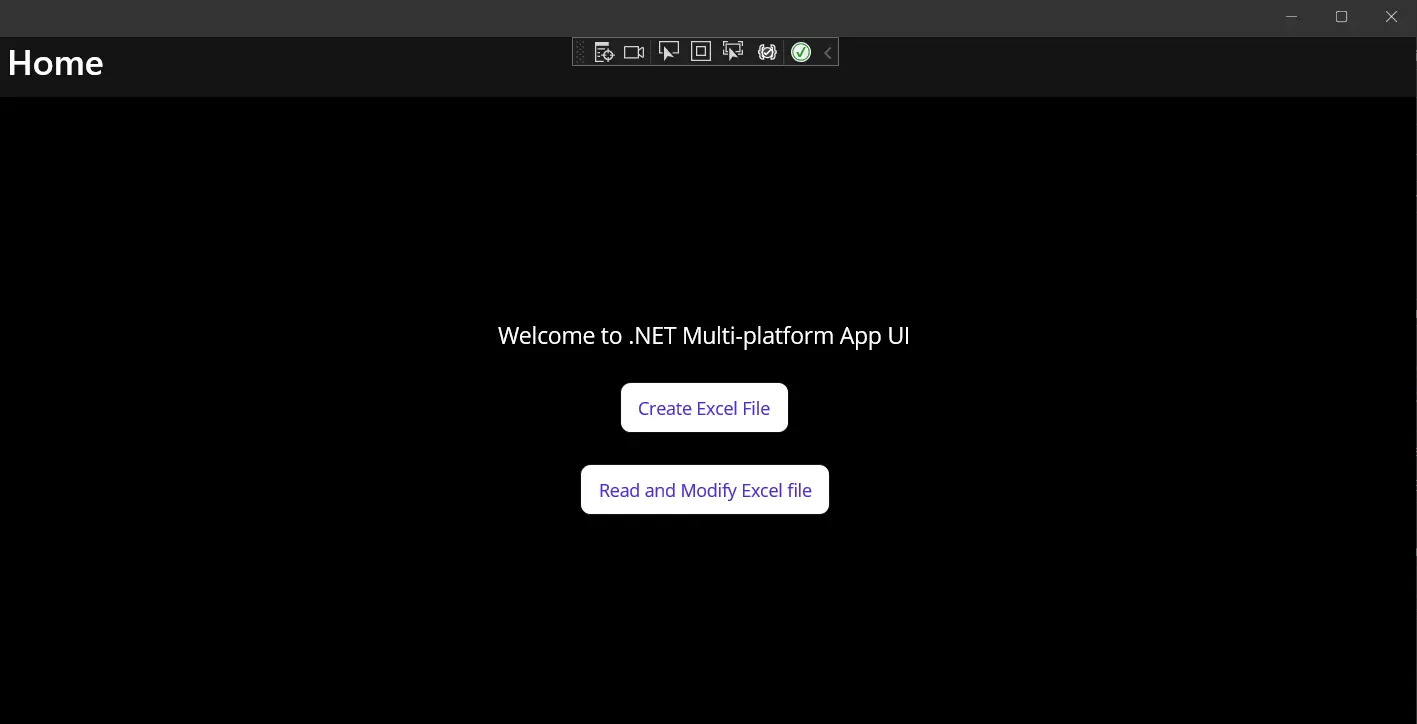
Resim 1 - Çıktı
"Excel Dosyası Oluştur" düğmesine tıklamak ayrı bir iletişim penceresi açacaktır. Bu pencere, kullanıcıları yeni (üretilmiş) bir Excel dosyasını kaydetmek için bir konum ve dosya adı seçmeleri yönünde yönlendirir. Belirtilen yönergeleri takip ederek konumu ve dosya adını belirtin ve ardından Tamam'a tıklayın. Ardından başka bir iletişim penceresi açılacaktır.
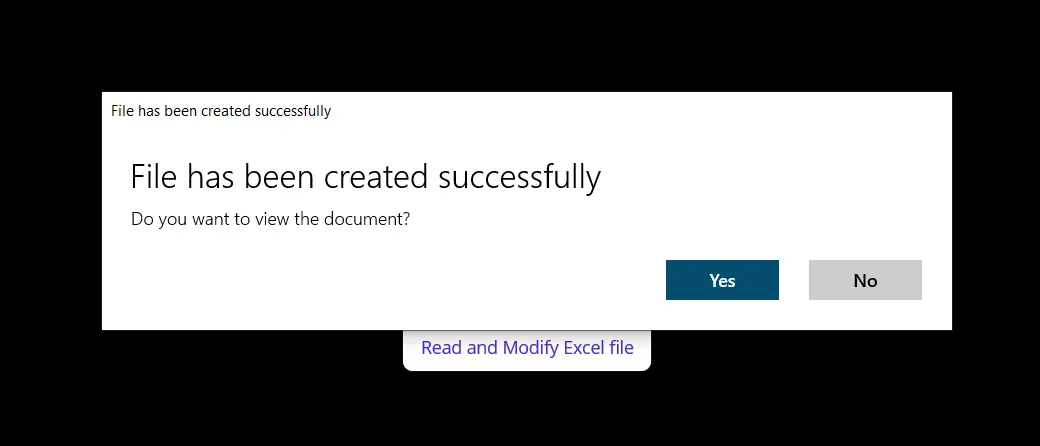
Resim 2 - Excel Oluşturma Pop-up
Pop-up'ta belirtilen yönergelerle Excel dosyasını açmak, aşağıdaki ekran görüntüsünde gösterilen gibi bir belge getirecektir.
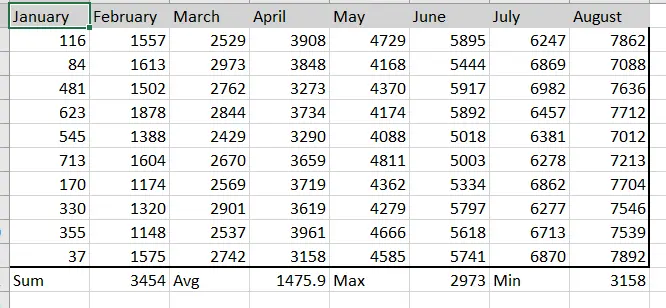
Resim 3 - Excel Okuma ve Değiştirme Pop-up
"Excel Dosyasını Oku ve Değiştir" düğmesine tıklamak, daha önce oluşturulan Excel dosyasını yükler ve daha önceki bir bölümde tanımladığımız özel arka plan ve metin renkleri ile değiştirir.
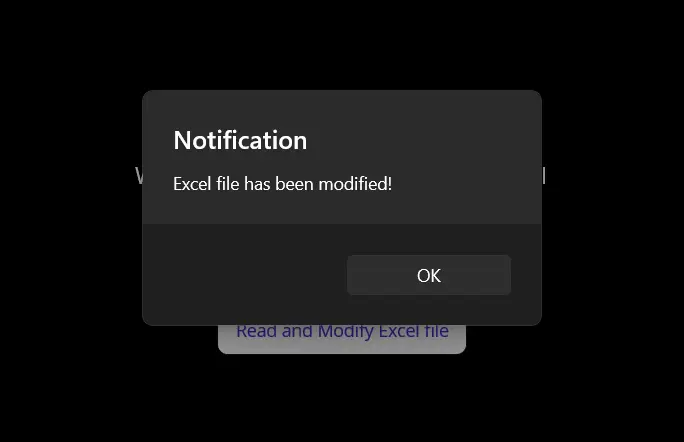
Resim 4 - Excel Çıktısı
Değişen dosyayı açtığınızda, aşağıdaki içindekiler tablosuna sahip çıktıyı göreceksiniz.
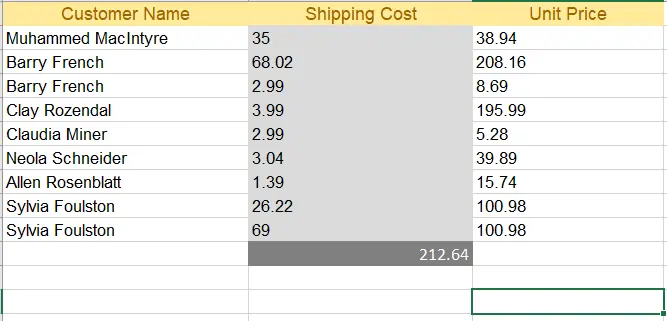
Resim 5 - Değiştirilen Excel Çıktısı
Sonuç
Bu, IronXL kütüphanesini kullanarak .NET MAUI uygulamasında Excel dosyalarını nasıl oluşturabileceğimizi, okuyabileceğimizi ve değiştirebileceğimizi açıkladı. IronXL çok iyi performans gösterir ve tüm işlemleri hız ve doğrulukla gerçekleştirir. Makinede Microsoft Office Suite kurulumuna ihtiyaç duymadığından, Microsoft Interop'u aşarak Excel işlemleri için mükemmel bir kütüphanedir. Ayrıca, IronXL, çalışma kitapları ve çalışma sayfaları oluşturma, hücre aralıkları ile çalışma, biçimlendirme ve CSV, TSV gibi çeşitli belge türlerine dışa aktarma gibi birçok işlemi destekler.
IronXL, Windows Form, WPF, ASP.NET Core ve diğer birçok proje şablonunu destekler. IronXL'yi nasıl kullanacağınız hakkında ek bilgi için Excel dosyası oluşturma ve Excel dosyası okuma konulu eğiticilerimize bakın.
Hızlı Erişim Bağlantıları
GitHub'da bu Nasıl Yapılır Kılavuzunu Keşfedin
Bu projenin kaynak kodu GitHub üzerinde mevcuttur.
Bu kodu, birkaç dakika içinde çalışır duruma geçmenin kolay bir yolu olarak kullanın. Proje, Microsoft Visual Studio 2022 projesi olarak kaydedilmiştir, ancak herhangi bir .NET IDE ile uyumludur.
.NET MAUI Uygulamalarında Excel Dosyalarını Okuma, Oluşturma ve Düzenleme

API Referansını Görüntüle
IronXL'nin API Referansını keşfedin, IronXL'nin tüm özelliklerini, ad alanlarını, sınıflarını, yöntemlerini, alanlarını ve enumlarını ayrıntılı olarak özetler.
API Referansını GörüntüleSıkça Sorulan Sorular
.NET MAUI uygulamasında Excel dosyasını nasıl oluşturabilirim?
.NET MAUI projesinde bir Excel dosyası oluşturmak için IronXL kütüphanesini kullanarak yeni bir çalışma kitabı ve sayfa başlatabilirsiniz. Hücre değerlerini ayarlayabilir, Excel formülleri uygulayabilir ve dosyayı kaydetmeden önce biçimlendirmeyi özelleştirebilirsiniz.
.NET MAUI uygulamasında mevcut Excel dosyalarını okuyabilir miyim?
Evet, IronXL'yi kullanarak .NET MAUI uygulamasında mevcut Excel dosyalarını yükleyebilir ve okuyabilirsiniz. Kütüphane, hücre değerlerine erişmenizi ve değiştirmenizi, formüller uygulamanızı ve özel biçimlendirme yapmanızı sağlar.
.NET MAUI'de Excel dosya manipülasyonu için IronXL kullanmanın avantajları nelerdir?
IronXL, .NET MAUI'de Excel dosya manipülasyonu için kendi içinde tam bir çözüm sunar, Microsoft Office veya Interop'a ihtiyaç duymaz. Excel dosyaları oluşturmayı, okumayı ve düzenlemeyi etkili bir şekilde destekler ve CSV ve TSV gibi çeşitli formatlara aktarabilir.
.NET MAUI projemde IronXL'yi nasıl kurabilirim?
.NET MAUI projenizde IronXL'yi Visual Studio'da NuGet Paket Yöneticisi Konsolu'nu kullanarak kurabilirsiniz. Kütüphaneyi projenize eklemek için şu komutu çalıştırın: Install-Package IronXL.Excel.
.NET MAUI'de Excel hücrelerini programatik olarak biçimlendirmek mümkün mü?
Evet, IronXL ile .NET MAUI'de Excel hücrelerini programatik olarak biçimlendirebilirsiniz. Bu, hücre stillerini, renklerini ayarlamak ve Excel dosyalarınızın görünümünü geliştirmek için çeşitli biçimlendirme seçeneklerini uygulamayı içerir.
.NET MAUI uygulamamda Excel dosyaları için bir SaveService sınıfı nasıl uygularım?
.NET MAUI'de bir SaveService sınıfını uygulamak için, Excel dosyalarını yerel depolamaya kaydetmek için IronXL'nin işlevselliğini kullanan bir sınıf oluşturabilirsiniz. Bu, dosya yollarını belirlemek ve dosya girdi/çıktı işlemlerini yönetmek için yöntemler tanımlamayı içerir.
.NET uygulamalarında IronXL hangi proje şablonlarını destekler?
IronXL, Windows Formlar, WPF, ASP.NET Core ve daha fazlası gibi çeşitli .NET proje şablonlarını destekler, farklı uygulama türlerinde çalışan geliştiricilere esneklik sağlar.
.NET MAUI Excel projesinin kaynak kodunu nerede bulabilirim?
IronXL kullanan .NET MAUI Excel projesinin kaynak kodu GitHub'da mevcuttur. Bu, geliştiricilere Excel dosya manipülasyonunu deneyimlemeleri ve uygulamalarını Visual Studio 2022 ile hızlı bir şekilde kurmaları için olanak tanır.
Is IronXL compatible with different .NET project templates?
Yes, IronXL is compatible with various .NET project templates including Windows Forms, WPF, and ASP.NET Core, among others.
Where can I find additional resources and tutorials for using IronXL?
You can find additional tutorials and resources for using IronXL on the official [Iron Software website](https://ironsoftware.com) and their GitHub repository, which includes sample projects and API references.

Curtis Chau, Bilgisayar Bilimleri alanında Lisans Derecesine (Carleton Üniversitesi) sahip ve Node.js, TypeScript, JavaScript ve React konularında uzmanlaşmış ön uç geliştirmeyle ilgileniyor. Sezgisel ve estetik açıdan hoş kullanıcı arayüzleri oluşturma tutkunu, Curtis modern çerçevelerle çalışmayı ve iyi yapılandırılmış, görsel olarak çekici kılavuzlar oluşturmayı seviyor.













