# Criar, Ler e Editar Arquivos Excel em .NET MAUI
## Introdução
*Este Guia Explicativo explica como criar e ler arquivos Excel em aplicativos .NET MAUI para Windows usando o IronXL. Vamos começar.*
## IronXL: Biblioteca Excel em C#
IronXL é uma biblioteca C# .NET para ler, escrever e manipular arquivos Excel. Permite que usuários criem documentos Excel do zero, incluindo o conteúdo e aparência do Excel, bem como os metadados como título e autor. A biblioteca também oferece recursos de personalização para a interface do usuário, como configurar margens, orientação, tamanho da página, imagens e assim por diante. Não requer nenhum framework externo, integração de plataforma ou outras bibliotecas de terceiros para gerar arquivos Excel. É autônoma e independente.
<div class="hsg-featured-snippet">
<h2>Como Ler Arquivos Excel em .NET MAUI</h2>
<ol>
<li><a class="js-modal-open" data-modal-id="trial-license-after-download" href="https://nuget.org/packages/IronXL.Excel/">Instale a biblioteca C# para ler arquivo Excel</a></li>
<li>Certifique-se de que todos os pacotes necessários para executar os aplicativos MAUI estejam instalados.</li>
<li>Crie arquivos do Excel com APIs intuitivas em Maui.</li>
<li>Carregar e visualizar arquivos do Excel no navegador</li>
<li>Salvar e exportar arquivos do Excel</li>
</ol>
</div>
## Instale o IronXL
---------------------------
Para instalar o IronXL, você pode usar o Console do Gerenciador de Pacotes NuGet no Visual Studio. Abra o Console e insira o seguinte comando para instalar a biblioteca IronXL.
```shell
:ProductInstall
```
## Criando Arquivos Excel em C# usando IronXL
### Desenhar a Interface do Aplicativo
Abra a página XAML chamada `MainPage.xaml` e substitua o código nela com o seguinte trecho de código.
```xml
<?xml version="1.0" encoding="utf-8" ?>
<ContentPage xmlns="http://schemas.microsoft.com/dotnet/2021/maui"
             xmlns:x="http://schemas.microsoft.com/winfx/2009/xaml"
             x:Class="MAUI_IronXl.MainPage">

    <ScrollView>
        <VerticalStackLayout
            Spacing="25"
            Padding="30,0"
            VerticalOptions="Center">

            <Label
                Text="Welcome to .NET Multi-platform App UI"
                SemanticProperties.HeadingLevel="Level2"
                SemanticProperties.Description="Welcome Multi-platform App UI"
                FontSize="18"
                HorizontalOptions="Center" />

            <Button
                x:Name="createBtn"
                Text="Create Excel File"
                SemanticProperties.Hint="Click on the button to create Excel file"
                Clicked="CreateExcel"
                HorizontalOptions="Center" />

            <Button
                x:Name="readExcel"
                Text="Read and Modify Excel file"
                SemanticProperties.Hint="Click on the button to read Excel file"
                Clicked="ReadExcel"
                HorizontalOptions="Center" />

        </VerticalStackLayout>
    </ScrollView>

</ContentPage>
```
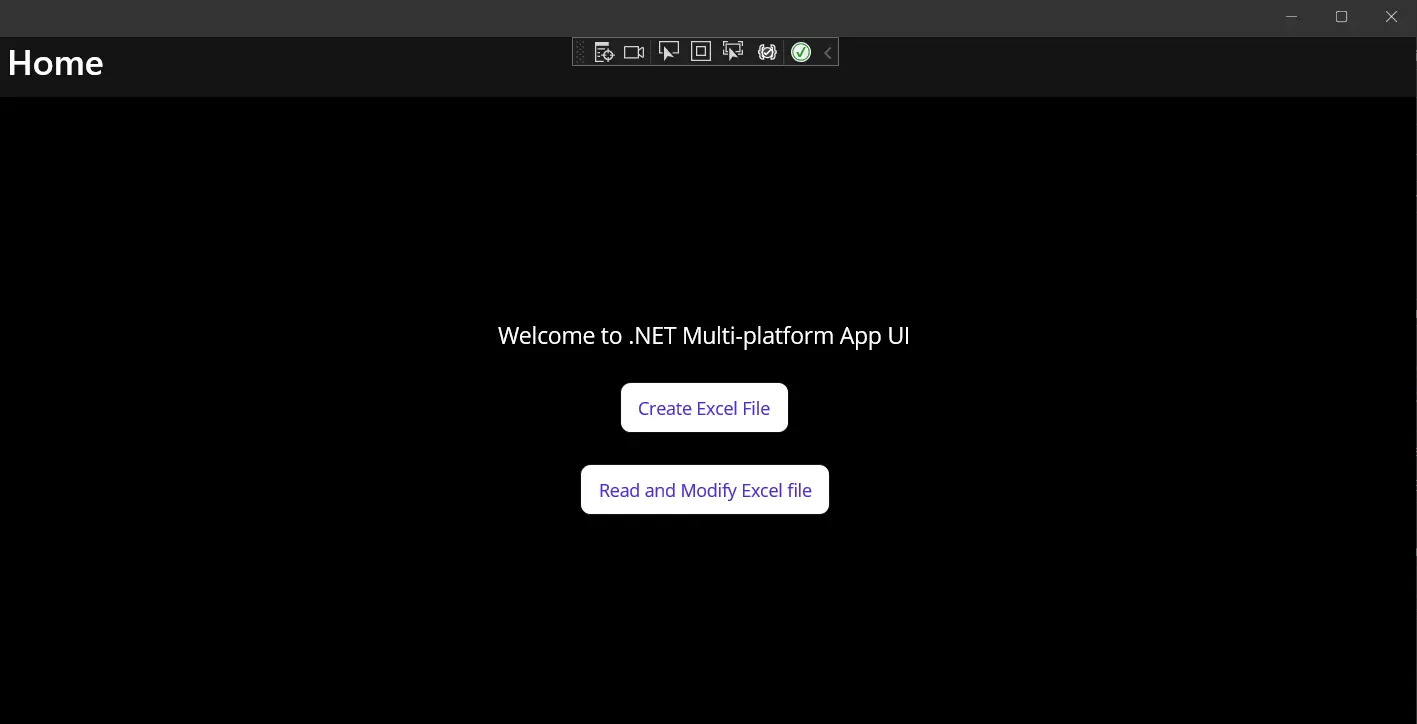
O código acima cria o layout para nosso aplicativo básico .NET MAUI. Ele cria um rótulo e dois botões. Um botão é para criar um arquivo Excel, e o segundo botão oferece suporte para ler e modificar o arquivo Excel. Ambos os elementos estão aninhados em um elemento pai VerticalStackLayout para que apareçam verticalmente alinhados em todos os dispositivos suportados.
### Criar Arquivos Excel
É hora de criar o arquivo Excel usando o IronXL. Abra o arquivo `MainPage.xaml.cs` e escreva o seguinte método no arquivo.
```csharp
private void CreateExcel(object sender, EventArgs e)
{
// Create a new Workbook
WorkBook workbook = WorkBook.Create(ExcelFileFormat.XLSX);
// Create a Worksheet
var sheet = workbook.CreateWorkSheet("2022 Budget");
// Set cell headers
sheet["A1"].Value = "January";
sheet["B1"].Value = "February";
sheet["C1"].Value = "March";
sheet["D1"].Value = "April";
sheet["E1"].Value = "May";
sheet["F1"].Value = "June";
sheet["G1"].Value = "July";
sheet["H1"].Value = "August";
// Fill worksheet cells with random values
Random r = new Random();
for (int i = 2; i <= 11; i++)
{
sheet["A" + i].Value = r.Next(1, 1000);
sheet["B" + i].Value = r.Next(1000, 2000);
sheet["C" + i].Value = r.Next(2000, 3000);
sheet["D" + i].Value = r.Next(3000, 4000);
sheet["E" + i].Value = r.Next(4000, 5000);
sheet["F" + i].Value = r.Next(5000, 6000);
sheet["G" + i].Value = r.Next(6000, 7000);
sheet["H" + i].Value = r.Next(7000, 8000);
}
// Apply formatting (background and border)
sheet["A1:H1"].Style.SetBackgroundColor("#d3d3d3");
sheet["A1:H1"].Style.TopBorder.SetColor("#000000");
sheet["A1:H1"].Style.BottomBorder.SetColor("#000000");
sheet["H2:H11"].Style.RightBorder.SetColor("#000000");
sheet["H2:H11"].Style.RightBorder.Type = IronXL.Styles.BorderType.Medium;
sheet["A11:H11"].Style.BottomBorder.SetColor("#000000");
sheet["A11:H11"].Style.BottomBorder.Type = IronXL.Styles.BorderType.Medium;
// Apply formulas
decimal sum = sheet["A2:A11"].Sum();
decimal avg = sheet["B2:B11"].Avg();
decimal max = sheet["C2:C11"].Max();
decimal min = sheet["D2:D11"].Min();
sheet["A12"].Value = "Sum";
sheet["B12"].Value = sum;
sheet["C12"].Value = "Avg";
sheet["D12"].Value = avg;
sheet["E12"].Value = "Max";
sheet["F12"].Value = max;
sheet["G12"].Value = "Min";
sheet["H12"].Value = min;
// Save and open the Excel file
SaveService saveService = new SaveService();
saveService.SaveAndView("Budget.xlsx", "application/octet-stream", workbook.ToStream());
}
```
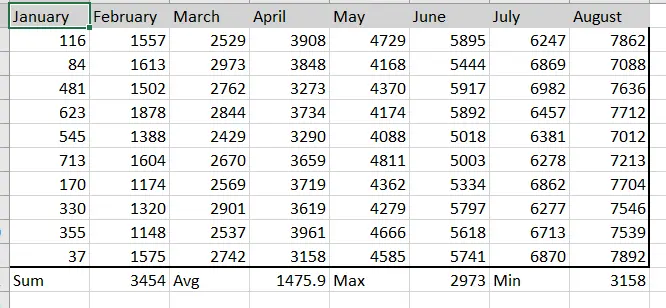
Este código-fonte cria um workbook e uma worksheet usando o IronXL, define valores de célula e formata as células. Também demonstra como usar fórmulas Excel com o IronXL.
### Visualizar Arquivos Excel no Navegador
Abra o arquivo `MainPage.xaml.cs` e escreva o seguinte código.
```csharp
private void ReadExcel(object sender, EventArgs e)
{
// Store the path of the file
string filepath = @"C:\Files\Customer Data.xlsx";
WorkBook workbook = WorkBook.Load(filepath);
WorkSheet sheet = workbook.WorkSheets.First();
// Calculate the sum of a range
decimal sum = sheet["B2:B10"].Sum();
// Modify a cell value and apply styles
sheet["B11"].Value = sum;
sheet["B11"].Style.SetBackgroundColor("#808080");
sheet["B11"].Style.Font.SetColor("#ffffff");
// Save and open the Excel file
SaveService saveService = new SaveService();
saveService.SaveAndView("Modified Data.xlsx", "application/octet-stream", workbook.ToStream());
DisplayAlert("Notification", "Excel file has been modified!", "OK");
}
```
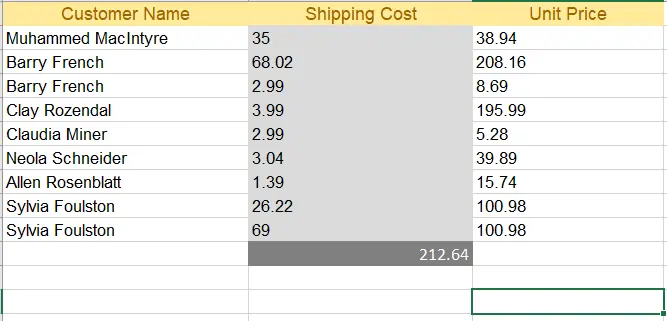
O código-fonte carrega o arquivo Excel, aplica uma fórmula em um intervalo de células e formata com cores de fundo e texto personalizadas. Depois, o arquivo Excel modificado é salvo e uma notificação é exibida.
### Salvar Arquivos Excel
Nesta seção, definimos a classe `SaveService` que salvará nossos arquivos Excel no armazenamento local.
Crie uma classe "SaveService.cs" e escreva o seguinte código:
```csharp
using System;
using System.IO;
namespace MAUI_IronXL
{
public partial class SaveService
{
public partial void SaveAndView(string fileName, string contentType, MemoryStream stream);
}
}
```
Em seguida, crie uma classe chamada "SaveWindows.cs" dentro da pasta Platforms > Windows e adicione o seguinte código:
```csharp
using System;
using System.Collections.Generic;
using System.IO;
using System.Runtime.InteropServices.WindowsRuntime;
using Windows.Storage;
using Windows.Storage.Pickers;
using Windows.Storage.Streams;
using Windows.UI.Popups;
namespace MAUI_IronXL
{
public partial class SaveService
{
public async partial void SaveAndView(string fileName, string contentType, MemoryStream stream)
{
StorageFile stFile;
string extension = Path.GetExtension(fileName);
IntPtr windowHandle = System.Diagnostics.Process.GetCurrentProcess().MainWindowHandle;
if (!Windows.Foundation.Metadata.ApiInformation.IsTypePresent("Windows.Phone.UI.Input.HardwareButtons"))
{
FileSavePicker savePicker = new FileSavePicker();
savePicker.DefaultFileExtension = ".xlsx";
savePicker.SuggestedFileName = fileName;
savePicker.FileTypeChoices.Add("XLSX", new List<string> { ".xlsx" });
WinRT.Interop.InitializeWithWindow.Initialize(savePicker, windowHandle);
stFile = await savePicker.PickSaveFileAsync();
}
else
{
StorageFolder local = ApplicationData.Current.LocalFolder;
stFile = await local.CreateFileAsync(fileName, CreationCollisionOption.ReplaceExisting);
}
if (stFile != null)
{
using (IRandomAccessStream zipStream = await stFile.OpenAsync(FileAccessMode.ReadWrite))
{
using (Stream outputStream = zipStream.AsStreamForWrite())
{
outputStream.SetLength(0);
stream.WriteTo(outputStream);
await outputStream.FlushAsync();
}
}
MessageDialog msgDialog = new("Do you want to view the document?", "File has been created successfully");
UICommand yesCmd = new("Yes");
msgDialog.Commands.Add(yesCmd);
UICommand noCmd = new("No");
msgDialog.Commands.Add(noCmd);
WinRT.Interop.InitializeWithWindow.Initialize(msgDialog, windowHandle);
IUICommand cmd = await msgDialog.ShowAsync();
if (cmd.Label == yesCmd.Label)
{
await Windows.System.Launcher.LaunchFileAsync(stFile);
}
}
}
}
}
```
### Saída
Compile e execute o projeto MAUI. Com a execução bem-sucedida, uma janela será aberta mostrando o conteúdo representado na imagem abaixo.
<div class="content-img-align-center">
<div class="center-image-wrapper">
<img src="/img/tutorials/read-create-excel-net-maui/read-create-excel-net-maui-1.webp" alt="Ler, criar e editar arquivos do Excel no .NET MAUI, Figura 1: Saída" class="img-responsive add-shadow" />
<p><strong>Figura 1</strong> - <em>Resultado</em></p>
</div>
</div>
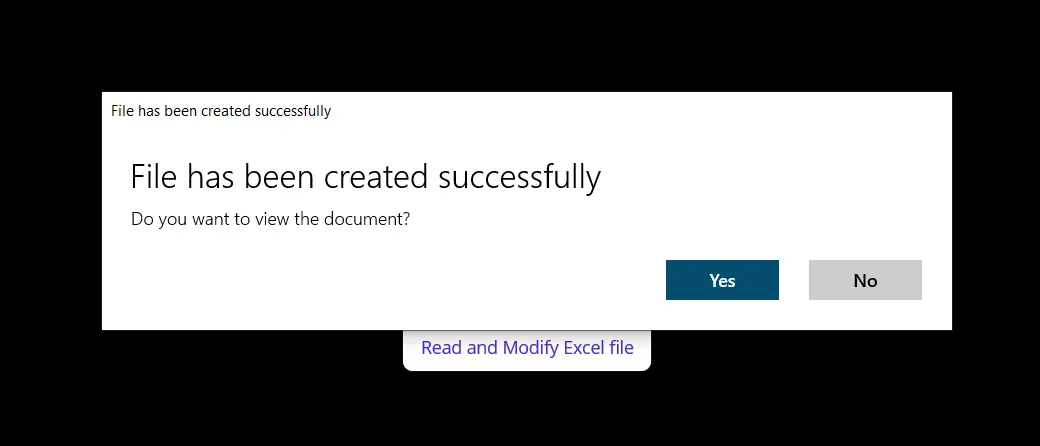
Clicar no botão "Criar Arquivo Excel" abrirá uma janela de diálogo separada. Esta janela solicita aos usuários que escolham um local e um nome de arquivo para salvar um novo arquivo Excel (gerado). Especifique o local e o nome do arquivo conforme instruído e clique em OK. Em seguida, aparecerá outra janela de diálogo.
<div class="content-img-align-center">
<div class="center-image-wrapper">
<img src="/img/tutorials/read-create-excel-net-maui/read-create-excel-net-maui-2.webp" alt="Ler, criar e editar arquivos do Excel no .NET MAUI, Figura 2: Pop-up de criação do Excel" class="img-responsive add-shadow" />
<p><strong>Figura 2</strong> - <em>Criar Pop-up do Excel</em></p>
</div>
</div>
Abrir o arquivo Excel conforme instruído no pop-up trará um documento como mostrado na captura de tela abaixo.
<div class="content-img-align-center">
<div class="center-image-wrapper">
<img src="/img/tutorials/read-create-excel-net-maui/read-create-excel-net-maui-3.webp" alt="Ler, criar e editar arquivos do Excel no .NET MAUI, Figura 3: Saída" class="img-responsive add-shadow" />
<p><strong>Figura 3</strong> - <em>Ler e Modificar Pop-up do Excel</em></p>
</div>
</div>
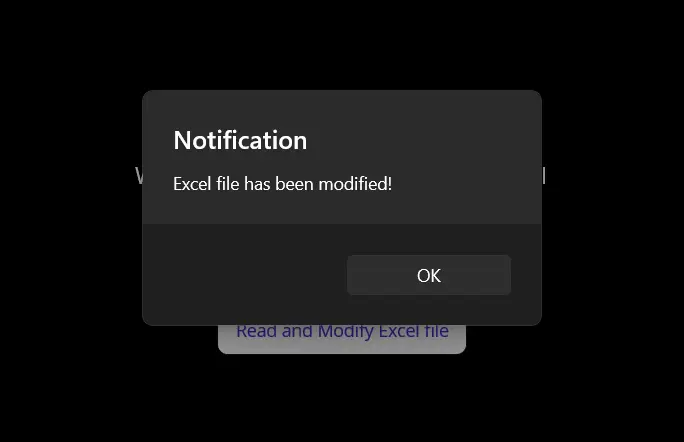
Clicar no botão "Ler e Modificar Arquivo Excel" carregará o arquivo Excel gerado anteriormente e o modificará com as cores de fundo e texto personalizadas que definimos em uma seção anterior.
<div class="content-img-align-center">
<div class="center-image-wrapper">
<img src="/img/tutorials/read-create-excel-net-maui/read-create-excel-net-maui-4.webp" alt="Ler, criar e editar arquivos do Excel no .NET MAUI, Figura 4: Saída do Excel" class="img-responsive add-shadow" />
<p><strong>Figura 4</strong> - <em>Saída do Excel</em></p>
</div>
</div>
Quando você abrir o arquivo modificado, verá a seguinte saída com índice.
<div class="content-img-align-center">
<div class="center-image-wrapper">
<img src="/img/tutorials/read-create-excel-net-maui/read-create-excel-net-maui-5.webp" alt="Ler, criar e editar arquivos do Excel no .NET MAUI, Figura 5: Saída modificada do Excel" class="img-responsive add-shadow" />
<p><strong>Figura 5</strong> - <em>Saída do Excel Modificada</em></p>
</div>
</div>
## Conclusão
Isso explicou como podemos criar, ler e modificar arquivos Excel no aplicativo .NET MAUI usando a biblioteca IronXL. IronXL tem um desempenho muito bom e realiza todas as operações com rapidez e precisão. É uma excelente biblioteca para operações do Excel, superando o Microsoft Interop, pois não requer nenhuma instalação do Microsoft Office Suite na máquina. Além disso, IronXL suporta múltiplas operações como criar livros de trabalho e planilhas, trabalhar com intervalos de células, formatação e exportação para vários tipos de documentos como CSV, TSV e mais.
IronXL suporta todos os templates de projeto como Windows Form, WPF, ASP.NET Core e muitos outros. Consulte nossos tutoriais para [criar arquivos Excel](/csharp/excel/tutorials/create-excel-file-net/) e [ler arquivos Excel](/csharp/excel/tutorials/how-to-read-excel-file-csharp/) para informações adicionais sobre como usar o IronXL.
<hr class="separator" />
#### Links de Acesso Rápido
<div class="tutorial-section">
<div class="row">
<div class="col-sm-8">
<h3>Explore este Guia de Como Fazer no GitHub</h3>
<p>O código-fonte deste projeto está disponível no GitHub.</p>
<p>Use este código como uma maneira fácil de começar em apenas alguns minutos. O projeto é salvo como um projeto do Microsoft Visual Studio 2022, mas é compatível com qualquer IDE .NET.</p>
<a class="doc-link" href="https://github.com/tayyab-create/MAUI-Create-and-Read-Excel-using-IronXL" target="_blank">Como Ler, Criar e Editar Arquivos Excel em Aplicativos .NET MAUI<i class="fa fa-chevron-right"></i></a>
</div>
<div class="col-sm-4">
<div class="tutorial-image">
<img alt="" class="img-responsive add-shadow" src="/img/svgs/github-icon.svg" />
</div>
</div>
</div>
</div>
<div class="tutorial-section">
<div class="row">
<div class="col-sm-4">
<div class="tutorial-image">
<img style="max-width: 110px; width: 100px; height: 140px;" alt="" class="img-responsive add-shadow" src="/img/svgs/documentation.svg" width="100" height="140" />
</div>
</div>
<div class="col-sm-8">
<h3>Consulte a Referência da API.</h3>
<p>Explore a Referência da API para IronXL, delineando os detalhes de todas as funcionalidades, namespaces, classes, métodos, campos e enums do IronXL.</p>
<a class="doc-link" href="https://ironsoftware.com/csharp/excel/object-reference/api/" target="_blank">Consulte a Referência da API. <i class="fa fa-chevron-right"></i></a>
</div>
</div>
</div>
Este Guia Explicativo explica como criar e ler arquivos Excel em aplicativos .NET MAUI para Windows usando o IronXL. Vamos começar.
IronXL: Biblioteca Excel em C#
IronXL é uma biblioteca C# .NET para ler, escrever e manipular arquivos Excel. Permite que usuários criem documentos Excel do zero, incluindo o conteúdo e aparência do Excel, bem como os metadados como título e autor. A biblioteca também oferece recursos de personalização para a interface do usuário, como configurar margens, orientação, tamanho da página, imagens e assim por diante. Não requer nenhum framework externo, integração de plataforma ou outras bibliotecas de terceiros para gerar arquivos Excel. É autônoma e independente.
Certifique-se de que todos os pacotes necessários para executar os aplicativos MAUI estejam instalados.
Crie arquivos do Excel com APIs intuitivas em Maui.
Carregar e visualizar arquivos do Excel no navegador
Salvar e exportar arquivos do Excel
Instale o IronXL
Para instalar o IronXL, você pode usar o Console do Gerenciador de Pacotes NuGet no Visual Studio. Abra o Console e insira o seguinte comando para instalar a biblioteca IronXL.
PM > Install-Package IronXL.Excel
Install-Package IronXL.Excel
Criando Arquivos Excel em C# usando IronXL
Desenhar a Interface do Aplicativo
Abra a página XAML chamada MainPage.xaml e substitua o código nela com o seguinte trecho de código.
<?xml version="1.0" encoding="utf-8" ?><ContentPage xmlns="http://schemas.microsoft.com/dotnet/2021/maui" xmlns:x="http://schemas.microsoft.com/winfx/2009/xaml" x:Class="MAUI_IronXl.MainPage"> <ScrollView> <VerticalStackLayout Spacing="25" Padding="30,0" VerticalOptions="Center"> <Label Text="Welcome to .NET Multi-platform App UI" SemanticProperties.HeadingLevel="Level2" SemanticProperties.Description="Welcome Multi-platform App UI" FontSize="18" HorizontalOptions="Center" /> <Button x:Name="createBtn" Text="Create Excel File" SemanticProperties.Hint="Click on the button to create Excel file" Clicked="CreateExcel" HorizontalOptions="Center" /> <Button x:Name="readExcel" Text="Read and Modify Excel file" SemanticProperties.Hint="Click on the button to read Excel file" Clicked="ReadExcel" HorizontalOptions="Center" /> </VerticalStackLayout> </ScrollView></ContentPage>
<?xml version="1.0" encoding="utf-8" ?>
<ContentPage xmlns="http://schemas.microsoft.com/dotnet/2021/maui"
             xmlns:x="http://schemas.microsoft.com/winfx/2009/xaml"
             x:Class="MAUI_IronXl.MainPage">

    <ScrollView>
        <VerticalStackLayout
            Spacing="25"
            Padding="30,0"
            VerticalOptions="Center">

            <Label
                Text="Welcome to .NET Multi-platform App UI"
                SemanticProperties.HeadingLevel="Level2"
                SemanticProperties.Description="Welcome Multi-platform App UI"
                FontSize="18"
                HorizontalOptions="Center" />

            <Button
                x:Name="createBtn"
                Text="Create Excel File"
                SemanticProperties.Hint="Click on the button to create Excel file"
                Clicked="CreateExcel"
                HorizontalOptions="Center" />

            <Button
                x:Name="readExcel"
                Text="Read and Modify Excel file"
                SemanticProperties.Hint="Click on the button to read Excel file"
                Clicked="ReadExcel"
                HorizontalOptions="Center" />

        </VerticalStackLayout>
    </ScrollView>

</ContentPage>
XML
O código acima cria o layout para nosso aplicativo básico .NET MAUI. Ele cria um rótulo e dois botões. Um botão é para criar um arquivo Excel, e o segundo botão oferece suporte para ler e modificar o arquivo Excel. Ambos os elementos estão aninhados em um elemento pai VerticalStackLayout para que apareçam verticalmente alinhados em todos os dispositivos suportados.
Criar Arquivos Excel
É hora de criar o arquivo Excel usando o IronXL. Abra o arquivo MainPage.xaml.cs e escreva o seguinte método no arquivo.
private voidCreateExcel(object sender, EventArgs e){ // Create a new Workbook WorkBook workbook = WorkBook.Create(ExcelFileFormat.XLSX); // Create a Worksheet var sheet = workbook.CreateWorkSheet("2022 Budget"); // Set cell headers sheet["A1"].Value = "January"; sheet["B1"].Value = "February"; sheet["C1"].Value = "March"; sheet["D1"].Value = "April"; sheet["E1"].Value = "May"; sheet["F1"].Value = "June"; sheet["G1"].Value = "July"; sheet["H1"].Value = "August"; // Fill worksheet cells with random values Random r = new Random(); for (int i = 2; i <= 11; i++) { sheet["A" + i].Value = r.Next(1, 1000); sheet["B" + i].Value = r.Next(1000, 2000); sheet["C" + i].Value = r.Next(2000, 3000); sheet["D" + i].Value = r.Next(3000, 4000); sheet["E" + i].Value = r.Next(4000, 5000); sheet["F" + i].Value = r.Next(5000, 6000); sheet["G" + i].Value = r.Next(6000, 7000); sheet["H" + i].Value = r.Next(7000, 8000); } // Apply formatting (background and border) sheet["A1:H1"].Style.SetBackgroundColor("#d3d3d3"); sheet["A1:H1"].Style.TopBorder.SetColor("#000000"); sheet["A1:H1"].Style.BottomBorder.SetColor("#000000"); sheet["H2:H11"].Style.RightBorder.SetColor("#000000"); sheet["H2:H11"].Style.RightBorder.Type = IronXL.Styles.BorderType.Medium; sheet["A11:H11"].Style.BottomBorder.SetColor("#000000"); sheet["A11:H11"].Style.BottomBorder.Type = IronXL.Styles.BorderType.Medium; // Apply formulas decimal sum = sheet["A2:A11"].Sum(); decimal avg = sheet["B2:B11"].Avg(); decimal max = sheet["C2:C11"].Max(); decimal min = sheet["D2:D11"].Min(); sheet["A12"].Value = "Sum"; sheet["B12"].Value = sum; sheet["C12"].Value = "Avg"; sheet["D12"].Value = avg; sheet["E12"].Value = "Max"; sheet["F12"].Value = max; sheet["G12"].Value = "Min"; sheet["H12"].Value = min; // Save and open the Excel file SaveService saveService = new SaveService(); saveService.SaveAndView("Budget.xlsx", "application/octet-stream", workbook.ToStream());}
private void CreateExcel(object sender, EventArgs e)
{
    // Create a new Workbook
    WorkBook workbook = WorkBook.Create(ExcelFileFormat.XLSX);

    // Create a Worksheet
    var sheet = workbook.CreateWorkSheet("2022 Budget");

    // Set cell headers
    sheet["A1"].Value = "January";
    sheet["B1"].Value = "February";
    sheet["C1"].Value = "March";
    sheet["D1"].Value = "April";
    sheet["E1"].Value = "May";
    sheet["F1"].Value = "June";
    sheet["G1"].Value = "July";
    sheet["H1"].Value = "August";

    // Fill worksheet cells with random values
    Random r = new Random();
    for (int i = 2; i <= 11; i++)
    {
        sheet["A" + i].Value = r.Next(1, 1000);
        sheet["B" + i].Value = r.Next(1000, 2000);
        sheet["C" + i].Value = r.Next(2000, 3000);
        sheet["D" + i].Value = r.Next(3000, 4000);
        sheet["E" + i].Value = r.Next(4000, 5000);
        sheet["F" + i].Value = r.Next(5000, 6000);
        sheet["G" + i].Value = r.Next(6000, 7000);
        sheet["H" + i].Value = r.Next(7000, 8000);
    }

    // Apply formatting (background and border)
    sheet["A1:H1"].Style.SetBackgroundColor("#d3d3d3");
    sheet["A1:H1"].Style.TopBorder.SetColor("#000000");
    sheet["A1:H1"].Style.BottomBorder.SetColor("#000000");
    sheet["H2:H11"].Style.RightBorder.SetColor("#000000");
    sheet["H2:H11"].Style.RightBorder.Type = IronXL.Styles.BorderType.Medium;
    sheet["A11:H11"].Style.BottomBorder.SetColor("#000000");
    sheet["A11:H11"].Style.BottomBorder.Type = IronXL.Styles.BorderType.Medium;

    // Apply formulas
    decimal sum = sheet["A2:A11"].Sum();
    decimal avg = sheet["B2:B11"].Avg();
    decimal max = sheet["C2:C11"].Max();
    decimal min = sheet["D2:D11"].Min();

    sheet["A12"].Value = "Sum";
    sheet["B12"].Value = sum;

    sheet["C12"].Value = "Avg";
    sheet["D12"].Value = avg;

    sheet["E12"].Value = "Max";
    sheet["F12"].Value = max;

    sheet["G12"].Value = "Min";
    sheet["H12"].Value = min;

    // Save and open the Excel file
    SaveService saveService = new SaveService();
    saveService.SaveAndView("Budget.xlsx", "application/octet-stream", workbook.ToStream());
}
Private Sub CreateExcel(ByVal sender AsObject, ByVal e AsEventArgs) ' Create a new Workbook Dim workbook AsWorkBook = WorkBook.Create(ExcelFileFormat.XLSX) ' Create a Worksheet Dim sheet = workbook.CreateWorkSheet("2022 Budget") ' Set cell headers sheet("A1").Value = "January" sheet("B1").Value = "February" sheet("C1").Value = "March" sheet("D1").Value = "April" sheet("E1").Value = "May" sheet("F1").Value = "June" sheet("G1").Value = "July" sheet("H1").Value = "August" ' Fill worksheet cells with random values Dim r As New Random() For i AsInteger = 2 To 11 sheet("A" & i).Value = r.Next(1, 1000) sheet("B" & i).Value = r.Next(1000, 2000) sheet("C" & i).Value = r.Next(2000, 3000) sheet("D" & i).Value = r.Next(3000, 4000) sheet("E" & i).Value = r.Next(4000, 5000) sheet("F" & i).Value = r.Next(5000, 6000) sheet("G" & i).Value = r.Next(6000, 7000) sheet("H" & i).Value = r.Next(7000, 8000) Next i ' Apply formatting (background and border) sheet("A1:H1").Style.SetBackgroundColor("#d3d3d3") sheet("A1:H1").Style.TopBorder.SetColor("#000000") sheet("A1:H1").Style.BottomBorder.SetColor("#000000") sheet("H2:H11").Style.RightBorder.SetColor("#000000") sheet("H2:H11").Style.RightBorder.Type = IronXL.Styles.BorderType.Medium sheet("A11:H11").Style.BottomBorder.SetColor("#000000") sheet("A11:H11").Style.BottomBorder.Type = IronXL.Styles.BorderType.Medium ' Apply formulas Dim sum AsDecimal = sheet("A2:A11").Sum() Dim avg AsDecimal = sheet("B2:B11").Avg() Dim max AsDecimal = sheet("C2:C11").Max() Dim min AsDecimal = sheet("D2:D11").Min() sheet("A12").Value = "Sum" sheet("B12").Value = sum sheet("C12").Value = "Avg" sheet("D12").Value = avg sheet("E12").Value = "Max" sheet("F12").Value = max sheet("G12").Value = "Min" sheet("H12").Value = min ' Save and open the Excel file Dim saveService As New SaveService() saveService.SaveAndView("Budget.xlsx", "application/octet-stream", workbook.ToStream())End Sub
Private Sub CreateExcel(ByVal sender As Object, ByVal e As EventArgs)
	' Create a new Workbook
	Dim workbook As WorkBook = WorkBook.Create(ExcelFileFormat.XLSX)

	' Create a Worksheet
	Dim sheet = workbook.CreateWorkSheet("2022 Budget")

	' Set cell headers
	sheet("A1").Value = "January"
	sheet("B1").Value = "February"
	sheet("C1").Value = "March"
	sheet("D1").Value = "April"
	sheet("E1").Value = "May"
	sheet("F1").Value = "June"
	sheet("G1").Value = "July"
	sheet("H1").Value = "August"

	' Fill worksheet cells with random values
	Dim r As New Random()
	For i As Integer = 2 To 11
		sheet("A" & i).Value = r.Next(1, 1000)
		sheet("B" & i).Value = r.Next(1000, 2000)
		sheet("C" & i).Value = r.Next(2000, 3000)
		sheet("D" & i).Value = r.Next(3000, 4000)
		sheet("E" & i).Value = r.Next(4000, 5000)
		sheet("F" & i).Value = r.Next(5000, 6000)
		sheet("G" & i).Value = r.Next(6000, 7000)
		sheet("H" & i).Value = r.Next(7000, 8000)
	Next i

	' Apply formatting (background and border)
	sheet("A1:H1").Style.SetBackgroundColor("#d3d3d3")
	sheet("A1:H1").Style.TopBorder.SetColor("#000000")
	sheet("A1:H1").Style.BottomBorder.SetColor("#000000")
	sheet("H2:H11").Style.RightBorder.SetColor("#000000")
	sheet("H2:H11").Style.RightBorder.Type = IronXL.Styles.BorderType.Medium
	sheet("A11:H11").Style.BottomBorder.SetColor("#000000")
	sheet("A11:H11").Style.BottomBorder.Type = IronXL.Styles.BorderType.Medium

	' Apply formulas
	Dim sum As Decimal = sheet("A2:A11").Sum()
	Dim avg As Decimal = sheet("B2:B11").Avg()
	Dim max As Decimal = sheet("C2:C11").Max()
	Dim min As Decimal = sheet("D2:D11").Min()

	sheet("A12").Value = "Sum"
	sheet("B12").Value = sum

	sheet("C12").Value = "Avg"
	sheet("D12").Value = avg

	sheet("E12").Value = "Max"
	sheet("F12").Value = max

	sheet("G12").Value = "Min"
	sheet("H12").Value = min

	' Save and open the Excel file
	Dim saveService As New SaveService()
	saveService.SaveAndView("Budget.xlsx", "application/octet-stream", workbook.ToStream())
End Sub
Este código-fonte cria um workbook e uma worksheet usando o IronXL, define valores de célula e formata as células. Também demonstra como usar fórmulas Excel com o IronXL.
Visualizar Arquivos Excel no Navegador
Abra o arquivo MainPage.xaml.cs e escreva o seguinte código.
private voidReadExcel(object sender, EventArgs e){ // Store the path of the file string filepath = @"C:\Files\Customer Data.xlsx"; WorkBook workbook = WorkBook.Load(filepath); WorkSheet sheet = workbook.WorkSheets.First(); // Calculate the sum of a range decimal sum = sheet["B2:B10"].Sum(); // Modify a cell value and apply styles sheet["B11"].Value = sum; sheet["B11"].Style.SetBackgroundColor("#808080"); sheet["B11"].Style.Font.SetColor("#ffffff"); // Save and open the Excel file SaveService saveService = new SaveService(); saveService.SaveAndView("Modified Data.xlsx", "application/octet-stream", workbook.ToStream());DisplayAlert("Notification", "Excel file has been modified!", "OK");}
private void ReadExcel(object sender, EventArgs e)
{
    // Store the path of the file
    string filepath = @"C:\Files\Customer Data.xlsx";
    WorkBook workbook = WorkBook.Load(filepath);
    WorkSheet sheet = workbook.WorkSheets.First();

    // Calculate the sum of a range
    decimal sum = sheet["B2:B10"].Sum();

    // Modify a cell value and apply styles
    sheet["B11"].Value = sum;
    sheet["B11"].Style.SetBackgroundColor("#808080");
    sheet["B11"].Style.Font.SetColor("#ffffff");

    // Save and open the Excel file
    SaveService saveService = new SaveService();
    saveService.SaveAndView("Modified Data.xlsx", "application/octet-stream", workbook.ToStream());

    DisplayAlert("Notification", "Excel file has been modified!", "OK");
}
Private Sub ReadExcel(ByVal sender AsObject, ByVal e AsEventArgs) ' Store the path of the file Dim filepath AsString = "C:\Files\Customer Data.xlsx" Dim workbook AsWorkBook = WorkBook.Load(filepath) Dim sheet AsWorkSheet = workbook.WorkSheets.First() ' Calculate the sum of a range Dim sum AsDecimal = sheet("B2:B10").Sum() ' Modify a cell value and apply styles sheet("B11").Value = sum sheet("B11").Style.SetBackgroundColor("#808080") sheet("B11").Style.Font.SetColor("#ffffff") ' Save and open the Excel file Dim saveService As New SaveService() saveService.SaveAndView("Modified Data.xlsx", "application/octet-stream", workbook.ToStream())DisplayAlert("Notification", "Excel file has been modified!", "OK")End Sub
Private Sub ReadExcel(ByVal sender As Object, ByVal e As EventArgs)
	' Store the path of the file
	Dim filepath As String = "C:\Files\Customer Data.xlsx"
	Dim workbook As WorkBook = WorkBook.Load(filepath)
	Dim sheet As WorkSheet = workbook.WorkSheets.First()

	' Calculate the sum of a range
	Dim sum As Decimal = sheet("B2:B10").Sum()

	' Modify a cell value and apply styles
	sheet("B11").Value = sum
	sheet("B11").Style.SetBackgroundColor("#808080")
	sheet("B11").Style.Font.SetColor("#ffffff")

	' Save and open the Excel file
	Dim saveService As New SaveService()
	saveService.SaveAndView("Modified Data.xlsx", "application/octet-stream", workbook.ToStream())

	DisplayAlert("Notification", "Excel file has been modified!", "OK")
End Sub
O código-fonte carrega o arquivo Excel, aplica uma fórmula em um intervalo de células e formata com cores de fundo e texto personalizadas. Depois, o arquivo Excel modificado é salvo e uma notificação é exibida.
Salvar Arquivos Excel
Nesta seção, definimos a classe SaveService que salvará nossos arquivos Excel no armazenamento local.
Crie uma classe "SaveService.cs" e escreva o seguinte código:
using System;using System.IO;namespace MAUI_IronXL{ public partial class SaveService { public partial voidSaveAndView(string fileName, string contentType, MemoryStream stream); }}
using System;
using System.IO;

namespace MAUI_IronXL
{
    public partial class SaveService
    {
        public partial void SaveAndView(string fileName, string contentType, MemoryStream stream);
    }
}
ImportsSystemImportsSystem.IONamespaceMAUI_IronXLPartialPublic Class SaveService PublicPartial Private Sub SaveAndView(ByVal fileName AsString, ByVal contentType AsString, ByVal stream AsMemoryStream) End Sub End ClassEndNamespace
Imports System
Imports System.IO

Namespace MAUI_IronXL
	Partial Public Class SaveService
		Public Partial Private Sub SaveAndView(ByVal fileName As String, ByVal contentType As String, ByVal stream As MemoryStream)
		End Sub
	End Class
End Namespace
Em seguida, crie uma classe chamada "SaveWindows.cs" dentro da pasta Platforms > Windows e adicione o seguinte código:
using System;using System.Collections.Generic;using System.IO;using System.Runtime.InteropServices.WindowsRuntime;using Windows.Storage;using Windows.Storage.Pickers;using Windows.Storage.Streams;using Windows.UI.Popups;namespace MAUI_IronXL{ public partial class SaveService { public async partial voidSaveAndView(string fileName, string contentType, MemoryStream stream) { StorageFile stFile; string extension = Path.GetExtension(fileName); IntPtr windowHandle = System.Diagnostics.Process.GetCurrentProcess().MainWindowHandle; if (!Windows.Foundation.Metadata.ApiInformation.IsTypePresent("Windows.Phone.UI.Input.HardwareButtons")) { FileSavePicker savePicker = new FileSavePicker(); savePicker.DefaultFileExtension = ".xlsx"; savePicker.SuggestedFileName = fileName; savePicker.FileTypeChoices.Add("XLSX", new List<string> { ".xlsx" });WinRT.Interop.InitializeWithWindow.Initialize(savePicker, windowHandle); stFile = await savePicker.PickSaveFileAsync(); } else { StorageFolder local = ApplicationData.Current.LocalFolder; stFile = await local.CreateFileAsync(fileName, CreationCollisionOption.ReplaceExisting); } if (stFile != null) { using (IRandomAccessStream zipStream = await stFile.OpenAsync(FileAccessMode.ReadWrite)) { using (Stream outputStream = zipStream.AsStreamForWrite()) { outputStream.SetLength(0); stream.WriteTo(outputStream); await outputStream.FlushAsync(); } } MessageDialog msgDialog = new("Do you want to view the document?", "File has been created successfully"); UICommand yesCmd = new("Yes"); msgDialog.Commands.Add(yesCmd); UICommand noCmd = new("No"); msgDialog.Commands.Add(noCmd);WinRT.Interop.InitializeWithWindow.Initialize(msgDialog, windowHandle); IUICommand cmd = await msgDialog.ShowAsync(); if (cmd.Label == yesCmd.Label) { awaitWindows.System.Launcher.LaunchFileAsync(stFile); } } } }}
using System;
using System.Collections.Generic;
using System.IO;
using System.Runtime.InteropServices.WindowsRuntime;
using Windows.Storage;
using Windows.Storage.Pickers;
using Windows.Storage.Streams;
using Windows.UI.Popups;

namespace MAUI_IronXL
{
    public partial class SaveService
    {
        public async partial void SaveAndView(string fileName, string contentType, MemoryStream stream)
        {
            StorageFile stFile;
            string extension = Path.GetExtension(fileName);
            IntPtr windowHandle = System.Diagnostics.Process.GetCurrentProcess().MainWindowHandle;

            if (!Windows.Foundation.Metadata.ApiInformation.IsTypePresent("Windows.Phone.UI.Input.HardwareButtons"))
            {
                FileSavePicker savePicker = new FileSavePicker();
                savePicker.DefaultFileExtension = ".xlsx";
                savePicker.SuggestedFileName = fileName;
                savePicker.FileTypeChoices.Add("XLSX", new List<string> { ".xlsx" });

                WinRT.Interop.InitializeWithWindow.Initialize(savePicker, windowHandle);
                stFile = await savePicker.PickSaveFileAsync();
            }
            else
            {
                StorageFolder local = ApplicationData.Current.LocalFolder;
                stFile = await local.CreateFileAsync(fileName, CreationCollisionOption.ReplaceExisting);
            }

            if (stFile != null)
            {
                using (IRandomAccessStream zipStream = await stFile.OpenAsync(FileAccessMode.ReadWrite))
                {
                    using (Stream outputStream = zipStream.AsStreamForWrite())
                    {
                        outputStream.SetLength(0);
                        stream.WriteTo(outputStream);
                        await outputStream.FlushAsync();
                    }
                }

                MessageDialog msgDialog = new("Do you want to view the document?", "File has been created successfully");
                UICommand yesCmd = new("Yes");
                msgDialog.Commands.Add(yesCmd);
                UICommand noCmd = new("No");
                msgDialog.Commands.Add(noCmd);

                WinRT.Interop.InitializeWithWindow.Initialize(msgDialog, windowHandle);

                IUICommand cmd = await msgDialog.ShowAsync();
                if (cmd.Label == yesCmd.Label)
                {
                    await Windows.System.Launcher.LaunchFileAsync(stFile);
                }
            }
        }
    }
}
ImportsSystemImportsSystem.Collections.GenericImportsSystem.IOImportsSystem.Runtime.InteropServices.WindowsRuntimeImportsWindows.StorageImportsWindows.Storage.PickersImportsWindows.Storage.StreamsImportsWindows.UI.PopupsNamespaceMAUI_IronXLPartialPublic Class SaveService PublicAsync Sub SaveAndView(ByVal fileName AsString, ByVal contentType AsString, ByVal stream AsMemoryStream) Dim stFile AsStorageFile Dim extension AsString = Path.GetExtension(fileName) Dim windowHandle AsIntPtr = System.Diagnostics.Process.GetCurrentProcess().MainWindowHandle IfNotWindows.Foundation.Metadata.ApiInformation.IsTypePresent("Windows.Phone.UI.Input.HardwareButtons") Then Dim savePicker As New FileSavePicker() savePicker.DefaultFileExtension = ".xlsx" savePicker.SuggestedFileName = fileName savePicker.FileTypeChoices.Add("XLSX", New List(OfString) From {".xlsx"})WinRT.Interop.InitializeWithWindow.Initialize(savePicker, windowHandle) stFile = Await savePicker.PickSaveFileAsync() Else Dim local AsStorageFolder = ApplicationData.Current.LocalFolder stFile = Await local.CreateFileAsync(fileName, CreationCollisionOption.ReplaceExisting) End If If stFile IsNot Nothing ThenUsing zipStream AsIRandomAccessStream = Await stFile.OpenAsync(FileAccessMode.ReadWrite)Using outputStream AsStream = zipStream.AsStreamForWrite() outputStream.SetLength(0) stream.WriteTo(outputStream)Await outputStream.FlushAsync()EndUsingEndUsing Dim msgDialog As New MessageDialog("Do you want to view the document?", "File has been created successfully") Dim yesCmd As New UICommand("Yes") msgDialog.Commands.Add(yesCmd) Dim noCmd As New UICommand("No") msgDialog.Commands.Add(noCmd)WinRT.Interop.InitializeWithWindow.Initialize(msgDialog, windowHandle) Dim cmd AsIUICommand = Await msgDialog.ShowAsync() If cmd.Label = yesCmd.LabelThenAwaitWindows.System.Launcher.LaunchFileAsync(stFile) End If End If End Sub End ClassEndNamespace
Imports System
Imports System.Collections.Generic
Imports System.IO
Imports System.Runtime.InteropServices.WindowsRuntime
Imports Windows.Storage
Imports Windows.Storage.Pickers
Imports Windows.Storage.Streams
Imports Windows.UI.Popups

Namespace MAUI_IronXL
	Partial Public Class SaveService
		Public Async Sub SaveAndView(ByVal fileName As String, ByVal contentType As String, ByVal stream As MemoryStream)
			Dim stFile As StorageFile
			Dim extension As String = Path.GetExtension(fileName)
			Dim windowHandle As IntPtr = System.Diagnostics.Process.GetCurrentProcess().MainWindowHandle

			If Not Windows.Foundation.Metadata.ApiInformation.IsTypePresent("Windows.Phone.UI.Input.HardwareButtons") Then
				Dim savePicker As New FileSavePicker()
				savePicker.DefaultFileExtension = ".xlsx"
				savePicker.SuggestedFileName = fileName
				savePicker.FileTypeChoices.Add("XLSX", New List(Of String) From {".xlsx"})

				WinRT.Interop.InitializeWithWindow.Initialize(savePicker, windowHandle)
				stFile = Await savePicker.PickSaveFileAsync()
			Else
				Dim local As StorageFolder = ApplicationData.Current.LocalFolder
				stFile = Await local.CreateFileAsync(fileName, CreationCollisionOption.ReplaceExisting)
			End If

			If stFile IsNot Nothing Then
				Using zipStream As IRandomAccessStream = Await stFile.OpenAsync(FileAccessMode.ReadWrite)
					Using outputStream As Stream = zipStream.AsStreamForWrite()
						outputStream.SetLength(0)
						stream.WriteTo(outputStream)
						Await outputStream.FlushAsync()
					End Using
				End Using

				Dim msgDialog As New MessageDialog("Do you want to view the document?", "File has been created successfully")
				Dim yesCmd As New UICommand("Yes")
				msgDialog.Commands.Add(yesCmd)
				Dim noCmd As New UICommand("No")
				msgDialog.Commands.Add(noCmd)

				WinRT.Interop.InitializeWithWindow.Initialize(msgDialog, windowHandle)

				Dim cmd As IUICommand = Await msgDialog.ShowAsync()
				If cmd.Label = yesCmd.Label Then
					Await Windows.System.Launcher.LaunchFileAsync(stFile)
				End If
			End If
		End Sub
	End Class
End Namespace
Saída
Compile e execute o projeto MAUI. Com a execução bem-sucedida, uma janela será aberta mostrando o conteúdo representado na imagem abaixo.
Figura 1 - Resultado
Clicar no botão "Criar Arquivo Excel" abrirá uma janela de diálogo separada. Esta janela solicita aos usuários que escolham um local e um nome de arquivo para salvar um novo arquivo Excel (gerado). Especifique o local e o nome do arquivo conforme instruído e clique em OK. Em seguida, aparecerá outra janela de diálogo.
Figura 2 - Criar Pop-up do Excel
Abrir o arquivo Excel conforme instruído no pop-up trará um documento como mostrado na captura de tela abaixo.
Figura 3 - Ler e Modificar Pop-up do Excel
Clicar no botão "Ler e Modificar Arquivo Excel" carregará o arquivo Excel gerado anteriormente e o modificará com as cores de fundo e texto personalizadas que definimos em uma seção anterior.
Figura 4 - Saída do Excel
Quando você abrir o arquivo modificado, verá a seguinte saída com índice.
Figura 5 - Saída do Excel Modificada
Conclusão
Isso explicou como podemos criar, ler e modificar arquivos Excel no aplicativo .NET MAUI usando a biblioteca IronXL. IronXL tem um desempenho muito bom e realiza todas as operações com rapidez e precisão. É uma excelente biblioteca para operações do Excel, superando o Microsoft Interop, pois não requer nenhuma instalação do Microsoft Office Suite na máquina. Além disso, IronXL suporta múltiplas operações como criar livros de trabalho e planilhas, trabalhar com intervalos de células, formatação e exportação para vários tipos de documentos como CSV, TSV e mais.
IronXL suporta todos os templates de projeto como Windows Form, WPF, ASP.NET Core e muitos outros. Consulte nossos tutoriais para criar arquivos Excel e ler arquivos Excel para informações adicionais sobre como usar o IronXL.
Links de Acesso Rápido
Explore este Guia de Como Fazer no GitHub
O código-fonte deste projeto está disponível no GitHub.
Use este código como uma maneira fácil de começar em apenas alguns minutos. O projeto é salvo como um projeto do Microsoft Visual Studio 2022, mas é compatível com qualquer IDE .NET.
Como faço para criar um arquivo Excel em um aplicativo .NET MAUI?
Para criar um arquivo Excel em um projeto .NET MAUI, utilize a biblioteca IronXL para inicializar uma nova pasta de trabalho e planilha. Em seguida, você pode definir valores de células, aplicar fórmulas do Excel e personalizar a formatação antes de salvar o arquivo usando uma classe SaveService personalizada.
Posso ler arquivos Excel existentes em um aplicativo .NET MAUI?
Sim, você pode usar o IronXL para carregar e ler arquivos Excel existentes em um aplicativo .NET MAUI. A biblioteca permite acessar e modificar valores de células, aplicar fórmulas e implementar formatação personalizada.
Quais são os benefícios de usar o IronXL para manipulação de arquivos Excel em .NET MAUI?
O IronXL oferece uma solução completa para manipulação de arquivos Excel em .NET MAUI, eliminando a necessidade do Microsoft Office ou Interop. Ele permite criar, ler e editar arquivos Excel de forma eficiente e exportar para diversos formatos, como CSV e TSV.
Como posso instalar o IronXL no meu projeto .NET MAUI?
Você pode instalar o IronXL em seu projeto .NET MAUI usando o Console do Gerenciador de Pacotes NuGet no Visual Studio. Execute o comando: Install-Package IronXL.Excel para adicionar a biblioteca ao seu projeto.
É possível formatar células do Excel programaticamente em .NET MAUI?
Sim, com o IronXL, você pode formatar células do Excel programaticamente no .NET MAUI. Isso inclui definir estilos e cores de células, além de aplicar diversas opções de formatação para melhorar a aparência dos seus arquivos do Excel.
Como posso implementar uma classe SaveService para arquivos Excel no meu aplicativo .NET MAUI?
Para implementar uma classe SaveService no .NET MAUI, você pode criar uma classe que utilize a funcionalidade do IronXL para salvar arquivos do Excel no armazenamento local. Isso envolve a definição de métodos para especificar caminhos de arquivo e gerenciar operações de entrada/saída de arquivos.
Quais modelos de projeto o IronXL suporta em aplicações .NET?
O IronXL oferece suporte a uma variedade de modelos de projeto .NET, incluindo Windows Forms, WPF, ASP.NET Core e muito mais, proporcionando flexibilidade para desenvolvedores que trabalham em diferentes tipos de aplicativos.
Onde posso encontrar o código-fonte do projeto .NET MAUI para Excel?
O código-fonte do projeto .NET MAUI Excel, que utiliza o IronXL, está disponível no GitHub. Isso permite que os desenvolvedores configurem e experimentem rapidamente a manipulação de arquivos Excel em seus aplicativos usando o Visual Studio 2022.
Is IronXL compatible with different .NET project templates?
Yes, IronXL is compatible with various .NET project templates including Windows Forms, WPF, and ASP.NET Core, among others.
Where can I find additional resources and tutorials for using IronXL?
You can find additional tutorials and resources for using IronXL on the official [Iron Software website](https://ironsoftware.com) and their GitHub repository, which includes sample projects and API references.
Curtis Chau é bacharel em Ciência da Computação (Universidade Carleton) e se especializa em desenvolvimento front-end, com experiência em Node.js, TypeScript, JavaScript e React. Apaixonado por criar interfaces de usuário intuitivas e esteticamente agradáveis, Curtis gosta de trabalhar com frameworks modernos e criar manuais bem estruturados e visualmente atraentes.