
How to Read Excel Files in C# Without Interop: Complete Developer Guide

A primeira vez que tive que ler um arquivo Excel de um serviço .NET, recorri ao Microsoft Interop e me arrependi quase imediatamente. Precisava do Office instalado no servidor, vazava processos quando uma exceção era lançada no método intermediário e caía sob qualquer tipo de carga. Construímos o IronXL porque continuamos encontrando exatamente essas barreiras. Este guia é como eu realmente leio XLS e XLSX em produção hoje, incluindo as armadilhas que mais mordem as pessoas.
A maior parte do que segue é a leitura de formato de arquivo direto, sem aplicação do Excel envolvida: carregar um livro, extrair valores pelo endereço da célula, validar intervalos, inserir os dados em um banco de dados ou uma API. A biblioteca manipula XLS e XLSX sem precisar do Microsoft Office na máquina.
Início rápido: Leia uma célula com IronXL em uma única linhaUma única linha carrega um conjunto de trabalho Excel e extrai um valor de uma célula. Sem Interop, sem configuração, sem processo do Excel em execução em segundo plano.
-
1Install IronXL with NuGet Package Manager
-
2Copie e execute este trecho de código.
var value = IronXL.WorkBook.Load("file.xlsx").GetWorkSheet(0)["A1"].StringValue;C# -
3Implante para testar em seu ambiente de produção.
Comece a usar IronXL em seu projeto hoje com uma avaliação gratuita
Como Configurar o IronXL para Ler Arquivos do Excel em C#?
A configuração em si é uma instalação NuGet e uma diretiva using IronXL;. A biblioteca lida tanto com .XLS quanto com .XLSX, então o mesmo caminho de código funciona para planilhas legadas e o moderno formato Open XML.
Siga estes passos para começar:
- Baixe a biblioteca C# para ler arquivos do Excel.
- Carregue e leia livros de trabalho do Excel usando
WorkBook.Load() - Acesse planilhas com o método
GetWorkSheet() - Leia valores de células usando endereços no estilo Excel, como
sheet["A1"].Value - Validar e processar dados de planilhas programaticamente
- Exportar dados para bancos de dados usando o Entity Framework
IronXL lê e edita documentos Microsoft Excel de C# sem depender do produto Office. Não requer que o Microsoft Excel esteja instalado, e não precisa de Interop. Veja a comparação com Microsoft.Office.Interop.Excel para as diferenças na abordagem e na superfície da API.
Se você está vindo do Interop, o modelo mental é diferente e vale a pena entender antes de escrever qualquer código. Interop lança um processo real de Excel.exe nos bastidores e seu código automatiza essa aplicação através de COM. IronXL lê os bytes do arquivo diretamente na memória e os apresenta como objetos. Sem processo do Excel, sem bomba de mensagens, sem marshaling COM. A consequência prática que vejo que mais confunde as pessoas: Interop indexa células a partir de [1, 1] (baseado em 1, assim como a IU do Excel), mas o acesso a linhas/colunas do IronXL é baseado em 0. O indexador de string ["A1"] corresponde à interface de planilha em ambas as bibliotecas, então, quando você pode permanecer no formato string, a migração se lê quase identicamente. Todos os erros de uma unidade de diferença à tarde vêm do indexador numérico.
IronXL inclui:
- Suporte técnico especializado por parte dos nossos engenheiros .NET
- Instalação fácil via Microsoft Visual Studio
- Teste experimental gratuito para desenvolvimento. Licenças de
liteLicense
Tanto projetos em C# quanto em VB.NET podem usar o IronXL da mesma forma para ler ou criar arquivos Excel.
Como ler arquivos Excel .XLS e .XLSX usando o IronXL
Aqui está o fluxo de trabalho essencial para ler arquivos do Excel usando o IronXL:
- Instale a biblioteca IronXL Excel através do pacote NuGet ou baixe a DLL do Excel for .NET.
- Use o método
WorkBook.Load()para ler qualquer documento XLS, XLSX ou CSV - Acesse valores de células usando endereços no estilo Excel:
sheet["A11"].DecimalValue
using IronXL;
using System;
using System.Linq;

// Load Excel workbook from file path
WorkBook workBook = WorkBook.Load("test.xlsx");

// Access the first worksheet using LINQ
WorkSheet workSheet = workBook.WorkSheets.First();

// Read integer value from cell A2
int cellValue = workSheet["A2"].IntValue;
Console.WriteLine($"Cell A2 value: {cellValue}");

// Iterate through a range of cells
foreach (var cell in workSheet["A2:A10"])
{
    Console.WriteLine("Cell {0} has value '{1}'", cell.AddressString, cell.Text);
}

// Advanced Operations with LINQ
// Calculate sum using built_in Sum() method
decimal sum = workSheet["A2:A10"].Sum();

// Find maximum value using LINQ
decimal max = workSheet["A2:A10"].Max(c => c.DecimalValue);

// Output calculated results
Console.WriteLine($"Sum of A2:A10: {sum}");
Console.WriteLine($"Maximum value: {max}");Imports IronXL
Imports System
Imports System.Linq
' Load Excel workbook from file path
Dim workBook As WorkBook = WorkBook.Load("test.xlsx")
' Access the first worksheet using LINQ
Dim workSheet As WorkSheet = workBook.WorkSheets.First()
' Read integer value from cell A2
Dim cellValue As Integer = workSheet("A2").IntValue
Console.WriteLine($"Cell A2 value: {cellValue}")
' Iterate through a range of cells
For Each cell In workSheet("A2:A10")
Console.WriteLine("Cell {0} has value '{1}'", cell.AddressString, cell.Text)
Next
' Advanced Operations with LINQ
' Calculate sum using built_in Sum() method
Dim sum As Decimal = workSheet("A2:A10").Sum()
' Find maximum value using LINQ
Dim max As Decimal = workSheet("A2:A10").Max(Function(c) c.DecimalValue)
' Output calculated results
Console.WriteLine($"Sum of A2:A10: {sum}")
Console.WriteLine($"Maximum value: {max}")O trecho percorre as quatro operações que você usará constantemente: carregar um livro de trabalho, ler uma célula por endereço, iterar um intervalo e executar cálculos em um intervalo. WorkBook.Load() detecta o formato do arquivo a partir da extensão, e a sintaxe de intervalo ["A2:A10"] corresponde à seleção de célula que você digitaria no próprio Excel. Intervalos são IEnumerable<Cell>, então LINQ funciona diretamente contra eles para somas, filtros e projeções.
Quão rápido é isso na prática?
Para dar a você uma noção de desempenho realista, escrevi um pequeno projeto de console que carrega o mesmo tipo de arquivos usados ao longo deste tutorial e cronometra as operações. O arnês vive em um projeto de exemplo ReadExcelBenchmark que você pode executar. Em um computador com Windows 11 executando .NET 9.0.7, os números em várias execuções ficam aproximadamente aqui:
| Operação | Primeira carga a frio (processo novo) | Média quente em 10 iterações |
|---|---|---|
Carregar GDP.xlsx (213 linhas) e somar a coluna B | ~270 ms | ~40 ms (intervalo de 25–70 ms) |
Carregar People.xlsx (100 linhas) e validar regex cada célula | ~30 ms | ~28 ms |
O primeiro número a frio é dominado pela carga do assembly do IronXL e aquecimento do JIT; o segundo número a frio é muito menor porque o assembly já está na memória até então. As execuções quentes se estabilizam em uma faixa apertada uma vez que o JIT compilou os caminhos quentes.
Se você estiver vendo carregamentos de vários segundos em arquivos desse tamanho, o culpado é quase sempre chamar WorkBook.Load() dentro de um loop em vez de uma vez fora dele. Carregue o livro de trabalho uma vez, então itere sobre as células ou linhas que você realmente precisa. Vejo esse padrão exato em cerca de metade dos chamados de suporte 'IronXL está lento' que recebemos.
Os exemplos de código neste tutorial funcionam com três planilhas do Excel de exemplo que demonstram diferentes cenários de dados:
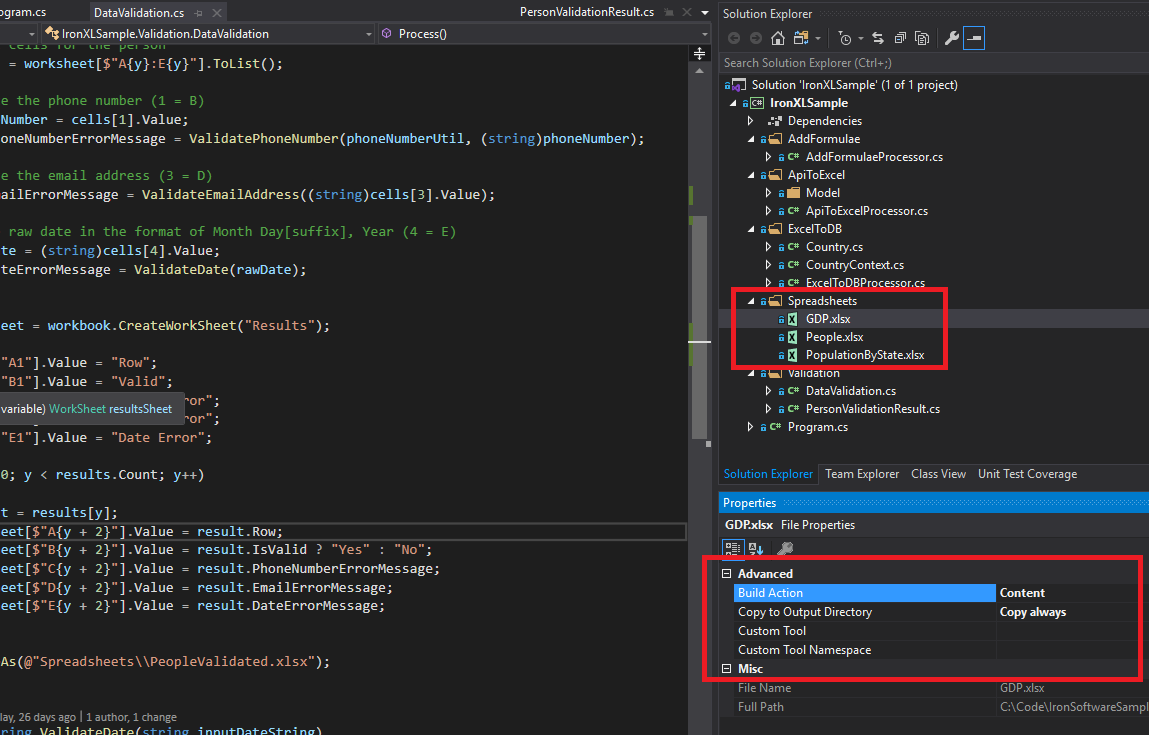 Arquivos Excel de exemplo (GDP.xlsx, People.xlsx e PopulationByState.xlsx) usados ao longo deste tutorial para demonstrar várias operações do IronXL.
Como Posso Instalar a Biblioteca C# IronXL?
Adicione a biblioteca IronXL.Excel a um projeto .NET através do NuGet, ou referenciando o DLL diretamente.
Instalando o pacote NuGet IronXL
- No Visual Studio, clique com o botão direito do mouse no seu projeto e selecione "Gerenciar Pacotes NuGet..."
- Procure por
IronXL.Excelna aba de navegação - Clique no botão Instalar para adicionar o IronXL ao seu projeto.
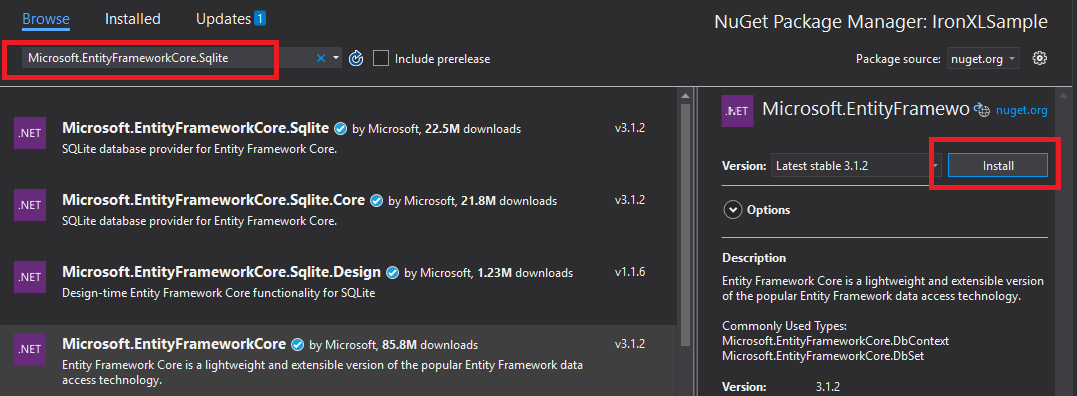 A instalação do IronXL através do Gerenciador de Pacotes NuGet do Visual Studio proporciona o gerenciamento automático de dependências.
Alternativamente, instale o IronXL usando o Console do Gerenciador de Pacotes:
- Abra o Console do Gerenciador de Pacotes (Ferramentas → Gerenciador de Pacotes NuGet → Console do Gerenciador de Pacotes)
- Execute o comando de instalação:
Você também pode visualizar os detalhes do pacote no site do NuGet .
Instalação manual
Para instalação manual, baixe a DLL IronXL .NET Excel e faça referência a ela diretamente em seu projeto do Visual Studio.
Como faço para carregar e ler uma planilha do Excel?
A classe WorkBook representa um arquivo Excel inteiro. Carregue arquivos Excel usando o método WorkBook.Load(), que aceita caminhos de arquivos para os formatos XLS, XLSX, CSV e TSV.
using IronXL;
using System;
using System.Linq;

// Load Excel file from specified path
WorkBook workBook = WorkBook.Load(@"Spreadsheets\GDP.xlsx");

Console.WriteLine("Workbook loaded successfully.");

// Access specific worksheet by name
WorkSheet sheet = workBook.GetWorkSheet("Sheet1");

// Read and display cell value
string cellValue = sheet["A1"].StringValue;
Console.WriteLine($"Cell A1 contains: {cellValue}");

// Perform additional operations
// Count non_empty cells in column A
int rowCount = sheet["A:A"].Count(cell => !cell.IsEmpty);
Console.WriteLine($"Column A has {rowCount} non_empty cells");Imports IronXL
Imports System
Imports System.Linq
' Load Excel file from specified path
Dim workBook As WorkBook = WorkBook.Load("Spreadsheets\GDP.xlsx")
Console.WriteLine("Workbook loaded successfully.")
' Access specific worksheet by name
Dim sheet As WorkSheet = workBook.GetWorkSheet("Sheet1")
' Read and display cell value
Dim cellValue As String = sheet("A1").StringValue
Console.WriteLine($"Cell A1 contains: {cellValue}")
' Perform additional operations
' Count non_empty cells in column A
Dim rowCount As Integer = sheet("A:A").Count(Function(cell) Not cell.IsEmpty)
Console.WriteLine($"Column A has {rowCount} non_empty cells")Cada WorkBook contém vários objetos WorkSheet que representam planilhas do Excel individuais. Access worksheets by name using GetWorkSheet():
using IronXL;
using System;

// Get worksheet by name
WorkSheet workSheet = workBook.GetWorkSheet("GDPByCountry");

Console.WriteLine("Worksheet 'GDPByCountry' not found");
// List available worksheets
foreach (var sheet in workBook.WorkSheets)
{
    Console.WriteLine($"Available: {sheet.Name}");
}Imports IronXL
Imports System
' Get worksheet by name
Dim workSheet As WorkSheet = workBook.GetWorkSheet("GDPByCountry")
Console.WriteLine("Worksheet 'GDPByCountry' not found")
' List available worksheets
For Each sheet In workBook.WorkSheets
Console.WriteLine($"Available: {sheet.Name}")
NextComo Eu Crio Novos Documentos Excel em C#?
Crie novos documentos do Excel construindo um objeto WorkBook com o formato de arquivo desejado. O IronXL suporta os formatos XLSX modernos e XLS legados.
using IronXL;

// Create new XLSX workbook (recommended format)
WorkBook workBook = WorkBook.Create(ExcelFileFormat.XLSX);

// Set workbook metadata
workBook.Metadata.Author = "Your Application";
workBook.Metadata.Comments = "Generated by IronXL";

// Create new XLS workbook for legacy support
WorkBook legacyWorkBook = WorkBook.Create(ExcelFileFormat.XLS);

// Save the workbook
workBook.SaveAs("NewDocument.xlsx");Imports IronXL
' Create new XLSX workbook (recommended format)
Private workBook As WorkBook = WorkBook.Create(ExcelFileFormat.XLSX)
' Set workbook metadata
workBook.Metadata.Author = "Your Application"
workBook.Metadata.Comments = "Generated by IronXL"
' Create new XLS workbook for legacy support
Dim legacyWorkBook As WorkBook = WorkBook.Create(ExcelFileFormat.XLS)
' Save the workbook
workBook.SaveAs("NewDocument.xlsx")Nota: Use ExcelFileFormat.XLS apenas quando a compatibilidade com o Excel 2003 e anteriores for necessária.
Como posso adicionar planilhas a um documento do Excel?
Um WorkBook do IronXL contém uma coleção de planilhas. Compreender essa estrutura ajuda na criação de arquivos Excel com várias planilhas.
 Representação visual da estrutura WorkBook contendo múltiplos objetos WorkSheet no IronXL.
Crie novas planilhas usando CreateWorkSheet():
using IronXL;

// Create multiple worksheets with descriptive names
WorkSheet summarySheet = workBook.CreateWorkSheet("Summary");
WorkSheet dataSheet = workBook.CreateWorkSheet("RawData");
WorkSheet chartSheet = workBook.CreateWorkSheet("Charts");

// Set the active worksheet
workBook.SetActiveTab(0); // Makes "Summary" the active sheet

// Access default worksheet (first sheet)
WorkSheet defaultSheet = workBook.DefaultWorkSheet;Imports IronXL
' Create multiple worksheets with descriptive names
Dim summarySheet As WorkSheet = workBook.CreateWorkSheet("Summary")
Dim dataSheet As WorkSheet = workBook.CreateWorkSheet("RawData")
Dim chartSheet As WorkSheet = workBook.CreateWorkSheet("Charts")
' Set the active worksheet
workBook.SetActiveTab(0) ' Makes "Summary" the active sheet
' Access default worksheet (first sheet)
Dim defaultSheet As WorkSheet = workBook.DefaultWorkSheetComo faço para ler e editar os valores de uma célula?
Ler e editar uma única célula
Acesse células individuais através da propriedade de indexação da planilha. A classe Cell do IronXL fornece propriedades de valor fortemente tipadas.
using IronXL;
using System;
using System.Linq;

// Load workbook and get worksheet
WorkBook workBook = WorkBook.Load("test.xlsx");
WorkSheet workSheet = workBook.DefaultWorkSheet;

// Access cell B1
IronXL.Cell cell = workSheet["B1"].First();

// Read cell value with type safety
string textValue = cell.StringValue;
int intValue = cell.IntValue;
decimal decimalValue = cell.DecimalValue;
DateTime? dateValue = cell.DateTimeValue;

// Check cell data type
if (cell.IsNumeric)
{
    Console.WriteLine($"Numeric value: {cell.DecimalValue}");
}
else if (cell.IsText)
{
    Console.WriteLine($"Text value: {cell.StringValue}");
}Imports IronXL
Imports System
Imports System.Linq
' Load workbook and get worksheet
Dim workBook As WorkBook = WorkBook.Load("test.xlsx")
Dim workSheet As WorkSheet = workBook.DefaultWorkSheet
' Access cell B1
Dim cell As IronXL.Cell = workSheet("B1").First()
' Read cell value with type safety
Dim textValue As String = cell.StringValue
Dim intValue As Integer = cell.IntValue
Dim decimalValue As Decimal = cell.DecimalValue
Dim dateValue As DateTime? = cell.DateTimeValue
' Check cell data type
If cell.IsNumeric Then
Console.WriteLine($"Numeric value: {cell.DecimalValue}")
ElseIf cell.IsText Then
Console.WriteLine($"Text value: {cell.StringValue}")
End IfA classe Cell oferece múltiplas propriedades para diferentes tipos de dados, convertendo automaticamente os valores quando possível. Para mais informações sobre operações com células, consulte o tutorial de formatação de células .
// Write different data types to cells
workSheet["A1"].Value = "Product Name";     // String
workSheet["B1"].Value = 99.95m;             // Decimal
workSheet["C1"].Value = DateTime.Today;     // Date
workSheet["D1"].Formula = "=B1*1.2";        // Formula
                                            // Format cells
workSheet["B1"].FormatString = "$#,##0.00"; // Currency format
workSheet["C1"].FormatString = "yyyy-MM-dd";// Date format
                                            // Save changes
workBook.Save();' Write different data types to cells
workSheet("A1").Value = "Product Name" ' String
workSheet("B1").Value = 99.95D ' Decimal
workSheet("C1").Value = DateTime.Today ' Date
workSheet("D1").Formula = "=B1*1.2" ' Formula
' Format cells
workSheet("B1").FormatString = "$#,##0.00" ' Currency format
workSheet("C1").FormatString = "yyyy-MM-dd" ' Date format
' Save changes
workBook.Save()Como posso trabalhar com intervalos de células?
A classe Range representa uma coleção de células, permitindo operações em massa nos dados do Excel.
using IronXL;
using Range = IronXL.Range;

// Select range using Excel notation
Range range = workSheet["D2:D101"];

// Alternative: Use Range class for dynamic selection
Range dynamicRange = workSheet.GetRange("D2:D101"); // Row 2_101, Column D

// Perform bulk operations
range.Value = 0; // Set all cells to 0Imports IronXL
' Select range using Excel notation
Dim range As Range = workSheet("D2:D101")
' Alternative: Use Range class for dynamic selection
Dim dynamicRange As Range = workSheet.GetRange("D2:D101") ' Row 2_101, Column D
' Perform bulk operations
range.Value = 0 ' Set all cells to 0Processa intervalos de forma eficiente usando loops quando a contagem de células é conhecida:
// Data validation example
public class ValidationResult
{
    public int Row { get; set; }
    public string PhoneError { get; set; }
    public string EmailError { get; set; }
    public string DateError { get; set; }
    public bool IsValid => string.IsNullOrEmpty(PhoneError) &&
                           string.IsNullOrEmpty(EmailError) &&
                           string.IsNullOrEmpty(DateError);
}

// Validate data in rows 2-101
var results = new List<ValidationResult>();

for (int row = 2; row <= 101; row++)
{
    var result = new ValidationResult { Row = row };

    // Get row data efficiently
    var phoneCell = workSheet[$"B{row}"];
    var emailCell = workSheet[$"D{row}"];
    var dateCell = workSheet[$"E{row}"];

    // Validate phone number
    if (!IsValidPhoneNumber(phoneCell.StringValue))
        result.PhoneError = "Invalid phone format";

    // Validate email
    if (!IsValidEmail(emailCell.StringValue))
        result.EmailError = "Invalid email format";

    // Validate date
    if (!dateCell.IsDateTime)
        result.DateError = "Invalid date format";

    results.Add(result);
}

// Helper methods
bool IsValidPhoneNumber(string phone) =>
    System.Text.RegularExpressions.Regex.IsMatch(phone, @"^\d{3}-\d{3}-\d{4}$");

bool IsValidEmail(string email) =>
email.Contains("@") && email.Contains(".");' Data validation example
Public Class ValidationResult
Public Property Row As Integer
Public Property PhoneError As String
Public Property EmailError As String
Public Property DateError As String
Public ReadOnly Property IsValid As Boolean
Get
Return String.IsNullOrEmpty(PhoneError) AndAlso
String.IsNullOrEmpty(EmailError) AndAlso
String.IsNullOrEmpty(DateError)
End Get
End Property
End Class
' Validate data in rows 2-101
Dim results As New List(Of ValidationResult)()
For row As Integer = 2 To 101
Dim result As New ValidationResult With {.Row = row}
' Get row data efficiently
Dim phoneCell = workSheet($"B{row}")
Dim emailCell = workSheet($"D{row}")
Dim dateCell = workSheet($"E{row}")
' Validate phone number
If Not IsValidPhoneNumber(phoneCell.StringValue) Then
result.PhoneError = "Invalid phone format"
End If
' Validate email
If Not IsValidEmail(emailCell.StringValue) Then
result.EmailError = "Invalid email format"
End If
' Validate date
If Not dateCell.IsDateTime Then
result.DateError = "Invalid date format"
End If
results.Add(result)
Next
' Helper methods
Private Function IsValidPhoneNumber(phone As String) As Boolean
Return System.Text.RegularExpressions.Regex.IsMatch(phone, "^\d{3}-\d{3}-\d{4}$")
End Function
Private Function IsValidEmail(email As String) As Boolean
Return email.Contains("@") AndAlso email.Contains(".")
End FunctionComo adiciono fórmulas a planilhas do Excel?
Aplique fórmulas do Excel usando a propriedade Formula. O IronXL suporta a sintaxe padrão de fórmulas do Excel.
using IronXL;

// Add formulas to calculate percentages
int lastRow = 50;
for (int row = 2; row < lastRow; row++)
{
    // Calculate percentage: current value / total
    workSheet[$"C{row}"].Formula = $"=B{row}/B{lastRow}";
    // Format as percentage
    workSheet[$"C{row}"].FormatString = "0.00%";
}
// Add summary formulas
workSheet["B52"].Formula = "=SUM(B2:B50)";      // Sum
workSheet["B53"].Formula = "=AVERAGE(B2:B50)";   // Average
workSheet["B54"].Formula = "=MAX(B2:B50)";       // Maximum
workSheet["B55"].Formula = "=MIN(B2:B50)";       // Minimum
                                                 // Force formula evaluation
workBook.EvaluateAll();Imports IronXL
' Add formulas to calculate percentages
Dim lastRow As Integer = 50
For row As Integer = 2 To lastRow - 1
' Calculate percentage: current value / total
workSheet($"C{row}").Formula = $"=B{row}/B{lastRow}"
' Format as percentage
workSheet($"C{row}").FormatString = "0.00%"
Next
' Add summary formulas
workSheet("B52").Formula = "=SUM(B2:B50)" ' Sum
workSheet("B53").Formula = "=AVERAGE(B2:B50)" ' Average
workSheet("B54").Formula = "=MAX(B2:B50)" ' Maximum
workSheet("B55").Formula = "=MIN(B2:B50)" ' Minimum
' Force formula evaluation
workBook.EvaluateAll()Para editar fórmulas existentes, consulte o tutorial de fórmulas do Excel .
Como posso validar os dados de uma planilha?
Um caso de uso comum que vejo é validar planilhas fornecidas pelo usuário antes de puxar os dados para um banco de dados. O exemplo abaixo verifica números de telefone, e-mails e datas com expressões regulares e verificações de tipo integradas do IronXL.
using System.Text.RegularExpressions;
using IronXL;

// Validation implementation
for (int i = 2; i <= 101; i++)
{
    var result = new PersonValidationResult { Row = i };
    results.Add(result);

    // Get cells for current person
    var cells = workSheet[$"A{i}:E{i}"].ToList();

    // Validate phone (column B)
    string phone = cells[1].StringValue;
    if (!Regex.IsMatch(phone, @"^\+?1?\d{10,14}$"))
    {
        result.PhoneNumberErrorMessage = "Invalid phone format";
    }

    // Validate email (column D)
    string email = cells[3].StringValue;
    if (!Regex.IsMatch(email, @"^[^@\s]+@[^@\s]+\.[^@\s]+$"))
    {
        result.EmailErrorMessage = "Invalid email address";
    }

    // Validate date (column E)
    if (!cells[4].IsDateTime)
    {
        result.DateErrorMessage = "Invalid date format";
    }
}Imports System.Text.RegularExpressions
Imports IronXL
' Validation implementation
For i As Integer = 2 To 101
Dim result As New PersonValidationResult With {.Row = i}
results.Add(result)
' Get cells for current person
Dim cells = workSheet($"A{i}:E{i}").ToList()
' Validate phone (column B)
Dim phone As String = cells(1).StringValue
If Not Regex.IsMatch(phone, "^\+?1?\d{10,14}$") Then
result.PhoneNumberErrorMessage = "Invalid phone format"
End If
' Validate email (column D)
Dim email As String = cells(3).StringValue
If Not Regex.IsMatch(email, "^[^@\s]+@[^@\s]+\.[^@\s]+$") Then
result.EmailErrorMessage = "Invalid email address"
End If
' Validate date (column E)
If Not cells(4).IsDateTime Then
result.DateErrorMessage = "Invalid date format"
End If
Next iSalvar os resultados da validação em uma nova planilha:
// Create results worksheet
var resultsSheet = workBook.CreateWorkSheet("ValidationResults");

// Add headers
resultsSheet["A1"].Value = "Row";
resultsSheet["B1"].Value = "Valid";
resultsSheet["C1"].Value = "Phone Error";
resultsSheet["D1"].Value = "Email Error";
resultsSheet["E1"].Value = "Date Error";

// Style headers
resultsSheet["A1:E1"].Style.Font.Bold = true;
resultsSheet["A1:E1"].Style.SetBackgroundColor("#4472C4");
resultsSheet["A1:E1"].Style.Font.Color = "#FFFFFF";

// Output validation results
for (int i = 0; i < results.Count; i++)
{
    var result = results[i];
    int outputRow = i + 2;

    resultsSheet[$"A{outputRow}"].Value = result.Row;
    resultsSheet[$"B{outputRow}"].Value = result.IsValid ? "Yes" : "No";
    resultsSheet[$"C{outputRow}"].Value = result.PhoneNumberErrorMessage ?? "";
    resultsSheet[$"D{outputRow}"].Value = result.EmailErrorMessage ?? "";
    resultsSheet[$"E{outputRow}"].Value = result.DateErrorMessage ?? "";

    // Highlight invalid rows
    if (!result.IsValid)
    {
        resultsSheet[$"A{outputRow}:E{outputRow}"].Style.SetBackgroundColor("#FFE6E6");
    }
}

// Auto-fit columns
for (int col = 0; col < 5; col++)
{
    resultsSheet.AutoSizeColumn(col);
}

// Save validated workbook
workBook.SaveAs(@"Spreadsheets\PeopleValidated.xlsx");Imports System
' Create results worksheet
Dim resultsSheet = workBook.CreateWorkSheet("ValidationResults")
' Add headers
resultsSheet("A1").Value = "Row"
resultsSheet("B1").Value = "Valid"
resultsSheet("C1").Value = "Phone Error"
resultsSheet("D1").Value = "Email Error"
resultsSheet("E1").Value = "Date Error"
' Style headers
resultsSheet("A1:E1").Style.Font.Bold = True
resultsSheet("A1:E1").Style.SetBackgroundColor("#4472C4")
resultsSheet("A1:E1").Style.Font.Color = "#FFFFFF"
' Output validation results
For i As Integer = 0 To results.Count - 1
Dim result = results(i)
Dim outputRow As Integer = i + 2
resultsSheet($"A{outputRow}").Value = result.Row
resultsSheet($"B{outputRow}").Value = If(result.IsValid, "Yes", "No")
resultsSheet($"C{outputRow}").Value = If(result.PhoneNumberErrorMessage, "")
resultsSheet($"D{outputRow}").Value = If(result.EmailErrorMessage, "")
resultsSheet($"E{outputRow}").Value = If(result.DateErrorMessage, "")
' Highlight invalid rows
If Not result.IsValid Then
resultsSheet($"A{outputRow}:E{outputRow}").Style.SetBackgroundColor("#FFE6E6")
End If
Next
' Auto-fit columns
For col As Integer = 0 To 4
resultsSheet.AutoSizeColumn(col)
Next
' Save validated workbook
workBook.SaveAs("Spreadsheets\PeopleValidated.xlsx")Como faço para exportar dados do Excel para um banco de dados?
Utilize o IronXL com o Entity Framework para exportar dados de planilhas diretamente para bancos de dados. Este exemplo demonstra como exportar dados do PIB de um país para o SQLite.
using System;
using System.ComponentModel.DataAnnotations;
using Microsoft.EntityFrameworkCore;
using IronXL;

// Define entity model
public class Country
{
    [Key]
    public Guid Id { get; set; } = Guid.NewGuid();

    [Required]
    [MaxLength(100)]
    public string Name { get; set; }

    [Range(0, double.MaxValue)]
    public decimal GDP { get; set; }

    public DateTime ImportedDate { get; set; } = DateTime.UtcNow;
}Imports System
Imports System.ComponentModel.DataAnnotations
Imports Microsoft.EntityFrameworkCore
Imports IronXL
' Define entity model
Public Class Country
<Key>
Public Property Id As Guid = Guid.NewGuid()
<Required>
<MaxLength(100)>
Public Property Name As String
<Range(0, Double.MaxValue)>
Public Property GDP As Decimal
Public Property ImportedDate As DateTime = DateTime.UtcNow
End ClassConfigure o contexto do Entity Framework para operações de banco de dados:
public class CountryContext : DbContext
{
    public DbSet<Country> Countries { get; set; }

    protected override void OnConfiguring(DbContextOptionsBuilder optionsBuilder)
    {
        // Configure SQLite connection
        optionsBuilder.UseSqlite("Data Source=CountryGDP.db");

        // Enable sensitive data logging in development
        #if DEBUG
        optionsBuilder.EnableSensitiveDataLogging();
        #endif
    }

    protected override void OnModelCreating(ModelBuilder modelBuilder)
    {
        // Configure decimal precision
        modelBuilder.Entity<Country>()
            .Property(c => c.GDP)
            .HasPrecision(18, 2);
    }
}Public Class CountryContext
Inherits DbContext
Public Property Countries As DbSet(Of Country)
Protected Overrides Sub OnConfiguring(optionsBuilder As DbContextOptionsBuilder)
' Configure SQLite connection
optionsBuilder.UseSqlite("Data Source=CountryGDP.db")
' Enable sensitive data logging in development
#If DEBUG Then
optionsBuilder.EnableSensitiveDataLogging()
#End If
End Sub
Protected Overrides Sub OnModelCreating(modelBuilder As ModelBuilder)
' Configure decimal precision
modelBuilder.Entity(Of Country)() _
.Property(Function(c) c.GDP) _
.HasPrecision(18, 2)
End Sub
End ClassMicrosoft.EntityFrameworkCore.SqlServer para SQL Server) e modifique a configuração da conexão de acordo.Importar dados do Excel para o banco de dados:
using System.Threading.Tasks;
using IronXL;
using Microsoft.EntityFrameworkCore;

public async Task ImportGDPDataAsync()
{
    try
    {
        // Load Excel file
        var workBook = WorkBook.Load(@"Spreadsheets\GDP.xlsx");
        var workSheet = workBook.GetWorkSheet("GDPByCountry");

        using (var context = new CountryContext())
        {
            // Ensure database exists
            await context.Database.EnsureCreatedAsync();

            // Clear existing data (optional)
            await context.Database.ExecuteSqlRawAsync("DELETE FROM Countries");

            // Import data with progress tracking
            int totalRows = 213;
            for (int row = 2; row <= totalRows; row++)
            {
                // Read country data
                var countryName = workSheet[$"A{row}"].StringValue;
                var gdpValue = workSheet[$"B{row}"].DecimalValue;

                // Skip empty rows
                if (string.IsNullOrWhiteSpace(countryName))
                    continue;

                // Create and add entity
                var country = new Country
                {
                    Name = countryName.Trim(),
                    GDP = gdpValue * 1_000_000 // Convert to actual value if in millions
                };

                await context.Countries.AddAsync(country);

                // Save in batches for performance
                if (row % 50 == 0)
                {
                    await context.SaveChangesAsync();
                    Console.WriteLine($"Imported {row - 1} of {totalRows} countries");
                }
            }

            // Save remaining records
            await context.SaveChangesAsync();
            Console.WriteLine($"Successfully imported {await context.Countries.CountAsync()} countries");
        }
    }
    catch (Exception ex)
    {
        Console.WriteLine($"Import failed: {ex.Message}");
        throw;
    }
}Imports System.Threading.Tasks
Imports IronXL
Imports Microsoft.EntityFrameworkCore
Public Async Function ImportGDPDataAsync() As Task
Try
' Load Excel file
Dim workBook = WorkBook.Load("Spreadsheets\GDP.xlsx")
Dim workSheet = workBook.GetWorkSheet("GDPByCountry")
Using context = New CountryContext()
' Ensure database exists
Await context.Database.EnsureCreatedAsync()
' Clear existing data (optional)
Await context.Database.ExecuteSqlRawAsync("DELETE FROM Countries")
' Import data with progress tracking
Dim totalRows As Integer = 213
For row As Integer = 2 To totalRows
' Read country data
Dim countryName = workSheet($"A{row}").StringValue
Dim gdpValue = workSheet($"B{row}").DecimalValue
' Skip empty rows
If String.IsNullOrWhiteSpace(countryName) Then
Continue For
End If
' Create and add entity
Dim country = New Country With {
.Name = countryName.Trim(),
.GDP = gdpValue * 1_000_000 ' Convert to actual value if in millions
}
Await context.Countries.AddAsync(country)
' Save in batches for performance
If row Mod 50 = 0 Then
Await context.SaveChangesAsync()
Console.WriteLine($"Imported {row - 1} of {totalRows} countries")
End If
Next
' Save remaining records
Await context.SaveChangesAsync()
Console.WriteLine($"Successfully imported {Await context.Countries.CountAsync()} countries")
End Using
Catch ex As Exception
Console.WriteLine($"Import failed: {ex.Message}")
Throw
End Try
End FunctionComo posso importar dados de API para planilhas do Excel?
Combine o IronXL com clientes HTTP para preencher planilhas com dados de API em tempo real. Este exemplo utiliza o RestClient.Net para obter dados de países.
using System;
using System.Collections.Generic;
using System.Net.Http;
using System.Threading.Tasks;
using Newtonsoft.Json;
using IronXL;

// Define data model matching API response
public class RestCountry
{
    public string Name { get; set; }
    public long Population { get; set; }
    public string Region { get; set; }
    public string NumericCode { get; set; }
    public List<Language> Languages { get; set; }
}

public class Language
{
    public string Name { get; set; }
    public string NativeName { get; set; }
}

// Fetch and process API data
public async Task ImportCountryDataAsync()
{
    using var httpClient = new HttpClient();

    try
    {
        // Call REST API
        var response = await httpClient.GetStringAsync("https://restcountries.com/v3.1/all");
        var countries = JsonConvert.DeserializeObject<List<RestCountry>>(response);

        // Create new workbook
        var workBook = WorkBook.Create(ExcelFileFormat.XLSX);
        var workSheet = workBook.CreateWorkSheet("Countries");

        // Add headers with styling
        string[] headers = { "Country", "Population", "Region", "Code", "Language 1", "Language 2", "Language 3" };
        for (int col = 0; col < headers.Length; col++)
        {
            var headerCell = workSheet[0, col];
            headerCell.Value = headers[col];
            headerCell.Style.Font.Bold = true;
            headerCell.Style.SetBackgroundColor("#366092");
            headerCell.Style.Font.Color = "#FFFFFF";
        }

        // Import country data
        await ProcessCountryData(countries, workSheet);

        // Save workbook
        workBook.SaveAs("CountriesFromAPI.xlsx");
    }
    catch (Exception ex)
    {
        Console.WriteLine($"API import failed: {ex.Message}");
    }
}Imports System
Imports System.Collections.Generic
Imports System.Net.Http
Imports System.Threading.Tasks
Imports Newtonsoft.Json
Imports IronXL
' Define data model matching API response
Public Class RestCountry
Public Property Name As String
Public Property Population As Long
Public Property Region As String
Public Property NumericCode As String
Public Property Languages As List(Of Language)
End Class
Public Class Language
Public Property Name As String
Public Property NativeName As String
End Class
' Fetch and process API data
Public Async Function ImportCountryDataAsync() As Task
Using httpClient As New HttpClient()
Try
' Call REST API
Dim response As String = Await httpClient.GetStringAsync("https://restcountries.com/v3.1/all")
Dim countries As List(Of RestCountry) = JsonConvert.DeserializeObject(Of List(Of RestCountry))(response)
' Create new workbook
Dim workBook As WorkBook = WorkBook.Create(ExcelFileFormat.XLSX)
Dim workSheet As WorkSheet = workBook.CreateWorkSheet("Countries")
' Add headers with styling
Dim headers As String() = {"Country", "Population", "Region", "Code", "Language 1", "Language 2", "Language 3"}
For col As Integer = 0 To headers.Length - 1
Dim headerCell = workSheet(0, col)
headerCell.Value = headers(col)
headerCell.Style.Font.Bold = True
headerCell.Style.SetBackgroundColor("#366092")
headerCell.Style.Font.Color = "#FFFFFF"
Next
' Import country data
Await ProcessCountryData(countries, workSheet)
' Save workbook
workBook.SaveAs("CountriesFromAPI.xlsx")
Catch ex As Exception
Console.WriteLine($"API import failed: {ex.Message}")
End Try
End Using
End FunctionA API retorna dados JSON neste formato:
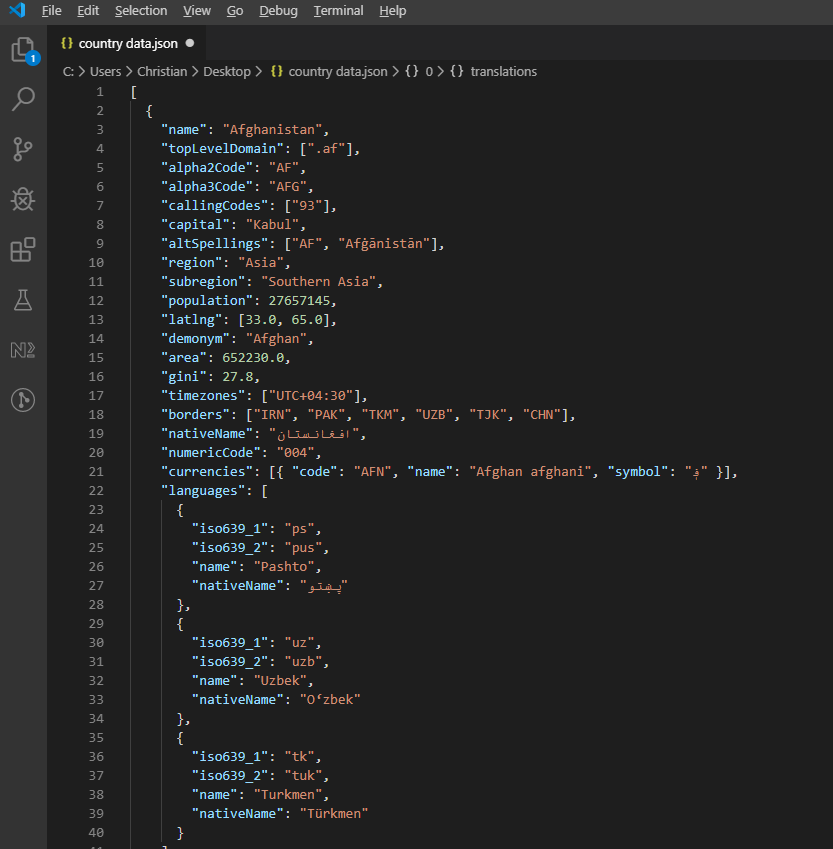 Exemplo de resposta JSON da API REST Countries, mostrando informações hierárquicas sobre os países.
Processar e gravar os dados da API no Excel:
private async Task ProcessCountryData(List<RestCountry> countries, WorkSheet workSheet)
{
    for (int i = 0; i < countries.Count; i++)
    {
        var country = countries[i];
        int row = i + 1; // Start from row 1 (after headers)

        // Write basic country data
        workSheet[$"A{row}"].Value = country.Name;
        workSheet[$"B{row}"].Value = country.Population;
        workSheet[$"C{row}"].Value = country.Region;
        workSheet[$"D{row}"].Value = country.NumericCode;

        // Format population with thousands separator
        workSheet[$"B{row}"].FormatString = "#,##0";

        // Add up to 3 languages
        for (int langIndex = 0; langIndex < Math.Min(3, country.Languages?.Count ?? 0); langIndex++)
        {
            var language = country.Languages[langIndex];
            string columnLetter = ((char)('E' + langIndex)).ToString();
            workSheet[$"{columnLetter}{row}"].Value = language.Name;
        }

        // Add conditional formatting for regions
        if (country.Region == "Europe")
        {
            workSheet[$"C{row}"].Style.SetBackgroundColor("#E6F3FF");
        }
        else if (country.Region == "Asia")
        {
            workSheet[$"C{row}"].Style.SetBackgroundColor("#FFF2E6");
        }

        // Show progress every 50 countries
        if (i % 50 == 0)
        {
            Console.WriteLine($"Processed {i} of {countries.Count} countries");
        }
    }

    // Auto-size all columns
    for (int col = 0; col < 7; col++)
    {
        workSheet.AutoSizeColumn(col);
    }
}Private Async Function ProcessCountryData(countries As List(Of RestCountry), workSheet As WorkSheet) As Task
For i As Integer = 0 To countries.Count - 1
Dim country = countries(i)
Dim row As Integer = i + 1 ' Start from row 1 (after headers)
' Write basic country data
workSheet($"A{row}").Value = country.Name
workSheet($"B{row}").Value = country.Population
workSheet($"C{row}").Value = country.Region
workSheet($"D{row}").Value = country.NumericCode
' Format population with thousands separator
workSheet($"B{row}").FormatString = "#,##0"
' Add up to 3 languages
For langIndex As Integer = 0 To Math.Min(3, If(country.Languages?.Count, 0)) - 1
Dim language = country.Languages(langIndex)
Dim columnLetter As String = ChrW(AscW("E"c) + langIndex).ToString()
workSheet($"{columnLetter}{row}").Value = language.Name
Next
' Add conditional formatting for regions
If country.Region = "Europe" Then
workSheet($"C{row}").Style.SetBackgroundColor("#E6F3FF")
ElseIf country.Region = "Asia" Then
workSheet($"C{row}").Style.SetBackgroundColor("#FFF2E6")
End If
' Show progress every 50 countries
If i Mod 50 = 0 Then
Console.WriteLine($"Processed {i} of {countries.Count} countries")
End If
Next
' Auto-size all columns
For col As Integer = 0 To 6
workSheet.AutoSizeColumn(col)
Next
End FunctionProblemas Comuns
Algumas coisas mordem as pessoas com frequência suficiente para merecerem sua própria seção.
Células vazias retornam 0, não nulo
Este me pegou no início. Chamar sheet["A1"].IntValue (ou DecimalValue, ou DoubleValue) em uma célula em branco retorna 0, não null. Se você está somando ou fazendo a média de uma coluna com lacunas, os vazios silenciosamente se tornam zeros e distorcem o resultado. Agora eu protejo leituras em qualquer planilha onde valores ausentes são possíveis:
var cell = sheet["B5"];
if (!cell.IsEmpty)
{
    total += cell.DecimalValue;
}Dim cell = sheet("B5")
If Not cell.IsEmpty Then
total += cell.DecimalValue
End IfCell.IsEmpty é barato, então eu prefiro usá-lo sempre que a planilha é fornecida pelo usuário em vez de gerada pela máquina.
Datas retornam como números seriais se você pedir o tipo errado
O Excel armazena datas como números seriais sob o capô (45292 significa 2024-01-01, por exemplo). A pergunta mais comum sobre manipulação de datas na nossa caixa de entrada de suporte é "por que minha data está aparecendo como 45292?" A resposta é quase sempre que a célula foi lida como StringValue ou IntValue em vez de DateTimeValue:
// What you probably want:
DateTime birthday = sheet["E2"].DateTimeValue;

// What gives you "45292":
string birthday = sheet["E2"].StringValue;' What you probably want:
Dim birthday As DateTime = sheet("E2").DateTimeValue
' What gives you "45292":
Dim birthday As String = sheet("E2").StringValueCell.IsDateTime dirá se a célula foi ou não criada como uma data em primeiro lugar, o que é útil para pipelines de validação onde o formato de entrada não é garantido.
Os números de índice de células são baseados em 0, mas as strings A1 são baseadas em 1
Coberto acima no parágrafo de migração do Interop, mas vale a pena repetir porque pega até mesmo pessoas que nunca estiveram perto do COM. sheet[0, 0] é a mesma célula que sheet["A1"]. Misturar os dois estilos no mesmo loop é como bugs de uma unidade de diferença aparecem. Escolho uma forma por arquivo e mantenho-a; a forma de string ["A1"] é o que eu prefiro porque corresponde ao que você vê na própria planilha.
Projeto de exemplo para os números do benchmark
Se você quiser reproduzir os números de tempo de antes, o suporte é um pequeno aplicativo de console .NET 9:
// ReadExcelBenchmark/Program.cs (excerpt)
IronXL.License.LicenseKey = Environment.GetEnvironmentVariable("IRONXL_LICENSE_KEY");

var sw = Stopwatch.StartNew();
var workbook = WorkBook.Load("GDP.xlsx");
decimal sum = workbook.WorkSheets.First()["B2:B214"].Sum();
sw.Stop();
Console.WriteLine($"cold: {sw.Elapsed.TotalMilliseconds:F1} ms");Imports System
Imports System.Diagnostics
Imports IronXL
License.LicenseKey = Environment.GetEnvironmentVariable("IRONXL_LICENSE_KEY")
Dim sw As Stopwatch = Stopwatch.StartNew()
Dim workbook = WorkBook.Load("GDP.xlsx")
Dim sum As Decimal = workbook.WorkSheets.First()("B2:B214").Sum()
sw.Stop()
Console.WriteLine($"cold: {sw.Elapsed.TotalMilliseconds:F1} ms")Execute-o sob dotnet run -c Release, gere os dois livros de trabalho de exemplo no primeiro lançamento, e você pode substituir seus próprios arquivos para ver como os números mudam com o tamanho do arquivo e a complexidade.
Referência de objetos e recursos
A Referência da API do IronXL cobre todas as classes e métodos, incluindo aqueles que este tutorial não aborda.
Tutoriais adicionais para operações no Excel:
- Criar arquivos do Excel programaticamente
- Guia de formatação e estilo do Excel
- Trabalhando com fórmulas do Excel
- Tutorial de criação de gráficos no Excel
Resumo
IronXL.Excel lê e manipula arquivos do Excel nos formatos XLS, XLSX, CSV e TSV. Executa sem Microsoft Excel ou Interop na máquina host.
Para manipulação de planilhas na nuvem, você também pode explorar a Biblioteca de Cliente da API do Google Sheets for .NET, que complementa os recursos de arquivos locais do IronXL.
Pronto para implementar a automação do Excel em seus projetos C#? Baixe o IronXL ou explore as opções de licenciamento para uso em produção.
Perguntas frequentes
Como posso ler arquivos do Excel em C# sem usar o Microsoft Office?
Você pode usar o IronXL para ler arquivos do Excel em C# sem precisar do Microsoft Office. O IronXL oferece métodos como WorkBook.Load() para abrir arquivos do Excel e permite acessar e manipular dados usando uma sintaxe intuitiva.
Quais formatos de arquivos do Excel podem ser lidos usando C#?
Com o IronXL, você pode ler arquivos nos formatos XLS e XLSX em C#. A biblioteca detecta automaticamente o formato do arquivo e o processa adequadamente usando o método WorkBook.Load() .
Como validar dados do Excel em C#?
IronXL permite validar dados do Excel programaticamente em C# iterando pelas células e aplicando lógica como expressões regulares para e-mails ou funções de validação personalizadas. Você pode gerar relatórios usando CreateWorkSheet() .
Como posso exportar dados do Excel para um banco de dados SQL usando C#?
Para exportar dados do Excel para um banco de dados SQL, use o IronXL para ler os dados do Excel com os métodos WorkBook.Load() e GetWorkSheet() , e então itere pelas células para transferir os dados para o seu banco de dados usando o Entity Framework.
Posso integrar a funcionalidade do Excel com aplicações ASP.NET Core?
Sim, o IronXL oferece suporte à integração com aplicativos ASP.NET Core. Você pode usar as classes WorkBook e WorkSheet em seus controladores para lidar com uploads de arquivos Excel, gerar relatórios e muito mais.
É possível adicionar fórmulas a planilhas do Excel usando C#?
O IronXL permite adicionar fórmulas a planilhas do Excel programaticamente. Você pode definir uma fórmula usando a propriedade Formula , como cell.Formula = "=SUM(A1:A10)" e calcular os resultados com workBook.EvaluateAll() .
Como faço para preencher arquivos do Excel com dados de uma API REST?
Para preencher arquivos do Excel com dados de uma API REST, use o IronXL juntamente com um cliente HTTP para buscar os dados da API e, em seguida, escreva-os no Excel usando métodos como sheet["A1"].Value . O IronXL gerencia a formatação e a estrutura do Excel.
Quais são as opções de licenciamento para usar bibliotecas do Excel em ambientes de produção?
A IronXL oferece um período de avaliação gratuito para fins de desenvolvimento, enquanto as licenças de produção começam em US$ 749. Essas licenças incluem suporte técnico dedicado e permitem a implantação em diversos ambientes sem a necessidade de licenças adicionais do Office.
Is it possible to validate Excel data with IronXL before importing it into a database?
Yes, you can validate spreadsheet data by using IronXL to iterate over the cell values, check for expected formats or values, and log any discrepancies before executing a database import.
Can IronXL be used in both C# and VB.NET projects?
Yes, IronXL can be utilized in both C# and VB.NET projects without any difference in functionality, allowing for seamless Excel file operations across these .NET languages.

Jacob Mellor é Diretor de Tecnologia da Iron Software e um engenheiro visionário pioneiro na tecnologia C# PDF. Como desenvolvedor original do código-fonte principal da Iron Software, ele moldou a arquitetura de produtos da empresa desde sua criação, transformando-a, juntamente com o CEO Cameron Rimington, em uma empresa com mais de 50 funcionários que atende à NASA, Tesla e agências governamentais globais.













