# How to Read Excel Files in C# Without Interop: Complete Developer Guide
Das erste Mal, als ich eine Excel-Datei aus einem .NET-Dienst lesen musste, griff ich zu Microsoft Interop und bereute es fast sofort. Es benötigte Office auf dem Server installiert, es leakte Prozesse, wenn mitten in der Methode eine Ausnahme auftrat, und es versagte unter jeder Art von Last. Wir haben IronXL entwickelt, weil wir immer wieder gegen genau diese Mauern gestoßen sind. Dieser Leitfaden beschreibt, wie ich heute tatsächlich XLS und XLSX in der Produktion lese, einschließlich der Stolpersteine, die Menschen am meisten beißen.
Das meiste, was folgt, ist direktes Dateiformatlesen, keine Excel-Anwendung beteiligt: laden Sie eine Arbeitsmappe, ziehen Sie Werte anhand der Zelladresse heraus, validieren Sie Bereiche, drücken Sie die Daten in eine Datenbank oder eine API. Die Bibliothek handhabt XLS und XLSX, ohne dass Microsoft Office auf dem Rechner erforderlich ist.
*as-heading:2(Schnellstart: Eine Zelle mit IronXL in einer Zeile lesen)*
Eine einzelne Zeile lädt eine Excel-Arbeitsmappe und zieht einen Wert aus einer Zelle. Kein Interop, keine Einrichtung, kein Excel-Prozess läuft im Hintergrund.
```cs
:title=Quickly Read Excel in C# Today
var value = IronXL.WorkBook.Load("file.xlsx").GetWorkSheet(0)["A1"].StringValue;
```
## Wie richte ich IronXL zum Lesen von Excel-Dateien in C# ein?
Die Installation selbst ist eine NuGet-Installation und eine `using IronXL;`-Direktive. Die Bibliothek verarbeitet sowohl `.XLS` als auch `.XLSX`, sodass derselbe Codepfad für alte Tabellenkalkulationen und das moderne Open XML-Format funktioniert.
Folgen Sie diesen Schritten, um zu beginnen:
1. [Laden Sie die C#-Bibliothek zum Lesen von Excel-Dateien herunter](https://nuget.org/packages/IronXL.Excel/)
2. Laden und Lesen von Excel-Arbeitsmappen mithilfe von `WorkBook.Load()`
3. Auf Arbeitsblätter mit der `GetWorkSheet()`-Methode zugreifen
4. Zellwerte mit Excel-Adressierung wie `sheet["A1"].Value` lesen
5. Validieren und verarbeiten Sie tabellarische Daten programmatisch
6. Exportieren Sie Daten mit dem Entity Framework in Datenbanken
IronXL liest und bearbeitet Microsoft Excel-Dokumente aus C#, ohne von dem Office-Produkt abhängig zu sein. Es erfordert keine Installation von Microsoft Excel und benötigt kein [Interop](https://learn.microsoft.com/en-us/dotnet/api/microsoft.office.interop.excel?view=excel-pia). Sehen Sie den [Vergleich mit Microsoft.Office.Interop.Excel](/csharp/excel/blog/compare-to-other-components/microsoft-office-excel-interop-alternative/) für die Unterschiede in Ansatz und API-Oberfläche.
Wenn Sie von Interop kommen, ist das mentale Modell anders und es lohnt sich, es klarzustellen, bevor Sie Code schreiben. Interop startet einen echten `Excel.exe`-Prozess im Hintergrund, und Ihr Code automatisiert diese Anwendung über COM. IronXL liest die Dateibytes direkt in den Speicher und stellt sie als Objekte dar. Kein Excel-Prozess, keine Nachrichtenpumpe, kein COM-Marshaling. Die praktische Konsequenz, die ich sehe, dass viele stolpern: Interop indiziert Zellen von `[1, 1]` (1-basiert, ähnlich wie die Excel-Benutzeroberfläche), aber der Zugriff auf Zeilen/Spalten von IronXL ist 0-basiert. Der `["A1"]`-String-Indexer entspricht der Tabellenkalkulations-Oberfläche in beiden Bibliotheken, sodass die Migration fast identisch abläuft, wenn Sie im String-Format bleiben können. Die Nachmittagslangen Off-by-One-Fehler kommen alle vom numerischen Indexer.
IronXL umfasst:
- Engagierten Produktsupport von unseren .NET-Ingenieuren
- Einfache Installation über Microsoft Visual Studio
- Kostenloser Testversuch für die Entwicklung. Lizenzen von `liteLicense`
Sowohl C#- als auch VB.NET-Projekte können IronXL auf die gleiche Weise verwenden, um Excel-Dateien zu lesen oder zu erstellen.
### Lesen von .XLS und .XLSX Excel-Dateien mit IronXL
Hier ist der wesentliche Arbeitsablauf zum Lesen von Excel-Dateien mit IronXL:
1. Installieren Sie die IronXL Excel-Bibliothek über das [NuGet-Paket](https://www.nuget.org/packages/IronXL.Excel/) oder laden Sie die [.NET Excel DLL](/csharp/excel/packages/IronXL.zip) herunter
2. Verwenden Sie die `WorkBook.Load()`-Methode, um beliebige XLS-, XLSX- oder CSV-Dokumente zu lesen
3. Auf Zellwerte mit Excel-Adressierung zugreifen: `sheet["A11"].DecimalValue`
```csharp
using IronXL;
using System;
using System.Linq;

// Load Excel workbook from file path
WorkBook workBook = WorkBook.Load("test.xlsx");

// Access the first worksheet using LINQ
WorkSheet workSheet = workBook.WorkSheets.First();

// Read integer value from cell A2
int cellValue = workSheet["A2"].IntValue;
Console.WriteLine($"Cell A2 value: {cellValue}");

// Iterate through a range of cells
foreach (var cell in workSheet["A2:A10"])
{
    Console.WriteLine("Cell {0} has value '{1}'", cell.AddressString, cell.Text);
}

// Advanced Operations with LINQ
// Calculate sum using built_in Sum() method
decimal sum = workSheet["A2:A10"].Sum();

// Find maximum value using LINQ
decimal max = workSheet["A2:A10"].Max(c => c.DecimalValue);

// Output calculated results
Console.WriteLine($"Sum of A2:A10: {sum}");
Console.WriteLine($"Maximum value: {max}");
```
Das Snippet geht auf die vier Operationen ein, die Sie ständig verwenden werden: Laden einer Arbeitsmappe, Lesen einer Zelle nach Adresse, Iterieren eines Bereichs und Berechnungen gegen einen Bereich durchführen. `WorkBook.Load()` erkennt das Dateiformat anhand der Erweiterung und die Bereichssyntax `["A2:A10"]` entspricht der Zellauswahl, die Sie in Excel selbst eingeben würden. Bereiche sind `IEnumerable<Cell>`, sodass LINQ direkt für Summen, Filter und Projektionen verwendet werden kann.
### Wie schnell ist dies in der Praxis?
Um Ihnen ein Gefühl für realistische Leistung zu geben, habe ich ein kleines Konsolenprojekt geschrieben, das dieselben Arten von Dateien lädt, die in diesem Tutorial verwendet werden, und die Operationen zeitlich misst. Das Testprogramm befindet sich in einem [ReadExcelBenchmark-Beispielprojekt](#sample-project), das Sie selbst ausführen können. Auf einem Windows 11-Rechner, der .NET 9.0.7 ausführt, landen die Zahlen über mehrere Läufe hinweg ungefähr hier:
| Betrieb |Erster kalter Ladezyklus (frischer Prozess)|Warmer Durchschnitt über 10 Iterationen|
|---|---|---|
|Laden Sie `GDP.xlsx` (213 Zeilen) und summieren Sie Spalte B|~270 ms|~40 ms (Bereich 25–70 ms)|
|Laden Sie `People.xlsx` (100 Zeilen) und überprüfen Sie jede Zelle mit Regex|~30 ms|~28 ms|
Die erste kalte Zahl wird von IronXL's Assembly-Load- und JIT-Aufwärmen dominiert; die zweite kalte Zahl ist viel niedriger, weil die Assembly dann bereits im Speicher ist. Warme Läufe setzen sich in einem engen Band ein, sobald der JIT die Hot Paths kompiliert hat.
Wenn Sie mehrsekündige Ladezeiten bei Dateien dieser Größe erleben, liegt es fast immer daran, dass `WorkBook.Load()` innerhalb einer Schleife aufgerufen wird, anstatt einmal außerhalb. Laden Sie die Arbeitsmappe einmal, dann iterieren Sie die Zellen oder Zeilen, die Sie tatsächlich benötigen. Ich sehe genau dieses Muster in etwa der Hälfte der "IronXL ist langsam"-Support-Tickets, die wir erhalten.
Die Codebeispiele in diesem Tutorial arbeiten mit drei Beispiel-Excel-Tabellen, die unterschiedliche Datenszenarien zeigen:
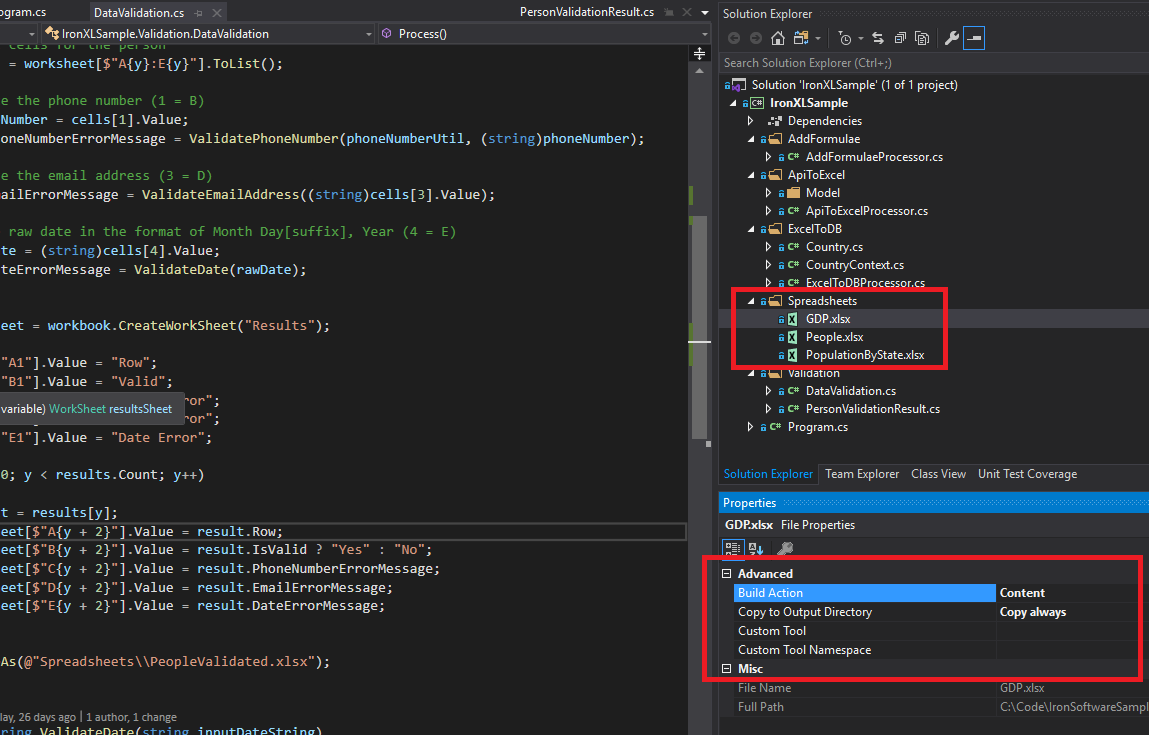
*Beispiel-Excel-Dateien (GDP.xlsx, People.xlsx und PopulationByState.xlsx), die in diesem Tutorial für verschiedene IronXL-Operationen verwendet werden.*
---
## Wie kann ich die IronXL C#-Bibliothek installieren?
---
Fügen Sie die `IronXL.Excel`-Bibliothek einem .NET-Projekt über NuGet hinzu oder indem Sie die DLL direkt referenzieren.
### Installation des IronXL NuGet-Pakets
1. Klicken Sie in Visual Studio mit der rechten Maustaste auf Ihr Projekt und wählen Sie "NuGet-Pakete verwalten..."
2. Suchen Sie im Browse-Tab nach `IronXL.Excel`
3. Klicken Sie auf Installieren, um IronXL hinzuzufügen
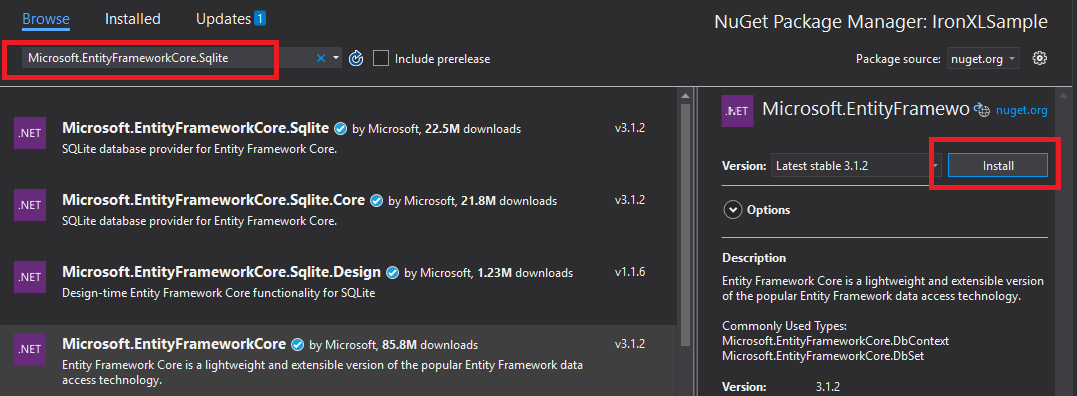
*Die Installation von IronXL durch den NuGet-Paket-Manager von Visual Studio bietet eine automatische Abhängigkeitsverwaltung.*
Alternativ installieren Sie IronXL mithilfe der Paket-Manager-Konsole:
1. Öffnen Sie die Paket-Manager-Konsole (Tools → NuGet-Paket-Manager → Paket-Manager-Konsole)
2. Führen Sie den Installationsbefehl aus:
```shell
:ProductInstall
```
Sie können auch die [Paketdetails auf der NuGet-Website ansehen](https://www.nuget.org/packages/IronXL.Excel/).
### Manuelle Installation
Für die manuelle Installation laden Sie die IronXL [.NET Excel DLL](/csharp/excel/packages/IronXL.zip) herunter und referenzieren sie direkt in Ihrem Visual Studio-Projekt.
## Wie lade ich eine Excel-Arbeitsmappe und lese sie?
Die [`WorkBook`](/csharp/excel/object-reference/api/IronXL.WorkBook.html)-Klasse repräsentiert eine ganze Excel-Datei. Laden Sie Excel-Dateien mit der `WorkBook.Load()`-Methode, die Dateipfade für die Formate XLS, XLSX, CSV und TSV akzeptiert.
```csharp
using IronXL;
using System;
using System.Linq;
// Load Excel file from specified path
WorkBook workBook = WorkBook.Load(@"Spreadsheets\GDP.xlsx");
Console.WriteLine("Workbook loaded successfully.");
// Access specific worksheet by name
WorkSheet sheet = workBook.GetWorkSheet("Sheet1");
// Read and display cell value
string cellValue = sheet["A1"].StringValue;
Console.WriteLine($"Cell A1 contains: {cellValue}");
// Perform additional operations
// Count non_empty cells in column A
int rowCount = sheet["A:A"].Count(cell => !cell.IsEmpty);
Console.WriteLine($"Column A has {rowCount} non_empty cells");
```
Jeder `WorkBook` enthält mehrere [`WorkSheet`](/csharp/excel/object-reference/api/IronXL.WorkSheet.html)-Objekte, die einzelne Excel-Blätter darstellen. Zugriff auf Arbeitsblätter nach Name mit [`GetWorkSheet()`](/csharp/excel/object-reference/api/IronXL.WorkBook.html#IronXL_WorkBook_GetWorkSheet_System_String_):
```csharp
using IronXL;
using System;
// Get worksheet by name
WorkSheet workSheet = workBook.GetWorkSheet("GDPByCountry");
Console.WriteLine("Worksheet 'GDPByCountry' not found");
// List available worksheets
foreach (var sheet in workBook.WorkSheets)
{
Console.WriteLine($"Available: {sheet.Name}");
}
```
## Wie erstelle ich neue Excel-Dokumente in C#?
Erstellen Sie neue Exceldokumente durch Konstruktion eines `WorkBook`-Objekts mit dem gewünschten Dateiformat. IronXL unterstützt sowohl moderne XLSX- als auch ältere XLS-Formate.
```csharp
using IronXL;
// Create new XLSX workbook (recommended format)
WorkBook workBook = WorkBook.Create(ExcelFileFormat.XLSX);
// Set workbook metadata
workBook.Metadata.Author = "Your Application";
workBook.Metadata.Comments = "Generated by IronXL";
// Create new XLS workbook for legacy support
WorkBook legacyWorkBook = WorkBook.Create(ExcelFileFormat.XLS);
// Save the workbook
workBook.SaveAs("NewDocument.xlsx");
```
Hinweis: Verwenden Sie `ExcelFileFormat.XLS` nur, wenn die Kompatibilität mit Excel 2003 und älter erforderlich ist.
## Wie kann ich Arbeitsblätter zu einem Excel-Dokument hinzufügen?
Ein IronXL-`WorkBook` enthält eine Sammlung von Arbeitsblättern. Dieses Verständnis hilft beim Erstellen von Excel-Dateien mit mehreren Blättern.

*Visuelle Darstellung der WorkBook-Struktur mit mehreren WorkSheet-Objekten in IronXL.*
Neue Arbeitsblätter erstellen mit `CreateWorkSheet()`:
```csharp
using IronXL;
// Create multiple worksheets with descriptive names
WorkSheet summarySheet = workBook.CreateWorkSheet("Summary");
WorkSheet dataSheet = workBook.CreateWorkSheet("RawData");
WorkSheet chartSheet = workBook.CreateWorkSheet("Charts");
// Set the active worksheet
workBook.SetActiveTab(0); // Makes "Summary" the active sheet
// Access default worksheet (first sheet)
WorkSheet defaultSheet = workBook.DefaultWorkSheet;
```
## Wie lese und bearbeite ich Zellwerte?
### Eine einzelne Zelle lesen und bearbeiten
Greifen Sie über die Indexereigenschaft des Arbeitsblatts auf einzelne Zellen zu. IronXL's [`Cell`](/csharp/excel/object-reference/api/IronXL.Cell.html)-Klasse bietet stark typisierte Werteigenschaften.
```csharp
using IronXL;
using System;
using System.Linq;
// Load workbook and get worksheet
WorkBook workBook = WorkBook.Load("test.xlsx");
WorkSheet workSheet = workBook.DefaultWorkSheet;
// Access cell B1
IronXL.Cell cell = workSheet["B1"].First();
// Read cell value with type safety
string textValue = cell.StringValue;
int intValue = cell.IntValue;
decimal decimalValue = cell.DecimalValue;
DateTime? dateValue = cell.DateTimeValue;
// Check cell data type
if (cell.IsNumeric)
{
Console.WriteLine($"Numeric value: {cell.DecimalValue}");
}
else if (cell.IsText)
{
Console.WriteLine($"Text value: {cell.StringValue}");
}
```
Die `Cell`-Klasse bietet mehrere Eigenschaften für verschiedene Datentypen und konvertiert Werte automatisch, wenn möglich. Für weitere Zelloperationen siehe das [Zellformatierungs-Tutorial](/csharp/excel/how-to/set-cell-data-format/).
```csharp
// Write different data types to cells
workSheet["A1"].Value = "Product Name"; // String
workSheet["B1"].Value = 99.95m; // Decimal
workSheet["C1"].Value = DateTime.Today; // Date
workSheet["D1"].Formula = "=B1*1.2"; // Formula
// Format cells
workSheet["B1"].FormatString = "$#,##0.00"; // Currency format
workSheet["C1"].FormatString = "yyyy-MM-dd";// Date format
// Save changes
workBook.Save();
```
## Wie kann ich mit Zellbereichen arbeiten?
Die [`Range`](/csharp/excel/object-reference/api/IronXL.Range.html)-Klasse stellt eine Sammlung von Zellen dar, die Massenoperationen auf Exceldaten ermöglicht.
```csharp
using IronXL;
using Range = IronXL.Range;
// Select range using Excel notation
Range range = workSheet["D2:D101"];
// Alternative: Use Range class for dynamic selection
Range dynamicRange = workSheet.GetRange("D2:D101"); // Row 2_101, Column D
// Perform bulk operations
range.Value = 0; // Set all cells to 0
```
Bearbeiten Sie Bereiche effizient mit Schleifen, wenn die Zellanzahl bekannt ist:
```cs
// Data validation example
public class ValidationResult
{
public int Row { get; set; }
public string PhoneError { get; set; }
public string EmailError { get; set; }
public string DateError { get; set; }
public bool IsValid => string.IsNullOrEmpty(PhoneError) &&
string.IsNullOrEmpty(EmailError) &&
string.IsNullOrEmpty(DateError);
}
// Validate data in rows 2-101
var results = new List<ValidationResult>();
for (int row = 2; row <= 101; row++)
{
var result = new ValidationResult { Row = row };
// Get row data efficiently
var phoneCell = workSheet[$"B{row}"];
var emailCell = workSheet[$"D{row}"];
var dateCell = workSheet[$"E{row}"];
// Validate phone number
if (!IsValidPhoneNumber(phoneCell.StringValue))
result.PhoneError = "Invalid phone format";
// Validate email
if (!IsValidEmail(emailCell.StringValue))
result.EmailError = "Invalid email format";
// Validate date
if (!dateCell.IsDateTime)
result.DateError = "Invalid date format";
results.Add(result);
}
// Helper methods
bool IsValidPhoneNumber(string phone) =>
System.Text.RegularExpressions.Regex.IsMatch(phone, @"^\d{3}-\d{3}-\d{4}$");
bool IsValidEmail(string email) =>
email.Contains("@") && email.Contains(".");
```
## Wie füge ich Formeln zu Excel-Tabellen hinzu?
Excel-Formeln anwenden mit der [`Formula`](/csharp/excel/object-reference/api/IronXL.Cell.html#IronXL_Cell_Formula)-Eigenschaft. IronXL unterstützt die Standardsyntax für Excel-Formeln.
```csharp
using IronXL;
// Add formulas to calculate percentages
int lastRow = 50;
for (int row = 2; row < lastRow; row++)
{
// Calculate percentage: current value / total
workSheet[$"C{row}"].Formula = $"=B{row}/B{lastRow}";
// Format as percentage
workSheet[$"C{row}"].FormatString = "0.00%";
}
// Add summary formulas
workSheet["B52"].Formula = "=SUM(B2:B50)"; // Sum
workSheet["B53"].Formula = "=AVERAGE(B2:B50)"; // Average
workSheet["B54"].Formula = "=MAX(B2:B50)"; // Maximum
workSheet["B55"].Formula = "=MIN(B2:B50)"; // Minimum
// Force formula evaluation
workBook.EvaluateAll();
```
Um vorhandene Formeln zu bearbeiten, erkunden Sie das [Excel-Formeln-Tutorial](/csharp/excel/how-to/edit-formulas/).
## Wie kann ich tabellarische Daten validieren?
Ein häufiges Szenario, das ich sehe, ist das Validieren von Benutzereingaben in Tabellen, bevor die Daten in eine Datenbank überführt werden. Das folgende Beispiel überprüft Telefonnummern, E-Mails und Daten mit regulären Ausdrücken und den integrierten Typprüfungen von IronXL.
```cs
using System.Text.RegularExpressions;
using IronXL;
// Validation implementation
for (int i = 2; i <= 101; i++)
{
var result = new PersonValidationResult { Row = i };
results.Add(result);
// Get cells for current person
var cells = workSheet[$"A{i}:E{i}"].ToList();
// Validate phone (column B)
string phone = cells[1].StringValue;
if (!Regex.IsMatch(phone, @"^\+?1?\d{10,14}$"))
{
result.PhoneNumberErrorMessage = "Invalid phone format";
}
// Validate email (column D)
string email = cells[3].StringValue;
if (!Regex.IsMatch(email, @"^[^@\s]+@[^@\s]+\.[^@\s]+$"))
{
result.EmailErrorMessage = "Invalid email address";
}
// Validate date (column E)
if (!cells[4].IsDateTime)
{
result.DateErrorMessage = "Invalid date format";
}
}
```
Speichern Sie die Validierungsergebnisse auf einem neuen Arbeitsblatt:
```cs
// Create results worksheet
var resultsSheet = workBook.CreateWorkSheet("ValidationResults");
// Add headers
resultsSheet["A1"].Value = "Row";
resultsSheet["B1"].Value = "Valid";
resultsSheet["C1"].Value = "Phone Error";
resultsSheet["D1"].Value = "Email Error";
resultsSheet["E1"].Value = "Date Error";
// Style headers
resultsSheet["A1:E1"].Style.Font.Bold = true;
resultsSheet["A1:E1"].Style.SetBackgroundColor("#4472C4");
resultsSheet["A1:E1"].Style.Font.Color = "#FFFFFF";
// Output validation results
for (int i = 0; i < results.Count; i++)
{
var result = results[i];
int outputRow = i + 2;
resultsSheet[$"A{outputRow}"].Value = result.Row;
resultsSheet[$"B{outputRow}"].Value = result.IsValid ? "Yes" : "No";
resultsSheet[$"C{outputRow}"].Value = result.PhoneNumberErrorMessage ?? "";
resultsSheet[$"D{outputRow}"].Value = result.EmailErrorMessage ?? "";
resultsSheet[$"E{outputRow}"].Value = result.DateErrorMessage ?? "";
// Highlight invalid rows
if (!result.IsValid)
{
resultsSheet[$"A{outputRow}:E{outputRow}"].Style.SetBackgroundColor("#FFE6E6");
}
}
// Auto-fit columns
for (int col = 0; col < 5; col++)
{
resultsSheet.AutoSizeColumn(col);
}
// Save validated workbook
workBook.SaveAs(@"Spreadsheets\PeopleValidated.xlsx");
```
## Wie exportiere ich Excel-Daten in eine Datenbank?
Verwenden Sie IronXL mit dem Entity Framework, um tabellarische Daten direkt in Datenbanken zu exportieren. Dieses Beispiel zeigt den Export von BIP-Länderdaten nach SQLite.
```cs
using System;
using System.ComponentModel.DataAnnotations;
using Microsoft.EntityFrameworkCore;
using IronXL;
// Define entity model
public class Country
{
[Key]
public Guid Id { get; set; } = Guid.NewGuid();
[Required]
[MaxLength(100)]
public string Name { get; set; }
[Range(0, double.MaxValue)]
public decimal GDP { get; set; }
public DateTime ImportedDate { get; set; } = DateTime.UtcNow;
}
```
Konfigurieren Sie den Entity Framework-Kontext für Datenbankoperationen:
```cs
public class CountryContext : DbContext
{
public DbSet<Country> Countries { get; set; }
protected override void OnConfiguring(DbContextOptionsBuilder optionsBuilder)
{
// Configure SQLite connection
optionsBuilder.UseSqlite("Data Source=CountryGDP.db");
// Enable sensitive data logging in development
#if DEBUG
optionsBuilder.EnableSensitiveDataLogging();
#endif
}
protected override void OnModelCreating(ModelBuilder modelBuilder)
{
// Configure decimal precision
modelBuilder.Entity<Country>()
.Property(c => c.GDP)
.HasPrecision(18, 2);
}
}
```
[[i:(Hinweis: Um verschiedene Datenbanken zu nutzen, installieren Sie das geeignete NuGet-Paket (z.B. `Microsoft.EntityFrameworkCore.SqlServer` für SQL Server) und ändern Sie die Verbindungskonfiguration entsprechend.)]]
Importieren Sie Excel-Daten in die Datenbank:
```cs
using System.Threading.Tasks;
using IronXL;
using Microsoft.EntityFrameworkCore;
public async Task ImportGDPDataAsync()
{
try
{
// Load Excel file
var workBook = WorkBook.Load(@"Spreadsheets\GDP.xlsx");
var workSheet = workBook.GetWorkSheet("GDPByCountry");
using (var context = new CountryContext())
{
// Ensure database exists
await context.Database.EnsureCreatedAsync();
// Clear existing data (optional)
await context.Database.ExecuteSqlRawAsync("DELETE FROM Countries");
// Import data with progress tracking
int totalRows = 213;
for (int row = 2; row <= totalRows; row++)
{
// Read country data
var countryName = workSheet[$"A{row}"].StringValue;
var gdpValue = workSheet[$"B{row}"].DecimalValue;
// Skip empty rows
if (string.IsNullOrWhiteSpace(countryName))
continue;
// Create and add entity
var country = new Country
{
Name = countryName.Trim(),
GDP = gdpValue * 1_000_000 // Convert to actual value if in millions
};
await context.Countries.AddAsync(country);
// Save in batches for performance
if (row % 50 == 0)
{
await context.SaveChangesAsync();
Console.WriteLine($"Imported {row - 1} of {totalRows} countries");
}
}
// Save remaining records
await context.SaveChangesAsync();
Console.WriteLine($"Successfully imported {await context.Countries.CountAsync()} countries");
}
}
catch (Exception ex)
{
Console.WriteLine($"Import failed: {ex.Message}");
throw;
}
}
```
## Wie kann ich API-Daten in Excel-Tabellen importieren?
Kombinieren Sie IronXL mit HTTP-Clients, um Tabellen mit Echtzeit-API-Daten zu füllen. Dieses Beispiel verwendet [RestClient.Net](https://github.com/MelbourneDeveloper/RestClient.Net), um Länderdaten abzurufen.
```cs
using System;
using System.Collections.Generic;
using System.Net.Http;
using System.Threading.Tasks;
using Newtonsoft.Json;
using IronXL;
// Define data model matching API response
public class RestCountry
{
public string Name { get; set; }
public long Population { get; set; }
public string Region { get; set; }
public string NumericCode { get; set; }
public List<Language> Languages { get; set; }
}
public class Language
{
public string Name { get; set; }
public string NativeName { get; set; }
}
// Fetch and process API data
public async Task ImportCountryDataAsync()
{
using var httpClient = new HttpClient();
try
{
// Call REST API
var response = await httpClient.GetStringAsync("https://restcountries.com/v3.1/all");
var countries = JsonConvert.DeserializeObject<List<RestCountry>>(response);
// Create new workbook
var workBook = WorkBook.Create(ExcelFileFormat.XLSX);
var workSheet = workBook.CreateWorkSheet("Countries");
// Add headers with styling
string[] headers = { "Country", "Population", "Region", "Code", "Language 1", "Language 2", "Language 3" };
for (int col = 0; col < headers.Length; col++)
{
var headerCell = workSheet[0, col];
headerCell.Value = headers[col];
headerCell.Style.Font.Bold = true;
headerCell.Style.SetBackgroundColor("#366092");
headerCell.Style.Font.Color = "#FFFFFF";
}
// Import country data
await ProcessCountryData(countries, workSheet);
// Save workbook
workBook.SaveAs("CountriesFromAPI.xlsx");
}
catch (Exception ex)
{
Console.WriteLine($"API import failed: {ex.Message}");
}
}
```
Die API gibt JSON-Daten in diesem Format zurück:
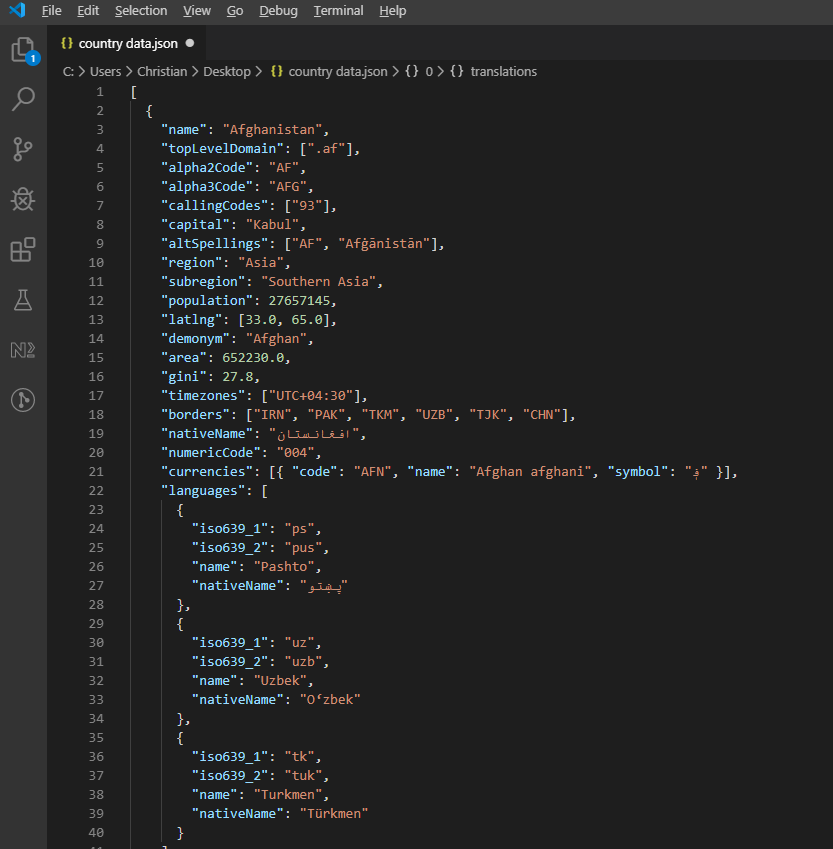
*Beispiel einer JSON-Antwort von der REST Countries API, die hierarchische Länderinformationen zeigt.*
Verarbeiten und schreiben Sie die API-Daten nach Excel:
```cs
private async Task ProcessCountryData(List<RestCountry> countries, WorkSheet workSheet)
{
for (int i = 0; i < countries.Count; i++)
{
var country = countries[i];
int row = i + 1; // Start from row 1 (after headers)
// Write basic country data
workSheet[$"A{row}"].Value = country.Name;
workSheet[$"B{row}"].Value = country.Population;
workSheet[$"C{row}"].Value = country.Region;
workSheet[$"D{row}"].Value = country.NumericCode;
// Format population with thousands separator
workSheet[$"B{row}"].FormatString = "#,##0";
// Add up to 3 languages
for (int langIndex = 0; langIndex < Math.Min(3, country.Languages?.Count ?? 0); langIndex++)
{
var language = country.Languages[langIndex];
string columnLetter = ((char)('E' + langIndex)).ToString();
workSheet[$"{columnLetter}{row}"].Value = language.Name;
}
// Add conditional formatting for regions
if (country.Region == "Europe")
{
workSheet[$"C{row}"].Style.SetBackgroundColor("#E6F3FF");
}
else if (country.Region == "Asia")
{
workSheet[$"C{row}"].Style.SetBackgroundColor("#FFF2E6");
}
// Show progress every 50 countries
if (i % 50 == 0)
{
Console.WriteLine($"Processed {i} of {countries.Count} countries");
}
}
// Auto-size all columns
for (int col = 0; col < 7; col++)
{
workSheet.AutoSizeColumn(col);
}
}
```
---
## Häufige Stolpersteine
Einige Dinge beißen Menschen oft genug, um einen eigenen Abschnitt zu verdienen.
### Leere Zellen geben 0, nicht null, zurück
Dieser Punkt hat mich früh erwischt. Aufruf von `sheet["A1"].IntValue` (oder `DecimalValue`, oder `DoubleValue`) auf eine leere Zelle gibt `0` zurück, nicht `null`. Wenn Sie eine Spalte mit Lücken darin summieren oder mitteln, werden die Leerstellen leise zu Nullen und verzerren das Ergebnis. Ich schütze jetzt Lesevorgänge auf jedem Blatt, auf dem Fehlwerte möglich sind:
```cs
var cell = sheet["B5"];
if (!cell.IsEmpty)
{
total += cell.DecimalValue;
}
```
`Cell.IsEmpty` ist günstig, daher verwende ich es standardmäßig, wann immer die Tabellenkalkulation benutzerbereitgestellt statt maschinengeneriert ist.
### Daten kommen als Seriennummern zurück, wenn Sie den falschen Typ anfordern
Excel speichert Daten als Seriennummern im Hintergrund (45292 bedeutet zum Beispiel 2024-01-01). Die häufigste Frage zur Datumshandhabung in unserem Support-Postfach ist: "Warum wird mein Datum als 45292 angezeigt?" Die Antwort ist fast immer, dass die Zelle als `StringValue` oder `IntValue` statt als `DateTimeValue` gelesen wurde:
```cs
// What you probably want:
DateTime birthday = sheet["E2"].DateTimeValue;
// What gives you "45292":
string birthday = sheet["E2"].StringValue;
```
`Cell.IsDateTime` sagt Ihnen, ob die Zelle ursprünglich als Datum erstellt wurde, was für Validierungspipelines nützlich ist, bei denen das Eingabeformat nicht gewährleistet ist.
### Zellindexnummern sind 0-basiert, aber A1-Zeichenfolgen sind 1-basiert
Bereits oben im Abschnitt über die Interop-Migration behandelt, aber es ist erwähnenswert, da es auch Menschen betrifft, die noch nie in der Nähe von COM waren. `sheet[0, 0]` ist dieselbe Zelle wie `sheet["A1"]`. Das Mischen der beiden Stile in derselben Schleife ist eine Möglichkeit, wie Abweichungen um einen Fehler einschleichen. Ich wähle pro Datei eine Form und bleibe dabei; Die `["A1"]`-String-Form ist das, was ich standardmäßig verwende, da sie dem entspricht, was sie in der Tabellenkalkulation selbst sehen.
<a id="sample-project"></a>
### Beispielprojekt für die Benchmark-Zahlen
Wenn Sie die Timing-Zahlen aus früher reproduzieren möchten, ist das Testprogramm eine kleine .NET 9 Konsolenanwendung:
```cs
// ReadExcelBenchmark/Program.cs (excerpt)
IronXL.License.LicenseKey = Environment.GetEnvironmentVariable("IRONXL_LICENSE_KEY");
var sw = Stopwatch.StartNew();
var workbook = WorkBook.Load("GDP.xlsx");
decimal sum = workbook.WorkSheets.First()["B2:B214"].Sum();
sw.Stop();
Console.WriteLine($"cold: {sw.Elapsed.TotalMilliseconds:F1} ms");
```
Führen Sie es unter `dotnet run -c Release` aus, erzeugen Sie die beiden Beispiel-Arbeitsmappen beim ersten Start, und Sie können Ihre eigenen Dateien einfügen, um zu sehen, wie sich die Zahlen mit Dateigröße und Komplexität ändern.
---
## Objektreferenz und Ressourcen
Die [IronXL API Referenz](/csharp/excel/object-reference/api/) behandelt jede Klasse und Methode, einschließlich derjenigen, die in diesem Tutorial nicht erwähnt werden.
Zusätzliche Tutorials für Excel-Operationen:
- [Erstellen Sie Excel-Dateien programmgesteuert](/csharp/excel/tutorials/create-excel-file-net/)
- [Leitfaden für Excel-Formatierung und -Styling](/csharp/excel/how-to/set-cell-data-format/)
- [Arbeiten mit Excel-Formeln](/csharp/excel/how-to/edit-formulas/)
- [Excel-Diagramm-Erstellungstutorial](/csharp/excel/how-to/csharp-excel-chart-create-edit-tutorial/)
## Zusammenfassung
`IronXL.Excel` liest und bearbeitet Exceldateien über die Formate XLS, XLSX, CSV und TSV hinweg. Es läuft ohne [Microsoft Excel](https://products.office.com/en-us/excel) oder Interop auf dem Host-System.
Für cloudbasierte Tabellenmanipulationen können Sie auch die [Google Sheets API Client Library](https://developers.google.com/api-client-library/dotnet/apis/sheets/v4) for .NET erkunden, die IronXL's lokalen Dateifunktionen ergänzt.
Bereit, um eine Excel-Automatisierung in Ihren C#-Projekten zu implementieren? [Laden Sie IronXL herunter](download-modal) oder erkunden Sie [Lizenzierungsoptionen](/csharp/excel/licensing/) für die Produktion.
Das erste Mal, als ich eine Excel-Datei aus einem .NET-Dienst lesen musste, griff ich zu Microsoft Interop und bereute es fast sofort. Es benötigte Office auf dem Server installiert, es leakte Prozesse, wenn mitten in der Methode eine Ausnahme auftrat, und es versagte unter jeder Art von Last. Wir haben IronXL entwickelt, weil wir immer wieder gegen genau diese Mauern gestoßen sind. Dieser Leitfaden beschreibt, wie ich heute tatsächlich XLS und XLSX in der Produktion lese, einschließlich der Stolpersteine, die Menschen am meisten beißen.
Das meiste, was folgt, ist direktes Dateiformatlesen, keine Excel-Anwendung beteiligt: laden Sie eine Arbeitsmappe, ziehen Sie Werte anhand der Zelladresse heraus, validieren Sie Bereiche, drücken Sie die Daten in eine Datenbank oder eine API. Die Bibliothek handhabt XLS und XLSX, ohne dass Microsoft Office auf dem Rechner erforderlich ist.
Schnellstart: Eine Zelle mit IronXL in einer Zeile lesen
Eine einzelne Zeile lädt eine Excel-Arbeitsmappe und zieht einen Wert aus einer Zelle. Kein Interop, keine Einrichtung, kein Excel-Prozess läuft im Hintergrund.
1Install IronXL with NuGet Package Manager
PM > Install-Package IronXL.Excel
Install-Package IronXL.Excel
2Kopieren Sie diesen Codeausschnitt und führen Sie ihn aus.
var value = IronXL.WorkBook.Load("file.xlsx").GetWorkSheet(0)["A1"].StringValue;
var value = IronXL.WorkBook.Load("file.xlsx").GetWorkSheet(0)["A1"].StringValue;
C#
3Bereitstellen zum Testen in Ihrer Live-Umgebung
Beginnen Sie noch heute, IronXL in Ihrem Projekt zu verwenden, mit einer kostenlosen Testversion
Wie richte ich IronXL zum Lesen von Excel-Dateien in C# ein?
Die Installation selbst ist eine NuGet-Installation und eine using IronXL;-Direktive. Die Bibliothek verarbeitet sowohl .XLS als auch .XLSX, sodass derselbe Codepfad für alte Tabellenkalkulationen und das moderne Open XML-Format funktioniert.
Laden und Lesen von Excel-Arbeitsmappen mithilfe von WorkBook.Load()
Auf Arbeitsblätter mit der GetWorkSheet()-Methode zugreifen
Zellwerte mit Excel-Adressierung wie sheet["A1"].Value lesen
Validieren und verarbeiten Sie tabellarische Daten programmatisch
Exportieren Sie Daten mit dem Entity Framework in Datenbanken
IronXL liest und bearbeitet Microsoft Excel-Dokumente aus C#, ohne von dem Office-Produkt abhängig zu sein. Es erfordert keine Installation von Microsoft Excel und benötigt kein Interop. Sehen Sie den Vergleich mit Microsoft.Office.Interop.Excel für die Unterschiede in Ansatz und API-Oberfläche.
Wenn Sie von Interop kommen, ist das mentale Modell anders und es lohnt sich, es klarzustellen, bevor Sie Code schreiben. Interop startet einen echten Excel.exe-Prozess im Hintergrund, und Ihr Code automatisiert diese Anwendung über COM. IronXL liest die Dateibytes direkt in den Speicher und stellt sie als Objekte dar. Kein Excel-Prozess, keine Nachrichtenpumpe, kein COM-Marshaling. Die praktische Konsequenz, die ich sehe, dass viele stolpern: Interop indiziert Zellen von [1, 1] (1-basiert, ähnlich wie die Excel-Benutzeroberfläche), aber der Zugriff auf Zeilen/Spalten von IronXL ist 0-basiert. Der ["A1"]-String-Indexer entspricht der Tabellenkalkulations-Oberfläche in beiden Bibliotheken, sodass die Migration fast identisch abläuft, wenn Sie im String-Format bleiben können. Die Nachmittagslangen Off-by-One-Fehler kommen alle vom numerischen Indexer.
IronXL umfasst:
Engagierten Produktsupport von unseren .NET-Ingenieuren
Einfache Installation über Microsoft Visual Studio
Kostenloser Testversuch für die Entwicklung. Lizenzen von liteLicense
Sowohl C#- als auch VB.NET-Projekte können IronXL auf die gleiche Weise verwenden, um Excel-Dateien zu lesen oder zu erstellen.
Lesen von .XLS und .XLSX Excel-Dateien mit IronXL
Hier ist der wesentliche Arbeitsablauf zum Lesen von Excel-Dateien mit IronXL:
Installieren Sie die IronXL Excel-Bibliothek über das NuGet-Paket oder laden Sie die .NET Excel DLL herunter
Verwenden Sie die WorkBook.Load()-Methode, um beliebige XLS-, XLSX- oder CSV-Dokumente zu lesen
Auf Zellwerte mit Excel-Adressierung zugreifen: sheet["A11"].DecimalValue
using IronXL;using System;using System.Linq;// Load Excel workbook from file pathWorkBook workBook = WorkBook.Load("test.xlsx");// Access the first worksheet using LINQWorkSheet workSheet = workBook.WorkSheets.First();// Read integer value from cell A2int cellValue = workSheet["A2"].IntValue;Console.WriteLine($"Cell A2 value: {cellValue}");// Iterate through a range of cellsforeach (var cell in workSheet["A2:A10"]){Console.WriteLine("Cell {0} has value '{1}'", cell.AddressString, cell.Text);}// Advanced Operations with LINQ// Calculate sum using built_in Sum() methoddecimal sum = workSheet["A2:A10"].Sum();// Find maximum value using LINQdecimal max = workSheet["A2:A10"].Max(c => c.DecimalValue);// Output calculated resultsConsole.WriteLine($"Sum of A2:A10: {sum}");Console.WriteLine($"Maximum value: {max}");
using IronXL;
using System;
using System.Linq;

// Load Excel workbook from file path
WorkBook workBook = WorkBook.Load("test.xlsx");

// Access the first worksheet using LINQ
WorkSheet workSheet = workBook.WorkSheets.First();

// Read integer value from cell A2
int cellValue = workSheet["A2"].IntValue;
Console.WriteLine($"Cell A2 value: {cellValue}");

// Iterate through a range of cells
foreach (var cell in workSheet["A2:A10"])
{
    Console.WriteLine("Cell {0} has value '{1}'", cell.AddressString, cell.Text);
}

// Advanced Operations with LINQ
// Calculate sum using built_in Sum() method
decimal sum = workSheet["A2:A10"].Sum();

// Find maximum value using LINQ
decimal max = workSheet["A2:A10"].Max(c => c.DecimalValue);

// Output calculated results
Console.WriteLine($"Sum of A2:A10: {sum}");
Console.WriteLine($"Maximum value: {max}");
ImportsIronXLImportsSystemImportsSystem.Linq' Load Excel workbook from file pathDim workBook AsWorkBook = WorkBook.Load("test.xlsx")' Access the first worksheet using LINQDim workSheet AsWorkSheet = workBook.WorkSheets.First()' Read integer value from cell A2Dim cellValue AsInteger = workSheet("A2").IntValueConsole.WriteLine($"Cell A2 value: {cellValue}")' Iterate through a range of cellsFor Each cell In workSheet("A2:A10")Console.WriteLine("Cell {0} has value '{1}'", cell.AddressString, cell.Text)Next' Advanced Operations with LINQ' Calculate sum using built_in Sum() methodDim sum AsDecimal = workSheet("A2:A10").Sum()' Find maximum value using LINQDim max AsDecimal = workSheet("A2:A10").Max(Function(c) c.DecimalValue)' Output calculated resultsConsole.WriteLine($"Sum of A2:A10: {sum}")Console.WriteLine($"Maximum value: {max}")
Imports IronXL
Imports System
Imports System.Linq

' Load Excel workbook from file path
Dim workBook As WorkBook = WorkBook.Load("test.xlsx")

' Access the first worksheet using LINQ
Dim workSheet As WorkSheet = workBook.WorkSheets.First()

' Read integer value from cell A2
Dim cellValue As Integer = workSheet("A2").IntValue
Console.WriteLine($"Cell A2 value: {cellValue}")

' Iterate through a range of cells
For Each cell In workSheet("A2:A10")
    Console.WriteLine("Cell {0} has value '{1}'", cell.AddressString, cell.Text)
Next

' Advanced Operations with LINQ
' Calculate sum using built_in Sum() method
Dim sum As Decimal = workSheet("A2:A10").Sum()

' Find maximum value using LINQ
Dim max As Decimal = workSheet("A2:A10").Max(Function(c) c.DecimalValue)

' Output calculated results
Console.WriteLine($"Sum of A2:A10: {sum}")
Console.WriteLine($"Maximum value: {max}")
Das Snippet geht auf die vier Operationen ein, die Sie ständig verwenden werden: Laden einer Arbeitsmappe, Lesen einer Zelle nach Adresse, Iterieren eines Bereichs und Berechnungen gegen einen Bereich durchführen. WorkBook.Load() erkennt das Dateiformat anhand der Erweiterung und die Bereichssyntax ["A2:A10"] entspricht der Zellauswahl, die Sie in Excel selbst eingeben würden. Bereiche sind IEnumerable<Cell>, sodass LINQ direkt für Summen, Filter und Projektionen verwendet werden kann.
Wie schnell ist dies in der Praxis?
Um Ihnen ein Gefühl für realistische Leistung zu geben, habe ich ein kleines Konsolenprojekt geschrieben, das dieselben Arten von Dateien lädt, die in diesem Tutorial verwendet werden, und die Operationen zeitlich misst. Das Testprogramm befindet sich in einem ReadExcelBenchmark-Beispielprojekt, das Sie selbst ausführen können. Auf einem Windows 11-Rechner, der .NET 9.0.7 ausführt, landen die Zahlen über mehrere Läufe hinweg ungefähr hier:
Betrieb
Erster kalter Ladezyklus (frischer Prozess)
Warmer Durchschnitt über 10 Iterationen
Laden Sie GDP.xlsx (213 Zeilen) und summieren Sie Spalte B
~270 ms
~40 ms (Bereich 25–70 ms)
Laden Sie People.xlsx (100 Zeilen) und überprüfen Sie jede Zelle mit Regex
~30 ms
~28 ms
Die erste kalte Zahl wird von IronXL's Assembly-Load- und JIT-Aufwärmen dominiert; die zweite kalte Zahl ist viel niedriger, weil die Assembly dann bereits im Speicher ist. Warme Läufe setzen sich in einem engen Band ein, sobald der JIT die Hot Paths kompiliert hat.
Wenn Sie mehrsekündige Ladezeiten bei Dateien dieser Größe erleben, liegt es fast immer daran, dass WorkBook.Load() innerhalb einer Schleife aufgerufen wird, anstatt einmal außerhalb. Laden Sie die Arbeitsmappe einmal, dann iterieren Sie die Zellen oder Zeilen, die Sie tatsächlich benötigen. Ich sehe genau dieses Muster in etwa der Hälfte der "IronXL ist langsam"-Support-Tickets, die wir erhalten.
Die Codebeispiele in diesem Tutorial arbeiten mit drei Beispiel-Excel-Tabellen, die unterschiedliche Datenszenarien zeigen:
Beispiel-Excel-Dateien (GDP.xlsx, People.xlsx und PopulationByState.xlsx), die in diesem Tutorial für verschiedene IronXL-Operationen verwendet werden.
Wie kann ich die IronXL C#-Bibliothek installieren?
Fügen Sie die IronXL.Excel-Bibliothek einem .NET-Projekt über NuGet hinzu oder indem Sie die DLL direkt referenzieren.
Installation des IronXL NuGet-Pakets
Klicken Sie in Visual Studio mit der rechten Maustaste auf Ihr Projekt und wählen Sie "NuGet-Pakete verwalten..."
Suchen Sie im Browse-Tab nach IronXL.Excel
Klicken Sie auf Installieren, um IronXL hinzuzufügen
Die Installation von IronXL durch den NuGet-Paket-Manager von Visual Studio bietet eine automatische Abhängigkeitsverwaltung.
Alternativ installieren Sie IronXL mithilfe der Paket-Manager-Konsole:
Öffnen Sie die Paket-Manager-Konsole (Tools → NuGet-Paket-Manager → Paket-Manager-Konsole)
Für die manuelle Installation laden Sie die IronXL .NET Excel DLL herunter und referenzieren sie direkt in Ihrem Visual Studio-Projekt.
Wie lade ich eine Excel-Arbeitsmappe und lese sie?
Die WorkBook-Klasse repräsentiert eine ganze Excel-Datei. Laden Sie Excel-Dateien mit der WorkBook.Load()-Methode, die Dateipfade für die Formate XLS, XLSX, CSV und TSV akzeptiert.
using IronXL;using System;using System.Linq;// Load Excel file from specified pathWorkBook workBook = WorkBook.Load(@"Spreadsheets\GDP.xlsx");Console.WriteLine("Workbook loaded successfully.");// Access specific worksheet by nameWorkSheet sheet = workBook.GetWorkSheet("Sheet1");// Read and display cell valuestring cellValue = sheet["A1"].StringValue;Console.WriteLine($"Cell A1 contains: {cellValue}");// Perform additional operations// Count non_empty cells in column Aint rowCount = sheet["A:A"].Count(cell => !cell.IsEmpty);Console.WriteLine($"Column A has {rowCount} non_empty cells");
using IronXL;
using System;
using System.Linq;

// Load Excel file from specified path
WorkBook workBook = WorkBook.Load(@"Spreadsheets\GDP.xlsx");

Console.WriteLine("Workbook loaded successfully.");

// Access specific worksheet by name
WorkSheet sheet = workBook.GetWorkSheet("Sheet1");

// Read and display cell value
string cellValue = sheet["A1"].StringValue;
Console.WriteLine($"Cell A1 contains: {cellValue}");

// Perform additional operations
// Count non_empty cells in column A
int rowCount = sheet["A:A"].Count(cell => !cell.IsEmpty);
Console.WriteLine($"Column A has {rowCount} non_empty cells");
ImportsIronXLImportsSystemImportsSystem.Linq' Load Excel file from specified pathDim workBook AsWorkBook = WorkBook.Load("Spreadsheets\GDP.xlsx")Console.WriteLine("Workbook loaded successfully.")' Access specific worksheet by nameDim sheet AsWorkSheet = workBook.GetWorkSheet("Sheet1")' Read and display cell valueDim cellValue AsString = sheet("A1").StringValueConsole.WriteLine($"Cell A1 contains: {cellValue}")' Perform additional operations' Count non_empty cells in column ADim rowCount AsInteger = sheet("A:A").Count(Function(cell) Not cell.IsEmpty)Console.WriteLine($"Column A has {rowCount} non_empty cells")
Imports IronXL
Imports System
Imports System.Linq

' Load Excel file from specified path
Dim workBook As WorkBook = WorkBook.Load("Spreadsheets\GDP.xlsx")

Console.WriteLine("Workbook loaded successfully.")

' Access specific worksheet by name
Dim sheet As WorkSheet = workBook.GetWorkSheet("Sheet1")

' Read and display cell value
Dim cellValue As String = sheet("A1").StringValue
Console.WriteLine($"Cell A1 contains: {cellValue}")

' Perform additional operations
' Count non_empty cells in column A
Dim rowCount As Integer = sheet("A:A").Count(Function(cell) Not cell.IsEmpty)
Console.WriteLine($"Column A has {rowCount} non_empty cells")
Jeder WorkBook enthält mehrere WorkSheet-Objekte, die einzelne Excel-Blätter darstellen. Zugriff auf Arbeitsblätter nach Name mit GetWorkSheet():
using IronXL;using System;// Get worksheet by nameWorkSheet workSheet = workBook.GetWorkSheet("GDPByCountry");Console.WriteLine("Worksheet 'GDPByCountry' not found");// List available worksheetsforeach (var sheet in workBook.WorkSheets){Console.WriteLine($"Available: {sheet.Name}");}
using IronXL;
using System;

// Get worksheet by name
WorkSheet workSheet = workBook.GetWorkSheet("GDPByCountry");

Console.WriteLine("Worksheet 'GDPByCountry' not found");
// List available worksheets
foreach (var sheet in workBook.WorkSheets)
{
    Console.WriteLine($"Available: {sheet.Name}");
}
ImportsIronXLImportsSystem' Get worksheet by nameDim workSheet AsWorkSheet = workBook.GetWorkSheet("GDPByCountry")Console.WriteLine("Worksheet 'GDPByCountry' not found")' List available worksheetsFor Each sheet In workBook.WorkSheetsConsole.WriteLine($"Available: {sheet.Name}")Next
Imports IronXL
Imports System

' Get worksheet by name
Dim workSheet As WorkSheet = workBook.GetWorkSheet("GDPByCountry")

Console.WriteLine("Worksheet 'GDPByCountry' not found")
' List available worksheets
For Each sheet In workBook.WorkSheets
    Console.WriteLine($"Available: {sheet.Name}")
Next
Wie erstelle ich neue Excel-Dokumente in C#?
Erstellen Sie neue Exceldokumente durch Konstruktion eines WorkBook-Objekts mit dem gewünschten Dateiformat. IronXL unterstützt sowohl moderne XLSX- als auch ältere XLS-Formate.
using IronXL;// Create new XLSX workbook (recommended format)WorkBook workBook = WorkBook.Create(ExcelFileFormat.XLSX);// Set workbook metadataworkBook.Metadata.Author = "Your Application";workBook.Metadata.Comments = "Generated by IronXL";// Create new XLS workbook for legacy supportWorkBook legacyWorkBook = WorkBook.Create(ExcelFileFormat.XLS);// Save the workbookworkBook.SaveAs("NewDocument.xlsx");
using IronXL;

// Create new XLSX workbook (recommended format)
WorkBook workBook = WorkBook.Create(ExcelFileFormat.XLSX);

// Set workbook metadata
workBook.Metadata.Author = "Your Application";
workBook.Metadata.Comments = "Generated by IronXL";

// Create new XLS workbook for legacy support
WorkBook legacyWorkBook = WorkBook.Create(ExcelFileFormat.XLS);

// Save the workbook
workBook.SaveAs("NewDocument.xlsx");
ImportsIronXL' Create new XLSX workbook (recommended format)Private workBook AsWorkBook = WorkBook.Create(ExcelFileFormat.XLSX)' Set workbook metadataworkBook.Metadata.Author = "Your Application"workBook.Metadata.Comments = "Generated by IronXL"' Create new XLS workbook for legacy supportDim legacyWorkBook AsWorkBook = WorkBook.Create(ExcelFileFormat.XLS)' Save the workbookworkBook.SaveAs("NewDocument.xlsx")
Imports IronXL

' Create new XLSX workbook (recommended format)
Private workBook As WorkBook = WorkBook.Create(ExcelFileFormat.XLSX)

' Set workbook metadata
workBook.Metadata.Author = "Your Application"
workBook.Metadata.Comments = "Generated by IronXL"

' Create new XLS workbook for legacy support
Dim legacyWorkBook As WorkBook = WorkBook.Create(ExcelFileFormat.XLS)

' Save the workbook
workBook.SaveAs("NewDocument.xlsx")
Hinweis: Verwenden Sie ExcelFileFormat.XLS nur, wenn die Kompatibilität mit Excel 2003 und älter erforderlich ist.
Wie kann ich Arbeitsblätter zu einem Excel-Dokument hinzufügen?
Ein IronXL-WorkBook enthält eine Sammlung von Arbeitsblättern. Dieses Verständnis hilft beim Erstellen von Excel-Dateien mit mehreren Blättern.
Visuelle Darstellung der WorkBook-Struktur mit mehreren WorkSheet-Objekten in IronXL.
Neue Arbeitsblätter erstellen mit CreateWorkSheet():
using IronXL;// Create multiple worksheets with descriptive namesWorkSheet summarySheet = workBook.CreateWorkSheet("Summary");WorkSheet dataSheet = workBook.CreateWorkSheet("RawData");WorkSheet chartSheet = workBook.CreateWorkSheet("Charts");// Set the active worksheetworkBook.SetActiveTab(0); // Makes "Summary" the active sheet// Access default worksheet (first sheet)WorkSheet defaultSheet = workBook.DefaultWorkSheet;
using IronXL;

// Create multiple worksheets with descriptive names
WorkSheet summarySheet = workBook.CreateWorkSheet("Summary");
WorkSheet dataSheet = workBook.CreateWorkSheet("RawData");
WorkSheet chartSheet = workBook.CreateWorkSheet("Charts");

// Set the active worksheet
workBook.SetActiveTab(0); // Makes "Summary" the active sheet

// Access default worksheet (first sheet)
WorkSheet defaultSheet = workBook.DefaultWorkSheet;
ImportsIronXL' Create multiple worksheets with descriptive namesDim summarySheet AsWorkSheet = workBook.CreateWorkSheet("Summary")Dim dataSheet AsWorkSheet = workBook.CreateWorkSheet("RawData")Dim chartSheet AsWorkSheet = workBook.CreateWorkSheet("Charts")' Set the active worksheetworkBook.SetActiveTab(0) ' Makes "Summary" the active sheet' Access default worksheet (first sheet)Dim defaultSheet AsWorkSheet = workBook.DefaultWorkSheet
Imports IronXL

' Create multiple worksheets with descriptive names
Dim summarySheet As WorkSheet = workBook.CreateWorkSheet("Summary")
Dim dataSheet As WorkSheet = workBook.CreateWorkSheet("RawData")
Dim chartSheet As WorkSheet = workBook.CreateWorkSheet("Charts")

' Set the active worksheet
workBook.SetActiveTab(0) ' Makes "Summary" the active sheet

' Access default worksheet (first sheet)
Dim defaultSheet As WorkSheet = workBook.DefaultWorkSheet
Wie lese und bearbeite ich Zellwerte?
Eine einzelne Zelle lesen und bearbeiten
Greifen Sie über die Indexereigenschaft des Arbeitsblatts auf einzelne Zellen zu. IronXL's Cell-Klasse bietet stark typisierte Werteigenschaften.
using IronXL;using System;using System.Linq;// Load workbook and get worksheetWorkBook workBook = WorkBook.Load("test.xlsx");WorkSheet workSheet = workBook.DefaultWorkSheet;// Access cell B1IronXL.Cell cell = workSheet["B1"].First();// Read cell value with type safetystring textValue = cell.StringValue;int intValue = cell.IntValue;decimal decimalValue = cell.DecimalValue;DateTime? dateValue = cell.DateTimeValue;// Check cell data typeif (cell.IsNumeric){Console.WriteLine($"Numeric value: {cell.DecimalValue}");}else if (cell.IsText){Console.WriteLine($"Text value: {cell.StringValue}");}
using IronXL;
using System;
using System.Linq;

// Load workbook and get worksheet
WorkBook workBook = WorkBook.Load("test.xlsx");
WorkSheet workSheet = workBook.DefaultWorkSheet;

// Access cell B1
IronXL.Cell cell = workSheet["B1"].First();

// Read cell value with type safety
string textValue = cell.StringValue;
int intValue = cell.IntValue;
decimal decimalValue = cell.DecimalValue;
DateTime? dateValue = cell.DateTimeValue;

// Check cell data type
if (cell.IsNumeric)
{
    Console.WriteLine($"Numeric value: {cell.DecimalValue}");
}
else if (cell.IsText)
{
    Console.WriteLine($"Text value: {cell.StringValue}");
}
ImportsIronXLImportsSystemImportsSystem.Linq' Load workbook and get worksheetDim workBook AsWorkBook = WorkBook.Load("test.xlsx")Dim workSheet AsWorkSheet = workBook.DefaultWorkSheet' Access cell B1Dim cell AsIronXL.Cell = workSheet("B1").First()' Read cell value with type safetyDim textValue AsString = cell.StringValueDim intValue AsInteger = cell.IntValueDim decimalValue AsDecimal = cell.DecimalValueDim dateValue AsDateTime? = cell.DateTimeValue' Check cell data typeIf cell.IsNumericThenConsole.WriteLine($"Numeric value: {cell.DecimalValue}")ElseIf cell.IsTextThenConsole.WriteLine($"Text value: {cell.StringValue}")End If
Imports IronXL
Imports System
Imports System.Linq

' Load workbook and get worksheet
Dim workBook As WorkBook = WorkBook.Load("test.xlsx")
Dim workSheet As WorkSheet = workBook.DefaultWorkSheet

' Access cell B1
Dim cell As IronXL.Cell = workSheet("B1").First()

' Read cell value with type safety
Dim textValue As String = cell.StringValue
Dim intValue As Integer = cell.IntValue
Dim decimalValue As Decimal = cell.DecimalValue
Dim dateValue As DateTime? = cell.DateTimeValue

' Check cell data type
If cell.IsNumeric Then
    Console.WriteLine($"Numeric value: {cell.DecimalValue}")
ElseIf cell.IsText Then
    Console.WriteLine($"Text value: {cell.StringValue}")
End If
Die Cell-Klasse bietet mehrere Eigenschaften für verschiedene Datentypen und konvertiert Werte automatisch, wenn möglich. Für weitere Zelloperationen siehe das Zellformatierungs-Tutorial.
// Write different data types to cellsworkSheet["A1"].Value = "Product Name"; // StringworkSheet["B1"].Value = 99.95m; // DecimalworkSheet["C1"].Value = DateTime.Today; // DateworkSheet["D1"].Formula = "=B1*1.2"; // Formula // Format cellsworkSheet["B1"].FormatString = "$#,##0.00"; // Currency formatworkSheet["C1"].FormatString = "yyyy-MM-dd";// Date format // Save changesworkBook.Save();
// Write different data types to cells
workSheet["A1"].Value = "Product Name";     // String
workSheet["B1"].Value = 99.95m;             // Decimal
workSheet["C1"].Value = DateTime.Today;     // Date
workSheet["D1"].Formula = "=B1*1.2";        // Formula
                                            // Format cells
workSheet["B1"].FormatString = "$#,##0.00"; // Currency format
workSheet["C1"].FormatString = "yyyy-MM-dd";// Date format
                                            // Save changes
workBook.Save();
' Write different data types to cellsworkSheet("A1").Value = "Product Name" ' StringworkSheet("B1").Value = 99.95D ' DecimalworkSheet("C1").Value = DateTime.Today' DateworkSheet("D1").Formula = "=B1*1.2" ' Formula ' Format cellsworkSheet("B1").FormatString = "$#,##0.00" ' Currency formatworkSheet("C1").FormatString = "yyyy-MM-dd" ' Date format ' Save changesworkBook.Save()
' Write different data types to cells
workSheet("A1").Value = "Product Name" ' String
workSheet("B1").Value = 99.95D ' Decimal
workSheet("C1").Value = DateTime.Today ' Date
workSheet("D1").Formula = "=B1*1.2" ' Formula
											' Format cells
workSheet("B1").FormatString = "$#,##0.00" ' Currency format
workSheet("C1").FormatString = "yyyy-MM-dd" ' Date format
											' Save changes
workBook.Save()
Wie kann ich mit Zellbereichen arbeiten?
Die Range-Klasse stellt eine Sammlung von Zellen dar, die Massenoperationen auf Exceldaten ermöglicht.
using IronXL;using Range = IronXL.Range;// Select range using Excel notationRange range = workSheet["D2:D101"];// Alternative: Use Range class for dynamic selectionRange dynamicRange = workSheet.GetRange("D2:D101"); // Row 2_101, Column D// Perform bulk operationsrange.Value = 0; // Set all cells to 0
using IronXL;
using Range = IronXL.Range;

// Select range using Excel notation
Range range = workSheet["D2:D101"];

// Alternative: Use Range class for dynamic selection
Range dynamicRange = workSheet.GetRange("D2:D101"); // Row 2_101, Column D

// Perform bulk operations
range.Value = 0; // Set all cells to 0
ImportsIronXL' Select range using Excel notationDim range AsRange = workSheet("D2:D101")' Alternative: Use Range class for dynamic selectionDim dynamicRange AsRange = workSheet.GetRange("D2:D101") ' Row 2_101, Column D' Perform bulk operationsrange.Value = 0 ' Set all cells to 0
Imports IronXL

' Select range using Excel notation
Dim range As Range = workSheet("D2:D101")

' Alternative: Use Range class for dynamic selection
Dim dynamicRange As Range = workSheet.GetRange("D2:D101") ' Row 2_101, Column D

' Perform bulk operations
range.Value = 0 ' Set all cells to 0
Bearbeiten Sie Bereiche effizient mit Schleifen, wenn die Zellanzahl bekannt ist:
// Data validation examplepublic class ValidationResult{ public intRow { get; set; } public stringPhoneError { get; set; } public stringEmailError { get; set; } public stringDateError { get; set; } public boolIsValid => string.IsNullOrEmpty(PhoneError) && string.IsNullOrEmpty(EmailError) && string.IsNullOrEmpty(DateError);}// Validate data in rows 2-101var results = new List<ValidationResult>();for (int row = 2; row <= 101; row++){ var result = new ValidationResult { Row = row }; // Get row data efficiently var phoneCell = workSheet[$"B{row}"]; var emailCell = workSheet[$"D{row}"]; var dateCell = workSheet[$"E{row}"]; // Validate phone number if (!IsValidPhoneNumber(phoneCell.StringValue)) result.PhoneError = "Invalid phone format"; // Validate email if (!IsValidEmail(emailCell.StringValue)) result.EmailError = "Invalid email format"; // Validate date if (!dateCell.IsDateTime) result.DateError = "Invalid date format"; results.Add(result);}// Helper methodsboolIsValidPhoneNumber(string phone) => System.Text.RegularExpressions.Regex.IsMatch(phone, @"^\d{3}-\d{3}-\d{4}$");boolIsValidEmail(string email) => email.Contains("@") && email.Contains(".");
// Data validation example
public class ValidationResult
{
    public int Row { get; set; }
    public string PhoneError { get; set; }
    public string EmailError { get; set; }
    public string DateError { get; set; }
    public bool IsValid => string.IsNullOrEmpty(PhoneError) &&
                           string.IsNullOrEmpty(EmailError) &&
                           string.IsNullOrEmpty(DateError);
}

// Validate data in rows 2-101
var results = new List<ValidationResult>();

for (int row = 2; row <= 101; row++)
{
    var result = new ValidationResult { Row = row };

    // Get row data efficiently
    var phoneCell = workSheet[$"B{row}"];
    var emailCell = workSheet[$"D{row}"];
    var dateCell = workSheet[$"E{row}"];

    // Validate phone number
    if (!IsValidPhoneNumber(phoneCell.StringValue))
        result.PhoneError = "Invalid phone format";

    // Validate email
    if (!IsValidEmail(emailCell.StringValue))
        result.EmailError = "Invalid email format";

    // Validate date
    if (!dateCell.IsDateTime)
        result.DateError = "Invalid date format";

    results.Add(result);
}

// Helper methods
bool IsValidPhoneNumber(string phone) =>
    System.Text.RegularExpressions.Regex.IsMatch(phone, @"^\d{3}-\d{3}-\d{4}$");

bool IsValidEmail(string email) =>
    email.Contains("@") && email.Contains(".");
' Data validation examplePublic Class ValidationResult Public Property RowAsInteger Public Property PhoneErrorAsString Public Property EmailErrorAsString Public Property DateErrorAsString PublicReadOnlyPropertyIsValidAsBoolean Get ReturnString.IsNullOrEmpty(PhoneError) AndAlsoString.IsNullOrEmpty(EmailError) AndAlsoString.IsNullOrEmpty(DateError)End Get End PropertyEnd Class' Validate data in rows 2-101Dim results As New List(OfValidationResult)()For row AsInteger = 2 To 101 Dim result As New ValidationResultWith {.Row = row} ' Get row data efficiently Dim phoneCell = workSheet($"B{row}") Dim emailCell = workSheet($"D{row}") Dim dateCell = workSheet($"E{row}") ' Validate phone number IfNotIsValidPhoneNumber(phoneCell.StringValue) Then result.PhoneError = "Invalid phone format" End If ' Validate email IfNotIsValidEmail(emailCell.StringValue) Then result.EmailError = "Invalid email format" End If ' Validate date IfNot dateCell.IsDateTimeThen result.DateError = "Invalid date format" End If results.Add(result)Next' Helper methodsPrivate Function IsValidPhoneNumber(phone AsString) AsBoolean ReturnSystem.Text.RegularExpressions.Regex.IsMatch(phone, "^\d{3}-\d{3}-\d{4}$")End FunctionPrivate Function IsValidEmail(email AsString) AsBoolean Return email.Contains("@") AndAlso email.Contains(".")End Function
' Data validation example
Public Class ValidationResult
    Public Property Row As Integer
    Public Property PhoneError As String
    Public Property EmailError As String
    Public Property DateError As String
    Public ReadOnly Property IsValid As Boolean
        Get
            Return String.IsNullOrEmpty(PhoneError) AndAlso
                   String.IsNullOrEmpty(EmailError) AndAlso
                   String.IsNullOrEmpty(DateError)
        End Get
    End Property
End Class

' Validate data in rows 2-101
Dim results As New List(Of ValidationResult)()

For row As Integer = 2 To 101
    Dim result As New ValidationResult With {.Row = row}

    ' Get row data efficiently
    Dim phoneCell = workSheet($"B{row}")
    Dim emailCell = workSheet($"D{row}")
    Dim dateCell = workSheet($"E{row}")

    ' Validate phone number
    If Not IsValidPhoneNumber(phoneCell.StringValue) Then
        result.PhoneError = "Invalid phone format"
    End If

    ' Validate email
    If Not IsValidEmail(emailCell.StringValue) Then
        result.EmailError = "Invalid email format"
    End If

    ' Validate date
    If Not dateCell.IsDateTime Then
        result.DateError = "Invalid date format"
    End If

    results.Add(result)
Next

' Helper methods
Private Function IsValidPhoneNumber(phone As String) As Boolean
    Return System.Text.RegularExpressions.Regex.IsMatch(phone, "^\d{3}-\d{3}-\d{4}$")
End Function

Private Function IsValidEmail(email As String) As Boolean
    Return email.Contains("@") AndAlso email.Contains(".")
End Function
Wie füge ich Formeln zu Excel-Tabellen hinzu?
Excel-Formeln anwenden mit der Formula-Eigenschaft. IronXL unterstützt die Standardsyntax für Excel-Formeln.
using IronXL;// Add formulas to calculate percentagesint lastRow = 50;for (int row = 2; row < lastRow; row++){ // Calculate percentage: current value / total workSheet[$"C{row}"].Formula = $"=B{row}/B{lastRow}"; // Format as percentage workSheet[$"C{row}"].FormatString = "0.00%";}// Add summary formulasworkSheet["B52"].Formula = "=SUM(B2:B50)"; // SumworkSheet["B53"].Formula = "=AVERAGE(B2:B50)"; // AverageworkSheet["B54"].Formula = "=MAX(B2:B50)"; // MaximumworkSheet["B55"].Formula = "=MIN(B2:B50)"; // Minimum // Force formula evaluationworkBook.EvaluateAll();
using IronXL;

// Add formulas to calculate percentages
int lastRow = 50;
for (int row = 2; row < lastRow; row++)
{
    // Calculate percentage: current value / total
    workSheet[$"C{row}"].Formula = $"=B{row}/B{lastRow}";
    // Format as percentage
    workSheet[$"C{row}"].FormatString = "0.00%";
}
// Add summary formulas
workSheet["B52"].Formula = "=SUM(B2:B50)";      // Sum
workSheet["B53"].Formula = "=AVERAGE(B2:B50)";   // Average
workSheet["B54"].Formula = "=MAX(B2:B50)";       // Maximum
workSheet["B55"].Formula = "=MIN(B2:B50)";       // Minimum
                                                 // Force formula evaluation
workBook.EvaluateAll();
ImportsIronXL' Add formulas to calculate percentagesDim lastRow AsInteger = 50For row AsInteger = 2 To lastRow - 1 ' Calculate percentage: current value / total workSheet($"C{row}").Formula = $"=B{row}/B{lastRow}" ' Format as percentage workSheet($"C{row}").FormatString = "0.00%"Next' Add summary formulasworkSheet("B52").Formula = "=SUM(B2:B50)" ' SumworkSheet("B53").Formula = "=AVERAGE(B2:B50)" ' AverageworkSheet("B54").Formula = "=MAX(B2:B50)" ' MaximumworkSheet("B55").Formula = "=MIN(B2:B50)" ' Minimum' Force formula evaluationworkBook.EvaluateAll()
Imports IronXL

' Add formulas to calculate percentages
Dim lastRow As Integer = 50
For row As Integer = 2 To lastRow - 1
    ' Calculate percentage: current value / total
    workSheet($"C{row}").Formula = $"=B{row}/B{lastRow}"
    ' Format as percentage
    workSheet($"C{row}").FormatString = "0.00%"
Next
' Add summary formulas
workSheet("B52").Formula = "=SUM(B2:B50)"      ' Sum
workSheet("B53").Formula = "=AVERAGE(B2:B50)"  ' Average
workSheet("B54").Formula = "=MAX(B2:B50)"      ' Maximum
workSheet("B55").Formula = "=MIN(B2:B50)"      ' Minimum
' Force formula evaluation
workBook.EvaluateAll()
Ein häufiges Szenario, das ich sehe, ist das Validieren von Benutzereingaben in Tabellen, bevor die Daten in eine Datenbank überführt werden. Das folgende Beispiel überprüft Telefonnummern, E-Mails und Daten mit regulären Ausdrücken und den integrierten Typprüfungen von IronXL.
using System.Text.RegularExpressions;using IronXL;// Validation implementationfor (int i = 2; i <= 101; i++){ var result = new PersonValidationResult { Row = i }; results.Add(result); // Get cells for current person var cells = workSheet[$"A{i}:E{i}"].ToList(); // Validate phone (column B) string phone = cells[1].StringValue; if (!Regex.IsMatch(phone, @"^\+?1?\d{10,14}$")) { result.PhoneNumberErrorMessage = "Invalid phone format"; } // Validate email (column D) string email = cells[3].StringValue; if (!Regex.IsMatch(email, @"^[^@\s]+@[^@\s]+\.[^@\s]+$")) { result.EmailErrorMessage = "Invalid email address"; } // Validate date (column E) if (!cells[4].IsDateTime) { result.DateErrorMessage = "Invalid date format"; }}
using System.Text.RegularExpressions;
using IronXL;

// Validation implementation
for (int i = 2; i <= 101; i++)
{
    var result = new PersonValidationResult { Row = i };
    results.Add(result);

    // Get cells for current person
    var cells = workSheet[$"A{i}:E{i}"].ToList();

    // Validate phone (column B)
    string phone = cells[1].StringValue;
    if (!Regex.IsMatch(phone, @"^\+?1?\d{10,14}$"))
    {
        result.PhoneNumberErrorMessage = "Invalid phone format";
    }

    // Validate email (column D)
    string email = cells[3].StringValue;
    if (!Regex.IsMatch(email, @"^[^@\s]+@[^@\s]+\.[^@\s]+$"))
    {
        result.EmailErrorMessage = "Invalid email address";
    }

    // Validate date (column E)
    if (!cells[4].IsDateTime)
    {
        result.DateErrorMessage = "Invalid date format";
    }
}
ImportsSystem.Text.RegularExpressionsImportsIronXL' Validation implementationFor i AsInteger = 2 To 101 Dim result As New PersonValidationResultWith {.Row = i} results.Add(result) ' Get cells for current person Dim cells = workSheet($"A{i}:E{i}").ToList() ' Validate phone (column B) Dim phone AsString = cells(1).StringValue IfNotRegex.IsMatch(phone, "^\+?1?\d{10,14}$") Then result.PhoneNumberErrorMessage = "Invalid phone format" End If ' Validate email (column D) Dim email AsString = cells(3).StringValue IfNotRegex.IsMatch(email, "^[^@\s]+@[^@\s]+\.[^@\s]+$") Then result.EmailErrorMessage = "Invalid email address" End If ' Validate date (column E) IfNot cells(4).IsDateTimeThen result.DateErrorMessage = "Invalid date format" End IfNext i
Imports System.Text.RegularExpressions
Imports IronXL

' Validation implementation
For i As Integer = 2 To 101
    Dim result As New PersonValidationResult With {.Row = i}
    results.Add(result)

    ' Get cells for current person
    Dim cells = workSheet($"A{i}:E{i}").ToList()

    ' Validate phone (column B)
    Dim phone As String = cells(1).StringValue
    If Not Regex.IsMatch(phone, "^\+?1?\d{10,14}$") Then
        result.PhoneNumberErrorMessage = "Invalid phone format"
    End If

    ' Validate email (column D)
    Dim email As String = cells(3).StringValue
    If Not Regex.IsMatch(email, "^[^@\s]+@[^@\s]+\.[^@\s]+$") Then
        result.EmailErrorMessage = "Invalid email address"
    End If

    ' Validate date (column E)
    If Not cells(4).IsDateTime Then
        result.DateErrorMessage = "Invalid date format"
    End If
Next i
Speichern Sie die Validierungsergebnisse auf einem neuen Arbeitsblatt:
// Create results worksheetvar resultsSheet = workBook.CreateWorkSheet("ValidationResults");// Add headersresultsSheet["A1"].Value = "Row";resultsSheet["B1"].Value = "Valid";resultsSheet["C1"].Value = "Phone Error";resultsSheet["D1"].Value = "Email Error";resultsSheet["E1"].Value = "Date Error";// Style headersresultsSheet["A1:E1"].Style.Font.Bold = true;resultsSheet["A1:E1"].Style.SetBackgroundColor("#4472C4");resultsSheet["A1:E1"].Style.Font.Color = "#FFFFFF";// Output validation resultsfor (int i = 0; i < results.Count; i++){ var result = results[i]; int outputRow = i + 2; resultsSheet[$"A{outputRow}"].Value = result.Row; resultsSheet[$"B{outputRow}"].Value = result.IsValid ? "Yes" : "No"; resultsSheet[$"C{outputRow}"].Value = result.PhoneNumberErrorMessage ?? ""; resultsSheet[$"D{outputRow}"].Value = result.EmailErrorMessage ?? ""; resultsSheet[$"E{outputRow}"].Value = result.DateErrorMessage ?? ""; // Highlight invalid rows if (!result.IsValid) { resultsSheet[$"A{outputRow}:E{outputRow}"].Style.SetBackgroundColor("#FFE6E6"); }}// Auto-fit columnsfor (int col = 0; col < 5; col++){ resultsSheet.AutoSizeColumn(col);}// Save validated workbookworkBook.SaveAs(@"Spreadsheets\PeopleValidated.xlsx");
// Create results worksheet
var resultsSheet = workBook.CreateWorkSheet("ValidationResults");

// Add headers
resultsSheet["A1"].Value = "Row";
resultsSheet["B1"].Value = "Valid";
resultsSheet["C1"].Value = "Phone Error";
resultsSheet["D1"].Value = "Email Error";
resultsSheet["E1"].Value = "Date Error";

// Style headers
resultsSheet["A1:E1"].Style.Font.Bold = true;
resultsSheet["A1:E1"].Style.SetBackgroundColor("#4472C4");
resultsSheet["A1:E1"].Style.Font.Color = "#FFFFFF";

// Output validation results
for (int i = 0; i < results.Count; i++)
{
    var result = results[i];
    int outputRow = i + 2;

    resultsSheet[$"A{outputRow}"].Value = result.Row;
    resultsSheet[$"B{outputRow}"].Value = result.IsValid ? "Yes" : "No";
    resultsSheet[$"C{outputRow}"].Value = result.PhoneNumberErrorMessage ?? "";
    resultsSheet[$"D{outputRow}"].Value = result.EmailErrorMessage ?? "";
    resultsSheet[$"E{outputRow}"].Value = result.DateErrorMessage ?? "";

    // Highlight invalid rows
    if (!result.IsValid)
    {
        resultsSheet[$"A{outputRow}:E{outputRow}"].Style.SetBackgroundColor("#FFE6E6");
    }
}

// Auto-fit columns
for (int col = 0; col < 5; col++)
{
    resultsSheet.AutoSizeColumn(col);
}

// Save validated workbook
workBook.SaveAs(@"Spreadsheets\PeopleValidated.xlsx");
ImportsSystem' Create results worksheetDim resultsSheet = workBook.CreateWorkSheet("ValidationResults")' Add headersresultsSheet("A1").Value = "Row"resultsSheet("B1").Value = "Valid"resultsSheet("C1").Value = "Phone Error"resultsSheet("D1").Value = "Email Error"resultsSheet("E1").Value = "Date Error"' Style headersresultsSheet("A1:E1").Style.Font.Bold = TrueresultsSheet("A1:E1").Style.SetBackgroundColor("#4472C4")resultsSheet("A1:E1").Style.Font.Color = "#FFFFFF"' Output validation resultsFor i AsInteger = 0 To results.Count - 1 Dim result = results(i) Dim outputRow AsInteger = i + 2 resultsSheet($"A{outputRow}").Value = result.Row resultsSheet($"B{outputRow}").Value = If(result.IsValid, "Yes", "No") resultsSheet($"C{outputRow}").Value = If(result.PhoneNumberErrorMessage, "") resultsSheet($"D{outputRow}").Value = If(result.EmailErrorMessage, "") resultsSheet($"E{outputRow}").Value = If(result.DateErrorMessage, "") ' Highlight invalid rows IfNot result.IsValidThen resultsSheet($"A{outputRow}:E{outputRow}").Style.SetBackgroundColor("#FFE6E6") End IfNext' Auto-fit columnsFor col AsInteger = 0 To 4 resultsSheet.AutoSizeColumn(col)Next' Save validated workbookworkBook.SaveAs("Spreadsheets\PeopleValidated.xlsx")
Imports System

' Create results worksheet
Dim resultsSheet = workBook.CreateWorkSheet("ValidationResults")

' Add headers
resultsSheet("A1").Value = "Row"
resultsSheet("B1").Value = "Valid"
resultsSheet("C1").Value = "Phone Error"
resultsSheet("D1").Value = "Email Error"
resultsSheet("E1").Value = "Date Error"

' Style headers
resultsSheet("A1:E1").Style.Font.Bold = True
resultsSheet("A1:E1").Style.SetBackgroundColor("#4472C4")
resultsSheet("A1:E1").Style.Font.Color = "#FFFFFF"

' Output validation results
For i As Integer = 0 To results.Count - 1
    Dim result = results(i)
    Dim outputRow As Integer = i + 2

    resultsSheet($"A{outputRow}").Value = result.Row
    resultsSheet($"B{outputRow}").Value = If(result.IsValid, "Yes", "No")
    resultsSheet($"C{outputRow}").Value = If(result.PhoneNumberErrorMessage, "")
    resultsSheet($"D{outputRow}").Value = If(result.EmailErrorMessage, "")
    resultsSheet($"E{outputRow}").Value = If(result.DateErrorMessage, "")

    ' Highlight invalid rows
    If Not result.IsValid Then
        resultsSheet($"A{outputRow}:E{outputRow}").Style.SetBackgroundColor("#FFE6E6")
    End If
Next

' Auto-fit columns
For col As Integer = 0 To 4
    resultsSheet.AutoSizeColumn(col)
Next

' Save validated workbook
workBook.SaveAs("Spreadsheets\PeopleValidated.xlsx")
Wie exportiere ich Excel-Daten in eine Datenbank?
Verwenden Sie IronXL mit dem Entity Framework, um tabellarische Daten direkt in Datenbanken zu exportieren. Dieses Beispiel zeigt den Export von BIP-Länderdaten nach SQLite.
using System;using System.ComponentModel.DataAnnotations;using Microsoft.EntityFrameworkCore;using IronXL;// Define entity modelpublic class Country{ [Key] public GuidId { get; set; } = Guid.NewGuid(); [Required] [MaxLength(100)] public stringName { get; set; } [Range(0, double.MaxValue)] public decimalGDP { get; set; } public DateTimeImportedDate { get; set; } = DateTime.UtcNow;}
using System;
using System.ComponentModel.DataAnnotations;
using Microsoft.EntityFrameworkCore;
using IronXL;

// Define entity model
public class Country
{
    [Key]
    public Guid Id { get; set; } = Guid.NewGuid();

    [Required]
    [MaxLength(100)]
    public string Name { get; set; }

    [Range(0, double.MaxValue)]
    public decimal GDP { get; set; }

    public DateTime ImportedDate { get; set; } = DateTime.UtcNow;
}
ImportsSystemImportsSystem.ComponentModel.DataAnnotationsImportsMicrosoft.EntityFrameworkCoreImportsIronXL' Define entity modelPublic Class Country <Key> Public Property IdAsGuid = Guid.NewGuid() <Required> <MaxLength(100)> Public Property NameAsString <Range(0, Double.MaxValue)> Public Property GDPAsDecimal Public Property ImportedDateAsDateTime = DateTime.UtcNowEnd Class
Imports System
Imports System.ComponentModel.DataAnnotations
Imports Microsoft.EntityFrameworkCore
Imports IronXL

' Define entity model
Public Class Country
    <Key>
    Public Property Id As Guid = Guid.NewGuid()

    <Required>
    <MaxLength(100)>
    Public Property Name As String

    <Range(0, Double.MaxValue)>
    Public Property GDP As Decimal

    Public Property ImportedDate As DateTime = DateTime.UtcNow
End Class
Konfigurieren Sie den Entity Framework-Kontext für Datenbankoperationen:
public class CountryContext : DbContext{ public DbSet<Country> Countries { get; set; } protected override voidOnConfiguring(DbContextOptionsBuilder optionsBuilder) { // Configure SQLite connection optionsBuilder.UseSqlite("Data Source=CountryGDP.db"); // Enable sensitive data logging in development #ifDEBUG optionsBuilder.EnableSensitiveDataLogging(); #endif } protected override voidOnModelCreating(ModelBuilder modelBuilder) { // Configure decimal precision modelBuilder.Entity<Country>() .Property(c => c.GDP) .HasPrecision(18, 2); }}
public class CountryContext : DbContext
{
    public DbSet<Country> Countries { get; set; }

    protected override void OnConfiguring(DbContextOptionsBuilder optionsBuilder)
    {
        // Configure SQLite connection
        optionsBuilder.UseSqlite("Data Source=CountryGDP.db");

        // Enable sensitive data logging in development
        #if DEBUG
        optionsBuilder.EnableSensitiveDataLogging();
        #endif
    }

    protected override void OnModelCreating(ModelBuilder modelBuilder)
    {
        // Configure decimal precision
        modelBuilder.Entity<Country>()
            .Property(c => c.GDP)
            .HasPrecision(18, 2);
    }
}
Public Class CountryContextInheritsDbContext Public Property CountriesAsDbSet(OfCountry)ProtectedOverrides Sub OnConfiguring(optionsBuilder AsDbContextOptionsBuilder) ' Configure SQLite connection optionsBuilder.UseSqlite("Data Source=CountryGDP.db") ' Enable sensitive data logging in development#IfDEBUGThen optionsBuilder.EnableSensitiveDataLogging()#End If End SubProtectedOverrides Sub OnModelCreating(modelBuilder AsModelBuilder) ' Configure decimal precision modelBuilder.Entity(OfCountry)() _ .Property(Function(c) c.GDP) _ .HasPrecision(18, 2) End SubEnd Class
Public Class CountryContext
    Inherits DbContext

    Public Property Countries As DbSet(Of Country)

    Protected Overrides Sub OnConfiguring(optionsBuilder As DbContextOptionsBuilder)
        ' Configure SQLite connection
        optionsBuilder.UseSqlite("Data Source=CountryGDP.db")

        ' Enable sensitive data logging in development
#If DEBUG Then
        optionsBuilder.EnableSensitiveDataLogging()
#End If
    End Sub

    Protected Overrides Sub OnModelCreating(modelBuilder As ModelBuilder)
        ' Configure decimal precision
        modelBuilder.Entity(Of Country)() _
            .Property(Function(c) c.GDP) _
            .HasPrecision(18, 2)
    End Sub
End Class
Hinweis:: Hinweis: Um verschiedene Datenbanken zu nutzen, installieren Sie das geeignete NuGet-Paket (z.B. Microsoft.EntityFrameworkCore.SqlServer für SQL Server) und ändern Sie die Verbindungskonfiguration entsprechend.
Importieren Sie Excel-Daten in die Datenbank:
using System.Threading.Tasks;using IronXL;using Microsoft.EntityFrameworkCore;public async TaskImportGDPDataAsync(){ try { // Load Excel file var workBook = WorkBook.Load(@"Spreadsheets\GDP.xlsx"); var workSheet = workBook.GetWorkSheet("GDPByCountry"); using (var context = new CountryContext()) { // Ensure database exists await context.Database.EnsureCreatedAsync(); // Clear existing data (optional) await context.Database.ExecuteSqlRawAsync("DELETE FROM Countries"); // Import data with progress tracking int totalRows = 213; for (int row = 2; row <= totalRows; row++) { // Read country data var countryName = workSheet[$"A{row}"].StringValue; var gdpValue = workSheet[$"B{row}"].DecimalValue; // Skip empty rows if (string.IsNullOrWhiteSpace(countryName)) continue; // Create and add entity var country = new Country {Name = countryName.Trim(),GDP = gdpValue * 1_000_000 // Convert to actual value if in millions }; await context.Countries.AddAsync(country); // Save in batches for performance if (row % 50 == 0) { await context.SaveChangesAsync();Console.WriteLine($"Imported {row - 1} of {totalRows} countries"); } } // Save remaining records await context.SaveChangesAsync();Console.WriteLine($"Successfully imported {await context.Countries.CountAsync()} countries"); } } catch (Exception ex) {Console.WriteLine($"Import failed: {ex.Message}"); throw; }}
using System.Threading.Tasks;
using IronXL;
using Microsoft.EntityFrameworkCore;

public async Task ImportGDPDataAsync()
{
    try
    {
        // Load Excel file
        var workBook = WorkBook.Load(@"Spreadsheets\GDP.xlsx");
        var workSheet = workBook.GetWorkSheet("GDPByCountry");

        using (var context = new CountryContext())
        {
            // Ensure database exists
            await context.Database.EnsureCreatedAsync();

            // Clear existing data (optional)
            await context.Database.ExecuteSqlRawAsync("DELETE FROM Countries");

            // Import data with progress tracking
            int totalRows = 213;
            for (int row = 2; row <= totalRows; row++)
            {
                // Read country data
                var countryName = workSheet[$"A{row}"].StringValue;
                var gdpValue = workSheet[$"B{row}"].DecimalValue;

                // Skip empty rows
                if (string.IsNullOrWhiteSpace(countryName))
                    continue;

                // Create and add entity
                var country = new Country
                {
                    Name = countryName.Trim(),
                    GDP = gdpValue * 1_000_000 // Convert to actual value if in millions
                };

                await context.Countries.AddAsync(country);

                // Save in batches for performance
                if (row % 50 == 0)
                {
                    await context.SaveChangesAsync();
                    Console.WriteLine($"Imported {row - 1} of {totalRows} countries");
                }
            }

            // Save remaining records
            await context.SaveChangesAsync();
            Console.WriteLine($"Successfully imported {await context.Countries.CountAsync()} countries");
        }
    }
    catch (Exception ex)
    {
        Console.WriteLine($"Import failed: {ex.Message}");
        throw;
    }
}
ImportsSystem.Threading.TasksImportsIronXLImportsMicrosoft.EntityFrameworkCorePublicAsync Function ImportGDPDataAsync() AsTaskTry ' Load Excel file Dim workBook = WorkBook.Load("Spreadsheets\GDP.xlsx") Dim workSheet = workBook.GetWorkSheet("GDPByCountry")Using context = New CountryContext() ' Ensure database existsAwait context.Database.EnsureCreatedAsync() ' Clear existing data (optional)Await context.Database.ExecuteSqlRawAsync("DELETE FROM Countries") ' Import data with progress tracking Dim totalRows AsInteger = 213 For row AsInteger = 2 To totalRows ' Read country data Dim countryName = workSheet($"A{row}").StringValue Dim gdpValue = workSheet($"B{row}").DecimalValue ' Skip empty rows IfString.IsNullOrWhiteSpace(countryName) Then Continue For End If ' Create and add entity Dim country = New CountryWith { .Name = countryName.Trim(), .GDP = gdpValue * 1_000_000 ' Convert to actual value if in millions }Await context.Countries.AddAsync(country) ' Save in batches for performance If row Mod50 = 0 ThenAwait context.SaveChangesAsync()Console.WriteLine($"Imported {row - 1} of {totalRows} countries") End If Next ' Save remaining recordsAwait context.SaveChangesAsync()Console.WriteLine($"Successfully imported {Await context.Countries.CountAsync()} countries")EndUsingCatch ex AsExceptionConsole.WriteLine($"Import failed: {ex.Message}")ThrowEndTryEnd Function
Imports System.Threading.Tasks
Imports IronXL
Imports Microsoft.EntityFrameworkCore

Public Async Function ImportGDPDataAsync() As Task
    Try
        ' Load Excel file
        Dim workBook = WorkBook.Load("Spreadsheets\GDP.xlsx")
        Dim workSheet = workBook.GetWorkSheet("GDPByCountry")

        Using context = New CountryContext()
            ' Ensure database exists
            Await context.Database.EnsureCreatedAsync()

            ' Clear existing data (optional)
            Await context.Database.ExecuteSqlRawAsync("DELETE FROM Countries")

            ' Import data with progress tracking
            Dim totalRows As Integer = 213
            For row As Integer = 2 To totalRows
                ' Read country data
                Dim countryName = workSheet($"A{row}").StringValue
                Dim gdpValue = workSheet($"B{row}").DecimalValue

                ' Skip empty rows
                If String.IsNullOrWhiteSpace(countryName) Then
                    Continue For
                End If

                ' Create and add entity
                Dim country = New Country With {
                    .Name = countryName.Trim(),
                    .GDP = gdpValue * 1_000_000 ' Convert to actual value if in millions
                }

                Await context.Countries.AddAsync(country)

                ' Save in batches for performance
                If row Mod 50 = 0 Then
                    Await context.SaveChangesAsync()
                    Console.WriteLine($"Imported {row - 1} of {totalRows} countries")
                End If
            Next

            ' Save remaining records
            Await context.SaveChangesAsync()
            Console.WriteLine($"Successfully imported {Await context.Countries.CountAsync()} countries")
        End Using
    Catch ex As Exception
        Console.WriteLine($"Import failed: {ex.Message}")
        Throw
    End Try
End Function
Wie kann ich API-Daten in Excel-Tabellen importieren?
Kombinieren Sie IronXL mit HTTP-Clients, um Tabellen mit Echtzeit-API-Daten zu füllen. Dieses Beispiel verwendet RestClient.Net, um Länderdaten abzurufen.
using System;using System.Collections.Generic;using System.Net.Http;using System.Threading.Tasks;using Newtonsoft.Json;using IronXL;// Define data model matching API responsepublic class RestCountry{ public stringName { get; set; } public longPopulation { get; set; } public stringRegion { get; set; } public stringNumericCode { get; set; } public List<Language> Languages { get; set; }}public class Language{ public stringName { get; set; } public stringNativeName { get; set; }}// Fetch and process API datapublic async TaskImportCountryDataAsync(){ using var httpClient = new HttpClient(); try { // Call REST API var response = await httpClient.GetStringAsync("https://restcountries.com/v3.1/all"); var countries = JsonConvert.DeserializeObject<List<RestCountry>>(response); // Create new workbook var workBook = WorkBook.Create(ExcelFileFormat.XLSX); var workSheet = workBook.CreateWorkSheet("Countries"); // Add headers with styling string[] headers = { "Country", "Population", "Region", "Code", "Language 1", "Language 2", "Language 3" }; for (int col = 0; col < headers.Length; col++) { var headerCell = workSheet[0, col]; headerCell.Value = headers[col]; headerCell.Style.Font.Bold = true; headerCell.Style.SetBackgroundColor("#366092"); headerCell.Style.Font.Color = "#FFFFFF"; } // Import country data awaitProcessCountryData(countries, workSheet); // Save workbook workBook.SaveAs("CountriesFromAPI.xlsx"); } catch (Exception ex) {Console.WriteLine($"API import failed: {ex.Message}"); }}
using System;
using System.Collections.Generic;
using System.Net.Http;
using System.Threading.Tasks;
using Newtonsoft.Json;
using IronXL;

// Define data model matching API response
public class RestCountry
{
    public string Name { get; set; }
    public long Population { get; set; }
    public string Region { get; set; }
    public string NumericCode { get; set; }
    public List<Language> Languages { get; set; }
}

public class Language
{
    public string Name { get; set; }
    public string NativeName { get; set; }
}

// Fetch and process API data
public async Task ImportCountryDataAsync()
{
    using var httpClient = new HttpClient();

    try
    {
        // Call REST API
        var response = await httpClient.GetStringAsync("https://restcountries.com/v3.1/all");
        var countries = JsonConvert.DeserializeObject<List<RestCountry>>(response);

        // Create new workbook
        var workBook = WorkBook.Create(ExcelFileFormat.XLSX);
        var workSheet = workBook.CreateWorkSheet("Countries");

        // Add headers with styling
        string[] headers = { "Country", "Population", "Region", "Code", "Language 1", "Language 2", "Language 3" };
        for (int col = 0; col < headers.Length; col++)
        {
            var headerCell = workSheet[0, col];
            headerCell.Value = headers[col];
            headerCell.Style.Font.Bold = true;
            headerCell.Style.SetBackgroundColor("#366092");
            headerCell.Style.Font.Color = "#FFFFFF";
        }

        // Import country data
        await ProcessCountryData(countries, workSheet);

        // Save workbook
        workBook.SaveAs("CountriesFromAPI.xlsx");
    }
    catch (Exception ex)
    {
        Console.WriteLine($"API import failed: {ex.Message}");
    }
}
ImportsSystemImportsSystem.Collections.GenericImportsSystem.Net.HttpImportsSystem.Threading.TasksImportsNewtonsoft.JsonImportsIronXL' Define data model matching API responsePublic Class RestCountry Public Property NameAsString Public Property PopulationAsLong Public Property RegionAsString Public Property NumericCodeAsString Public Property LanguagesAsList(OfLanguage)End ClassPublic Class Language Public Property NameAsString Public Property NativeNameAsStringEnd Class' Fetch and process API dataPublicAsync Function ImportCountryDataAsync() AsTaskUsing httpClient As New HttpClient()Try ' Call REST API Dim response AsString = Await httpClient.GetStringAsync("https://restcountries.com/v3.1/all") Dim countries AsList(OfRestCountry) = JsonConvert.DeserializeObject(OfList(OfRestCountry))(response) ' Create new workbook Dim workBook AsWorkBook = WorkBook.Create(ExcelFileFormat.XLSX) Dim workSheet AsWorkSheet = workBook.CreateWorkSheet("Countries") ' Add headers with styling Dim headers AsString() = {"Country", "Population", "Region", "Code", "Language 1", "Language 2", "Language 3"} For col AsInteger = 0 To headers.Length - 1 Dim headerCell = workSheet(0, col) headerCell.Value = headers(col) headerCell.Style.Font.Bold = True headerCell.Style.SetBackgroundColor("#366092") headerCell.Style.Font.Color = "#FFFFFF" Next ' Import country dataAwaitProcessCountryData(countries, workSheet) ' Save workbook workBook.SaveAs("CountriesFromAPI.xlsx")Catch ex AsExceptionConsole.WriteLine($"API import failed: {ex.Message}")EndTryEndUsingEnd Function
Imports System
Imports System.Collections.Generic
Imports System.Net.Http
Imports System.Threading.Tasks
Imports Newtonsoft.Json
Imports IronXL

' Define data model matching API response
Public Class RestCountry
    Public Property Name As String
    Public Property Population As Long
    Public Property Region As String
    Public Property NumericCode As String
    Public Property Languages As List(Of Language)
End Class

Public Class Language
    Public Property Name As String
    Public Property NativeName As String
End Class

' Fetch and process API data
Public Async Function ImportCountryDataAsync() As Task
    Using httpClient As New HttpClient()

        Try
            ' Call REST API
            Dim response As String = Await httpClient.GetStringAsync("https://restcountries.com/v3.1/all")
            Dim countries As List(Of RestCountry) = JsonConvert.DeserializeObject(Of List(Of RestCountry))(response)

            ' Create new workbook
            Dim workBook As WorkBook = WorkBook.Create(ExcelFileFormat.XLSX)
            Dim workSheet As WorkSheet = workBook.CreateWorkSheet("Countries")

            ' Add headers with styling
            Dim headers As String() = {"Country", "Population", "Region", "Code", "Language 1", "Language 2", "Language 3"}
            For col As Integer = 0 To headers.Length - 1
                Dim headerCell = workSheet(0, col)
                headerCell.Value = headers(col)
                headerCell.Style.Font.Bold = True
                headerCell.Style.SetBackgroundColor("#366092")
                headerCell.Style.Font.Color = "#FFFFFF"
            Next

            ' Import country data
            Await ProcessCountryData(countries, workSheet)

            ' Save workbook
            workBook.SaveAs("CountriesFromAPI.xlsx")
        Catch ex As Exception
            Console.WriteLine($"API import failed: {ex.Message}")
        End Try

    End Using
End Function
Die API gibt JSON-Daten in diesem Format zurück:
Beispiel einer JSON-Antwort von der REST Countries API, die hierarchische Länderinformationen zeigt.
Verarbeiten und schreiben Sie die API-Daten nach Excel:
private async TaskProcessCountryData(List<RestCountry> countries, WorkSheet workSheet){ for (int i = 0; i < countries.Count; i++) { var country = countries[i]; int row = i + 1; // Start from row 1 (after headers) // Write basic country data workSheet[$"A{row}"].Value = country.Name; workSheet[$"B{row}"].Value = country.Population; workSheet[$"C{row}"].Value = country.Region; workSheet[$"D{row}"].Value = country.NumericCode; // Format population with thousands separator workSheet[$"B{row}"].FormatString = "#,##0"; // Add up to 3 languages for (int langIndex = 0; langIndex < Math.Min(3, country.Languages?.Count ?? 0); langIndex++) { var language = country.Languages[langIndex]; string columnLetter = ((char)('E' + langIndex)).ToString(); workSheet[$"{columnLetter}{row}"].Value = language.Name; } // Add conditional formatting for regions if (country.Region == "Europe") { workSheet[$"C{row}"].Style.SetBackgroundColor("#E6F3FF"); } else if (country.Region == "Asia") { workSheet[$"C{row}"].Style.SetBackgroundColor("#FFF2E6"); } // Show progress every 50 countries if (i % 50 == 0) {Console.WriteLine($"Processed {i} of {countries.Count} countries"); } } // Auto-size all columns for (int col = 0; col < 7; col++) { workSheet.AutoSizeColumn(col); }}
private async Task ProcessCountryData(List<RestCountry> countries, WorkSheet workSheet)
{
    for (int i = 0; i < countries.Count; i++)
    {
        var country = countries[i];
        int row = i + 1; // Start from row 1 (after headers)

        // Write basic country data
        workSheet[$"A{row}"].Value = country.Name;
        workSheet[$"B{row}"].Value = country.Population;
        workSheet[$"C{row}"].Value = country.Region;
        workSheet[$"D{row}"].Value = country.NumericCode;

        // Format population with thousands separator
        workSheet[$"B{row}"].FormatString = "#,##0";

        // Add up to 3 languages
        for (int langIndex = 0; langIndex < Math.Min(3, country.Languages?.Count ?? 0); langIndex++)
        {
            var language = country.Languages[langIndex];
            string columnLetter = ((char)('E' + langIndex)).ToString();
            workSheet[$"{columnLetter}{row}"].Value = language.Name;
        }

        // Add conditional formatting for regions
        if (country.Region == "Europe")
        {
            workSheet[$"C{row}"].Style.SetBackgroundColor("#E6F3FF");
        }
        else if (country.Region == "Asia")
        {
            workSheet[$"C{row}"].Style.SetBackgroundColor("#FFF2E6");
        }

        // Show progress every 50 countries
        if (i % 50 == 0)
        {
            Console.WriteLine($"Processed {i} of {countries.Count} countries");
        }
    }

    // Auto-size all columns
    for (int col = 0; col < 7; col++)
    {
        workSheet.AutoSizeColumn(col);
    }
}
PrivateAsync Function ProcessCountryData(countries AsList(OfRestCountry), workSheet AsWorkSheet) AsTask For i AsInteger = 0 To countries.Count - 1 Dim country = countries(i) Dim row AsInteger = i + 1 ' Start from row 1 (after headers) ' Write basic country data workSheet($"A{row}").Value = country.Name workSheet($"B{row}").Value = country.Population workSheet($"C{row}").Value = country.Region workSheet($"D{row}").Value = country.NumericCode ' Format population with thousands separator workSheet($"B{row}").FormatString = "#,##0" ' Add up to 3 languages For langIndex AsInteger = 0 ToMath.Min(3, If(country.Languages?.Count, 0)) - 1 Dim language = country.Languages(langIndex) Dim columnLetter AsString = ChrW(AscW("E"c) + langIndex).ToString() workSheet($"{columnLetter}{row}").Value = language.Name Next ' Add conditional formatting for regions If country.Region = "Europe" Then workSheet($"C{row}").Style.SetBackgroundColor("#E6F3FF") ElseIf country.Region = "Asia" Then workSheet($"C{row}").Style.SetBackgroundColor("#FFF2E6") End If ' Show progress every 50 countries If i Mod50 = 0 ThenConsole.WriteLine($"Processed {i} of {countries.Count} countries") End If Next ' Auto-size all columns For col AsInteger = 0 To 6 workSheet.AutoSizeColumn(col) NextEnd Function
Private Async Function ProcessCountryData(countries As List(Of RestCountry), workSheet As WorkSheet) As Task
    For i As Integer = 0 To countries.Count - 1
        Dim country = countries(i)
        Dim row As Integer = i + 1 ' Start from row 1 (after headers)

        ' Write basic country data
        workSheet($"A{row}").Value = country.Name
        workSheet($"B{row}").Value = country.Population
        workSheet($"C{row}").Value = country.Region
        workSheet($"D{row}").Value = country.NumericCode

        ' Format population with thousands separator
        workSheet($"B{row}").FormatString = "#,##0"

        ' Add up to 3 languages
        For langIndex As Integer = 0 To Math.Min(3, If(country.Languages?.Count, 0)) - 1
            Dim language = country.Languages(langIndex)
            Dim columnLetter As String = ChrW(AscW("E"c) + langIndex).ToString()
            workSheet($"{columnLetter}{row}").Value = language.Name
        Next

        ' Add conditional formatting for regions
        If country.Region = "Europe" Then
            workSheet($"C{row}").Style.SetBackgroundColor("#E6F3FF")
        ElseIf country.Region = "Asia" Then
            workSheet($"C{row}").Style.SetBackgroundColor("#FFF2E6")
        End If

        ' Show progress every 50 countries
        If i Mod 50 = 0 Then
            Console.WriteLine($"Processed {i} of {countries.Count} countries")
        End If
    Next

    ' Auto-size all columns
    For col As Integer = 0 To 6
        workSheet.AutoSizeColumn(col)
    Next
End Function
Häufige Stolpersteine
Einige Dinge beißen Menschen oft genug, um einen eigenen Abschnitt zu verdienen.
Leere Zellen geben 0, nicht null, zurück
Dieser Punkt hat mich früh erwischt. Aufruf von sheet["A1"].IntValue (oder DecimalValue, oder DoubleValue) auf eine leere Zelle gibt 0 zurück, nicht null. Wenn Sie eine Spalte mit Lücken darin summieren oder mitteln, werden die Leerstellen leise zu Nullen und verzerren das Ergebnis. Ich schütze jetzt Lesevorgänge auf jedem Blatt, auf dem Fehlwerte möglich sind:
var cell = sheet["B5"];if (!cell.IsEmpty){ total += cell.DecimalValue;}
var cell = sheet["B5"];
if (!cell.IsEmpty)
{
    total += cell.DecimalValue;
}
Dim cell = sheet("B5")IfNot cell.IsEmptyThen total += cell.DecimalValueEnd If
Dim cell = sheet("B5")
If Not cell.IsEmpty Then
    total += cell.DecimalValue
End If
Cell.IsEmpty ist günstig, daher verwende ich es standardmäßig, wann immer die Tabellenkalkulation benutzerbereitgestellt statt maschinengeneriert ist.
Daten kommen als Seriennummern zurück, wenn Sie den falschen Typ anfordern
Excel speichert Daten als Seriennummern im Hintergrund (45292 bedeutet zum Beispiel 2024-01-01). Die häufigste Frage zur Datumshandhabung in unserem Support-Postfach ist: "Warum wird mein Datum als 45292 angezeigt?" Die Antwort ist fast immer, dass die Zelle als StringValue oder IntValue statt als DateTimeValue gelesen wurde:
// What you probably want:DateTime birthday = sheet["E2"].DateTimeValue;// What gives you "45292":string birthday = sheet["E2"].StringValue;
// What you probably want:
DateTime birthday = sheet["E2"].DateTimeValue;

// What gives you "45292":
string birthday = sheet["E2"].StringValue;
' What you probably want:Dim birthday AsDateTime = sheet("E2").DateTimeValue' What gives you "45292":Dim birthday AsString = sheet("E2").StringValue
' What you probably want:
Dim birthday As DateTime = sheet("E2").DateTimeValue

' What gives you "45292":
Dim birthday As String = sheet("E2").StringValue
Cell.IsDateTime sagt Ihnen, ob die Zelle ursprünglich als Datum erstellt wurde, was für Validierungspipelines nützlich ist, bei denen das Eingabeformat nicht gewährleistet ist.
Zellindexnummern sind 0-basiert, aber A1-Zeichenfolgen sind 1-basiert
Bereits oben im Abschnitt über die Interop-Migration behandelt, aber es ist erwähnenswert, da es auch Menschen betrifft, die noch nie in der Nähe von COM waren. sheet[0, 0] ist dieselbe Zelle wie sheet["A1"]. Das Mischen der beiden Stile in derselben Schleife ist eine Möglichkeit, wie Abweichungen um einen Fehler einschleichen. Ich wähle pro Datei eine Form und bleibe dabei; Die ["A1"]-String-Form ist das, was ich standardmäßig verwende, da sie dem entspricht, was sie in der Tabellenkalkulation selbst sehen.
Beispielprojekt für die Benchmark-Zahlen
Wenn Sie die Timing-Zahlen aus früher reproduzieren möchten, ist das Testprogramm eine kleine .NET 9 Konsolenanwendung:
Imports System
Imports System.Diagnostics
Imports IronXL

License.LicenseKey = Environment.GetEnvironmentVariable("IRONXL_LICENSE_KEY")

Dim sw As Stopwatch = Stopwatch.StartNew()
Dim workbook = WorkBook.Load("GDP.xlsx")
Dim sum As Decimal = workbook.WorkSheets.First()("B2:B214").Sum()
sw.Stop()
Console.WriteLine($"cold: {sw.Elapsed.TotalMilliseconds:F1} ms")
Führen Sie es unter dotnet run -c Release aus, erzeugen Sie die beiden Beispiel-Arbeitsmappen beim ersten Start, und Sie können Ihre eigenen Dateien einfügen, um zu sehen, wie sich die Zahlen mit Dateigröße und Komplexität ändern.
Objektreferenz und Ressourcen
Die IronXL API Referenz behandelt jede Klasse und Methode, einschließlich derjenigen, die in diesem Tutorial nicht erwähnt werden.
IronXL.Excel liest und bearbeitet Exceldateien über die Formate XLS, XLSX, CSV und TSV hinweg. Es läuft ohne Microsoft Excel oder Interop auf dem Host-System.
Für cloudbasierte Tabellenmanipulationen können Sie auch die Google Sheets API Client Library for .NET erkunden, die IronXL's lokalen Dateifunktionen ergänzt.
Wie kann ich Excel-Dateien in C# lesen, ohne Microsoft Office zu verwenden?
Sie können IronXL verwenden, um Excel-Dateien in C# ohne Microsoft Office zu lesen. IronXL bietet Methoden wie WorkBook.Load(), um Excel-Dateien zu öffnen, und ermöglicht es Ihnen, Daten mit intuitiver Syntax zuzugreifen und zu manipulieren.
Welche Formate von Excel-Dateien können mit C# gelesen werden?
Mit IronXL können Sie die Dateiformate XLS und XLSX in C# lesen. Die Bibliothek erkennt das Dateiformat automatisch und verarbeitet es entsprechend mit der WorkBook.Load()-Methode.
Wie validiere ich Excel-Daten in C#?
IronXL ermöglicht es Ihnen, Excel-Daten programmgesteuert in C# zu validieren, indem Sie durch Zellen iterieren und Logik wie reguläre Ausdrücke für E-Mails oder benutzerdefinierte Validierungsfunktionen anwenden. Sie können Berichte mit CreateWorkSheet() generieren.
Wie kann ich Daten von Excel in eine SQL-Datenbank mit C# exportieren?
Um Daten von Excel in eine SQL-Datenbank zu exportieren, verwenden Sie IronXL, um Excel-Daten mit den Methoden WorkBook.Load() und GetWorkSheet() zu lesen, und iterieren Sie dann durch die Zellen, um Daten mit Entity Framework in Ihre Datenbank zu übertragen.
Kann ich Excel-Funktionalität mit ASP.NET Core-Anwendungen integrieren?
Ja, IronXL unterstützt die Integration mit ASP.NET Core-Anwendungen. Sie können die WorkBook und WorkSheet Klassen in Ihren Controllern verwenden, um Excel-Datei-Uploads zu verarbeiten, Berichte zu erstellen und mehr.
Ist es möglich, Excel-Tabellenkalkulationen mit C# Formeln hinzuzufügen?
IronXL ermöglicht es Ihnen, Excel-Tabellenkalkulationen programmgesteuert Formeln hinzuzufügen. Sie können eine Formel mit der Formula-Eigenschaft festlegen, wie cell.Formula = "=SUM(A1:A10)", und mit workBook.EvaluateAll() Ergebnisse berechnen.
Wie fülle ich Excel-Dateien mit Daten aus einer REST-API?
Um Excel-Dateien mit Daten aus einer REST-API zu füllen, verwenden Sie IronXL zusammen mit einem HTTP-Client, um API-Daten abzurufen, und schreiben Sie diese dann mit Methoden wie sheet["A1"].Value in Excel. IronXL verwaltet das Excel-Format und die Struktur.
Welche Lizenzoptionen gibt es für die Verwendung von Excel-Bibliotheken in Produktionsumgebungen?
IronXL bietet eine kostenlose Testversion für Entwicklungszwecke an, während Produktionslizenzen ab 749 $ beginnen. Diese Lizenzen beinhalten dedizierten technischen Support und erlauben den Einsatz in verschiedenen Umgebungen ohne zusätzliche Office-Lizenzen.
Is it possible to validate Excel data with IronXL before importing it into a database?
Yes, you can validate spreadsheet data by using IronXL to iterate over the cell values, check for expected formats or values, and log any discrepancies before executing a database import.
Can IronXL be used in both C# and VB.NET projects?
Yes, IronXL can be utilized in both C# and VB.NET projects without any difference in functionality, allowing for smooth Excel file operations across these .NET languages.
Jacob Mellor ist Chief Technology Officer bei Iron Software und ein visionärer Ingenieur, der Pionierarbeit in der C# PDF-Technologie leistet. Als der ursprüngliche Entwickler hinter der Kern-Codebasis von Iron Software hat er die Produktarchitektur des Unternehmens seit seiner Gründung geprägt und es zusammen mit CEO Cameron Rimington in ein Unternehmen mit mehr als 50 Mitarbeitern verwandelt, das die NASA, Tesla und globale Regierungsbehörden beliefert.


 Beispiel-Excel-Dateien (GDP.xlsx, People.xlsx und PopulationByState.xlsx), die in diesem Tutorial für verschiedene IronXL-Operationen verwendet werden.
 Die Installation von IronXL durch den NuGet-Paket-Manager von Visual Studio bietet eine automatische Abhängigkeitsverwaltung.
 Visuelle Darstellung der WorkBook-Struktur mit mehreren WorkSheet-Objekten in IronXL.
 Beispiel einer JSON-Antwort von der REST Countries API, die hierarchische Länderinformationen zeigt.













