
How to Read Excel Files in C# Without Interop: Complete Developer Guide

İlk kez bir .NET hizmetinden bir Excel dosyasını okumam gerektiğinde, Microsoft Interop'a başvurmuş ve hemen pişman olmuştum. Sunucuda Office kurulması gerekiyordu, bir yöntem ortasında istisna atıldığında süreçler sızıyordu ve herhangi bir yük altında düşüyordu. Tam olarak bu duvarlara çarptığımız için IronXL'u inşa ettik. Bu rehber, bugün üretimde XLS ve XLSX'leri nasıl okuduğum ve insanları en çok acıtan sorunları içermektedir.
Devam edenlerin çoğu, doğrudan dosya formatı okuma, Excel uygulaması yok: bir çalışma kitabı yükleyin, hücre adresiyle değerleri çekin, aralıkları doğrulayın, veriyi bir veritabanına veya bir API'ye itin. Kütüphane, makinede Microsoft Office gerekmeden XLS ve XLSX'i işler.
Hızlı Başlangıç: IronXL ile Tek Satırda Bir Hücreyi OkuyunTek bir satır bir Excel çalışma kitabını yükler ve bir hücreden bir değer çeker. Hiçbir Interop, hiçbir kurulum, arka planda çalışan hiçbir Excel süreci yok.
-
1Install IronXL with NuGet Package Manager
-
2Bu kod parçacığını kopyalayın ve çalıştırın.
var value = IronXL.WorkBook.Load("file.xlsx").GetWorkSheet(0)["A1"].StringValue;C# -
3Canlı ortamınızda test için dağıtım yapın
Ücretsiz deneme ile bugün projenizde IronXL kullanmaya başlayın
C#'ta Excel Dosyalarını Okumak İçin IronXL Nasıl Kurulur?
Kurulumun kendisi bir NuGet kurulumudur ve using IronXL; yönergetir. Kütüphane hem .XLS hem de .XLSX destekler, bu nedenle aynı kod yolu hem eski elektronik tablolar hem de modern Open XML formatı için çalışır.
Başlamanız için bu adımları izleyin:
- C# Kitaplığı'nı Excel dosyalarını okumak için indirin
WorkBook.Load()kullanarak Excel çalışma kitaplarını yükleyin ve okuyunGetWorkSheet()yöntemi ile çalışma sayfalarına erişinsheet["A1"].Valuegibi Excel tarzı adresler kullanarak hücre değerlerini okuyun- Elektronik tablo verilerini programatik olarak doğrulayın ve işleyin
- Verileri, Entity Framework kullanarak veritabanlarına dışa aktarın
IronXL, Office ürünüyle bağımlı olmadan C#'tan Microsoft Excel belgelerini okur ve düzenler. Microsoft Excel kurulumu gerektirmez ve Interop'u da gerektirmez. Farklılıkları ve API yüzeyini görmek için Microsoft.Office.Interop.Excel karşılaştırmasına bakın.
Interop'dan geliyorsanız, zihinsel model farklıdır ve herhangi bir kod yazmadan önce düzeltmeye değer. Interop sahne arkasında gerçek bir Excel.exe işlemi başlatır ve kodunuz bu uygulamayı COM'da otomatikleştirir. IronXL, dosya baytlarını doğrudan belleğe okur ve nesneler gibi sunar. Hiçbir Excel süreci, hiçbir mesaj pompası, hiçbir COM aktarımı yok. Gördüğüm en pratik sonuç: Interop, hücreleri [1, 1] ile indeksler (Excel'in arayüzü gibi 1 tabanlı), ancak IronXL satır/sütun erişimi 0 tabanlıdır. ["A1"] string indeksi, her iki kütüphanede de elektronik tablo arayüzüne eşleşir, bu nedenle string formda kalabilirsiniz, geçiş neredeyse aynıdır. Öğleden uzun bir farkla hataları tümü sayısal dizinden gelir.
IronXL Şunları İçerir:
- .NET mühendislerimizden özel ürün desteği
- Microsoft Visual Studio aracılığıyla kolay kurulum
- Geliştirme için ücretsiz deneme testi.
liteLicense'den Lisanslar
Hem C# hem de VB.NET projeleri, Excel dosyalarını okumak veya oluşturmak için IronXL'u aynı şekilde kullanabilir.
IronXL Kullanarak .XLS ve .XLSX Excel Dosyalarını Okuma
IronXL kullanarak Excel dosyalarını okuma için temel iş akışı burada:
- IronXL Excel Kütüphanesini NuGet paketi veya .NET Excel DLL indirerek yükleyin
- Herhangi bir XLS, XLSX veya CSV belgesini okumak için
WorkBook.Load()yöntemini kullanın - Hücre değerlerine erişin Excel tarzı adresler kullanarak:
sheet["A11"].DecimalValue
using IronXL;
using System;
using System.Linq;

// Load Excel workbook from file path
WorkBook workBook = WorkBook.Load("test.xlsx");

// Access the first worksheet using LINQ
WorkSheet workSheet = workBook.WorkSheets.First();

// Read integer value from cell A2
int cellValue = workSheet["A2"].IntValue;
Console.WriteLine($"Cell A2 value: {cellValue}");

// Iterate through a range of cells
foreach (var cell in workSheet["A2:A10"])
{
    Console.WriteLine("Cell {0} has value '{1}'", cell.AddressString, cell.Text);
}

// Advanced Operations with LINQ
// Calculate sum using built_in Sum() method
decimal sum = workSheet["A2:A10"].Sum();

// Find maximum value using LINQ
decimal max = workSheet["A2:A10"].Max(c => c.DecimalValue);

// Output calculated results
Console.WriteLine($"Sum of A2:A10: {sum}");
Console.WriteLine($"Maximum value: {max}");Imports IronXL
Imports System
Imports System.Linq
' Load Excel workbook from file path
Dim workBook As WorkBook = WorkBook.Load("test.xlsx")
' Access the first worksheet using LINQ
Dim workSheet As WorkSheet = workBook.WorkSheets.First()
' Read integer value from cell A2
Dim cellValue As Integer = workSheet("A2").IntValue
Console.WriteLine($"Cell A2 value: {cellValue}")
' Iterate through a range of cells
For Each cell In workSheet("A2:A10")
Console.WriteLine("Cell {0} has value '{1}'", cell.AddressString, cell.Text)
Next
' Advanced Operations with LINQ
' Calculate sum using built_in Sum() method
Dim sum As Decimal = workSheet("A2:A10").Sum()
' Find maximum value using LINQ
Dim max As Decimal = workSheet("A2:A10").Max(Function(c) c.DecimalValue)
' Output calculated results
Console.WriteLine($"Sum of A2:A10: {sum}")
Console.WriteLine($"Maximum value: {max}")Kod parçası, sürekli kullanacağınız dört işlemi içerir: bir çalışma kitabını yüklemek, bir hücreyi adrese göre okumak, bir aralığı yinelemek ve bir aralığa karşı hesaplamalar yapmak. WorkBook.Load() dosya formatını uzantıdan algılar ve ["A2:A10"] aralık söz dizimi, Excel'e gireceğiniz hücre seçimi ile eşleşir. Aralıklar IEnumerable<Cell>'dir, bu nedenle toplamalar, filtreler ve yansımalar için doğrudan LINQ ile çalışır.
Pratikte ne kadar hızlı?
Gerçekçi performans için bir his vermek amacıyla, bu eğitim boyunca kullanılan aynı tür dosyaları yükleyen ve işlemleri zamanlayan küçük bir konsol projesi yazdım. Kıraç ReadExcelBenchmark örnek projeside yaşıyor, kendiniz çalıştırabilirsiniz. Windows 11 kutusunda .NET 9.0.7 çalıştıran bir makinede, birden fazla çalıştırma boyunca rakamlar kabaca burada:
| İşlem | İlk soğuk yükleme (yeni süreç) | 10 yineleme üzerinden sıcak ortalama |
|---|---|---|
GDP.xlsx (213 satır) yükleyin ve B sütununu toplayın | ~270 ms | ~40 ms (25–70 ms aralığında) |
People.xlsx (100 satır) yükleyin ve her hücreyi regex ile doğrulayın | ~30 ms | ~28 ms |
İlk soğuk sayı, IronXL'nin birleştirme yüklemesi ve JIT ısınma işlemi tarafından domine edilir; ikinci soğuk sayı çok daha düşüktür, çünkü bu noktada birleştirme zaten bellekte. Sıcak çalıştırmalar, JIT sıcak yolunu birleştirince dar bir banda yerleşir.
Bu boyuttaki dosyalarda çok saniyelik yüklemeler görüyorsanız, suçlu neredeyse her zaman döngü içinde değil dışında bir kez WorkBook.Load()'yi çağırmaktır. Çalışma kitabını bir kez yükleyin, ardından gerçekten ihtiyacınız olan hücreleri veya satırları yineleyin. Bu kalıbın tam olarak, aldığımız "IronXL yavaş" destek biletlerinin yaklaşık yarısında gördüğüm kalıptır.
Bu eğitimdeki kod örnekleri, farklı veri senaryolarını gösteren üç örnek Excel elektronik tablosu ile çalışır:
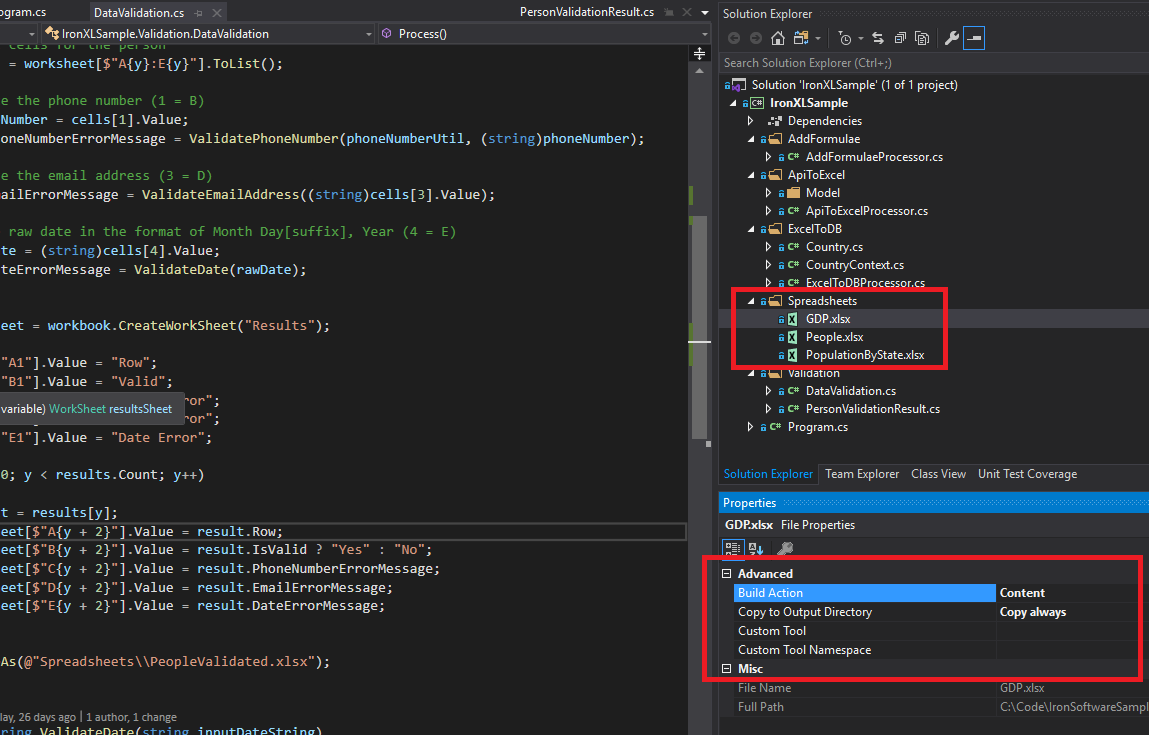 Bu eğitim boyunca kullanılan örnek Excel dosyaları (GDP.xlsx, People.xlsx ve PopulationByState.xlsx) çeşitli IronXL operasyonlarını göstermek için kullanılmıştır.
IronXL C# Kütüphanesi Nasıl Kurulur?
NuGet aracılığıyla veya doğrudan DLL'yi referans vererek .NET projesine IronXL.Excel kütüphanesi ekleyin.
IronXL NuGet Paketini Yükleme
- Visual Studio'da projenize sağ tıklayın ve "NuGet Paketlerini Yönet..." seçeneğini seçin
- Göz At sekmesinde
IronXL.Excelarayın - IronXL'yi projenize eklemek için yükle düğmesine tıklayın
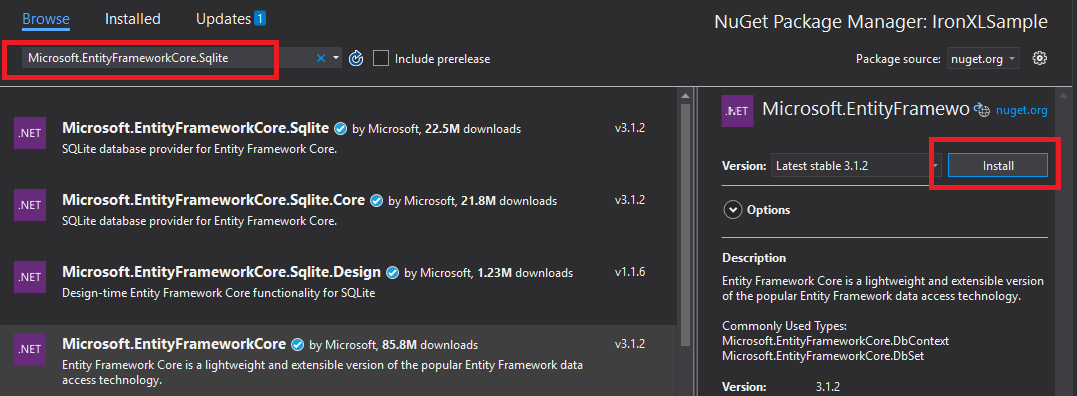 Visual Studio'nun NuGet Paket Yöneticisi aracılığıyla IronXL yüklemek otomatik bağımlılık yönetimi sağlar.
Alternatif olarak, IronXL'yi Paket Yöneticisi Konsolu'nu kullanarak yükleyin:
- Paket Yöneticisi Konsolu'nu Açın (Araçlar → NuGet Paket Yöneticisi → Paket Yöneticisi Konsolu)
- Yükleme komutunu çalıştırın:
NuGet web sitesinde paket detaylarını da görüntüleyebilirsiniz.
Manuel Yükleme
Manuel yükleme için, IronXL .NET Excel DLL'ini indirin ve Visual Studio projenize doğrudan referans verin.
Excel Çalışma Kitabı Nasıl Yüklenir ve Okunur?
WorkBook sınıfı, tüm bir Excel dosyasını temsil eder. XLS, XLSX, CSV ve TSV formatları için dosya yollarını kabul eden WorkBook.Load() yöntemi ile Excel dosyalarını yükleyin.
using IronXL;
using System;
using System.Linq;

// Load Excel file from specified path
WorkBook workBook = WorkBook.Load(@"Spreadsheets\GDP.xlsx");

Console.WriteLine("Workbook loaded successfully.");

// Access specific worksheet by name
WorkSheet sheet = workBook.GetWorkSheet("Sheet1");

// Read and display cell value
string cellValue = sheet["A1"].StringValue;
Console.WriteLine($"Cell A1 contains: {cellValue}");

// Perform additional operations
// Count non_empty cells in column A
int rowCount = sheet["A:A"].Count(cell => !cell.IsEmpty);
Console.WriteLine($"Column A has {rowCount} non_empty cells");Imports IronXL
Imports System
Imports System.Linq
' Load Excel file from specified path
Dim workBook As WorkBook = WorkBook.Load("Spreadsheets\GDP.xlsx")
Console.WriteLine("Workbook loaded successfully.")
' Access specific worksheet by name
Dim sheet As WorkSheet = workBook.GetWorkSheet("Sheet1")
' Read and display cell value
Dim cellValue As String = sheet("A1").StringValue
Console.WriteLine($"Cell A1 contains: {cellValue}")
' Perform additional operations
' Count non_empty cells in column A
Dim rowCount As Integer = sheet("A:A").Count(Function(cell) Not cell.IsEmpty)
Console.WriteLine($"Column A has {rowCount} non_empty cells")Her WorkBook, bireysel Excel sayfalarını temsil eden birden fazla WorkSheet nesnesi içerir. GetWorkSheet() kullanarak çalışma sayfalarına isimle erişin:
using IronXL;
using System;

// Get worksheet by name
WorkSheet workSheet = workBook.GetWorkSheet("GDPByCountry");

Console.WriteLine("Worksheet 'GDPByCountry' not found");
// List available worksheets
foreach (var sheet in workBook.WorkSheets)
{
    Console.WriteLine($"Available: {sheet.Name}");
}Imports IronXL
Imports System
' Get worksheet by name
Dim workSheet As WorkSheet = workBook.GetWorkSheet("GDPByCountry")
Console.WriteLine("Worksheet 'GDPByCountry' not found")
' List available worksheets
For Each sheet In workBook.WorkSheets
Console.WriteLine($"Available: {sheet.Name}")
NextC#'ta Yeni Excel Belgeleri Nasıl Oluşturulur?
İstediğiniz dosya formatına sahip WorkBook nesnesi oluşturarak yeni Excel belgeleri oluşturun. IronXL, hem modern XLSX hem de eski XLS formatlarını destekler.
using IronXL;

// Create new XLSX workbook (recommended format)
WorkBook workBook = WorkBook.Create(ExcelFileFormat.XLSX);

// Set workbook metadata
workBook.Metadata.Author = "Your Application";
workBook.Metadata.Comments = "Generated by IronXL";

// Create new XLS workbook for legacy support
WorkBook legacyWorkBook = WorkBook.Create(ExcelFileFormat.XLS);

// Save the workbook
workBook.SaveAs("NewDocument.xlsx");Imports IronXL
' Create new XLSX workbook (recommended format)
Private workBook As WorkBook = WorkBook.Create(ExcelFileFormat.XLSX)
' Set workbook metadata
workBook.Metadata.Author = "Your Application"
workBook.Metadata.Comments = "Generated by IronXL"
' Create new XLS workbook for legacy support
Dim legacyWorkBook As WorkBook = WorkBook.Create(ExcelFileFormat.XLS)
' Save the workbook
workBook.SaveAs("NewDocument.xlsx")Not: Yalnızca Excel 2003 ve öncesi ile uyumluluk gerektiğinde ExcelFileFormat.XLS kullanın.
Excel Belgesine Nasıl Çalışma Sayfası Eklenir?
Bir IronXL WorkBook, çalışma sayfalarından oluşan bir koleksiyona sahiptir. Bu yapıyı anlamak, çok sayfalı Excel dosyaları oluştururken yardımcı olur.
 IronXL'deki birden çok Çalışma Sayfası nesnesini içeren Çalışma Kitabı yapısının görsel temsili.
CreateWorkSheet() kullanarak yeni çalışma sayfaları oluşturun:
using IronXL;

// Create multiple worksheets with descriptive names
WorkSheet summarySheet = workBook.CreateWorkSheet("Summary");
WorkSheet dataSheet = workBook.CreateWorkSheet("RawData");
WorkSheet chartSheet = workBook.CreateWorkSheet("Charts");

// Set the active worksheet
workBook.SetActiveTab(0); // Makes "Summary" the active sheet

// Access default worksheet (first sheet)
WorkSheet defaultSheet = workBook.DefaultWorkSheet;Imports IronXL
' Create multiple worksheets with descriptive names
Dim summarySheet As WorkSheet = workBook.CreateWorkSheet("Summary")
Dim dataSheet As WorkSheet = workBook.CreateWorkSheet("RawData")
Dim chartSheet As WorkSheet = workBook.CreateWorkSheet("Charts")
' Set the active worksheet
workBook.SetActiveTab(0) ' Makes "Summary" the active sheet
' Access default worksheet (first sheet)
Dim defaultSheet As WorkSheet = workBook.DefaultWorkSheetHücre Değerlerini Nasıl Okur ve Düzenlerim?
Tek Bir Hücreyi Okuma ve Düzenleme
Bireysel hücrelere, çalışma sayfasının indeksçi özelliği aracılığıyla erişim sağlanır. IronXL'ın Cell sınıfı, güçlü şekilde tiplenmiş değer özellikleri sunar.
using IronXL;
using System;
using System.Linq;

// Load workbook and get worksheet
WorkBook workBook = WorkBook.Load("test.xlsx");
WorkSheet workSheet = workBook.DefaultWorkSheet;

// Access cell B1
IronXL.Cell cell = workSheet["B1"].First();

// Read cell value with type safety
string textValue = cell.StringValue;
int intValue = cell.IntValue;
decimal decimalValue = cell.DecimalValue;
DateTime? dateValue = cell.DateTimeValue;

// Check cell data type
if (cell.IsNumeric)
{
    Console.WriteLine($"Numeric value: {cell.DecimalValue}");
}
else if (cell.IsText)
{
    Console.WriteLine($"Text value: {cell.StringValue}");
}Imports IronXL
Imports System
Imports System.Linq
' Load workbook and get worksheet
Dim workBook As WorkBook = WorkBook.Load("test.xlsx")
Dim workSheet As WorkSheet = workBook.DefaultWorkSheet
' Access cell B1
Dim cell As IronXL.Cell = workSheet("B1").First()
' Read cell value with type safety
Dim textValue As String = cell.StringValue
Dim intValue As Integer = cell.IntValue
Dim decimalValue As Decimal = cell.DecimalValue
Dim dateValue As DateTime? = cell.DateTimeValue
' Check cell data type
If cell.IsNumeric Then
Console.WriteLine($"Numeric value: {cell.DecimalValue}")
ElseIf cell.IsText Then
Console.WriteLine($"Text value: {cell.StringValue}")
End IfCell sınıfı, farklı veri türleri için birden fazla özellik sunar ve mümkün olduğunda değerleri otomatik olarak dönüştürür. Daha fazla hücre işlemleri için Hücre biçimlendirme eğitimi bölümüne bakın.
// Write different data types to cells
workSheet["A1"].Value = "Product Name";     // String
workSheet["B1"].Value = 99.95m;             // Decimal
workSheet["C1"].Value = DateTime.Today;     // Date
workSheet["D1"].Formula = "=B1*1.2";        // Formula
                                            // Format cells
workSheet["B1"].FormatString = "$#,##0.00"; // Currency format
workSheet["C1"].FormatString = "yyyy-MM-dd";// Date format
                                            // Save changes
workBook.Save();' Write different data types to cells
workSheet("A1").Value = "Product Name" ' String
workSheet("B1").Value = 99.95D ' Decimal
workSheet("C1").Value = DateTime.Today ' Date
workSheet("D1").Formula = "=B1*1.2" ' Formula
' Format cells
workSheet("B1").FormatString = "$#,##0.00" ' Currency format
workSheet("C1").FormatString = "yyyy-MM-dd" ' Date format
' Save changes
workBook.Save()Hücre Aralıkları ile Nasıl Çalışabilirim?
Range sınıfı, hücrelerden oluşan bir koleksiyonu temsil eder ve Excel verileri üzerinde toplu işlemler yapmanıza olanak tanır.
using IronXL;
using Range = IronXL.Range;

// Select range using Excel notation
Range range = workSheet["D2:D101"];

// Alternative: Use Range class for dynamic selection
Range dynamicRange = workSheet.GetRange("D2:D101"); // Row 2_101, Column D

// Perform bulk operations
range.Value = 0; // Set all cells to 0Imports IronXL
' Select range using Excel notation
Dim range As Range = workSheet("D2:D101")
' Alternative: Use Range class for dynamic selection
Dim dynamicRange As Range = workSheet.GetRange("D2:D101") ' Row 2_101, Column D
' Perform bulk operations
range.Value = 0 ' Set all cells to 0Hücre sayısı bilindiğinde aralıkları verimli bir şekilde döngüler kullanarak işleyin:
// Data validation example
public class ValidationResult
{
    public int Row { get; set; }
    public string PhoneError { get; set; }
    public string EmailError { get; set; }
    public string DateError { get; set; }
    public bool IsValid => string.IsNullOrEmpty(PhoneError) &&
                           string.IsNullOrEmpty(EmailError) &&
                           string.IsNullOrEmpty(DateError);
}

// Validate data in rows 2-101
var results = new List<ValidationResult>();

for (int row = 2; row <= 101; row++)
{
    var result = new ValidationResult { Row = row };

    // Get row data efficiently
    var phoneCell = workSheet[$"B{row}"];
    var emailCell = workSheet[$"D{row}"];
    var dateCell = workSheet[$"E{row}"];

    // Validate phone number
    if (!IsValidPhoneNumber(phoneCell.StringValue))
        result.PhoneError = "Invalid phone format";

    // Validate email
    if (!IsValidEmail(emailCell.StringValue))
        result.EmailError = "Invalid email format";

    // Validate date
    if (!dateCell.IsDateTime)
        result.DateError = "Invalid date format";

    results.Add(result);
}

// Helper methods
bool IsValidPhoneNumber(string phone) =>
    System.Text.RegularExpressions.Regex.IsMatch(phone, @"^\d{3}-\d{3}-\d{4}$");

bool IsValidEmail(string email) =>
email.Contains("@") && email.Contains(".");' Data validation example
Public Class ValidationResult
Public Property Row As Integer
Public Property PhoneError As String
Public Property EmailError As String
Public Property DateError As String
Public ReadOnly Property IsValid As Boolean
Get
Return String.IsNullOrEmpty(PhoneError) AndAlso
String.IsNullOrEmpty(EmailError) AndAlso
String.IsNullOrEmpty(DateError)
End Get
End Property
End Class
' Validate data in rows 2-101
Dim results As New List(Of ValidationResult)()
For row As Integer = 2 To 101
Dim result As New ValidationResult With {.Row = row}
' Get row data efficiently
Dim phoneCell = workSheet($"B{row}")
Dim emailCell = workSheet($"D{row}")
Dim dateCell = workSheet($"E{row}")
' Validate phone number
If Not IsValidPhoneNumber(phoneCell.StringValue) Then
result.PhoneError = "Invalid phone format"
End If
' Validate email
If Not IsValidEmail(emailCell.StringValue) Then
result.EmailError = "Invalid email format"
End If
' Validate date
If Not dateCell.IsDateTime Then
result.DateError = "Invalid date format"
End If
results.Add(result)
Next
' Helper methods
Private Function IsValidPhoneNumber(phone As String) As Boolean
Return System.Text.RegularExpressions.Regex.IsMatch(phone, "^\d{3}-\d{3}-\d{4}$")
End Function
Private Function IsValidEmail(email As String) As Boolean
Return email.Contains("@") AndAlso email.Contains(".")
End FunctionExcel Hesap Tablolarına Formülleri Nasıl Eklerim?
Formula özelliğini kullanarak Excel formülleri uygulayın. IronXL, standart Excel formül sözdizimini destekler.
using IronXL;

// Add formulas to calculate percentages
int lastRow = 50;
for (int row = 2; row < lastRow; row++)
{
    // Calculate percentage: current value / total
    workSheet[$"C{row}"].Formula = $"=B{row}/B{lastRow}";
    // Format as percentage
    workSheet[$"C{row}"].FormatString = "0.00%";
}
// Add summary formulas
workSheet["B52"].Formula = "=SUM(B2:B50)";      // Sum
workSheet["B53"].Formula = "=AVERAGE(B2:B50)";   // Average
workSheet["B54"].Formula = "=MAX(B2:B50)";       // Maximum
workSheet["B55"].Formula = "=MIN(B2:B50)";       // Minimum
                                                 // Force formula evaluation
workBook.EvaluateAll();Imports IronXL
' Add formulas to calculate percentages
Dim lastRow As Integer = 50
For row As Integer = 2 To lastRow - 1
' Calculate percentage: current value / total
workSheet($"C{row}").Formula = $"=B{row}/B{lastRow}"
' Format as percentage
workSheet($"C{row}").FormatString = "0.00%"
Next
' Add summary formulas
workSheet("B52").Formula = "=SUM(B2:B50)" ' Sum
workSheet("B53").Formula = "=AVERAGE(B2:B50)" ' Average
workSheet("B54").Formula = "=MAX(B2:B50)" ' Maximum
workSheet("B55").Formula = "=MIN(B2:B50)" ' Minimum
' Force formula evaluation
workBook.EvaluateAll()Mevcut formülleri düzenlemek için Excel formülleri eğitimi bölümüne göz atın.
Tablo Verilerini Nasıl Doğrularım?
En yaygın kullanım örneklerinden biri, veriyi bir veritabanına çekmeden önce kullanıcının sağladığı tabloları doğrulamaktır. Aşağıdaki örnek, düzenli ifadeler ve IronXL'un yerleşik tür kontrolleri ile telefon numaralarını, e-postaları ve tarihleri kontrol eder.
using System.Text.RegularExpressions;
using IronXL;

// Validation implementation
for (int i = 2; i <= 101; i++)
{
    var result = new PersonValidationResult { Row = i };
    results.Add(result);

    // Get cells for current person
    var cells = workSheet[$"A{i}:E{i}"].ToList();

    // Validate phone (column B)
    string phone = cells[1].StringValue;
    if (!Regex.IsMatch(phone, @"^\+?1?\d{10,14}$"))
    {
        result.PhoneNumberErrorMessage = "Invalid phone format";
    }

    // Validate email (column D)
    string email = cells[3].StringValue;
    if (!Regex.IsMatch(email, @"^[^@\s]+@[^@\s]+\.[^@\s]+$"))
    {
        result.EmailErrorMessage = "Invalid email address";
    }

    // Validate date (column E)
    if (!cells[4].IsDateTime)
    {
        result.DateErrorMessage = "Invalid date format";
    }
}Imports System.Text.RegularExpressions
Imports IronXL
' Validation implementation
For i As Integer = 2 To 101
Dim result As New PersonValidationResult With {.Row = i}
results.Add(result)
' Get cells for current person
Dim cells = workSheet($"A{i}:E{i}").ToList()
' Validate phone (column B)
Dim phone As String = cells(1).StringValue
If Not Regex.IsMatch(phone, "^\+?1?\d{10,14}$") Then
result.PhoneNumberErrorMessage = "Invalid phone format"
End If
' Validate email (column D)
Dim email As String = cells(3).StringValue
If Not Regex.IsMatch(email, "^[^@\s]+@[^@\s]+\.[^@\s]+$") Then
result.EmailErrorMessage = "Invalid email address"
End If
' Validate date (column E)
If Not cells(4).IsDateTime Then
result.DateErrorMessage = "Invalid date format"
End If
Next iDoğrulama sonuçlarını yeni bir çalışma sayfasına kaydedin:
// Create results worksheet
var resultsSheet = workBook.CreateWorkSheet("ValidationResults");

// Add headers
resultsSheet["A1"].Value = "Row";
resultsSheet["B1"].Value = "Valid";
resultsSheet["C1"].Value = "Phone Error";
resultsSheet["D1"].Value = "Email Error";
resultsSheet["E1"].Value = "Date Error";

// Style headers
resultsSheet["A1:E1"].Style.Font.Bold = true;
resultsSheet["A1:E1"].Style.SetBackgroundColor("#4472C4");
resultsSheet["A1:E1"].Style.Font.Color = "#FFFFFF";

// Output validation results
for (int i = 0; i < results.Count; i++)
{
    var result = results[i];
    int outputRow = i + 2;

    resultsSheet[$"A{outputRow}"].Value = result.Row;
    resultsSheet[$"B{outputRow}"].Value = result.IsValid ? "Yes" : "No";
    resultsSheet[$"C{outputRow}"].Value = result.PhoneNumberErrorMessage ?? "";
    resultsSheet[$"D{outputRow}"].Value = result.EmailErrorMessage ?? "";
    resultsSheet[$"E{outputRow}"].Value = result.DateErrorMessage ?? "";

    // Highlight invalid rows
    if (!result.IsValid)
    {
        resultsSheet[$"A{outputRow}:E{outputRow}"].Style.SetBackgroundColor("#FFE6E6");
    }
}

// Auto-fit columns
for (int col = 0; col < 5; col++)
{
    resultsSheet.AutoSizeColumn(col);
}

// Save validated workbook
workBook.SaveAs(@"Spreadsheets\PeopleValidated.xlsx");Imports System
' Create results worksheet
Dim resultsSheet = workBook.CreateWorkSheet("ValidationResults")
' Add headers
resultsSheet("A1").Value = "Row"
resultsSheet("B1").Value = "Valid"
resultsSheet("C1").Value = "Phone Error"
resultsSheet("D1").Value = "Email Error"
resultsSheet("E1").Value = "Date Error"
' Style headers
resultsSheet("A1:E1").Style.Font.Bold = True
resultsSheet("A1:E1").Style.SetBackgroundColor("#4472C4")
resultsSheet("A1:E1").Style.Font.Color = "#FFFFFF"
' Output validation results
For i As Integer = 0 To results.Count - 1
Dim result = results(i)
Dim outputRow As Integer = i + 2
resultsSheet($"A{outputRow}").Value = result.Row
resultsSheet($"B{outputRow}").Value = If(result.IsValid, "Yes", "No")
resultsSheet($"C{outputRow}").Value = If(result.PhoneNumberErrorMessage, "")
resultsSheet($"D{outputRow}").Value = If(result.EmailErrorMessage, "")
resultsSheet($"E{outputRow}").Value = If(result.DateErrorMessage, "")
' Highlight invalid rows
If Not result.IsValid Then
resultsSheet($"A{outputRow}:E{outputRow}").Style.SetBackgroundColor("#FFE6E6")
End If
Next
' Auto-fit columns
For col As Integer = 0 To 4
resultsSheet.AutoSizeColumn(col)
Next
' Save validated workbook
workBook.SaveAs("Spreadsheets\PeopleValidated.xlsx")Excel Verilerini Bir Veritabanına Nasıl Aktarırım?
Excel verilerini doğrudan veritabanlarına aktarmak için IronXL'yi Entity Framework ile kullanın. Bu örnek, ülke GSYİH verilerini SQLite'a aktarmayı gösterir.
using System;
using System.ComponentModel.DataAnnotations;
using Microsoft.EntityFrameworkCore;
using IronXL;

// Define entity model
public class Country
{
    [Key]
    public Guid Id { get; set; } = Guid.NewGuid();

    [Required]
    [MaxLength(100)]
    public string Name { get; set; }

    [Range(0, double.MaxValue)]
    public decimal GDP { get; set; }

    public DateTime ImportedDate { get; set; } = DateTime.UtcNow;
}Imports System
Imports System.ComponentModel.DataAnnotations
Imports Microsoft.EntityFrameworkCore
Imports IronXL
' Define entity model
Public Class Country
<Key>
Public Property Id As Guid = Guid.NewGuid()
<Required>
<MaxLength(100)>
Public Property Name As String
<Range(0, Double.MaxValue)>
Public Property GDP As Decimal
Public Property ImportedDate As DateTime = DateTime.UtcNow
End ClassVeritabanı işlemleri için Entity Framework bağlamını yapılandırın:
public class CountryContext : DbContext
{
    public DbSet<Country> Countries { get; set; }

    protected override void OnConfiguring(DbContextOptionsBuilder optionsBuilder)
    {
        // Configure SQLite connection
        optionsBuilder.UseSqlite("Data Source=CountryGDP.db");

        // Enable sensitive data logging in development
        #if DEBUG
        optionsBuilder.EnableSensitiveDataLogging();
        #endif
    }

    protected override void OnModelCreating(ModelBuilder modelBuilder)
    {
        // Configure decimal precision
        modelBuilder.Entity<Country>()
            .Property(c => c.GDP)
            .HasPrecision(18, 2);
    }
}Public Class CountryContext
Inherits DbContext
Public Property Countries As DbSet(Of Country)
Protected Overrides Sub OnConfiguring(optionsBuilder As DbContextOptionsBuilder)
' Configure SQLite connection
optionsBuilder.UseSqlite("Data Source=CountryGDP.db")
' Enable sensitive data logging in development
#If DEBUG Then
optionsBuilder.EnableSensitiveDataLogging()
#End If
End Sub
Protected Overrides Sub OnModelCreating(modelBuilder As ModelBuilder)
' Configure decimal precision
modelBuilder.Entity(Of Country)() _
.Property(Function(c) c.GDP) _
.HasPrecision(18, 2)
End Sub
End ClassMicrosoft.EntityFrameworkCore.SqlServer) yükleyin ve bağlantı yapılandırmasını uygun şekilde değiştirin.Excel verilerini veritabanına aktarın:
using System.Threading.Tasks;
using IronXL;
using Microsoft.EntityFrameworkCore;

public async Task ImportGDPDataAsync()
{
    try
    {
        // Load Excel file
        var workBook = WorkBook.Load(@"Spreadsheets\GDP.xlsx");
        var workSheet = workBook.GetWorkSheet("GDPByCountry");

        using (var context = new CountryContext())
        {
            // Ensure database exists
            await context.Database.EnsureCreatedAsync();

            // Clear existing data (optional)
            await context.Database.ExecuteSqlRawAsync("DELETE FROM Countries");

            // Import data with progress tracking
            int totalRows = 213;
            for (int row = 2; row <= totalRows; row++)
            {
                // Read country data
                var countryName = workSheet[$"A{row}"].StringValue;
                var gdpValue = workSheet[$"B{row}"].DecimalValue;

                // Skip empty rows
                if (string.IsNullOrWhiteSpace(countryName))
                    continue;

                // Create and add entity
                var country = new Country
                {
                    Name = countryName.Trim(),
                    GDP = gdpValue * 1_000_000 // Convert to actual value if in millions
                };

                await context.Countries.AddAsync(country);

                // Save in batches for performance
                if (row % 50 == 0)
                {
                    await context.SaveChangesAsync();
                    Console.WriteLine($"Imported {row - 1} of {totalRows} countries");
                }
            }

            // Save remaining records
            await context.SaveChangesAsync();
            Console.WriteLine($"Successfully imported {await context.Countries.CountAsync()} countries");
        }
    }
    catch (Exception ex)
    {
        Console.WriteLine($"Import failed: {ex.Message}");
        throw;
    }
}Imports System.Threading.Tasks
Imports IronXL
Imports Microsoft.EntityFrameworkCore
Public Async Function ImportGDPDataAsync() As Task
Try
' Load Excel file
Dim workBook = WorkBook.Load("Spreadsheets\GDP.xlsx")
Dim workSheet = workBook.GetWorkSheet("GDPByCountry")
Using context = New CountryContext()
' Ensure database exists
Await context.Database.EnsureCreatedAsync()
' Clear existing data (optional)
Await context.Database.ExecuteSqlRawAsync("DELETE FROM Countries")
' Import data with progress tracking
Dim totalRows As Integer = 213
For row As Integer = 2 To totalRows
' Read country data
Dim countryName = workSheet($"A{row}").StringValue
Dim gdpValue = workSheet($"B{row}").DecimalValue
' Skip empty rows
If String.IsNullOrWhiteSpace(countryName) Then
Continue For
End If
' Create and add entity
Dim country = New Country With {
.Name = countryName.Trim(),
.GDP = gdpValue * 1_000_000 ' Convert to actual value if in millions
}
Await context.Countries.AddAsync(country)
' Save in batches for performance
If row Mod 50 = 0 Then
Await context.SaveChangesAsync()
Console.WriteLine($"Imported {row - 1} of {totalRows} countries")
End If
Next
' Save remaining records
Await context.SaveChangesAsync()
Console.WriteLine($"Successfully imported {Await context.Countries.CountAsync()} countries")
End Using
Catch ex As Exception
Console.WriteLine($"Import failed: {ex.Message}")
Throw
End Try
End FunctionAPI Verilerini Excel Hesap Tablolarına Nasıl İthal Ederim?
Canlı API verileriyle hesap tablolarını doldurmak için IronXL'yi HTTP istemcileri ile birleştirin. Bu örnek, RestClient.Net kullanarak ülke verilerini almayı gösterir.
using System;
using System.Collections.Generic;
using System.Net.Http;
using System.Threading.Tasks;
using Newtonsoft.Json;
using IronXL;

// Define data model matching API response
public class RestCountry
{
    public string Name { get; set; }
    public long Population { get; set; }
    public string Region { get; set; }
    public string NumericCode { get; set; }
    public List<Language> Languages { get; set; }
}

public class Language
{
    public string Name { get; set; }
    public string NativeName { get; set; }
}

// Fetch and process API data
public async Task ImportCountryDataAsync()
{
    using var httpClient = new HttpClient();

    try
    {
        // Call REST API
        var response = await httpClient.GetStringAsync("https://restcountries.com/v3.1/all");
        var countries = JsonConvert.DeserializeObject<List<RestCountry>>(response);

        // Create new workbook
        var workBook = WorkBook.Create(ExcelFileFormat.XLSX);
        var workSheet = workBook.CreateWorkSheet("Countries");

        // Add headers with styling
        string[] headers = { "Country", "Population", "Region", "Code", "Language 1", "Language 2", "Language 3" };
        for (int col = 0; col < headers.Length; col++)
        {
            var headerCell = workSheet[0, col];
            headerCell.Value = headers[col];
            headerCell.Style.Font.Bold = true;
            headerCell.Style.SetBackgroundColor("#366092");
            headerCell.Style.Font.Color = "#FFFFFF";
        }

        // Import country data
        await ProcessCountryData(countries, workSheet);

        // Save workbook
        workBook.SaveAs("CountriesFromAPI.xlsx");
    }
    catch (Exception ex)
    {
        Console.WriteLine($"API import failed: {ex.Message}");
    }
}Imports System
Imports System.Collections.Generic
Imports System.Net.Http
Imports System.Threading.Tasks
Imports Newtonsoft.Json
Imports IronXL
' Define data model matching API response
Public Class RestCountry
Public Property Name As String
Public Property Population As Long
Public Property Region As String
Public Property NumericCode As String
Public Property Languages As List(Of Language)
End Class
Public Class Language
Public Property Name As String
Public Property NativeName As String
End Class
' Fetch and process API data
Public Async Function ImportCountryDataAsync() As Task
Using httpClient As New HttpClient()
Try
' Call REST API
Dim response As String = Await httpClient.GetStringAsync("https://restcountries.com/v3.1/all")
Dim countries As List(Of RestCountry) = JsonConvert.DeserializeObject(Of List(Of RestCountry))(response)
' Create new workbook
Dim workBook As WorkBook = WorkBook.Create(ExcelFileFormat.XLSX)
Dim workSheet As WorkSheet = workBook.CreateWorkSheet("Countries")
' Add headers with styling
Dim headers As String() = {"Country", "Population", "Region", "Code", "Language 1", "Language 2", "Language 3"}
For col As Integer = 0 To headers.Length - 1
Dim headerCell = workSheet(0, col)
headerCell.Value = headers(col)
headerCell.Style.Font.Bold = True
headerCell.Style.SetBackgroundColor("#366092")
headerCell.Style.Font.Color = "#FFFFFF"
Next
' Import country data
Await ProcessCountryData(countries, workSheet)
' Save workbook
workBook.SaveAs("CountriesFromAPI.xlsx")
Catch ex As Exception
Console.WriteLine($"API import failed: {ex.Message}")
End Try
End Using
End FunctionAPI, JSON verilerini şu formatta döndürür:
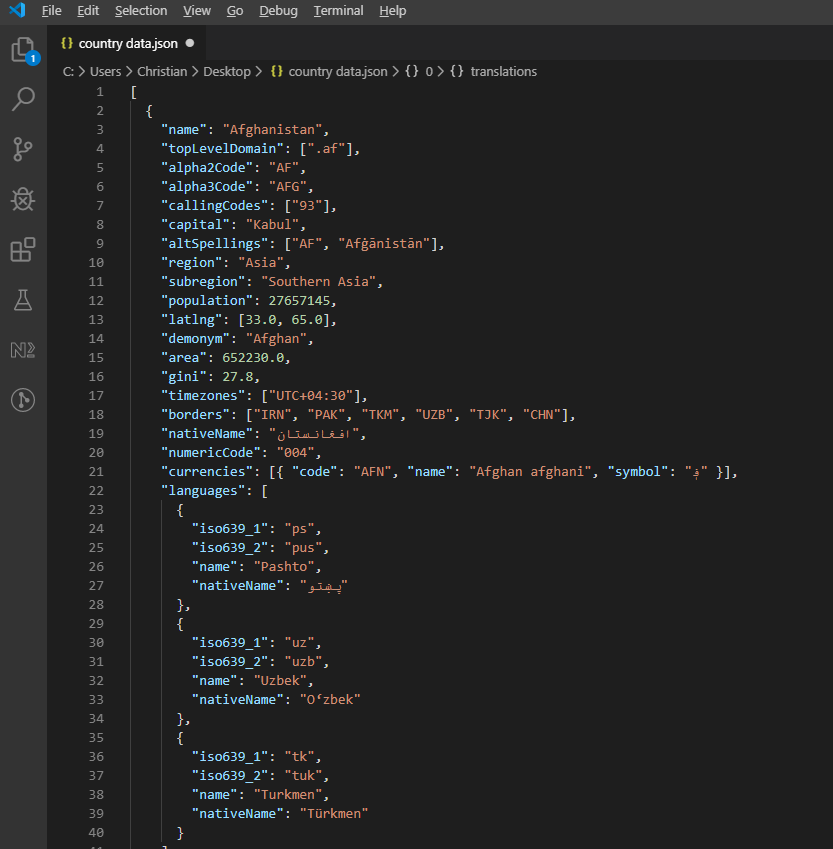 REST Countries API'sinden gelen örnek JSON yanıtı, hiyerarşik ülke bilgilerini gösteriyor.
API verilerini işleyip Excel'e yazın:
private async Task ProcessCountryData(List<RestCountry> countries, WorkSheet workSheet)
{
    for (int i = 0; i < countries.Count; i++)
    {
        var country = countries[i];
        int row = i + 1; // Start from row 1 (after headers)

        // Write basic country data
        workSheet[$"A{row}"].Value = country.Name;
        workSheet[$"B{row}"].Value = country.Population;
        workSheet[$"C{row}"].Value = country.Region;
        workSheet[$"D{row}"].Value = country.NumericCode;

        // Format population with thousands separator
        workSheet[$"B{row}"].FormatString = "#,##0";

        // Add up to 3 languages
        for (int langIndex = 0; langIndex < Math.Min(3, country.Languages?.Count ?? 0); langIndex++)
        {
            var language = country.Languages[langIndex];
            string columnLetter = ((char)('E' + langIndex)).ToString();
            workSheet[$"{columnLetter}{row}"].Value = language.Name;
        }

        // Add conditional formatting for regions
        if (country.Region == "Europe")
        {
            workSheet[$"C{row}"].Style.SetBackgroundColor("#E6F3FF");
        }
        else if (country.Region == "Asia")
        {
            workSheet[$"C{row}"].Style.SetBackgroundColor("#FFF2E6");
        }

        // Show progress every 50 countries
        if (i % 50 == 0)
        {
            Console.WriteLine($"Processed {i} of {countries.Count} countries");
        }
    }

    // Auto-size all columns
    for (int col = 0; col < 7; col++)
    {
        workSheet.AutoSizeColumn(col);
    }
}Private Async Function ProcessCountryData(countries As List(Of RestCountry), workSheet As WorkSheet) As Task
For i As Integer = 0 To countries.Count - 1
Dim country = countries(i)
Dim row As Integer = i + 1 ' Start from row 1 (after headers)
' Write basic country data
workSheet($"A{row}").Value = country.Name
workSheet($"B{row}").Value = country.Population
workSheet($"C{row}").Value = country.Region
workSheet($"D{row}").Value = country.NumericCode
' Format population with thousands separator
workSheet($"B{row}").FormatString = "#,##0"
' Add up to 3 languages
For langIndex As Integer = 0 To Math.Min(3, If(country.Languages?.Count, 0)) - 1
Dim language = country.Languages(langIndex)
Dim columnLetter As String = ChrW(AscW("E"c) + langIndex).ToString()
workSheet($"{columnLetter}{row}").Value = language.Name
Next
' Add conditional formatting for regions
If country.Region = "Europe" Then
workSheet($"C{row}").Style.SetBackgroundColor("#E6F3FF")
ElseIf country.Region = "Asia" Then
workSheet($"C{row}").Style.SetBackgroundColor("#FFF2E6")
End If
' Show progress every 50 countries
If i Mod 50 = 0 Then
Console.WriteLine($"Processed {i} of {countries.Count} countries")
End If
Next
' Auto-size all columns
For col As Integer = 0 To 6
workSheet.AutoSizeColumn(col)
Next
End FunctionYaygın Sorunlar
Bazı şeyler insanlar için yeterince sıklıkla sorun oluyor ki kendi bölümlerini hak ediyor.
Boş hücreler 0, değil null döner
Bu beni erken vurdu. Boş bir hücrede sheet["A1"].IntValue (veya DecimalValue ya da DoubleValue) çağrısı, null'ı değil, 0 döner. Gaps olan bir sütunu topluyor veya ortalamasını alıyorsanız, boşluklar sessizce sıfırlara dönüşür ve sonucu bozar. Artık, eksik değerlerin mümkün olduğu her sayfada okuma koruması yapıyorum:
var cell = sheet["B5"];
if (!cell.IsEmpty)
{
    total += cell.DecimalValue;
}Dim cell = sheet("B5")
If Not cell.IsEmpty Then
total += cell.DecimalValue
End IfCell.IsEmpty ucuzdur, bu yüzden elektronik tablo kullanıcı tarafından sağlandığında makine tarafından üretilmiş yerine varsayılan olarak onu kullanırım.
Tarihler yanlış tür istenirse seri numara olarak geri döner
Excel, tarihleri arka planda seri numara olarak saklar (örneğin, 45292, 2024-01-01 anlamına gelir). Destek kutumuza gelen en yaygın tarih işleme sorusu "tarihim neden 45292 olarak görünüyor?" sorusudur. Cevap neredeyse her zaman hücrenin StringValue veya IntValue olarak okunduğu, DateTimeValue yerine yanlış formatlandığıdır:
// What you probably want:
DateTime birthday = sheet["E2"].DateTimeValue;

// What gives you "45292":
string birthday = sheet["E2"].StringValue;' What you probably want:
Dim birthday As DateTime = sheet("E2").DateTimeValue
' What gives you "45292":
Dim birthday As String = sheet("E2").StringValueCell.IsDateTime size hücrenin başlangıçta tarih olarak yazılıp yazılmadığını söyler, bu da girdi formatının garanti edilmediği doğrulama hatları için yararlıdır.
Hücre dizin numaraları 0 bazlıdır ancak A1 dizgileri 1 bazlıdır
Yukarıda Interop göç paragrafında kapsandı, ancak üzerinden geçmeye değer çünkü COM'un yanına bile yaklaşmayanları bile yakalar. sheet[0, 0], sheet["A1"] ile aynı hücredir. Aynı döngüde iki stili karıştırmak, bir farkla hata hatalarının nasıl sızdığını gösterir. Her dosya için bir şekil seçerim ve ona sadık kalırım; ["A1"] string formu, elektronik tabloda kendiliğinden görünen forma eşleştiği için varsayılan olarak tercih ederim.
Karşılaştırma rakamları için örnek proje
Daha önceki zamanlama rakamlarını yeniden oluşturmak istiyorsanız, bağ biraz küçük bir .NET 9 konsol uygulamasıdır:
// ReadExcelBenchmark/Program.cs (excerpt)
IronXL.License.LicenseKey = Environment.GetEnvironmentVariable("IRONXL_LICENSE_KEY");

var sw = Stopwatch.StartNew();
var workbook = WorkBook.Load("GDP.xlsx");
decimal sum = workbook.WorkSheets.First()["B2:B214"].Sum();
sw.Stop();
Console.WriteLine($"cold: {sw.Elapsed.TotalMilliseconds:F1} ms");Imports System
Imports System.Diagnostics
Imports IronXL
License.LicenseKey = Environment.GetEnvironmentVariable("IRONXL_LICENSE_KEY")
Dim sw As Stopwatch = Stopwatch.StartNew()
Dim workbook = WorkBook.Load("GDP.xlsx")
Dim sum As Decimal = workbook.WorkSheets.First()("B2:B214").Sum()
sw.Stop()
Console.WriteLine($"cold: {sw.Elapsed.TotalMilliseconds:F1} ms")dotnet run -c Release altında çalıştırın, ilk başlatmada iki örnek çalışma kitabı üretin, ve kendi dosyalarınızı değiştirerek dosya boyutu ve karmaşıklığı ile sayıların nasıl hareket ettiğini görebilirsiniz.
Nesne Referansı ve Kaynaklar
IronXL API Referansı, bu eğitimin dokunmadığı olanlar da dahil olmak üzere, her sınıf ve yöntemi kapsar.
Excel işlemleri için ek eğitimler:
- Programatik olarak Excel dosyaları oluşturma
- Excel biçimlendirme ve stil kılavuzu
- Excel formülleriyle çalışma
- Excel grafik oluşturma eğitimi
Özet
IronXL.Excel, XLS, XLSX, CSV ve TSV formatlarında Excel dosyalarını okur ve işler. Anasistem makinesinde Microsoft Excel veya Interop olmadan çalışır.
Bulut tabanlı hesap tablosu işlemi için, IronXL'nin yerel dosya yeteneklerini tamamlayacak Google Sheets API İstemci Kütüphanesi'ni de inceleyebilirsiniz.
C# projelerinizde Excel otomasyonunu uygulamaya hazır mısınız? IronXL'yi indirin veya üretim kullanımı için lisanslama seçeneklerini keşfedin.
Sıkça Sorulan Sorular
C# ile Excel dosyalarını Microsoft Office kullanmadan nasıl okuyabilirim?
Microsoft Office ihtiyacı olmadan C# ile Excel dosyalarını okumak için IronXL'i kullanabilirsiniz. IronXL, Excel dosyalarını açmak için WorkBook.Load() gibi metodlar sağlar ve sezgisel sözdizimini kullanarak veriye erişmenize ve veriyi manipüle etmenize olanak tanır.
C# ile hangi Excel dosya formatları okunabilir?
IronXL ile C# içinde hem XLS hem de XLSX dosya formatlarını okuyabilirsiniz. Kütüphane, dosya formatını otomatik olarak algılar ve WorkBook.Load() metodu kullanılarak buna göre işler.
C#'da Excel verilerini nasıl doğrularım?
IronXL, C# içinde hücreler arasında iterasyon yaparak ve e-postalar için düzenli ifadeler veya özel doğrulama fonksiyonları gibi mantık uygulayarak Excel verilerini programatik olarak doğrulamanıza olanak tanır. CreateWorkSheet() kullanarak raporlar üretebilirsiniz.
Excel'den SQL veritabanına C# kullanarak nasıl veri aktarabilirim?
Excel verilerinden SQL veritabanına veri aktarmak için IronXL kullanarak WorkBook.Load() ve GetWorkSheet() metodları ile Excel verilerini okuyun, ardından hücreler boyunca iterasyon yaparak veritabanınıza veri aktarmak için Entity Framework kullanın.
Excel işlevselliğini ASP.NET Core uygulamalarıyla entegre edebilir miyim?
Evet, IronXL, ASP.NET Core uygulamalarıyla entegrasyonu destekler. Controller'larınızda Excel dosya yüklemelerini işlemek, raporlar oluşturmak ve daha fazlası için WorkBook ve WorkSheet sınıflarını kullanabilirsiniz.
C# ile Excel elektronik tablolarına formüller eklemek mümkün mü?
IronXL, Excel elektronik tablolarına programatik olarak formüller eklemenize olanak tanır. cell.Formula = '=SUM(A1:A10)' gibi Formula özelliğini kullanarak bir formül ayarlayabilir ve workBook.EvaluateAll() ile sonuçları hesaplayabilirsiniz.
Excel dosyalarına bir REST API'den verileri nasıl doldururum?
REST API'den verilen verileri Excel dosyalarına doldurmak için IronXL'i bir HTTP istemciyle birlikte kullanarak API verilerini alın ve ardından sheet["A1"].Value gibi metodlar kullanarak Excel'e yazın. IronXL, Excel formatlamasını ve yapısını yönetir.
Üretim ortamlarında Excel kütüphanelerini kullanmanın lisanslama seçenekleri nelerdir?
IronXL, geliştirme amaçları için ücretsiz bir deneme sunar, üretim lisansları 749 dolardan başlar. Bu lisanslar, adanmış teknik destek içerir ve çeşitli ortamlarda dağıtım için ek Office lisanslarına ihtiyaç duymaz.
Is it possible to validate Excel data with IronXL before importing it into a database?
Yes, you can validate spreadsheet data by using IronXL to iterate over the cell values, check for expected formats or values, and log any discrepancies before executing a database import.
Can IronXL be used in both C# and VB.NET projects?
Yes, IronXL can be utilized in both C# and VB.NET projects without any difference in functionality, allowing for seamless Excel file operations across these .NET languages.

Jacob Mellor, Iron Software'de Baş Teknoloji Yöneticisidir ve C# PDF teknolojisinde öncü bir mühendisdir. Iron Software'ın ana kod tabanının ilk geliştiricisi olarak, CEO Cameron Rimington ile birlikte şirketin ürün mimarisini 50'den fazla kişilik bir şirkete dönüştürmüştür ve NASA, Tesla ve dünya genelindeki devlet kurumlarına hizmet etmektedir.













