# How to Create an Excel File in C# (.NET Tutorial)
Çalıştığım çoğu ekip, Excel dosyalarını okumak kadar sık oluşturmak zorunda: faturalar, ihracatlar, finans ekibinin açıp filtreleyebileceği aylık raporlar. Bu süreci konsol uygulamalarından, ASP.NET servislerinden ve arka plan çalışanlarından onlarca kez inşa ettim. IronXL'nin API'si, Excel'in kendisinin düşündüğüne yakın şekilde tasarlandığından, kod neredeyse bir spesifikasyon gibi okunur, ancak API yüzeyinin aktardığından daha önemli birkaç formatlama ve kaydetme kararı vardır. Bu rehber, üretim ortamında XLSX dosyalarını nasıl oluşturduğum hakkında ve ilk birkaç seferde bana zaman kaybettiren sorunları içeriyor.
Kütüphane, Microsoft Office olmadan Windows, Linux, macOS, Azure ve AWS üzerinde .NET 8, .NET 9, .NET Core ve .NET Framework üzerinde çalışır. Aşağıdaki kod yolları, tüm bu hedeflerde aynıdır.
*as-heading:2(Hızlı Başlangıç: Bir Excel Dosyası Oluşturun)*
Üç satır yeni bir çalışma kitabı oluşturarak, A1'e bir değer yazar ve dosyayı diske kaydeder. Excel süreci yok, COM aktarımı yok.
```cs
:title=Create Excel File in One Line!
WorkBook book = IronXL.WorkBook.Create(IronXL.ExcelFileFormat.XLSX); book.CreateWorkSheet("Sheet1")["A1"].Value = "Hello World"; book.SaveAs("MyFile.xlsx");
```
---
<div class="hsg-featured-snippet">
<h3>Asgari İş Akışı (5 adım)</h3>
<ol>
<li><a class="js-modal-open" data-modal-id="trial-license-after-download" href="https://nuget.org/packages/IronXL.Excel/">IronXL C# kütüphanesini indirin ve kurun</a></li>
<li>.NET projenizi ayarlayın</li>
<li><code>Workbook</code> ve <code>Worksheet</code> oluştur</li>
<li>Hücre değerlerini, biçimlendirmelerini ve formüllerini ayarlayın</li>
<li>Excel dosyanızı kaydedin</li>
</ol>
</div>
## IronXL nedir ve Excel Dosyası Oluşturmak İçin Neden Kullanılır?
[IronXL](/csharp/excel/), tablo dosyalarını okumak, düzenlemek ve oluşturmak için C# ve VB.NET Excel API'sidir. Microsoft Office veya Excel Interop gerektirmez, bu da dağıtımı bir NuGet referansına ve bir `using` direktifine indirger.
IronXL tamamen .NET 9, .NET 8, .NET Core, .NET Framework, Xamarin, Mobil, Linux, macOS ve Azure ortamlarını tam olarak destekler.
### IronXL Özellikleri
- .NET geliştirme ekibimizden doğrudan insan desteği
- Microsoft Visual Studio ile hızlı yükleme
- Geliştirme için ÜCRETSİZ. `$liteLicense` lisansları
### Excel Dosyasını Hızla Nasıl Oluşturup Kaydedebilirim?
[IronXL'yi NuGet üzerinden yükleyin](https://www.nuget.org/packages/IronXL.Excel/) veya [DLL dosyasını doğrudan indirin](/csharp/excel/packages/IronXL.zip). `WorkBook` sınıfı tüm Excel işlemleri için giriş noktasıdır ve `WorkSheet` sınıfı, bireysel sayfaları manipüle etmek için yöntemler sunar. Tam adım adım yürütme, aşağıda Adım 1'den başlıyor.
---
## How Do I Install the IronXL C# Library?
IronXL'yi Visual Studio'da NuGet Paket Yöneticisi aracılığıyla yükleyin veya Paket Yöneticisi Konsolunu kullanın:
```shell
:ProductInstall
```
Proje menüsünden veya Çözüm Gezgini'nde projenize sağ tıklayarak NuGet Paket Yöneticisi'ne erişin.
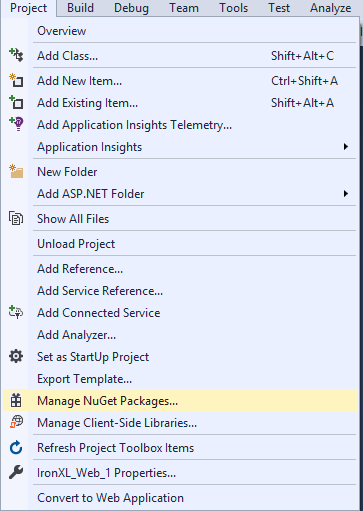
**Şekil 3** - *Proje menüsü üzerinden NuGet Paket Yöneticisi'ne erişin*
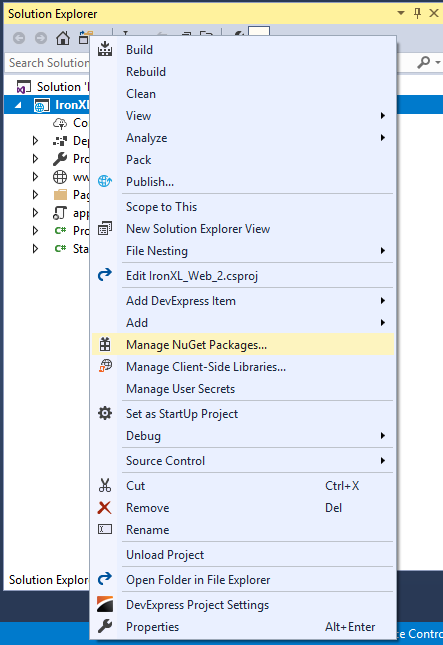
**Şekil 4** - *Çözüm Gezgini'nde sağ tıklama bağlam menüsü*
Paket listesinde `IronXL.Excel` için arama yapın ve Install'e tıklayın.
<br />

**Şekil 5** - *IronXL.Excel'i NuGet Paket Yöneticisi aracılığıyla yüklerken*
Alternatif olarak, [IronXL DLL dosyasını doğrudan indirin](/csharp/excel/packages/IronXL.zip) ve Çözüm Gezgini > Referanslar > `IronXL.dll` ara yoluyla projenize referans olarak ekleyin.
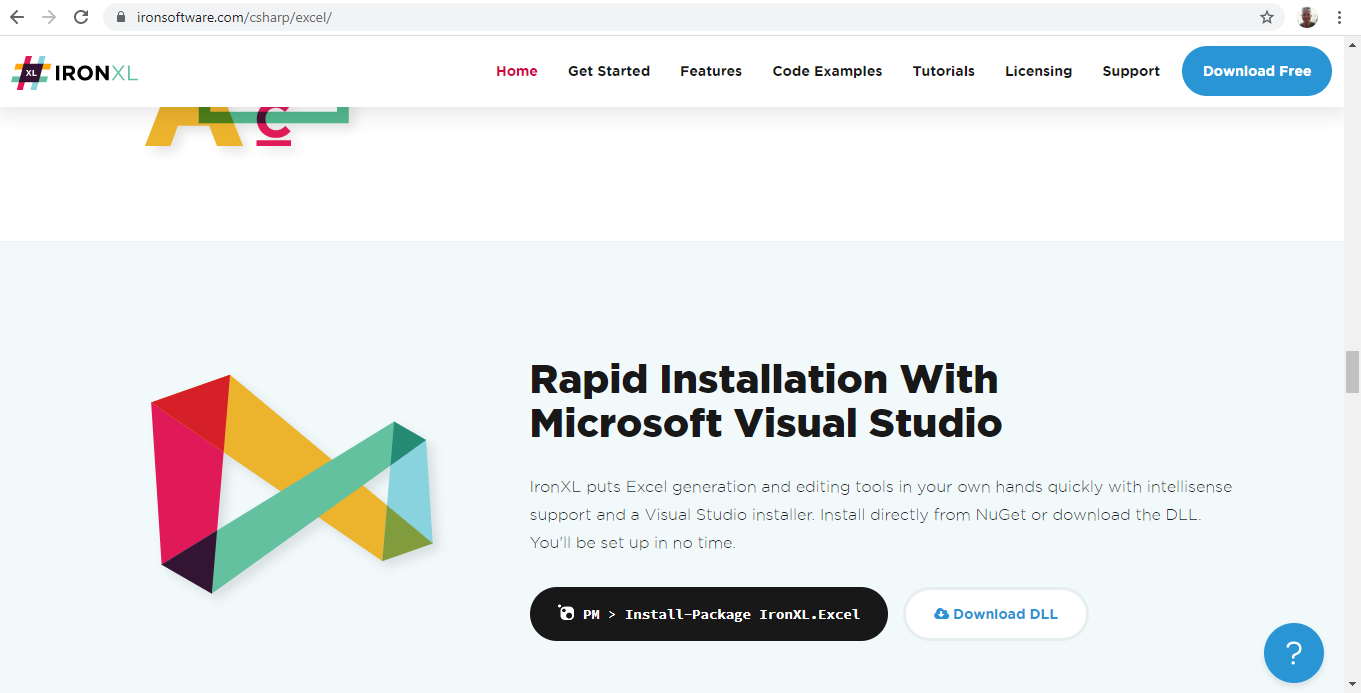
**Şekil 6** - *Resmi web sitesinden IronXL kütüphanesini indirin*
[[i:(IronXL, Microsoft Office veya Excel Interop kurulumu gerektirmez. Windows, Linux, macOS ve bulut ortamları dahil herhangi bir .NET desteklenen platformda çalışır.)}
)]]
---
## .NET Projeyi Nasıl Ayarlayabilirim?
IronXL, herhangi bir **.NET proje türü** ile çalışır: konsol uygulamaları, ASP.NET web uygulamaları, API'ler veya masaüstü araçları. Aşağıdaki örnek bir ASP.NET Web Uygulaması kullanıyor, ancak aynı kod yolları tüm proje şablonları için çalışır.
Bir ASP.NET web sitesi oluşturmak için bu adımları izleyin:
1. Visual Studio'yu açın
2. Dosya > Yeni Proje'ye tıklayın
3. Proje türü listesinde Visual C# altında Web'i seçin
4. ASP.NET Web Uygulaması'nı seçin
<br />
<center>
<a rel="nofollow" href="/img/tutorials/create-excel-file-net/new-project-asp-net.png" target="_blank"><p><img src="/img/tutorials/create-excel-file-net/new-project-asp-net.png" alt="ASP.NET Web Uygulaması seçili Visual Studio Yeni Proje diyaloğu" class="img-responsive add-shadow img-margin" style="max-width:100%; margin: 0;" /></p></a>
</center>
<strong style="margin-left: 40px;">Şekil 1</strong> – *Create new ASP.NET project*
5. Tamam'a tıklayın
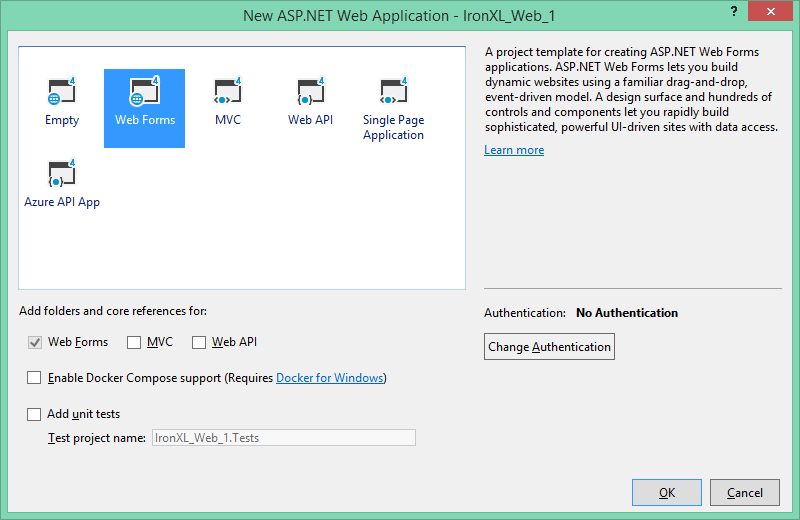
6. Web Forms şablonunu seçin
<center>
<a rel="nofollow" href="/img/tutorials/create-excel-file-net/web-form.png" target="_blank"><p><img src="/img/tutorials/create-excel-file-net/web-form.png" alt="Web Forms seçeneği gösteren ASP.NET proje şablonu seçimi" class="img-responsive add-shadow img-margin" style="max-width:100%; margin: 0;" /></p></a>
</center>
<strong style="margin-left: 40px;">Şekil 2</strong> – *Select Web Forms template*
<br />
7. OK'a tıklayın
Projeniz hazır olduğunda, programatik olarak Excel dosyaları oluşturmak için IronXL'yi kurun.
---
## How Do I Create an Excel Workbook in C#?
Yeni bir çalışma kitabı, dosya formatının bir enum olarak geçtiği `WorkBook.Create` ile tek bir çağrıdır.
```csharp
:path=/static-assets/excel/content-code-examples/tutorials/create-excel-file-net-3.cs
```
`Create` yöntemi, hem XLS (Excel 97-2003) hem de XLSX (Excel 2007+) formatlarını destekler. Daha iyi performans ve daha küçük dosya boyutları için XLSX önerilir.
- **XLSX**: Tüm modern Excel sürümleri (2007+) için önerilir — daha küçük dosyalar, daha iyi performans
- **XLS**: Excel 97–2003 ile uyumlu eski format
### Çalışma Kitabıma Nasıl Çalışma Sayfası Eklerim?
`CreateWorkSheet` üzerinden çalışma sayfaları ekleyin:
```csharp
:path=/static-assets/excel/content-code-examples/tutorials/create-excel-file-net-4.cs
```
Bir çalışma kitabı bir veya daha fazla çalışma sayfası içerir. Her çalışma sayfası, hücrelerin kesiştiği satır ve sütunlardan oluşur. Yeni sayfalar eklemek için `CreateWorkSheet` yöntemini kullanın.
- `WorkBook.CreateWorkSheet(String)`: Verilen sekme adıyla yeni bir sayfa ekler
- `WorkSheet`: Mevcut bir sayfayı adına göre alır
- Sayfa adları bir çalışma kitabında benzersiz olmalıdır
---
## Excel'de Hücre Değerlerini Nasıl Ayarlarım?
### Hücre Değerlerini Manüel Olarak Nasıl Ayarlayabilirim?
Hücre erişimi, Excel'de gördüğünüz A1 tarzı adres dizilerini kullanır:
```csharp
:path=/static-assets/excel/content-code-examples/tutorials/create-excel-file-net-5.cs
```
`Value` özelliği metin, sayı, tarih ve boolean dahil çeşitli veri türlerini kabul eder. IronXL, veri türüne göre hücreleri otomatik olarak biçimlendirir.
### Hücre Değerlerini Dinamik Olarak Nasıl Ayarlayabilirim?
Satır sayısı çalışma zamanında bilindiğinde, dizgi interpolasyonu döngü gövdesini kolay okunabilir hale getirir:
```csharp
// Initialize random number generator for sample data
Random r = new Random();
// Populate cells with random budget data for each month
for (int i = 2; i <= 11; i++)
{
// Set different budget categories with increasing ranges
workSheet[$"A{i}"].Value = r.Next(1, 1000); // Office Supplies
workSheet[$"B{i}"].Value = r.Next(1000, 2000); // Utilities
workSheet[$"C{i}"].Value = r.Next(2000, 3000); // Rent
workSheet[$"D{i}"].Value = r.Next(3000, 4000); // Salaries
workSheet[$"E{i}"].Value = r.Next(4000, 5000); // Marketing
workSheet[$"F{i}"].Value = r.Next(5000, 6000); // IT Services
workSheet[$"G{i}"].Value = r.Next(6000, 7000); // Travel
workSheet[$"H{i}"].Value = r.Next(7000, 8000); // Training
workSheet[$"I{i}"].Value = r.Next(8000, 9000); // Insurance
workSheet[$"J{i}"].Value = r.Next(9000, 10000); // Equipment
workSheet[$"K{i}"].Value = r.Next(10000, 11000); // Research
workSheet[$"L{i}"].Value = r.Next(11000, 12000); // Misc
}
// Alternative: Set range of cells with same value
workSheet["A13:L13"].Value = 0; // Initialize totals row
```
String ara değerleme (`$"..."`) hücrelere dinamik olarak başvurmayı kolaylaştırır. `Item` dizinleyici hem bireysel hücreleri hem de aralıkları destekler.
### Excel'e Veritabanından Nasıl Veri Yüklerim?
Veritabanlarından Excel'e veri yüklemek yaygın bir gereksinimdir:
```csharp
:path=/static-assets/excel/content-code-examples/tutorials/create-excel-file-net-7.cs
```
Bu örnek, veritabanlarından Excel verilerini okuma, biçimlendirme uygulama ve hesaplamalar için formüller kullanmayı gösterir. `NumberFormat` özelliği, Excel'de olduğu gibi özel sayı biçimlendirmeyi etkinleştirir.
---
## Excel Hücrelerine Nasıl Biçim Uygularım?
### Excel'de Arka Plan Renklerini Nasıl Ayarlayabilirim?
Arka planlar, alternatif satır renkleri ve yazı tipi rengi geçersiz kılmaları, bir hücre veya aralıktaki `Style` nesnesi üzerinden yapılır:
```csharp
// Set header row background to light gray using hex color
workSheet["A1:L1"].Style.SetBackgroundColor("#d3d3d3");
// Apply different colors for data categorization
workSheet["A2:A11"].Style.SetBackgroundColor("#E7F3FF"); // Light blue for January
workSheet["B2:B11"].Style.SetBackgroundColor("#FFF2CC"); // Light yellow for February
// Highlight important cells with bold colors
workSheet["L12"].Style.SetBackgroundColor("#FF0000"); // Red for totals
workSheet["L12"].Style.Font.FontColor = "#FFFFFF"; // White text
// Create alternating row colors for better readability
for (int row = 2; row <= 11; row++)
{
if (row % 2 == 0)
{
workSheet[$"A{row}:L{row}"].Style.SetBackgroundColor("#F2F2F2");
}
}
```
`SetBackgroundColor` yöntemi, hex renk kodlarını kabul eder. Arka plan renklerini `Font.FontColor` ile eşleştirerek koyu dolgularda kontrastı okunabilir tutun.
### Excel'de Çerçeveler Nasıl Oluşturulur?
Çerçeveler, veri bölgelerini tanımlamaya ve yapıyı iyileştirmeye yardımcı olur:
```csharp
:path=/static-assets/excel/content-code-examples/tutorials/create-excel-file-net-9.cs
```
IronXL, İnce, Orta, Kalın, Çift, Noktalı, ve Kesik çizgiler dahil olmak üzere çeşitli [çerçeve türlerini](/csharp/excel/object-reference/api/IronXL.Styles.BorderType.html) destekler. Her çerçeve kenarı bağımsız olarak stillendirilir.
---
## How Do I Use Excel Formulas in C#?
IronXL, Excel formüllerini yazma zamanında değerlendirir, böylece çalışma kitabı kaydedildiğinde değerler doğru olur.
```csharp
// Use built-in aggregation functions for ranges
decimal sum = workSheet["A2:A11"].Sum();
decimal avg = workSheet["B2:B11"].Avg();
decimal max = workSheet["C2:C11"].Max();
decimal min = workSheet["D2:D11"].Min();
// Assign calculated values to cells
workSheet["A12"].Value = sum;
workSheet["B12"].Value = avg;
workSheet["C12"].Value = max;
workSheet["D12"].Value = min;
// Or use Excel formulas directly
workSheet["A12"].Formula = "=SUM(A2:A11)";
workSheet["B12"].Formula = "=AVERAGE(B2:B11)";
workSheet["C12"].Formula = "=MAX(C2:C11)";
workSheet["D12"].Formula = "=MIN(D2:D11)";
// Complex formulas with multiple functions
workSheet["E12"].Formula = "=IF(SUM(E2:E11)>50000,\"Over Budget\",\"On Track\")";
workSheet["F12"].Formula = "=SUMIF(F2:F11,\">5000\")";
// Percentage calculations
workSheet["G12"].Formula = "=G11/SUM(G2:G11)*100";
workSheet["G12"].FormatString = "0.00%";
// Ensure all formulas calculate
workSheet.EvaluateAll();
```
`Range` sınıfı, hızlı hesaplamalar için `Sum`, `Average`, `Max` ve `Min` gibi yöntemler sağlar. Daha karmaşık senaryolar için Excel formüllerini doğrudan ayarlamak için `Formula` özelliğini kullanın.
[[t:({IronXL'ın yerleşik `.Sum()`, `.Avg()`, `.Max()` ve `.Min()` yöntemlerini aralıklarla çalışırken ham formül dizgilerine tercih edin. Bunlar tür güvenlidir ve derleme zamanında formül sözdizimi hatalarını önler.)}
)]]
---
## Çalışma Sayfası ve Yazdırma Özelliklerini Nasıl Ayarlarım?
IronXL'yi kullanarak, tek tek çalışma sayfalarını koruyun, satır ve sütunları dondurun ve yazdırma formatı seçeneklerini ayarlayın.
### Çalışma Sayfası Özelliklerini Nasıl Yapılandırabilirim?
Çalışma sayfalarını koruyun ve görüntüleme seçeneklerini kontrol edin:
```csharp
:path=/static-assets/excel/content-code-examples/tutorials/create-excel-file-net-11.cs
```
Çalışma sayfası koruması, yanlışlıkla yapılan değişiklikleri önlerken, [buzlu pano](/csharp/excel/how-to/add-freeze-panes/), önemli satır veya sütunları kaydırma sırasında görünür tutar.
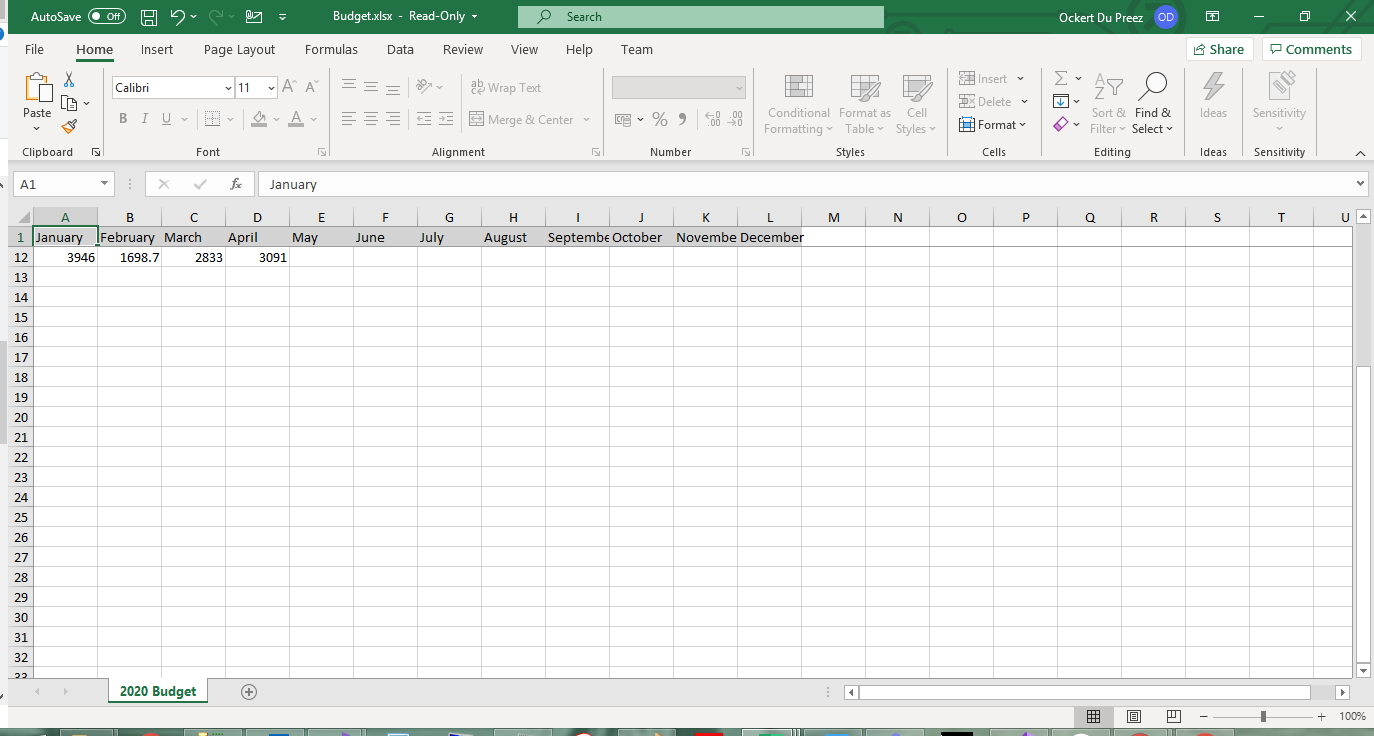
**Şekil 7** - *Kaydırma sırasında donmuş başlık satırı görünür kalır*

**Şekil 8** - *Parola koruması yetkisiz düzenlemeleri engeller*
### Sayfa ve Yazdırma Ayarlarını Nasıl Yapılandırabilirim?
Baskı yerleşim seçenekleri (yönlendirme, kağıt boyutu, kenar boşlukları, ölçekleme, başlık ve alt başlıklar) tamamı `WorkSheet.PrintSetup` üzerinden sunulur:
```csharp
:path=/static-assets/excel/content-code-examples/tutorials/create-excel-file-net-12.cs
```
`IPrintSetup` sınıfı, Excel'in baskı ayarlarıyla eşleşen kapsamlı baskı yapılandırma seçenekleri sağlar.
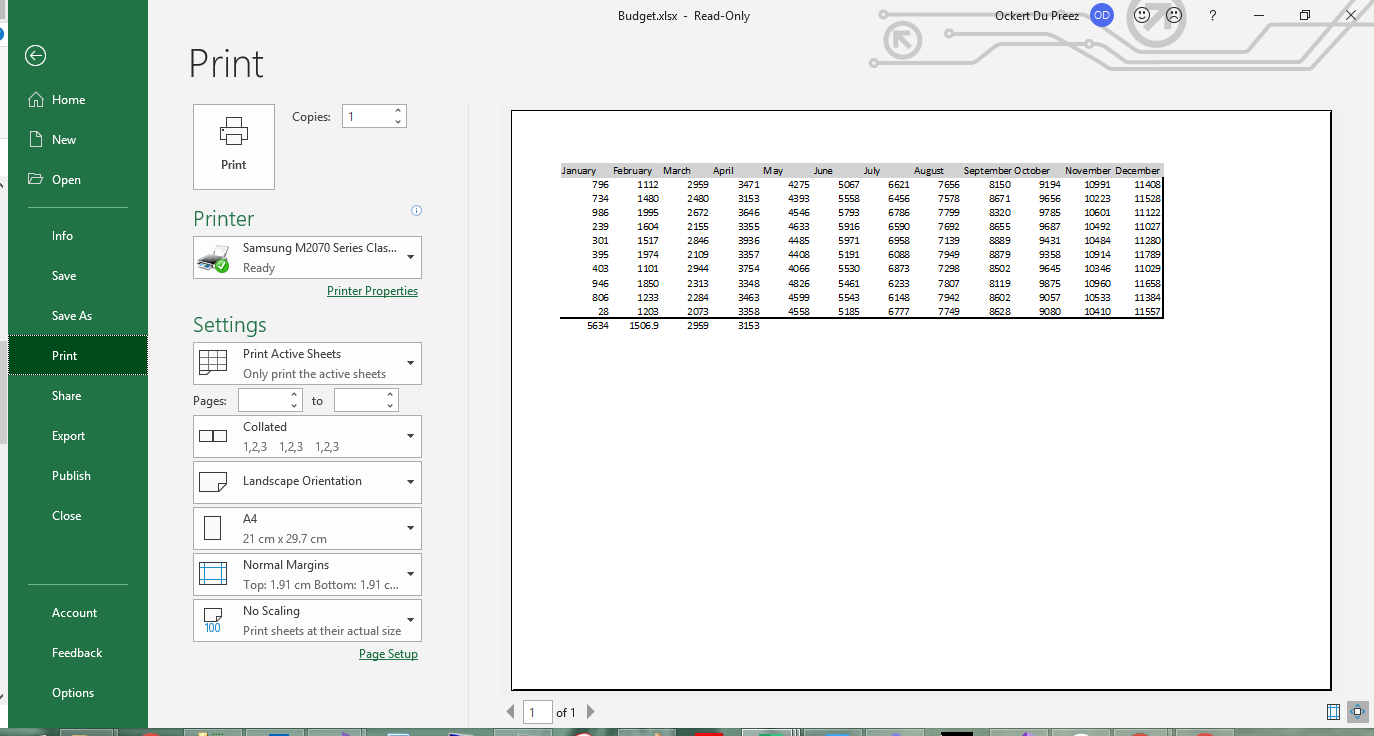
**Şekil 9** - *Manzara yönlendirmesi ve özel kenar boşlukları ile yazdırma önizlemesi*
---
## Excel Çalışma Kitabımı Nasıl Kaydederim?
Çalışma kitabınızı çeşitli formatlarda kaydedin:
```csharp
// Save as XLSX (recommended for modern Excel)
workBook.SaveAs("Budget.xlsx");
// Save as XLS for legacy compatibility
workBook.SaveAs("Budget.xls");
// Save as CSV for data exchange
workBook.SaveAsCsv("Budget.csv");
// Save as JSON for web applications
workBook.SaveAsJson("Budget.json");
// Save to stream for web downloads or cloud storage
using (var stream = new MemoryStream())
{
workBook.SaveAs(stream);
byte[] excelData = stream.ToArray();
// Send to client or save to cloud
}
// Save with specific encoding for international characters
workBook.SaveAsCsv("Budget_UTF8.csv", System.Text.Encoding.UTF8);
```
IronXL, XLSX, XLS, CSV, TSV ve JSON dahil olmak üzere birden fazla [dışa aktarma formatını](/csharp/excel/how-to/convert-spreadsheet-file-types/) destekler. `Save` yöntemi formatı dosya uzantısından seçer.
- **XLSX / XLS**: Biçimlendirme, formüller ve birden fazla sayfa ile tam Excel formatı
- **CSV**: Veri değişimi için düz metin, dosya başına bir sayfa
- **JSON**: Web API'leri ve veri hatları için yapılandırılmış çıktı
- **Akış**: Bellek içi çıktı, web indirmeleri veya bulut depolama için kullanışlı
### Gerçekten oluşturma ne kadar sürer?
Bir Windows 11 makinesinde (.NET 9.0.7) jenerasyon kıyaslaması çalıştırdım ve çoğu üretim ihracatının sonuçlandığı büyüklükte bir çalışma kitabı için somut sayı elde ettim. Kapsam, bellekte 10.000 satırlık üç sütunlu bir XLSX oluşturur ve hem soğuk hem de sıcak bir `SaveAs` çağrısında diske yazar. Tam proje, aşağıdaki [CreateExcelBenchmark örnek](#sample-project) projesinde. Üç ayrı işlem başlatması kabaca burada sonlandı:
| İşlem | İlk soğuk çalıştırma (yeni süreç)| 10 yineleme üzerinden sıcak ortalama|
|---|---|---|
|10.000 satırlık, 3 sütunlu bir XLSX oluşturun ve `SaveAs` bir defa yapın| ~570–910 ms| ~350 ms (240–450 ms aralığında)|
Soğuk sayı, IronXL'nın birleştirme yüklemesi ve JIT ısınma işlemi tarafından domine edilir. Süreç sıcak olduğunda, jenerasyon arka plan faaliyetinden kaynaklanan bazı çalışma arası değişimlerle 300 ms ortasına düşer. Özellikle daha büyük çalışma kitapları (yüz binlerce satır, birden fazla sayfa, ağır stil) için tüm çalışma kitabını bellekte yazarım ve sonunda `SaveAs` tam olarak bir defa çağırırım. Gördüğümüz "neden ihracatım bu kadar yavaş?" biletlerinin en yaygın nedeni, çalışma kitabı büyürken döngü içerisinde `SaveAs` tekrarlanan çağrılardır: her save, mevcut durumu tamamen seri hale getirir ve maliyet her iterasyonla birlikte artar.
---
## Yaygın Sorunlar
Bazı şeyler insanlar için yeterince sıklıkla sorun oluyor ki kendi bölümlerini hak ediyor.
### Tarih ve para birimlerinde `FormatString` unutulması
En çok gördüğüm biçimlendirme tuzağı: `.Value`'yi `DateTime` olarak ayarlayıp, `FormatString` unutmak. Tarih doğru şekilde saklanır, fakat Excel, bir `"yyyy-MM-dd"` gibi bir format dizesi uygulamadan 45292'nin 2024-01-01 anlamına geldiği ham bir seri numarası olarak görüntüler. Para birimi aynı sorunla karşı karşıya: sayı doğru ama `"$#,##0.00"` olmadan çıplak bir ondalık olarak görüntülenir. Şimdi değeri ve formatı bitişik satırlara yazıyorum, böylece ikisi arasındaki sapma olmaz:
```cs
var dateCell = sheet["A2"];
dateCell.Value = DateTime.Today;
dateCell.FormatString = "yyyy-MM-dd";
var moneyCell = sheet["B2"];
moneyCell.Value = 1499.95m;
moneyCell.FormatString = "$#,##0.00";
```
### XLS, sessizce 65.536 Satırda kesilir
Bu, makale başında yer alan format seçimi bölümünde bahsedildi, ancak sessiz olan hata modu nedeniyle burada yerini aldı: `ExcelFileFormat.XLS` her sayfa için 65.536 satır ile kısıtlanır ve bu sınırı aşan satırlar bir istisna veya uyarı olmaksızın kaybedilir. İhracat "başarılı" ve veriniz gitti. Aşağı akış sistemi gerçekten onu okuyamazsa, veri yoğun herhangi bir şey için XLSX seçin.
### "Excel, dosyanın bozuk olduğunu söylüyor"
Eğer bir üretilen dosya açılmayı reddediyor ya da Excel onun bozuk olduğunu iddia ediyorsa, neden neredeyse her zaman iki şeyden biridir. Ya dosya akışı düzgün şekilde sonlandırılmadı, bu yüzden diskteki baytlar kesilmiştir; ya da bir önceki çalıştırma tarafından hala kilitli olan bir yola yazdınız ve verinin sadece bir kısmı geçmiş durumda. Hiçbir şey dosyaya dokunmadan önce `SaveAs` (veya onu saran akışın) tamamen tamamlanmış olduğundan emin olun ve bir @`using` bloğunu, bir çalışma kitabını sararken herhangi bir `MemoryStream` veya `FileStream` etrafına tercih edin.
<a id="sample-project"></a>
### Karşılaştırma rakamları için örnek proje
Daha önceki zamanlama rakamlarını yeniden oluşturmak istiyorsanız, bağ biraz küçük bir .NET 9 konsol uygulamasıdır:
```cs
:path=/static-assets/excel/content-code-examples/tutorials/create-excel-file-net-15.cs
```
Onu `dotnet run -c Release` altında çalıştırın ve çalışma kitabı karmaşıklığı ile sayıların nasıl değiştiğini görmek için kendi satır sayılarınızı, sütun sayılarınızı veya stilinizi takas edin.
---
## Nesne Referansı ve Kaynaklar
[IronXL API Referansı](/csharp/excel/object-reference/api/), bu eğitimin geçtiği ve geçmediği her sınıf ve yöntemi kapsar.
İlgili Excel işlemleri için ek eğiticiler:
- [Mevcut Excel Dosyalarını Okuma ve Düzenleme](/csharp/excel/tutorials/how-to-read-excel-file-csharp/)
- [Excel'de Hücreleri Birleştirme](/csharp/excel/how-to/csharp-excel-merge-cells/)
- [C#'da Excel Grafiklerini Oluşturma](/csharp/excel/how-to/csharp-excel-chart-create-edit-tutorial/)
- [Hücre biçimlendirme ve stil kılavuzu](/csharp/excel/how-to/set-cell-data-format/)
- [Elektronik Tablo Formatları Arasında Dönüştürme](/csharp/excel/how-to/convert-spreadsheet-file-types/)
## Özet
`IronXL.Excel`, Microsoft Office veya Interop'a bağımlı olmadan XLSX, XLS, CSV ve JSON'da Excel çalışma kitapları oluşturur. Her projede izlediğim tarif aynı: çalışma kitabını oluşturun, bir çalışma sayfası ekleyin, değerler ve formüller yazın, gösterimin önemli olduğu yerlerde format dizgileri ayarlayın ve sonuna bir kez kaydedin.
IronXL'yi üretimde kullanmaya hazır mısınız? [Ücretsiz denemenizi başlatın](trial-license) veya [lisanslama seçeneklerini görüntüleyin](/csharp/excel/licensing/).
Çalıştığım çoğu ekip, Excel dosyalarını okumak kadar sık oluşturmak zorunda: faturalar, ihracatlar, finans ekibinin açıp filtreleyebileceği aylık raporlar. Bu süreci konsol uygulamalarından, ASP.NET servislerinden ve arka plan çalışanlarından onlarca kez inşa ettim. IronXL'nin API'si, Excel'in kendisinin düşündüğüne yakın şekilde tasarlandığından, kod neredeyse bir spesifikasyon gibi okunur, ancak API yüzeyinin aktardığından daha önemli birkaç formatlama ve kaydetme kararı vardır. Bu rehber, üretim ortamında XLSX dosyalarını nasıl oluşturduğum hakkında ve ilk birkaç seferde bana zaman kaybettiren sorunları içeriyor.
Kütüphane, Microsoft Office olmadan Windows, Linux, macOS, Azure ve AWS üzerinde .NET 8, .NET 9, .NET Core ve .NET Framework üzerinde çalışır. Aşağıdaki kod yolları, tüm bu hedeflerde aynıdır.
Hızlı Başlangıç: Bir Excel Dosyası Oluşturun
Üç satır yeni bir çalışma kitabı oluşturarak, A1'e bir değer yazar ve dosyayı diske kaydeder. Excel süreci yok, COM aktarımı yok.
1Install IronXL with NuGet Package Manager
PM > Install-Package IronXL.Excel
Install-Package IronXL.Excel
2Bu kod parçacığını kopyalayın ve çalıştırın.
WorkBook book = IronXL.WorkBook.Create(IronXL.ExcelFileFormat.XLSX); book.CreateWorkSheet("Sheet1")["A1"].Value = "Hello World"; book.SaveAs("MyFile.xlsx");
WorkBook book = IronXL.WorkBook.Create(IronXL.ExcelFileFormat.XLSX); book.CreateWorkSheet("Sheet1")["A1"].Value = "Hello World"; book.SaveAs("MyFile.xlsx");
C#
3Canlı ortamınızda test için dağıtım yapın
Ücretsiz deneme ile bugün projenizde IronXL kullanmaya başlayın
Hücre değerlerini, biçimlendirmelerini ve formüllerini ayarlayın
Excel dosyanızı kaydedin
IronXL nedir ve Excel Dosyası Oluşturmak İçin Neden Kullanılır?
IronXL, tablo dosyalarını okumak, düzenlemek ve oluşturmak için C# ve VB.NET Excel API'sidir. Microsoft Office veya Excel Interop gerektirmez, bu da dağıtımı bir NuGet referansına ve bir using direktifine indirger.
IronXL tamamen .NET 9, .NET 8, .NET Core, .NET Framework, Xamarin, Mobil, Linux, macOS ve Azure ortamlarını tam olarak destekler.
IronXL Özellikleri
.NET geliştirme ekibimizden doğrudan insan desteği
Microsoft Visual Studio ile hızlı yükleme
Geliştirme için ÜCRETSİZ. $999 lisansları
Excel Dosyasını Hızla Nasıl Oluşturup Kaydedebilirim?
IronXL'yi NuGet üzerinden yükleyin veya DLL dosyasını doğrudan indirin. WorkBook sınıfı tüm Excel işlemleri için giriş noktasıdır ve WorkSheet sınıfı, bireysel sayfaları manipüle etmek için yöntemler sunar. Tam adım adım yürütme, aşağıda Adım 1'den başlıyor.
How Do I Install the IronXL C# Library?
IronXL'yi Visual Studio'da NuGet Paket Yöneticisi aracılığıyla yükleyin veya Paket Yöneticisi Konsolunu kullanın:
PM > Install-Package IronXL.Excel
Install-Package IronXL.Excel
Proje menüsünden veya Çözüm Gezgini'nde projenize sağ tıklayarak NuGet Paket Yöneticisi'ne erişin.
Şekil 3 - Proje menüsü üzerinden NuGet Paket Yöneticisi'ne erişin
Şekil 4 - Çözüm Gezgini'nde sağ tıklama bağlam menüsü
Paket listesinde IronXL.Excel için arama yapın ve Install'e tıklayın.
Şekil 5 - IronXL.Excel'i NuGet Paket Yöneticisi aracılığıyla yüklerken
Şekil 6 - Resmi web sitesinden IronXL kütüphanesini indirin
Lütfen dikkate alın: IronXL, Microsoft Office veya Excel Interop kurulumu gerektirmez. Windows, Linux, macOS ve bulut ortamları dahil herhangi bir .NET desteklenen platformda çalışır.)}
.NET Projeyi Nasıl Ayarlayabilirim?
IronXL, herhangi bir .NET proje türü ile çalışır: konsol uygulamaları, ASP.NET web uygulamaları, API'ler veya masaüstü araçları. Aşağıdaki örnek bir ASP.NET Web Uygulaması kullanıyor, ancak aynı kod yolları tüm proje şablonları için çalışır.
Bir ASP.NET web sitesi oluşturmak için bu adımları izleyin:
Visual Studio'yu açın
Dosya > Yeni Proje'ye tıklayın
Proje türü listesinde Visual C# altında Web'i seçin
ASP.NET Web Uygulaması'nı seçin
Şekil 1 – Create new ASP.NET project
Tamam'a tıklayın
Web Forms şablonunu seçin
Şekil 2 – Select Web Forms template
OK'a tıklayın
Projeniz hazır olduğunda, programatik olarak Excel dosyaları oluşturmak için IronXL'yi kurun.
How Do I Create an Excel Workbook in C#?
Yeni bir çalışma kitabı, dosya formatının bir enum olarak geçtiği WorkBook.Create ile tek bir çağrıdır.
Dim workSheet AsWorkSheet = workBook.CreateWorkSheet("2020 Budget")
Dim workSheet As WorkSheet = workBook.CreateWorkSheet("2020 Budget")
Create yöntemi, hem XLS (Excel 97-2003) hem de XLSX (Excel 2007+) formatlarını destekler. Daha iyi performans ve daha küçük dosya boyutları için XLSX önerilir.
XLSX: Tüm modern Excel sürümleri (2007+) için önerilir — daha küçük dosyalar, daha iyi performans
XLS: Excel 97–2003 ile uyumlu eski format
Çalışma Kitabıma Nasıl Çalışma Sayfası Eklerim?
CreateWorkSheet üzerinden çalışma sayfaları ekleyin:
Bir çalışma kitabı bir veya daha fazla çalışma sayfası içerir. Her çalışma sayfası, hücrelerin kesiştiği satır ve sütunlardan oluşur. Yeni sayfalar eklemek için CreateWorkSheet yöntemini kullanın.
WorkBook.CreateWorkSheet(String): Verilen sekme adıyla yeni bir sayfa ekler
WorkSheet: Mevcut bir sayfayı adına göre alır
Sayfa adları bir çalışma kitabında benzersiz olmalıdır
Excel'de Hücre Değerlerini Nasıl Ayarlarım?
Hücre Değerlerini Manüel Olarak Nasıl Ayarlayabilirim?
Hücre erişimi, Excel'de gördüğünüz A1 tarzı adres dizilerini kullanır:
Dim r As New Random()
For i As Integer = 2 To 11
	workSheet("A" & i).Value = r.Next(1, 1000)
	workSheet("B" & i).Value = r.Next(1000, 2000)
	workSheet("C" & i).Value = r.Next(2000, 3000)
	workSheet("D" & i).Value = r.Next(3000, 4000)
	workSheet("E" & i).Value = r.Next(4000, 5000)
	workSheet("F" & i).Value = r.Next(5000, 6000)
	workSheet("G" & i).Value = r.Next(6000, 7000)
	workSheet("H" & i).Value = r.Next(7000, 8000)
	workSheet("I" & i).Value = r.Next(8000, 9000)
	workSheet("J" & i).Value = r.Next(9000, 10000)
	workSheet("K" & i).Value = r.Next(10000, 11000)
	workSheet("L" & i).Value = r.Next(11000, 12000)
Next i
Value özelliği metin, sayı, tarih ve boolean dahil çeşitli veri türlerini kabul eder. IronXL, veri türüne göre hücreleri otomatik olarak biçimlendirir.
Hücre Değerlerini Dinamik Olarak Nasıl Ayarlayabilirim?
Satır sayısı çalışma zamanında bilindiğinde, dizgi interpolasyonu döngü gövdesini kolay okunabilir hale getirir:
// Initialize random number generator for sample dataRandom r = new Random();// Populate cells with random budget data for each monthfor (int i = 2; i <= 11; i++){ // Set different budget categories with increasing ranges workSheet[$"A{i}"].Value = r.Next(1, 1000); // Office Supplies workSheet[$"B{i}"].Value = r.Next(1000, 2000); // Utilities workSheet[$"C{i}"].Value = r.Next(2000, 3000); // Rent workSheet[$"D{i}"].Value = r.Next(3000, 4000); // Salaries workSheet[$"E{i}"].Value = r.Next(4000, 5000); // Marketing workSheet[$"F{i}"].Value = r.Next(5000, 6000); // IT Services workSheet[$"G{i}"].Value = r.Next(6000, 7000); // Travel workSheet[$"H{i}"].Value = r.Next(7000, 8000); // Training workSheet[$"I{i}"].Value = r.Next(8000, 9000); // Insurance workSheet[$"J{i}"].Value = r.Next(9000, 10000); // Equipment workSheet[$"K{i}"].Value = r.Next(10000, 11000); // Research workSheet[$"L{i}"].Value = r.Next(11000, 12000); // Misc}// Alternative: Set range of cells with same valueworkSheet["A13:L13"].Value = 0; // Initialize totals row
// Initialize random number generator for sample data
Random r = new Random();

// Populate cells with random budget data for each month
for (int i = 2; i <= 11; i++)
{
    // Set different budget categories with increasing ranges
    workSheet[$"A{i}"].Value = r.Next(1, 1000);     // Office Supplies
    workSheet[$"B{i}"].Value = r.Next(1000, 2000);  // Utilities
    workSheet[$"C{i}"].Value = r.Next(2000, 3000);  // Rent
    workSheet[$"D{i}"].Value = r.Next(3000, 4000);  // Salaries
    workSheet[$"E{i}"].Value = r.Next(4000, 5000);  // Marketing
    workSheet[$"F{i}"].Value = r.Next(5000, 6000);  // IT Services
    workSheet[$"G{i}"].Value = r.Next(6000, 7000);  // Travel
    workSheet[$"H{i}"].Value = r.Next(7000, 8000);  // Training
    workSheet[$"I{i}"].Value = r.Next(8000, 9000);  // Insurance
    workSheet[$"J{i}"].Value = r.Next(9000, 10000); // Equipment
    workSheet[$"K{i}"].Value = r.Next(10000, 11000); // Research
    workSheet[$"L{i}"].Value = r.Next(11000, 12000); // Misc
}

// Alternative: Set range of cells with same value
workSheet["A13:L13"].Value = 0; // Initialize totals row
' Initialize random number generator for sample dataDim r As New Random()' Populate cells with random budget data for each monthFor i AsInteger = 2 To 11 ' Set different budget categories with increasing ranges workSheet($"A{i}").Value = r.Next(1, 1000) ' Office Supplies workSheet($"B{i}").Value = r.Next(1000, 2000) ' Utilities workSheet($"C{i}").Value = r.Next(2000, 3000) ' Rent workSheet($"D{i}").Value = r.Next(3000, 4000) ' Salaries workSheet($"E{i}").Value = r.Next(4000, 5000) ' Marketing workSheet($"F{i}").Value = r.Next(5000, 6000) ' IT Services workSheet($"G{i}").Value = r.Next(6000, 7000) ' Travel workSheet($"H{i}").Value = r.Next(7000, 8000) ' Training workSheet($"I{i}").Value = r.Next(8000, 9000) ' Insurance workSheet($"J{i}").Value = r.Next(9000, 10000) ' Equipment workSheet($"K{i}").Value = r.Next(10000, 11000) ' Research workSheet($"L{i}").Value = r.Next(11000, 12000) ' MiscNext i' Alternative: Set range of cells with same valueworkSheet("A13:L13").Value = 0 ' Initialize totals row
' Initialize random number generator for sample data
Dim r As New Random()

' Populate cells with random budget data for each month
For i As Integer = 2 To 11
	' Set different budget categories with increasing ranges
	workSheet($"A{i}").Value = r.Next(1, 1000) ' Office Supplies
	workSheet($"B{i}").Value = r.Next(1000, 2000) ' Utilities
	workSheet($"C{i}").Value = r.Next(2000, 3000) ' Rent
	workSheet($"D{i}").Value = r.Next(3000, 4000) ' Salaries
	workSheet($"E{i}").Value = r.Next(4000, 5000) ' Marketing
	workSheet($"F{i}").Value = r.Next(5000, 6000) ' IT Services
	workSheet($"G{i}").Value = r.Next(6000, 7000) ' Travel
	workSheet($"H{i}").Value = r.Next(7000, 8000) ' Training
	workSheet($"I{i}").Value = r.Next(8000, 9000) ' Insurance
	workSheet($"J{i}").Value = r.Next(9000, 10000) ' Equipment
	workSheet($"K{i}").Value = r.Next(10000, 11000) ' Research
	workSheet($"L{i}").Value = r.Next(11000, 12000) ' Misc
Next i

' Alternative: Set range of cells with same value
workSheet("A13:L13").Value = 0 ' Initialize totals row
String ara değerleme ($"...") hücrelere dinamik olarak başvurmayı kolaylaştırır. Item dizinleyici hem bireysel hücreleri hem de aralıkları destekler.
Excel'e Veritabanından Nasıl Veri Yüklerim?
Veritabanlarından Excel'e veri yüklemek yaygın bir gereksinimdir:
Bu örnek, veritabanlarından Excel verilerini okuma, biçimlendirme uygulama ve hesaplamalar için formüller kullanmayı gösterir. NumberFormat özelliği, Excel'de olduğu gibi özel sayı biçimlendirmeyi etkinleştirir.
Excel Hücrelerine Nasıl Biçim Uygularım?
Excel'de Arka Plan Renklerini Nasıl Ayarlayabilirim?
Arka planlar, alternatif satır renkleri ve yazı tipi rengi geçersiz kılmaları, bir hücre veya aralıktaki Style nesnesi üzerinden yapılır:
// Set header row background to light gray using hex colorworkSheet["A1:L1"].Style.SetBackgroundColor("#d3d3d3");// Apply different colors for data categorizationworkSheet["A2:A11"].Style.SetBackgroundColor("#E7F3FF"); // Light blue for JanuaryworkSheet["B2:B11"].Style.SetBackgroundColor("#FFF2CC"); // Light yellow for February// Highlight important cells with bold colorsworkSheet["L12"].Style.SetBackgroundColor("#FF0000"); // Red for totalsworkSheet["L12"].Style.Font.FontColor = "#FFFFFF"; // White text// Create alternating row colors for better readabilityfor (int row = 2; row <= 11; row++){ if (row % 2 == 0) { workSheet[$"A{row}:L{row}"].Style.SetBackgroundColor("#F2F2F2"); }}
// Set header row background to light gray using hex color
workSheet["A1:L1"].Style.SetBackgroundColor("#d3d3d3");

// Apply different colors for data categorization
workSheet["A2:A11"].Style.SetBackgroundColor("#E7F3FF"); // Light blue for January
workSheet["B2:B11"].Style.SetBackgroundColor("#FFF2CC"); // Light yellow for February

// Highlight important cells with bold colors
workSheet["L12"].Style.SetBackgroundColor("#FF0000"); // Red for totals
workSheet["L12"].Style.Font.FontColor = "#FFFFFF"; // White text

// Create alternating row colors for better readability
for (int row = 2; row <= 11; row++)
{
    if (row % 2 == 0)
    {
        workSheet[$"A{row}:L{row}"].Style.SetBackgroundColor("#F2F2F2");
    }
}
' Set header row background to light gray using hex colorworkSheet("A1:L1").Style.SetBackgroundColor("#d3d3d3")' Apply different colors for data categorizationworkSheet("A2:A11").Style.SetBackgroundColor("#E7F3FF") ' Light blue for JanuaryworkSheet("B2:B11").Style.SetBackgroundColor("#FFF2CC") ' Light yellow for February' Highlight important cells with bold colorsworkSheet("L12").Style.SetBackgroundColor("#FF0000") ' Red for totalsworkSheet("L12").Style.Font.FontColor = "#FFFFFF" ' White text' Create alternating row colors for better readabilityFor row AsInteger = 2 To 11 If row Mod2 = 0 Then workSheet($"A{row}:L{row}").Style.SetBackgroundColor("#F2F2F2") End IfNext row
' Set header row background to light gray using hex color
workSheet("A1:L1").Style.SetBackgroundColor("#d3d3d3")

' Apply different colors for data categorization
workSheet("A2:A11").Style.SetBackgroundColor("#E7F3FF") ' Light blue for January
workSheet("B2:B11").Style.SetBackgroundColor("#FFF2CC") ' Light yellow for February

' Highlight important cells with bold colors
workSheet("L12").Style.SetBackgroundColor("#FF0000") ' Red for totals
workSheet("L12").Style.Font.FontColor = "#FFFFFF" ' White text

' Create alternating row colors for better readability
For row As Integer = 2 To 11
	If row Mod 2 = 0 Then
		workSheet($"A{row}:L{row}").Style.SetBackgroundColor("#F2F2F2")
	End If
Next row
SetBackgroundColor yöntemi, hex renk kodlarını kabul eder. Arka plan renklerini Font.FontColor ile eşleştirerek koyu dolgularda kontrastı okunabilir tutun.
Excel'de Çerçeveler Nasıl Oluşturulur?
Çerçeveler, veri bölgelerini tanımlamaya ve yapıyı iyileştirmeye yardımcı olur:
// Use IronXL built-in aggregationsdecimal sum = workSheet["A2:A11"].Sum();decimal avg = workSheet["B2:B11"].Avg();decimal max = workSheet["C2:C11"].Max();decimal min = workSheet["D2:D11"].Min();// Assign value to cellsworkSheet["A12"].Value = sum;workSheet["B12"].Value = avg;workSheet["C12"].Value = max;workSheet["D12"].Value = min;
// Use IronXL built-in aggregations
decimal sum = workSheet["A2:A11"].Sum();
decimal avg = workSheet["B2:B11"].Avg();
decimal max = workSheet["C2:C11"].Max();
decimal min = workSheet["D2:D11"].Min();

// Assign value to cells
workSheet["A12"].Value = sum;
workSheet["B12"].Value = avg;
workSheet["C12"].Value = max;
workSheet["D12"].Value = min;
' Use IronXL built-in aggregationsDim sum AsDecimal = workSheet("A2:A11").Sum()Dim avg AsDecimal = workSheet("B2:B11").Avg()Dim max AsDecimal = workSheet("C2:C11").Max()Dim min AsDecimal = workSheet("D2:D11").Min()' Assign value to cellsworkSheet("A12").Value = sumworkSheet("B12").Value = avgworkSheet("C12").Value = maxworkSheet("D12").Value = min
' Use IronXL built-in aggregations
Dim sum As Decimal = workSheet("A2:A11").Sum()
Dim avg As Decimal = workSheet("B2:B11").Avg()
Dim max As Decimal = workSheet("C2:C11").Max()
Dim min As Decimal = workSheet("D2:D11").Min()

' Assign value to cells
workSheet("A12").Value = sum
workSheet("B12").Value = avg
workSheet("C12").Value = max
workSheet("D12").Value = min
IronXL, İnce, Orta, Kalın, Çift, Noktalı, ve Kesik çizgiler dahil olmak üzere çeşitli çerçeve türlerini destekler. Her çerçeve kenarı bağımsız olarak stillendirilir.
How Do I Use Excel Formulas in C#?
IronXL, Excel formüllerini yazma zamanında değerlendirir, böylece çalışma kitabı kaydedildiğinde değerler doğru olur.
// Use built-in aggregation functions for rangesdecimal sum = workSheet["A2:A11"].Sum();decimal avg = workSheet["B2:B11"].Avg();decimal max = workSheet["C2:C11"].Max();decimal min = workSheet["D2:D11"].Min();// Assign calculated values to cellsworkSheet["A12"].Value = sum;workSheet["B12"].Value = avg;workSheet["C12"].Value = max;workSheet["D12"].Value = min;// Or use Excel formulas directlyworkSheet["A12"].Formula = "=SUM(A2:A11)";workSheet["B12"].Formula = "=AVERAGE(B2:B11)";workSheet["C12"].Formula = "=MAX(C2:C11)";workSheet["D12"].Formula = "=MIN(D2:D11)";// Complex formulas with multiple functionsworkSheet["E12"].Formula = "=IF(SUM(E2:E11)>50000,\"Over Budget\",\"On Track\")";workSheet["F12"].Formula = "=SUMIF(F2:F11,\">5000\")";// Percentage calculationsworkSheet["G12"].Formula = "=G11/SUM(G2:G11)*100";workSheet["G12"].FormatString = "0.00%";// Ensure all formulas calculateworkSheet.EvaluateAll();
// Use built-in aggregation functions for ranges
decimal sum = workSheet["A2:A11"].Sum();
decimal avg = workSheet["B2:B11"].Avg();
decimal max = workSheet["C2:C11"].Max();
decimal min = workSheet["D2:D11"].Min();

// Assign calculated values to cells
workSheet["A12"].Value = sum;
workSheet["B12"].Value = avg;
workSheet["C12"].Value = max;
workSheet["D12"].Value = min;

// Or use Excel formulas directly
workSheet["A12"].Formula = "=SUM(A2:A11)";
workSheet["B12"].Formula = "=AVERAGE(B2:B11)";
workSheet["C12"].Formula = "=MAX(C2:C11)";
workSheet["D12"].Formula = "=MIN(D2:D11)";

// Complex formulas with multiple functions
workSheet["E12"].Formula = "=IF(SUM(E2:E11)>50000,\"Over Budget\",\"On Track\")";
workSheet["F12"].Formula = "=SUMIF(F2:F11,\">5000\")";

// Percentage calculations
workSheet["G12"].Formula = "=G11/SUM(G2:G11)*100";
workSheet["G12"].FormatString = "0.00%";

// Ensure all formulas calculate
workSheet.EvaluateAll();
' Use built-in aggregation functions for rangesDim sum AsDecimal = workSheet("A2:A11").Sum()Dim avg AsDecimal = workSheet("B2:B11").Avg()Dim max AsDecimal = workSheet("C2:C11").Max()Dim min AsDecimal = workSheet("D2:D11").Min()' Assign calculated values to cellsworkSheet("A12").Value = sumworkSheet("B12").Value = avgworkSheet("C12").Value = maxworkSheet("D12").Value = min' Or use Excel formulas directlyworkSheet("A12").Formula = "=SUM(A2:A11)"workSheet("B12").Formula = "=AVERAGE(B2:B11)"workSheet("C12").Formula = "=MAX(C2:C11)"workSheet("D12").Formula = "=MIN(D2:D11)"' Complex formulas with multiple functionsworkSheet("E12").Formula = "=IF(SUM(E2:E11)>50000,""Over Budget"",""On Track"")"workSheet("F12").Formula = "=SUMIF(F2:F11,"">5000"")"' Percentage calculationsworkSheet("G12").Formula = "=G11/SUM(G2:G11)*100"workSheet("G12").FormatString = "0.00%"' Ensure all formulas calculateworkSheet.EvaluateAll()
' Use built-in aggregation functions for ranges
Dim sum As Decimal = workSheet("A2:A11").Sum()
Dim avg As Decimal = workSheet("B2:B11").Avg()
Dim max As Decimal = workSheet("C2:C11").Max()
Dim min As Decimal = workSheet("D2:D11").Min()

' Assign calculated values to cells
workSheet("A12").Value = sum
workSheet("B12").Value = avg
workSheet("C12").Value = max
workSheet("D12").Value = min

' Or use Excel formulas directly
workSheet("A12").Formula = "=SUM(A2:A11)"
workSheet("B12").Formula = "=AVERAGE(B2:B11)"
workSheet("C12").Formula = "=MAX(C2:C11)"
workSheet("D12").Formula = "=MIN(D2:D11)"

' Complex formulas with multiple functions
workSheet("E12").Formula = "=IF(SUM(E2:E11)>50000,""Over Budget"",""On Track"")"
workSheet("F12").Formula = "=SUMIF(F2:F11,"">5000"")"

' Percentage calculations
workSheet("G12").Formula = "=G11/SUM(G2:G11)*100"
workSheet("G12").FormatString = "0.00%"

' Ensure all formulas calculate
workSheet.EvaluateAll()
Range sınıfı, hızlı hesaplamalar için Sum, Average, Max ve Min gibi yöntemler sağlar. Daha karmaşık senaryolar için Excel formüllerini doğrudan ayarlamak için Formula özelliğini kullanın.
İpuçları: {IronXL'ın yerleşik .Sum(), .Avg(), .Max() ve .Min() yöntemlerini aralıklarla çalışırken ham formül dizgilerine tercih edin. Bunlar tür güvenlidir ve derleme zamanında formül sözdizimi hatalarını önler.)}
Çalışma Sayfası ve Yazdırma Özelliklerini Nasıl Ayarlarım?
IronXL'yi kullanarak, tek tek çalışma sayfalarını koruyun, satır ve sütunları dondurun ve yazdırma formatı seçeneklerini ayarlayın.
Çalışma Sayfası Özelliklerini Nasıl Yapılandırabilirim?
Çalışma sayfalarını koruyun ve görüntüleme seçeneklerini kontrol edin:
Çalışma sayfası koruması, yanlışlıkla yapılan değişiklikleri önlerken, buzlu pano, önemli satır veya sütunları kaydırma sırasında görünür tutar.
Şekil 7 - Kaydırma sırasında donmuş başlık satırı görünür kalır
Şekil 8 - Parola koruması yetkisiz düzenlemeleri engeller
Sayfa ve Yazdırma Ayarlarını Nasıl Yapılandırabilirim?
Baskı yerleşim seçenekleri (yönlendirme, kağıt boyutu, kenar boşlukları, ölçekleme, başlık ve alt başlıklar) tamamı WorkSheet.PrintSetup üzerinden sunulur:
workBook.SaveAs("Budget.xlsx");
workBook.SaveAs("Budget.xlsx");
workBook.SaveAs("Budget.xlsx")
workBook.SaveAs("Budget.xlsx")
IPrintSetup sınıfı, Excel'in baskı ayarlarıyla eşleşen kapsamlı baskı yapılandırma seçenekleri sağlar.
Şekil 9 - Manzara yönlendirmesi ve özel kenar boşlukları ile yazdırma önizlemesi
Excel Çalışma Kitabımı Nasıl Kaydederim?
Çalışma kitabınızı çeşitli formatlarda kaydedin:
// Save as XLSX (recommended for modern Excel)workBook.SaveAs("Budget.xlsx");// Save as XLS for legacy compatibilityworkBook.SaveAs("Budget.xls");// Save as CSV for data exchangeworkBook.SaveAsCsv("Budget.csv");// Save as JSON for web applicationsworkBook.SaveAsJson("Budget.json");// Save to stream for web downloads or cloud storageusing (var stream = new MemoryStream()){ workBook.SaveAs(stream); byte[] excelData = stream.ToArray(); // Send to client or save to cloud}// Save with specific encoding for international charactersworkBook.SaveAsCsv("Budget_UTF8.csv", System.Text.Encoding.UTF8);
// Save as XLSX (recommended for modern Excel)
workBook.SaveAs("Budget.xlsx");

// Save as XLS for legacy compatibility
workBook.SaveAs("Budget.xls");

// Save as CSV for data exchange
workBook.SaveAsCsv("Budget.csv");

// Save as JSON for web applications
workBook.SaveAsJson("Budget.json");

// Save to stream for web downloads or cloud storage
using (var stream = new MemoryStream())
{
    workBook.SaveAs(stream);
    byte[] excelData = stream.ToArray();
    // Send to client or save to cloud
}

// Save with specific encoding for international characters
workBook.SaveAsCsv("Budget_UTF8.csv", System.Text.Encoding.UTF8);
' Save as XLSX (recommended for modern Excel)workBook.SaveAs("Budget.xlsx")' Save as XLS for legacy compatibilityworkBook.SaveAs("Budget.xls")' Save as CSV for data exchangeworkBook.SaveAsCsv("Budget.csv")' Save as JSON for web applicationsworkBook.SaveAsJson("Budget.json")' Save to stream for web downloads or cloud storageUsing stream = New MemoryStream() workBook.SaveAs(stream) Dim excelData() AsByte = stream.ToArray() ' Send to client or save to cloudEndUsing' Save with specific encoding for international charactersworkBook.SaveAsCsv("Budget_UTF8.csv", System.Text.Encoding.UTF8)
' Save as XLSX (recommended for modern Excel)
workBook.SaveAs("Budget.xlsx")

' Save as XLS for legacy compatibility
workBook.SaveAs("Budget.xls")

' Save as CSV for data exchange
workBook.SaveAsCsv("Budget.csv")

' Save as JSON for web applications
workBook.SaveAsJson("Budget.json")

' Save to stream for web downloads or cloud storage
Using stream = New MemoryStream()
	workBook.SaveAs(stream)
	Dim excelData() As Byte = stream.ToArray()
	' Send to client or save to cloud
End Using

' Save with specific encoding for international characters
workBook.SaveAsCsv("Budget_UTF8.csv", System.Text.Encoding.UTF8)
IronXL, XLSX, XLS, CSV, TSV ve JSON dahil olmak üzere birden fazla dışa aktarma formatını destekler. Save yöntemi formatı dosya uzantısından seçer.
XLSX / XLS: Biçimlendirme, formüller ve birden fazla sayfa ile tam Excel formatı
CSV: Veri değişimi için düz metin, dosya başına bir sayfa
JSON: Web API'leri ve veri hatları için yapılandırılmış çıktı
Akış: Bellek içi çıktı, web indirmeleri veya bulut depolama için kullanışlı
Gerçekten oluşturma ne kadar sürer?
Bir Windows 11 makinesinde (.NET 9.0.7) jenerasyon kıyaslaması çalıştırdım ve çoğu üretim ihracatının sonuçlandığı büyüklükte bir çalışma kitabı için somut sayı elde ettim. Kapsam, bellekte 10.000 satırlık üç sütunlu bir XLSX oluşturur ve hem soğuk hem de sıcak bir SaveAs çağrısında diske yazar. Tam proje, aşağıdaki CreateExcelBenchmark örnek projesinde. Üç ayrı işlem başlatması kabaca burada sonlandı:
İşlem
İlk soğuk çalıştırma (yeni süreç)
10 yineleme üzerinden sıcak ortalama
10.000 satırlık, 3 sütunlu bir XLSX oluşturun ve SaveAs bir defa yapın
~570–910 ms
~350 ms (240–450 ms aralığında)
Soğuk sayı, IronXL'nın birleştirme yüklemesi ve JIT ısınma işlemi tarafından domine edilir. Süreç sıcak olduğunda, jenerasyon arka plan faaliyetinden kaynaklanan bazı çalışma arası değişimlerle 300 ms ortasına düşer. Özellikle daha büyük çalışma kitapları (yüz binlerce satır, birden fazla sayfa, ağır stil) için tüm çalışma kitabını bellekte yazarım ve sonunda SaveAs tam olarak bir defa çağırırım. Gördüğümüz "neden ihracatım bu kadar yavaş?" biletlerinin en yaygın nedeni, çalışma kitabı büyürken döngü içerisinde SaveAs tekrarlanan çağrılardır: her save, mevcut durumu tamamen seri hale getirir ve maliyet her iterasyonla birlikte artar.
Yaygın Sorunlar
Bazı şeyler insanlar için yeterince sıklıkla sorun oluyor ki kendi bölümlerini hak ediyor.
Tarih ve para birimlerinde FormatString unutulması
En çok gördüğüm biçimlendirme tuzağı: .Value'yi DateTime olarak ayarlayıp, FormatString unutmak. Tarih doğru şekilde saklanır, fakat Excel, bir "yyyy-MM-dd" gibi bir format dizesi uygulamadan 45292'nin 2024-01-01 anlamına geldiği ham bir seri numarası olarak görüntüler. Para birimi aynı sorunla karşı karşıya: sayı doğru ama "$#,##0.00" olmadan çıplak bir ondalık olarak görüntülenir. Şimdi değeri ve formatı bitişik satırlara yazıyorum, böylece ikisi arasındaki sapma olmaz:
Dim dateCell = sheet("A2")
dateCell.Value = DateTime.Today
dateCell.FormatString = "yyyy-MM-dd"

Dim moneyCell = sheet("B2")
moneyCell.Value = 1499.95D
moneyCell.FormatString = "$#,##0.00"
XLS, sessizce 65.536 Satırda kesilir
Bu, makale başında yer alan format seçimi bölümünde bahsedildi, ancak sessiz olan hata modu nedeniyle burada yerini aldı: ExcelFileFormat.XLS her sayfa için 65.536 satır ile kısıtlanır ve bu sınırı aşan satırlar bir istisna veya uyarı olmaksızın kaybedilir. İhracat "başarılı" ve veriniz gitti. Aşağı akış sistemi gerçekten onu okuyamazsa, veri yoğun herhangi bir şey için XLSX seçin.
"Excel, dosyanın bozuk olduğunu söylüyor"
Eğer bir üretilen dosya açılmayı reddediyor ya da Excel onun bozuk olduğunu iddia ediyorsa, neden neredeyse her zaman iki şeyden biridir. Ya dosya akışı düzgün şekilde sonlandırılmadı, bu yüzden diskteki baytlar kesilmiştir; ya da bir önceki çalıştırma tarafından hala kilitli olan bir yola yazdınız ve verinin sadece bir kısmı geçmiş durumda. Hiçbir şey dosyaya dokunmadan önce SaveAs (veya onu saran akışın) tamamen tamamlanmış olduğundan emin olun ve bir @using bloğunu, bir çalışma kitabını sararken herhangi bir MemoryStream veya FileStream etrafına tercih edin.
Karşılaştırma rakamları için örnek proje
Daha önceki zamanlama rakamlarını yeniden oluşturmak istiyorsanız, bağ biraz küçük bir .NET 9 konsol uygulamasıdır:
// CreateExcelBenchmark/Program.cs (excerpt)IronXL.License.LicenseKey = Environment.GetEnvironmentVariable("IRONXL_LICENSE_KEY");var sw = Stopwatch.StartNew();var workbook = WorkBook.Create(ExcelFileFormat.XLSX);var sheet = workbook.CreateWorkSheet("Data");sheet["A1"].Value = "Id";sheet["B1"].Value = "Name";sheet["C1"].Value = "Amount";for (int i = 0; i < 10_000; i++){ int row = i + 2; sheet[$"A{row}"].Value = i + 1; sheet[$"B{row}"].Value = $"Item {i + 1}"; sheet[$"C{row}"].Value = (i + 1) * 1.25m;}workbook.SaveAs("Generated.xlsx");sw.Stop();Console.WriteLine($"cold: {sw.Elapsed.TotalMilliseconds:F1} ms");
// CreateExcelBenchmark/Program.cs (excerpt)
IronXL.License.LicenseKey = Environment.GetEnvironmentVariable("IRONXL_LICENSE_KEY");

var sw = Stopwatch.StartNew();
var workbook = WorkBook.Create(ExcelFileFormat.XLSX);
var sheet = workbook.CreateWorkSheet("Data");
sheet["A1"].Value = "Id";
sheet["B1"].Value = "Name";
sheet["C1"].Value = "Amount";
for (int i = 0; i < 10_000; i++)
{
    int row = i + 2;
    sheet[$"A{row}"].Value = i + 1;
    sheet[$"B{row}"].Value = $"Item {i + 1}";
    sheet[$"C{row}"].Value = (i + 1) * 1.25m;
}
workbook.SaveAs("Generated.xlsx");
sw.Stop();
Console.WriteLine($"cold: {sw.Elapsed.TotalMilliseconds:F1} ms");
ImportsSystemImportsSystem.DiagnosticsImportsIronXLModuleProgram Sub Main()License.LicenseKey = Environment.GetEnvironmentVariable("IRONXL_LICENSE_KEY") Dim sw AsStopwatch = Stopwatch.StartNew() Dim workbook AsWorkBook = WorkBook.Create(ExcelFileFormat.XLSX) Dim sheet AsWorkSheet = workbook.CreateWorkSheet("Data") sheet("A1").Value = "Id" sheet("B1").Value = "Name" sheet("C1").Value = "Amount" For i AsInteger = 0 To 9999 Dim row AsInteger = i + 2 sheet($"A{row}").Value = i + 1 sheet($"B{row}").Value = $"Item {i + 1}" sheet($"C{row}").Value = (i + 1) * 1.25D Next workbook.SaveAs("Generated.xlsx") sw.Stop()Console.WriteLine($"cold: {sw.Elapsed.TotalMilliseconds:F1} ms") End SubEndModule
Imports System
Imports System.Diagnostics
Imports IronXL

Module Program
    Sub Main()
        License.LicenseKey = Environment.GetEnvironmentVariable("IRONXL_LICENSE_KEY")

        Dim sw As Stopwatch = Stopwatch.StartNew()
        Dim workbook As WorkBook = WorkBook.Create(ExcelFileFormat.XLSX)
        Dim sheet As WorkSheet = workbook.CreateWorkSheet("Data")
        sheet("A1").Value = "Id"
        sheet("B1").Value = "Name"
        sheet("C1").Value = "Amount"
        For i As Integer = 0 To 9999
            Dim row As Integer = i + 2
            sheet($"A{row}").Value = i + 1
            sheet($"B{row}").Value = $"Item {i + 1}"
            sheet($"C{row}").Value = (i + 1) * 1.25D
        Next
        workbook.SaveAs("Generated.xlsx")
        sw.Stop()
        Console.WriteLine($"cold: {sw.Elapsed.TotalMilliseconds:F1} ms")
    End Sub
End Module
Onu dotnet run -c Release altında çalıştırın ve çalışma kitabı karmaşıklığı ile sayıların nasıl değiştiğini görmek için kendi satır sayılarınızı, sütun sayılarınızı veya stilinizi takas edin.
Nesne Referansı ve Kaynaklar
IronXL API Referansı, bu eğitimin geçtiği ve geçmediği her sınıf ve yöntemi kapsar.
IronXL.Excel, Microsoft Office veya Interop'a bağımlı olmadan XLSX, XLS, CSV ve JSON'da Excel çalışma kitapları oluşturur. Her projede izlediğim tarif aynı: çalışma kitabını oluşturun, bir çalışma sayfası ekleyin, değerler ve formüller yazın, gösterimin önemli olduğu yerlerde format dizgileri ayarlayın ve sonuna bir kez kaydedin.
Interop kullanmadan C#'ta Excel dosyaları nasıl oluşturabilirim?
IronXL, WorkBook workBook = WorkBook.Create(ExcelFileFormat.XLSX) basit bir API sağlıyor ve bu yöntem, Microsoft Office kurulumu gerektirmeden herhangi bir .NET platformunda çalışıyor.
Excel dosya oluşturma C# ile hangi platformları destekler?
IronXL, Windows, macOS, Linux, Docker, Azure ve AWS ortamlarında çalışan .NET 10, .NET 9, .NET 8, .NET Core, .NET Framework 4.6.2+ üzerine Excel dosya oluşturmayı destekler.
Excel oluşturma için bir C# kütüphanesi nasıl yüklenir?
Visual Studio'da NuGet Paket Yöneticisi aracılığıyla IronXL'yi kurun, PM> Install-Package IronXL.Excel komutunu kullanın ya da doğrudan nuget.org'dan indirin.
Program aracılığıyla yeni bir Excel çalışma kitabı nasıl oluşturulur?
IronXL kullanarak bir çalışma kitabı oluşturmak için WorkBook workbook = WorkBook.Create(ExcelFileFormat.XLSX) kullanın, ardından workbook.CreateWorkSheet("SheetName") ile çalışma sayfaları ekleyin.
C# kullanarak bir Excel çalışma sayfasında hücre değerlerini nasıl ayarlarım?
IronXL'de hücre değerlerini sezgisel bir sözdizimi kullanarak ayarlayın: worksheet["A1"].Value = "Hello World" veya aralıklar ayarlayın: worksheet["A1:A10"].Value = 100.
Excel hücrelerine biçimlendirme uygulamak mümkün mü?
Evet, IronXL zengin bir biçimlendirme desteği sunar, arka plan renkleri (cell.Style.SetBackgroundColor("#FF0000")), sınırlar, yazı tipleri ve sayı formatları dahil.
C#'ta Excel formülleri nasıl kullanılır?
IronXL'un Formula özelliği ile formüller uygulayın: worksheet["A1"].Formula = "=SUM(B1:B10)", veya range.Sum(), range.Avg() gibi yerleşik yöntemleri kullanın.
Bir Excel çalışma sayfasını parola ile nasıl korurum?
IronXL kullanarak çalışma sayfalarını worksheet.ProtectSheet("YourPassword") ile yetkisiz değişiklikleri önlemek için koruyun.
Excel dosyaları için yazıcı ayarlarını nasıl yapılandırırım?
IronXL'ün PrintSetup'ını kullanarak yazıcı özelliklerini ayarlayın: worksheet.PrintSetup.PrintOrientation = PrintOrientation.Landscape ve worksheet.SetPrintArea("A1:Z100") kullanın.
Excel çalışma kitabını farklı formatlarda nasıl kaydederim?
IronXL'ün SaveAs metodunu kullanarak çalışma kitaplarını şu şekilde kaydedin: workbook.SaveAs("file.xlsx") ve diğer formatlar için SaveAsCsv(), SaveAsJson() kullanın.
Veritabanından veri alarak Excel sayfasını nasıl doldurabilirim?
IronXL kullanarak veritabanından veri çekip yöntemler yardımıyla hücrelere ayarlayarak çalışma sayfalarını doldurun: worksheet["A1"].Value = dataFromDatabase gibi.
C# kullanarak Excel sayfasına dondurulmuş paneller nasıl uygularım?
IronXL ile çalışma sayfalarında worksheet.FreezePanes(1, 1) kullanarak kolay gezinti için üst satır ve en sol sütunu kilitleyin.
Jacob Mellor, Iron Software'de Baş Teknoloji Yöneticisidir ve C# PDF teknolojisinde öncü bir mühendisdir. Iron Software'ın ana kod tabanının ilk geliştiricisi olarak, CEO Cameron Rimington ile birlikte şirketin ürün mimarisini 50'den fazla kişilik bir şirkete dönüştürmüştür ve NASA, Tesla ve dünya genelindeki devlet kurumlarına hizmet etmektedir.


 Şekil 3 - Proje menüsü üzerinden NuGet Paket Yöneticisi'ne erişin
 Şekil 4 - Çözüm Gezgini'nde sağ tıklama bağlam menüsü
 Şekil 5 - IronXL.Excel'i NuGet Paket Yöneticisi aracılığıyla yüklerken
 Şekil 6 - Resmi web sitesinden IronXL kütüphanesini indirin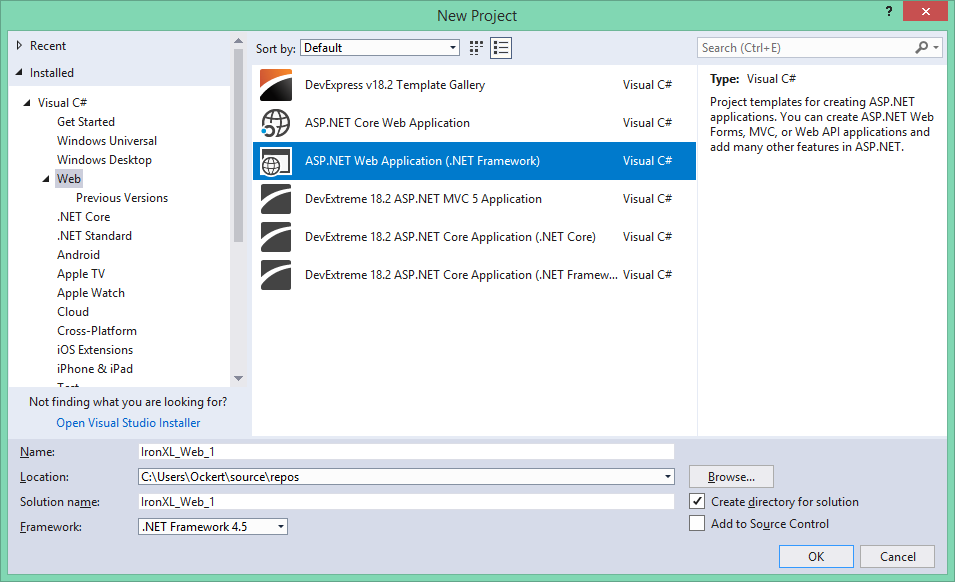
 Şekil 7 - Kaydırma sırasında donmuş başlık satırı görünür kalır
 Şekil 8 - Parola koruması yetkisiz düzenlemeleri engeller
 Şekil 9 - Manzara yönlendirmesi ve özel kenar boşlukları ile yazdırma önizlemesi













