



How to Read Excel Files in C# Without Interop: Complete Developer Guide

我第一次必须从.NET服务读取Excel文件时,我求助于Microsoft Interop并几乎立即后悔。 它需要Office安装在服务器上,当在方法中抛出异常时它会泄露进程,并且在任何负载下它都会崩溃。 我们构建IronXL是因为我们不断遇到这些墙。 本指南是我今天在生产中实际读取XLS和XLSX的方式,包括那些经常困扰人们的常见问题。
接下来的大部分工作是直接文件格式读取,无需Excel应用程序参与:加载工作簿,通过单元格地址提取值,验证范围,然后将数据推送到数据库或API。 该库可以处理XLS和XLSX,而无需在机器上安装Microsoft Office。
快速入门:用 IronXL 一行代码读取单元格
一行代码加载一个Excel工作簿并从一个单元格中提取一个值。 无Interop、无设置、无后台运行的Excel进程。

如何设置 IronXL 以读取 C# 中的 Excel 文件?
该设置本身是一个NuGet安装和一个.XLSX,因此相同的代码路径适用于旧版电子表格和现代Open XML格式。
请按照以下步骤开始:
- 使用
WorkBook.Load()加载和读取Excel工作簿 - 使用
GetWorkSheet()方法访问工作表 - 使用Excel样式的地址如
sheet["A1"].Value读取单元格值 - 通过编程方式验证和处理电子表格数据
- 使用 Entity Framework 将数据导出到数据库
IronXL从C#中读取和编辑Microsoft Excel文档,而不依赖于Office产品。 它不需要安装Microsoft Excel,也不需要Interop。 有关与Microsoft.Office.Interop.Excel的比较,请参阅差异,以及API的界面。
如果您来自Interop,心理模型与其他接口不同并值得在编写任何代码之前弄清楚。 Interop在幕后启动一个实际的Excel.exe进程,您的代码通过COM自动化该应用程序。 IronXL直接将文件字节读取到内存中并将其呈现为对象。 无Excel进程、无消息泵、无COM编组。 我观察到最常让人们陷入困惑的实际后果是:Interop从[1, 1]开始索引单元格(基于1,就像Excel的UI一样),而IronXL行/列访问是基于0的。 ["A1"]字符串索引器在两个库中都与电子表格UI匹配,因此当您可以保持在字符串形式时,迁移几乎完全相同。 整下午的偏移一的错误都是来自数值索引器。
IronXL包含:
- 我们的 .NET 工程师提供专属产品支持
- 通过 Microsoft Visual Studio 轻松安装
- 免费试用版,供开发使用。 来自
liteLicense的许可证
C#和VB.NET项目都可以以相同的方式使用IronXL来读取或创建Excel文件。
使用 IronXL 读取 .XLS 和 .XLSX Excel 文件
以下是使用 IronXL 读取 Excel 文件的基本工作流程:
- 通过NuGet 包安装 IronXL Excel 库,或下载.NET Excel DLL文件。
- 使用
WorkBook.Load()方法读取任何XLS、XLSX或CSV文档 - 使用Excel样式的地址访问单元格值:
sheet["A11"].DecimalValue
:path=/static-assets/excel/content-code-examples/tutorials/how-to-read-excel-file-csharp-1.csusing IronXL;
using System;
using System.Linq;
// Load Excel workbook from file path
WorkBook workBook = WorkBook.Load("test.xlsx");
// Access the first worksheet using LINQ
WorkSheet workSheet = workBook.WorkSheets.First();
// Read integer value from cell A2
int cellValue = workSheet["A2"].IntValue;
Console.WriteLine($"Cell A2 value: {cellValue}");
// Iterate through a range of cells
foreach (var cell in workSheet["A2:A10"])
{
Console.WriteLine("Cell {0} has value '{1}'", cell.AddressString, cell.Text);
}
// Advanced Operations with LINQ
// Calculate sum using built_in Sum() method
decimal sum = workSheet["A2:A10"].Sum();
// Find maximum value using LINQ
decimal max = workSheet["A2:A10"].Max(c => c.DecimalValue);
// Output calculated results
Console.WriteLine($"Sum of A2:A10: {sum}");
Console.WriteLine($"Maximum value: {max}");Imports IronXL
Imports System
Imports System.Linq
' Load Excel workbook from file path
Dim workBook As WorkBook = WorkBook.Load("test.xlsx")
' Access the first worksheet using LINQ
Dim workSheet As WorkSheet = workBook.WorkSheets.First()
' Read integer value from cell A2
Dim cellValue As Integer = workSheet("A2").IntValue
Console.WriteLine($"Cell A2 value: {cellValue}")
' Iterate through a range of cells
For Each cell In workSheet("A2:A10")
Console.WriteLine("Cell {0} has value '{1}'", cell.AddressString, cell.Text)
Next
' Advanced Operations with LINQ
' Calculate sum using built_in Sum() method
Dim sum As Decimal = workSheet("A2:A10").Sum()
' Find maximum value using LINQ
Dim max As Decimal = workSheet("A2:A10").Max(Function(c) c.DecimalValue)
' Output calculated results
Console.WriteLine($"Sum of A2:A10: {sum}")
Console.WriteLine($"Maximum value: {max}")这段代码演示了您将经常使用的四种操作:加载工作簿、通过地址读取单元格、遍历范围和对范围进行计算。 ["A2:A10"]与您输入Excel本身的单元格选择相匹配。 范围是IEnumerable<Cell>,因此LINQ可以直接对其进行求和、过滤和投影。
这在实际中有多快?
为了让您感受真实的性能,我编写了一个小型控制台项目,该项目加载整个教程使用的相同类型的文件并计时操作。 测试工具位于您可以自己运行的ReadExcelBenchmark示例项目中。 在运行.NET 9.0.7的Windows 11机器上,多次运行的数字大致如下:
| 手术 | 第一次冷加载(新鲜进程) | 10次迭代的热平均值 |
|---|---|---|
加载GDP.xlsx(213行)并对B列求和 |
大约270毫秒 | 大约40毫秒(范围25–70毫秒) |
加载People.xlsx(100行)并对每个单元格进行正则验证 |
大约30毫秒 | 大约28毫秒 |
第一次冷启动的数字主要由IronXL的程序集加载和JIT热身主导;第二个冷启动的数字则低得多,因为此时程序集已在内存中。 一旦JIT已编译热路径,热运行就会进入一个紧密的范围。
如果您在这样大小的文件上看到多秒的加载时间,罪魁祸首几乎总是在循环内调用WorkBook.Load(),而不是在外部调用一次。 加载一次工作簿,然后对实际需要的单元格或行进行迭代。 我在我们收到的"IronXL很慢"的支持票证中看到大约一半的这种模式。
本教程中的代码示例使用三个示例 Excel 电子表格,分别展示了不同的数据场景:
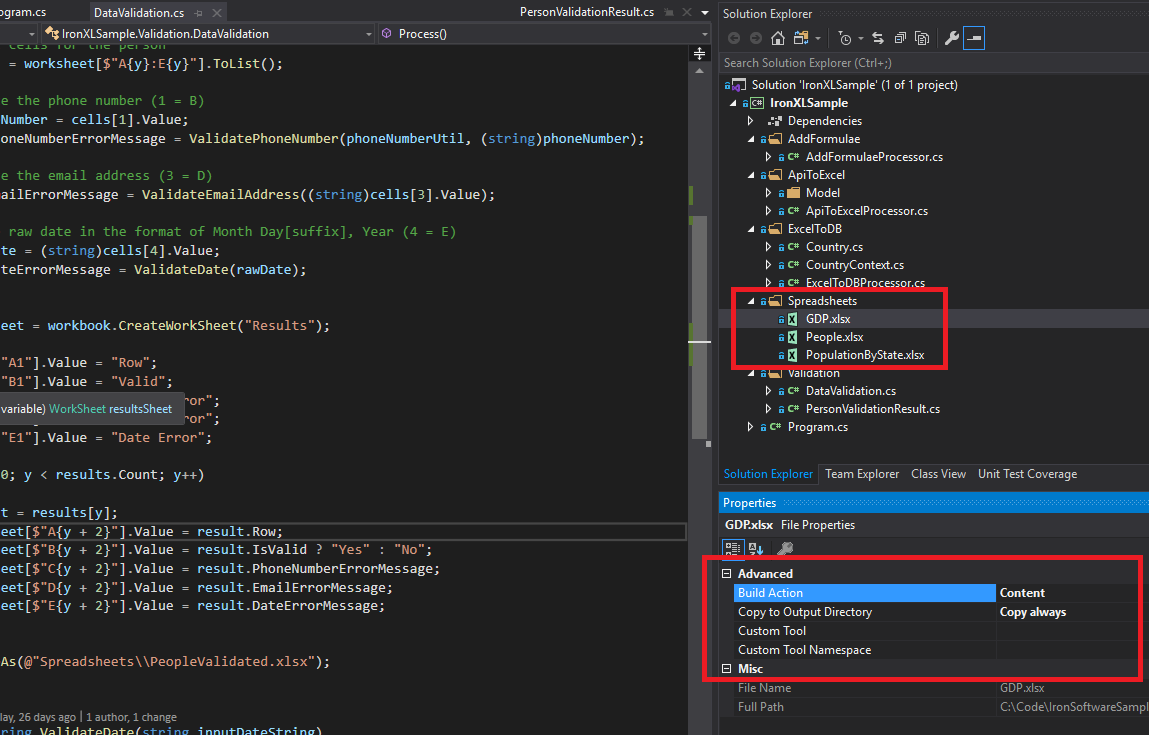 本教程中用于演示各种 IronXL 操作的示例 Excel 文件(GDP.xlsx、People.xlsx 和 PopulationByState.xlsx)。
如何安装 IronXL C# 库?
通过NuGet添加IronXL.Excel库到.NET项目,或直接引用DLL。
安装 IronXL NuGet 包
- 在 Visual Studio 中,右键单击您的项目,然后选择"管理 NuGet 程序包..."
- 在浏览选项卡中搜索
IronXL.Excel - 单击"安装"按钮,将 IronXL 添加到您的项目中。
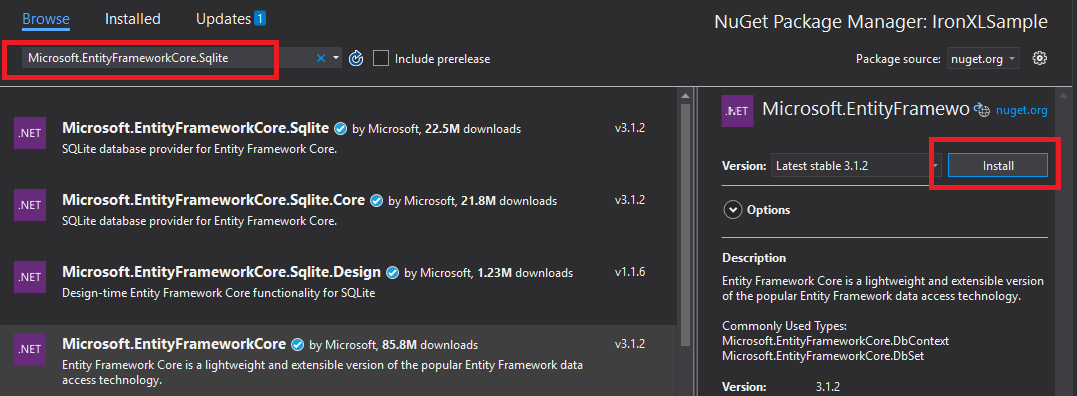 通过 Visual Studio 的 NuGet 包管理器安装 IronXL 可实现自动依赖项管理。
或者,使用软件包管理器控制台安装 IronXL:
- 打开程序包管理器控制台(工具 → NuGet 程序包管理器 → 程序包管理器控制台)
- 运行安装命令:
Install-Package IronXL.Excel
您也可以在 NuGet 网站上查看软件包详细信息。
手动安装
如需手动安装,请下载 IronXL .NET Excel DLL并将其直接引用到您的 Visual Studio 项目中。
如何加载和读取Excel工作簿?
WorkBook.Load()方法加载Excel文件,该方法接受XLS、XLSX、CSV和TSV格式的文件路径。
:path=/static-assets/excel/content-code-examples/tutorials/how-to-read-excel-file-csharp-2.csusing IronXL;
using System;
using System.Linq;
// Load Excel file from specified path
WorkBook workBook = WorkBook.Load(@"Spreadsheets\GDP.xlsx");
Console.WriteLine("Workbook loaded successfully.");
// Access specific worksheet by name
WorkSheet sheet = workBook.GetWorkSheet("Sheet1");
// Read and display cell value
string cellValue = sheet["A1"].StringValue;
Console.WriteLine($"Cell A1 contains: {cellValue}");
// Perform additional operations
// Count non_empty cells in column A
int rowCount = sheet["A:A"].Count(cell => !cell.IsEmpty);
Console.WriteLine($"Column A has {rowCount} non_empty cells");Imports IronXL
Imports System
Imports System.Linq
' Load Excel file from specified path
Dim workBook As WorkBook = WorkBook.Load("Spreadsheets\GDP.xlsx")
Console.WriteLine("Workbook loaded successfully.")
' Access specific worksheet by name
Dim sheet As WorkSheet = workBook.GetWorkSheet("Sheet1")
' Read and display cell value
Dim cellValue As String = sheet("A1").StringValue
Console.WriteLine($"Cell A1 contains: {cellValue}")
' Perform additional operations
' Count non_empty cells in column A
Dim rowCount As Integer = sheet("A:A").Count(Function(cell) Not cell.IsEmpty)
Console.WriteLine($"Column A has {rowCount} non_empty cells")每个WorkBook包含多个WorkSheet对象,表示单个Excel工作表。 使用GetWorkSheet()按名称访问工作表:
:path=/static-assets/excel/content-code-examples/tutorials/how-to-read-excel-file-csharp-3.csusing IronXL;
using System;
// Get worksheet by name
WorkSheet workSheet = workBook.GetWorkSheet("GDPByCountry");
Console.WriteLine("Worksheet 'GDPByCountry' not found");
// List available worksheets
foreach (var sheet in workBook.WorkSheets)
{
Console.WriteLine($"Available: {sheet.Name}");
}Imports IronXL
Imports System
' Get worksheet by name
Dim workSheet As WorkSheet = workBook.GetWorkSheet("GDPByCountry")
Console.WriteLine("Worksheet 'GDPByCountry' not found")
' List available worksheets
For Each sheet In workBook.WorkSheets
Console.WriteLine($"Available: {sheet.Name}")
Next如何在 C# 中创建新的 Excel 文档?
通过构建一个具有您所需文件格式的WorkBook对象来创建新的Excel文档。 IronXL 同时支持现代 XLSX 格式和传统 XLS 格式。
:path=/static-assets/excel/content-code-examples/tutorials/how-to-read-excel-file-csharp-4.csusing IronXL;
// Create new XLSX workbook (recommended format)
WorkBook workBook = WorkBook.Create(ExcelFileFormat.XLSX);
// Set workbook metadata
workBook.Metadata.Author = "Your Application";
workBook.Metadata.Comments = "Generated by IronXL";
// Create new XLS workbook for legacy support
WorkBook legacyWorkBook = WorkBook.Create(ExcelFileFormat.XLS);
// Save the workbook
workBook.SaveAs("NewDocument.xlsx");Imports IronXL
' Create new XLSX workbook (recommended format)
Private workBook As WorkBook = WorkBook.Create(ExcelFileFormat.XLSX)
' Set workbook metadata
workBook.Metadata.Author = "Your Application"
workBook.Metadata.Comments = "Generated by IronXL"
' Create new XLS workbook for legacy support
Dim legacyWorkBook As WorkBook = WorkBook.Create(ExcelFileFormat.XLS)
' Save the workbook
workBook.SaveAs("NewDocument.xlsx")注意:仅在需要与Excel 2003及更早版本兼容性时使用ExcelFileFormat.XLS。
如何向Excel文档中添加工作表?
一个IronXL WorkBook包含一个工作表集合。 了解这种结构有助于创建多工作表 Excel 文件。
 IronXL 中包含多个 WorkSheet 对象的 WorkBook 结构的可视化表示。
使用CreateWorkSheet()创建新工作表:
:path=/static-assets/excel/content-code-examples/tutorials/how-to-read-excel-file-csharp-5.csusing IronXL;
// Create multiple worksheets with descriptive names
WorkSheet summarySheet = workBook.CreateWorkSheet("Summary");
WorkSheet dataSheet = workBook.CreateWorkSheet("RawData");
WorkSheet chartSheet = workBook.CreateWorkSheet("Charts");
// Set the active worksheet
workBook.SetActiveTab(0); // Makes "Summary" the active sheet
// Access default worksheet (first sheet)
WorkSheet defaultSheet = workBook.DefaultWorkSheet;Imports IronXL
' Create multiple worksheets with descriptive names
Dim summarySheet As WorkSheet = workBook.CreateWorkSheet("Summary")
Dim dataSheet As WorkSheet = workBook.CreateWorkSheet("RawData")
Dim chartSheet As WorkSheet = workBook.CreateWorkSheet("Charts")
' Set the active worksheet
workBook.SetActiveTab(0) ' Makes "Summary" the active sheet
' Access default worksheet (first sheet)
Dim defaultSheet As WorkSheet = workBook.DefaultWorkSheet如何读取和编辑单元格值?
读取和编辑单个单元格
通过工作表的索引器属性访问单个单元格。 IronXL的Cell类提供强类型值属性。
:path=/static-assets/excel/content-code-examples/tutorials/how-to-read-excel-file-csharp-6.csusing IronXL;
using System;
using System.Linq;
// Load workbook and get worksheet
WorkBook workBook = WorkBook.Load("test.xlsx");
WorkSheet workSheet = workBook.DefaultWorkSheet;
// Access cell B1
IronXL.Cell cell = workSheet["B1"].First();
// Read cell value with type safety
string textValue = cell.StringValue;
int intValue = cell.IntValue;
decimal decimalValue = cell.DecimalValue;
DateTime? dateValue = cell.DateTimeValue;
// Check cell data type
if (cell.IsNumeric)
{
Console.WriteLine($"Numeric value: {cell.DecimalValue}");
}
else if (cell.IsText)
{
Console.WriteLine($"Text value: {cell.StringValue}");
}Imports IronXL
Imports System
Imports System.Linq
' Load workbook and get worksheet
Dim workBook As WorkBook = WorkBook.Load("test.xlsx")
Dim workSheet As WorkSheet = workBook.DefaultWorkSheet
' Access cell B1
Dim cell As IronXL.Cell = workSheet("B1").First()
' Read cell value with type safety
Dim textValue As String = cell.StringValue
Dim intValue As Integer = cell.IntValue
Dim decimalValue As Decimal = cell.DecimalValue
Dim dateValue As DateTime? = cell.DateTimeValue
' Check cell data type
If cell.IsNumeric Then
Console.WriteLine($"Numeric value: {cell.DecimalValue}")
ElseIf cell.IsText Then
Console.WriteLine($"Text value: {cell.StringValue}")
End IfCell类提供多种属性以适用于不同的数据类型,并在可能时自动转换值。 有关更多单元格操作,请参阅单元格格式设置教程。
:path=/static-assets/excel/content-code-examples/tutorials/how-to-read-excel-file-csharp-7.cs// Write different data types to cells
workSheet["A1"].Value = "Product Name"; // String
workSheet["B1"].Value = 99.95m; // Decimal
workSheet["C1"].Value = DateTime.Today; // Date
workSheet["D1"].Formula = "=B1*1.2"; // Formula
// Format cells
workSheet["B1"].FormatString = "$#,##0.00"; // Currency format
workSheet["C1"].FormatString = "yyyy-MM-dd";// Date format
// Save changes
workBook.Save();' Write different data types to cells
workSheet("A1").Value = "Product Name" ' String
workSheet("B1").Value = 99.95D ' Decimal
workSheet("C1").Value = DateTime.Today ' Date
workSheet("D1").Formula = "=B1*1.2" ' Formula
' Format cells
workSheet("B1").FormatString = "$#,##0.00" ' Currency format
workSheet("C1").FormatString = "yyyy-MM-dd" ' Date format
' Save changes
workBook.Save()如何使用单元格区域?
Range类表示一个单元格集合,允许对Excel数据进行批量操作。
:path=/static-assets/excel/content-code-examples/tutorials/how-to-read-excel-file-csharp-8.csusing IronXL;
using Range = IronXL.Range;
// Select range using Excel notation
Range range = workSheet["D2:D101"];
// Alternative: Use Range class for dynamic selection
Range dynamicRange = workSheet.GetRange("D2:D101"); // Row 2_101, Column D
// Perform bulk operations
range.Value = 0; // Set all cells to 0Imports IronXL
' Select range using Excel notation
Dim range As Range = workSheet("D2:D101")
' Alternative: Use Range class for dynamic selection
Dim dynamicRange As Range = workSheet.GetRange("D2:D101") ' Row 2_101, Column D
' Perform bulk operations
range.Value = 0 ' Set all cells to 0当单元格数量已知时,使用循环高效处理范围:
// Data validation example
public class ValidationResult
{
    public int Row { get; set; }
    public string PhoneError { get; set; }
    public string EmailError { get; set; }
    public string DateError { get; set; }
    public bool IsValid => string.IsNullOrEmpty(PhoneError) &&
                           string.IsNullOrEmpty(EmailError) &&
                           string.IsNullOrEmpty(DateError);
}

// Validate data in rows 2-101
var results = new List<ValidationResult>();

for (int row = 2; row <= 101; row++)
{
    var result = new ValidationResult { Row = row };

    // Get row data efficiently
    var phoneCell = workSheet[$"B{row}"];
    var emailCell = workSheet[$"D{row}"];
    var dateCell = workSheet[$"E{row}"];

    // Validate phone number
    if (!IsValidPhoneNumber(phoneCell.StringValue))
        result.PhoneError = "Invalid phone format";

    // Validate email
    if (!IsValidEmail(emailCell.StringValue))
        result.EmailError = "Invalid email format";

    // Validate date
    if (!dateCell.IsDateTime)
        result.DateError = "Invalid date format";

    results.Add(result);
}

// Helper methods
bool IsValidPhoneNumber(string phone) =>
    System.Text.RegularExpressions.Regex.IsMatch(phone, @"^\d{3}-\d{3}-\d{4}$");

bool IsValidEmail(string email) =>
    email.Contains("@") && email.Contains(".");
// Data validation example
public class ValidationResult
{
public int Row { get; set; }
public string PhoneError { get; set; }
public string EmailError { get; set; }
public string DateError { get; set; }
public bool IsValid => string.IsNullOrEmpty(PhoneError) &&
string.IsNullOrEmpty(EmailError) &&
string.IsNullOrEmpty(DateError);
}
// Validate data in rows 2-101
var results = new List<ValidationResult>();
for (int row = 2; row <= 101; row++)
{
var result = new ValidationResult { Row = row };
// Get row data efficiently
var phoneCell = workSheet[$"B{row}"];
var emailCell = workSheet[$"D{row}"];
var dateCell = workSheet[$"E{row}"];
// Validate phone number
if (!IsValidPhoneNumber(phoneCell.StringValue))
result.PhoneError = "Invalid phone format";
// Validate email
if (!IsValidEmail(emailCell.StringValue))
result.EmailError = "Invalid email format";
// Validate date
if (!dateCell.IsDateTime)
result.DateError = "Invalid date format";
results.Add(result);
}
// Helper methods
bool IsValidPhoneNumber(string phone) =>
System.Text.RegularExpressions.Regex.IsMatch(phone, @"^\d{3}-\d{3}-\d{4}$");
bool IsValidEmail(string email) =>
email.Contains("@") && email.Contains(".");' Data validation example
Public Class ValidationResult
Public Property Row() As Integer
Public Property PhoneError() As String
Public Property EmailError() As String
Public Property DateError() As String
Public ReadOnly Property IsValid() As Boolean
Get
Return String.IsNullOrEmpty(PhoneError) AndAlso String.IsNullOrEmpty(EmailError) AndAlso String.IsNullOrEmpty(DateError)
End Get
End Property
End Class
' Validate data in rows 2-101
Private results = New List(Of ValidationResult)()
For row As Integer = 2 To 101
Dim result = New ValidationResult With {.Row = row}
' Get row data efficiently
Dim phoneCell = workSheet($"B{row}")
Dim emailCell = workSheet($"D{row}")
Dim dateCell = workSheet($"E{row}")
' Validate phone number
If Not IsValidPhoneNumber(phoneCell.StringValue) Then
result.PhoneError = "Invalid phone format"
End If
' Validate email
If Not IsValidEmail(emailCell.StringValue) Then
result.EmailError = "Invalid email format"
End If
' Validate date
If Not dateCell.IsDateTime Then
result.DateError = "Invalid date format"
End If
results.Add(result)
Next row
' Helper methods
'INSTANT VB TODO TASK: Local functions are not converted by Instant VB:
'bool IsValidPhoneNumber(string phone)
'{
' Return System.Text.RegularExpressions.Regex.IsMatch(phone, "^\d{3}-\d{3}-\d{4}$");
'}
'INSTANT VB TODO TASK: Local functions are not converted by Instant VB:
'bool IsValidEmail(string email)
'{
' Return email.Contains("@") && email.Contains(".");
'}如何在Excel表格中添加公式?
使用Formula属性应用Excel公式。 IronXL 支持标准 Excel 公式语法。
:path=/static-assets/excel/content-code-examples/tutorials/how-to-read-excel-file-csharp-9.csusing IronXL;
// Add formulas to calculate percentages
int lastRow = 50;
for (int row = 2; row < lastRow; row++)
{
// Calculate percentage: current value / total
workSheet[$"C{row}"].Formula = $"=B{row}/B{lastRow}";
// Format as percentage
workSheet[$"C{row}"].FormatString = "0.00%";
}
// Add summary formulas
workSheet["B52"].Formula = "=SUM(B2:B50)"; // Sum
workSheet["B53"].Formula = "=AVERAGE(B2:B50)"; // Average
workSheet["B54"].Formula = "=MAX(B2:B50)"; // Maximum
workSheet["B55"].Formula = "=MIN(B2:B50)"; // Minimum
// Force formula evaluation
workBook.EvaluateAll();Imports IronXL
' Add formulas to calculate percentages
Dim lastRow As Integer = 50
For row As Integer = 2 To lastRow - 1
' Calculate percentage: current value / total
workSheet($"C{row}").Formula = $"=B{row}/B{lastRow}"
' Format as percentage
workSheet($"C{row}").FormatString = "0.00%"
Next
' Add summary formulas
workSheet("B52").Formula = "=SUM(B2:B50)" ' Sum
workSheet("B53").Formula = "=AVERAGE(B2:B50)" ' Average
workSheet("B54").Formula = "=MAX(B2:B50)" ' Maximum
workSheet("B55").Formula = "=MIN(B2:B50)" ' Minimum
' Force formula evaluation
workBook.EvaluateAll()要编辑现有公式,请参阅Excel 公式教程。
如何验证电子表格数据?
我看到的一个常见用例是验证用户提供的电子表格,在将数据导入数据库之前。 下面的例子使用正则表达式和IronXL内建的类型检查来检查电话号码、电子邮件和日期。
:path=/static-assets/excel/content-code-examples/tutorials/how-to-read-excel-file-csharp-13.csusing System.Text.RegularExpressions;
using IronXL;
// Validation implementation
for (int i = 2; i <= 101; i++)
{
var result = new PersonValidationResult { Row = i };
results.Add(result);
// Get cells for current person
var cells = workSheet[$"A{i}:E{i}"].ToList();
// Validate phone (column B)
string phone = cells[1].StringValue;
if (!Regex.IsMatch(phone, @"^\+?1?\d{10,14}$"))
{
result.PhoneNumberErrorMessage = "Invalid phone format";
}
// Validate email (column D)
string email = cells[3].StringValue;
if (!Regex.IsMatch(email, @"^[^@\s]+@[^@\s]+\.[^@\s]+$"))
{
result.EmailErrorMessage = "Invalid email address";
}
// Validate date (column E)
if (!cells[4].IsDateTime)
{
result.DateErrorMessage = "Invalid date format";
}
}
Imports System.Text.RegularExpressions
Imports IronXL

' Validation implementation
For i As Integer = 2 To 101
    Dim result As New PersonValidationResult With {.Row = i}
    results.Add(result)

    ' Get cells for current person
    Dim cells = workSheet($"A{i}:E{i}").ToList()

    ' Validate phone (column B)
    Dim phone As String = cells(1).StringValue
    If Not Regex.IsMatch(phone, "^\+?1?\d{10,14}$") Then
        result.PhoneNumberErrorMessage = "Invalid phone format"
    End If

    ' Validate email (column D)
    Dim email As String = cells(3).StringValue
    If Not Regex.IsMatch(email, "^[^@\s]+@[^@\s]+\.[^@\s]+$") Then
        result.EmailErrorMessage = "Invalid email address"
    End If

    ' Validate date (column E)
    If Not cells(4).IsDateTime Then
        result.DateErrorMessage = "Invalid date format"
    End If
Next i将验证结果保存到新工作表中:
:path=/static-assets/excel/content-code-examples/tutorials/how-to-read-excel-file-csharp-14.cs// Create results worksheet
var resultsSheet = workBook.CreateWorkSheet("ValidationResults");
// Add headers
resultsSheet["A1"].Value = "Row";
resultsSheet["B1"].Value = "Valid";
resultsSheet["C1"].Value = "Phone Error";
resultsSheet["D1"].Value = "Email Error";
resultsSheet["E1"].Value = "Date Error";
// Style headers
resultsSheet["A1:E1"].Style.Font.Bold = true;
resultsSheet["A1:E1"].Style.SetBackgroundColor("#4472C4");
resultsSheet["A1:E1"].Style.Font.Color = "#FFFFFF";
// Output validation results
for (int i = 0; i < results.Count; i++)
{
var result = results[i];
int outputRow = i + 2;
resultsSheet[$"A{outputRow}"].Value = result.Row;
resultsSheet[$"B{outputRow}"].Value = result.IsValid ? "Yes" : "No";
resultsSheet[$"C{outputRow}"].Value = result.PhoneNumberErrorMessage ?? "";
resultsSheet[$"D{outputRow}"].Value = result.EmailErrorMessage ?? "";
resultsSheet[$"E{outputRow}"].Value = result.DateErrorMessage ?? "";
// Highlight invalid rows
if (!result.IsValid)
{
resultsSheet[$"A{outputRow}:E{outputRow}"].Style.SetBackgroundColor("#FFE6E6");
}
}
// Auto-fit columns
for (int col = 0; col < 5; col++)
{
resultsSheet.AutoSizeColumn(col);
}
// Save validated workbook
workBook.SaveAs(@"Spreadsheets\PeopleValidated.xlsx");
Imports System

' Create results worksheet
Dim resultsSheet = workBook.CreateWorkSheet("ValidationResults")

' Add headers
resultsSheet("A1").Value = "Row"
resultsSheet("B1").Value = "Valid"
resultsSheet("C1").Value = "Phone Error"
resultsSheet("D1").Value = "Email Error"
resultsSheet("E1").Value = "Date Error"

' Style headers
resultsSheet("A1:E1").Style.Font.Bold = True
resultsSheet("A1:E1").Style.SetBackgroundColor("#4472C4")
resultsSheet("A1:E1").Style.Font.Color = "#FFFFFF"

' Output validation results
For i As Integer = 0 To results.Count - 1
    Dim result = results(i)
    Dim outputRow As Integer = i + 2

    resultsSheet($"A{outputRow}").Value = result.Row
    resultsSheet($"B{outputRow}").Value = If(result.IsValid, "Yes", "No")
    resultsSheet($"C{outputRow}").Value = If(result.PhoneNumberErrorMessage, "")
    resultsSheet($"D{outputRow}").Value = If(result.EmailErrorMessage, "")
    resultsSheet($"E{outputRow}").Value = If(result.DateErrorMessage, "")

    ' Highlight invalid rows
    If Not result.IsValid Then
        resultsSheet($"A{outputRow}:E{outputRow}").Style.SetBackgroundColor("#FFE6E6")
    End If
Next

' Auto-fit columns
For col As Integer = 0 To 4
    resultsSheet.AutoSizeColumn(col)
Next

' Save validated workbook
workBook.SaveAs("Spreadsheets\PeopleValidated.xlsx")如何将Excel数据导出到数据库?
using IronXL 和 Entity Framework 将电子表格数据直接导出到数据库。 本示例演示如何将国家/地区 GDP 数据导出到 SQLite。
using System;
using System.ComponentModel.DataAnnotations;
using Microsoft.EntityFrameworkCore;
using IronXL;

// Define entity model
public class Country
{
    [Key]
    public Guid Id { get; set; } = Guid.NewGuid();

    [Required]
    [MaxLength(100)]
    public string Name { get; set; }

    [Range(0, double.MaxValue)]
    public decimal GDP { get; set; }

    public DateTime ImportedDate { get; set; } = DateTime.UtcNow;
}
using System;
using System.ComponentModel.DataAnnotations;
using Microsoft.EntityFrameworkCore;
using IronXL;
// Define entity model
public class Country
{
[Key]
public Guid Id { get; set; } = Guid.NewGuid();
[Required]
[MaxLength(100)]
public string Name { get; set; }
[Range(0, double.MaxValue)]
public decimal GDP { get; set; }
public DateTime ImportedDate { get; set; } = DateTime.UtcNow;
}Imports System
Imports System.ComponentModel.DataAnnotations
Imports Microsoft.EntityFrameworkCore
Imports IronXL
' Define entity model
Public Class Country
<Key>
Public Property Id() As Guid = Guid.NewGuid()
<Required>
<MaxLength(100)>
Public Property Name() As String
<Range(0, Double.MaxValue)>
Public Property GDP() As Decimal
Public Property ImportedDate() As DateTime = DateTime.UtcNow
End Class配置用于数据库操作的 Entity Framework 上下文:
public class CountryContext : DbContext
{
    public DbSet<Country> Countries { get; set; }

    protected override void OnConfiguring(DbContextOptionsBuilder optionsBuilder)
    {
        // Configure SQLite connection
        optionsBuilder.UseSqlite("Data Source=CountryGDP.db");

        // Enable sensitive data logging in development
        #if DEBUG
        optionsBuilder.EnableSensitiveDataLogging();
        #endif
    }

    protected override void OnModelCreating(ModelBuilder modelBuilder)
    {
        // Configure decimal precision
        modelBuilder.Entity<Country>()
            .Property(c => c.GDP)
            .HasPrecision(18, 2);
    }
}
public class CountryContext : DbContext
{
public DbSet<Country> Countries { get; set; }
protected override void OnConfiguring(DbContextOptionsBuilder optionsBuilder)
{
// Configure SQLite connection
optionsBuilder.UseSqlite("Data Source=CountryGDP.db");
// Enable sensitive data logging in development
#if DEBUG
optionsBuilder.EnableSensitiveDataLogging();
#endif
}
protected override void OnModelCreating(ModelBuilder modelBuilder)
{
// Configure decimal precision
modelBuilder.Entity<Country>()
.Property(c => c.GDP)
.HasPrecision(18, 2);
}
}Public Class CountryContext
Inherits DbContext
Public Property Countries() As DbSet(Of Country)
Protected Overrides Sub OnConfiguring(ByVal optionsBuilder As DbContextOptionsBuilder)
' Configure SQLite connection
optionsBuilder.UseSqlite("Data Source=CountryGDP.db")
' Enable sensitive data logging in development
#If DEBUG Then
optionsBuilder.EnableSensitiveDataLogging()
#End If
End Sub
Protected Overrides Sub OnModelCreating(ByVal modelBuilder As ModelBuilder)
' Configure decimal precision
modelBuilder.Entity(Of Country)().Property(Function(c) c.GDP).HasPrecision(18, 2)
End Sub
End ClassMicrosoft.EntityFrameworkCore.SqlServer)并相应修改连接配置。将Excel数据导入数据库:
using System.Threading.Tasks;
using IronXL;
using Microsoft.EntityFrameworkCore;

public async Task ImportGDPDataAsync()
{
    try
    {
        // Load Excel file
        var workBook = WorkBook.Load(@"Spreadsheets\GDP.xlsx");
        var workSheet = workBook.GetWorkSheet("GDPByCountry");

        using (var context = new CountryContext())
        {
            // Ensure database exists
            await context.Database.EnsureCreatedAsync();

            // Clear existing data (optional)
            await context.Database.ExecuteSqlRawAsync("DELETE FROM Countries");

            // Import data with progress tracking
            int totalRows = 213;
            for (int row = 2; row <= totalRows; row++)
            {
                // Read country data
                var countryName = workSheet[$"A{row}"].StringValue;
                var gdpValue = workSheet[$"B{row}"].DecimalValue;

                // Skip empty rows
                if (string.IsNullOrWhiteSpace(countryName))
                    continue;

                // Create and add entity
                var country = new Country
                {
                    Name = countryName.Trim(),
                    GDP = gdpValue * 1_000_000 // Convert to actual value if in millions
                };

                await context.Countries.AddAsync(country);

                // Save in batches for performance
                if (row % 50 == 0)
                {
                    await context.SaveChangesAsync();
                    Console.WriteLine($"Imported {row - 1} of {totalRows} countries");
                }
            }

            // Save remaining records
            await context.SaveChangesAsync();
            Console.WriteLine($"Successfully imported {await context.Countries.CountAsync()} countries");
        }
    }
    catch (Exception ex)
    {
        Console.WriteLine($"Import failed: {ex.Message}");
        throw;
    }
}
using System.Threading.Tasks;
using IronXL;
using Microsoft.EntityFrameworkCore;
public async Task ImportGDPDataAsync()
{
try
{
// Load Excel file
var workBook = WorkBook.Load(@"Spreadsheets\GDP.xlsx");
var workSheet = workBook.GetWorkSheet("GDPByCountry");
using (var context = new CountryContext())
{
// Ensure database exists
await context.Database.EnsureCreatedAsync();
// Clear existing data (optional)
await context.Database.ExecuteSqlRawAsync("DELETE FROM Countries");
// Import data with progress tracking
int totalRows = 213;
for (int row = 2; row <= totalRows; row++)
{
// Read country data
var countryName = workSheet[$"A{row}"].StringValue;
var gdpValue = workSheet[$"B{row}"].DecimalValue;
// Skip empty rows
if (string.IsNullOrWhiteSpace(countryName))
continue;
// Create and add entity
var country = new Country
{
Name = countryName.Trim(),
GDP = gdpValue * 1_000_000 // Convert to actual value if in millions
};
await context.Countries.AddAsync(country);
// Save in batches for performance
if (row % 50 == 0)
{
await context.SaveChangesAsync();
Console.WriteLine($"Imported {row - 1} of {totalRows} countries");
}
}
// Save remaining records
await context.SaveChangesAsync();
Console.WriteLine($"Successfully imported {await context.Countries.CountAsync()} countries");
}
}
catch (Exception ex)
{
Console.WriteLine($"Import failed: {ex.Message}");
throw;
}
}Imports System.Threading.Tasks
Imports IronXL
Imports Microsoft.EntityFrameworkCore
Public Async Function ImportGDPDataAsync() As Task
Try
' Load Excel file
Dim workBook = WorkBook.Load("Spreadsheets\GDP.xlsx")
Dim workSheet = workBook.GetWorkSheet("GDPByCountry")
Using context = New CountryContext()
' Ensure database exists
Await context.Database.EnsureCreatedAsync()
' Clear existing data (optional)
Await context.Database.ExecuteSqlRawAsync("DELETE FROM Countries")
' Import data with progress tracking
Dim totalRows As Integer = 213
Dim row As Integer = 2
Do While row <= totalRows
' Read country data
Dim countryName = workSheet($"A{row}").StringValue
Dim gdpValue = workSheet($"B{row}").DecimalValue
' Skip empty rows
If String.IsNullOrWhiteSpace(countryName) Then
row += 1
Continue Do
End If
' Create and add entity
Dim country As New Country With {
.Name = countryName.Trim(),
.GDP = gdpValue * 1_000_000
}
Await context.Countries.AddAsync(country)
' Save in batches for performance
If row Mod 50 = 0 Then
Await context.SaveChangesAsync()
Console.WriteLine($"Imported {row - 1} of {totalRows} countries")
End If
row += 1
Loop
' Save remaining records
Await context.SaveChangesAsync()
Console.WriteLine($"Successfully imported {Await context.Countries.CountAsync()} countries")
End Using
Catch ex As Exception
Console.WriteLine($"Import failed: {ex.Message}")
Throw
End Try
End Function如何将API数据导入Excel表格?
将 IronXL 与 HTTP 客户端结合使用,即可使用实时 API 数据填充电子表格。 本示例使用RestClient.Net获取国家/地区数据。
using System;
using System.Collections.Generic;
using System.Net.Http;
using System.Threading.Tasks;
using Newtonsoft.Json;
using IronXL;

// Define data model matching API response
public class RestCountry
{
    public string Name { get; set; }
    public long Population { get; set; }
    public string Region { get; set; }
    public string NumericCode { get; set; }
    public List<Language> Languages { get; set; }
}

public class Language
{
    public string Name { get; set; }
    public string NativeName { get; set; }
}

// Fetch and process API data
public async Task ImportCountryDataAsync()
{
    using var httpClient = new HttpClient();

    try
    {
        // Call REST API
        var response = await httpClient.GetStringAsync("https://restcountries.com/v3.1/all");
        var countries = JsonConvert.DeserializeObject<List<RestCountry>>(response);

        // Create new workbook
        var workBook = WorkBook.Create(ExcelFileFormat.XLSX);
        var workSheet = workBook.CreateWorkSheet("Countries");

        // Add headers with styling
        string[] headers = { "Country", "Population", "Region", "Code", "Language 1", "Language 2", "Language 3" };
        for (int col = 0; col < headers.Length; col++)
        {
            var headerCell = workSheet[0, col];
            headerCell.Value = headers[col];
            headerCell.Style.Font.Bold = true;
            headerCell.Style.SetBackgroundColor("#366092");
            headerCell.Style.Font.Color = "#FFFFFF";
        }

        // Import country data
        await ProcessCountryData(countries, workSheet);

        // Save workbook
        workBook.SaveAs("CountriesFromAPI.xlsx");
    }
    catch (Exception ex)
    {
        Console.WriteLine($"API import failed: {ex.Message}");
    }
}
using System;
using System.Collections.Generic;
using System.Net.Http;
using System.Threading.Tasks;
using Newtonsoft.Json;
using IronXL;
// Define data model matching API response
public class RestCountry
{
public string Name { get; set; }
public long Population { get; set; }
public string Region { get; set; }
public string NumericCode { get; set; }
public List<Language> Languages { get; set; }
}
public class Language
{
public string Name { get; set; }
public string NativeName { get; set; }
}
// Fetch and process API data
public async Task ImportCountryDataAsync()
{
using var httpClient = new HttpClient();
try
{
// Call REST API
var response = await httpClient.GetStringAsync("https://restcountries.com/v3.1/all");
var countries = JsonConvert.DeserializeObject<List<RestCountry>>(response);
// Create new workbook
var workBook = WorkBook.Create(ExcelFileFormat.XLSX);
var workSheet = workBook.CreateWorkSheet("Countries");
// Add headers with styling
string[] headers = { "Country", "Population", "Region", "Code", "Language 1", "Language 2", "Language 3" };
for (int col = 0; col < headers.Length; col++)
{
var headerCell = workSheet[0, col];
headerCell.Value = headers[col];
headerCell.Style.Font.Bold = true;
headerCell.Style.SetBackgroundColor("#366092");
headerCell.Style.Font.Color = "#FFFFFF";
}
// Import country data
await ProcessCountryData(countries, workSheet);
// Save workbook
workBook.SaveAs("CountriesFromAPI.xlsx");
}
catch (Exception ex)
{
Console.WriteLine($"API import failed: {ex.Message}");
}
}Imports System
Imports System.Collections.Generic
Imports System.Net.Http
Imports System.Threading.Tasks
Imports Newtonsoft.Json
Imports IronXL
' Define data model matching API response
Public Class RestCountry
Public Property Name() As String
Public Property Population() As Long
Public Property Region() As String
Public Property NumericCode() As String
Public Property Languages() As List(Of Language)
End Class
Public Class Language
Public Property Name() As String
Public Property NativeName() As String
End Class
' Fetch and process API data
Public Async Function ImportCountryDataAsync() As Task
Dim httpClient As New HttpClient()
Try
' Call REST API
Dim response = Await httpClient.GetStringAsync("https://restcountries.com/v3.1/all")
Dim countries = JsonConvert.DeserializeObject(Of List(Of RestCountry))(response)
' Create new workbook
Dim workBook = WorkBook.Create(ExcelFileFormat.XLSX)
Dim workSheet = workBook.CreateWorkSheet("Countries")
' Add headers with styling
Dim headers() As String = { "Country", "Population", "Region", "Code", "Language 1", "Language 2", "Language 3" }
For col As Integer = 0 To headers.Length - 1
Dim headerCell = workSheet(0, col)
headerCell.Value = headers(col)
headerCell.Style.Font.Bold = True
headerCell.Style.SetBackgroundColor("#366092")
headerCell.Style.Font.Color = "#FFFFFF"
Next col
' Import country data
Await ProcessCountryData(countries, workSheet)
' Save workbook
workBook.SaveAs("CountriesFromAPI.xlsx")
Catch ex As Exception
Console.WriteLine($"API import failed: {ex.Message}")
End Try
End FunctionAPI 返回的 JSON 数据格式如下:
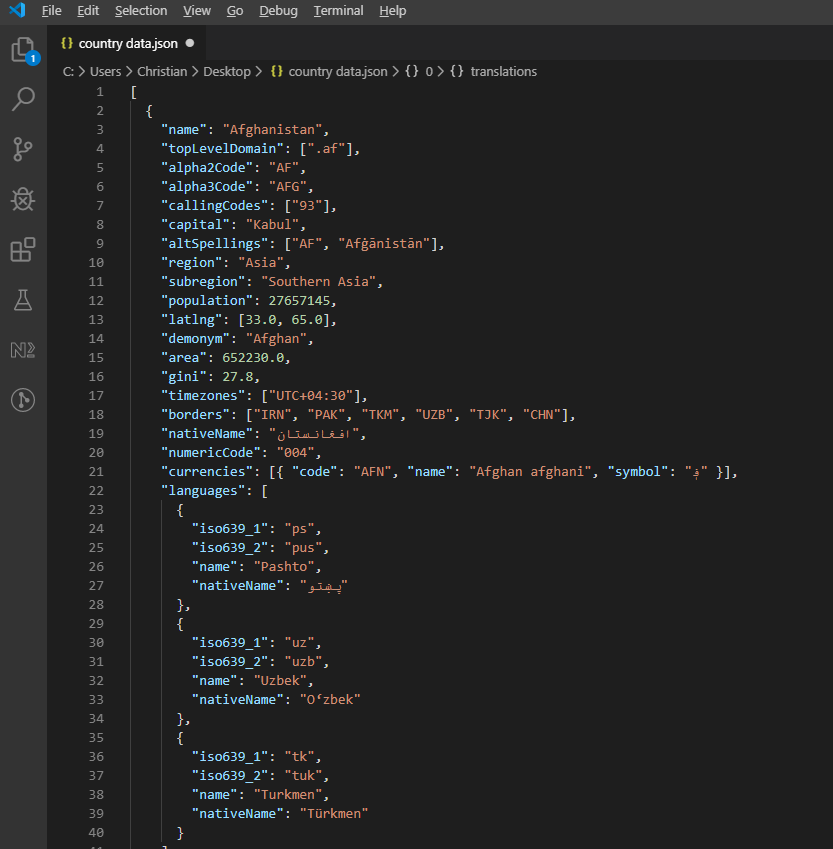 来自 REST Countries API 的示例 JSON 响应,显示了分层国家/地区信息。
处理 API 数据并将其写入 Excel:
private async Task ProcessCountryData(List<RestCountry> countries, WorkSheet workSheet)
{
    for (int i = 0; i < countries.Count; i++)
    {
        var country = countries[i];
        int row = i + 1; // Start from row 1 (after headers)

        // Write basic country data
        workSheet[$"A{row}"].Value = country.Name;
        workSheet[$"B{row}"].Value = country.Population;
        workSheet[$"C{row}"].Value = country.Region;
        workSheet[$"D{row}"].Value = country.NumericCode;

        // Format population with thousands separator
        workSheet[$"B{row}"].FormatString = "#,##0";

        // Add up to 3 languages
        for (int langIndex = 0; langIndex < Math.Min(3, country.Languages?.Count ?? 0); langIndex++)
        {
            var language = country.Languages[langIndex];
            string columnLetter = ((char)('E' + langIndex)).ToString();
            workSheet[$"{columnLetter}{row}"].Value = language.Name;
        }

        // Add conditional formatting for regions
        if (country.Region == "Europe")
        {
            workSheet[$"C{row}"].Style.SetBackgroundColor("#E6F3FF");
        }
        else if (country.Region == "Asia")
        {
            workSheet[$"C{row}"].Style.SetBackgroundColor("#FFF2E6");
        }

        // Show progress every 50 countries
        if (i % 50 == 0)
        {
            Console.WriteLine($"Processed {i} of {countries.Count} countries");
        }
    }

    // Auto-size all columns
    for (int col = 0; col < 7; col++)
    {
        workSheet.AutoSizeColumn(col);
    }
}
private async Task ProcessCountryData(List<RestCountry> countries, WorkSheet workSheet)
{
for (int i = 0; i < countries.Count; i++)
{
var country = countries[i];
int row = i + 1; // Start from row 1 (after headers)
// Write basic country data
workSheet[$"A{row}"].Value = country.Name;
workSheet[$"B{row}"].Value = country.Population;
workSheet[$"C{row}"].Value = country.Region;
workSheet[$"D{row}"].Value = country.NumericCode;
// Format population with thousands separator
workSheet[$"B{row}"].FormatString = "#,##0";
// Add up to 3 languages
for (int langIndex = 0; langIndex < Math.Min(3, country.Languages?.Count ?? 0); langIndex++)
{
var language = country.Languages[langIndex];
string columnLetter = ((char)('E' + langIndex)).ToString();
workSheet[$"{columnLetter}{row}"].Value = language.Name;
}
// Add conditional formatting for regions
if (country.Region == "Europe")
{
workSheet[$"C{row}"].Style.SetBackgroundColor("#E6F3FF");
}
else if (country.Region == "Asia")
{
workSheet[$"C{row}"].Style.SetBackgroundColor("#FFF2E6");
}
// Show progress every 50 countries
if (i % 50 == 0)
{
Console.WriteLine($"Processed {i} of {countries.Count} countries");
}
}
// Auto-size all columns
for (int col = 0; col < 7; col++)
{
workSheet.AutoSizeColumn(col);
}
}Private Async Function ProcessCountryData(ByVal countries As List(Of RestCountry), ByVal workSheet As WorkSheet) As Task
For i As Integer = 0 To countries.Count - 1
Dim country = countries(i)
Dim row As Integer = i + 1 ' Start from row 1 (after headers)
' Write basic country data
workSheet($"A{row}").Value = country.Name
workSheet($"B{row}").Value = country.Population
workSheet($"C{row}").Value = country.Region
workSheet($"D{row}").Value = country.NumericCode
' Format population with thousands separator
workSheet($"B{row}").FormatString = "#,##0"
' Add up to 3 languages
For langIndex As Integer = 0 To Math.Min(3, If(country.Languages?.Count, 0)) - 1
Dim language = country.Languages(langIndex)
Dim columnLetter As String = (ChrW(AscW("E"c) + langIndex)).ToString()
workSheet($"{columnLetter}{row}").Value = language.Name
Next langIndex
' Add conditional formatting for regions
If country.Region = "Europe" Then
workSheet($"C{row}").Style.SetBackgroundColor("#E6F3FF")
ElseIf country.Region = "Asia" Then
workSheet($"C{row}").Style.SetBackgroundColor("#FFF2E6")
End If
' Show progress every 50 countries
If i Mod 50 = 0 Then
Console.WriteLine($"Processed {i} of {countries.Count} countries")
End If
Next i
' Auto-size all columns
For col As Integer = 0 To 6
workSheet.AutoSizeColumn(col)
Next col
End Function常见问题
有些事情经常会困扰人,因此它们值得自己的一节。
空单元格返回0,而不是null
这一点早期就让我头疼。 在空白单元格上调用null。 如果您正在汇总或平均包含缺口的列,空白将默默地变为零,从而影响结果。 现在我在任何可能存在缺失值的工作表上做读取防护:
var cell = sheet["B5"];
if (!cell.IsEmpty)
{
    total += cell.DecimalValue;
}
var cell = sheet["B5"];
if (!cell.IsEmpty)
{
total += cell.DecimalValue;
}Dim cell = sheet("B5")
If Not cell.IsEmpty Then
total += cell.DecimalValue
End IfCell.IsEmpty很便宜,所以我默认使用它,特别是当电子表格是用户提供而非机器生成时。
如果请求错误的类型,日期将返回为序列号
Excel在内部将日期存储为序列号(例如,45292表示2024-01-01)。 我们支持邮箱中最常见的日期处理问题是"为什么我的日期显示为45292?",答案几乎总是单元格被读取为DateTimeValue:
// What you probably want:
DateTime birthday = sheet["E2"].DateTimeValue;

// What gives you "45292":
string birthday = sheet["E2"].StringValue;
// What you probably want:
DateTime birthday = sheet["E2"].DateTimeValue;
// What gives you "45292":
string birthday = sheet["E2"].StringValue;' What you probably want:
Dim birthday As DateTime = sheet("E2").DateTimeValue
' What gives you "45292":
Dim birthday As String = sheet("E2").StringValueCell.IsDateTime会告诉您该单元格是否最初是作为日期创建的,这对于输入格式无保障的验证管道很有用。
单元格索引数字是从0开始的,但A1字符串是从1开始的
在Interop迁移段中已涵盖,但值得重申,因为它甚至会让从未接触过COM的人抓狂。 sheet["A1"]是同一个单元格。 在同一个循环中混合使用这两种风格,是如何导致偏差错误的。 我每个文件选择一种风格并坚持使用它; ["A1"]字符串形式是我的默认选择,因为它与您在电子表格中看到的内容匹配。
基准数字的示例项目
如果您想重现之前的时间数字,测试工具是一个小的.NET 9控制台应用程序:
:path=/static-assets/excel/content-code-examples/tutorials/how-to-read-excel-file-csharp-22.cs// ReadExcelBenchmark/Program.cs (excerpt)
IronXL.License.LicenseKey = Environment.GetEnvironmentVariable("IRONXL_LICENSE_KEY");
var sw = Stopwatch.StartNew();
var workbook = WorkBook.Load("GDP.xlsx");
decimal sum = workbook.WorkSheets.First()["B2:B214"].Sum();
sw.Stop();
Console.WriteLine($"cold: {sw.Elapsed.TotalMilliseconds:F1} ms");
Imports System
Imports System.Diagnostics
Imports IronXL

License.LicenseKey = Environment.GetEnvironmentVariable("IRONXL_LICENSE_KEY")

Dim sw As Stopwatch = Stopwatch.StartNew()
Dim workbook = WorkBook.Load("GDP.xlsx")
Dim sum As Decimal = workbook.WorkSheets.First()("B2:B214").Sum()
sw.Stop()
Console.WriteLine($"cold: {sw.Elapsed.TotalMilliseconds:F1} ms")在dotnet run -c Release下运行,首次启动时生成两个示例工作簿,您可以替换自己的文件,查看随着文件大小和复杂性的增加数字会如何变化。
对象参考和资源
IronXL API参考涵盖了每个类和方法,包括本教程未涉及的内容。
更多Excel操作教程:
摘要
IronXL.Excel读取和操作XLS、XLSX、CSV和TSV格式的Excel文件。 它在主机机器上无需Microsoft Excel或Interop即可运行。
对于基于云的电子表格操作,您还可以探索适用于 .NET 的Google Sheets API 客户端库,它补充了 IronXL 的本地文件功能。
常见问题解答
如何在不使用 Microsoft Office 的情况下用 C# 读取 Excel 文件?
29. 您可以使用 IronXL 在 C# 中读取 Excel 文件,无需 Microsoft Office。IronXL 提供像 WorkBook.Load() 这样的操作方法来打开 Excel 文件,并允许您使用直观的语法访问和操作数据。
用 C# 可以读取哪些格式的 Excel 文件?
30. 使用 IronXL,您可以在 C# 中读取 XLS 和 XLSX 文件格式。该库会自动检测文件格式,并使用 WorkBook.Load() 方法相应地处理它。
如何在 C# 中验证 Excel 数据?
IronXL 允许您通过迭代单元格并应用逻辑(例如用于电子邮件的正则表达式或自定义验证函数)以编程方式验证 Excel 数据。您可以使用 CreateWorkSheet() 生成报告。
如何使用 C# 将数据从 Excel 导出到 SQL 数据库?
要将数据从 Excel 导出到 SQL 数据库,请使用 IronXL 通过 WorkBook.Load() 和 GetWorkSheet() 方法读取 Excel 数据,然后迭代单元格将数据传输到您的数据库,使用 Entity Framework。
我可以将 Excel 功能与 ASP.NET Core 应用程序集成吗?
是的,IronXL 支持与 ASP.NET Core 应用程序集成。您可以在控制器中使用 WorkBook 和 WorkSheet 类来处理 Excel 文件的上传、生成报告等。
是否可以使用 C# 向 Excel 电子表格添加公式?
IronXL 使您能够以编程方式向 Excel 电子表格添加公式。您可以使用 Formula 属性设置公式,例如 cell.Formula = "=SUM(A1:A10)" 并使用 workBook.EvaluateAll() 计算结果。
如何使用 REST API 填充 Excel 文件的数据?
要使用 REST API 的数据填充 Excel 文件,请使用 IronXL 结合 HTTP 客户端获取 API 数据,然后使用 sheet["A1"].Value 将其写入 Excel。IronXL 管理 Excel 的格式和结构。
生产环境中使用 Excel 库有哪些许可选项?
IronXL 提供免费试用以进行开发,而生产许可证从 $749 开始。这些许可证包括专门的技术支持,并允许在各种环境中部署,而无需额外的 Office 许可证。


还在滚动吗?
想快速获得证据? PM > Install-Package IronXL.Excel
运行示例 观看您的数据变成电子表格。








 免费开始
免费开始 免费开始
免费开始 预定免费现场演示
















