


在ASP.NET MVC中使用C #和IronXL读取Excel文件

IronXL使得ASP.NET MVC开发者可以在C#中直接读取Excel文件,无需Microsoft Office依赖,将Excel数据转换为System.Data.DataTable,只需几行代码即可在网页视图中轻松显示。
快速入门:在MVC中加载并将Excel表格转换为DataTable
此示例展示了如何在几秒钟内开始:加载Excel工作簿,选择其第一个工作表,并使用IronXL将其转换为System.Data.DataTable——无需Interop,无麻烦。

最小工作流程(5 个步骤)
- 安装 C# 库以在 ASP.NET 中读取 Excel 文件
- 加载并访问 Excel 文件中的目标工作表
- 访问
ToDataTable方法并将其返回给View - 使用循环在网页上显示 Excel 数据
- 遍历所有数据并构建 HTML 表格
如何创建用于 Excel 阅读的 ASP.NET 项目?
为什么 Visual Studio 2022 最适合用于此用途?
using Visual Studio 2022 创建一个新的 ASP.NET 项目。 Visual Studio 2022为.NET 6+框架提供了优秀支持,改进了IronXL方法的IntelliSense,并在处理大型Excel文件时性能更佳。 IDE的NuGet集成使安装IronXL特别方便。
我应该选择什么样的项目模板?
要在 ASP.NET 中阅读 Excel 文件,请选择 "ASP.NET Core Web App (模型-视图-控制器) "模板。 该模板采用简洁的 MVC 结构,将数据处理(Excel 读取)与演示逻辑分开。 MVC模式完美契合DataTable转换,允许您在控制器中加载电子表格,并在视图中无缝呈现。
推荐使用哪个 .NET 版本?
IronXL可与.NET Framework 4.6.2+和.NET Core 3.1+配合工作。 对于新的 ASP.NET MVC 项目,请使用 .NET 6.0 或更高版本,以获得最佳性能和安全性。 这些版本在处理大型 Excel 文件时改进了内存管理,在转换电子表格文件类型时提供了更好的Async/Await支持。
如何安装 IronXL 库?
安装要求是什么?
哪种安装方法最快?
创建新项目后,安装IronXL库。 按照这些步骤安装IronXL。 打开 NuGet 包管理器控制台并运行以下命令:
Install-Package IronXL.Excel
如何验证安装?
要验证IronXL是否正确安装,请在解决方案资源管理器中检查项目的依赖关系。 您应该可以在 "依赖项 > 软件包 "中看到 "IronXL"。 此外,尝试在控制器文件顶部添加using IronXL;——IntelliSense应该立即识别该命名空间。 有关安装问题的故障排除,请访问 许可指南。
如何在控制器中读取 Excel 文件?
控制器动作中包含哪些代码?
在您的ASP.NET项目中打开默认控制器(例如,Index方法:
using IronXL;
using System.Data;

public ActionResult Index()
{
    // Load the Excel workbook from a specified path.
    WorkBook workBook = WorkBook.Load(@"C:\Files\Customer Data.xlsx");

    // Access the first worksheet from the workbook.
    WorkSheet workSheet = workBook.WorkSheets.First();

    // Convert the worksheet data to a DataTable object.
    // The 'true' parameter uses the first row as column headers
    var dataTable = workSheet.ToDataTable(true);

    // Send the DataTable to the view for rendering.
    return View(dataTable);
}
using IronXL;
using System.Data;
public ActionResult Index()
{
// Load the Excel workbook from a specified path.
WorkBook workBook = WorkBook.Load(@"C:\Files\Customer Data.xlsx");
// Access the first worksheet from the workbook.
WorkSheet workSheet = workBook.WorkSheets.First();
// Convert the worksheet data to a DataTable object.
// The 'true' parameter uses the first row as column headers
var dataTable = workSheet.ToDataTable(true);
// Send the DataTable to the view for rendering.
return View(dataTable);
}Imports IronXL
Imports System.Data
Public Function Index() As ActionResult
' Load the Excel workbook from a specified path.
Dim workBook As WorkBook = WorkBook.Load("C:\Files\Customer Data.xlsx")
' Access the first worksheet from the workbook.
Dim workSheet As WorkSheet = workBook.WorkSheets.First()
' Convert the worksheet data to a DataTable object.
' The 'true' parameter uses the first row as column headers
Dim dataTable = workSheet.ToDataTable(True)
' Send the DataTable to the view for rendering.
Return View(dataTable)
End Function为什么使用DataTable而不是其他格式?
在Load方法加载Excel文件。 Excel 文件的路径(包括文件名)作为参数传递给方法调用。 接下来,选择第一个Excel表作为工作表,并将其包含的数据加载到DataTable对象中。 最后,将DataTable发送到前端。
DataTable非常适用于ASP.NET MVC,因为它可以无缝集成到Razor视图中,并提供内置支持以迭代行和列。 与自定义对象不同,DataTable无需模型映射,并且可以自动处理混合数据类型。 您也可以在需要时将DataTable导出回Excel。
文件丢失时的错误处理?
强大的错误处理功能可确保您的应用程序在 Excel 文件丢失或损坏时不会崩溃。 以下是适当处理异常的增强版本:
public ActionResult Index()
{
    try
    {
        string filePath = @"C:\Files\Customer Data.xlsx";

        // Check if file exists before attempting to load
        if (!System.IO.File.Exists(filePath))
        {
            ViewBag.Error = "Excel file not found at specified location.";
            return View(new DataTable());
        }

        // Load workbook with error handling
        WorkBook workBook = WorkBook.Load(filePath);

        // Verify worksheet exists
        if (workBook.WorkSheets.Count == 0)
        {
            ViewBag.Error = "No worksheets found in the Excel file.";
            return View(new DataTable());
        }

        WorkSheet workSheet = workBook.WorkSheets.First();
        var dataTable = workSheet.ToDataTable(true);

        return View(dataTable);
    }
    catch (Exception ex)
    {
        // Log the exception (consider using a logging framework)
        ViewBag.Error = $"Error reading Excel file: {ex.Message}";
        return View(new DataTable());
    }
}
public ActionResult Index()
{
try
{
string filePath = @"C:\Files\Customer Data.xlsx";
// Check if file exists before attempting to load
if (!System.IO.File.Exists(filePath))
{
ViewBag.Error = "Excel file not found at specified location.";
return View(new DataTable());
}
// Load workbook with error handling
WorkBook workBook = WorkBook.Load(filePath);
// Verify worksheet exists
if (workBook.WorkSheets.Count == 0)
{
ViewBag.Error = "No worksheets found in the Excel file.";
return View(new DataTable());
}
WorkSheet workSheet = workBook.WorkSheets.First();
var dataTable = workSheet.ToDataTable(true);
return View(dataTable);
}
catch (Exception ex)
{
// Log the exception (consider using a logging framework)
ViewBag.Error = $"Error reading Excel file: {ex.Message}";
return View(new DataTable());
}
}Imports System.IO
Imports System.Data
Public Function Index() As ActionResult
Try
Dim filePath As String = "C:\Files\Customer Data.xlsx"
' Check if file exists before attempting to load
If Not File.Exists(filePath) Then
ViewBag.Error = "Excel file not found at specified location."
Return View(New DataTable())
End If
' Load workbook with error handling
Dim workBook As WorkBook = WorkBook.Load(filePath)
' Verify worksheet exists
If workBook.WorkSheets.Count = 0 Then
ViewBag.Error = "No worksheets found in the Excel file."
Return View(New DataTable())
End If
Dim workSheet As WorkSheet = workBook.WorkSheets.First()
Dim dataTable = workSheet.ToDataTable(True)
Return View(dataTable)
Catch ex As Exception
' Log the exception (consider using a logging framework)
ViewBag.Error = $"Error reading Excel file: {ex.Message}"
Return View(New DataTable())
End Try
End Function如何选择不同的工作表?
IronXL提供了多种方法来选择和处理特定工作表。 您可以通过索引、名称或遍历所有可用工作表来访问工作表:
:path=/static-assets/excel/content-code-examples/how-to/asp-net-mvc-read-excel-file-5.cs// Method 1: Select by worksheet name
WorkSheet namedSheet = workBook.GetWorkSheet("Sales Data");
// Method 2: Select by index (zero-based)
WorkSheet secondSheet = workBook.WorkSheets[1];
// Method 3: Select the default/active worksheet
WorkSheet defaultSheet = workBook.DefaultWorkSheet;
// Method 4: Iterate through all worksheets
foreach (WorkSheet sheet in workBook.WorkSheets)
{
string sheetName = sheet.Name;
// Process each worksheet
}
Imports System

' Method 1: Select by worksheet name
Dim namedSheet As WorkSheet = workBook.GetWorkSheet("Sales Data")

' Method 2: Select by index (zero-based)
Dim secondSheet As WorkSheet = workBook.WorkSheets(1)

' Method 3: Select the default/active worksheet
Dim defaultSheet As WorkSheet = workBook.DefaultWorkSheet

' Method 4: Iterate through all worksheets
For Each sheet As WorkSheet In workBook.WorkSheets
    Dim sheetName As String = sheet.Name
    ' Process each worksheet
Next如何在网页上显示 Excel 数据?
需要哪些视图代码?
下一个示例展示了如何在Web浏览器中显示前一个示例中返回的DataTable。
本例中使用的 Excel 工作文件如下所示:
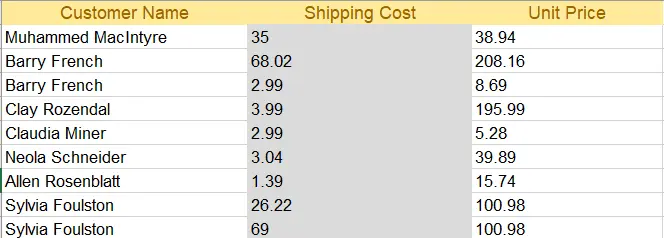
Excel 文件
打开index.cshtml(索引视图)并用以下HTML代码替换代码:
@{
    ViewData["Title"] = "Home Page";
}

@using System.Data
@model DataTable

<div class="text-center">
    <h1 class="display-4">Welcome to IronXL Read Excel MVC</h1>
</div>

@* Check for errors first *@
@if (ViewBag.Error != null)
{
    <div class="alert alert-danger">
        @ViewBag.Error
    </div>
}

@* Display table only if data exists *@
@if (Model != null && Model.Rows.Count > 0)
{
    <table class="table table-dark">
        <tbody>
            @foreach (DataRow row in Model.Rows)
            {
                <tr>
                    @for (int i = 0; i < Model.Columns.Count; i++)
                    {
                        <td>@row[i]</td>
                    }
                </tr>
            }
        </tbody>
    </table>
}
else
{
    <p>No data to display.</p>
}
为什么使用 Bootstrap 进行表格样式设计?
上述代码使用从DataTable作为模型。 使用@for循环在网页上打印表的每一行,包括用于美化的Bootstrap格式。
Bootstrap 提供了可根据不同屏幕尺寸自动调整的响应式表格设计--这对现代网络应用至关重要。 table-dark类创建一个易于阅读的吸引人的深色主题表。 对于更高级的Excel格式化需求,如单元格边框和对齐或背景图案和颜色,IronXL提供了额外的方法来直接访问结构化数据。
最终输出是什么样的?
该项目的运行结果如下所示:
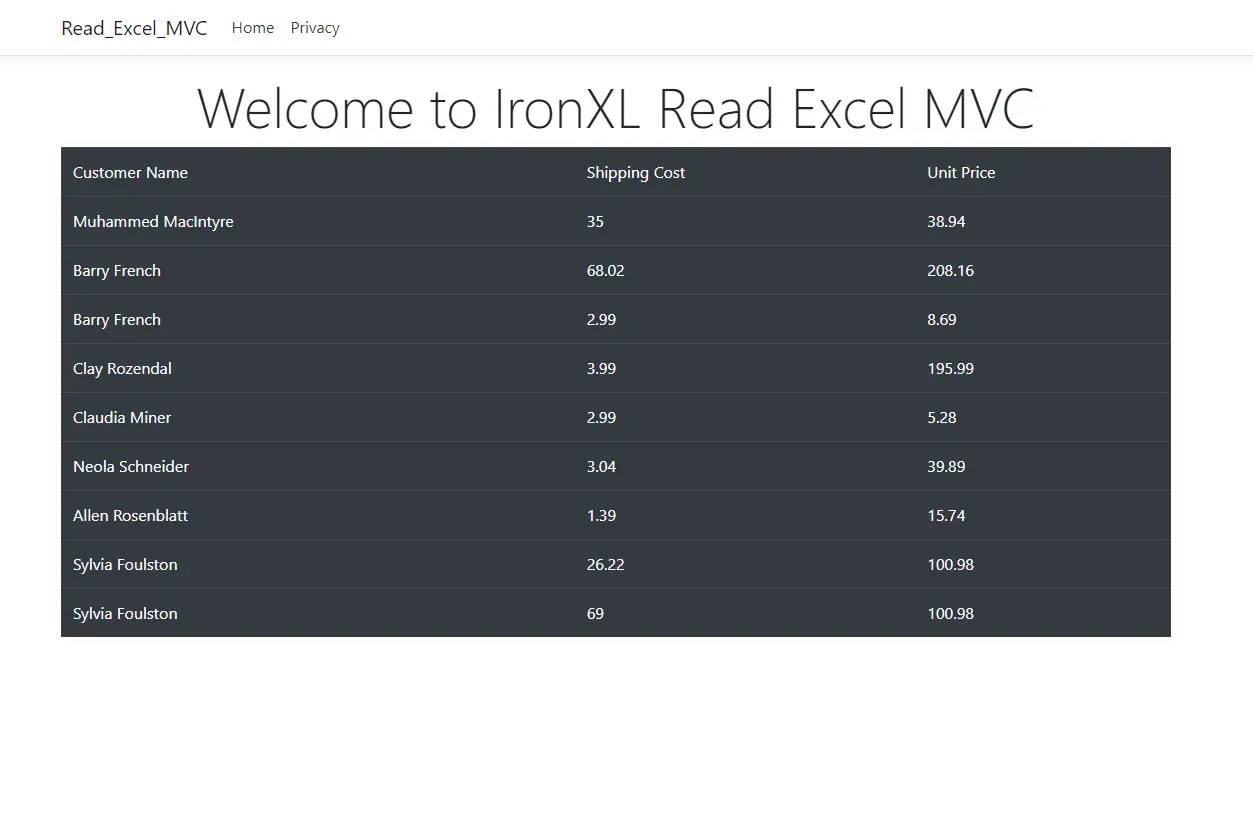
Bootstrap 表格
如何在表格中添加页眉?
要显示 Excel 文件中的列头,请修改视图代码以包含表头部分。 调用IronXL会自动使用第一行为列名:
@if (Model != null && Model.Rows.Count > 0)
{
    <table class="table table-dark">
        <thead>
            <tr>
                @foreach (DataColumn column in Model.Columns)
                {
                    <th>@column.ColumnName</th>
                }
            </tr>
        </thead>
        <tbody>
            @foreach (DataRow row in Model.Rows)
            {
                <tr>
                    @for (int i = 0; i < Model.Columns.Count; i++)
                    {
                        <td>@row[i]</td>
                    }
                </tr>
            }
        </tbody>
    </table>
}
@if (Model != null && Model.Rows.Count > 0)
{
<table class="table table-dark">
<thead>
<tr>
@foreach (DataColumn column in Model.Columns)
{
<th>@column.ColumnName</th>
}
</tr>
</thead>
<tbody>
@foreach (DataRow row in Model.Rows)
{
<tr>
@for (int i = 0; i < Model.Columns.Count; i++)
{
<td>@row[i]</td>
}
</tr>
}
</tbody>
</table>
}此增强功能会显示您的Excel文件中正确的列标题,如"客户姓名"、"运费"和"单价"。对于涉及命名范围或命名表的更复杂情境,IronXL提供了额外的方法来直接访问结构化数据。
常见问题解答
没有 Microsoft Office,如何在 ASP.NET MVC 中读取 Excel 文件?
IronXL 可让您直接用 C# 阅读 Excel 文件,而无需依赖任何 Microsoft Office。只需通过 NuGet 安装 IronXL,然后使用 WorkBook.Load() 打开 Excel 文件并将其转换为 DataTable,只需一行代码即可: var dataTable = IronXL.WorkBook.Load('CustomerData.xlsx').DefaultWorkSheet.ToDataTable(true);
在 ASP.NET 中将 Excel 数据转换为 DataTable 的最快方法是什么?
IronXL.Excel 提供 ToDataTable() 方法,可立即将 Excel 工作表转换为 System.Data.DataTable 对象。使用 IronXL 加载工作簿后,访问任意工作表并调用 ToDataTable(true) 即可包含表头。这种转换只需一行代码,并可与 ASP.NET MVC 视图无缝配合。
在网络应用程序中处理 Excel 文件应使用哪个 .NET 版本?
IronXL 支持 .NET Framework 4.6.2+ 和 .NET Core 3.1+。对于新的 ASP.NET MVC 项目,建议使用 .NET 6.0 或更高版本,因为在使用 IronXL 处理大型 Excel 文件时,它可以提供更好的内存管理,并为电子表格操作提供更好的Async/Await支持。
哪种 Visual Studio 项目模板最适合 Excel 阅读功能?
创建项目时,请选择 "ASP.NET Core Web 应用程序(模型-视图-控制器)"模板。这种 MVC 结构完美地补充了 IronXL.Excel 的 DataTable 转换功能,使您可以在控制器中加载和处理 Excel 文件,同时在视图中干净利落地显示数据。
如何在 ASP.NET 项目中安装 Excel 阅读库?
通过 NuGet 软件包管理器控制台运行 "Install-Package IronXL.Excel "安装 IronXL。安装完成后,通过检查项目依赖关系并在控制器中添加 "using IronXL; "来验证是否已正确添加,IntelliSense 应能立即识别命名空间。


还在滚动吗?
想快速获得证据? PM > Install-Package IronXL.Excel
运行示例 观看您的数据变成电子表格。






 免费开始
免费开始 免费开始
免费开始 预定免费现场演示
















