
使用 IronXL 在 ASP.NET MVC 中讀取 Excel 文件

IronXL 使 ASP.NET MVC 開發者能夠直接在 C# 中讀取 Excel 文件,無需依賴 Microsoft Office,僅用幾行程式碼即可將 Excel 資料轉換為 System.Data.DataTable,以方便在網頁視圖中顯示。
此範例顯示如何在幾秒內開始:載入一個 Excel 活頁簿,選擇其第一個工作表,並使用 IronXL 將其轉換為 System.Data.DataTable —— 無需 Interop,無任何麻煩。
-
1Install IronXL with NuGet Package Manager
-
2複製並運行這段程式碼片段。
var dataTable = IronXL.WorkBook.Load("CustomerData.xlsx").DefaultWorkSheet.ToDataTable(true);C# -
3部署以在您的實時環境中測試
今天就開始在您的專案中使用IronXL,透過免費試用
最小化工作流程(5步)
- 安裝 C# 庫以在 ASP.NET 中讀取 Excel 文件
- 載入並存取 Excel 文件中的目標工作表
- 存取
ToDataTable方法並將其返回給View - 使用迴圈在網頁上顯示 Excel 資料
- 遍歷所有資料並構建 HTML 表格
我如何為 Excel 讀取建立 ASP.NET 專案?
為什麼 Visual Studio 2022 是最佳選擇?
using Visual Studio 2022,建立一個新的 ASP.NET 專案。 Visual Studio 2022 為 .NET 6+ 框架提供了優秀的支持,改進了 IronXL 方法的 IntelliSense,並在處理大型 Excel 文件時提供了更好的性能。 此 IDE 的 NuGet 整合使安裝 IronXL 特別簡單。
我應該選擇哪個專案模板?
在 ASP.NET 中讀取 Excel 文件時,選擇 "ASP.NET Core Web App (Model-View-Controller)" 模板。 此模板提供了一個乾淨的 MVC 結構,將資料處理(Excel 讀取)與表示邏輯分開。 MVC 模式與 IronXL 的 DataTable 轉換完美結合,您可以在控制器中載入電子表格並將其無縫顯示在視圖中。
推薦使用哪個 .NET 版本?
IronXL 與 .NET Framework 4.6.2+ 和 .NET Core 3.1+ 相容。 對於新的 ASP.NET MVC 專案,使用 .NET 6.0 或更高版本以獲得最佳性能和安全性。 這些版本在處理大型 Excel 文件時提供了更好的記憶體管理,以及更好的 async/await 支持,用於轉換電子表格文件型別。
我如何安裝 IronXL 程式庫?
安裝條件是什麼?
哪種安裝方法最快?
建立新專案後,安裝 IronXL 程式庫。 按照以下步驟安裝 IronXL。 打開 NuGet 套件管理器控制台,然後運行以下命令:
我如何確認安裝成功?
要確認 IronXL 安裝正確,請檢查專案在方案總管中的依賴項。 您應該在 "Dependencies > Packages" 中看到 "IronXL"。 另外,試著在控制器文件的顶部新增 using IronXL; —— IntelliSense 應立即識別該命名空間。 如需解決安裝問題,請存取 授權指南。
我如何在我的控制器中讀取 Excel 文件?
控制器動作中應該使用哪段程式碼?
打開您的 ASP.NET 專案中的預設控制器(例如,HomeController.cs),然後替換 Index 方法為以下程式碼:
using IronXL;
using System.Data;

public ActionResult Index()
{
    // Load the Excel workbook from a specified path.
    WorkBook workBook = WorkBook.Load(@"C:\Files\Customer Data.xlsx");

    // Access the first worksheet from the workbook.
    WorkSheet workSheet = workBook.WorkSheets.First();

    // Convert the worksheet data to a DataTable object.
    // The 'true' parameter uses the first row as column headers
    var dataTable = workSheet.ToDataTable(true);

    // Send the DataTable to the view for rendering.
    return View(dataTable);
}Imports IronXL
Imports System.Data
Public Function Index() As ActionResult
' Load the Excel workbook from a specified path.
Dim workBook As WorkBook = WorkBook.Load("C:\Files\Customer Data.xlsx")
' Access the first worksheet from the workbook.
Dim workSheet As WorkSheet = workBook.WorkSheets.First()
' Convert the worksheet data to a DataTable object.
' The 'true' parameter uses the first row as column headers
Dim dataTable = workSheet.ToDataTable(True)
' Send the DataTable to the view for rendering.
Return View(dataTable)
End Function為什麼使用 DataTable 而不是其他格式?
在 Index 動作方法中,使用 IronXL 的 Load 方法載入 Excel 文件。 Excel 文件的路徑(包括文件名)作為參數提供給方法調用。 接下來,選擇第一個 Excel 工作表作為工作表,並將其中包含的資料載入到 DataTable 物件中。 最後,將 DataTable 發送到前端。
DataTable 對於 ASP.NET MVC 是理想的選擇,因為它與 Razor 視圖無縫整合,並提供內建的支持以迭代處理行和列。 與自定義物件不同,DataTable 無需模型映射,並能自動處理混合資料型別。 當需要時,您還可以將 DataSet 和 DataTable 匯出回 Excel。
缺少文件的錯誤處理怎麼辦?
完善的錯誤處理可確保當 Excel 檔案丟失或損壞時,您的應用程式不會崩潰。 這是帶有完善異常處理的增強版本:
public ActionResult Index()
{
    try
    {
        string filePath = @"C:\Files\Customer Data.xlsx";

        // Check if file exists before attempting to load
        if (!System.IO.File.Exists(filePath))
        {
            ViewBag.Error = "Excel file not found at specified location.";
            return View(new DataTable());
        }

        // Load workbook with error handling
        WorkBook workBook = WorkBook.Load(filePath);

        // Verify worksheet exists
        if (workBook.WorkSheets.Count == 0)
        {
            ViewBag.Error = "No worksheets found in the Excel file.";
            return View(new DataTable());
        }

        WorkSheet workSheet = workBook.WorkSheets.First();
        var dataTable = workSheet.ToDataTable(true);

        return View(dataTable);
    }
    catch (Exception ex)
    {
        // Log the exception (consider using a logging framework)
        ViewBag.Error = $"Error reading Excel file: {ex.Message}";
        return View(new DataTable());
    }
}Public Function Index() As ActionResult
Try
Dim filePath As String = "C:\Files\Customer Data.xlsx"
' Check if file exists before attempting to load
If Not System.IO.File.Exists(filePath) Then
ViewBag.Error = "Excel file not found at specified location."
Return View(New DataTable())
End If
' Load workbook with error handling
Dim workBook As WorkBook = WorkBook.Load(filePath)
' Verify worksheet exists
If workBook.WorkSheets.Count = 0 Then
ViewBag.Error = "No worksheets found in the Excel file."
Return View(New DataTable())
End If
Dim workSheet As WorkSheet = workBook.WorkSheets.First()
Dim dataTable = workSheet.ToDataTable(True)
Return View(dataTable)
Catch ex As Exception
' Log the exception (consider using a logging framework)
ViewBag.Error = $"Error reading Excel file: {ex.Message}"
Return View(New DataTable())
End Try
End Function我如何選擇不同的工作表?
IronXL 提供多種方式來 選擇和使用特定工作表。 您可以通過索引、名稱或遍歷所有可用的工作表來存取它們:
// Method 1: Select by worksheet name
WorkSheet namedSheet = workBook.GetWorkSheet("Sales Data");

// Method 2: Select by index (zero-based)
WorkSheet secondSheet = workBook.WorkSheets[1];

// Method 3: Select the default/active worksheet
WorkSheet defaultSheet = workBook.DefaultWorkSheet;

// Method 4: Iterate through all worksheets
foreach (WorkSheet sheet in workBook.WorkSheets)
{
    string sheetName = sheet.Name;
    // Process each worksheet
}' Method 1: Select by worksheet name
Dim namedSheet As WorkSheet = workBook.GetWorkSheet("Sales Data")
' Method 2: Select by index (zero-based)
Dim secondSheet As WorkSheet = workBook.WorkSheets(1)
' Method 3: Select the default/active worksheet
Dim defaultSheet As WorkSheet = workBook.DefaultWorkSheet
' Method 4: Iterate through all worksheets
For Each sheet As WorkSheet In workBook.WorkSheets
Dim sheetName As String = sheet.Name
' Process each worksheet
Next我如何在網頁上顯示 Excel 資料?
需要哪些視圖程式碼?
下一個範例顯示如何在網頁瀏覽器中顯示上一個範例中返回的 DataTable。
此範例中使用的工作 Excel 文件如下所示:
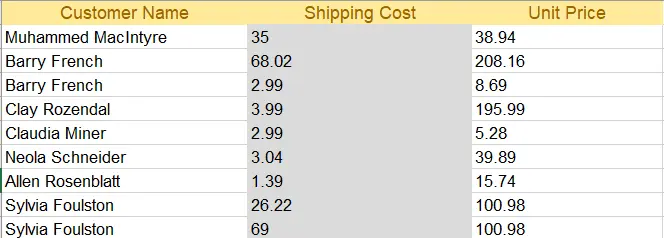
Excel 文件
打開 index.cshtml(索引視圖),並將程式碼替換為以下 HTML 程式碼:
@{
    ViewData["Title"] = "Home Page";
}

@using System.Data
@model DataTable

<div class="text-center">
    <h1 class="display-4">Welcome to IronXL Read Excel MVC</h1>
</div>

@* Check for errors first *@
@if (ViewBag.Error != null)
{
    <div class="alert alert-danger">
        @ViewBag.Error
    </div>
}

@* Display table only if data exists *@
@if (Model != null && Model.Rows.Count > 0)
{
    <table class="table table-dark">
        <tbody>
            @foreach (DataRow row in Model.Rows)
            {
                <tr>
                    @for (int i = 0; i < Model.Columns.Count; i++)
                    {
                        <td>@row[i]</td>
                    }
                </tr>
            }
        </tbody>
    </table>
}
else
{
    <p>No data to display.</p>
}為什麼使用 Bootstrap 進行表格樣式設計?
以上程式碼使用 DataTable 與 Index 方法作為模型。 每一行從表格中使用 @for 迴圈列印到網頁上,包括使用 Bootstrap 格式進行裝飾。
Bootstrap 提供響應式表格設計,自動調整不同螢幕尺寸——這對於現代 Web 應用程式至關重要。 table-dark 類建立了一個易於閱讀的深色主題表。 如需更高級的 Excel 格式化,如 單元格邊框和對齊 或 背景圖案和顏色,IronXL 提供額外方法以便直接存取結構化資料。
最終輸出是什麼樣的?
運行該專案會產生如下結果:
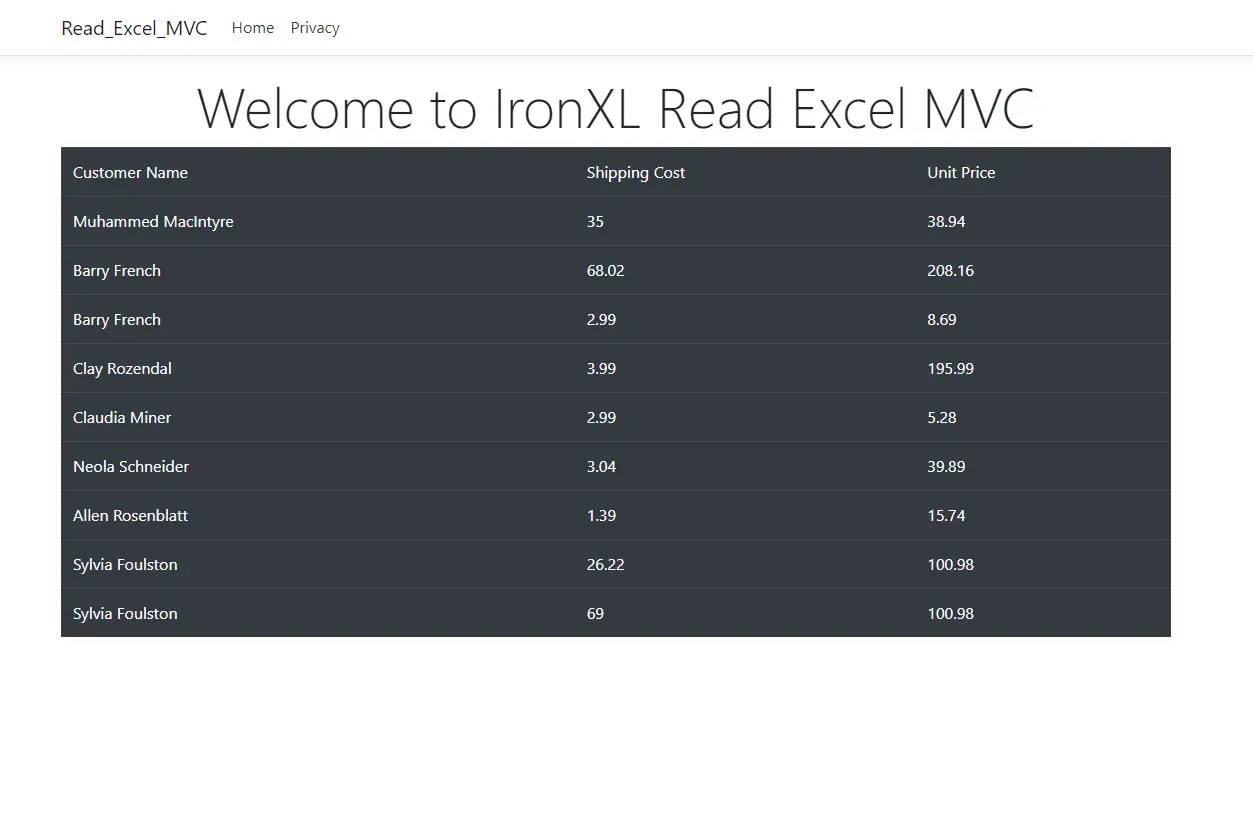
Bootstrap 表格
我如何向表格新增標題?
要從您的 Excel 文件顯示列標題,請修改視圖程式碼以包含表格標題部分。 當調用 ToDataTable(true) 時,IronXL 自動使用第一行作為列名稱:
@if (Model != null && Model.Rows.Count > 0)
{
    <table class="table table-dark">
        <thead>
            <tr>
                @foreach (DataColumn column in Model.Columns)
                {
                    <th>@column.ColumnName</th>
                }
            </tr>
        </thead>
        <tbody>
            @foreach (DataRow row in Model.Rows)
            {
                <tr>
                    @for (int i = 0; i < Model.Columns.Count; i++)
                    {
                        <td>@row[i]</td>
                    }
                </tr>
            }
        </tbody>
    </table>
}net此增強功能顯示來自您的 Excel 文件的正確列標頭,如"客戶姓名"、"運輸成本"和"單價"。對於涉及命名範圍或命名表的更複雜場景,IronXL 提供額外的方法來直接存取結構化資料。
常見問題
如何在ASP.NET MVC中不使用Microsoft Office讀取Excel檔案?
IronXL允許您在C#中直接讀取Excel檔案,不需依賴Microsoft Office。只需通過NuGet安裝IronXL,然後使用WorkBook.Load()打開您的Excel檔案,並僅用一行程式碼就能將它轉換為DataTable:var dataTable = IronXL.WorkBook.Load('CustomerData.xlsx').DefaultWorkSheet.ToDataTable(true);
在ASP.NET中將Excel資料轉換為DataTable的最快方法是什麼?
IronXL提供ToDataTable()方法,能將Excel工作表立即轉換為System.Data.DataTable物件。在使用IronXL載入您的工作簿後,存取任何工作表並呼叫ToDataTable(true)來包含標題。這個轉換僅需一行程式碼,並能無縫地與ASP.NET MVC視圖一起使用。
在網路應用程式中進行Excel檔案處理應使用哪個.NET版本?
IronXL支持.NET Framework 4.6.2+和.NET Core 3.1+。對於新的ASP.NET MVC專案,建議使用.NET 6.0或更高版本,因為它提供了在使用IronXL處理大型Excel檔案時改進的記憶體管理以及更好的async/await支持。
哪個Visual Studio專案模板最適合Excel讀取功能?
建立專案時選擇‘ASP.NET Core Web App (Model-View-Controller)’模板。這種MVC結構完美補充了IronXL的DataTable轉換功能,允許您在控制器中載入和處理Excel檔案,並在視圖中整潔地顯示資料。
如何在我的ASP.NET專案中安裝Excel讀取程式庫?
通過使用NuGet套件管理器控制台運行‘Install-Package IronXL.Excel’來安裝IronXL。安裝後,通過檢查專案依賴項並將‘using IronXL;’新增到您的控制器中來驗證其是否正確新增 - IntelliSense應立即識別該命名空間。
Why choose DataTable format when using IronXL?
The `DataTable` format is ideal for ASP.NET MVC applications because it integrates with Razor views, allows for straightforward iteration over data rows and columns without model mapping, and accommodates mixed data types efficiently.
What steps are required to install IronXL in an ASP.NET MVC project?
Installation involves adding IronXL via the NuGet Package Manager in Visual Studio. It requires opening the NuGet Package Manager Console and executing a specific command to add IronXL to the project's dependencies.
How do you handle errors when reading Excel files with IronXL?
IronXL supports reliable error handling such as checking file existence before loading, catching exceptions during the workbook loading process, and managing missing worksheet scenarios. This ensures application stability even if Excel files are corrupted or absent.
Can IronXL select specific worksheets from an Excel file?
Yes, IronXL allows developers to select worksheets by name, index, or default setting, and it also provides functionality to iterate through all available worksheets in a workbook.
What are some styling options for displaying Excel data using IronXL in web apps?
IronXL, when used with ASP.NET MVC, enables styling options like Bootstrap for responsive table layouts and additional IronXL methods for setting cell borders, alignment, patterns, and colors within spreadsheets.

Curtis Chau擁有Carleton大學的電腦科學學士學位,專精於前端開發,擁有Node.js、TypeScript、JavaScript和React的專業知識。Curtis熱衷於建立直觀且美觀的使用者介面,喜愛使用現代框架並建立結構良好、視覺吸引力的手冊。













