
在ASP.NET MVC中使用C #和IronXL读取Excel文件

IronXL使ASP.NET MVC开发者能够直接在C#中读取Excel文件,无需依赖Microsoft Office,通过几行代码将Excel数据转换为System.Data.DataTable,以便在网页视图中轻松显示。
此示例展示如何在几秒钟内开始:加载一个Excel工作簿,选择其第一个工作表,并使用IronXL将其转换为System.Data.DataTable - 无需Interop,省去麻烦。
-
1使用 IronXL 安装 NuGet Package Manager
-
2复制并运行这段代码。
var dataTable = IronXL.WorkBook.Load("CustomerData.xlsx").DefaultWorkSheet.ToDataTable(true);Dim dataTable = WorkBook.Load("CustomerData.xlsx").DefaultWorkSheet.ToDataTable(True)Dim dataTable = WorkBook.Load("CustomerData.xlsx").DefaultWorkSheet.ToDataTable(True) -
3部署到您的生产环境中进行测试
今天就用免费试用在您的项目中开始使用IronXL
最小工作流程(5 个步骤)
- 安装C#库以在ASP.NET中读取Excel文件
- 加载并访问 Excel 文件中的目标工作表
- 访问
ToDataTable方法并将其返回给View - 使用循环在网页上显示 Excel 数据
- 遍历所有数据并构建 HTML 表格
如何创建用于读取Excel的ASP.NET项目?
为什么Visual Studio 2022最适合这个?
使用 Visual Studio 2022 创建一个新的 ASP.NET 项目。 Visual Studio 2022为.NET 6+框架提供出色支持,改进了IronXL方法的IntelliSense,并在处理大型Excel文件时性能更好。 IDE的NuGet集成使得安装IronXL尤其简单。
我应该选择哪个项目模板?
要在 ASP.NET 中阅读 Excel 文件,请选择 "ASP.NET Core Web App (模型-视图-控制器) "模板。 该模板采用简洁的 MVC 结构,将数据处理(Excel 读取)与演示逻辑分开。 MVC模式完美适配IronXL的DataTable转换,使您可以在控制器中加载电子表格并在视图中显示。
推荐使用哪个.NET版本?
IronXL适用于.NET Framework 4.6.2+和.NET Core 3.1+。 对于新的 ASP.NET MVC 项目,请使用 .NET 6.0 或更高版本,以获得最佳性能和安全性。 这些版本在处理大型 Excel 文件时改进了内存管理,在转换电子表格文件类型时提供了更好的Async/Await支持。
如何安装IronXL库?
安装要求是什么?
哪种安装方法最快?
创建新项目后,安装IronXL库。 按照以下步骤安装IronXL。 打开 NuGet 包管理器控制台并运行以下命令:
我如何验证安装?
要验证IronXL是否正确安装,请检查解决方案资源管理器中的项目依赖项。 您应该可以在 "依赖项 > 软件包 "中看到 "IronXL"。 此外,尝试在控制器文件顶部添加using IronXL; - IntelliSense应立即识别该命名空间。 对于安装问题的故障排除,请访问许可指南。
如何在我的控制器中读取Excel文件?
控制器动作中应包含什么代码?
打开ASP.NET项目中的默认控制器(例如,HomeController.cs)并用以下代码替换Index方法:
using IronXL;
using System.Data;

public ActionResult Index()
{
    // Load the Excel workbook from a specified path.
    WorkBook workBook = WorkBook.Load(@"C:\Files\Customer Data.xlsx");

    // Access the first worksheet from the workbook.
    WorkSheet workSheet = workBook.WorkSheets.First();

    // Convert the worksheet data to a DataTable object.
    // The 'true' parameter uses the first row as column headers
    var dataTable = workSheet.ToDataTable(true);

    // Send the DataTable to the view for rendering.
    return View(dataTable);
}
using IronXL;
using System.Data;
public ActionResult Index()
{
// Load the Excel workbook from a specified path.
WorkBook workBook = WorkBook.Load(@"C:\Files\Customer Data.xlsx");
// Access the first worksheet from the workbook.
WorkSheet workSheet = workBook.WorkSheets.First();
// Convert the worksheet data to a DataTable object.
// The 'true' parameter uses the first row as column headers
var dataTable = workSheet.ToDataTable(true);
// Send the DataTable to the view for rendering.
return View(dataTable);
}Imports IronXL
Imports System.Data
Public Function Index() As ActionResult
' Load the Excel workbook from a specified path.
Dim workBook As WorkBook = WorkBook.Load("C:\Files\Customer Data.xlsx")
' Access the first worksheet from the workbook.
Dim workSheet As WorkSheet = workBook.WorkSheets.First()
' Convert the worksheet data to a DataTable object.
' The 'true' parameter uses the first row as column headers
Dim dataTable = workSheet.ToDataTable(True)
' Send the DataTable to the view for rendering.
Return View(dataTable)
End FunctionImports IronXL
Imports System.Data
Public Function Index() As ActionResult
' Load the Excel workbook from a specified path.
Dim workBook As WorkBook = WorkBook.Load("C:\Files\Customer Data.xlsx")
' Access the first worksheet from the workbook.
Dim workSheet As WorkSheet = workBook.WorkSheets.First()
' Convert the worksheet data to a DataTable object.
' The 'true' parameter uses the first row as column headers
Dim dataTable = workSheet.ToDataTable(True)
' Send the DataTable to the view for rendering.
Return View(dataTable)
End Function为何使用DataTable而不是其他格式?
在Index操作方法中,使用IronXL的Load方法加载Excel文件。 Excel 文件的路径(包括文件名)作为参数传递给方法调用。 接下来,选择第一个Excel工作表作为工作表,并将其中包含的数据加载到DataTable对象中。 最后,将DataTable发送到前端。
DataTable对ASP.NET MVC来说是理想的,因为它与Razor视图集成并提供内置支持以迭代行和列。 与自定义对象不同,DataTable不需要模型映射,并且可以自动处理混合数据类型。 您还可以根据需要将DataSet和DataTable导出回Excel。
缺少文件的错误处理如何进行?
可靠的错误处理确保您的应用程序在找不到或文件损坏时不崩溃。 以下是适当处理异常的增强版本:
public ActionResult Index()
{
    try
    {
        string filePath = @"C:\Files\Customer Data.xlsx";

        // Check if file exists before attempting to load
        if (!System.IO.File.Exists(filePath))
        {
            ViewBag.Error = "Excel file not found at specified location.";
            return View(new DataTable());
        }

        // Load workbook with error handling
        WorkBook workBook = WorkBook.Load(filePath);

        // Verify worksheet exists
        if (workBook.WorkSheets.Count == 0)
        {
            ViewBag.Error = "No worksheets found in the Excel file.";
            return View(new DataTable());
        }

        WorkSheet workSheet = workBook.WorkSheets.First();
        var dataTable = workSheet.ToDataTable(true);

        return View(dataTable);
    }
    catch (Exception ex)
    {
        // Log the exception (consider using a logging framework)
        ViewBag.Error = $"Error reading Excel file: {ex.Message}";
        return View(new DataTable());
    }
}
public ActionResult Index()
{
try
{
string filePath = @"C:\Files\Customer Data.xlsx";
// Check if file exists before attempting to load
if (!System.IO.File.Exists(filePath))
{
ViewBag.Error = "Excel file not found at specified location.";
return View(new DataTable());
}
// Load workbook with error handling
WorkBook workBook = WorkBook.Load(filePath);
// Verify worksheet exists
if (workBook.WorkSheets.Count == 0)
{
ViewBag.Error = "No worksheets found in the Excel file.";
return View(new DataTable());
}
WorkSheet workSheet = workBook.WorkSheets.First();
var dataTable = workSheet.ToDataTable(true);
return View(dataTable);
}
catch (Exception ex)
{
// Log the exception (consider using a logging framework)
ViewBag.Error = $"Error reading Excel file: {ex.Message}";
return View(new DataTable());
}
}Public Function Index() As ActionResult
Try
Dim filePath As String = "C:\Files\Customer Data.xlsx"
' Check if file exists before attempting to load
If Not System.IO.File.Exists(filePath) Then
ViewBag.Error = "Excel file not found at specified location."
Return View(New DataTable())
End If
' Load workbook with error handling
Dim workBook As WorkBook = WorkBook.Load(filePath)
' Verify worksheet exists
If workBook.WorkSheets.Count = 0 Then
ViewBag.Error = "No worksheets found in the Excel file."
Return View(New DataTable())
End If
Dim workSheet As WorkSheet = workBook.WorkSheets.First()
Dim dataTable = workSheet.ToDataTable(True)
Return View(dataTable)
Catch ex As Exception
' Log the exception (consider using a logging framework)
ViewBag.Error = $"Error reading Excel file: {ex.Message}"
Return View(New DataTable())
End Try
End FunctionPublic Function Index() As ActionResult
Try
Dim filePath As String = "C:\Files\Customer Data.xlsx"
' Check if file exists before attempting to load
If Not System.IO.File.Exists(filePath) Then
ViewBag.Error = "Excel file not found at specified location."
Return View(New DataTable())
End If
' Load workbook with error handling
Dim workBook As WorkBook = WorkBook.Load(filePath)
' Verify worksheet exists
If workBook.WorkSheets.Count = 0 Then
ViewBag.Error = "No worksheets found in the Excel file."
Return View(New DataTable())
End If
Dim workSheet As WorkSheet = workBook.WorkSheets.First()
Dim dataTable = workSheet.ToDataTable(True)
Return View(dataTable)
Catch ex As Exception
' Log the exception (consider using a logging framework)
ViewBag.Error = $"Error reading Excel file: {ex.Message}"
Return View(New DataTable())
End Try
End Function我如何选择不同的工作表?
IronXL提供多种方式选择和使用特定工作表。 您可以通过索引、名称或遍历所有可用工作表来访问工作表:
// Method 1: Select by worksheet name
WorkSheet namedSheet = workBook.GetWorkSheet("Sales Data");

// Method 2: Select by index (zero-based)
WorkSheet secondSheet = workBook.WorkSheets[1];

// Method 3: Select the default/active worksheet
WorkSheet defaultSheet = workBook.DefaultWorkSheet;

// Method 4: Iterate through all worksheets
foreach (WorkSheet sheet in workBook.WorkSheets)
{
    string sheetName = sheet.Name;
    // Process each worksheet
}
// Method 1: Select by worksheet name
WorkSheet namedSheet = workBook.GetWorkSheet("Sales Data");
// Method 2: Select by index (zero-based)
WorkSheet secondSheet = workBook.WorkSheets[1];
// Method 3: Select the default/active worksheet
WorkSheet defaultSheet = workBook.DefaultWorkSheet;
// Method 4: Iterate through all worksheets
foreach (WorkSheet sheet in workBook.WorkSheets)
{
string sheetName = sheet.Name;
// Process each worksheet
}' Method 1: Select by worksheet name
Dim namedSheet As WorkSheet = workBook.GetWorkSheet("Sales Data")
' Method 2: Select by index (zero-based)
Dim secondSheet As WorkSheet = workBook.WorkSheets(1)
' Method 3: Select the default/active worksheet
Dim defaultSheet As WorkSheet = workBook.DefaultWorkSheet
' Method 4: Iterate through all worksheets
For Each sheet As WorkSheet In workBook.WorkSheets
Dim sheetName As String = sheet.Name
' Process each worksheet
Next' Method 1: Select by worksheet name
Dim namedSheet As WorkSheet = workBook.GetWorkSheet("Sales Data")
' Method 2: Select by index (zero-based)
Dim secondSheet As WorkSheet = workBook.WorkSheets(1)
' Method 3: Select the default/active worksheet
Dim defaultSheet As WorkSheet = workBook.DefaultWorkSheet
' Method 4: Iterate through all worksheets
For Each sheet As WorkSheet In workBook.WorkSheets
Dim sheetName As String = sheet.Name
' Process each worksheet
Next如何在网页上显示Excel数据?
需要什么视图代码?
下一个示例显示了如何在Web浏览器中显示上一示例返回的DataTable。
本例中使用的 Excel 工作文件如下所示:
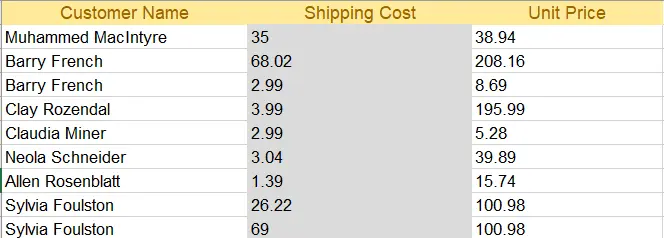
Excel 文件
打开index.cshtml(索引视图)并用以下HTML代码替换代码:
@{
    ViewData["Title"] = "Home Page";
}

@using System.Data
@model DataTable

<div class="text-center">
    <h1 class="display-4">Welcome to IronXL Read Excel MVC</h1>
</div>

@* Check for errors first *@
@if (ViewBag.Error != null)
{
    <div class="alert alert-danger">
        @ViewBag.Error
    </div>
}

@* Display table only if data exists *@
@if (Model != null && Model.Rows.Count > 0)
{
    <table class="table table-dark">
        <tbody>
            @foreach (DataRow row in Model.Rows)
            {
                <tr>
                    @for (int i = 0; i < Model.Columns.Count; i++)
                    {
                        <td>@row[i]</td>
                    }
                </tr>
            }
        </tbody>
    </table>
}
else
{
    <p>No data to display.</p>
}为什么使用Bootstrap进行表格样式设计?
上述代码使用从Index方法返回的DataTable作为模型。 表格中的每一行都使用@for循环在网页上打印,包括用于装饰的Bootstrap格式。
Bootstrap 提供了可根据不同屏幕尺寸自动调整的响应式表格设计--这对现代网络应用至关重要。 table-dark类创建了一个易于阅读的吸引人的深色主题表格。 对于更高级的Excel格式化,如单元格边框和对齐或背景图案和颜色,IronXL提供了更多方法直接访问结构化数据。
最终输出是什么样子的?
该项目的运行结果如下所示:
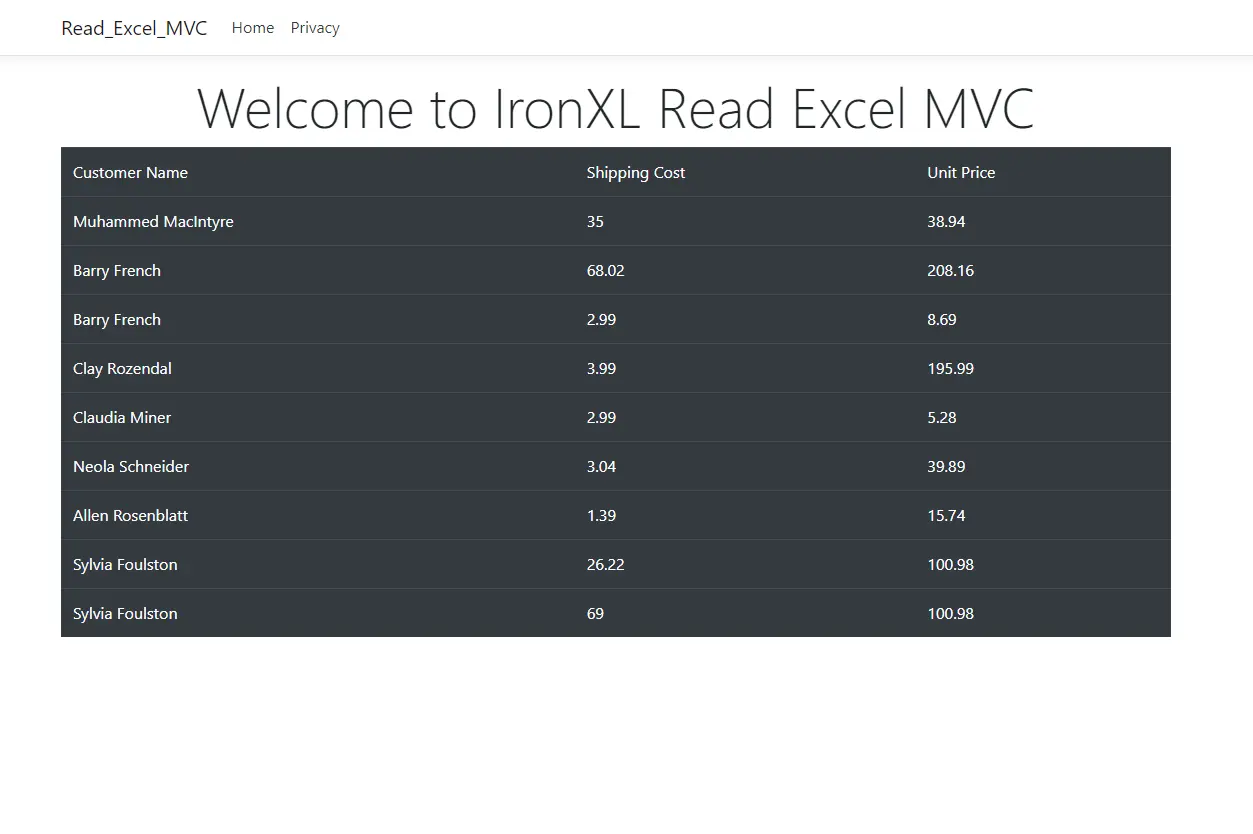
Bootstrap 表格
我如何添加表头?
要显示 Excel 文件中的列头,请修改视图代码以包含表头部分。 调用ToDataTable(true)时,IronXL自动使用第一行为列名:
@if (Model != null && Model.Rows.Count > 0)
{
    <table class="table table-dark">
        <thead>
            <tr>
                @foreach (DataColumn column in Model.Columns)
                {
                    <th>@column.ColumnName</th>
                }
            </tr>
        </thead>
        <tbody>
            @foreach (DataRow row in Model.Rows)
            {
                <tr>
                    @for (int i = 0; i < Model.Columns.Count; i++)
                    {
                        <td>@row[i]</td>
                    }
                </tr>
            }
        </tbody>
    </table>
}
@if (Model != null && Model.Rows.Count > 0)
{
<table class="table table-dark">
<thead>
<tr>
@foreach (DataColumn column in Model.Columns)
{
<th>@column.ColumnName</th>
}
</tr>
</thead>
<tbody>
@foreach (DataRow row in Model.Rows)
{
<tr>
@for (int i = 0; i < Model.Columns.Count; i++)
{
<td>@row[i]</td>
}
</tr>
}
</tbody>
</table>
}netnet此增强功能显示了来自您的Excel文件的正确列标题,如”客户名称“、”运费“和”单价“。对于涉及命名范围或命名表格的更复杂场景,IronXL提供了更多方法直接访问结构化数据。
常见问题
IronXL是什么?
IronXL 是一个 C# 库,允许 ASP.NET MVC 开发者读取、编辑和操作 Excel 文件,而不需要微软 Office 的依赖。它提供了将 Excel 表格转换为 System.Data.DataTable 的功能,以便于在网络应用中集成。
IronXL 如何在 ASP.NET MVC 中实现读取 Excel 文件?
IronXL 允许开发者载入 Excel 工作簿并将工作表转换为 System.Data.DataTable 对象,仅需几行代码即可轻松在 ASP.NET MVC 应用中显示 Excel 数据。
在 ASP.NET MVC 中使用 IronXL 有哪些优势?
IronXL 通过消除对微软 Office Interop 的需求来简化 Excel 文件操作,提供了一种简单的方法将电子表格数据集成到网络视图中,并通过改进的内存管理来提升应用程序性能。
IronXL兼容哪些.NET版本?
IronXL 兼容 .NET Framework 4.6.2 及更高版本,以及 .NET Core 3.1 和更新版本,包括 .NET 6.0 版本。这些版本确保了处理 Excel 文件的最佳性能和现代功能。
如何使用 IronXL 在网页中显示 Excel 数据?
转换为 DataTable 后的 Excel 数据可以通过 ASP.NET MVC 中的 Razor 视图显示在网页上。这通过 Razor 语法和 HTML 来遍历表格行和列,并将它们渲染在 Bootstrap 风格的表格中。
使用 IronXL 时,为什么选择 DataTable 格式?
DataTable 格式非常适合 ASP.NET MVC 应用,因为它可以与 Razor 视图集成,允许直接遍历数据行和列而无需模型映射,并且能有效处理混合数据类型。
在 ASP.NET MVC 项目中安装 IronXL 需要哪些步骤?
安装过程包括通过 Visual Studio 的 NuGet 包管理器添加 IronXL。需要打开 NuGet 包管理器控制台并执行特定命令以将 IronXL 添加到项目的依赖项中。
使用 IronXL 读取 Excel 文件时如何处理错误?
IronXL 支持可靠的错误处理,如在加载之前检查文件是否存在,在加载工作簿过程中捕获异常,以及管理缺少工作表的情况。这确保了即使 Excel 文件损坏或缺失,应用程序的稳定性。
IronXL 可以选择 Excel 文件中的特定工作表吗?
可以,IronXL 允许开发者通过名称、索引或默认设置选择工作表,还提供了遍历工作簿中所有可用工作表的功能。
在 web 应用中使用 IronXL 显示 Excel 数据有哪些样式选项?
在 ASP.NET MVC 中使用 IronXL 时,可以启用像 Bootstrap 这样的响应式表格布局样式选项,以及使用 IronXL 的附加方法为电子表格设置单元格边框、对齐、图案和颜色。

Curtis Chau 拥有卡尔顿大学的计算机科学学士学位,专注于前端开发,精通 Node.js、TypeScript、JavaScript 和 React。他热衷于打造直观且美观的用户界面,喜欢使用现代框架并创建结构良好、视觉吸引力强的手册。

