
How to Read Excel Files in C# Without Interop: Complete Developer Guide

Po raz pierwszy, gdy musiałem odczytać plik Excel z usługi .NET, sięgnąłem po Microsoft Interop i niemal natychmiast tego żałowałem. Potrzebował zainstalowanego Office na serwerze, wyciekał procesy, kiedy wyjątek był rzucony w trakcie metody, i przewracał się pod jakimkolwiek obciążeniem. Stworzyliśmy IronXL, ponieważ wciąż napotykaliśmy te same przeszkody. Ten przewodnik pokazuje, jak rzeczywiście czytam XLS i XLSX w produkcji dzisiaj, w tym pułapki, które najczęściej gryzą ludzi.
Większość poniższego dotyczy bezpośredniego odczytywania formatu plików, bez żadnego zaangażowania aplikacji Excel: załaduj skoroszyt, wyciągnij wartości przez adres komórki, zweryfikuj zakresy, przekaż dane do bazy danych lub API. Biblioteka obsługuje XLS i XLSX, nie wymagając Microsoft Office na maszynie.
Szybki start: Odczyt komorki za pomoca IronXL w jednej liniiPojedyncza linia ładuje skoroszyt Excel i wyciąga wartość z komórki. Bez Interop, bez konfiguracji, żadnego procesu Excel uruchomionego w tle.
-
1Install IronXL with NuGet Package Manager
-
2Skopiuj i uruchom ten fragment kodu.
var value = IronXL.WorkBook.Load("file.xlsx").GetWorkSheet(0)["A1"].StringValue;C# -
3Wdrożenie do testowania w środowisku produkcyjnym
Rozpocznij używanie IronXL w swoim projekcie już dziś z darmową wersją próbną
Jak skonfigurować IronXL do odczytu plików Excel w C#?
Sam setup to instalacja NuGet i dyrektywa using IronXL;. Biblioteka obsluguje zarowno .XLS jak i .XLSX, wiec ta sama sciezka kodu dziala dla starszych arkuszy kalkulacyjnych oraz nowoczesnego formatu Open XML.
Aby rozpocząć, wykonaj następujące kroki:
- Pobierz bibliotekę C# do odczytu plików Excel
- Zaladuj i odczytaj skoroszyty Excel za pomoca
WorkBook.Load() - Uzyskaj dostep do arkuszy za pomoca metody
GetWorkSheet() - Odczytaj wartosci komorek, korzystajac z adresow w stylu Excel jak
sheet["A1"].Value - Programowe sprawdzanie poprawności i przetwarzanie danych z arkuszy kalkulacyjnych
- Eksportuj dane do baz danych za pomocą Entity Framework
IronXL odczytuje i edytuje dokumenty Microsoft Excel z C# bez polegania na produkcie Office. Nie wymaga zainstalowanego Microsoft Excel i nie potrzebuje Interop. Zobacz porównanie z Microsoft.Office.Interop.Excel dla różnic w podejściu i powierzchni API.
Jeśli przychodzisz z Interop, model mentalny jest inny i warto go zrozumieć przed napisaniem jakiegokolwiek kodu. Interop uruchamia rzeczywisty proces Excel.exe w tle, a Twoj kod automatyzuje te aplikacje za pomoca interfejsu COM. IronXL odczytuje bajty pliku bezpośrednio do pamięci i prezentuje je jako obiekty. Żadnego procesu Excel, żadnego cyklu wiadomości, żadnego marshalingu COM. Najczestsza konsekwencja, ktora widze, ze sprawia klopoty: Interop indeksuje komorki od [1, 1] (indeksacja od 1, tak jak w interfejsie Excel), ale dostep do wierszy/kolumn w IronXL jest indeksowany od 0. Indexer lancuchowy ["A1"] pasuje do interfejsu arkusza kalkulacyjnego w obu bibliotekach, wiec gdy mozesz pozostac w formie lancuchowej, migracja jest niemal identyczna. Wszystkie błędy typu "off-by-one" spędzające całe popołudnie pochodzą z indeksacji liczbą.
IronXL zawiera:
- Dedykowane wsparcie produktowe zapewniane przez naszych inżynierów .NET
- Łatwa instalacja za pośrednictwem Microsoft Visual Studio
- Bezpłatna wersja próbna do celów programistycznych. Licencje od
liteLicense
Projekty C# i VB.NET mogą używać IronXL w ten sam sposób do odczytu lub tworzenia plików Excel.
Odczytywanie plików Excel w formatach .XLS i .XLSX za pomocą IronXL
Oto podstawowy przebieg pracy przy odczytywaniu plików Excel za pomocą IronXL:
- Zainstaluj bibliotekę IronXL Excel za pomocą pakietu NuGet lub pobierz bibliotekę DLL .NET Excel
- Uzyj metody
WorkBook.Load(), aby odczytac dowolny dokument XLS, XLSX lub CSV - Uzyskaj dostep do wartosci komorek, korzystajac ze stylu adresowania Excel:
sheet["A11"].DecimalValue
using IronXL;
using System;
using System.Linq;

// Load Excel workbook from file path
WorkBook workBook = WorkBook.Load("test.xlsx");

// Access the first worksheet using LINQ
WorkSheet workSheet = workBook.WorkSheets.First();

// Read integer value from cell A2
int cellValue = workSheet["A2"].IntValue;
Console.WriteLine($"Cell A2 value: {cellValue}");

// Iterate through a range of cells
foreach (var cell in workSheet["A2:A10"])
{
    Console.WriteLine("Cell {0} has value '{1}'", cell.AddressString, cell.Text);
}

// Advanced Operations with LINQ
// Calculate sum using built_in Sum() method
decimal sum = workSheet["A2:A10"].Sum();

// Find maximum value using LINQ
decimal max = workSheet["A2:A10"].Max(c => c.DecimalValue);

// Output calculated results
Console.WriteLine($"Sum of A2:A10: {sum}");
Console.WriteLine($"Maximum value: {max}");Imports IronXL
Imports System
Imports System.Linq
' Load Excel workbook from file path
Dim workBook As WorkBook = WorkBook.Load("test.xlsx")
' Access the first worksheet using LINQ
Dim workSheet As WorkSheet = workBook.WorkSheets.First()
' Read integer value from cell A2
Dim cellValue As Integer = workSheet("A2").IntValue
Console.WriteLine($"Cell A2 value: {cellValue}")
' Iterate through a range of cells
For Each cell In workSheet("A2:A10")
Console.WriteLine("Cell {0} has value '{1}'", cell.AddressString, cell.Text)
Next
' Advanced Operations with LINQ
' Calculate sum using built_in Sum() method
Dim sum As Decimal = workSheet("A2:A10").Sum()
' Find maximum value using LINQ
Dim max As Decimal = workSheet("A2:A10").Max(Function(c) c.DecimalValue)
' Output calculated results
Console.WriteLine($"Sum of A2:A10: {sum}")
Console.WriteLine($"Maximum value: {max}")Fragment przechodzi przez cztery operacje, które będziesz używał stale: ładowanie skoroszytu, odczyt komórki przez adres, iterację przez zakres i uruchamianie obliczeń na zakresie. WorkBook.Load() wykrywa format pliku na podstawie rozszerzenia, a skladnia zakresu ["A2:A10"] pasuje do wyboru komorki, ktory wpisalbys bezposrednio w Excel. Zakresy sa IEnumerable<Cell>, wiec LINQ dziala bezposrednio na nich dla sum, filtrow i projekcji.
Jak szybkie to jest w praktyce?
Aby dać ci poczucie realistycznej wydajności, napisałem mały projekt konsolowy, który ładuje takie same pliki, jakie były używane przez cały ten samouczek, i mierzy czas operacji. Narzędzie mieszka w przykładowym projekcie ReadExcelBenchmark można uruchomić samodzielnie. Na komputerze z systemem Windows 11 uruchamiającym .NET 9.0.7, liczby po wielu uruchomieniach oscylują mniej więcej tutaj:
| Działanie | Pierwsze zimne ładowanie (świeży proces) | Średnia na ciepło po 10 iteracjach |
|---|---|---|
Zaladuj GDP.xlsx (213 wierszy) i zsumuj kolumne B | około 270 ms | około 40 ms (zakres 25–70 ms) |
Zaladuj People.xlsx (100 wierszy) i zweryfikuj regexem kazda komorke | około 30 ms | około 28 ms |
Pierwsza zimna liczba zdominowana przez ładowanie zestawu IronXL i rozgrzewkę JIT; druga zimna liczba jest dużo niższa, ponieważ zestaw już znajduje się w pamięci. Ciepłe uruchomienia osiadają w ciasnej grupie, gdy JIT skompiluje gorące ścieżki.
Jesli zauwazasz wielosekundowe ladowanie plikow o takim rozmiarze, winowajca jest prawie zawsze wywolanie WorkBook.Load() wewnatrz petli zamiast raz na zewnatrz. Załaduj skoroszyt raz, a następnie iteruj po komórkach lub wierszach, które faktycznie potrzebujesz. Ten dokładny wzór widzę w około połowie biletów wsparcia "IronXL jest wolny", które otrzymujemy.
Przykłady kodu w tym samouczku wykorzystują trzy przykładowe arkusze kalkulacyjne Excel, które przedstawiają różne scenariusze danych:
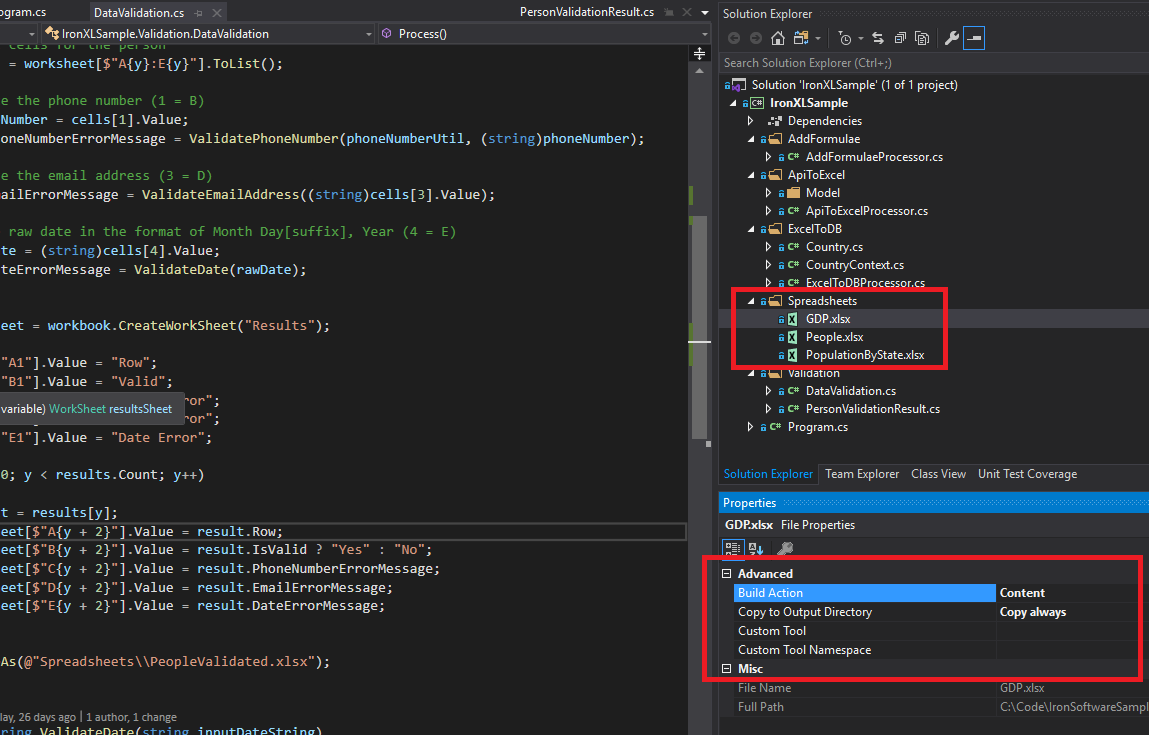 Przykładowe pliki Excel (GDP.xlsx, People.xlsx i PopulationByState.xlsx) wykorzystywane w tym samouczku do demonstracji różnych operacji IronXL.
Jak zainstalować bibliotekę IronXL C#?
Dodaj biblioteke IronXL.Excel do projektu .NET przez NuGet lub przez bezposrednie odniesienie do pliku DLL.
Instalacja pakietu IronXL NuGet
- W programie Visual Studio kliknij prawym przyciskiem myszy swój projekt i wybierz opcję "Zarządzaj pakietami NuGet...".
- Wyszukaj
IronXL.Excelna karcie Przegladaj - Kliknij przycisk "Zainstaluj", aby dodać IronXL do swojego projektu
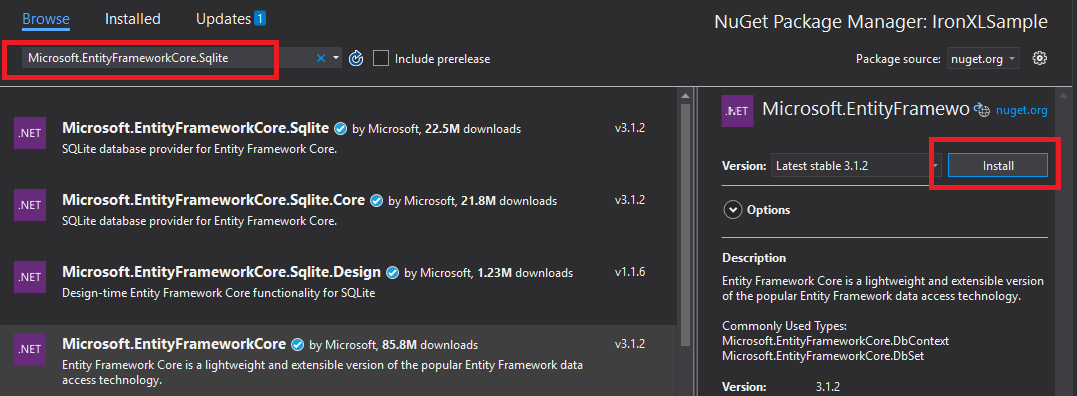 Instalacja IronXL za pośrednictwem menedżera pakietów NuGet w Visual Studio zapewnia automatyczne zarządzanie zależnościami.
Alternatywnie, zainstaluj IronXL za pomocą konsoli menedżera pakietów:
- Otwórz konsolę menedżera pakietów (Narzędzia → Menedżer pakietów NuGet → Konsola menedżera pakietów)
- Uruchom polecenie instalacyjne:
Szczegóły pakietu można również sprawdzić na stronie NuGet.
Instalacja ręczna
Aby zainstalować ręcznie, pobierz bibliotekę IronXL.Excel DLL i dodaj do niej odwołanie bezpośrednio w swoim projekcie Visual Studio.
Jak załadować i odczytać skoroszyt programu Excel?
Klasa WorkBook reprezentuje caly plik Excel. Zaladuj pliki Excel za pomoca metody WorkBook.Load(), ktora akceptuje sciezki do plikow w formatach XLS, XLSX, CSV i TSV.
using IronXL;
using System;
using System.Linq;

// Load Excel file from specified path
WorkBook workBook = WorkBook.Load(@"Spreadsheets\GDP.xlsx");

Console.WriteLine("Workbook loaded successfully.");

// Access specific worksheet by name
WorkSheet sheet = workBook.GetWorkSheet("Sheet1");

// Read and display cell value
string cellValue = sheet["A1"].StringValue;
Console.WriteLine($"Cell A1 contains: {cellValue}");

// Perform additional operations
// Count non_empty cells in column A
int rowCount = sheet["A:A"].Count(cell => !cell.IsEmpty);
Console.WriteLine($"Column A has {rowCount} non_empty cells");Imports IronXL
Imports System
Imports System.Linq
' Load Excel file from specified path
Dim workBook As WorkBook = WorkBook.Load("Spreadsheets\GDP.xlsx")
Console.WriteLine("Workbook loaded successfully.")
' Access specific worksheet by name
Dim sheet As WorkSheet = workBook.GetWorkSheet("Sheet1")
' Read and display cell value
Dim cellValue As String = sheet("A1").StringValue
Console.WriteLine($"Cell A1 contains: {cellValue}")
' Perform additional operations
' Count non_empty cells in column A
Dim rowCount As Integer = sheet("A:A").Count(Function(cell) Not cell.IsEmpty)
Console.WriteLine($"Column A has {rowCount} non_empty cells")Kazdy WorkBook zawiera wiele obiektow WorkSheet reprezentujacych pojedyncze arkusze Excel. Uzyskaj dostep do arkuszy po nazwie, korzystajac z GetWorkSheet():
using IronXL;
using System;

// Get worksheet by name
WorkSheet workSheet = workBook.GetWorkSheet("GDPByCountry");

Console.WriteLine("Worksheet 'GDPByCountry' not found");
// List available worksheets
foreach (var sheet in workBook.WorkSheets)
{
    Console.WriteLine($"Available: {sheet.Name}");
}Imports IronXL
Imports System
' Get worksheet by name
Dim workSheet As WorkSheet = workBook.GetWorkSheet("GDPByCountry")
Console.WriteLine("Worksheet 'GDPByCountry' not found")
' List available worksheets
For Each sheet In workBook.WorkSheets
Console.WriteLine($"Available: {sheet.Name}")
NextJak tworzyć nowe dokumenty Excel w C#?
Tworz nowe dokumenty Excel, konstruujac obiekt WorkBook z pozadanym formatem pliku. IronXL obsługuje zarówno nowoczesny format XLSX, jak i starszy format XLS.
using IronXL;

// Create new XLSX workbook (recommended format)
WorkBook workBook = WorkBook.Create(ExcelFileFormat.XLSX);

// Set workbook metadata
workBook.Metadata.Author = "Your Application";
workBook.Metadata.Comments = "Generated by IronXL";

// Create new XLS workbook for legacy support
WorkBook legacyWorkBook = WorkBook.Create(ExcelFileFormat.XLS);

// Save the workbook
workBook.SaveAs("NewDocument.xlsx");Imports IronXL
' Create new XLSX workbook (recommended format)
Private workBook As WorkBook = WorkBook.Create(ExcelFileFormat.XLSX)
' Set workbook metadata
workBook.Metadata.Author = "Your Application"
workBook.Metadata.Comments = "Generated by IronXL"
' Create new XLS workbook for legacy support
Dim legacyWorkBook As WorkBook = WorkBook.Create(ExcelFileFormat.XLS)
' Save the workbook
workBook.SaveAs("NewDocument.xlsx")Uwaga: Uzywaj ExcelFileFormat.XLS tylko wtedy, gdy wymagana jest zgodnosc z Excel 2003 lub wczesniejszym.
Jak dodać arkusze do dokumentu Excel?
Obiekt IronXL WorkBook zawiera kolekcje arkuszy kalkulacyjnych. Zrozumienie tej struktury pomaga podczas tworzenia wielarkuszowych plików Excel.
 Wizualna reprezentacja struktury WorkBook zawierającej wiele obiektów WorkSheet w IronXL.
Tworz nowe arkusze, korzystajac z CreateWorkSheet():
using IronXL;

// Create multiple worksheets with descriptive names
WorkSheet summarySheet = workBook.CreateWorkSheet("Summary");
WorkSheet dataSheet = workBook.CreateWorkSheet("RawData");
WorkSheet chartSheet = workBook.CreateWorkSheet("Charts");

// Set the active worksheet
workBook.SetActiveTab(0); // Makes "Summary" the active sheet

// Access default worksheet (first sheet)
WorkSheet defaultSheet = workBook.DefaultWorkSheet;Imports IronXL
' Create multiple worksheets with descriptive names
Dim summarySheet As WorkSheet = workBook.CreateWorkSheet("Summary")
Dim dataSheet As WorkSheet = workBook.CreateWorkSheet("RawData")
Dim chartSheet As WorkSheet = workBook.CreateWorkSheet("Charts")
' Set the active worksheet
workBook.SetActiveTab(0) ' Makes "Summary" the active sheet
' Access default worksheet (first sheet)
Dim defaultSheet As WorkSheet = workBook.DefaultWorkSheetJak odczytywać i edytować wartości komórek?
Odczyt i edycja pojedynczej komórki
Dostęp do poszczególnych komórek można uzyskać za pomocą właściwości indexer arkusza. Klasa Cell IronXL zapewnia silnie typowane wlasciwosci wartosci.
using IronXL;
using System;
using System.Linq;

// Load workbook and get worksheet
WorkBook workBook = WorkBook.Load("test.xlsx");
WorkSheet workSheet = workBook.DefaultWorkSheet;

// Access cell B1
IronXL.Cell cell = workSheet["B1"].First();

// Read cell value with type safety
string textValue = cell.StringValue;
int intValue = cell.IntValue;
decimal decimalValue = cell.DecimalValue;
DateTime? dateValue = cell.DateTimeValue;

// Check cell data type
if (cell.IsNumeric)
{
    Console.WriteLine($"Numeric value: {cell.DecimalValue}");
}
else if (cell.IsText)
{
    Console.WriteLine($"Text value: {cell.StringValue}");
}Imports IronXL
Imports System
Imports System.Linq
' Load workbook and get worksheet
Dim workBook As WorkBook = WorkBook.Load("test.xlsx")
Dim workSheet As WorkSheet = workBook.DefaultWorkSheet
' Access cell B1
Dim cell As IronXL.Cell = workSheet("B1").First()
' Read cell value with type safety
Dim textValue As String = cell.StringValue
Dim intValue As Integer = cell.IntValue
Dim decimalValue As Decimal = cell.DecimalValue
Dim dateValue As DateTime? = cell.DateTimeValue
' Check cell data type
If cell.IsNumeric Then
Console.WriteLine($"Numeric value: {cell.DecimalValue}")
ElseIf cell.IsText Then
Console.WriteLine($"Text value: {cell.StringValue}")
End IfKlasa Cell oferuje wiele wlasciwosci dla roznych typow danych, automatycznie konwertujac wartosci, kiedy to mozliwe. Aby uzyskać więcej informacji na temat operacji na komórkach, zapoznaj się z samouczkiem dotyczącym formatowania komórek.
// Write different data types to cells
workSheet["A1"].Value = "Product Name";     // String
workSheet["B1"].Value = 99.95m;             // Decimal
workSheet["C1"].Value = DateTime.Today;     // Date
workSheet["D1"].Formula = "=B1*1.2";        // Formula
                                            // Format cells
workSheet["B1"].FormatString = "$#,##0.00"; // Currency format
workSheet["C1"].FormatString = "yyyy-MM-dd";// Date format
                                            // Save changes
workBook.Save();' Write different data types to cells
workSheet("A1").Value = "Product Name" ' String
workSheet("B1").Value = 99.95D ' Decimal
workSheet("C1").Value = DateTime.Today ' Date
workSheet("D1").Formula = "=B1*1.2" ' Formula
' Format cells
workSheet("B1").FormatString = "$#,##0.00" ' Currency format
workSheet("C1").FormatString = "yyyy-MM-dd" ' Date format
' Save changes
workBook.Save()Jak pracować z zakresami komórek?
Klasa Range reprezentuje kolekcje komorek, umozliwiajac operacje zbiorowe na danych Excel.
using IronXL;
using Range = IronXL.Range;

// Select range using Excel notation
Range range = workSheet["D2:D101"];

// Alternative: Use Range class for dynamic selection
Range dynamicRange = workSheet.GetRange("D2:D101"); // Row 2_101, Column D

// Perform bulk operations
range.Value = 0; // Set all cells to 0Imports IronXL
' Select range using Excel notation
Dim range As Range = workSheet("D2:D101")
' Alternative: Use Range class for dynamic selection
Dim dynamicRange As Range = workSheet.GetRange("D2:D101") ' Row 2_101, Column D
' Perform bulk operations
range.Value = 0 ' Set all cells to 0Efektywne przetwarzanie zakresów za pomocą pętli, gdy znana jest liczba komórek:
// Data validation example
public class ValidationResult
{
    public int Row { get; set; }
    public string PhoneError { get; set; }
    public string EmailError { get; set; }
    public string DateError { get; set; }
    public bool IsValid => string.IsNullOrEmpty(PhoneError) &&
                           string.IsNullOrEmpty(EmailError) &&
                           string.IsNullOrEmpty(DateError);
}

// Validate data in rows 2-101
var results = new List<ValidationResult>();

for (int row = 2; row <= 101; row++)
{
    var result = new ValidationResult { Row = row };

    // Get row data efficiently
    var phoneCell = workSheet[$"B{row}"];
    var emailCell = workSheet[$"D{row}"];
    var dateCell = workSheet[$"E{row}"];

    // Validate phone number
    if (!IsValidPhoneNumber(phoneCell.StringValue))
        result.PhoneError = "Invalid phone format";

    // Validate email
    if (!IsValidEmail(emailCell.StringValue))
        result.EmailError = "Invalid email format";

    // Validate date
    if (!dateCell.IsDateTime)
        result.DateError = "Invalid date format";

    results.Add(result);
}

// Helper methods
bool IsValidPhoneNumber(string phone) =>
    System.Text.RegularExpressions.Regex.IsMatch(phone, @"^\d{3}-\d{3}-\d{4}$");

bool IsValidEmail(string email) =>
email.Contains("@") && email.Contains(".");' Data validation example
Public Class ValidationResult
Public Property Row As Integer
Public Property PhoneError As String
Public Property EmailError As String
Public Property DateError As String
Public ReadOnly Property IsValid As Boolean
Get
Return String.IsNullOrEmpty(PhoneError) AndAlso
String.IsNullOrEmpty(EmailError) AndAlso
String.IsNullOrEmpty(DateError)
End Get
End Property
End Class
' Validate data in rows 2-101
Dim results As New List(Of ValidationResult)()
For row As Integer = 2 To 101
Dim result As New ValidationResult With {.Row = row}
' Get row data efficiently
Dim phoneCell = workSheet($"B{row}")
Dim emailCell = workSheet($"D{row}")
Dim dateCell = workSheet($"E{row}")
' Validate phone number
If Not IsValidPhoneNumber(phoneCell.StringValue) Then
result.PhoneError = "Invalid phone format"
End If
' Validate email
If Not IsValidEmail(emailCell.StringValue) Then
result.EmailError = "Invalid email format"
End If
' Validate date
If Not dateCell.IsDateTime Then
result.DateError = "Invalid date format"
End If
results.Add(result)
Next
' Helper methods
Private Function IsValidPhoneNumber(phone As String) As Boolean
Return System.Text.RegularExpressions.Regex.IsMatch(phone, "^\d{3}-\d{3}-\d{4}$")
End Function
Private Function IsValidEmail(email As String) As Boolean
Return email.Contains("@") AndAlso email.Contains(".")
End FunctionJak dodać formuły do arkuszy kalkulacyjnych programu Excel?
Stosuj formuly Excel za pomocą wlasciwosci Formula. IronXL obsługuje standardową składnię formuł programu Excel.
using IronXL;

// Add formulas to calculate percentages
int lastRow = 50;
for (int row = 2; row < lastRow; row++)
{
    // Calculate percentage: current value / total
    workSheet[$"C{row}"].Formula = $"=B{row}/B{lastRow}";
    // Format as percentage
    workSheet[$"C{row}"].FormatString = "0.00%";
}
// Add summary formulas
workSheet["B52"].Formula = "=SUM(B2:B50)";      // Sum
workSheet["B53"].Formula = "=AVERAGE(B2:B50)";   // Average
workSheet["B54"].Formula = "=MAX(B2:B50)";       // Maximum
workSheet["B55"].Formula = "=MIN(B2:B50)";       // Minimum
                                                 // Force formula evaluation
workBook.EvaluateAll();Imports IronXL
' Add formulas to calculate percentages
Dim lastRow As Integer = 50
For row As Integer = 2 To lastRow - 1
' Calculate percentage: current value / total
workSheet($"C{row}").Formula = $"=B{row}/B{lastRow}"
' Format as percentage
workSheet($"C{row}").FormatString = "0.00%"
Next
' Add summary formulas
workSheet("B52").Formula = "=SUM(B2:B50)" ' Sum
workSheet("B53").Formula = "=AVERAGE(B2:B50)" ' Average
workSheet("B54").Formula = "=MAX(B2:B50)" ' Maximum
workSheet("B55").Formula = "=MIN(B2:B50)" ' Minimum
' Force formula evaluation
workBook.EvaluateAll()Aby edytować istniejące formuły, zapoznaj się z samouczkiem dotyczącym formuł w programie Excel.
Jak mogę zweryfikować dane w arkuszu kalkulacyjnym?
Częstym zastosowaniem, które widzę, jest walidacja dostarczonych przez użytkownika arkuszy kalkulacyjnych przed przeniesieniem danych do bazy danych. Przykład poniżej sprawdza numery telefonów, e-maile i daty za pomocą wyrażeń regularnych i wbudowanych kontroli typów w IronXL.
using System.Text.RegularExpressions;
using IronXL;

// Validation implementation
for (int i = 2; i <= 101; i++)
{
    var result = new PersonValidationResult { Row = i };
    results.Add(result);

    // Get cells for current person
    var cells = workSheet[$"A{i}:E{i}"].ToList();

    // Validate phone (column B)
    string phone = cells[1].StringValue;
    if (!Regex.IsMatch(phone, @"^\+?1?\d{10,14}$"))
    {
        result.PhoneNumberErrorMessage = "Invalid phone format";
    }

    // Validate email (column D)
    string email = cells[3].StringValue;
    if (!Regex.IsMatch(email, @"^[^@\s]+@[^@\s]+\.[^@\s]+$"))
    {
        result.EmailErrorMessage = "Invalid email address";
    }

    // Validate date (column E)
    if (!cells[4].IsDateTime)
    {
        result.DateErrorMessage = "Invalid date format";
    }
}Imports System.Text.RegularExpressions
Imports IronXL
' Validation implementation
For i As Integer = 2 To 101
Dim result As New PersonValidationResult With {.Row = i}
results.Add(result)
' Get cells for current person
Dim cells = workSheet($"A{i}:E{i}").ToList()
' Validate phone (column B)
Dim phone As String = cells(1).StringValue
If Not Regex.IsMatch(phone, "^\+?1?\d{10,14}$") Then
result.PhoneNumberErrorMessage = "Invalid phone format"
End If
' Validate email (column D)
Dim email As String = cells(3).StringValue
If Not Regex.IsMatch(email, "^[^@\s]+@[^@\s]+\.[^@\s]+$") Then
result.EmailErrorMessage = "Invalid email address"
End If
' Validate date (column E)
If Not cells(4).IsDateTime Then
result.DateErrorMessage = "Invalid date format"
End If
Next iZapisz wyniki walidacji w nowym arkuszu:
// Create results worksheet
var resultsSheet = workBook.CreateWorkSheet("ValidationResults");

// Add headers
resultsSheet["A1"].Value = "Row";
resultsSheet["B1"].Value = "Valid";
resultsSheet["C1"].Value = "Phone Error";
resultsSheet["D1"].Value = "Email Error";
resultsSheet["E1"].Value = "Date Error";

// Style headers
resultsSheet["A1:E1"].Style.Font.Bold = true;
resultsSheet["A1:E1"].Style.SetBackgroundColor("#4472C4");
resultsSheet["A1:E1"].Style.Font.Color = "#FFFFFF";

// Output validation results
for (int i = 0; i < results.Count; i++)
{
    var result = results[i];
    int outputRow = i + 2;

    resultsSheet[$"A{outputRow}"].Value = result.Row;
    resultsSheet[$"B{outputRow}"].Value = result.IsValid ? "Yes" : "No";
    resultsSheet[$"C{outputRow}"].Value = result.PhoneNumberErrorMessage ?? "";
    resultsSheet[$"D{outputRow}"].Value = result.EmailErrorMessage ?? "";
    resultsSheet[$"E{outputRow}"].Value = result.DateErrorMessage ?? "";

    // Highlight invalid rows
    if (!result.IsValid)
    {
        resultsSheet[$"A{outputRow}:E{outputRow}"].Style.SetBackgroundColor("#FFE6E6");
    }
}

// Auto-fit columns
for (int col = 0; col < 5; col++)
{
    resultsSheet.AutoSizeColumn(col);
}

// Save validated workbook
workBook.SaveAs(@"Spreadsheets\PeopleValidated.xlsx");Imports System
' Create results worksheet
Dim resultsSheet = workBook.CreateWorkSheet("ValidationResults")
' Add headers
resultsSheet("A1").Value = "Row"
resultsSheet("B1").Value = "Valid"
resultsSheet("C1").Value = "Phone Error"
resultsSheet("D1").Value = "Email Error"
resultsSheet("E1").Value = "Date Error"
' Style headers
resultsSheet("A1:E1").Style.Font.Bold = True
resultsSheet("A1:E1").Style.SetBackgroundColor("#4472C4")
resultsSheet("A1:E1").Style.Font.Color = "#FFFFFF"
' Output validation results
For i As Integer = 0 To results.Count - 1
Dim result = results(i)
Dim outputRow As Integer = i + 2
resultsSheet($"A{outputRow}").Value = result.Row
resultsSheet($"B{outputRow}").Value = If(result.IsValid, "Yes", "No")
resultsSheet($"C{outputRow}").Value = If(result.PhoneNumberErrorMessage, "")
resultsSheet($"D{outputRow}").Value = If(result.EmailErrorMessage, "")
resultsSheet($"E{outputRow}").Value = If(result.DateErrorMessage, "")
' Highlight invalid rows
If Not result.IsValid Then
resultsSheet($"A{outputRow}:E{outputRow}").Style.SetBackgroundColor("#FFE6E6")
End If
Next
' Auto-fit columns
For col As Integer = 0 To 4
resultsSheet.AutoSizeColumn(col)
Next
' Save validated workbook
workBook.SaveAs("Spreadsheets\PeopleValidated.xlsx")Jak wyeksportować dane z Excela do bazy danych?
Użyj IronXL z Entity Framework, aby eksportować dane z arkuszy kalkulacyjnych bezpośrednio do baz danych. Ten przykład pokazuje eksport danych dotyczących PKB krajów do bazy danych SQLite.
using System;
using System.ComponentModel.DataAnnotations;
using Microsoft.EntityFrameworkCore;
using IronXL;

// Define entity model
public class Country
{
    [Key]
    public Guid Id { get; set; } = Guid.NewGuid();

    [Required]
    [MaxLength(100)]
    public string Name { get; set; }

    [Range(0, double.MaxValue)]
    public decimal GDP { get; set; }

    public DateTime ImportedDate { get; set; } = DateTime.UtcNow;
}Imports System
Imports System.ComponentModel.DataAnnotations
Imports Microsoft.EntityFrameworkCore
Imports IronXL
' Define entity model
Public Class Country
<Key>
Public Property Id As Guid = Guid.NewGuid()
<Required>
<MaxLength(100)>
Public Property Name As String
<Range(0, Double.MaxValue)>
Public Property GDP As Decimal
Public Property ImportedDate As DateTime = DateTime.UtcNow
End ClassSkonfiguruj kontekst Entity Framework dla operacji na bazie danych:
public class CountryContext : DbContext
{
    public DbSet<Country> Countries { get; set; }

    protected override void OnConfiguring(DbContextOptionsBuilder optionsBuilder)
    {
        // Configure SQLite connection
        optionsBuilder.UseSqlite("Data Source=CountryGDP.db");

        // Enable sensitive data logging in development
        #if DEBUG
        optionsBuilder.EnableSensitiveDataLogging();
        #endif
    }

    protected override void OnModelCreating(ModelBuilder modelBuilder)
    {
        // Configure decimal precision
        modelBuilder.Entity<Country>()
            .Property(c => c.GDP)
            .HasPrecision(18, 2);
    }
}Public Class CountryContext
Inherits DbContext
Public Property Countries As DbSet(Of Country)
Protected Overrides Sub OnConfiguring(optionsBuilder As DbContextOptionsBuilder)
' Configure SQLite connection
optionsBuilder.UseSqlite("Data Source=CountryGDP.db")
' Enable sensitive data logging in development
#If DEBUG Then
optionsBuilder.EnableSensitiveDataLogging()
#End If
End Sub
Protected Overrides Sub OnModelCreating(modelBuilder As ModelBuilder)
' Configure decimal precision
modelBuilder.Entity(Of Country)() _
.Property(Function(c) c.GDP) _
.HasPrecision(18, 2)
End Sub
End ClassMicrosoft.EntityFrameworkCore.SqlServer dla SQL Server) i odpowiednio zmodyfikuj konfiguracje polaczenia.Importowanie danych z Excela do bazy danych:
using System.Threading.Tasks;
using IronXL;
using Microsoft.EntityFrameworkCore;

public async Task ImportGDPDataAsync()
{
    try
    {
        // Load Excel file
        var workBook = WorkBook.Load(@"Spreadsheets\GDP.xlsx");
        var workSheet = workBook.GetWorkSheet("GDPByCountry");

        using (var context = new CountryContext())
        {
            // Ensure database exists
            await context.Database.EnsureCreatedAsync();

            // Clear existing data (optional)
            await context.Database.ExecuteSqlRawAsync("DELETE FROM Countries");

            // Import data with progress tracking
            int totalRows = 213;
            for (int row = 2; row <= totalRows; row++)
            {
                // Read country data
                var countryName = workSheet[$"A{row}"].StringValue;
                var gdpValue = workSheet[$"B{row}"].DecimalValue;

                // Skip empty rows
                if (string.IsNullOrWhiteSpace(countryName))
                    continue;

                // Create and add entity
                var country = new Country
                {
                    Name = countryName.Trim(),
                    GDP = gdpValue * 1_000_000 // Convert to actual value if in millions
                };

                await context.Countries.AddAsync(country);

                // Save in batches for performance
                if (row % 50 == 0)
                {
                    await context.SaveChangesAsync();
                    Console.WriteLine($"Imported {row - 1} of {totalRows} countries");
                }
            }

            // Save remaining records
            await context.SaveChangesAsync();
            Console.WriteLine($"Successfully imported {await context.Countries.CountAsync()} countries");
        }
    }
    catch (Exception ex)
    {
        Console.WriteLine($"Import failed: {ex.Message}");
        throw;
    }
}Imports System.Threading.Tasks
Imports IronXL
Imports Microsoft.EntityFrameworkCore
Public Async Function ImportGDPDataAsync() As Task
Try
' Load Excel file
Dim workBook = WorkBook.Load("Spreadsheets\GDP.xlsx")
Dim workSheet = workBook.GetWorkSheet("GDPByCountry")
Using context = New CountryContext()
' Ensure database exists
Await context.Database.EnsureCreatedAsync()
' Clear existing data (optional)
Await context.Database.ExecuteSqlRawAsync("DELETE FROM Countries")
' Import data with progress tracking
Dim totalRows As Integer = 213
For row As Integer = 2 To totalRows
' Read country data
Dim countryName = workSheet($"A{row}").StringValue
Dim gdpValue = workSheet($"B{row}").DecimalValue
' Skip empty rows
If String.IsNullOrWhiteSpace(countryName) Then
Continue For
End If
' Create and add entity
Dim country = New Country With {
.Name = countryName.Trim(),
.GDP = gdpValue * 1_000_000 ' Convert to actual value if in millions
}
Await context.Countries.AddAsync(country)
' Save in batches for performance
If row Mod 50 = 0 Then
Await context.SaveChangesAsync()
Console.WriteLine($"Imported {row - 1} of {totalRows} countries")
End If
Next
' Save remaining records
Await context.SaveChangesAsync()
Console.WriteLine($"Successfully imported {Await context.Countries.CountAsync()} countries")
End Using
Catch ex As Exception
Console.WriteLine($"Import failed: {ex.Message}")
Throw
End Try
End FunctionJak zaimportować dane API do arkuszy kalkulacyjnych Excel?
Połącz IronXL z klientami HTTP, aby wypełniać arkusze kalkulacyjne danymi z API na żywo. W tym przykładzie użyto RestClient.Net do pobrania danych dotyczących krajów.
using System;
using System.Collections.Generic;
using System.Net.Http;
using System.Threading.Tasks;
using Newtonsoft.Json;
using IronXL;

// Define data model matching API response
public class RestCountry
{
    public string Name { get; set; }
    public long Population { get; set; }
    public string Region { get; set; }
    public string NumericCode { get; set; }
    public List<Language> Languages { get; set; }
}

public class Language
{
    public string Name { get; set; }
    public string NativeName { get; set; }
}

// Fetch and process API data
public async Task ImportCountryDataAsync()
{
    using var httpClient = new HttpClient();

    try
    {
        // Call REST API
        var response = await httpClient.GetStringAsync("https://restcountries.com/v3.1/all");
        var countries = JsonConvert.DeserializeObject<List<RestCountry>>(response);

        // Create new workbook
        var workBook = WorkBook.Create(ExcelFileFormat.XLSX);
        var workSheet = workBook.CreateWorkSheet("Countries");

        // Add headers with styling
        string[] headers = { "Country", "Population", "Region", "Code", "Language 1", "Language 2", "Language 3" };
        for (int col = 0; col < headers.Length; col++)
        {
            var headerCell = workSheet[0, col];
            headerCell.Value = headers[col];
            headerCell.Style.Font.Bold = true;
            headerCell.Style.SetBackgroundColor("#366092");
            headerCell.Style.Font.Color = "#FFFFFF";
        }

        // Import country data
        await ProcessCountryData(countries, workSheet);

        // Save workbook
        workBook.SaveAs("CountriesFromAPI.xlsx");
    }
    catch (Exception ex)
    {
        Console.WriteLine($"API import failed: {ex.Message}");
    }
}Imports System
Imports System.Collections.Generic
Imports System.Net.Http
Imports System.Threading.Tasks
Imports Newtonsoft.Json
Imports IronXL
' Define data model matching API response
Public Class RestCountry
Public Property Name As String
Public Property Population As Long
Public Property Region As String
Public Property NumericCode As String
Public Property Languages As List(Of Language)
End Class
Public Class Language
Public Property Name As String
Public Property NativeName As String
End Class
' Fetch and process API data
Public Async Function ImportCountryDataAsync() As Task
Using httpClient As New HttpClient()
Try
' Call REST API
Dim response As String = Await httpClient.GetStringAsync("https://restcountries.com/v3.1/all")
Dim countries As List(Of RestCountry) = JsonConvert.DeserializeObject(Of List(Of RestCountry))(response)
' Create new workbook
Dim workBook As WorkBook = WorkBook.Create(ExcelFileFormat.XLSX)
Dim workSheet As WorkSheet = workBook.CreateWorkSheet("Countries")
' Add headers with styling
Dim headers As String() = {"Country", "Population", "Region", "Code", "Language 1", "Language 2", "Language 3"}
For col As Integer = 0 To headers.Length - 1
Dim headerCell = workSheet(0, col)
headerCell.Value = headers(col)
headerCell.Style.Font.Bold = True
headerCell.Style.SetBackgroundColor("#366092")
headerCell.Style.Font.Color = "#FFFFFF"
Next
' Import country data
Await ProcessCountryData(countries, workSheet)
' Save workbook
workBook.SaveAs("CountriesFromAPI.xlsx")
Catch ex As Exception
Console.WriteLine($"API import failed: {ex.Message}")
End Try
End Using
End FunctionAPI zwraca dane JSON w następującym formacie:
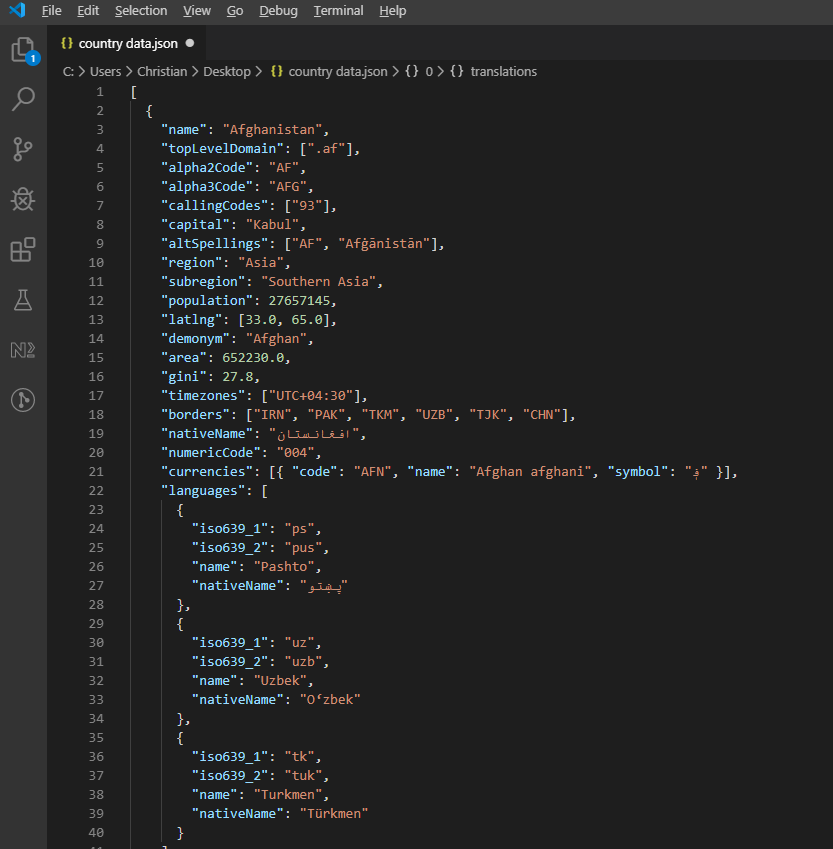 Przykładowa odpowiedź JSON z interfejsu API REST Countries przedstawiająca hierarchiczne informacje o krajach.
Przetwarzaj i zapisuj dane API w Excelu:
private async Task ProcessCountryData(List<RestCountry> countries, WorkSheet workSheet)
{
    for (int i = 0; i < countries.Count; i++)
    {
        var country = countries[i];
        int row = i + 1; // Start from row 1 (after headers)

        // Write basic country data
        workSheet[$"A{row}"].Value = country.Name;
        workSheet[$"B{row}"].Value = country.Population;
        workSheet[$"C{row}"].Value = country.Region;
        workSheet[$"D{row}"].Value = country.NumericCode;

        // Format population with thousands separator
        workSheet[$"B{row}"].FormatString = "#,##0";

        // Add up to 3 languages
        for (int langIndex = 0; langIndex < Math.Min(3, country.Languages?.Count ?? 0); langIndex++)
        {
            var language = country.Languages[langIndex];
            string columnLetter = ((char)('E' + langIndex)).ToString();
            workSheet[$"{columnLetter}{row}"].Value = language.Name;
        }

        // Add conditional formatting for regions
        if (country.Region == "Europe")
        {
            workSheet[$"C{row}"].Style.SetBackgroundColor("#E6F3FF");
        }
        else if (country.Region == "Asia")
        {
            workSheet[$"C{row}"].Style.SetBackgroundColor("#FFF2E6");
        }

        // Show progress every 50 countries
        if (i % 50 == 0)
        {
            Console.WriteLine($"Processed {i} of {countries.Count} countries");
        }
    }

    // Auto-size all columns
    for (int col = 0; col < 7; col++)
    {
        workSheet.AutoSizeColumn(col);
    }
}Private Async Function ProcessCountryData(countries As List(Of RestCountry), workSheet As WorkSheet) As Task
For i As Integer = 0 To countries.Count - 1
Dim country = countries(i)
Dim row As Integer = i + 1 ' Start from row 1 (after headers)
' Write basic country data
workSheet($"A{row}").Value = country.Name
workSheet($"B{row}").Value = country.Population
workSheet($"C{row}").Value = country.Region
workSheet($"D{row}").Value = country.NumericCode
' Format population with thousands separator
workSheet($"B{row}").FormatString = "#,##0"
' Add up to 3 languages
For langIndex As Integer = 0 To Math.Min(3, If(country.Languages?.Count, 0)) - 1
Dim language = country.Languages(langIndex)
Dim columnLetter As String = ChrW(AscW("E"c) + langIndex).ToString()
workSheet($"{columnLetter}{row}").Value = language.Name
Next
' Add conditional formatting for regions
If country.Region = "Europe" Then
workSheet($"C{row}").Style.SetBackgroundColor("#E6F3FF")
ElseIf country.Region = "Asia" Then
workSheet($"C{row}").Style.SetBackgroundColor("#FFF2E6")
End If
' Show progress every 50 countries
If i Mod 50 = 0 Then
Console.WriteLine($"Processed {i} of {countries.Count} countries")
End If
Next
' Auto-size all columns
For col As Integer = 0 To 6
workSheet.AutoSizeColumn(col)
Next
End FunctionTypowe pułapki
Kilka rzeczy często sprawia problemy ludziom na tyle, że zasługują na osobną sekcję.
Puste komórki zwracają 0, a nie null
To mnie ugryzło już na początku. Wywolanie sheet["A1"].IntValue (lub DecimalValue, lub DoubleValue) na pusta komorke zwraca 0, a nie null. Jeśli sumujesz lub obliczasz średnią kolumny z lukami, puste miejsca cicho stają się zerami i zniekształcają wynik. Teraz chronię operacje odczytu na każdym arkuszu, gdzie są możliwe brakujące wartości:
var cell = sheet["B5"];
if (!cell.IsEmpty)
{
    total += cell.DecimalValue;
}Dim cell = sheet("B5")
If Not cell.IsEmpty Then
total += cell.DecimalValue
End IfCell.IsEmpty jest tani, wiec domyslnie go uzywam, gdy arkusz kalkulacyjny jest dostarczony przez uzytkownika, a nie wygenerowany przez maszyne.
Daty wracają jako numery seryjne, jeśli poprosisz o niewłaściwy typ
Excel przechowuje daty jako numery seryjne pod spodem (45292 oznacza 2024-01-01, na przykład). Najczestsze pytanie dotyczace obslugi dat w naszej skrzynce wsparcia to 'dlaczego moja data wyswietla sie jako 45292?' Odpowiedz prawie zawsze jest taka, ze komorka zostala odczytana jako StringValue lub IntValue zamiast DateTimeValue:
// What you probably want:
DateTime birthday = sheet["E2"].DateTimeValue;

// What gives you "45292":
string birthday = sheet["E2"].StringValue;' What you probably want:
Dim birthday As DateTime = sheet("E2").DateTimeValue
' What gives you "45292":
Dim birthday As String = sheet("E2").StringValueCell.IsDateTime powie Ci, czy komorka byla pierwotnie utworzona jako data, co jest przydatne dla potokow walidacyjnych, gdzie format wejsciowy nie jest gwarantowany.
Numeryczne indeksy komórek zaczynają się od 0, ale ciągi A1 zaczynają się od 1
Omawiane powyżej w akapicie migracji Interop, ale warte powtórzenia, ponieważ to chwyta nawet ludzi, którzy nigdy nie zbliżyli się do COM. sheet[0, 0] to ta sama komorka co sheet["A1"]. Mieszanie dwóch stylów w tej samej pętli to sposób na wślizgnięcie się błędów o jeden. Wybieram jeden kształt na plik i trzymam się go; domyslna forma lancuchowa ["A1"], poniewaz pasuje do tego, co widac w samym arkuszu kalkulacyjnym.
Przykładowy projekt dla liczb wyników testów
Jeśli chcesz odtworzyć liczby czasowe z wcześniejszych etapów, narzędzie to mała aplikacja konsolowa .NET 9:
// ReadExcelBenchmark/Program.cs (excerpt)
IronXL.License.LicenseKey = Environment.GetEnvironmentVariable("IRONXL_LICENSE_KEY");

var sw = Stopwatch.StartNew();
var workbook = WorkBook.Load("GDP.xlsx");
decimal sum = workbook.WorkSheets.First()["B2:B214"].Sum();
sw.Stop();
Console.WriteLine($"cold: {sw.Elapsed.TotalMilliseconds:F1} ms");Imports System
Imports System.Diagnostics
Imports IronXL
License.LicenseKey = Environment.GetEnvironmentVariable("IRONXL_LICENSE_KEY")
Dim sw As Stopwatch = Stopwatch.StartNew()
Dim workbook = WorkBook.Load("GDP.xlsx")
Dim sum As Decimal = workbook.WorkSheets.First()("B2:B214").Sum()
sw.Stop()
Console.WriteLine($"cold: {sw.Elapsed.TotalMilliseconds:F1} ms")Uruchom to pod dotnet run -c Release, generuj dwa przykladowe skoroszyty przy pierwszym uruchomieniu, a mozesz zastapic wlasnymi plikami, aby zobaczyc, jak dane zmieniaja sie wraz z rozmiarem pliku i zlozonoscia.
Odnośniki i zasoby
Dokumentacja IronXL API obejmuje każdą klasę i metodę, w tym te, które ten samouczek nie porusza.
Dodatkowe samouczki dotyczące operacji w programie Excel:
- Tworzenie plików Excel programowo
- Przewodnik po formatowaniu i stylach w programie Excel
- Praca z formułami programu Excel
- Samouczek tworzenia wykresów w programie Excel
Podsumowanie
IronXL.Excel odczytuje i manipuluje plikami Excel w formatach XLS, XLSX, CSV i TSV. Działa bez Microsoft Excel lub Interop na komputerze-gospodarzu.
W przypadku operacji na arkuszach kalkulacyjnych w chmurze warto również zapoznać się z biblioteką kliencką Google Sheets API dla .NET, która uzupełnia możliwości IronXL for .NET w zakresie obsługi plików lokalnych.
Chcesz wdrożyć automatyzację Excela w swoich projektach C#? Pobierz IronXL lub zapoznaj się z opcjami licencyjnymi do użytku produkcyjnego.
Często Zadawane Pytania
Jak odczytać pliki Excel w języku C# bez korzystania z pakietu Microsoft Office?
Możesz użyć IronXL do odczytu plików Excel w języku C# bez konieczności korzystania z pakietu Microsoft Office. IronXL udostępnia metody takie jak WorkBook.Load() do otwierania plików Excel oraz umożliwia dostęp do danych i manipulowanie nimi przy użyciu intuicyjnej składni.
Jakie formaty plików Excel można odczytać za pomocą języka C#?
Dzięki IronXL można odczytywać pliki w formatach XLS i XLSX w języku C#. Biblioteka automatycznie wykrywa format pliku i przetwarza go odpowiednio za pomocą metody WorkBook.Load().
Jak sprawdzić poprawność danych w Excelu w języku C#?
IronXL pozwala na programową walidację danych Excel w języku C# poprzez iterację przez komórki i stosowanie logiki, takiej jak wyrażenia regularne dla adresów e-mail lub niestandardowe funkcje walidacyjne. Raporty można generować za pomocą funkcji CreateWorkSheet().
Jak mogę wyeksportować dane z Excela do bazy danych SQL przy użyciu języka C#?
Aby wyeksportować dane z Excela do bazy danych SQL, użyj IronXL do odczytania danych Excela za pomocą metod WorkBook.Load() i GetWorkSheet(), a następnie przejdź przez komórki, aby przenieść dane do bazy danych przy użyciu Entity Framework.
Czy mogę zintegrować funkcje programu Excel z aplikacjami .NET Core?
Tak, IronXL obsługuje integrację z aplikacjami .NET Core. Możesz używać klas WorkBook i WorkSheet w swoich kontrolerach do obsługi przesyłania plików Excel, generowania raportów i nie tylko.
Czy można dodawać formuły do arkuszy kalkulacyjnych Excel za pomocą języka C#?
IronXL umożliwia programowe dodawanie formuł do arkuszy kalkulacyjnych Excel. Formułę można ustawić za pomocą właściwości Formula, np. cell.Formula = "=SUM(A1:A10)", a wyniki obliczyć za pomocą workBook.EvaluateAll().
Jak wypełnić pliki Excel danymi z REST API?
Aby wypełnić pliki Excel danymi z REST API, użyj IronXL wraz z klientem HTTP do pobrania danych API, a następnie zapisz je w Excelu za pomocą metod takich jak sheet["A1"].Value. IronXL zarządza formatowaniem i strukturą Excela.
Jakie są opcje licencyjne dotyczące korzystania z bibliotek Excel w środowiskach produkcyjnych?
IronXL oferuje bezpłatną licencję próbną do celów programistycznych, natomiast ceny licencji produkcyjnych zaczynają się od 749 USD. Licencje te obejmują dedykowane wsparcie techniczne i umożliwiają wdrażanie w różnych środowiskach bez konieczności posiadania dodatkowych licencji Office.
Is it possible to validate Excel data with IronXL before importing it into a database?
Yes, you can validate spreadsheet data by using IronXL to iterate over the cell values, check for expected formats or values, and log any discrepancies before executing a database import.
Can IronXL be used in both C# and VB.NET projects?
Yes, IronXL can be utilized in both C# and VB.NET projects without any difference in functionality, allowing for seamless Excel file operations across these .NET languages.

Jacob Mellor jest Chief Technology Officer w Iron Software i wizjonerskim inżynierem, pionierem technologii C# PDF. Jako pierwotny deweloper głównej bazy kodowej Iron Software, kształtuje architekturę produktów firmy od jej początku, przekształcając ją wspólnie z CEO Cameron Rimington w firmę liczącą ponad 50 osób, obsługującą NASA, Teslę i światowe agencje rządowe.













