
在 .NET MAUI 中建立、讀取及編輯 Excel 檔案

介紹
本操作指南解釋如何在 Windows 的 .NET MAUI 應用程式中使用 IronXL 建立和讀取 Excel 檔案。 讓我們開始吧。
IronXL:C# Excel 程式庫
IronXL 是一個 C# .NET 程式庫,用於讀取、寫入和操作 Excel 檔案。 它讓使用者可以從頭建立 Excel 文件,包括 Excel 的內容和外觀,以及標題和作者等中繼資料。 該程式庫還支持使用者介面的自訂功能,例如設定邊距、方向、頁面大小、圖片等。 它不需要任何外部框架、平台整合或其他第三方程式庫來生成 Excel 檔案。 它是自包含和獨立的。
如何在 .NET MAUI 中讀取 Excel 檔案
- 安裝 C# 程式庫來讀取 Excel 檔案
- 確保安裝所有運行 MAUI 應用程式所需的套件
- 在 Maui 中使用直觀的 API 建立 Excel 檔案
- 在瀏覽器中載入並檢視 Excel 檔案
- 儲存並匯出 Excel 檔案
安裝 IronXL
要安裝 IronXL,您可以使用 Visual Studio 中的 NuGet 套件管理器主控台。 打開主控台並輸入以下命令來安裝 IronXL 程式庫。
使用 IronXL 在 C# 中建立 Excel 檔案
設計應用程式前端
打開命名為 MainPage.xaml 的 XAML 頁面,並將其中的程式碼替換為以下程式碼片段。
<?xml version="1.0" encoding="utf-8" ?>
<ContentPage xmlns="http://schemas.microsoft.com/dotnet/2021/maui"
             xmlns:x="http://schemas.microsoft.com/winfx/2009/xaml"
             x:Class="MAUI_IronXl.MainPage">

    <ScrollView>
        <VerticalStackLayout
            Spacing="25"
            Padding="30,0"
            VerticalOptions="Center">

            <Label
                Text="Welcome to .NET Multi-platform App UI"
                SemanticProperties.HeadingLevel="Level2"
                SemanticProperties.Description="Welcome Multi-platform App UI"
                FontSize="18"
                HorizontalOptions="Center" />

            <Button
                x:Name="createBtn"
                Text="Create Excel File"
                SemanticProperties.Hint="Click on the button to create Excel file"
                Clicked="CreateExcel"
                HorizontalOptions="Center" />

            <Button
                x:Name="readExcel"
                Text="Read and Modify Excel file"
                SemanticProperties.Hint="Click on the button to read Excel file"
                Clicked="ReadExcel"
                HorizontalOptions="Center" />

        </VerticalStackLayout>
    </ScrollView>

</ContentPage>上述程式碼為我們的基本 .NET MAUI 應用程式建立了佈局。 它建立了一個標籤和兩個按鈕。 一個按鈕用於建立 Excel 檔案,另一個按鈕提供支援以讀取和修改 Excel 檔案。這兩個元素巢狀在一個 VerticalStackLayout 父元素中,因此它們會在所有支持的裝置上垂直對齊顯示。
建立 Excel 檔案
是時候使用 IronXL 建立 Excel 檔案了。 打開 MainPage.xaml.cs 檔案,並在檔案中編寫以下方法。
private void CreateExcel(object sender, EventArgs e)
{
    // Create a new Workbook
    WorkBook workbook = WorkBook.Create(ExcelFileFormat.XLSX);

    // Create a Worksheet
    var sheet = workbook.CreateWorkSheet("2022 Budget");

    // Set cell headers
    sheet["A1"].Value = "January";
    sheet["B1"].Value = "February";
    sheet["C1"].Value = "March";
    sheet["D1"].Value = "April";
    sheet["E1"].Value = "May";
    sheet["F1"].Value = "June";
    sheet["G1"].Value = "July";
    sheet["H1"].Value = "August";

    // Fill worksheet cells with random values
    Random r = new Random();
    for (int i = 2; i <= 11; i++)
    {
        sheet["A" + i].Value = r.Next(1, 1000);
        sheet["B" + i].Value = r.Next(1000, 2000);
        sheet["C" + i].Value = r.Next(2000, 3000);
        sheet["D" + i].Value = r.Next(3000, 4000);
        sheet["E" + i].Value = r.Next(4000, 5000);
        sheet["F" + i].Value = r.Next(5000, 6000);
        sheet["G" + i].Value = r.Next(6000, 7000);
        sheet["H" + i].Value = r.Next(7000, 8000);
    }

    // Apply formatting (background and border)
    sheet["A1:H1"].Style.SetBackgroundColor("#d3d3d3");
    sheet["A1:H1"].Style.TopBorder.SetColor("#000000");
    sheet["A1:H1"].Style.BottomBorder.SetColor("#000000");
    sheet["H2:H11"].Style.RightBorder.SetColor("#000000");
    sheet["H2:H11"].Style.RightBorder.Type = IronXL.Styles.BorderType.Medium;
    sheet["A11:H11"].Style.BottomBorder.SetColor("#000000");
    sheet["A11:H11"].Style.BottomBorder.Type = IronXL.Styles.BorderType.Medium;

    // Apply formulas
    decimal sum = sheet["A2:A11"].Sum();
    decimal avg = sheet["B2:B11"].Avg();
    decimal max = sheet["C2:C11"].Max();
    decimal min = sheet["D2:D11"].Min();

    sheet["A12"].Value = "Sum";
    sheet["B12"].Value = sum;

    sheet["C12"].Value = "Avg";
    sheet["D12"].Value = avg;

    sheet["E12"].Value = "Max";
    sheet["F12"].Value = max;

    sheet["G12"].Value = "Min";
    sheet["H12"].Value = min;

    // Save and open the Excel file
    SaveService saveService = new SaveService();
    saveService.SaveAndView("Budget.xlsx", "application/octet-stream", workbook.ToStream());
}Private Sub CreateExcel(ByVal sender As Object, ByVal e As EventArgs)
' Create a new Workbook
Dim workbook As WorkBook = WorkBook.Create(ExcelFileFormat.XLSX)
' Create a Worksheet
Dim sheet = workbook.CreateWorkSheet("2022 Budget")
' Set cell headers
sheet("A1").Value = "January"
sheet("B1").Value = "February"
sheet("C1").Value = "March"
sheet("D1").Value = "April"
sheet("E1").Value = "May"
sheet("F1").Value = "June"
sheet("G1").Value = "July"
sheet("H1").Value = "August"
' Fill worksheet cells with random values
Dim r As New Random()
For i As Integer = 2 To 11
sheet("A" & i).Value = r.Next(1, 1000)
sheet("B" & i).Value = r.Next(1000, 2000)
sheet("C" & i).Value = r.Next(2000, 3000)
sheet("D" & i).Value = r.Next(3000, 4000)
sheet("E" & i).Value = r.Next(4000, 5000)
sheet("F" & i).Value = r.Next(5000, 6000)
sheet("G" & i).Value = r.Next(6000, 7000)
sheet("H" & i).Value = r.Next(7000, 8000)
Next i
' Apply formatting (background and border)
sheet("A1:H1").Style.SetBackgroundColor("#d3d3d3")
sheet("A1:H1").Style.TopBorder.SetColor("#000000")
sheet("A1:H1").Style.BottomBorder.SetColor("#000000")
sheet("H2:H11").Style.RightBorder.SetColor("#000000")
sheet("H2:H11").Style.RightBorder.Type = IronXL.Styles.BorderType.Medium
sheet("A11:H11").Style.BottomBorder.SetColor("#000000")
sheet("A11:H11").Style.BottomBorder.Type = IronXL.Styles.BorderType.Medium
' Apply formulas
Dim sum As Decimal = sheet("A2:A11").Sum()
Dim avg As Decimal = sheet("B2:B11").Avg()
Dim max As Decimal = sheet("C2:C11").Max()
Dim min As Decimal = sheet("D2:D11").Min()
sheet("A12").Value = "Sum"
sheet("B12").Value = sum
sheet("C12").Value = "Avg"
sheet("D12").Value = avg
sheet("E12").Value = "Max"
sheet("F12").Value = max
sheet("G12").Value = "Min"
sheet("H12").Value = min
' Save and open the Excel file
Dim saveService As New SaveService()
saveService.SaveAndView("Budget.xlsx", "application/octet-stream", workbook.ToStream())
End Sub此源程式碼使用 IronXL 建立一個工作簿和工作表,設置單元格值並格式化單元格。 它還演示了如何使用 IronXL 的 Excel 公式。
在瀏覽器中查看 Excel 檔案
打開 MainPage.xaml.cs 檔案,並寫入以下程式碼。
private void ReadExcel(object sender, EventArgs e)
{
    // Store the path of the file
    string filepath = @"C:\Files\Customer Data.xlsx";
    WorkBook workbook = WorkBook.Load(filepath);
    WorkSheet sheet = workbook.WorkSheets.First();

    // Calculate the sum of a range
    decimal sum = sheet["B2:B10"].Sum();

    // Modify a cell value and apply styles
    sheet["B11"].Value = sum;
    sheet["B11"].Style.SetBackgroundColor("#808080");
    sheet["B11"].Style.Font.SetColor("#ffffff");

    // Save and open the Excel file
    SaveService saveService = new SaveService();
    saveService.SaveAndView("Modified Data.xlsx", "application/octet-stream", workbook.ToStream());

    DisplayAlert("Notification", "Excel file has been modified!", "OK");
}Private Sub ReadExcel(ByVal sender As Object, ByVal e As EventArgs)
' Store the path of the file
Dim filepath As String = "C:\Files\Customer Data.xlsx"
Dim workbook As WorkBook = WorkBook.Load(filepath)
Dim sheet As WorkSheet = workbook.WorkSheets.First()
' Calculate the sum of a range
Dim sum As Decimal = sheet("B2:B10").Sum()
' Modify a cell value and apply styles
sheet("B11").Value = sum
sheet("B11").Style.SetBackgroundColor("#808080")
sheet("B11").Style.Font.SetColor("#ffffff")
' Save and open the Excel file
Dim saveService As New SaveService()
saveService.SaveAndView("Modified Data.xlsx", "application/octet-stream", workbook.ToStream())
DisplayAlert("Notification", "Excel file has been modified!", "OK")
End Sub此源程式碼載入 Excel 檔案,在一個單元格範圍內應用公式,並使用自定義背景和文字著色進行格式化。 之後,修改過的 Excel 檔案會被保存,並顯示一個通知。
儲存 Excel 檔案
在本節中,我們定義了 SaveService 類別,以便將我們的 Excel 檔案保存到本地儲存中。
建立一個 "SaveService.cs" 類別,並撰寫以下程式碼:
using System;
using System.IO;

namespace MAUI_IronXL
{
    public partial class SaveService
    {
        public partial void SaveAndView(string fileName, string contentType, MemoryStream stream);
    }
}Imports System
Imports System.IO
Namespace MAUI_IronXL
Partial Public Class SaveService
Public Partial Private Sub SaveAndView(ByVal fileName As String, ByVal contentType As String, ByVal stream As MemoryStream)
End Sub
End Class
End Namespace接下來,在 Platforms > Windows 資料夾中建立一個名為 "SaveWindows.cs" 的類別,並新增以下程式碼:
using System;
using System.Collections.Generic;
using System.IO;
using System.Runtime.InteropServices.WindowsRuntime;
using Windows.Storage;
using Windows.Storage.Pickers;
using Windows.Storage.Streams;
using Windows.UI.Popups;

namespace MAUI_IronXL
{
    public partial class SaveService
    {
        public async partial void SaveAndView(string fileName, string contentType, MemoryStream stream)
        {
            StorageFile stFile;
            string extension = Path.GetExtension(fileName);
            IntPtr windowHandle = System.Diagnostics.Process.GetCurrentProcess().MainWindowHandle;

            if (!Windows.Foundation.Metadata.ApiInformation.IsTypePresent("Windows.Phone.UI.Input.HardwareButtons"))
            {
                FileSavePicker savePicker = new FileSavePicker();
                savePicker.DefaultFileExtension = ".xlsx";
                savePicker.SuggestedFileName = fileName;
                savePicker.FileTypeChoices.Add("XLSX", new List<string> { ".xlsx" });

                WinRT.Interop.InitializeWithWindow.Initialize(savePicker, windowHandle);
                stFile = await savePicker.PickSaveFileAsync();
            }
            else
            {
                StorageFolder local = ApplicationData.Current.LocalFolder;
                stFile = await local.CreateFileAsync(fileName, CreationCollisionOption.ReplaceExisting);
            }

            if (stFile != null)
            {
                using (IRandomAccessStream zipStream = await stFile.OpenAsync(FileAccessMode.ReadWrite))
                {
                    using (Stream outputStream = zipStream.AsStreamForWrite())
                    {
                        outputStream.SetLength(0);
                        stream.WriteTo(outputStream);
                        await outputStream.FlushAsync();
                    }
                }

                MessageDialog msgDialog = new("Do you want to view the document?", "File has been created successfully");
                UICommand yesCmd = new("Yes");
                msgDialog.Commands.Add(yesCmd);
                UICommand noCmd = new("No");
                msgDialog.Commands.Add(noCmd);

                WinRT.Interop.InitializeWithWindow.Initialize(msgDialog, windowHandle);

                IUICommand cmd = await msgDialog.ShowAsync();
                if (cmd.Label == yesCmd.Label)
                {
                    await Windows.System.Launcher.LaunchFileAsync(stFile);
                }
            }
        }
    }
}Imports System
Imports System.Collections.Generic
Imports System.IO
Imports System.Runtime.InteropServices.WindowsRuntime
Imports Windows.Storage
Imports Windows.Storage.Pickers
Imports Windows.Storage.Streams
Imports Windows.UI.Popups
Namespace MAUI_IronXL
Partial Public Class SaveService
Public Async Sub SaveAndView(ByVal fileName As String, ByVal contentType As String, ByVal stream As MemoryStream)
Dim stFile As StorageFile
Dim extension As String = Path.GetExtension(fileName)
Dim windowHandle As IntPtr = System.Diagnostics.Process.GetCurrentProcess().MainWindowHandle
If Not Windows.Foundation.Metadata.ApiInformation.IsTypePresent("Windows.Phone.UI.Input.HardwareButtons") Then
Dim savePicker As New FileSavePicker()
savePicker.DefaultFileExtension = ".xlsx"
savePicker.SuggestedFileName = fileName
savePicker.FileTypeChoices.Add("XLSX", New List(Of String) From {".xlsx"})
WinRT.Interop.InitializeWithWindow.Initialize(savePicker, windowHandle)
stFile = Await savePicker.PickSaveFileAsync()
Else
Dim local As StorageFolder = ApplicationData.Current.LocalFolder
stFile = Await local.CreateFileAsync(fileName, CreationCollisionOption.ReplaceExisting)
End If
If stFile IsNot Nothing Then
Using zipStream As IRandomAccessStream = Await stFile.OpenAsync(FileAccessMode.ReadWrite)
Using outputStream As Stream = zipStream.AsStreamForWrite()
outputStream.SetLength(0)
stream.WriteTo(outputStream)
Await outputStream.FlushAsync()
End Using
End Using
Dim msgDialog As New MessageDialog("Do you want to view the document?", "File has been created successfully")
Dim yesCmd As New UICommand("Yes")
msgDialog.Commands.Add(yesCmd)
Dim noCmd As New UICommand("No")
msgDialog.Commands.Add(noCmd)
WinRT.Interop.InitializeWithWindow.Initialize(msgDialog, windowHandle)
Dim cmd As IUICommand = Await msgDialog.ShowAsync()
If cmd.Label = yesCmd.Label Then
Await Windows.System.Launcher.LaunchFileAsync(stFile)
End If
End If
End Sub
End Class
End Namespace輸出
建置並運行 MAUI 專案。 如果執行成功,將會打開一個視窗,顯示下圖的內容。
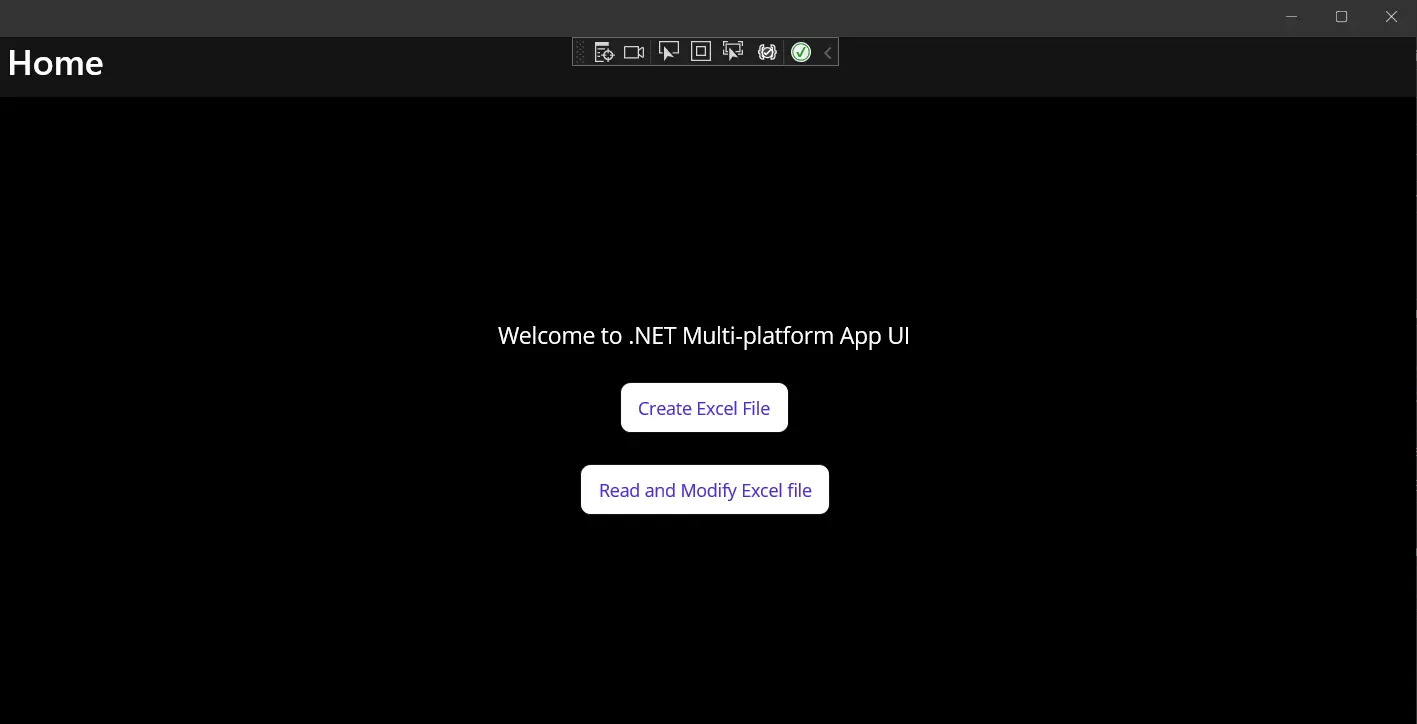
圖 1 - 輸出
點擊 "建立 Excel 檔案" 按鈕將打開一個單獨的對話視窗。 這個窗口提示使用者選擇一個位置和檔名,以儲存一個新的(生成的)Excel 檔案。按照指示指定位置和檔名,然後點擊 OK。 之後,將會出現另一個對話視窗。
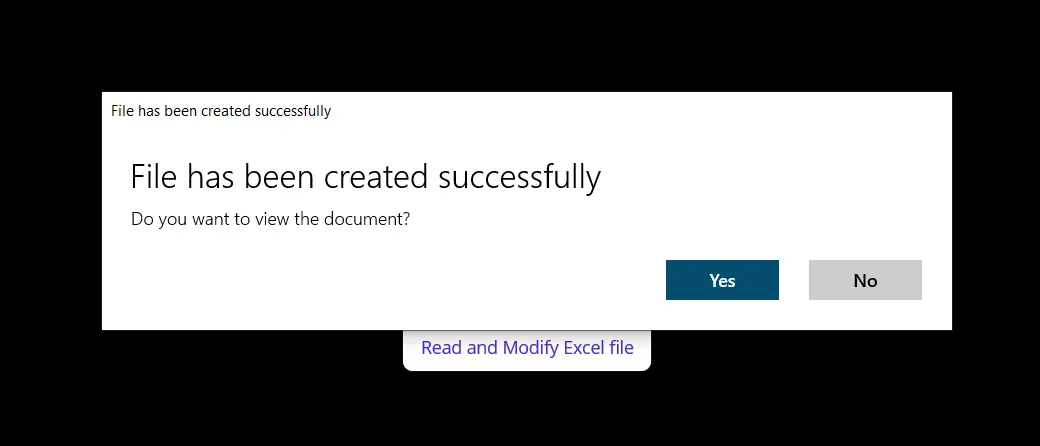
圖 2 - 建立 Excel 快顯
按快顯中的指示打開 Excel 檔案,將會顯示如下面截圖所示的文件。
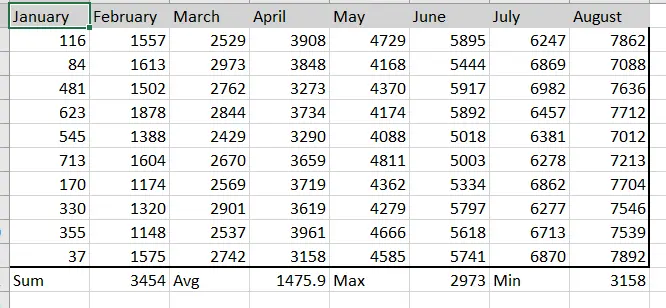
圖 3 - 讀取和修改 Excel 快顯
點擊 "讀取和修改 Excel 檔案" 按鈕將載入先前生成的 Excel 檔案,並用我們在前一部分中定義的自定義背景和文字顏色進行修改。
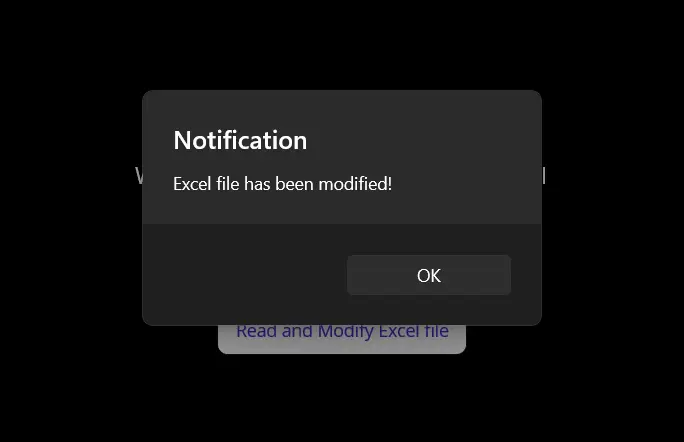
圖 4 - Excel 輸出
當您打開修改過的檔案時,您會看到包含目錄的以下輸出。
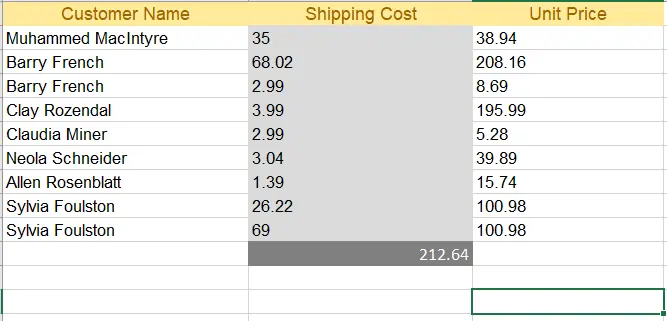
圖 5 - 修改後的 Excel 輸出
結論
這解釋了如何在 .NET MAUI 應用程式中使用 IronXL 程式庫建立、讀取和修改 Excel 檔案。 IronXL 表現非常出色,操作速度和準確性俱佳。 它是執行 Excel 操作的出色程式庫,優於 Microsoft Interop,因為它不需要在機器上安裝任何 Microsoft Office 套件。此外,IronXL 支持多種操作,例如建立工作簿和工作表、處理單元格範圍、格式化和匯出到各種文件型別如 CSV、TSV 等。
IronXL 支持所有專案模板,如 Windows Form、WPF、ASP.NET Core 及其他。 請參閱我們的教程,瞭解有關使用 IronXL 建立 Excel 檔案 和 讀取 Excel 檔案 的更多資訊。
快速存取連結
在 GitHub 上探索此操作指南
該專案的源程式碼可於 GitHub 上獲取。
使用此程式碼作為一種輕鬆的方式來快速上手。專案儲存為 Microsoft Visual Studio 2022 專案,但相容於任何 .NET IDE。
如何在 .NET MAUI 應用程式中讀取、建立和編輯 Excel 檔案

常見問題
如何在.NET MAUI應用中建立Excel文件?
要在.NET MAUI專案中建立Excel文件,請使用IronXL程式庫初始化新的活頁簿和工作表。然後您可以設置儲存格值、應用Excel公式,並在使用自定義SaveService類別儲存文件之前自定義格式。
我可以在.NET MAUI應用中讀取現有的Excel文件嗎?
是的,您可以使用IronXL在.NET MAUI應用中載入和讀取現有的Excel文件。該程式庫允許您存取和修改儲存格值、應用公式和實施自定義格式。
使用IronXL進行.NET MAUI中的Excel文件操作有什麼好處?
IronXL提供了一種自包含的.NET MAUI中的Excel文件操作解決方案,消除了對Microsoft Office或Interop的需求。它支持高效地建立、讀取和編輯Excel文件,並且可以匯出到CSV和TSV等各種格式。
如何在我的.NET MAUI專案中安裝IronXL?
您可以通過在Visual Studio中的NuGet Package Manager控制台中使用命令Install-Package IronXL.Excel來將IronXL安裝到您的.NET MAUI專案中。
在.NET MAUI中是否可以以程式化方式格式化Excel儲存格?
是的,使用IronXL,您可以在.NET MAUI中以程式化方式格式化Excel儲存格。這包括設置儲存格風格、顏色,以及應用各種格式選項來增強Excel文件的外觀。
如何在我的.NET MAUI應用中實現SaveService類別以處理Excel文件?
要在.NET MAUI中實現SaveService類別,您可以建立一個利用IronXL功能來處理將Excel文件儲存到本地儲存的類別。這涉及到定義用於指定文件路徑和管理文件I/O操作的方法。
IronXL支持哪些.NET應用專案模板?
IronXL支持多種型別的.NET專案模板,包括Windows Forms、WPF、ASP.NET Core等,為開發人員提供靈活性來適應不同的應用型別。
我可以在哪裡找到.NET MAUI Excel專案的源程式碼?
使用IronXL的.NET MAUI Excel專案的源程式碼可在GitHub上獲得。這使得開發人員可以快速安裝並嘗試在他們的應用中使用Visual Studio 2022進行Excel文件操作。
Is IronXL compatible with different .NET project templates?
Yes, IronXL is compatible with various .NET project templates including Windows Forms, WPF, and ASP.NET Core, among others.
Where can I find additional resources and tutorials for using IronXL?
You can find additional tutorials and resources for using IronXL on the official [Iron Software website](https://ironsoftware.com) and their GitHub repository, which includes sample projects and API references.

Curtis Chau擁有Carleton大學的電腦科學學士學位,專精於前端開發,擁有Node.js、TypeScript、JavaScript和React的專業知識。Curtis熱衷於建立直觀且美觀的使用者介面,喜愛使用現代框架並建立結構良好、視覺吸引力的手冊。













