
Créer, lire et modifier des fichiers Excel dans .NET MAUI

Introduction
Ce guide pratique explique comment créer et lire des fichiers Excel dans les applications .NET MAUI pour Windows à l'aide d'IronXL. Commençons.*
IronXL : Bibliothèque Excel C#
IronXL est une bibliothèque C# .NET permettant de lire, d'écrire et de manipuler des fichiers Excel. Il permet aux utilisateurs de créer des documents Excel à partir de zéro, y compris le contenu et l'apparence d'Excel, ainsi que les métadonnées telles que le titre et l'auteur. La bibliothèque prend également en charge des fonctionnalités de personnalisation de l'interface utilisateur telles que le réglage des marges, de l'orientation, de la taille de la page, des images, etc. Il ne nécessite aucun framework externe, intégration de plateforme ou autre bibliothèque tierce pour générer des fichiers Excel. Il est autonome et indépendant.
Comment lire des fichiers Excel avec .NET MAUI
- Installez la bibliothèque C# pour lire les fichiers Excel.
- Assurez-vous que tous les paquets requis pour exécuter des applications MAUI sont installés
- Créer des fichiers Excel avec des API intuitives à Maui
- Charger et afficher des fichiers Excel dans le navigateur
- Enregistrer et exporter des fichiers Excel
Installer IronXL
Pour installer IronXL, vous pouvez utiliser la console du gestionnaire de packages NuGet dans Visual Studio. Ouvrez la console et saisissez la commande suivante pour installer la bibliothèque IronXL.
Création de fichiers Excel en C# utilisant IronXL
Concevoir l'interface utilisateur de l'application
Ouvrez la page XAML nommée MainPage.xaml et remplacez le code par le snippet de code suivant.
<?xml version="1.0" encoding="utf-8" ?>
<ContentPage xmlns="http://schemas.microsoft.com/dotnet/2021/maui"
             xmlns:x="http://schemas.microsoft.com/winfx/2009/xaml"
             x:Class="MAUI_IronXl.MainPage">

    <ScrollView>
        <VerticalStackLayout
            Spacing="25"
            Padding="30,0"
            VerticalOptions="Center">

            <Label
                Text="Welcome to .NET Multi-platform App UI"
                SemanticProperties.HeadingLevel="Level2"
                SemanticProperties.Description="Welcome Multi-platform App UI"
                FontSize="18"
                HorizontalOptions="Center" />

            <Button
                x:Name="createBtn"
                Text="Create Excel File"
                SemanticProperties.Hint="Click on the button to create Excel file"
                Clicked="CreateExcel"
                HorizontalOptions="Center" />

            <Button
                x:Name="readExcel"
                Text="Read and Modify Excel file"
                SemanticProperties.Hint="Click on the button to read Excel file"
                Clicked="ReadExcel"
                HorizontalOptions="Center" />

        </VerticalStackLayout>
    </ScrollView>

</ContentPage>Le code ci-dessus crée la mise en page de notre application .NET MAUI de base. Il crée une étiquette et deux boutons. Un bouton permet de créer un fichier Excel, et le second de le lire et de le modifier. Ces deux éléments sont imbriqués dans un élément parent VerticalStackLayout afin d'être alignés verticalement sur tous les appareils compatibles.
Créer des fichiers Excel
Il est temps de créer le fichier Excel à l'aide d'IronXL. Ouvrez le fichier MainPage.xaml.cs et écrivez la méthode suivante dans le fichier.
private void CreateExcel(object sender, EventArgs e)
{
    // Create a new Workbook
    WorkBook workbook = WorkBook.Create(ExcelFileFormat.XLSX);

    // Create a Worksheet
    var sheet = workbook.CreateWorkSheet("2022 Budget");

    // Set cell headers
    sheet["A1"].Value = "January";
    sheet["B1"].Value = "February";
    sheet["C1"].Value = "March";
    sheet["D1"].Value = "April";
    sheet["E1"].Value = "May";
    sheet["F1"].Value = "June";
    sheet["G1"].Value = "July";
    sheet["H1"].Value = "August";

    // Fill worksheet cells with random values
    Random r = new Random();
    for (int i = 2; i <= 11; i++)
    {
        sheet["A" + i].Value = r.Next(1, 1000);
        sheet["B" + i].Value = r.Next(1000, 2000);
        sheet["C" + i].Value = r.Next(2000, 3000);
        sheet["D" + i].Value = r.Next(3000, 4000);
        sheet["E" + i].Value = r.Next(4000, 5000);
        sheet["F" + i].Value = r.Next(5000, 6000);
        sheet["G" + i].Value = r.Next(6000, 7000);
        sheet["H" + i].Value = r.Next(7000, 8000);
    }

    // Apply formatting (background and border)
    sheet["A1:H1"].Style.SetBackgroundColor("#d3d3d3");
    sheet["A1:H1"].Style.TopBorder.SetColor("#000000");
    sheet["A1:H1"].Style.BottomBorder.SetColor("#000000");
    sheet["H2:H11"].Style.RightBorder.SetColor("#000000");
    sheet["H2:H11"].Style.RightBorder.Type = IronXL.Styles.BorderType.Medium;
    sheet["A11:H11"].Style.BottomBorder.SetColor("#000000");
    sheet["A11:H11"].Style.BottomBorder.Type = IronXL.Styles.BorderType.Medium;

    // Apply formulas
    decimal sum = sheet["A2:A11"].Sum();
    decimal avg = sheet["B2:B11"].Avg();
    decimal max = sheet["C2:C11"].Max();
    decimal min = sheet["D2:D11"].Min();

    sheet["A12"].Value = "Sum";
    sheet["B12"].Value = sum;

    sheet["C12"].Value = "Avg";
    sheet["D12"].Value = avg;

    sheet["E12"].Value = "Max";
    sheet["F12"].Value = max;

    sheet["G12"].Value = "Min";
    sheet["H12"].Value = min;

    // Save and open the Excel file
    SaveService saveService = new SaveService();
    saveService.SaveAndView("Budget.xlsx", "application/octet-stream", workbook.ToStream());
}Private Sub CreateExcel(ByVal sender As Object, ByVal e As EventArgs)
' Create a new Workbook
Dim workbook As WorkBook = WorkBook.Create(ExcelFileFormat.XLSX)
' Create a Worksheet
Dim sheet = workbook.CreateWorkSheet("2022 Budget")
' Set cell headers
sheet("A1").Value = "January"
sheet("B1").Value = "February"
sheet("C1").Value = "March"
sheet("D1").Value = "April"
sheet("E1").Value = "May"
sheet("F1").Value = "June"
sheet("G1").Value = "July"
sheet("H1").Value = "August"
' Fill worksheet cells with random values
Dim r As New Random()
For i As Integer = 2 To 11
sheet("A" & i).Value = r.Next(1, 1000)
sheet("B" & i).Value = r.Next(1000, 2000)
sheet("C" & i).Value = r.Next(2000, 3000)
sheet("D" & i).Value = r.Next(3000, 4000)
sheet("E" & i).Value = r.Next(4000, 5000)
sheet("F" & i).Value = r.Next(5000, 6000)
sheet("G" & i).Value = r.Next(6000, 7000)
sheet("H" & i).Value = r.Next(7000, 8000)
Next i
' Apply formatting (background and border)
sheet("A1:H1").Style.SetBackgroundColor("#d3d3d3")
sheet("A1:H1").Style.TopBorder.SetColor("#000000")
sheet("A1:H1").Style.BottomBorder.SetColor("#000000")
sheet("H2:H11").Style.RightBorder.SetColor("#000000")
sheet("H2:H11").Style.RightBorder.Type = IronXL.Styles.BorderType.Medium
sheet("A11:H11").Style.BottomBorder.SetColor("#000000")
sheet("A11:H11").Style.BottomBorder.Type = IronXL.Styles.BorderType.Medium
' Apply formulas
Dim sum As Decimal = sheet("A2:A11").Sum()
Dim avg As Decimal = sheet("B2:B11").Avg()
Dim max As Decimal = sheet("C2:C11").Max()
Dim min As Decimal = sheet("D2:D11").Min()
sheet("A12").Value = "Sum"
sheet("B12").Value = sum
sheet("C12").Value = "Avg"
sheet("D12").Value = avg
sheet("E12").Value = "Max"
sheet("F12").Value = max
sheet("G12").Value = "Min"
sheet("H12").Value = min
' Save and open the Excel file
Dim saveService As New SaveService()
saveService.SaveAndView("Budget.xlsx", "application/octet-stream", workbook.ToStream())
End SubCe code source crée un classeur et une feuille de calcul à l'aide d'IronXL, définit les valeurs des cellules et met en forme les cellules. Il montre également comment utiliser les formules Excel avec IronXL.
Afficher les fichiers Excel dans le navigateur
Ouvrez le fichier MainPage.xaml.cs et écrivez le code suivant.
private void ReadExcel(object sender, EventArgs e)
{
    // Store the path of the file
    string filepath = @"C:\Files\Customer Data.xlsx";
    WorkBook workbook = WorkBook.Load(filepath);
    WorkSheet sheet = workbook.WorkSheets.First();

    // Calculate the sum of a range
    decimal sum = sheet["B2:B10"].Sum();

    // Modify a cell value and apply styles
    sheet["B11"].Value = sum;
    sheet["B11"].Style.SetBackgroundColor("#808080");
    sheet["B11"].Style.Font.SetColor("#ffffff");

    // Save and open the Excel file
    SaveService saveService = new SaveService();
    saveService.SaveAndView("Modified Data.xlsx", "application/octet-stream", workbook.ToStream());

    DisplayAlert("Notification", "Excel file has been modified!", "OK");
}Private Sub ReadExcel(ByVal sender As Object, ByVal e As EventArgs)
' Store the path of the file
Dim filepath As String = "C:\Files\Customer Data.xlsx"
Dim workbook As WorkBook = WorkBook.Load(filepath)
Dim sheet As WorkSheet = workbook.WorkSheets.First()
' Calculate the sum of a range
Dim sum As Decimal = sheet("B2:B10").Sum()
' Modify a cell value and apply styles
sheet("B11").Value = sum
sheet("B11").Style.SetBackgroundColor("#808080")
sheet("B11").Style.Font.SetColor("#ffffff")
' Save and open the Excel file
Dim saveService As New SaveService()
saveService.SaveAndView("Modified Data.xlsx", "application/octet-stream", workbook.ToStream())
DisplayAlert("Notification", "Excel file has been modified!", "OK")
End SubLe code source charge le fichier Excel, applique une formule à une plage de cellules et la met en forme avec une couleur de fond et de texte personnalisée. Ensuite, le fichier Excel modifié est enregistré et une notification s'affiche.
Enregistrer les fichiers Excel
Dans cette section, nous définissons la classe SaveService qui va enregistrer nos fichiers Excel dans le stockage local.
Créez une classe " SaveService.cs " et écrivez le code suivant :
using System;
using System.IO;

namespace MAUI_IronXL
{
    public partial class SaveService
    {
        public partial void SaveAndView(string fileName, string contentType, MemoryStream stream);
    }
}Imports System
Imports System.IO
Namespace MAUI_IronXL
Partial Public Class SaveService
Public Partial Private Sub SaveAndView(ByVal fileName As String, ByVal contentType As String, ByVal stream As MemoryStream)
End Sub
End Class
End NamespaceEnsuite, créez une classe nommée " SaveWindows.cs " dans le dossier Platforms > Windows et ajoutez le code suivant :
using System;
using System.Collections.Generic;
using System.IO;
using System.Runtime.InteropServices.WindowsRuntime;
using Windows.Storage;
using Windows.Storage.Pickers;
using Windows.Storage.Streams;
using Windows.UI.Popups;

namespace MAUI_IronXL
{
    public partial class SaveService
    {
        public async partial void SaveAndView(string fileName, string contentType, MemoryStream stream)
        {
            StorageFile stFile;
            string extension = Path.GetExtension(fileName);
            IntPtr windowHandle = System.Diagnostics.Process.GetCurrentProcess().MainWindowHandle;

            if (!Windows.Foundation.Metadata.ApiInformation.IsTypePresent("Windows.Phone.UI.Input.HardwareButtons"))
            {
                FileSavePicker savePicker = new FileSavePicker();
                savePicker.DefaultFileExtension = ".xlsx";
                savePicker.SuggestedFileName = fileName;
                savePicker.FileTypeChoices.Add("XLSX", new List<string> { ".xlsx" });

                WinRT.Interop.InitializeWithWindow.Initialize(savePicker, windowHandle);
                stFile = await savePicker.PickSaveFileAsync();
            }
            else
            {
                StorageFolder local = ApplicationData.Current.LocalFolder;
                stFile = await local.CreateFileAsync(fileName, CreationCollisionOption.ReplaceExisting);
            }

            if (stFile != null)
            {
                using (IRandomAccessStream zipStream = await stFile.OpenAsync(FileAccessMode.ReadWrite))
                {
                    using (Stream outputStream = zipStream.AsStreamForWrite())
                    {
                        outputStream.SetLength(0);
                        stream.WriteTo(outputStream);
                        await outputStream.FlushAsync();
                    }
                }

                MessageDialog msgDialog = new("Do you want to view the document?", "File has been created successfully");
                UICommand yesCmd = new("Yes");
                msgDialog.Commands.Add(yesCmd);
                UICommand noCmd = new("No");
                msgDialog.Commands.Add(noCmd);

                WinRT.Interop.InitializeWithWindow.Initialize(msgDialog, windowHandle);

                IUICommand cmd = await msgDialog.ShowAsync();
                if (cmd.Label == yesCmd.Label)
                {
                    await Windows.System.Launcher.LaunchFileAsync(stFile);
                }
            }
        }
    }
}Imports System
Imports System.Collections.Generic
Imports System.IO
Imports System.Runtime.InteropServices.WindowsRuntime
Imports Windows.Storage
Imports Windows.Storage.Pickers
Imports Windows.Storage.Streams
Imports Windows.UI.Popups
Namespace MAUI_IronXL
Partial Public Class SaveService
Public Async Sub SaveAndView(ByVal fileName As String, ByVal contentType As String, ByVal stream As MemoryStream)
Dim stFile As StorageFile
Dim extension As String = Path.GetExtension(fileName)
Dim windowHandle As IntPtr = System.Diagnostics.Process.GetCurrentProcess().MainWindowHandle
If Not Windows.Foundation.Metadata.ApiInformation.IsTypePresent("Windows.Phone.UI.Input.HardwareButtons") Then
Dim savePicker As New FileSavePicker()
savePicker.DefaultFileExtension = ".xlsx"
savePicker.SuggestedFileName = fileName
savePicker.FileTypeChoices.Add("XLSX", New List(Of String) From {".xlsx"})
WinRT.Interop.InitializeWithWindow.Initialize(savePicker, windowHandle)
stFile = Await savePicker.PickSaveFileAsync()
Else
Dim local As StorageFolder = ApplicationData.Current.LocalFolder
stFile = Await local.CreateFileAsync(fileName, CreationCollisionOption.ReplaceExisting)
End If
If stFile IsNot Nothing Then
Using zipStream As IRandomAccessStream = Await stFile.OpenAsync(FileAccessMode.ReadWrite)
Using outputStream As Stream = zipStream.AsStreamForWrite()
outputStream.SetLength(0)
stream.WriteTo(outputStream)
Await outputStream.FlushAsync()
End Using
End Using
Dim msgDialog As New MessageDialog("Do you want to view the document?", "File has been created successfully")
Dim yesCmd As New UICommand("Yes")
msgDialog.Commands.Add(yesCmd)
Dim noCmd As New UICommand("No")
msgDialog.Commands.Add(noCmd)
WinRT.Interop.InitializeWithWindow.Initialize(msgDialog, windowHandle)
Dim cmd As IUICommand = Await msgDialog.ShowAsync()
If cmd.Label = yesCmd.Label Then
Await Windows.System.Launcher.LaunchFileAsync(stFile)
End If
End If
End Sub
End Class
End NamespaceSortie
Compilez et exécutez le projet MAUI. Une fois l'opération réussie, une fenêtre s'ouvrira affichant le contenu représenté dans l'image ci-dessous.
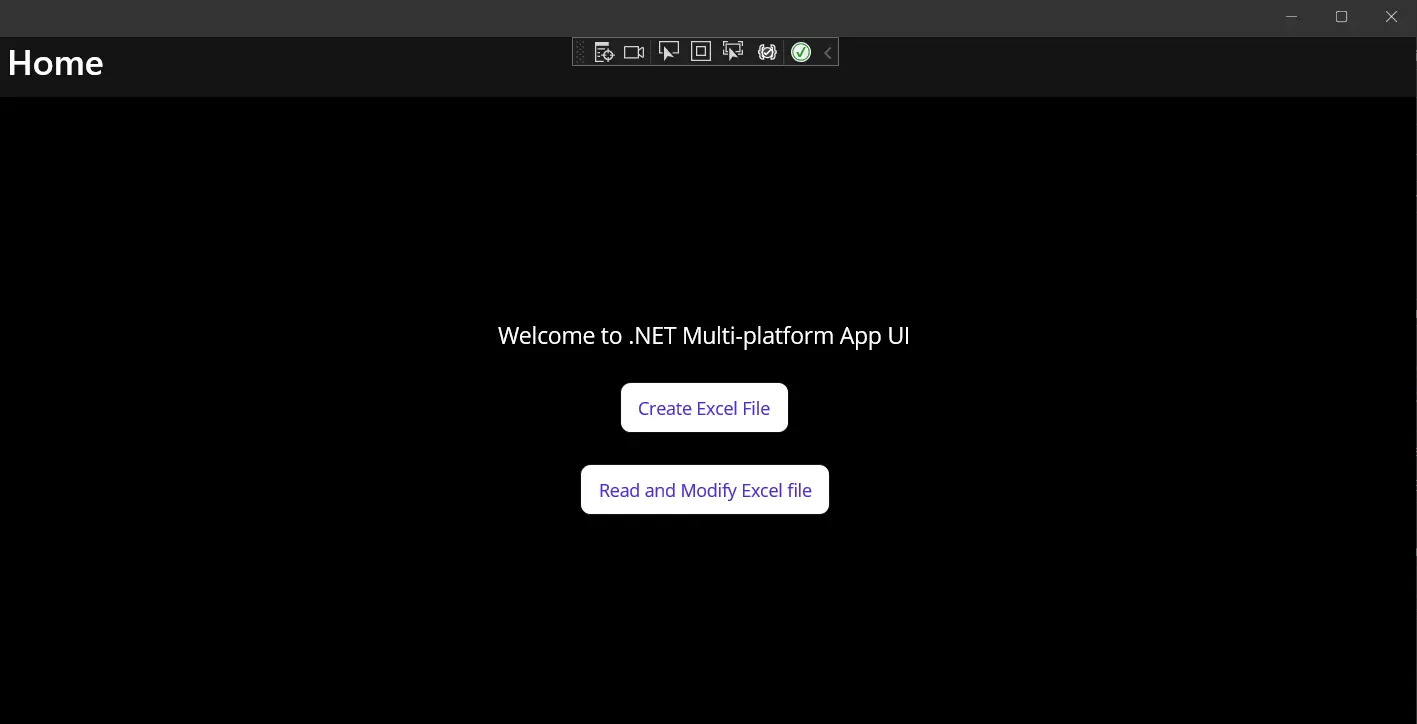
Figure 1 - Sortie
Cliquer sur le bouton " Créer un fichier Excel " ouvrira une fenêtre de dialogue distincte. Cette fenêtre vous invite à choisir un emplacement et un nom de fichier pour enregistrer le nouveau fichier Excel (généré). Indiquez l'emplacement et le nom de fichier comme indiqué, puis cliquez sur OK. Ensuite, une autre fenêtre de dialogue apparaîtra.
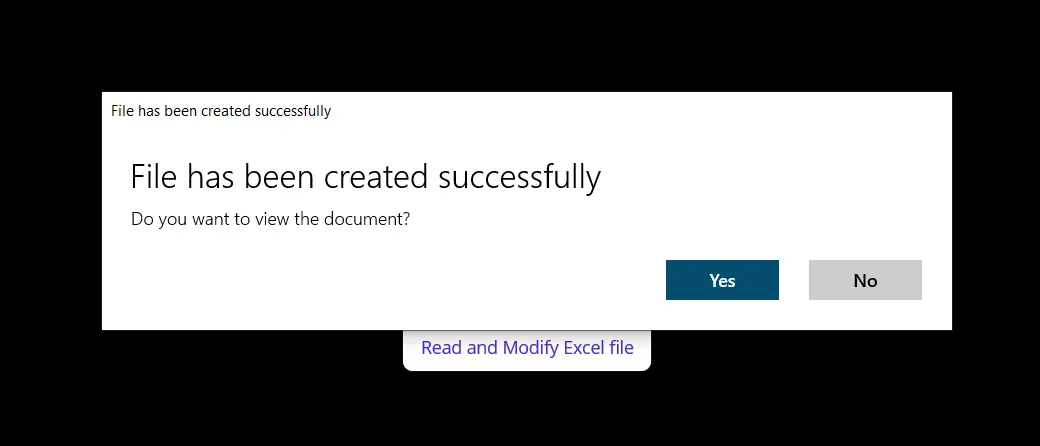
Figure 2 - Créer une fenêtre contextuelle Excel
Ouvrir le fichier Excel comme indiqué dans la fenêtre contextuelle affichera un document similaire à celui de la capture d'écran ci-dessous.
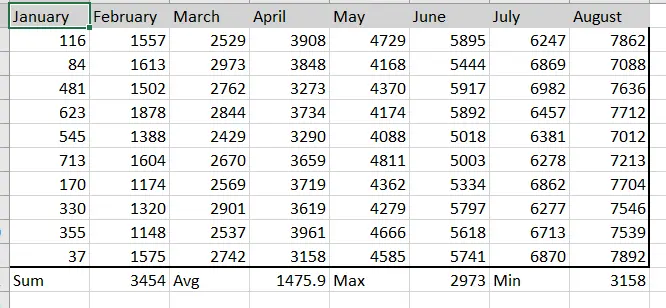
Figure 3 - Fenêtre contextuelle de lecture et de modification Excel
Cliquer sur le bouton " Lire et modifier le fichier Excel " chargera le fichier Excel précédemment généré et le modifiera avec les couleurs d'arrière-plan et de texte personnalisées que nous avons définies dans une section précédente.
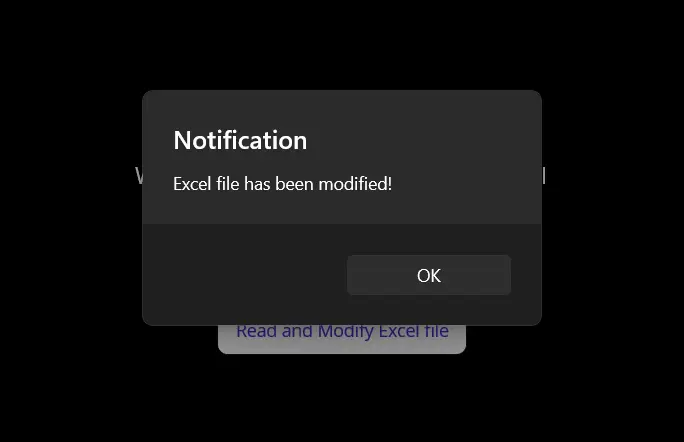
Figure 4 - Sortie Excel
Lorsque vous ouvrirez le fichier modifié, vous verrez le résultat suivant avec une table des matières.
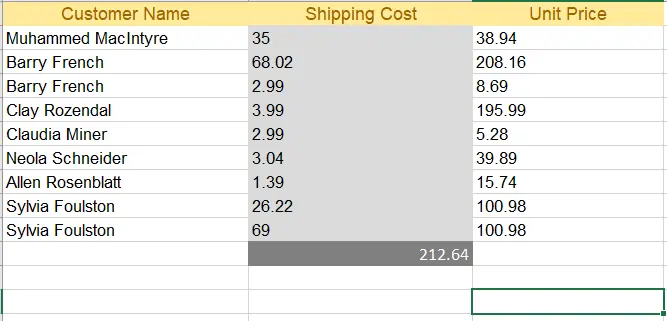
Figure 5 - Sortie Excel modifiée
Conclusion
Ceci explique comment créer, lire et modifier des fichiers Excel dans l'application .NET MAUI à l'aide de la bibliothèque IronXL. IronXL fonctionne très bien et effectue toutes les opérations avec rapidité et précision. IronXL est une excellente bibliothèque pour les opérations Excel, surpassant Microsoft Interop car elle ne nécessite aucune installation de la suite Microsoft Office. De plus, elle prend en charge de nombreuses opérations telles que la création de classeurs et de feuilles de calcul, la manipulation de plages de cellules, la mise en forme et l'exportation vers différents formats de documents comme CSV, TSV, etc.
IronXL prend en charge tous les modèles de projet tels que Windows Forms, WPF, ASP.NET Core et bien d'autres. Consultez nos tutoriels sur la création et la lecture de fichiers Excel pour obtenir des informations supplémentaires sur l'utilisation d'IronXL.
Liens d'accès rapide
Explorez ce guide pratique sur GitHub
Le code source de ce projet est disponible sur GitHub.
Utilisez ce code pour une prise en main rapide et facile. Le projet est enregistré au format Microsoft Visual Studio 2022, mais est compatible avec tous les environnements de développement intégrés .NET.
Comment lire, créer et modifier des fichiers Excel dans les applications .NET MAUI

Voir la référence API
Explorez la documentation de référence de l'API IronXL, qui décrit en détail toutes les fonctionnalités, espaces de noms, classes, méthodes, champs et énumérations d'IronXL.
Voir la référence APIQuestions Fréquemment Posées
Comment créer un fichier Excel dans une application .NET MAUI ?
Pour créer un fichier Excel dans un projet .NET MAUI, utilisez la bibliothèque IronXL pour initialiser un nouveau classeur et une nouvelle feuille de calcul. Vous pouvez ensuite définir les valeurs des cellules, appliquer des formules Excel et personnaliser le formatage avant d'enregistrer le fichier en utilisant une classe SaveService personnalisée.
Puis-je lire des fichiers Excel existants dans une application .NET MAUI ?
Oui, vous pouvez utiliser IronXL pour charger et lire des fichiers Excel existants dans une application .NET MAUI. La bibliothèque vous permet d'accéder et de modifier les valeurs des cellules, d'appliquer des formules et de mettre en œuvre un formatage personnalisé.
Quels sont les avantages d'utiliser IronXL pour la manipulation de fichiers Excel dans .NET MAUI ?
IronXL offre une solution autonome pour la manipulation de fichiers Excel dans .NET MAUI, éliminant le besoin de Microsoft Office ou Interop. Il supporte la création, la lecture et la modification efficace de fichiers Excel et peut exporter vers divers formats comme CSV et TSV.
Comment puis-je installer IronXL dans mon projet .NET MAUI ?
Vous pouvez installer IronXL dans votre projet .NET MAUI en utilisant la console du Package Manager NuGet dans Visual Studio. Exécutez la commande : Install-Package IronXL.Excel pour ajouter la bibliothèque à votre projet.
Est-il possible de formater les cellules Excel par programmation dans .NET MAUI ?
Oui, avec IronXL, vous pouvez formater les cellules Excel par programmation dans .NET MAUI. Cela inclut la définition des styles des cellules, des couleurs et l'application de diverses options de formatage pour améliorer l'apparence de vos fichiers Excel.
Comment puis-je implémenter une classe SaveService pour les fichiers Excel dans mon application .NET MAUI ?
Pour implémenter une classe SaveService dans .NET MAUI, vous pouvez créer une classe qui utilise les fonctionnalités d'IronXL pour gérer l'enregistrement des fichiers Excel sur le stockage local. Cela implique de définir des méthodes pour spécifier les chemins de fichiers et de gérer les opérations d'entrée/sortie de fichiers.
Quels modèles de projet IronXL prend-il en charge dans les applications .NET ?
IronXL prend en charge une variété de modèles de projet .NET, y compris Windows Forms, WPF, ASP.NET Core, et plus encore, offrant une flexibilité pour les développeurs travaillant sur différents types d'applications.
Où puis-je trouver le code source du projet Excel .NET MAUI ?
Le code source du projet Excel .NET MAUI utilisant IronXL est disponible sur GitHub. Cela permet aux développeurs de configurer rapidement et d'expérimenter la manipulation de fichiers Excel dans leurs applications en utilisant Visual Studio 2022.
Is IronXL compatible with different .NET project templates?
Yes, IronXL is compatible with various .NET project templates including Windows Forms, WPF, and ASP.NET Core, among others.
Where can I find additional resources and tutorials for using IronXL?
You can find additional tutorials and resources for using IronXL on the official [Iron Software website](https://ironsoftware.com) and their GitHub repository, which includes sample projects and API references.

Curtis Chau détient un baccalauréat en informatique (Université de Carleton) et se spécialise dans le développement front-end avec expertise en Node.js, TypeScript, JavaScript et React. Passionné par la création d'interfaces utilisateur intuitives et esthétiquement plaisantes, Curtis aime travailler avec des frameworks modernes et créer des manuels bien structurés et visuellement attrayants.













