
Read a CSV File in C#

IronXL offre une solution en une ligne pour lire les fichiers CSV en C# en utilisant la méthode LoadCSV. Elle prend en charge les délimiteurs personnalisés et la conversion directe aux formats Excel pour un traitement transparent des données dans les applications .NET.
Cet exemple montre comment lire un fichier CSV en utilisant la méthode LoadCSV d'IronXL et l'enregistrer en tant que classeur Excel avec un code minimal.
-
1Install IronXL with NuGet Package Manager
-
2Copiez et exécutez cet extrait de code.
WorkBook wb = WorkBook.LoadCSV("data.csv", ExcelFileFormat.XLSX, listDelimiter: ","); wb.SaveAs("output.xlsx");C# -
3Déployez pour tester sur votre environnement de production.
Commencez à utiliser IronXL dans votre projet dès aujourd'hui avec un essai gratuit
Flux de travail minimal (5 étapes)
- Téléchargez et installez la bibliothèque de lecture CSV C#
- Créer un projet C# ou VB
- Ajoutez l'exemple de code de cette page à votre projet
- Spécifier le chemin CSV et le nom et le format de sortie
- Exécutez le projet pour visualiser le document
Lecture de fichiers CSV dans les applications .NET
- Installer une bibliothèque C# pour la lecture de fichiers CSV (IronXL)
- Lire des fichiers CSV en C#
- Spécifiez le format de fichier et le délimiteur.
Étape 1
Comment installer la bibliothèque IronXL?
Avant d'utiliser IronXL pour lire des fichiers CSV dans MVC, ASP ou .NET Core, vous devez l'installer. Voici un bref aperçu de la situation.
Pourquoi utiliser NuGet Package Manager?
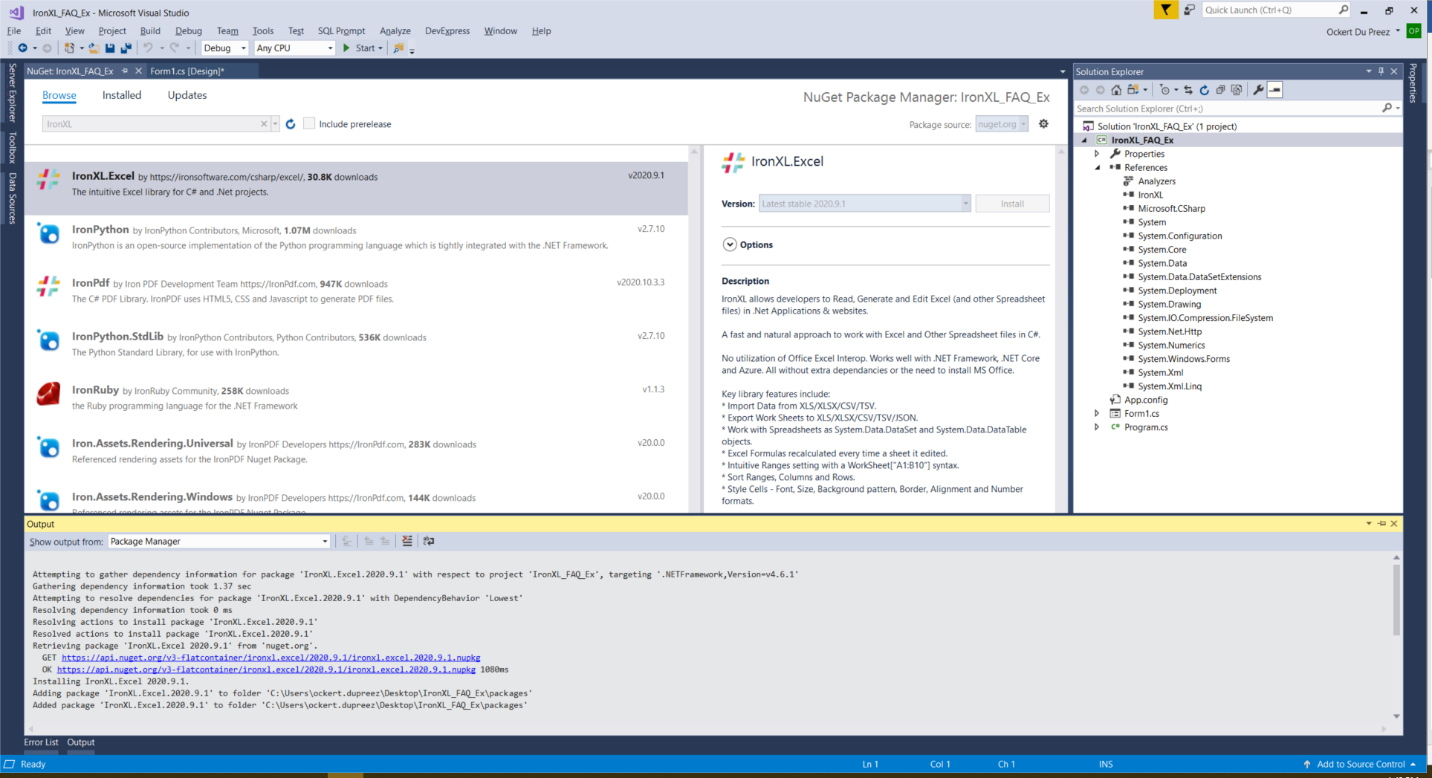
- Dans Visual Studio, sélectionnez le menu Projet
- Gérer les packages NuGet
- Rechercher
IronXL.Excel - Installer
Quelles sont les autres méthodes d'installation ?
Ou télécharger à partir du site web d'Iron Software : https://ironsoftware.com/csharp/excel/packages/IronXL.zip
Pour les développeurs .NET qui travaillent avec des conteneurs Docker, IronXL.NET peut être configuré dans votre environnement Docker. La bibliothèque prend également en charge le déploiement sur Azure Functions et AWS Lambda pour le traitement CSV basé sur le cloud.
Didacticiel de prise en main
Comment lire des fichiers CSV de manière programmatique?
Passons maintenant au projet !
Quel espace de noms dois-je importer?
Ajoutez le namespace IronXL :
// This namespace is required to access the IronXL functionalities
using IronXL;Imports IronXLComment charger et convertir des fichiers CSV?
Ajoutez du code pour lire un fichier CSV de manière programmatique avec IronXL et C# :
// Load the CSV file into a WorkBook object, specifying the file path, format, and delimiter
WorkBook workbook = WorkBook.LoadCSV("Read_CSV_Ex.csv", fileFormat: ExcelFileFormat.XLSX, listDelimiter: ",");

// Access the default worksheet within the loaded workbook
WorkSheet ws = workbook.DefaultWorkSheet;

// Save the workbook as an Excel file with a specified name
workbook.SaveAs("Csv_To_Excel.xlsx");' Load the CSV file into a WorkBook object, specifying the file path, format, and delimiter
Dim workbook As WorkBook = WorkBook.LoadCSV("Read_CSV_Ex.csv", fileFormat:=ExcelFileFormat.XLSX, listDelimiter:=",")
' Access the default worksheet within the loaded workbook
Dim ws As WorkSheet = workbook.DefaultWorkSheet
' Save the workbook as an Excel file with a specified name
workbook.SaveAs("Csv_To_Excel.xlsx")Quelles sont les options avancées de lecture CSV disponibles ?
IronXL propose des fonctionnalités permettant de traiter des fichiers CSV avec diverses configurations. Vous pouvez spécifier différents délimiteurs (points-virgules, tabulations, pipes) et gérer des fichiers avec différents encodages :
// Example: Reading CSV with custom delimiter
WorkBook workbook = WorkBook.LoadCSV("data.csv",
    fileFormat: ExcelFileFormat.XLSX,
    listDelimiter: ";");  // Using semicolon as delimiter

// Access specific cells after loading
var cellValue = workbook.DefaultWorkSheet["A1"].Value;

// Iterate through rows
foreach (var row in workbook.DefaultWorkSheet.Rows)
{
    // Process each row
    foreach (var cell in row)
    {
        Console.WriteLine(cell.Value);
    }
}À quoi ressemble le fichier CSV avant son traitement?
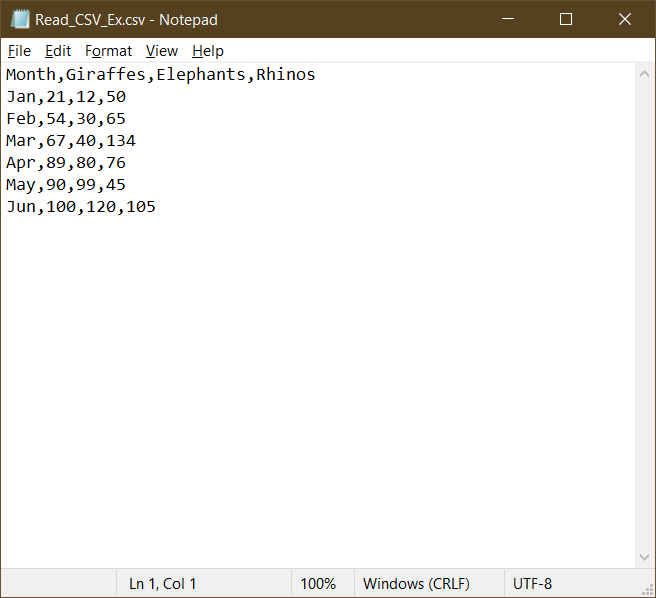
Comment fonctionne la méthode LoadCSV?
Un objet Workbook est créé. La méthode LoadCSV de l'objet Workbook spécifie le fichier CSV à lire, le format pour le lire et le délimiteur. Dans ce cas, une virgule est utilisée comme séparateur.
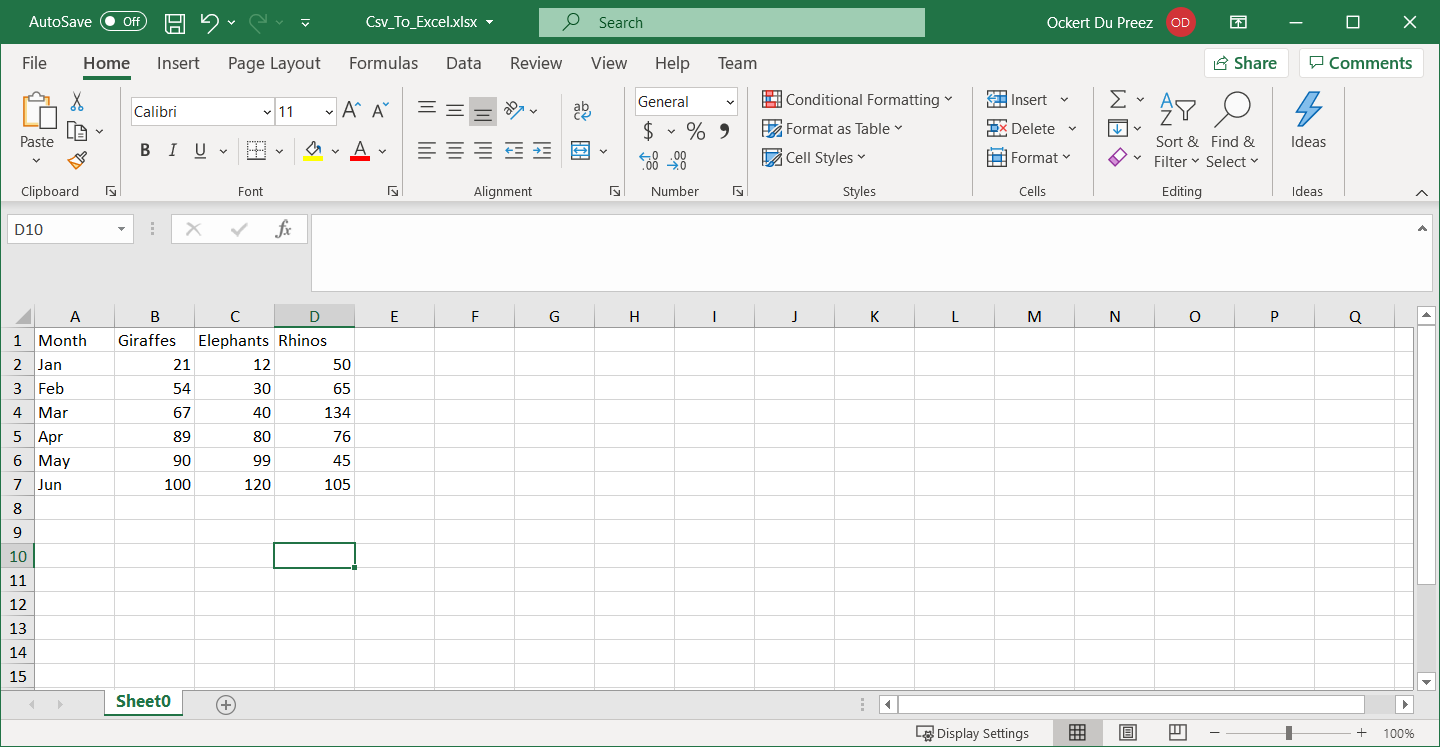
Un objet Worksheet est créé où le contenu CSV est placé. Le fichier est ensuite enregistré sous un nouveau nom et un nouveau format. Ce processus est utile lorsque vous devez convertir entre différents formats de feuilles de calcul.
Puis-je traiter efficacement des fichiers CSV volumineux ?
IronXL est optimisé pour les performances et gère efficacement les fichiers CSV volumineux. Pour les développeurs qui travaillent avec des ensembles de données importants, la bibliothèque offre des améliorations significatives des performances dans les versions récentes. Lorsque vous traitez des fichiers volumineux, tenez compte des meilleures pratiques suivantes :
// Reading large CSV files with memory optimization
WorkBook workbook = WorkBook.LoadCSV("large_dataset.csv",
    fileFormat: ExcelFileFormat.XLSX,
    listDelimiter: ",");

// Process data in chunks
var worksheet = workbook.DefaultWorkSheet;
int rowCount = worksheet.RowCount;
int batchSize = 1000;

for (int i = 0; i < rowCount; i += batchSize)
{
    // Process rows in batches
    var endIndex = Math.Min(i + batchSize, rowCount);
    for (int j = i; j < endIndex; j++)
    {
        var row = worksheet.GetRow(j);
        // Process individual row
    }
}Imports System
Imports IronXL
' Reading large CSV files with memory optimization
Dim workbook As WorkBook = WorkBook.LoadCSV("large_dataset.csv",
fileFormat:=ExcelFileFormat.XLSX,
listDelimiter:=",")
' Process data in chunks
Dim worksheet = workbook.DefaultWorkSheet
Dim rowCount As Integer = worksheet.RowCount
Dim batchSize As Integer = 1000
For i As Integer = 0 To rowCount - 1 Step batchSize
' Process rows in batches
Dim endIndex As Integer = Math.Min(i + batchSize, rowCount)
For j As Integer = i To endIndex - 1
Dim row = worksheet.GetRow(j)
' Process individual row
Next
NextComment exporter des données CSV vers d'autres formats ?
Après avoir lu des fichiers CSV, vous devrez peut-être exporter les données dans différents formats. IronXL prend en charge plusieurs options d'exportation, notamment la conversion de XLSX en CSV, JSON, XML et HTML. Voici comment exporter vers différents formats :
// Load CSV and export to multiple formats
WorkBook workbook = WorkBook.LoadCSV("input.csv", ExcelFileFormat.XLSX, ",");

// Export to different formats
workbook.SaveAs("output.xlsx"); // Excel format
workbook.SaveAsJson("output.json"); // JSON format
workbook.SaveAsXml("output.xml"); // XML format

// Export specific worksheet to CSV with custom delimiter
workbook.DefaultWorkSheet.SaveAsCsv("output_custom.csv", ";");Qu'en est-il de l'utilisation de données CSV dans les applications Web ?
Pour les développeurs ASP.NET, IronXL offre une intégration transparente pour la lecture de fichiers CSV dans les applications web. Vous pouvez télécharger et traiter des fichiers CSV dans vos projets MVC ou Web API :
// Example: Processing uploaded CSV file in ASP.NET
public ActionResult UploadCSV(HttpPostedFileBase file)
{
    if (file != null && file.ContentLength > 0)
    {
        // Save uploaded file temporarily
        var fileName = Path.GetFileName(file.FileName);
        var path = Path.Combine(Server.MapPath("~/App_Data/"), fileName);
        file.SaveAs(path);

        // Load and process CSV
        WorkBook workbook = WorkBook.LoadCSV(path, ExcelFileFormat.XLSX, ",");

        // Convert to DataTable for easy display
        var dataTable = workbook.DefaultWorkSheet.ToDataTable();

        // Clean up temporary file
        System.IO.File.Delete(path);

        return View(dataTable);
    }
    return RedirectToAction("Index");
}' Example: Processing uploaded CSV file in ASP.NET
Public Function UploadCSV(file As HttpPostedFileBase) As ActionResult
If file IsNot Nothing AndAlso file.ContentLength > 0 Then
' Save uploaded file temporarily
Dim fileName = Path.GetFileName(file.FileName)
Dim path = Path.Combine(Server.MapPath("~/App_Data/"), fileName)
file.SaveAs(path)
' Load and process CSV
Dim workbook As WorkBook = WorkBook.LoadCSV(path, ExcelFileFormat.XLSX, ",")
' Convert to DataTable for easy display
Dim dataTable = workbook.DefaultWorkSheet.ToDataTable()
' Clean up temporary file
System.IO.File.Delete(path)
Return View(dataTable)
End If
Return RedirectToAction("Index")
End FunctionComment traiter les fichiers CSV contenant des données complexes ?
Lorsque vous travaillez avec des fichiers CSV contenant des formules, des caractères spéciaux ou des types de données mixtes, IronXL offre de solides capacités de traitement. Vous pouvez travailler avec des formules et formater les données des cellules de manière appropriée :
// Handle CSV with special requirements
WorkBook workbook = WorkBook.LoadCSV("complex_data.csv",
    ExcelFileFormat.XLSX,
    listDelimiter: ",");

var worksheet = workbook.DefaultWorkSheet;

// Apply formatting to cells
worksheet["A1:A10"].Style.Font.Bold = true;
worksheet["B1:B10"].FormatString = "$#,##0.00"; // Currency format

// Add formulas after loading CSV data
worksheet["D1"].Formula = "=SUM(B1:B10)";Imports IronXL
' Handle CSV with special requirements
Dim workbook As WorkBook = WorkBook.LoadCSV("complex_data.csv", ExcelFileFormat.XLSX, listDelimiter:=",")
Dim worksheet = workbook.DefaultWorkSheet
' Apply formatting to cells
worksheet("A1:A10").Style.Font.Bold = True
worksheet("B1:B10").FormatString = "$#,##0.00" ' Currency format
' Add formulas after loading CSV data
worksheet("D1").Formula = "=SUM(B1:B10)"Accès rapide à la bibliothèque
Documentation de référence de l'API IronXL
Apprenez-en davantage et partagez vos connaissances sur la fusion, la dissociation et la manipulation de cellules dans les feuilles de calcul Excel grâce à la documentation de référence pratique de l'API IronXL.
Documentation de référence de l'API IronXL
Questions Fréquemment Posées
Comment lire rapidement des fichiers CSV en C# ?
IronXL propose une solution en une ligne pour lire les fichiers CSV en C# à l'aide de la méthode LoadCSV. Il suffit d'utiliser : WorkBook wb = WorkBook.LoadCSV("data.csv", ExcelFileFormat.XLSX, listDelimiter : ",") ; Ceci charge votre fichier CSV et vous permet de le sauvegarder en tant que classeur Excel avec wb.SaveAs("output.xlsx").
Quelles sont les méthodes d'installation disponibles pour la bibliothèque de lecture CSV ?
Vous pouvez installer IronXL via le Package Manager NuGet dans Visual Studio en recherchant " IronXL.Excel ", ou la télécharger directement sur le site web d'Iron Software. La bibliothèque prend également en charge les conteneurs Docker, Azure Functions et AWS Lambda pour le traitement CSV basé sur le cloud.
Puis-je utiliser des délimiteurs personnalisés lors de la lecture de fichiers CSV ?
Oui, IronXL prend en charge différents délimiteurs, notamment les points-virgules, les tabulations et les tuyaux. Vous pouvez spécifier le délimiteur en utilisant le paramètre listDelimiter dans la méthode LoadCSV, par exemple : WorkBook.LoadCSV("data.csv", ExcelFileFormat.XLSX, listDelimiter : " ;").
Quel espace de noms dois-je importer pour la fonctionnalité de lecture CSV ?
Vous devez ajouter " using IronXL ; " en haut de votre fichier C# pour accéder à toutes les fonctionnalités d'IronXL pour la lecture et le traitement des fichiers CSV.
Comment puis-je accéder à des valeurs de cellules spécifiques après avoir chargé un fichier CSV ?
Après avoir chargé un fichier CSV avec la méthode LoadCSV d'IronXL, vous pouvez accéder à des cellules spécifiques en utilisant : var cellValue = workbook.DefaultWorkSheet["A1"].Value ; Cela vous permet de récupérer et de manipuler des données de cellules individuelles à partir de votre CSV chargé.
La bibliothèque prend-elle en charge différents encodages de fichiers lors de la lecture de fichiers CSV ?
Oui, IronXL prend en charge différents encodages, y compris UTF8. Vous pouvez spécifier le paramètre d'encodage lors du chargement de fichiers CSV : WorkBook.LoadCSV("data.csv", fileFormat : ExcelFileFormat.XLSX, encoding : Encoding.UTF8).
Puis-je convertir directement des fichiers CSV au format Excel ?
Oui, IronXL permet la conversion directe des formats CSV vers Excel. Après avoir chargé un fichier CSV avec LoadCSV, vous pouvez immédiatement l'enregistrer en tant que fichier Excel en utilisant la méthode SaveAs, en spécifiant des formats tels que XLSX ou XLS.
Can I install IronXL via NuGet in Visual Studio?
Yes, you can install IronXL using the NuGet Package Manager in Visual Studio by searching for `IronXL.Excel` and adding it to your project.
What namespace do I need to import to use IronXL functionalities in my C# project?
To access IronXL functionalities, you need to import the `IronXL` namespace into your C# project.
What types of projects can benefit from using IronXL for CSV file processing?
IronXL is beneficial for .NET applications, including MVC, ASP, and .NET Core projects, where smooth CSV reading and conversion are required.

Curtis Chau détient un baccalauréat en informatique (Université de Carleton) et se spécialise dans le développement front-end avec expertise en Node.js, TypeScript, JavaScript et React. Passionné par la création d'interfaces utilisateur intuitives et esthétiquement plaisantes, Curtis aime travailler avec des frameworks modernes et créer des manuels bien structurés et visuellement attrayants.













