# .NET MAUI에서 Excel 파일 생성, 읽기 및 편집
## 소개
이 사용 방법 가이드는 IronXL을 사용하여 Windows for .NET MAUI 앱에서 Excel 파일을 만들고 읽는 방법을 설명합니다. 시작해봅시다.
## IronXL: C# Excel 라이브러리
IronXL은 Excel 파일을 읽고, 쓰고, 조작하는 C# .NET 라이브러리입니다. 사용자는 Excel의 콘텐츠 및 외관뿐만 아니라 제목 및 저자와 같은 메타데이터를 포함하여 처음부터 Excel 문서를 생성할 수 있습니다. 이 라이브러리는 사용자 인터페이스에 대한 사용자 지정 기능도 지원하여 여백 설정, 방향, 페이지 크기, 이미지 등을 설정할 수 있습니다. Excel 파일을 생성하기 위해 외부 프레임워크, 플랫폼 통합, 다른 서드파티 라이브러리를 필요로 하지 않습니다. 그 자체로 완전하고 독립적입니다.
<div class="hsg-featured-snippet">
<h2>.NET MAUI에서 Excel 파일 읽는 방법</h2>
<ol>
<li><a class="js-modal-open" data-modal-id="trial-license-after-download" href="https://nuget.org/packages/IronXL.Excel/">Excel 파일을 읽기 위한 C# 라이브러리 설치</a></li>
<li>MAUI 애플리케이션 실행에 필요한 모든 패키지가 설치되어 있는지 확인하십시오.</li>
<li>Maui에서 직관적인 API를 사용하여 Excel 파일을 생성하세요.</li>
<li>브라우저에서 엑셀 파일을 불러와서 볼 수 있습니다.</li>
<li>엑셀 파일 저장 및 내보내기</li>
</ol>
</div>
## IronXL 설치
---------------------------
IronXL을 설치하려면 Visual Studio의 NuGet 패키지 관리 콘솔을 사용할 수 있습니다. 콘솔을 열고 IronXL 라이브러리를 설치하기 위해 다음 명령어를 입력하세요.
```shell
:ProductInstall
```
## IronXL을 사용하여 C#에서 Excel 파일 생성
### 애플리케이션 프론트엔드 설계
이름이 `MainPage.xaml`인 XAML 페이지를 열고 그 안의 코드를 다음 코드 스니펫으로 교체합니다.
```xml
<?xml version="1.0" encoding="utf-8" ?>
<ContentPage xmlns="http://schemas.microsoft.com/dotnet/2021/maui"
             xmlns:x="http://schemas.microsoft.com/winfx/2009/xaml"
             x:Class="MAUI_IronXl.MainPage">

    <ScrollView>
        <VerticalStackLayout
            Spacing="25"
            Padding="30,0"
            VerticalOptions="Center">

            <Label
                Text="Welcome to .NET Multi-platform App UI"
                SemanticProperties.HeadingLevel="Level2"
                SemanticProperties.Description="Welcome Multi-platform App UI"
                FontSize="18"
                HorizontalOptions="Center" />

            <Button
                x:Name="createBtn"
                Text="Create Excel File"
                SemanticProperties.Hint="Click on the button to create Excel file"
                Clicked="CreateExcel"
                HorizontalOptions="Center" />

            <Button
                x:Name="readExcel"
                Text="Read and Modify Excel file"
                SemanticProperties.Hint="Click on the button to read Excel file"
                Clicked="ReadExcel"
                HorizontalOptions="Center" />

        </VerticalStackLayout>
    </ScrollView>

</ContentPage>
```
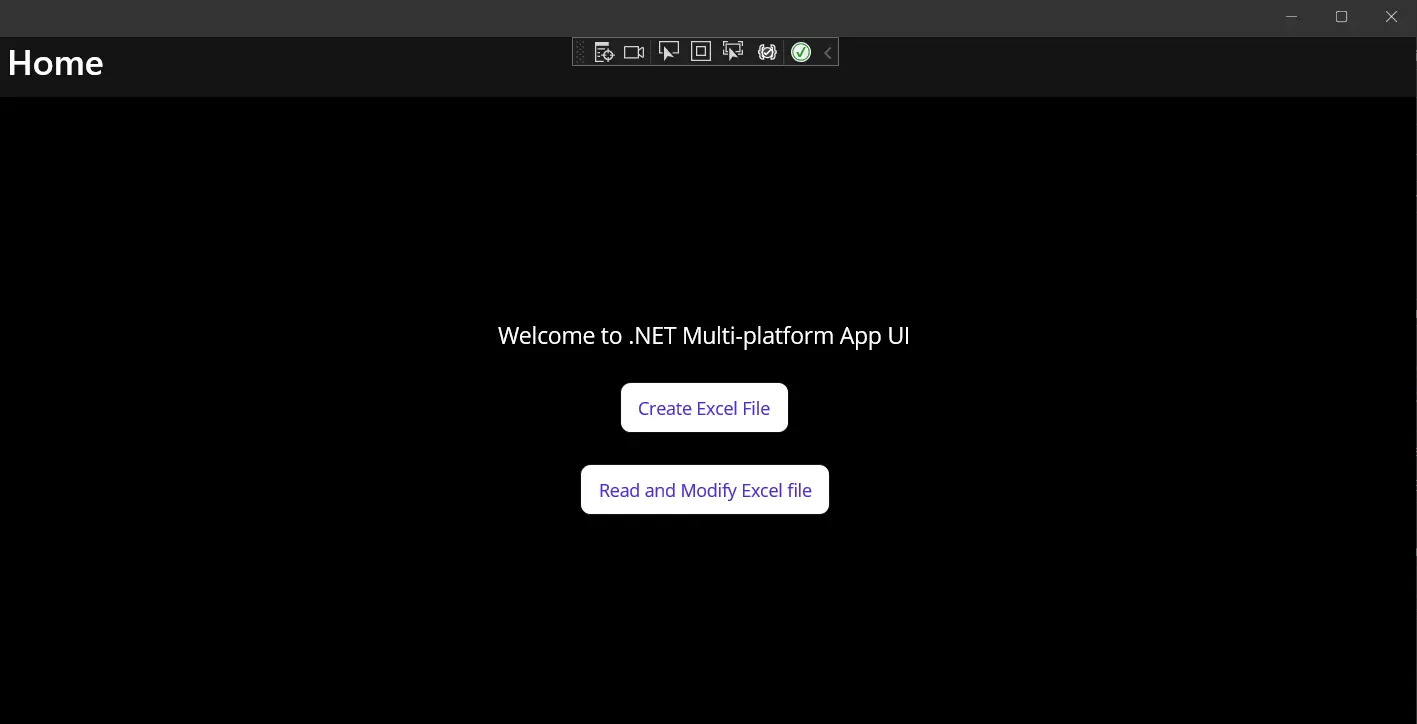
위의 코드는 기본 .NET MAUI 애플리케이션 레이아웃을 만듭니다. 하나의 라벨과 두 개의 버튼을 생성합니다. 하나의 버튼은 Excel 파일을 생성하는 것이고, 두 번째 버튼은 Excel 파일을 읽고 수정하는 지원을 제공합니다. 두 요소는 VerticalStackLayout 요소에 중첩되어 있어 모든 지원되는 장치에서 수직으로 정렬됩니다.
### Excel 파일 생성
이제 IronXL을 사용하여 Excel 파일을 생성할 시간입니다. `MainPage.xaml.cs` 파일을 열고 파일에 다음 메서드를 작성합니다.
```csharp
private void CreateExcel(object sender, EventArgs e)
{
// Create a new Workbook
WorkBook workbook = WorkBook.Create(ExcelFileFormat.XLSX);
// Create a Worksheet
var sheet = workbook.CreateWorkSheet("2022 Budget");
// Set cell headers
sheet["A1"].Value = "January";
sheet["B1"].Value = "February";
sheet["C1"].Value = "March";
sheet["D1"].Value = "April";
sheet["E1"].Value = "May";
sheet["F1"].Value = "June";
sheet["G1"].Value = "July";
sheet["H1"].Value = "August";
// Fill worksheet cells with random values
Random r = new Random();
for (int i = 2; i <= 11; i++)
{
sheet["A" + i].Value = r.Next(1, 1000);
sheet["B" + i].Value = r.Next(1000, 2000);
sheet["C" + i].Value = r.Next(2000, 3000);
sheet["D" + i].Value = r.Next(3000, 4000);
sheet["E" + i].Value = r.Next(4000, 5000);
sheet["F" + i].Value = r.Next(5000, 6000);
sheet["G" + i].Value = r.Next(6000, 7000);
sheet["H" + i].Value = r.Next(7000, 8000);
}
// Apply formatting (background and border)
sheet["A1:H1"].Style.SetBackgroundColor("#d3d3d3");
sheet["A1:H1"].Style.TopBorder.SetColor("#000000");
sheet["A1:H1"].Style.BottomBorder.SetColor("#000000");
sheet["H2:H11"].Style.RightBorder.SetColor("#000000");
sheet["H2:H11"].Style.RightBorder.Type = IronXL.Styles.BorderType.Medium;
sheet["A11:H11"].Style.BottomBorder.SetColor("#000000");
sheet["A11:H11"].Style.BottomBorder.Type = IronXL.Styles.BorderType.Medium;
// Apply formulas
decimal sum = sheet["A2:A11"].Sum();
decimal avg = sheet["B2:B11"].Avg();
decimal max = sheet["C2:C11"].Max();
decimal min = sheet["D2:D11"].Min();
sheet["A12"].Value = "Sum";
sheet["B12"].Value = sum;
sheet["C12"].Value = "Avg";
sheet["D12"].Value = avg;
sheet["E12"].Value = "Max";
sheet["F12"].Value = max;
sheet["G12"].Value = "Min";
sheet["H12"].Value = min;
// Save and open the Excel file
SaveService saveService = new SaveService();
saveService.SaveAndView("Budget.xlsx", "application/octet-stream", workbook.ToStream());
}
```
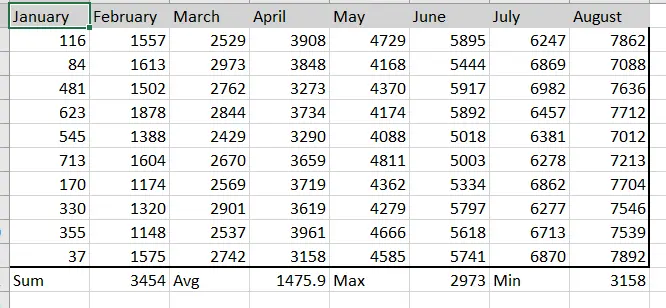
이 소스 코드는 IronXL을 사용하여 워크북과 워크시트를 생성하고 셀 값 설정 및 셀 서식을 지정합니다. 또한 IronXL을 사용하여 Excel 수식을 사용하는 방법을 보여줍니다.
### 브라우저에서 Excel 파일 보기
`MainPage.xaml.cs` 파일을 열고 다음 코드를 작성합니다.
```csharp
private void ReadExcel(object sender, EventArgs e)
{
// Store the path of the file
string filepath = @"C:\Files\Customer Data.xlsx";
WorkBook workbook = WorkBook.Load(filepath);
WorkSheet sheet = workbook.WorkSheets.First();
// Calculate the sum of a range
decimal sum = sheet["B2:B10"].Sum();
// Modify a cell value and apply styles
sheet["B11"].Value = sum;
sheet["B11"].Style.SetBackgroundColor("#808080");
sheet["B11"].Style.Font.SetColor("#ffffff");
// Save and open the Excel file
SaveService saveService = new SaveService();
saveService.SaveAndView("Modified Data.xlsx", "application/octet-stream", workbook.ToStream());
DisplayAlert("Notification", "Excel file has been modified!", "OK");
}
```
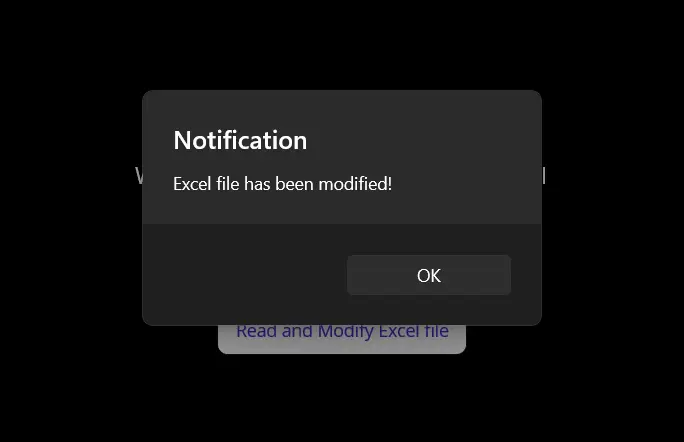
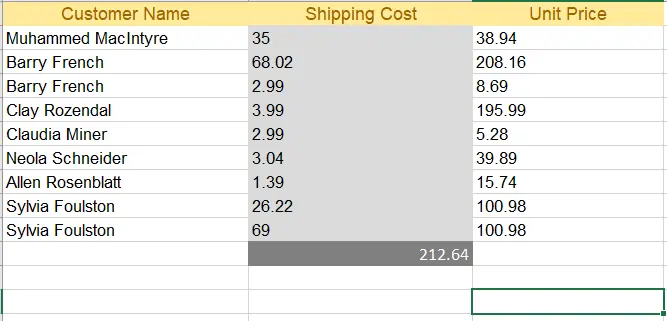
소스 코드는 Excel 파일을 불러와 셀 범위에 수식을 적용하고 커스텀 배경 및 텍스트 색상으로 서식을 지정합니다. 그 후, 수정된 Excel 파일이 저장되고 알림이 표시됩니다.
### Excel 파일 저장
이 섹션에서는 Excel 파일을 로컬 저장소에 저장할 `SaveService` 클래스를 정의합니다.
"SaveService.cs" 클래스를 만들고 다음 코드를 작성하세요:
```csharp
using System;
using System.IO;
namespace MAUI_IronXL
{
public partial class SaveService
{
public partial void SaveAndView(string fileName, string contentType, MemoryStream stream);
}
}
```
그 다음, Platforms > Windows 폴더 내에 "SaveWindows.cs"라는 클래스를 생성하고 다음 코드를 추가하세요:
```csharp
using System;
using System.Collections.Generic;
using System.IO;
using System.Runtime.InteropServices.WindowsRuntime;
using Windows.Storage;
using Windows.Storage.Pickers;
using Windows.Storage.Streams;
using Windows.UI.Popups;
namespace MAUI_IronXL
{
public partial class SaveService
{
public async partial void SaveAndView(string fileName, string contentType, MemoryStream stream)
{
StorageFile stFile;
string extension = Path.GetExtension(fileName);
IntPtr windowHandle = System.Diagnostics.Process.GetCurrentProcess().MainWindowHandle;
if (!Windows.Foundation.Metadata.ApiInformation.IsTypePresent("Windows.Phone.UI.Input.HardwareButtons"))
{
FileSavePicker savePicker = new FileSavePicker();
savePicker.DefaultFileExtension = ".xlsx";
savePicker.SuggestedFileName = fileName;
savePicker.FileTypeChoices.Add("XLSX", new List<string> { ".xlsx" });
WinRT.Interop.InitializeWithWindow.Initialize(savePicker, windowHandle);
stFile = await savePicker.PickSaveFileAsync();
}
else
{
StorageFolder local = ApplicationData.Current.LocalFolder;
stFile = await local.CreateFileAsync(fileName, CreationCollisionOption.ReplaceExisting);
}
if (stFile != null)
{
using (IRandomAccessStream zipStream = await stFile.OpenAsync(FileAccessMode.ReadWrite))
{
using (Stream outputStream = zipStream.AsStreamForWrite())
{
outputStream.SetLength(0);
stream.WriteTo(outputStream);
await outputStream.FlushAsync();
}
}
MessageDialog msgDialog = new("Do you want to view the document?", "File has been created successfully");
UICommand yesCmd = new("Yes");
msgDialog.Commands.Add(yesCmd);
UICommand noCmd = new("No");
msgDialog.Commands.Add(noCmd);
WinRT.Interop.InitializeWithWindow.Initialize(msgDialog, windowHandle);
IUICommand cmd = await msgDialog.ShowAsync();
if (cmd.Label == yesCmd.Label)
{
await Windows.System.Launcher.LaunchFileAsync(stFile);
}
}
}
}
}
```
### 산출
MAUI 프로젝트를 빌드 및 실행하세요. 성공적으로 실행되면 아래의 이미지에 묘사된 내용을 보여주는 창이 열립니다.
<div class="content-img-align-center">
<div class="center-image-wrapper">
<img src="/img/tutorials/read-create-excel-net-maui/read-create-excel-net-maui-1.webp" alt=".NET MAUI에서 Excel 파일 읽기, 만들기 및 편집, 그림 1: 출력" class="img-responsive add-shadow" />
<p><strong>그림 1</strong> - <em>출력</em></p>
</div>
</div>
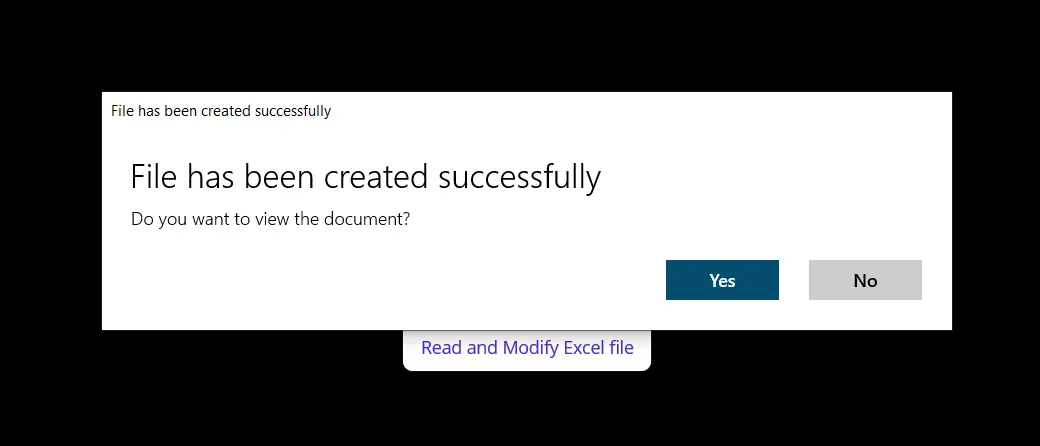
"엑셀 파일 생성" 버튼을 클릭하면 별도의 대화창이 열립니다. 이 창에서는 새로 생성된 Excel 파일을 저장할 위치와 파일 이름을 선택하라는 메시지가 표시됩니다. 위치와 파일 이름을 지시대로 지정하고 OK를 클릭하세요. 그 후 다른 대화창이 나타납니다.
<div class="content-img-align-center">
<div class="center-image-wrapper">
<img src="/img/tutorials/read-create-excel-net-maui/read-create-excel-net-maui-2.webp" alt=".NET MAUI에서 Excel 파일 읽기, 만들기 및 편집, 그림 2: Excel 만들기 팝업" class="img-responsive add-shadow" />
<p><strong>그림 2</strong> - <em>엑셀 생성 팝업</em></p>
</div>
</div>
팝업에서 지시한 대로 Excel 파일을 열면 아래 스크린샷에 나온 문서를 볼 수 있습니다.
<div class="content-img-align-center">
<div class="center-image-wrapper">
<img src="/img/tutorials/read-create-excel-net-maui/read-create-excel-net-maui-3.webp" alt=".NET MAUI에서 Excel 파일 읽기, 만들기 및 편집, 그림 3: 출력" class="img-responsive add-shadow" />
<p><strong>그림 3</strong> - <em>엑셀 읽기 및 수정 팝업</em></p>
</div>
</div>
"엑셀 파일 읽기 및 수정" 버튼을 클릭하면 이전에 생성된 Excel 파일을 불러와 앞서 정의한 사용자 지정 배경 및 텍스트 색상으로 수정합니다.
<div class="content-img-align-center">
<div class="center-image-wrapper">
<img src="/img/tutorials/read-create-excel-net-maui/read-create-excel-net-maui-4.webp" alt=".NET MAUI에서 Excel 파일 읽기, 만들기 및 편집, 그림 4: Excel 출력" class="img-responsive add-shadow" />
<p><strong>그림 4</strong> - <em>엑셀 출력</em></p>
</div>
</div>
수정된 파일을 열면 목차와 함께 다음과 같은 출력이 나타납니다.
<div class="content-img-align-center">
<div class="center-image-wrapper">
<img src="/img/tutorials/read-create-excel-net-maui/read-create-excel-net-maui-5.webp" alt=".NET MAUI에서 Excel 파일 읽기, 만들기 및 편집, 그림 5: 수정된 Excel 출력" class="img-responsive add-shadow" />
<p><strong>그림 5</strong> - <em>수정된 엑셀 출력</em></p>
</div>
</div>
## 결론
IronXL 라이브러리를 사용하여 .NET MAUI 애플리케이션에서 Excel 파일을 생성, 읽고, 수정하는 방법을 설명했습니다. IronXL은 매우 뛰어난 성능을 발휘하며 모든 작업을 신속하고 정확하게 수행합니다. Microsoft Interop을 능가하는 우수한 Excel 작업용 라이브러리입니다. IronXL은 기계에 Microsoft Office Suite 설치가 필요하지 않으며, 워크북 및 워크시트 생성, 셀 범위 작업, 서식 지정, CSV, TSV 등 다양한 문서 유형으로 내보내기와 같은 여러 작업을 지원합니다.
IronXL은 Windows Form, WPF, ASP.NET Core 등 모든 프로젝트 템플릿을 지원합니다. IronXL을 사용하는 방법에 대한 추가 정보를 위해 [Excel 파일 생성](/csharp/excel/tutorials/create-excel-file-net/) 및 [Excel 파일 읽기](/csharp/excel/tutorials/how-to-read-excel-file-csharp/)에 관한 자습서를 참조하세요.
<hr class="separator" />
#### 빠른 액세스 링크
<div class="tutorial-section">
<div class="row">
<div class="col-sm-8">
<h3>GitHub에서 이 사용 방법 가이드를 탐색하세요</h3>
<p>이 프로젝트의 소스 코드는 GitHub 에서 확인할 수 있습니다.</p>
<p>이 코드를 사용하여 몇 분 내에 쉽게 시작할 수 있습니다. 프로젝트는 Microsoft Visual Studio 2022 프로젝트로 저장되었지만 모든 .NET IDE와 호환됩니다.</p>
<a class="doc-link" href="https://github.com/tayyab-create/MAUI-Create-and-Read-Excel-using-IronXL" target="_blank">.NET MAUI 앱에서 Excel 파일을 읽고, 생성하고, 편집하는 방법<i class="fa fa-chevron-right"></i></a>
</div>
<div class="col-sm-4">
<div class="tutorial-image">
<img alt="" class="img-responsive add-shadow" src="/img/svgs/github-icon.svg" />
</div>
</div>
</div>
</div>
<div class="tutorial-section">
<div class="row">
<div class="col-sm-4">
<div class="tutorial-image">
<img style="max-width: 110px; width: 100px; height: 140px;" alt="" class="img-responsive add-shadow" src="/img/svgs/documentation.svg" width="100" height="140" />
</div>
</div>
<div class="col-sm-8">
<h3>API 참조를 확인하세요.</h3>
<p>IronXL의 API 참조를 탐색하여 IronXL의 모든 기능, 네임스페이스, 클래스, 메소드, 필드 및 열거형에 대한 세부 정보를 설명합니다.</p>
<a class="doc-link" href="https://ironsoftware.com/csharp/excel/object-reference/api/" target="_blank">API 참조를 확인하세요. <i class="fa fa-chevron-right"></i></a>
</div>
</div>
</div>
이 사용 방법 가이드는 IronXL을 사용하여 Windows for .NET MAUI 앱에서 Excel 파일을 만들고 읽는 방법을 설명합니다. 시작해봅시다.
IronXL: C# Excel 라이브러리
IronXL은 Excel 파일을 읽고, 쓰고, 조작하는 C# .NET 라이브러리입니다. 사용자는 Excel의 콘텐츠 및 외관뿐만 아니라 제목 및 저자와 같은 메타데이터를 포함하여 처음부터 Excel 문서를 생성할 수 있습니다. 이 라이브러리는 사용자 인터페이스에 대한 사용자 지정 기능도 지원하여 여백 설정, 방향, 페이지 크기, 이미지 등을 설정할 수 있습니다. Excel 파일을 생성하기 위해 외부 프레임워크, 플랫폼 통합, 다른 서드파티 라이브러리를 필요로 하지 않습니다. 그 자체로 완전하고 독립적입니다.
IronXL을 설치하려면 Visual Studio의 NuGet 패키지 관리 콘솔을 사용할 수 있습니다. 콘솔을 열고 IronXL 라이브러리를 설치하기 위해 다음 명령어를 입력하세요.
PM > Install-Package IronXL.Excel
Install-Package IronXL.Excel
IronXL을 사용하여 C#에서 Excel 파일 생성
애플리케이션 프론트엔드 설계
이름이 MainPage.xaml인 XAML 페이지를 열고 그 안의 코드를 다음 코드 스니펫으로 교체합니다.
<?xml version="1.0" encoding="utf-8" ?><ContentPage xmlns="http://schemas.microsoft.com/dotnet/2021/maui" xmlns:x="http://schemas.microsoft.com/winfx/2009/xaml" x:Class="MAUI_IronXl.MainPage"> <ScrollView> <VerticalStackLayout Spacing="25" Padding="30,0" VerticalOptions="Center"> <Label Text="Welcome to .NET Multi-platform App UI" SemanticProperties.HeadingLevel="Level2" SemanticProperties.Description="Welcome Multi-platform App UI" FontSize="18" HorizontalOptions="Center" /> <Button x:Name="createBtn" Text="Create Excel File" SemanticProperties.Hint="Click on the button to create Excel file" Clicked="CreateExcel" HorizontalOptions="Center" /> <Button x:Name="readExcel" Text="Read and Modify Excel file" SemanticProperties.Hint="Click on the button to read Excel file" Clicked="ReadExcel" HorizontalOptions="Center" /> </VerticalStackLayout> </ScrollView></ContentPage>
<?xml version="1.0" encoding="utf-8" ?>
<ContentPage xmlns="http://schemas.microsoft.com/dotnet/2021/maui"
             xmlns:x="http://schemas.microsoft.com/winfx/2009/xaml"
             x:Class="MAUI_IronXl.MainPage">

    <ScrollView>
        <VerticalStackLayout
            Spacing="25"
            Padding="30,0"
            VerticalOptions="Center">

            <Label
                Text="Welcome to .NET Multi-platform App UI"
                SemanticProperties.HeadingLevel="Level2"
                SemanticProperties.Description="Welcome Multi-platform App UI"
                FontSize="18"
                HorizontalOptions="Center" />

            <Button
                x:Name="createBtn"
                Text="Create Excel File"
                SemanticProperties.Hint="Click on the button to create Excel file"
                Clicked="CreateExcel"
                HorizontalOptions="Center" />

            <Button
                x:Name="readExcel"
                Text="Read and Modify Excel file"
                SemanticProperties.Hint="Click on the button to read Excel file"
                Clicked="ReadExcel"
                HorizontalOptions="Center" />

        </VerticalStackLayout>
    </ScrollView>

</ContentPage>
XML
위의 코드는 기본 .NET MAUI 애플리케이션 레이아웃을 만듭니다. 하나의 라벨과 두 개의 버튼을 생성합니다. 하나의 버튼은 Excel 파일을 생성하는 것이고, 두 번째 버튼은 Excel 파일을 읽고 수정하는 지원을 제공합니다. 두 요소는 VerticalStackLayout 요소에 중첩되어 있어 모든 지원되는 장치에서 수직으로 정렬됩니다.
Excel 파일 생성
이제 IronXL을 사용하여 Excel 파일을 생성할 시간입니다. MainPage.xaml.cs 파일을 열고 파일에 다음 메서드를 작성합니다.
private voidCreateExcel(object sender, EventArgs e){ // Create a new Workbook WorkBook workbook = WorkBook.Create(ExcelFileFormat.XLSX); // Create a Worksheet var sheet = workbook.CreateWorkSheet("2022 Budget"); // Set cell headers sheet["A1"].Value = "January"; sheet["B1"].Value = "February"; sheet["C1"].Value = "March"; sheet["D1"].Value = "April"; sheet["E1"].Value = "May"; sheet["F1"].Value = "June"; sheet["G1"].Value = "July"; sheet["H1"].Value = "August"; // Fill worksheet cells with random values Random r = new Random(); for (int i = 2; i <= 11; i++) { sheet["A" + i].Value = r.Next(1, 1000); sheet["B" + i].Value = r.Next(1000, 2000); sheet["C" + i].Value = r.Next(2000, 3000); sheet["D" + i].Value = r.Next(3000, 4000); sheet["E" + i].Value = r.Next(4000, 5000); sheet["F" + i].Value = r.Next(5000, 6000); sheet["G" + i].Value = r.Next(6000, 7000); sheet["H" + i].Value = r.Next(7000, 8000); } // Apply formatting (background and border) sheet["A1:H1"].Style.SetBackgroundColor("#d3d3d3"); sheet["A1:H1"].Style.TopBorder.SetColor("#000000"); sheet["A1:H1"].Style.BottomBorder.SetColor("#000000"); sheet["H2:H11"].Style.RightBorder.SetColor("#000000"); sheet["H2:H11"].Style.RightBorder.Type = IronXL.Styles.BorderType.Medium; sheet["A11:H11"].Style.BottomBorder.SetColor("#000000"); sheet["A11:H11"].Style.BottomBorder.Type = IronXL.Styles.BorderType.Medium; // Apply formulas decimal sum = sheet["A2:A11"].Sum(); decimal avg = sheet["B2:B11"].Avg(); decimal max = sheet["C2:C11"].Max(); decimal min = sheet["D2:D11"].Min(); sheet["A12"].Value = "Sum"; sheet["B12"].Value = sum; sheet["C12"].Value = "Avg"; sheet["D12"].Value = avg; sheet["E12"].Value = "Max"; sheet["F12"].Value = max; sheet["G12"].Value = "Min"; sheet["H12"].Value = min; // Save and open the Excel file SaveService saveService = new SaveService(); saveService.SaveAndView("Budget.xlsx", "application/octet-stream", workbook.ToStream());}
private void CreateExcel(object sender, EventArgs e)
{
    // Create a new Workbook
    WorkBook workbook = WorkBook.Create(ExcelFileFormat.XLSX);

    // Create a Worksheet
    var sheet = workbook.CreateWorkSheet("2022 Budget");

    // Set cell headers
    sheet["A1"].Value = "January";
    sheet["B1"].Value = "February";
    sheet["C1"].Value = "March";
    sheet["D1"].Value = "April";
    sheet["E1"].Value = "May";
    sheet["F1"].Value = "June";
    sheet["G1"].Value = "July";
    sheet["H1"].Value = "August";

    // Fill worksheet cells with random values
    Random r = new Random();
    for (int i = 2; i <= 11; i++)
    {
        sheet["A" + i].Value = r.Next(1, 1000);
        sheet["B" + i].Value = r.Next(1000, 2000);
        sheet["C" + i].Value = r.Next(2000, 3000);
        sheet["D" + i].Value = r.Next(3000, 4000);
        sheet["E" + i].Value = r.Next(4000, 5000);
        sheet["F" + i].Value = r.Next(5000, 6000);
        sheet["G" + i].Value = r.Next(6000, 7000);
        sheet["H" + i].Value = r.Next(7000, 8000);
    }

    // Apply formatting (background and border)
    sheet["A1:H1"].Style.SetBackgroundColor("#d3d3d3");
    sheet["A1:H1"].Style.TopBorder.SetColor("#000000");
    sheet["A1:H1"].Style.BottomBorder.SetColor("#000000");
    sheet["H2:H11"].Style.RightBorder.SetColor("#000000");
    sheet["H2:H11"].Style.RightBorder.Type = IronXL.Styles.BorderType.Medium;
    sheet["A11:H11"].Style.BottomBorder.SetColor("#000000");
    sheet["A11:H11"].Style.BottomBorder.Type = IronXL.Styles.BorderType.Medium;

    // Apply formulas
    decimal sum = sheet["A2:A11"].Sum();
    decimal avg = sheet["B2:B11"].Avg();
    decimal max = sheet["C2:C11"].Max();
    decimal min = sheet["D2:D11"].Min();

    sheet["A12"].Value = "Sum";
    sheet["B12"].Value = sum;

    sheet["C12"].Value = "Avg";
    sheet["D12"].Value = avg;

    sheet["E12"].Value = "Max";
    sheet["F12"].Value = max;

    sheet["G12"].Value = "Min";
    sheet["H12"].Value = min;

    // Save and open the Excel file
    SaveService saveService = new SaveService();
    saveService.SaveAndView("Budget.xlsx", "application/octet-stream", workbook.ToStream());
}
Private Sub CreateExcel(ByVal sender AsObject, ByVal e AsEventArgs) ' Create a new Workbook Dim workbook AsWorkBook = WorkBook.Create(ExcelFileFormat.XLSX) ' Create a Worksheet Dim sheet = workbook.CreateWorkSheet("2022 Budget") ' Set cell headers sheet("A1").Value = "January" sheet("B1").Value = "February" sheet("C1").Value = "March" sheet("D1").Value = "April" sheet("E1").Value = "May" sheet("F1").Value = "June" sheet("G1").Value = "July" sheet("H1").Value = "August" ' Fill worksheet cells with random values Dim r As New Random() For i AsInteger = 2 To 11 sheet("A" & i).Value = r.Next(1, 1000) sheet("B" & i).Value = r.Next(1000, 2000) sheet("C" & i).Value = r.Next(2000, 3000) sheet("D" & i).Value = r.Next(3000, 4000) sheet("E" & i).Value = r.Next(4000, 5000) sheet("F" & i).Value = r.Next(5000, 6000) sheet("G" & i).Value = r.Next(6000, 7000) sheet("H" & i).Value = r.Next(7000, 8000) Next i ' Apply formatting (background and border) sheet("A1:H1").Style.SetBackgroundColor("#d3d3d3") sheet("A1:H1").Style.TopBorder.SetColor("#000000") sheet("A1:H1").Style.BottomBorder.SetColor("#000000") sheet("H2:H11").Style.RightBorder.SetColor("#000000") sheet("H2:H11").Style.RightBorder.Type = IronXL.Styles.BorderType.Medium sheet("A11:H11").Style.BottomBorder.SetColor("#000000") sheet("A11:H11").Style.BottomBorder.Type = IronXL.Styles.BorderType.Medium ' Apply formulas Dim sum AsDecimal = sheet("A2:A11").Sum() Dim avg AsDecimal = sheet("B2:B11").Avg() Dim max AsDecimal = sheet("C2:C11").Max() Dim min AsDecimal = sheet("D2:D11").Min() sheet("A12").Value = "Sum" sheet("B12").Value = sum sheet("C12").Value = "Avg" sheet("D12").Value = avg sheet("E12").Value = "Max" sheet("F12").Value = max sheet("G12").Value = "Min" sheet("H12").Value = min ' Save and open the Excel file Dim saveService As New SaveService() saveService.SaveAndView("Budget.xlsx", "application/octet-stream", workbook.ToStream())End Sub
Private Sub CreateExcel(ByVal sender As Object, ByVal e As EventArgs)
	' Create a new Workbook
	Dim workbook As WorkBook = WorkBook.Create(ExcelFileFormat.XLSX)

	' Create a Worksheet
	Dim sheet = workbook.CreateWorkSheet("2022 Budget")

	' Set cell headers
	sheet("A1").Value = "January"
	sheet("B1").Value = "February"
	sheet("C1").Value = "March"
	sheet("D1").Value = "April"
	sheet("E1").Value = "May"
	sheet("F1").Value = "June"
	sheet("G1").Value = "July"
	sheet("H1").Value = "August"

	' Fill worksheet cells with random values
	Dim r As New Random()
	For i As Integer = 2 To 11
		sheet("A" & i).Value = r.Next(1, 1000)
		sheet("B" & i).Value = r.Next(1000, 2000)
		sheet("C" & i).Value = r.Next(2000, 3000)
		sheet("D" & i).Value = r.Next(3000, 4000)
		sheet("E" & i).Value = r.Next(4000, 5000)
		sheet("F" & i).Value = r.Next(5000, 6000)
		sheet("G" & i).Value = r.Next(6000, 7000)
		sheet("H" & i).Value = r.Next(7000, 8000)
	Next i

	' Apply formatting (background and border)
	sheet("A1:H1").Style.SetBackgroundColor("#d3d3d3")
	sheet("A1:H1").Style.TopBorder.SetColor("#000000")
	sheet("A1:H1").Style.BottomBorder.SetColor("#000000")
	sheet("H2:H11").Style.RightBorder.SetColor("#000000")
	sheet("H2:H11").Style.RightBorder.Type = IronXL.Styles.BorderType.Medium
	sheet("A11:H11").Style.BottomBorder.SetColor("#000000")
	sheet("A11:H11").Style.BottomBorder.Type = IronXL.Styles.BorderType.Medium

	' Apply formulas
	Dim sum As Decimal = sheet("A2:A11").Sum()
	Dim avg As Decimal = sheet("B2:B11").Avg()
	Dim max As Decimal = sheet("C2:C11").Max()
	Dim min As Decimal = sheet("D2:D11").Min()

	sheet("A12").Value = "Sum"
	sheet("B12").Value = sum

	sheet("C12").Value = "Avg"
	sheet("D12").Value = avg

	sheet("E12").Value = "Max"
	sheet("F12").Value = max

	sheet("G12").Value = "Min"
	sheet("H12").Value = min

	' Save and open the Excel file
	Dim saveService As New SaveService()
	saveService.SaveAndView("Budget.xlsx", "application/octet-stream", workbook.ToStream())
End Sub
이 소스 코드는 IronXL을 사용하여 워크북과 워크시트를 생성하고 셀 값 설정 및 셀 서식을 지정합니다. 또한 IronXL을 사용하여 Excel 수식을 사용하는 방법을 보여줍니다.
브라우저에서 Excel 파일 보기
MainPage.xaml.cs 파일을 열고 다음 코드를 작성합니다.
private voidReadExcel(object sender, EventArgs e){ // Store the path of the file string filepath = @"C:\Files\Customer Data.xlsx"; WorkBook workbook = WorkBook.Load(filepath); WorkSheet sheet = workbook.WorkSheets.First(); // Calculate the sum of a range decimal sum = sheet["B2:B10"].Sum(); // Modify a cell value and apply styles sheet["B11"].Value = sum; sheet["B11"].Style.SetBackgroundColor("#808080"); sheet["B11"].Style.Font.SetColor("#ffffff"); // Save and open the Excel file SaveService saveService = new SaveService(); saveService.SaveAndView("Modified Data.xlsx", "application/octet-stream", workbook.ToStream());DisplayAlert("Notification", "Excel file has been modified!", "OK");}
private void ReadExcel(object sender, EventArgs e)
{
    // Store the path of the file
    string filepath = @"C:\Files\Customer Data.xlsx";
    WorkBook workbook = WorkBook.Load(filepath);
    WorkSheet sheet = workbook.WorkSheets.First();

    // Calculate the sum of a range
    decimal sum = sheet["B2:B10"].Sum();

    // Modify a cell value and apply styles
    sheet["B11"].Value = sum;
    sheet["B11"].Style.SetBackgroundColor("#808080");
    sheet["B11"].Style.Font.SetColor("#ffffff");

    // Save and open the Excel file
    SaveService saveService = new SaveService();
    saveService.SaveAndView("Modified Data.xlsx", "application/octet-stream", workbook.ToStream());

    DisplayAlert("Notification", "Excel file has been modified!", "OK");
}
Private Sub ReadExcel(ByVal sender AsObject, ByVal e AsEventArgs) ' Store the path of the file Dim filepath AsString = "C:\Files\Customer Data.xlsx" Dim workbook AsWorkBook = WorkBook.Load(filepath) Dim sheet AsWorkSheet = workbook.WorkSheets.First() ' Calculate the sum of a range Dim sum AsDecimal = sheet("B2:B10").Sum() ' Modify a cell value and apply styles sheet("B11").Value = sum sheet("B11").Style.SetBackgroundColor("#808080") sheet("B11").Style.Font.SetColor("#ffffff") ' Save and open the Excel file Dim saveService As New SaveService() saveService.SaveAndView("Modified Data.xlsx", "application/octet-stream", workbook.ToStream())DisplayAlert("Notification", "Excel file has been modified!", "OK")End Sub
Private Sub ReadExcel(ByVal sender As Object, ByVal e As EventArgs)
	' Store the path of the file
	Dim filepath As String = "C:\Files\Customer Data.xlsx"
	Dim workbook As WorkBook = WorkBook.Load(filepath)
	Dim sheet As WorkSheet = workbook.WorkSheets.First()

	' Calculate the sum of a range
	Dim sum As Decimal = sheet("B2:B10").Sum()

	' Modify a cell value and apply styles
	sheet("B11").Value = sum
	sheet("B11").Style.SetBackgroundColor("#808080")
	sheet("B11").Style.Font.SetColor("#ffffff")

	' Save and open the Excel file
	Dim saveService As New SaveService()
	saveService.SaveAndView("Modified Data.xlsx", "application/octet-stream", workbook.ToStream())

	DisplayAlert("Notification", "Excel file has been modified!", "OK")
End Sub
소스 코드는 Excel 파일을 불러와 셀 범위에 수식을 적용하고 커스텀 배경 및 텍스트 색상으로 서식을 지정합니다. 그 후, 수정된 Excel 파일이 저장되고 알림이 표시됩니다.
Excel 파일 저장
이 섹션에서는 Excel 파일을 로컬 저장소에 저장할 SaveService 클래스를 정의합니다.
"SaveService.cs" 클래스를 만들고 다음 코드를 작성하세요:
using System;using System.IO;namespace MAUI_IronXL{ public partial class SaveService { public partial voidSaveAndView(string fileName, string contentType, MemoryStream stream); }}
using System;
using System.IO;

namespace MAUI_IronXL
{
    public partial class SaveService
    {
        public partial void SaveAndView(string fileName, string contentType, MemoryStream stream);
    }
}
ImportsSystemImportsSystem.IONamespaceMAUI_IronXLPartialPublic Class SaveService PublicPartial Private Sub SaveAndView(ByVal fileName AsString, ByVal contentType AsString, ByVal stream AsMemoryStream) End Sub End ClassEndNamespace
Imports System
Imports System.IO

Namespace MAUI_IronXL
	Partial Public Class SaveService
		Public Partial Private Sub SaveAndView(ByVal fileName As String, ByVal contentType As String, ByVal stream As MemoryStream)
		End Sub
	End Class
End Namespace
그 다음, Platforms > Windows 폴더 내에 "SaveWindows.cs"라는 클래스를 생성하고 다음 코드를 추가하세요:
using System;using System.Collections.Generic;using System.IO;using System.Runtime.InteropServices.WindowsRuntime;using Windows.Storage;using Windows.Storage.Pickers;using Windows.Storage.Streams;using Windows.UI.Popups;namespace MAUI_IronXL{ public partial class SaveService { public async partial voidSaveAndView(string fileName, string contentType, MemoryStream stream) { StorageFile stFile; string extension = Path.GetExtension(fileName); IntPtr windowHandle = System.Diagnostics.Process.GetCurrentProcess().MainWindowHandle; if (!Windows.Foundation.Metadata.ApiInformation.IsTypePresent("Windows.Phone.UI.Input.HardwareButtons")) { FileSavePicker savePicker = new FileSavePicker(); savePicker.DefaultFileExtension = ".xlsx"; savePicker.SuggestedFileName = fileName; savePicker.FileTypeChoices.Add("XLSX", new List<string> { ".xlsx" });WinRT.Interop.InitializeWithWindow.Initialize(savePicker, windowHandle); stFile = await savePicker.PickSaveFileAsync(); } else { StorageFolder local = ApplicationData.Current.LocalFolder; stFile = await local.CreateFileAsync(fileName, CreationCollisionOption.ReplaceExisting); } if (stFile != null) { using (IRandomAccessStream zipStream = await stFile.OpenAsync(FileAccessMode.ReadWrite)) { using (Stream outputStream = zipStream.AsStreamForWrite()) { outputStream.SetLength(0); stream.WriteTo(outputStream); await outputStream.FlushAsync(); } } MessageDialog msgDialog = new("Do you want to view the document?", "File has been created successfully"); UICommand yesCmd = new("Yes"); msgDialog.Commands.Add(yesCmd); UICommand noCmd = new("No"); msgDialog.Commands.Add(noCmd);WinRT.Interop.InitializeWithWindow.Initialize(msgDialog, windowHandle); IUICommand cmd = await msgDialog.ShowAsync(); if (cmd.Label == yesCmd.Label) { awaitWindows.System.Launcher.LaunchFileAsync(stFile); } } } }}
using System;
using System.Collections.Generic;
using System.IO;
using System.Runtime.InteropServices.WindowsRuntime;
using Windows.Storage;
using Windows.Storage.Pickers;
using Windows.Storage.Streams;
using Windows.UI.Popups;

namespace MAUI_IronXL
{
    public partial class SaveService
    {
        public async partial void SaveAndView(string fileName, string contentType, MemoryStream stream)
        {
            StorageFile stFile;
            string extension = Path.GetExtension(fileName);
            IntPtr windowHandle = System.Diagnostics.Process.GetCurrentProcess().MainWindowHandle;

            if (!Windows.Foundation.Metadata.ApiInformation.IsTypePresent("Windows.Phone.UI.Input.HardwareButtons"))
            {
                FileSavePicker savePicker = new FileSavePicker();
                savePicker.DefaultFileExtension = ".xlsx";
                savePicker.SuggestedFileName = fileName;
                savePicker.FileTypeChoices.Add("XLSX", new List<string> { ".xlsx" });

                WinRT.Interop.InitializeWithWindow.Initialize(savePicker, windowHandle);
                stFile = await savePicker.PickSaveFileAsync();
            }
            else
            {
                StorageFolder local = ApplicationData.Current.LocalFolder;
                stFile = await local.CreateFileAsync(fileName, CreationCollisionOption.ReplaceExisting);
            }

            if (stFile != null)
            {
                using (IRandomAccessStream zipStream = await stFile.OpenAsync(FileAccessMode.ReadWrite))
                {
                    using (Stream outputStream = zipStream.AsStreamForWrite())
                    {
                        outputStream.SetLength(0);
                        stream.WriteTo(outputStream);
                        await outputStream.FlushAsync();
                    }
                }

                MessageDialog msgDialog = new("Do you want to view the document?", "File has been created successfully");
                UICommand yesCmd = new("Yes");
                msgDialog.Commands.Add(yesCmd);
                UICommand noCmd = new("No");
                msgDialog.Commands.Add(noCmd);

                WinRT.Interop.InitializeWithWindow.Initialize(msgDialog, windowHandle);

                IUICommand cmd = await msgDialog.ShowAsync();
                if (cmd.Label == yesCmd.Label)
                {
                    await Windows.System.Launcher.LaunchFileAsync(stFile);
                }
            }
        }
    }
}
ImportsSystemImportsSystem.Collections.GenericImportsSystem.IOImportsSystem.Runtime.InteropServices.WindowsRuntimeImportsWindows.StorageImportsWindows.Storage.PickersImportsWindows.Storage.StreamsImportsWindows.UI.PopupsNamespaceMAUI_IronXLPartialPublic Class SaveService PublicAsync Sub SaveAndView(ByVal fileName AsString, ByVal contentType AsString, ByVal stream AsMemoryStream) Dim stFile AsStorageFile Dim extension AsString = Path.GetExtension(fileName) Dim windowHandle AsIntPtr = System.Diagnostics.Process.GetCurrentProcess().MainWindowHandle IfNotWindows.Foundation.Metadata.ApiInformation.IsTypePresent("Windows.Phone.UI.Input.HardwareButtons") Then Dim savePicker As New FileSavePicker() savePicker.DefaultFileExtension = ".xlsx" savePicker.SuggestedFileName = fileName savePicker.FileTypeChoices.Add("XLSX", New List(OfString) From {".xlsx"})WinRT.Interop.InitializeWithWindow.Initialize(savePicker, windowHandle) stFile = Await savePicker.PickSaveFileAsync() Else Dim local AsStorageFolder = ApplicationData.Current.LocalFolder stFile = Await local.CreateFileAsync(fileName, CreationCollisionOption.ReplaceExisting) End If If stFile IsNot Nothing ThenUsing zipStream AsIRandomAccessStream = Await stFile.OpenAsync(FileAccessMode.ReadWrite)Using outputStream AsStream = zipStream.AsStreamForWrite() outputStream.SetLength(0) stream.WriteTo(outputStream)Await outputStream.FlushAsync()EndUsingEndUsing Dim msgDialog As New MessageDialog("Do you want to view the document?", "File has been created successfully") Dim yesCmd As New UICommand("Yes") msgDialog.Commands.Add(yesCmd) Dim noCmd As New UICommand("No") msgDialog.Commands.Add(noCmd)WinRT.Interop.InitializeWithWindow.Initialize(msgDialog, windowHandle) Dim cmd AsIUICommand = Await msgDialog.ShowAsync() If cmd.Label = yesCmd.LabelThenAwaitWindows.System.Launcher.LaunchFileAsync(stFile) End If End If End Sub End ClassEndNamespace
Imports System
Imports System.Collections.Generic
Imports System.IO
Imports System.Runtime.InteropServices.WindowsRuntime
Imports Windows.Storage
Imports Windows.Storage.Pickers
Imports Windows.Storage.Streams
Imports Windows.UI.Popups

Namespace MAUI_IronXL
	Partial Public Class SaveService
		Public Async Sub SaveAndView(ByVal fileName As String, ByVal contentType As String, ByVal stream As MemoryStream)
			Dim stFile As StorageFile
			Dim extension As String = Path.GetExtension(fileName)
			Dim windowHandle As IntPtr = System.Diagnostics.Process.GetCurrentProcess().MainWindowHandle

			If Not Windows.Foundation.Metadata.ApiInformation.IsTypePresent("Windows.Phone.UI.Input.HardwareButtons") Then
				Dim savePicker As New FileSavePicker()
				savePicker.DefaultFileExtension = ".xlsx"
				savePicker.SuggestedFileName = fileName
				savePicker.FileTypeChoices.Add("XLSX", New List(Of String) From {".xlsx"})

				WinRT.Interop.InitializeWithWindow.Initialize(savePicker, windowHandle)
				stFile = Await savePicker.PickSaveFileAsync()
			Else
				Dim local As StorageFolder = ApplicationData.Current.LocalFolder
				stFile = Await local.CreateFileAsync(fileName, CreationCollisionOption.ReplaceExisting)
			End If

			If stFile IsNot Nothing Then
				Using zipStream As IRandomAccessStream = Await stFile.OpenAsync(FileAccessMode.ReadWrite)
					Using outputStream As Stream = zipStream.AsStreamForWrite()
						outputStream.SetLength(0)
						stream.WriteTo(outputStream)
						Await outputStream.FlushAsync()
					End Using
				End Using

				Dim msgDialog As New MessageDialog("Do you want to view the document?", "File has been created successfully")
				Dim yesCmd As New UICommand("Yes")
				msgDialog.Commands.Add(yesCmd)
				Dim noCmd As New UICommand("No")
				msgDialog.Commands.Add(noCmd)

				WinRT.Interop.InitializeWithWindow.Initialize(msgDialog, windowHandle)

				Dim cmd As IUICommand = Await msgDialog.ShowAsync()
				If cmd.Label = yesCmd.Label Then
					Await Windows.System.Launcher.LaunchFileAsync(stFile)
				End If
			End If
		End Sub
	End Class
End Namespace
산출
MAUI 프로젝트를 빌드 및 실행하세요. 성공적으로 실행되면 아래의 이미지에 묘사된 내용을 보여주는 창이 열립니다.
그림 1 - 출력
"엑셀 파일 생성" 버튼을 클릭하면 별도의 대화창이 열립니다. 이 창에서는 새로 생성된 Excel 파일을 저장할 위치와 파일 이름을 선택하라는 메시지가 표시됩니다. 위치와 파일 이름을 지시대로 지정하고 OK를 클릭하세요. 그 후 다른 대화창이 나타납니다.
그림 2 - 엑셀 생성 팝업
팝업에서 지시한 대로 Excel 파일을 열면 아래 스크린샷에 나온 문서를 볼 수 있습니다.
그림 3 - 엑셀 읽기 및 수정 팝업
"엑셀 파일 읽기 및 수정" 버튼을 클릭하면 이전에 생성된 Excel 파일을 불러와 앞서 정의한 사용자 지정 배경 및 텍스트 색상으로 수정합니다.
그림 4 - 엑셀 출력
수정된 파일을 열면 목차와 함께 다음과 같은 출력이 나타납니다.
그림 5 - 수정된 엑셀 출력
결론
IronXL 라이브러리를 사용하여 .NET MAUI 애플리케이션에서 Excel 파일을 생성, 읽고, 수정하는 방법을 설명했습니다. IronXL은 매우 뛰어난 성능을 발휘하며 모든 작업을 신속하고 정확하게 수행합니다. Microsoft Interop을 능가하는 우수한 Excel 작업용 라이브러리입니다. IronXL은 기계에 Microsoft Office Suite 설치가 필요하지 않으며, 워크북 및 워크시트 생성, 셀 범위 작업, 서식 지정, CSV, TSV 등 다양한 문서 유형으로 내보내기와 같은 여러 작업을 지원합니다.
IronXL은 Windows Form, WPF, ASP.NET Core 등 모든 프로젝트 템플릿을 지원합니다. IronXL을 사용하는 방법에 대한 추가 정보를 위해 Excel 파일 생성 및 Excel 파일 읽기에 관한 자습서를 참조하세요.
빠른 액세스 링크
GitHub에서 이 사용 방법 가이드를 탐색하세요
이 프로젝트의 소스 코드는 GitHub 에서 확인할 수 있습니다.
이 코드를 사용하여 몇 분 내에 쉽게 시작할 수 있습니다. 프로젝트는 Microsoft Visual Studio 2022 프로젝트로 저장되었지만 모든 .NET IDE와 호환됩니다.
.NET MAUI 프로젝트에서 Excel 파일을 생성하려면 IronXL 라이브러리를 사용하여 새 통합 문서와 워크시트를 초기화합니다. 그런 다음 셀 값을 설정하고, Excel 수식을 적용하고, 서식을 사용자 지정한 후 사용자 지정 SaveService 클래스를 사용하여 파일을 저장할 수 있습니다.
.NET MAUI 애플리케이션에서 기존 Excel 파일을 읽을 수 있나요?
예, IronXL을 사용하여 .NET MAUI 애플리케이션에서 기존 Excel 파일을 불러오고 읽을 수 있습니다. 이 라이브러리를 사용하면 셀 값에 접근하고 수정하고, 수식을 적용하고, 사용자 지정 서식을 구현할 수 있습니다.
.NET MAUI에서 Excel 파일 조작에 IronXL을 사용하면 어떤 이점이 있습니까?
IronXL은 .NET MAUI 환경에서 Excel 파일 조작을 위한 완벽한 솔루션을 제공하므로 Microsoft Office나 Interop이 필요하지 않습니다. Excel 파일을 효율적으로 생성, 읽기, 편집할 수 있으며 CSV 및 TSV와 같은 다양한 형식으로 내보낼 수 있습니다.
.NET MAUI 프로젝트에 IronXL을 설치하려면 어떻게 해야 하나요?
Visual Studio의 NuGet 패키지 관리자 콘솔을 사용하여 .NET MAUI 프로젝트에 IronXL을 설치할 수 있습니다. 다음 명령을 실행하여 라이브러리를 프로젝트에 추가하세요. Install-Package IronXL.Excel
.NET MAUI에서 Excel 셀의 서식을 프로그래밍 방식으로 지정하는 것이 가능합니까?
네, IronXL을 사용하면 .NET MAUI에서 Excel 셀의 서식을 프로그래밍 방식으로 지정할 수 있습니다. 셀 스타일, 색상 설정은 물론 다양한 서식 옵션을 적용하여 Excel 파일의 모양을 향상시킬 수 있습니다.
.NET MAUI 앱에서 Excel 파일용 SaveService 클래스를 어떻게 구현할 수 있을까요?
.NET MAUI에서 SaveService 클래스를 구현하려면 IronXL의 기능을 활용하여 Excel 파일을 로컬 저장소에 저장하는 클래스를 만들 수 있습니다. 이를 위해서는 파일 경로를 지정하고 파일 I/O 작업을 관리하는 메서드를 정의해야 합니다.
IronXL은 .NET 애플리케이션에서 어떤 프로젝트 템플릿을 지원하나요?
IronXL은 Windows Forms, WPF, ASP.NET Core 등 다양한 .NET 프로젝트 템플릿을 지원하여 개발자가 다양한 유형의 애플리케이션을 개발할 수 있도록 유연성을 제공합니다.
.NET MAUI Excel 프로젝트의 소스 코드는 어디에서 찾을 수 있나요?
IronXL을 사용하는 .NET MAUI Excel 프로젝트의 소스 코드는 GitHub에서 확인할 수 있습니다. 이를 통해 개발자는 Visual Studio 2022를 사용하여 애플리케이션에서 Excel 파일 조작 기능을 신속하게 설정하고 실험해 볼 수 있습니다.
Is IronXL compatible with different .NET project templates?
Yes, IronXL is compatible with various .NET project templates including Windows Forms, WPF, and ASP.NET Core, among others.
Where can I find additional resources and tutorials for using IronXL?
You can find additional tutorials and resources for using IronXL on the official [Iron Software website](https://ironsoftware.com) and their GitHub repository, which includes sample projects and API references.
커티스 차우는 칼턴 대학교에서 컴퓨터 과학 학사 학위를 취득했으며, Node.js, TypeScript, JavaScript, React를 전문으로 하는 프론트엔드 개발자입니다. 직관적이고 미적으로 뛰어난 사용자 인터페이스를 만드는 데 열정을 가진 그는 최신 프레임워크를 활용하고, 잘 구성되고 시각적으로 매력적인 매뉴얼을 제작하는 것을 즐깁니다.