using IronXL;
using System;
using System.Linq;

// Supported for XLSX, XLS, XLSM, XLTX, CSV and TSV
WorkBook workBook = WorkBook.Load("sample.xlsx");

// Select worksheet at index 0
WorkSheet workSheet = workBook.WorkSheets[0];

// Get any existing worksheet
WorkSheet firstSheet = workBook.DefaultWorkSheet;

// Select a cell and return the converted value
int cellValue = workSheet["A2"].IntValue;

// Read from ranges of cells elegantly.
foreach (var cell in workSheet["A2:A10"])
{
    Console.WriteLine("Cell {0} has value '{1}'", cell.AddressString, cell.Text);
}

// Calculate aggregate values such as Min, Max and Sum
decimal sum = workSheet["A2:A10"].Sum();

// Linq compatible
decimal max = workSheet["A2:A10"].Max(c => c.DecimalValue);
using IronXL;using System;using System.Linq;// Supported for XLSX, XLS, XLSM, XLTX, CSV and TSVWorkBook workBook = WorkBook.Load("sample.xlsx");// Select worksheet at index 0WorkSheet workSheet = workBook.WorkSheets[0];// Get any existing worksheetWorkSheet firstSheet = workBook.DefaultWorkSheet;// Select a cell and return the converted valueint cellValue = workSheet["A2"].IntValue;// Read from ranges of cells elegantly.foreach (var cell in workSheet["A2:A10"]){Console.WriteLine("Cell {0} has value '{1}'", cell.AddressString, cell.Text);}// Calculate aggregate values such as Min, Max and Sumdecimal sum = workSheet["A2:A10"].Sum();// Linq compatibledecimal max = workSheet["A2:A10"].Max(c => c.DecimalValue);
Working with CSV files can be a challenging task. However, today there are many libraries available to help developers with this task, and without the need to have Microsoft Excel installed.
In this article, we are going to discuss and compare how to work with Microsoft Excel documents programmatically in C# .NET technologies, either in CSV format or the standard Excel format, using two of the most popular libraries, IronXL and CSVWriter.
Let's look firstly at what both libraries have to offer.
The IronXL Library
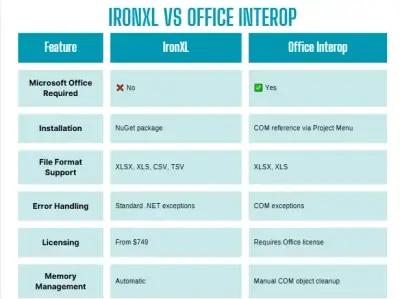
IronXL is a .NET library that facilitates the reading and editing of Microsoft Excel documents with C#. IronXL.Excel is a standalone .NET software library for reading a wide range of spreadsheet formats. It does not require Microsoft Excel to be installed, nor does it depend on Interop.
IronXL is an intuitive C# API that allows you to read, edit, and create Excel spreadsheet files in .NET with lightning-fast performance. IronXL fully supports .NET Core, .NET Framework, Xamarin, Mobile, Linux, macOS, and Azure.
IronXL is a leading .NET core and .NET framework Excel spreadsheet library for C#.
IronXL Feature Set
Load, read, and edit data - from XLS/XLSX/CSV/TSV
Saving and exporting - to XLS/XLSX/CSV/TSV/JSON
Ranges - easy to use WorkSheet ["A1:B10"] syntax. Combine and create ranges intuitively.
Sorting - sort ranges, columns, and rows.
Styling - cell visual styles, font, size, background pattern, border, alignment, and number formats.
CSVWriter
A .NET library for writing CSV files. Extremely fast, flexible, and easy to use. Supports writing custom class objects.
CsvWriter Features
Fast: compiles classes on the fly for extremely fast performance
Flexible: conservative when writing, liberal when reading
Easy to use: reading and writing are as simple as GetRecords<T>() and WriteRecords(records)
Highly configurable
Linux mode
Low memory usage
1. Create a Console Application
Use the following steps to create a Console Application:
Start the Visual Studio 2022 IDE.
Click on "Create new project".
In the "Create new project" page, select C# in the language drop-down list, Windows from the Platforms list, and Console from the "Project types" list.
Select Console App (.NET Framework) from the project templates displayed.
Create Project - Console Application
Click Next.
In the Additional Information screen, specify the Framework version you would like to use. We will use .NET Framework 4.8 in this example.
Create Project - .NET Framework
Click Create to complete the process.
The project is now created and we are almost ready to test the libraries. However, we still need to install and integrate them into our project. Let's install IronXL first.
2. IronXL C# Library Installation
You can download and install the IronXL library using the following methods:
Using Visual Studio with NuGet packages
Download the NuGet Package directly
Manually Install with the DLL
Let's take a closer look at each one.
2.1. Using Visual Studio with NuGet packages
Visual Studio provides the NuGet Package Manager to install NuGet packages in your projects. You can access it through the Project Menu, or by right-clicking your project in the Solution Explorer.
Select-Manage-NuGet-Package
Now, from the browse tab -> search for IronXL.Excel -> Install
Search for IronXL
And we are done.
2.2. Download the NuGet Package Directly
This can be done by visiting the NuGet site directly and downloading the package. The steps are:
Reload your Visual Studio project and begin using it
2.3. Manually Install with the DLL
Another way to download and install the IronXL C# Library is to make use of the following steps to install the IronXLNuGet package through the Developer Command Prompt.
Open the Developer Command Prompt - usually found in the Visual Studio folder.
Type the following command:
PM > Install-Package IronXL.Excel
Install-Package IronXL.Excel
Press Enter
This will download and install the package
Reload your Visual Studio project and begin using it
2.4. Add Necessary Using Directives
In Solution Explorer, right-click the Program.cs file and then click View Code.
Add the following using directives to the top of the code file:
using IronXL;
using IronXL;
Imports IronXL
ImportsIronXL
Imports IronXL
All done! IronXL is downloaded, installed, and ready to use. However, before that, we should install CsvHelper.
3. CSVWriter Installation
3.1. Using the NuGet Package Manager Console
To work with CSVWriter you need to download and install the CsvHelper C# Library. To do so, make use of the following steps to install the NuGet package through the Developer Command Prompt.
Open the Developer Command Prompt - usually found in the Visual Studio folder.
Type the following command:
PM > Install-Package CsvHelper -Version 27.2.1
Install-Package CsvHelper -Version 27.2.1
Press Enter
This will download and install the package
Reload your Visual Studio project and begin using it
Check the CsvHelper.CsvWriter method detail for implementation
A comma-separated values (CSV) file is a delimited text file that uses a comma to separate values. Each line of the file is a data record. To manipulate these files for calculations can be a challenging task, but IronXL provides a pretty good and easy option to achieve this, and without using Microsoft Excel. Let's first convert a CSV file to a normal Excel file.
4.1. Converting a CSV File to Excel Format
The process is pretty simple and easy. It is usually done with one line of code.
CSV to Excel formats:
// Load the CSV file and specify the format and delimiterWorkBook workbook = WorkBook.LoadCSV("test.csv", fileFormat: ExcelFileFormat.XLSX, ListDelimiter: ",");// Get the default worksheetWorkSheet ws = workbook.DefaultWorkSheet;// Save the workbook as an Excel fileworkbook.SaveAs("CsvToExcelConversion.xlsx");
// Load the CSV file and specify the format and delimiterWorkBook workbook = WorkBook.LoadCSV("test.csv", fileFormat: ExcelFileFormat.XLSX, ListDelimiter: ",");// Get the default worksheetWorkSheet ws = workbook.DefaultWorkSheet;// Save the workbook as an Excel fileworkbook.SaveAs("CsvToExcelConversion.xlsx");
// Load the CSV file and specify the format and delimiter
WorkBook workbook = WorkBook.LoadCSV("test.csv", fileFormat: ExcelFileFormat.XLSX, ListDelimiter: ",");
// Get the default worksheet
WorkSheet ws = workbook.DefaultWorkSheet;

// Save the workbook as an Excel file
workbook.SaveAs("CsvToExcelConversion.xlsx");
' Load the CSV file and specify the format and delimiterDim workbook As WorkBook = WorkBook.LoadCSV("test.csv", fileFormat:= ExcelFileFormat.XLSX, ListDelimiter:= ",")' Get the default worksheetDim ws As WorkSheet = workbook.DefaultWorkSheet' Save the workbook as an Excel fileworkbook.SaveAs("CsvToExcelConversion.xlsx")
' Load the CSV file and specify the format and delimiterDim workbook AsWorkBook = WorkBook.LoadCSV("test.csv", fileFormat:= ExcelFileFormat.XLSX, ListDelimiter:= ",")' Get the default worksheetDim ws AsWorkSheet = workbook.DefaultWorkSheet' Save the workbook as an Excel fileworkbook.SaveAs("CsvToExcelConversion.xlsx")
' Load the CSV file and specify the format and delimiter
Dim workbook As WorkBook = WorkBook.LoadCSV("test.csv", fileFormat:= ExcelFileFormat.XLSX, ListDelimiter:= ",")
' Get the default worksheet
Dim ws As WorkSheet = workbook.DefaultWorkSheet

' Save the workbook as an Excel file
workbook.SaveAs("CsvToExcelConversion.xlsx")
4.2. Read and Manipulate Converted CSV Files using IronXL
The IronXL WorkBook class represents an Excel sheet. To open an Excel File using C#, we use WorkBook.Load and specify the path of the Excel file (.xlsx). The following one-line code is used to open the file for reading:
' Load WorkBook
Dim workbook = WorkBook.Load("Spreadsheets\\sample.xlsx")
Each WorkBook can contain multiple WorkSheet objects. These represent worksheets in the Excel document. If the workbook contains worksheets, retrieve them by name as follows:
// Open Sheet for readingvar worksheet = workbook.GetWorkSheet("sheetnamegoeshere");
// Open Sheet for readingvar worksheet = workbook.GetWorkSheet("sheetnamegoeshere");
// Open Sheet for reading
var worksheet = workbook.GetWorkSheet("sheetnamegoeshere");
' Open Sheet for readingDim worksheet = workbook.GetWorkSheet("sheetnamegoeshere")
' Open Sheet for readingDim worksheet = workbook.GetWorkSheet("sheetnamegoeshere")
' Open Sheet for reading
Dim worksheet = workbook.GetWorkSheet("sheetnamegoeshere")
Code for reading the cell values:
// Read from Ranges of cells elegantly.foreach (var cell in worksheet["A2:A10"]){ Console.WriteLine("Cell {0} has value '{1}'", cell.AddressString, cell.Text);}
// Read from Ranges of cells elegantly.foreach (var cell in worksheet["A2:A10"]){Console.WriteLine("Cell {0} has value '{1}'", cell.AddressString, cell.Text);}
// Read from Ranges of cells elegantly.
foreach (var cell in worksheet["A2:A10"])
{
    Console.WriteLine("Cell {0} has value '{1}'", cell.AddressString, cell.Text);
}
' Read from Ranges of cells elegantly.For Each cell In worksheet("A2:A10") Console.WriteLine("Cell {0} has value '{1}'", cell.AddressString, cell.Text)Next cell
' Read from Ranges of cells elegantly.For Each cell In worksheet("A2:A10")Console.WriteLine("Cell {0} has value '{1}'", cell.AddressString, cell.Text)Next cell
' Read from Ranges of cells elegantly.
For Each cell In worksheet("A2:A10")
	Console.WriteLine("Cell {0} has value '{1}'", cell.AddressString, cell.Text)
Next cell
After loading and reading the workbook and worksheet, the following code sample can be used to either make changes to formulas or apply formulas to specific cells. The code goes as follows:
// Set Formulasworksheet["A1"].Formula = "Sum(B8:C12)";worksheet["B8"].Formula = "=C9/C11";worksheet["G30"].Formula = "Max(C3:C7)";// Force recalculate all formula values in all sheets. workbook.EvaluateAll();
// Set Formulasworksheet["A1"].Formula = "Sum(B8:C12)";worksheet["B8"].Formula = "=C9/C11";worksheet["G30"].Formula = "Max(C3:C7)";// Force recalculate all formula values in all sheets. workbook.EvaluateAll();
// Set Formulas
worksheet["A1"].Formula = "Sum(B8:C12)";
worksheet["B8"].Formula = "=C9/C11";
worksheet["G30"].Formula = "Max(C3:C7)";

// Force recalculate all formula values in all sheets.
workbook.EvaluateAll();
' Set Formulasworksheet("A1").Formula = "Sum(B8:C12)"worksheet("B8").Formula = "=C9/C11"worksheet("G30").Formula = "Max(C3:C7)"' Force recalculate all formula values in all sheets. workbook.EvaluateAll()
' Set Formulasworksheet("A1").Formula = "Sum(B8:C12)"worksheet("B8").Formula = "=C9/C11"worksheet("G30").Formula = "Max(C3:C7)"' Force recalculate all formula values in all sheets. workbook.EvaluateAll()
' Set Formulas
worksheet("A1").Formula = "Sum(B8:C12)"
worksheet("B8").Formula = "=C9/C11"
worksheet("G30").Formula = "Max(C3:C7)"

' Force recalculate all formula values in all sheets.
workbook.EvaluateAll()
4.3. Saving the Excel document back to CSV File
Writing CSV files is an easy process with IronXL. The following code simply saves the Excel file in the CSV format by using the SaveAsCsv method.
// Load the workbookWorkBook wb = WorkBook.Load("Normal_Excel_File.xlsx");// Save as .csv filewb.SaveAsCsv("SaveAsCSV.csv", ",");// Saved as : SaveAsCSV.Sheet1.csv
// Load the workbookWorkBook wb = WorkBook.Load("Normal_Excel_File.xlsx");// Save as .csv filewb.SaveAsCsv("SaveAsCSV.csv", ",");// Saved as : SaveAsCSV.Sheet1.csv
// Load the workbook
WorkBook wb = WorkBook.Load("Normal_Excel_File.xlsx");
// Save as .csv file
wb.SaveAsCsv("SaveAsCSV.csv", ",");
// Saved as : SaveAsCSV.Sheet1.csv
' Load the workbookDim wb As WorkBook = WorkBook.Load("Normal_Excel_File.xlsx")' Save as .csv filewb.SaveAsCsv("SaveAsCSV.csv", ",")' Saved as : SaveAsCSV.Sheet1.csv
' Load the workbookDim wb AsWorkBook = WorkBook.Load("Normal_Excel_File.xlsx")' Save as .csv filewb.SaveAsCsv("SaveAsCSV.csv", ",")' Saved as : SaveAsCSV.Sheet1.csv
' Load the workbook
Dim wb As WorkBook = WorkBook.Load("Normal_Excel_File.xlsx")
' Save as .csv file
wb.SaveAsCsv("SaveAsCSV.csv", ",")
' Saved as : SaveAsCSV.Sheet1.csv
5. Working with CSV Data using CSVWriter
Writing data to a CSV file is a common operation. CSVHelper method CSVWriter with supplied separator handles all the characters and new line characters in a very simple CSV writer released for C#. Here we are going to look at how to write data using CSVWriter.
5.1. Create a Simple Console Application
Create a simple CSVWriter with supplied separator console application using Visual Studio. Once the project is created, the next step is to create a Person class:
public class Person{ public int Id { get; set; } public string Name { get; set; } public bool IsLiving { get; set; }}
public class Person{ public intId { get; set; } public stringName { get; set; } public boolIsLiving { get; set; }}
public class Person
{
    public int Id { get; set; }
    public string Name { get; set; }
    public bool IsLiving { get; set; }
}
Public Class Person Public Property Id() As Integer Public Property Name() As String Public Property IsLiving() As BooleanEnd Class
Public Class Person Public Property Id() AsInteger Public Property Name() AsString Public Property IsLiving() AsBooleanEnd Class
Public Class Person
	Public Property Id() As Integer
	Public Property Name() As String
	Public Property IsLiving() As Boolean
End Class
Within the Main method, let's now make a list of Person objects which we will write to the CSV file:
var myPersonObjects = new List<Person>(){ new Person { Id = 1, IsLiving = true, Name = "John" }, new Person { Id = 2, IsLiving = true, Name = "Steve" }, new Person { Id = 3, IsLiving = true, Name = "James" }};
var myPersonObjects = new List<Person>(){ new Person { Id = 1, IsLiving = true, Name = "John" }, new Person { Id = 2, IsLiving = true, Name = "Steve" }, new Person { Id = 3, IsLiving = true, Name = "James" }};
var myPersonObjects = new List<Person>()
{
    new Person { Id = 1, IsLiving = true, Name = "John" },
    new Person { Id = 2, IsLiving = true, Name = "Steve" },
    new Person { Id = 3, IsLiving = true, Name = "James" }
};
Dim myPersonObjects = New List(Of Person)() From { New Person With { .Id = 1, .IsLiving = True, .Name = "John" }, New Person With { .Id = 2, .IsLiving = True, .Name = "Steve" }, New Person With { .Id = 3, .IsLiving = True, .Name = "James" }}
Dim myPersonObjects = New List(OfPerson)() From { New PersonWith { .Id = 1, .IsLiving = True, .Name = "John" }, New PersonWith { .Id = 2, .IsLiving = True, .Name = "Steve" }, New PersonWith { .Id = 3, .IsLiving = True, .Name = "James" }}
Dim myPersonObjects = New List(Of Person)() From {
	New Person With {
		.Id = 1,
		.IsLiving = True,
		.Name = "John"
	},
	New Person With {
		.Id = 2,
		.IsLiving = True,
		.Name = "Steve"
	},
	New Person With {
		.Id = 3,
		.IsLiving = True,
		.Name = "James"
	}
}
5.2. Writing into a CSV File in C# with Default Settings
CsvHelper has emerged as the standard way to write CSV in C# using the CSVWriter method, and it is very easy to use:
using (var writer = new StreamWriter("filePersons.csv"))using (var csv = new CsvWriter(writer, CultureInfo.InvariantCulture)){ csv.WriteRecords(myPersonObjects);}
using (var writer = new StreamWriter("filePersons.csv"))using (var csv = new CsvWriter(writer, CultureInfo.InvariantCulture)){ csv.WriteRecords(myPersonObjects);}
using (var writer = new StreamWriter("filePersons.csv"))
using (var csv = new CsvWriter(writer, CultureInfo.InvariantCulture))
{
    csv.WriteRecords(myPersonObjects);
}
Using writer = New StreamWriter("filePersons.csv")Using csv = New CsvWriter(writer, CultureInfo.InvariantCulture) csv.WriteRecords(myPersonObjects)End UsingEnd Using
Using writer = New StreamWriter("filePersons.csv")Using csv = New CsvWriter(writer, CultureInfo.InvariantCulture) csv.WriteRecords(myPersonObjects)EndUsingEndUsing
Using writer = New StreamWriter("filePersons.csv")
Using csv = New CsvWriter(writer, CultureInfo.InvariantCulture)
	csv.WriteRecords(myPersonObjects)
End Using
End Using
5.3. Appending Data
We need to keep in mind the fact that every time we run our program, old CSV files will be overwritten. Sometimes we want the data to be appended at the end of a file, instead of overwriting existing data. CSVWriter doesn't provide a method to do this, as opening/writing a file is not the responsibility of CSVWriter with supplied separator. We can achieve this by using a FileStream, and then constructing our StreamWriter by using that FileStream. Although this does not fall within the scope of this article, I will show you how to do it, as it is an integral part of any application.
var configPersons = new CsvConfiguration(CultureInfo.InvariantCulture){ HasHeaderRecord = false};using (var stream = File.Open("filePersons.csv", FileMode.Append))using (var writer = new StreamWriter(stream))using (var csv = new CsvWriter(writer, configPersons)){ csv.WriteRecords(myPersonObjects);}
var configPersons = new CsvConfiguration(CultureInfo.InvariantCulture){HasHeaderRecord = false};using (var stream = File.Open("filePersons.csv", FileMode.Append))using (var writer = new StreamWriter(stream))using (var csv = new CsvWriter(writer, configPersons)){ csv.WriteRecords(myPersonObjects);}
var configPersons = new CsvConfiguration(CultureInfo.InvariantCulture)
{
    HasHeaderRecord = false
};
using (var stream = File.Open("filePersons.csv", FileMode.Append))
using (var writer = new StreamWriter(stream))
using (var csv = new CsvWriter(writer, configPersons))
{
    csv.WriteRecords(myPersonObjects);
}
Dim configPersons = New CsvConfiguration(CultureInfo.InvariantCulture) With {.HasHeaderRecord = False}Using stream = File.Open("filePersons.csv", FileMode.Append)Using writer = New StreamWriter(stream)Using csv = New CsvWriter(writer, configPersons) csv.WriteRecords(myPersonObjects)End UsingEnd UsingEnd Using
Dim configPersons = New CsvConfiguration(CultureInfo.InvariantCulture) With {.HasHeaderRecord = False}Using stream = File.Open("filePersons.csv", FileMode.Append)Using writer = New StreamWriter(stream)Using csv = New CsvWriter(writer, configPersons) csv.WriteRecords(myPersonObjects)EndUsingEndUsingEndUsing
Dim configPersons = New CsvConfiguration(CultureInfo.InvariantCulture) With {.HasHeaderRecord = False}
Using stream = File.Open("filePersons.csv", FileMode.Append)
Using writer = New StreamWriter(stream)
Using csv = New CsvWriter(writer, configPersons)
	csv.WriteRecords(myPersonObjects)
End Using
End Using
End Using
Appending to an existing file is tricky, however, as the ordering might be changed when we append, or we might have added new properties. We should make sure to take this into account when appending.
6. Licensing
IronXL is an openly commercial C# Excel library. It is free for development and can always be licensed for commercial deployment. Licenses are available for single-project use, single developers, agencies, and global corporations, as well as SaaS and OEM redistribution. All licenses include a 30-day money-back guarantee, one year of product support and updates, validity for dev/staging/production, and also a permanent license (one-time purchase). The Lite package starts from $999.
CSVWriter with supplied separator is a comma-separated element and completely free for commercial-friendly use.
7. Summary and Conclusion
Summary
IronXL is a complete library offering everything you need to be able to manipulate an Excel file. It provides you the facility to convert various formats to XLSX, and also from XLSX to other formats, such as CSV. This interconversion provides users the flexibility to manipulate other file formats with ease.
On the other hand, CSVWriter works only with CSV file formats and with very limited options. Users cannot switch between different file formats, whereas with IronXL they can. All the code samples can be found in the CsvHelper documentation files. This document provides guidelines on how to use CSVWriter in your project.
Conclusion
IronXL has a clear advantage over CSVHelper.CSVWriter, as it supports working with multiple formats. Moreover, you can apply formulas and styles according to your choice, whereas CsvHelper only allows for the reading and writing of CSV files, and with limited options. Further, you cannot append new records to an existing CSV file, as it simply overwrites previous entries.
Curtis Chau holds a Bachelor’s degree in Computer Science (Carleton University) and specializes in front-end development with expertise in Node.js, TypeScript, JavaScript, and React. Passionate about crafting intuitive and aesthetically pleasing user interfaces, Curtis enjoys working with modern frameworks and creating well-structured, visually appealing manuals.