



How to Read Excel Files in C# Without Interop: Complete Developer Guide

第一次我需要從.NET服務中讀取一個Excel文件時,我選擇使用Microsoft Interop並且幾乎立刻後悔了。 需要在伺服器上安裝Office,當方法中途拋出異常時會泄漏進程,並且在任何負載下都會崩潰。 我們建立了IronXL,因為我們一直碰到這些確切的牆。 本指南是我現在實際在生產中讀取XLS和XLSX的方式,包括那些最常見的陷阱。
以下大部分是直接讀取文件格式,沒有涉及Excel應用程式:載入工作簿,通過單元格地址提取值,驗證範圍,將資料推送到資料庫或API中。 該程式庫處理XLS和XLSX,而不需要機器上安裝Microsoft Office。
快速入門:使用IronXL通過一行程式碼讀取單元格
單行程式碼載入Excel工作簿並從單元格中提取一個值。 沒有Interop,沒有設置,沒有背景中運行的Excel進程。

如何設置IronXL以在C#中讀取Excel文件?
設置本身是一個NuGet安裝和一個.XLSX這兩種格式,因此相同的程式碼路徑可用於傳統的電子表格和現代的Open XML格式。
按照以下步驟開始:
- 下載C#程式庫以讀取Excel文件
- 使用
WorkBook.Load()載入並讀取Excel工作簿 - 使用
GetWorkSheet()方法存取工作表 - 使用Excel樣式地址例如
sheet["A1"].Value讀取單元格值 - 程式化地驗證和處理電子表格資料
- 使用Entity Framework將資料導出到資料庫中
IronXL從C#中讀取和編輯Microsoft Excel文件,而不依賴Office產品。 它不需要安裝Microsoft Excel,也不需要Interop。 參見與Microsoft.Office.Interop.Excel的比較,了解方法和API介面的不同之處。
如果您是從Interop遷移過來的,心智模型是不同的,值得在編寫任何程式碼之前弄清楚。 Interop在幕後啟動一個真正的Excel.exe進程,並且您的程式碼通過COM自動化該應用程式。 IronXL直接將文件字節讀入記憶體並將其作為物件呈現。 沒有Excel進程,沒有消息迴圈,沒有COM調度。 我經常看到引起困擾的實際後果: Interop從[1, 1]開始(1-based,就像Excel的UI),但IronXL行/列存取是0-based。 ["A1"]字串索引器在兩個程式庫中都與電子表格UI匹配,因此當您可以保持在字串形式時,遷移幾乎完全相同。 整個下午的off-by-one錯誤都是由數字索引器引起的。
IronXL包括:
- 我們的.NET工程師提供的專業產品支援
- 通過Microsoft Visual Studio輕鬆安裝
- 開發的免費試用。 授權從
liteLicense
C#和VB.NET項目都可以使用IronXL以相同的方式讀取或建立Excel文件。
使用IronXL讀取.XLS和.XLSX Excel文件
以下是使用IronXL讀取Excel文件的基本工作流程:
- 通過NuGet包安裝IronXL Excel程式庫或下載.NET Excel DLL
- 使用
WorkBook.Load()方法讀取任何XLS、XLSX或CSV文件 - 使用Excel樣式地址存取單元格值:
sheet["A11"].DecimalValue
:path=/static-assets/excel/content-code-examples/tutorials/how-to-read-excel-file-csharp-1.csusing IronXL;
using System;
using System.Linq;
// Load Excel workbook from file path
WorkBook workBook = WorkBook.Load("test.xlsx");
// Access the first worksheet using LINQ
WorkSheet workSheet = workBook.WorkSheets.First();
// Read integer value from cell A2
int cellValue = workSheet["A2"].IntValue;
Console.WriteLine($"Cell A2 value: {cellValue}");
// Iterate through a range of cells
foreach (var cell in workSheet["A2:A10"])
{
Console.WriteLine("Cell {0} has value '{1}'", cell.AddressString, cell.Text);
}
// Advanced Operations with LINQ
// Calculate sum using built_in Sum() method
decimal sum = workSheet["A2:A10"].Sum();
// Find maximum value using LINQ
decimal max = workSheet["A2:A10"].Max(c => c.DecimalValue);
// Output calculated results
Console.WriteLine($"Sum of A2:A10: {sum}");
Console.WriteLine($"Maximum value: {max}");Imports IronXL
Imports System
Imports System.Linq
' Load Excel workbook from file path
Dim workBook As WorkBook = WorkBook.Load("test.xlsx")
' Access the first worksheet using LINQ
Dim workSheet As WorkSheet = workBook.WorkSheets.First()
' Read integer value from cell A2
Dim cellValue As Integer = workSheet("A2").IntValue
Console.WriteLine($"Cell A2 value: {cellValue}")
' Iterate through a range of cells
For Each cell In workSheet("A2:A10")
Console.WriteLine("Cell {0} has value '{1}'", cell.AddressString, cell.Text)
Next
' Advanced Operations with LINQ
' Calculate sum using built_in Sum() method
Dim sum As Decimal = workSheet("A2:A10").Sum()
' Find maximum value using LINQ
Dim max As Decimal = workSheet("A2:A10").Max(Function(c) c.DecimalValue)
' Output calculated results
Console.WriteLine($"Sum of A2:A10: {sum}")
Console.WriteLine($"Maximum value: {max}")此程式碼段涉及您將經常使用的四個操作:載入工作簿,通過地址讀取單元格,迭代範圍以及對範圍執行計算。 ["A2:A10"]匹配您在Excel本身中輸入的單元格選擇。 範圍是IEnumerable<Cell>的,因此LINQ可直接對它們進行求和、篩選和投影。
實際上有多快?
為了讓您感受到現實的性能,我寫了一個小的控制台項目,它載入在本教程中使用的相同型別的文件並計時操作。 該框架位於ReadExcelBenchmark範例項目中,您可以自己運行。 在運行.NET 9.0.7的Windows 11盒子上,多次運行的資料大致如下:
| 操作 | 第一次冷載入(新進程) | 範均10次迭代的平均熱啟動 |
|---|---|---|
載入GDP.xlsx(213行)並對B列求和 |
約270毫秒 | 約40毫秒(範圍25–70毫秒) |
載入People.xlsx(100行)並正則表達式驗證每個單元格 |
約30毫秒 | 約28毫秒 |
第一個冷數字由IronXL的程式集載入和JIT預熱主導;第二個冷數字要低得多,因為此時程式集已經在記憶體中。 當JIT編譯了熱路徑後,熱運行會進入一個緊密的範圍。
如果您看到此大小的文件載入需要幾秒鐘,罪魁禍首幾乎總是在迴圈內調用WorkBook.Load()而不是在外部調用它。 只需載入一次工作簿,然後迭代您實際需要的單元格或行。 我在大約一半的"IronXL很慢"支援票中看到這種確切的模式。
本教程中的程式碼範例使用了三個Excel電子表格樣本來展示不同的資料場景:
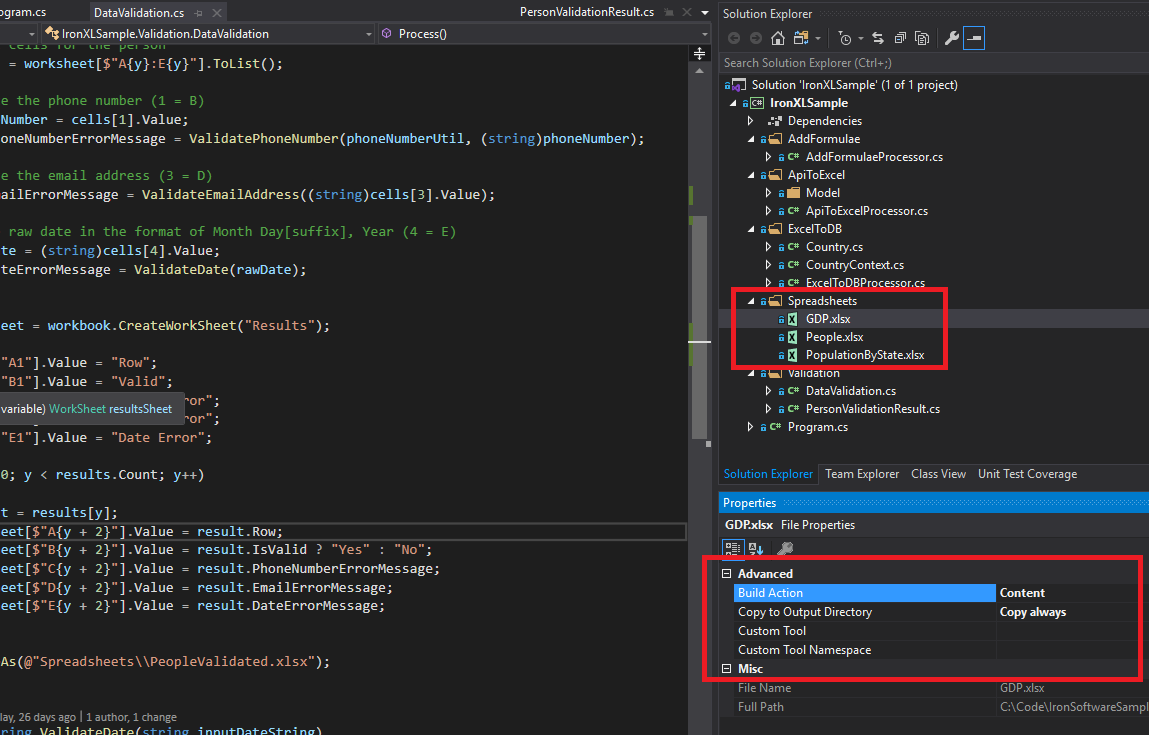 用於本教程中的樣本Excel文件(GDP.xlsx, People.xlsx, 和PopulationByState.xlsx),以演示各種IronXL操作。
如何安裝IronXL C# 程式庫?
通過NuGet或直接引用DLL將IronXL.Excel程式庫新增到.NET項目中。
安裝IronXL NuGet包
- 在Visual Studio中,右鍵單擊您的項目並選擇"管理NuGet包..."
- 在瀏覽選項卡中搜索
IronXL.Excel - 單擊安裝按鈕將IronXL新增到您的項目中
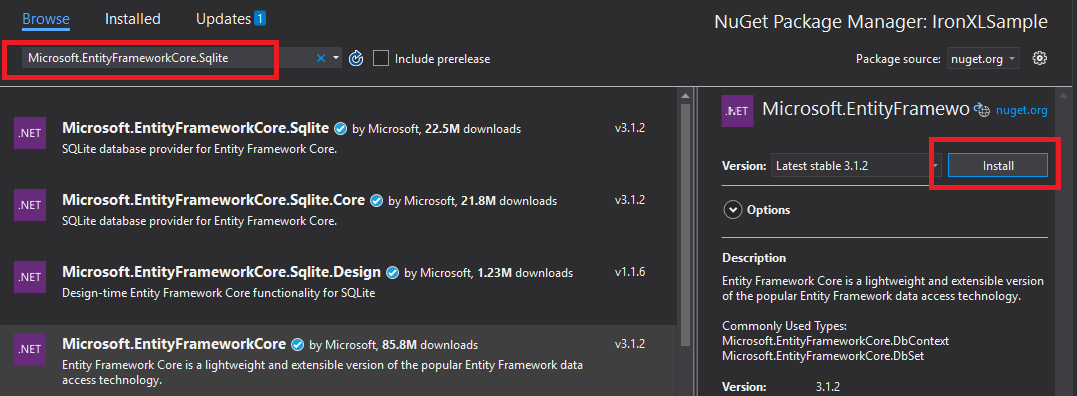 通過Visual Studio的NuGet包管理器安裝IronXL提供自動依賴關係管理。
或者,使用包管理器控制台安裝IronXL:
- 打開包管理器控制台(工具→NuGet包管理器→包管理器控制台)
- 運行安裝命令:
Install-Package IronXL.Excel
您還可以在NuGet網站上查看包詳細資訊。
手動安裝
對於手動安裝,下載IronXL .NET Excel DLL並直接在您的Visual Studio項目中引用它。
如何載入和讀取Excel工作簿?
WorkBook.Load()方法載入Excel文件,該方法接受XLS、XLSX、CSV和TSV格式的文件路徑。
:path=/static-assets/excel/content-code-examples/tutorials/how-to-read-excel-file-csharp-2.csusing IronXL;
using System;
using System.Linq;
// Load Excel file from specified path
WorkBook workBook = WorkBook.Load(@"Spreadsheets\GDP.xlsx");
Console.WriteLine("Workbook loaded successfully.");
// Access specific worksheet by name
WorkSheet sheet = workBook.GetWorkSheet("Sheet1");
// Read and display cell value
string cellValue = sheet["A1"].StringValue;
Console.WriteLine($"Cell A1 contains: {cellValue}");
// Perform additional operations
// Count non_empty cells in column A
int rowCount = sheet["A:A"].Count(cell => !cell.IsEmpty);
Console.WriteLine($"Column A has {rowCount} non_empty cells");Imports IronXL
Imports System
Imports System.Linq
' Load Excel file from specified path
Dim workBook As WorkBook = WorkBook.Load("Spreadsheets\GDP.xlsx")
Console.WriteLine("Workbook loaded successfully.")
' Access specific worksheet by name
Dim sheet As WorkSheet = workBook.GetWorkSheet("Sheet1")
' Read and display cell value
Dim cellValue As String = sheet("A1").StringValue
Console.WriteLine($"Cell A1 contains: {cellValue}")
' Perform additional operations
' Count non_empty cells in column A
Dim rowCount As Integer = sheet("A:A").Count(Function(cell) Not cell.IsEmpty)
Console.WriteLine($"Column A has {rowCount} non_empty cells")每個WorkBook包含多個WorkSheet物件,代表各個Excel工作表。 使用GetWorkSheet()按名稱存取工作表:
:path=/static-assets/excel/content-code-examples/tutorials/how-to-read-excel-file-csharp-3.csusing IronXL;
using System;
// Get worksheet by name
WorkSheet workSheet = workBook.GetWorkSheet("GDPByCountry");
Console.WriteLine("Worksheet 'GDPByCountry' not found");
// List available worksheets
foreach (var sheet in workBook.WorkSheets)
{
Console.WriteLine($"Available: {sheet.Name}");
}Imports IronXL
Imports System
' Get worksheet by name
Dim workSheet As WorkSheet = workBook.GetWorkSheet("GDPByCountry")
Console.WriteLine("Worksheet 'GDPByCountry' not found")
' List available worksheets
For Each sheet In workBook.WorkSheets
Console.WriteLine($"Available: {sheet.Name}")
Next如何在C#中建立新的Excel文件?
通過構建一個WorkBook物件並指定所需的文件格式來建立新的Excel文件。 IronXL支持現代的XLSX和傳統的XLS格式。
:path=/static-assets/excel/content-code-examples/tutorials/how-to-read-excel-file-csharp-4.csusing IronXL;
// Create new XLSX workbook (recommended format)
WorkBook workBook = WorkBook.Create(ExcelFileFormat.XLSX);
// Set workbook metadata
workBook.Metadata.Author = "Your Application";
workBook.Metadata.Comments = "Generated by IronXL";
// Create new XLS workbook for legacy support
WorkBook legacyWorkBook = WorkBook.Create(ExcelFileFormat.XLS);
// Save the workbook
workBook.SaveAs("NewDocument.xlsx");Imports IronXL
' Create new XLSX workbook (recommended format)
Private workBook As WorkBook = WorkBook.Create(ExcelFileFormat.XLSX)
' Set workbook metadata
workBook.Metadata.Author = "Your Application"
workBook.Metadata.Comments = "Generated by IronXL"
' Create new XLS workbook for legacy support
Dim legacyWorkBook As WorkBook = WorkBook.Create(ExcelFileFormat.XLS)
' Save the workbook
workBook.SaveAs("NewDocument.xlsx")注意:僅在需要與Excel 2003及更早版本相容時使用ExcelFileFormat.XLS。
如何將工作表新增到Excel文件中?
一個IronXL WorkBook包含一個工作表集合。 理解這一結構有助於構建多工作表的Excel文件。
 IronXL中包含多個工作表物件的工作簿結構的視覺表示。
使用CreateWorkSheet()建立新工作表:
:path=/static-assets/excel/content-code-examples/tutorials/how-to-read-excel-file-csharp-5.csusing IronXL;
// Create multiple worksheets with descriptive names
WorkSheet summarySheet = workBook.CreateWorkSheet("Summary");
WorkSheet dataSheet = workBook.CreateWorkSheet("RawData");
WorkSheet chartSheet = workBook.CreateWorkSheet("Charts");
// Set the active worksheet
workBook.SetActiveTab(0); // Makes "Summary" the active sheet
// Access default worksheet (first sheet)
WorkSheet defaultSheet = workBook.DefaultWorkSheet;Imports IronXL
' Create multiple worksheets with descriptive names
Dim summarySheet As WorkSheet = workBook.CreateWorkSheet("Summary")
Dim dataSheet As WorkSheet = workBook.CreateWorkSheet("RawData")
Dim chartSheet As WorkSheet = workBook.CreateWorkSheet("Charts")
' Set the active worksheet
workBook.SetActiveTab(0) ' Makes "Summary" the active sheet
' Access default worksheet (first sheet)
Dim defaultSheet As WorkSheet = workBook.DefaultWorkSheet如何讀取和編輯單元格值?
讀取和編輯單個單元格
通過工作表的索引器屬性存取個別單元格。 IronXL的Cell類提供強型別的值屬性。
:path=/static-assets/excel/content-code-examples/tutorials/how-to-read-excel-file-csharp-6.csusing IronXL;
using System;
using System.Linq;
// Load workbook and get worksheet
WorkBook workBook = WorkBook.Load("test.xlsx");
WorkSheet workSheet = workBook.DefaultWorkSheet;
// Access cell B1
IronXL.Cell cell = workSheet["B1"].First();
// Read cell value with type safety
string textValue = cell.StringValue;
int intValue = cell.IntValue;
decimal decimalValue = cell.DecimalValue;
DateTime? dateValue = cell.DateTimeValue;
// Check cell data type
if (cell.IsNumeric)
{
Console.WriteLine($"Numeric value: {cell.DecimalValue}");
}
else if (cell.IsText)
{
Console.WriteLine($"Text value: {cell.StringValue}");
}Imports IronXL
Imports System
Imports System.Linq
' Load workbook and get worksheet
Dim workBook As WorkBook = WorkBook.Load("test.xlsx")
Dim workSheet As WorkSheet = workBook.DefaultWorkSheet
' Access cell B1
Dim cell As IronXL.Cell = workSheet("B1").First()
' Read cell value with type safety
Dim textValue As String = cell.StringValue
Dim intValue As Integer = cell.IntValue
Dim decimalValue As Decimal = cell.DecimalValue
Dim dateValue As DateTime? = cell.DateTimeValue
' Check cell data type
If cell.IsNumeric Then
Console.WriteLine($"Numeric value: {cell.DecimalValue}")
ElseIf cell.IsText Then
Console.WriteLine($"Text value: {cell.StringValue}")
End IfCell類提供多種資料型別的屬性,並在可能時自動轉換值。 有關更多單元格操作,請參見單元格格式化教程。
:path=/static-assets/excel/content-code-examples/tutorials/how-to-read-excel-file-csharp-7.cs// Write different data types to cells
workSheet["A1"].Value = "Product Name"; // String
workSheet["B1"].Value = 99.95m; // Decimal
workSheet["C1"].Value = DateTime.Today; // Date
workSheet["D1"].Formula = "=B1*1.2"; // Formula
// Format cells
workSheet["B1"].FormatString = "$#,##0.00"; // Currency format
workSheet["C1"].FormatString = "yyyy-MM-dd";// Date format
// Save changes
workBook.Save();' Write different data types to cells
workSheet("A1").Value = "Product Name" ' String
workSheet("B1").Value = 99.95D ' Decimal
workSheet("C1").Value = DateTime.Today ' Date
workSheet("D1").Formula = "=B1*1.2" ' Formula
' Format cells
workSheet("B1").FormatString = "$#,##0.00" ' Currency format
workSheet("C1").FormatString = "yyyy-MM-dd" ' Date format
' Save changes
workBook.Save()如何使用單元格範圍?
Range類表示一組單元格,可在Excel資料上執行批量操作。
:path=/static-assets/excel/content-code-examples/tutorials/how-to-read-excel-file-csharp-8.csusing IronXL;
using Range = IronXL.Range;
// Select range using Excel notation
Range range = workSheet["D2:D101"];
// Alternative: Use Range class for dynamic selection
Range dynamicRange = workSheet.GetRange("D2:D101"); // Row 2_101, Column D
// Perform bulk operations
range.Value = 0; // Set all cells to 0Imports IronXL
' Select range using Excel notation
Dim range As Range = workSheet("D2:D101")
' Alternative: Use Range class for dynamic selection
Dim dynamicRange As Range = workSheet.GetRange("D2:D101") ' Row 2_101, Column D
' Perform bulk operations
range.Value = 0 ' Set all cells to 0當已知單元格數量時,使用迴圈高效地處理範圍:
// Data validation example
public class ValidationResult
{
    public int Row { get; set; }
    public string PhoneError { get; set; }
    public string EmailError { get; set; }
    public string DateError { get; set; }
    public bool IsValid => string.IsNullOrEmpty(PhoneError) &&
                           string.IsNullOrEmpty(EmailError) &&
                           string.IsNullOrEmpty(DateError);
}

// Validate data in rows 2-101
var results = new List<ValidationResult>();

for (int row = 2; row <= 101; row++)
{
    var result = new ValidationResult { Row = row };

    // Get row data efficiently
    var phoneCell = workSheet[$"B{row}"];
    var emailCell = workSheet[$"D{row}"];
    var dateCell = workSheet[$"E{row}"];

    // Validate phone number
    if (!IsValidPhoneNumber(phoneCell.StringValue))
        result.PhoneError = "Invalid phone format";

    // Validate email
    if (!IsValidEmail(emailCell.StringValue))
        result.EmailError = "Invalid email format";

    // Validate date
    if (!dateCell.IsDateTime)
        result.DateError = "Invalid date format";

    results.Add(result);
}

// Helper methods
bool IsValidPhoneNumber(string phone) =>
    System.Text.RegularExpressions.Regex.IsMatch(phone, @"^\d{3}-\d{3}-\d{4}$");

bool IsValidEmail(string email) =>
    email.Contains("@") && email.Contains(".");
// Data validation example
public class ValidationResult
{
public int Row { get; set; }
public string PhoneError { get; set; }
public string EmailError { get; set; }
public string DateError { get; set; }
public bool IsValid => string.IsNullOrEmpty(PhoneError) &&
string.IsNullOrEmpty(EmailError) &&
string.IsNullOrEmpty(DateError);
}
// Validate data in rows 2-101
var results = new List<ValidationResult>();
for (int row = 2; row <= 101; row++)
{
var result = new ValidationResult { Row = row };
// Get row data efficiently
var phoneCell = workSheet[$"B{row}"];
var emailCell = workSheet[$"D{row}"];
var dateCell = workSheet[$"E{row}"];
// Validate phone number
if (!IsValidPhoneNumber(phoneCell.StringValue))
result.PhoneError = "Invalid phone format";
// Validate email
if (!IsValidEmail(emailCell.StringValue))
result.EmailError = "Invalid email format";
// Validate date
if (!dateCell.IsDateTime)
result.DateError = "Invalid date format";
results.Add(result);
}
// Helper methods
bool IsValidPhoneNumber(string phone) =>
System.Text.RegularExpressions.Regex.IsMatch(phone, @"^\d{3}-\d{3}-\d{4}$");
bool IsValidEmail(string email) =>
email.Contains("@") && email.Contains(".");' Data validation example
Public Class ValidationResult
Public Property Row() As Integer
Public Property PhoneError() As String
Public Property EmailError() As String
Public Property DateError() As String
Public ReadOnly Property IsValid() As Boolean
Get
Return String.IsNullOrEmpty(PhoneError) AndAlso String.IsNullOrEmpty(EmailError) AndAlso String.IsNullOrEmpty(DateError)
End Get
End Property
End Class
' Validate data in rows 2-101
Private results = New List(Of ValidationResult)()
For row As Integer = 2 To 101
Dim result = New ValidationResult With {.Row = row}
' Get row data efficiently
Dim phoneCell = workSheet($"B{row}")
Dim emailCell = workSheet($"D{row}")
Dim dateCell = workSheet($"E{row}")
' Validate phone number
If Not IsValidPhoneNumber(phoneCell.StringValue) Then
result.PhoneError = "Invalid phone format"
End If
' Validate email
If Not IsValidEmail(emailCell.StringValue) Then
result.EmailError = "Invalid email format"
End If
' Validate date
If Not dateCell.IsDateTime Then
result.DateError = "Invalid date format"
End If
results.Add(result)
Next row
' Helper methods
'INSTANT VB TODO TASK: Local functions are not converted by Instant VB:
'bool IsValidPhoneNumber(string phone)
'{
' Return System.Text.RegularExpressions.Regex.IsMatch(phone, "^\d{3}-\d{3}-\d{4}$");
'}
'INSTANT VB TODO TASK: Local functions are not converted by Instant VB:
'bool IsValidEmail(string email)
'{
' Return email.Contains("@") && email.Contains(".");
'}如何將公式新增到Excel電子表格中?
使用Formula屬性應用Excel公式。 IronXL支持標準的Excel公式語法。
:path=/static-assets/excel/content-code-examples/tutorials/how-to-read-excel-file-csharp-9.csusing IronXL;
// Add formulas to calculate percentages
int lastRow = 50;
for (int row = 2; row < lastRow; row++)
{
// Calculate percentage: current value / total
workSheet[$"C{row}"].Formula = $"=B{row}/B{lastRow}";
// Format as percentage
workSheet[$"C{row}"].FormatString = "0.00%";
}
// Add summary formulas
workSheet["B52"].Formula = "=SUM(B2:B50)"; // Sum
workSheet["B53"].Formula = "=AVERAGE(B2:B50)"; // Average
workSheet["B54"].Formula = "=MAX(B2:B50)"; // Maximum
workSheet["B55"].Formula = "=MIN(B2:B50)"; // Minimum
// Force formula evaluation
workBook.EvaluateAll();Imports IronXL
' Add formulas to calculate percentages
Dim lastRow As Integer = 50
For row As Integer = 2 To lastRow - 1
' Calculate percentage: current value / total
workSheet($"C{row}").Formula = $"=B{row}/B{lastRow}"
' Format as percentage
workSheet($"C{row}").FormatString = "0.00%"
Next
' Add summary formulas
workSheet("B52").Formula = "=SUM(B2:B50)" ' Sum
workSheet("B53").Formula = "=AVERAGE(B2:B50)" ' Average
workSheet("B54").Formula = "=MAX(B2:B50)" ' Maximum
workSheet("B55").Formula = "=MIN(B2:B50)" ' Minimum
' Force formula evaluation
workBook.EvaluateAll()如需編輯現有公式,請參閱Excel公式教程。
如何驗證電子表格資料?
我看到的常見用例是驗證使用者提供的電子表格,然後再將資料提取到資料庫中。 下面的例子使用正則表達式和IronXL的內建型別檢查來檢查電話號碼、電子郵件和日期。
:path=/static-assets/excel/content-code-examples/tutorials/how-to-read-excel-file-csharp-13.csusing System.Text.RegularExpressions;
using IronXL;
// Validation implementation
for (int i = 2; i <= 101; i++)
{
var result = new PersonValidationResult { Row = i };
results.Add(result);
// Get cells for current person
var cells = workSheet[$"A{i}:E{i}"].ToList();
// Validate phone (column B)
string phone = cells[1].StringValue;
if (!Regex.IsMatch(phone, @"^\+?1?\d{10,14}$"))
{
result.PhoneNumberErrorMessage = "Invalid phone format";
}
// Validate email (column D)
string email = cells[3].StringValue;
if (!Regex.IsMatch(email, @"^[^@\s]+@[^@\s]+\.[^@\s]+$"))
{
result.EmailErrorMessage = "Invalid email address";
}
// Validate date (column E)
if (!cells[4].IsDateTime)
{
result.DateErrorMessage = "Invalid date format";
}
}
Imports System.Text.RegularExpressions
Imports IronXL

' Validation implementation
For i As Integer = 2 To 101
    Dim result As New PersonValidationResult With {.Row = i}
    results.Add(result)

    ' Get cells for current person
    Dim cells = workSheet($"A{i}:E{i}").ToList()

    ' Validate phone (column B)
    Dim phone As String = cells(1).StringValue
    If Not Regex.IsMatch(phone, "^\+?1?\d{10,14}$") Then
        result.PhoneNumberErrorMessage = "Invalid phone format"
    End If

    ' Validate email (column D)
    Dim email As String = cells(3).StringValue
    If Not Regex.IsMatch(email, "^[^@\s]+@[^@\s]+\.[^@\s]+$") Then
        result.EmailErrorMessage = "Invalid email address"
    End If

    ' Validate date (column E)
    If Not cells(4).IsDateTime Then
        result.DateErrorMessage = "Invalid date format"
    End If
Next i將驗證結果保存到新工作表:
:path=/static-assets/excel/content-code-examples/tutorials/how-to-read-excel-file-csharp-14.cs// Create results worksheet
var resultsSheet = workBook.CreateWorkSheet("ValidationResults");
// Add headers
resultsSheet["A1"].Value = "Row";
resultsSheet["B1"].Value = "Valid";
resultsSheet["C1"].Value = "Phone Error";
resultsSheet["D1"].Value = "Email Error";
resultsSheet["E1"].Value = "Date Error";
// Style headers
resultsSheet["A1:E1"].Style.Font.Bold = true;
resultsSheet["A1:E1"].Style.SetBackgroundColor("#4472C4");
resultsSheet["A1:E1"].Style.Font.Color = "#FFFFFF";
// Output validation results
for (int i = 0; i < results.Count; i++)
{
var result = results[i];
int outputRow = i + 2;
resultsSheet[$"A{outputRow}"].Value = result.Row;
resultsSheet[$"B{outputRow}"].Value = result.IsValid ? "Yes" : "No";
resultsSheet[$"C{outputRow}"].Value = result.PhoneNumberErrorMessage ?? "";
resultsSheet[$"D{outputRow}"].Value = result.EmailErrorMessage ?? "";
resultsSheet[$"E{outputRow}"].Value = result.DateErrorMessage ?? "";
// Highlight invalid rows
if (!result.IsValid)
{
resultsSheet[$"A{outputRow}:E{outputRow}"].Style.SetBackgroundColor("#FFE6E6");
}
}
// Auto-fit columns
for (int col = 0; col < 5; col++)
{
resultsSheet.AutoSizeColumn(col);
}
// Save validated workbook
workBook.SaveAs(@"Spreadsheets\PeopleValidated.xlsx");
Imports System

' Create results worksheet
Dim resultsSheet = workBook.CreateWorkSheet("ValidationResults")

' Add headers
resultsSheet("A1").Value = "Row"
resultsSheet("B1").Value = "Valid"
resultsSheet("C1").Value = "Phone Error"
resultsSheet("D1").Value = "Email Error"
resultsSheet("E1").Value = "Date Error"

' Style headers
resultsSheet("A1:E1").Style.Font.Bold = True
resultsSheet("A1:E1").Style.SetBackgroundColor("#4472C4")
resultsSheet("A1:E1").Style.Font.Color = "#FFFFFF"

' Output validation results
For i As Integer = 0 To results.Count - 1
    Dim result = results(i)
    Dim outputRow As Integer = i + 2

    resultsSheet($"A{outputRow}").Value = result.Row
    resultsSheet($"B{outputRow}").Value = If(result.IsValid, "Yes", "No")
    resultsSheet($"C{outputRow}").Value = If(result.PhoneNumberErrorMessage, "")
    resultsSheet($"D{outputRow}").Value = If(result.EmailErrorMessage, "")
    resultsSheet($"E{outputRow}").Value = If(result.DateErrorMessage, "")

    ' Highlight invalid rows
    If Not result.IsValid Then
        resultsSheet($"A{outputRow}:E{outputRow}").Style.SetBackgroundColor("#FFE6E6")
    End If
Next

' Auto-fit columns
For col As Integer = 0 To 4
    resultsSheet.AutoSizeColumn(col)
Next

' Save validated workbook
workBook.SaveAs("Spreadsheets\PeopleValidated.xlsx")如何將Excel資料導出到資料庫?
使用IronXL和Entity Framework將電子表格資料直接導出到資料庫中。 此範例演示將國家GDP資料導出到SQLite中。
using System;
using System.ComponentModel.DataAnnotations;
using Microsoft.EntityFrameworkCore;
using IronXL;

// Define entity model
public class Country
{
    [Key]
    public Guid Id { get; set; } = Guid.NewGuid();

    [Required]
    [MaxLength(100)]
    public string Name { get; set; }

    [Range(0, double.MaxValue)]
    public decimal GDP { get; set; }

    public DateTime ImportedDate { get; set; } = DateTime.UtcNow;
}
using System;
using System.ComponentModel.DataAnnotations;
using Microsoft.EntityFrameworkCore;
using IronXL;
// Define entity model
public class Country
{
[Key]
public Guid Id { get; set; } = Guid.NewGuid();
[Required]
[MaxLength(100)]
public string Name { get; set; }
[Range(0, double.MaxValue)]
public decimal GDP { get; set; }
public DateTime ImportedDate { get; set; } = DateTime.UtcNow;
}Imports System
Imports System.ComponentModel.DataAnnotations
Imports Microsoft.EntityFrameworkCore
Imports IronXL
' Define entity model
Public Class Country
<Key>
Public Property Id() As Guid = Guid.NewGuid()
<Required>
<MaxLength(100)>
Public Property Name() As String
<Range(0, Double.MaxValue)>
Public Property GDP() As Decimal
Public Property ImportedDate() As DateTime = DateTime.UtcNow
End Class配置Entity Framework上下文以進行資料庫操作:
public class CountryContext : DbContext
{
    public DbSet<Country> Countries { get; set; }

    protected override void OnConfiguring(DbContextOptionsBuilder optionsBuilder)
    {
        // Configure SQLite connection
        optionsBuilder.UseSqlite("Data Source=CountryGDP.db");

        // Enable sensitive data logging in development
        #if DEBUG
        optionsBuilder.EnableSensitiveDataLogging();
        #endif
    }

    protected override void OnModelCreating(ModelBuilder modelBuilder)
    {
        // Configure decimal precision
        modelBuilder.Entity<Country>()
            .Property(c => c.GDP)
            .HasPrecision(18, 2);
    }
}
public class CountryContext : DbContext
{
public DbSet<Country> Countries { get; set; }
protected override void OnConfiguring(DbContextOptionsBuilder optionsBuilder)
{
// Configure SQLite connection
optionsBuilder.UseSqlite("Data Source=CountryGDP.db");
// Enable sensitive data logging in development
#if DEBUG
optionsBuilder.EnableSensitiveDataLogging();
#endif
}
protected override void OnModelCreating(ModelBuilder modelBuilder)
{
// Configure decimal precision
modelBuilder.Entity<Country>()
.Property(c => c.GDP)
.HasPrecision(18, 2);
}
}Public Class CountryContext
Inherits DbContext
Public Property Countries() As DbSet(Of Country)
Protected Overrides Sub OnConfiguring(ByVal optionsBuilder As DbContextOptionsBuilder)
' Configure SQLite connection
optionsBuilder.UseSqlite("Data Source=CountryGDP.db")
' Enable sensitive data logging in development
#If DEBUG Then
optionsBuilder.EnableSensitiveDataLogging()
#End If
End Sub
Protected Overrides Sub OnModelCreating(ByVal modelBuilder As ModelBuilder)
' Configure decimal precision
modelBuilder.Entity(Of Country)().Property(Function(c) c.GDP).HasPrecision(18, 2)
End Sub
End ClassMicrosoft.EntityFrameworkCore.SqlServer 用於SQL Server),並相應地修改連接配置。
導入Excel資料到資料庫:
using System.Threading.Tasks;
using IronXL;
using Microsoft.EntityFrameworkCore;

public async Task ImportGDPDataAsync()
{
    try
    {
        // Load Excel file
        var workBook = WorkBook.Load(@"Spreadsheets\GDP.xlsx");
        var workSheet = workBook.GetWorkSheet("GDPByCountry");

        using (var context = new CountryContext())
        {
            // Ensure database exists
            await context.Database.EnsureCreatedAsync();

            // Clear existing data (optional)
            await context.Database.ExecuteSqlRawAsync("DELETE FROM Countries");

            // Import data with progress tracking
            int totalRows = 213;
            for (int row = 2; row <= totalRows; row++)
            {
                // Read country data
                var countryName = workSheet[$"A{row}"].StringValue;
                var gdpValue = workSheet[$"B{row}"].DecimalValue;

                // Skip empty rows
                if (string.IsNullOrWhiteSpace(countryName))
                    continue;

                // Create and add entity
                var country = new Country
                {
                    Name = countryName.Trim(),
                    GDP = gdpValue * 1_000_000 // Convert to actual value if in millions
                };

                await context.Countries.AddAsync(country);

                // Save in batches for performance
                if (row % 50 == 0)
                {
                    await context.SaveChangesAsync();
                    Console.WriteLine($"Imported {row - 1} of {totalRows} countries");
                }
            }

            // Save remaining records
            await context.SaveChangesAsync();
            Console.WriteLine($"Successfully imported {await context.Countries.CountAsync()} countries");
        }
    }
    catch (Exception ex)
    {
        Console.WriteLine($"Import failed: {ex.Message}");
        throw;
    }
}
using System.Threading.Tasks;
using IronXL;
using Microsoft.EntityFrameworkCore;
public async Task ImportGDPDataAsync()
{
try
{
// Load Excel file
var workBook = WorkBook.Load(@"Spreadsheets\GDP.xlsx");
var workSheet = workBook.GetWorkSheet("GDPByCountry");
using (var context = new CountryContext())
{
// Ensure database exists
await context.Database.EnsureCreatedAsync();
// Clear existing data (optional)
await context.Database.ExecuteSqlRawAsync("DELETE FROM Countries");
// Import data with progress tracking
int totalRows = 213;
for (int row = 2; row <= totalRows; row++)
{
// Read country data
var countryName = workSheet[$"A{row}"].StringValue;
var gdpValue = workSheet[$"B{row}"].DecimalValue;
// Skip empty rows
if (string.IsNullOrWhiteSpace(countryName))
continue;
// Create and add entity
var country = new Country
{
Name = countryName.Trim(),
GDP = gdpValue * 1_000_000 // Convert to actual value if in millions
};
await context.Countries.AddAsync(country);
// Save in batches for performance
if (row % 50 == 0)
{
await context.SaveChangesAsync();
Console.WriteLine($"Imported {row - 1} of {totalRows} countries");
}
}
// Save remaining records
await context.SaveChangesAsync();
Console.WriteLine($"Successfully imported {await context.Countries.CountAsync()} countries");
}
}
catch (Exception ex)
{
Console.WriteLine($"Import failed: {ex.Message}");
throw;
}
}Imports System.Threading.Tasks
Imports IronXL
Imports Microsoft.EntityFrameworkCore
Public Async Function ImportGDPDataAsync() As Task
Try
' Load Excel file
Dim workBook = WorkBook.Load("Spreadsheets\GDP.xlsx")
Dim workSheet = workBook.GetWorkSheet("GDPByCountry")
Using context = New CountryContext()
' Ensure database exists
Await context.Database.EnsureCreatedAsync()
' Clear existing data (optional)
Await context.Database.ExecuteSqlRawAsync("DELETE FROM Countries")
' Import data with progress tracking
Dim totalRows As Integer = 213
Dim row As Integer = 2
Do While row <= totalRows
' Read country data
Dim countryName = workSheet($"A{row}").StringValue
Dim gdpValue = workSheet($"B{row}").DecimalValue
' Skip empty rows
If String.IsNullOrWhiteSpace(countryName) Then
row += 1
Continue Do
End If
' Create and add entity
Dim country As New Country With {
.Name = countryName.Trim(),
.GDP = gdpValue * 1_000_000
}
Await context.Countries.AddAsync(country)
' Save in batches for performance
If row Mod 50 = 0 Then
Await context.SaveChangesAsync()
Console.WriteLine($"Imported {row - 1} of {totalRows} countries")
End If
row += 1
Loop
' Save remaining records
Await context.SaveChangesAsync()
Console.WriteLine($"Successfully imported {Await context.Countries.CountAsync()} countries")
End Using
Catch ex As Exception
Console.WriteLine($"Import failed: {ex.Message}")
Throw
End Try
End Function如何將API資料導入到Excel電子表格中?
將IronXL與HTTP客戶端結合使用,將實時API資料填入電子表格中。 此範例使用RestClient.Net來獲取國家資料。
using System;
using System.Collections.Generic;
using System.Net.Http;
using System.Threading.Tasks;
using Newtonsoft.Json;
using IronXL;

// Define data model matching API response
public class RestCountry
{
    public string Name { get; set; }
    public long Population { get; set; }
    public string Region { get; set; }
    public string NumericCode { get; set; }
    public List<Language> Languages { get; set; }
}

public class Language
{
    public string Name { get; set; }
    public string NativeName { get; set; }
}

// Fetch and process API data
public async Task ImportCountryDataAsync()
{
    using var httpClient = new HttpClient();

    try
    {
        // Call REST API
        var response = await httpClient.GetStringAsync("https://restcountries.com/v3.1/all");
        var countries = JsonConvert.DeserializeObject<List<RestCountry>>(response);

        // Create new workbook
        var workBook = WorkBook.Create(ExcelFileFormat.XLSX);
        var workSheet = workBook.CreateWorkSheet("Countries");

        // Add headers with styling
        string[] headers = { "Country", "Population", "Region", "Code", "Language 1", "Language 2", "Language 3" };
        for (int col = 0; col < headers.Length; col++)
        {
            var headerCell = workSheet[0, col];
            headerCell.Value = headers[col];
            headerCell.Style.Font.Bold = true;
            headerCell.Style.SetBackgroundColor("#366092");
            headerCell.Style.Font.Color = "#FFFFFF";
        }

        // Import country data
        await ProcessCountryData(countries, workSheet);

        // Save workbook
        workBook.SaveAs("CountriesFromAPI.xlsx");
    }
    catch (Exception ex)
    {
        Console.WriteLine($"API import failed: {ex.Message}");
    }
}
using System;
using System.Collections.Generic;
using System.Net.Http;
using System.Threading.Tasks;
using Newtonsoft.Json;
using IronXL;
// Define data model matching API response
public class RestCountry
{
public string Name { get; set; }
public long Population { get; set; }
public string Region { get; set; }
public string NumericCode { get; set; }
public List<Language> Languages { get; set; }
}
public class Language
{
public string Name { get; set; }
public string NativeName { get; set; }
}
// Fetch and process API data
public async Task ImportCountryDataAsync()
{
using var httpClient = new HttpClient();
try
{
// Call REST API
var response = await httpClient.GetStringAsync("https://restcountries.com/v3.1/all");
var countries = JsonConvert.DeserializeObject<List<RestCountry>>(response);
// Create new workbook
var workBook = WorkBook.Create(ExcelFileFormat.XLSX);
var workSheet = workBook.CreateWorkSheet("Countries");
// Add headers with styling
string[] headers = { "Country", "Population", "Region", "Code", "Language 1", "Language 2", "Language 3" };
for (int col = 0; col < headers.Length; col++)
{
var headerCell = workSheet[0, col];
headerCell.Value = headers[col];
headerCell.Style.Font.Bold = true;
headerCell.Style.SetBackgroundColor("#366092");
headerCell.Style.Font.Color = "#FFFFFF";
}
// Import country data
await ProcessCountryData(countries, workSheet);
// Save workbook
workBook.SaveAs("CountriesFromAPI.xlsx");
}
catch (Exception ex)
{
Console.WriteLine($"API import failed: {ex.Message}");
}
}Imports System
Imports System.Collections.Generic
Imports System.Net.Http
Imports System.Threading.Tasks
Imports Newtonsoft.Json
Imports IronXL
' Define data model matching API response
Public Class RestCountry
Public Property Name() As String
Public Property Population() As Long
Public Property Region() As String
Public Property NumericCode() As String
Public Property Languages() As List(Of Language)
End Class
Public Class Language
Public Property Name() As String
Public Property NativeName() As String
End Class
' Fetch and process API data
Public Async Function ImportCountryDataAsync() As Task
Dim httpClient As New HttpClient()
Try
' Call REST API
Dim response = Await httpClient.GetStringAsync("https://restcountries.com/v3.1/all")
Dim countries = JsonConvert.DeserializeObject(Of List(Of RestCountry))(response)
' Create new workbook
Dim workBook = WorkBook.Create(ExcelFileFormat.XLSX)
Dim workSheet = workBook.CreateWorkSheet("Countries")
' Add headers with styling
Dim headers() As String = { "Country", "Population", "Region", "Code", "Language 1", "Language 2", "Language 3" }
For col As Integer = 0 To headers.Length - 1
Dim headerCell = workSheet(0, col)
headerCell.Value = headers(col)
headerCell.Style.Font.Bold = True
headerCell.Style.SetBackgroundColor("#366092")
headerCell.Style.Font.Color = "#FFFFFF"
Next col
' Import country data
Await ProcessCountryData(countries, workSheet)
' Save workbook
workBook.SaveAs("CountriesFromAPI.xlsx")
Catch ex As Exception
Console.WriteLine($"API import failed: {ex.Message}")
End Try
End FunctionAPI以此格式返回JSON資料:
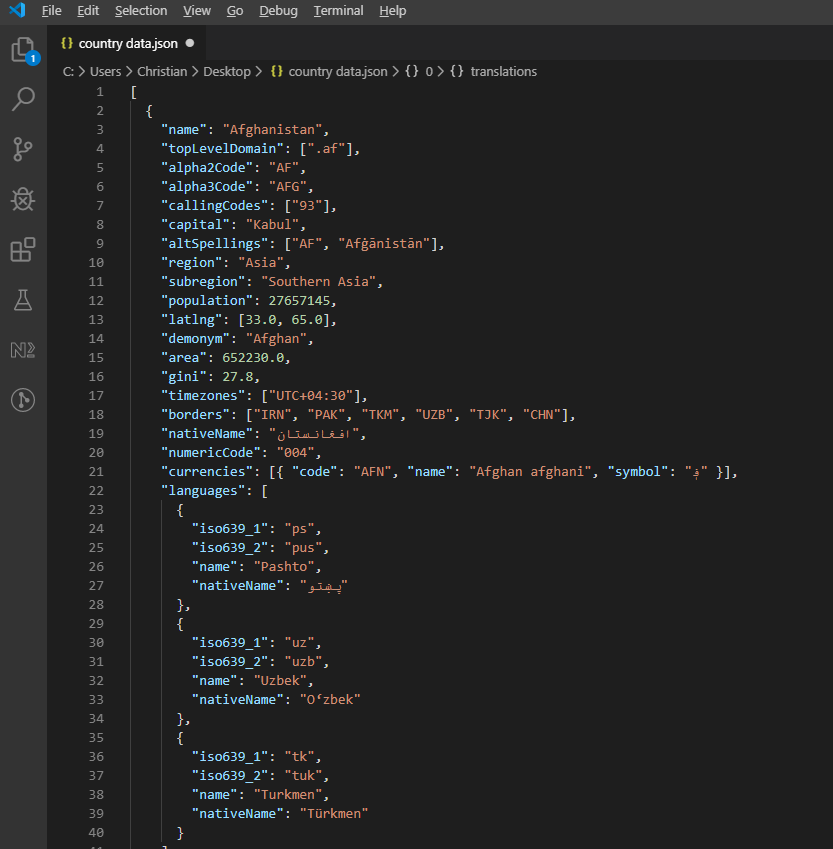 來自REST Countries API的樣本JSON響應,顯示國家資訊的層次結構。
處理並將API資料寫入Excel:
private async Task ProcessCountryData(List<RestCountry> countries, WorkSheet workSheet)
{
    for (int i = 0; i < countries.Count; i++)
    {
        var country = countries[i];
        int row = i + 1; // Start from row 1 (after headers)

        // Write basic country data
        workSheet[$"A{row}"].Value = country.Name;
        workSheet[$"B{row}"].Value = country.Population;
        workSheet[$"C{row}"].Value = country.Region;
        workSheet[$"D{row}"].Value = country.NumericCode;

        // Format population with thousands separator
        workSheet[$"B{row}"].FormatString = "#,##0";

        // Add up to 3 languages
        for (int langIndex = 0; langIndex < Math.Min(3, country.Languages?.Count ?? 0); langIndex++)
        {
            var language = country.Languages[langIndex];
            string columnLetter = ((char)('E' + langIndex)).ToString();
            workSheet[$"{columnLetter}{row}"].Value = language.Name;
        }

        // Add conditional formatting for regions
        if (country.Region == "Europe")
        {
            workSheet[$"C{row}"].Style.SetBackgroundColor("#E6F3FF");
        }
        else if (country.Region == "Asia")
        {
            workSheet[$"C{row}"].Style.SetBackgroundColor("#FFF2E6");
        }

        // Show progress every 50 countries
        if (i % 50 == 0)
        {
            Console.WriteLine($"Processed {i} of {countries.Count} countries");
        }
    }

    // Auto-size all columns
    for (int col = 0; col < 7; col++)
    {
        workSheet.AutoSizeColumn(col);
    }
}
private async Task ProcessCountryData(List<RestCountry> countries, WorkSheet workSheet)
{
for (int i = 0; i < countries.Count; i++)
{
var country = countries[i];
int row = i + 1; // Start from row 1 (after headers)
// Write basic country data
workSheet[$"A{row}"].Value = country.Name;
workSheet[$"B{row}"].Value = country.Population;
workSheet[$"C{row}"].Value = country.Region;
workSheet[$"D{row}"].Value = country.NumericCode;
// Format population with thousands separator
workSheet[$"B{row}"].FormatString = "#,##0";
// Add up to 3 languages
for (int langIndex = 0; langIndex < Math.Min(3, country.Languages?.Count ?? 0); langIndex++)
{
var language = country.Languages[langIndex];
string columnLetter = ((char)('E' + langIndex)).ToString();
workSheet[$"{columnLetter}{row}"].Value = language.Name;
}
// Add conditional formatting for regions
if (country.Region == "Europe")
{
workSheet[$"C{row}"].Style.SetBackgroundColor("#E6F3FF");
}
else if (country.Region == "Asia")
{
workSheet[$"C{row}"].Style.SetBackgroundColor("#FFF2E6");
}
// Show progress every 50 countries
if (i % 50 == 0)
{
Console.WriteLine($"Processed {i} of {countries.Count} countries");
}
}
// Auto-size all columns
for (int col = 0; col < 7; col++)
{
workSheet.AutoSizeColumn(col);
}
}Private Async Function ProcessCountryData(ByVal countries As List(Of RestCountry), ByVal workSheet As WorkSheet) As Task
For i As Integer = 0 To countries.Count - 1
Dim country = countries(i)
Dim row As Integer = i + 1 ' Start from row 1 (after headers)
' Write basic country data
workSheet($"A{row}").Value = country.Name
workSheet($"B{row}").Value = country.Population
workSheet($"C{row}").Value = country.Region
workSheet($"D{row}").Value = country.NumericCode
' Format population with thousands separator
workSheet($"B{row}").FormatString = "#,##0"
' Add up to 3 languages
For langIndex As Integer = 0 To Math.Min(3, If(country.Languages?.Count, 0)) - 1
Dim language = country.Languages(langIndex)
Dim columnLetter As String = (ChrW(AscW("E"c) + langIndex)).ToString()
workSheet($"{columnLetter}{row}").Value = language.Name
Next langIndex
' Add conditional formatting for regions
If country.Region = "Europe" Then
workSheet($"C{row}").Style.SetBackgroundColor("#E6F3FF")
ElseIf country.Region = "Asia" Then
workSheet($"C{row}").Style.SetBackgroundColor("#FFF2E6")
End If
' Show progress every 50 countries
If i Mod 50 = 0 Then
Console.WriteLine($"Processed {i} of {countries.Count} countries")
End If
Next i
' Auto-size all columns
For col As Integer = 0 To 6
workSheet.AutoSizeColumn(col)
Next col
End Function常見的陷阱
有幾件事經常讓人摔倒,以至於它們值得擁有自己的部份。
空單元格返回0,而非null
這一點早期就讓我吃到了苦頭。 在空白單元格上調用null。 如果您在求和或計算存在空白的列的平均值,空白悄悄變成零並且可能會偏移結果。 我現在在任何可能缺少值的工作表上進行讀取時都會謹慎:
var cell = sheet["B5"];
if (!cell.IsEmpty)
{
    total += cell.DecimalValue;
}
var cell = sheet["B5"];
if (!cell.IsEmpty)
{
total += cell.DecimalValue;
}Dim cell = sheet("B5")
If Not cell.IsEmpty Then
total += cell.DecimalValue
End IfCell.IsEmpty很便宜,所以我預設在使用者提供的電子表格而不是機器生成的電子表格中使用它。
如果您要求錯誤型別,日期會以序列號返回
Excel在底層將日期儲存為序列號(例如,45292代表2024-01-01)。 我們的支援信箱中最常見的日期處理問題是"為什麼我的日期顯示為45292?"答案幾乎總是該單元格被讀取為DateTimeValue:
// What you probably want:
DateTime birthday = sheet["E2"].DateTimeValue;

// What gives you "45292":
string birthday = sheet["E2"].StringValue;
// What you probably want:
DateTime birthday = sheet["E2"].DateTimeValue;
// What gives you "45292":
string birthday = sheet["E2"].StringValue;' What you probably want:
Dim birthday As DateTime = sheet("E2").DateTimeValue
' What gives you "45292":
Dim birthday As String = sheet("E2").StringValueCell.IsDateTime將告訴您該單元格是否起初就作為日期撰寫,這對於輸入格式不保證的驗證程式很有用。
單元格索引數字是0-based的,但A1字串是1-based的
在上面的Interop遷移段落中已經涵蓋,但值得重申,因為它甚至會困擾那些從未接近過COM的人。 sheet["A1"]是相同的單元格。 在同一個迴圈中混合使用兩種格式是引入off-by-one錯誤的方法。 我每個文件選擇一種格式,並堅持使用; 我預設使用["A1"]字串形式,因為它與您在電子表格中看到的匹配。
基準資料的範例專案
如果您想重現之前的時間資料,測試工具是一個小型.NET 9控制台應用:
:path=/static-assets/excel/content-code-examples/tutorials/how-to-read-excel-file-csharp-22.cs// ReadExcelBenchmark/Program.cs (excerpt)
IronXL.License.LicenseKey = Environment.GetEnvironmentVariable("IRONXL_LICENSE_KEY");
var sw = Stopwatch.StartNew();
var workbook = WorkBook.Load("GDP.xlsx");
decimal sum = workbook.WorkSheets.First()["B2:B214"].Sum();
sw.Stop();
Console.WriteLine($"cold: {sw.Elapsed.TotalMilliseconds:F1} ms");
Imports System
Imports System.Diagnostics
Imports IronXL

License.LicenseKey = Environment.GetEnvironmentVariable("IRONXL_LICENSE_KEY")

Dim sw As Stopwatch = Stopwatch.StartNew()
Dim workbook = WorkBook.Load("GDP.xlsx")
Dim sum As Decimal = workbook.WorkSheets.First()("B2:B214").Sum()
sw.Stop()
Console.WriteLine($"cold: {sw.Elapsed.TotalMilliseconds:F1} ms")在dotnet run -c Release下運行,首次啟動時生成兩個範例工作簿,您可以替換自己的文件,查看隨著文件大小和複雜性而變化的資料。
物件參考與資源
IronXL API參考涵蓋了所有類和方法,包括這個教程沒有涉及的那些。
其他Excel操作教程:
總結
IronXL.Excel讀取和操作遍及XLS、XLSX、CSV和TSV格式的Excel文件。 它在主機機器上運行而不需要Microsoft Excel或Interop。
對於基於雲端的電子表格操作,您還可以探索.NET的Google Sheets API Client Library,以補充IronXL的本地文件功能。
常見問題
我如何在C#中讀取Excel文件而不使用Microsoft Office?
您可以使用IronXL在C#中讀取Excel文件,而無需Microsoft Office。IronXL提供WorkBook.Load()等方法來打開Excel文件,並通過直觀語法存取和操作資料。
使用C#可以讀取哪些格式的Excel文件?
使用IronXL,您可以在C#中讀取XLS和XLSX文件格式。程式庫會自動檢測文件格式,並使用WorkBook.Load()方法進行相應處理。
如何在C#中驗證Excel資料?
IronXL允許您在C#中程式化驗證Excel資料,通過遍歷儲存格並應用邏輯,如電子郵件的正則表達式或自訂驗證功能。您可以使用CreateWorkSheet()生成報告。
如何使用C#將資料從Excel匯出到SQL資料庫?
要將資料從Excel匯出到SQL資料庫,使用IronXL讀取Excel資料,通過WorkBook.Load()和GetWorkSheet()方法,然後遍歷儲存格,使用Entity Framework將資料轉移到您的資料庫中。
我可以將Excel功能整合到ASP.NET Core應用程式中嗎?
是的,IronXL支持與ASP.NET Core應用程式整合。您可以在控制器中使用WorkBook和WorkSheet類處理Excel文件上傳、生成報告等。
可以用C#向Excel工作表中新增公式嗎?
IronXL使您能夠程式化地向Excel工作表中新增公式。您可以使用Formula屬性設定公式,如cell.Formula = "=SUM(A1:A10)",並使用workBook.EvaluateAll()計算結果。
如何用REST API中的資料填充Excel文件?
要用REST API中的資料填充Excel文件,使用IronXL和HTTP客戶端獲取API資料,然後使用sheet['A1'].Value等方法將其寫入Excel。IronXL管理Excel的格式和結構。
在生產環境中使用Excel程式庫有哪些授權選項?
IronXL提供免費試用供開發使用,而生產授權從$749起。這些授權包括專業技術支援,並允許在各種環境中部署而無需額外的Office授權。


仍在滾動嗎?
想要快速證明嗎? PM > Install-Package IronXL.Excel
運行一個範例 觀看您的資料成為試算表。








 免費開始
免費開始 免費開始
免費開始 預訂免費直播演示
















