



How to Create an Excel File in C# (.NET Tutorial)

IronXL, Excel XLSX hesap tablolarını programatik olarak oluşturmanıza, okumanıza ve düzenlemenize olanak tanıyan güçlü bir C# ve .NET Excel kütüphanesidir — Microsoft Office veya Interop bağımlılıkları olmadan. .NET 8, .NET 9, .NET Core, .NET Framework'u destekler ve Windows, Linux, macOS, Azure ve AWS üzerinde çalışır.
Bu eğitim, hücre değerlerini ayarlamak, biçimlendirme uygulamak, formüller eklemek ve XLSX, CSV ve daha fazlasına dışa aktarmak için eksiksiz bir Excel çalışma kitabı oluşturmayı adım adım kod örnekleri ile gösterir.
Hızlı Başlangıç: Excel Dosyası Oluştur
IronXL kullanarak hızla yeni bir Excel dosyası oluşturun—sadece bir format seçin, bir sayfa ekleyin, herhangi bir hücre değerini ayarlayın ve kaydedin. XLSX dosyalarını hızlı bir şekilde, sezgisel API çağrıları ve sıfır interop sıkıntısı ile oluşturmanın en hızlı yolu budur.
-
NuGet Paket Yöneticisi ile https://www.nuget.org/packages/IronXL.Excel yükleyin
PM > Install-Package IronXL.Excel -
Bu kod parçasını kopyalayıp çalıştırın.
WorkBook book = IronXL.WorkBook.Create(IronXL.ExcelFileFormat.XLSX); book.CreateWorkSheet("Sheet1")["A1"].Value = "Hello World"; book.SaveAs("MyFile.xlsx"); -
Canlı ortamınızda test etmek için dağıtın
Bugün projenizde IronXL kullanmaya başlayın ücretsiz deneme ile

Minimal Is Akisi (5 adimda)
- IronXL C# kütüphanesini indir ve yükle
- .NET projenizi kurun
- Bir Çalışma Kitabı ve Çalışma Sayfası oluşturun
- Hücre değerlerini, biçimlendirmeyi ve formülleri ayarlayın
- Excel dosyanızı kaydedin
IronXL Nedir ve Neden Excel Dosya Oluşturma için Kullanılmalı?
IronXL, Excel hesap tabloları dosyalarını .NET üzerinde olağanüstü performansla okumanızı, düzenlemenizi ve oluşturmanızı sağlayan sezgisel bir C# & VB Excel API'sidir. Geleneksel yaklaşımlardan farklı olarak, Microsoft Office yüklemeye veya Excel Interop kullanmaya gerek yoktur, bu da dağıtımı daha basit ve güvenilir hale getirir.
IronXL, .NET 9, .NET 8, .NET Core, .NET Framework, Xamarin, Mobil, Linux, macOS ve Azure ortamlarını tamamen destekler.
IronXL Özellikleri
- .NET geliştirme ekibimizden doğrudan insan desteği
- Microsoft Visual Studio ile hızlı kurulum
- Geliştirme için ÜCRETSİZDİR. Lisanslar $999'den
Bir Excel Dosyasını Hızla Nasıl Oluşturup Kaydedebilirim?
IronXL'yi NuGet üzerinden yükleyin veya DLL'yi doğrudan indirin. WorkBook sınıfı, tüm Excel işlemleri için giriş noktanızdır, WorkSheet sınıfı ise bireysel sayfaları manipüle etmek için yöntemler sağlar — tam adım adım kılavuz aşağıda Adım 1'de başlamaktadır.
How Do I Install the IronXL C# Library?
Visual Studio'da NuGet Paket Yöneticisi üzerinden veya Paket Yöneticisi Konsolu kullanarak IronXL'yi yükleyin:
Install-Package IronXL.Excel
Proje menüsü veya Çözüm Gezgini'nde projenize sağ tıklayarak NuGet Paket Yöneticisi'ne erişin.
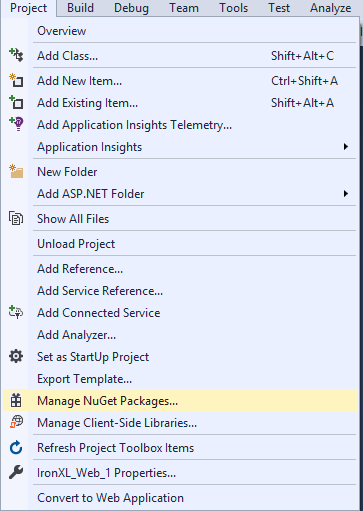 Şekil 3 - Proje menüsü aracılığıyla NuGet Paket Yöneticisi'ne erişim
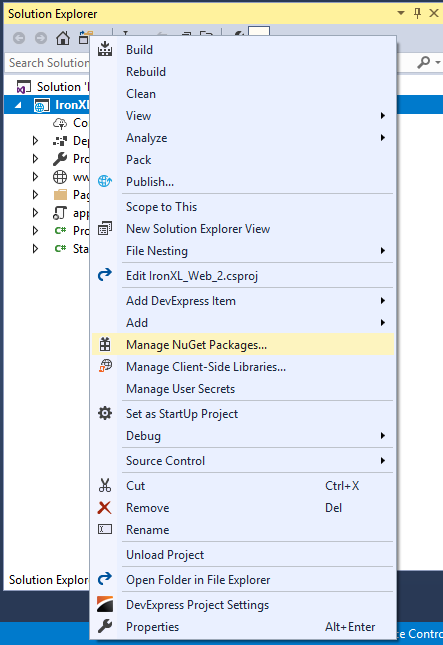 Şekil 4 - Çözüm Gezgini'nde sağ tıklama bağlam menüsü
Paket listesinde IronXL.Excel ile arama yapın ve Yükle'ye tıklayın.
 Şekil 5 - NuGet Paket Yöneticisi aracılığıyla IronXL.Excel yükleme
Alternatif olarak, IronXL DLL dosyasını doğrudan indirin ve Solution Explorer > Referanslar > IronXL.dll'u arayın yoluyla projenize referans olarak ekleyin.
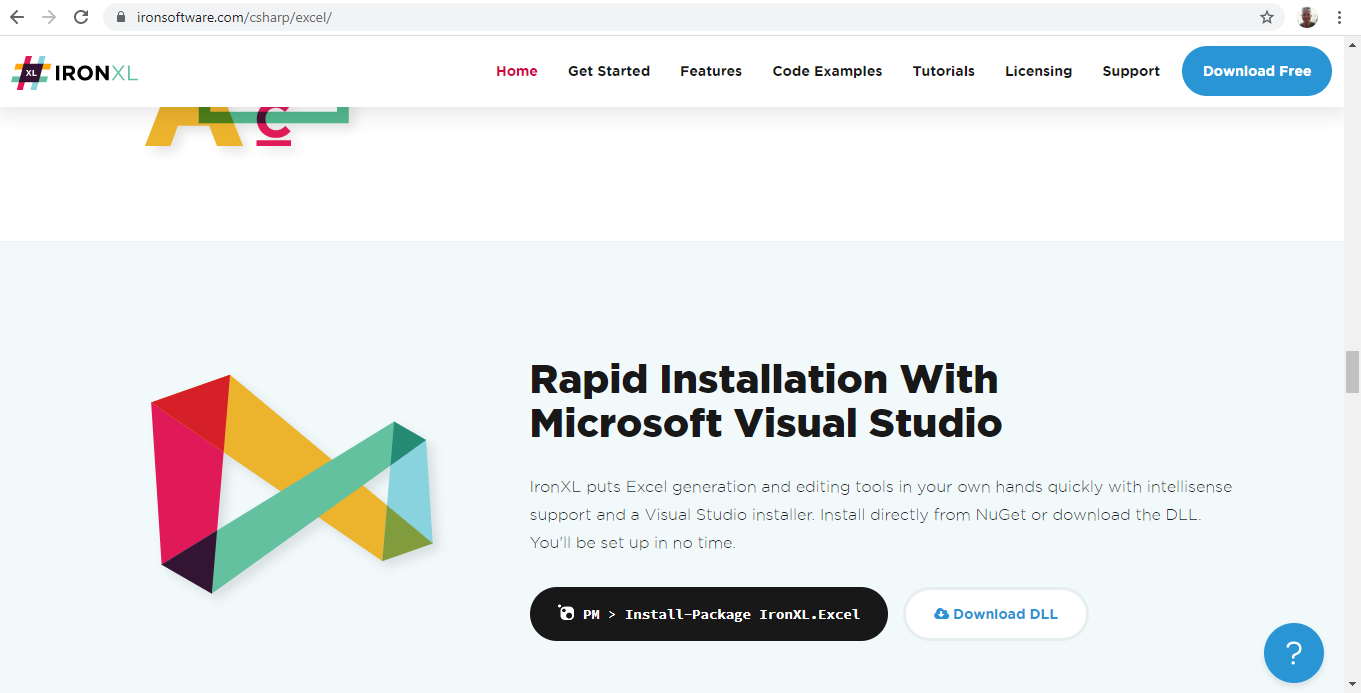 Şekil 6 - Resmi web sitesinden IronXL kütüphanesini indirin
{i:(IronXL, Microsoft Office veya Excel Interop kurulumu gerektirmez — Windows, Linux, macOS ve bulut ortamları dahil olmak üzere herhangi bir .NET destekli platformda çalışır.)}
.NET Projemi Nasıl Kurarım?
IronXL, herhangi bir .NET proje türü ile çalışır — konsol uygulamaları, ASP.NET web uygulamaları, API'ler veya masaüstü araçları. Aşağıdaki örnek bir ASP.NET Web Uygulaması kullanmaktadır, ancak süreç tüm proje şablonlarında aynıdır.
Bir ASP.NET web sitesi oluşturmak için şu adımları izleyin:
- Visual Studio'yu açın
- Dosya > Yeni Proje'ye tıklayın
- Proje türü listesinde Visual C# altından Web'i seçin
-
ASP.NET Web Uygulaması'nı seçin
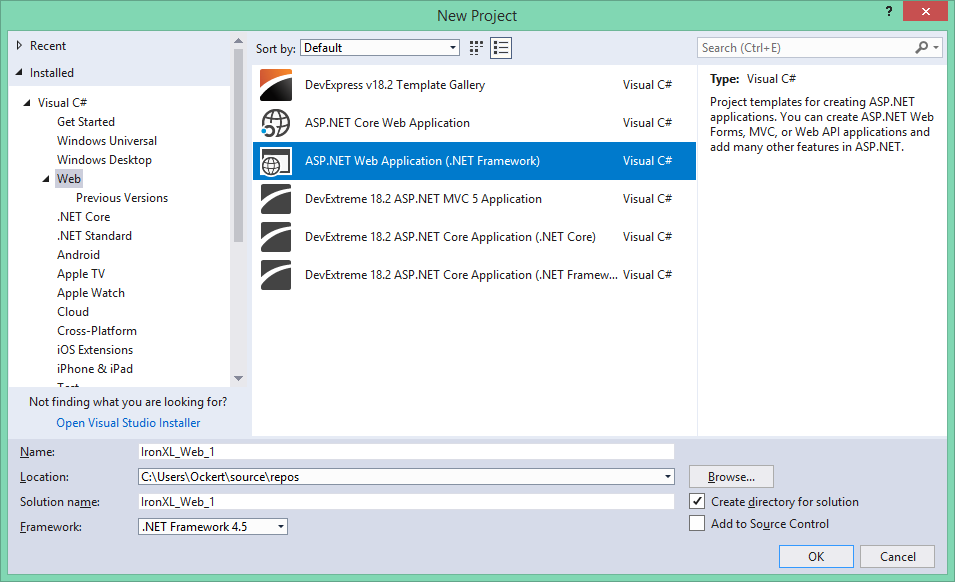
Şekil 1 – Create new ASP.NET project
- Tamam'a tıklayın
-
Web Forms şablonunu seçin
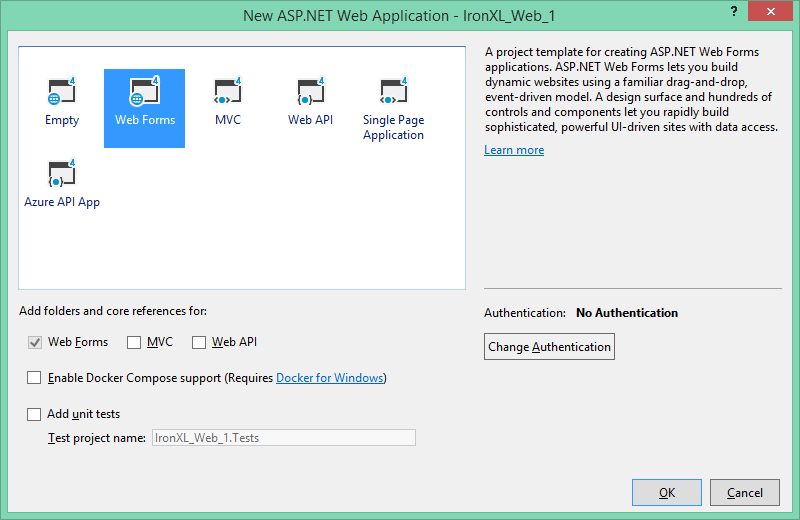
Şekil 2 – Select Web Forms template
- Tamam'a tıklayın
Projeniz hazır olduğunda, programlı olarak Excel dosyaları oluşturmak için IronXL'yi yükleyin.
How Do I Create an Excel Workbook in C#?
IronXL ile yeni bir Excel çalışma kitabı oluşturmak sadece bir satır kod gerektirir:
using IronXL;

// Create workbook with XLSX format (recommended for modern Excel)
WorkBook workbook = WorkBook.Create(ExcelFileFormat.XLSX);

// Alternative: Create legacy XLS format for older Excel versions
WorkBook legacyWorkbook = WorkBook.Create(ExcelFileFormat.XLS);
using IronXL;
// Create workbook with XLSX format (recommended for modern Excel)
WorkBook workbook = WorkBook.Create(ExcelFileFormat.XLSX);
// Alternative: Create legacy XLS format for older Excel versions
WorkBook legacyWorkbook = WorkBook.Create(ExcelFileFormat.XLS);Imports IronXL
' Create workbook with XLSX format (recommended for modern Excel)
Private workbook As WorkBook = WorkBook.Create(ExcelFileFormat.XLSX)
' Alternative: Create legacy XLS format for older Excel versions
Private legacyWorkbook As WorkBook = WorkBook.Create(ExcelFileFormat.XLS)WorkBook.Create yöntemi, hem XLS (Excel 97-2003) hem de XLSX (Excel 2007+) formatlarını destekler. Daha iyi performans ve daha küçük dosya boyutları için XLSX önerilir.
- XLSX: Tüm modern Excel sürümleri (2007+) için önerilir — daha küçük dosyalar, daha iyi performans
- XLS: Excel 97–2003 ile uyumluluk için eski format
Çalışma Kitabıma Nasıl Sayfa Eklerim?
Sayfa eklemek basittir:
// Create a worksheet with custom name for budget tracking
WorkSheet budgetSheet = workbook.CreateWorkSheet("2020 Budget");

// Add multiple worksheets for different purposes
WorkSheet salesSheet = workbook.CreateWorkSheet("Sales Data");
WorkSheet inventorySheet = workbook.CreateWorkSheet("Inventory");

// Access existing worksheet by name
WorkSheet existingSheet = workbook.GetWorkSheet("2020 Budget");
// Create a worksheet with custom name for budget tracking
WorkSheet budgetSheet = workbook.CreateWorkSheet("2020 Budget");
// Add multiple worksheets for different purposes
WorkSheet salesSheet = workbook.CreateWorkSheet("Sales Data");
WorkSheet inventorySheet = workbook.CreateWorkSheet("Inventory");
// Access existing worksheet by name
WorkSheet existingSheet = workbook.GetWorkSheet("2020 Budget");' Create a worksheet with custom name for budget tracking
Dim budgetSheet As WorkSheet = workbook.CreateWorkSheet("2020 Budget")
' Add multiple worksheets for different purposes
Dim salesSheet As WorkSheet = workbook.CreateWorkSheet("Sales Data")
Dim inventorySheet As WorkSheet = workbook.CreateWorkSheet("Inventory")
' Access existing worksheet by name
Dim existingSheet As WorkSheet = workbook.GetWorkSheet("2020 Budget")Bir çalışma kitabı bir veya daha fazla sayfa içerir. Her sayfa, hücrelerin kesiştiği satır ve sütunlardan oluşur. CreateWorkSheet yöntemini kullanarak çalışma kitabınıza yeni sayfalar ekleyin.
CreateWorkSheet("name"): Verilen sekme ismiyle yeni bir sayfa eklerGetWorkSheet("name"): İsim ile mevcut bir sayfayı alır- Sayfa adları bir çalışma kitabı içinde benzersiz olmalıdır
Excel'de Hücre Değerlerini Nasıl Ayarlarım?
Hücre Değerlerini Elle Nasıl Ayarlayabilirim?
Bireysel hücre değerlerini ayarlamak, sezgisel Excel benzeri bir sözdizimi kullanır:
// Set month names in first row for annual budget spreadsheet
workSheet["A1"].Value = "January";
workSheet["B1"].Value = "February";
workSheet["C1"].Value = "March";
workSheet["D1"].Value = "April";
workSheet["E1"].Value = "May";
workSheet["F1"].Value = "June";
workSheet["G1"].Value = "July";
workSheet["H1"].Value = "August";
workSheet["I1"].Value = "September";
workSheet["J1"].Value = "October";
workSheet["K1"].Value = "November";
workSheet["L1"].Value = "December";

// Set different data types - IronXL handles conversion automatically
workSheet["A2"].Value = 1500.50m;  // Decimal for currency
workSheet["A3"].Value = DateTime.Now;  // Date values
workSheet["A4"].Value = true;  // Boolean values
// Set month names in first row for annual budget spreadsheet
workSheet["A1"].Value = "January";
workSheet["B1"].Value = "February";
workSheet["C1"].Value = "March";
workSheet["D1"].Value = "April";
workSheet["E1"].Value = "May";
workSheet["F1"].Value = "June";
workSheet["G1"].Value = "July";
workSheet["H1"].Value = "August";
workSheet["I1"].Value = "September";
workSheet["J1"].Value = "October";
workSheet["K1"].Value = "November";
workSheet["L1"].Value = "December";
// Set different data types - IronXL handles conversion automatically
workSheet["A2"].Value = 1500.50m; // Decimal for currency
workSheet["A3"].Value = DateTime.Now; // Date values
workSheet["A4"].Value = true; // Boolean values' Set month names in first row for annual budget spreadsheet
workSheet("A1").Value = "January"
workSheet("B1").Value = "February"
workSheet("C1").Value = "March"
workSheet("D1").Value = "April"
workSheet("E1").Value = "May"
workSheet("F1").Value = "June"
workSheet("G1").Value = "July"
workSheet("H1").Value = "August"
workSheet("I1").Value = "September"
workSheet("J1").Value = "October"
workSheet("K1").Value = "November"
workSheet("L1").Value = "December"
' Set different data types - IronXL handles conversion automatically
workSheet("A2").Value = 1500.50D ' Decimal for currency
workSheet("A3").Value = DateTime.Now ' Date values
workSheet("A4").Value = True ' Boolean valuesCell.Value özelliği, dizeler, sayılar, tarihler ve boolean'lar dahil olmak üzere çeşitli veri türlerini kabul eder. IronXL, hücreleri veri türüne göre otomatik olarak biçimlendirir.
Hücre Değerlerini Dinamik Olarak Nasıl Ayarlarım?
Dinamik değer ayarlama, veri odaklı uygulamalar için idealdir:
// Initialize random number generator for sample data
Random r = new Random();

// Populate cells with random budget data for each month
for (int i = 2; i <= 11; i++)
{
    // Set different budget categories with increasing ranges
    workSheet[$"A{i}"].Value = r.Next(1, 1000);     // Office Supplies
    workSheet[$"B{i}"].Value = r.Next(1000, 2000);  // Utilities
    workSheet[$"C{i}"].Value = r.Next(2000, 3000);  // Rent
    workSheet[$"D{i}"].Value = r.Next(3000, 4000);  // Salaries
    workSheet[$"E{i}"].Value = r.Next(4000, 5000);  // Marketing
    workSheet[$"F{i}"].Value = r.Next(5000, 6000);  // IT Services
    workSheet[$"G{i}"].Value = r.Next(6000, 7000);  // Travel
    workSheet[$"H{i}"].Value = r.Next(7000, 8000);  // Training
    workSheet[$"I{i}"].Value = r.Next(8000, 9000);  // Insurance
    workSheet[$"J{i}"].Value = r.Next(9000, 10000); // Equipment
    workSheet[$"K{i}"].Value = r.Next(10000, 11000); // Research
    workSheet[$"L{i}"].Value = r.Next(11000, 12000); // Misc
}

// Alternative: Set range of cells with same value
workSheet["A13:L13"].Value = 0; // Initialize totals row
// Initialize random number generator for sample data
Random r = new Random();
// Populate cells with random budget data for each month
for (int i = 2; i <= 11; i++)
{
// Set different budget categories with increasing ranges
workSheet[$"A{i}"].Value = r.Next(1, 1000); // Office Supplies
workSheet[$"B{i}"].Value = r.Next(1000, 2000); // Utilities
workSheet[$"C{i}"].Value = r.Next(2000, 3000); // Rent
workSheet[$"D{i}"].Value = r.Next(3000, 4000); // Salaries
workSheet[$"E{i}"].Value = r.Next(4000, 5000); // Marketing
workSheet[$"F{i}"].Value = r.Next(5000, 6000); // IT Services
workSheet[$"G{i}"].Value = r.Next(6000, 7000); // Travel
workSheet[$"H{i}"].Value = r.Next(7000, 8000); // Training
workSheet[$"I{i}"].Value = r.Next(8000, 9000); // Insurance
workSheet[$"J{i}"].Value = r.Next(9000, 10000); // Equipment
workSheet[$"K{i}"].Value = r.Next(10000, 11000); // Research
workSheet[$"L{i}"].Value = r.Next(11000, 12000); // Misc
}
// Alternative: Set range of cells with same value
workSheet["A13:L13"].Value = 0; // Initialize totals row' Initialize random number generator for sample data
Dim r As New Random()
' Populate cells with random budget data for each month
For i As Integer = 2 To 11
' Set different budget categories with increasing ranges
workSheet($"A{i}").Value = r.Next(1, 1000) ' Office Supplies
workSheet($"B{i}").Value = r.Next(1000, 2000) ' Utilities
workSheet($"C{i}").Value = r.Next(2000, 3000) ' Rent
workSheet($"D{i}").Value = r.Next(3000, 4000) ' Salaries
workSheet($"E{i}").Value = r.Next(4000, 5000) ' Marketing
workSheet($"F{i}").Value = r.Next(5000, 6000) ' IT Services
workSheet($"G{i}").Value = r.Next(6000, 7000) ' Travel
workSheet($"H{i}").Value = r.Next(7000, 8000) ' Training
workSheet($"I{i}").Value = r.Next(8000, 9000) ' Insurance
workSheet($"J{i}").Value = r.Next(9000, 10000) ' Equipment
workSheet($"K{i}").Value = r.Next(10000, 11000) ' Research
workSheet($"L{i}").Value = r.Next(11000, 12000) ' Misc
Next i
' Alternative: Set range of cells with same value
workSheet("A13:L13").Value = 0 ' Initialize totals rowKarakter dizisi enterpolasyonu ($"A{i}"), hücrelere dinamik olarak başvurmayı kolaylaştırır. Range indexleme operatörü, hem bireysel hücreler hem de aralıklar için destek sağlar.
Excel'i Veritabanından Nasıl Doldururum?
Veritabanlarından Excel'e veri yüklemek yaygın bir gerekliliktir:
using System.Data;
using System.Data.SqlClient;
using IronXL;

// Database connection setup for retrieving sales data
string connectionString = @"Data Source=ServerName;Initial Catalog=SalesDB;Integrated Security=true";
string query = "SELECT ProductName, Quantity, UnitPrice, TotalSales FROM MonthlySales";

// Create DataSet to hold query results
DataSet salesData = new DataSet();

using (SqlConnection connection = new SqlConnection(connectionString))
using (SqlDataAdapter adapter = new SqlDataAdapter(query, connection))
{
    // Fill DataSet with sales information
    adapter.Fill(salesData);
}

// Write headers for database columns
workSheet["A1"].Value = "Product Name";
workSheet["B1"].Value = "Quantity";
workSheet["C1"].Value = "Unit Price";
workSheet["D1"].Value = "Total Sales";

// Apply header formatting
workSheet["A1:D1"].Style.Font.Bold = true;
workSheet["A1:D1"].Style.SetBackgroundColor("#4472C4");
workSheet["A1:D1"].Style.Font.FontColor = "#FFFFFF";

// Populate Excel with database records
DataTable salesTable = salesData.Tables[0];
for (int row = 0; row < salesTable.Rows.Count; row++)
{
    int excelRow = row + 2; // Start from row 2 (after headers)

    workSheet[$"A{excelRow}"].Value = salesTable.Rows[row]["ProductName"].ToString();
    workSheet[$"B{excelRow}"].Value = Convert.ToInt32(salesTable.Rows[row]["Quantity"]);
    workSheet[$"C{excelRow}"].Value = Convert.ToDecimal(salesTable.Rows[row]["UnitPrice"]);
    workSheet[$"D{excelRow}"].Value = Convert.ToDecimal(salesTable.Rows[row]["TotalSales"]);

    // Format currency columns
    workSheet[$"C{excelRow}"].FormatString = "$#,##0.00";
    workSheet[$"D{excelRow}"].FormatString = "$#,##0.00";
}

// Add summary row with formulas
int summaryRow = salesTable.Rows.Count + 2;
workSheet[$"A{summaryRow}"].Value = "TOTAL";
workSheet[$"B{summaryRow}"].Formula = $"=SUM(B2:B{summaryRow-1})";
workSheet[$"D{summaryRow}"].Formula = $"=SUM(D2:D{summaryRow-1})";
using System.Data;
using System.Data.SqlClient;
using IronXL;
// Database connection setup for retrieving sales data
string connectionString = @"Data Source=ServerName;Initial Catalog=SalesDB;Integrated Security=true";
string query = "SELECT ProductName, Quantity, UnitPrice, TotalSales FROM MonthlySales";
// Create DataSet to hold query results
DataSet salesData = new DataSet();
using (SqlConnection connection = new SqlConnection(connectionString))
using (SqlDataAdapter adapter = new SqlDataAdapter(query, connection))
{
// Fill DataSet with sales information
adapter.Fill(salesData);
}
// Write headers for database columns
workSheet["A1"].Value = "Product Name";
workSheet["B1"].Value = "Quantity";
workSheet["C1"].Value = "Unit Price";
workSheet["D1"].Value = "Total Sales";
// Apply header formatting
workSheet["A1:D1"].Style.Font.Bold = true;
workSheet["A1:D1"].Style.SetBackgroundColor("#4472C4");
workSheet["A1:D1"].Style.Font.FontColor = "#FFFFFF";
// Populate Excel with database records
DataTable salesTable = salesData.Tables[0];
for (int row = 0; row < salesTable.Rows.Count; row++)
{
int excelRow = row + 2; // Start from row 2 (after headers)
workSheet[$"A{excelRow}"].Value = salesTable.Rows[row]["ProductName"].ToString();
workSheet[$"B{excelRow}"].Value = Convert.ToInt32(salesTable.Rows[row]["Quantity"]);
workSheet[$"C{excelRow}"].Value = Convert.ToDecimal(salesTable.Rows[row]["UnitPrice"]);
workSheet[$"D{excelRow}"].Value = Convert.ToDecimal(salesTable.Rows[row]["TotalSales"]);
// Format currency columns
workSheet[$"C{excelRow}"].FormatString = "$#,##0.00";
workSheet[$"D{excelRow}"].FormatString = "$#,##0.00";
}
// Add summary row with formulas
int summaryRow = salesTable.Rows.Count + 2;
workSheet[$"A{summaryRow}"].Value = "TOTAL";
workSheet[$"B{summaryRow}"].Formula = $"=SUM(B2:B{summaryRow-1})";
workSheet[$"D{summaryRow}"].Formula = $"=SUM(D2:D{summaryRow-1})";Imports System.Data
Imports System.Data.SqlClient
Imports IronXL
' Database connection setup for retrieving sales data
Private connectionString As String = "Data Source=ServerName;Initial Catalog=SalesDB;Integrated Security=true"
Private query As String = "SELECT ProductName, Quantity, UnitPrice, TotalSales FROM MonthlySales"
' Create DataSet to hold query results
Private salesData As New DataSet()
Using connection As New SqlConnection(connectionString)
Using adapter As New SqlDataAdapter(query, connection)
' Fill DataSet with sales information
adapter.Fill(salesData)
End Using
End Using
' Write headers for database columns
workSheet("A1").Value = "Product Name"
workSheet("B1").Value = "Quantity"
workSheet("C1").Value = "Unit Price"
workSheet("D1").Value = "Total Sales"
' Apply header formatting
workSheet("A1:D1").Style.Font.Bold = True
workSheet("A1:D1").Style.SetBackgroundColor("#4472C4")
workSheet("A1:D1").Style.Font.FontColor = "#FFFFFF"
' Populate Excel with database records
Dim salesTable As DataTable = salesData.Tables(0)
For row As Integer = 0 To salesTable.Rows.Count - 1
Dim excelRow As Integer = row + 2 ' Start from row 2 (after headers)
workSheet($"A{excelRow}").Value = salesTable.Rows(row)("ProductName").ToString()
workSheet($"B{excelRow}").Value = Convert.ToInt32(salesTable.Rows(row)("Quantity"))
workSheet($"C{excelRow}").Value = Convert.ToDecimal(salesTable.Rows(row)("UnitPrice"))
workSheet($"D{excelRow}").Value = Convert.ToDecimal(salesTable.Rows(row)("TotalSales"))
' Format currency columns
workSheet($"C{excelRow}").FormatString = "$#,##0.00"
workSheet($"D{excelRow}").FormatString = "$#,##0.00"
Next row
' Add summary row with formulas
Dim summaryRow As Integer = salesTable.Rows.Count + 2
workSheet($"A{summaryRow}").Value = "TOTAL"
workSheet($"B{summaryRow}").Formula = $"=SUM(B2:B{summaryRow-1})"
workSheet($"D{summaryRow}").Formula = $"=SUM(D2:D{summaryRow-1})"Bu örnek, veritabanlarından Excel verilerini okuma, biçimlendirme uygulama ve hesaplamalar için formüller kullanma işlemlerini gösterir. FormatString özelliği, Excel'de olduğu gibi özel sayı biçimlendirmesine izin verir.
Excel Hücrelerine Nasıl Biçim Uygularım?
Excel'de Arka Plan Renklerini Nasıl Ayarlarım?
Hücre stilini ayarlama, okunabilirliği ve görsel cazibeyi artırır:
// Set header row background to light gray using hex color
workSheet["A1:L1"].Style.SetBackgroundColor("#d3d3d3");

// Apply different colors for data categorization
workSheet["A2:A11"].Style.SetBackgroundColor("#E7F3FF"); // Light blue for January
workSheet["B2:B11"].Style.SetBackgroundColor("#FFF2CC"); // Light yellow for February

// Highlight important cells with bold colors
workSheet["L12"].Style.SetBackgroundColor("#FF0000"); // Red for totals
workSheet["L12"].Style.Font.FontColor = "#FFFFFF"; // White text

// Create alternating row colors for better readability
for (int row = 2; row <= 11; row++)
{
    if (row % 2 == 0)
    {
        workSheet[$"A{row}:L{row}"].Style.SetBackgroundColor("#F2F2F2");
    }
}
// Set header row background to light gray using hex color
workSheet["A1:L1"].Style.SetBackgroundColor("#d3d3d3");
// Apply different colors for data categorization
workSheet["A2:A11"].Style.SetBackgroundColor("#E7F3FF"); // Light blue for January
workSheet["B2:B11"].Style.SetBackgroundColor("#FFF2CC"); // Light yellow for February
// Highlight important cells with bold colors
workSheet["L12"].Style.SetBackgroundColor("#FF0000"); // Red for totals
workSheet["L12"].Style.Font.FontColor = "#FFFFFF"; // White text
// Create alternating row colors for better readability
for (int row = 2; row <= 11; row++)
{
if (row % 2 == 0)
{
workSheet[$"A{row}:L{row}"].Style.SetBackgroundColor("#F2F2F2");
}
}' Set header row background to light gray using hex color
workSheet("A1:L1").Style.SetBackgroundColor("#d3d3d3")
' Apply different colors for data categorization
workSheet("A2:A11").Style.SetBackgroundColor("#E7F3FF") ' Light blue for January
workSheet("B2:B11").Style.SetBackgroundColor("#FFF2CC") ' Light yellow for February
' Highlight important cells with bold colors
workSheet("L12").Style.SetBackgroundColor("#FF0000") ' Red for totals
workSheet("L12").Style.Font.FontColor = "#FFFFFF" ' White text
' Create alternating row colors for better readability
For row As Integer = 2 To 11
If row Mod 2 = 0 Then
workSheet($"A{row}:L{row}").Style.SetBackgroundColor("#F2F2F2")
End If
Next rowStyle.SetBackgroundColor yöntemi altıgen renk kodlarını kabul eder. Arka plan renklerini yazı rengi ile birleştirerek profesyonel görünümlü tablolar oluşturun.
Excel'de Nasıl Kenarlıklar Oluştururum?
Kenarlıklar, veri bölgelerini tanımlamaya ve yapıyı iyileştirmeye yardımcı olur:
using IronXL;
using IronXL.Styles;

// Create header border - thick bottom line to separate from data
workSheet["A1:L1"].Style.TopBorder.SetColor("#000000");
workSheet["A1:L1"].Style.TopBorder.Type = BorderType.Thick;
workSheet["A1:L1"].Style.BottomBorder.SetColor("#000000");
workSheet["A1:L1"].Style.BottomBorder.Type = BorderType.Thick;

// Add right border to last column
workSheet["L2:L11"].Style.RightBorder.SetColor("#000000");
workSheet["L2:L11"].Style.RightBorder.Type = BorderType.Medium;

// Create bottom border for data area
workSheet["A11:L11"].Style.BottomBorder.SetColor("#000000");
workSheet["A11:L11"].Style.BottomBorder.Type = BorderType.Medium;

// Apply complete border around summary section
var summaryRange = workSheet["A12:L12"];
summaryRange.Style.TopBorder.Type = BorderType.Double;
summaryRange.Style.BottomBorder.Type = BorderType.Double;
summaryRange.Style.LeftBorder.Type = BorderType.Thin;
summaryRange.Style.RightBorder.Type = BorderType.Thin;
summaryRange.Style.SetBorderColor("#0070C0"); // Blue borders
using IronXL;
using IronXL.Styles;
// Create header border - thick bottom line to separate from data
workSheet["A1:L1"].Style.TopBorder.SetColor("#000000");
workSheet["A1:L1"].Style.TopBorder.Type = BorderType.Thick;
workSheet["A1:L1"].Style.BottomBorder.SetColor("#000000");
workSheet["A1:L1"].Style.BottomBorder.Type = BorderType.Thick;
// Add right border to last column
workSheet["L2:L11"].Style.RightBorder.SetColor("#000000");
workSheet["L2:L11"].Style.RightBorder.Type = BorderType.Medium;
// Create bottom border for data area
workSheet["A11:L11"].Style.BottomBorder.SetColor("#000000");
workSheet["A11:L11"].Style.BottomBorder.Type = BorderType.Medium;
// Apply complete border around summary section
var summaryRange = workSheet["A12:L12"];
summaryRange.Style.TopBorder.Type = BorderType.Double;
summaryRange.Style.BottomBorder.Type = BorderType.Double;
summaryRange.Style.LeftBorder.Type = BorderType.Thin;
summaryRange.Style.RightBorder.Type = BorderType.Thin;
summaryRange.Style.SetBorderColor("#0070C0"); // Blue bordersImports IronXL
Imports IronXL.Styles
' Create header border - thick bottom line to separate from data
workSheet("A1:L1").Style.TopBorder.SetColor("#000000")
workSheet("A1:L1").Style.TopBorder.Type = BorderType.Thick
workSheet("A1:L1").Style.BottomBorder.SetColor("#000000")
workSheet("A1:L1").Style.BottomBorder.Type = BorderType.Thick
' Add right border to last column
workSheet("L2:L11").Style.RightBorder.SetColor("#000000")
workSheet("L2:L11").Style.RightBorder.Type = BorderType.Medium
' Create bottom border for data area
workSheet("A11:L11").Style.BottomBorder.SetColor("#000000")
workSheet("A11:L11").Style.BottomBorder.Type = BorderType.Medium
' Apply complete border around summary section
Dim summaryRange = workSheet("A12:L12")
summaryRange.Style.TopBorder.Type = BorderType.Double
summaryRange.Style.BottomBorder.Type = BorderType.Double
summaryRange.Style.LeftBorder.Type = BorderType.Thin
summaryRange.Style.RightBorder.Type = BorderType.Thin
summaryRange.Style.SetBorderColor("#0070C0") ' Blue bordersIronXL, Ince, Orta, Kalın, Çift, Noktalı ve Kesikli gibi çeşitli kenar türlerini destekler. Her kenar tarafı bağımsız olarak tarzlandırılabilir.
How Do I Use Excel Formulas in C#?
IronXL, otomatik hesaplama ile güçlü formül desteği sunar:
// Use built-in aggregation functions for ranges
decimal sum = workSheet["A2:A11"].Sum();
decimal avg = workSheet["B2:B11"].Avg();
decimal max = workSheet["C2:C11"].Max();
decimal min = workSheet["D2:D11"].Min();

// Assign calculated values to cells
workSheet["A12"].Value = sum;
workSheet["B12"].Value = avg;
workSheet["C12"].Value = max;
workSheet["D12"].Value = min;

// Or use Excel formulas directly
workSheet["A12"].Formula = "=SUM(A2:A11)";
workSheet["B12"].Formula = "=AVERAGE(B2:B11)";
workSheet["C12"].Formula = "=MAX(C2:C11)";
workSheet["D12"].Formula = "=MIN(D2:D11)";

// Complex formulas with multiple functions
workSheet["E12"].Formula = "=IF(SUM(E2:E11)>50000,\"Over Budget\",\"On Track\")";
workSheet["F12"].Formula = "=SUMIF(F2:F11,\">5000\")";

// Percentage calculations
workSheet["G12"].Formula = "=G11/SUM(G2:G11)*100";
workSheet["G12"].FormatString = "0.00%";

// Ensure all formulas calculate
workSheet.EvaluateAll();
// Use built-in aggregation functions for ranges
decimal sum = workSheet["A2:A11"].Sum();
decimal avg = workSheet["B2:B11"].Avg();
decimal max = workSheet["C2:C11"].Max();
decimal min = workSheet["D2:D11"].Min();
// Assign calculated values to cells
workSheet["A12"].Value = sum;
workSheet["B12"].Value = avg;
workSheet["C12"].Value = max;
workSheet["D12"].Value = min;
// Or use Excel formulas directly
workSheet["A12"].Formula = "=SUM(A2:A11)";
workSheet["B12"].Formula = "=AVERAGE(B2:B11)";
workSheet["C12"].Formula = "=MAX(C2:C11)";
workSheet["D12"].Formula = "=MIN(D2:D11)";
// Complex formulas with multiple functions
workSheet["E12"].Formula = "=IF(SUM(E2:E11)>50000,\"Over Budget\",\"On Track\")";
workSheet["F12"].Formula = "=SUMIF(F2:F11,\">5000\")";
// Percentage calculations
workSheet["G12"].Formula = "=G11/SUM(G2:G11)*100";
workSheet["G12"].FormatString = "0.00%";
// Ensure all formulas calculate
workSheet.EvaluateAll();' Use built-in aggregation functions for ranges
Dim sum As Decimal = workSheet("A2:A11").Sum()
Dim avg As Decimal = workSheet("B2:B11").Avg()
Dim max As Decimal = workSheet("C2:C11").Max()
Dim min As Decimal = workSheet("D2:D11").Min()
' Assign calculated values to cells
workSheet("A12").Value = sum
workSheet("B12").Value = avg
workSheet("C12").Value = max
workSheet("D12").Value = min
' Or use Excel formulas directly
workSheet("A12").Formula = "=SUM(A2:A11)"
workSheet("B12").Formula = "=AVERAGE(B2:B11)"
workSheet("C12").Formula = "=MAX(C2:C11)"
workSheet("D12").Formula = "=MIN(D2:D11)"
' Complex formulas with multiple functions
workSheet("E12").Formula = "=IF(SUM(E2:E11)>50000,""Over Budget"",""On Track"")"
workSheet("F12").Formula = "=SUMIF(F2:F11,"">5000"")"
' Percentage calculations
workSheet("G12").Formula = "=G11/SUM(G2:G11)*100"
workSheet("G12").FormatString = "0.00%"
' Ensure all formulas calculate
workSheet.EvaluateAll()Range sınıfı, hızlı hesaplamalar için Sum(), Avg(), Max() ve Min() gibi yöntemler sağlar. Daha karmaşık senaryolar için Excel formüllerini doğrudan ayarlamak için Formula özelliğini kullanın.
{t:(IronXL'ın yerleşik .Sum(), .Avg(), .Max() ve .Min() yöntemlerini aralıklarla çalışırken doğrudan formül dizgilerine tercih edin — bunlar tür güvenli ve formül sözdizimi hatalarından kaçınır.)}
Çalışma Sayfası ve Yazdırma Özelliklerini Nasıl Ayarlarım?
IronXL'yi kullanarak bireysel çalışma sayfalarını koruyun, satırları ve sütunları dondurun ve yazdırma formatı seçeneklerini ayarlayın.
Çalışma Sayfası Özelliklerini Nasıl Yapılandırabilirim?
Çalışma sayfalarını koruyun ve görüntüleme seçeneklerini kontrol edin:
// Protect worksheet with password to prevent unauthorized changes
workSheet.ProtectSheet("SecurePassword123");

// Freeze panes to keep headers visible while scrolling
workSheet.CreateFreezePane(0, 1); // Freeze first row
// workSheet.CreateFreezePane(1, 1); // Freeze first row and column

// Set worksheet visibility options
workSheet.ViewState = WorkSheetViewState.Visible; // or Hidden, VeryHidden

// Configure gridlines and headers
workSheet.ShowGridLines = true;
workSheet.ShowRowColHeaders = true;

// Set zoom level for better viewing
workSheet.Zoom = 85; // 85% zoom
// Protect worksheet with password to prevent unauthorized changes
workSheet.ProtectSheet("SecurePassword123");
// Freeze panes to keep headers visible while scrolling
workSheet.CreateFreezePane(0, 1); // Freeze first row
// workSheet.CreateFreezePane(1, 1); // Freeze first row and column
// Set worksheet visibility options
workSheet.ViewState = WorkSheetViewState.Visible; // or Hidden, VeryHidden
// Configure gridlines and headers
workSheet.ShowGridLines = true;
workSheet.ShowRowColHeaders = true;
// Set zoom level for better viewing
workSheet.Zoom = 85; // 85% zoom' Protect worksheet with password to prevent unauthorized changes
workSheet.ProtectSheet("SecurePassword123")
' Freeze panes to keep headers visible while scrolling
workSheet.CreateFreezePane(0, 1) ' Freeze first row
' workSheet.CreateFreezePane(1, 1); // Freeze first row and column
' Set worksheet visibility options
workSheet.ViewState = WorkSheetViewState.Visible ' or Hidden, VeryHidden
' Configure gridlines and headers
workSheet.ShowGridLines = True
workSheet.ShowRowColHeaders = True
' Set zoom level for better viewing
workSheet.Zoom = 85 ' 85% zoomÇalışma sayfası koruma, yanlışlıkla yapılan değişiklikleri önlerken, dondurma panelleri, önemli satır veya sütunları kaydırma sırasında görünür kılar.
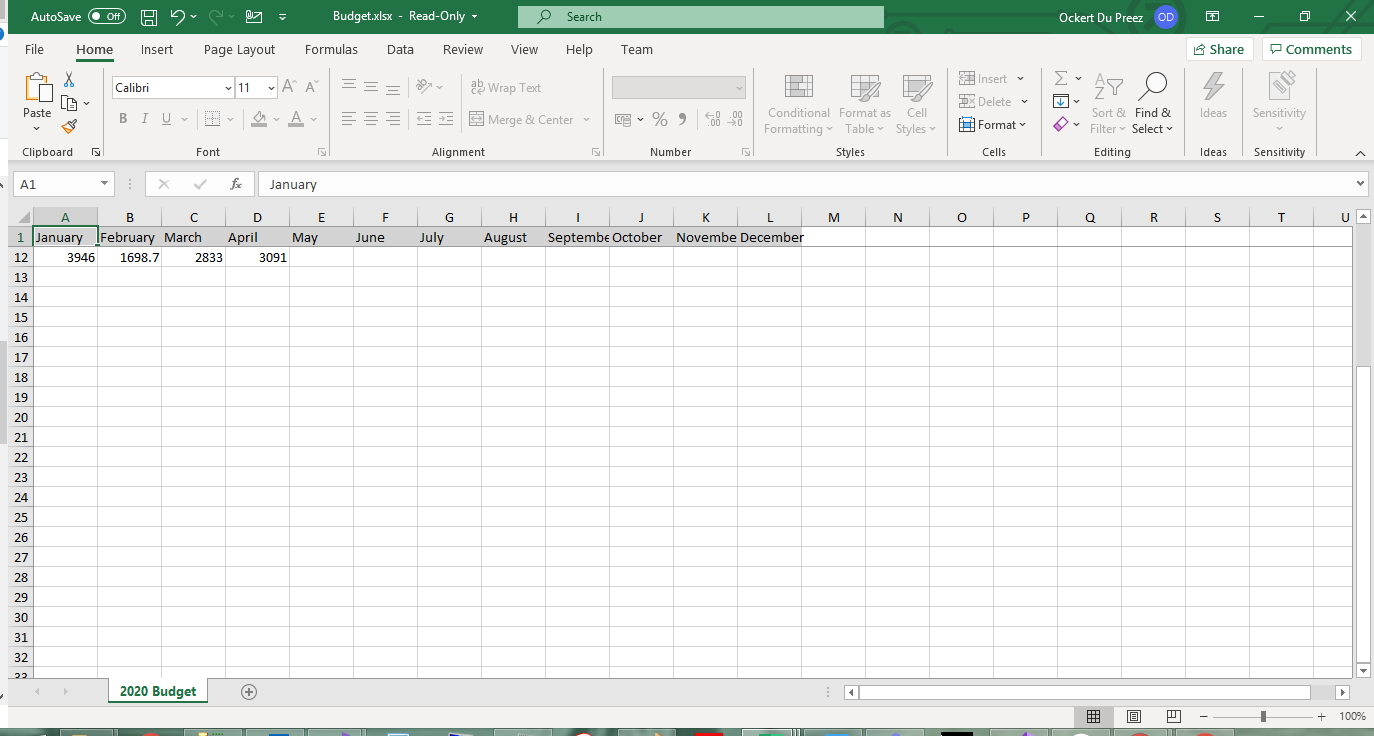 Şekil 7 - Dondurulmuş başlık satırı kaydırma sırasında görünür kalır
 Şekil 8 - Parola koruması yetkisiz düzenlemeleri önler
Sayfa ve Yazdırma Ayarlarını Nasıl Yapılandırırım?
IronXL'nin aracılığıyla profesyonel yazdırma seçenekleri ayarlayın:
using IronXL.Printing;

// Define print area to exclude empty cells
workSheet.SetPrintArea("A1:L12");

// Configure page orientation for wide data
workSheet.PrintSetup.PrintOrientation = PrintOrientation.Landscape;

// Set paper size for standard printing
workSheet.PrintSetup.PaperSize = PaperSize.A4;

// Adjust margins for better layout (in inches)
workSheet.PrintSetup.LeftMargin = 0.5;
workSheet.PrintSetup.RightMargin = 0.5;
workSheet.PrintSetup.TopMargin = 0.75;
workSheet.PrintSetup.BottomMargin = 0.75;

// Configure header and footer
workSheet.PrintSetup.HeaderMargin = 0.3;
workSheet.PrintSetup.FooterMargin = 0.3;

// Scale to fit on one page
workSheet.PrintSetup.FitToPage = true;
workSheet.PrintSetup.FitToHeight = 1;
workSheet.PrintSetup.FitToWidth = 1;

// Add print headers/footers
workSheet.Header.Center = "Monthly Budget Report";
workSheet.Footer.Left = DateTime.Now.ToShortDateString();
workSheet.Footer.Right = "Page &P of &N"; // Page numbering
using IronXL.Printing;
// Define print area to exclude empty cells
workSheet.SetPrintArea("A1:L12");
// Configure page orientation for wide data
workSheet.PrintSetup.PrintOrientation = PrintOrientation.Landscape;
// Set paper size for standard printing
workSheet.PrintSetup.PaperSize = PaperSize.A4;
// Adjust margins for better layout (in inches)
workSheet.PrintSetup.LeftMargin = 0.5;
workSheet.PrintSetup.RightMargin = 0.5;
workSheet.PrintSetup.TopMargin = 0.75;
workSheet.PrintSetup.BottomMargin = 0.75;
// Configure header and footer
workSheet.PrintSetup.HeaderMargin = 0.3;
workSheet.PrintSetup.FooterMargin = 0.3;
// Scale to fit on one page
workSheet.PrintSetup.FitToPage = true;
workSheet.PrintSetup.FitToHeight = 1;
workSheet.PrintSetup.FitToWidth = 1;
// Add print headers/footers
workSheet.Header.Center = "Monthly Budget Report";
workSheet.Footer.Left = DateTime.Now.ToShortDateString();
workSheet.Footer.Right = "Page &P of &N"; // Page numberingImports IronXL.Printing
' Define print area to exclude empty cells
workSheet.SetPrintArea("A1:L12")
' Configure page orientation for wide data
workSheet.PrintSetup.PrintOrientation = PrintOrientation.Landscape
' Set paper size for standard printing
workSheet.PrintSetup.PaperSize = PaperSize.A4
' Adjust margins for better layout (in inches)
workSheet.PrintSetup.LeftMargin = 0.5
workSheet.PrintSetup.RightMargin = 0.5
workSheet.PrintSetup.TopMargin = 0.75
workSheet.PrintSetup.BottomMargin = 0.75
' Configure header and footer
workSheet.PrintSetup.HeaderMargin = 0.3
workSheet.PrintSetup.FooterMargin = 0.3
' Scale to fit on one page
workSheet.PrintSetup.FitToPage = True
workSheet.PrintSetup.FitToHeight = 1
workSheet.PrintSetup.FitToWidth = 1
' Add print headers/footers
workSheet.Header.Center = "Monthly Budget Report"
workSheet.Footer.Left = DateTime.Now.ToShortDateString()
workSheet.Footer.Right = "Page &P of &N" ' Page numberingPrintSetup sınıfı, Excel'in baskı ayarlarıyla uyumlu kapsamlı baskı konfigürasyon seçenekleri sağlar.
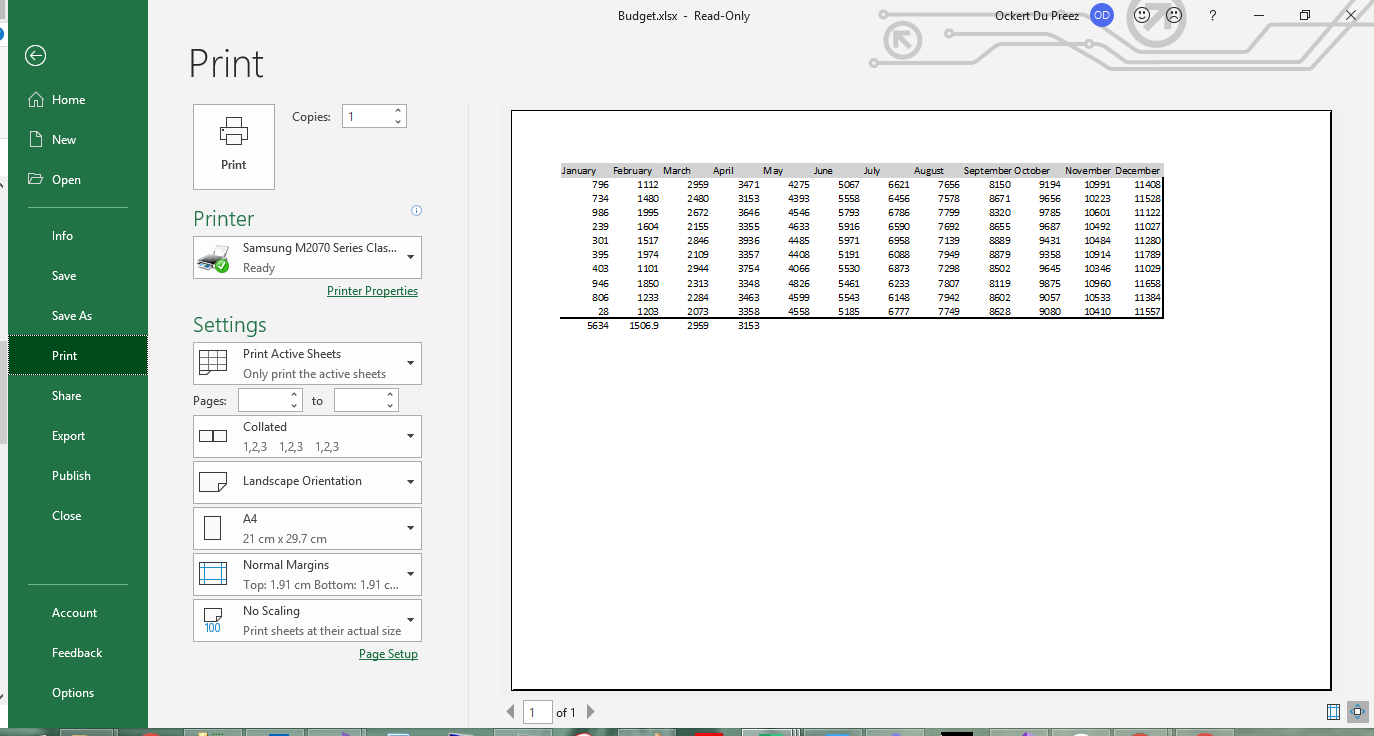 Şekil 9 - Yatay yönlendirme ve özel kenar boşlukları ile baskı önizlemesi
Excel Çalışma Kitabımı Nasıl Kaydederim?
Çalışma kitabınızı çeşitli formatlarda kaydedin:
// Save as XLSX (recommended for modern Excel)
workBook.SaveAs("Budget.xlsx");

// Save as XLS for legacy compatibility
workBook.SaveAs("Budget.xls");

// Save as CSV for data exchange
workBook.SaveAsCsv("Budget.csv");

// Save as JSON for web applications
workBook.SaveAsJson("Budget.json");

// Save to stream for web downloads or cloud storage
using (var stream = new MemoryStream())
{
    workBook.SaveAs(stream);
    byte[] excelData = stream.ToArray();
    // Send to client or save to cloud
}

// Save with specific encoding for international characters
workBook.SaveAsCsv("Budget_UTF8.csv", System.Text.Encoding.UTF8);
// Save as XLSX (recommended for modern Excel)
workBook.SaveAs("Budget.xlsx");
// Save as XLS for legacy compatibility
workBook.SaveAs("Budget.xls");
// Save as CSV for data exchange
workBook.SaveAsCsv("Budget.csv");
// Save as JSON for web applications
workBook.SaveAsJson("Budget.json");
// Save to stream for web downloads or cloud storage
using (var stream = new MemoryStream())
{
workBook.SaveAs(stream);
byte[] excelData = stream.ToArray();
// Send to client or save to cloud
}
// Save with specific encoding for international characters
workBook.SaveAsCsv("Budget_UTF8.csv", System.Text.Encoding.UTF8);' Save as XLSX (recommended for modern Excel)
workBook.SaveAs("Budget.xlsx")
' Save as XLS for legacy compatibility
workBook.SaveAs("Budget.xls")
' Save as CSV for data exchange
workBook.SaveAsCsv("Budget.csv")
' Save as JSON for web applications
workBook.SaveAsJson("Budget.json")
' Save to stream for web downloads or cloud storage
Using stream = New MemoryStream()
workBook.SaveAs(stream)
Dim excelData() As Byte = stream.ToArray()
' Send to client or save to cloud
End Using
' Save with specific encoding for international characters
workBook.SaveAsCsv("Budget_UTF8.csv", System.Text.Encoding.UTF8)IronXL, XLSX, XLS, CSV, TSV ve JSON dahil olmak üzere birden çok ihracat formatını destekler. SaveAs yöntemi, formatı dosya uzantısından otomatik olarak belirler.
- XLSX / XLS: Formatlama, formüller ve birçok sayfa desteğiyle tam Excel formatı
- CSV: Veri alışverişi için düz metin — dosya başına bir sayfa ihraç eder
- JSON: Web API'leri ve veri hatları için yapılandırılmış çıktı
- Stream: Bellek içi çıktı için — web indirmeleri veya bulut depolama için kullanışlıdır
Özet
Bu öğretici ile IronXL kullanarak Microsoft Office bağımlılıkları olmadan C# ile Excel dosyaları oluşturmayı gösterdi. Çalışma kitabı oluşturma, hücre manipülasyonu, biçimlendirme, formül kullanımı ve çeşitli kaydetme seçenekleri dahil olmak üzere temel Excel işlemlerini öğrendiniz. IronXL'nin sezgisel API'si, .NET geliştiricileri için Excel otomasyonunu basit hale getirir.
Daha gelişmiş özellikler için hücreleri birleştirmeyi ve grafikler oluşturmayı keşfedin. IronXL'yi üretimde kullanmaya hazır mısınız? Ücretsiz denemenizi başlatın veya lisans seçeneklerini görüntüleyin.
Sonraki Adımlar?
Artık C# ile Excel dosyaları oluşturabildiğinize göre, bu ilgili IronXL özelliklerini keşfedin:
Sıkça Sorulan Sorular
Interop kullanmadan C# ile Excel dosyalarını nasıl oluşturabilirim?
IronXL kullanarak Interop olmadan Excel dosyaları oluşturabilirsiniz, basit bir API sağlar: WorkBook workBook = WorkBook.Create(ExcelFileFormat.XLSX). Bu yaklaşım, Microsoft Office kurulumu gerektirmeden herhangi bir .NET platformunda çalışır.
Excel dosyası oluşturma için C# hangi platformları destekler?
IronXL, Windows, macOS, Linux, Docker, Azure ve AWS ortamlarında çalışan .NET 10, .NET 9, .NET 8, .NET Core, .NET Framework 4.6.2+ üzerinde Excel dosyası oluşturmayı destekler.
Excel üretimi için bir C# kütüphanesini nasıl kurarım?
Visual Studio'da NuGet Paket Yöneticisi aracılığıyla IronXL'yi kurun, PM> Install-Package IronXL.Excel komutunu kullanın veya doğrudan nuget.org'dan indirin.
Programatik olarak yeni bir Excel çalışma kitabını nasıl oluşturabilirim?
IronXL ile WorkBook workbook = WorkBook.Create(ExcelFileFormat.XLSX) kullanarak bir çalışma kitabı oluşturun, ardından workbook.CreateWorkSheet("SheetName") kullanarak çalışma sayfaları ekleyin.
C# kullanarak bir Excel çalışma sayfasında hücre değerlerini nasıl ayarlayabilirim?
IronXL'yi kullanarak hücre değerlerini sezgisel sözdizimi ile ayarlayın: worksheet["A1"].Value = "Hello World" veya aralıkları ayarlayın: worksheet["A1:A10"].Value = 100.
Excel hücrelerine programatik olarak biçimlendirme uygulayabilir miyim?
Evet, IronXL arka plan renkleri (cell.Style.SetBackgroundColor("#FF0000")), kenarlıklar, yazı tipleri ve sayı formatları dahil olmak üzere kapsamlı biçimlendirmeyi destekler.
C# içerisinde Excel formüllerini nasıl kullanırım?
IronXL'nin Formel özelliğini kullanarak formüller uygulayın: worksheet["A1"].Formula = "=SUM(B1:B10)" veya range.Sum(), range.Avg() gibi yerleşik yöntemleri kullanın.
Excel çalışma sayfasını şifreyle nasıl koruyabilirim?
IronXL'de worksheet.ProtectSheet("YourPassword") kullanarak çalışma sayfalarını yetkisiz değişikliklerden koruyun.
Excel dosyaları için yazdırma ayarlarını nasıl yapılandırırım?
IronXL'nin PrintSetup özelliğini kullanarak yazdırma özelliklerini ayarlayın: worksheet.PrintSetup.PrintOrientation = PrintOrientation.Landscape ve worksheet.SetPrintArea("A1:Z100").
Excel çalışma kitabını farklı formatlarda nasıl kaydederim?
IronXL'nin SaveAs yöntemini kullanarak çalışma kitaplarını kaydedin: workbook.SaveAs("file.xlsx") XLSX için veya diğer formatlar için SaveAsCsv(), SaveAsJson() kullanın.
Bir veritabanından gelen verilerle bir Excel sayfasını nasıl doldurabilirim?
Bir veritabanından veri çekerek ve hücrelere worksheet["A1"].Value = dataFromDatabase gibi yöntemleri kullanarak IronXL ile çalışma sayfalarını doldurun.
C# kullanarak bir Excel sayfasında sabit bölmeleri nasıl uygularım?
İlk satır ve en sol sütunu daha kolay gezinti için kilitlemek amacıyla IronXL kullanarak çalışma sayfalarında worksheet.FreezePanes(1, 1) ile panelleri dondurun.


Hala Kaydiriyor musunuz?
Hızlı bir kanit mi istiyorsunuz? PM > Install-Package IronXL.Excel
bir örnek çalıştırın verilerinizin bir elektronik tabloya dönüştüğünü izleyin.

















 Ücretsiz başlamak için
 Ücretsiz başlamak için
 Ücretsiz Canlı Demo Rezervasyonu Yapın





 Kredi kartı veya hesap oluşturma gerekli değil










