# C# Barcode Scanner: Read Barcodes & QR Codes in .NET Applications
Need to quickly scan barcodes or QR codes in your .NET application? IronBarcode makes barcode reading simple and reliable, whether you're processing perfect digital images or challenging real-world photos. This guide shows you exactly how to implement barcode scanning in C# with practical examples you can use immediately.
*as-heading:2(Quickstart: Read a Barcode from a File Instantly)*
This quick example shows you how easy it is to get started with IronBarcode. In just one line of code, you can read barcodes from an image file - no complex setup required.
```cs
:title=Scan Barcodes in One Line – Try It Now!
var results = IronBarCode.BarcodeReader.Read("path/to/barcode.png");
```
<div class="hsg-featured-snippet">
<h3>Minimal Workflow (5 steps)</h3>
<ol>
<li><a class="js-modal-open" data-modal-id="trial-license-after-download" href="https://www.nuget.org/packages/BarCode">Install IronBarcode from NuGet or via DLL download</a></li>
<li>Use the <code>BarcodeReader.Read</code> method to scan any barcode or QR code</li>
<li>Read multiple barcodes or QR codes in a single scan, PDF, or multiframe TIFF file</li>
<li>Enable IronBarcode to decode imperfect scans and photos with advanced filters</li>
<li>Download the tutorial project and start scanning immediately</li>
</ol>
</div>
## How do I install IronBarcode in my .NET project?
IronBarcode installs easily through NuGet Package Manager or by downloading the DLL directly. The NuGet installation is the recommended approach as it automatically manages dependencies and updates.
```shell
:ProductInstall
```
After installation, add `using IronBarCode;` to your C# files to access the barcode scanning functionality. For detailed installation instructions across different development environments, check our [installation guide](/csharp/barcode/docs/).
## How can I read my first barcode using C#?
Reading barcodes with IronBarcode requires just one line of code. The library automatically detects barcode formats and extracts all encoded data.
<center><img src="/img/tutorials/reading-barcodes/GetStarted.png" alt="Code128 barcode ready for scanning - contains text 'https://ironsoftware.com/csharp/barcode/'" class="img-responsive add-shadow img-margin" style="max-width:500px" />
<em>A standard Code128 barcode that IronBarcode can read instantly</em>
</center>
```csharp
using IronBarCode;

BarcodeReaderOptions options = new BarcodeReaderOptions()
{
    // Choose which filters are to be applied (in order)
    ImageFilters = new ImageFilterCollection() {
        new AdaptiveThresholdFilter(),
    },

    // Uses machine learning to auto rotate the barcode
    AutoRotate = true,
};

// Read barcode
BarcodeResults results = BarcodeReader.Read("TryHarderQR.png", options);
```
The `BarcodeReader.Read` method returns a `BarcodeResults` collection containing all detected barcodes. Each `BarcodeResult` provides access to the barcode's text value, format type, position coordinates, and binary data. This approach works with common barcode formats including Code128, Code39, QR codes, and Data Matrix codes.
## What options help read challenging or damaged barcodes?
Real-world barcode scanning often involves imperfect images - skewed angles, poor lighting, or partial damage. IronBarcode's advanced options handle these challenges effectively.
```csharp
using IronBarCode;
using System;
// Multiple barcodes may be scanned up from a single document or image. A PDF document may also used as the input image
BarcodeResults results = BarcodeReader.ReadPdf("MultipleBarcodes.pdf");
// Work with the results
foreach (var pageResult in results)
{
string Value = pageResult.Value;
int PageNum = pageResult.PageNumber;
System.Drawing.Bitmap Img = pageResult.BarcodeImage;
BarcodeEncoding BarcodeType = pageResult.BarcodeType;
byte[] Binary = pageResult.BinaryValue;
Console.WriteLine(pageResult.Value + " on page " + PageNum);
}
```
<center><img src="/img/tutorials/reading-barcodes/TryHarderQR.png" alt="QR code rotated 45 degrees demonstrating IronBarcode's rotation handling" class="img-responsive add-shadow img-margin" style="max-width:250px" />
<em>A rotated QR code that IronBarcode successfully reads using advanced options</em>
</center>
The `ExpectBarcodeTypes` property significantly improves performance by limiting the search to specific formats. For maximum accuracy with problematic images, combine image filters with automatic rotation:
```csharp
using IronBarCode;
// Multi frame TIFF and GIF images can also be scanned
BarcodeResults multiFrameResults = BarcodeReader.Read("Multiframe.tiff");
foreach (var pageResult in multiFrameResults)
{
//...
}
```
These advanced features make IronBarcode ideal for [scanning barcodes from photos](/csharp/barcode/how-to/read-barcodes-from-images/), security cameras, or mobile device captures where image quality varies significantly.
## How do I scan multiple barcodes from PDF documents?
PDF barcode scanning is essential for processing invoices, shipping labels, and inventory documents. IronBarcode reads all barcodes across every page efficiently.
### Reading barcodes from PDF files
```csharp
using IronBarCode;
// The Multithreaded property allows for faster barcode scanning across multiple images or PDFs. All threads are automatically managed by IronBarCode.
var ListOfDocuments = new[] { "image1.png", "image2.JPG", "image3.pdf" };
BarcodeReaderOptions options = new BarcodeReaderOptions()
{
// Enable multithreading
Multithreaded = true,
};
BarcodeResults batchResults = BarcodeReader.Read(ListOfDocuments, options);
```
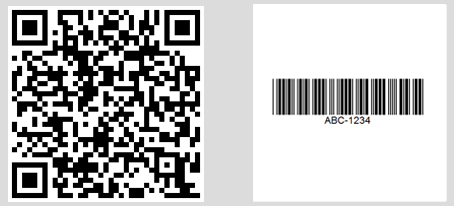
*Console output showing multiple barcodes found across different PDF pages*
For specific page ranges or advanced PDF processing, use `BarcodeReaderOptions`:
```csharp
// Read only specific pages to improve performance
PdfBarcodeReaderOptions pdfOptions = new PdfBarcodeReaderOptions
{
// Scan pages 1-5 only
PageNumbers = new[] { 1, 2, 3, 4, 5 },
// PDF-specific settings
DPI = 300 // Higher DPI for better accuracy
};
BarcodeResults results = BarcodeReader.ReadPdf("document.pdf", pdfOptions);
```
### How can I process multiframe TIFF images?
Multiframe TIFF files, common in document scanning and fax systems, receive the same comprehensive support as PDFs.
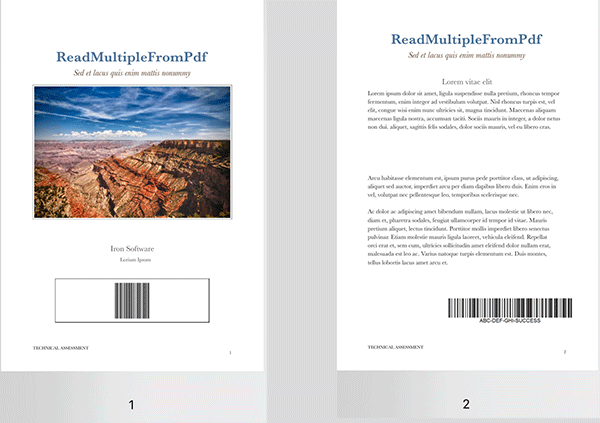
*A multiframe TIFF file with barcodes on different frames*
```csharp
using IronBarCode;
using System;
// TIFF files are processed similarly to regular images
// Each frame is scanned automatically
BarcodeResults multiFrameResults = BarcodeReader.Read("Multiframe.tiff");
foreach (var result in multiFrameResults)
{
// Access frame-specific information
int frameNumber = result.PageNumber; // Frame number in TIFF
string barcodeValue = result.Text;
Console.WriteLine($"Frame {frameNumber}: {barcodeValue}");
// Save individual barcode images if needed
result.BarcodeImage?.SaveAs($"barcode_frame_{frameNumber}.png");
}
```
The same `BarcodeReaderOptions` apply to TIFF processing, including image filters and rotation settings. For detailed TIFF handling scenarios, see our [image processing tutorials](/csharp/barcode/tutorials/csharp-barcode-image-generator/).
### Can I speed up processing with multithreading?
Processing multiple documents benefits dramatically from parallel processing. IronBarcode automatically utilizes available CPU cores for optimal performance.
```csharp
using IronBarCode;
// List of documents to process - mix of formats supported
var documentBatch = new[]
{
"invoice1.pdf",
"shipping_label.png",
"inventory_sheet.tiff",
"product_catalog.pdf"
};
// Configure for batch processing
BarcodeReaderOptions batchOptions = new BarcodeReaderOptions
{
// Enable parallel processing across documents
Multithreaded = true,
// Limit threads if needed (0 = use all cores)
MaxParallelThreads = Environment.ProcessorCount,
// Apply consistent settings to all documents
Speed = ReadingSpeed.Balanced,
ExpectBarcodeTypes = BarcodeEncoding.All
};
// Process each document, tracking the source path externally
foreach (var document in documentBatch)
{
BarcodeResults results = BarcodeReader.Read(document, batchOptions);
Console.WriteLine($"\nDocument: {document}");
foreach (var barcode in results)
{
Console.WriteLine($" - {barcode.BarcodeType}: {barcode.Text}");
}
}
```
This parallel approach processes documents simultaneously, reducing total scanning time on multicore systems. For enterprise-scale barcode processing, explore our [performance optimization guide](/csharp/barcode/how-to/async-multithread/).
## Summary
IronBarcode transforms complex barcode scanning into straightforward C# code. Whether you're building inventory systems, document processors, or mobile applications, the library handles everything from pristine digital barcodes to challenging real-world captures.
Key capabilities covered:
- Single-line barcode reading from images
- Advanced options for damaged or rotated barcodes
- Comprehensive PDF and TIFF document scanning
- High-performance batch processing with multithreading
- Support for all major barcode formats
### Further Reading
Expand your barcode processing capabilities with these resources:
- [Barcode Generation Tutorial](/csharp/barcode/how-to/customize-barcode-style/) - Create custom barcodes
- [QR Code Guide](/csharp/barcode/tutorials/csharp-qr-code-generator/) - Specialized QR code features
- [`BarcodeReader` Class Reference](/csharp/barcode/object-reference/api/IronBarCode.BarcodeReader.html) - Complete API documentation
- [Troubleshooting Guide](/csharp/barcode/troubleshooting/engineering-request-bc/) - Common issues and solutions
### Source Code Downloads
Run these examples yourself:
- [Tutorial GitHub Repository](https://github.com/iron-software/Iron-Barcode-Reading-Barcodes-In-CSharp)
- [C# Source Code in a Zip File](https://ironsoftware.com/downloads/assets/tutorials/reading-barcodes/Iron-Barcode-Reading-Barcodes-In-CSharp.zip)
Ready to implement barcode scanning in your application? [Start your free trial](trial-license) and add professional barcode reading to your .NET project today.
!!!--LIBRARY_GET_STARTED_WITH_PRODUCT_TRIAL_EXTENDED_BLOCK--!!!
Need to quickly scan barcodes or QR codes in your .NET application? IronBarcode makes barcode reading simple and reliable, whether you're processing perfect digital images or challenging real-world photos. This guide shows you exactly how to implement barcode scanning in C# with practical examples you can use immediately.
Quickstart: Read a Barcode from a File Instantly
This quick example shows you how easy it is to get started with IronBarcode. In just one line of code, you can read barcodes from an image file - no complex setup required.
1Install IronBarcode with NuGet Package Manager
PM > Install-Package BarCode
Install-Package BarCode
2Copy and run this code snippet.
var results = IronBarCode.BarcodeReader.Read("path/to/barcode.png");
var results = IronBarCode.BarcodeReader.Read("path/to/barcode.png");
Dim results = IronBarCode.BarcodeReader.Read("path/to/barcode.png")
Dim results = IronBarCode.BarcodeReader.Read("path/to/barcode.png")
3Deploy to test on your live environment
Start using IronBarcode in your project today with a free trial
Use the BarcodeReader.Read method to scan any barcode or QR code
Read multiple barcodes or QR codes in a single scan, PDF, or multiframe TIFF file
Enable IronBarcode to decode imperfect scans and photos with advanced filters
Download the tutorial project and start scanning immediately
How do I install IronBarcode in my .NET project?
IronBarcode installs easily through NuGet Package Manager or by downloading the DLL directly. The NuGet installation is the recommended approach as it automatically manages dependencies and updates.
PM > Install-Package BarCode
Install-Package BarCode
After installation, add using IronBarCode; to your C# files to access the barcode scanning functionality. For detailed installation instructions across different development environments, check our installation guide.
How can I read my first barcode using C#?
Reading barcodes with IronBarcode requires just one line of code. The library automatically detects barcode formats and extracts all encoded data.
A standard Code128 barcode that IronBarcode can read instantly
using IronBarCode;BarcodeReaderOptions options = new BarcodeReaderOptions(){ // Choose which filters are to be applied (in order)ImageFilters = new ImageFilterCollection() { new AdaptiveThresholdFilter(), }, // Uses machine learning to auto rotate the barcodeAutoRotate = true,};// Read barcodeBarcodeResults results = BarcodeReader.Read("TryHarderQR.png", options);
using IronBarCode;

BarcodeReaderOptions options = new BarcodeReaderOptions()
{
    // Choose which filters are to be applied (in order)
    ImageFilters = new ImageFilterCollection() {
        new AdaptiveThresholdFilter(),
    },

    // Uses machine learning to auto rotate the barcode
    AutoRotate = true,
};

// Read barcode
BarcodeResults results = BarcodeReader.Read("TryHarderQR.png", options);
ImportsIronBarCodePrivate options As New BarcodeReaderOptions() With { .ImageFilters = New ImageFilterCollection() From {New AdaptiveThresholdFilter()}, .AutoRotate = True}' Read barcodePrivate results AsBarcodeResults = BarcodeReader.Read("TryHarderQR.png", options)
Imports IronBarCode

Private options As New BarcodeReaderOptions() With {
	.ImageFilters = New ImageFilterCollection() From {New AdaptiveThresholdFilter()},
	.AutoRotate = True
}

' Read barcode
Private results As BarcodeResults = BarcodeReader.Read("TryHarderQR.png", options)
The BarcodeReader.Read method returns a BarcodeResults collection containing all detected barcodes. Each BarcodeResult provides access to the barcode's text value, format type, position coordinates, and binary data. This approach works with common barcode formats including Code128, Code39, QR codes, and Data Matrix codes.
What options help read challenging or damaged barcodes?
Real-world barcode scanning often involves imperfect images - skewed angles, poor lighting, or partial damage. IronBarcode's advanced options handle these challenges effectively.
using IronBarCode;using System;// Multiple barcodes may be scanned up from a single document or image. A PDF document may also used as the input imageBarcodeResults results = BarcodeReader.ReadPdf("MultipleBarcodes.pdf");// Work with the resultsforeach (var pageResult in results){ stringValue = pageResult.Value; intPageNum = pageResult.PageNumber; System.Drawing.BitmapImg = pageResult.BarcodeImage; BarcodeEncodingBarcodeType = pageResult.BarcodeType; byte[] Binary = pageResult.BinaryValue;Console.WriteLine(pageResult.Value + " on page " + PageNum);}
using IronBarCode;
using System;

// Multiple barcodes may be scanned up from a single document or image. A PDF document may also used as the input image
BarcodeResults results = BarcodeReader.ReadPdf("MultipleBarcodes.pdf");

// Work with the results
foreach (var pageResult in results)
{
    string Value = pageResult.Value;
    int PageNum = pageResult.PageNumber;
    System.Drawing.Bitmap Img = pageResult.BarcodeImage;
    BarcodeEncoding BarcodeType = pageResult.BarcodeType;
    byte[] Binary = pageResult.BinaryValue;
    Console.WriteLine(pageResult.Value + " on page " + PageNum);
}
ImportsIronBarCodeImportsSystem' Multiple barcodes may be scanned up from a single document or image. A PDF document may also used as the input imagePrivate results AsBarcodeResults = BarcodeReader.ReadPdf("MultipleBarcodes.pdf")' Work with the resultsFor Each pageResult In results DimValueAsString = pageResult.Value DimPageNumAsInteger = pageResult.PageNumber DimImgAsSystem.Drawing.Bitmap = pageResult.BarcodeImage DimBarcodeTypeAsBarcodeEncoding = pageResult.BarcodeType DimBinary() AsByte = pageResult.BinaryValueConsole.WriteLine(pageResult.Value & " on page " & PageNum)Next pageResult
Imports IronBarCode
Imports System

' Multiple barcodes may be scanned up from a single document or image. A PDF document may also used as the input image
Private results As BarcodeResults = BarcodeReader.ReadPdf("MultipleBarcodes.pdf")

' Work with the results
For Each pageResult In results
	Dim Value As String = pageResult.Value
	Dim PageNum As Integer = pageResult.PageNumber
	Dim Img As System.Drawing.Bitmap = pageResult.BarcodeImage
	Dim BarcodeType As BarcodeEncoding = pageResult.BarcodeType
	Dim Binary() As Byte = pageResult.BinaryValue
	Console.WriteLine(pageResult.Value & " on page " & PageNum)
Next pageResult
A rotated QR code that IronBarcode successfully reads using advanced options
The ExpectBarcodeTypes property significantly improves performance by limiting the search to specific formats. For maximum accuracy with problematic images, combine image filters with automatic rotation:
using IronBarCode;// Multi frame TIFF and GIF images can also be scannedBarcodeResults multiFrameResults = BarcodeReader.Read("Multiframe.tiff");foreach (var pageResult in multiFrameResults){ //...}
using IronBarCode;

// Multi frame TIFF and GIF images can also be scanned
BarcodeResults multiFrameResults = BarcodeReader.Read("Multiframe.tiff");

foreach (var pageResult in multiFrameResults)
{
    //...
}
ImportsIronBarCode' Multi frame TIFF and GIF images can also be scannedPrivate multiFrameResults AsBarcodeResults = BarcodeReader.Read("Multiframe.tiff")For Each pageResult In multiFrameResults '...Next pageResult
Imports IronBarCode

' Multi frame TIFF and GIF images can also be scanned
Private multiFrameResults As BarcodeResults = BarcodeReader.Read("Multiframe.tiff")

For Each pageResult In multiFrameResults
	'...
Next pageResult
These advanced features make IronBarcode ideal for scanning barcodes from photos, security cameras, or mobile device captures where image quality varies significantly.
How do I scan multiple barcodes from PDF documents?
PDF barcode scanning is essential for processing invoices, shipping labels, and inventory documents. IronBarcode reads all barcodes across every page efficiently.
Reading barcodes from PDF files
using IronBarCode;// The Multithreaded property allows for faster barcode scanning across multiple images or PDFs. All threads are automatically managed by IronBarCode.varListOfDocuments = new[] { "image1.png", "image2.JPG", "image3.pdf" };BarcodeReaderOptions options = new BarcodeReaderOptions(){ // Enable multithreadingMultithreaded = true,};BarcodeResults batchResults = BarcodeReader.Read(ListOfDocuments, options);
using IronBarCode;

// The Multithreaded property allows for faster barcode scanning across multiple images or PDFs. All threads are automatically managed by IronBarCode.
var ListOfDocuments = new[] { "image1.png", "image2.JPG", "image3.pdf" };

BarcodeReaderOptions options = new BarcodeReaderOptions()
{
    // Enable multithreading
    Multithreaded = true,
};

BarcodeResults batchResults = BarcodeReader.Read(ListOfDocuments, options);
ImportsIronBarCode' The Multithreaded property allows for faster barcode scanning across multiple images or PDFs. All threads are automatically managed by IronBarCode.PrivateListOfDocuments = { "image1.png", "image2.JPG", "image3.pdf" }Private options As New BarcodeReaderOptions() With {.Multithreaded = True}Private batchResults AsBarcodeResults = BarcodeReader.Read(ListOfDocuments, options)
Imports IronBarCode

' The Multithreaded property allows for faster barcode scanning across multiple images or PDFs. All threads are automatically managed by IronBarCode.
Private ListOfDocuments = { "image1.png", "image2.JPG", "image3.pdf" }

Private options As New BarcodeReaderOptions() With {.Multithreaded = True}

Private batchResults As BarcodeResults = BarcodeReader.Read(ListOfDocuments, options)
Console output showing multiple barcodes found across different PDF pages
For specific page ranges or advanced PDF processing, use BarcodeReaderOptions:
// Read only specific pages to improve performancePdfBarcodeReaderOptions pdfOptions = new PdfBarcodeReaderOptions{ // Scan pages 1-5 onlyPageNumbers = new[] { 1, 2, 3, 4, 5 }, // PDF-specific settingsDPI = 300 // Higher DPI for better accuracy};BarcodeResults results = BarcodeReader.ReadPdf("document.pdf", pdfOptions);
// Read only specific pages to improve performance
PdfBarcodeReaderOptions pdfOptions = new PdfBarcodeReaderOptions
{
    // Scan pages 1-5 only
    PageNumbers = new[] { 1, 2, 3, 4, 5 },

    // PDF-specific settings
    DPI = 300 // Higher DPI for better accuracy
};

BarcodeResults results = BarcodeReader.ReadPdf("document.pdf", pdfOptions);
' Read only specific pages to improve performanceDim pdfOptions As New PdfBarcodeReaderOptions() With { ' Scan pages 1-5 only .PageNumbers = New Integer() { 1, 2, 3, 4, 5 }, ' PDF-specific settings .DPI = 300 ' Higher DPI for better accuracy}Dim results AsBarcodeResults = BarcodeReader.ReadPdf("document.pdf", pdfOptions)
' Read only specific pages to improve performance
Dim pdfOptions As New PdfBarcodeReaderOptions() With {
    ' Scan pages 1-5 only
    .PageNumbers = New Integer() { 1, 2, 3, 4, 5 },

    ' PDF-specific settings
    .DPI = 300 ' Higher DPI for better accuracy
}

Dim results As BarcodeResults = BarcodeReader.ReadPdf("document.pdf", pdfOptions)
How can I process multiframe TIFF images?
Multiframe TIFF files, common in document scanning and fax systems, receive the same comprehensive support as PDFs.
A multiframe TIFF file with barcodes on different frames
using IronBarCode;using System;// TIFF files are processed similarly to regular images// Each frame is scanned automaticallyBarcodeResults multiFrameResults = BarcodeReader.Read("Multiframe.tiff");foreach (var result in multiFrameResults){ // Access frame-specific information int frameNumber = result.PageNumber; // Frame number in TIFF string barcodeValue = result.Text;Console.WriteLine($"Frame {frameNumber}: {barcodeValue}"); // Save individual barcode images if needed result.BarcodeImage?.SaveAs($"barcode_frame_{frameNumber}.png");}
using IronBarCode;
using System;

// TIFF files are processed similarly to regular images
// Each frame is scanned automatically
BarcodeResults multiFrameResults = BarcodeReader.Read("Multiframe.tiff");

foreach (var result in multiFrameResults)
{
    // Access frame-specific information
    int frameNumber = result.PageNumber; // Frame number in TIFF
    string barcodeValue = result.Text;

    Console.WriteLine($"Frame {frameNumber}: {barcodeValue}");

    // Save individual barcode images if needed
    result.BarcodeImage?.SaveAs($"barcode_frame_{frameNumber}.png");
}
ImportsIronBarCodeImportsSystem' TIFF files are processed similarly to regular images' Each frame is scanned automaticallyDim multiFrameResults AsBarcodeResults = BarcodeReader.Read("Multiframe.tiff")For Each result In multiFrameResults ' Access frame-specific information Dim frameNumber AsInteger = result.PageNumber' Frame number in TIFF Dim barcodeValue AsString = result.TextConsole.WriteLine($"Frame {frameNumber}: {barcodeValue}") ' Save individual barcode images if needed result.BarcodeImage?.SaveAs($"barcode_frame_{frameNumber}.png")Next
Imports IronBarCode
Imports System

' TIFF files are processed similarly to regular images
' Each frame is scanned automatically
Dim multiFrameResults As BarcodeResults = BarcodeReader.Read("Multiframe.tiff")

For Each result In multiFrameResults
    ' Access frame-specific information
    Dim frameNumber As Integer = result.PageNumber ' Frame number in TIFF
    Dim barcodeValue As String = result.Text

    Console.WriteLine($"Frame {frameNumber}: {barcodeValue}")

    ' Save individual barcode images if needed
    result.BarcodeImage?.SaveAs($"barcode_frame_{frameNumber}.png")
Next
The same BarcodeReaderOptions apply to TIFF processing, including image filters and rotation settings. For detailed TIFF handling scenarios, see our image processing tutorials.
Can I speed up processing with multithreading?
Processing multiple documents benefits dramatically from parallel processing. IronBarcode automatically utilizes available CPU cores for optimal performance.
using IronBarCode;// List of documents to process - mix of formats supportedvar documentBatch = new[] { "invoice1.pdf", "shipping_label.png", "inventory_sheet.tiff", "product_catalog.pdf"};// Configure for batch processingBarcodeReaderOptions batchOptions = new BarcodeReaderOptions{ // Enable parallel processing across documentsMultithreaded = true, // Limit threads if needed (0 = use all cores)MaxParallelThreads = Environment.ProcessorCount, // Apply consistent settings to all documentsSpeed = ReadingSpeed.Balanced,ExpectBarcodeTypes = BarcodeEncoding.All};// Process each document, tracking the source path externallyforeach (var document in documentBatch){ BarcodeResults results = BarcodeReader.Read(document, batchOptions);Console.WriteLine($"\nDocument: {document}"); foreach (var barcode in results) {Console.WriteLine($" - {barcode.BarcodeType}: {barcode.Text}"); }}
using IronBarCode;

// List of documents to process - mix of formats supported
var documentBatch = new[]
{
    "invoice1.pdf",
    "shipping_label.png",
    "inventory_sheet.tiff",
    "product_catalog.pdf"
};

// Configure for batch processing
BarcodeReaderOptions batchOptions = new BarcodeReaderOptions
{
    // Enable parallel processing across documents
    Multithreaded = true,

    // Limit threads if needed (0 = use all cores)
    MaxParallelThreads = Environment.ProcessorCount,

    // Apply consistent settings to all documents
    Speed = ReadingSpeed.Balanced,
    ExpectBarcodeTypes = BarcodeEncoding.All
};

// Process each document, tracking the source path externally
foreach (var document in documentBatch)
{
    BarcodeResults results = BarcodeReader.Read(document, batchOptions);

    Console.WriteLine($"\nDocument: {document}");
    foreach (var barcode in results)
    {
        Console.WriteLine($"  - {barcode.BarcodeType}: {barcode.Text}");
    }
}
ImportsIronBarCode' List of documents to process - mix of formats supportedDim documentBatch = New String() {"invoice1.pdf", "shipping_label.png", "inventory_sheet.tiff", "product_catalog.pdf"}' Configure for batch processingDim batchOptions As New BarcodeReaderOptionsWith { .Multithreaded = True, ' Limit threads if needed (0 = use all cores) .MaxParallelThreads = Environment.ProcessorCount, ' Apply consistent settings to all documents .Speed = ReadingSpeed.Balanced, .ExpectBarcodeTypes = BarcodeEncoding.All}' Process each document, tracking the source path externallyFor Each document In documentBatch Dim results AsBarcodeResults = BarcodeReader.Read(document, batchOptions)Console.WriteLine(vbLf & "Document: " & document) For Each barcode In resultsConsole.WriteLine($" - {barcode.BarcodeType}: {barcode.Text}") NextNext
Imports IronBarCode

' List of documents to process - mix of formats supported
Dim documentBatch = New String() {"invoice1.pdf", "shipping_label.png", "inventory_sheet.tiff", "product_catalog.pdf"}

' Configure for batch processing
Dim batchOptions As New BarcodeReaderOptions With {
    .Multithreaded = True,

    ' Limit threads if needed (0 = use all cores)
    .MaxParallelThreads = Environment.ProcessorCount,

    ' Apply consistent settings to all documents
    .Speed = ReadingSpeed.Balanced,
    .ExpectBarcodeTypes = BarcodeEncoding.All
}

' Process each document, tracking the source path externally
For Each document In documentBatch
    Dim results As BarcodeResults = BarcodeReader.Read(document, batchOptions)

    Console.WriteLine(vbLf & "Document: " & document)
    For Each barcode In results
        Console.WriteLine($"  - {barcode.BarcodeType}: {barcode.Text}")
    Next
Next
This parallel approach processes documents simultaneously, reducing total scanning time on multicore systems. For enterprise-scale barcode processing, explore our performance optimization guide.
Summary
IronBarcode transforms complex barcode scanning into straightforward C# code. Whether you're building inventory systems, document processors, or mobile applications, the library handles everything from pristine digital barcodes to challenging real-world captures.
Key capabilities covered:
Single-line barcode reading from images
Advanced options for damaged or rotated barcodes
Comprehensive PDF and TIFF document scanning
High-performance batch processing with multithreading
Support for all major barcode formats
Further Reading
Expand your barcode processing capabilities with these resources:
Ready to implement barcode scanning in your application? Start your free trial and add professional barcode reading to your .NET project today.
First Step:
Frequently Asked Questions
What is IronBarcode?
IronBarcode is a .NET library that simplifies reading barcodes and QR codes in C# by providing easy-to-use functions and advanced features to handle various image quality levels.
How do I read barcodes in C# using IronBarcode?
You can read barcodes in C# using IronBarcode with a single line of code: `IronBarCode.BarcodeReader.Read("path/to/barcode.png");`. This method efficiently detects the barcode type and provides the encoded information.
Can IronBarcode read multiple barcodes from a single file?
Yes, IronBarcode supports reading multiple barcodes from a single image or document, including PDFs and multiframe TIFF files, by automatically detecting and extracting each barcode.
What features does IronBarcode offer for handling damaged barcodes?
IronBarcode offers advanced features like automatic rotation, image filtering with `AdaptiveThresholdFilter`, and machine learning to decode barcodes from imperfect images, such as those with poor lighting or skewed angles.
How can I install IronBarcode in my .NET project?
You can easily install IronBarcode in your .NET project via the NuGet Package Manager or by downloading the DLL files. It is recommended to use NuGet for automatic dependency management and updates.
Does IronBarcode support barcode scanning from PDF documents?
Yes, IronBarcode efficiently scans barcodes from PDF documents across all pages and supports multithreading for faster processing.
Can IronBarcode handle multiframe TIFF images?
Yes, IronBarcode can process multiframe TIFF images, automatically scanning each frame for barcodes and providing comprehensive results.
How does IronBarcode optimize barcode scanning performance?
IronBarcode optimizes performance with multithreading capabilities, allowing barcode scanning across multiple documents and images using all available CPU cores for reduced processing time.
What barcode formats are supported by IronBarcode?
IronBarcode supports a wide range of barcode formats, including Code128, Code39, QR codes, Data Matrix codes, and more, allowing versatile application in various scenarios.
Is there a way to improve barcode reading accuracy in IronBarcode?
Improving accuracy in IronBarcode can be achieved by configuring `BarcodeReaderOptions` to use specific image filters, enabling automatic rotation, and setting the `ExpectBarcodeTypes` property to restrict scanning to certain barcode types.
Jacob Mellor is Chief Technology Officer at Iron Software and a visionary engineer pioneering C# PDF technology. As the original developer behind Iron Software's core codebase, he has shaped the company's product architecture since its inception, transforming it alongside CEO Cameron Rimington into a 50+ person company serving NASA, Tesla, and global government agencies.


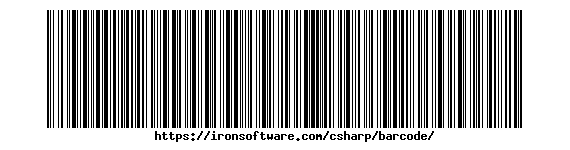 A standard Code128 barcode that IronBarcode can read instantly
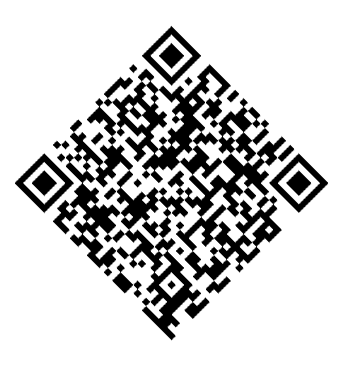 A rotated QR code that IronBarcode successfully reads using advanced options
 Console output showing multiple barcodes found across different PDF pages
 A multiframe TIFF file with barcodes on different frames



