
C# 바코드 스캐너: .NET 애플리케이션에서 바코드 및 QR 코드 읽기

.NET 애플리케이션에서 바코드 또는 QR 코드를 빠르게 스캔해야 합니까? IronBarcode를 사용하면 선명한 디지털 이미지부터 판독하기 어려운 실제 촬영 사진까지 간편하고 안정적으로 바코드를 읽을 수 있습니다. 이 가이드에서는 바로 사용할 수 있는 실용적인 예제를 통해 C#에서 바코드 스캔을 구현하는 방법을 보여줍니다.
빠른 시작: 파일에서 즉시 바코드 읽기이 간단한 예제는 IronBarcode를 사용하여 시작하는 것이 얼마나 쉬운지를 보여줍니다. 단 한 줄의 코드로 이미지 파일에서 바코드를 읽을 수 있으며 복잡한 설정이 필요하지 않습니다.
-
1IronBarcode를 NuGet Package Manager로 설치하십시오
-
2다음 코드 조각을 복사하여 실행하세요.
var results = IronBarCode.BarcodeReader.Read("path/to/barcode.png");Dim results = IronBarCode.BarcodeReader.Read("path/to/barcode.png")Dim results = IronBarCode.BarcodeReader.Read("path/to/barcode.png") -
3실제 운영 환경에서 테스트할 수 있도록 배포하세요.
오늘 프로젝트에서 IronBarcode 사용을 시작해보세요 무료 체험
최소 워크플로우(5단계)
- NuGet에서 IronBarcode 설치 또는 DLL 다운로드
BarcodeReader.Read메서드를 사용하여 바코드 또는 QR 코드를 스캔합니다.- 단일 스캔, PDF 또는 다중 프레임 TIFF 파일에서 여러 개의 바코드 또는 QR 코드를 읽을 수 있습니다.
- IronBarcode를 사용하여 고급 필터로 불완전한 스캔과 사진을 디코딩할 수 있습니다.
- 튜토리얼 프로젝트를 다운로드하고 즉시 스캔을 시작하세요.
내 .NET 프로젝트에 IronBarcode를 어떻게 설치하나요?
IronBarcode는 NuGet 패키지 관리자 또는 DLL을 직접 다운로드하여 쉽게 설치할 수 있습니다. NuGet 설치는 종속성과 업데이트를 자동으로 관리하기 때문에 권장 방법입니다.
설치 후 using IronBarCode;를 C# 파일에 추가하여 바코드 스캔 기능에 접근하세요. 다양한 개발 환경에서의 자세한 설치 안내는 설치 가이드를 확인하세요.
C#을 사용하여 첫 번째 바코드를 어떻게 읽을 수 있습니까?
IronBarcode로 바코드를 읽으려면 단 한 줄의 코드만 필요합니다. 라이브러리는 자동으로 바코드 형식을 감지하고 모든 인코딩된 데이터를 추출합니다.
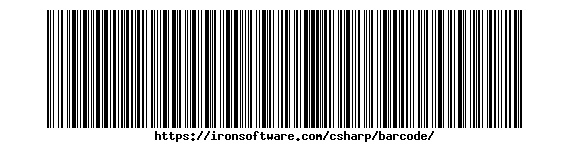 IronBarcode가 즉시 읽을 수 있는 표준 Code128 바코드
using IronBarCode;

BarcodeReaderOptions options = new BarcodeReaderOptions()
{
    // Choose which filters are to be applied (in order)
    ImageFilters = new ImageFilterCollection() {
        new AdaptiveThresholdFilter(),
    },

    // Uses machine learning to auto rotate the barcode
    AutoRotate = true,
};

// Read barcode
BarcodeResults results = BarcodeReader.Read("TryHarderQR.png", options);
using IronBarCode;
BarcodeReaderOptions options = new BarcodeReaderOptions()
{
// Choose which filters are to be applied (in order)
ImageFilters = new ImageFilterCollection() {
new AdaptiveThresholdFilter(),
},
// Uses machine learning to auto rotate the barcode
AutoRotate = true,
};
// Read barcode
BarcodeResults results = BarcodeReader.Read("TryHarderQR.png", options);Imports IronBarCode
Private options As New BarcodeReaderOptions() With {
.ImageFilters = New ImageFilterCollection() From {New AdaptiveThresholdFilter()},
.AutoRotate = True
}
' Read barcode
Private results As BarcodeResults = BarcodeReader.Read("TryHarderQR.png", options)Imports IronBarCode
Private options As New BarcodeReaderOptions() With {
.ImageFilters = New ImageFilterCollection() From {New AdaptiveThresholdFilter()},
.AutoRotate = True
}
' Read barcode
Private results As BarcodeResults = BarcodeReader.Read("TryHarderQR.png", options)BarcodeReader.Read 메서드는 감지된 모든 바코드를 포함하는 BarcodeResults 컬렉션을 반환합니다. 각 BarcodeResult는 바코드의 텍스트 값, 형식 유형, 위치 좌표, 이진 데이터에 접근할 수 있게 합니다. 이 접근 방식은 Code128, Code39, QR 코드, Data Matrix 코드 등 일반적인 바코드 형식과 호환됩니다.
어려운 바코드나 손상된 바코드를 읽는 데 도움이 되는 옵션은 무엇인가요?
실제 바코드 스캔에서는 기울어진 각도, 어두운 조명 또는 부분적인 손상으로 인해 이미지 품질이 좋지 않은 경우가 많습니다. IronBarcode의 고급 옵션은 이러한 문제를 효과적으로 처리합니다.
using IronBarCode;
using System;

// Multiple barcodes may be scanned up from a single document or image. A PDF document may also used as the input image
BarcodeResults results = BarcodeReader.ReadPdf("MultipleBarcodes.pdf");

// Work with the results
foreach (var pageResult in results)
{
    string Value = pageResult.Value;
    int PageNum = pageResult.PageNumber;
    System.Drawing.Bitmap Img = pageResult.BarcodeImage;
    BarcodeEncoding BarcodeType = pageResult.BarcodeType;
    byte[] Binary = pageResult.BinaryValue;
    Console.WriteLine(pageResult.Value + " on page " + PageNum);
}
using IronBarCode;
using System;
// Multiple barcodes may be scanned up from a single document or image. A PDF document may also used as the input image
BarcodeResults results = BarcodeReader.ReadPdf("MultipleBarcodes.pdf");
// Work with the results
foreach (var pageResult in results)
{
string Value = pageResult.Value;
int PageNum = pageResult.PageNumber;
System.Drawing.Bitmap Img = pageResult.BarcodeImage;
BarcodeEncoding BarcodeType = pageResult.BarcodeType;
byte[] Binary = pageResult.BinaryValue;
Console.WriteLine(pageResult.Value + " on page " + PageNum);
}Imports IronBarCode
Imports System
' Multiple barcodes may be scanned up from a single document or image. A PDF document may also used as the input image
Private results As BarcodeResults = BarcodeReader.ReadPdf("MultipleBarcodes.pdf")
' Work with the results
For Each pageResult In results
Dim Value As String = pageResult.Value
Dim PageNum As Integer = pageResult.PageNumber
Dim Img As System.Drawing.Bitmap = pageResult.BarcodeImage
Dim BarcodeType As BarcodeEncoding = pageResult.BarcodeType
Dim Binary() As Byte = pageResult.BinaryValue
Console.WriteLine(pageResult.Value & " on page " & PageNum)
Next pageResultImports IronBarCode
Imports System
' Multiple barcodes may be scanned up from a single document or image. A PDF document may also used as the input image
Private results As BarcodeResults = BarcodeReader.ReadPdf("MultipleBarcodes.pdf")
' Work with the results
For Each pageResult In results
Dim Value As String = pageResult.Value
Dim PageNum As Integer = pageResult.PageNumber
Dim Img As System.Drawing.Bitmap = pageResult.BarcodeImage
Dim BarcodeType As BarcodeEncoding = pageResult.BarcodeType
Dim Binary() As Byte = pageResult.BinaryValue
Console.WriteLine(pageResult.Value & " on page " & PageNum)
Next pageResult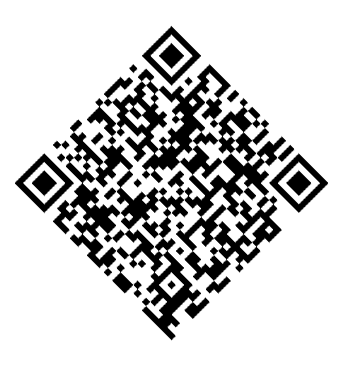 IronBarcode가 고급 옵션을 사용하여 성공적으로 읽는 회전된 QR 코드
ExpectBarcodeTypes 속성은 검색 대상을 특정 형식으로 제한하여 성능을 크게 향상시킵니다. 판독하기 어려운 이미지의 정확도를 최대한 높이려면 이미지 필터와 자동 회전을 함께 사용하세요:
using IronBarCode;

// Multi frame TIFF and GIF images can also be scanned
BarcodeResults multiFrameResults = BarcodeReader.Read("Multiframe.tiff");

foreach (var pageResult in multiFrameResults)
{
    //...
}
using IronBarCode;
// Multi frame TIFF and GIF images can also be scanned
BarcodeResults multiFrameResults = BarcodeReader.Read("Multiframe.tiff");
foreach (var pageResult in multiFrameResults)
{
//...
}Imports IronBarCode
' Multi frame TIFF and GIF images can also be scanned
Private multiFrameResults As BarcodeResults = BarcodeReader.Read("Multiframe.tiff")
For Each pageResult In multiFrameResults
'...
Next pageResultImports IronBarCode
' Multi frame TIFF and GIF images can also be scanned
Private multiFrameResults As BarcodeResults = BarcodeReader.Read("Multiframe.tiff")
For Each pageResult In multiFrameResults
'...
Next pageResult이러한 고급 기능은 사진, 보안 카메라 또는 이미지 품질이 크게 다를 수 있는 모바일 장치 캡처에서 바코드를 스캔하는 데 IronBarcode를 이상적으로 만듭니다.
PDF 문서에서 여러 바코드를 어떻게 스캔하나요?
PDF 바코드 스캔은 인보이스, 발송 라벨 및 인벤토리 문서를 처리하는 데 필수적입니다. IronBarcode는 모든 페이지에서 모든 바코드를 효율적으로 읽습니다.
PDF 파일에서 바코드 읽기
using IronBarCode;

// The Multithreaded property allows for faster barcode scanning across multiple images or PDFs. All threads are automatically managed by IronBarCode.
var ListOfDocuments = new[] { "image1.png", "image2.JPG", "image3.pdf" };

BarcodeReaderOptions options = new BarcodeReaderOptions()
{
    // Enable multithreading
    Multithreaded = true,
};

BarcodeResults batchResults = BarcodeReader.Read(ListOfDocuments, options);
using IronBarCode;
// The Multithreaded property allows for faster barcode scanning across multiple images or PDFs. All threads are automatically managed by IronBarCode.
var ListOfDocuments = new[] { "image1.png", "image2.JPG", "image3.pdf" };
BarcodeReaderOptions options = new BarcodeReaderOptions()
{
// Enable multithreading
Multithreaded = true,
};
BarcodeResults batchResults = BarcodeReader.Read(ListOfDocuments, options);Imports IronBarCode
' The Multithreaded property allows for faster barcode scanning across multiple images or PDFs. All threads are automatically managed by IronBarCode.
Private ListOfDocuments = { "image1.png", "image2.JPG", "image3.pdf" }
Private options As New BarcodeReaderOptions() With {.Multithreaded = True}
Private batchResults As BarcodeResults = BarcodeReader.Read(ListOfDocuments, options)Imports IronBarCode
' The Multithreaded property allows for faster barcode scanning across multiple images or PDFs. All threads are automatically managed by IronBarCode.
Private ListOfDocuments = { "image1.png", "image2.JPG", "image3.pdf" }
Private options As New BarcodeReaderOptions() With {.Multithreaded = True}
Private batchResults As BarcodeResults = BarcodeReader.Read(ListOfDocuments, options)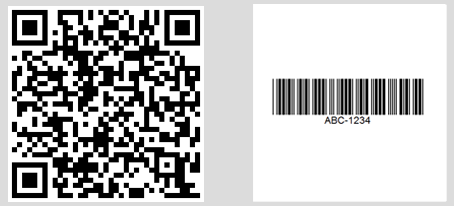 다른 PDF 페이지에서 발견된 여러 바코드를 나타내는 콘솔 출력
특정 페이지 범위를 지정하거나 고급 PDF 처리를 수행하려면 BarcodeReaderOptions를 사용하세요:
// Read only specific pages to improve performance
PdfBarcodeReaderOptions pdfOptions = new PdfBarcodeReaderOptions
{
    // Scan pages 1-5 only
    PageNumbers = new[] { 1, 2, 3, 4, 5 },

    // PDF-specific settings
    DPI = 300 // Higher DPI for better accuracy
};

BarcodeResults results = BarcodeReader.ReadPdf("document.pdf", pdfOptions);
// Read only specific pages to improve performance
PdfBarcodeReaderOptions pdfOptions = new PdfBarcodeReaderOptions
{
// Scan pages 1-5 only
PageNumbers = new[] { 1, 2, 3, 4, 5 },
// PDF-specific settings
DPI = 300 // Higher DPI for better accuracy
};
BarcodeResults results = BarcodeReader.ReadPdf("document.pdf", pdfOptions);' Read only specific pages to improve performance
Dim pdfOptions As New PdfBarcodeReaderOptions() With {
' Scan pages 1-5 only
.PageNumbers = New Integer() { 1, 2, 3, 4, 5 },
' PDF-specific settings
.DPI = 300 ' Higher DPI for better accuracy
}
Dim results As BarcodeResults = BarcodeReader.ReadPdf("document.pdf", pdfOptions)' Read only specific pages to improve performance
Dim pdfOptions As New PdfBarcodeReaderOptions() With {
' Scan pages 1-5 only
.PageNumbers = New Integer() { 1, 2, 3, 4, 5 },
' PDF-specific settings
.DPI = 300 ' Higher DPI for better accuracy
}
Dim results As BarcodeResults = BarcodeReader.ReadPdf("document.pdf", pdfOptions)다중 프레임 TIFF 이미지를 어떻게 처리할 수 있나요?
문서 스캔 및 팩스 시스템에서 일반적인 다중 프레임 TIFF 파일은 PDF와 동일한 포괄적인 지원을 받습니다.
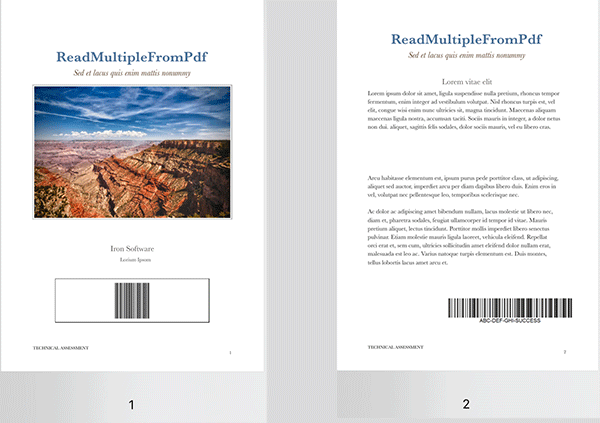 다른 프레임에 바코드를 포함한 다중 프레임 TIFF 파일
using IronBarCode;
using System;

// TIFF files are processed similarly to regular images
// Each frame is scanned automatically
BarcodeResults multiFrameResults = BarcodeReader.Read("Multiframe.tiff");

foreach (var result in multiFrameResults)
{
    // Access frame-specific information
    int frameNumber = result.PageNumber; // Frame number in TIFF
    string barcodeValue = result.Text;

    Console.WriteLine($"Frame {frameNumber}: {barcodeValue}");

    // Save individual barcode images if needed
    result.BarcodeImage?.SaveAs($"barcode_frame_{frameNumber}.png");
}
using IronBarCode;
using System;
// TIFF files are processed similarly to regular images
// Each frame is scanned automatically
BarcodeResults multiFrameResults = BarcodeReader.Read("Multiframe.tiff");
foreach (var result in multiFrameResults)
{
// Access frame-specific information
int frameNumber = result.PageNumber; // Frame number in TIFF
string barcodeValue = result.Text;
Console.WriteLine($"Frame {frameNumber}: {barcodeValue}");
// Save individual barcode images if needed
result.BarcodeImage?.SaveAs($"barcode_frame_{frameNumber}.png");
}Imports IronBarCode
Imports System
' TIFF files are processed similarly to regular images
' Each frame is scanned automatically
Dim multiFrameResults As BarcodeResults = BarcodeReader.Read("Multiframe.tiff")
For Each result In multiFrameResults
' Access frame-specific information
Dim frameNumber As Integer = result.PageNumber ' Frame number in TIFF
Dim barcodeValue As String = result.Text
Console.WriteLine($"Frame {frameNumber}: {barcodeValue}")
' Save individual barcode images if needed
result.BarcodeImage?.SaveAs($"barcode_frame_{frameNumber}.png")
NextImports IronBarCode
Imports System
' TIFF files are processed similarly to regular images
' Each frame is scanned automatically
Dim multiFrameResults As BarcodeResults = BarcodeReader.Read("Multiframe.tiff")
For Each result In multiFrameResults
' Access frame-specific information
Dim frameNumber As Integer = result.PageNumber ' Frame number in TIFF
Dim barcodeValue As String = result.Text
Console.WriteLine($"Frame {frameNumber}: {barcodeValue}")
' Save individual barcode images if needed
result.BarcodeImage?.SaveAs($"barcode_frame_{frameNumber}.png")
Next이미지 필터와 회전 설정을 포함한 동일한 BarcodeReaderOptions가 TIFF 처리에도 적용됩니다. 자세한 TIFF 처리 시나리오는 이미지 처리 튜토리얼을 참조하세요.
멀티스레딩으로 처리를 가속화할 수 있나요?
여러 문서를 처리할 때 병렬 처리를 사용하면 성능을 크게 향상시킬 수 있습니다. IronBarcode는 최적의 성능을 위해 사용 가능한 CPU 코어를 자동으로 활용합니다.
using IronBarCode;

// List of documents to process - mix of formats supported
var documentBatch = new[]
{
    "invoice1.pdf",
    "shipping_label.png",
    "inventory_sheet.tiff",
    "product_catalog.pdf"
};

// Configure for batch processing
BarcodeReaderOptions batchOptions = new BarcodeReaderOptions
{
    // Enable parallel processing across documents
    Multithreaded = true,

    // Limit threads if needed (0 = use all cores)
    MaxParallelThreads = Environment.ProcessorCount,

    // Apply consistent settings to all documents
    Speed = ReadingSpeed.Balanced,
    ExpectBarcodeTypes = BarcodeEncoding.All
};

// Process each document, tracking the source path externally
foreach (var document in documentBatch)
{
    BarcodeResults results = BarcodeReader.Read(document, batchOptions);

    Console.WriteLine($"\nDocument: {document}");
    foreach (var barcode in results)
    {
        Console.WriteLine($"  - {barcode.BarcodeType}: {barcode.Text}");
    }
}
using IronBarCode;
// List of documents to process - mix of formats supported
var documentBatch = new[]
{
"invoice1.pdf",
"shipping_label.png",
"inventory_sheet.tiff",
"product_catalog.pdf"
};
// Configure for batch processing
BarcodeReaderOptions batchOptions = new BarcodeReaderOptions
{
// Enable parallel processing across documents
Multithreaded = true,
// Limit threads if needed (0 = use all cores)
MaxParallelThreads = Environment.ProcessorCount,
// Apply consistent settings to all documents
Speed = ReadingSpeed.Balanced,
ExpectBarcodeTypes = BarcodeEncoding.All
};
// Process each document, tracking the source path externally
foreach (var document in documentBatch)
{
BarcodeResults results = BarcodeReader.Read(document, batchOptions);
Console.WriteLine($"\nDocument: {document}");
foreach (var barcode in results)
{
Console.WriteLine($" - {barcode.BarcodeType}: {barcode.Text}");
}
}Imports IronBarCode
' List of documents to process - mix of formats supported
Dim documentBatch = New String() {"invoice1.pdf", "shipping_label.png", "inventory_sheet.tiff", "product_catalog.pdf"}
' Configure for batch processing
Dim batchOptions As New BarcodeReaderOptions With {
.Multithreaded = True,
' Limit threads if needed (0 = use all cores)
.MaxParallelThreads = Environment.ProcessorCount,
' Apply consistent settings to all documents
.Speed = ReadingSpeed.Balanced,
.ExpectBarcodeTypes = BarcodeEncoding.All
}
' Process each document, tracking the source path externally
For Each document In documentBatch
Dim results As BarcodeResults = BarcodeReader.Read(document, batchOptions)
Console.WriteLine(vbLf & "Document: " & document)
For Each barcode In results
Console.WriteLine($" - {barcode.BarcodeType}: {barcode.Text}")
Next
NextImports IronBarCode
' List of documents to process - mix of formats supported
Dim documentBatch = New String() {"invoice1.pdf", "shipping_label.png", "inventory_sheet.tiff", "product_catalog.pdf"}
' Configure for batch processing
Dim batchOptions As New BarcodeReaderOptions With {
.Multithreaded = True,
' Limit threads if needed (0 = use all cores)
.MaxParallelThreads = Environment.ProcessorCount,
' Apply consistent settings to all documents
.Speed = ReadingSpeed.Balanced,
.ExpectBarcodeTypes = BarcodeEncoding.All
}
' Process each document, tracking the source path externally
For Each document In documentBatch
Dim results As BarcodeResults = BarcodeReader.Read(document, batchOptions)
Console.WriteLine(vbLf & "Document: " & document)
For Each barcode In results
Console.WriteLine($" - {barcode.BarcodeType}: {barcode.Text}")
Next
Next이 병렬 접근 방식은 문서를 동시에 처리하여 멀티코어 시스템의 총 스캔 시간을 줄입니다. 기업 규모의 바코드 처리를 위해 우리의 성능 최적화 가이드를 탐색해보세요.
요약
IronBarcode를 사용하면 간단한 C# 코드로 복잡한 바코드 스캔을 구현할 수 있습니다. 재고 관리 시스템, 문서 처리 프로그램 또는 모바일 애플리케이션을 구축할 때 선명한 디지털 바코드부터 판독하기 어려운 실제 촬영 이미지까지 처리할 수 있습니다.
이 가이드에서 다룬 주요 기능은 다음과 같습니다:
- 한 줄의 코드로 이미지에서 바코드 읽기
- 손상되거나 회전된 바코드를 위한 고급 옵션
- 포괄적인 PDF 및 TIFF 문서 스캔
- 멀티스레딩을 사용한 고성능 배치 처리
- 모든 주요 바코드 형식 지원
추가 자료
이러한 리소스로 바코드 처리 기능을 확장하세요:
- 바코드 생성 튜토리얼 - 맞춤형 바코드 생성
- QR 코드 가이드 - 전문화된 QR 코드 기능
BarcodeReader클래스 레퍼런스 - 전체 API 문서- 문제 해결 가이드 - 일반적인 문제 및 해결책
소스 코드 다운로드
이 예제를 직접 실행해 보세요:
애플리케이션에 바코드 스캐닝을 구현할 준비가 되셨나요? 무료 체험 시작하고 오늘 바로 .NET 프로젝트에 전문 바코드 읽기를 추가하세요.
자주 묻는 질문
IronBarcode란 무엇인가요?
IronBarcode는 C#에서 바코드 및 QR 코드를 읽는 작업을 간소화하는 .NET 라이브러리로, 쉽게 사용할 수 있는 기능과 다양한 이미지 품질 수준을 처리할 수 있는 고급 기능을 제공합니다.
IronBarcode를 사용하여 C#에서 바코드를 어떻게 읽을 수 있나요?
단일 코드 라인으로 IronBarcode를 사용하여 C#에서 바코드를 읽을 수 있습니다: IronBarCode.BarcodeReader.Read("path/to/barcode.png");. 이 방법은 효과적으로 바코드 유형을 감지하고 인코딩된 정보를 제공합니다.
IronBarcode는 하나의 파일에서 여러 개의 바코드를 읽을 수 있나요?
네, IronBarcode는 이미지를 비롯하여 PDF 및 다중 프레임 TIFF 파일을 포함한 문서로부터 자동으로 각 바코드를 감지하고 추출하여 여러 개의 바코드를 읽는 것을 지원합니다.
IronBarcode는 손상된 바코드를 처리하기 위해 어떤 기능을 제공하나요?
IronBarcode는 자동 회전, AdaptiveThresholdFilter로 이미지 필터링, 기계 학습을 통한 도구를 제공하여 불완전한 이미지에서 바코드를 디코딩할 수 있는 고급 기능을 제공합니다. 예를 들어 조명이 나쁘거나 각도가 기울어진 이미지를 처리할 수 있습니다.
내 .NET 프로젝트에 IronBarcode를 어떻게 설치할 수 있나요?
NuGet 패키지 관리자를 통해 또는 DLL 파일을 다운로드하여 .NET 프로젝트에 쉽게 IronBarcode를 설치할 수 있습니다. 자동 종속성 관리 및 업데이트를 위해 NuGet 사용을 권장합니다.
IronBarcode는 PDF 문서에서 바코드 스캔을 지원하나요?
네, IronBarcode는 모든 페이지에 걸쳐 PDF 문서에서 바코드를 효율적으로 스캔하며, 빠른 처리를 위해 멀티 스레딩을 지원합니다.
IronBarcode가 다중 프레임 TIFF 이미지를 처리할 수 있나요?
네, IronBarcode는 다중 프레임 TIFF 이미지를 처리하여 각 프레임을 자동으로 스캔하고 포괄적인 결과를 제공합니다.
IronBarcode는 바코드 스캔 성능을 어떻게 최적화하나요?
IronBarcode는 멀티 스레드 기능을 통해 모든 사용 가능한 CPU 코어를 활용하여 여러 문서 및 이미지에서 바코드 스캔을 수행함으로써 성능을 최적화하고 처리 시간을 줄여 줍니다.
IronBarcode 에서 지원하는 바코드 형식은 무엇입니까?
IronBarcode는 Code128, Code39, QR 코드, Data Matrix 코드 등 다양한 바코드 형식을 지원하여 다양한 시나리오에 걸쳐 활용이 가능합니다.
IronBarcode에서 바코드 읽기 정확성을 향상시킬 수 있는 방법이 있나요?
정확성을 향상시키기 위해 IronBarcode에서는 특정 이미지 필터를 사용하도록 BarcodeReaderOptions를 구성하고, 자동 회전 기능을 활성화하며, ExpectBarcodeTypes 속성을 설정하여 특정 바코드 유형에 대해 스캔을 제한할 수 있습니다.

제이콥 멜러는 Iron Software의 최고 기술 책임자(CTO)이자 C# PDF 기술을 개척한 선구적인 엔지니어입니다. Iron Software의 핵심 코드베이스를 최초로 개발한 그는 창립 초기부터 회사의 제품 아키텍처를 설계해 왔으며, CEO인 캐머런 리밍턴과 함께 회사를 NASA, 테슬라, 그리고 전 세계 정부 기관에 서비스를 제공하는 50명 이상의 직원을 보유한 기업으로 성장시켰습니다.

