
How to Generate Barcode Images in C# .NET Applications

Need to quickly generate professional barcode images in your .NET applications? This tutorial shows you exactly how to create, customize, and export barcodes using IronBarcode - from simple one-line implementations to advanced styling techniques that give you complete control over your barcode appearance.
Quickstart: Create and Save a Barcode Image InstantlyWith IronBarcode you can generate and export a barcode image in just one simple call. Use the CreateBarcode method with your text, choose the format and size, then call SaveAsPng - no complex setup needed.
-
1Install IronBarcode with NuGet Package Manager
-
2Copy and run this code snippet.
IronBarCode.BarcodeWriter.CreateBarcode("Hello123", BarcodeWriterEncoding.Code128, 200, 100).SaveAsPng("barcode.png");IronBarCode.BarcodeWriter.CreateBarcode("Hello123", BarcodeWriterEncoding.Code128, 200, 100).SaveAsPng("barcode.png") -
3Deploy to test on your live environment
Start using IronBarcode in your project today with a free trial
Minimal Workflow (5 steps)
- Install IronBarcode via NuGet Package Manager
- Generate a Simple Barcode with One Line of Code
- Apply Custom Styling and Annotations to Your Barcode
- Export Barcodes as Images, PDFs, or HTML
- Use Fluent API for Efficient Barcode Generation
How Do I Install a Barcode Generator Library in C#?
Installing IronBarcode takes just seconds using the NuGet Package Manager. You can install it directly through the Package Manager Console or download the DLL manually.
 IronBarcode provides comprehensive barcode generation capabilities for .NET developers
How Can I Generate a Simple Barcode Using C#?
Creating your first barcode requires just two lines of code. The example below demonstrates generating a standard Code128 barcode and saving it as an image file.
using IronBarCode;
using IronSoftware.Drawing;

// Fluent API for Barcode Image generation.
string value = "https://ironsoftware.com/csharp/barcode";
AnyBitmap barcodeBitmap = BarcodeWriter.CreateBarcode(value, BarcodeEncoding.PDF417).ResizeTo(300, 200).SetMargins(100).ToBitmap();
System.Drawing.Bitmap barcodeLegacyBitmap = (System.Drawing.Bitmap)barcodeBitmap;Imports IronBarCode
Imports IronSoftware.Drawing
' Fluent API for Barcode Image generation.
Private value As String = "https://ironsoftware.com/csharp/barcode"
Private barcodeBitmap As AnyBitmap = BarcodeWriter.CreateBarcode(value, BarcodeEncoding.PDF417).ResizeTo(300, 200).SetMargins(100).ToBitmap()
Private barcodeLegacyBitmap As System.Drawing.Bitmap = CType(barcodeBitmap, System.Drawing.Bitmap)The BarcodeWriter.CreateBarcode() method is your entry point for barcode generation. It accepts two parameters: the data you want to encode and the barcode format from the BarcodeWriterEncoding enum. IronBarcode supports all major barcode formats including Code128, Code39, EAN13, UPCA, PDF417, DataMatrix, and QRCode codes.
Once generated, the GeneratedBarcode object provides multiple export options. You can save it as various image formats (PNG, JPEG, GIF, TIFF), export to PDF, or even retrieve it as a System.Drawing.Bitmap for further processing in your application.
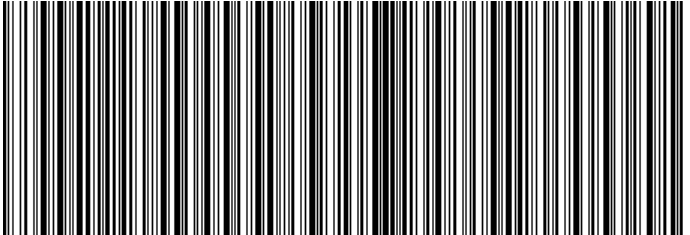 A Code128 barcode generated with IronBarcode displaying a URL
Can I Customize the Appearance of Generated Barcodes?
IronBarcode offers extensive customization options that go far beyond basic barcode generation. You can add annotations, adjust colors, set margins, and control every aspect of your barcode's appearance.
using IronBarCode;
using IronSoftware.Drawing;

// Create a QR code with advanced styling options
GeneratedBarcode myBarCode = BarcodeWriter.CreateBarcode(
    "https://ironsoftware.com/csharp/barcode",
    BarcodeWriterEncoding.QRCode
);

// Add descriptive text above the barcode
myBarCode.AddAnnotationTextAboveBarcode("Product URL:");

// Display the encoded value below the barcode
myBarCode.AddBarcodeValueTextBelowBarcode();

// Set consistent margins around the barcode
myBarCode.SetMargins(100);

// Customize the barcode color (purple in this example)
myBarCode.ChangeBarCodeColor(Color.Purple);

// Export as an HTML file for web integration
myBarCode.SaveAsHtmlFile("MyBarCode.html");Imports IronBarCode
Imports IronSoftware.Drawing
' Create a QR code with advanced styling options
Dim myBarCode As GeneratedBarcode = BarcodeWriter.CreateBarcode("https://ironsoftware.com/csharp/barcode", BarcodeWriterEncoding.QRCode)
' Add descriptive text above the barcode
myBarCode.AddAnnotationTextAboveBarcode("Product URL:")
' Display the encoded value below the barcode
myBarCode.AddBarcodeValueTextBelowBarcode()
' Set consistent margins around the barcode
myBarCode.SetMargins(100)
' Customize the barcode color (purple in this example)
myBarCode.ChangeBarCodeColor(Color.Purple)
' Export as an HTML file for web integration
myBarCode.SaveAsHtmlFile("MyBarCode.html")The GeneratedBarcode class provides a rich set of methods for customization:
- Annotations: Use
AddAnnotationTextAboveBarcode()andAddAnnotationTextBelowBarcode()to add custom labels or instructions around your barcode - Value Display: The
AddBarcodeValueTextBelowBarcode()method automatically displays the encoded data in human-readable format - Spacing: Control whitespace with
SetMargins()to ensure proper scanning and visual appeal - Colors: Change foreground and background colors using
ChangeBarCodeColor()andChangeBackgroundColor() - Export Options: Save as image files, PDFs, or self-contained HTML documents
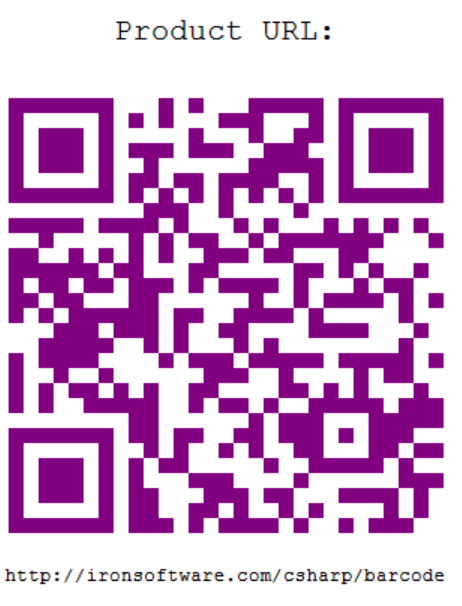 A styled QR code featuring custom color and annotation text
For detailed customization options, explore the GeneratedBarcode class documentation which covers all available styling methods and properties.
How Do I Create and Export a Barcode in One Line of Code?
IronBarcode implements a fluent API design pattern that enables method chaining for more concise and readable code. This approach is particularly useful when applying multiple transformations to your barcode.
using IronBarCode;
using IronSoftware.Drawing;

// Generate, style, and convert a barcode in a single statement
string value = "https://ironsoftware.com/csharp/barcode";

// Create PDF417 barcode with chained operations
AnyBitmap barcodeBitmap = BarcodeWriter
    .CreateBarcode(value, BarcodeWriterEncoding.PDF417)  // Create PDF417 barcode
    .ResizeTo(300, 200)                                  // Set specific dimensions
    .SetMargins(10)                                      // Add 10px margins
    .ToBitmap();                                         // Convert to bitmap

// Convert to System.Drawing.Bitmap for legacy compatibility
System.Drawing.Bitmap legacyBitmap = barcodeBitmap;Imports IronBarCode
Imports IronSoftware.Drawing
' Generate, style, and convert a barcode in a single statement
Dim value As String = "https://ironsoftware.com/csharp/barcode"
' Create PDF417 barcode with chained operations
Dim barcodeBitmap As AnyBitmap = BarcodeWriter _
.CreateBarcode(value, BarcodeWriterEncoding.PDF417) _ ' Create PDF417 barcode
.ResizeTo(300, 200) _ ' Set specific dimensions
.SetMargins(10) _ ' Add 10px margins
.ToBitmap() ' Convert to bitmap
' Convert to System.Drawing.Bitmap for legacy compatibility
Dim legacyBitmap As System.Drawing.Bitmap = barcodeBitmapThe fluent API pattern offers several advantages:
- Readability: Chain operations in a logical sequence that reads like natural language
- Efficiency: Reduce variable declarations and intermediate steps
- Flexibility: Easily add or remove operations without restructuring your code
Common fluent operations include:
ResizeTo(): Control exact barcode dimensionsSetMargins(): Add consistent spacingChangeBarCodeColor(): Modify appearanceAddAnnotationTextAboveBarcode(): Include descriptive textToBitmap(),SaveAsPng(),SaveAsPdf(): Export in various formats
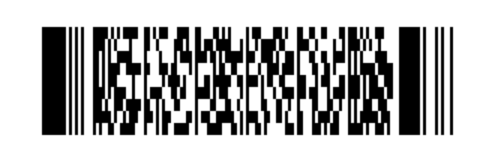 A PDF417 barcode generated using fluent method chaining
What Barcode Formats Are Supported by IronBarcode?
IronBarcode supports comprehensive barcode format generation through the BarcodeWriterEncoding enum. Supported formats include:
1D Barcodes: Code128, Code39, Code93, Codabar, ITF, MSI, Plessey, UPCA, UPCE, EAN8, EAN13
2D Barcodes: QRCode, DataMatrix, PDF417, Aztec, MaxiCode
Specialized Formats: IntelligentMail, DataBar, DataBarExpanded, and various GS1 standards
Each format has specific characteristics and use cases. For example, QRCode codes excel at storing URLs and large amounts of data, while EAN13 is standard for retail products. Learn more about choosing the right barcode format for your application.
How Can I Verify My Generated Barcode Is Readable?
Quality assurance is critical for barcode implementation. IronBarcode includes built-in verification to ensure your generated barcodes remain scannable:
// Generate and verify a barcode
GeneratedBarcode myBarcode = BarcodeWriter
    .CreateBarcode("TEST123", BarcodeWriterEncoding.Code128)
    .ResizeTo(200, 100)
    .ChangeBarCodeColor(Color.DarkBlue);

// Verify the barcode is still readable after modifications
bool isReadable = myBarcode.Verify("TEST123");
Console.WriteLine($"Barcode verification: {(isReadable ? "PASS" : "FAIL")}");' Generate and verify a barcode
Dim myBarcode As GeneratedBarcode = BarcodeWriter.CreateBarcode("TEST123", BarcodeWriterEncoding.Code128) _
.ResizeTo(200, 100) _
.ChangeBarCodeColor(Color.DarkBlue)
' Verify the barcode is still readable after modifications
Dim isReadable As Boolean = myBarcode.Verify("TEST123")
Console.WriteLine($"Barcode verification: {(If(isReadable, "PASS", "FAIL"))}")The Verify(expectedValue) method checks whether your barcode remains machine-readable after applying transformations like resizing or recoloring. This is especially important when using non-standard colors or very small sizes.
Where Can I Find More Barcode Generation Examples?
To expand your barcode generation capabilities, explore these additional resources:
Source Code and Examples
Download the complete source code for this tutorial:
Advanced Topics
- Generate QR Codes with Logos - Add branding to your QR codes
- Barcode Styling Guide - Master advanced customization techniques
- Reading Barcodes from Images - Complete the cycle with barcode scanning
- Batch Barcode Generation - Generate multiple barcodes efficiently
API Documentation
BarcodeWriterClass Reference - Complete method documentationGeneratedBarcodeClass Reference - All customization optionsBarcodeWriterEncodingEnum - Supported barcode formats
Ready to Generate Professional Barcodes in Your Application?
IronBarcode makes barcode generation straightforward while providing the flexibility needed for professional applications. Whether you need simple product codes or complex 2D barcodes with custom styling, IronBarcode handles it all with minimal code.
Download IronBarcode today and start generating barcodes in minutes. Need help choosing the right license? Check our licensing options or request a free trial key to test IronBarcode in your production environment.
Frequently Asked Questions
How do I generate a barcode image in C# using IronBarcode?
To generate a barcode image using IronBarcode, you can use the `CreateBarcode` method by specifying your data and desired barcode format. Afterward, use `SaveAsPng` to export the barcode image.
What barcode formats are supported by IronBarcode?
IronBarcode supports a wide range of barcode formats including 1D formats like `Code128`, `EAN13`, and 2D formats such as `QRCode` and `PDF417`. Specialized formats are also available, like `IntelligentMail` and `GS1` standards.
Can I customize the appearance of my barcode with IronBarcode?
Yes, IronBarcode allows extensive customization including annotations, color adjustments, and setting margins. You can use methods like `ChangeBarCodeColor()` and `AddAnnotationTextAboveBarcode()` for customization.
How can I verify if my generated barcode is readable?
IronBarcode provides a verification feature using the `Verify(expectedValue)` method, which helps to check if your barcode is still machine-readable after transformations like resizing or recoloring.
Is it possible to create and export a barcode in C# with just one line of code?
Yes, IronBarcode's fluent API allows you to generate and export a barcode in one line using method chaining. For example, you can use `CreateBarcode().ResizeTo().SaveAsPng()` to execute multiple operations concisely.
How do I install IronBarcode in a .NET project?
IronBarcode can be installed through the NuGet Package Manager in Visual Studio or by manually downloading the DLL. This allows you to quickly integrate barcode generation capabilities in your project.
What is the fluent API in IronBarcode and its benefits?
The fluent API in IronBarcode enables method chaining, making your code more concise and readable by allowing multiple operations in a single statement - ideal for applying transformations to barcodes efficiently.
Where can I find more barcode generation examples using IronBarcode?
You can find additional resources and examples in the IronBarcode GitHub repository, or by exploring the advanced topics sections on the official Iron Software website, where detailed guides and tutorials are available.
Can IronBarcode export barcodes to formats other than images?
Yes, IronBarcode can export barcodes to various formats including PDF and HTML, offering flexibility for integration into different types of applications and workflows.
What features does IronBarcode offer for professional applications?
IronBarcode provides professional features such as complete styling customization, comprehensive format support, built-in verification, and efficient batch processing options to meet business-level requirements.

Jacob Mellor is Chief Technology Officer at Iron Software and a visionary engineer pioneering C# PDF technology. As the original developer behind Iron Software's core codebase, he has shaped the company's product architecture since its inception, transforming it alongside CEO Cameron Rimington into a 50+ person company serving NASA, Tesla, and global government agencies.



