using IronBarCode;using IronSoftware.Drawing;// Fluent API for Barcode Image generation.string value = "https://ironsoftware.com/csharp/barcode";AnyBitmap barcodeBitmap = BarcodeWriter.CreateBarcode(value, BarcodeEncoding.PDF417).ResizeTo(300, 200).SetMargins(100).ToBitmap();System.Drawing.Bitmap barcodeLegacyBitmap = (System.Drawing.Bitmap)barcodeBitmap;
using IronBarCode;
using IronSoftware.Drawing;

// Fluent API for Barcode Image generation.
string value = "https://ironsoftware.com/csharp/barcode";
AnyBitmap barcodeBitmap = BarcodeWriter.CreateBarcode(value, BarcodeEncoding.PDF417).ResizeTo(300, 200).SetMargins(100).ToBitmap();
System.Drawing.Bitmap barcodeLegacyBitmap = (System.Drawing.Bitmap)barcodeBitmap;
ImportsIronBarCodeImportsIronSoftware.Drawing' Fluent API for Barcode Image generation.Private value AsString = "https://ironsoftware.com/csharp/barcode"Private barcodeBitmap AsAnyBitmap = BarcodeWriter.CreateBarcode(value, BarcodeEncoding.PDF417).ResizeTo(300, 200).SetMargins(100).ToBitmap()Private barcodeLegacyBitmap AsSystem.Drawing.Bitmap = CType(barcodeBitmap, System.Drawing.Bitmap)
Imports IronBarCode
Imports IronSoftware.Drawing

' Fluent API for Barcode Image generation.
Private value As String = "https://ironsoftware.com/csharp/barcode"
Private barcodeBitmap As AnyBitmap = BarcodeWriter.CreateBarcode(value, BarcodeEncoding.PDF417).ResizeTo(300, 200).SetMargins(100).ToBitmap()
Private barcodeLegacyBitmap As System.Drawing.Bitmap = CType(barcodeBitmap, System.Drawing.Bitmap)
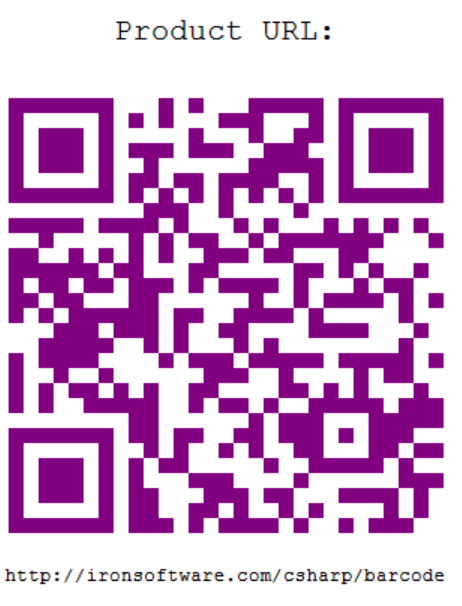
using IronBarCode;using IronSoftware.Drawing;// Create a QR code with advanced styling optionsGeneratedBarcode myBarCode = BarcodeWriter.CreateBarcode( "https://ironsoftware.com/csharp/barcode", BarcodeWriterEncoding.QRCode);// Add descriptive text above the barcodemyBarCode.AddAnnotationTextAboveBarcode("Product URL:");// Display the encoded value below the barcodemyBarCode.AddBarcodeValueTextBelowBarcode();// Set consistent margins around the barcodemyBarCode.SetMargins(100);// Customize the barcode color (purple in this example)myBarCode.ChangeBarCodeColor(Color.Purple);// Export as an HTML file for web integrationmyBarCode.SaveAsHtmlFile("MyBarCode.html");
using IronBarCode;
using IronSoftware.Drawing;

// Create a QR code with advanced styling options
GeneratedBarcode myBarCode = BarcodeWriter.CreateBarcode(
    "https://ironsoftware.com/csharp/barcode",
    BarcodeWriterEncoding.QRCode
);

// Add descriptive text above the barcode
myBarCode.AddAnnotationTextAboveBarcode("Product URL:");

// Display the encoded value below the barcode
myBarCode.AddBarcodeValueTextBelowBarcode();

// Set consistent margins around the barcode
myBarCode.SetMargins(100);

// Customize the barcode color (purple in this example)
myBarCode.ChangeBarCodeColor(Color.Purple);

// Export as an HTML file for web integration
myBarCode.SaveAsHtmlFile("MyBarCode.html");
ImportsIronBarCodeImportsIronSoftware.Drawing' Create a QR code with advanced styling optionsDim myBarCode AsGeneratedBarcode = BarcodeWriter.CreateBarcode("https://ironsoftware.com/csharp/barcode", BarcodeWriterEncoding.QRCode)' Add descriptive text above the barcodemyBarCode.AddAnnotationTextAboveBarcode("Product URL:")' Display the encoded value below the barcodemyBarCode.AddBarcodeValueTextBelowBarcode()' Set consistent margins around the barcodemyBarCode.SetMargins(100)' Customize the barcode color (purple in this example)myBarCode.ChangeBarCodeColor(Color.Purple)' Export as an HTML file for web integrationmyBarCode.SaveAsHtmlFile("MyBarCode.html")
Imports IronBarCode
Imports IronSoftware.Drawing

' Create a QR code with advanced styling options
Dim myBarCode As GeneratedBarcode = BarcodeWriter.CreateBarcode("https://ironsoftware.com/csharp/barcode", BarcodeWriterEncoding.QRCode)

' Add descriptive text above the barcode
myBarCode.AddAnnotationTextAboveBarcode("Product URL:")

' Display the encoded value below the barcode
myBarCode.AddBarcodeValueTextBelowBarcode()

' Set consistent margins around the barcode
myBarCode.SetMargins(100)

' Customize the barcode color (purple in this example)
myBarCode.ChangeBarCodeColor(Color.Purple)

' Export as an HTML file for web integration
myBarCode.SaveAsHtmlFile("MyBarCode.html")
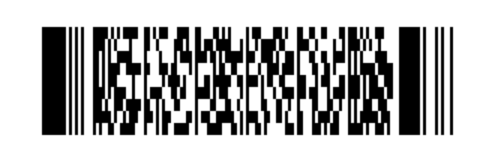
using IronBarCode;using IronSoftware.Drawing;// Generate, style, and convert a barcode in a single statementstring value = "https://ironsoftware.com/csharp/barcode";// Create PDF417 barcode with chained operationsAnyBitmap barcodeBitmap = BarcodeWriter .CreateBarcode(value, BarcodeWriterEncoding.PDF417) // Create PDF417 barcode .ResizeTo(300, 200) // Set specific dimensions .SetMargins(10) // Add 10px margins .ToBitmap(); // Convert to bitmap// Convert to System.Drawing.Bitmap for legacy compatibilitySystem.Drawing.Bitmap legacyBitmap = barcodeBitmap;
using IronBarCode;
using IronSoftware.Drawing;

// Generate, style, and convert a barcode in a single statement
string value = "https://ironsoftware.com/csharp/barcode";

// Create PDF417 barcode with chained operations
AnyBitmap barcodeBitmap = BarcodeWriter
    .CreateBarcode(value, BarcodeWriterEncoding.PDF417)  // Create PDF417 barcode
    .ResizeTo(300, 200)                                  // Set specific dimensions
    .SetMargins(10)                                      // Add 10px margins
    .ToBitmap();                                         // Convert to bitmap

// Convert to System.Drawing.Bitmap for legacy compatibility
System.Drawing.Bitmap legacyBitmap = barcodeBitmap;
ImportsIronBarCodeImportsIronSoftware.Drawing' Generate, style, and convert a barcode in a single statementDim value AsString = "https://ironsoftware.com/csharp/barcode"' Create PDF417 barcode with chained operationsDim barcodeBitmap AsAnyBitmap = BarcodeWriter _ .CreateBarcode(value, BarcodeWriterEncoding.PDF417) _ ' Create PDF417 barcode .ResizeTo(300, 200) _ ' Set specific dimensions .SetMargins(10) _ ' Add 10px margins .ToBitmap() ' Convert to bitmap' Convert to System.Drawing.Bitmap for legacy compatibilityDim legacyBitmap AsSystem.Drawing.Bitmap = barcodeBitmap
Imports IronBarCode
Imports IronSoftware.Drawing

' Generate, style, and convert a barcode in a single statement
Dim value As String = "https://ironsoftware.com/csharp/barcode"

' Create PDF417 barcode with chained operations
Dim barcodeBitmap As AnyBitmap = BarcodeWriter _
    .CreateBarcode(value, BarcodeWriterEncoding.PDF417) _  ' Create PDF417 barcode
    .ResizeTo(300, 200) _                                  ' Set specific dimensions
    .SetMargins(10) _                                      ' Add 10px margins
    .ToBitmap()                                            ' Convert to bitmap

' Convert to System.Drawing.Bitmap for legacy compatibility
Dim legacyBitmap As System.Drawing.Bitmap = barcodeBitmap
流暢API模式提供了幾個優勢:
可讀性:以邏輯序列連結操作,像自然語言一樣易於閱讀
效率:減少變數宣告和中間步驟
靈活性:輕鬆新增或移除操作而無需重構程式碼
常見的流暢操作包括:
ResizeTo():精確控制條碼尺寸
SetMargins():新增一致的間距
ChangeBarCodeColor():修改外觀
AddAnnotationTextAboveBarcode():包含描述性文字
SaveAsPdf():以多種格式匯出
A PDF417 barcode generated using fluent method chaining
// Generate and verify a barcodeGeneratedBarcode myBarcode = BarcodeWriter .CreateBarcode("TEST123", BarcodeWriterEncoding.Code128) .ResizeTo(200, 100) .ChangeBarCodeColor(Color.DarkBlue);// Verify the barcode is still readable after modificationsbool isReadable = myBarcode.Verify("TEST123");Console.WriteLine($"Barcode verification: {(isReadable ? "PASS" : "FAIL")}");
// Generate and verify a barcode
GeneratedBarcode myBarcode = BarcodeWriter
    .CreateBarcode("TEST123", BarcodeWriterEncoding.Code128)
    .ResizeTo(200, 100)
    .ChangeBarCodeColor(Color.DarkBlue);

// Verify the barcode is still readable after modifications
bool isReadable = myBarcode.Verify("TEST123");
Console.WriteLine($"Barcode verification: {(isReadable ? "PASS" : "FAIL")}");
' Generate and verify a barcodeDim myBarcode AsGeneratedBarcode = BarcodeWriter.CreateBarcode("TEST123", BarcodeWriterEncoding.Code128) _ .ResizeTo(200, 100) _ .ChangeBarCodeColor(Color.DarkBlue)' Verify the barcode is still readable after modificationsDim isReadable AsBoolean = myBarcode.Verify("TEST123")Console.WriteLine($"Barcode verification: {(If(isReadable, "PASS", "FAIL"))}")
' Generate and verify a barcode
Dim myBarcode As GeneratedBarcode = BarcodeWriter.CreateBarcode("TEST123", BarcodeWriterEncoding.Code128) _
    .ResizeTo(200, 100) _
    .ChangeBarCodeColor(Color.DarkBlue)

' Verify the barcode is still readable after modifications
Dim isReadable As Boolean = myBarcode.Verify("TEST123")
Console.WriteLine($"Barcode verification: {(If(isReadable, "PASS", "FAIL"))}")


 IronBarcode為.NET開發者提供全面的條碼生成功能