
C# 條碼掃描器:在 .NET 應用程式中讀取條碼與 QR Code

需要在 .NET 應用程式中快速掃描條碼或QR Code嗎? 無論您是處理完美的數位影像還是具有挑戰性的真實世界照片,IronBarcode 都能讓條碼讀取變得簡單可靠。 本指南將透過您可以立即使用的實際範例,向您展示如何在 C# 中實現條碼掃描。
快速入門:即時從檔案中讀取條碼這個簡單的範例向您展示了IronBarcode入門是多麼容易。 只需一行程式碼,您即可從影像檔案中讀取條碼,無需複雜的設定。
-
1使用 IronBarcode 安裝 NuGet Package Manager
-
2複製並運行這段程式碼。
var results = IronBarCode.BarcodeReader.Read("path/to/barcode.png");Dim results = IronBarCode.BarcodeReader.Read("path/to/barcode.png")Dim results = IronBarCode.BarcodeReader.Read("path/to/barcode.png") -
3部署到您的生產環境進行測試
立即在您的項目中開始使用 IronBarcode,並使用 免費試用
最小工作流程(5 個步驟)
- 從NuGet或透過DLL下載安裝IronBarcode
- 使用
BarcodeReader.Read方法掃描任何條碼或QR Code - 在單一掃描件、PDF 或多影格 TIFF 檔案中讀取多個條碼或QR Code
- 啟用 IronBarcode,利用進階濾鏡解碼不完美的掃描和照片。
- 下載教學項目並立即開始掃描
如何在我的.NET專案中安裝IronBarcode?
IronBarcode 可以透過 NuGet 套件管理員輕鬆安裝,也可以直接下載 DLL 檔案進行安裝。 建議使用 NuGet 安裝,因為它能夠自動管理依賴項和更新。
安裝後,將using IronBarCode;新增到您的C#文件中以存取條碼掃描功能。 有關不同開發環境的詳細安裝說明,請查看我們的安裝指南。
如何使用C#讀取我的第一個條碼?
使用 IronBarcode 讀取條碼只需要一行程式碼。 此程式庫可自動偵測條碼格式並擷取所有編碼資料。
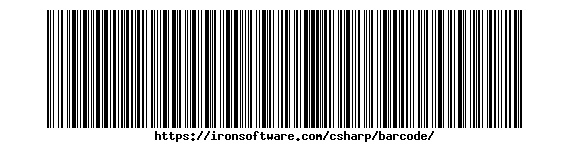 IronBarcode 可以立即讀取的標準 Code128 條碼
using IronBarCode;

BarcodeReaderOptions options = new BarcodeReaderOptions()
{
    // Choose which filters are to be applied (in order)
    ImageFilters = new ImageFilterCollection() {
        new AdaptiveThresholdFilter(),
    },

    // Uses machine learning to auto rotate the barcode
    AutoRotate = true,
};

// Read barcode
BarcodeResults results = BarcodeReader.Read("TryHarderQR.png", options);
using IronBarCode;
BarcodeReaderOptions options = new BarcodeReaderOptions()
{
// Choose which filters are to be applied (in order)
ImageFilters = new ImageFilterCollection() {
new AdaptiveThresholdFilter(),
},
// Uses machine learning to auto rotate the barcode
AutoRotate = true,
};
// Read barcode
BarcodeResults results = BarcodeReader.Read("TryHarderQR.png", options);Imports IronBarCode
Private options As New BarcodeReaderOptions() With {
.ImageFilters = New ImageFilterCollection() From {New AdaptiveThresholdFilter()},
.AutoRotate = True
}
' Read barcode
Private results As BarcodeResults = BarcodeReader.Read("TryHarderQR.png", options)Imports IronBarCode
Private options As New BarcodeReaderOptions() With {
.ImageFilters = New ImageFilterCollection() From {New AdaptiveThresholdFilter()},
.AutoRotate = True
}
' Read barcode
Private results As BarcodeResults = BarcodeReader.Read("TryHarderQR.png", options)BarcodeReader.Read 方法傳回一個 BarcodeResults 集合,其中包含所有檢測到的條碼。 每個BarcodeResult提供存取條碼的文字值、格式類型、位置座標和二進位資料。 此方法適用於包括Code128、Code39、QR Code和Data Matrix碼在內的常見條碼格式。
哪些方法可以幫助讀取難以辨識或損壞的條碼?
現實世界中的條碼掃描經常會遇到影像不完美的情況——角度傾斜、光線不足或部分損壞。 IronBarcode 的進階選項可以有效應對這些挑戰。
using IronBarCode;
using System;

// Multiple barcodes may be scanned up from a single document or image. A PDF document may also used as the input image
BarcodeResults results = BarcodeReader.ReadPdf("MultipleBarcodes.pdf");

// Work with the results
foreach (var pageResult in results)
{
    string Value = pageResult.Value;
    int PageNum = pageResult.PageNumber;
    System.Drawing.Bitmap Img = pageResult.BarcodeImage;
    BarcodeEncoding BarcodeType = pageResult.BarcodeType;
    byte[] Binary = pageResult.BinaryValue;
    Console.WriteLine(pageResult.Value + " on page " + PageNum);
}
using IronBarCode;
using System;
// Multiple barcodes may be scanned up from a single document or image. A PDF document may also used as the input image
BarcodeResults results = BarcodeReader.ReadPdf("MultipleBarcodes.pdf");
// Work with the results
foreach (var pageResult in results)
{
string Value = pageResult.Value;
int PageNum = pageResult.PageNumber;
System.Drawing.Bitmap Img = pageResult.BarcodeImage;
BarcodeEncoding BarcodeType = pageResult.BarcodeType;
byte[] Binary = pageResult.BinaryValue;
Console.WriteLine(pageResult.Value + " on page " + PageNum);
}Imports IronBarCode
Imports System
' Multiple barcodes may be scanned up from a single document or image. A PDF document may also used as the input image
Private results As BarcodeResults = BarcodeReader.ReadPdf("MultipleBarcodes.pdf")
' Work with the results
For Each pageResult In results
Dim Value As String = pageResult.Value
Dim PageNum As Integer = pageResult.PageNumber
Dim Img As System.Drawing.Bitmap = pageResult.BarcodeImage
Dim BarcodeType As BarcodeEncoding = pageResult.BarcodeType
Dim Binary() As Byte = pageResult.BinaryValue
Console.WriteLine(pageResult.Value & " on page " & PageNum)
Next pageResultImports IronBarCode
Imports System
' Multiple barcodes may be scanned up from a single document or image. A PDF document may also used as the input image
Private results As BarcodeResults = BarcodeReader.ReadPdf("MultipleBarcodes.pdf")
' Work with the results
For Each pageResult In results
Dim Value As String = pageResult.Value
Dim PageNum As Integer = pageResult.PageNumber
Dim Img As System.Drawing.Bitmap = pageResult.BarcodeImage
Dim BarcodeType As BarcodeEncoding = pageResult.BarcodeType
Dim Binary() As Byte = pageResult.BinaryValue
Console.WriteLine(pageResult.Value & " on page " & PageNum)
Next pageResult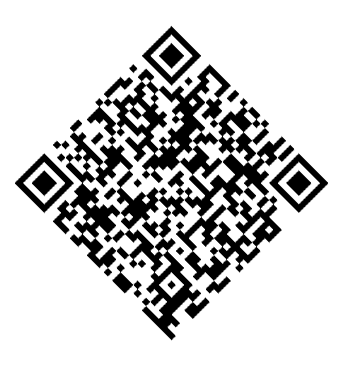 IronBarcode 使用進階選項成功讀取了旋轉後的QR Code
ExpectBarcodeTypes屬性透過將搜尋限制在特定格式上顯著提高了效能。 為了最大限度地提高處理問題影像的精確度,請將影像濾波器與自動旋轉功能結合使用:
using IronBarCode;

// Multi frame TIFF and GIF images can also be scanned
BarcodeResults multiFrameResults = BarcodeReader.Read("Multiframe.tiff");

foreach (var pageResult in multiFrameResults)
{
    //...
}
using IronBarCode;
// Multi frame TIFF and GIF images can also be scanned
BarcodeResults multiFrameResults = BarcodeReader.Read("Multiframe.tiff");
foreach (var pageResult in multiFrameResults)
{
//...
}Imports IronBarCode
' Multi frame TIFF and GIF images can also be scanned
Private multiFrameResults As BarcodeResults = BarcodeReader.Read("Multiframe.tiff")
For Each pageResult In multiFrameResults
'...
Next pageResultImports IronBarCode
' Multi frame TIFF and GIF images can also be scanned
Private multiFrameResults As BarcodeResults = BarcodeReader.Read("Multiframe.tiff")
For Each pageResult In multiFrameResults
'...
Next pageResult這些進階功能讓 IronBarcode 非常適合從照片掃描條碼,也適合處理監視攝影機或行動裝置拍攝的影像,尤其適用於影像品質差異很大的情況。
如何掃描PDF文件中的多個條碼?
PDF條碼掃描對於處理發票、出貨標籤和庫存文件至關重要。 IronBarcode 可以有效率地讀取每一頁上的所有條碼。
從PDF檔中讀取條碼
using IronBarCode;

// The Multithreaded property allows for faster barcode scanning across multiple images or PDFs. All threads are automatically managed by IronBarCode.
var ListOfDocuments = new[] { "image1.png", "image2.JPG", "image3.pdf" };

BarcodeReaderOptions options = new BarcodeReaderOptions()
{
    // Enable multithreading
    Multithreaded = true,
};

BarcodeResults batchResults = BarcodeReader.Read(ListOfDocuments, options);
using IronBarCode;
// The Multithreaded property allows for faster barcode scanning across multiple images or PDFs. All threads are automatically managed by IronBarCode.
var ListOfDocuments = new[] { "image1.png", "image2.JPG", "image3.pdf" };
BarcodeReaderOptions options = new BarcodeReaderOptions()
{
// Enable multithreading
Multithreaded = true,
};
BarcodeResults batchResults = BarcodeReader.Read(ListOfDocuments, options);Imports IronBarCode
' The Multithreaded property allows for faster barcode scanning across multiple images or PDFs. All threads are automatically managed by IronBarCode.
Private ListOfDocuments = { "image1.png", "image2.JPG", "image3.pdf" }
Private options As New BarcodeReaderOptions() With {.Multithreaded = True}
Private batchResults As BarcodeResults = BarcodeReader.Read(ListOfDocuments, options)Imports IronBarCode
' The Multithreaded property allows for faster barcode scanning across multiple images or PDFs. All threads are automatically managed by IronBarCode.
Private ListOfDocuments = { "image1.png", "image2.JPG", "image3.pdf" }
Private options As New BarcodeReaderOptions() With {.Multithreaded = True}
Private batchResults As BarcodeResults = BarcodeReader.Read(ListOfDocuments, options)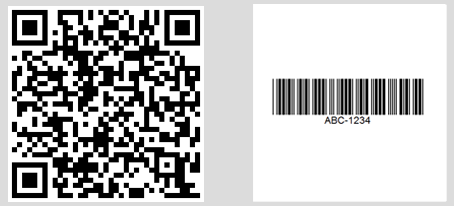 主控台輸出顯示在不同的 PDF 頁面中發現了多個條碼
對於特定頁面範圍或進階PDF處理,可以使用BarcodeReaderOptions:
// Read only specific pages to improve performance
PdfBarcodeReaderOptions pdfOptions = new PdfBarcodeReaderOptions
{
    // Scan pages 1-5 only
    PageNumbers = new[] { 1, 2, 3, 4, 5 },

    // PDF-specific settings
    DPI = 300 // Higher DPI for better accuracy
};

BarcodeResults results = BarcodeReader.ReadPdf("document.pdf", pdfOptions);
// Read only specific pages to improve performance
PdfBarcodeReaderOptions pdfOptions = new PdfBarcodeReaderOptions
{
// Scan pages 1-5 only
PageNumbers = new[] { 1, 2, 3, 4, 5 },
// PDF-specific settings
DPI = 300 // Higher DPI for better accuracy
};
BarcodeResults results = BarcodeReader.ReadPdf("document.pdf", pdfOptions);' Read only specific pages to improve performance
Dim pdfOptions As New PdfBarcodeReaderOptions() With {
' Scan pages 1-5 only
.PageNumbers = New Integer() { 1, 2, 3, 4, 5 },
' PDF-specific settings
.DPI = 300 ' Higher DPI for better accuracy
}
Dim results As BarcodeResults = BarcodeReader.ReadPdf("document.pdf", pdfOptions)' Read only specific pages to improve performance
Dim pdfOptions As New PdfBarcodeReaderOptions() With {
' Scan pages 1-5 only
.PageNumbers = New Integer() { 1, 2, 3, 4, 5 },
' PDF-specific settings
.DPI = 300 ' Higher DPI for better accuracy
}
Dim results As BarcodeResults = BarcodeReader.ReadPdf("document.pdf", pdfOptions)如何處理多影格TIFF影像?
多影格 TIFF 檔案(常見於文件掃描和傳真系統)與 PDF 文件一樣,都得到了全面的支援。
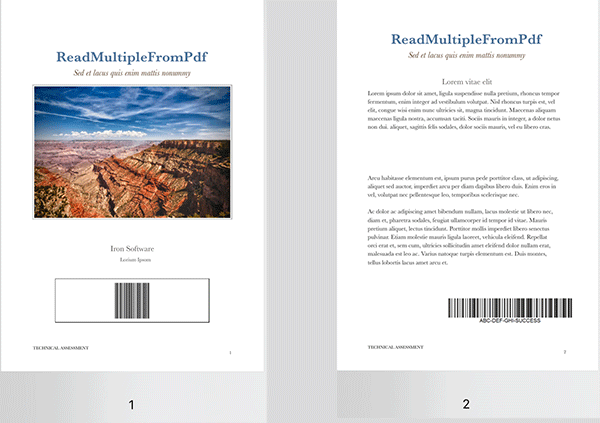 一個多影格 TIFF 文件,不同影格上帶有條碼。
using IronBarCode;
using System;

// TIFF files are processed similarly to regular images
// Each frame is scanned automatically
BarcodeResults multiFrameResults = BarcodeReader.Read("Multiframe.tiff");

foreach (var result in multiFrameResults)
{
    // Access frame-specific information
    int frameNumber = result.PageNumber; // Frame number in TIFF
    string barcodeValue = result.Text;

    Console.WriteLine($"Frame {frameNumber}: {barcodeValue}");

    // Save individual barcode images if needed
    result.BarcodeImage?.SaveAs($"barcode_frame_{frameNumber}.png");
}
using IronBarCode;
using System;
// TIFF files are processed similarly to regular images
// Each frame is scanned automatically
BarcodeResults multiFrameResults = BarcodeReader.Read("Multiframe.tiff");
foreach (var result in multiFrameResults)
{
// Access frame-specific information
int frameNumber = result.PageNumber; // Frame number in TIFF
string barcodeValue = result.Text;
Console.WriteLine($"Frame {frameNumber}: {barcodeValue}");
// Save individual barcode images if needed
result.BarcodeImage?.SaveAs($"barcode_frame_{frameNumber}.png");
}Imports IronBarCode
Imports System
' TIFF files are processed similarly to regular images
' Each frame is scanned automatically
Dim multiFrameResults As BarcodeResults = BarcodeReader.Read("Multiframe.tiff")
For Each result In multiFrameResults
' Access frame-specific information
Dim frameNumber As Integer = result.PageNumber ' Frame number in TIFF
Dim barcodeValue As String = result.Text
Console.WriteLine($"Frame {frameNumber}: {barcodeValue}")
' Save individual barcode images if needed
result.BarcodeImage?.SaveAs($"barcode_frame_{frameNumber}.png")
NextImports IronBarCode
Imports System
' TIFF files are processed similarly to regular images
' Each frame is scanned automatically
Dim multiFrameResults As BarcodeResults = BarcodeReader.Read("Multiframe.tiff")
For Each result In multiFrameResults
' Access frame-specific information
Dim frameNumber As Integer = result.PageNumber ' Frame number in TIFF
Dim barcodeValue As String = result.Text
Console.WriteLine($"Frame {frameNumber}: {barcodeValue}")
' Save individual barcode images if needed
result.BarcodeImage?.SaveAs($"barcode_frame_{frameNumber}.png")
Next相同的BarcodeReaderOptions適用於TIFF處理,包括影像濾鏡和旋轉設定。 有關詳細的TIFF處理場景,請查看我們的影像處理教學。
我能否利用多執行緒加快處理速度?
並行處理能大幅提升多文件處理效率。 IronBarcode 會自動利用可用的 CPU 核心,以達到最佳效能。
using IronBarCode;

// List of documents to process - mix of formats supported
var documentBatch = new[]
{
    "invoice1.pdf",
    "shipping_label.png",
    "inventory_sheet.tiff",
    "product_catalog.pdf"
};

// Configure for batch processing
BarcodeReaderOptions batchOptions = new BarcodeReaderOptions
{
    // Enable parallel processing across documents
    Multithreaded = true,

    // Limit threads if needed (0 = use all cores)
    MaxParallelThreads = Environment.ProcessorCount,

    // Apply consistent settings to all documents
    Speed = ReadingSpeed.Balanced,
    ExpectBarcodeTypes = BarcodeEncoding.All
};

// Process each document, tracking the source path externally
foreach (var document in documentBatch)
{
    BarcodeResults results = BarcodeReader.Read(document, batchOptions);

    Console.WriteLine($"\nDocument: {document}");
    foreach (var barcode in results)
    {
        Console.WriteLine($"  - {barcode.BarcodeType}: {barcode.Text}");
    }
}
using IronBarCode;
// List of documents to process - mix of formats supported
var documentBatch = new[]
{
"invoice1.pdf",
"shipping_label.png",
"inventory_sheet.tiff",
"product_catalog.pdf"
};
// Configure for batch processing
BarcodeReaderOptions batchOptions = new BarcodeReaderOptions
{
// Enable parallel processing across documents
Multithreaded = true,
// Limit threads if needed (0 = use all cores)
MaxParallelThreads = Environment.ProcessorCount,
// Apply consistent settings to all documents
Speed = ReadingSpeed.Balanced,
ExpectBarcodeTypes = BarcodeEncoding.All
};
// Process each document, tracking the source path externally
foreach (var document in documentBatch)
{
BarcodeResults results = BarcodeReader.Read(document, batchOptions);
Console.WriteLine($"\nDocument: {document}");
foreach (var barcode in results)
{
Console.WriteLine($" - {barcode.BarcodeType}: {barcode.Text}");
}
}Imports IronBarCode
' List of documents to process - mix of formats supported
Dim documentBatch = New String() {"invoice1.pdf", "shipping_label.png", "inventory_sheet.tiff", "product_catalog.pdf"}
' Configure for batch processing
Dim batchOptions As New BarcodeReaderOptions With {
.Multithreaded = True,
' Limit threads if needed (0 = use all cores)
.MaxParallelThreads = Environment.ProcessorCount,
' Apply consistent settings to all documents
.Speed = ReadingSpeed.Balanced,
.ExpectBarcodeTypes = BarcodeEncoding.All
}
' Process each document, tracking the source path externally
For Each document In documentBatch
Dim results As BarcodeResults = BarcodeReader.Read(document, batchOptions)
Console.WriteLine(vbLf & "Document: " & document)
For Each barcode In results
Console.WriteLine($" - {barcode.BarcodeType}: {barcode.Text}")
Next
NextImports IronBarCode
' List of documents to process - mix of formats supported
Dim documentBatch = New String() {"invoice1.pdf", "shipping_label.png", "inventory_sheet.tiff", "product_catalog.pdf"}
' Configure for batch processing
Dim batchOptions As New BarcodeReaderOptions With {
.Multithreaded = True,
' Limit threads if needed (0 = use all cores)
.MaxParallelThreads = Environment.ProcessorCount,
' Apply consistent settings to all documents
.Speed = ReadingSpeed.Balanced,
.ExpectBarcodeTypes = BarcodeEncoding.All
}
' Process each document, tracking the source path externally
For Each document In documentBatch
Dim results As BarcodeResults = BarcodeReader.Read(document, batchOptions)
Console.WriteLine(vbLf & "Document: " & document)
For Each barcode In results
Console.WriteLine($" - {barcode.BarcodeType}: {barcode.Text}")
Next
Next這種平行處理方式可同時處理文件,減少多核系統的總掃描時間。 對於企業級條碼處理,請參考我們的效能優化指南。
總結
IronBarcode 將複雜的條碼掃描轉換為簡單的 C# 程式碼。 無論您是建立庫存系統、文件處理器還是行動應用程式,該程式庫都能處理從完美的數位條碼到具有挑戰性的實際拍攝影像的一切。
主要功能涵蓋:
- 以一行程式碼從影像讀取條碼
- 針對損壞或旋轉條碼的進階選項
- 全面掃描 PDF 和 TIFF 文件
- 高效能多執行緒批次處理
- 支援所有主要條碼格式
延伸閱讀
利用以下資源擴展您的條碼處理能力:
- 條碼生成教學 - 建立自訂條碼
- QR Code指南 - 專業的QR Code功能
BarcodeReader類別參考 - 完整的API文件- 故障排除指南 - 常見問題和解決方案
原始碼下載
請自行執行以下範例:
準備好在您的應用程式中實現條碼掃描了嗎? 開始您的免費試用,並在今日將專業條碼讀取新增到您的.NET專案中。
常見問題
什麼是IronBarcode?
IronBarcode 是一個 .NET 程式庫,透過提供易於使用的功能和進階功能來處理各種影像品質,以簡化在 C# 中讀取條碼和 QR 碼的過程。
如何使用 IronBarcode 在 C# 中讀取條碼?
您可以透過一行程式碼使用 IronBarcode 在 C# 中讀取條碼:IronBarCode.BarcodeReader.Read("path/to/barcode.png");。此方法能有效檢測條碼類型並提供編碼信息。
IronBarcode 能夠從單一文件中讀取多個條碼嗎?
是的,IronBarcode 支持從單一影像或文件中讀取多個條碼,包括PDF 和多幀TIFF 文件,並能自動檢測和提取每個條碼。
IronBarcode 在處理損壞的條碼上提供了哪些功能?
IronBarcode 提供高級功能,如自動旋轉、使用 AdaptiveThresholdFilter 的影像過濾,以及機器學習來解碼不完美影像中的條碼,例如光線不足或角度傾斜的影像。
如何在我的 .NET 專案中安裝 IronBarcode?
您可以透過 NuGet 套件管理器或下載 DLL 文件輕鬆安裝 IronBarcode 到您的 .NET 專案中。建議使用 NuGet 以便自動管理相依性和更新。
IronBarcode 支持從 PDF 文檔中掃描條碼嗎?
是的,IronBarcode 有效地從 PDF 文檔的所有頁面中掃描條碼,並支持多執行緒以更快處理。
IronBarcode 能夠處理多幀TIFF影像嗎?
是的,IronBarcode 可以處理多幀TIFF影像,自動掃描每一幀的條碼並提供全面的結果。
IronBarcode 如何優化條碼掃描性能?
IronBarcode 透過多執行緒功能來優化性能,允許使用所有可用的 CPU 核心跨多個文件和影像進行條碼掃描,以減少處理時間。
IronBarcode 支援哪些條碼格式?
IronBarcode 支持多種條碼格式,包括 Code128、Code39、QR 碼、資料矩陣碼等,允許在各種場景中靈活應用。
是否有方法提高 IronBarcode 的條碼讀取準確性?
可以透過配置 BarcodeReaderOptions 來使用特定的影像過濾器、啟用自動旋轉,並設置 ExpectBarcodeTypes 屬性以限制掃描到特定的條碼類型,從而提高 IronBarcode 的準確性。

Jacob Mellor是Iron Software的首席技術官,也是開創C# PDF技術的前瞻性工程師。作為Iron Software核心代碼庫的原始開發者,他自公司成立以來就塑造了公司的產品架構,並與CEO Cameron Rimington將公司轉型為服務NASA、Tesla以及全球政府機構的50多人公司。

