
Read a CSV File in C#

IronXL provides a one-line solution to read CSV files in C# using the LoadCSV method. It supports custom delimiters and direct conversion to Excel formats for seamless data processing in .NET applications.
This example shows how to read a CSV file using IronXL's LoadCSV method and save it as an Excel workbook with minimal code.
-
1Install IronXL with NuGet Package Manager
-
2Copy and run this code snippet.
WorkBook wb = WorkBook.LoadCSV("data.csv", ExcelFileFormat.XLSX, listDelimiter: ","); wb.SaveAs("output.xlsx");C# -
3Deploy to test on your live environment
Start using IronXL in your project today with a free trial
Minimal Workflow (5 steps)
- Download and install the C# CSV reading library
- Create a C# or VB project
- Add the code example from this page to your project
- Specify the CSV path and output name & format
- Run the project to view the document
Reading CSV Files in .NET Applications
- Install a C# library for Reading CSV Files (IronXL)
- Read CSV files in C#
- Specify file format and delimiter
Step 1
How Do I Install the IronXL Library?
Before using IronXL to read CSV files in MVC, ASP, or .NET Core, you need to install it. Here's a quick walkthrough.
Why Should I Use NuGet Package Manager?
- In Visual Studio, select the Project menu
- Manage NuGet Packages
- Search for
IronXL.Excel - Install
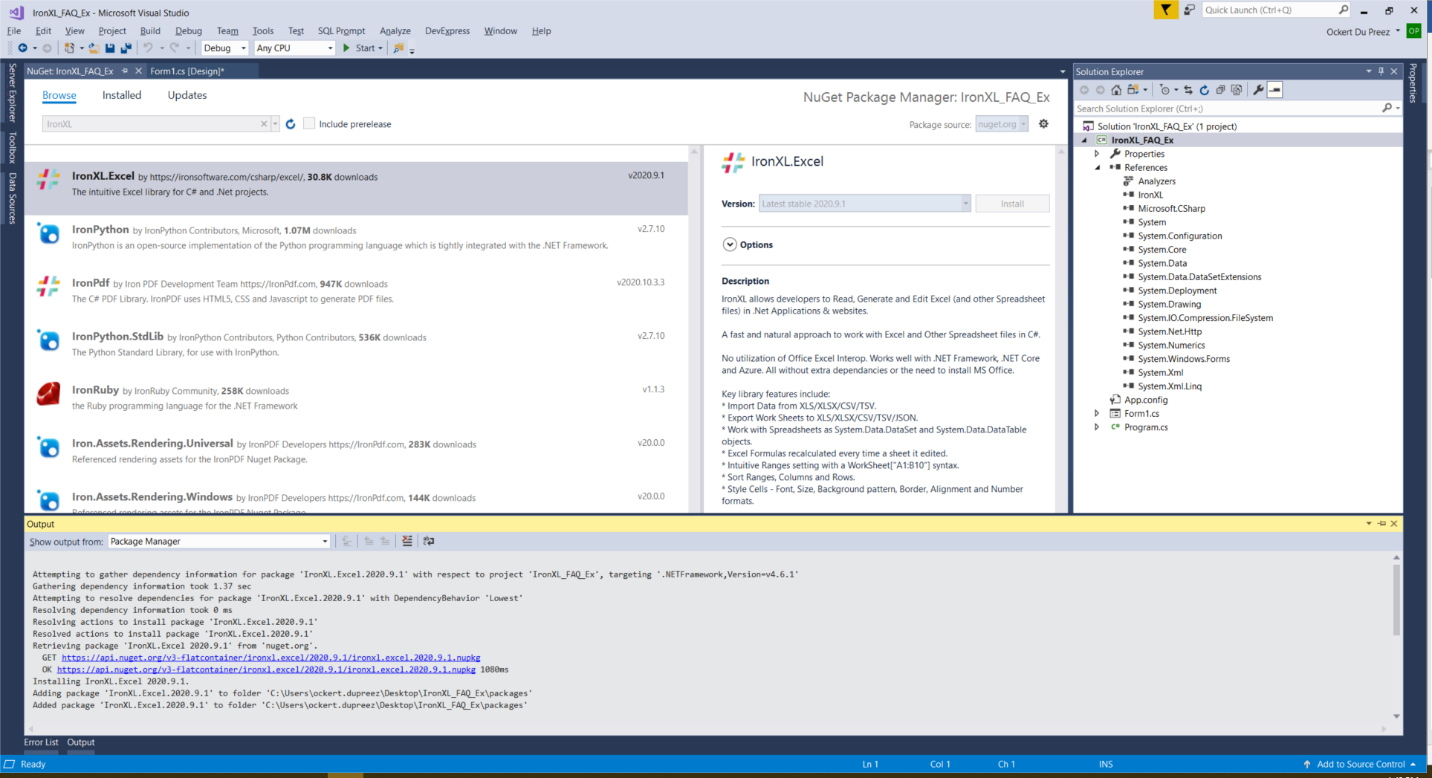
Figure 1
IronXL.Excel NuGet Package
What Are Alternative Installation Methods?
Or download from the Iron Software website: https://ironsoftware.com/csharp/excel/packages/IronXL.zip
For .NET developers working with Docker containers, IronXL can be configured in your Docker environment. The library also supports deployment on Azure Functions and AWS Lambda for cloud-based CSV processing.
How to Tutorial
How Do I Read CSV Files Programmatically?
Now for the project!
What Namespace Do I Need to Import?
Add the IronXL namespace:
// This namespace is required to access the IronXL functionalities
using IronXL;Imports IronXLHow Do I Load and Convert CSV Files?
Add code to read a CSV file programmatically with IronXL and C#:
// Load the CSV file into a WorkBook object, specifying the file path, format, and delimiter
WorkBook workbook = WorkBook.LoadCSV("Read_CSV_Ex.csv", fileFormat: ExcelFileFormat.XLSX, listDelimiter: ",");

// Access the default worksheet within the loaded workbook
WorkSheet ws = workbook.DefaultWorkSheet;

// Save the workbook as an Excel file with a specified name
workbook.SaveAs("Csv_To_Excel.xlsx");' Load the CSV file into a WorkBook object, specifying the file path, format, and delimiter
Dim workbook As WorkBook = WorkBook.LoadCSV("Read_CSV_Ex.csv", fileFormat:=ExcelFileFormat.XLSX, listDelimiter:=",")
' Access the default worksheet within the loaded workbook
Dim ws As WorkSheet = workbook.DefaultWorkSheet
' Save the workbook as an Excel file with a specified name
workbook.SaveAs("Csv_To_Excel.xlsx")What Advanced CSV Reading Options Are Available?
IronXL provides features for handling CSV files with various configurations. You can specify different delimiters (semicolons, tabs, pipes) and handle files with different encodings:
// Example: Reading CSV with custom delimiter
WorkBook workbook = WorkBook.LoadCSV("data.csv",
    fileFormat: ExcelFileFormat.XLSX,
    listDelimiter: ";");  // Using semicolon as delimiter

// Access specific cells after loading
var cellValue = workbook.DefaultWorkSheet["A1"].Value;

// Iterate through rows
foreach (var row in workbook.DefaultWorkSheet.Rows)
{
    // Process each row
    foreach (var cell in row)
    {
        Console.WriteLine(cell.Value);
    }
}What Does the CSV File Look Like Before Processing?
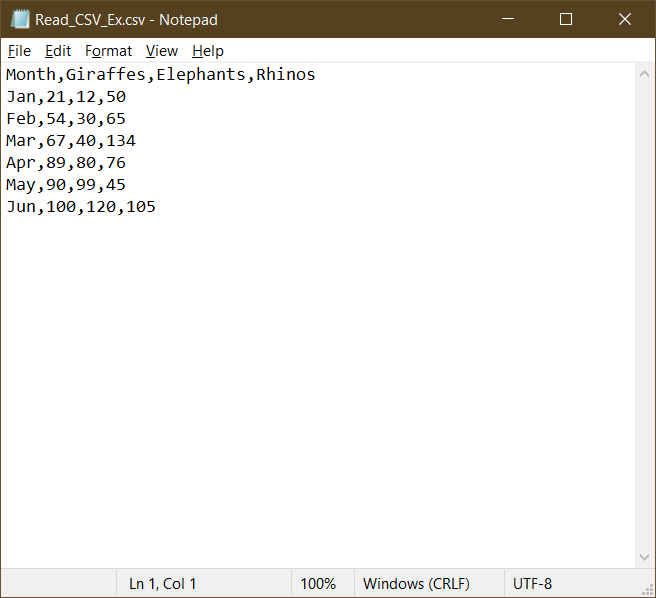
Figure 2
A CSV file opened in Notepad
How Does LoadCSV Method Work?
A Workbook object is created. The LoadCSV method of the Workbook object specifies the CSV file to read, the format to read it into, and the delimiter. In this case, a comma is used as a separator.
A Worksheet object is created where the CSV contents are placed. The file is then saved under a new name and format. This process is useful when you need to convert between different spreadsheet formats.
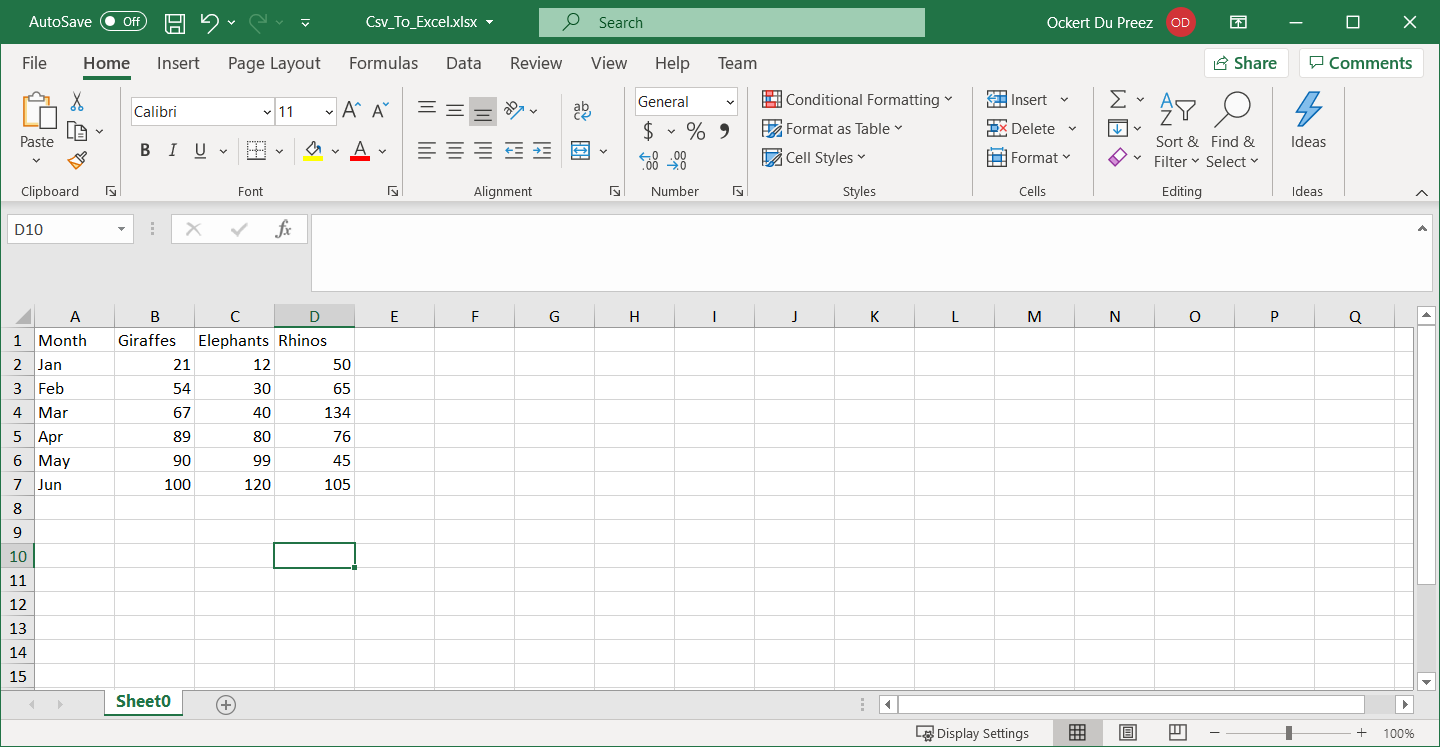
Figure 3
The CSV file opened in Excel
Can I Process Large CSV Files Efficiently?
IronXL is optimized for performance and handles large CSV files efficiently. For developers working with substantial datasets, the library offers significant performance improvements in recent versions. When processing large files, consider these best practices:
// Reading large CSV files with memory optimization
WorkBook workbook = WorkBook.LoadCSV("large_dataset.csv",
    fileFormat: ExcelFileFormat.XLSX,
    listDelimiter: ",");

// Process data in chunks
var worksheet = workbook.DefaultWorkSheet;
int rowCount = worksheet.RowCount;
int batchSize = 1000;

for (int i = 0; i < rowCount; i += batchSize)
{
    // Process rows in batches
    var endIndex = Math.Min(i + batchSize, rowCount);
    for (int j = i; j < endIndex; j++)
    {
        var row = worksheet.GetRow(j);
        // Process individual row
    }
}Imports System
Imports IronXL
' Reading large CSV files with memory optimization
Dim workbook As WorkBook = WorkBook.LoadCSV("large_dataset.csv",
fileFormat:=ExcelFileFormat.XLSX,
listDelimiter:=",")
' Process data in chunks
Dim worksheet = workbook.DefaultWorkSheet
Dim rowCount As Integer = worksheet.RowCount
Dim batchSize As Integer = 1000
For i As Integer = 0 To rowCount - 1 Step batchSize
' Process rows in batches
Dim endIndex As Integer = Math.Min(i + batchSize, rowCount)
For j As Integer = i To endIndex - 1
Dim row = worksheet.GetRow(j)
' Process individual row
Next
NextHow Can I Export CSV Data to Other Formats?
After reading CSV files, you might need to export the data to various formats. IronXL supports multiple export options including XLSX to CSV conversion, JSON, XML, and HTML. Here's how to export to different formats:
// Load CSV and export to multiple formats
WorkBook workbook = WorkBook.LoadCSV("input.csv", ExcelFileFormat.XLSX, ",");

// Export to different formats
workbook.SaveAs("output.xlsx"); // Excel format
workbook.SaveAsJson("output.json"); // JSON format
workbook.SaveAsXml("output.xml"); // XML format

// Export specific worksheet to CSV with custom delimiter
workbook.DefaultWorkSheet.SaveAsCsv("output_custom.csv", ";");What About Working with CSV Data in Web Applications?
For ASP.NET developers, IronXL provides seamless integration for reading CSV files in web applications. You can upload and process CSV files in your MVC or Web API projects:
// Example: Processing uploaded CSV file in ASP.NET
public ActionResult UploadCSV(HttpPostedFileBase file)
{
    if (file != null && file.ContentLength > 0)
    {
        // Save uploaded file temporarily
        var fileName = Path.GetFileName(file.FileName);
        var path = Path.Combine(Server.MapPath("~/App_Data/"), fileName);
        file.SaveAs(path);

        // Load and process CSV
        WorkBook workbook = WorkBook.LoadCSV(path, ExcelFileFormat.XLSX, ",");

        // Convert to DataTable for easy display
        var dataTable = workbook.DefaultWorkSheet.ToDataTable();

        // Clean up temporary file
        System.IO.File.Delete(path);

        return View(dataTable);
    }
    return RedirectToAction("Index");
}' Example: Processing uploaded CSV file in ASP.NET
Public Function UploadCSV(file As HttpPostedFileBase) As ActionResult
If file IsNot Nothing AndAlso file.ContentLength > 0 Then
' Save uploaded file temporarily
Dim fileName = Path.GetFileName(file.FileName)
Dim path = Path.Combine(Server.MapPath("~/App_Data/"), fileName)
file.SaveAs(path)
' Load and process CSV
Dim workbook As WorkBook = WorkBook.LoadCSV(path, ExcelFileFormat.XLSX, ",")
' Convert to DataTable for easy display
Dim dataTable = workbook.DefaultWorkSheet.ToDataTable()
' Clean up temporary file
System.IO.File.Delete(path)
Return View(dataTable)
End If
Return RedirectToAction("Index")
End FunctionHow Do I Handle CSV Files with Complex Data?
When working with CSV files containing formulas, special characters, or mixed data types, IronXL provides robust handling capabilities. You can work with formulas and format cell data appropriately:
// Handle CSV with special requirements
WorkBook workbook = WorkBook.LoadCSV("complex_data.csv",
    ExcelFileFormat.XLSX,
    listDelimiter: ",");

var worksheet = workbook.DefaultWorkSheet;

// Apply formatting to cells
worksheet["A1:A10"].Style.Font.Bold = true;
worksheet["B1:B10"].FormatString = "$#,##0.00"; // Currency format

// Add formulas after loading CSV data
worksheet["D1"].Formula = "=SUM(B1:B10)";Imports IronXL
' Handle CSV with special requirements
Dim workbook As WorkBook = WorkBook.LoadCSV("complex_data.csv", ExcelFileFormat.XLSX, listDelimiter:=",")
Dim worksheet = workbook.DefaultWorkSheet
' Apply formatting to cells
worksheet("A1:A10").Style.Font.Bold = True
worksheet("B1:B10").FormatString = "$#,##0.00" ' Currency format
' Add formulas after loading CSV data
worksheet("D1").Formula = "=SUM(B1:B10)"Library Quick Access
IronXL API Reference Documentation
Learn more and share how to merge, unmerge, and work with cells in Excel spreadsheets using the handy IronXL API Reference Documentation.
IronXL API Reference Documentation
Frequently Asked Questions
What is the one-line solution provided by IronXL for reading CSV files in C#?
IronXL provides the `LoadCSV` method, which allows you to read a CSV file in C# with a simple command.
How can I convert a CSV file to Excel using IronXL?
You can convert a CSV file to Excel by loading the CSV using the `LoadCSV` method and then saving it as an Excel file with the `SaveAs` method.
Can I use custom delimiters when reading CSV files with IronXL?
Yes, IronXL supports custom delimiters, allowing you to specify different characters such as semicolons, tabs, or pipes in the `LoadCSV` method.
Is IronXL capable of handling large CSV files efficiently?
IronXL is optimized for performance and can handle large CSV files efficiently, making it suitable for processing substantial datasets.
What are the different file formats to which I can export CSV data using IronXL?
Using IronXL, you can export CSV data to multiple formats, including Excel (XLSX), JSON, XML, and HTML.
How do I read CSV files in an ASP.NET MVC web application with IronXL?
In an ASP.NET MVC web application, you can process uploaded CSV files using the `LoadCSV` method in IronXL, which can then be converted to a DataTable for display.
Does IronXL provide advanced options for handling complex CSV data?
Yes, IronXL offers advanced features such as working with formulas, handling special characters, and setting cell data formats when processing complex CSV files.
Can I install IronXL via NuGet in Visual Studio?
Yes, you can install IronXL using the NuGet Package Manager in Visual Studio by searching for `IronXL.Excel` and adding it to your project.
What namespace do I need to import to use IronXL functionalities in my C# project?
To access IronXL functionalities, you need to import the `IronXL` namespace into your C# project.
What types of projects can benefit from using IronXL for CSV file processing?
IronXL is beneficial for .NET applications, including MVC, ASP, and .NET Core projects, where seamless CSV reading and conversion are required.

Curtis Chau holds a Bachelor’s degree in Computer Science (Carleton University) and specializes in front-end development with expertise in Node.js, TypeScript, JavaScript, and React. Passionate about crafting intuitive and aesthetically pleasing user interfaces, Curtis enjoys working with modern frameworks and creating well-structured, visually appealing manuals.













