


如何在C#中匯入Excel檔案

IronXL使C#開發者能夠僅用一行程式碼匯入Excel資料,支援XLSX、CSV及其他格式,無需Interop依賴,允許立即存取單元格、範圍和工作表進行資料操作。
快速入門:立即載入您的Excel檔案
只需用IronXL的無超時API調用一個方法,您即可在幾秒鐘內載入任何支援的Excel工作表(XLSX、CSV等)—無需Interop,無需麻煩。 通過必要時存取單元格、範圍或工作表,立即開始與工作簿互動。

C#匯入Excel資料
- 使用IronXL程式庫匯入資料
- 在C#中匯入Excel資料
- 匯入特定單元格範圍的資料
- 使用聚合函式SUM、AVG、MIN、MAX等匯入Excel資料
最小工作流(5步)
- 下載並安裝C#程式庫以匯入Excel檔案
- 準備要匯入的Excel檔案
- 使用
Load方法匯入試算表 - 使用直觀的API編輯已載入的Excel檔案
- 將編輯過的Excel檔案匯出為各種型別
第1步
安裝IronXL程式庫
IronXL讓Excel匯入更簡單
利用IronXL Excel程式庫中提供的函式匯入資料,我們將在本教程中使用它。 此軟體可免費用于開發。 IronXL提供了綜合的C# Excel API,簡化了與Excel檔案的操作,不需要Microsoft Office或Interop依賴。 這使其非常適合伺服器環境和雲端部署。
安裝方法
安裝到您的C#專案中,通過DLL下載或瀏覽使用NuGet套件。 有關詳細的安裝指引,請查看我們的入門概述。
Install-Package IronXL.Excel
教程指南
在專案中存取工作表
基本工作簿載入流程
為了滿足我們今天的專案需求,我們將使用在步驟1中安裝的IronXL軟體將Excel資料導入到我們的C#應用程式中。該程式庫支援各種Excel格式,並提供直觀的方法來載入試算表。
在步驟2中,我們將使用IronXL的WorkBook.Load()函式在C#專案中載入我們的Excel WorkBook。 在此函式中,我們將Excel WorkBook的路徑作為字串參數傳遞:
:path=/static-assets/excel/content-code-examples/how-to/csharp-import-excel-3.cs// Load Excel file
WorkBook wb = WorkBook.Load("Path");
' Load Excel file
Dim wb As WorkBook = WorkBook.Load("Path")指定路徑的Excel檔案將被載入到wb中。 此方法支援XLSX、XLS、CSV、TSV和其他常用試算表格式。
存取特定的工作表
接下來,我們需要存取Excel檔案中某個特定的WorkSheet,此檔案的資料將被匯入專案中。 為此目的,我們可以使用IronXL的WorkBook工作表。 有關管理工作表的更多資訊,請參閱我們的綜合指南。
:path=/static-assets/excel/content-code-examples/how-to/csharp-import-excel-4.cs// Specify sheet name of Excel WorkBook
WorkSheet ws = wb.GetWorkSheet("SheetName");
' Specify sheet name of Excel WorkBook
Dim ws As WorkSheet = wb.GetWorkSheet("SheetName")WorkBook。
存取工作表的替代方法
在專案中匯入Excel WorkSheet,存在以下替代方法。 每種方法根據您的特定使用案例提供靈活性:
:path=/static-assets/excel/content-code-examples/how-to/csharp-import-excel-5.cs// Import WorkSheet by various methods
// by sheet indexing
WorkSheet mySheet = wb.WorkSheets[SheetIndex];
// get default WorkSheet
WorkSheet defaultSheet = wb.DefaultWorkSheet;
// get first WorkSheet
WorkSheet firstSheet = wb.WorkSheets.First();
// for the first or default sheet
WorkSheet firstOrDefaultSheet = wb.WorkSheets.FirstOrDefault();
' Import WorkSheet by various methods

' by sheet indexing
Dim mySheet As WorkSheet = wb.WorkSheets(SheetIndex)

' get default WorkSheet
Dim defaultSheet As WorkSheet = wb.DefaultWorkSheet

' get first WorkSheet
Dim firstSheet As WorkSheet = wb.WorkSheets.First()

' for the first or default sheet
Dim firstOrDefaultSheet As WorkSheet = wb.WorkSheets.FirstOrDefault()現在,我們可以輕鬆地從指定的Excel檔案中匯入任何型別的資料。 讓我們探索在專案中匯入Excel檔案資料的所有可能方面。
在C#中匯入Excel資料
基本單元格匯入方法
這是將Excel檔案資料匯入到我們的專案中的基本方面。 IronXL提供多種存取單元格資料的方法,使其在不同情況下具有靈活性。
為此目的,我們可以使用單元格定位系統來指定我們需要匯入的單元格資料。 它返回Excel檔案中特定單元格地址的值:
var cellValue = ws["Cell Address"];var cellValue = ws["Cell Address"];Dim cellValue = ws("Cell Address")使用行和列索引匯入資料
我們也可以使用行和列索引匯入Excel檔案中的單元格資料。 這行程式碼返回指定行和列索引的值。 此方法對於程式化遍歷資料特別有用:
var cellValueByIndex = ws.Rows[RowIndex].Columns[ColumnIndex];var cellValueByIndex = ws.Rows[RowIndex].Columns[ColumnIndex];Dim cellValueByIndex = ws.Rows(RowIndex).Columns(ColumnIndex)將匯入的值儲存在變數中
要將匯入的單元格值分配給變數,請使用此程式碼。 ToString()方法確保與字串變數的相容性,但根據需要您也可以強制轉換為其他型別:
// Import Data by Cell Address
// by cell addressing
string val = ws["Cell Address"].ToString();

// by row and column indexing
string valWithIndexing = ws.Rows[RowIndex].Columns[ColumnIndex].Value.ToString();

// for numeric values
decimal numericValue = ws["B2"].DecimalValue;

// for date values
DateTime dateValue = ws["C2"].DateTimeValue;
// Import Data by Cell Address
// by cell addressing
string val = ws["Cell Address"].ToString();
// by row and column indexing
string valWithIndexing = ws.Rows[RowIndex].Columns[ColumnIndex].Value.ToString();
// for numeric values
decimal numericValue = ws["B2"].DecimalValue;
// for date values
DateTime dateValue = ws["C2"].DateTimeValue;' Import Data by Cell Address
' by cell addressing
Dim val As String = ws("Cell Address").ToString()
' by row and column indexing
Dim valWithIndexing As String = ws.Rows(RowIndex).Columns(ColumnIndex).Value.ToString()
' for numeric values
Dim numericValue As Decimal = ws("B2").DecimalValue
' for date values
Dim dateValue As DateTime = ws("C2").DateTimeValue在上面的範例中,行和列索引從0開始。如需更高級的單元格操作,請查看我們的清除單元格和複製單元格指南。
從特定範圍匯入資料
範圍函式語法
要從Excel range函式。 通過描述起始和結束的單元格地址來定義範圍。 這將返回指定範圍內的所有單元格值。 如需綜合範圍選擇技術,請查看我們的選擇範圍指南。
var rangeData = ws["Starting Cell Address:Ending Cell Address"];var rangeData = ws["Starting Cell Address:Ending Cell Address"];Dim rangeData = ws("Starting Cell Address:Ending Cell Address")完整的範圍匯入範例
有關用於Excel檔案範圍工作的更多資訊,了解不同方法中如何提取資料。 以下範例展示了匯入個別單元格值和範圍的方法:
:path=/static-assets/excel/content-code-examples/how-to/csharp-import-excel-import.csusing IronXL;
using System;
// Import Excel WorkBook
WorkBook wb = WorkBook.Load("sample.xlsx");
// Specify WorkSheet
WorkSheet ws = wb.GetWorkSheet("Sheet1");
// Import data of specific cell
string val = ws["A4"].Value.ToString();
Console.WriteLine("Import Value of A4 Cell address: {0}", val);
Console.WriteLine("import Values in Range From B3 To B9 :\n");
// Import data in specific range
foreach (var item in ws["B3:B9"])
{
Console.WriteLine(item.Value.ToString());
}
Console.ReadKey();Imports IronXL
Imports System
' Import Excel WorkBook
Dim wb As WorkBook = WorkBook.Load("sample.xlsx")
' Specify WorkSheet
Dim ws As WorkSheet = wb.GetWorkSheet("Sheet1")
' Import data of specific cell
Dim val As String = ws("A4").Value.ToString()
Console.WriteLine("Import Value of A4 Cell address: {0}", val)
Console.WriteLine("import Values in Range From B3 To B9 :" & vbCrLf)
' Import data in specific range
For Each item In ws("B3:B9")
Console.WriteLine(item.Value.ToString())
Next
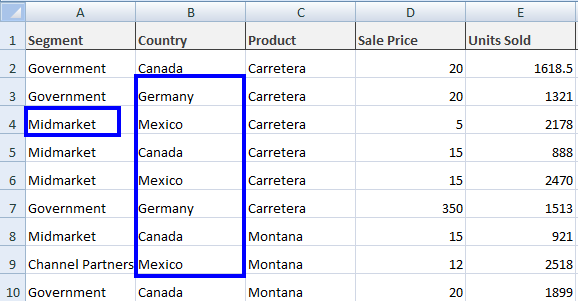
Console.ReadKey()以上程式碼顯示的輸出為:
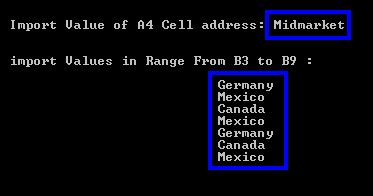
Excel檔案的值sample.xlsx為:
使用聚合函式匯入Excel資料
可用的聚合函式
應用聚合函式到Excel檔案中,並從這些函式中匯入結果資料。 IronXL提供內建的數學函式,使資料分析變得簡單明瞭。 以下是不同函式及其用法的範例:
-
Sum()// To find the sum of a specific cell range var sum = ws["Starting Cell Address:Ending Cell Address"].Sum();// To find the sum of a specific cell range var sum = ws["Starting Cell Address:Ending Cell Address"].Sum();' To find the sum of a specific cell range Dim sum = ws("Starting Cell Address:Ending Cell Address").Sum()$vbLabelText $csharpLabel -
Average()// To find the average of a specific cell range var average = ws["Starting Cell Address:Ending Cell Address"].Avg();// To find the average of a specific cell range var average = ws["Starting Cell Address:Ending Cell Address"].Avg();' To find the average of a specific cell range Dim average = ws("Starting Cell Address:Ending Cell Address").Avg()$vbLabelText $csharpLabel -
Min()// To find the minimum in a specific cell range var minimum = ws["Starting Cell Address:Ending Cell Address"].Min();// To find the minimum in a specific cell range var minimum = ws["Starting Cell Address:Ending Cell Address"].Min();' To find the minimum in a specific cell range Dim minimum = ws("Starting Cell Address:Ending Cell Address").Min()$vbLabelText $csharpLabel -
Max()// To find the maximum in a specific cell range var maximum = ws["Starting Cell Address:Ending Cell Address"].Max();// To find the maximum in a specific cell range var maximum = ws["Starting Cell Address:Ending Cell Address"].Max();' To find the maximum in a specific cell range Dim maximum = ws("Starting Cell Address:Ending Cell Address").Max()$vbLabelText $csharpLabel
同時使用多個聚合函式
深入了解在Excel for C#中使用聚合函式的操作,並了解更多關於以不同方法提取資料的資訊。 這些函式對於生成總結統計資料或驗證匯入資料特別有用。
查看應用這些函式匯入Excel檔案資料的範例:
:path=/static-assets/excel/content-code-examples/how-to/csharp-import-excel-math-functions.csusing IronXL;
using System;
// Import Excel file
WorkBook wb = WorkBook.Load("sample.xlsx");
// Specify WorkSheet
WorkSheet ws = wb.GetWorkSheet("Sheet1");
// Import Excel file data by applying aggregate functions
decimal sum = ws["D2:D9"].Sum();
decimal avg = ws["D2:D9"].Avg();
decimal min = ws["D2:D9"].Min();
decimal max = ws["D2:D9"].Max();
Console.WriteLine("Sum From D2 To D9: {0}", sum);
Console.WriteLine("Avg From D2 To D9: {0}", avg);
Console.WriteLine("Min From D2 To D9: {0}", min);
Console.WriteLine("Max From D2 To D9: {0}", max);
Console.ReadKey();Imports IronXL
Imports System
' Import Excel file
Dim wb As WorkBook = WorkBook.Load("sample.xlsx")
' Specify WorkSheet
Dim ws As WorkSheet = wb.GetWorkSheet("Sheet1")
' Import Excel file data by applying aggregate functions
Dim sum As Decimal = ws("D2:D9").Sum()
Dim avg As Decimal = ws("D2:D9").Avg()
Dim min As Decimal = ws("D2:D9").Min()
Dim max As Decimal = ws("D2:D9").Max()
Console.WriteLine("Sum From D2 To D9: {0}", sum)
Console.WriteLine("Avg From D2 To D9: {0}", avg)
Console.WriteLine("Min From D2 To D9: {0}", min)
Console.WriteLine("Max From D2 To D9: {0}", max)
Console.ReadKey()上述程式碼給出了這樣的輸出:

而我們的檔案sample.xlsx包含以下值:
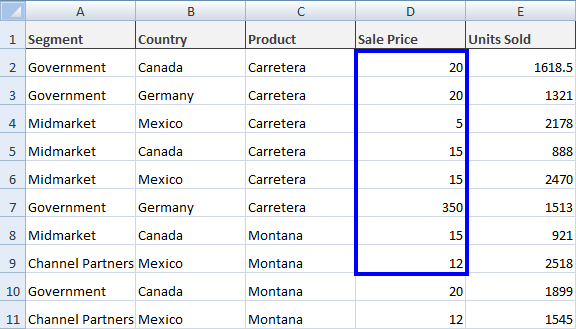
匯入完整的Excel檔案資料
ToDataSet方法
要將完整的Excel檔案資料匯入C#專案,首先將載入過的DataSet。 這樣,完整的Excel資料將匯入到DataTables。 此方法在資料庫操作或使用資料綁定控件時特別有用。 了解更多關於DataSet的匯入和匯出。
:path=/static-assets/excel/content-code-examples/how-to/csharp-import-excel-12.cs// Import WorkBook into DataSet
DataSet ds = wb.ToDataSet();
' Import WorkBook into DataSet
Dim ds As DataSet = wb.ToDataSet()這將我們指定的DataSet以便根據需求使用。 此方法在同時處理多個工作表或將Excel資料與ADO.NET操作整合時非常強大。
處理列標題
通常,Excel檔案的第一行用作列名。 在這種情況下,將第一行作為DataTable列名。 使用IronXL的ToDataSet()函式設置布林參數如下:
:path=/static-assets/excel/content-code-examples/how-to/csharp-import-excel-13.cs// Import WorkBook into DataSet with first row as ColumnNames
DataSet ds = wb.ToDataSet(true);
這將Excel檔案的第一行作為DataTable列名,這在使用結構化Excel資料時,維持資料結構完整性是必須的。
完整的DataSet匯入範例
查看將Excel資料匯入DataSet並將Excel DataTable列名的完整範例:
:path=/static-assets/excel/content-code-examples/how-to/csharp-import-excel-dataset.csusing IronXL;
using System;
using System.Data;
WorkBook wb = WorkBook.Load("sample.xlsx");
WorkSheet ws = wb.GetWorkSheet("Sheet1");
// Import Excel data into a DataSet
DataSet ds = wb.ToDataSet(true);
Console.WriteLine("Excel file data imported to dataset successfully.");
Console.ReadKey();Imports IronXL
Imports System
Imports System.Data
Dim wb As WorkBook = WorkBook.Load("sample.xlsx")
Dim ws As WorkSheet = wb.GetWorkSheet("Sheet1")
' Import Excel data into a DataSet
Dim ds As DataSet = wb.ToDataSet(True)
Console.WriteLine("Excel file data imported to dataset successfully.")
Console.ReadKey()使用Excel DataTable函式可能會很複雜,但我們有更多的範例可用於在C#專案中整合檔案資料。 對於高級情況,請考慮探索我們的關於通過DataTable從Excel到SQL的指南以及從SQL資料庫載入Excel的指南。
程式庫快速存取

常見問題
如何在不使用Microsoft Office的情況下在C#中匯入Excel檔案?
您可以使用IronXL在C#中匯入Excel檔案,這不需要Microsoft Office或Interop相依性。只需使用您檔案路徑中的WorkBook.Load()方法,如:WorkBook wb = WorkBook.Load("path/to/data.xlsx")。這適用於XLSX、XLS、CSV、TSV和其他格式。
我可以用這個C#程式庫匯入哪些Excel檔案格式?
IronXL支援匯入多種Excel格式,包括XLSX、XLS、CSV、TSV和其他常見試算表格式。相同的WorkBook.Load()方法會自動處理所有這些格式。
是否可以在伺服器或雲端環境中匯入Excel資料?
可以,IronXL是伺服器環境和雲端部署的理想選擇,因為它不需要Microsoft Office或Interop相依性。這使其成為網路應用程式、Azure功能和其他伺服器端情況的完美選擇。
匯入後我可以多快開始使用Excel資料?
使用IronXL的無時間限制API,您可以在幾秒鐘內使用僅一行程式碼載入任何支援的Excel表頁。在使用WorkBook.Load()之後,您可以立即開始與儲存格、範圍或工作表互動。
我可以從Excel檔案中匯入特定的儲存格範圍嗎?
可以,IronXL允許您在載入工作簿後從特定的儲存格範圍匯入資料。您可以使用提供的直觀API存取單個儲存格、範圍或整個工作表。
如何安裝C#的Excel匯入程式庫?
您可以通過NuGet套件管理器或直接下載DLL來安裝IronXL。程式庫免費提供給開發使用,並提供全面的開始指南文件。


仍在滾動嗎?
想要快速證明嗎? PM > Install-Package IronXL.Excel
運行一個範例 觀看您的資料成為試算表。






 免費開始
免費開始 免費開始
免費開始 預訂免費直播演示
















