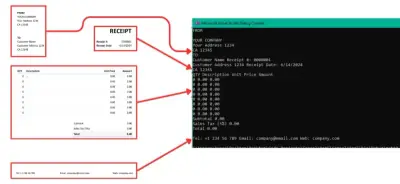
Receipt scanning APIs automate data extraction from receipts using OCR technology, significantly reducing manual entry errors and speeding up processing. This guide shows how to use IronOCR in C# to accurately extract vendor names, dates, items, prices, and totals from receipt images, with built-in image preprocessing and support for multiple formats.
Why Choose IronOCR for Receipt Scanning?
IronOCR is a flexible OCR library offering reliable text extraction from scanned documents, images, and PDFs. With advanced algorithms, computer vision, and machine learning models, IronOCR ensures high accuracy even in challenging scenarios. The library supports multiple languages and font styles, making it suitable for global applications. By incorporating IronOCR into your applications, you can automate data entry and text analysis, boosting productivity.
How Does IronOCR Extract Text from Receipt Images?
IronOCR retrieves text from documents, photographs, screenshots, and live camera feeds as JSON responses. Using sophisticated algorithms and machine learning, IronOCR analyzes image data, recognizes characters, and converts them into machine-readable text. The library uses Tesseract 5 technology enhanced with proprietary improvements for superior accuracy.
IronOCR Installation: Install via NuGet Package Manager. Platform-specific dependencies may be required.
Is a License Key Required?
License Key (Optional): Free trial available; production use requires a license.
How Do I Create a New Visual Studio Project for Receipt Scanning?
How Do I Start a New Project in Visual Studio?
Open Visual Studio and go to Files, then hover on New, and click on Project.
New Project Image
Which Project Template Should I Choose?
Select Console Application and click Next. This template is ideal for learning IronOCR before implementing in web applications.
Console Application
How Should I Name My Receipt Scanner Project?
Write your project name and location, then click Next. Choose a descriptive name like "ReceiptScannerAPI".
Project Configuration
Which .NET Framework Version Should I Select?
Select .NET 5.0 or later for optimal compatibility, then click Create.
Target Framework
How Do I Install IronOCR in My Project?
Two simple installation methods are available:
How Do I Use the NuGet Package Manager Method?
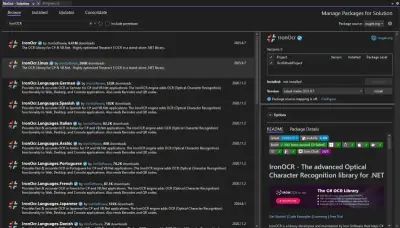
Go to Tools > NuGet Package Manager > Manage NuGet Packages for Solution
NuGet Package Manager
Search for IronOCR and install the package. For non-English receipts, install language-specific packages.
IronOCR
How Do I Use Command Line Installation?
Go to Tools > NuGet Package Manager > Package Manager Console
Enter this command:
PM > Install-Package IronOcr
Install-Package IronOcr
Package Manager Console
How Can I Quickly Extract Receipt Data with IronOCR?
Extract receipt data with just a few lines of code:
1Install IronOCR with NuGet Package Manager
PM > Install-Package IronOcr
Install-Package IronOcr
2Copy and run this code snippet.
using IronOcr;using System;var ocr = new IronTesseract();// Configure for receipt scanningocr.Configuration.ReadBarCodes = true;ocr.Configuration.WhiteListCharacters = "0123456789.$,ABCDEFGHIJKLMNOPQRSTUVWXYZabcdefghijklmnopqrstuvwxyz% ";using (var input = new OcrInput(@"receipt.jpg")){ // Apply automatic image enhancement input.DeNoise(); input.Deskew(); input.EnhanceResolution(225); // Extract text from receipt var result = ocr.Read(input); // Display extracted text and confidenceConsole.WriteLine($"Extracted Text:\n{result.Text}");Console.WriteLine($"\nConfidence: {result.Confidence}%");}
using IronOcr;
using System;

var ocr = new IronTesseract();

// Configure for receipt scanning
ocr.Configuration.ReadBarCodes = true;
ocr.Configuration.WhiteListCharacters = "0123456789.$,ABCDEFGHIJKLMNOPQRSTUVWXYZabcdefghijklmnopqrstuvwxyz% ";

using (var input = new OcrInput(@"receipt.jpg"))
{
    // Apply automatic image enhancement
    input.DeNoise();
    input.Deskew();
    input.EnhanceResolution(225);

    // Extract text from receipt
    var result = ocr.Read(input);

    // Display extracted text and confidence
    Console.WriteLine($"Extracted Text:\n{result.Text}");
    Console.WriteLine($"\nConfidence: {result.Confidence}%");
}
Imports IronOcrImports SystemDim ocr = New IronTesseract()' Configure for receipt scanningocr.Configuration.ReadBarCodes = Trueocr.Configuration.WhiteListCharacters = "0123456789.$,ABCDEFGHIJKLMNOPQRSTUVWXYZabcdefghijklmnopqrstuvwxyz% "Using input = New OcrInput("receipt.jpg") ' Apply automatic image enhancement input.DeNoise() input.Deskew() input.EnhanceResolution(225) ' Extract text from receipt Dim result = ocr.Read(input) ' Display extracted text and confidence Console.WriteLine($"Extracted Text:{vbCrLf}{result.Text}") Console.WriteLine($"{vbCrLf}Confidence: {result.Confidence}%")End Using
ImportsIronOcrImportsSystemDim ocr = New IronTesseract()' Configure for receipt scanningocr.Configuration.ReadBarCodes = Trueocr.Configuration.WhiteListCharacters = "0123456789.$,ABCDEFGHIJKLMNOPQRSTUVWXYZabcdefghijklmnopqrstuvwxyz% "Using input = New OcrInput("receipt.jpg") ' Apply automatic image enhancement input.DeNoise() input.Deskew() input.EnhanceResolution(225) ' Extract text from receipt Dim result = ocr.Read(input) ' Display extracted text and confidenceConsole.WriteLine($"Extracted Text:{vbCrLf}{result.Text}")Console.WriteLine($"{vbCrLf}Confidence: {result.Confidence}%")EndUsing
Imports IronOcr
Imports System

Dim ocr = New IronTesseract()

' Configure for receipt scanning
ocr.Configuration.ReadBarCodes = True
ocr.Configuration.WhiteListCharacters = "0123456789.$,ABCDEFGHIJKLMNOPQRSTUVWXYZabcdefghijklmnopqrstuvwxyz% "

Using input = New OcrInput("receipt.jpg")
    ' Apply automatic image enhancement
    input.DeNoise()
    input.Deskew()
    input.EnhanceResolution(225)

    ' Extract text from receipt
    Dim result = ocr.Read(input)

    ' Display extracted text and confidence
    Console.WriteLine($"Extracted Text:{vbCrLf}{result.Text}")
    Console.WriteLine($"{vbCrLf}Confidence: {result.Confidence}%")
End Using
3Deploy to test on your live environment
Start using IronOCR in your project today with a free trial
How Do I Extract Structured Data from Receipt Images?
IronOCR extracts line items, pricing, taxes, and totals from various document types. The library supports PDFs, multi-page TIFFs, and various image formats.
using IronOcr;using System;using System.Collections.Generic;using System.Text.RegularExpressions;class ReceiptScanner{ static void Main() { var ocr = new IronTesseract(); // Configure OCR for optimal receipt reading ocr.Configuration.WhiteListCharacters = "0123456789.$,ABCDEFGHIJKLMNOPQRSTUVWXYZabcdefghijklmnopqrstuvwxyz% "; ocr.Configuration.BlackListCharacters = "~`@#*_}{][|\\"; ocr.Configuration.TesseractVersion = TesseractVersion.Tesseract5; // Load the image of the receipt using (var input = new OcrInput(@"r2.png")) { // Apply image enhancement filters input.Deskew(); // Fix image rotation input.EnhanceResolution(225); // Optimal DPI for receipts input.DeNoise(); // Remove background noise input.Sharpen(); // Improve text clarity // Perform OCR on the input image var result = ocr.Read(input); // Regular expression patterns to extract relevant details from the OCR result var descriptionPattern = @"\w+\s+(.*?)\s+(\d+\.\d+)\s+Units\s+(\d+\.\d+)\s+Tax15%\s+\$(\d+\.\d+)"; var pricePattern = @"\$\d+(\.\d{2})?"; var datePattern = @"\d{1,2}[/-]\d{1,2}[/-]\d{2,4}"; // Variables to store extracted data var descriptions = new List<string>(); var unitPrices = new List<decimal>(); var taxes = new List<decimal>(); var amounts = new List<decimal>(); var lines = result.Text.Split('\n'); foreach (var line in lines) { // Match each line against the description pattern var descriptionMatch = Regex.Match(line, descriptionPattern); if (descriptionMatch.Success) { descriptions.Add(descriptionMatch.Groups[1].Value.Trim()); unitPrices.Add(decimal.Parse(descriptionMatch.Groups[2].Value)); // Calculate tax and total amount for each item var tax = unitPrices[unitPrices.Count - 1] * 0.15m; taxes.Add(tax); amounts.Add(unitPrices[unitPrices.Count - 1] + tax); } // Extract date if found var dateMatch = Regex.Match(line, datePattern); if (dateMatch.Success) { Console.WriteLine($"Receipt Date: {dateMatch.Value}"); } } // Output the extracted data for (int i = 0; i < descriptions.Count; i++) { Console.WriteLine($"Description: {descriptions[i]}"); Console.WriteLine($"Quantity: 1.00 Units"); Console.WriteLine($"Unit Price: ${unitPrices[i]:0.00}"); Console.WriteLine($"Taxes: ${taxes[i]:0.00}"); Console.WriteLine($"Amount: ${amounts[i]:0.00}"); Console.WriteLine("-----------------------"); } // Calculate and display totals var subtotal = unitPrices.Sum(); var totalTax = taxes.Sum(); var grandTotal = amounts.Sum(); Console.WriteLine($"\nSubtotal: ${subtotal:0.00}"); Console.WriteLine($"Total Tax: ${totalTax:0.00}"); Console.WriteLine($"Grand Total: ${grandTotal:0.00}"); } }}
using IronOcr;using System;using System.Collections.Generic;using System.Text.RegularExpressions;class ReceiptScanner{ static voidMain() { var ocr = new IronTesseract(); // Configure OCR for optimal receipt reading ocr.Configuration.WhiteListCharacters = "0123456789.$,ABCDEFGHIJKLMNOPQRSTUVWXYZabcdefghijklmnopqrstuvwxyz% "; ocr.Configuration.BlackListCharacters = "~`@#*_}{][|\\"; ocr.Configuration.TesseractVersion = TesseractVersion.Tesseract5; // Load the image of the receipt using (var input = new OcrInput(@"r2.png")) { // Apply image enhancement filters input.Deskew(); // Fix image rotation input.EnhanceResolution(225); // Optimal DPI for receipts input.DeNoise(); // Remove background noise input.Sharpen(); // Improve text clarity // Perform OCR on the input image var result = ocr.Read(input); // Regular expression patterns to extract relevant details from the OCR result var descriptionPattern = @"\w+\s+(.*?)\s+(\d+\.\d+)\s+Units\s+(\d+\.\d+)\s+Tax15%\s+\$(\d+\.\d+)"; var pricePattern = @"\$\d+(\.\d{2})?"; var datePattern = @"\d{1,2}[/-]\d{1,2}[/-]\d{2,4}"; // Variables to store extracted data var descriptions = new List<string>(); var unitPrices = new List<decimal>(); var taxes = new List<decimal>(); var amounts = new List<decimal>(); var lines = result.Text.Split('\n'); foreach (var line in lines) { // Match each line against the description pattern var descriptionMatch = Regex.Match(line, descriptionPattern); if (descriptionMatch.Success) { descriptions.Add(descriptionMatch.Groups[1].Value.Trim()); unitPrices.Add(decimal.Parse(descriptionMatch.Groups[2].Value)); // Calculate tax and total amount for each item var tax = unitPrices[unitPrices.Count - 1] * 0.15m; taxes.Add(tax); amounts.Add(unitPrices[unitPrices.Count - 1] + tax); } // Extract date if found var dateMatch = Regex.Match(line, datePattern); if (dateMatch.Success) {Console.WriteLine($"Receipt Date: {dateMatch.Value}"); } } // Output the extracted data for (int i = 0; i < descriptions.Count; i++) {Console.WriteLine($"Description: {descriptions[i]}");Console.WriteLine($"Quantity: 1.00 Units");Console.WriteLine($"Unit Price: ${unitPrices[i]:0.00}");Console.WriteLine($"Taxes: ${taxes[i]:0.00}");Console.WriteLine($"Amount: ${amounts[i]:0.00}");Console.WriteLine("-----------------------"); } // Calculate and display totals var subtotal = unitPrices.Sum(); var totalTax = taxes.Sum(); var grandTotal = amounts.Sum();Console.WriteLine($"\nSubtotal: ${subtotal:0.00}");Console.WriteLine($"Total Tax: ${totalTax:0.00}");Console.WriteLine($"Grand Total: ${grandTotal:0.00}"); } }}
using IronOcr;
using System;
using System.Collections.Generic;
using System.Text.RegularExpressions;

class ReceiptScanner
{
    static void Main()
    {
        var ocr = new IronTesseract();

        // Configure OCR for optimal receipt reading
        ocr.Configuration.WhiteListCharacters = "0123456789.$,ABCDEFGHIJKLMNOPQRSTUVWXYZabcdefghijklmnopqrstuvwxyz% ";
        ocr.Configuration.BlackListCharacters = "~`@#*_}{][|\\";
        ocr.Configuration.TesseractVersion = TesseractVersion.Tesseract5;

        // Load the image of the receipt
        using (var input = new OcrInput(@"r2.png"))
        {
            // Apply image enhancement filters
            input.Deskew(); // Fix image rotation
            input.EnhanceResolution(225); // Optimal DPI for receipts
            input.DeNoise(); // Remove background noise
            input.Sharpen(); // Improve text clarity

            // Perform OCR on the input image
            var result = ocr.Read(input);

            // Regular expression patterns to extract relevant details from the OCR result
            var descriptionPattern = @"\w+\s+(.*?)\s+(\d+\.\d+)\s+Units\s+(\d+\.\d+)\s+Tax15%\s+\$(\d+\.\d+)";
            var pricePattern = @"\$\d+(\.\d{2})?";
            var datePattern = @"\d{1,2}[/-]\d{1,2}[/-]\d{2,4}";

            // Variables to store extracted data
            var descriptions = new List<string>();
            var unitPrices = new List<decimal>();
            var taxes = new List<decimal>();
            var amounts = new List<decimal>();

            var lines = result.Text.Split('\n');
            foreach (var line in lines)
            {
                // Match each line against the description pattern
                var descriptionMatch = Regex.Match(line, descriptionPattern);
                if (descriptionMatch.Success)
                {
                    descriptions.Add(descriptionMatch.Groups[1].Value.Trim());
                    unitPrices.Add(decimal.Parse(descriptionMatch.Groups[2].Value));

                    // Calculate tax and total amount for each item
                    var tax = unitPrices[unitPrices.Count - 1] * 0.15m;
                    taxes.Add(tax);
                    amounts.Add(unitPrices[unitPrices.Count - 1] + tax);
                }

                // Extract date if found
                var dateMatch = Regex.Match(line, datePattern);
                if (dateMatch.Success)
                {
                    Console.WriteLine($"Receipt Date: {dateMatch.Value}");
                }
            }

            // Output the extracted data
            for (int i = 0; i < descriptions.Count; i++)
            {
                Console.WriteLine($"Description: {descriptions[i]}");
                Console.WriteLine($"Quantity: 1.00 Units");
                Console.WriteLine($"Unit Price: ${unitPrices[i]:0.00}");
                Console.WriteLine($"Taxes: ${taxes[i]:0.00}");
                Console.WriteLine($"Amount: ${amounts[i]:0.00}");
                Console.WriteLine("-----------------------");
            }

            // Calculate and display totals
            var subtotal = unitPrices.Sum();
            var totalTax = taxes.Sum();
            var grandTotal = amounts.Sum();

            Console.WriteLine($"\nSubtotal: ${subtotal:0.00}");
            Console.WriteLine($"Total Tax: ${totalTax:0.00}");
            Console.WriteLine($"Grand Total: ${grandTotal:0.00}");
        }
    }
}
Imports IronOcrImports SystemImports System.Collections.GenericImports System.Text.RegularExpressionsClass ReceiptScanner Shared Sub Main() Dim ocr = New IronTesseract() ' Configure OCR for optimal receipt reading ocr.Configuration.WhiteListCharacters = "0123456789.$,ABCDEFGHIJKLMNOPQRSTUVWXYZabcdefghijklmnopqrstuvwxyz% " ocr.Configuration.BlackListCharacters = "~`@#*_}{][|\" ocr.Configuration.TesseractVersion = TesseractVersion.Tesseract5 ' Load the image of the receipt Using input = New OcrInput("r2.png") ' Apply image enhancement filters input.Deskew() ' Fix image rotation input.EnhanceResolution(225) ' Optimal DPI for receipts input.DeNoise() ' Remove background noise input.Sharpen() ' Improve text clarity ' Perform OCR on the input image Dim result = ocr.Read(input) ' Regular expression patterns to extract relevant details from the OCR result Dim descriptionPattern = "\w+\s+(.*?)\s+(\d+\.\d+)\s+Units\s+(\d+\.\d+)\s+Tax15%\s+\$(\d+\.\d+)" Dim pricePattern = "\$\d+(\.\d{2})?" Dim datePattern = "\d{1,2}[/-]\d{1,2}[/-]\d{2,4}" ' Variables to store extracted data Dim descriptions = New List(Of String)() Dim unitPrices = New List(Of Decimal)() Dim taxes = New List(Of Decimal)() Dim amounts = New List(Of Decimal)() Dim lines = result.Text.Split(ControlChars.Lf) For Each line In lines ' Match each line against the description pattern Dim descriptionMatch = Regex.Match(line, descriptionPattern) If descriptionMatch.Success Then descriptions.Add(descriptionMatch.Groups(1).Value.Trim()) unitPrices.Add(Decimal.Parse(descriptionMatch.Groups(2).Value)) ' Calculate tax and total amount for each item Dim tax = unitPrices(unitPrices.Count - 1) * 0.15D taxes.Add(tax) amounts.Add(unitPrices(unitPrices.Count - 1) + tax) End If ' Extract date if found Dim dateMatch = Regex.Match(line, datePattern) If dateMatch.Success Then Console.WriteLine($"Receipt Date: {dateMatch.Value}") End If Next ' Output the extracted data For i As Integer = 0 To descriptions.Count - 1 Console.WriteLine($"Description: {descriptions(i)}") Console.WriteLine("Quantity: 1.00 Units") Console.WriteLine($"Unit Price: ${unitPrices(i):0.00}") Console.WriteLine($"Taxes: ${taxes(i):0.00}") Console.WriteLine($"Amount: ${amounts(i):0.00}") Console.WriteLine("-----------------------") Next ' Calculate and display totals Dim subtotal = unitPrices.Sum() Dim totalTax = taxes.Sum() Dim grandTotal = amounts.Sum() Console.WriteLine(vbCrLf & $"Subtotal: ${subtotal:0.00}") Console.WriteLine($"Total Tax: ${totalTax:0.00}") Console.WriteLine($"Grand Total: ${grandTotal:0.00}") End Using End SubEnd Class
ImportsIronOcrImportsSystemImportsSystem.Collections.GenericImportsSystem.Text.RegularExpressionsClass ReceiptScannerShared Sub Main() Dim ocr = New IronTesseract() ' Configure OCR for optimal receipt reading ocr.Configuration.WhiteListCharacters = "0123456789.$,ABCDEFGHIJKLMNOPQRSTUVWXYZabcdefghijklmnopqrstuvwxyz% " ocr.Configuration.BlackListCharacters = "~`@#*_}{][|\" ocr.Configuration.TesseractVersion = TesseractVersion.Tesseract5 ' Load the image of the receiptUsing input = New OcrInput("r2.png") ' Apply image enhancement filters input.Deskew() ' Fix image rotation input.EnhanceResolution(225) ' Optimal DPI for receipts input.DeNoise() ' Remove background noise input.Sharpen() ' Improve text clarity ' Perform OCR on the input image Dim result = ocr.Read(input) ' Regular expression patterns to extract relevant details from the OCR result Dim descriptionPattern = "\w+\s+(.*?)\s+(\d+\.\d+)\s+Units\s+(\d+\.\d+)\s+Tax15%\s+\$(\d+\.\d+)" Dim pricePattern = "\$\d+(\.\d{2})?" Dim datePattern = "\d{1,2}[/-]\d{1,2}[/-]\d{2,4}" ' Variables to store extracted data Dim descriptions = New List(OfString)() Dim unitPrices = New List(OfDecimal)() Dim taxes = New List(OfDecimal)() Dim amounts = New List(OfDecimal)() Dim lines = result.Text.Split(ControlChars.Lf) For Each line In lines ' Match each line against the description pattern Dim descriptionMatch = Regex.Match(line, descriptionPattern) If descriptionMatch.SuccessThen descriptions.Add(descriptionMatch.Groups(1).Value.Trim()) unitPrices.Add(Decimal.Parse(descriptionMatch.Groups(2).Value)) ' Calculate tax and total amount for each item Dim tax = unitPrices(unitPrices.Count - 1) * 0.15D taxes.Add(tax) amounts.Add(unitPrices(unitPrices.Count - 1) + tax) End If ' Extract date if found Dim dateMatch = Regex.Match(line, datePattern) If dateMatch.SuccessThenConsole.WriteLine($"Receipt Date: {dateMatch.Value}") End If Next ' Output the extracted data For i AsInteger = 0 To descriptions.Count - 1Console.WriteLine($"Description: {descriptions(i)}")Console.WriteLine("Quantity: 1.00 Units")Console.WriteLine($"Unit Price: ${unitPrices(i):0.00}")Console.WriteLine($"Taxes: ${taxes(i):0.00}")Console.WriteLine($"Amount: ${amounts(i):0.00}")Console.WriteLine("-----------------------") Next ' Calculate and display totals Dim subtotal = unitPrices.Sum() Dim totalTax = taxes.Sum() Dim grandTotal = amounts.Sum()Console.WriteLine(vbCrLf & $"Subtotal: ${subtotal:0.00}")Console.WriteLine($"Total Tax: ${totalTax:0.00}")Console.WriteLine($"Grand Total: ${grandTotal:0.00}")EndUsing End SubEnd Class
Imports IronOcr
Imports System
Imports System.Collections.Generic
Imports System.Text.RegularExpressions

Class ReceiptScanner
    Shared Sub Main()
        Dim ocr = New IronTesseract()

        ' Configure OCR for optimal receipt reading
        ocr.Configuration.WhiteListCharacters = "0123456789.$,ABCDEFGHIJKLMNOPQRSTUVWXYZabcdefghijklmnopqrstuvwxyz% "
        ocr.Configuration.BlackListCharacters = "~`@#*_}{][|\"
        ocr.Configuration.TesseractVersion = TesseractVersion.Tesseract5

        ' Load the image of the receipt
        Using input = New OcrInput("r2.png")
            ' Apply image enhancement filters
            input.Deskew() ' Fix image rotation
            input.EnhanceResolution(225) ' Optimal DPI for receipts
            input.DeNoise() ' Remove background noise
            input.Sharpen() ' Improve text clarity

            ' Perform OCR on the input image
            Dim result = ocr.Read(input)

            ' Regular expression patterns to extract relevant details from the OCR result
            Dim descriptionPattern = "\w+\s+(.*?)\s+(\d+\.\d+)\s+Units\s+(\d+\.\d+)\s+Tax15%\s+\$(\d+\.\d+)"
            Dim pricePattern = "\$\d+(\.\d{2})?"
            Dim datePattern = "\d{1,2}[/-]\d{1,2}[/-]\d{2,4}"

            ' Variables to store extracted data
            Dim descriptions = New List(Of String)()
            Dim unitPrices = New List(Of Decimal)()
            Dim taxes = New List(Of Decimal)()
            Dim amounts = New List(Of Decimal)()

            Dim lines = result.Text.Split(ControlChars.Lf)
            For Each line In lines
                ' Match each line against the description pattern
                Dim descriptionMatch = Regex.Match(line, descriptionPattern)
                If descriptionMatch.Success Then
                    descriptions.Add(descriptionMatch.Groups(1).Value.Trim())
                    unitPrices.Add(Decimal.Parse(descriptionMatch.Groups(2).Value))

                    ' Calculate tax and total amount for each item
                    Dim tax = unitPrices(unitPrices.Count - 1) * 0.15D
                    taxes.Add(tax)
                    amounts.Add(unitPrices(unitPrices.Count - 1) + tax)
                End If

                ' Extract date if found
                Dim dateMatch = Regex.Match(line, datePattern)
                If dateMatch.Success Then
                    Console.WriteLine($"Receipt Date: {dateMatch.Value}")
                End If
            Next

            ' Output the extracted data
            For i As Integer = 0 To descriptions.Count - 1
                Console.WriteLine($"Description: {descriptions(i)}")
                Console.WriteLine("Quantity: 1.00 Units")
                Console.WriteLine($"Unit Price: ${unitPrices(i):0.00}")
                Console.WriteLine($"Taxes: ${taxes(i):0.00}")
                Console.WriteLine($"Amount: ${amounts(i):0.00}")
                Console.WriteLine("-----------------------")
            Next

            ' Calculate and display totals
            Dim subtotal = unitPrices.Sum()
            Dim totalTax = taxes.Sum()
            Dim grandTotal = amounts.Sum()

            Console.WriteLine(vbCrLf & $"Subtotal: ${subtotal:0.00}")
            Console.WriteLine($"Total Tax: ${totalTax:0.00}")
            Console.WriteLine($"Grand Total: ${grandTotal:0.00}")
        End Using
    End Sub
End Class
What Techniques Improve Receipt Scanning Accuracy?
Key techniques for accurate receipt scanning:
Character whitelisting: Limits recognition to expected characters
Extract complete receipt content with preserved formatting:
using IronOcr;using System;using System.Linq;class WholeReceiptExtractor{ static void Main() { var ocr = new IronTesseract(); // Configure for receipt scanning ocr.Configuration.ReadBarCodes = true; // Enable barcode detection ocr.Configuration.TesseractVersion = TesseractVersion.Tesseract5; // Use latest engine ocr.Configuration.EngineMode = TesseractEngineMode.TesseractAndLstm; // Best accuracy using (var input = new OcrInput(@"r3.png")) { // Apply automatic image correction input.WithTitle("Receipt Scan"); // Use computer vision to find text regions var textRegions = input.FindTextRegions(); Console.WriteLine($"Found {textRegions.Count()} text regions"); // Apply optimal filters for receipt processing input.ApplyOcrInputFilters(); // Perform OCR on the entire receipt var result = ocr.Read(input); // Display extracted text Console.WriteLine("=== EXTRACTED RECEIPT TEXT ==="); Console.WriteLine(result.Text); // Get detailed results Console.WriteLine($"\n=== OCR STATISTICS ==="); Console.WriteLine($"OCR Confidence: {result.Confidence:F2}%"); Console.WriteLine($"Pages Processed: {result.Pages.Length}"); Console.WriteLine($"Paragraphs Found: {result.Paragraphs.Length}"); Console.WriteLine($"Lines Detected: {result.Lines.Length}"); Console.WriteLine($"Words Recognized: {result.Words.Length}"); // Extract any barcodes found if (result.Barcodes.Any()) { Console.WriteLine("\n=== BARCODES DETECTED ==="); foreach(var barcode in result.Barcodes) { Console.WriteLine($"Type: {barcode.Type}"); Console.WriteLine($"Value: {barcode.Value}"); Console.WriteLine($"Location: X={barcode.X}, Y={barcode.Y}"); } } // Save as searchable PDF result.SaveAsSearchablePdf("receipt_searchable.pdf"); Console.WriteLine("\nSearchable PDF saved as: receipt_searchable.pdf"); // Export as hOCR for preservation result.SaveAsHocrFile("receipt_hocr.html"); Console.WriteLine("hOCR file saved as: receipt_hocr.html"); } }}
using IronOcr;using System;using System.Linq;class WholeReceiptExtractor{ static voidMain() { var ocr = new IronTesseract(); // Configure for receipt scanning ocr.Configuration.ReadBarCodes = true; // Enable barcode detection ocr.Configuration.TesseractVersion = TesseractVersion.Tesseract5; // Use latest engine ocr.Configuration.EngineMode = TesseractEngineMode.TesseractAndLstm; // Best accuracy using (var input = new OcrInput(@"r3.png")) { // Apply automatic image correction input.WithTitle("Receipt Scan"); // Use computer vision to find text regions var textRegions = input.FindTextRegions();Console.WriteLine($"Found {textRegions.Count()} text regions"); // Apply optimal filters for receipt processing input.ApplyOcrInputFilters(); // Perform OCR on the entire receipt var result = ocr.Read(input); // Display extracted textConsole.WriteLine("=== EXTRACTED RECEIPT TEXT ===");Console.WriteLine(result.Text); // Get detailed resultsConsole.WriteLine($"\n=== OCR STATISTICS ===");Console.WriteLine($"OCR Confidence: {result.Confidence:F2}%");Console.WriteLine($"Pages Processed: {result.Pages.Length}");Console.WriteLine($"Paragraphs Found: {result.Paragraphs.Length}");Console.WriteLine($"Lines Detected: {result.Lines.Length}");Console.WriteLine($"Words Recognized: {result.Words.Length}"); // Extract any barcodes found if (result.Barcodes.Any()) {Console.WriteLine("\n=== BARCODES DETECTED ==="); foreach(var barcode in result.Barcodes) {Console.WriteLine($"Type: {barcode.Type}");Console.WriteLine($"Value: {barcode.Value}");Console.WriteLine($"Location: X={barcode.X}, Y={barcode.Y}"); } } // Save as searchable PDF result.SaveAsSearchablePdf("receipt_searchable.pdf");Console.WriteLine("\nSearchable PDF saved as: receipt_searchable.pdf"); // Export as hOCR for preservation result.SaveAsHocrFile("receipt_hocr.html");Console.WriteLine("hOCR file saved as: receipt_hocr.html"); } }}
using IronOcr;
using System;
using System.Linq;

class WholeReceiptExtractor
{
    static void Main()
    {
        var ocr = new IronTesseract();

        // Configure for receipt scanning
        ocr.Configuration.ReadBarCodes = true; // Enable barcode detection
        ocr.Configuration.TesseractVersion = TesseractVersion.Tesseract5; // Use latest engine
        ocr.Configuration.EngineMode = TesseractEngineMode.TesseractAndLstm; // Best accuracy

        using (var input = new OcrInput(@"r3.png"))
        {
            // Apply automatic image correction
            input.WithTitle("Receipt Scan");

            // Use computer vision to find text regions
            var textRegions = input.FindTextRegions();
            Console.WriteLine($"Found {textRegions.Count()} text regions");

            // Apply optimal filters for receipt processing
            input.ApplyOcrInputFilters();

            // Perform OCR on the entire receipt
            var result = ocr.Read(input);

            // Display extracted text
            Console.WriteLine("=== EXTRACTED RECEIPT TEXT ===");
            Console.WriteLine(result.Text);

            // Get detailed results
            Console.WriteLine($"\n=== OCR STATISTICS ===");
            Console.WriteLine($"OCR Confidence: {result.Confidence:F2}%");
            Console.WriteLine($"Pages Processed: {result.Pages.Length}");
            Console.WriteLine($"Paragraphs Found: {result.Paragraphs.Length}");
            Console.WriteLine($"Lines Detected: {result.Lines.Length}");
            Console.WriteLine($"Words Recognized: {result.Words.Length}");

            // Extract any barcodes found
            if (result.Barcodes.Any())
            {
                Console.WriteLine("\n=== BARCODES DETECTED ===");
                foreach(var barcode in result.Barcodes)
                {
                    Console.WriteLine($"Type: {barcode.Type}");
                    Console.WriteLine($"Value: {barcode.Value}");
                    Console.WriteLine($"Location: X={barcode.X}, Y={barcode.Y}");
                }
            }

            // Save as searchable PDF
            result.SaveAsSearchablePdf("receipt_searchable.pdf");
            Console.WriteLine("\nSearchable PDF saved as: receipt_searchable.pdf");

            // Export as hOCR for preservation
            result.SaveAsHocrFile("receipt_hocr.html");
            Console.WriteLine("hOCR file saved as: receipt_hocr.html");
        }
    }
}
Imports IronOcrImports SystemImports System.LinqClass WholeReceiptExtractor Shared Sub Main() Dim ocr = New IronTesseract() ' Configure for receipt scanning ocr.Configuration.ReadBarCodes = True ' Enable barcode detection ocr.Configuration.TesseractVersion = TesseractVersion.Tesseract5 ' Use latest engine ocr.Configuration.EngineMode = TesseractEngineMode.TesseractAndLstm ' Best accuracy Using input = New OcrInput("r3.png") ' Apply automatic image correction input.WithTitle("Receipt Scan") ' Use computer vision to find text regions Dim textRegions = input.FindTextRegions() Console.WriteLine($"Found {textRegions.Count()} text regions") ' Apply optimal filters for receipt processing input.ApplyOcrInputFilters() ' Perform OCR on the entire receipt Dim result = ocr.Read(input) ' Display extracted text Console.WriteLine("=== EXTRACTED RECEIPT TEXT ===") Console.WriteLine(result.Text) ' Get detailed results Console.WriteLine(vbCrLf & "=== OCR STATISTICS ===") Console.WriteLine($"OCR Confidence: {result.Confidence:F2}%") Console.WriteLine($"Pages Processed: {result.Pages.Length}") Console.WriteLine($"Paragraphs Found: {result.Paragraphs.Length}") Console.WriteLine($"Lines Detected: {result.Lines.Length}") Console.WriteLine($"Words Recognized: {result.Words.Length}") ' Extract any barcodes found If result.Barcodes.Any() Then Console.WriteLine(vbCrLf & "=== BARCODES DETECTED ===") For Each barcode In result.Barcodes Console.WriteLine($"Type: {barcode.Type}") Console.WriteLine($"Value: {barcode.Value}") Console.WriteLine($"Location: X={barcode.X}, Y={barcode.Y}") Next End If ' Save as searchable PDF result.SaveAsSearchablePdf("receipt_searchable.pdf") Console.WriteLine(vbCrLf & "Searchable PDF saved as: receipt_searchable.pdf") ' Export as hOCR for preservation result.SaveAsHocrFile("receipt_hocr.html") Console.WriteLine("hOCR file saved as: receipt_hocr.html") End Using End SubEnd Class
ImportsIronOcrImportsSystemImportsSystem.LinqClass WholeReceiptExtractorShared Sub Main() Dim ocr = New IronTesseract() ' Configure for receipt scanning ocr.Configuration.ReadBarCodes = True ' Enable barcode detection ocr.Configuration.TesseractVersion = TesseractVersion.Tesseract5' Use latest engine ocr.Configuration.EngineMode = TesseractEngineMode.TesseractAndLstm' Best accuracyUsing input = New OcrInput("r3.png") ' Apply automatic image correction input.WithTitle("Receipt Scan") ' Use computer vision to find text regions Dim textRegions = input.FindTextRegions()Console.WriteLine($"Found {textRegions.Count()} text regions") ' Apply optimal filters for receipt processing input.ApplyOcrInputFilters() ' Perform OCR on the entire receipt Dim result = ocr.Read(input) ' Display extracted textConsole.WriteLine("=== EXTRACTED RECEIPT TEXT ===")Console.WriteLine(result.Text) ' Get detailed resultsConsole.WriteLine(vbCrLf & "=== OCR STATISTICS ===")Console.WriteLine($"OCR Confidence: {result.Confidence:F2}%")Console.WriteLine($"Pages Processed: {result.Pages.Length}")Console.WriteLine($"Paragraphs Found: {result.Paragraphs.Length}")Console.WriteLine($"Lines Detected: {result.Lines.Length}")Console.WriteLine($"Words Recognized: {result.Words.Length}") ' Extract any barcodes found If result.Barcodes.Any() ThenConsole.WriteLine(vbCrLf & "=== BARCODES DETECTED ===") For Each barcode In result.BarcodesConsole.WriteLine($"Type: {barcode.Type}")Console.WriteLine($"Value: {barcode.Value}")Console.WriteLine($"Location: X={barcode.X}, Y={barcode.Y}") Next End If ' Save as searchable PDF result.SaveAsSearchablePdf("receipt_searchable.pdf")Console.WriteLine(vbCrLf & "Searchable PDF saved as: receipt_searchable.pdf") ' Export as hOCR for preservation result.SaveAsHocrFile("receipt_hocr.html")Console.WriteLine("hOCR file saved as: receipt_hocr.html")EndUsing End SubEnd Class
Imports IronOcr
Imports System
Imports System.Linq

Class WholeReceiptExtractor
    Shared Sub Main()
        Dim ocr = New IronTesseract()

        ' Configure for receipt scanning
        ocr.Configuration.ReadBarCodes = True ' Enable barcode detection
        ocr.Configuration.TesseractVersion = TesseractVersion.Tesseract5 ' Use latest engine
        ocr.Configuration.EngineMode = TesseractEngineMode.TesseractAndLstm ' Best accuracy

        Using input = New OcrInput("r3.png")
            ' Apply automatic image correction
            input.WithTitle("Receipt Scan")

            ' Use computer vision to find text regions
            Dim textRegions = input.FindTextRegions()
            Console.WriteLine($"Found {textRegions.Count()} text regions")

            ' Apply optimal filters for receipt processing
            input.ApplyOcrInputFilters()

            ' Perform OCR on the entire receipt
            Dim result = ocr.Read(input)

            ' Display extracted text
            Console.WriteLine("=== EXTRACTED RECEIPT TEXT ===")
            Console.WriteLine(result.Text)

            ' Get detailed results
            Console.WriteLine(vbCrLf & "=== OCR STATISTICS ===")
            Console.WriteLine($"OCR Confidence: {result.Confidence:F2}%")
            Console.WriteLine($"Pages Processed: {result.Pages.Length}")
            Console.WriteLine($"Paragraphs Found: {result.Paragraphs.Length}")
            Console.WriteLine($"Lines Detected: {result.Lines.Length}")
            Console.WriteLine($"Words Recognized: {result.Words.Length}")

            ' Extract any barcodes found
            If result.Barcodes.Any() Then
                Console.WriteLine(vbCrLf & "=== BARCODES DETECTED ===")
                For Each barcode In result.Barcodes
                    Console.WriteLine($"Type: {barcode.Type}")
                    Console.WriteLine($"Value: {barcode.Value}")
                    Console.WriteLine($"Location: X={barcode.X}, Y={barcode.Y}")
                Next
            End If

            ' Save as searchable PDF
            result.SaveAsSearchablePdf("receipt_searchable.pdf")
            Console.WriteLine(vbCrLf & "Searchable PDF saved as: receipt_searchable.pdf")

            ' Export as hOCR for preservation
            result.SaveAsHocrFile("receipt_hocr.html")
            Console.WriteLine("hOCR file saved as: receipt_hocr.html")
        End Using
    End Sub
End Class
Scan receipt API output
What Advanced Features Improve Receipt Scanning?
IronOCR offers several advanced features that significantly improve receipt scanning accuracy:
// Example: Async receipt processing for high-volume scenariosusing IronOcr;using System;using System.Threading.Tasks;using System.Collections.Generic;using System.IO;class BulkReceiptProcessor{ static async Task Main() { var ocr = new IronTesseract(); // Configure for optimal performance ocr.Configuration.TesseractVersion = TesseractVersion.Tesseract5; ocr.Configuration.UseMultiThreading = true; ocr.Configuration.ProcessorCount = Environment.ProcessorCount; // Process multiple receipts asynchronously var receiptFiles = Directory.GetFiles(@"C:\Receipts\", "*.jpg"); var tasks = new List<Task<OcrResult>>(); foreach (var file in receiptFiles) { tasks.Add(ProcessReceiptAsync(ocr, file)); } // Wait for all receipts to be processed var results = await Task.WhenAll(tasks); // Aggregate results decimal totalAmount = 0; foreach (var result in results) { // Extract total from each receipt var match = System.Text.RegularExpressions.Regex.Match( result.Text, @"Total:?\s*\$?(\d+\.\d{2})"); if (match.Success && decimal.TryParse(match.Groups[1].Value, out var amount)) { totalAmount += amount; } } Console.WriteLine($"Processed {results.Length} receipts"); Console.WriteLine($"Combined total: ${totalAmount:F2}"); } static async Task<OcrResult> ProcessReceiptAsync(IronTesseract ocr, string filePath) { using (var input = new OcrInput(filePath)) { // Apply preprocessing input.DeNoise(); input.Deskew(); input.EnhanceResolution(200); // Process asynchronously return await ocr.ReadAsync(input); } }}
// Example: Async receipt processing for high-volume scenariosusing IronOcr;using System;using System.Threading.Tasks;using System.Collections.Generic;using System.IO;class BulkReceiptProcessor{ static async TaskMain() { var ocr = new IronTesseract(); // Configure for optimal performance ocr.Configuration.TesseractVersion = TesseractVersion.Tesseract5; ocr.Configuration.UseMultiThreading = true; ocr.Configuration.ProcessorCount = Environment.ProcessorCount; // Process multiple receipts asynchronously var receiptFiles = Directory.GetFiles(@"C:\Receipts\", "*.jpg"); var tasks = new List<Task<OcrResult>>(); foreach (var file in receiptFiles) { tasks.Add(ProcessReceiptAsync(ocr, file)); } // Wait for all receipts to be processed var results = awaitTask.WhenAll(tasks); // Aggregate results decimal totalAmount = 0; foreach (var result in results) { // Extract total from each receipt var match = System.Text.RegularExpressions.Regex.Match( result.Text, @"Total:?\s*\$?(\d+\.\d{2})"); if (match.Success && decimal.TryParse(match.Groups[1].Value, out var amount)) { totalAmount += amount; } }Console.WriteLine($"Processed {results.Length} receipts");Console.WriteLine($"Combined total: ${totalAmount:F2}"); } static async Task<OcrResult> ProcessReceiptAsync(IronTesseract ocr, string filePath) { using (var input = new OcrInput(filePath)) { // Apply preprocessing input.DeNoise(); input.Deskew(); input.EnhanceResolution(200); // Process asynchronously return await ocr.ReadAsync(input); } }}
// Example: Async receipt processing for high-volume scenarios
using IronOcr;
using System;
using System.Threading.Tasks;
using System.Collections.Generic;
using System.IO;

class BulkReceiptProcessor
{
    static async Task Main()
    {
        var ocr = new IronTesseract();

        // Configure for optimal performance
        ocr.Configuration.TesseractVersion = TesseractVersion.Tesseract5;
        ocr.Configuration.UseMultiThreading = true;
        ocr.Configuration.ProcessorCount = Environment.ProcessorCount;

        // Process multiple receipts asynchronously
        var receiptFiles = Directory.GetFiles(@"C:\Receipts\", "*.jpg");
        var tasks = new List<Task<OcrResult>>();

        foreach (var file in receiptFiles)
        {
            tasks.Add(ProcessReceiptAsync(ocr, file));
        }

        // Wait for all receipts to be processed
        var results = await Task.WhenAll(tasks);

        // Aggregate results
        decimal totalAmount = 0;
        foreach (var result in results)
        {
            // Extract total from each receipt
            var match = System.Text.RegularExpressions.Regex.Match(
                result.Text, @"Total:?\s*\$?(\d+\.\d{2})");

            if (match.Success && decimal.TryParse(match.Groups[1].Value, out var amount))
            {
                totalAmount += amount;
            }
        }

        Console.WriteLine($"Processed {results.Length} receipts");
        Console.WriteLine($"Combined total: ${totalAmount:F2}");
    }

    static async Task<OcrResult> ProcessReceiptAsync(IronTesseract ocr, string filePath)
    {
        using (var input = new OcrInput(filePath))
        {
            // Apply preprocessing
            input.DeNoise();
            input.Deskew();
            input.EnhanceResolution(200);

            // Process asynchronously
            return await ocr.ReadAsync(input);
        }
    }
}
' Example: Async receipt processing for high-volume scenariosImports IronOcrImports SystemImports System.Threading.TasksImports System.Collections.GenericImports System.IOClass BulkReceiptProcessor Shared Async Function Main() As Task Dim ocr = New IronTesseract() ' Configure for optimal performance ocr.Configuration.TesseractVersion = TesseractVersion.Tesseract5 ocr.Configuration.UseMultiThreading = True ocr.Configuration.ProcessorCount = Environment.ProcessorCount ' Process multiple receipts asynchronously Dim receiptFiles = Directory.GetFiles("C:\Receipts\", "*.jpg") Dim tasks = New List(Of Task(Of OcrResult))() For Each file In receiptFiles tasks.Add(ProcessReceiptAsync(ocr, file)) Next ' Wait for all receipts to be processed Dim results = Await Task.WhenAll(tasks) ' Aggregate results Dim totalAmount As Decimal = 0 For Each result In results ' Extract total from each receipt Dim match = System.Text.RegularExpressions.Regex.Match(result.Text, "Total:?\s*\$?(\d+\.\d{2})") If match.Success AndAlso Decimal.TryParse(match.Groups(1).Value, amount) Then totalAmount += amount End If Next Console.WriteLine($"Processed {results.Length} receipts") Console.WriteLine($"Combined total: ${totalAmount:F2}") End Function Shared Async Function ProcessReceiptAsync(ocr As IronTesseract, filePath As String) As Task(Of OcrResult) Using input = New OcrInput(filePath) ' Apply preprocessing input.DeNoise() input.Deskew() input.EnhanceResolution(200) ' Process asynchronously Return Await ocr.ReadAsync(input) End Using End FunctionEnd Class
' Example: Async receipt processing for high-volume scenariosImportsIronOcrImportsSystemImportsSystem.Threading.TasksImportsSystem.Collections.GenericImportsSystem.IOClass BulkReceiptProcessorSharedAsync Function Main() AsTask Dim ocr = New IronTesseract() ' Configure for optimal performance ocr.Configuration.TesseractVersion = TesseractVersion.Tesseract5 ocr.Configuration.UseMultiThreading = True ocr.Configuration.ProcessorCount = Environment.ProcessorCount ' Process multiple receipts asynchronously Dim receiptFiles = Directory.GetFiles("C:\Receipts\", "*.jpg") Dim tasks = New List(OfTask(OfOcrResult))() For Each file In receiptFiles tasks.Add(ProcessReceiptAsync(ocr, file)) Next ' Wait for all receipts to be processed Dim results = AwaitTask.WhenAll(tasks) ' Aggregate results Dim totalAmount AsDecimal = 0 For Each result In results ' Extract total from each receipt Dim match = System.Text.RegularExpressions.Regex.Match(result.Text, "Total:?\s*\$?(\d+\.\d{2})") If match.SuccessAndAlsoDecimal.TryParse(match.Groups(1).Value, amount) Then totalAmount += amount End If NextConsole.WriteLine($"Processed {results.Length} receipts")Console.WriteLine($"Combined total: ${totalAmount:F2}") End FunctionSharedAsync Function ProcessReceiptAsync(ocr AsIronTesseract, filePath AsString) AsTask(OfOcrResult)Using input = New OcrInput(filePath) ' Apply preprocessing input.DeNoise() input.Deskew() input.EnhanceResolution(200) ' Process asynchronously ReturnAwait ocr.ReadAsync(input)EndUsing End FunctionEnd Class
' Example: Async receipt processing for high-volume scenarios
Imports IronOcr
Imports System
Imports System.Threading.Tasks
Imports System.Collections.Generic
Imports System.IO

Class BulkReceiptProcessor
    Shared Async Function Main() As Task
        Dim ocr = New IronTesseract()

        ' Configure for optimal performance
        ocr.Configuration.TesseractVersion = TesseractVersion.Tesseract5
        ocr.Configuration.UseMultiThreading = True
        ocr.Configuration.ProcessorCount = Environment.ProcessorCount

        ' Process multiple receipts asynchronously
        Dim receiptFiles = Directory.GetFiles("C:\Receipts\", "*.jpg")
        Dim tasks = New List(Of Task(Of OcrResult))()

        For Each file In receiptFiles
            tasks.Add(ProcessReceiptAsync(ocr, file))
        Next

        ' Wait for all receipts to be processed
        Dim results = Await Task.WhenAll(tasks)

        ' Aggregate results
        Dim totalAmount As Decimal = 0
        For Each result In results
            ' Extract total from each receipt
            Dim match = System.Text.RegularExpressions.Regex.Match(result.Text, "Total:?\s*\$?(\d+\.\d{2})")

            If match.Success AndAlso Decimal.TryParse(match.Groups(1).Value, amount) Then
                totalAmount += amount
            End If
        Next

        Console.WriteLine($"Processed {results.Length} receipts")
        Console.WriteLine($"Combined total: ${totalAmount:F2}")
    End Function

    Shared Async Function ProcessReceiptAsync(ocr As IronTesseract, filePath As String) As Task(Of OcrResult)
        Using input = New OcrInput(filePath)
            ' Apply preprocessing
            input.DeNoise()
            input.Deskew()
            input.EnhanceResolution(200)

            ' Process asynchronously
            Return Await ocr.ReadAsync(input)
        End Using
    End Function
End Class
How Do I Handle Common Receipt Scanning Challenges?
Receipt scanning presents unique challenges that IronOCR helps address:
How Do I Deal with Poor Quality Receipt Images?
Poor Quality Images: Use the Filter Wizard to automatically find optimal preprocessing settings.
Crumpled or Damaged Receipts:Advanced preprocessing recovers text from challenging images.
How Do I Manage Different Receipt Formats and Layouts?
Receipt formats vary widely between retailers. IronOCR provides flexible approaches:
using IronOcr;using System;using System.Collections.Generic;using System.Linq;class ReceiptLayoutHandler{ static void Main() { var ocr = new IronTesseract(); // Configure for different receipt layouts ocr.Configuration.PageSegmentationMode = TesseractPageSegmentationMode.AutoOsd; ocr.Configuration.EngineMode = TesseractEngineMode.TesseractAndLstm; using (var input = new OcrInput(@"complex_receipt.jpg")) { // Apply region-specific processing var cropRegion = new CropRectangle(x: 0, y: 100, width: 400, height: 800); input.AddImage(@"complex_receipt.jpg", cropRegion); // Process with confidence tracking var result = ocr.Read(input); // Parse using confidence scores var highConfidenceLines = result.Lines .Where(line => line.Confidence > 85) .Select(line => line.Text) .ToList(); // Extract data with fallback strategies var total = ExtractTotal(highConfidenceLines) ?? ExtractTotalAlternative(result.Text); Console.WriteLine($"Receipt Total: {total}"); } } static decimal? ExtractTotal(List<string> lines) { // Primary extraction method foreach (var line in lines) { if (line.Contains("TOTAL") && System.Text.RegularExpressions.Regex.IsMatch(line, @"\d+\.\d{2}")) { var match = System.Text.RegularExpressions.Regex.Match(line, @"(\d+\.\d{2})"); if (decimal.TryParse(match.Value, out var total)) return total; } } return null; } static decimal? ExtractTotalAlternative(string fullText) { // Fallback extraction method var pattern = @"(?:Total|TOTAL|Grand Total|Amount Due).*?(\d+\.\d{2})"; var match = System.Text.RegularExpressions.Regex.Match(fullText, pattern); if (match.Success && decimal.TryParse(match.Groups[1].Value, out var total)) return total; return null; }}
using IronOcr;using System;using System.Collections.Generic;using System.Linq;class ReceiptLayoutHandler{ static voidMain() { var ocr = new IronTesseract(); // Configure for different receipt layouts ocr.Configuration.PageSegmentationMode = TesseractPageSegmentationMode.AutoOsd; ocr.Configuration.EngineMode = TesseractEngineMode.TesseractAndLstm; using (var input = new OcrInput(@"complex_receipt.jpg")) { // Apply region-specific processing var cropRegion = new CropRectangle(x: 0, y: 100, width: 400, height: 800); input.AddImage(@"complex_receipt.jpg", cropRegion); // Process with confidence tracking var result = ocr.Read(input); // Parse using confidence scores var highConfidenceLines = result.Lines .Where(line => line.Confidence > 85) .Select(line => line.Text) .ToList(); // Extract data with fallback strategies var total = ExtractTotal(highConfidenceLines) ?? ExtractTotalAlternative(result.Text);Console.WriteLine($"Receipt Total: {total}"); } } static decimal? ExtractTotal(List<string> lines) { // Primary extraction method foreach (var line in lines) { if (line.Contains("TOTAL") && System.Text.RegularExpressions.Regex.IsMatch(line, @"\d+\.\d{2}")) { var match = System.Text.RegularExpressions.Regex.Match(line, @"(\d+\.\d{2})"); if (decimal.TryParse(match.Value, out var total)) return total; } } return null; } static decimal? ExtractTotalAlternative(string fullText) { // Fallback extraction method var pattern = @"(?:Total|TOTAL|Grand Total|Amount Due).*?(\d+\.\d{2})"; var match = System.Text.RegularExpressions.Regex.Match(fullText, pattern); if (match.Success && decimal.TryParse(match.Groups[1].Value, out var total)) return total; return null; }}
using IronOcr;
using System;
using System.Collections.Generic;
using System.Linq;

class ReceiptLayoutHandler
{
    static void Main()
    {
        var ocr = new IronTesseract();

        // Configure for different receipt layouts
        ocr.Configuration.PageSegmentationMode = TesseractPageSegmentationMode.AutoOsd;
        ocr.Configuration.EngineMode = TesseractEngineMode.TesseractAndLstm;

        using (var input = new OcrInput(@"complex_receipt.jpg"))
        {
            // Apply region-specific processing
            var cropRegion = new CropRectangle(x: 0, y: 100, width: 400, height: 800);
            input.AddImage(@"complex_receipt.jpg", cropRegion);

            // Process with confidence tracking
            var result = ocr.Read(input);

            // Parse using confidence scores
            var highConfidenceLines = result.Lines
                .Where(line => line.Confidence > 85)
                .Select(line => line.Text)
                .ToList();

            // Extract data with fallback strategies
            var total = ExtractTotal(highConfidenceLines)
                        ?? ExtractTotalAlternative(result.Text);

            Console.WriteLine($"Receipt Total: {total}");
        }
    }

    static decimal? ExtractTotal(List<string> lines)
    {
        // Primary extraction method
        foreach (var line in lines)
        {
            if (line.Contains("TOTAL") &&
                System.Text.RegularExpressions.Regex.IsMatch(line, @"\d+\.\d{2}"))
            {
                var match = System.Text.RegularExpressions.Regex.Match(line, @"(\d+\.\d{2})");
                if (decimal.TryParse(match.Value, out var total))
                    return total;
            }
        }
        return null;
    }

    static decimal? ExtractTotalAlternative(string fullText)
    {
        // Fallback extraction method
        var pattern = @"(?:Total|TOTAL|Grand Total|Amount Due).*?(\d+\.\d{2})";
        var match = System.Text.RegularExpressions.Regex.Match(fullText, pattern);

        if (match.Success && decimal.TryParse(match.Groups[1].Value, out var total))
            return total;

        return null;
    }
}
Imports IronOcrImports SystemImports System.Collections.GenericImports System.LinqClass ReceiptLayoutHandler Shared Sub Main() Dim ocr = New IronTesseract() ' Configure for different receipt layouts ocr.Configuration.PageSegmentationMode = TesseractPageSegmentationMode.AutoOsd ocr.Configuration.EngineMode = TesseractEngineMode.TesseractAndLstm Using input = New OcrInput("complex_receipt.jpg") ' Apply region-specific processing Dim cropRegion = New CropRectangle(x:=0, y:=100, width:=400, height:=800) input.AddImage("complex_receipt.jpg", cropRegion) ' Process with confidence tracking Dim result = ocr.Read(input) ' Parse using confidence scores Dim highConfidenceLines = result.Lines _ .Where(Function(line) line.Confidence > 85) _ .Select(Function(line) line.Text) _ .ToList() ' Extract data with fallback strategies Dim total = ExtractTotal(highConfidenceLines) _ OrElse ExtractTotalAlternative(result.Text) Console.WriteLine($"Receipt Total: {total}") End Using End Sub Shared Function ExtractTotal(lines As List(Of String)) As Decimal? ' Primary extraction method For Each line In lines If line.Contains("TOTAL") AndAlso _ System.Text.RegularExpressions.Regex.IsMatch(line, "\d+\.\d{2}") Then Dim match = System.Text.RegularExpressions.Regex.Match(line, "(\d+\.\d{2})") Dim total As Decimal If Decimal.TryParse(match.Value, total) Then Return total End If End If Next Return Nothing End Function Shared Function ExtractTotalAlternative(fullText As String) As Decimal? ' Fallback extraction method Dim pattern = "(?:Total|TOTAL|Grand Total|Amount Due).*?(\d+\.\d{2})" Dim match = System.Text.RegularExpressions.Regex.Match(fullText, pattern) Dim total As Decimal If match.Success AndAlso Decimal.TryParse(match.Groups(1).Value, total) Then Return total End If Return Nothing End FunctionEnd Class
ImportsIronOcrImportsSystemImportsSystem.Collections.GenericImportsSystem.LinqClass ReceiptLayoutHandlerShared Sub Main() Dim ocr = New IronTesseract() ' Configure for different receipt layouts ocr.Configuration.PageSegmentationMode = TesseractPageSegmentationMode.AutoOsd ocr.Configuration.EngineMode = TesseractEngineMode.TesseractAndLstmUsing input = New OcrInput("complex_receipt.jpg") ' Apply region-specific processing Dim cropRegion = New CropRectangle(x:=0, y:=100, width:=400, height:=800) input.AddImage("complex_receipt.jpg", cropRegion) ' Process with confidence tracking Dim result = ocr.Read(input) ' Parse using confidence scores Dim highConfidenceLines = result.Lines _ .Where(Function(line) line.Confidence > 85) _ .Select(Function(line) line.Text) _ .ToList() ' Extract data with fallback strategies Dim total = ExtractTotal(highConfidenceLines) _OrElseExtractTotalAlternative(result.Text)Console.WriteLine($"Receipt Total: {total}")EndUsing End SubShared Function ExtractTotal(lines AsList(OfString)) AsDecimal? ' Primary extraction method For Each line In lines If line.Contains("TOTAL") AndAlso _System.Text.RegularExpressions.Regex.IsMatch(line, "\d+\.\d{2}") Then Dim match = System.Text.RegularExpressions.Regex.Match(line, "(\d+\.\d{2})") Dim total AsDecimal IfDecimal.TryParse(match.Value, total) Then Return total End If End If Next Return Nothing End FunctionShared Function ExtractTotalAlternative(fullText AsString) AsDecimal? ' Fallback extraction method Dim pattern = "(?:Total|TOTAL|Grand Total|Amount Due).*?(\d+\.\d{2})" Dim match = System.Text.RegularExpressions.Regex.Match(fullText, pattern) Dim total AsDecimal If match.SuccessAndAlsoDecimal.TryParse(match.Groups(1).Value, total) Then Return total End If Return Nothing End FunctionEnd Class
Imports IronOcr
Imports System
Imports System.Collections.Generic
Imports System.Linq

Class ReceiptLayoutHandler
    Shared Sub Main()
        Dim ocr = New IronTesseract()

        ' Configure for different receipt layouts
        ocr.Configuration.PageSegmentationMode = TesseractPageSegmentationMode.AutoOsd
        ocr.Configuration.EngineMode = TesseractEngineMode.TesseractAndLstm

        Using input = New OcrInput("complex_receipt.jpg")
            ' Apply region-specific processing
            Dim cropRegion = New CropRectangle(x:=0, y:=100, width:=400, height:=800)
            input.AddImage("complex_receipt.jpg", cropRegion)

            ' Process with confidence tracking
            Dim result = ocr.Read(input)

            ' Parse using confidence scores
            Dim highConfidenceLines = result.Lines _
                .Where(Function(line) line.Confidence > 85) _
                .Select(Function(line) line.Text) _
                .ToList()

            ' Extract data with fallback strategies
            Dim total = ExtractTotal(highConfidenceLines) _
                        OrElse ExtractTotalAlternative(result.Text)

            Console.WriteLine($"Receipt Total: {total}")
        End Using
    End Sub

    Shared Function ExtractTotal(lines As List(Of String)) As Decimal?
        ' Primary extraction method
        For Each line In lines
            If line.Contains("TOTAL") AndAlso _
                System.Text.RegularExpressions.Regex.IsMatch(line, "\d+\.\d{2}") Then
                Dim match = System.Text.RegularExpressions.Regex.Match(line, "(\d+\.\d{2})")
                Dim total As Decimal
                If Decimal.TryParse(match.Value, total) Then
                    Return total
                End If
            End If
        Next
        Return Nothing
    End Function

    Shared Function ExtractTotalAlternative(fullText As String) As Decimal?
        ' Fallback extraction method
        Dim pattern = "(?:Total|TOTAL|Grand Total|Amount Due).*?(\d+\.\d{2})"
        Dim match = System.Text.RegularExpressions.Regex.Match(fullText, pattern)

        Dim total As Decimal
        If match.Success AndAlso Decimal.TryParse(match.Groups(1).Value, total) Then
            Return total
        End If

        Return Nothing
    End Function
End Class
What Key Takeaways Should I Remember About Receipt Scanning APIs?
Receipt scanning APIs like IronOCR offer reliable solutions for automating data extraction from receipts. By using advanced OCR technology, businesses can extract vendor names, purchase dates, itemized lists, prices, taxes, and totals automatically. With support for multiple languages, currencies, and barcode support, businesses can simplify receipt management, save time, and make data-driven decisions.
IronOCR provides the tools developers need for accurate and efficient text extraction, enabling task automation and improved efficiency. The library's complete feature set includes support for various document types and recent improvements like 98% memory reduction.
By meeting the prerequisites and integrating IronOCR, you can reveal automated receipt processing benefits. The library's documentation, examples, and troubleshooting guides ensure smooth implementation.





 New Project Image
 Console Application
 Project Configuration
 Target Framework
 NuGet Package Manager
 IronOCR
 Package Manager Console
 Output
 Scan receipt API output