



Updated June 28, 2026
Build a Barcode Scanner Using Webcam in C#
Build a barcode scanner using webcam in C# with IronBarcode. Capture video frames, decode barcodes and QR codes in real time. Full source code included.
Read More

Barcode scanning in ASP.NET becomes straightforward with IronBarcode: install via NuGet, call BarcodeReader.Read(), and get decoded values with type, confidence, and position data in one step -- no complex configuration required.
Barcode scanning is a standard requirement in modern web applications, powering inventory management, document processing, and ticket validation workflows. According to GS1, barcodes are used in over 6 billion transactions daily worldwide -- a figure that underscores how critical accurate barcode reading is for any business system. The ISO/IEC 15415 standard defines quality metrics for 2D barcode symbols, while the ISO/IEC 15416 standard covers 1D linear barcodes, both of which IronBarcode supports natively.
This guide shows you how to add reliable barcode scanning to your ASP.NET Core application using IronBarcode, covering installation, file upload processing, REST API integration, and production deployment patterns. By the end, you will have working code for both a Razor page file-upload scanner and a JSON API endpoint that accepts base64-encoded images from any client.
Getting started takes only a few minutes. The library supports both ASP.NET Core and traditional ASP.NET MVC applications, making it adaptable for various project types. Enterprise deployments work equally well on Azure, AWS Lambda, and Docker containers. The library's machine learning-powered detection handles challenging barcode images by applying sophisticated image correction automatically, which is particularly useful when processing photos taken with mobile cameras in variable lighting conditions.
Open the Package Manager Console in Visual Studio and run:
Alternatively, use the .NET CLI:
Or search for "BarCode" in the Visual Studio NuGet Package Manager UI and click Install. The package automatically manages all dependencies.
For platform-specific deployments, consider using platform-specific NuGet packages that are optimized for your target environment. The library offers both standard and BarCode.Slim packages to suit different deployment scenarios. For the complete installation walkthrough, see the IronBarcode installation guide.
Once installed, add the necessary using statement to your C# files:
using IronBarCode;Imports IronBarCodeImports IronBarCodeThis import gives you access to IronBarcode's complete barcode reading and generation capabilities. The library supports over 30 barcode formats, including QR Code, Code 128, Code 39, Data Matrix, and PDF417. View the complete list of supported barcode formats to confirm compatibility with your use case.
For troubleshooting installation issues, consult the NuGet packages troubleshooting guide or submit an engineering request for specialized support.
When implementing barcode scanning in ASP.NET, you have two primary architectural approaches. Understanding these patterns helps you choose the right barcode reader settings for each use case:
// Server-side processing -- recommended for most ASP.NET scenarios
var options = new BarcodeReaderOptions
{
    Speed = ReadingSpeed.Balanced,
    ExpectMultipleBarcodes = true,
    UseConfidenceThreshold = true,
    ConfidenceThreshold = 0.85
};

var results = BarcodeReader.Read(stream, options);

foreach (var barcode in results)
{
    Console.WriteLine($"Type: {barcode.BarcodeType}, Value: {barcode.Text}");
}
// Server-side processing -- recommended for most ASP.NET scenarios
var options = new BarcodeReaderOptions
{
Speed = ReadingSpeed.Balanced,
ExpectMultipleBarcodes = true,
UseConfidenceThreshold = true,
ConfidenceThreshold = 0.85
};
var results = BarcodeReader.Read(stream, options);
foreach (var barcode in results)
{
Console.WriteLine($"Type: {barcode.BarcodeType}, Value: {barcode.Text}");
}Imports System
' Server-side processing -- recommended for most ASP.NET scenarios
Dim options As New BarcodeReaderOptions With {
.Speed = ReadingSpeed.Balanced,
.ExpectMultipleBarcodes = True,
.UseConfidenceThreshold = True,
.ConfidenceThreshold = 0.85
}
Dim results = BarcodeReader.Read(stream, options)
For Each barcode In results
Console.WriteLine($"Type: {barcode.BarcodeType}, Value: {barcode.Text}")
NextImports System
' Server-side processing -- recommended for most ASP.NET scenarios
Dim options As New BarcodeReaderOptions With {
.Speed = ReadingSpeed.Balanced,
.ExpectMultipleBarcodes = True,
.UseConfidenceThreshold = True,
.ConfidenceThreshold = 0.85
}
Dim results = BarcodeReader.Read(stream, options)
For Each barcode In results
Console.WriteLine($"Type: {barcode.BarcodeType}, Value: {barcode.Text}")
NextThe server-side approach gives you maximum control over image processing and works consistently across all browsers. When the server processes every image, you also get a clean audit trail: every barcode scanned passes through your application layer where you can log it, validate it against a database, or trigger downstream workflows. This pattern is particularly well-suited for regulated industries like healthcare, logistics, and manufacturing where every scan must be recorded.
For client-side camera capture integration, modern browsers support the MediaDevices API for camera access, which can be combined with IronBarcode's server-side processing through a REST API -- covered in detail later in this guide. Choosing server-side processing also simplifies your security model: there is no sensitive processing logic exposed to the browser, and all validation happens behind your application boundary.
| Aspect | Client-Side Capture + Server Processing | Pure Server-Side Processing |
|---|---|---|
| Best for | Real-time scanning with camera | Batch processing, file uploads |
| Browser support | Modern browsers only | All browsers |
| User experience | Instant feedback | Standard upload flow |
| Security model | More complex (CORS, auth) | Straightforward |
| Bandwidth usage | Lower (pre-processed on device) | Higher (raw image upload) |
File upload scanning is the most common barcode scenario in ASP.NET web applications. This pattern works for processing invoices, shipping labels, or any document with embedded barcodes. For improved throughput, consider implementing asynchronous barcode reading to handle multiple uploads simultaneously.
Create a responsive HTML form in your ASP.NET view:
@* Razor view -- barcode upload form *@
<form method="post" enctype="multipart/form-data" id="barcodeForm">
    <div class="form-group">
        <label for="barcodeFile">Select Barcode Image:</label>
        <input type="file" name="barcodeFile" id="barcodeFile"
               accept="image/*,.pdf" class="form-control"
               capture="environment" />
    </div>
    <button type="submit" class="btn btn-primary" id="scanBtn">
        <span class="spinner-border spinner-border-sm d-none" role="status"></span>
        Scan Barcode
    </button>
</form>
<div id="results">
    @ViewBag.BarcodeResult
</div>
@* Razor view -- barcode upload form *@
<form method="post" enctype="multipart/form-data" id="barcodeForm">
<div class="form-group">
<label for="barcodeFile">Select Barcode Image:</label>
<input type="file" name="barcodeFile" id="barcodeFile"
accept="image/*,.pdf" class="form-control"
capture="environment" />
</div>
<button type="submit" class="btn btn-primary" id="scanBtn">
<span class="spinner-border spinner-border-sm d-none" role="status"></span>
Scan Barcode
</button>
</form>
<div id="results">
@ViewBag.BarcodeResult
</div>@* Razor view -- barcode upload form *@
<form method="post" enctype="multipart/form-data" id="barcodeForm">
<div class="form-group">
<label for="barcodeFile">Select Barcode Image:</label>
<input type="file" name="barcodeFile" id="barcodeFile"
accept="image/*,.pdf" class="form-control"
capture="environment" />
</div>
<button type="submit" class="btn btn-primary" id="scanBtn">
<span class="spinner-border spinner-border-sm d-none" role="status"></span>
Scan Barcode
</button>
</form>
<div id="results">
@ViewBag.BarcodeResult
</div>@* Razor view -- barcode upload form *@
<form method="post" enctype="multipart/form-data" id="barcodeForm">
<div class="form-group">
<label for="barcodeFile">Select Barcode Image:</label>
<input type="file" name="barcodeFile" id="barcodeFile"
accept="image/*,.pdf" class="form-control"
capture="environment" />
</div>
<button type="submit" class="btn btn-primary" id="scanBtn">
<span class="spinner-border spinner-border-sm d-none" role="status"></span>
Scan Barcode
</button>
</form>
<div id="results">
@ViewBag.BarcodeResult
</div>The capture="environment" attribute activates the rear camera on mobile devices, giving users a native camera-like experience without JavaScript.
The controller action handles file validation, memory stream processing, and result formatting:
[HttpPost]
[ValidateAntiForgeryToken]
[RequestSizeLimit(10_000_000)] // 10MB limit
public async Task<IActionResult> ScanBarcode(IFormFile barcodeFile)
{
    var allowedExtensions = new[] { ".jpg", ".jpeg", ".png", ".gif",
                                    ".tiff", ".bmp", ".pdf" };
    var extension = Path.GetExtension(barcodeFile.FileName).ToLowerInvariant();

    if (!allowedExtensions.Contains(extension))
    {
        ModelState.AddModelError("", "Invalid file type");
        return View();
    }

    if (barcodeFile != null && barcodeFile.Length > 0)
    {
        using var stream = new MemoryStream();
        await barcodeFile.CopyToAsync(stream);
        stream.Position = 0;

        var options = new BarcodeReaderOptions
        {
            Speed = ReadingSpeed.Balanced,
            ExpectMultipleBarcodes = true,
            ExpectBarcodeTypes = BarcodeEncoding.AllOneDimensional |
                                BarcodeEncoding.QRCode |
                                BarcodeEncoding.DataMatrix,
            ImageFilters = new ImageFilterCollection
            {
                new SharpenFilter(),
                new ContrastFilter()
            }
        };

        var results = BarcodeReader.Read(stream, options);

        ViewBag.BarcodeResult = results.Any()
            ? string.Join("<br/>", results.Select(r => $"<strong>{r.BarcodeType}:</strong> {r.Text}"))
            : "No barcodes found in the image.";
    }

    return View();
}
[HttpPost]
[ValidateAntiForgeryToken]
[RequestSizeLimit(10_000_000)] // 10MB limit
public async Task<IActionResult> ScanBarcode(IFormFile barcodeFile)
{
var allowedExtensions = new[] { ".jpg", ".jpeg", ".png", ".gif",
".tiff", ".bmp", ".pdf" };
var extension = Path.GetExtension(barcodeFile.FileName).ToLowerInvariant();
if (!allowedExtensions.Contains(extension))
{
ModelState.AddModelError("", "Invalid file type");
return View();
}
if (barcodeFile != null && barcodeFile.Length > 0)
{
using var stream = new MemoryStream();
await barcodeFile.CopyToAsync(stream);
stream.Position = 0;
var options = new BarcodeReaderOptions
{
Speed = ReadingSpeed.Balanced,
ExpectMultipleBarcodes = true,
ExpectBarcodeTypes = BarcodeEncoding.AllOneDimensional |
BarcodeEncoding.QRCode |
BarcodeEncoding.DataMatrix,
ImageFilters = new ImageFilterCollection
{
new SharpenFilter(),
new ContrastFilter()
}
};
var results = BarcodeReader.Read(stream, options);
ViewBag.BarcodeResult = results.Any()
? string.Join("<br/>", results.Select(r => $"<strong>{r.BarcodeType}:</strong> {r.Text}"))
: "No barcodes found in the image.";
}
return View();
}Imports Microsoft.AspNetCore.Mvc
Imports Microsoft.AspNetCore.Http
Imports System.IO
Imports System.Threading.Tasks
Imports ZXing
<HttpPost>
<ValidateAntiForgeryToken>
<RequestSizeLimit(10_000_000)> ' 10MB limit
Public Async Function ScanBarcode(barcodeFile As IFormFile) As Task(Of IActionResult)
Dim allowedExtensions As String() = {".jpg", ".jpeg", ".png", ".gif", ".tiff", ".bmp", ".pdf"}
Dim extension As String = Path.GetExtension(barcodeFile.FileName).ToLowerInvariant()
If Not allowedExtensions.Contains(extension) Then
ModelState.AddModelError("", "Invalid file type")
Return View()
End If
If barcodeFile IsNot Nothing AndAlso barcodeFile.Length > 0 Then
Using stream As New MemoryStream()
Await barcodeFile.CopyToAsync(stream)
stream.Position = 0
Dim options As New BarcodeReaderOptions With {
.Speed = ReadingSpeed.Balanced,
.ExpectMultipleBarcodes = True,
.ExpectBarcodeTypes = BarcodeEncoding.AllOneDimensional Or
BarcodeEncoding.QRCode Or
BarcodeEncoding.DataMatrix,
.ImageFilters = New ImageFilterCollection From {
New SharpenFilter(),
New ContrastFilter()
}
}
Dim results = BarcodeReader.Read(stream, options)
ViewBag.BarcodeResult = If(results.Any(),
String.Join("<br/>", results.Select(Function(r) $"<strong>{r.BarcodeType}:</strong> {r.Text}")),
"No barcodes found in the image.")
End Using
End If
Return View()
End FunctionImports Microsoft.AspNetCore.Mvc
Imports Microsoft.AspNetCore.Http
Imports System.IO
Imports System.Threading.Tasks
Imports ZXing
<HttpPost>
<ValidateAntiForgeryToken>
<RequestSizeLimit(10_000_000)> ' 10MB limit
Public Async Function ScanBarcode(barcodeFile As IFormFile) As Task(Of IActionResult)
Dim allowedExtensions As String() = {".jpg", ".jpeg", ".png", ".gif", ".tiff", ".bmp", ".pdf"}
Dim extension As String = Path.GetExtension(barcodeFile.FileName).ToLowerInvariant()
If Not allowedExtensions.Contains(extension) Then
ModelState.AddModelError("", "Invalid file type")
Return View()
End If
If barcodeFile IsNot Nothing AndAlso barcodeFile.Length > 0 Then
Using stream As New MemoryStream()
Await barcodeFile.CopyToAsync(stream)
stream.Position = 0
Dim options As New BarcodeReaderOptions With {
.Speed = ReadingSpeed.Balanced,
.ExpectMultipleBarcodes = True,
.ExpectBarcodeTypes = BarcodeEncoding.AllOneDimensional Or
BarcodeEncoding.QRCode Or
BarcodeEncoding.DataMatrix,
.ImageFilters = New ImageFilterCollection From {
New SharpenFilter(),
New ContrastFilter()
}
}
Dim results = BarcodeReader.Read(stream, options)
ViewBag.BarcodeResult = If(results.Any(),
String.Join("<br/>", results.Select(Function(r) $"<strong>{r.BarcodeType}:</strong> {r.Text}")),
"No barcodes found in the image.")
End Using
End If
Return View()
End FunctionThis implementation validates file type before processing, reads barcodes from a memory stream, and returns all detected results. IronBarcode processes various image formats, including multipage TIFF and GIF and PDF documents, eliminating format-specific handling code.

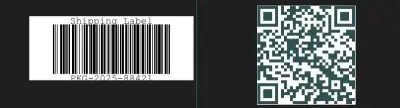
The example above shows a standard Code 128 barcode -- a common format in shipping and inventory applications. After scanning, the result screen confirms the decoded value along with confidence metadata:

IronBarcode returns the barcode type, decoded value, confidence score, and position data for each barcode detected in the uploaded image.
Modern ASP.NET applications often expose barcode scanning capabilities through REST APIs, allowing integration with mobile apps, single-page applications, or third-party services. This pattern supports client-side camera capture with server-side processing.
Before writing the controller, plan the security layer. Barcode data can contain arbitrary content, so always validate inputs. Follow the IronBarcode security guidelines for complete protection:
[ApiController]
[Route("api/[controller]")]
public class BarcodeController : ControllerBase
{
    private readonly ILogger<BarcodeController> _logger;
    private readonly IMemoryCache _cache;

    public BarcodeController(ILogger<BarcodeController> logger, IMemoryCache cache)
    {
        _logger = logger;
        _cache = cache;
    }

    [HttpPost("scan")]
    [ProducesResponseType(typeof(BarcodeResponse), 200)]
    [ProducesResponseType(typeof(ErrorResponse), 400)]
    public async Task<IActionResult> ScanBarcode([FromBody] BarcodeRequest request)
    {
        try
        {
            if (string.IsNullOrEmpty(request.ImageBase64))
                return BadRequest(new ErrorResponse { Error = "Image data is required" });

            var cacheKey = $"barcode_{request.ImageBase64.GetHashCode()}";
            if (_cache.TryGetValue(cacheKey, out BarcodeResponse cachedResult))
                return Ok(cachedResult);

            byte[] imageBytes = Convert.FromBase64String(request.ImageBase64);

            if (imageBytes.Length > 10 * 1024 * 1024)
                return BadRequest(new ErrorResponse { Error = "Image size exceeds 10MB limit" });

            var options = new BarcodeReaderOptions
            {
                Speed = ReadingSpeed.Faster,
                ExpectMultipleBarcodes = request.ExpectMultiple ?? false,
                UseConfidenceThreshold = true,
                ConfidenceThreshold = 0.8
            };

            var results = await Task.Run(() => BarcodeReader.Read(imageBytes, options));

            var response = new BarcodeResponse
            {
                Success = true,
                Barcodes = results.Select(r => new BarcodeData
                {
                    Type = r.BarcodeType.ToString(),
                    Value = r.Text,
                    Confidence = r.Confidence,
                    Position = new BarcodePosition
                    {
                        X = r.Points.Select(p => p.X).Min(),
                        Y = r.Points.Select(p => p.Y).Min(),
                        Width = r.Width,
                        Height = r.Height
                    }
                }).ToList()
            };

            _cache.Set(cacheKey, response, TimeSpan.FromMinutes(5));
            return Ok(response);
        }
        catch (FormatException)
        {
            return BadRequest(new ErrorResponse { Error = "Invalid base64 image data" });
        }
        catch (Exception ex)
        {
            _logger.LogError(ex, "Error processing barcode scan");
            return StatusCode(500, new ErrorResponse { Error = "Internal server error" });
        }
    }
}

public record BarcodeRequest(string ImageBase64, bool? ExpectMultiple);

public record BarcodeResponse
{
    public bool Success { get; init; }
    public List<BarcodeData> Barcodes { get; init; } = new();
}

public record BarcodeData
{
    public string Type { get; init; }
    public string Value { get; init; }
    public double Confidence { get; init; }
    public BarcodePosition Position { get; init; }
}

public record BarcodePosition(int X, int Y, int Width, int Height);

public record ErrorResponse
{
    public bool Success => false;
    public string Error { get; init; }
}
[ApiController]
[Route("api/[controller]")]
public class BarcodeController : ControllerBase
{
private readonly ILogger<BarcodeController> _logger;
private readonly IMemoryCache _cache;
public BarcodeController(ILogger<BarcodeController> logger, IMemoryCache cache)
{
_logger = logger;
_cache = cache;
}
[HttpPost("scan")]
[ProducesResponseType(typeof(BarcodeResponse), 200)]
[ProducesResponseType(typeof(ErrorResponse), 400)]
public async Task<IActionResult> ScanBarcode([FromBody] BarcodeRequest request)
{
try
{
if (string.IsNullOrEmpty(request.ImageBase64))
return BadRequest(new ErrorResponse { Error = "Image data is required" });
var cacheKey = $"barcode_{request.ImageBase64.GetHashCode()}";
if (_cache.TryGetValue(cacheKey, out BarcodeResponse cachedResult))
return Ok(cachedResult);
byte[] imageBytes = Convert.FromBase64String(request.ImageBase64);
if (imageBytes.Length > 10 * 1024 * 1024)
return BadRequest(new ErrorResponse { Error = "Image size exceeds 10MB limit" });
var options = new BarcodeReaderOptions
{
Speed = ReadingSpeed.Faster,
ExpectMultipleBarcodes = request.ExpectMultiple ?? false,
UseConfidenceThreshold = true,
ConfidenceThreshold = 0.8
};
var results = await Task.Run(() => BarcodeReader.Read(imageBytes, options));
var response = new BarcodeResponse
{
Success = true,
Barcodes = results.Select(r => new BarcodeData
{
Type = r.BarcodeType.ToString(),
Value = r.Text,
Confidence = r.Confidence,
Position = new BarcodePosition
{
X = r.Points.Select(p => p.X).Min(),
Y = r.Points.Select(p => p.Y).Min(),
Width = r.Width,
Height = r.Height
}
}).ToList()
};
_cache.Set(cacheKey, response, TimeSpan.FromMinutes(5));
return Ok(response);
}
catch (FormatException)
{
return BadRequest(new ErrorResponse { Error = "Invalid base64 image data" });
}
catch (Exception ex)
{
_logger.LogError(ex, "Error processing barcode scan");
return StatusCode(500, new ErrorResponse { Error = "Internal server error" });
}
}
}
public record BarcodeRequest(string ImageBase64, bool? ExpectMultiple);
public record BarcodeResponse
{
public bool Success { get; init; }
public List<BarcodeData> Barcodes { get; init; } = new();
}
public record BarcodeData
{
public string Type { get; init; }
public string Value { get; init; }
public double Confidence { get; init; }
public BarcodePosition Position { get; init; }
}
public record BarcodePosition(int X, int Y, int Width, int Height);
public record ErrorResponse
{
public bool Success => false;
public string Error { get; init; }
}Imports System
Imports Microsoft.AspNetCore.Mvc
Imports Microsoft.Extensions.Logging
Imports Microsoft.Extensions.Caching.Memory
Imports System.Threading.Tasks
<ApiController>
<Route("api/[controller]")>
Public Class BarcodeController
Inherits ControllerBase
Private ReadOnly _logger As ILogger(Of BarcodeController)
Private ReadOnly _cache As IMemoryCache
Public Sub New(logger As ILogger(Of BarcodeController), cache As IMemoryCache)
_logger = logger
_cache = cache
End Sub
<HttpPost("scan")>
<ProducesResponseType(GetType(BarcodeResponse), 200)>
<ProducesResponseType(GetType(ErrorResponse), 400)>
Public Async Function ScanBarcode(<FromBody> request As BarcodeRequest) As Task(Of IActionResult)
Try
If String.IsNullOrEmpty(request.ImageBase64) Then
Return BadRequest(New ErrorResponse With {.Error = "Image data is required"})
End If
Dim cacheKey = $"barcode_{request.ImageBase64.GetHashCode()}"
Dim cachedResult As BarcodeResponse = Nothing
If _cache.TryGetValue(cacheKey, cachedResult) Then
Return Ok(cachedResult)
End If
Dim imageBytes As Byte() = Convert.FromBase64String(request.ImageBase64)
If imageBytes.Length > 10 * 1024 * 1024 Then
Return BadRequest(New ErrorResponse With {.Error = "Image size exceeds 10MB limit"})
End If
Dim options = New BarcodeReaderOptions With {
.Speed = ReadingSpeed.Faster,
.ExpectMultipleBarcodes = request.ExpectMultiple.GetValueOrDefault(False),
.UseConfidenceThreshold = True,
.ConfidenceThreshold = 0.8
}
Dim results = Await Task.Run(Function() BarcodeReader.Read(imageBytes, options))
Dim response = New BarcodeResponse With {
.Success = True,
.Barcodes = results.Select(Function(r) New BarcodeData With {
.Type = r.BarcodeType.ToString(),
.Value = r.Text,
.Confidence = r.Confidence,
.Position = New BarcodePosition With {
.X = r.Points.Select(Function(p) p.X).Min(),
.Y = r.Points.Select(Function(p) p.Y).Min(),
.Width = r.Width,
.Height = r.Height
}
}).ToList()
}
_cache.Set(cacheKey, response, TimeSpan.FromMinutes(5))
Return Ok(response)
Catch ex As FormatException
Return BadRequest(New ErrorResponse With {.Error = "Invalid base64 image data"})
Catch ex As Exception
_logger.LogError(ex, "Error processing barcode scan")
Return StatusCode(500, New ErrorResponse With {.Error = "Internal server error"})
End Try
End Function
End Class
Public Class BarcodeRequest
Public Property ImageBase64 As String
Public Property ExpectMultiple As Boolean?
End Class
Public Class BarcodeResponse
Public Property Success As Boolean
Public Property Barcodes As List(Of BarcodeData) = New List(Of BarcodeData)()
End Class
Public Class BarcodeData
Public Property Type As String
Public Property Value As String
Public Property Confidence As Double
Public Property Position As BarcodePosition
End Class
Public Class BarcodePosition
Public Property X As Integer
Public Property Y As Integer
Public Property Width As Integer
Public Property Height As Integer
End Class
Public Class ErrorResponse
Public ReadOnly Property Success As Boolean
Get
Return False
End Get
End Property
Public Property Error As String
End ClassImports System
Imports Microsoft.AspNetCore.Mvc
Imports Microsoft.Extensions.Logging
Imports Microsoft.Extensions.Caching.Memory
Imports System.Threading.Tasks
<ApiController>
<Route("api/[controller]")>
Public Class BarcodeController
Inherits ControllerBase
Private ReadOnly _logger As ILogger(Of BarcodeController)
Private ReadOnly _cache As IMemoryCache
Public Sub New(logger As ILogger(Of BarcodeController), cache As IMemoryCache)
_logger = logger
_cache = cache
End Sub
<HttpPost("scan")>
<ProducesResponseType(GetType(BarcodeResponse), 200)>
<ProducesResponseType(GetType(ErrorResponse), 400)>
Public Async Function ScanBarcode(<FromBody> request As BarcodeRequest) As Task(Of IActionResult)
Try
If String.IsNullOrEmpty(request.ImageBase64) Then
Return BadRequest(New ErrorResponse With {.Error = "Image data is required"})
End If
Dim cacheKey = $"barcode_{request.ImageBase64.GetHashCode()}"
Dim cachedResult As BarcodeResponse = Nothing
If _cache.TryGetValue(cacheKey, cachedResult) Then
Return Ok(cachedResult)
End If
Dim imageBytes As Byte() = Convert.FromBase64String(request.ImageBase64)
If imageBytes.Length > 10 * 1024 * 1024 Then
Return BadRequest(New ErrorResponse With {.Error = "Image size exceeds 10MB limit"})
End If
Dim options = New BarcodeReaderOptions With {
.Speed = ReadingSpeed.Faster,
.ExpectMultipleBarcodes = request.ExpectMultiple.GetValueOrDefault(False),
.UseConfidenceThreshold = True,
.ConfidenceThreshold = 0.8
}
Dim results = Await Task.Run(Function() BarcodeReader.Read(imageBytes, options))
Dim response = New BarcodeResponse With {
.Success = True,
.Barcodes = results.Select(Function(r) New BarcodeData With {
.Type = r.BarcodeType.ToString(),
.Value = r.Text,
.Confidence = r.Confidence,
.Position = New BarcodePosition With {
.X = r.Points.Select(Function(p) p.X).Min(),
.Y = r.Points.Select(Function(p) p.Y).Min(),
.Width = r.Width,
.Height = r.Height
}
}).ToList()
}
_cache.Set(cacheKey, response, TimeSpan.FromMinutes(5))
Return Ok(response)
Catch ex As FormatException
Return BadRequest(New ErrorResponse With {.Error = "Invalid base64 image data"})
Catch ex As Exception
_logger.LogError(ex, "Error processing barcode scan")
Return StatusCode(500, New ErrorResponse With {.Error = "Internal server error"})
End Try
End Function
End Class
Public Class BarcodeRequest
Public Property ImageBase64 As String
Public Property ExpectMultiple As Boolean?
End Class
Public Class BarcodeResponse
Public Property Success As Boolean
Public Property Barcodes As List(Of BarcodeData) = New List(Of BarcodeData)()
End Class
Public Class BarcodeData
Public Property Type As String
Public Property Value As String
Public Property Confidence As Double
Public Property Position As BarcodePosition
End Class
Public Class BarcodePosition
Public Property X As Integer
Public Property Y As Integer
Public Property Width As Integer
Public Property Height As Integer
End Class
Public Class ErrorResponse
Public ReadOnly Property Success As Boolean
Get
Return False
End Get
End Property
Public Property Error As String
End ClassThis endpoint accepts base64-encoded images -- the standard format for transmitting images over HTTP. The response includes barcode type, decoded value, confidence score, and position. For high-volume scenarios, review batch barcode processing and reading speed optimization options.

IronBarcode processes multiple barcodes in a single image in one call, returning an array of results. Each entry in the response includes position data so the client application can highlight detected barcodes on screen.

The structured JSON response gives client applications everything needed to process and display barcode results without additional lookups.
Real-world barcode scanning frequently involves imperfect images -- photos taken at angles, poor lighting, or partially damaged barcodes. IronBarcode addresses these scenarios through its advanced image processing capabilities and machine learning confidence thresholds.
Before applying corrections, identify which category your problem falls into. Most scanning failures in production fall into one of five groups: image quality issues (blur, noise, low resolution), geometric issues (rotation, skew, perspective distortion), damage issues (torn labels, smudged ink), environment issues (glare, shadows, inconsistent lighting), and false positive detection where the reader finds a barcode that does not exist.
Knowing the category helps you select the right filter combination and reading speed without running unnecessary processing on every image. For most web application scenarios, starting with ReadingSpeed.Balanced and AutoRotate = true covers the majority of cases. Only escalate to ExtremeDetail when the first pass returns no results.
The multi-pass approach in the code below implements this tiered strategy. The fast first pass handles typical images quickly, keeping median latency low for the common case. The detailed second pass is only triggered when the first pass fails, ensuring that you pay the extra processing cost only when it is actually needed. This pattern keeps your ASP.NET endpoint responsive under normal load while still handling difficult edge cases reliably.
| Problem | Symptom | Solution |
|---|---|---|
| Blurry image | Low confidence scores, missed reads | Apply SharpenFilter, increase ExtremeDetail speed |
| Rotated barcode | Barcode not detected at all | Enable AutoRotate = true |
| Damaged barcode | Partial reads, incorrect values | Enable error correction, use RemoveFalsePositive |
| Poor contrast | Inconsistent detection | Apply ContrastFilter and BrightnessFilter |
| Performance too slow | High latency on uploads | Use ReadingSpeed.Faster, enable multithreading |
For challenging images, a tiered processing approach yields the best results without sacrificing performance on easy images:
public class AdvancedBarcodeProcessor
{
    private readonly ILogger<AdvancedBarcodeProcessor> _logger;

    public async Task<List<ScannedBarcode>> ProcessChallengingImage(Stream imageStream)
    {
        // First pass -- fast, minimal processing
        var fastOptions = new BarcodeReaderOptions
        {
            Speed = ReadingSpeed.Balanced,
            ExpectMultipleBarcodes = true,
            AutoRotate = false,
            UseConfidenceThreshold = true,
            ConfidenceThreshold = 0.85
        };

        var results = BarcodeReader.Read(imageStream, fastOptions);

        if (!results.Any())
        {
            // Second pass -- aggressive image correction
            imageStream.Position = 0;

            var detailedOptions = new BarcodeReaderOptions
            {
                Speed = ReadingSpeed.ExtremeDetail,
                ExpectMultipleBarcodes = true,
                AutoRotate = true,
                RemoveFalsePositive = true,
                UseConfidenceThreshold = true,
                ConfidenceThreshold = 0.6,
                Multithreaded = true,
                ExpectBarcodeTypes = BarcodeEncoding.All,
                ImageFilters = new ImageFilterCollection
                {
                    new SharpenFilter(2.5f),
                    new ContrastFilter(2.0f),
                    new BrightnessFilter(1.2f),
                    new InvertFilter()
                }
            };

            results = BarcodeReader.Read(imageStream, detailedOptions);
            _logger.LogInformation("Second pass detected {Count} barcodes", results.Count());
        }

        return results.Select(r => new ScannedBarcode
        {
            Value = r.Text,
            BarcodeType = r.BarcodeType.ToString(),
            Confidence = r.Confidence,
            RotationAngle = r.RotationAngle,
            PageNumber = r.PageNumber
        }).ToList();
    }
}

public record ScannedBarcode
{
    public string Value { get; init; }
    public string BarcodeType { get; init; }
    public double Confidence { get; init; }
    public float RotationAngle { get; init; }
    public int PageNumber { get; init; }
}
public class AdvancedBarcodeProcessor
{
private readonly ILogger<AdvancedBarcodeProcessor> _logger;
public async Task<List<ScannedBarcode>> ProcessChallengingImage(Stream imageStream)
{
// First pass -- fast, minimal processing
var fastOptions = new BarcodeReaderOptions
{
Speed = ReadingSpeed.Balanced,
ExpectMultipleBarcodes = true,
AutoRotate = false,
UseConfidenceThreshold = true,
ConfidenceThreshold = 0.85
};
var results = BarcodeReader.Read(imageStream, fastOptions);
if (!results.Any())
{
// Second pass -- aggressive image correction
imageStream.Position = 0;
var detailedOptions = new BarcodeReaderOptions
{
Speed = ReadingSpeed.ExtremeDetail,
ExpectMultipleBarcodes = true,
AutoRotate = true,
RemoveFalsePositive = true,
UseConfidenceThreshold = true,
ConfidenceThreshold = 0.6,
Multithreaded = true,
ExpectBarcodeTypes = BarcodeEncoding.All,
ImageFilters = new ImageFilterCollection
{
new SharpenFilter(2.5f),
new ContrastFilter(2.0f),
new BrightnessFilter(1.2f),
new InvertFilter()
}
};
results = BarcodeReader.Read(imageStream, detailedOptions);
_logger.LogInformation("Second pass detected {Count} barcodes", results.Count());
}
return results.Select(r => new ScannedBarcode
{
Value = r.Text,
BarcodeType = r.BarcodeType.ToString(),
Confidence = r.Confidence,
RotationAngle = r.RotationAngle,
PageNumber = r.PageNumber
}).ToList();
}
}
public record ScannedBarcode
{
public string Value { get; init; }
public string BarcodeType { get; init; }
public double Confidence { get; init; }
public float RotationAngle { get; init; }
public int PageNumber { get; init; }
}Imports System.IO
Imports System.Collections.Generic
Imports System.Linq
Imports System.Threading.Tasks
Public Class AdvancedBarcodeProcessor
Private ReadOnly _logger As ILogger(Of AdvancedBarcodeProcessor)
Public Async Function ProcessChallengingImage(imageStream As Stream) As Task(Of List(Of ScannedBarcode))
' First pass -- fast, minimal processing
Dim fastOptions As New BarcodeReaderOptions With {
.Speed = ReadingSpeed.Balanced,
.ExpectMultipleBarcodes = True,
.AutoRotate = False,
.UseConfidenceThreshold = True,
.ConfidenceThreshold = 0.85
}
Dim results = BarcodeReader.Read(imageStream, fastOptions)
If Not results.Any() Then
' Second pass -- aggressive image correction
imageStream.Position = 0
Dim detailedOptions As New BarcodeReaderOptions With {
.Speed = ReadingSpeed.ExtremeDetail,
.ExpectMultipleBarcodes = True,
.AutoRotate = True,
.RemoveFalsePositive = True,
.UseConfidenceThreshold = True,
.ConfidenceThreshold = 0.6,
.Multithreaded = True,
.ExpectBarcodeTypes = BarcodeEncoding.All,
.ImageFilters = New ImageFilterCollection From {
New SharpenFilter(2.5F),
New ContrastFilter(2.0F),
New BrightnessFilter(1.2F),
New InvertFilter()
}
}
results = BarcodeReader.Read(imageStream, detailedOptions)
_logger.LogInformation("Second pass detected {Count} barcodes", results.Count())
End If
Return results.Select(Function(r) New ScannedBarcode With {
.Value = r.Text,
.BarcodeType = r.BarcodeType.ToString(),
.Confidence = r.Confidence,
.RotationAngle = r.RotationAngle,
.PageNumber = r.PageNumber
}).ToList()
End Function
End Class
Public Class ScannedBarcode
Public Property Value As String
Public Property BarcodeType As String
Public Property Confidence As Double
Public Property RotationAngle As Single
Public Property PageNumber As Integer
End ClassImports System.IO
Imports System.Collections.Generic
Imports System.Linq
Imports System.Threading.Tasks
Public Class AdvancedBarcodeProcessor
Private ReadOnly _logger As ILogger(Of AdvancedBarcodeProcessor)
Public Async Function ProcessChallengingImage(imageStream As Stream) As Task(Of List(Of ScannedBarcode))
' First pass -- fast, minimal processing
Dim fastOptions As New BarcodeReaderOptions With {
.Speed = ReadingSpeed.Balanced,
.ExpectMultipleBarcodes = True,
.AutoRotate = False,
.UseConfidenceThreshold = True,
.ConfidenceThreshold = 0.85
}
Dim results = BarcodeReader.Read(imageStream, fastOptions)
If Not results.Any() Then
' Second pass -- aggressive image correction
imageStream.Position = 0
Dim detailedOptions As New BarcodeReaderOptions With {
.Speed = ReadingSpeed.ExtremeDetail,
.ExpectMultipleBarcodes = True,
.AutoRotate = True,
.RemoveFalsePositive = True,
.UseConfidenceThreshold = True,
.ConfidenceThreshold = 0.6,
.Multithreaded = True,
.ExpectBarcodeTypes = BarcodeEncoding.All,
.ImageFilters = New ImageFilterCollection From {
New SharpenFilter(2.5F),
New ContrastFilter(2.0F),
New BrightnessFilter(1.2F),
New InvertFilter()
}
}
results = BarcodeReader.Read(imageStream, detailedOptions)
_logger.LogInformation("Second pass detected {Count} barcodes", results.Count())
End If
Return results.Select(Function(r) New ScannedBarcode With {
.Value = r.Text,
.BarcodeType = r.BarcodeType.ToString(),
.Confidence = r.Confidence,
.RotationAngle = r.RotationAngle,
.PageNumber = r.PageNumber
}).ToList()
End Function
End Class
Public Class ScannedBarcode
Public Property Value As String
Public Property BarcodeType As String
Public Property Confidence As Double
Public Property RotationAngle As Single
Public Property PageNumber As Integer
End ClassThe BarcodeReaderOptions class provides fine-grained control over every aspect of scanning. Setting AutoRotate handles images captured at any angle, while image filters improve clarity for blurry or low-contrast barcodes. For detailed configuration, see the barcode reader settings example and PDF-specific reader settings.
When working with PDFs, consider stamping barcodes onto PDFs or creating barcodes as PDF documents. For high-volume processing, enabling multithreading via the async and multithread capabilities significantly improves throughput.
Supporting diverse browsers requires progressive enhancement. Modern browsers on Android and desktop Chrome, Edge, and Firefox support the MediaDevices.getUserMedia() API for camera access. Safari on iOS supports it from version 11 onward. Older enterprise browsers, IE11 compatibility modes, and certain locked-down corporate environments may not support camera access at all, so your fallback file-upload path must always remain functional.
The recommended approach is to use feature detection at runtime rather than user-agent sniffing, then show or hide the camera interface accordingly. Start with a camera-capable interface and fall back gracefully to file upload:
@* Razor view with progressive enhancement *@
<div class="barcode-scanner-container">
    @* Camera capture -- hidden until JavaScript confirms support *@
    <div id="cameraSection" class="d-none">
        <video id="videoPreview" class="w-100" autoplay></video>
        <button id="captureBtn" class="btn btn-primary mt-2">Capture and Scan</button>
    </div>

    @* File upload -- always available as fallback *@
    <div id="uploadSection">
        <form method="post" enctype="multipart/form-data"
              asp-action="ScanBarcode" asp-controller="Barcode">
            <div class="form-group">
                <label>Upload Barcode Image:</label>
                <input type="file" name="file" accept="image/*,.pdf"
                       class="form-control" required />
            </div>
            <button type="submit" class="btn btn-primary">Upload and Scan</button>
        </form>
    </div>
</div>
@* Razor view with progressive enhancement *@
<div class="barcode-scanner-container">
@* Camera capture -- hidden until JavaScript confirms support *@
<div id="cameraSection" class="d-none">
<video id="videoPreview" class="w-100" autoplay></video>
<button id="captureBtn" class="btn btn-primary mt-2">Capture and Scan</button>
</div>
@* File upload -- always available as fallback *@
<div id="uploadSection">
<form method="post" enctype="multipart/form-data"
asp-action="ScanBarcode" asp-controller="Barcode">
<div class="form-group">
<label>Upload Barcode Image:</label>
<input type="file" name="file" accept="image/*,.pdf"
class="form-control" required />
</div>
<button type="submit" class="btn btn-primary">Upload and Scan</button>
</form>
</div>
</div>@* Razor view with progressive enhancement *@
<div class="barcode-scanner-container">
@* Camera capture -- hidden until JavaScript confirms support *@
<div id="cameraSection" class="d-none">
<video id="videoPreview" class="w-100" autoplay></video>
<button id="captureBtn" class="btn btn-primary mt-2">Capture and Scan</button>
</div>
@* File upload -- always available as fallback *@
<div id="uploadSection">
<form method="post" enctype="multipart/form-data"
asp-action="ScanBarcode" asp-controller="Barcode">
<div class="form-group">
<label>Upload Barcode Image:</label>
<input type="file" name="file" accept="image/*,.pdf"
class="form-control" required />
</div>
<button type="submit" class="btn btn-primary">Upload and Scan</button>
</form>
</div>
</div>@* Razor view with progressive enhancement *@
<div class="barcode-scanner-container">
@* Camera capture -- hidden until JavaScript confirms support *@
<div id="cameraSection" class="d-none">
<video id="videoPreview" class="w-100" autoplay></video>
<button id="captureBtn" class="btn btn-primary mt-2">Capture and Scan</button>
</div>
@* File upload -- always available as fallback *@
<div id="uploadSection">
<form method="post" enctype="multipart/form-data"
asp-action="ScanBarcode" asp-controller="Barcode">
<div class="form-group">
<label>Upload Barcode Image:</label>
<input type="file" name="file" accept="image/*,.pdf"
class="form-control" required />
</div>
<button type="submit" class="btn btn-primary">Upload and Scan</button>
</form>
</div>
</div>The Blazor integration provides modern web application support with minimal configuration if you prefer a component-based approach. For deployment troubleshooting, consult the runtimes copy exception guide.
Barcode scanning in ASP.NET is straightforward with IronBarcode. You install one NuGet package, call BarcodeReader.Read(), and get reliable decoded results across 30+ formats -- including challenging real-world images that other libraries struggle with.
To continue building on this foundation, explore these resources:
Start with a free trial license to test IronBarcode in your ASP.NET application with no restrictions. The trial includes full access to all features including multi-format detection, image correction, and the REST API patterns shown in this guide -- so you can evaluate performance on your own images before committing to a production license. For .NET MAUI mobile apps that need on-device scanning, see the .NET MAUI barcode scanner tutorial which extends the same API to iOS and Android targets.

Curtis Chau holds a Bachelor’s degree in Computer Science (Carleton University) and specializes in front-end development with expertise in Node.js, TypeScript, JavaScript, and React. Passionate about crafting intuitive and aesthetically pleasing user interfaces, Curtis enjoys working with modern frameworks and creating well-structured, visually appealing manuals.


IronBarcode is a part of IRONSUITE
10 .NET API products for your office documents

When you need to read, write, and style Barcodes, fast.


